When something goes wrong with WhatsApp sending, the first place to look is your WABA status. It’s a single label that tells you, at a glance, whether Meta sees your account as healthy.
What WABA status means
A WABA (WhatsApp Business Account) is your official business account on Meta’s platform. Its status is a short label Meta attaches to it to show its current health and standing.
Think of it like a traffic light:
- Green — everything’s fine, message normally.
- Yellow — a review is underway; messaging may pause until it clears.
- Red — stopped; sending is blocked.
The status changes based on how you message, your quality rating (how customers react to your messages), and whether you follow the WhatsApp Business Messaging Policy.
Example: a travel agency’s WABA reads “Approved” all year. After one mass-message to a cold list triggers blocks, Meta steps in — the green light turns to a warning telling them to change course.
Where to read your status
You can see your WABA status in your provider’s hub and in Meta’s own tools. The status sits right next to your account name.
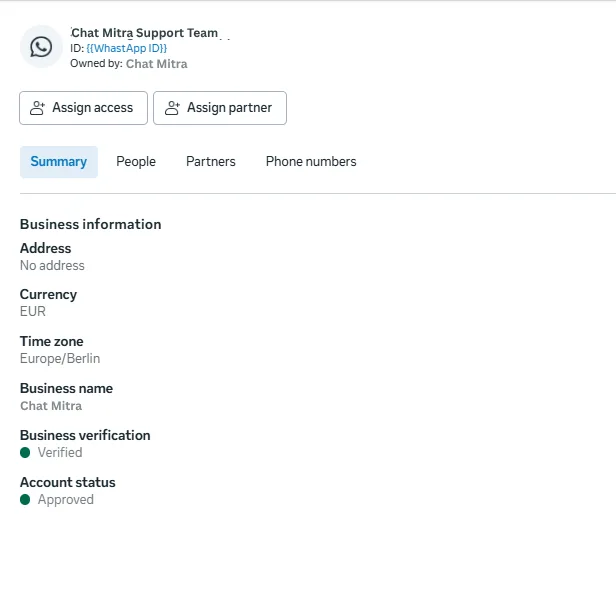
The status badge sits next to your WABA — a green circle for Approved is what you want to see.
The main WABA statuses
Here are the statuses you’re most likely to see:
| Status | What it means |
|---|---|
| Approved 🟢 | The account is approved for use and has no restrictions. Send within your normal limits. |
| Review in progress 🟡 | Currently under Meta’s review. Messaging isn’t possible until the review finishes and the status returns to Approved. |
| Not approved 🔴 | The account isn’t approved because it didn’t follow the policy guidelines. |
| Disabled 🔴 | The account is disabled for not meeting Meta’s policy guidelines and can no longer send. |
Example: a new clinic in Pune signs up and sees “Review in progress” for a day while Meta reviews the number. Once approved, it flips to “Approved” and the clinic starts sending appointment reminders.
How Meta enforces its policy
When you break the messaging policy, Meta doesn’t always jump straight to disabling you. It usually steps up in stages:
- A 1-day or 3-day block on messaging.
- A 5-day or 7-day block on both business-initiated messages and replies to customers.
- Permanent disablement if violations keep repeating.
So an early warning is a chance to fix things before the next, harsher step lands.
How you’ll hear about a policy warning
Meta won’t leave you guessing. A warning can reach you through several channels at once:
- Webhooks — via
account_updateevents your system receives. - Your provider’s hub UI.
- WhatsApp Manager UI.
- Meta Business Suite Notifications Center.
- Email.

WhatsApp Manager lists each violation so you can see exactly what tripped the flag.
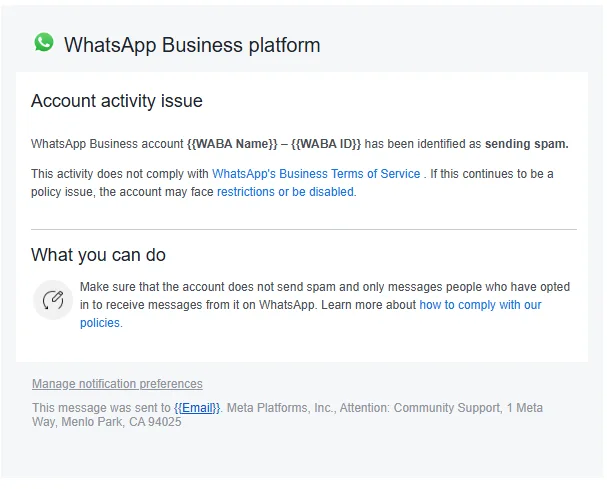
Meta also emails you — here a spam violation notice — so check the inbox tied to your business account.
How to appeal a violation
If you believe a decision was a mistake, you can ask Meta to review it. The appeal happens in Business Support Home, where you pick the affected account, choose the violation, request a review, and explain your side. (Our Business Support Home guide walks through every click.)
How to prevent future violations
The cleanest way to keep a green status is to never trip a flag in the first place:
- Message only people who opted in to hear from you.
- Keep your quality rating high by sending useful, expected messages.
- Avoid sending to cold or bought lists.
- Slow down risky broadcasts and watch how customers react.
- Follow the WhatsApp Business Messaging Policy for the content you send.
Example: a D2C brand spots a warning, pauses all broadcasts, and for a week only replies to customers who message first. Quality climbs back up, and within days the status returns to “Approved”.
