AI Agent Security Checklist: Keys, Data, Prompts, Tools and Approvals in One Review

Quick Summary
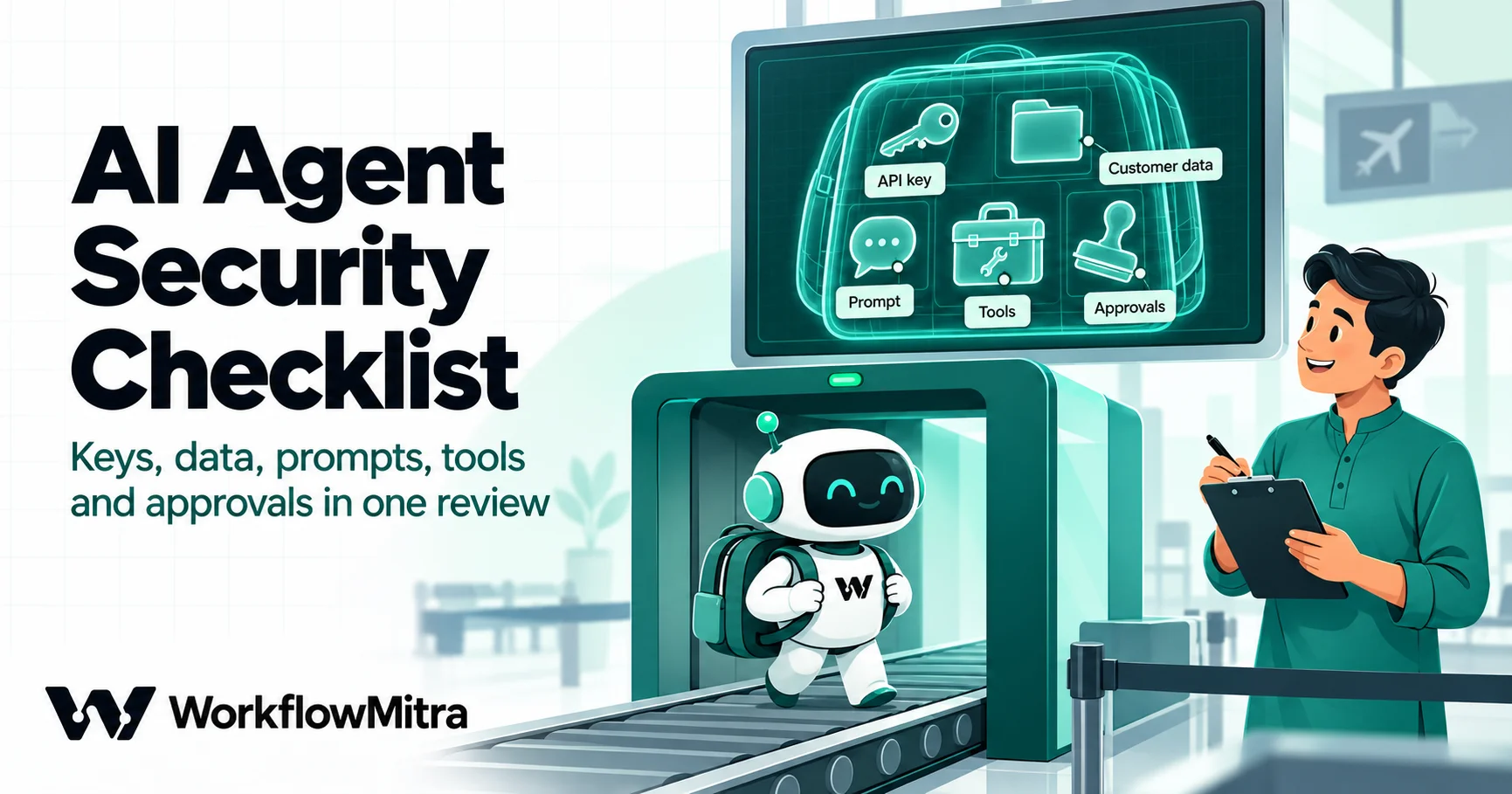
An AI agent security checklist is a short, repeatable review you run on every AI workflow before it goes live and again whenever it changes. It asks eight questions: whose key pays and who can see it, what data reaches the AI provider and where copies are kept, which inputs come from strangers, whether the AI's output is checked before it reaches anyone, which tools the AI can use and what they can change, which actions wait for a person, how the workflow can be started, and how you'll know when something goes wrong. Size the review to the risk: an AI that drafts internal notes needs a few checks, while an AI that replies to customers or changes records needs all of them. In WorkflowMitra, powered by ChatMitra, AI runs on your own provider key, saved keys sit in an encrypted credential vault, the AI Agent is capped at five tool calls per message, and Wait for approval rejects by default when nobody decides. There's no two-factor login, per-workflow permission or customer-visible audit log yet, so this checklist covers those gaps with habits.
A six-person digital agency in Pune has built its first AI agent. It answers enquiries that arrive through the website, looks up a client’s project status in a sheet and drafts a reply. The founder asks the question every small team asks just before switching an agent on: “Is this safe?” Nobody can answer it, because “safe” hasn’t been broken down into anything you can check.
This guide breaks it down. It’s a single review, 40 checks in eight sections, that you can run on any AI workflow in under an hour. Each section links to a deeper guide when you need the detail. The checks are written for small teams using a no-code tool, not for a security department with a budget. The product behaviour described for WorkflowMitra, powered by ChatMitra, was checked in its code on 22 October 2026, and the provider and framework references were read the same day.
What is an AI agent security checklist?
An AI agent security checklist is a short, repeatable review of everything an AI workflow can read, spend, say and change, run before it goes live and again whenever it changes. It turns "is this safe?" into yes-or-no questions about eight things: keys, data, untrusted inputs, output checks, tools, approvals, triggers and monitoring. Its aim isn't to make the AI impossible to fool. That can't be done. The aim is to make sure that when the AI is fooled, wrong or stuck, the damage is small, visible and easy to undo.
The same idea runs through the OWASP Top 10 for LLM Applications 2025, the most widely used list of risks for software built on large language models. Its entries include prompt injection, sensitive information disclosure, improper output handling, excessive agency and unbounded consumption. Most of them are reduced not by a smarter model but by limiting what the model can reach. OWASP added a separate Top 10 for Agentic Applications on 9 December 2025 for systems where the AI chooses actions. This checklist translates both into the settings a small team actually controls.
Size the review before you start
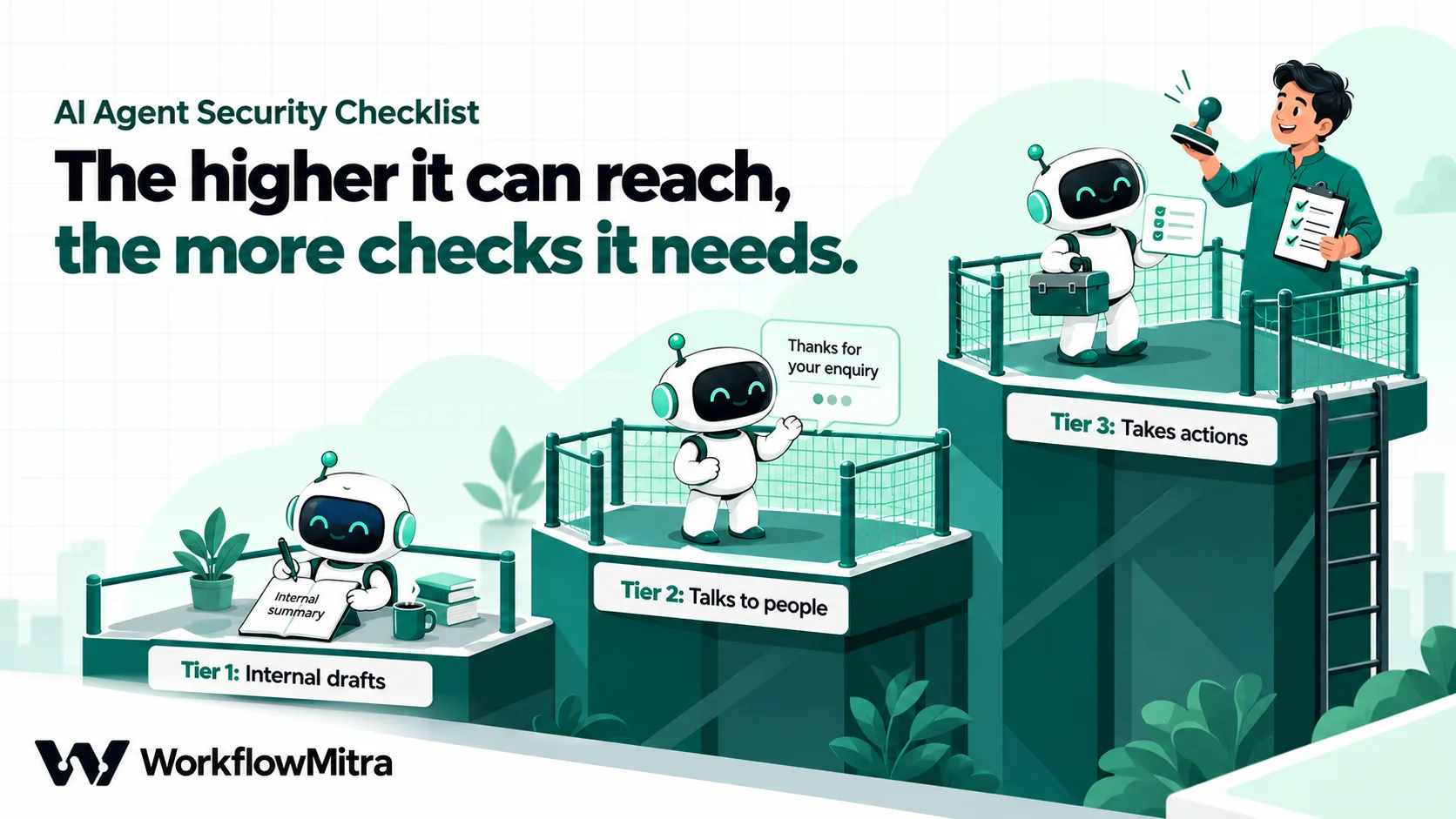
Not every AI workflow needs all 40 checks. An AI step that summarises yesterday’s sales figures for your own team can do far less harm than an agent that replies to strangers and can update records. Put each workflow into one of three tiers first.
| Tier | What the AI does | Example | What can go wrong | Sections to run |
|---|---|---|---|---|
| 1. Internal drafts | Reads your own data, output goes only to your team | Daily summary of new leads to a Slack channel | Data reaches the provider; wrong summary; cost creep | Keys, Data, Monitoring |
| 2. Talks to people | Reads outside text or replies to customers | Draft reply to a contact-form enquiry, sent after review | All of tier 1, plus prompt injection and a bad reply reaching a customer | Tier 1 + Prompts, Output, Triggers |
| 3. Takes actions | Calls tools, changes records, sends without review | Agent that looks up orders and books callbacks | All of tier 2, plus wrong or unauthorised changes | All eight sections |
A workflow moves up a tier the moment you add a tool, turn off a review step or connect it to a public form. When in doubt, take the higher tier. The extra checks take minutes, and the tier decides how much you can trust the workflow when nobody is watching.
Four questions that frame every review
Before the checklist, write four short answers at the top of the review sheet:
- What does it read? List every input: trigger data, sheet rows, CRM records, emails, chat messages. Mark which ones strangers can write.
- What can it do? List every step after the AI that sends, writes, deletes or pays.
- Whose data passes through? Customers, employees, clients’ customers. Note any phone numbers, PAN, Aadhaar, bank details or health information.
- Which key pays, and who owns it? The provider, the account, and the person who can revoke it.
If anyone hesitates on one of these, stop there. The answers come first, because the checks that follow depend on them.
How to run the review
The review works best as a 30 to 45 minute conversation between two people: the person who built the workflow and someone who didn’t. The builder knows what it should do. The second person asks what it could do, which is a different question.
Open the workflow in the editor, open the review sheet next to it and go through the sections in order. Write each answer as yes, no or “not applicable”, and write a one-line fix next to every no. A workflow goes live when every tier-appropriate check is yes or has a dated fix with an owner. Keep the sheet; the workflow governance guide shows how to keep an automation register where it belongs.
Run the review again, shorter, whenever one of these changes: the prompt, the model or provider, a tool, a new data source, the trigger, or a review step being removed. Review every live AI workflow once a quarter even if nothing changed, because the provider terms and prices change underneath you.
The checklist
1. Keys and accounts
The API key is your bill and your identity at the provider. Whoever holds it can spend your money and, depending on the provider, read stored files and logs.
- The key belongs to a business account, not a person’s personal login. When the person leaves, the key, the billing and the usage history should stay. Our guide to getting AI API keys covers who should own the account.
- Each client or high-risk workflow has its own key in its own project or workspace. One leaked or runaway key then affects one client, not all of them.
- The key is saved once as a credential and selected in the step. WorkflowMitra stores credentials in an encrypted vault (AES-256-GCM), and only Admins and Owners can create, reveal or delete them. Never paste a key into a prompt, a sheet or a chat message.
- No secret is typed into an HTTP Request step’s authentication fields. That authentication is stored inside the workflow definition, is visible to anyone who can open the workflow, including Viewers, and is included when someone uses Export as cURL or clones the workflow. Where an app has a saved connection, use it.
- A provider spend limit and a spend alert are set. WorkflowMitra counts steps, not tokens, so the token bill is protected only by the provider’s own controls. The AI spend limits guide shows where each provider puts them.
- Every member has a unique, long password and the lowest role that works. WorkflowMitra had no two-factor login or single sign-on on 22 October 2026; sign-in is protected by rate limits, account locking after failed attempts and a captcha. A password manager and quick removal of leavers matter more as a result. The four fixed roles are Owner, Admin, Member and Viewer.
2. Data
Every AI call sends data to a company outside your business, and every run leaves copies behind. Know both.
- You’ve listed the exact fields each AI step receives. Insert the field the task needs, not the whole record. An AI that classifies an enquiry needs the message, not the customer’s address, order history and phone number.
- Identifiers are masked where the task doesn’t need them. Phone numbers, emails, PAN, Aadhaar, UPI IDs and account numbers can be replaced with placeholders before the AI step and restored afterwards. Our guide to redacting PII before an LLM has a tested script.
- The key is on terms you’ve read. On 22 October 2026 none of OpenAI, Anthropic and Groq trained on API data by default, but Gemini’s free quota allows Google to use prompts and responses, with human review. A key on a project without billing is on the free terms. The AI API data and training guide compares retention as well.
- You know who can read run history. WorkflowMitra keeps each step’s input and output in run history for 7 to 180 days depending on plan, and every workspace member, including Viewers, can open it. Members can’t delete a single run; history expires on its own. If a workflow handles sensitive data, keep the workspace small or move that workflow to a separate workspace with fewer members.
- Agent memory is scoped to one person. The AI Agent’s memory is stored per workflow and per conversation for between one minute and seven days. When the incoming message carries no sender or conversation ID, every conversation falls back to the same shared ID, so one visitor’s details can appear in another’s reply. Chat triggers pass the sender; for a website or webhook source, send a
conversationIdfield with each request. The AI agent memory guide explains the setup. - You know what you’d do with a data breach. India’s Digital Personal Data Protection Rules, 2025 require you to tell affected people and the Data Protection Board without delay, with a detailed report to the Board within 72 hours, once those rules apply. Our DPDP automation guide covers the timelines.
3. Prompts and untrusted inputs
The model can’t tell your instructions from instructions hidden in the text it reads. OWASP lists this as the first risk, LLM01 prompt injection.
- You’ve marked every input that strangers can write. Forms, emails, chat messages, reviews, support tickets, and records that customers created. Those are where injected instructions arrive.
- Your instructions sit in the system prompt and the stranger’s text is fenced off as data. Tell the model the text between markers is a message to classify or answer, never instructions to follow.
- Inputs are checked before the AI sees them. Cap the length, reject empty or obviously broken messages, and strip what the task doesn’t need. The AI Agent already truncates a message to 4,000 characters, but a shorter limit set by you is cheaper and safer.
- Nothing secret is in the prompt. OWASP lists system prompt leakage as LLM07: assume anything in the prompt can be repeated to a customer. The Agent’s “Facts it can state” field is meant for facts it may repeat, such as hours and a support number, never for discount rules, internal notes or credentials.
- The AI answers from a fixed list wherever possible. “Reply with one of: sales, support, billing, spam” is far harder to hijack than “decide what to do”.
- You’ve tested it with hostile messages. Send a message that asks the AI to ignore its instructions, reveal its prompt, mark itself urgent or email someone. Check what it did. The prompt injection prevention guide includes attack messages and a contact-form build that survived them.
4. Output checks
OWASP’s LLM05, improper output handling, is about trusting what the model produced. In a workflow, the AI’s output is untrusted until a check says otherwise.
- An empty or unreadable reply takes the safe route. In WorkflowMitra the AI step’s
jsonfield is filled only when the whole reply parses as JSON, so a reply wrapped in a code fence leaves it empty. Check it before using it. - Labels are checked against your list. If the AI was asked for one of four categories, an IF or Switch should send anything else to review. IF and Switch steps cost no credits.
- Replies are checked for things you’d never send. Links, phone numbers, prices, promises, discounts and words such as “refund” or “guarantee” can route a draft to a person.
- Facts are checked against your own records. If the AI quotes an order status, a price or a date, compare it with the record you looked up.
- Every check fails closed. Some comparisons pass on blank values: in WorkflowMitra, a text “Does not contain” rule passes on a blank field, and a number “Less than” rule reads blank as 0. Put an “Is not empty” check first so a missing value goes to review, not to a customer. The AI guardrails guide walks through all seven checks.
5. Tools and actions
Excessive agency, OWASP’s LLM06, is an AI with more reach than its job needs. For an agent, reach means its tools.
- Every tool is listed with what it reads, writes and costs. In WorkflowMitra, any step attached under an AI Agent can be a tool. Write down each one and the worst thing it could do with the wrong input.
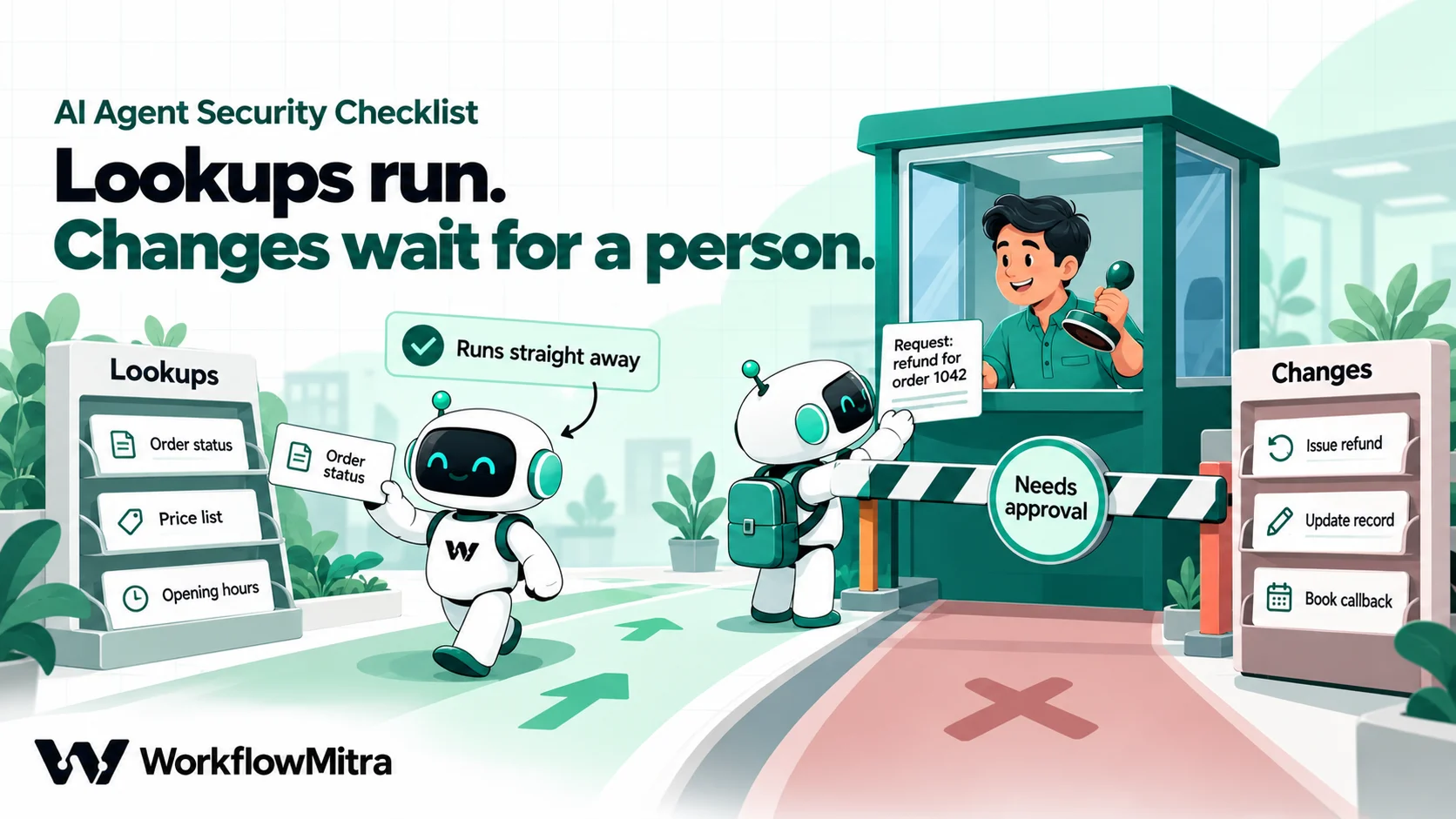
- Each tool is labelled honestly. Every tool has a setting, “Does this change anything?”. A tool marked “No, it only looks something up” runs as soon as the AI asks for it. An HTTP request that posts data, labelled as a lookup, will run without any check.
- A customer-facing agent never uses “Just do it”. The Agent’s “Before it does anything” setting has two options. “Just do it” runs tools that change data without asking. “Ask the customer first” asks, but on 22 October 2026 the confirmation never completed: the next message is decided again and the agent asks again. Keep agent tools read-only, and let the agent file a request that a person approves in a separate workflow.
- The workflow chooses targets; the AI fills only the inputs you list. A tool exposes at most 12 inputs, and each value the AI supplies is capped at 2,000 characters. Fix recipients, record IDs from the trigger, amounts and URLs in the step, and let the AI fill only what a customer could reasonably tell you.
- Tool results are small and contain nothing private. The agent passes up to 1,500 characters of each tool’s result back to the model, and the run log keeps the result. Return the order status, not the whole customer record.
- You know the built-in limits. An agent makes at most five tool calls per message and stops at about 24 seconds, answering with your fallback message if the model is unreachable. HTTP Request steps can’t call private or local network addresses, and the Code step runs in a sandbox with no network access. These limits contain a confused agent; they don’t make a tool safe to expose. The AI agent tools guide covers tool design in detail.
6. Approvals
A person in the loop is the strongest control a small team has, if the approval step itself is set up safely.
- You’ve decided which actions always need a person. Anything that sends money, issues a refund, changes a price, deletes a record, messages many people at once or makes a commitment on your behalf.
- A timeout rejects, not approves. WorkflowMitra’s Wait for approval defaults to a 24-hour timeout (up to 30 days) and to rejecting on timeout. Keep reject for anything consequential. Only Members and above can decide.
- The approver sees exactly what will be sent. The Approvals page shows the content read-only, and approving sends it as written. If something needs editing, reject it and fix it rather than approving and hoping.
- Time-critical steps run before the approval. A Wait for approval pauses the whole run, including branches that haven’t started yet. Send the customer’s acknowledgement first, then wait. Our article on human-in-the-loop AI explains where approvals add the most value.
7. Triggers and entry points
Whoever can start the workflow can spend your credits and your AI budget, and can feed it any text they like.
- Every webhook verifies its sender. Use a shared secret, an HMAC signature, a timestamp window or an IP allowlist, whichever the sender supports, and turn on Require verification. Rejected requests never start a run. The webhook security guide shows which method each sender supports.
- An unverified URL is a known, recorded risk. Some senders can only paste a URL. If you empty the secret, WorkflowMitra warns that anyone with the URL can start the workflow. Write that down, keep the AI’s actions narrow, and rotate the URL if it leaks; the old URL keeps working for seven days.
- The workflow can’t trigger itself. A Google Sheets trigger set to “A row changes” fires again when the workflow writes an AI reply into the same row. Use “One column changes” on the input column instead, and check that no workflow calls another that calls it back.
8. Monitoring and incident response
The last section assumes something will go wrong and asks whether you’ll notice.
- Failures alert a person. Turn on workflow failure alerts by email or Slack webhook in your workspace alert settings, and give AI steps an error handler, so a stopped provider or a reached spend limit shows up the same day.
- Credit alerts are set. Credit usage alerts warn at the percentages you choose and are off by default. They count steps, not tokens, so they catch runaway runs, not expensive prompts.
- Someone reads a sample of AI output every week. Pick ten runs, compare the AI’s answer with what a good employee would have done, and note anything that drifted. Note that OpenAI and Claude steps don’t report token usage per run in WorkflowMitra, so cost reviews use the provider’s usage page. The workflow monitoring guide and our guide to testing an AI agent cover the routine.
- A one-page incident plan exists, with names. Who switches the workflow off, who revokes the key, who tells the customer. The four common incidents are below.
When something goes wrong: four short runbooks
Write these on the review sheet with real names, so nobody has to think during the incident.
| Incident | First 15 minutes | Same day |
|---|---|---|
| A key leaked (posted in a chat, committed, shared in a screenshot) | Revoke it in the provider console, create a new key, update the saved credential | Check provider usage for calls you don’t recognise; find and fix how it leaked |
| A message fooled the AI | Turn the workflow off; a paused workflow’s webhook stops accepting requests | Read the runs from that sender; tighten the input check or labels; add the message to your test set |
| Spend is climbing fast | Turn the workflow off; lower the provider spend limit | Look for a self-triggering loop, a large Loop input or a sender retrying; fix before switching back on |
| Personal data reached the wrong person | Turn the workflow off; record what was sent, to whom and when | Follow your breach plan, including the DPDP notices once they apply; tell the person affected |
Turning a workflow off is the fastest control you have, so make sure at least two people know how to do it.
How the checklist maps to OWASP’s LLM Top 10
If a client, auditor or larger customer asks how you handle AI risk, this mapping shows which checks cover which published risk.
| OWASP LLM Top 10 (2025) | Checks | Notes for no-code workflows |
|---|---|---|
| LLM01 Prompt Injection | 13–18, 27 | Limit what a fooled model can do |
| LLM02 Sensitive Information Disclosure | 7–11, 16, 28 | Send less; scope memory; mask identifiers |
| LLM03 Supply Chain | 9 | Provider and model choice; re-read terms when you switch |
| LLM04 Data and Model Poisoning | — | Mostly relevant when you train or fine-tune models |
| LLM05 Improper Output Handling | 19–23 | Output is untrusted until checked |
| LLM06 Excessive Agency | 24–33 | Read-only tools; approvals for changes |
| LLM07 System Prompt Leakage | 16 | Nothing secret in the prompt |
| LLM08 Vector and Embedding Weaknesses | — | Applies to retrieval systems; WorkflowMitra has no built-in vector store |
| LLM09 Misinformation | 22, 39 | Check facts against records; sample output weekly |
| LLM10 Unbounded Consumption | 5, 29, 36, 38 | Spend limits, loop prevention, alerts |
For a wider framework, the US National Institute of Standards and Technology’s Generative AI Profile, NIST AI 600-1, describes the same risks in governance terms.
What WorkflowMitra handles, and what you still have to do
A tool can remove some risks by design. Others stay with you. Here’s the honest split on 22 October 2026.
Handled by the product:
- AI runs on your own provider key, saved in an encrypted vault that only Admins and Owners can manage.
- The AI Agent accepts a tool request only when the model’s whole reply is one valid instruction; anything else is treated as a plain answer, not guessed at.
- Agents are capped at five tool calls per message and about 24 seconds per turn.
- HTTP Request steps can’t reach private or local network addresses, and Code steps run sandboxed without network access.
- Webhooks support shared secrets, HMAC signatures, timestamp windows, IP allowlists and duplicate checks.
- Wait for approval rejects on timeout by default.
Still your job:
- Sign-in security. There is no two-factor login or single sign-on yet, so passwords and prompt offboarding carry the load.
- Access inside a workspace. There are no per-workflow permissions. Anyone with Member access can edit any workflow’s prompt, and anyone, including Viewers, can read run history. Separate workspaces are the boundary.
- Change history. Saving a workflow makes it live, and there’s no stored version history or customer-visible audit log. Keep a change log, as described in our audit trail guide.
- Token costs per run. OpenAI and Claude steps don’t report token usage in run history, so watch the provider’s usage page.
- Secrets in HTTP steps. Authentication typed into an HTTP Request step is visible to everyone who can open the workflow.
The one-page version
Print this, or copy it into the review sheet. Tier 1 workflows need sections 1, 2 and 8; tier 2 adds 3, 4 and 7; tier 3 needs everything.
- Keys: business-owned account · one key per client or risky workflow · saved as a credential · no secrets in HTTP steps · provider spend limit and alert · unique passwords, lowest roles.
- Data: fields listed · identifiers masked · provider terms read · run-history readers known · agent memory per person · breach plan.
- Prompts: stranger inputs marked · instructions separate from data · inputs checked · nothing secret in the prompt · fixed answer labels · hostile tests done.
- Output: empty replies routed safely · labels checked · forbidden content checked · facts checked · every check fails closed.
- Tools: tools listed · labelled honestly · no “Just do it” for customers · targets fixed in the step · small results · limits known.
- Approvals: consequential actions listed · timeout rejects · approver sees the final text · urgent steps first.
- Triggers: webhooks verified · open URLs recorded · no self-triggering.
- Monitoring: failure alerts · credit alerts · weekly output sample · incident plan with names.
Common mistakes
- Reviewing the prompt and nothing else. The prompt is the weakest control on the list. Most of the protection comes from what the AI can reach and what checks its output.
- Treating “internal” as safe. An internal workflow that reads customer emails is reading stranger-written text. The tier depends on the inputs, not on who sees the output.
- Using one key for everything. A single key across all clients and workflows means one leak or one loop affects everything, and the usage page can’t tell you which workflow spent what.
- Approving on timeout. A Wait for approval that approves when nobody answers is not an approval. It’s a delay.
- Running the review once. Adding one write tool to a tier 2 workflow makes it tier 3. Re-run the review when the workflow changes, not just when it’s built.
- Leaving the free tier on a production key. A Gemini key on a project without billing is on terms that allow Google to use your prompts. Check before customer data flows through it.
Make the review part of going live
Security for AI workflows isn’t a product you buy. It’s a few decisions made before the first customer message arrives, written down so the next person can check them. Size the risk, go through the eight sections, fix every no, and keep the sheet next to the workflow. Then repeat the review whenever the workflow learns a new trick.
If you’re building your first AI workflow, start with the AI workflow automation guide, see what the AI Agent can do, and run this checklist before you switch it on. You can start a 14-day WorkflowMitra trial with no card and connect your own AI key in a few minutes.
Frequently Asked Questions
Questions small teams ask before switching on an AI agent or AI workflow.
Eight areas: the API key and who can use it, the data sent to the AI provider and where copies are kept, untrusted inputs and prompt injection, checks on the AI's output, the tools the agent can call, which actions need human approval, how the workflow can be triggered, and monitoring with an incident plan. Each area should end in a yes or no answer you can write down.
Automate the work between your apps
Build workflows with triggers, conditions and actions, then test them before they go live. Try WorkflowMitra free for 14 days, no card required.
