AI API Keys for Automation: Get an OpenAI, Claude, Gemini or Groq Key

Quick Summary
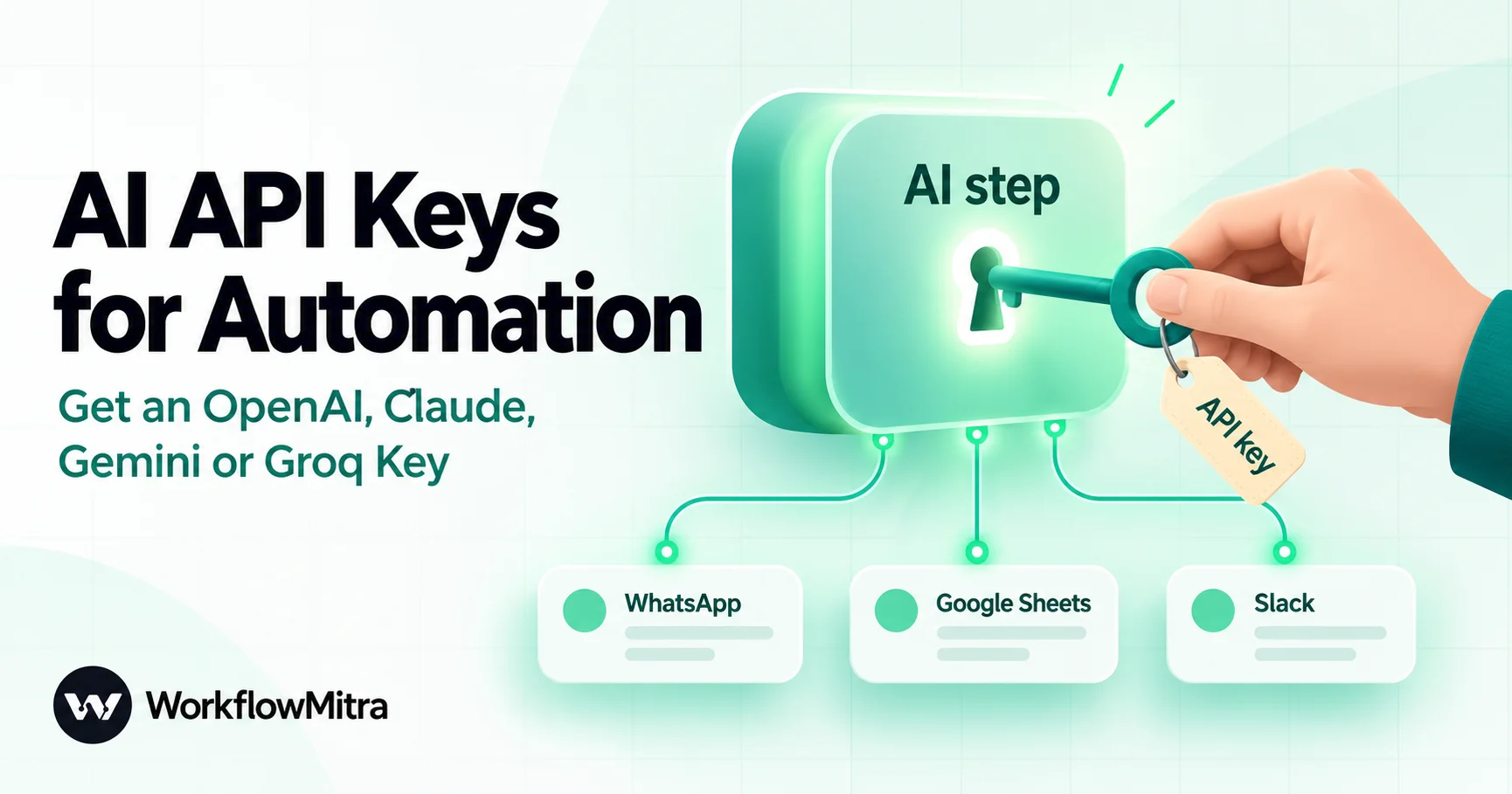
To use AI inside a workflow you need an API key from the AI provider, not a chat subscription. ChatGPT Plus and similar plans are billed separately from the API. Create the key on the provider's API site: platform.openai.com/api-keys for OpenAI, platform.claude.com/settings/keys for Claude, aistudio.google.com/apikey for Gemini and console.groq.com/keys for Groq. Then fund it: OpenAI and Claude use prepaid credits (OpenAI's minimum purchase is $5), Gemini and Groq have free tiers with paid upgrades. From India, switch on international online use for your card and turn off auto-reload if recurring charges fail. Set a spend limit, save the key once as an encrypted credential in WorkflowMitra, and never paste it into prompts, sheets or chats.
The first AI step you add to a workflow asks for something most people don’t have yet: an API key. Not your ChatGPT login, not your Claude subscription, but a key from the provider’s developer platform, with its own billing behind it.
This guide shows how to get an OpenAI, Claude, Gemini or Groq API key in 2026, how to pay for it from India, how to cap what it can spend, and how to keep it safe once it’s working inside WorkflowMitra, powered by ChatMitra. WorkflowMitra uses bring your own key for AI: you connect your own provider account, and the provider bills you directly for what the model reads and writes.
Quick answer: a chat subscription such as ChatGPT Plus doesn't include the API; it's billed separately. Create a key on the provider's API site: platform.openai.com/api-keys (OpenAI), platform.claude.com/settings/keys (Claude), aistudio.google.com/apikey (Gemini) or console.groq.com/keys (Groq). Copy it straight away, because it's shown only once. Fund it (OpenAI and Claude are prepaid; Gemini and Groq have free tiers), set a spend limit, and save it once as an encrypted credential in WorkflowMitra. From India, switch on international online use for your card, and buy credits by hand if automatic top-ups fail.
What an AI API key is, and why your workflow needs one
An API key is a long secret string that tells an AI provider which account a request belongs to. Every time a workflow step sends a prompt, the key goes with it in a header, the provider checks it, runs the model and charges the account behind it.
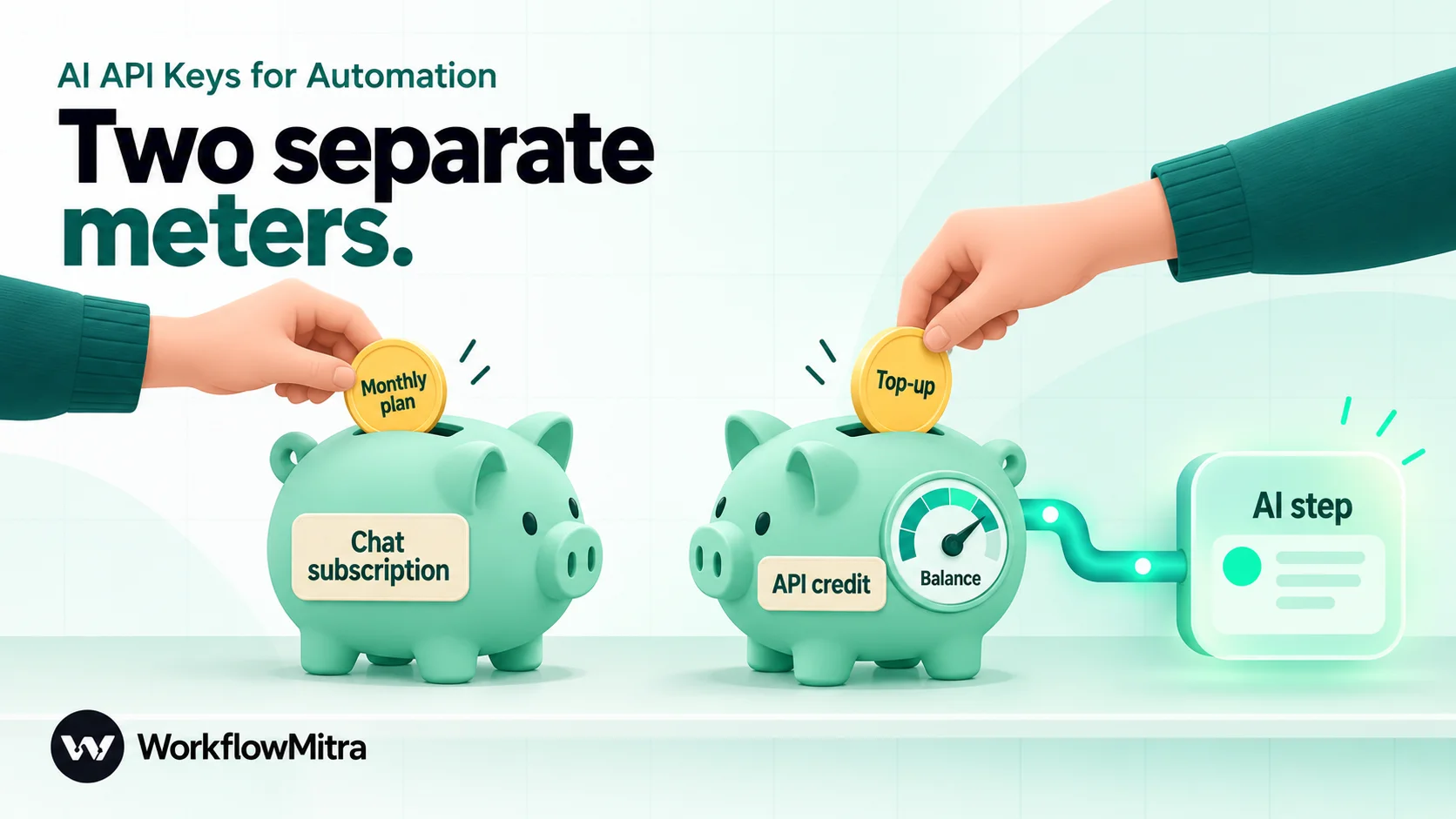
You need your own because of how AI is paid for in WorkflowMitra. There are two separate bills:
- WorkflowMitra credits pay for the workflow running. An AI step uses 1 credit per run. An AI Agent step uses 1 credit per model call, up to 9 in one run, because an agent may think, call a tool and think again.
- The provider’s bill pays for the model’s work, priced by tokens (roughly, pieces of words) in and out. That goes on your OpenAI, Anthropic, Google or Groq account, at their published rates.
Bringing your own key has practical upsides. You choose the provider and model, you see every call on your own usage page, you set your own spend limit, and nobody marks up the model price in between. The cost is a little setup, which is what the rest of this guide covers.
The subscription is not the API
This is the most common confusion, and the source of most “my key doesn’t work” questions. The chat apps and the developer APIs are different products with different bills.
| You pay for | What it gives you | Does it fund a workflow's API calls? |
|---|---|---|
| ChatGPT Free, Go, Plus or Pro | The ChatGPT app and website | No. OpenAI says ChatGPT and the API platform have separate billing systems |
| OpenAI API prepaid credit | API calls from platform.openai.com keys | Yes |
| Claude Pro | The Claude apps | No. API usage is billed through prepaid Console credits |
| Claude Max or Team | The Claude apps, plus monthly Claude API credits once you link a Console organisation (Anthropic help centre) | Partly, within those monthly credits |
| Gemini API free tier (AI Studio) | API calls within free-tier limits | Yes, within limits |
| Groq free tier | API calls within free-tier rate limits | Yes, within limits |
Which provider should you start with?
All four work in WorkflowMitra’s AI step and AI Agent. The right first choice depends on whether you want to start free, how you’ll pay, and which models you need.
| Provider | Key page | How you pay | Free option | Spend cap |
|---|---|---|---|---|
| OpenAI | platform.openai.com/api-keys | Prepaid credit, minimum first purchase $5; credits expire after 1 year | No standing free tier | Project spend limits; monthly limit on auto-reload |
| Claude (Anthropic) | platform.claude.com/settings/keys | Prepaid credit bought in the Console | No standing free tier | Monthly spend limit per workspace (not the Default Workspace) |
| Gemini (Google) | aistudio.google.com/apikey | Free tier, then Google Cloud Billing (prepay from $5, or postpay where offered) | Yes, with limits; prompts may be used to improve Google products | Monthly caps by tier (Tier 1: $250) |
| Groq | console.groq.com/keys | Card on the Developer tier, billed in arrears | Yes, rate-limited, no card | Monthly spend limit on paid tiers |
A sensible path for a small team: test on Gemini’s or Groq’s free tier with made-up data, then move to a paid key before real customer data flows through. The rest of this guide takes each provider in turn. Provider pages change often, so the paths below were checked on 20 October 2026.
How to get an OpenAI API key
- Sign in at platform.openai.com with the account that will own the bill. Use a work email the business controls, not a personal one that leaves with an employee.
- Create a project for your automations, for example “WorkflowMitra”. Projects keep usage and limits separate from anything else on the account, and owners can set a spend limit per project.
- Create the key. Open the API key page (or the project’s API Keys settings) and select Create new secret key. Give it a clear name, scope it to your project, and set an expiry date if the option is offered. OpenAI recommends expiring keys and a regular rotation.
- Copy it now. OpenAI shows the full secret only once. If you lose it, you create a new key; you can’t view the old one again.
- Add credit. New API accounts are prepaid. In the API billing overview, add payment details and buy credit. The minimum first purchase is $5 and the default is $10. Purchased credit expires after one year.
- Decide on auto-reload. It’s switched on by default during setup. Turn it off if you’d rather top up by hand, or keep it and set a monthly reload limit.
Two details from OpenAI’s billing help are worth knowing. A prepaid balance isn’t an instant cut-off: usage processed after it runs out can show as a negative balance that’s taken from your next purchase. And when credit is exhausted, requests fail with the error code credit_balance_exhausted, a 429 status. Retrying won’t fix it; adding credit will.
How to get a Claude API key
- Sign in to the Claude Console at platform.claude.com. The old console.anthropic.com address now leads there.
- Create a workspace for your automations on the Workspaces page. This matters for two reasons: spend limits can’t be set on the Default Workspace, and a key scoped to one workspace needs no extra header. Anthropic’s docs say a key that works across several workspaces must send an
anthropic-workspace-idheader on every request, and WorkflowMitra’s Claude steps don’t send one. - Set a spend limit. On the Workspaces page, select the workspace, open Spend limits, and cap the monthly spend. You can also set alerts.
- Create the key. Go to API keys, click Create key, name it, choose an expiry, set the linked account and pick your new workspace. Anthropic recommends a service account key for anything shared, such as a business workflow, because a personal key stops working when its owner leaves the organisation.
- Copy it now. The full key, starting
sk-ant-, is shown only once. - Buy credit. Claude API usage is billed from prepaid credit. A user with the Admin or Billing role buys it at platform.claude.com/settings/billing with Buy credits. Auto-reload is optional and tops up when the balance falls below a level you set.
When credit or billing is the problem, Claude’s API returns a billing_error (402), and reaching a spend limit you set returns a 400. WorkflowMitra passes the provider’s message through for these, so read it in full.
How to get a Gemini API key
- Open Google AI Studio at aistudio.google.com/apikey and sign in with a Google account the business controls.
- Create a key. Every Gemini key belongs to a Google Cloud project; AI Studio creates a default project for new users. Since 28 May 2026, new keys made in AI Studio are created as auth keys restricted to the Gemini API by default.
- Keep the restriction. Google’s docs say the Gemini API rejects requests from unrestricted standard keys, and blocks unrestricted keys that sit unused for a long time. A key restricted to the Gemini API is what you want.
- Choose free or paid. New accounts start on the free tier. To upgrade, select Set up billing for the project in AI Studio, link a Cloud Billing account and either prepay at least $5 or choose postpay where it’s offered. Paid tiers have monthly caps that rise with spend and account age, starting at $250 a month for Tier 1.
Mind the data terms. Google’s Gemini API terms say that on unpaid services, submitted content may be used to improve Google’s products and human reviewers may read it, and they ask you not to send sensitive, confidential or personal information. On paid services, prompts and responses aren’t used to improve products. So use the free tier for testing with made-up data, and a paid project for real customer messages. Our guide to Gemini automation covers model choice and Gemini-specific settings, and what India’s DPDP Act means for your workflows covers the personal-data side.
How to get a Groq API key
- Sign up at console.groq.com. The free tier needs no card.
- Create a key on the API Keys page and copy it straight away.
- Know the free limits. Groq rate-limits by requests and tokens per minute and per day, at the organisation level, so all your keys share one allowance. Your exact limits are on the limits page in the console’s settings.
- Upgrade when you need more. The Developer tier needs a payment method (Groq lists Visa, Mastercard, American Express and Discover cards). Upgrading doesn’t charge you straight away: Groq bills monthly in arrears, plus at usage thresholds. For billing addresses in India, Groq’s billing FAQ lists different thresholds: $1, $10, then every $100.
- Set a spend limit under Settings › Billing › Limits on a paid tier. When it’s reached, every key in the organisation gets a 400 error with the code
blocked_api_accessuntil the limit resets on the 1st or you raise it.
Groq’s own docs warn that spend tracking can lag by 10 to 15 minutes, so a limit can be slightly exceeded during heavy use.
Paying for AI APIs from India
Most payment problems come down to card settings, recurring-charge rules or the provider’s checkout, not the API itself. Work through these in order.
Switch on international online use. Under the RBI’s 2020 circular on card security, Indian cards are issued for domestic, contact-based use only; online (card-not-present) and international use must be switched on separately, and banks must let you switch them on and off and set limits at any time. Before you buy credit, open your bank’s app or net banking, enable online and international transactions for the card, and check that the international limit covers the amount.
Watch the automatic top-ups. Auto-reload is a recurring charge by a merchant, and RBI rules require recurring card payments to run on an e-mandate, registered once with additional authentication and notified to you before each debit. Whether a foreign provider’s checkout registers one varies. If a manual purchase works but auto-reload fails, turn auto-reload off and top up by hand, with a reminder before the balance runs low.
Expect a currency markup. Credit is priced in US dollars, so your bank converts it and may add a foreign-currency markup. Check your card’s terms before choosing a top-up amount.
Gemini can be paid in rupees. Google Cloud supports UPI for qualified organisations in India that pay in INR, with an Indian billing address and bank account. Google’s page says a prepayment, typically ₹500 to ₹1,000, is needed before UPI can be used, and it supports manual and monthly recurring payments.
Groq treats Indian billing addresses differently in its billing thresholds, as above, so expect smaller, more frequent charges at first.
If a card is still declined, check your bank’s app for a blocked-transaction alert, try another card, and re-check the billing address fields. Threads such as “Unable to make payment from India” on OpenAI’s developer forum describe cards that failed and later worked, but they’re user reports, not official fixes. If nothing works, contact the provider’s support with the exact error message and time.
Add the key to WorkflowMitra
Save the key once, then let every step pick it from a list.
- In WorkflowMitra, open Credentials and select New credential.
- Choose the provider’s AI type: OpenAI (AI), Claude (AI), Google Gemini (AI) or Groq (AI).
- Give it a name that says whose it is and what it’s for, such as “OpenAI – Acme ops (project WorkflowMitra)”, paste the key and save it.
- Click Test connection.
- In any AI step or AI Agent, choose the provider and pick the saved credential.
Saved credentials are stored in an encrypted vault (AES-256-GCM). After saving, the key appears only as dots and its last few characters, so teammates can use the credential in their workflows without seeing the secret. Credentials belong to a workspace. Our guide to workflow governance covers who should own them.
Two things to know about this screen:
- Test connection checks the key, not the balance. It asks the provider for its list of models, which costs nothing. A brand-new key with no credit can pass. Your first real run is the real test, so run the workflow once with test data.
- Avoid pasting the key into the step. The AI step also offers an inline API key field (“None — enter details inline”). A key typed there is saved inside the workflow itself, so anyone who can open the workflow can read it, and it travels with every copy. Use a saved credential instead.
Run a first test that proves the key works
A passing connection test isn’t proof that a workflow will run, so finish setup with one cheap, real call:
- Create a workflow with a Trigger manually trigger and one AI step.
- Pick the provider, the saved credential and a model. Name the model rather than leaving the field blank, so you know exactly what you’re paying for.
- Set Max tokens low, such as 50, and use a prompt like “Reply with the single word OK.”
- Run it once and open the run. A reply of “OK” means the key, the billing and the model all work. An error here is cheap to read and fix: it’s one of the rows in the error table below.
- Open the provider’s usage page an hour later and find the call. Now you know where to look when you want to see real spend.
That test uses 2 WorkflowMitra credits (the trigger and the AI step) and a tiny number of provider tokens. Delete the workflow afterwards, or keep it as a health check to run after every key rotation.
Who should own the key?
The account that owns an AI key pays for it, sees its usage and can switch it off. Decide that deliberately, especially when more than one business is involved.
- Your own business: create the provider account with a work email the business controls, add a second admin, and keep the billing card in the business’s name. A key tied to one employee’s personal login becomes a problem the day they leave.
- An agency building for clients: let each client own their provider account and key, even when you set it up. The client sees and pays for their own usage, and the agency never carries a client’s AI bill on its card. In WorkflowMitra, credentials and billing belong to a workspace, so a workspace per client keeps each client’s keys apart.
- A freelancer handing over a workflow: create the key in the client’s account from the start. If you used your own key while building, replace it before handover and delete yours.
Whoever owns it, write down three things somewhere the business can find them: which provider account holds the key, who can revoke it, and where the spend limit is set.
Keep your key safe
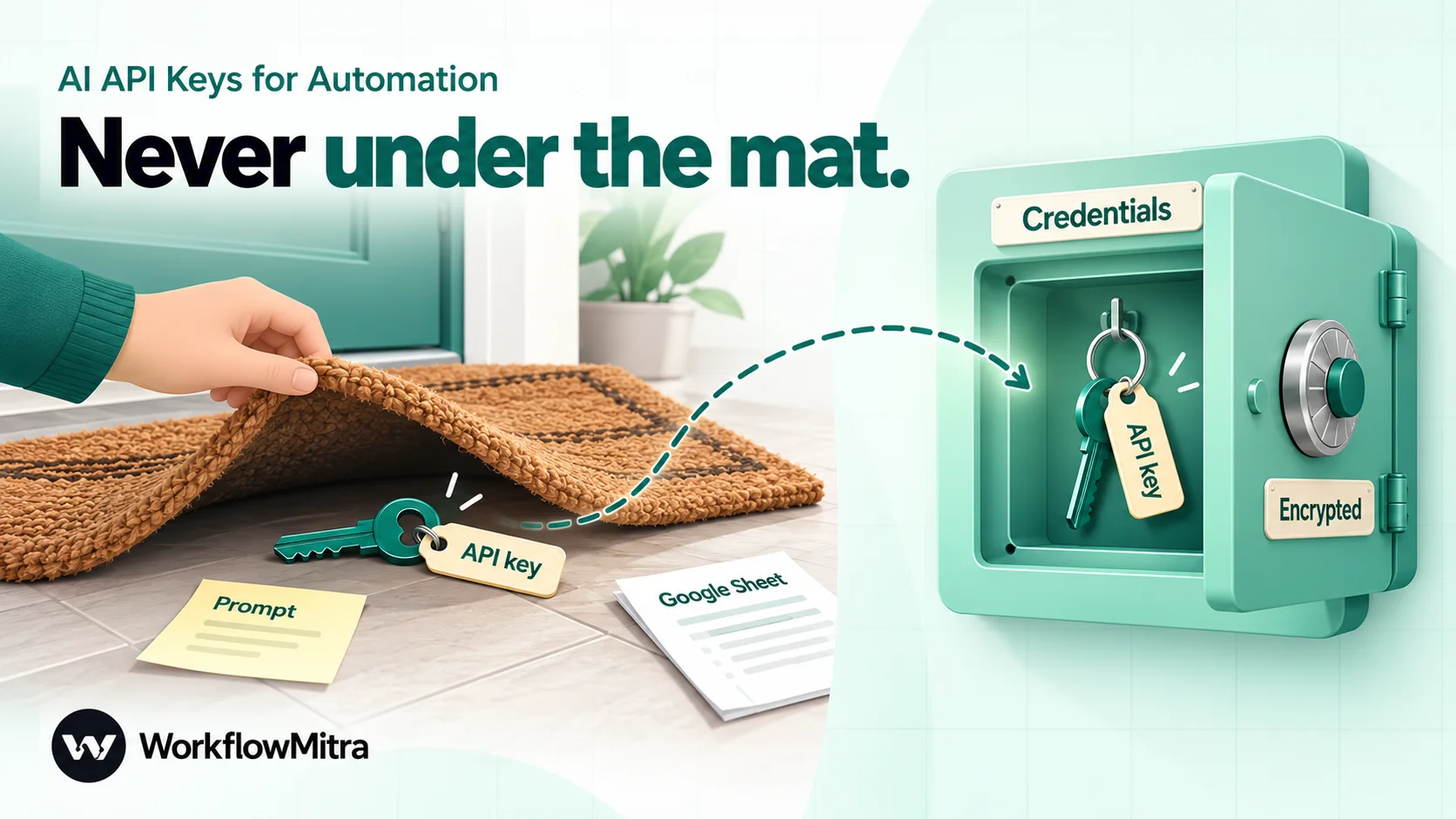
A leaked AI key is spent money. Anyone who has it can run models on your account until you notice. These habits keep the risk small:
- One key per purpose. A separate key (and project or workspace) for your automations means you can see what they cost and revoke them without breaking anything else. OpenAI’s key-safety guidance also says each team member should have their own key rather than sharing one.
- Set a spend limit before real traffic. OpenAI project limits, Claude workspace limits, Groq monthly limits and Gemini’s tier caps all stop a runaway loop from becoming a large bill.
- Give keys an expiry and rotate them. Create the new key, update the WorkflowMitra credential, confirm a run works, then delete the old key.
- Never put a key where people or models can read it. Not in a prompt, a Google Sheet, a WhatsApp or Slack message, an email, a shared document or a screenshot. A key inside a prompt is sent to the model as text.
- Never put it in a website or app. OpenAI’s guidance is explicit: keys in browsers or mobile apps can be taken and used by anyone. Calls belong on a server, which is what a workflow is.
- Keep Gemini keys restricted to the Gemini API, and don’t add an IP-address restriction for keys used in WorkflowMitra: it doesn’t publish a fixed list of outgoing addresses, so a restricted key would be refused.
- Revoke keys when people leave. Prefer service-account or project keys over personal ones for business workflows, so a departure doesn’t break production and an old key doesn’t keep working.
- Watch usage weekly. Each provider’s usage page shows spend by day. A sudden jump is either a workflow loop or a leak.
If a key leaks
Act in this order, without waiting to be sure:
- Revoke or delete the key on the provider’s key page. Calls with it stop working.
- Create a replacement, with an expiry.
- Update the saved credential in WorkflowMitra. Every workflow that uses that credential picks up the new key.
- Check the usage page for calls you don’t recognise, and lower the spend limit while you investigate.
- Find how it leaked, such as a shared sheet, a screenshot or an inline key in a cloned workflow, and remove that copy.
- Contact the provider’s support if there’s usage you didn’t make.
Errors you’ll meet, and what they mean
When an AI step fails, WorkflowMitra names the provider and the reason. These are the ones tied to keys and billing.
| What you see | Likely cause | Fix |
|---|---|---|
| "…the API key was rejected" (401 or 403) | Wrong, revoked or expired key, or for OpenAI a key from another project or organisation | Create a new key, paste it into the credential, test again |
| A Gemini error about an unrestricted or blocked key | The key isn't restricted to the Gemini API, or was blocked after a long time unused | Create a new key in AI Studio, which is restricted by default, and update the credential |
| "OpenAI: the provider is rate-limiting this key" (429) on the first runs | Often no credit: OpenAI returns credit_balance_exhausted as a 429. Otherwise, a real rate limit | Check the billing balance first, then usage limits |
Claude 402 billing_error | A billing or payment problem on the Console account | Check payment details and buy credit |
| Claude 400 with a spend-limit message | Your workspace or organisation spend limit was reached | Raise the limit or wait for the month to reset |
Groq 400 blocked_api_access | Your Groq spend limit was reached | Raise the limit or wait for the reset on the 1st |
| Groq 429 | Free or Developer tier rate limit | Slow the workflow down, or upgrade the tier |
| "OpenAI: the API key was rejected", followed by a message about an unsupported country, region or territory | The request came from a location OpenAI doesn't serve | Check OpenAI's supported-countries list |
A failed AI step stops the run unless you’ve built error handling around it. Our guides on falling back to another model and workflow error handling show how to keep a workflow going when a provider says no.
Estimate what a workflow will spend
Providers price per million tokens, separately for input and output. For one AI step:
Cost per run ≈ (input tokens × input price + output tokens × output price) ÷ 1,000,000
Multiply by runs per month. A short classification prompt is a few hundred input tokens and a handful of output tokens, so it costs far less than a long reply. To keep the estimate honest:
- Cap the reply. The AI step’s Max tokens field limits how long a reply can be; see setting max tokens.
- Send only what’s needed. Trim email signatures, old thread history and unused fields before the prompt.
- Test with real samples and read the provider’s usage page after 20 runs, rather than trusting the formula alone.
- Add WorkflowMitra credits. 1 credit per AI step run, 1 per model call for an AI Agent (up to 9), plus the workflow’s other steps. Plans start at ₹999 a month for 10,000 credits, after a 14-day trial with no card needed.
Our guide to reducing automation costs covers trimming both bills.
A setup checklist
- A work account owns the provider account and the bill
- A dedicated project (OpenAI) or workspace (Claude) for automations
- The key created with an expiry, copied once, stored nowhere else
- Credit bought, or the free tier confirmed for testing only
- Card enabled for international online use; auto-reload decided
- A monthly spend limit and alerts set
- The key saved as a credential in WorkflowMitra and tested
- One workflow run with test data, and the usage page checked
- A reminder to rotate the key, and a note of who can revoke it
One key, set up properly, runs every AI step
Getting an API key takes ten minutes. Setting it up properly, with its own project, a spend limit, an expiry and a single home in an encrypted vault, takes ten more, and saves you from the two expensive surprises: a leaked key and a loop that runs all weekend.
WorkflowMitra, powered by ChatMitra, connects your own OpenAI, Claude, Gemini or Groq key to AI steps and AI Agents. Those sit alongside the WhatsApp, Google Sheets, email and Slack steps that act on what the model writes. Browse the templates or the feature overview, then add your first key on a WorkflowMitra trial: 14 days, no card needed. Once it works, write prompts your workflow can rely on with our guide to AI prompts for automation, and add AI guardrails before replies reach customers.
Sources: OpenAI Help Center, Setting up and managing prepaid API billing, Managing billing for ChatGPT and the API platform, Where do I find my OpenAI API key?, Best practices for API key safety and Managing projects in the API platform; OpenAI, Error codes; Claude Docs, Get your Claude API key, Workspaces and Errors; Claude Help Center, How do I pay for my Claude API usage?; Google AI for Developers, Using Gemini API keys, Billing and Gemini API Additional Terms of Service; Google Cloud, Use UPI for Google Cloud payments; GroqCloud Docs, Rate limits, Billing FAQs and Spend limits; Reserve Bank of India, Enhancing Security of Card Transactions (15 January 2020) and Processing of e-mandate on cards for recurring transactions (21 August 2019); all read 20 October 2026. WorkflowMitra behaviour checked in the product source code on 20 October 2026. Provider pages, prices and limits change often; check them on the day you set up.
Frequently Asked Questions
Short answers to common questions about getting and using AI API keys.
Sign in at platform.openai.com, open the API keys page (platform.openai.com/api-keys) and create a new secret key, ideally inside a project with an expiry date. Copy it straight away, because OpenAI shows the full key only once. Then add credit on the billing page: new accounts are prepaid, with a minimum first purchase of $5.
Automate the work between your apps
Build workflows with triggers, conditions and actions, then test them before they go live. Try WorkflowMitra free for 14 days, no card required.
