AI Spend Limits: Cap Your OpenAI, Claude and Gemini Bills Before a Looping Workflow Drains Them

Quick Summary
An AI spend limit is a monthly cap you set in your AI provider's console so a runaway workflow can't keep billing your key. OpenAI lets you set spend alerts and a hard spend limit per organisation or project; at a hard limit, requests return 429 with project_spend_limit_exceeded or organization_spend_limit_exceeded. Anthropic lets you set your own limit below your tier's cap for the organisation or per workspace (not the Default Workspace); a limit you set returns 400. Gemini has project spend caps in AI Studio (experimental, about 10 minutes of lag), billing-account tier caps and, on prepay, stops every key when the balance hits zero. Groq has one organisation-wide monthly limit on paid plans. None is instant, so pair the cap with guardrails inside the workflow: a Max tokens ceiling, a trigger that can't re-fire on its own write-back, batch sizes you chose, and an alert when the AI step fails. In WorkflowMitra, powered by ChatMitra, AI runs on your own key, so these caps are the ones that protect your bill; WorkflowMitra's credit alerts count steps, not tokens.
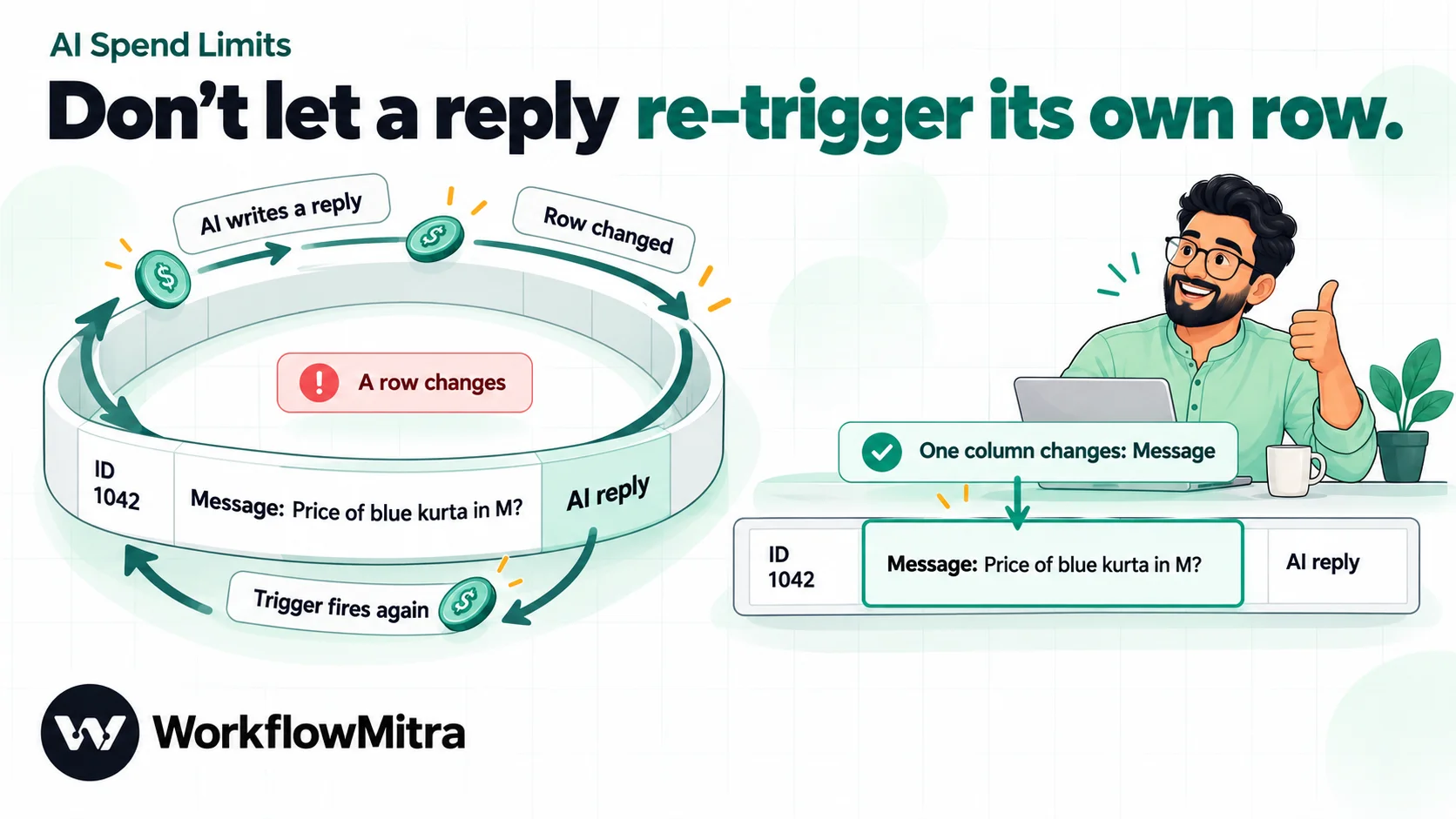
On a Friday evening, a small agency switches on a workflow for a client: when a row in the enquiries sheet changes, an AI step drafts a reply and writes it into the next column. By Monday the provider’s usage page shows thousands of calls. Nothing broke. Every time the workflow wrote its reply into the row, the row had changed, so the trigger fired again, and the model reworded its reply each time.
AI providers bill per token, and an automation can send tokens around the clock without anyone watching. This guide shows how to put a ceiling on that at the four providers most small teams use, OpenAI, Anthropic’s Claude, Google’s Gemini API and Groq, and how to stop a workflow from running away in the first place. Provider settings were read on each provider’s documentation on 22 October 2026, and the workflow behaviour described for WorkflowMitra, powered by ChatMitra, was checked in its product code the same day, including a run of the Sheets trigger’s change detection.
What is an AI API spend limit?
An AI API spend limit is a monthly amount you set in your provider's console, after which it stops accepting requests from your project or account. It's different from a spend alert, which only emails you. OpenAI offers alerts and a hard limit per organisation or project. Anthropic lets you set a limit below your tier's cap for the organisation or per workspace. Gemini has project spend caps in AI Studio, billing-account caps and prepaid balances that stop at zero. Groq has one monthly limit for the whole organisation. No provider enforces instantly, so a limit is a backstop. Guardrails inside the workflow stop the overspend before it reaches the cap.
Spend limits matter more for automations than for chat apps because nobody is sitting in front of an automation. A person chatting with a model stops when the answer is good enough. A workflow keeps going until its input runs out, or forever if its input never runs out.
Why automations overspend
Most runaway AI bills come from four patterns. Recognising them is half of the fix.
- A trigger that fires on its own output. The workflow writes its result back to the place it watches, which counts as a new change, which starts another run. The opening story is this pattern, and it’s easy to build by accident.
- A list that’s bigger than you thought. A Loop over “all rows” works on a 20-row test sheet and on a 9,000-row export. The second one sends 9,000 prompts.
- Repeats you didn’t ask for. A sender that retries webhooks when it doesn’t get a quick answer, a form that’s submitted twice, or one workflow calling another that calls the first one back.
- Expensive calls. Long inputs such as full email threads or documents, a high output limit, and models that think before answering. Each call costs more, so the same number of calls costs more.
The first pattern is the least obvious, so here’s what happens in WorkflowMitra.
The write-back trap, tested
WorkflowMitra’s Google Sheets trigger has three ways to watch for edits: A row is added, A row changes and One column changes. To confirm how they behave when a workflow writes into the row it’s watching, we ran the trigger’s change-detection code with a sample row containing an ID, a customer message and an empty AI reply column, and replayed four edits in order.
| What happened to the row | A row changes | One column changes (watching Message) |
|---|---|---|
| The customer's message is edited | Runs | Runs |
| The workflow writes its first AI reply | Runs again | No run |
| The workflow writes a reworded reply | Runs again | No run |
| The workflow writes exactly the same reply | No run | No run |
With A row changes, the workflow’s own write-back counts as a change. It stops only when the model happens to produce exactly the same text twice. Models usually reword, and a workflow that also writes a timestamp changes the row every time, so in practice the loop can repeat on every check of the sheet. With One column changes set to the input column, edits to other columns are recorded without starting a run, so the workflow can write its reply safely.
Work out your worst case before you set a number
A spend limit is only useful if it’s set at a number that means something. Work out what a normal month costs, then what a bad day could cost.
Cost of one call. Providers price input and output tokens separately, per million tokens. On 22 October 2026, Anthropic’s pricing page listed Claude Sonnet 5, the model WorkflowMitra’s AI step uses for Claude when you leave the model blank, at $2 per million input tokens and $10 per million output tokens. A call that reads 3,000 tokens and can write up to 1,024 tokens costs at most:
- input: 3,000 × $2 ÷ 1,000,000 = $0.006
- output: 1,024 × $10 ÷ 1,000,000 = about $0.010
- total: about $0.016 per call
Output tokens include the model’s thinking on models that think before answering, and Sonnet 5 does, so assume the full output limit gets used. Use your own model’s prices from its pricing page.
A normal month. Multiply by the calls you expect. A workflow that drafts replies to 40 enquiries a day uses about 1,200 calls a month, roughly $19 at the worst-case figure above.
A bad day. Now apply the four patterns. Suppose the write-back trap hits a 200-row sheet that the trigger checks every five minutes, the default. That’s 288 checks a day. If every row re-fires on every check, it’s 57,600 calls a day, about $920 at $0.016 each. Real loops are usually smaller, but a quick estimate like this shows why the cap belongs well below “whatever the tier allows”.
Find your normal month in the usage pages
If the workflow already runs, don’t estimate: read last month’s real numbers. Each provider shows usage in its console, and the figure you want is spend for the project or workspace your automation key belongs to.
- OpenAI: the usage dashboard shows token usage for the current and past billing cycles. Spend limits are set per project, which is one more reason to give automations their own project.
- Anthropic: the Claude Console reports usage and cost, and its usage and cost reports can be broken down by workspace. Usage in the Default Workspace shows without a workspace ID, so automation traffic is easier to read in a named workspace.
- Gemini: AI Studio’s Spend page shows a project’s spend. For a fuller picture, Google suggests the Cloud Billing Reports page, grouped by SKU with the service filter set to Gemini API.
- Groq: the Limits page under Billing shows current spend against your limit, and the console shows usage per project.
Then look at the workflow side. In WorkflowMitra, every run shows the credits it used, and each step shows its own, so you can count how many AI steps ran last month and divide the provider’s bill by that number. That gives you a real cost per call, including the thinking tokens and long inputs your estimate might have missed.
A sensible starting point: set alerts at about 1.5 times and 3 times your normal month, and a hard limit around 4 times, then adjust after a month of real usage. A cap that stops a business-critical workflow on the 20th of the month is a problem too, so leave room.
Spend controls at each provider
All four providers offer some form of monthly cap. They differ in what the cap attaches to, what happens when it’s reached, and how quickly it reacts.
| Provider | What you can cap | Alerts | When the cap is reached | Delay |
|---|---|---|---|---|
| OpenAI | Organisation and each project (monthly) | Yes, spend alerts at amounts you choose | 429, project_spend_limit_exceeded or organization_spend_limit_exceeded | Not instantaneous; spend can slightly exceed the limit |
| Anthropic (Claude) | Organisation, below the tier cap; each workspace except Default (monthly) | Yes, per workspace | Your own limit: 400 invalid_request_error. Tier cap: 429 enforced_spend_limit_reached, no retry-after | Not stated |
| Google Gemini API | Each project (AI Studio, experimental); billing account by tier; prepaid balance | Prepaid auto-reload has a monthly limit | Tier cap pauses all linked projects until the 1st; prepaid balance at $0 returns 402 for every key on the billing account | About 10 minutes; batch and agent jobs can run over |
| Groq | The whole organisation only (monthly, paid plans) | Yes, email alerts at amounts you choose | 400, blocked_api_access, for every key | 10–15 minutes |
OpenAI
OpenAI’s spend limits guide separates two controls. A spend alert sends a notification and lets traffic continue. A hard spend limit makes affected requests fail with HTTP 429 once tracked spend reaches the amount.
To set one for a project, go to the project’s settings, select Limits, choose Edit spend limit under Spend, enter the monthly amount, turn on Enforce a hard limit and save. The organisation-wide version lives under Organization limits. Both can apply to the same request: the organisation limit covers all projects, and a project limit covers only traffic billed to that project. The error code tells you which one stopped you: organization_spend_limit_exceeded or project_spend_limit_exceeded.
Raising or removing the limit lets traffic resume once the change propagates; otherwise it resets with the next monthly cycle. OpenAI is explicit that enforcement isn’t instantaneous, so a small amount of extra usage can get through. It also separates your own limits from the approved monthly usage limit OpenAI assigns by usage tier (organization_usage_limit_exceeded) and from running out of prepaid credit (credit_balance_exhausted), so the code is worth reading when something stops.
Anthropic (Claude)
Anthropic’s rate limits page lists a monthly spend cap for each tier: $500 on Start, $1,000 on Build and $200,000 on Scale on 22 October 2026. You can set your own lower limit on the Billing page of the Claude Console under Spend limits.
For automations, the more useful control is per workspace. On the Workspaces page, select a workspace and open Spend limits to cap its monthly spending and set alerts at thresholds you choose. You can’t set spend limits on the Default Workspace, so create a workspace for your automations, and create the API key inside it. A key scoped to one workspace can only use that workspace’s resources, so its usage counts against that workspace’s limit.
The two kinds of limit fail differently. A limit you set returns HTTP 400 with a message that starts “You have reached your specified API usage limits” (or “workspace API usage limits”) and says when access resumes. The tier cap returns HTTP 429 with enforced_spend_limit_reached and no retry-after header, and access resumes at 00:00 UTC on the first of the next month unless you move up a tier.
Google Gemini API
Google’s Gemini API billing page (last updated 28 September 2026) describes three layers.
- Project spend caps. In AI Studio, open the Spend page and use Monthly spend cap, then Edit spend cap. Google labels this experimental, says billing data can take around 10 minutes to process, and warns that batch jobs and agent sessions can run over the cap.
- Billing account tier caps. Each tier has a monthly maximum across all linked projects: $250 at Tier 1, $2,000 at Tier 2 and $20,000 to $100,000+ at Tier 3. When the account total reaches it, the Gemini API pauses for every linked project until the 1st of the next month.
- Prepaid balance. New accounts default to Prepay. When the balance reaches zero, every API key in every project linked to that billing account stops at once with HTTP 402 until you add credit. If you turn on auto-reload, set its monthly auto-charge limit too; otherwise auto-reload removes the stop you got for free.
Gemini also has spend-based rate limits over a rolling 10-minute window, $10 on Tier 1, $50 on Tier 2 and $200 on Tier 3 according to its rate limits page. Those return 429 and recover within minutes, so they slow a runaway loop rather than stopping it.
Groq
Groq’s spend limits page is the simplest of the four. On a paid plan, an organisation owner goes to Settings, Billing, Limits, adds a monthly limit in US dollars and adds usage alerts, for example at 50%, 75% and 90%. At the limit, every key in the organisation gets HTTP 400 with blocked_api_access until the 1st of the next month, or until you raise or remove the limit.
Two details matter. Spend tracking updates every 10 to 15 minutes, so you can go over by a little during heavy use. And the limit is organisation-wide only: Groq’s FAQ says you can’t set different limits per key or endpoint, and only monthly limits are supported. Groq projects let you set custom rate limits per model, which slows a project down, but the spend cap is shared.
One key per client, one cap per key
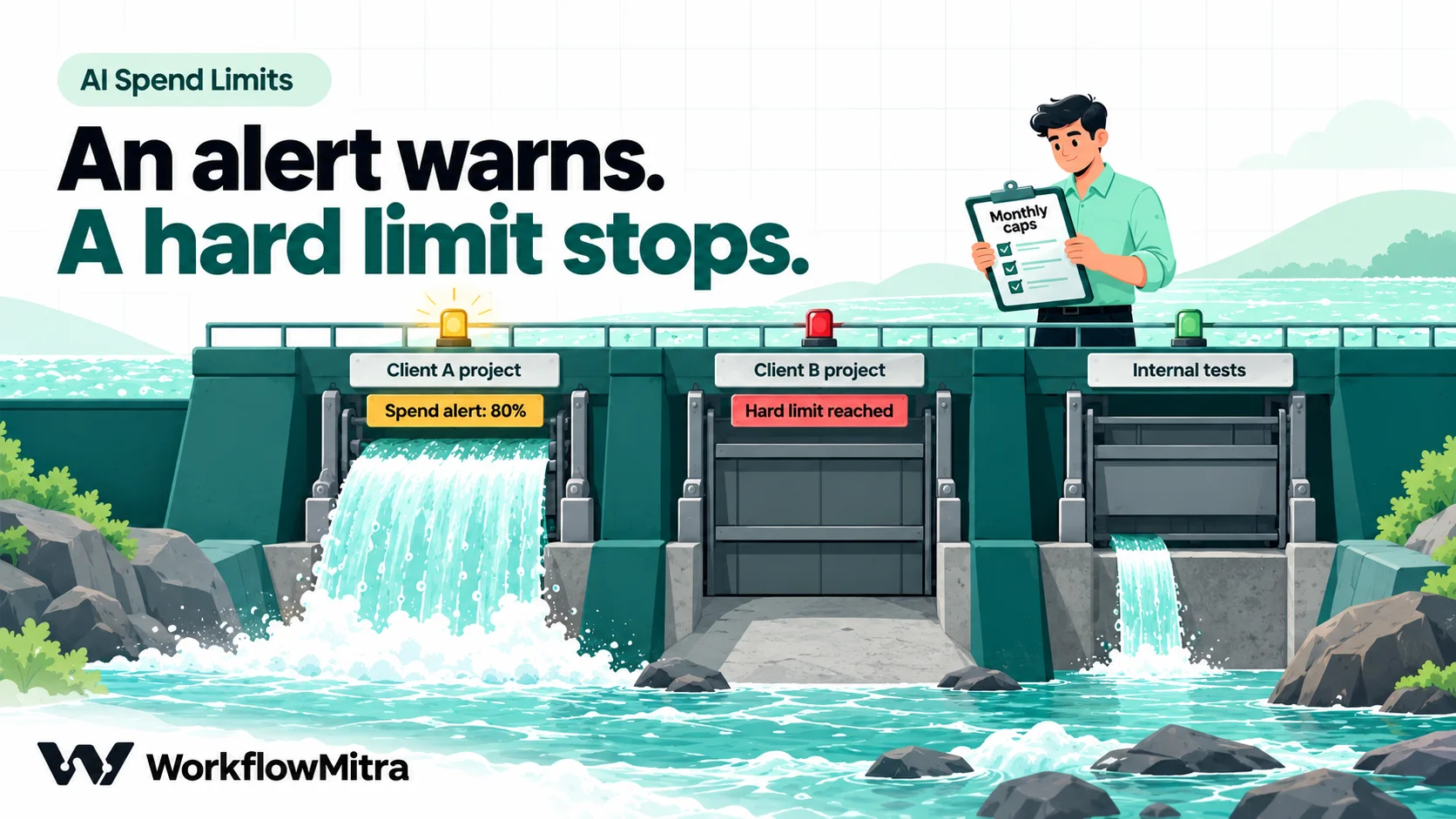
If you run AI workflows for several clients or departments, one shared key means one shared bill and one shared cap. A loop in one client’s workflow can stop every other client’s AI steps when the cap trips.
None of the four providers caps an individual key. Caps attach to a container, so the pattern is one container per client, with the key created inside it:
- OpenAI: one project per client, a project hard limit, and a key created in that project.
- Anthropic: one workspace per client, a workspace spend limit and alerts, and a key scoped to that workspace.
- Gemini: one Cloud project per client with a project spend cap. Remember that the billing account’s tier cap and prepaid balance are shared by every project on that account.
- Groq: the spend limit covers the whole organisation, so separate caps mean separate organisations. Projects can still have their own rate limits.
In WorkflowMitra, save each key as its own credential, named so nobody can mix them up (“Claude – Sharma Traders”), and pick that credential in the AI steps of that client’s workflows. If each client has its own WorkflowMitra workspace, their credentials stay in that workspace and can’t be picked from another. Our guide to getting an AI API key covers creating keys and paying for them from India.
Guardrails inside the workflow
A provider cap is the last line of defence, and it’s slow: OpenAI, Gemini and Groq all say enforcement lags or can be exceeded. Guardrails in the workflow stop the overspend at the source.
1. Set Max tokens on every AI step. The AI step’s Max tokens field (default 1,024) is sent to the provider as the output limit, and WorkflowMitra clamps it to between 1 and 4,096. It caps the output cost of every call. Give it enough room for the answer and any thinking, but no more.
2. Choose a trigger that can’t re-fire on its own output. For Google Sheets, use One column changes on the input column when the workflow writes back into the same row, as the test above shows. For other sources, write results somewhere the trigger doesn’t watch, or add a status column and an IF step that skips rows already marked “Done”.
3. Decide the batch size yourself. WorkflowMitra’s Loop accepts at most 1,000 items and three levels of nesting, which is a safety net, not a budget. When you read a sheet, a custom range such as A1:D101 reads the header row plus at most 100 rows, and a scheduled run can work through a large sheet in daily batches. Our LLM rate limits guide has a tested drip-feed pattern.
4. Skip what doesn’t need AI. An IF step before the AI step can stop empty messages, duplicates and messages you can answer with a rule. Each skipped row is a call you don’t pay for.
5. Send less text. Insert the field the task needs, not the whole record or the whole email thread. Shorter inputs cost less on every call. Our guide to redacting personal data before an AI step shows how to send only what’s needed.
6. Make a stopped AI step loud. When a cap is reached, the AI step fails. Give it an error handler that sends you a message, and turn on workflow failure alerts in your workspace’s alert settings (by email or a Slack webhook), so a cap shows up on your phone rather than in Monday’s run history. Our workflow error handling guide explains error handlers.
What you’ll see when a cap is reached
WorkflowMitra’s AI step turns provider errors into a short message. We checked how it words the spend-limit responses described above:
| Provider and cap | HTTP status | What the AI step's error says |
|---|---|---|
| OpenAI hard spend limit | 429 | "OpenAI: the provider is rate-limiting this key" |
| Anthropic tier spend cap | 429 | "Claude: the provider is rate-limiting this key" |
| Anthropic limit you set | 400 | "Claude:" followed by Anthropic's own message about your specified usage limits |
| Gemini prepaid balance at zero | 402 | "Google Gemini:" followed by Google's message |
| Groq spend limit | 400 | "Groq:" followed by Groq's message |
The important row is the first two. A spend cap at OpenAI or Anthropic’s tier cap reads like a rate limit in the step’s error, and waiting doesn’t fix it. If an AI step keeps failing with a rate-limit message long after the minute has passed, open the provider’s usage and limits page before you slow the workflow down.
When a cap trips: a short runbook
A cap doing its job still leaves you with stopped workflows. Work through these in order.
- Read the provider’s error code, not just the step’s message. On the provider’s usage or limits page, confirm whether it was your own limit, a tier cap, an empty prepaid balance or a real rate limit.
- Find the workflow that spent the money. Open the AI workflows’ run histories and look for one with far more runs than usual, or runs that started minutes apart around the clock.
- Turn that workflow off before you raise any limit. Raising the cap with the loop still running just moves the problem to a bigger number.
- Fix the cause. Change the trigger to one that can’t fire on its own output, shrink the batch, add the IF step, or lower Max tokens.
- Raise or reset the limit only after the fix, and keep it near the new estimate rather than removing it.
- Re-process what was missed on purpose. If the workflow marks rows with a status column, rows without a “Done” status are easy to pick up in the next scheduled batch. Don’t rely on re-running whole failed runs, because the rows that failed are the ones you want, not the ones that already succeeded.
Write down what happened and what you changed. The next person to build an AI workflow in your workspace will make the same mistake if nobody does.
WorkflowMitra credits cap steps, not tokens
WorkflowMitra bills in credits, and a credit is one executed step. An AI step costs one credit whether it sent 50 tokens or 50,000. That makes credits a useful brake on runaway volume and no brake at all on expensive calls.
Two WorkflowMitra features help with volume:
- Credit usage alerts. In your workspace’s alert settings you can add percentage thresholds, such as 50% and 80% of the period’s credits, and receive an email or a Slack message when usage crosses each one. They’re off until you add thresholds.
- Runs stop when credits run out. WorkflowMitra checks the workspace’s credits before each step runs and before each Loop item. A loop that runs out stops with a message such as “Ran out of credits after 120 of 400 loop items”, so a runaway loop can’t keep calling the AI provider once the workspace is out of credits.
On a small plan, that brake comes quickly. A runaway workflow that uses three credits a run, trigger, AI step and sheet update, uses up a 10,000-credit allowance in about 3,300 runs. On a large plan it takes much longer, and the provider’s token bill grows the whole time. Set both: credit alerts in WorkflowMitra and a spend limit at your AI provider.
A spend-safety checklist
Run through this before you switch on any AI workflow that runs unattended.
- The key lives in its own project or workspace, created for automations or for this client.
- That project or workspace has a hard limit (or Anthropic workspace limit), plus alerts below it.
- On Gemini prepay with auto-reload, the monthly auto-charge limit is set.
- Every AI step has a Max tokens value you chose.
- The trigger can’t fire on the workflow’s own output.
- Loops read a batch you chose, not “everything”.
- An IF step skips rows that don’t need AI.
- The AI step has an error handler that alerts a person.
- Workflow failure alerts and credit usage alerts are on in WorkflowMitra.
- You’ve written down a normal month’s estimate, so you’ll recognise an abnormal one.
Common mistakes
- Setting an alert and calling it a limit. At OpenAI, the limit only stops traffic if you switch on Enforce a hard limit. Alerts never stop anything.
- Putting automation keys in Anthropic’s Default Workspace. Spend limits can’t be set there.
- Turning on Gemini auto-reload without a monthly limit. The empty balance was your stop.
- One key for every client. One client’s loop can stop everyone’s AI steps, and the bill can’t be split.
- Assuming the cap is instant. Every provider that states a delay says spend can run over. Guardrails in the workflow matter more than the exact cap.
- Testing on 10 rows and launching on 10,000. Re-estimate the cost when the input grows.
- Retrying a spend-cap error. It fails again until the cap resets or you raise it.
Put the ceiling in before the first run
Spend limits are cheap insurance. Ten minutes in each provider’s console gives every AI key a ceiling, and a few choices in the workflow, a sensible Max tokens value, a trigger that can’t feed itself and a batch size you picked, keep you far away from that ceiling. You can build an AI workflow on your own key, set credit usage alerts and test the error handler on a 14-day WorkflowMitra trial, no card needed. On 22 October 2026, plans started at ₹999 a month for 10,000 credits; see the pricing page. For more on building AI steps safely, read our guide to AI workflow automation, and before an AI step sends messages or changes records on its own, consider adding a person to the loop with human-in-the-loop AI.
Provider settings were read on 22 October 2026 from OpenAI's spend limits guide, Anthropic's rate and spend limits documentation, Anthropic's workspaces page, Anthropic's pricing page, Google's Gemini API billing page and rate limits page, and Groq's spend limits page. Limits and prices change; check your own console. WorkflowMitra details come from its product code as of 22 October 2026. The Sheets trigger behaviour was tested by running its change-detection code on a sample row, and the error wording by running the AI step's error handling on sample provider responses.
Frequently Asked Questions
Questions people ask about capping AI API spend in automations.
In the OpenAI platform, go to Organization limits (or a project's Settings, Limits), choose Edit spend limit under Spend, enter a monthly amount and turn on Enforce a hard limit, then save. Without the hard-limit switch it's only an alert. A project limit applies to traffic billed to that project; an organisation limit applies across all projects.
Automate the work between your apps
Build workflows with triggers, conditions and actions, then test them before they go live. Try WorkflowMitra free for 14 days, no card required.
