AI Translation Automation: Translate Customer Messages, Tickets and Form Responses Automatically

Quick Summary
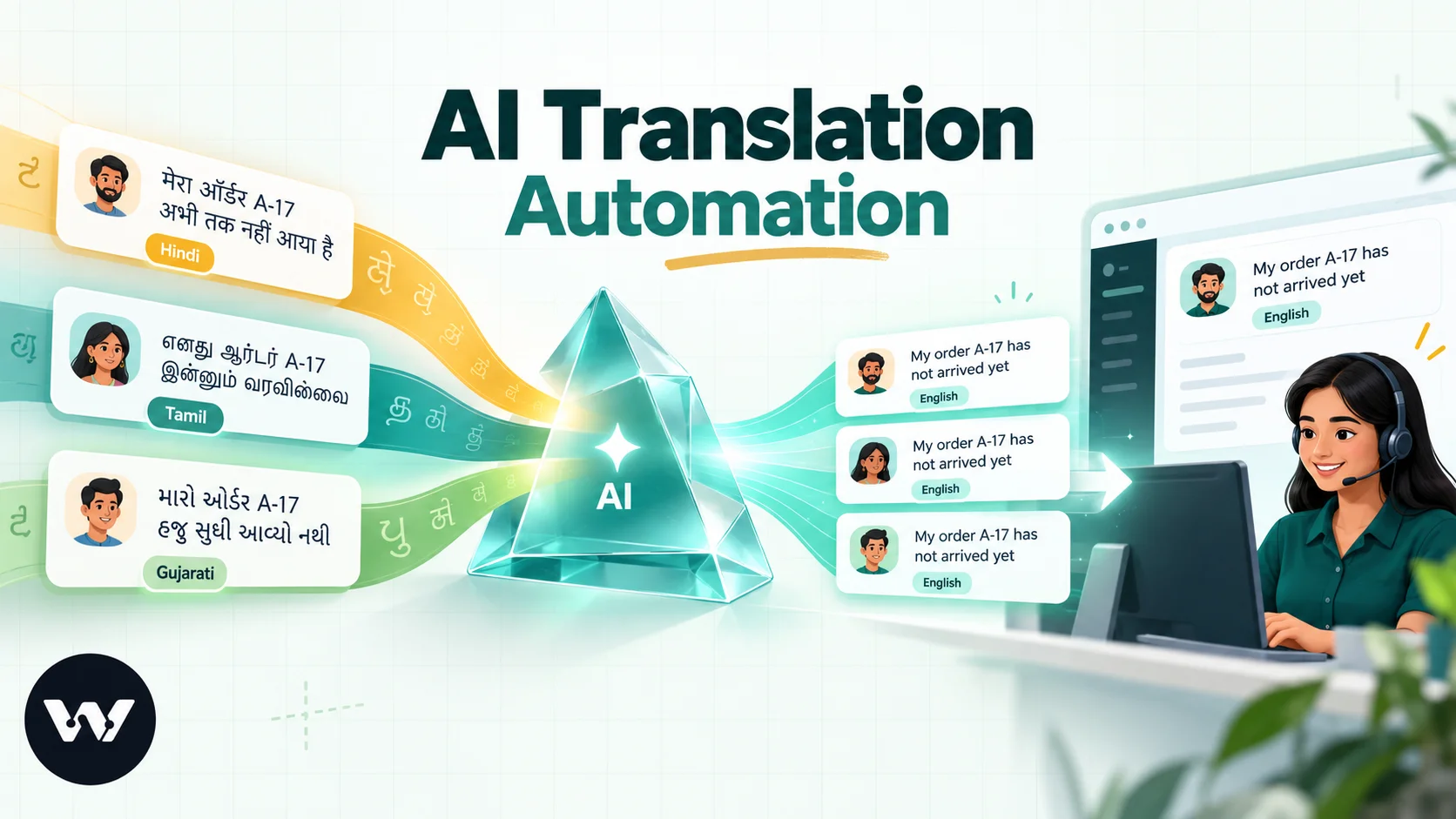
AI translation automation means a workflow translates incoming text, such as enquiries, support tickets or form answers, the moment it arrives, so your team reads everything in one language and the original is kept. In WorkflowMitra, powered by ChatMitra, an AI step with your own API key detects the language and returns the English text as JSON, a short Code step checks the reply, and the translation goes to a sheet, a ticket note or a team channel. Messages back to customers use approved templates written per language, with a person checking anything sensitive.
A customer writes to you in Hindi. Another fills your enquiry form in Tamil. A support ticket arrives half in Gujarati, half in English. Someone on the team copies each one into a translation website, pastes the result into a note, and moves on, or the message waits until the one colleague who reads that language is free.
That copy-paste step is easy to automate. This guide shows how to build AI translation workflows that detect the language of incoming text, translate it into the language your team works in, keep the original, and send it wherever the team reads it. It also covers the part people skip: how to talk back to customers in their own language without letting a machine improvise prices or promises.
What is AI translation automation?
AI translation automation is a workflow that translates text the moment it arrives, without anyone copying and pasting. A trigger catches the new message, ticket or form answer; an AI model or translation service detects the language and returns the translation; and the workflow saves both versions where the team works, such as a sheet, a ticket note or a chat channel.
Two directions matter, and they deserve different rules:
- Inbound translation helps your team understand customers. A small mistake here is caught by a human reading it, so automation can run freely.
- Outbound translation speaks to customers in your name. A mistake here is a broken promise. This side needs approved wording and a human check.
Most of this guide is about inbound, because that is where the time goes. The outbound section shows the safe way to answer in many languages.
Where translation workflows pay off
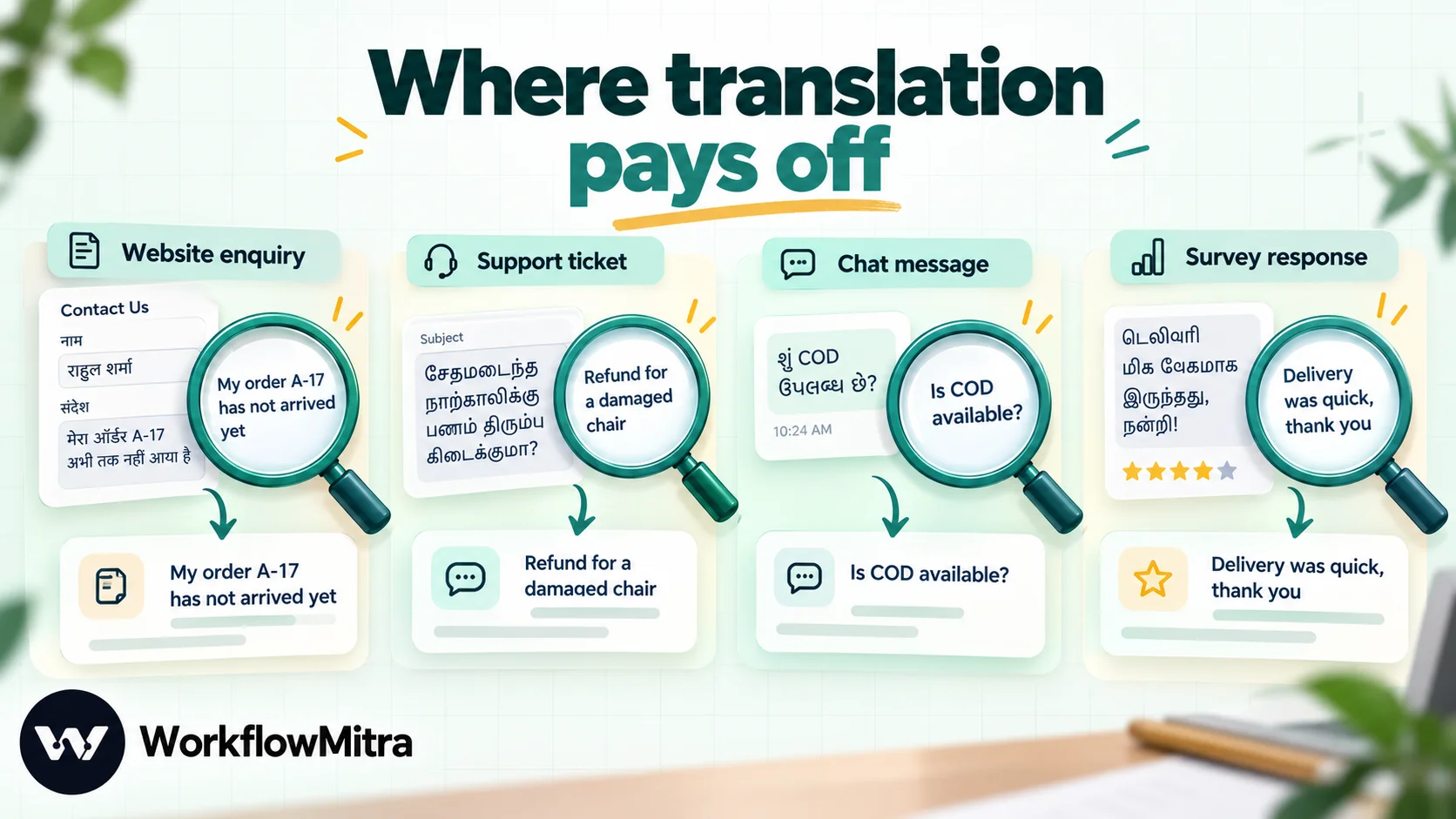
| Source | What gets translated | Where the translation goes |
|---|---|---|
| Website enquiry or contact form | The message field | A sheet row and a sales channel alert |
| Support tickets | Subject and description | A private note on the ticket |
| Survey, feedback and review answers | Open-text answers | An analysis sheet with language and English columns |
| Chat messages to a Telegram bot or website widget | Each incoming message | The team channel watching the conversation |
| Supplier and partner emails | The email body | A forwarded summary in the team's language |
India makes the case clearly. The Constitution’s Eighth Schedule lists 22 languages, and a business selling across states hears from customers in many of them, often in English letters rather than their own script. A team that reads only English and Hindi still needs to understand a Marathi complaint today, not when a Marathi-speaking colleague is back from leave. The same applies to any business with customers across borders: Arabic in the Gulf, Spanish in the US, Portuguese in Brazil.
AI model or translation API?
You have two kinds of engine to choose from, and both fit in a workflow.
| Language model (Claude, GPT, Gemini, Groq-hosted models) | Translation API (Google Cloud Translation, DeepL) | |
|---|---|---|
| How you call it | An AI step with your own API key | An HTTP Request step with the service's API key |
| Language detection | Ask for it in the same reply | Returned by the service (Google) or as the detected source language (DeepL) |
| Glossaries and style rules | Written into the prompt | Google: Advanced edition only. DeepL: on its plans, but not for Indian languages |
| Extra fields in one call | Yes: summary, urgency, product, sentiment | No: translation only |
| Pricing | Per token on your provider account | Per character. Google Basic: first 500,000 a month free, then $20 per million. DeepL: a free Developer plan with a one-time 1 million characters, then paid plans |
| Predictability | Can vary; must be told to return only JSON | Same input gives the same output; plain structure |
A model is the better fit when you want more than a translation: the language, an English summary, whether the customer is angry, which product they mean. A translation API is the better fit for high volumes of plain text, such as thousands of reviews, where you want a predictable per-character price and don’t need extra fields.
This guide builds with a model in the main example and shows the API version afterwards, so you can swap the engine without rebuilding the workflow.
The building blocks in WorkflowMitra
WorkflowMitra, powered by ChatMitra, has everything a translation workflow needs, using AI keys you already have:
- Triggers for where text arrives: a webhook (website forms, helpdesks, survey tools), Google Sheets rows, email, or chat messages from a Telegram bot or website widget.
- AI step with Claude, OpenAI, Gemini, Groq or Ollama, on your own API key. It takes a System prompt (optional) and a Prompt, and returns the reply as
text, plusjsonwhen the whole reply is valid JSON. - HTTP Request for translation APIs such as Google Cloud Translation or DeepL.
- Code for checking and cleaning the model’s reply.
- IF and Switch for routing by language or by whether the translation succeeded; neither costs credits.
- Destinations: Google Sheets, Slack, Telegram, Discord, email, Freshdesk and Zendesk notes, CRMs, and WhatsApp through ChatMitra or Meta’s Cloud API.
AI in WorkflowMitra is bring-your-own-key: you add an API key from your provider, and the provider bills you for tokens directly. WorkflowMitra charges one credit for each AI step that runs.
Build it: translate website enquiries into English
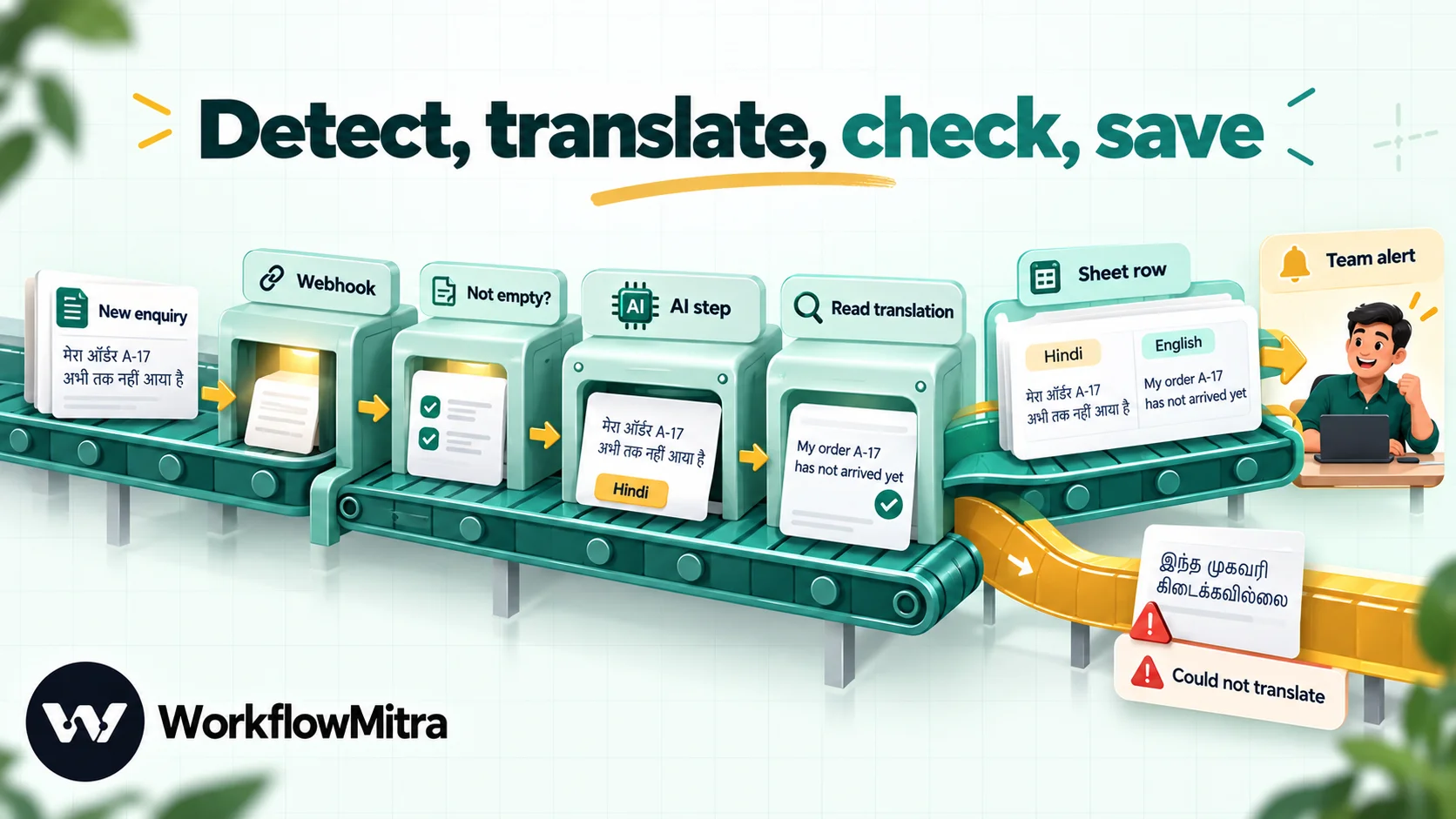
The example: your website’s enquiry form posts to a workflow. Every enquiry should land in a Google Sheet with the original message, its language and an English translation, and the sales channel in Slack should get the English version straight away.
1. Catch the enquiry with a webhook
Add an On webhook call trigger and choose the Website form source, which checks a shared secret in the x-webhook-secret header. Point your form’s webhook or POST action at the trigger URL, with that header, and send at least name, email and message. Submit one test enquiry so the trigger shows the fields.
If your form tool can’t add headers, see WordPress form to WhatsApp for the trade-offs of an open URL, and webhook security for the alternatives.
2. Skip empty messages
Add an IF step: value {{ $trigger.message }}, condition Is not empty. A missing field inside a prompt quietly becomes empty text, and an AI step asked to translate nothing wastes a credit and returns nonsense.
3. Translate and detect the language with an AI step
Add an AI step with the Chat action. Pick your provider and name the model explicitly rather than leaving it blank, so a change of default doesn’t change your translations. Leave Temperature at 0 where the field is shown, except for Gemini 3 models, where Google recommends 1.
System prompt (optional):
You translate customer messages for a sales and support team. You never answer the customer and never add advice. You reply with one JSON object and nothing else.Prompt:
Translate the customer message below into English.

Rules:
- Keep names, order numbers, amounts, dates, phone numbers, email addresses and links exactly as written.
- Never translate these terms: ChatMitra, WorkflowMitra, Pro plan, COD.
- The message may be written in any language, including Hindi, Gujarati or Tamil in English letters, or a mix of languages.
- If the message is already in English, return it unchanged.
- If part of the message is unclear, translate what you can and set "unsure" to true.

Customer message:
"""
{{ $trigger.message }}
"""

Reply with only this JSON object: {"language_code": "two-letter ISO 639-1 code", "language": "language name in English", "english": "the English translation", "unsure": true or false}
A few choices in that prompt are deliberate. Naming the target language outright follows Anthropic’s own advice for production translation, and it holds for other providers too. The triple quotes separate the customer’s words from your instructions, so a message that says “ignore the above” is translated rather than obeyed. The “keep exactly as written” rule protects the values your team acts on. The glossary line stops the model translating your product names, which it will otherwise do with confidence. And the JSON contract sits at the very end, which models follow more reliably than a format described at the top.
Set Max tokens to about 2,048 for long messages. The step allows up to 4,096 and defaults to 1,024; text in scripts such as Devanagari or Tamil, plus a JSON wrapper, can run past the default on a long complaint. For Gemini, which counts its thinking inside the limit, 2,048 is the minimum worth using.
If you use Groq, you can also set Response format to JSON object. Other providers don’t get that switch, which is why the next step exists.
4. Check the reply with a Code step
The AI step sets json only when the whole reply is valid JSON. Models sometimes wrap it in a code fence or add “Here is the JSON:”, and then json is empty even though the answer is fine. A short Code step, named Read translation, placed directly after the AI step, recovers it:
const raw = String(input.text || '').trim();
const cleaned = raw.replace(/^```(?:json)?\s*/i, '').replace(/\s*```$/, '');

let data = null;
try {
  data = JSON.parse(cleaned);
} catch (e) {
  const start = cleaned.indexOf('{');
  const end = cleaned.lastIndexOf('}');
  if (start !== -1 && end > start) {
    try { data = JSON.parse(cleaned.slice(start, end + 1)); } catch (e2) { data = null; }
  }
}

if (!data || typeof data.english !== 'string' || !data.english.trim()) {
  return { ok: false, language_code: '', language: '', english: '', unsure: true };
}
return {
  ok: true,
  language_code: String(data.language_code || '').toLowerCase().trim(),
  language: String(data.language || '').trim(),
  english: data.english.trim(),
  unsure: data.unsure === true,
};
We ran this step in WorkflowMitra’s Code sandbox with seven replies: clean JSON, JSON in a code fence, JSON after a “Here is the JSON” line, a translation containing quotes and a rupee amount, an empty translation, a refusal in plain prose, and no reply at all. The first four came back with ok: true and the right fields, including the language code lower-cased; the last three came back ok: false, so the workflow can treat them as failures instead of saving blanks.
The Code step reads only the step before it, which is why it must sit straight after the AI step. Later steps reach its output by name, as {{ $node["Read translation"].english }}, and the original form fields as {{ $trigger.message }}.
5. Branch on success
Add an IF on {{ $node["Read translation"].ok }} with Is yes.
On the yes branch, add the destinations:
- Google Sheets: Add row(s) to an Enquiries tab with columns in this order: received, name, email, language, original, english, unsure. Map
{{ now() }},{{ $trigger.name }},{{ $trigger.email }},{{ $node["Read translation"].language }},{{ $trigger.message }},{{ $node["Read translation"].english }}and{{ $node["Read translation"].unsure }}. The step writes by column position, so keep the order identical. - Slack with a message such as
New enquiry from {{ $trigger.name }} ({{ $node["Read translation"].language }}): {{ $node["Read translation"].english }}.
On the no branch, post the original instead: Enquiry from {{ $trigger.name }} could not be translated automatically. Original: {{ $trigger.message }}. Nothing is lost when the model has a bad moment.
We resolved both Slack lines in WorkflowMitra’s expression engine with a Hindi message containing quotes and a line break: the original came through intact, and the alert read “New enquiry from Ravi (Hindi): My order “A-17” has not arrived yet. Please tell me soon.”
6. Flag the uncertain ones
The unsure field earns its place. Add a second IF on {{ $node["Read translation"].unsure }} Is yes, and on that branch add “:warning: check translation” to the Slack message, or tag the row. Your bilingual colleagues then review a handful of flagged messages instead of every one.
7. Test with real messages
Collect ten real messages from your inbox, in the languages you actually receive, including at least two in English letters (Hinglish and its cousins), one mixed-language message, one with an order number and an amount, and one that is already English. Send them through the form and have someone who reads each language check the sheet. Change the prompt, not the workflow, when something is off, and keep the ten messages as your test set for every prompt change.
Don’t skip this. We didn’t run these prompts against live models for this guide, and translation quality depends on the model, the language pair and how informal your customers write. Your ten real messages are a better measure than any general claim about a model.
The same pattern for tickets, surveys and chats
Once the enquiry workflow works, the AI step and Read translation step move unchanged into other workflows. Only the trigger and the destination change.
Support tickets. A Freshdesk automation rule or a Zendesk trigger can call a webhook when a ticket is created, sending the ticket ID, subject and description. After translation, a Freshdesk: Add Note or Zendesk: Add Internal Note step writes “Translated from {{ $node[“Read translation”].language }}: {{ $node[“Read translation”].english }}” on the ticket as a private note. Agents see the English right under the customer’s words. Setting up the helpdesk side, including the Zendesk signature trap, is covered in Freshdesk and Zendesk ticket updates on WhatsApp. Add an IF so tickets already in English (language_code equals en) skip the note.
Survey and review answers. Translate before you analyse. A sentiment or theme step that receives English gives you one consistent set of categories instead of a different vocabulary per language. You can even ask for both in one prompt: language, English text and sentiment in the same JSON object. AI sentiment analysis shows that build.
Chat messages. A Telegram bot or website chat trigger receives each customer message; the translation goes to the team’s channel so whoever is on duty can follow the conversation. Keep the bot’s own replies separate from this, and see the outbound rules below before letting a bot answer in a translated language.
Many languages to many teams. Put a Switch on {{ $node["Read translation"].language_code }} with routes such as ta, te and kn to send Tamil, Telugu and Kannada enquiries to the southern sales team, and a default route for everyone else.
Translation API version: Google or DeepL instead of a model
If you’d rather use a dedicated translation service, replace the AI step and the Read translation step with one HTTP Request step, method POST, body type Raw JSON.
Google Cloud Translation (Basic): send the request to the URL below, with your API key in an x-goog-api-key header and this Raw JSON body, then read the two values from the response.
URL:   https://translation.googleapis.com/language/translate/v2
Body:  {"q": "{{ $trigger.message }}", "target": "en", "format": "text"}
Read:  {{ body.data.translations[0].translatedText }}
       {{ body.data.translations[0].detectedSourceLanguage }}
Leave out source and Google detects the language itself, at no extra charge. Keep "format": "text": the default is HTML, which suits web pages but not a customer’s plain message.
DeepL: use the first URL for a free key (it ends in :fx) and the second for a paid one, with an Authorization header whose value is DeepL-Auth-Key followed by your key.
URL:   https://api-free.deepl.com/v2/translate
       https://api.deepl.com/v2/translate
Body:  {"text": ["{{ $trigger.message }}"], "target_lang": "EN-GB"}
Read:  {{ body.translations[0].text }}
       {{ body.translations[0].detected_source_language }}
Use Raw JSON rather than the JSON fields option, because DeepL expects text as a list and the fields option sends every value as plain text. We resolved both bodies in WorkflowMitra’s engine with a Hindi message containing quotes and a line break, and each came out as valid JSON with the message intact.
Add an IF on {{ ok }} Is yes straight after the request. A refused key, an exhausted quota or an unsupported language finishes the HTTP step with ok: false instead of stopping the run, so without the IF you’d save an empty translation.
Check language coverage before you commit. DeepL’s list covers Hindi, Bengali, Gujarati, Marathi, Tamil, Telugu, Malayalam, Punjabi and Urdu, among others, but not Kannada or Odia, and its glossaries don’t apply to those Indian languages. Google covers far more languages, with glossaries in its Advanced edition. With either, you give up the extras a model offers (the unsure flag, the plain-words glossary, extra fields such as sentiment) in exchange for a fixed price per character and repeatable output.
Talking back: replies in the customer’s language
Understanding a Tamil complaint is half the job. The customer also expects an answer they can read. Here the rules change, because every word goes out in your name.
Routine messages: templates per language
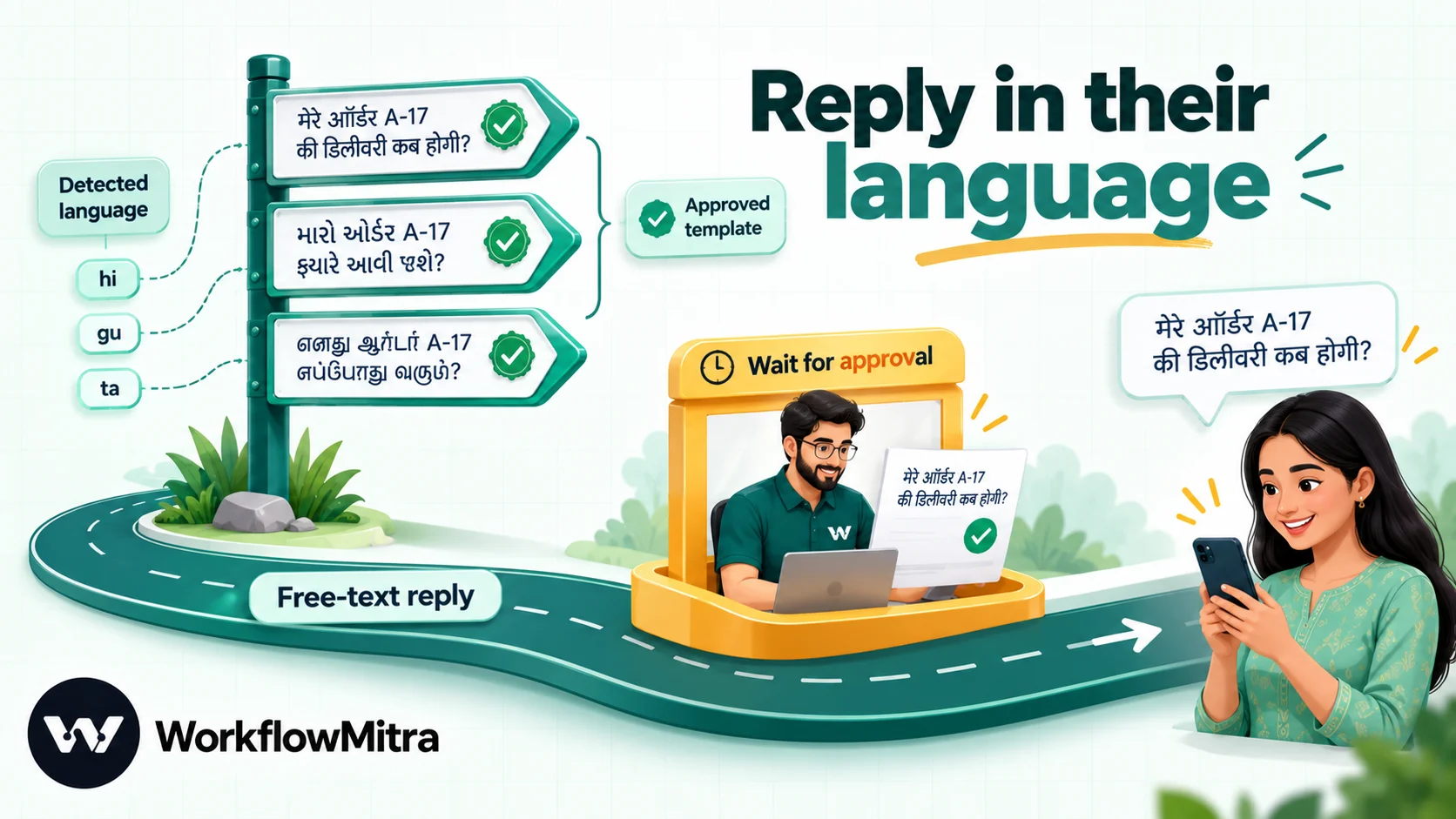
For confirmations, updates and reminders on WhatsApp, the safest way to speak many languages is to create each template in each language you support, written or checked by a fluent person, and get each version approved. Meta lets several templates share a name in different languages, but it doesn’t translate anything for you, and each language version counts towards your template limit, so add languages your customers actually use. Meta’s supported list includes Hindi, Bengali, Gujarati, Kannada, Malayalam, Marathi, Punjabi, Tamil, Telugu and Urdu; Odia and Assamese aren’t on it, so those customers get your English or Hindi version. Then route by the detected language:
- Save each customer’s
language_codein your sheet or CRM the first time they write to you. - In the sending workflow, add a Switch on that stored code, with routes such as
hi,guandta, and a default route for English. - On each route, a WhatsApp step sends the template version in that language. The template you pick decides the language.
No translation happens at send time, so nothing improvised reaches a customer. ChatMitra’s guide to message templates covers creating and approving them.
Free-text replies: translate, then check
Sometimes an agent needs to write a real answer. A workable pattern:
- The agent writes the reply in English into a reply column next to the customer’s row in the sheet.
- A Google Sheets trigger set to One column changes on that column starts the workflow.
- An AI step translates the reply into the customer’s stored language, with the same “keep amounts, names and links exactly” rules.
- Wait for approval pauses the run. A bilingual colleague opens the Approvals page in WorkflowMitra, reads the translation, and approves or rejects it. Alerts arrive by email or a Slack webhook.
- On approval, a WhatsApp step sends the translated text as a normal message.
Two limits apply. WhatsApp allows free-text messages only within 24 hours of the customer’s last message to you; after that, only an approved template can start the conversation again. And the approval step should never be skipped for anything about money, refunds, deadlines or health.
Prompt rules that make translations usable
Most bad automatic translations come from the prompt, not the model. These rules fix the common problems:
| Problem | Prompt rule |
|---|---|
| Product or plan names translated | A "never translate these terms" list, kept short and current |
| Order numbers or amounts changed or reformatted | "Keep numbers, amounts, dates and IDs exactly as written" |
| The model answers the customer instead of translating | System prompt: "You never answer the customer"; message in triple quotes |
| Polite Hindi turned into blunt English, or the reverse | "Keep the customer's tone; don't make it more polite or more rude" |
| Romanised text (Hinglish) mistaken for English | "The message may be in any language written in English letters" |
| Unreadable JSON | Format contract as the prompt's last line; Read translation step |
| Confident nonsense on slang or typos | An "unsure" field and a review route |
Keep the glossary in one place. If it grows beyond a dozen terms, put it in a cell of a settings sheet, read it with a Google Sheets: Get cell (A1) step before the AI step, and insert it into the prompt, so changing a term doesn’t mean editing every workflow.
Ask for one language per field. A prompt that asks for “the translation and a summary” without saying which language the summary is in will sometimes summarise in the customer’s language.
Language detection: the awkward cases
Detection is the part people assume will just work, and it mostly does. These are the cases that trip it up, and what to do about each:
- Very short messages. “Ok”, “Haan ji”, ”👍” or an order number alone don’t carry enough text to name a language with confidence. Add a rule to the prompt: “If the message is shorter than three words, use language_code
und.” Then treatundlike English in your routing, and don’t overwrite a customer’s stored language with it. - Mixed messages. “Mera order kab aayega? It’s been 5 days” is Hindi and English in one line, which is normal for many customers. Ask for the main language, and let the translation cover both parts. Don’t route a mixed message to a regional team just because one word was Marathi.
- Romanised text. A message in Hindi written in English letters is still Hindi for routing and reply purposes, even if it looks like English at a glance. The prompt rule about English letters matters most here.
- Closely related languages. Hindi and Urdu, or Bengali and Assamese, can be hard to tell apart in short or romanised text. If the difference matters for your replies, confirm with the customer once and store their answer rather than trusting detection every time.
- Customer’s language versus your reply language. The language a customer writes in isn’t always the one they want back. A customer who writes in Hinglish may prefer replies in English. Store a preferred language field your team can override, and route outbound messages by that field, not by the last message’s detection.
Privacy and quality checks
Every message you translate is sent to your AI or translation provider under your own account. Before switching the workflow on, read that provider’s terms for API data (retention, and whether API data is used for training) and decide what you’re comfortable sending. Two habits help: send only the text that needs translating, not the whole form with phone numbers and addresses, and don’t route identity documents, health details or payment information through a translation step at all.
Then check quality on a schedule rather than when someone complains. Once a month, take twenty random rows from the sheet, ask a fluent colleague to mark each translation as fine, minor issue or wrong, and note how many rows were flagged unsure. If the wrong count rises, look at those messages first: a new product name missing from the glossary, a language you hadn’t planned for, or a model change on the provider’s side are the usual causes.
What it costs
| Cost | Billed by | Basis |
|---|---|---|
| Workflow steps | WorkflowMitra | Trigger, AI step and each destination step use 1 credit when they run; IF and Switch are free; a short Code step uses a fraction of a credit. The entry plan includes 10,000 credits for ₹999 a month |
| AI tokens | Your AI provider | Per input and output token on your own API key |
| Translation API (alternative) | Google or DeepL | Per character on your own account |
| WhatsApp replies | Meta, and ChatMitra when it sends | Meta per delivered template; ChatMitra ₹0.20 per conversation, once per customer per 24 hours |
The enquiry workflow uses four credits for each enquiry: trigger, AI step, sheet row and Slack alert, plus a fraction for the Code step. A business receiving 1,500 enquiries a month in mixed languages uses about 6,000 credits, within the ₹999 plan. Adding a ticket note in a second workflow for 500 tickets a month adds about 2,000 more.
Token costs depend on your provider and model, so check the provider’s pricing page for the one you pick. A short enquiry and its translation are a few hundred tokens. Smaller, faster models are often good enough for straight translation, so run a cheaper model against your ten-message test set before paying for the largest one.
Troubleshooting
| Symptom | Likely cause | Fix |
|---|---|---|
| Every run goes to the "could not translate" branch | The model wraps JSON in prose, or the JSON contract isn't the prompt's last line | Keep the Read translation step; move the format line to the end |
| Translation is cut off | Max tokens too low for long text or for Gemini's thinking | Raise Max tokens to 2,048 or more (limit 4,096) |
| Empty translations for some messages | The form field name differs, so the prompt got empty text | Check the trigger's fields; keep the IF before the AI step |
| Product names translated | Missing or outdated glossary | Add the terms to the "never translate" line |
| English messages "translated" into different English | No rule for text that is already English | Add "return it unchanged if already English" |
| Sheet columns shifted | Add row(s) writes by position | Keep the mapping order identical to the header order |
| AI step fails with an authentication error | API key missing, expired or out of credit at the provider | Update the key in the step; check the provider's billing |
When a run fails, the run history shows the step and the provider’s error. Set a failure alert under Workspace settings → Alerts so a broken key doesn’t silently stop translations; error handling in workflows explains the options.
Common mistakes
- Throwing away the original. Always keep the customer’s own words next to the translation. Disputes, reviews and legal questions refer to what the customer actually wrote.
- Translating everything twice. Skip messages already in your team’s language with an IF on
language_code. - Letting the translator answer. A translation step should only translate. Use a separate AI step, with its own instructions and a human check, if you want suggested replies.
- No test set. Without a fixed set of real messages, every prompt change is a guess.
- Machine-translating templates. Approved WhatsApp templates should be written per language by people; automation chooses the right one.
Why use WorkflowMitra for translation workflows?
WorkflowMitra, by ChatMitra, suits teams that receive text in many languages and want it handled where they already work:
- Your choice of engine. Claude, OpenAI, Gemini, Groq or a self-hosted Ollama model through the AI step, or Google and DeepL through HTTP Request, all on your own keys, so you pay the provider’s price and can switch.
- Translation plus action in one run. The same workflow detects the language, translates, saves both versions, alerts the right team and notes the ticket.
- Safe outbound. Language-based routing to approved WhatsApp templates through ChatMitra or Meta’s Cloud API, and a Wait for approval step for free-text replies.
- Tested building blocks. The Read translation step in this guide was run against the failure cases that break most JSON-based AI workflows.
- Low running cost: about four credits per translated message, plans priced in rupees, and a 14-day trial with no card.
The limits are real. AI keys are yours to manage and pay for. There’s no built-in translation step, so the prompt or API call is yours to maintain, and the quality is only as good as the model and prompt you choose. The Code step is short JavaScript. And for high-stakes text, no workflow replaces a fluent person.
To try it, start a 14-day trial, connect your enquiry form, and run your ten test messages through it before switching it on for real traffic. For better prompts, read AI prompts for automation; to sort translated messages by topic or urgency, AI email classification uses the same JSON pattern; and WhatsApp workflow automation covers the sending side.
WorkflowMitra features and limits in this guide were checked in the product code on 8 October 2026. The Read translation Code step was run in WorkflowMitra's Code sandbox, and the prompt and Slack expressions were resolved by its expression engine, with sample replies the same day; the prompts were not run against live AI models. Language facts are from the Ministry of Home Affairs note on the Eighth Schedule; translation API details from Google Cloud's v2 translate reference, pricing and editions, and DeepL's authentication and supported languages pages and plans; prompt guidance from Anthropic's multilingual support page; and WhatsApp rules from Meta's templates overview, supported languages and sending messages guides, all read on 8 October 2026. ChatMitra's fee is from chatmitra.com/pricing.
Frequently Asked Questions
Questions teams ask before they automate translation of customer messages.
It is a workflow that sends each new piece of text, such as an enquiry, ticket or form answer, to an AI model or translation service as soon as it arrives, and saves or forwards the translation without anyone copying and pasting. The original text is kept beside the translation so nothing is lost.
Automate the work between your apps
Build workflows with triggers, conditions and actions, then test them before they go live. Try WorkflowMitra free for 14 days, no card required.
