API Health Check Monitoring: Build Uptime Alerts with a Scheduled Workflow

Quick Summary
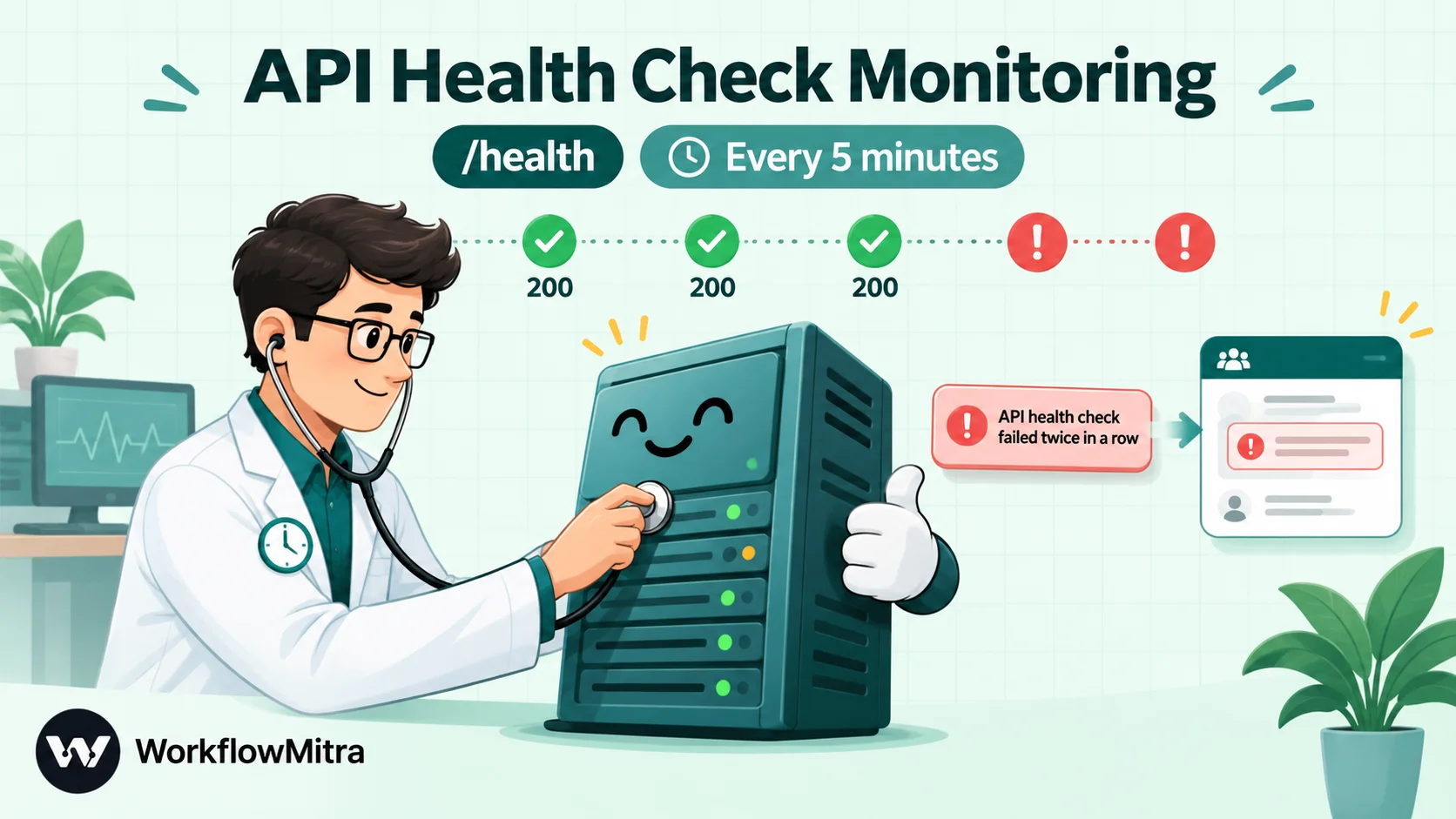
API health check monitoring means calling an endpoint on a fixed schedule, deciding whether the answer counts as healthy, and telling a person only when it doesn't. In WorkflowMitra, powered by ChatMitra, that is a scheduled workflow: an 'On a schedule' trigger every few minutes, an HTTP Request step with a short timeout and 'On failure: Continue', and an IF step that checks the response's ok value or a field in its body. A one-minute delay and a second request filter out one-off blips, and a Data Store key per hour stops the same outage from sending an alert every five minutes. Each healthy check costs two credits. A dedicated uptime service is still the better choice for one-minute checks across many sites, checks from several regions, SSL expiry or a public status page.
Most small teams find out their API is down the worst possible way: a customer tells them. The checkout page has been throwing errors since lunch, the booking form has quietly stopped saving, or the partner integration that feeds your orders has been returning 500s all night. Nobody was watching, because watching an endpoint is nobody’s job.
API health check monitoring fixes that. It isn’t complicated: something calls your endpoint on a schedule, decides whether the answer is healthy, and tells a person when it isn’t. This guide shows how to build that check as a scheduled workflow in WorkflowMitra, powered by ChatMitra, including the two pieces most quick tutorials leave out: confirming that an outage is real before anyone is alerted, and sending one alert per incident instead of one every five minutes. It also covers when you should skip the workflow and use a dedicated uptime service instead.
What is API health check monitoring?
API health check monitoring is calling an endpoint at a fixed interval and alerting someone when the response is wrong, slow or missing. The check has three parts: a request (usually a GET to a /health or /status URL), a rule that decides what "healthy" means (a 2xx status, a field in the body, an answer within a time limit), and an alert that reaches a person who can act. Good monitoring also confirms a failure before alerting and avoids repeating the same alert for one outage.
It’s worth separating three terms people often use interchangeably:
- A health check is the endpoint itself, the URL your service exposes so something can ask “are you OK?”.
- Uptime monitoring is the outside process that calls that URL, or your home page, on a schedule and records whether it answered.
- Alerting is the decision about when a failed check becomes a message to a human, and where that message goes.
Google’s Site Reliability Engineering book calls the outside view black-box monitoring: it tests what users actually experience, as opposed to white-box monitoring, which reads a system’s internal metrics and logs. A scheduled health check is black-box monitoring in its simplest form. It won’t tell you why something broke, but it reliably tells you that it broke, which is the part small teams usually miss.
When a scheduled workflow is the right tool, and when it isn’t
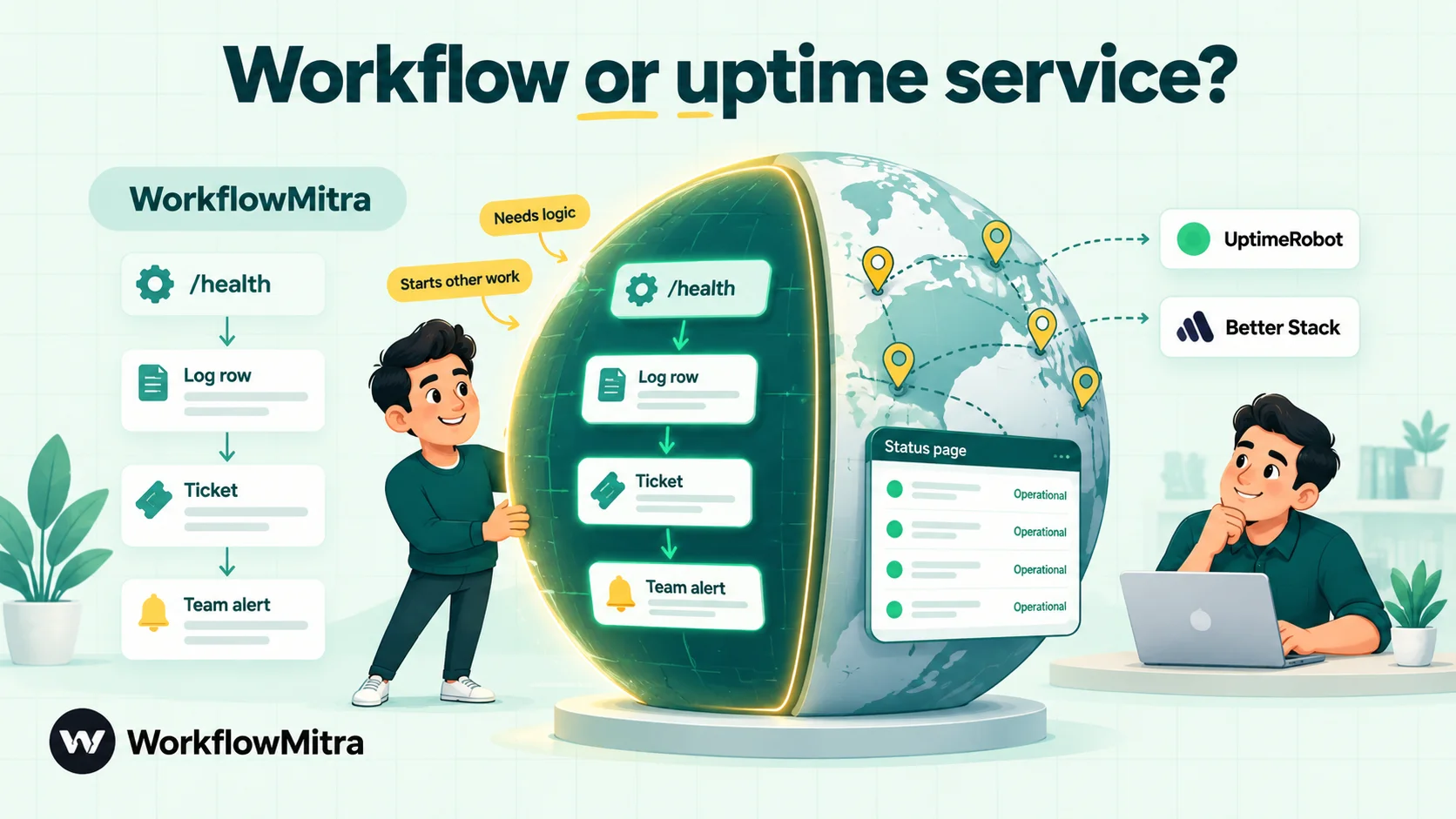
Before building anything, be honest about the job. Dedicated uptime services such as UptimeRobot and Better Stack exist for exactly this, and some are free for small setups. As checked on 8 October 2026, UptimeRobot’s free plan covers 50 monitors at a 5-minute interval (the company describes it as suited to hobby and non-profit projects), and Better Stack’s free tier includes 10 monitors with Slack and email alerts. Paid uptime plans add one-minute or faster checks, checks from several regions, SSL and domain expiry warnings and public status pages.
A workflow earns its place when the check is part of a business process rather than a standalone dashboard. For example:
- The check needs logic. You want to read a field in the response (
"queue_depth": 4200), compare it with a threshold, and alert only above it. Or the endpoint needs an API key, a custom header or a POST body. - The response should start other work. When the payment gateway’s status endpoint reports a degraded service, you also want to pause a campaign, post in the support channel, or log the incident to a Google Sheet for a monthly report.
- You’re checking a few things, not fifty. A handful of critical endpoints (your API, your checkout, a supplier’s order API) at a 5- to 15-minute interval.
- Alerts should go where your team already works. Slack, Discord, Telegram, email, or WhatsApp through ChatMitra, and in the format you choose.
| Need | Scheduled workflow (WorkflowMitra) | Dedicated uptime service |
|---|---|---|
| Check a few critical endpoints every 5–15 minutes | Good fit | Good fit, often free |
| Check every minute or faster | Possible (minimum 1 minute), but credits add up quickly | Better: built for it |
| Read and compare values in the response body | Strong: any field, any rule | Usually keyword match only |
| Authenticated or POST checks | Strong: bearer, basic, API-key header, custom headers and bodies | Varies by plan |
| Start other work when a check fails | Strong: any later step | Limited to alert integrations and webhooks |
| Check from several countries to confirm an outage | No: checks run from WorkflowMitra's servers only | Better |
| Measure response time, SSL expiry, DNS | No duration, certificate or DNS data | Better |
| Public status page | No | Better |
Many teams end up using both: a free uptime monitor for the home page and SSL certificate, and a workflow for the two or three checks that need business logic. That’s a perfectly sensible split.
What makes a good health check endpoint
The monitor is only as good as the URL it calls. If you control the service, a few minutes spent on the endpoint will save you hours of false alarms.
Make it cheap and fast. A health endpoint should answer in milliseconds. Don’t run a report or a full search behind it; check the few things the service can’t work without, such as reaching its database or its queue.
Use the status code to say healthy or not. Return 200 when the service can do its job and a 5xx, typically 503 Service Unavailable, when it can’t. Monitors, load balancers and container platforms read the status code first. Kubernetes, for example, treats any HTTP probe answer from 200 to 399 as success and everything else as failure.
Add a small, predictable body. A widely copied, though never standardised, IETF draft proposes an application/health+json format with a status of pass, fail or warn. You don’t have to follow it, but the idea is useful: one top-level field your monitor can check, plus optional details.
{
  "status": "pass",
  "version": "2.14.0",
  "checks": {
    "database": "pass",
    "payments_queue": "warn"
  }
}
Separate “alive” from “ready”. Kubernetes uses liveness probes to decide when to restart a container and readiness probes to decide when it can take traffic. For outside monitoring, the readiness-style question (“can this service serve a customer right now?”) is the one that matters.
Protect it if it reveals details. A bare {"status":"pass"} can be public. If your health response lists versions, dependencies or hostnames, require an API key in a header and give the monitor its own key.
If the service isn’t yours (a supplier’s API, a SaaS tool you depend on), you can still monitor it. Call a cheap, read-only endpoint, such as a list call with a limit of one, or the provider’s public status API if it has one.
How to build an API health check workflow in WorkflowMitra
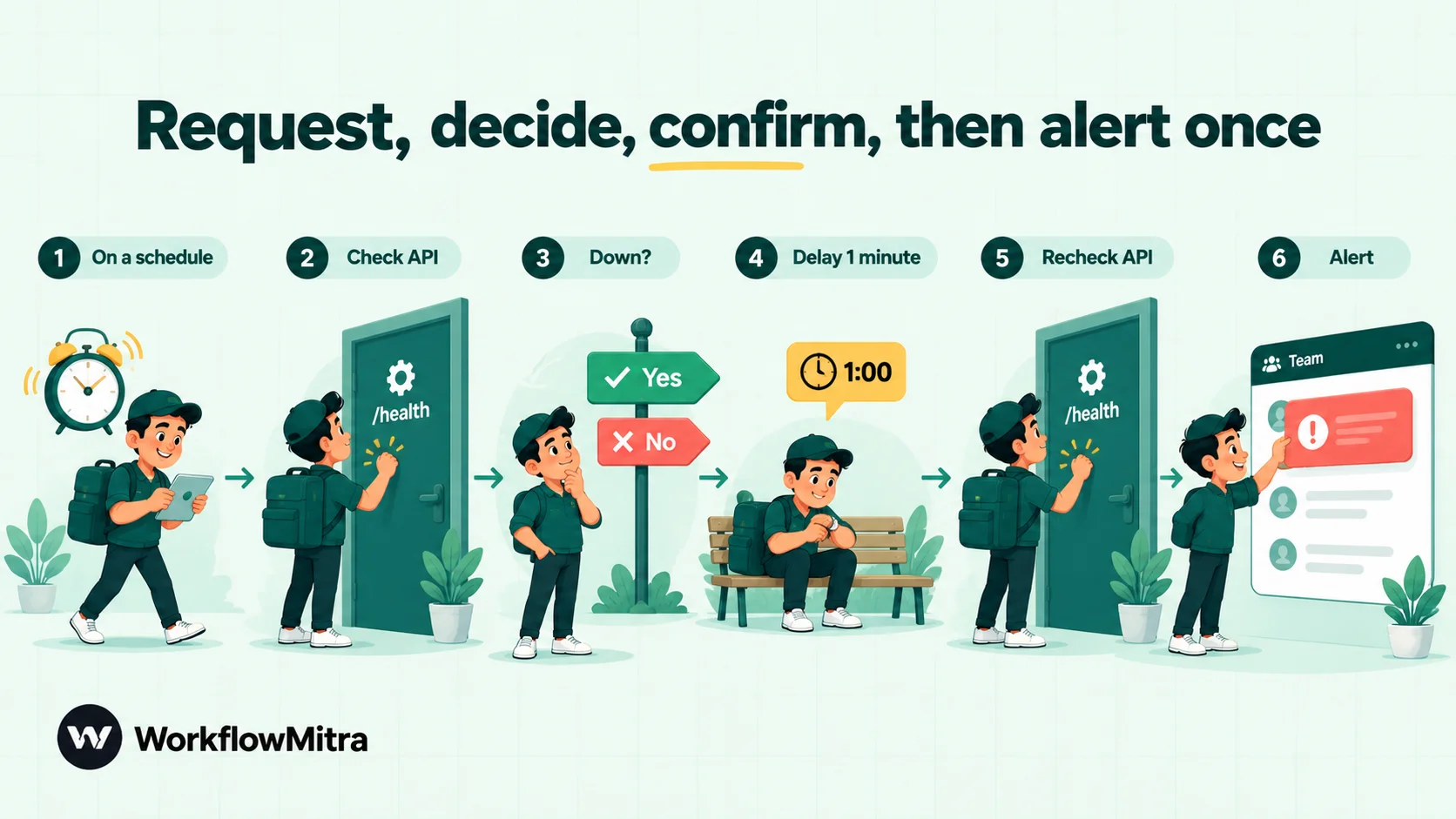
The workflow below checks one endpoint every 5 minutes, ignores one-off blips, and alerts your team at most once an hour while an outage lasts. Build it in stages. The first three steps give you a working monitor in ten minutes, and the rest make it quiet enough to trust.
WorkflowMitra also ships a curated template called API health check → Discord alert. It contains the core request-and-IF pattern, but starts from a manual trigger, so switch the trigger to a schedule if you begin from it.
Step 1: Add an “On a schedule” trigger
Create a workflow and choose On a schedule as the trigger. Pick Every 5 minutes from the list. The editor also offers every minute, 15 and 30 minutes, every hour, an “Every X minutes” box for any whole number of minutes, and a custom cron schedule for things like “every 10 minutes during office hours, Monday to Saturday”. One minute is the shortest interval the scheduler accepts.
Simple intervals run all day, every day. If you only care about business hours, use a custom cron with a time zone, for example */10 9-20 * * 1-6 for every 10 minutes from 9:00, with the last check at 20:50, Monday to Saturday.
Step 2: Call the endpoint with an HTTP Request step
Add an HTTP Request step and rename it Check API, because later steps will refer to it by name.
- Method: GET.
- URL: your health endpoint, for example
https://api.yourcompany.com/health. - Authentication: none for a public endpoint, or a bearer token, basic auth or an API-key header if the endpoint is protected.
- Advanced settings → Timeout (ms):
5000. The default is 30 seconds, which is also the maximum. Five seconds is a reasonable limit for a health endpoint that should answer in well under one. - Advanced settings → On failure: Continue. This is the most important setting in the workflow.
Here’s why “Continue” matters. With the default, Stop workflow, a request that gets no answer at all (a timeout, a DNS failure, a refused connection) fails the whole run, so your alert step never runs. With Continue, the step always hands the next step a result. A server that answers with an error status produces ok: false and the real status code. A request that gets no answer produces status: 0, ok: false and an error message such as “Request timed out.”
| What happened | status | ok | Other fields |
|---|---|---|---|
| Healthy answer (any 2xx) | 200, 204… | true | headers, body |
| Server error or overloaded | 500, 502, 503… | false | headers, body |
| Not found, unauthorised, wrong URL | 401, 403, 404… | false | headers, body |
| No answer within the timeout | 0 | false | error: "Request timed out." |
| DNS failure, connection refused, TLS error | 0 | false | error with the reason |
Two details to know. Redirects are followed by default, so a 301 to a working page ends in ok: true. And ok is true only for 2xx answers, which is stricter than Kubernetes’ 200–399 rule. That suits outside monitoring, where a redirect to a login page is often the problem you want to hear about.
Step 3: Decide what “down” means with an IF step
Add an IF step after Check API with one route, labelled Down:
- Left value:
{{ ok }} - Operator: Is no
Everything that isn’t down goes to the IF step’s Else path, which you leave empty: a healthy check simply ends.
At this point you could connect an alert straight to the Down route, and many tutorials stop here. It works, but a single slow request will page someone, and a real outage will message them every five minutes until it’s fixed. Steps 4 and 5 deal with both.
If a 200 isn’t enough proof of health, check the body as well. Add a second rule to the Down route, joined with OR, such as {{ body.status }} Equal to, ignore case fail, or a numeric comparison like {{ body.queue_depth }} Greater than 1000. For an HTML page, which arrives as text, {{ body }} Contains a phrase that only appears when the page works, such as your checkout button’s label. A text rule on a JSON body needs a specific field, not the whole object.
Step 4: Confirm the outage with a second check
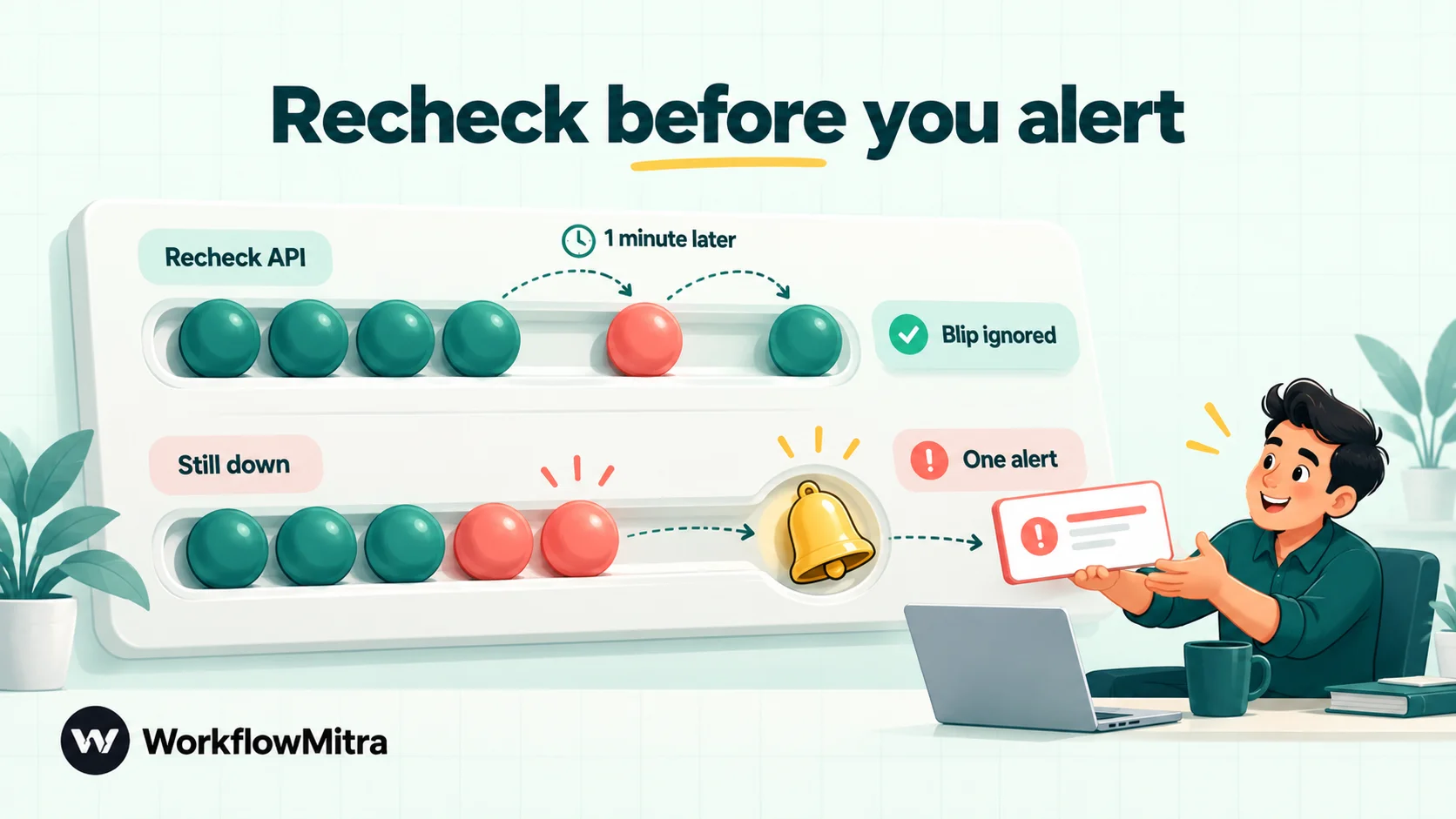
Networks drop the occasional packet, servers restart, and a deployment can make an endpoint unavailable for a few seconds. Alerting on a single failed request is how teams learn to ignore alerts.
On the Down route, add:
- A Delay step of 1 minute. Delays are free, and any wait longer than 25 seconds pauses the run durably rather than holding a worker.
- A second HTTP Request step named Recheck API, with the same URL, authentication, timeout and On failure: Continue.
- A second IF step with a route Still down:
{{ ok }}Is no.
Now an alert needs two failures a minute apart. It’s the same idea as an uptime service that retries before alerting, or that confirms from a second location. The trade-off is that you hear about a real outage about a minute later, which is almost always worth it.
Step 5: Send one alert per incident with a Data Store key
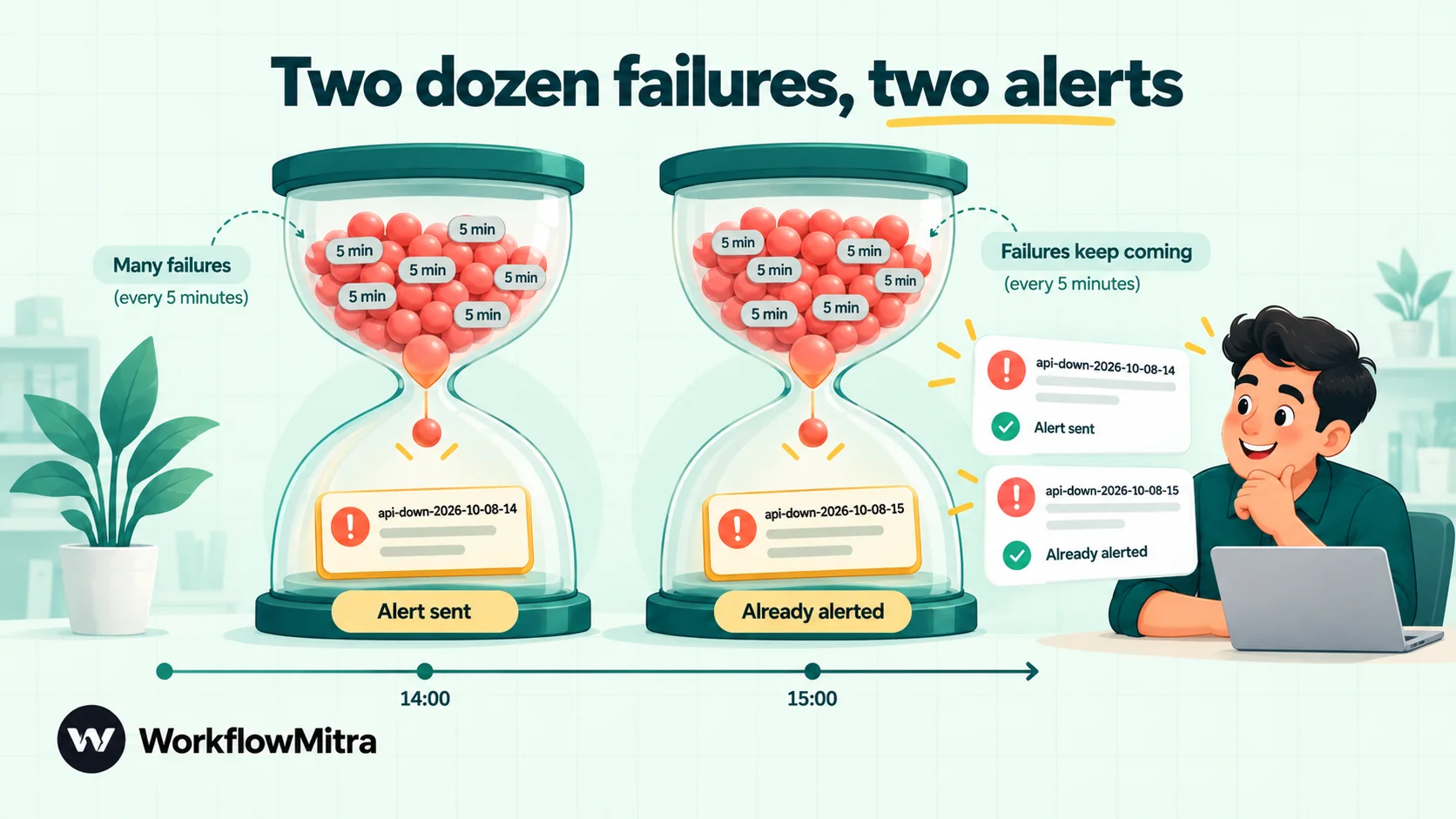
Without this step, a two-hour outage on a 5-minute schedule produces about 24 alerts. People mute the channel by the fourth.
Create a data store (for example Health alerts) and add two steps on the Still down route:
- Data Store → Check if exists, with the key:
api-down-{{ formatDate(now(), "YYYY-MM-DD-HH") }} - An IF step with a route First alert this hour:
{{ exists }}Is no.
On that route, add Data Store → Create record with the same key, then your alert step.
The key changes every clock hour (api-down-2026-10-08-14, then api-down-2026-10-08-15), so the first confirmed failure in each hour sends an alert and creates the key, and later failures in that hour find the key and stop quietly. You get a reminder each hour while the outage lasts, not every five minutes. If you check several endpoints, give each its own prefix, such as checkout-down- or supplier-down-. The hour comes from the server’s clock, which is fine here because the key is only a bucket and never shown to anyone.
Two practical notes. Record keys accept {{ }} expressions, but a record’s data fields are saved as you type them, so keep everything you need in the key. And the store collects one small record per outage hour; clear old ones from the Data Stores page now and then.
Step 6: Write an alert someone can act on
Add the alert step at the end of the First alert this hour route. Because the steps just before it are Data Store and IF steps, refer to the request by name:
🚨 API health check failed twice in a row
Endpoint: https://api.yourcompany.com/health
Status: {{ $node["Recheck API"].status }}
Error: {{ $node["Recheck API"].error }}
Time: {{ formatDate(now(), "DD MMM YYYY HH:mm") }}
Runbook: https://wiki.yourcompany.com/api-down
A status of 0 with “Request timed out.” tells the on-call person something different from 503 or 401, so always include both. A runbook link turns “something is broken” into “here’s what to try first”. Google’s SRE guidance makes the same point about paging: an alert should be urgent, actionable and need a human’s judgement, and anything less trains people to ignore it.
Pick the channel your team actually reads:
- Slack posts through an incoming-webhook URL from your Slack app settings.
- Discord posts through a channel webhook URL.
- Telegram sends from your bot to a chat or group, using the bot token and chat ID.
- Send Email sends through your own SMTP server. A Gmail step is also available.
- WhatsApp sends through ChatMitra’s API or the Meta Cloud API directly. For alerts to staff outside a 24-hour conversation, WhatsApp requires an approved message template, so set that up before you rely on it.
Step 7 (optional): Announce the recovery
An “it’s back” message is useful, but it costs something, because every healthy check has to look for evidence of an earlier outage.
If you want it, use a fixed key alongside the hourly one. On the alert path, also create api-is-down. On the first IF step’s Else (healthy) path, add Data Store → Check if exists for api-is-down, an IF on {{ exists }} Is yes, then Delete record for api-is-down and a ”✅ API recovered” message.
That extra check adds one credit to every healthy run, taking it from two credits to three, a 50% increase. Many teams decide the person fixing the outage will announce the recovery themselves.
How much does API health check monitoring cost in WorkflowMitra?
WorkflowMitra bills credits per executed step, not per workflow run. In this design, a healthy check uses two credits: one for the schedule trigger and one for the Check API request. IF steps and delays cost nothing. A failed check costs a little more: a confirmed failure that sends an alert adds the recheck, the two Data Store steps and the alert, about four more credits.
Because healthy checks are the vast majority, the interval drives the bill:
| Interval | Checks per day | Credits per 30 days (healthy) | With recovery messages |
|---|---|---|---|
| Every minute | 1,440 | 86,400 | 129,600 |
| Every 5 minutes | 288 | 17,280 | 25,920 |
| Every 15 minutes | 96 | 5,760 | 8,640 |
| Every 30 minutes | 48 | 2,880 | 4,320 |
| Every hour | 24 | 1,440 | 2,160 |
On 8 October 2026, WorkflowMitra’s monthly plans were ₹999 for 10,000 credits, ₹1,499 for 20,000, ₹2,699 for 40,000 and ₹4,699 for 80,000, with 15% off yearly billing and a 14-day trial with no card required. So one endpoint every 15 minutes fits comfortably in the ₹999 plan alongside other workflows. One endpoint every 5 minutes needs the 20,000-credit plan on its own. Checking every minute, around 86,400 credits a month for a single endpoint, is where a dedicated uptime service is plainly the cheaper tool.
Four ways to keep the cost down:
- Check less often outside business hours, with a cron schedule, if nobody would act on a 3 a.m. alert anyway.
- Use 15 minutes for back-office systems and keep 5 minutes for things customers touch.
- Skip recovery messages unless someone really needs them.
- Check several fields in one request. A health response with
database,queueandpaymentsentries tells you about three dependencies for the price of one call.
Common mistakes with home-made health checks
Leaving “On failure” on Stop workflow. The most common bug. The endpoint times out, the HTTP step fails the run, and the alert never sends. If workspace failure alerts are set up, you’ll get a generic “workflow failed” email instead of a useful message; if they aren’t, you get nothing.
Alerting on the first failure. One timeout in a few thousand checks is normal. Without a recheck, your alert channel fills with false alarms and people stop reading it.
No de-duplication. A five-minute schedule and an outage that lasts an afternoon produce dozens of identical messages.
Checking a page that always returns 200. Many sites show a friendly error page with a 200 status. If the status code can’t be trusted, check the body for text that only appears when things work.
A health endpoint that does heavy work. If /health runs a database-wide query, the monitor itself adds load, and the endpoint can fail when the service is busy but otherwise fine.
Forgetting who watches the watcher. If the monitoring workflow stops running, everything looks quiet. Run history and credit alerts are the safeguards, covered next.
Keep the monitor itself healthy
A monitor that has silently stopped is worse than none, because everyone assumes it’s working. Three habits help.
Set up workspace alerts. In Workspace settings → Alerts, add an email address and, optionally, a Slack incoming-webhook URL. WorkflowMitra then tells you when any workflow run fails (at most one alert per workflow every 15 minutes), when an approval is waiting, and when credit use crosses thresholds you choose, such as 80% of the month. That last one matters here: when a workspace runs out of credits, scheduled checks stop running, and the stopped checks don’t appear in run history. A credit alert gives you warning before that happens.
Look at run history after the first day. You should see a steady stream of short, successful runs, 288 a day for a 5-minute schedule. Gaps mean the schedule isn’t firing; a wall of failures means a step is misconfigured.
Test the alert path on purpose. Point Check API at a URL that returns an error, such as a path you know is a 404, and run the workflow once to confirm the whole chain: recheck, Data Store key, alert. Then put the real URL back. Our guide to testing an automated workflow covers safer ways to do this on workflows that send real messages.
A worked example: an online store watching three things
Imagine an online store with a custom order API, a checkout page and a courier partner’s tracking API. The team wants to know quickly if customers can’t pay, and wants a log of supplier outages to raise with the courier.
- Order API (
/health, JSON): every 5 minutes. Down ifokis no orbody.statusisfail. Confirmed with a recheck, de-duplicated per hour, alert to the #ops Slack channel and to the founder on Telegram. - Checkout page (HTML): every 5 minutes from 9:00 to 22:55, using the cron schedule
*/5 9-22 * * *. Down ifokis no or the body doesn’t contain the “Place order” button text. Same recheck and alert pattern. - Courier tracking API: every 30 minutes, calling a read-only lookup with the store’s API key. On a confirmed failure, the workflow adds a row to a Google Sheet with the time, status and error, and sends one hourly Slack message. The sheet becomes the evidence for the next supplier review.
Roughly, the first two use about 17,280 and 10,080 credits a month, and the courier check about 2,880, a total of around 30,000 credits that fits the 40,000-credit plan with room for other workflows. If that feels expensive for monitoring alone, move the checkout page to a free uptime service with a keyword monitor and keep the two checks that need logic or logging in WorkflowMitra.
Why use WorkflowMitra for health checks?
The reason to build a health check as a workflow rather than buying a monitor is that the check rarely ends at “send a message”. With WorkflowMitra, a confirmed failure can be followed by anything else the workflow can do: log the incident to a sheet, open a ticket in your helpdesk, call your own API to switch a feature off, or message a customer-facing team on WhatsApp through ChatMitra. The request itself can carry the authentication and headers a real API needs, and the decision can read any field in the response, not just a status code.
It’s also honest about its limits. There’s no response-time measurement, no SSL or DNS checks, no multi-region confirmation and no status page. Checks run from WorkflowMitra’s cloud servers, so private network addresses can’t be reached. And with credits charged per step, very frequent checks cost more than an uptime service. Use WorkflowMitra where the logic and follow-up matter, and a dedicated monitor where raw check frequency does.
If you’re new to calling APIs from a workflow, start with how to connect an API without code and API authentication methods. For the scheduling side, see how to schedule automations, and for what to do when other workflows fail, read our guide to workflow error handling.
Start with one endpoint
Pick the one URL whose failure would cost you the most, whether that’s your checkout, your order API or the supplier feed your team can’t work without. Build the three-step version first, then add the recheck and the hourly key once you’ve seen it fire. You can try it on a 14-day WorkflowMitra trial with 10,000 credits and no card, and compare plans on the pricing page.
WorkflowMitra details in this guide come from its source code and editor as of 8 October 2026; the response fields, IF rules and Data Store key expression were checked by running them through the workflow engine. Uptime service plans were checked on UptimeRobot's pricing page and Better Stack's pricing page on 8 October 2026. Health check guidance draws on Google's SRE book chapter Monitoring Distributed Systems, the Kubernetes guide to liveness, readiness and startup probes, the expired IETF draft Health Check Response Format for HTTP APIs, and the definition of 503 Service Unavailable in RFC 9110.
Frequently Asked Questions
Questions people ask before building their own health checks.
An API health check is a request to an endpoint, often /health or /status, that answers quickly with whether the service can do its job. A good one returns HTTP 200 and a small JSON body such as {"status": "pass"} when healthy, and a 5xx status such as 503 when it isn't. A monitor calls it on a schedule and alerts someone when the answer is wrong, slow or missing.
Automate the work between your apps
Build workflows with triggers, conditions and actions, then test them before they go live. Try WorkflowMitra free for 14 days, no card required.
