Automated Daily Reports: Get Yesterday's Numbers Every Morning Without Building Them by Hand


Quick Summary
An automated daily report is a short summary of yesterday's key numbers that a workflow builds and sends at the same time every day, with nobody copying data by hand. A schedule starts the run, steps read the data from a spreadsheet, database or app, a calculation turns rows into a handful of figures, and a message step delivers them to Slack, email, Telegram or WhatsApp. In WorkflowMitra, powered by ChatMitra, a Schedule trigger runs it in your own timezone, and WhatsApp delivery goes through ChatMitra or Meta's Cloud API using an approved template.
Every business has a version of the morning question: how did yesterday go? In a small company the answer usually comes from one person who opens the order sheet, the payment gateway and the CRM, adds things up and messages the team. It takes twenty minutes when everything is in order. When that person is busy or on leave, nobody gets the numbers at all.
An automated daily report replaces that routine. This guide covers what belongs in a daily report and how to choose where it goes. It then walks through building one, first from a Google Sheet, then from a database, then from both at once, and shows how to send it to Slack, email and WhatsApp. It ends with costs, common mistakes and how to make the numbers trustworthy enough that people stop double-checking them. The examples are built in WorkflowMitra, powered by ChatMitra, but the design advice applies whatever tool you use.
What is an automated daily report?
An automated daily report is a short summary of a fixed set of business numbers that a workflow builds and sends at the same time every day, without anyone collecting the data by hand. A schedule starts it. Steps read the data from wherever it lives: a spreadsheet, a database, an app's API. A calculation turns those rows into a few figures, and a message step delivers them to the channel people already read: Slack, email, Telegram or WhatsApp.
Three things separate a useful automated report from a forwarded spreadsheet:
- It is short. A handful of numbers, not a table of every order.
- It arrives on its own. Nobody has to remember to run it, and nobody has to open anything to see it.
- It compares. “42 orders” means little. “42 orders, 9 fewer than last Tuesday” tells you whether to worry.
If you are new to the idea of triggers and steps, what is workflow automation explains the vocabulary used throughout this guide.
Daily report or dashboard?
A common objection is “we already have a dashboard”. Dashboards and daily reports do different jobs, and most teams need both.
A dashboard is a place you visit when you have a question. It is good for exploring: filtering by region, drilling into one product, looking at a twelve-month trend. Its weakness is that it waits for you. The people who most need to know that refunds doubled yesterday are often the ones who never open it.
A daily report is pushed. It answers a fixed set of questions before anyone asks them, and it lands where people already spend their day. Its weakness is the reverse: you can’t explore it. Don’t put forty numbers in it in an attempt to make it a dashboard. A report that long gets skimmed, then muted.
| Need | Better fit |
|---|---|
| "Did anything unusual happen yesterday?" | Daily report |
| "Why did sales drop in Pune last month?" | Dashboard |
| A shop-floor or field team with no BI login | Daily report on chat |
| A finance review with many breakdowns | Dashboard, or a weekly emailed report |
| Exceptions that need action today (unpaid invoices, unassigned leads) | Daily report, listing the items |
A good rule: the daily report tells you whether to look, and the dashboard tells you where.
What to put in a daily report
Start from decisions, not data. For each number you consider, ask what someone would do differently if it were unusually high or low. If the answer is “nothing”, leave it out.
Most useful daily reports have three parts:
- Five to seven headline numbers. Orders, revenue, new leads, tickets opened and closed, cash collected. Each one compared with a sensible baseline.
- Exceptions. Short lists of things that need a person today: leads nobody has contacted, payments that failed, orders stuck in “packed” for two days.
- A pointer. One link to the sheet, dashboard or app where the detail lives.
Choose the right comparison
Comparing with the previous day is the obvious choice and often the wrong one. Monday is rarely like Sunday. Comparing yesterday with the same weekday last week removes most of that weekly rhythm. Comparing month-to-date with your monthly target, scaled to how far through the month you are, says whether you’re on track. Use one comparison per number and say which it is.
Typical numbers by business type
| Business | Headline numbers | Exceptions to list |
|---|---|---|
| Online store | Orders, revenue, average order value, cancellations, refunds | Orders not shipped after 48 hours, failed payments |
| Clinic or salon | Appointments booked, attended, no-shows, revenue | Tomorrow's unconfirmed bookings |
| B2B sales team | New leads by source, leads contacted, meetings booked, deals won | Leads with no owner, leads untouched for 24 hours |
| Support desk | Tickets opened, closed, still open, first reply time | Tickets older than your target time |
| Field service | Jobs completed, jobs carried over, materials used | Jobs without a completion photo or sign-off |
Decide what “yesterday” means
This sounds pedantic until the numbers disagree with someone’s manual count. Write down three things before you build:
- The timezone. “Yesterday” in Mumbai ends five and a half hours before yesterday in London. Pick the timezone your team works in and use it everywhere: in the schedule, in the date filter and in the message.
- The cut-off. Midnight to midnight is normal. A restaurant that closes at 2 a.m. may prefer 4 a.m. to 4 a.m.
- Which date counts. An order placed on Monday and paid on Tuesday belongs to one day or the other. Choose order date or payment date and stick to it.
Five ways to automate a daily report
| Method | Good for | Needs code? | Watch out for |
|---|---|---|---|
| Your app's built-in report email | One app's own numbers (store platform, payment gateway) | No | Can't combine sources or choose the numbers |
| Spreadsheet add-on that emails a sheet | Sending a sheet or chart as it is | No | Sends the whole sheet; little calculation; email only |
| Google Apps Script with a daily timer | Custom logic on Google Sheets | Yes | Someone has to maintain the script; time window, not exact time |
| BI tool scheduled delivery | Teams that already have dashboards | Some | Sends screenshots or PDFs; often email or Slack only |
| Workflow automation tool | Combining sources, calculating, sending anywhere | Optional (small Code step) | You design the message yourself |
The built-in emails are worth switching on first because they cost nothing. They just can’t tell you that revenue was fine but leads collapsed, because each app only knows its own data.
Apps Script is powerful and free, and it’s a good choice when one person who writes JavaScript owns the report. Note that its daily timers aren’t exact: Google’s documentation says a 9 a.m. trigger runs at a time Google chooses between 9 and 10 a.m., which then stays the same each day.
A workflow tool sits in the middle. It reads from several places, calculates in one step, delivers to several channels, and alerts you when a run fails. The rest of this guide uses that approach.
How an automated report workflow is put together
Whatever tool you use, a daily report workflow has the same six parts.

- Schedule. A clock starts the run at a fixed time in a named timezone.
- Collect. One step per source reads the rows it needs: a sheet, a database query, an API call.
- Calculate. Rows become a few numbers. This is where “yesterday”, comparisons and exceptions are worked out.
- Format. The numbers become a message that reads well on a phone.
- Deliver. One step per channel sends it.
- Watch. If any step fails, someone hears about it. A report that silently stops is worse than no report, because people assume a quiet morning.
Choosing where the report goes
Send the report where its readers already are. A report sent to an inbox nobody checks before noon is a late report.
| Channel | Best for | Formatting | Things to know |
|---|---|---|---|
| Slack | Teams that work in Slack all day | Bold, lists, Block Kit layouts | An incoming webhook posts to one fixed channel; create one per channel |
| Owners, finance, external partners | Full HTML tables | Easy to search later; easy to ignore in the morning | |
| Telegram | Small teams and founders on mobile | Plain text from WorkflowMitra | A bot message holds up to 4,096 characters |
| Owners and field managers who live in WhatsApp | Fixed template with variables | Business-initiated messages need an approved template; Meta charges for template messages | |
| Discord | Communities and developer teams | Markdown via webhook | One webhook per channel, like Slack |
You don’t have to pick one. A common setup is the full report to a team Slack channel, plus a four-number version on WhatsApp for the owner.
The WhatsApp rules that shape a report
For many owners, WhatsApp is the only place a report will definitely be read. It also has rules that email and Slack don’t.
When your business number sends a message to someone who hasn’t messaged it in the last 24 hours, the message must be an approved template. A free-form text outside that window is refused; Meta’s error code reference lists it as error 131047 and tells you to send a template instead. A daily report goes out at the same time every day, whether or not anyone replied yesterday, so plan on a template.
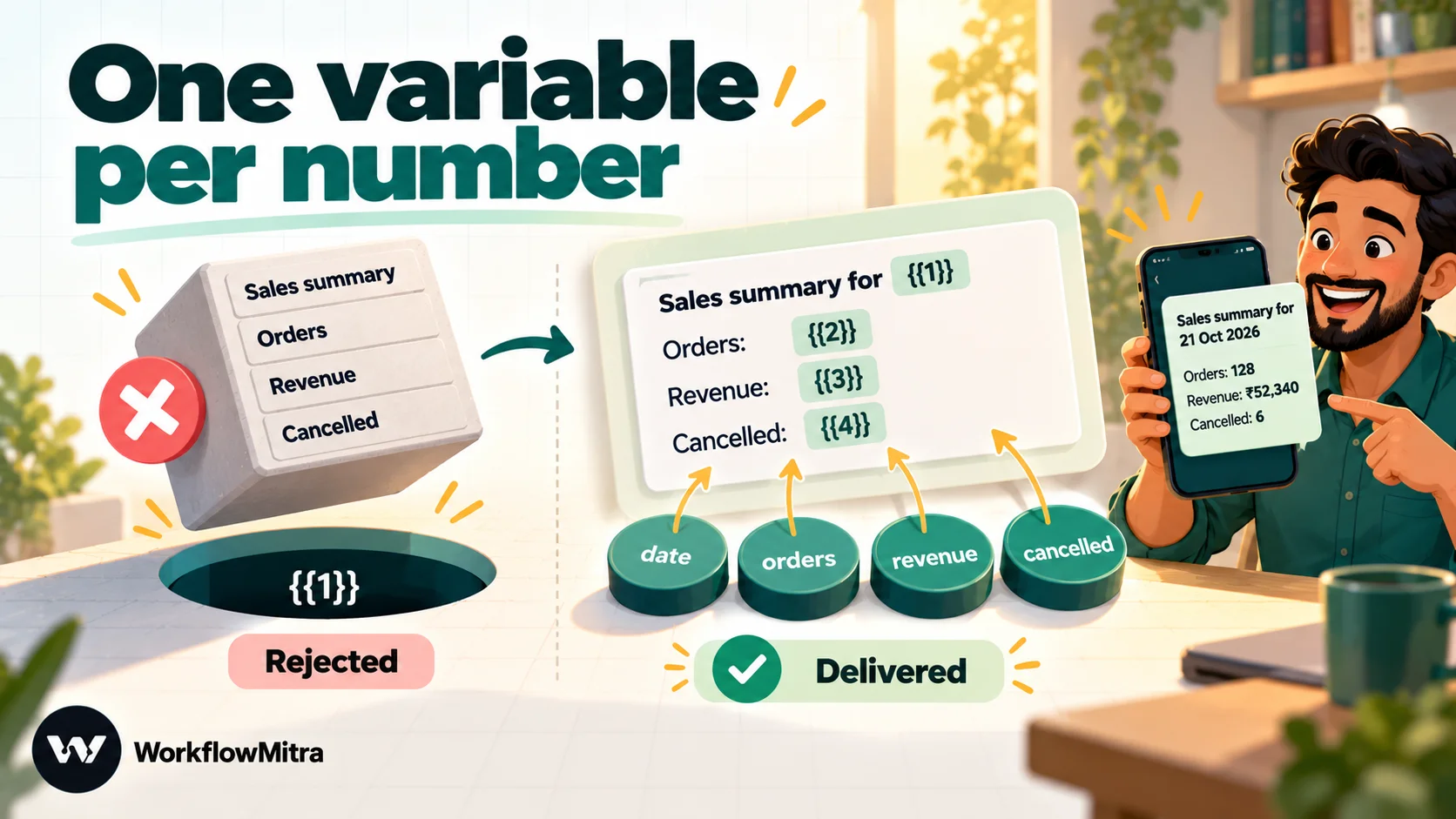
Templates are fixed text with numbered variables. That leads to the rule that catches most people: a variable’s value can’t contain a line break or a tab. You can’t pour a multi-line report into one variable. Put the line breaks in the template’s fixed text and give each number its own variable. A rejected value comes back as error 132018, “there’s an issue with the parameters in your template”.
Meta also places each template in a category, and the category sets the price. Utility messages must be non-promotional and tied to the recipient’s own order, account or service. An internal summary sent to your own staff isn’t tied to a customer transaction, so don’t assume utility pricing; Meta decides when it reviews the template. ChatMitra’s guide to WhatsApp message categories explains how each category is charged, and WhatsApp Business cost per message has current rates by country.
Finally, everyone who receives the report must have agreed to receive messages from your business number, exactly as a customer would.
Build it: a daily sales report from Google Sheets to Slack
Here is a complete report built in WorkflowMitra, powered by ChatMitra. The example is an online store that logs orders in a Google Sheet with the columns Date, Order ID, Amount and Status, and wants yesterday’s totals in Slack at 9:00 a.m. India time.
WorkflowMitra’s template gallery includes a Daily report → Slack starter. It begins with a Manual trigger and an HTTP request to a sample metrics URL, so you’ll replace both; it’s still a handy way to get the Code and Slack steps pre-connected. The steps below start from a blank workflow so every setting is visible. For a gentler tour of the editor itself, see how to build your first workflow.
1. Add a Schedule trigger
Choose Schedule, then Every day at a set time. Set the time to 09:00. The Timezone field defaults to your browser’s zone; check it says the zone your team works in (for example Asia/Kolkata). The summary under the field reads back the schedule in plain English, such as “Every day at 9:00 AM Asia/Kolkata”, which is worth a glance before you save.
Other cadences are in the same list: Every week on a set day for a Monday review, Every month on a set date (the 1st to the 28th, so the schedule never skips a short month), and Custom schedule (advanced) for cron. The custom box suggests 0 9 * * 1-5, which is 9 a.m. on weekdays, a common choice for a report nobody reads at weekends.
2. Read the rows
Add a Google Sheets step with the Read rows operation and point it at the orders tab. Set Read values to Raw values. With the default, formatted values, numbers arrive as text such as “1,234.56”, and sums go wrong.
Raw values have one quirk: a cell formatted as a date arrives as a serial number (days since 30 December 1899), not as text. The code in the next step handles both forms.
Read rows returns up to 5,000 rows by default. If the tab holds years of orders, either point the step at a tab that keeps only recent rows or use Limit and Skip. The output contains rows, one object per row keyed by the header, plus totalRows and a truncated flag that tells you if anything was left out.
3. Calculate the numbers
Add a Code step. It runs JavaScript in an isolated sandbox and receives the previous step’s output as input:
const TZ = 'Asia/Kolkata';
const rows = input.rows || [];

// Yesterday's date as YYYY-MM-DD, in the team's timezone
const dayOf = (d) => new Intl.DateTimeFormat('en-CA', { timeZone: TZ }).format(d);
const yesterday = dayOf(new Date(Date.now() - 24 * 60 * 60 * 1000));

// Raw date cells arrive as serial numbers; text dates as "2026-10-06"
const toDay = (v) =>
  typeof v === 'number'
    ? new Date(Math.round((v - 25569) * 86400000)).toISOString().slice(0, 10)
    : String(v).slice(0, 10);

const sold = rows.filter((r) => toDay(r.Date) === yesterday);
const paid = sold.filter((r) => r.Status !== 'Cancelled');
const revenue = paid.reduce((sum, r) => sum + (Number(r.Amount) || 0), 0);
const money = new Intl.NumberFormat('en-IN', { style: 'currency', currency: 'INR', maximumFractionDigits: 0 });

return {
  date: yesterday,
  orders: paid.length,
  cancelled: sold.length - paid.length,
  revenue: money.format(revenue),
  average: paid.length ? money.format(revenue / paid.length) : '–',
  text:
    `*Sales for ${yesterday}*\n` +
    `Orders: ${paid.length} (cancelled: ${sold.length - paid.length})\n` +
    `Revenue: ${money.format(revenue)}\n` +
    `Average order: ${paid.length ? money.format(revenue / paid.length) : '–'}`,
};
Two details matter here. The timezone is written into the code, not left to the server’s clock. That matches the timeZone you chose for the schedule, so “yesterday” means the same day for both. And the step returns the numbers as separate fields as well as a ready-made text. The Slack step uses text; a WhatsApp template, as you’ll see, needs the separate fields.
Change en-IN and INR to your own locale and currency (en-GB and GBP, en-US and USD), and the comparison words to suit your team.
4. Post to Slack
Add a Slack step. Paste an incoming webhook URL for the channel, and set the message to {{ text }}. The asterisks in the code make the first line bold in Slack.
5. Test, then switch it on
Click Run to try it. The editor’s Run is a live run, so the message really posts; aim the webhook at a test channel first. Check the numbers against the sheet by hand once. Then switch the workflow on. From tomorrow it runs at 9:00 every day, and each run appears in the execution history with every step’s input and output.
If you’d rather start from a sheet that sends messages when a row changes, rather than on a schedule, the guide to Google Sheets automation covers row triggers, and the live tutorial on Google Sheets to Slack compares the other ways to post from a sheet.
Variation: a report from your database
If orders live in PostgreSQL or MySQL, query the database directly. Let the database do the counting, which is faster and doesn’t depend on row limits. In WorkflowMitra, add a PostgreSQL step after the Schedule trigger and use Raw SQL Query:
SELECT count(*)                  AS orders,
       coalesce(sum(total), 0)   AS revenue
FROM orders
WHERE status <> 'cancelled'
  AND created_at >= (date_trunc('day', now() AT TIME ZONE 'Asia/Kolkata') - interval '1 day') AT TIME ZONE 'Asia/Kolkata'
  AND created_at <  date_trunc('day', now() AT TIME ZONE 'Asia/Kolkata') AT TIME ZONE 'Asia/Kolkata';
The AT TIME ZONE pair converts “midnight in India” into the right instant, so the window is yesterday in your timezone, not the database server’s. The step returns rows and rowCount. Note that PostgreSQL hands back counts and sums as text strings, so convert them with Number() in the Code step before doing any further arithmetic.
Use a read-only database user for reporting. A report never needs write access, and it removes a whole class of accidents. The same pattern works with the MySQL and MongoDB steps. WorkflowMitra’s built-in Data Store can also be read, which helps when a workflow has been recording events there all day.
Variation: combining two sources
The most useful reports combine sources: orders from the store database and leads from a sheet, say. Draw two branches from the Schedule trigger, one per source, and join them with a Merge step.
Set Merge’s Combine mode to Keep as a list. The next step then receives a list with one entry per branch. The default, Combine fields, flattens both outputs into one object, and two sources that both return rows would overwrite each other. In the Code step, tell the entries apart by their shape: a sheet read includes a header field, while a database query includes rowCount.
const sheet = input.find((x) => x && x.header);
const db = input.find((x) => x && 'rowCount' in x);
const leads = (sheet?.rows || []).length;
const orders = Number(db?.rows?.[0]?.orders || 0);
return { leads, orders, text: `New leads: ${leads}\nOrders: ${orders}` };
Merge, IF and Switch steps cost no credits, so a second branch adds only the cost of its own read.
For apps that have an API but no dedicated step, such as a store platform or an accounting tool, an HTTP Request or App Request step can call the API directly.
Variation: send it to the owner on WhatsApp
WorkflowMitra’s WhatsApp step sends through either ChatMitra’s API or Meta’s Cloud API directly. ChatMitra is the WhatsApp sending layer for WorkflowMitra, which is the “powered by ChatMitra” part of the name. Either way, the step offers a picker of your approved templates.
Design the template around the numbers, one variable each. A template body like this works:
Sales summary for {{1}} Orders: {{2}} Revenue: {{3}} Cancelled: {{4}}
Then, in the WhatsApp step, map the body variables to {{ date }}, {{ orders }}, {{ revenue }} and {{ cancelled }} from the Code step. The line breaks belong to the template, so no variable contains one.
For more WhatsApp patterns triggered by other apps, see WhatsApp workflow automation.
Add the comparisons: last week and month-to-date
The report built above gives raw totals. Comparisons are what make it worth reading, and they need only a few more lines in the same Code step, because the sheet already holds the older rows.
For same weekday last week, filter a second set of rows for the date seven days before yesterday and show the difference:
const weekAgo = dayOf(new Date(Date.now() - 8 * 24 * 60 * 60 * 1000));
const lastWeek = rows.filter((r) => toDay(r.Date) === weekAgo && r.Status !== 'Cancelled').length;
const diff = paid.length - lastWeek;
const vsLastWeek = diff === 0 ? 'same as last week' : `${diff > 0 ? '+' : '-'}${Math.abs(diff)} vs last week`;
For month-to-date against a target, total the rows whose date starts with the current month and compare with the share of the target you’d expect by now. If the monthly target is ₹6,00,000 and yesterday was the 10th of a 30-day month, you’d expect about a third of it, ₹2,00,000. Reporting “₹1,72,000 of an expected ₹2,00,000 (86%)” is far more useful than either number alone.
Keep the target in one place you can edit without opening the workflow, such as a cell on a “Settings” tab that the same Read rows step can fetch, or a record in WorkflowMitra’s Data Store. When the target changes next month, nobody needs to touch the code.
Weekly and monthly versions are the same workflow with a different schedule and date window. A Monday 9 a.m. report covering the previous Monday to Sunday is a natural partner to the daily one. Keep the daily report short and put the fuller breakdowns, such as top products or revenue by city, in the weekly email, where people expect to read more.
Adding a short AI-written commentary
A sentence of commentary can make a report easier to read: “Revenue was steady, but cancellations doubled, mostly cash-on-delivery orders.” An AI step can write it. The safe way to do that has one rule: calculate first, describe second.
Language models are unreliable at adding up rows, and a confident wrong total is worse than no total. So the Code step does all the arithmetic, and the AI step receives only the finished figures and comparisons, with an instruction such as “Write one or two plain sentences about what changed. Use only the numbers given. Do not calculate anything.”
In WorkflowMitra the AI step uses your own API key for OpenAI, Claude, Gemini, Groq or Ollama, and each call costs one credit plus whatever your AI provider charges. Put the AI sentence under the numbers, never in place of them.
Make the report trustworthy
A report people trust is read in ten seconds. One they doubt gets checked by hand every morning, which defeats the point. These habits make the difference.
Say so when nothing happened. If there were no orders, send “No orders yesterday” rather than skipping the message. Silence is ambiguous: it might mean a quiet day or a broken workflow.
Report on complete data. If payments sync from the gateway at 2 a.m., a 1 a.m. report is wrong every day. Schedule after the last sync, or report on the day before yesterday for that source and label it clearly.
Flag partial data. If Read rows returns truncated: true, or a source returns an error, put a warning line in the report instead of quietly showing smaller numbers.
Turn on failure alerts. In WorkflowMitra’s workspace settings, add an alert email or Slack webhook to hear when a run fails, and add credit usage thresholds to hear when credits run low. Both matter for a report: a failed run and an empty credit balance produce the same silence.
Keep a written definition. One line per number, pinned in the channel: “Revenue = paid orders by order date, India time, excluding cancellations.” It settles arguments quickly.
Check it against a manual count for the first week. Then stop checking.
What an automated daily report costs
WorkflowMitra counts credits per executed step. At default rates:
| Step | Credits per run |
|---|---|
| Schedule trigger | 1 |
| Google Sheets, PostgreSQL, MySQL, MongoDB, Data Store or HTTP Request step | 1 each |
| Code | Billed by run time: 2 credits per second, so a few milliseconds cost a tiny fraction of a credit |
| Merge, IF, Switch | 0 |
| Slack, email, Telegram, Discord or WhatsApp step | 1 each |
| AI step | 1 (plus your AI provider's own charge) |
Worked examples, for a 30-day month:
- Sheet to Slack, as built above: trigger, read, Code, Slack. A little over 3 credits a run, so about 95 a month.
- Two sources to Slack and WhatsApp, with an AI sentence: trigger, two reads, Merge, Code, AI, Slack, WhatsApp. About 7 credits a run, roughly 210 a month.
- Hourly sales pulse during business hours, ten runs a day of the simple version: about 30 credits a day, around 950 a month.
All three fit easily within the entry plan of 10,000 credits for ₹999 a month, alongside other workflows. Current prices are on WorkflowMitra’s pricing page. WhatsApp template messages carry Meta’s own charge on top, plus ChatMitra’s per-conversation fee if you send through ChatMitra; see the cost guide linked above for current rates.
Troubleshooting: when the report doesn’t arrive or looks wrong
- Nothing arrived. Open the workflow’s execution history. No run at all usually means the workflow is switched off or the plan has lapsed: schedules pause while a workspace’s plan is expired and resume on renewal. A failed run shows the step that broke and its error.
- It arrived at the wrong time. Check the timezone read-back under the schedule. An old “Every day” interval runs 24 hours after the last save, not at a fixed time; switch it to Every day at a set time.
- Every number is zero. The date filter isn’t matching. Compare one row’s
Datevalue in the Read rows output with theyesterdayvalue in the Code step’s output; usually one is a serial number or uses a different format. - Totals are slightly off. Look for formatted values (text like “1,234”), cancelled orders being counted, or a cut-off that differs from the manual count.
- WhatsApp error 132018. A variable contains a line break, a tab or a long run of spaces. Trim the values in the Code step.
- Slack rejects the post. The Slack step’s error says why: the channel is archived or no longer exists, or the webhook itself was deleted or revoked. Create a new incoming webhook for a live channel and paste it into the step.
Common mistakes
- Leaving the schedule on the server’s timezone. The report arrives at 3:30 a.m. or covers the wrong day. Set the timezone explicitly in both the trigger and the calculation.
- Formatted values in the sum. “1,234” read as text adds up to nonsense. Read raw values and convert explicitly.
- Too many numbers. If a report needs scrolling on a phone, split it: a short daily report and a fuller weekly one.
- Numbers with no comparison. Every figure should answer “is this good or bad?”
- Letting AI do the arithmetic. Calculate in code, and let AI describe the result.
- One giant WhatsApp variable. A multi-line value is rejected. Use one variable per number.
- No failure alert. The first sign of a broken report shouldn’t be the owner asking where it went.
- Reporting on incomplete data. Schedule after the data has synced.
Why use WorkflowMitra for daily reports?
A daily report looks simple, but it touches most of the things that make automation fragile: time zones, data from several places, arithmetic and delivery to channels with their own rules. WorkflowMitra, powered by ChatMitra, covers those in one workflow:
- Schedules in your timezone, with daily, weekly, monthly and cron options, and a plain-English read-back so you can see exactly when it will run.
- Many sources in one run: Google Sheets, PostgreSQL, MySQL, MongoDB, Redis, the built-in Data Store, and any REST API through HTTP Request or App Request, joined with Merge.
- Real calculations in a sandboxed JavaScript Code step, billed by the millisecond.
- Delivery wherever people read: Slack, HTML email, Telegram, Discord and WhatsApp through ChatMitra or Meta’s Cloud API, with a picker for your approved templates.
- Failure and low-credit alerts, plus a step-by-step execution history.
- Rupee pricing per executed step, with logic steps free.
There are limits worth knowing. WorkflowMitra sends messages; it doesn’t draw charts or build PDFs, so if your report needs a chart image, a BI tool’s scheduled delivery is the better fit. Telegram messages go out as plain text. The Code step is JavaScript only, with a one-second limit per run, which is plenty for a summary but not for heavy data processing; do that in the database query.
Get your first report running
Pick the one number you most want to see every morning and build the smallest version first: schedule, one read, one calculation, one message. Add sources and channels once people are reading it. You can build it on the 14-day trial with no card, and the templates page has other starting points. For the next processes worth automating, see workflow automation for small business.
Product behaviour described here, including schedule options, credit rates, Google Sheets read output and the Code step sandbox, was checked in WorkflowMitra on 7 October 2026. WhatsApp rules are from Meta's Cloud API error codes and template category guidelines, read the same day. Figures in the examples are illustrative.
Frequently Asked Questions
Questions people ask before they automate a daily business report.
It is a summary of a fixed set of business numbers, such as yesterday's orders, revenue, new leads or open tickets, that software collects, calculates and sends at the same time every day. Nobody exports data or types the figures; the report arrives in the channel the team already reads.
Automate the work between your apps
Build workflows with triggers, conditions and actions, then test them before they go live. Try WorkflowMitra free for 14 days, no card required.
