Automated Data Entry: Stop Retyping Between Apps, and Keep Errors Out

Quick Summary
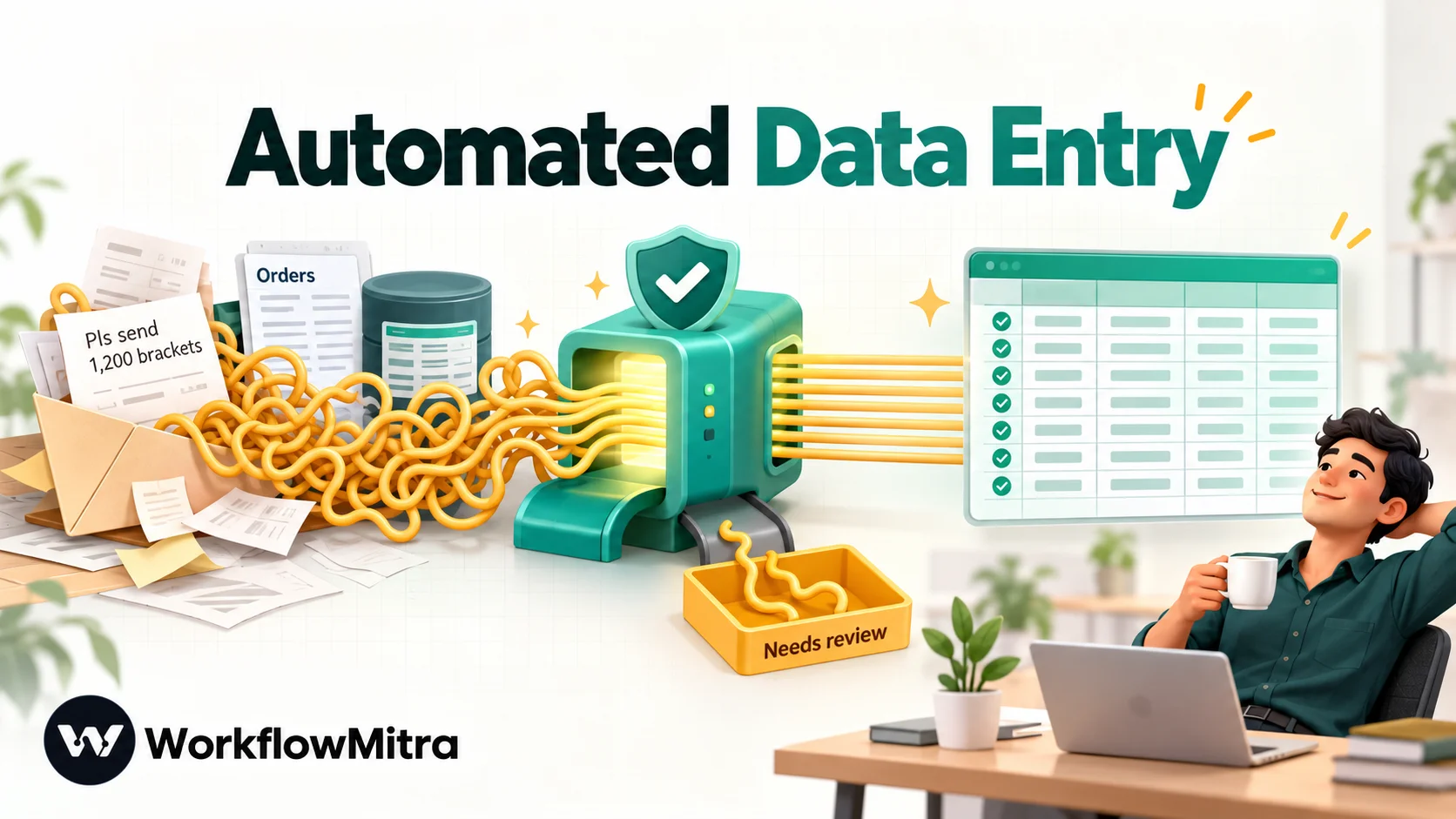
Automated data entry uses software to move information from where it already exists, such as an email, a form, a payment or a database, into the app that needs it, with checks on the way, so nobody retypes it. The method depends on the source: copy mapped fields when the data is structured, query on a schedule when it sits in a database, parse fixed-layout emails with rules, and use AI extraction for free text. In WorkflowMitra, powered by ChatMitra, all four are workflows of triggers, a Code check and a Google Sheets or CRM step, with a review lane for anything doubtful.
Every Monday, someone at a small wholesaler opens the shared inbox, reads thirty order emails and types each one into a spreadsheet: customer, item, quantity, delivery date. It takes two hours, it is nobody’s favourite job, and it goes wrong often enough that someone checks the sheet against the emails every Friday. Nothing about the task needs judgement. It needs patience, which is exactly what software has plenty of.
This guide explains what automated data entry is, the five ways to do it, how to choose between them, and how to build the hardest common case, free-text emails into a clean spreadsheet, with checks that stop bad data getting in.
What is automated data entry?
Automated data entry is using software to capture data where it already exists, such as an email, form, payment notice or database, check it, and write it into the system that needs it, so nobody retypes it. It covers copying structured fields between apps, reading unstructured text, and, with document-capture tools, reading scans and PDFs.
It is not one technology. Reading a form submission, reading a free-text email and reading a scanned invoice are three different problems with three different levels of risk, and most disappointment with data-entry automation comes from using the heaviest tool on the lightest job, or the lightest tool on a job it cannot do.
Five ways to automate data entry
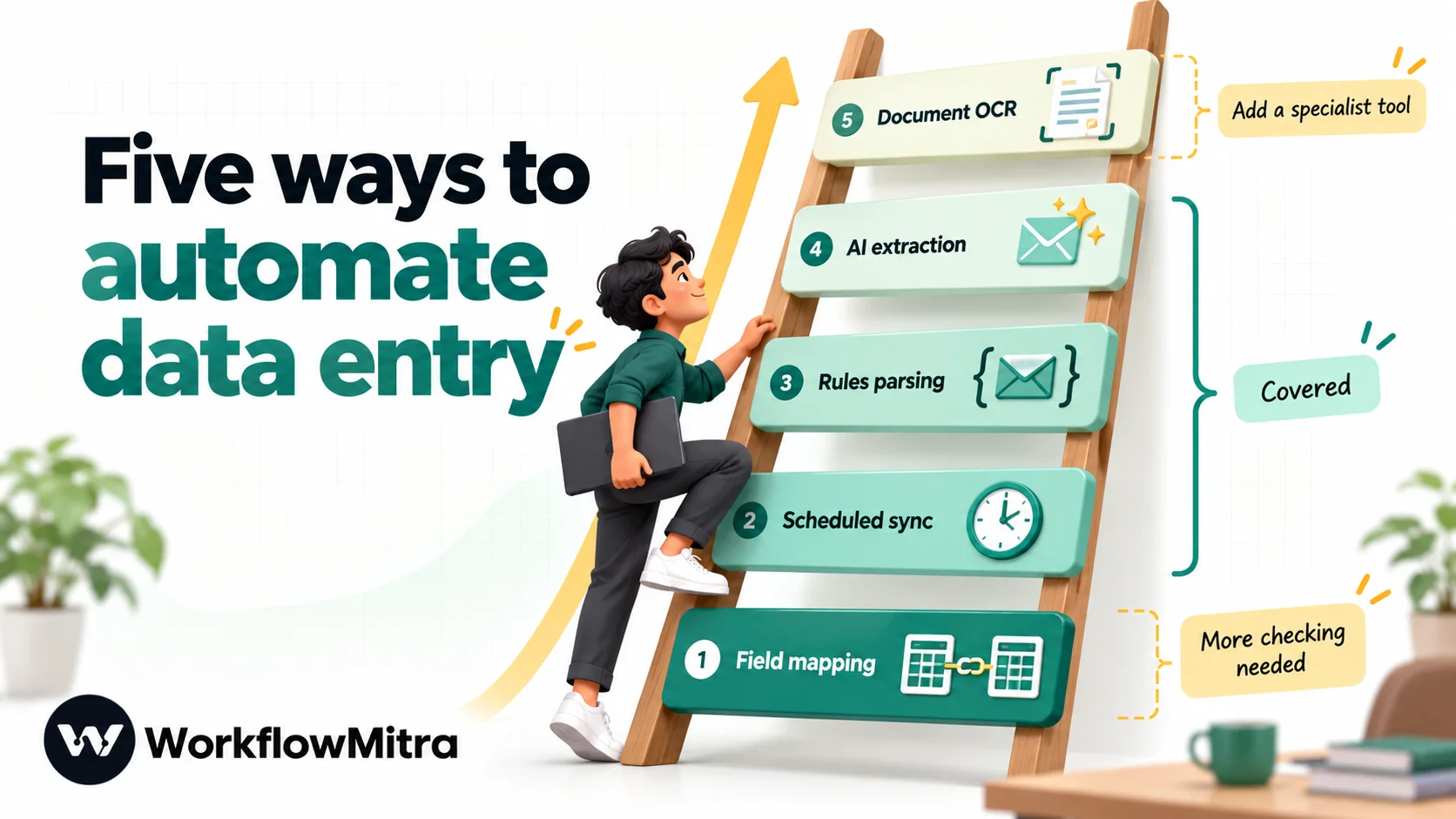
| Method | Works when | Example | Error risk |
|---|---|---|---|
| 1. Field mapping | The source is already structured: a webhook, form, sheet row or CRM record | A website form creates a sheet row and a CRM contact | Very low |
| 2. Scheduled sync | The data sits somewhere you can query: a database or an app's API | Yesterday's orders copied from a database into a sheet each morning | Low |
| 3. Rules-based parsing | Text has a fixed layout, such as "Name: ... Phone: ..." | A portal's notification email becomes a lead row | Low to medium |
| 4. AI extraction | Text is free-form and wording varies | Customers' order emails written in their own words | Medium; needs checks |
| 5. Document capture (OCR) | The data is trapped in scans, photos or PDFs | Supplier invoices, receipts, filled-in paper forms | Medium to high; needs a specialist tool |
Think of it as a ladder. Each rung handles messier input and adds a chance of error, so climb only as far as your source forces you. If the data arrives as a webhook, mapping fields is better than any amount of cleverness. If it arrives as a paragraph, AI extraction is reasonable, provided you check it.
WorkflowMitra, powered by ChatMitra, covers rungs one to four. Rung five is outside what it can do today, and the final sections say so plainly.
Which method fits which source?
Match the source first, then the method. These are the sources that come up most often:
- Web forms, landing pages and Google Forms. The data is structured, so use method 1. Forms that call a webhook map straight to sheet columns, and Google Forms to WhatsApp shows the pattern for a Google Form.
- Payment and order notifications. Gateways and shops send signed webhooks with every field named, which is method 1 again. One caution: where the sender’s own event IDs repeat across event types, keep one event per webhook URL so a legitimate second event is not mistaken for a duplicate.
- Your own database or accounting system. Method 2, on a schedule. Pull only what changed, write in bulk, and keep a record of what has been synced.
- Partner or portal notification emails. Method 3, because the layout is fixed by the sender. If the layout changes, a label goes missing and your check catches it.
- Customers’ and suppliers’ emails written in their own words. Method 4, with every safeguard in this guide.
- Anything arriving as a PDF, scan or photo. Method 5, with a dedicated tool in front.
A useful test is to ask what happens when the source changes. A mapped field breaks loudly and obviously. A parsed label goes missing and your validator notices. An AI reading a new phrasing may still return something plausible and wrong, which is why the higher rungs need more checking, not less.
What good automated data entry has in common
Whichever method you use, six habits separate a dependable setup from one you end up checking by hand anyway.
- Capture once. Data should be typed by a person at most once, at its origin. Everything after that is copying.
- A unique key. Every record needs something that identifies it, such as an order reference, an email’s Message-ID or a phone number, so a repeat can be recognised.
- Validate before you write. Check that required fields exist, formats are real and numbers are in range. A wrong row in the main sheet costs more than a delayed row in a review tab.
- A review lane. Doubtful records go to a separate place a person checks, not into the main data and not into the bin.
- A trace to the source. Each row should say where it came from, such as the email subject, the received time and the message ID, so any number can be checked in seconds.
- An alert when it breaks. A failed run that nobody notices is just retyping with extra steps.
Method 1: Map fields between apps
When a form, payment gateway or website can call a webhook, the data is already in neat fields and no reading is needed. Build it once:
- On webhook call receives the data. The editor’s Listening for data card shows which fields arrived, so you can map them by name. New webhooks start with a secret that senders must return in a header, and an Idempotency key path under Advanced settings lets you skip a retried delivery of the same record. Both are covered in webhook to WhatsApp.
- Google Sheets → Add row(s) writes the fields into columns. Choose Exactly as written under Write values so phone numbers and dates are not reinterpreted.
- A CRM step such as Zoho CRM → create record or Pipedrive adds the same contact there, and HubSpot is reached through the API request step.
That is three steps and about three credits per record. Google Sheets automation covers the sheet end in depth, including triggers that fire when a row is added.
Method 2: Sync a database or app on a schedule
When the data lives in a database you can query, retyping is a scheduling problem. A Schedule trigger starts the workflow at a set time in your time zone, a PostgreSQL or MySQL step runs a query for the period you want, and Google Sheets → Add row(s) writes the result.
For many rows, switch the sheet step from Single Row to Multiple Rows (Bulk Array) and set the Upstream Array Source to the list the query returned. The step then writes rows in batches, 500 per request by default, which matters because Google limits the Sheets API to 60 write requests per minute per user per project. One request carrying 500 rows is far kinder to that limit than 500 requests carrying one.
Two cautions apply. A scheduled sync that runs twice writes everything twice, so write each day’s rows to a dated tab, or record “synced 2026-10-06” in the Data Store and check it first. And the “yesterday” window depends on the time zone, which automated daily reports covers in detail.
Method 3: Parse emails that follow a layout
Notification emails from portals, marketplaces and booking systems usually follow a fixed template: Name: …, Mobile: …, Project: …. For those, rules beat AI. They add no AI bill, they behave the same way every time, and a failure is easy to see because a label is simply missing.
The workflow is When an email arrives, Get an email (with body), then a Code step that decodes the message and reads each label with a pattern. A tested snippet for exactly this is in the real estate lead automation guide. The same decoding step also prepares text for the AI method below.
Method 4: Turn free-text emails into a clean sheet with AI
This is the case where rules fail: every customer writes differently. “Pls send 1,200 brackets to Mehta Traders by the 12th”, “Need steel brackets x 1200, delivery 12 Oct”, and a forwarded chain with the order buried in the third reply all mean the same thing. A language model can read all three. Your job is to make sure it reads them safely.
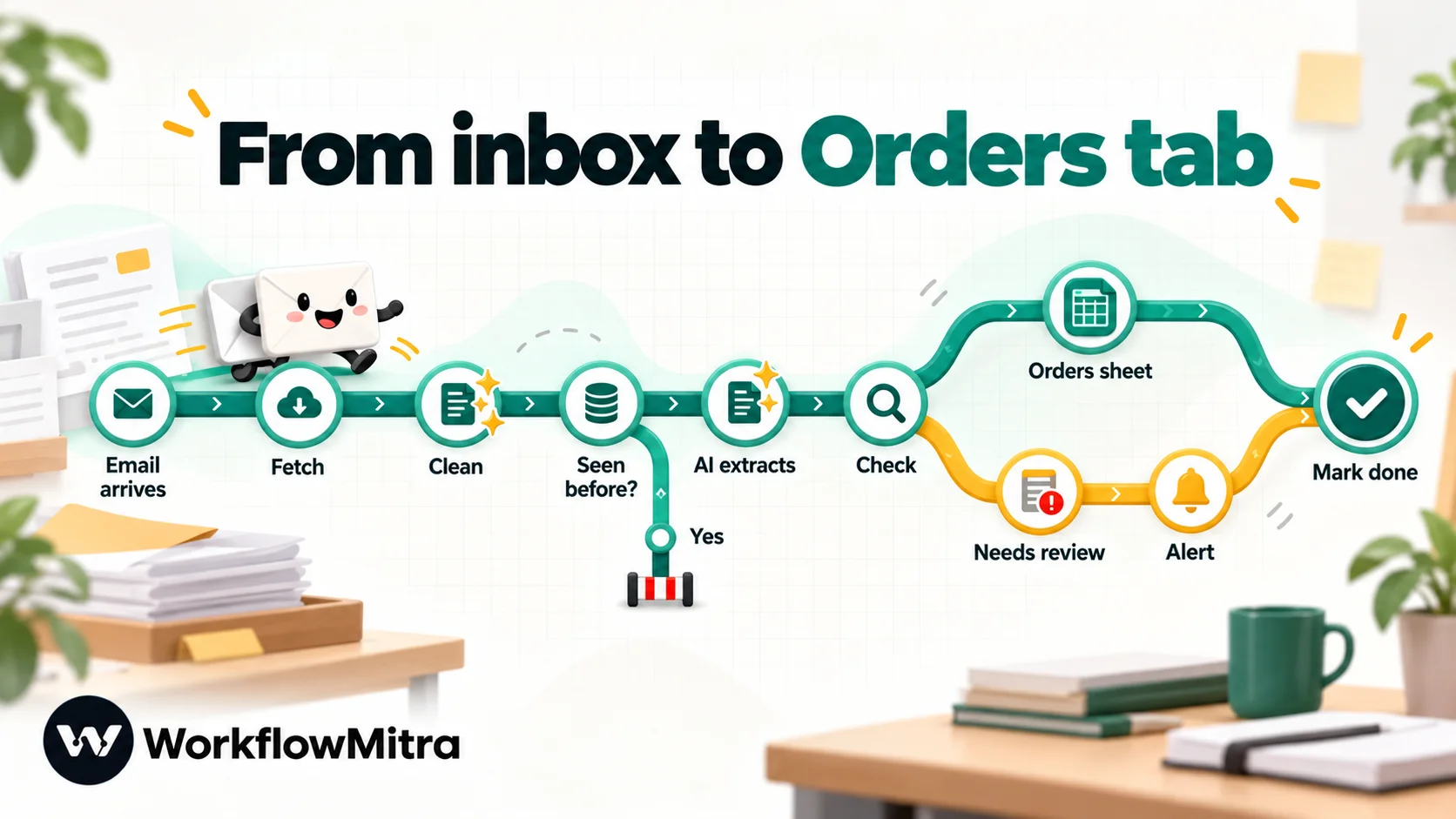
1. Watch a dedicated mailbox
Add When an email arrives and connect a mailbox that receives only the emails you want read, for example an orders@ address. Use the trigger’s filter, such as Unread only, to keep it from firing on everything. Email triggers poll, every five minutes by default, so allow for a short delay.
The email step signs in with an address and an app password. Google requires 2-Step Verification before it lets you create an app password, and it may not offer them at all on work or school accounts. Outlook.com and Microsoft 365 cannot connect, because Microsoft has turned off the password sign-in the step relies on.
2. Fetch and clean the message
The trigger passes the sender, subject, date and a unique ID, but not the body. Add Mail → Get an email (with body) and set the email to the trigger’s uid. The body arrives as raw email source, up to 256 KB: boundary lines, encoded characters such as =E2=82=B9 for ₹, HTML tags and attachment data. Feed that to an AI and it wastes tokens and gets confused, so clean it first with a Code step. The step runs JavaScript in an isolated sandbox and receives the previous step’s output as input:
const raw = String(input.body || '');
// 1. Keep readable lines: skip MIME headers, boundaries and base64 attachments
const kept = [];
let skip = false;
for (const line of raw.split(/\r?\n/)) {
if (line.startsWith('--')) { skip = false; continue; } // a new part begins
if (/^Content-Transfer-Encoding:\s*base64/i.test(line)) { skip = true; continue; }
if (skip) continue;
if (/^(Content-[\w-]+|MIME-Version):/i.test(line)) continue;
if (/^\s+(boundary|charset|name|filename)=/i.test(line)) continue;
kept.push(line);
}
// 2. Undo quoted-printable (=E2=82=B9 becomes ₹) and join soft line breaks
let text = kept.join('\n').replace(/=\n/g, '');
try {
text = decodeURIComponent(text.replace(/%/g, '%25').replace(/=([0-9A-F]{2})/g, '%$1'));
} catch (e) {}
// 3. Strip HTML, squeeze whitespace, cap the length the AI will read
text = text
.replace(/<(style|script)[\s\S]*?<\/\1>/gi, '')
.replace(/<[^>]+>/g, ' ')
.replace(/ /g, ' ')
.replace(/[ \t]+/g, ' ')
.replace(/\n\s*\n+/g, '\n\n')
.trim();
return { text: text.slice(0, 4000), readable: text.length > 20 };We ran this on a sample email with a quoted-printable text part and a base64 PDF attachment. It returned the readable sentences with ₹ restored and dropped the attachment data. The step takes about a millisecond, so it costs a fraction of a credit. If readable comes back false, send the email to the review lane rather than to the AI.
3. Skip emails you have already processed
Add a Data Store → Get record step with the email’s Message-ID ({{ $trigger.messageId }}) as the key, followed by an IF on found. If found, stop. Polling already avoids re-reading mail, but this check protects you if mail is forwarded twice, a mailbox is reconnected or you re-run a test. If your customers quote an order reference, use that as the key instead, since it catches a customer who emails the same order twice.
4. Ask the AI for structured output, and only that
Add an AI step with your own API key from Claude, OpenAI, Gemini or Groq. Put the rules in the system prompt and the email in the prompt:
SYSTEM
You extract order details from emails. Reply with one JSON object and nothing
else: no explanation and no code fences. Use null for any value the email does
not state. Never guess. If a date is relative ("next Friday", "tomorrow"),
return null.

PROMPT
Extract these fields from the email below.
- customer: the sender's name or company
- phone: digits only, or null
- item: what they want to order
- quantity: a number, or null
- delivery_date: YYYY-MM-DD, or null
- notes: anything else the supplier must know, in one sentence, or null

Email subject: {{ $node["Get email"].subject }}
Email text:
{{ $node["Clean email"].text }}
Three details do the work here.
- “Use null, never guess.” Models would rather fill a blank than leave it. Telling them a blank is correct is the cheapest accuracy gain you will find.
- No relative dates. The model does not know today’s date, so “next Friday” would be a guess. Null sends it to review, where a person knows what it means.
- JSON only. The AI step returns the reply as
textand, when the whole reply is valid JSON, also asjson. A reply wrapped in code fences comes back withjsonempty, so the next step handles that case.
Leave the temperature at its default of 0 for extraction. The step returns at most 4,096 tokens, which is far more than five fields need. Replace {{ $node["Get email"].subject }} with the exact name you gave the fetch step, because after an AI step a plain {{ field }} reads only the previous step’s output.
5. Validate in code
Never write an AI’s reply straight into your sheet. Add a Code step that gets the JSON, checks every field and reports what is wrong:
// Get the JSON even if the model wrapped it in code fences or added a sentence
let data = input.json;
if (!data && input.text) {
  const m = String(input.text).match(/\{[\s\S]*\}/);
  try { data = m ? JSON.parse(m[0]) : null; } catch (e) { data = null; }
}
const problems = [];
if (!data) problems.push('reply was not valid JSON');
data = data || {};

const clean = (v) => (v === null || v === undefined ? '' : String(v).trim());
const customer = clean(data.customer);
const item = clean(data.item);
const phone = clean(data.phone).replace(/\D/g, '');
const qty = Number(clean(data.quantity).replace(/,/g, ''));
const date = clean(data.delivery_date);

if (!customer) problems.push('customer missing');
if (!item) problems.push('item missing');
if (!Number.isInteger(qty) || qty < 1 || qty > 10000) problems.push('quantity missing or out of range');
if (date) {
  const d = new Date(date + 'T00:00:00Z');
  if (!/^\d{4}-\d{2}-\d{2}$/.test(date) || isNaN(d) || d.toISOString().slice(0, 10) !== date) {
    problems.push('delivery date is not a real YYYY-MM-DD date');
  }
}
if (phone && (phone.length < 10 || phone.length > 15)) problems.push('phone looks wrong');

return {
  ok: problems.length === 0,
  problems: problems.join('; '),
  customer, item, phone,
  quantity: Number.isInteger(qty) ? qty : '',
  delivery_date: date,
  notes: clean(data.notes)
};
We tested it on five replies. A clean reply passed, with “1,200” read as 1200 and the phone reduced to digits. A reply wrapped in code fences was recovered. A reply that said “I could not find an order in this email” failed with four problems. An impossible date (30 February) and a day-first date (12/10/2026) were both rejected, and a quantity of “ten” was flagged. Tune the limits and fields to your business.
6. Send good rows to the sheet and doubtful ones to review
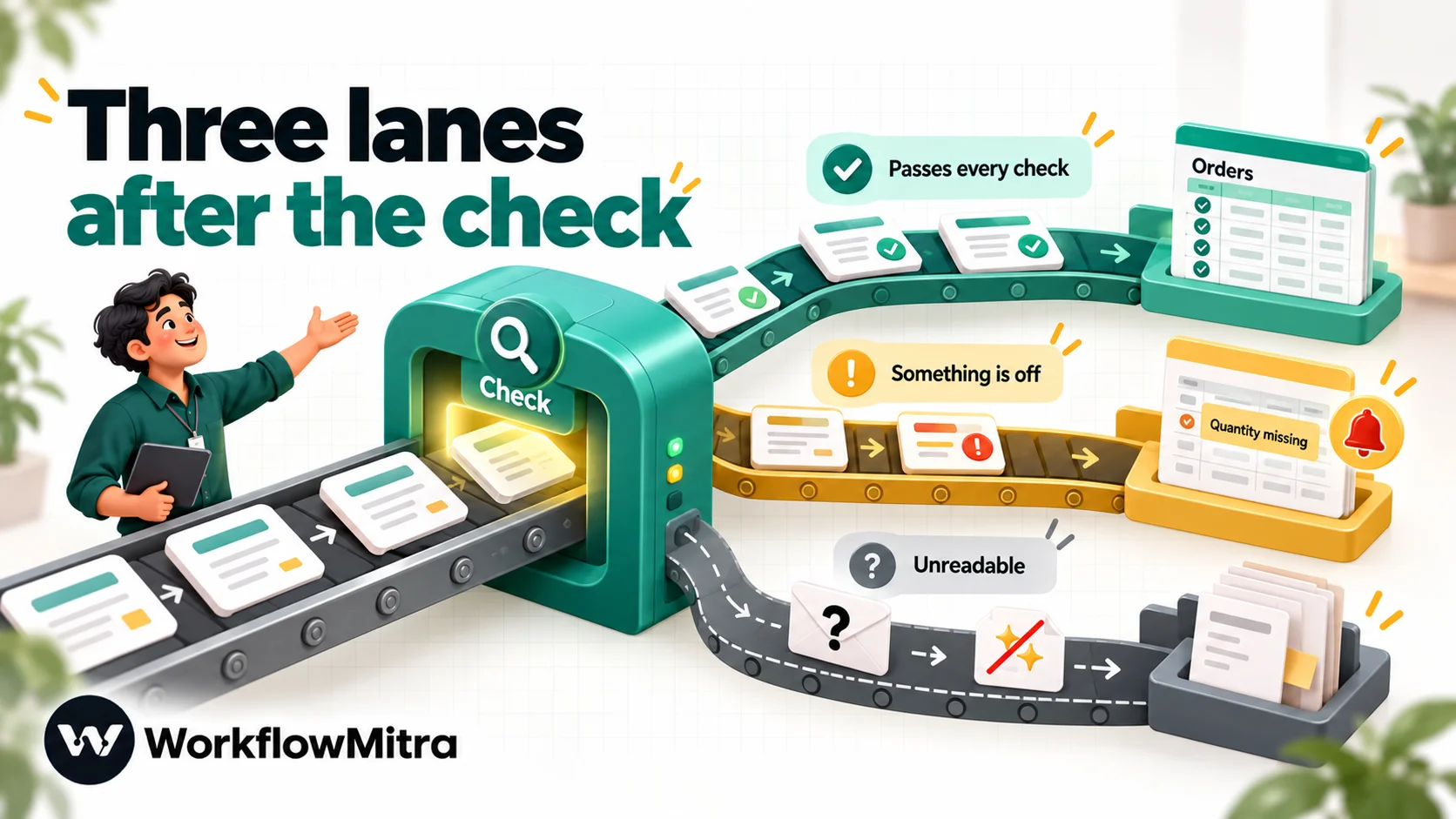
Add an IF on ok.
- True: Google Sheets → Add row(s) on the Orders tab with the customer, item, quantity, delivery date, notes and a status of Ready. Add columns for the email’s subject, received time and Message-ID so every row can be traced.
- False: a second Add row(s) on a Needs review tab with the same trace columns plus the
problemstext, and a Slack (or Telegram or email) alert saying “One order email needs a check: quantity missing”. A person fixes the row and moves it to Orders.
7. Record it and tidy up
Finish with Data Store → Create record using the Message-ID as the key, which is what step 3 looks up. Optionally add Mail → Move to a folder, naming a Processed folder, so the inbox shows only what is waiting. Place the record step after the sheet step, so a failed write is not marked as done.
A complete example: the wholesaler’s Monday
Return to the wholesaler. Before automation, thirty or so order emails arrive each week and two hours go on typing them. The workflow above changes the week like this.
An order email arrives at 4:10 on Thursday afternoon. Within about five minutes the trigger picks it up, the body is fetched and cleaned, the Data Store confirms it is new, and the AI step returns a customer, item, quantity and date. The checks pass, a row appears on the Orders tab with status Ready, and the email moves to the Processed folder. Nobody did anything.
A second email says “same as last time, send Friday”. The model has nothing to extract, so it returns nulls, the validator reports a missing customer, item and quantity, the row lands on the Needs review tab and a chat alert names the problem. Someone in the office reads the email, fills in the row from the last order and moves it across. That takes thirty seconds instead of the thirty minutes it would have taken to hunt for the context later.
A third email contains a quantity of “1,2000”, an obvious typo. The range check flags it, because a one-off order of twelve thousand units is outside the limit you set. A human decides whether it was 1,200 or 12,000, which is exactly the judgement a person should make.
On Monday, nobody opens the inbox to type. They open the Needs review tab, which holds the handful of emails the automation was right to doubt, and spend ten minutes there. Typing time falls from two hours to ten minutes, the error rate in the Orders tab drops because every row has passed the same checks, and the Friday reconciliation becomes a spot check of five rows, not a full comparison.
Keeping errors out
The build above is only as good as its checks. These habits keep a data-entry automation honest over months, not just on the day you test it.
| Check | Example | If it fails |
|---|---|---|
| Required fields present | Customer, item and quantity are not empty | Review tab, with the missing field named |
| Format is real | A date that exists; a phone with 10 to 15 digits | Review tab |
| Value in a sensible range | Quantity between 1 and 10,000 | Review tab, because outliers are often typos |
| Value in an allowed list | Item matches a product on your price sheet | Review tab, or a Sheets lookup to suggest the closest match |
| Not already recorded | Message-ID or order reference unseen | Skip and log |
| Totals agree | Quantity × price equals the stated total | Review tab |
Audit by sampling. For the first hundred rows, compare every one with its email. After that, check a few a week. Keep a note of what the review tab catches, because repeated problems tell you how to improve the prompt, for example by adding “quantity is the number of units, not the price” after a mix-up.
Never let the automation fill gaps. A guessed delivery date that looks real is worse than an empty cell, because nobody questions it. Prefer an empty field and a flag.
Log failures loudly. Set up the workspace’s failure alert so a broken run reaches a person the same hour.
Privacy: where the data goes
In this build, the email text leaves your mailbox and goes to an AI provider. WorkflowMitra uses your own API key, so it travels under your account’s terms with that provider, not under a blanket arrangement made on your behalf. Before processing real mail:
- Send only what the model needs. The cleaning step already drops attachments; also trim signatures and quoted history if they contain unrelated personal data.
- Check your provider’s data-retention and training terms for API traffic, and choose a provider and plan whose terms you accept.
- Keep sensitive categories out of scope, such as health or payment-card data, unless you are certain you may send them.
- Tell customers how their emails are processed if the law where you operate requires it, for example under India’s DPDP Act or the EU’s GDPR.
What automated data entry costs in WorkflowMitra
WorkflowMitra charges up to one credit for every step that runs. IF steps, Switch steps and delays are free, and the Code steps here are metered by milliseconds, so they cost a fraction of a credit. The 14-day trial gives 10,000 credits with no card, and on 7 October 2026 the entry plan was ₹999 a month for 10,000 credits; check the pricing page when you buy.
| Workflow | Steps that cost credits | Credits per run |
|---|---|---|
| Method 1: form to sheet and CRM | Webhook, sheet row, CRM record | 3 |
| Method 2: daily database sync | Schedule, query, one bulk sheet write | 3 per day, whatever the row count |
| Method 4: email to sheet (valid) | Email trigger, fetch, lookup, AI, sheet row, record, move | About 7 |
| Method 4: email to review tab | The above, plus a chat alert, without the move | About 7 |
At 400 order emails a month, the email workflow uses about 2,800 credits, well inside one entry plan. Your AI provider charges for its own usage on top, based on the length of each email and reply; the cleaning step keeps those small, but check your provider’s pricing for the model you choose.
Rolling it out safely
Data entry feels low-stakes until a wrong number reaches an invoice, so roll out in stages.
- Shadow mode, two weeks. Run the workflow to a test sheet while people carry on typing as usual. Compare every row with the human version and record each difference.
- Fix the prompt and the checks. Group the differences. Missing labels, ambiguous dates and unit confusion each have a fix in the prompt or the validator. Re-test the same emails.
- Go live for one source. Switch one mailbox or one form over, keep the review tab and keep sampling.
- Name an owner. Someone must open the review tab daily and the failure alert must reach a person, not a shared inbox nobody reads.
- Add the next source. Only when the review tab is quiet and the owner is comfortable.
- Keep a change log. Prompts are logic. When someone edits one, note what changed and why, and re-test with the saved sample emails.
The goal is not zero review, which is unrealistic with free text. The goal is that review time is a small, predictable fraction of the old typing time, and that a wrong row cannot reach the main data without passing through the checks.
What this setup cannot do
- Read PDFs, scans or photos. There is no OCR, and the AI step takes text only. Invoice and receipt capture needs a document-capture tool, which can then pass results to WorkflowMitra by webhook.
- Read attachments. The email step lists that a message has attachments, but this build reads only the body text.
- Connect Outlook.com or Microsoft 365 mailboxes. Forward the mail to a Gmail or other supported mailbox.
- Report how sure the AI is. There is no confidence score, which is why the checks live in your Code step.
- Let a reviewer edit inside an approval. The Wait for approval step shows its text read-only and approves or rejects it. Corrections belong in the review tab, as above.
- Beat Google’s limits. The Sheets API allows 60 write requests per minute per user per project, so write in bulk where you can.
When rows go missing, double up or look wrong
| Symptom | Likely cause | What to check |
|---|---|---|
| Nothing happens when mail arrives | Trigger filter excludes it, wrong credentials, or an Outlook account | Filter setting, app password, and wait one polling interval |
| The AI returns nonsense text | The cleaned text is empty or mostly markup | Open the run and read the Clean email output; check readable |
| Every row goes to review with "not valid JSON" | The model adds prose or fences, or hit the token cap | Tighten "JSON only"; the validator already strips fences |
| Quantities or dates are wrong but valid | Ambiguous wording the model resolved | Add the rule to the prompt, and sample more rows |
| Duplicate rows | Different keys for the same order, or the record step ran before a failed write | Use an order reference as the key; keep the record step last |
| Phone numbers lose digits or show as numbers | The sheet step is set to "like typing it in" | Switch to Exactly as written |
| "Too many requests" from Google | Row-by-row writes in a burst | Use the bulk array mode for many rows |
Common mistakes
- Using AI where a webhook exists. If the source can send structured data, map the fields and skip the model.
- Writing the AI’s answer straight into the sheet. Always validate first.
- Letting the model guess. Instruct it to return null and treat blanks as a feature.
- No review lane. Without one, a doubtful row is either lost or quietly wrong.
- No trace to the source. If you cannot see which email a row came from, you cannot audit it.
- Automating a broken process. If three people type the same data into three systems, fix the process before you automate the typing.
- Sending everything to the model. Trim the text, drop attachments and avoid unrelated personal data.
Why use WorkflowMitra for automated data entry?
If your data lives in one platform that already syncs to the other apps you use, an extra tool may not be needed. WorkflowMitra, powered by ChatMitra, fits the common messier picture: data scattered across emails, forms, a database and a sheet, a small team with no developer, and a wish to stop retyping without buying a document-capture suite.
- The right tool for each source. Webhooks and sheet triggers for structured data, scheduled database queries, Code steps for rules, and an AI step for free text, in one editor.
- Checks built from ordinary steps. Lookups for duplicates, a Code step for validation and an IF into a review lane need no extra product.
- Bring your own AI. Choose Claude, OpenAI, Gemini or Groq under your own account and terms.
- Bulk writes to Sheets. One step writes up to 500 rows per request, in batches.
- Messaging when you need it. If the next step is telling a customer their order was received, WhatsApp is available through ChatMitra or Meta’s Cloud API.
- Rupee pricing per executed step. Logic and delays are free, and every step type is on the entry plan.
The limits are worth repeating: no OCR, no PDF or attachment reading, no Outlook mailboxes and no confidence score. If your data lives in scans, put a document-capture tool in front and use WorkflowMitra for everything after it.
Start with the task someone retypes most
Find the job that eats the most hours, ask which rung of the ladder its source belongs on, and automate that one on the 14-day trial. Run it beside the manual process for two weeks, compare the rows, and switch over only when the review tab is quiet. What is workflow automation explains the building blocks, and workflow automation for small business helps you decide what to automate next. The templates page has ready-made starting points.
Product behaviour described here was checked in WorkflowMitra on 7 October 2026. Google's limits and requirements come from the Google Sheets API usage limits and Google's app password help page. AI extraction can be wrong: validate every field and review a sample of rows. This guide is general information, not legal or accounting advice.
Frequently Asked Questions
Questions operations teams ask before they automate data entry.
It is using software to capture data where it already exists, check it and write it into the system that needs it, so nobody has to retype it. The source can be a form, an email, a payment notification, a database or a spreadsheet, and the destination is usually a sheet, a CRM or an accounting tool.
Automate the work between your apps
Build workflows with triggers, conditions and actions, then test them before they go live. Try WorkflowMitra free for 14 days, no card required.
