Automation for Accounting Firms: A Playbook for Deadlines, Documents and Clients

Quick Summary
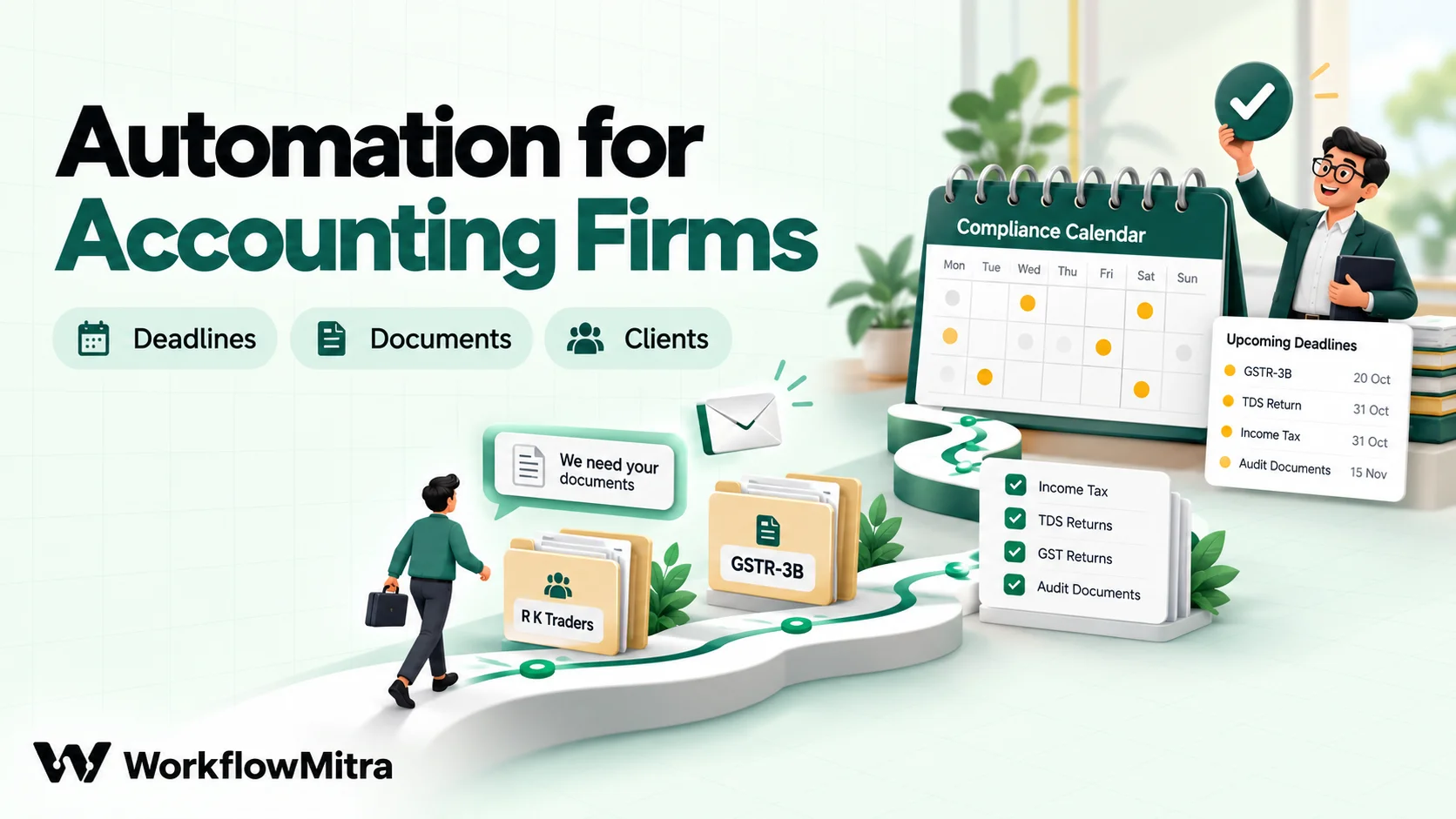
Automation for accounting firms takes over the admin that surrounds professional work: tracking every client's compliance deadlines, reminding clients for documents, logging what arrives, onboarding new clients with a partner's sign-off, and telling partners each week what's due and who's on it. The judgement stays with qualified staff; the chasing, copying and reminding run on rules. Start with one sheet that holds every client deadline, let the sheet work out what is due, and have a workflow send the reminders. WorkflowMitra, powered by ChatMitra, runs these workflows on schedules, sheets, email and WhatsApp, with approvals for anything a partner should see first.
Ask anyone who runs a small accounting practice where the week went, and the answer is rarely “preparing returns”. It went on chasing a client for bank statements for the third time, checking which GST returns were still open, answering “have you filed it yet?”, and reminding a junior that an audit file needed the partner’s review. The professional work is skilled and billable. The work around it is repetitive, and most of it can run on rules.
This playbook shows how to automate that surrounding work for an accounting firm or a chartered accountant’s practice. It sets up one deadline sheet, then builds five workflows on it: a compliance deadline tracker, a document chaser, an intake log for documents that arrive by email, client onboarding with partner sign-off, and a weekly workload digest. Along the way it covers what to keep manual and the professional rules that shape how a practice can message clients.
What is automation for accounting firms?
Automation for accounting firms means using software rules to run the repeatable administration of a practice: tracking client deadlines, reminding clients for documents, logging what arrives, onboarding new clients, sending status updates and reporting workload to partners. It doesn't replace professional judgement. Review, advice and sign-off stay with qualified people; the automation handles the chasing, copying and reminding around them.
It sits next to the tools you already use rather than replacing them. Your accounting and tax software still prepares the work. A workflow tool connects the places where the admin lives, such as a spreadsheet, a mailbox and a messaging channel, and moves information between them on a schedule or when something changes.
Where the hours go in a practice
The time drains in most practices fall into six groups:
- Deadline tracking. Every client has a different set of filings, frequencies and periods. Someone has to know, every morning, what falls due this week and whether the documents are in.
- Document chasing. Most delays start with the client. The first request is easy; the fourth reminder is where time disappears.
- Intake. Documents arrive by email, WhatsApp and the occasional pen drive, and someone has to note what came in and tell the person working on that client.
- Onboarding. A new client needs an engagement letter, a checklist, a contact in the firm and an entry in every tracker.
- Status questions. “Has my return been filed?” is a reasonable question. Answering it by hand, client by client, isn’t a good use of a senior’s time.
- Internal handoffs. Work moves from article assistants to seniors to partners, and things stall between people as often as between client and firm.
What to automate, and what to keep with professionals
| Task | Automate? | Why |
|---|---|---|
| Deadline reminders to staff and clients | Yes | Pure rules: date, client, filing, owner |
| Document checklists and follow-ups | Yes | Same request, many clients, fixed intervals |
| Logging received documents | Yes | Copying sender, date and subject into a tracker |
| Sending the engagement letter and welcome pack | Yes, after a partner approves | Acceptance of a client is a professional decision |
| Weekly workload and overdue report | Yes | Counting and grouping rows |
| Fee reminders | Yes, with a polite tone and a person for disputes | Predictable stages, occasional exceptions |
| Reviewing figures and preparing returns | No | Professional judgement and responsibility |
| Advising a client on a notice or a tax position | No | Context, discretion and liability |
| Signing off or filing | No | Must be a named, qualified person |
The pattern is the same as in any finance team: automate the edges, keep a person on the decision. Our guide to finance automation for small businesses applies the same split to a business’s own books; this guide applies it to a practice serving many clients.
Practice management software, a spreadsheet, or both?
Practice management software built for accounting firms bundles client records, deadlines, document requests, time tracking and billing in one product. If you want one system and your team will use it fully, that’s a reasonable choice.
Many smaller practices aren’t there yet. Their deadlines live in a spreadsheet, documents arrive by email and WhatsApp, and the accounting and tax software does the professional work. For them, a workflow tool on top of a well-built sheet covers the admin this guide is about, and can be set up in days. It also works alongside practice software later, filling the gaps between systems, such as a WhatsApp reminder the software can’t send.
Ground rules for automating a practice
Accounting firms hold sensitive information and work under professional rules, so set these boundaries before building anything.
- Confidentiality. In India, the Chartered Accountants Act, 1949 treats disclosing information acquired in a professional engagement, without the client’s consent or a legal requirement, as professional misconduct (Second Schedule, Part I, clause 1). Accountants elsewhere carry similar duties. Every sheet, mailbox and messaging account a workflow touches falls inside that duty.
- Data protection. Client records include personal data about owners, employees and family members. In India that brings in the Digital Personal Data Protection Act, 2023, whose rules were notified in November 2025 and are being phased in; in the EU and UK, the GDPR.
- Service, not solicitation. Clauses (6) and (7) of Part I of the First Schedule to the same Act bar chartered accountants in practice from soliciting clients and from advertising, and ICAI treats non-compliance with its guidelines as professional misconduct. Automate service to existing clients; don’t build outbound campaigns to prospects. Firms in other countries should check their own professional body’s rules.
- Minimum data in messages. A reminder needs the client’s name, the filing and the date. It doesn’t need a PAN, an account number or the tax due. Keep identifiers and figures out of WhatsApp and email bodies.
- Restrict access. Limit who can edit the workflows and the deadline sheet, and use a role mailbox for automated sends rather than a partner’s personal inbox.
- Treat due dates as data you verify. Statutory deadlines are extended by notification often enough that a hard-coded calendar will eventually be wrong. Keep due dates in the sheet, where a person updates them when an extension is announced.
The foundation: one client deadline sheet
Every workflow in this playbook reads from one Google Sheet. Build it first, because it’s useful even before any automation: it’s the single list of everything the practice owes to every client.
Create a tab called Deadlines with one row per client, per filing, per period. Keep the headers to single words, because the workflows refer to columns by header name:
| Column | Header | Example | Notes |
|---|---|---|---|
| A | ID | RK-GSTR3B-2026-09 | Unique per row: client code, filing, period |
| B | Client | R K Traders | |
| C | [email protected] | Lowercase, so lookups match | |
| D | 919812345678 | Country code, digits only, formatted as plain text | |
| E | Filing | GSTR-3B | |
| F | Period | September 2026 | |
| G | Due | 20/10/2026 | A real date cell, updated if an extension is announced |
| H | DocsBy | 12/10/2026 | Your internal cut-off, a week or so before the due date |
| I | Owner | [email protected] | The staff member responsible |
| J | Docs | Pending / Received | |
| K | Status | Open / Filed | |
| L | DaysLeft | =G2-TODAY() | Format as a plain number |
| M | Remind | formula, below | "CLIENT", "STAFF" or blank |
| N | DocsList | Sales register; purchase invoices; HDFC statement | What you need for this filing, typed or looked up from a standard list |
| O | DocsByText | =TEXT(H2,"d mmm yyyy") | The cut-off as text, for messages |
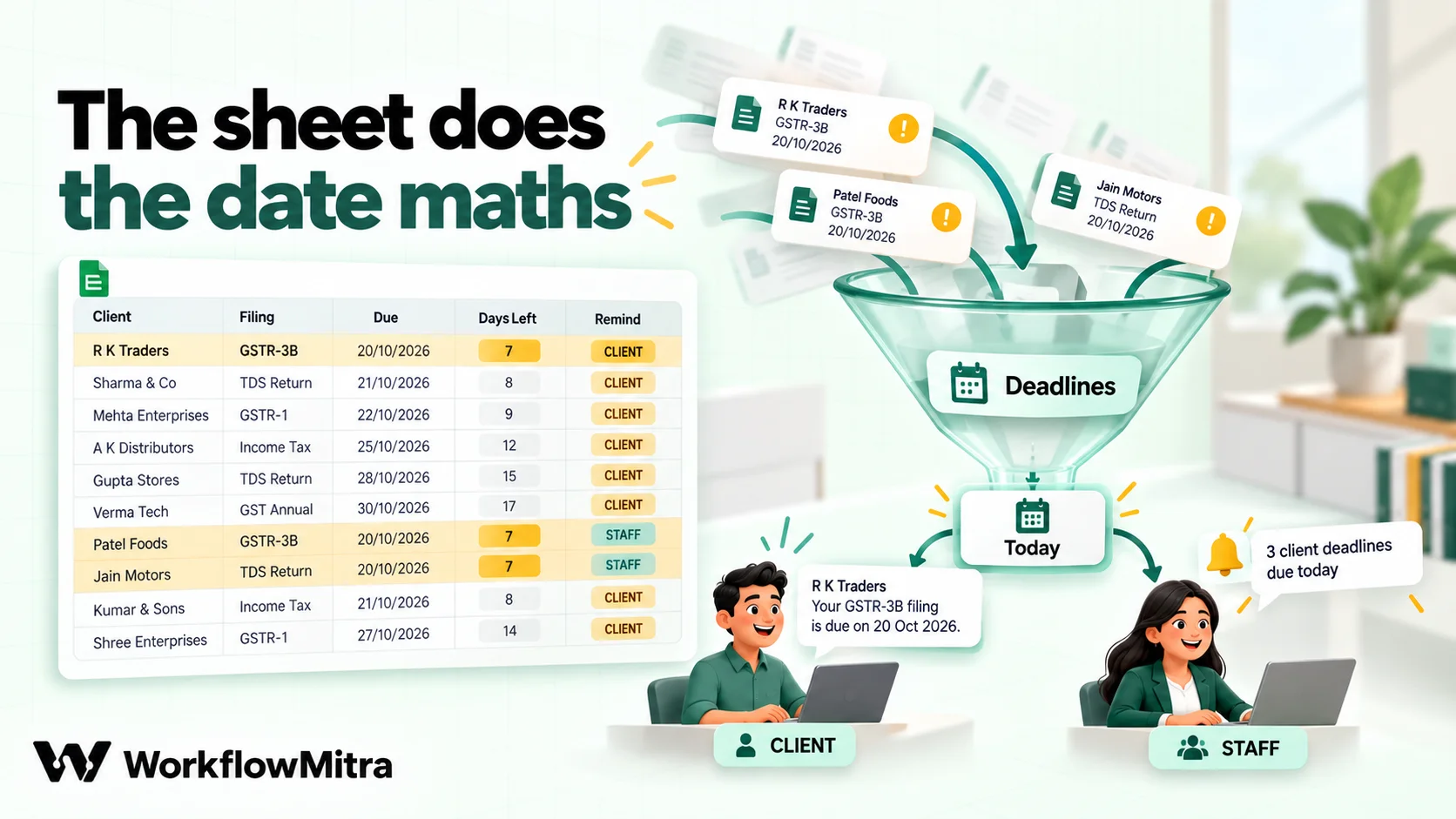
The trick that keeps the workflows simple is to let the sheet do the date arithmetic. A formula in the Remind column decides who needs a reminder, for example:
=IF(K2="Filed","",
 IF(AND(J2="Pending",OR(H2-TODAY()=7,H2-TODAY()=3,H2-TODAY()=0)),"CLIENT",
 IF(AND(J2="Received",OR(L2=5,L2=2)),"STAFF","")))
Clients get reminded a week before the internal cut-off, three days before, and on the day, until Docs says Received. Staff get a nudge five and two days before the statutory due date for anything not yet filed. Change the numbers to suit your practice.
Then add a second tab, Today, containing just the rows that need action. Put =Deadlines!A1:O1 in cell A1, so the tab has the same headers, and this in A2:
=IFERROR(FILTER(Deadlines!A2:O, Deadlines!M2:M<>""), "")On a day with nothing to send, the tab is simply empty and the workflow has nothing to loop over.
Because the sheet recalculates every day, the Today tab always shows today’s reminders and nothing else. The workflows never have to parse a date, which matters: dates read from a spreadsheet can arrive as serial numbers or formatted text, and comparing them reliably inside a workflow takes more care than a formula column. That’s also why the sheet keeps a text copy of the cut-off (DocsByText) for use in messages.
Workflow 1: the compliance deadline tracker
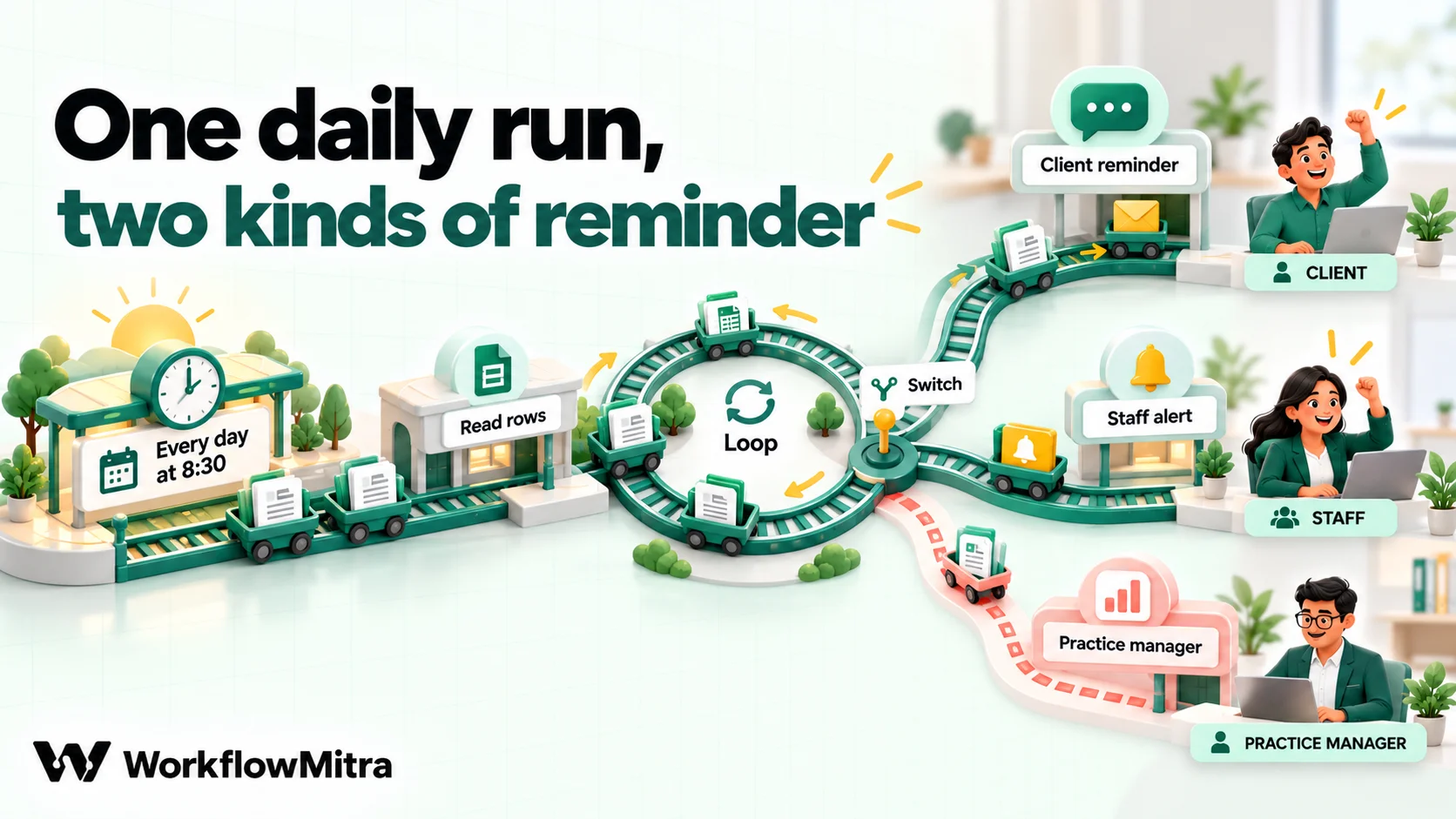
This is the workflow that pays for the rest. Every morning it reads the Today tab and sends each reminder through the right channel.
In WorkflowMitra, powered by ChatMitra:
- Schedule trigger: every day at 8:30, with your time zone selected.
- Google Sheets, Read rows: the
Todaytab. Because the tab only holds flagged rows, a practice with 400 deadline rows typically reads a handful. - Loop over the rows.
- Switch on
{{ Remind }}, with one route forCLIENTand one forSTAFF. - Client route: WhatsApp step with an approved reminder template, sent through ChatMitra, to the client’s number: “Hello {{1}}, a reminder from Mehta & Co: we need your documents for {{2}} ({{3}}) by {{4}} to file on time. Reply here if you have questions.” Map
{{ Client }},{{ Filing }},{{ Period }}and{{ DocsByText }}; the step right after the Switch reads the current row. For clients who prefer email, use an Email step instead, or a second route keyed on a “Channel” column. - Staff route: Email (or a Slack message) to
{{ Owner }}: ”{{ Filing }} for {{ Client }} is due in {{ DaysLeft }} days and isn’t filed.”
Two details make it reliable. Turn on an error handler for the WhatsApp step (right-click it and choose Add error handler) and send failures to the practice manager, because a reminder that silently fails is worse than none. And keep the sheet as the source of truth: when someone marks a row Filed, the formula clears its flag, so the reminders stop without anyone touching the workflow.
Close the loop: tell the client when it’s filed
The cheapest answer to “has my return been filed?” is a message sent before the client asks. Add a small companion workflow:
- Google Sheets trigger on the
Deadlinestab, “One column changes”, watching Status, with ID as the ID column. - IF
{{ Status }}is equal toFiled(ignore case). - WhatsApp step with a short approved template: “Hello {{1}}, we’ve filed your {{2}} for {{3}}. Thank you.” Map the client, filing and period from the row.
Watching one column matters: if the workflow watched every change to the row, any edit to the sheet would send another message. Keep acknowledgement numbers and amounts out of the message; the client can ask for the filed copy, and your team sends it as usual.
WhatsApp templates need Meta’s approval before use, and clients should have agreed to receive messages on WhatsApp. Reminders about work the client has engaged you for are the kind of message templates exist for. Our ChatMitra guide to WhatsApp reminder messages has wording you can adapt.
Workflow 2: chase missing documents without chasing
Workflow 1 reminds clients on fixed days. Document chasing works better when the first request is specific and the follow-ups stop on their own.
The request comes from the DocsList column, so each new period’s rows carry their own checklist. Then:
- Trigger: a Google Sheets trigger on the
Deadlinestab, “A row is added”, with ID as the ID column. Switch it on before you add next period’s rows: its first check records the rows already there and acts only on rows added after that. - IF
{{ Docs }}is equal toPending(ignore case) and{{ Email }}is not empty. - Email step to
{{ $trigger.Email }}, subject “Documents needed for {{ $trigger.Filing }}, {{ $trigger.Period }}”, listing{{ $trigger.DocsList }}and the cut-off{{ $trigger.DocsByText }}, with how to send them. A specific list (“September statement for the HDFC current account, purchase invoices above ₹50,000”) gets faster replies than “please send documents”.
The follow-ups come from Workflow 1’s “CLIENT” reminders, which only fire while Docs is Pending. As soon as documents are marked received, the chasing stops. That’s the whole design: one specific request, reminders on a schedule, and a status column that ends them.
When a client keeps missing the cut-off, add a third level. Extend the Remind formula so a row that is still Pending three days before the due date returns PARTNER, and add a third Switch route in Workflow 1 that emails the partner. The conversation then happens before the deadline rather than after it.
Workflow 3: log documents as they arrive by email
Most clients still email their documents. This workflow notes each arrival against the right client and tells the owner.
- Trigger: Email, “On a new email” on the practice’s documents mailbox, with the preset With an attachment.
- Google Sheets, Find row in a
Clientstab (columns Email, Client, Owner), matching Email against{{ lower($trigger.from) }}. Name the step “Find client”. Lookups are exact, which is why the sheet stores emails in lowercase. - IF
{{ found }}is yes. Unknown senders go to the Else path: forward them to the practice manager to identify. - Google Sheets, Add row(s) to an
Intakelog:{{ $trigger.date }},{{ $node["Find client"].row.Client }},{{ $trigger.from }}and{{ $trigger.subject }}. - Email or Slack message to
{{ $node["Find client"].row.Owner }}: “New documents from {{ $node[“Find client”].row.Client }}: {{ $trigger.subject }}.” - Email step, Add or remove a label (on Gmail), with Which email set to
{{ $trigger.uid }}and the label set to the client’s name, so the mailbox doubles as a filing index.
Be clear about the limit: WorkflowMitra doesn’t save the attachments anywhere else. The files stay in the mailbox, labelled by client, and the sheet records that they arrived. A person still opens them, checks they’re complete and marks the checklist. If you need files copied into a document management system, that’s a job for that system’s own email import, or a manual step. Our Gmail automation guide covers labels and the email trigger in more detail.
Workflow 4: onboard a new client with partner sign-off
Accepting a client is a professional decision. Everything after the decision is admin.
- Trigger: Webhook from your enquiry or onboarding form, such as a Google Form or a website form. Our guide to Google Forms automation shows how to send form responses to a webhook.
- Google Sheets, Add row(s) to the
Clientstab with status “Pending approval”. - Wait for approval. The run pauses and an alert goes to the workspace’s alert email or Slack channel. They review the request in WorkflowMitra’s Approvals page and approve or reject it with a comment. Set a deadline, say three days; if nobody decides in time, the default is to reject, so nothing goes out on its own.
- IF
{{ approved }}is yes:- Assign to the next person picks the staff member who’ll own the client, in turn, so new clients spread evenly. Enter each person’s email as their value, so
{{ assignedTo }}is an address. - Email step sends the welcome email to the client’s address from the form (
{{ $trigger.email }}, or whatever your form calls it) with your engagement letter and first-period checklist attached (upload them once as static files), and{{ assignedTo }}in Cc. - Google Sheets, Update row sets the status to “Active” and fills in the owner.
- Assign to the next person picks the staff member who’ll own the client, in turn, so new clients spread evenly. Enter each person’s email as their value, so
- Else (rejected or timed out): a polite email from the partner’s template, or a task for the partner to call, depending on why.
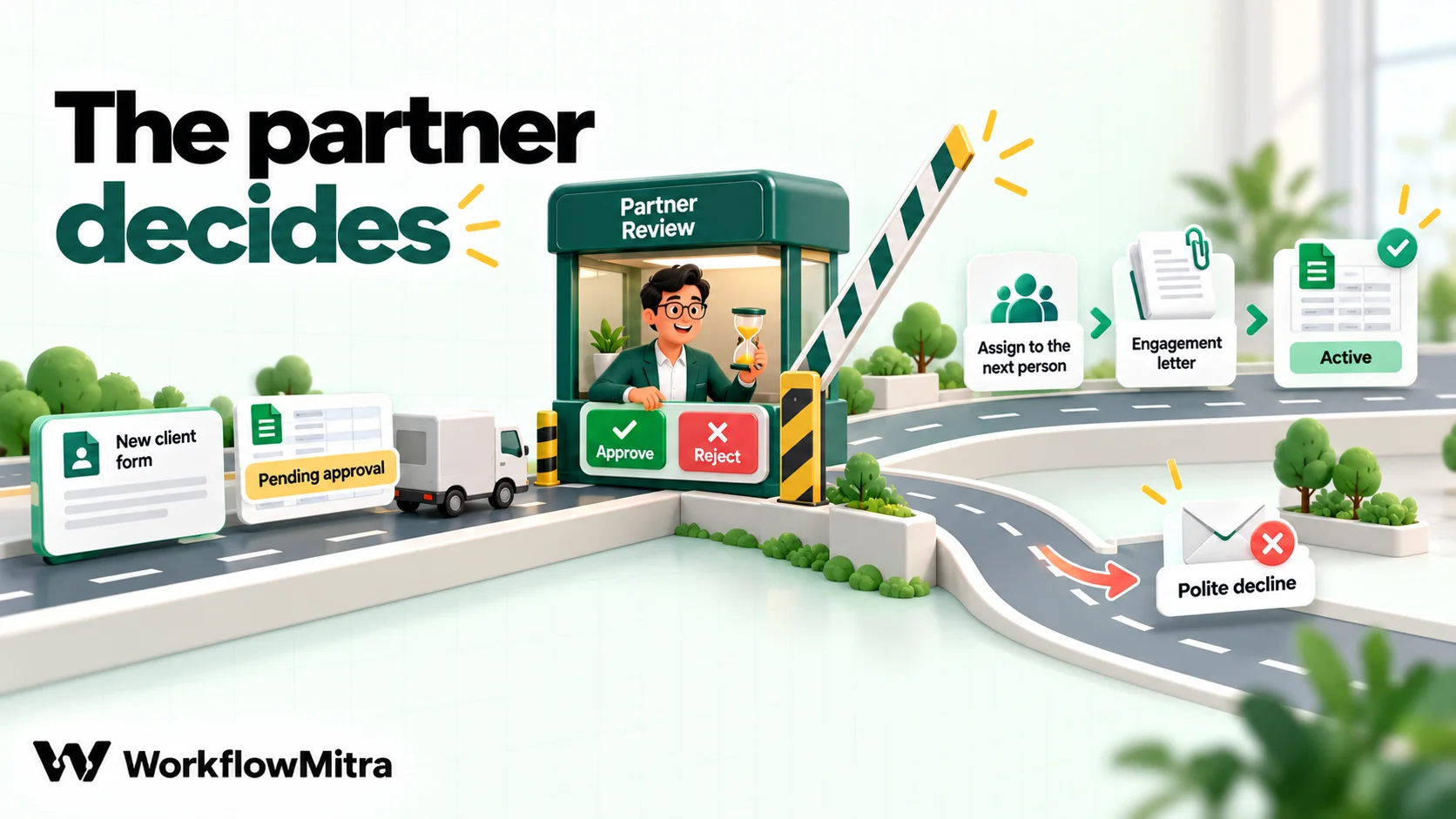
The Approvals page shows the request as it was submitted; the partner approves or rejects, they don’t edit it there. If something needs changing, reject with a comment and correct the row. More patterns are in our guides to approval workflows and customer onboarding automation.
Workflow 5: the Monday workload digest
Partners need one view of the week: what’s due, who owns it and what’s stuck. This workflow sends it every Monday.
- Schedule trigger: Mondays at 8:00.
- Google Sheets, Read rows on a
This weektab, built the same way: headers in row 1, and in A2=IFERROR(FILTER(Deadlines!A2:O, Deadlines!A2:A<>"", Deadlines!L2:L<=7, Deadlines!K2:K<>"Filed"), ""), which includes anything overdue. - Code step groups the rows by owner and builds a small HTML table:
const rows = input.rows || [];
const byOwner = {};
for (const r of rows) (byOwner[r.Owner] ||= []).push(r);
let html = "<p>Due in the next 7 days, not yet filed:</p>";
for (const [owner, list] of Object.entries(byOwner)) {
  html += `<h3>${owner} (${list.length})</h3><ul>`;
  for (const r of list) html += `<li>${r.Client}: ${r.Filing} ${r.Period}, ${r.DaysLeft} days, docs ${r.Docs}</li>`;
  html += "</ul>";
}
return { html, total: rows.length };- Email step to the partners with HTML selected and the message set to
{{ html }}, and the subject “This week: {{ total }} filings open”.
The Code step only sees the step before it, so it works on the rows the sheet just returned. Because the client names come from your own sheet, not from outside input, building the HTML directly is acceptable here. For a deeper look at scheduled reports, see automated daily reports.
Fees: the sixth workflow most practices add
Once deadlines run themselves, fee follow-up is the natural next step: a reminder before an invoice is due, on the due date and a week after, stopping as soon as payment is recorded. It’s the same pattern as Workflow 1, driven by an invoices tab or your billing software. Our guide to payment reminder automation builds it step by step, including the tone to use with clients you’ll keep working with.
The recurring calendar of an Indian CA practice
Here’s how the recurring statutory deadlines of a typical Indian practice map onto the sheet. The dates are the standard ones on the GST and income tax portals as of October 2026.
| Due | Filing | Who it applies to |
|---|---|---|
| 11th of each month | GSTR-1 | Monthly GST filers |
| 13th of the month after the quarter | GSTR-1 | Quarterly filers under the QRMP scheme |
| 20th of each month | GSTR-3B | Monthly GST filers |
| 22nd or 24th of the month after the quarter (by state) | GSTR-3B | QRMP filers |
| 25th of the month, for the first two months of a quarter | Monthly GST payment | QRMP filers |
| 15 June, 15 September, 15 December, 15 March | Advance tax instalments (at least 15%, 45%, 75% and 100% cumulatively) | Assessees liable to advance tax |
| 31 July, 31 October, 31 January, 31 May | Quarterly TDS statements | Non-government deductors |
In practice, a client on monthly GST filing generates two deadline rows a month, a business paying advance tax adds four rows a year, and a deductor adds four quarterly statements. A practice with 150 clients quickly reaches several hundred rows a quarter, which is exactly when a sheet and a daily workflow start to beat a wall calendar.
Two cautions. Due dates are extended by government notification from time to time, so update the Due column when that happens rather than trusting a calendar entered months earlier. And the Income-tax Act, 2025 replaced the 1961 Act from 1 April 2026, introducing the “tax year” in place of the previous year and assessment year, so check form names and dates against the portal when you set up each year’s rows. Practices outside India fill the same sheet with their own calendar, such as HMRC or IRS deadlines.
Rolling it out without surprising clients
Clients notice when a practice starts messaging them on a schedule, so introduce it deliberately:
- Tell them first. A short note, sent once, explaining that they’ll receive reminders for documents and a confirmation when each filing is done, and how to reply. It’s also the moment to confirm their preferred channel and record it in the sheet.
- Record consent and channel. Add a Channel column (WhatsApp or Email) and route on it. Clients who haven’t agreed to WhatsApp get email.
- Start with staff-only reminders. Run Workflow 1 for two weeks with the CLIENT route switched off, compare it with what your team would have done by hand, and fix the sheet before any client sees a message.
- Keep a human sender. Reminders should come from the firm’s name and a mailbox or number that someone reads. A reply such as “the accountant has the statements” needs a person to see it.
- Send at sensible hours. A schedule at 8:30 on working days reaches people when they can act; nobody wants a GST reminder at 11 p.m.
Measuring whether it works
After a quarter, the sheet can answer the questions that matter:
- How early documents arrive. Add a “Received on” column, filled in when someone marks Docs as Received, and compare it with DocsBy. If documents are still arriving after the cut-off, change the reminder days or the wording.
- How many filings land in the last three days. A falling number means less weekend work.
- Which clients always need the final reminder. Those are conversations for the partner, not more automation.
What it costs
WorkflowMitra charges credits for each step a workflow runs: most steps cost 1 credit, the Loop costs 1 credit per item, and logic steps such as IF and Switch are free. For a practice with around 150 clients:
| Workflow | Typical runs | Credits a month (approx.) |
|---|---|---|
| 1. Deadline tracker | Daily, ~20 reminders a day | About 1,300 (trigger, read, ~20 loop items, ~20 sends) |
| 2. Document requests | ~150 new rows a month | About 300 (trigger and email per row) |
| 3. Email intake log | ~300 emails with attachments | About 1,500 (5 steps per email) |
| 4. Onboarding | ~5 new clients | About 30 |
| 5. Monday digest | 4 a month | About 20 |
That’s about 3,100 credits a month, within the entry plan of ₹999 a month for 10,000 credits. Prices are from WorkflowMitra pricing as of October 2026, and there’s a 14-day trial with no card needed. WhatsApp messages sent through ChatMitra are billed separately under ChatMitra’s and Meta’s pricing.
Limits to know before you rely on it
- No document storage. Attachments stay in the mailbox. There’s no step that copies files into Google Drive or a document management system.
- No direct connection to accounting or tax software such as Tally. Use exports into the sheet, or the software’s own reminders, where needed.
- Outlook.com and Microsoft 365 mailboxes can’t connect to WorkflowMitra’s Email step, which signs in with an app password. Gmail, Google Workspace and Zoho Mail work.
- Approvals are approve-or-reject. The partner can’t edit the request in the Approvals page.
- Sheets are checked on a schedule. The Google Sheets trigger polls every few minutes, so a new row isn’t acted on instantly. That’s fine for practice admin.
- WhatsApp templates need approval from Meta, and clients must have opted in.
Common mistakes
- Hard-coding due dates in the workflow. Extensions happen. Keep dates in the sheet.
- Reminding clients who already sent everything. Tie every client reminder to a status column, and keep that column current.
- Vague requests. “Please send documents” produces back-and-forth. Send the exact list.
- Sending figures or identifiers by message. Keep reminders about dates and documents, not amounts and account numbers.
- One person’s inbox as the documents mailbox. Use a shared role mailbox so intake doesn’t stop when someone is on leave.
- Automating client acquisition. Outbound promotional campaigns can conflict with professional rules on solicitation. Automate service to existing clients.
Why use WorkflowMitra for an accounting practice?
WorkflowMitra, powered by ChatMitra, fits a practice that wants its admin to run on rules without buying a full practice management suite:
- Built on tools you already use. A Google Sheet holds the deadlines, your mailbox sends the email, and ChatMitra sends WhatsApp reminders, so clients see your firm’s name and number.
- A partner in the loop. Wait for approval pauses onboarding, or any other step, until a partner decides, with a deadline and a safe default.
- Fair allocation. Assign to the next person spreads new clients and requests across the team.
- Visible failures. Error handlers and run history show which reminder failed and why.
- Predictable cost. Credits per step, logic free, and a small practice’s admin typically fits the entry plan.
It’s not a practice management system. There’s no time tracking, billing, client portal or document storage. Firms that want all of that in one product should look at dedicated practice management software, and can still use workflows for the gaps between systems.
Start with the deadline sheet
You don’t need all five workflows on day one. Build the sheet this week, with every client, filing and due date for the next quarter, and the formula columns. Then build Workflow 1 with staff reminders only, run it for two weeks, and switch on client reminders once you trust the list.
You can build it on the WorkflowMitra 14-day trial, no card needed. If you’re new to the editor, build your first workflow takes you from trigger to test, and scheduling automations covers daily and weekly triggers.
Sources: GST portal help on Form GSTR-1, Form GSTR-3B and the QRMP scheme (tutorial.gst.gov.in); Income Tax Department pages on advance tax under section 408 of the Income-tax Act, 2025 and quarterly TDS statements (incometaxindia.gov.in, incometax.gov.in); the Chartered Accountants Act, 1949, First and Second Schedules (India Code); ICAI’s advisory on its website guidelines, 14 October 2020; Meta’s WhatsApp template category guidelines. WorkflowMitra details were checked in the product on 8 October 2026.
Frequently Asked Questions
Short answers to common questions about automating an accounting or CA practice.
The repeatable admin around client work: deadline tracking and reminders, chasing clients for documents, logging documents as they arrive, client onboarding steps, status updates, fee reminders and internal workload reports. Professional judgement, such as reviewing figures, advising and signing off filings, stays with qualified people.
Automate the work between your apps
Build workflows with triggers, conditions and actions, then test them before they go live. Try WorkflowMitra free for 14 days, no card required.
