Automation Not Triggering? A Step-by-Step Troubleshooting Checklist

Quick Summary
When an automation doesn't trigger, the event either never reached the tool, reached it and was rejected or ignored, or started a run that stopped at a filter. Check in this order: is the workflow switched on and the plan active with credits; did the event really happen where the trigger looks; is there a run in the history; and what does the trigger itself report (webhook deliveries, a sheet trigger's check status). In WorkflowMitra, powered by ChatMitra, the most common causes are a workflow that is still off (new and cloned workflows start off), a webhook rejected for a missing secret or ignored as a duplicate, a Google Sheets row with an empty ID column, and the first check of any polling trigger, which only takes a snapshot.
You submitted the test form. You added the row. You sent yourself the email. And nothing happened: no message, no new record, nothing in the history.
An automation that doesn’t start is more frustrating than one that fails, because there’s no error to read. But it’s also more predictable. Almost every case comes down to one of a few questions: did the event reach the automation tool, did the tool accept it, and did the run that followed do what you expected?
This checklist walks through those questions in order, then trigger by trigger: webhooks, Google Sheets, email, RSS feeds, schedules and chat apps. The specifics come from WorkflowMitra, powered by ChatMitra, but the logic applies to any automation tool.
Didn’t trigger, or triggered and stopped?
An automation is "not triggering" when no run starts after the event that should start it. That's different from a run that starts and then fails or stops at a condition. The first is a trigger problem: the event never arrived, was rejected, or was ignored. The second shows up in the run history and is a problem with the steps.
So the very first check is the run history. Open the workflow’s executions and look for a run at roughly the time of your test, whatever its status.
- There’s a failed run. The trigger worked. Read the error on the first failed step; our guide to workflow error handling covers what to do next.
- There’s a successful run, but nothing happened. The trigger worked, and a condition sent the run down a path that does nothing. Jump to “It ran, but did nothing” below.
- There’s no run at all. It’s a trigger problem. Carry on with this checklist.
The two-minute triage
Before you dig into a specific trigger, rule out the causes that affect every workflow. These five checks find most problems.
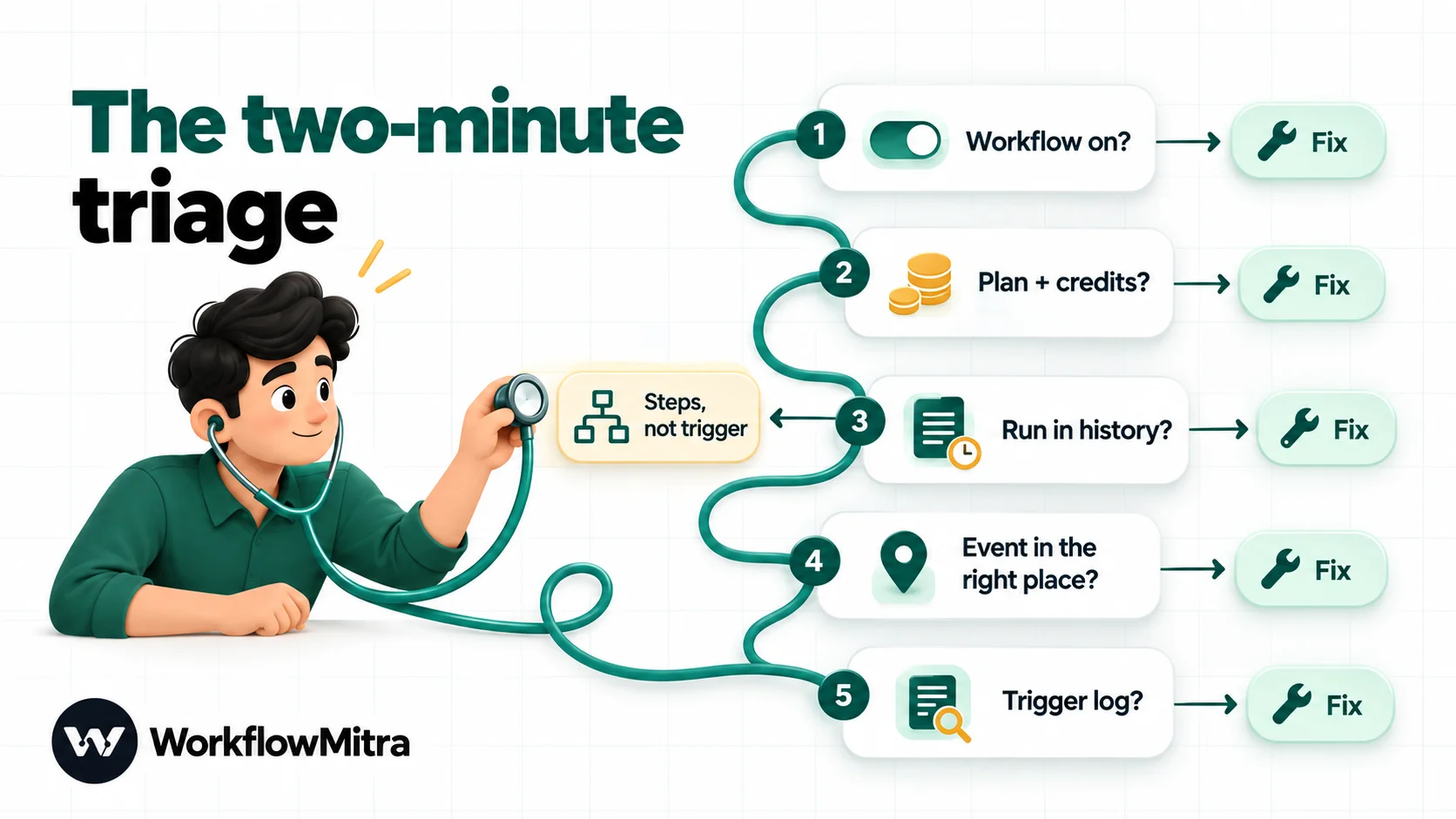
1. Is the workflow switched on?
It sounds too simple to matter, but it’s the most common cause. In WorkflowMitra, new workflows start switched off, and so do cloned ones. That’s deliberate: nothing should go live by accident. Building a workflow and testing it with the editor’s Run button doesn’t switch it on, either.
Check the toggle on the workflows list. It reads “Active — click to pause” when the workflow is on.
2. Is the plan active, and are there credits?
When a trial or subscription ends, workflows stop running. The workflows list shows “Paused — your plan ended. Renew to resume this workflow.” and scheduled runs are skipped without an error.
Running out of credits is quieter still. When a workspace has no credits left for the period, a new run is refused before it’s created, so nothing appears in the run history at all. If several workflows went silent at the same time, check the credit balance first. Credits are per workspace, so a different workspace having credits doesn’t help.
3. Does the workflow start with the trigger you think it does?
A workflow whose first step is a Manual trigger only runs when someone clicks Run. That’s easy to miss when you start from a template: WorkflowMitra’s curated “Daily report → Slack” template, for example, begins with a Manual trigger, so it won’t send a daily report until you change the trigger to a schedule (right-click the trigger › Change trigger…).
4. Did the event really happen where the trigger looks?
Triggers watch one specific place. A Google Sheets trigger watches one tab of one spreadsheet. An email trigger watches one folder of one mailbox. A webhook listens on one URL. Check:
- the right spreadsheet and the right tab,
- the right mailbox and folder (mail filtered into another label or folder isn’t in the inbox),
- the right account, if your team has more than one,
- the exact URL the sending app is configured with.
5. What does the trigger itself say?
Each trigger type keeps its own record of what it received. For webhooks, that’s the trigger’s Recent deliveries log. For Google Sheets, it’s the check status shown on the trigger. These tell you whether the event arrived and why it was turned away. The sections below explain how to read them.
How triggers start workflows
Knowing how a trigger receives events tells you where things can go wrong. There are four kinds.
| Trigger kind | Examples | How it starts a run | What usually goes wrong |
|---|---|---|---|
| Push (webhook) | Website forms, Shopify, Razorpay, Typeform, custom apps | The other app sends a request the moment the event happens | Wrong URL, rejected request, duplicate, sender stopped sending |
| Poll | Google Sheets, email, RSS feeds | The automation tool checks for changes on an interval | Not checked yet, first check is a snapshot, change not detectable |
| Schedule | Daily reports, weekly reminders | A clock fires at set times | Wrong time zone, unreadable cron, plan ended |
| Chat | Telegram bots, Slack events, website chat | The chat platform forwards each message | Platform not pointed at the workflow, secret mismatch |
Push triggers are fast but depend on the sender. Poll triggers are slower but in your control. Most “it’s not triggering” reports on poll triggers turn out to be “it hasn’t checked yet”.
Test the trigger on its own
Before changing anything, find out which side the problem is on: the app that should send the event, or the workflow that should receive it. The quickest way is to create a test event yourself, by the shortest possible route.
- Webhooks. The trigger’s URL field offers a cURL command. Run it from a terminal. If it shows up in Recent deliveries and starts a run, the workflow side works and the problem is in the sending app’s settings. If your own request is rejected too, the delivery log tells you why. The trigger’s test console is useful as well: it sends a sample payload (an order, a payment, a contact form or your own JSON) through the workflow in test mode, where messaging and email steps only simulate their sends. It proves the steps work, but not that the sender can reach you.
- Google Sheets. Add a brand-new row with a fresh ID after the workflow is on, then wait one full check interval.
- Email. Send a new message from a different address, so it arrives as unread and isn’t threaded into an old conversation.
- Schedules. Clone the workflow and set the copy to run a few minutes from now. Clones start switched off, so turn the copy on, and switch it off again afterwards.
Keep each experiment small. If you rotate the secret, re-paste the URL and switch the workflow off and on all at once, you won’t know which change fixed it, or which one broke it again.
Webhook triggers: is the request arriving?
A webhook trigger gives the workflow a URL. The sending app calls that URL when something happens. If you’re new to them, start with what webhooks are.
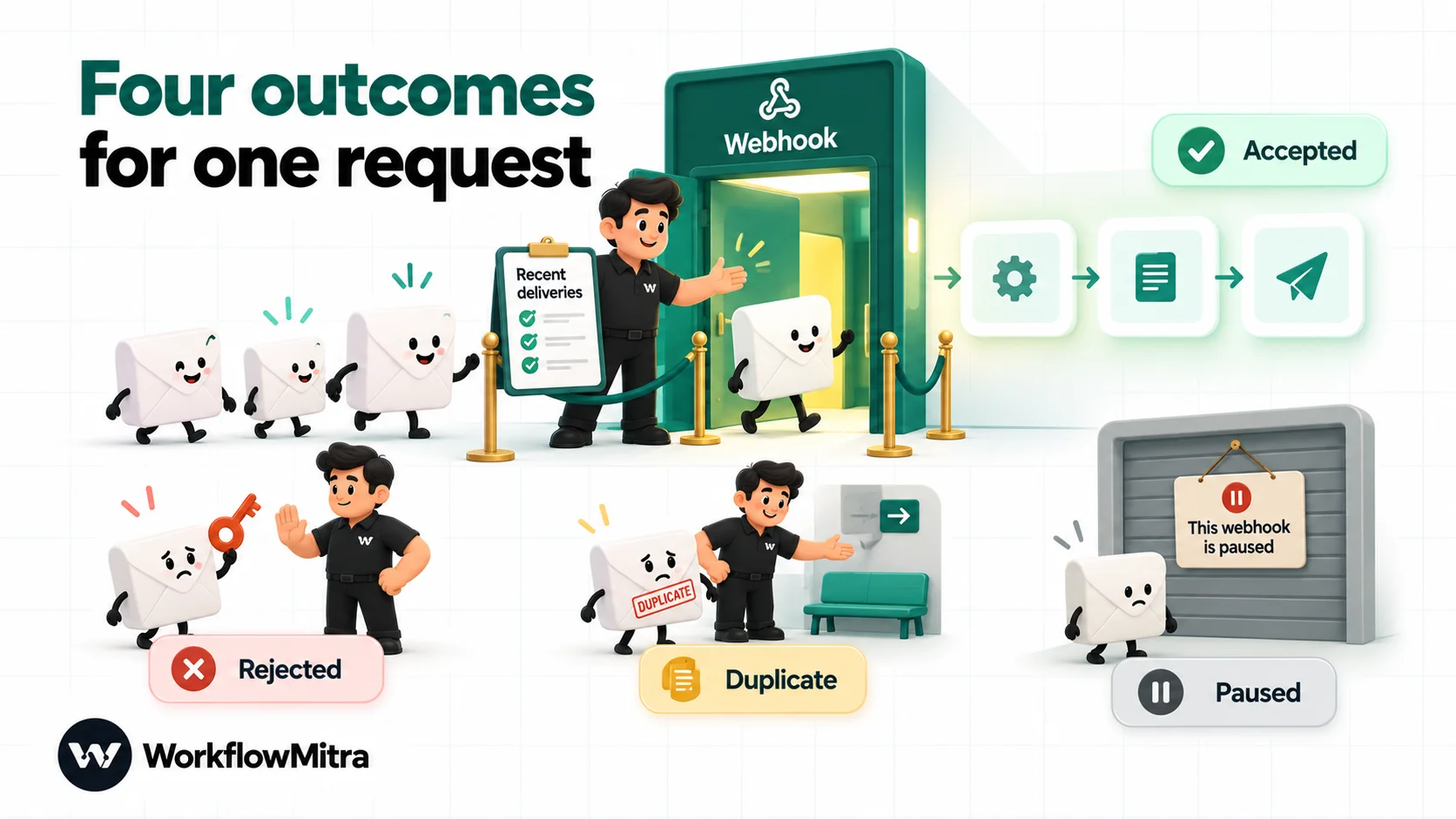
Open the webhook trigger and click Recent deliveries. It lists every request that reached the workflow, with filters for Accepted, Rejected, Duplicate and Errored. What you see there points straight to the cause.
No delivery at all
The request never reached the workflow, or it was turned away before being logged. Check, in this order:
- Is the workflow on? A paused workflow’s webhook answers “404 Unknown webhook”, and those requests aren’t recorded in the log. The trigger panel shows “This webhook is paused” when that’s the case.
- Is the URL exactly right? Copy it again from the trigger and paste it into the sending app. A missing character or an old URL is common.
- Did you generate a new URL? Rotating a webhook’s URL gives senders a week: the previous address is honoured for 7 days and returns 404 after that. Update every sender within that week.
- Is the sender still sending? Some apps switch a webhook off after errors. Typeform, for example, disables a webhook immediately when it receives a 404 or 410, so if the workflow was paused when Typeform tried, you have to switch the webhook back on in Typeform after reactivating the workflow. Check the sending app’s own webhook or delivery page.
- Is the sender sending this event? Many apps let you choose which events go to a URL. “Order created” won’t fire for an order that was only updated.
Delivery rejected
The request arrived, but the trigger refused it. The delivery log labels each reason.
| Label in Recent deliveries | Status sent back | What it means | Fix |
|---|---|---|---|
| Bad secret | 401 | The shared-secret header is missing or wrong | Add the header to the sender with the exact value, or use a preset for that sender |
| Bad signature | 401 | The signed request didn't match the signing secret | Paste the sender's signing secret again; check the signature header and algorithm |
| Stale / replay | 401 | The request's timestamp is outside the allowed window | Check the sender's clock, or widen the tolerance |
| Unverified | 401 | "Require verification" is on, and the request passed no secret or signature check | Configure a secret or signature the sender can provide |
| Blocked IP | 403 | The sender's address isn't on the trigger's IP allowlist | Add the sender's published addresses, or clear the allowlist |
“Bad secret” is the one people meet first. A new webhook trigger expects a secret in a header (x-webhook-secret unless you renamed it). Many apps can’t add custom headers, which is why WorkflowMitra has presets for common senders such as Shopify, WooCommerce, Razorpay, Stripe and Typeform that check those apps’ own signatures instead. When you rotate a secret, the previous one keeps working for 24 hours, so you have a day to update the sender.
Delivery marked Duplicate
A Duplicate entry means the request was accepted and answered with a success, but the workflow deliberately didn’t run again, because it had already handled that event. That’s duplicate protection working: senders retry requests, and you don’t want two order confirmations.
It becomes a problem when two different events share the key used for duplicate detection. If the trigger’s Idempotency key path points at an order ID, every later event about that order within 24 hours (paid, shipped, updated) looks like a repeat. The Shopify and Razorpay presets key on the order or payment ID, which is why each event type should get its own webhook URL with those senders. For “order updated” style events, clear the idempotency key path so only exact repeats are caught.
Delivery marked Errored
The request was accepted, but a run couldn’t be started. The most common cause is an ended plan or no remaining credits. Check the workspace’s plan and balance. Because these requests never started a run, they can’t be replayed from the log; ask the sending app to resend them, or recover the data from the sender’s side.
Google Sheets triggers: has it checked, and can it see the change?
A Google Sheets trigger doesn’t hear about changes instantly. It checks the sheet on the interval you choose under How often to check, every 5 minutes by default and as often as every minute. A row added at 10:01 on a five-minute interval may not start a run until about 10:05. Quiet checks that find nothing new don’t use credits.
If it has had time and still nothing happened, work through these.
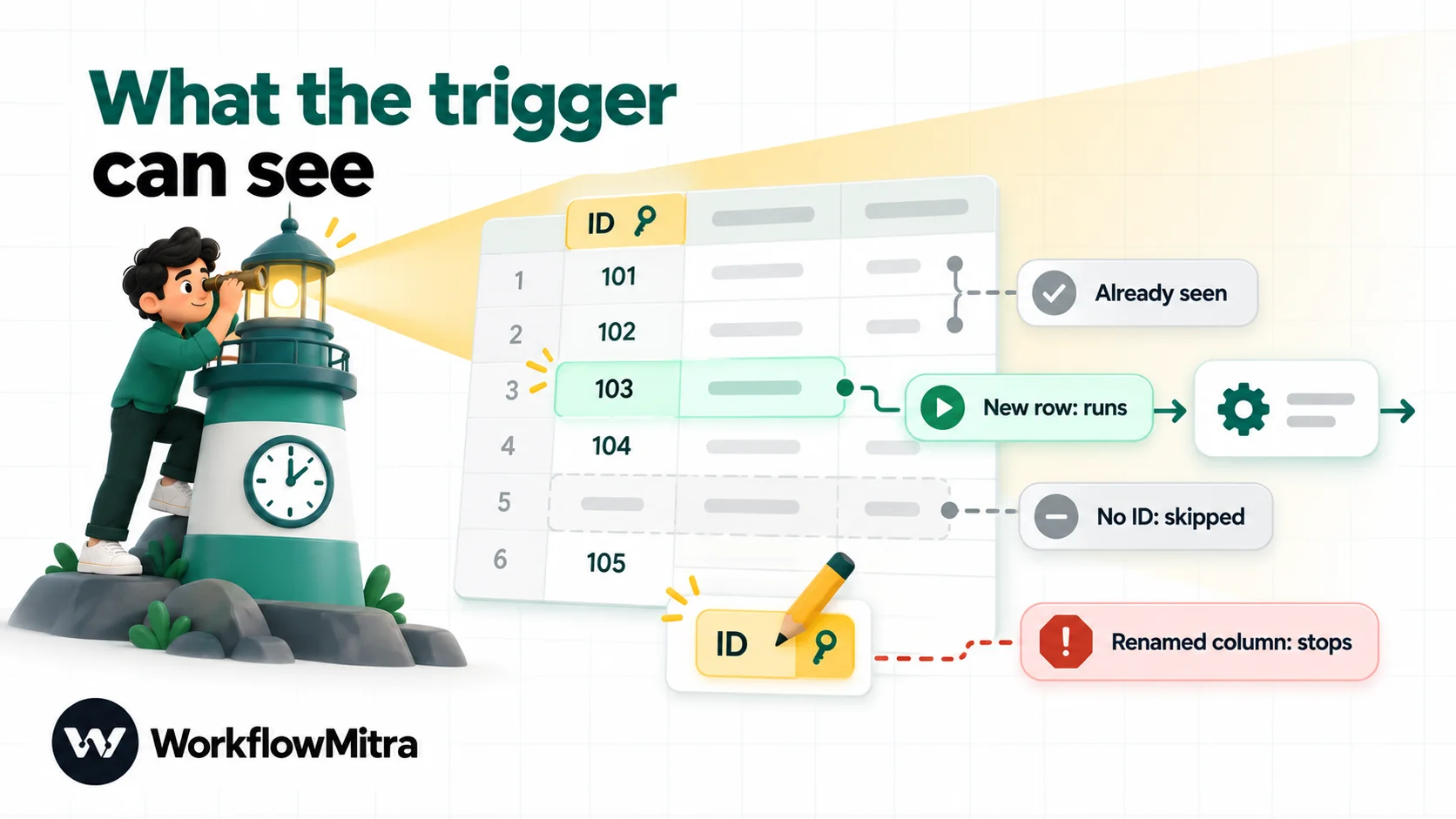
- The first check only takes a snapshot. Every row already in the sheet when the trigger first checks is recorded as seen, and none of them start a run. This protects you from starting 5,000 workflows when you connect a full sheet. Test with a row added after the trigger is on.
- The row has no ID. With “Use column headers as IDs of the columns” on, the trigger recognises each row by its ID column. A row whose ID cell is empty has no identity, so it’s skipped. If a form or another tool writes the ID later, the row runs only once the ID appears.
- Two rows share an ID. The trigger can’t tell them apart and reports an error rather than guess. The editor warns you when the chosen ID column isn’t unique.
- The ID column was renamed. The trigger stops with “There’s no column named … — it may have been renamed.” Rename it back, or pick the new column in the trigger.
- You’re watching one column. With One column changes, edits to other columns don’t start the workflow. That’s the point of the option, but it surprises people who later edit a different field.
- The value changes through a formula. A cell whose value comes from a self-updating formula, like
=NOW()or=IMPORTRANGE(), may change while nobody edits the file, and the trigger can miss that change. Under Advanced, tick “My sheet has formulas that update on their own”. It’s slower, but those changes won’t be missed. - Rows arrive half-filled. If an import or another tool writes a row in stages, tick “Rows arrive from an import or another tool” under Advanced, so the trigger waits until the row stops changing.
- The sheet was unshared or moved. If the connected account loses access, the trigger shows an error and keeps retrying; re-sharing fixes it on the next check. WorkflowMitra can also alert you when a sheet trigger has been erroring for a while or stops being checked.
For the bigger picture on spreadsheet workflows, see our guide to Google Sheets automation.
Email triggers: what counts as new mail
Email triggers also check on an interval (every minute to every hour). Their surprises are about which messages count.
- Existing mail is ignored. The first check takes a snapshot, and only mail arriving afterwards runs the workflow. On the standard email (IMAP) trigger, the option “Also pick up recent mail already there” currently has no effect, so test with a fresh email sent after the workflow is on.
- Filters are applied when the trigger checks. With Unread only or Starred / flagged only, a message someone opens or stars between arrival and the next check won’t match. If people read the mailbox on their phones, prefer Every new email plus an IF on the sender or subject.
- Busy mailboxes take a few checks. Each check takes up to 25 matching messages, oldest first, so a burst of mail is worked through over several checks.
- Custom search is Gmail-only. “Custom search (Gmail only)…” uses Gmail search syntax; other providers don’t support it.
- Some mailboxes can’t connect. The email connection signs in with an address and an app password. Outlook.com and Microsoft 365 no longer accept app-password sign-ins for mail access, so those mailboxes can’t be used with this trigger today. Gmail needs 2-Step Verification and an app password.
RSS triggers: when a new post isn’t new
The RSS trigger checks a feed every 15 minutes, 30 minutes, hour, 6 hours or day. Like the others, its first check only records what’s already in the feed. After that:
- Items without a publish date never trigger, and items back-dated to before the last check are skipped. If a site publishes with old dates, the trigger can’t see the posts as new.
- Edited posts aren’t sent again. Each item is recognised by its ID, so updating a post’s title doesn’t make it new.
- Each check takes up to 20 new items, oldest first.
Schedule triggers: right time, right zone, readable rule
Schedules are the most predictable trigger, so when one doesn’t fire, the cause is usually in its settings.
- Time zone. A schedule runs in the time zone selected on the trigger. “Every day at 9:00” in the wrong zone fires, just not when you were watching.
- Custom cron expressions. With “Custom schedule (advanced)…”, an expression the scheduler can’t read is saved without an error and never fires, and there’s no next-run preview to warn you. Also, changing the time zone while a custom schedule is selected clears the expression. Re-check it after any change.
- Day-of-month and weekday together. In standard cron, setting both a day of the month and a day of the week means “either”, not “both”.
0 9 1 * 1runs on the 1st and on every Monday. - Plan and credits. As in the triage, a lapsed plan skips scheduled runs silently, and a run refused for lack of credits leaves nothing in the history.
Chat triggers: is the platform pointed at you?
Chat triggers start a workflow from a message in an app such as Telegram. The usual cause of silence is that the chat platform was never told where to send messages. For a Telegram bot, you register the workflow’s URL with Telegram yourself (its setWebhook call), passing the same secret token you set on the trigger. Until that’s done, messages to the bot go nowhere.
Incoming WhatsApp conversations are best handled in ChatMitra, the WhatsApp Business API platform that also powers WorkflowMitra’s WhatsApp sends. Its guide to WhatsApp automation covers replies, chatbots and keyword flows on that channel.
It ran, but did nothing
If the run history shows a successful run at the right time, the trigger did its job. Something after it decided not to act. Open the run and follow the route each condition took.
Common reasons a condition says “no” when you expected “yes”:
- Text comparisons are case-sensitive. “Contains Refund” doesn’t match “refund”. Compare a lowercased value, such as
{{ lower(subject) }}, against a lowercase word. - “Is yes” expects true or false. The word “Yes” typed in a sheet or a form is text, not a true/false value, so the check returns no. Compare it with Equal to, ignore case and the value “yes” instead.
- The field is empty or named differently. Writing just
{{ field }}looks in the output of the step directly before, not in the trigger. Once other steps sit in between, point at the trigger explicitly:{{ $trigger.field }}. - An error branch handled a failure. A failure caught by an error handler ends the run as successful. Check the step’s error branch.
A worked example: the enquiry form that went quiet
Here’s how the checklist plays out on a real-looking case. A business sends website enquiries to a workflow that saves each lead to a sheet and sends a WhatsApp acknowledgement through ChatMitra. It ran every day for months. On Monday morning, the sales team notices there have been no new leads since Saturday afternoon.
- Run history. No runs at all since Saturday at 15:40, so the steps aren’t the problem. This is a trigger problem.
- Is it on? Plan and credits? The workflow shows “Active — click to pause”. The plan is active and the balance is healthy.
- Recent deliveries. Plenty of entries since Saturday, all filtered under Rejected and labelled Bad secret. So the form is still sending, and the workflow is turning the requests away.
- What changed? A colleague remembers generating a new secret on Friday afternoon “to be safe”. The old secret kept working for 24 hours, until Saturday afternoon, and the form plugin was never updated.
- Fix and recover. Paste the new secret into the form plugin’s header settings, send one test submission, and confirm it’s Accepted and starts a run. Rejected deliveries can’t be replayed, because they never ran, so recover the weekend’s leads from the form’s own list of submissions: export them and add them to the sheet, or resend them from the plugin if it offers that. The delivery log shows exactly which time window to cover.
Total time once the delivery log was opened: about ten minutes. Without the log, the same problem looks like “the form plugin is broken”, and it can take a day to find.
Coming from Zapier: “Zap not triggering”
The same questions apply in other tools, with their own details. In Zapier, many triggers are polling triggers, and Zapier’s help centre says the polling interval is between 1 and 15 minutes depending on the plan, with Free plans checked every 15 minutes. So a Zap that “doesn’t trigger” for ten minutes may simply not have checked yet. Beyond timing, check that the Zap is on, that the connected account is the one where the event happened, and what the Zap’s history shows. If you’re comparing tools, see WorkflowMitra vs Zapier.
How to catch a silent trigger sooner
The hardest trigger problems are the ones nobody notices for days. A few habits shorten that:
- Turn on workspace alerts. In WorkflowMitra, Workspace settings › Alerts can email you or post to a Slack channel about failed runs, about credit usage passing your chosen threshold, and about sheet triggers that are erroring repeatedly or have gone stale.
- Watch for silence. A webhook sender that stops sending produces no errors. For workflows that run daily, glance at the run count; a day with zero runs is worth a look.
- Re-test after every change. Renaming a column, rotating a secret, switching a template or changing a time zone can each stop a trigger. Send one real test event after each change.
- Keep the sender’s settings with the workflow. Add a note on the trigger step (right-click › Add note) saying which app, account and event feed it, so the next person knows where to look.
Many of these come from the same design habits that keep automations reliable in general; see workflow automation best practices for the full set.
Troubleshooting checklist by trigger type
| Trigger | Check first | Then check |
|---|---|---|
| Any | Workflow on; plan active; credits left | Run history for any run at that time; first step is not a Manual trigger |
| Webhook | Recent deliveries: none, rejected, duplicate or errored? | Exact URL; event selected in the sender; sender's webhook still enabled |
| Google Sheets | Enough time for the next check; row added after the first check | ID cell filled and unique; ID column not renamed; watched column; formula option; sharing |
| A new email sent after the workflow was switched on | Folder; read/starred filter; mailbox type supported | |
| RSS | A post published after the first check | Item has a publish date that isn't back-dated |
| Schedule | Time zone | Custom cron readable; day-of-month + weekday logic |
| Chat | Platform pointed at the workflow's URL | Secret token matches |
Where WorkflowMitra helps you find the cause
WorkflowMitra, powered by ChatMitra, tries to make “why didn’t it run?” answerable without guesswork:
- A delivery log on every webhook trigger, with a plain-language reason for every rejected request, and a replay button for deliveries that did start a run.
- Visible check status on polling triggers, plus alerts when a sheet trigger keeps erroring or goes stale.
- Step-by-step run history, so a run that started and stopped at a condition is easy to tell apart from one that never started.
- Presets for common senders that check each app’s own signature, so you don’t have to add headers an app can’t send.
There are gaps too. A paused workflow’s webhook requests aren’t logged, a run refused for lack of credits leaves no trace in the run history, and custom schedules have no next-run preview. Knowing those three is half the battle.
If you’d like to see these tools on a workflow of your own, start a 14-day WorkflowMitra trial (no card needed), build a small webhook workflow and send it a request with and without its secret. Watching the delivery log explain each one is the quickest way to learn it.
WorkflowMitra details in this guide come from its source code as of 7 October 2026: the webhook receiver and delivery log, the Google Sheets, email, RSS and schedule triggers, and run creation. The Zapier polling interval is from Zapier's help article Zap is running slower than expected (updated 29 May 2026). Typeform's webhook behaviour is from its webhooks documentation and Telegram's from the Bot API reference, all read on 7 October 2026.
Frequently Asked Questions
Common questions about automations that don't start.
The usual causes are: the workflow is switched off, the plan has ended or credits ran out, the event happened somewhere the trigger doesn't look, the trigger rejected the event (a wrong secret or signature), the event was treated as a duplicate, or a polling trigger hasn't checked yet. Start by confirming the workflow is on, then look at the run history and the trigger's own log.
Automate the work between your apps
Build workflows with triggers, conditions and actions, then test them before they go live. Try WorkflowMitra free for 14 days, no card required.
