Automation vs Hiring a Virtual Assistant: Which Work Goes to Software, Which to a Person

Quick Summary
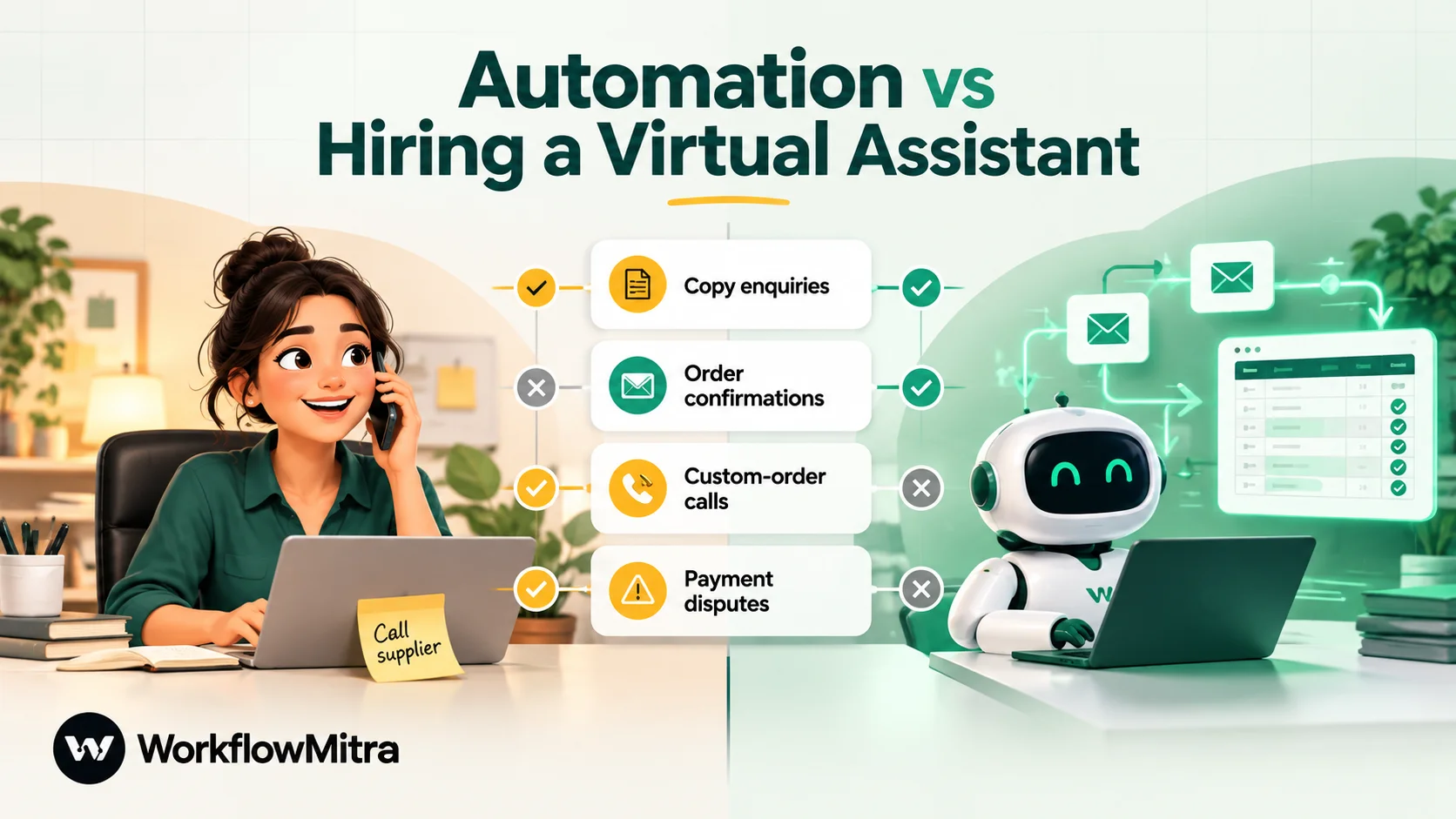
Automation and a virtual assistant solve different problems, so the useful question is which tasks go to each. Give software the work that follows written rules, arrives in a structured form, repeats often and lives in apps that can be connected: copying enquiries into a sheet, sending confirmations, reminders and reports. Give a person the work that needs judgment, conversation or a relationship: complaints, negotiations, unusual requests, calls and anything where a mistake is expensive and the right answer depends on context. Most small businesses end up with both, and the strongest setup links them: workflows do the routine volume and pass exceptions to the assistant, and the assistant approves drafts or updates a status that sets the next automated step going. In WorkflowMitra, powered by ChatMitra, you can cost each automated task before you build it, because one credit is one executed step and logic steps are free.
Every growing business reaches the same point. The owner is spending evenings on work that isn’t really theirs: copying enquiries into a spreadsheet, sending order confirmations, chasing invoices, answering the same customer question for the fortieth time. Something has to give, and two answers come up at once. Hire a virtual assistant. Or automate it.
It’s tempting to treat this as a contest with a winner. It isn’t. Software and people are good at different kinds of work, and the businesses that get the most from either usually use both, with a clear line between them. This guide gives you a way to draw that line task by task, a worked cost comparison you can redo with your own numbers, and the hybrid setups where automation and an assistant make each other more useful.
Automate work that follows written rules, arrives in a structured form, repeats often and lives in apps that can be connected. Give a virtual assistant work that needs judgment, conversation, relationships or context that isn't written down. Most small businesses end up with both, and the best setups connect them: workflows handle the routine volume and hand exceptions to the assistant, and the assistant's decisions trigger the next automated step.
Two different tools for two kinds of work
A virtual assistant (VA) is a person, usually remote and often part-time, who takes on administrative, customer-facing or operational tasks for you. You pay for their time, by the hour, by a monthly retainer or through an agency. What you’re really buying is judgment applied to your work: they notice the email that looks routine but isn’t, they call the supplier who has gone quiet, they know which customer needs a softer tone.
Workflow automation is software that carries out a sequence of steps whenever something happens. A form is submitted, a row is added, an order arrives, a time is reached, and the workflow copies data, sends messages, updates records and makes simple decisions by rule. What you’re buying is consistency at volume. A workflow does the thousandth confirmation exactly like the first, at 3 a.m. as well as at noon, and it doesn’t get bored. (If the term is new, our guide to what workflow automation is covers the basics.)
The difference that matters most isn’t price. It’s what each one does when something unexpected happens. A person adapts. A workflow follows its rules, and if the rules didn’t anticipate the situation, it either does the wrong thing confidently or stops. That single difference explains almost every decision in the rest of this guide.
| Factor | Workflow automation | Virtual assistant |
|---|---|---|
| Best at | Repetitive, rule-based steps between apps | Judgment, conversation, exceptions, relationships |
| Cost shape | Monthly plan plus usage; one-off build time | Hours worked or a retainer; onboarding time |
| Speed | Seconds to minutes after the trigger, around the clock | Working hours, with a queue |
| Consistency | Identical every time, including identical mistakes | Varies with attention, workload and training |
| Handling the unexpected | Only what the rules anticipated | Adapts, asks, escalates |
| Scaling with volume | Cost rises slowly per extra item | Cost rises with every extra hour |
| Upkeep | Breaks when apps, fields or processes change | Needs management, feedback and cover for leave |
| Risk | A wrong rule repeats at scale until someone notices | Access to your accounts and customer data |
The five-question test for any task
Write down every recurring task that eats your week, then run each one through five questions. Be honest about the answers. A task that “should” be rule-based but in practice involves a judgment call every third time doesn’t count as rule-based.
1. Can you write the rule down? Try to describe the task as “when X happens, do Y; if Z, do W instead”. If you can write it in a few lines and someone else could follow it without asking you anything, it’s a candidate for automation. If your description keeps sliding into “it depends”, it isn’t.
2. Does the input arrive in a fixed shape? Automation is easy when information arrives in fields: a form with a name, phone and product; an order with line items; a spreadsheet row. It gets harder when the input is a rambling email, a voice note or a photo of a handwritten list. AI steps can turn some messy input into fields, but every conversion adds a place where things can go wrong.
3. How often does it happen? A task that happens 300 times a month repays an hour of setup many times over. A task that happens twice a quarter rarely does. Volume is the multiplier on everything else.
4. What does a mistake cost? Sending a thank-you message to the wrong person is embarrassing. Sending a refund to the wrong person, or quoting the wrong price to a key client, is expensive. The higher the cost of an error, the more you want a person checking the work, even if software prepares it.
5. Do the apps connect? The data has to live somewhere a workflow can reach: a spreadsheet, a form, an email inbox, a store with webhooks, an app with an API. A task that happens entirely inside a supplier’s portal with no export, or on phone calls, can’t be automated by a workflow tool, however rule-based it is.
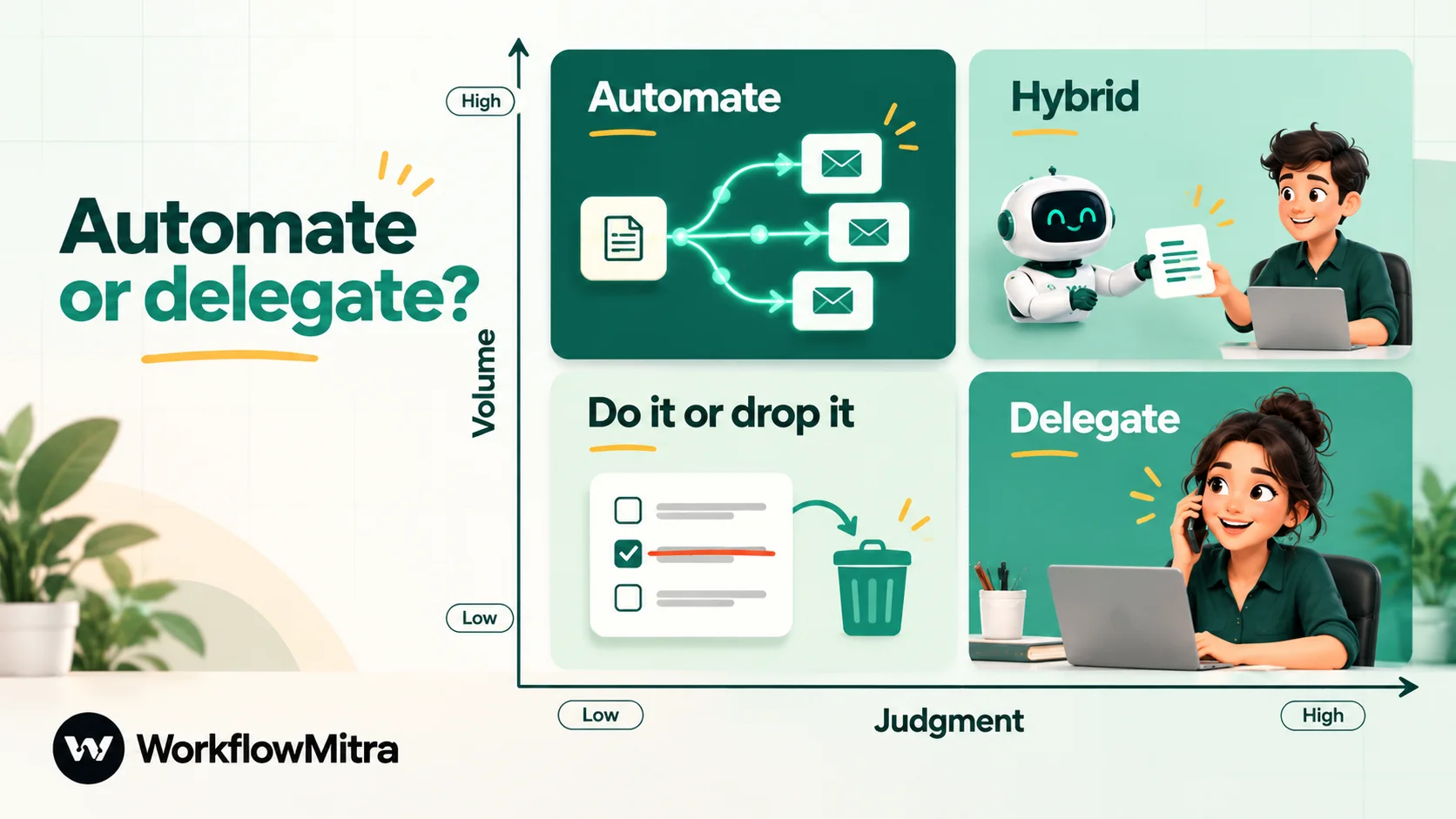
Count the answers that point towards automation. Four or five, and the task belongs to software. Zero to two, and it belongs to a person. Three is the interesting middle, and it usually means the task should be split: software for the routine part, a person for the rest.
Before either, ask one more question: should this task exist at all? Reports nobody reads and approvals nobody refuses are better deleted than delegated. Removing a task is the cheapest option of the three.
Tasks that belong to automation
These are the tasks small businesses most often hand to an assistant when software would do them better. They share a pattern: a clear trigger, structured data, a fixed response and high repetition.
- Capturing leads and enquiries. Website forms, ad lead forms and marketplace enquiries copied into a sheet or CRM, tagged by source, with an instant acknowledgement to the enquirer. A person doing this is slower and makes typing errors. Our guide to automated data entry covers the patterns.
- Confirmations and status updates. Order received, payment received, booking confirmed, dispatched. These are the same message with different details, sent at a predictable moment.
- Scheduled reminders. Payment reminders a few days before and after a due date, renewal reminders, appointment reminders. A schedule and a list of due dates is all the logic you need.
- Reports. A daily or weekly summary of sales, leads or open tickets, assembled from a sheet or database and sent to the owner. Nobody should spend 20 minutes a day copying numbers into a message.
- Moving data between apps. New customers from the store into the accounting tool, paid invoices into a ledger sheet, form entries into a database.
- Routing and assignment. Sending each new lead to the next salesperson in turn, or each request to the right team, by rule.
Notice what these have in common: when they go wrong, it’s usually because the person doing them was tired, busy or on leave. Software doesn’t have those problems.
Tasks that belong to a person
Now the opposite list. Automating these produces stiff, wrong or risky results, however clever the tool.
- Conversations that need a voice. Complaints, unhappy customers, cancellations you’d like to save, anything on the phone.
- Negotiation and chasing people. Getting a better rate from a supplier, persuading a late payer, following up a partner who has gone quiet. Reminders can be automated; persuasion can’t.
- Unusual requests. The custom order, the bulk enquiry with odd terms, the customer who wants something you don’t normally do.
- Research and comparison. Shortlisting vendors, checking a new supplier’s reputation, collecting quotes and summarising the trade-offs.
- Calendar juggling. Finding a time that works for five people with shifting priorities, rescheduling around a cancellation, knowing which meeting can move.
- Judgment about money and reputation. Approving refunds above a limit, replying to a public review, deciding what to tell a customer about a delayed order.
- Quality control on automated output. Someone has to notice when the automation is doing something silly. That job suits an assistant well.
There is a third group: tasks that look rule-based but carry a judgment step in the middle. Inbox triage is the classic case. Sorting emails into “orders”, “complaints” and “spam” follows rules most of the time, but deciding what to reply to a complaint does not. These are the tasks to split, and we’ll come back to them in the hybrid section.
What each option really costs
Comparing a monthly plan with an hourly rate is misleading unless you count everything on both sides.
A virtual assistant costs their hours multiplied by their rate, plus any platform or agency fee, plus your time to find, onboard, train and manage them. Rates vary enormously by country, skills, time-zone overlap and how you hire. Two public reference points show the spread. PayScale lists an average of about ₹243 an hour for virtual assistants in India, but from only 44 salary profiles (updated August 2025), so treat it as a rough signal, not a market price. The US Bureau of Labor Statistics puts the median pay of secretaries and administrative assistants at $23.23 an hour (May 2025), which is a useful ceiling for in-house admin in a high-cost market. Get real quotes before you budget.
Automation costs a subscription, usage above the plan, and two kinds of your own time: building the workflows once, and fixing them when something changes. The build is the part people forget. A simple workflow takes an hour or two to set up and test; a set of five or six connected workflows can take a couple of days. Ongoing upkeep is usually small, but it never drops to zero, because apps change their fields and your processes change too. For a broader look at automation pricing models, see our overview of what workflow automation costs.
The comparison that matters is per task, not per tool. For each task, put the monthly cost of a person doing it next to the monthly cost of a workflow doing it, then add the one-off build cost and see how many months it takes to pay back:
- Person: hours per month × hourly rate.
- Workflow: runs per month × steps per run × price per step, plus upkeep.
- Payback: build hours × the value of your hour ÷ monthly saving.
If the payback is a few months, automate. If it’s years, delegate or keep doing it yourself.
A worked comparison: one small business, task by task
Here is the method applied to a made-up but typical business: a five-person online furniture shop that sells through its own store and takes custom orders over email and WhatsApp. The owner listed every recurring task for a month with a rough time per item. The figures below are illustrative, and the hourly rate is an assumption based on the PayScale average above, rounded to ₹243. Replace them with your own.
| Task | Volume per month | Manual time | Decision | Credits per month |
|---|---|---|---|---|
| Copy website enquiries into the lead sheet and send an acknowledgement | 300 | 15 h | Automate (3 steps) | 900 |
| Order confirmation and dispatch update on WhatsApp | 400 orders | 27 h | Automate (2 workflows, 2 steps each) | 1,600 |
| Daily sales summary to the owner | 26 days | 9 h | Automate (up to 5 steps) | 130 |
| Invoice reminders to business buyers | 80 reminders | 4 h | Automate (about 3 steps each) | 240 |
| Inbox: sort, draft and send replies | 250 emails | 12.5 h → 4 h | Hybrid (AI drafts, assistant approves) | 1,000 |
| Custom-order calls and complaints | — | 20 h | Assistant | — |
| Supplier quotes and freight booking | — | 12 h | Assistant | — |
| Payment disputes and late payers | — | 3 h | Assistant | — |
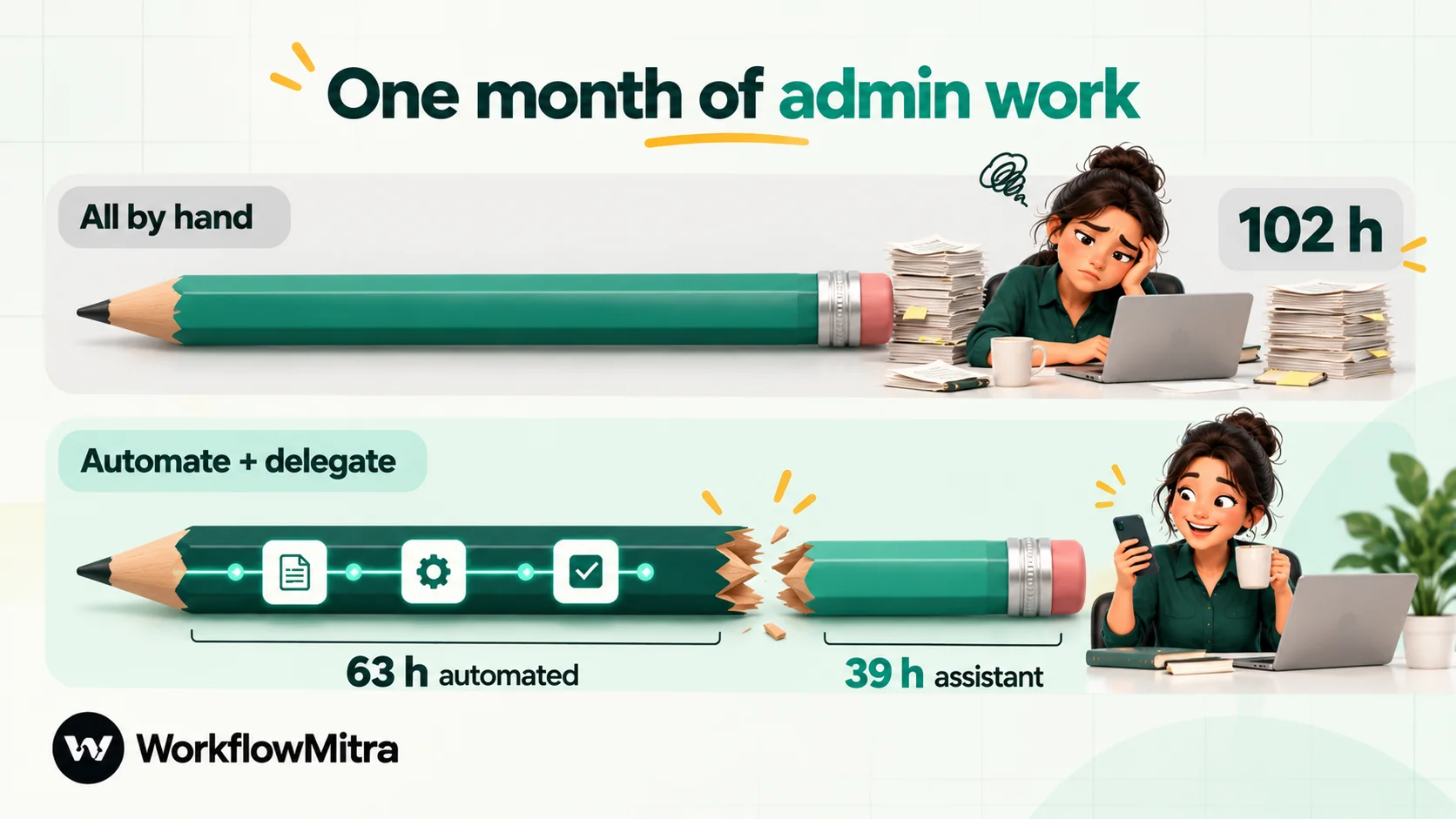
Option A: give everything to an assistant. About 102 hours a month. At ₹243 an hour, that’s roughly ₹24,800 a month, before any agency or platform fee.
Option B: automate the routine, delegate the rest. The assistant’s hours drop to about 39 (the calls, suppliers, disputes and four hours approving inbox drafts), which is about ₹9,500 a month. The workflows use about 3,870 credits, which fits inside the Starter plan of WorkflowMitra, powered by ChatMitra, at ₹999 a month for 10,000 credits (price read on 8 October 2026). Add your AI provider’s bill for the drafting step, and the WhatsApp messaging charges, which apply to messages sent through the WhatsApp Business API whether a person or a workflow sends them. Total: about ₹10,500 a month, plus those usage bills.
The saving is roughly ₹14,000 a month. Against that, the owner spends perhaps 12 hours building and testing the workflows, once. Even if you value your hour at ₹2,000, that’s ₹24,000 of build time, repaid in under two months.
Three things this example shows. First, the split beats either extreme: an all-automation plan would have left complaints and supplier calls to the owner, and an all-assistant plan pays a person to do copying. Second, most of the saving comes from two high-volume tasks, which is typical. Third, the assistant’s job gets better: fewer hours of copying, more hours of the work that actually needs a person.
Hybrid setups: how automation and an assistant work together
The real gains come when the two are connected rather than running side by side. Four patterns cover most small-business needs. Each is described here as it works in WorkflowMitra, but the ideas apply to any capable workflow tool.
1. The exceptions queue
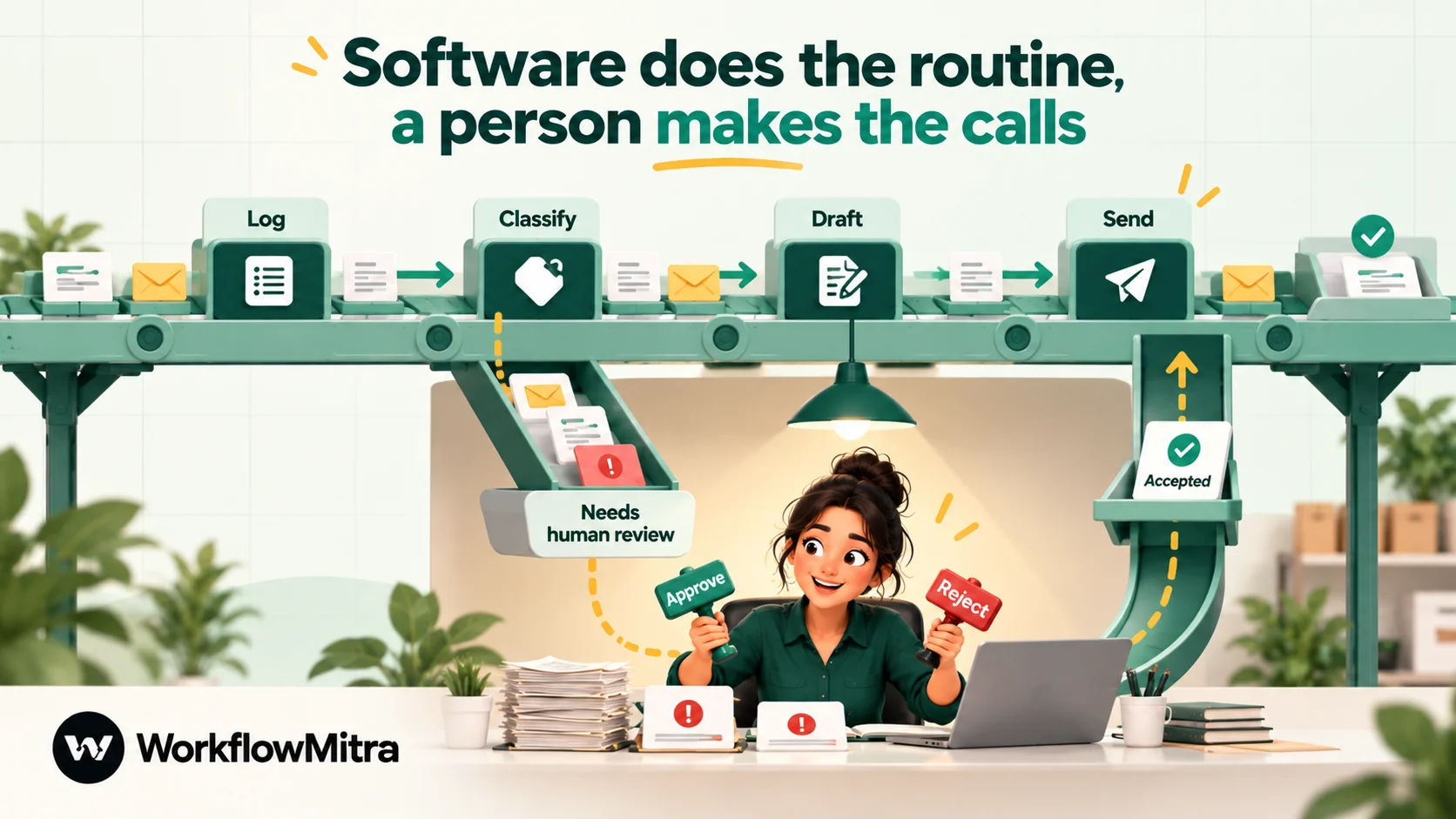
The workflow handles the normal case and parks everything else for a person. An enquiry workflow, for example, logs each form submission and sends the acknowledgement. Then an IF step checks for anything unusual: an order value above a threshold, a “custom size” answer, a country you don’t ship to. Those rows are also written to a Needs review tab of the sheet, and a Slack or email step tells the assistant there’s something to look at.
The assistant’s morning starts with a short list of genuinely interesting items instead of an inbox of everything. IF steps cost nothing in WorkflowMitra, so checking every submission adds no cost; only the extra sheet row and alert for the flagged items use credits.
2. Software drafts, a person approves
This is the right shape for inbox triage and any customer-facing message that’s mostly routine but occasionally sensitive. An email trigger picks up each new message, an AI step classifies it and drafts a reply from your facts and tone guide, and a Wait for approval step pauses the run. The assistant gets an email or Slack alert, opens the Approvals page, reads the draft and approves or rejects it. Only approved drafts are sent.
Two details to plan around. The AI step uses your own provider key (OpenAI, Gemini and others), so the AI usage is billed by that provider, separately from WorkflowMitra credits. And the Approvals page shows the draft read-only: the assistant can approve or reject, not edit. For the drafts they want to change, they reject and reply by hand, which is exactly the judgment you’re paying them for. Our guide to AI email replies walks through this build step by step, and approval workflow automation covers deadlines and timeouts.
3. The assistant decides, the workflow follows through
Many tasks have a decision in the middle and paperwork on either side. A custom order has to be quoted by a person, but once the customer accepts, a confirmation, a deposit reminder and a production note all follow the same pattern every time.
Let the assistant record the decision in one place, such as a Status column in the orders sheet, and let a Google Sheets trigger watching that column do the rest. When the status changes to “Accepted”, the workflow sends the confirmation, logs the deposit due date and alerts the workshop. When it changes to “Dispatched”, it sends the tracking message. The assistant changes one cell; the workflow handles four messages and two records. This also keeps a clean record of who decided what, because the sheet’s own edit history shows who changed each status.
4. Sharing the queue
When the assistant and the owner, or two assistants, share incoming work such as leads, an Assign step hands each new item to the next person in turn and records who has it. Nobody has to divide the work by hand, and it’s obvious who owns each item. Our guide to round-robin lead assignment covers how the rotation works.
Let your assistant build and run the automations
One of the best uses of a capable assistant is to make them the owner of your automations. They know the processes, they see where time goes, and with a visual builder they don’t need to write code. An assistant who builds a workflow that removes eight hours of their own copying has upgraded their job, not lost it.
If you do this, set it up safely:
- Give them their own login. Never share yours. In WorkflowMitra, invite them to the workspace. Seats count every member and pending invitation, and the Starter plan includes two, enough for an owner and one assistant.
- Use the narrowest role that works. WorkflowMitra has four fixed roles. The Member role can create, edit, run and delete workflows and decide approvals. Creating, revealing and deleting saved credentials, inviting people and handling billing need Admin or Owner. Keep those with you.
- Keep secrets in saved credentials. API keys typed straight into an HTTP Request step are stored in the workflow and visible to anyone who can open it. Use stored connections where the app offers one.
- Agree a change rule. WorkflowMitra has no version history, so ask for a note on each step that explains what it does, and for a copy of the workflow before any big change.
For the messaging side, the same principle applies in ChatMitra, the WhatsApp Business platform behind WorkflowMitra. You can give an assistant their own agent login with access only to the chat section of a chosen WhatsApp number, without campaigns, templates or billing, using ChatMitra’s role management. If they leave, you delete their account and their access ends at once.
Whatever tools you use, agree in writing how the assistant may handle customer data, and remove their access on their last day. A short workflow governance routine (who owns which workflow, how changes are reviewed) saves confusion later.
Why use WorkflowMitra for the automation side?
If you’ve decided some of your work belongs to software, here’s where WorkflowMitra, powered by ChatMitra, fits this particular decision, and where it doesn’t.
You can cost a task before you build it. One credit is one executed step, and IF, Switch, Merge, Set Variable and Delay steps cost nothing. That makes the per-task comparison above simple arithmetic: count the paid steps, multiply by the monthly volume, and compare with the hours it replaces. Quiet checks by polling triggers, such as a Google Sheets trigger that finds no new rows, don’t use credits.
The hand-off steps are built in. Wait for approval, Assign and the exceptions-queue pattern use standard steps, so a hybrid human-plus-software setup doesn’t need a second tool.
WhatsApp updates go through ChatMitra. For businesses whose customers live on WhatsApp, the WhatsApp step sends approved template messages through ChatMitra or Meta’s Cloud API directly, so confirmations and updates can leave the assistant’s to-do list entirely.
Pricing in rupees, with a trial that doesn’t need a card. Plans are billed in INR. The 14-day trial includes 10,000 credits and needs no card.
Where it isn’t the right fit: WorkflowMitra has no Google Calendar step, so calendar juggling stays with a person or a scheduling tool. Outlook.com and Microsoft 365 mailboxes can’t be connected for email automation today, because Microsoft requires an OAuth sign-in that WorkflowMitra’s email connection doesn’t use. And no workflow tool makes phone calls on your behalf. For a wider comparison of platforms, see how to choose workflow automation software.
Mistakes that make both options fail
- Automating a process nobody has agreed on. If two people do the task two different ways, a workflow will pick one way and annoy the other person. Map the process first.
- Hiring an assistant to do copying. Paying a person to move data between two apps that can be connected wastes their time and your money, and the copying is still error-prone.
- Automating the judgment step. Letting an AI reply to complaints without review, or auto-approving refunds, saves minutes and risks customers.
- No owner for exceptions. A workflow that flags unusual cases is useless if nobody checks the flags. Make it part of the assistant’s daily routine.
- Forgetting upkeep. Workflows break quietly when a form field is renamed. Set up failure alerts, and check the run history weekly.
- Too much access, too soon. Start an assistant with the minimum access and widen it as trust builds.
- Comparing hourly rate with plan price. Count build time, upkeep, onboarding and management on both sides, or the comparison is meaningless.
A four-week plan to make the split
Week 1: list and time. Keep a simple log of every recurring task for a week: what it is, how often, how long. Don’t change anything yet.
Week 2: score and decide. Run each task through the five questions. Mark each one automate, delegate, split or remove. Delete the ones you marked remove.
Week 3: automate the biggest win. Pick the single highest-volume, rule-based task and build it. Test it on a copy of your sheet, watch the run history for a few days and fix what breaks. Our guide to what to automate first in a small business has more ideas on order.
Week 4: hand over what’s left. Write a short instruction for each task that stays with a person, including when to escalate to you. If what’s left is more than you can carry, that’s your assistant’s job description, and it’s a better job than the one you’d have written in week 1.
Repeat the scoring every quarter. Tasks move between the columns as volumes grow, tools change and your assistant learns the business.
The short answer
You rarely have to choose between automation and a virtual assistant. Give software the volume, the rules and the copying; give a person the conversations, the judgment and the exceptions; and connect them so each decision a person makes sets the routine work going. Start with one high-volume task, measure the hours it frees, and decide what to delegate from there.
When you’re ready to try the automation side, start a 14-day WorkflowMitra trial with 10,000 credits and no card, and build the task at the top of your list first.
Frequently Asked Questions
Questions founders and small-business owners ask before they choose between automation and a virtual assistant.
For high-volume, rule-based tasks, usually yes: a task that takes a person 40 hours a month can often run for a few thousand workflow steps, which fits inside an entry automation plan. For low-volume or judgment-heavy work, a virtual assistant is usually cheaper, because building and maintaining an automation for a task you do twice a month never pays back. Compare both with your own hours and rates, and include the one-off time it takes to build the workflows.
Automate the work between your apps
Build workflows with triggers, conditions and actions, then test them before they go live. Try WorkflowMitra free for 14 days, no card required.
