Business Hours Auto Reply for Email: Answer After-Hours Enquiries Automatically

Quick Summary
A business hours auto reply sends an automatic email only when someone writes while you're closed, and stays silent during working hours. Mailbox auto-replies such as Gmail's vacation responder run by date, from 12:00 AM on a start day to 11:59 PM on an end day, so they can't follow daily hours. A workflow can: in WorkflowMitra, powered by ChatMitra, an email trigger watches the inbox, a short Code step checks the time in your own time zone and your holiday list, a Data Store step limits replies to one per sender a day, and an Email step replies in the same thread. Skip automated senders so two auto-replies never answer each other.
Most enquiries don’t arrive between 9:30 and 6:30. People write in the evening after work, on Sunday afternoon, and on public holidays, and they hear nothing back until someone opens the inbox the next morning. By then some of them have written to a competitor too.
The fix most people try first is the mailbox’s own auto-reply. It doesn’t fit: Gmail’s vacation responder, for example, runs from a start date to an end date, so it either answers everyone all day or nobody. What you want is a reply that goes out only while you’re closed, says exactly when you’ll be back, and never turns into a loop with someone else’s out-of-office message.
This guide shows how to build that, the rules that keep it safe, and what to write in the reply. We’ll build it in WorkflowMitra, powered by ChatMitra, and every piece of logic below was run through WorkflowMitra’s own Code step before we wrote it down.
The short answer
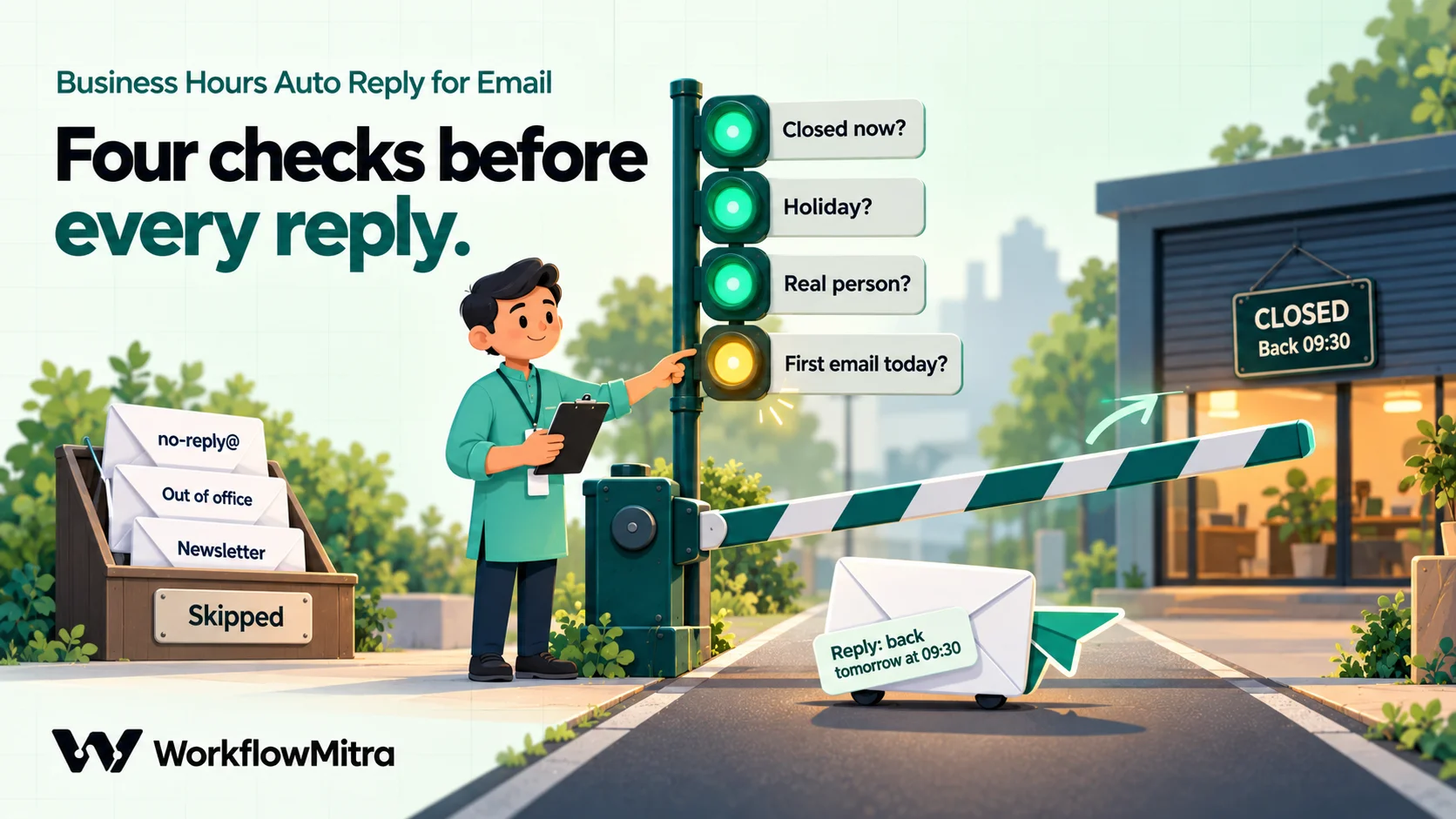
A business hours auto reply needs four checks before it sends anything:
- Are we closed right now? Check the current time in your own time zone against your weekly hours and your holiday list.
- Was the email really for us, from a person? Skip automated senders, bounces, other auto-replies, newsletters, and colleagues.
- Have we already replied to this sender today? Reply once per sender per day, at most.
- Reply in the same thread, with the day and time you reopen.
In WorkflowMitra, that’s an email trigger, one Code step, an IF, a Data Store step, a second IF and an Email step. The rest of this article explains each one.
Why the mailbox’s own auto-reply isn’t enough
Mailbox auto-replies are built for holidays, not for daily hours. Google’s help for Gmail’s vacation responder says the reply starts at 12:00 AM on the start date and ends at 11:59 PM on the end date. In most cases each person gets it only the first time they write, and again only after four days. Mail in spam and mail addressed to a mailing list you’re on doesn’t get a reply, and you can limit replies to your contacts.
Those are sensible rules for “I’m away until Monday”. They’re the wrong rules for “we’re closed tonight”:
| Need | Gmail vacation responder | Help-desk “business hours” rules | A workflow |
|---|---|---|---|
| Reply only outside daily hours | No, it runs by date | Yes, inside the help desk | Yes |
| Different hours on Saturday | No | Usually | Yes |
| Skip public holidays automatically | No | Usually, with a holiday calendar | Yes, from a list you keep |
| Say when you reopen | Only as fixed text | Sometimes | Yes, worked out per email |
| Works on a plain Gmail or Zoho inbox | Yes | Only if mail is routed through the help desk | Yes |
If your team already answers email inside a help desk such as Freshdesk or Zendesk, use its business-hours rules. This guide is for the common case of a shared enquiries inbox (hello@, info@, sales@) that a small team reads directly.
What a good after-hours reply says
Write the message first, because it decides what the workflow needs to work out. A good after-hours reply does four things in four or five lines:
- Confirms the email arrived, so the sender doesn’t write again or call.
- Says you’re closed and when you’ll be back, with a real day and time, not “soon”.
- Offers one route for urgent issues, if you have one: a phone number, a WhatsApp number, or a status page.
- Sets no promise you can’t keep. “We’ll reply by 11:00 tomorrow” turns into a broken promise the first busy morning. “We’re back tomorrow at 09:30 and reply in the order messages arrive” doesn’t.
Avoid long signatures, marketing banners and attachments. An automatic reply that looks like a newsletter gets ignored, and RFC 3834, the internet standard for automatic email responses, advises against quoting the original message or attaching files.
Three versions cover most businesses. The parts in brackets come from the workflow.
Weeknight
Hi [name],
Thanks for your email about “[subject]”. Our team has finished for the day, and we’ll pick up your message [tomorrow at 09:30].
If it’s urgent, call us on +91 98xxx xxxxx.
The YourCompany team
Weekend
Hi [name],
Thanks for writing. We’re closed for the weekend and back [Monday at 09:30], when we’ll answer messages in the order they arrived.
Holiday
Hi [name],
Thanks for your email. Our office is closed for a public holiday today. We’re back [Wednesday at 09:30] and will reply then.
With the workflow below, the same Email step covers all three, because “tomorrow at 09:30”, “Monday at 09:30” and “Wednesday at 09:30” are worked out for each email. If you want the holiday wording, add a second Email step on a separate route; for most teams, one message with the right reopening time is enough.
The rules that keep an auto-reply safe
Automatic replies have a long history of going wrong: two out-of-office messages answering each other all weekend, a reply sent to every member of a mailing list, a bounce message answered by an auto-reply that bounces again. RFC 3834 sets out rules to prevent this. The ones that matter for a business-hours reply:
- Don’t answer automated mail. The standard says not to respond to messages marked with an
Auto-Submittedheader (other than “no”), and allows refusing addresses such asMAILER-DAEMON,owner-*and*-request, which mailing lists and mail servers use. - Don’t repeat yourself. An away-style notice should reach any one sender no more than once in several days, however many messages they send. The standard recommends 7 days for personal vacation notices.
- Only answer mail that was addressed to you. For absence notices, it recommends replying only when one of your addresses is in the To or Cc line. That one rule filters out most newsletters and list mail, which are addressed to the list, not to you.
- Reply to the right address. The standard says automatic replies should go to the message’s Return-Path, the address the mail system uses for bounces, rather than the From or Reply-To address.
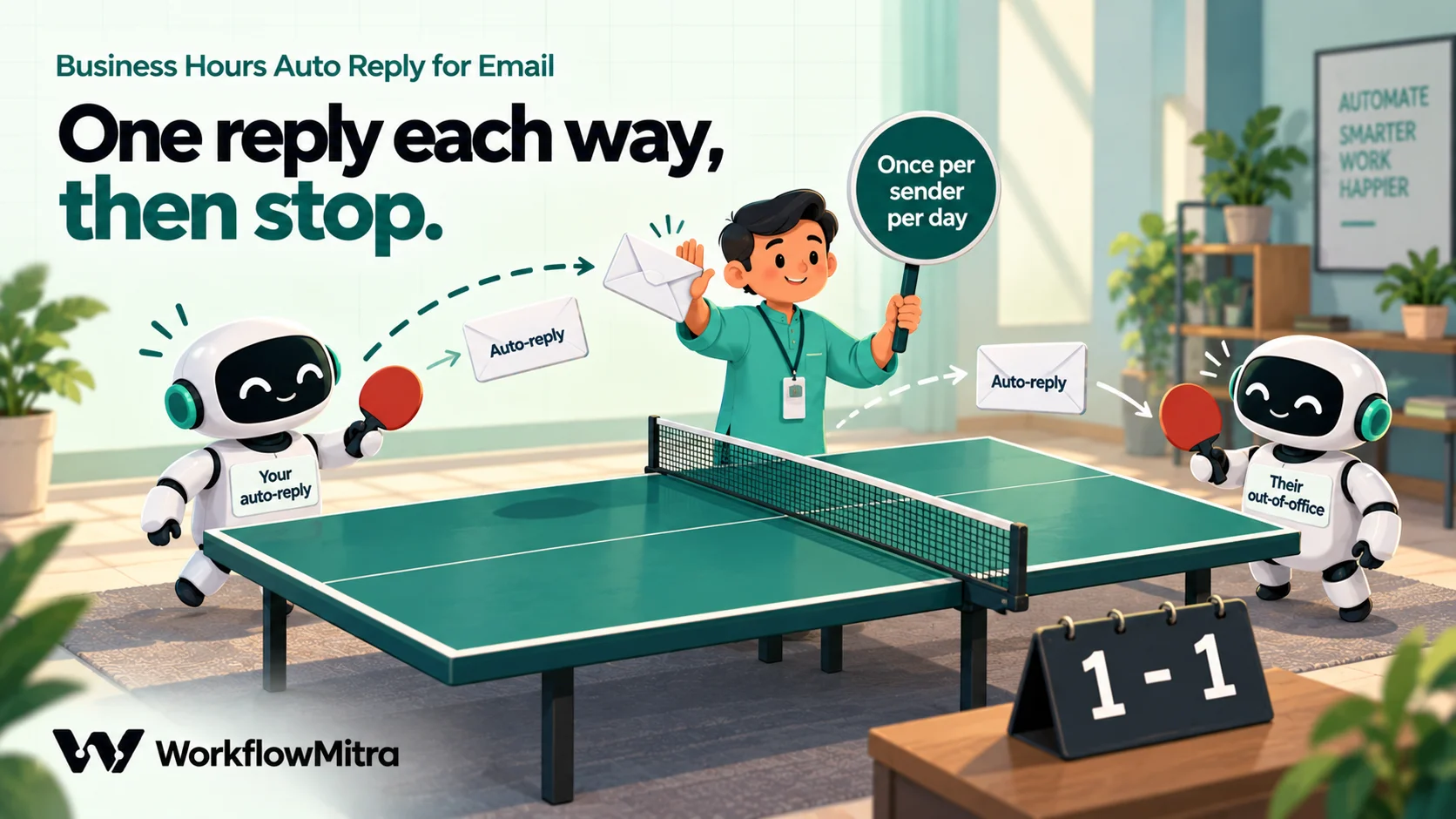
There’s one limit to be honest about. WorkflowMitra’s email trigger gives the workflow the sender, recipients, subject, date and Message-ID, but not the other headers. So the workflow can’t see Auto-Submitted, List-Id or the Return-Path, and the Email step replies to the From address. The workflow below makes up for that in three ways: it skips senders and subjects that look automated, it requires one of your addresses in To or Cc, and it replies to any sender at most once a day. The last one is the safety net. Even if a disguised auto-reply slips through, each side sends one message and stops.
We chose once a day rather than RFC 3834’s 7 days because a business-hours reply carries new information each time (when you reopen). If your reply is a general “we’ve received your message”, use a longer period; the Data Store step below shows where to change it.
What you need before you start
- A mailbox WorkflowMitra can connect to. The email trigger and Email step sign in with the address and an app password over IMAP and SMTP. Gmail and Google Workspace need 2-Step Verification turned on and an app password (some Workspace admins block them). Zoho Mail, Yahoo Mail, iCloud Mail and most hosting providers’ mailboxes also work. Outlook.com and Microsoft 365 don’t: Microsoft has turned off this kind of sign-in for Exchange Online.
- Your hours, your time zone and your holiday list for the year.
- A WorkflowMitra workspace. The 14-day trial needs no card.
Build the workflow
The finished workflow:
- When an email arrives: watches the inbox.
- Code: are we closed, when do we reopen, and should this email get a reply?
- IF:
shouldReplyis yes. (free) - Data Store: record “this sender, today”.
- IF: was that record new? (free)
- Email: reply in the same thread.
Step 1: Watch the inbox
Add the When an email arrives trigger and pick the mailbox. Leave Folder blank to watch the inbox. Under Check every, choose Every minute: replies go out within about a minute of the email arriving, and checks that find no new mail cost nothing.
Leave the starting point on Ignore everything already in the mailbox. The first check only records where the inbox is, so switching the workflow on never replies to old mail.
On Gmail and Google Workspace, you can also stop bulk mail at the door. In Only emails matching, choose Custom search (Gmail only) and enter:
-category:promotions -category:social -category:updates -category:forumsEmails Gmail files under those tabs then never start a run, which saves a credit each. Before you rely on it, check that real enquiries in your inbox don’t land in Updates or Forums. On other providers the custom search is ignored and every new email matches, so rely on the Code step’s checks there.
The trigger gives each email to the workflow with these fields: from, fromName, to, cc, subject, date, messageId, threadId, hasAttachments and a few more. It doesn’t include the email’s body or its other headers.
Step 2: The Code step that makes the decisions
Add a Code step straight after the trigger and paste this. Change the four settings at the top: your time zone, your hours, your holidays, and the addresses customers write to.
// 1. Your hours, in your own time zone (the server's clock is not in India)
const TIME_ZONE = 'Asia/Kolkata';
const HOURS = {                     // 24-hour clock; a day that isn't listed is closed
  Mon: ['09:30', '18:30'],
  Tue: ['09:30', '18:30'],
  Wed: ['09:30', '18:30'],
  Thu: ['09:30', '18:30'],
  Fri: ['09:30', '18:30'],
  Sat: ['10:00', '14:00'],
};
const HOLIDAYS = ['2026-10-20', '2026-11-08', '2026-12-25'];   // YYYY-MM-DD
const OUR_ADDRESSES = ['[email protected]', '[email protected]'];
const OUR_DOMAIN = '@yourcompany.in';

const DAY_NAMES = { Mon: 'Monday', Tue: 'Tuesday', Wed: 'Wednesday', Thu: 'Thursday', Fri: 'Friday', Sat: 'Saturday', Sun: 'Sunday' };
function local(date) {
  const p = {};
  for (const part of new Intl.DateTimeFormat('en-GB', {
    timeZone: TIME_ZONE, weekday: 'short', year: 'numeric', month: '2-digit',
    day: '2-digit', hour: '2-digit', minute: '2-digit', hourCycle: 'h23',
  }).formatToParts(date)) p[part.type] = part.value;
  return { day: p.weekday, date: `${p.year}-${p.month}-${p.day}`, time: `${p.hour}:${p.minute}` };
}
const workingDay = (l) => Boolean(HOURS[l.day]) && !HOLIDAYS.includes(l.date);

const now = new Date();
const t = local(now);
const open = workingDay(t) && t.time >= HOURS[t.day][0] && t.time < HOURS[t.day][1];

// 2. When do we open next?
let nextOpen = '';
if (workingDay(t) && t.time < HOURS[t.day][0]) nextOpen = `today at ${HOURS[t.day][0]}`;
for (let d = 1; !nextOpen && d <= 14; d++) {
  const l = local(new Date(now.getTime() + d * 86400000));
  if (workingDay(l)) nextOpen = `${d === 1 ? 'tomorrow' : DAY_NAMES[l.day]} at ${HOURS[l.day][0]}`;
}

// 3. Should this email get an automatic reply?
const sender = String(input.from || '').split(',')[0].trim().toLowerCase();
const subject = String(input.subject || '').toLowerCase();
const recipients = `${input.to || ''},${input.cc || ''}`.toLowerCase();
let skip = '';
if (open) skip = 'open';
else if (!sender) skip = 'no sender';
else if (!OUR_ADDRESSES.some((a) => recipients.includes(a))) skip = 'not addressed to us';
else if (sender.endsWith(OUR_DOMAIN)) skip = 'internal';
else if (/^(no-?reply|do-?not-?reply|mailer-daemon|postmaster|bounces?|notifications?|alerts?|owner-)/.test(sender) || /-request@/.test(sender)) skip = 'automated sender';
else if (/(automatic reply|auto-?reply|out of (the )?office|undeliverable|delivery status notification|mail delivery (failed|subsystem)|returned mail)/.test(subject)) skip = 'automated subject';

return {
  open,
  nextOpen,
  localTime: `${t.day} ${t.time}`,
  sender,
  shouldReply: skip === '',
  skip,
  replyKey: `${sender}|${t.date}`,
};
The holiday dates above are placeholders; replace them with your own list for the year.
Here’s what it does, in plain terms:
- It converts the time first. Automation servers usually run on UTC, so 21:30 in Mumbai is 16:00 on the server. The script asks for the current weekday, date and time in
Asia/Kolkataand compares that with your hours. Our guide to time zones in automation explains why this matters for every scheduled or time-based rule. - It treats a holiday as a closed day. Any date in
HOLIDAYSis closed, whatever the weekday. - It works out the next opening time. Before opening on a working day it says “today at 09:30”. Otherwise it looks ahead up to two weeks and returns “tomorrow at 10:00”, “Monday at 09:30” and so on, skipping Sundays and holidays.
- It decides whether to reply and, if not, says why in
skip. That makes the run history easy to read: “open”, “automated sender”, “not addressed to us”.
We ran this exact script through WorkflowMitra’s Code step with the server clock on UTC, at fixed moments. Each case below came out as shown:
| Email arrives (India time) | Sender / subject | Result |
|---|---|---|
| Monday 09:30 | [email protected] | No reply: open |
| Monday 08:00 | [email protected] | Reply: “today at 09:30” |
| Monday 21:30, Tuesday a holiday | [email protected] | Reply: “Wednesday at 09:30” |
| Friday 19:00 | [email protected] | Reply: “tomorrow at 10:00” |
| Saturday 15:00 | [email protected] | Reply: “Monday at 09:30” |
| Monday 00:01 | [email protected] | Reply: “today at 09:30” |
| Monday 21:30 | [email protected] | No reply: automated sender |
| Monday 21:30 | [email protected] | No reply: automated sender |
| Monday 21:30 | ”Automatic reply: Invoice 4471” | No reply: automated subject |
| Monday 21:30 | [email protected] | No reply: internal |
| Monday 21:30 | Newsletter addressed to [email protected] | No reply: not addressed to us |
| Monday 21:30 | Cc’d to [email protected] | Reply |
The script ran in 0 to 9 milliseconds per email. The Code step allows one second, so there’s plenty of room for more rules.
Step 3: Continue only when a reply is due
Add an IF step. Set the value to {{ shouldReply }} and the condition to Is yes. Put the next steps on the Yes route and leave the Else route empty. Emails that arrive during working hours, or that fail a safety check, stop here at no further cost.
Step 4: Reply to each sender once a day
Create a data store called “After-hours replies”. Then add a Data Store step with:
- Operation: Create or update (upsert)
- Store: After-hours replies
- Key:
{{ $node["Code"].replyKey }}
The key is the sender plus today’s date, for example [email protected]|2026-10-19. The step reports wasNew as yes the first time it sees that key and no after that. It checks inside a locked transaction, so two emails from the same person a few seconds apart can’t both count as new.
To reply less often, change what goes into replyKey in the Code step. The sender alone (replyKey: sender) means one reply per sender ever, until you clear the store; a label for the week, such as the date of that week’s Monday, gives roughly the weekly spacing RFC 3834 suggests. Each record is tiny, and the Starter plan’s 10 MB of Data Store storage holds tens of thousands of them. Once a year, open the store and use Delete All.
If you renamed the Code step, use its name in place of Code in the expression.
Step 5: Continue only for a new sender today
Add another IF step: {{ wasNew }} Is yes. Put the Email step on the Yes route.
Step 6: Send the reply in the same thread
Add an Email step with the same mailbox and choose Reply to an email:
| Field | Value |
|---|---|
| To | {{ $node["Code"].sender }} |
| Subject | {{ $trigger.subject }} (the step adds “Re:” for you) |
| Replying to | {{ $trigger.messageId }} |
| Message | Your text, with the fields below |
A message that uses the workflow’s values:
Hi {{ $trigger.fromName | there }},

Thanks for your email about "{{ $trigger.subject }}". Our team has finished for the day, and we'll pick up your message {{ $node["Code"].nextOpen }}.

If it's urgent, call us on +91 98xxx xxxxx.

The YourCompany team
{{ $trigger.fromName | there }} uses the sender’s display name and falls back to “there” when the email has none, so the greeting never reads “Hi ,”. We checked both cases in WorkflowMitra’s expression engine: an empty name gives “Hi there,”, and “Priya Shah” gives “Hi Priya Shah,”.
The Replying to field matters. It sets the reply’s In-Reply-To and References headers from the original Message-ID, so the customer’s mail app shows your reply inside their conversation instead of as a new email. The reply is sent from the connected mailbox.
Test it without waiting for nightfall
You don’t have to wait until 18:30 to test:
- In the Code step, temporarily set today’s hours to a window that has already ended, for example
Mon: ['06:00', '07:00']on a Monday. - From a personal address, email your enquiries address.
- Within a minute, the run history should show the Code step’s output (
open: false, anextOpenvalue,shouldReply: true), a new Data Store record and a sent reply. - Send a second email from the same address. This time the second IF should stop at the Else route, because the Data Store already has today’s key.
- Put your real hours back and delete the test record on the data store’s page.
Running the workflow by hand with the Run button doesn’t use a real email, so the Code step sees no sender and returns skip: "no sender". That’s harmless, but it isn’t a test. Use a real email.
What it costs to run
Each new email starts a run. The trigger uses 1 credit, the Code step is billed by the millisecond (2 thousandths of a credit per millisecond, so a few-millisecond run costs a small fraction of a credit, and never more than 2), IF steps are free, and the Data Store and Email steps use 1 credit each when they run. Checks that find no new mail cost nothing. We read these rates in WorkflowMitra’s credit table and checked prices on its live plans on 19 October 2026.
A worked example: an enquiries inbox gets 30 emails a day, or about 900 a month. About 40% arrive outside working hours and pass the safety checks, so 360 reach the Data Store step, and around 300 of those are a sender’s first email that day.
- Triggers: 900 credits
- Code: well under 10 credits
- Data Store: 360 credits
- Replies: 300 credits
- Total: about 1,570 credits a month
The Starter plan includes 10,000 credits a month for ₹999 (₹849 a month billed yearly). On Gmail, the custom search in Step 1 lowers the trigger line further by keeping promotions and updates out entirely.
Useful extras
Once the basic reply works, a few additions are worth considering:
- Alert someone about urgent emails. Add a second route from the first IF for subjects containing words like “urgent”, “down” or “payment failed”, and send a Slack or Telegram message to whoever is on call. The trigger doesn’t include the body, so these rules can only read the subject. Our guide to email to Slack covers the Slack side.
- Draft a fuller answer for the morning. If you’d like an AI to prepare a proper reply for a person to check and send the next day, see automating email replies with AI. Keep the after-hours reply short and automatic, and the real answer human-approved.
- Do the same on WhatsApp. Customers who message you on WhatsApp expect the same courtesy. That’s a ChatMitra feature rather than an email workflow; see these away message examples for business for wording.
- More than one inbox. Build one workflow per mailbox and point all of them at the same data store, so a customer who writes to both hello@ and sales@ gets one reply that night, not two.
Limits worth knowing
- The workflow can’t read headers or the body. It can’t see
Auto-Submitted,List-Idor the Return-Path, so it relies on sender and subject patterns, the To/Cc check and the once-a-day limit. Rare automated mail that looks human may get one reply. - Replies go to the From address. When a website form sends you notifications from its own address, for example
[email protected], the “internal” or “automated sender” rule usually skips it. Reply to form leads from the form’s own workflow instead. - The reply carries no Auto-Submitted header. Well-behaved auto-responders look for that header to avoid answering automated mail, and WorkflowMitra’s Email step doesn’t set it. The once-per-sender limit keeps any exchange with another auto-responder to one message each way.
- Replies arrive within about a minute, not instantly, because the trigger checks the inbox on a schedule.
- Outlook.com and Microsoft 365 mailboxes can’t connect to WorkflowMitra’s email steps.
- Gmail and Workspace have daily sending limits. A business-hours reply sends at most one message per sender per day, which keeps volumes low, but check your account’s limit if you also send bulk mail from the same mailbox.
Troubleshooting
Replies go out during working hours. The Code step’s time zone is wrong or missing. Look at localTime in the run history: it should show your local weekday and time.
No replies at all at night. Check skip in the Code step’s output. “not addressed to us” means the address in OUR_ADDRESSES doesn’t match how customers write to you; add every address and alias that delivers to this inbox.
The same person got two replies tonight. The Data Store key isn’t the Code step’s replyKey, or two workflows use different stores.
The reply arrived as a new email, not in the conversation. Replying to is empty or doesn’t use {{ $trigger.messageId }}.
The greeting says “Hi ,”. Use {{ $trigger.fromName | there }}; a plain {{ $trigger.fromName }} is empty when the sender’s address has no display name.
The Code step fails with a time-out. Something in your edits loops forever. The original script finishes in milliseconds.
The first email after switching it on got no reply. The trigger’s first check only records where the inbox is, so mail that arrived before that check never starts a run. Send another email to test.
Switch it on tonight
Write the reply first, then set your hours, holidays and enquiry addresses in the Code step, and build the six steps above. Test with a closed window and a personal address, send a second email to confirm the once-a-day limit, then put your real hours back. From then on, everyone who writes after hours hears from you within a minute, and knows exactly when a person will pick it up.
You can build it on a 14-day WorkflowMitra trial with no card. The email trigger, Code, Data Store and Email steps are on every plan; the Code step guide covers what else the Code step can do, and the WorkflowMitra overview shows the rest of the platform.
Gmail's vacation responder behaviour was read in Google's Gmail Help on 19 October 2026; the automatic-response rules come from RFC 3834 (Moore, August 2004), read the same day; Microsoft's basic-authentication change from Microsoft Learn. WorkflowMitra behaviour (the email trigger's fields, check intervals, starting point and Gmail-only custom search; the Reply to an email action's threading headers; the Code step's sandbox, one-second limit and billing; the IF operators; the Data Store upsert, its locking and storage; and the supported mailbox providers) was checked in the product's source code the same day. The Code step results come from running the script above through WorkflowMitra's own Code step with the server clock set to UTC at fixed times, and the message template from running it through the expression engine. Prices come from WorkflowMitra's live plans the same day. Sources: Gmail Help, vacation responder; RFC 3834, recommendations for automatic responses to electronic mail; Google Account Help, app passwords; Microsoft Learn, deprecation of basic authentication in Exchange Online.
Frequently Asked Questions
Questions businesses ask before switching on an after-hours email reply.
Not on its own. Gmail's vacation responder runs by date: it starts at 12:00 AM on the first day and ends at 11:59 PM on the last day, so it can't switch on every evening and off every morning. To reply only outside working hours, you need a workflow or a help-desk tool that checks the time before replying.
Automate the work between your apps
Build workflows with triggers, conditions and actions, then test them before they go live. Try WorkflowMitra free for 14 days, no card required.
