Cal.com WhatsApp Notifications: Booking Confirmations and Reminders From Your Own Number

Quick Summary
To send Cal.com booking notifications on WhatsApp from your own business number, add a Cal.com webhook for Booking Created, Rescheduled and Cancelled, and point it at a workflow that verifies Cal.com's X-Cal-Signature-256 header. In WorkflowMitra, powered by ChatMitra, a Code step pulls the guest's phone number and formats the time in their time zone, a Switch picks the message, and the WhatsApp step sends an approved template through ChatMitra or Meta's Cloud API. Reminders come from a second, scheduled workflow that reads a booking log, so moved and cancelled bookings never get a stale reminder.
People book a slot on your Cal.com page, get a confirmation email, and then forget. The email sits under a promotions tab or a pile of newsletters, and the first time they think about the appointment again is when you’re waiting on the call and they aren’t there. For clinics, coaches, consultants and sales teams, that gap is where no-shows come from.
A WhatsApp message closes it. This guide shows how to send Cal.com booking confirmations, change notices and reminders on WhatsApp from your own business number, using Cal.com’s webhooks and a workflow. You’ll see what Cal.com can do by itself, how to verify its signed webhooks, where the guest’s phone number actually lives in the payload, how to show the time in the guest’s own time zone, and how to send reminders that stay correct when a booking moves.
What are Cal.com WhatsApp notifications?
Cal.com WhatsApp notifications are automatic WhatsApp messages sent to a guest when something happens to their Cal.com booking: it is created, rescheduled or cancelled, or the meeting is about to start. Cal.com reports the change by webhook, a workflow picks the right approved WhatsApp template, and the message arrives on the phone number the guest entered when booking.
There are two halves to this. Cal.com knows when a booking changes, because scheduling is its job. Sending a WhatsApp message to a guest is a separate job: it needs a WhatsApp Business Platform number, approved templates for messages the guest didn’t start, and a correctly formatted phone number. Cal.com’s webhooks connect the two.
What Cal.com can do on its own, and when a workflow helps
Before building anything, check whether Cal.com’s built-in tools are enough. Cal.com has a Workflows feature with triggers such as “When a new event is booked” and “Before the event starts”, and among its actions are Send WhatsApp message to attendee and Send WhatsApp message to a specific number.
There’s a catch, stated in Cal.com’s own help centre: WhatsApp workflows can’t be customised on any plan at the moment and are limited to a predetermined default message. Customised workflows need a paid plan (the free plan gets the default reminder email only), and SMS and WhatsApp messages use Cal.com credits. Team plans include 750 credits per member each month; free users get none.
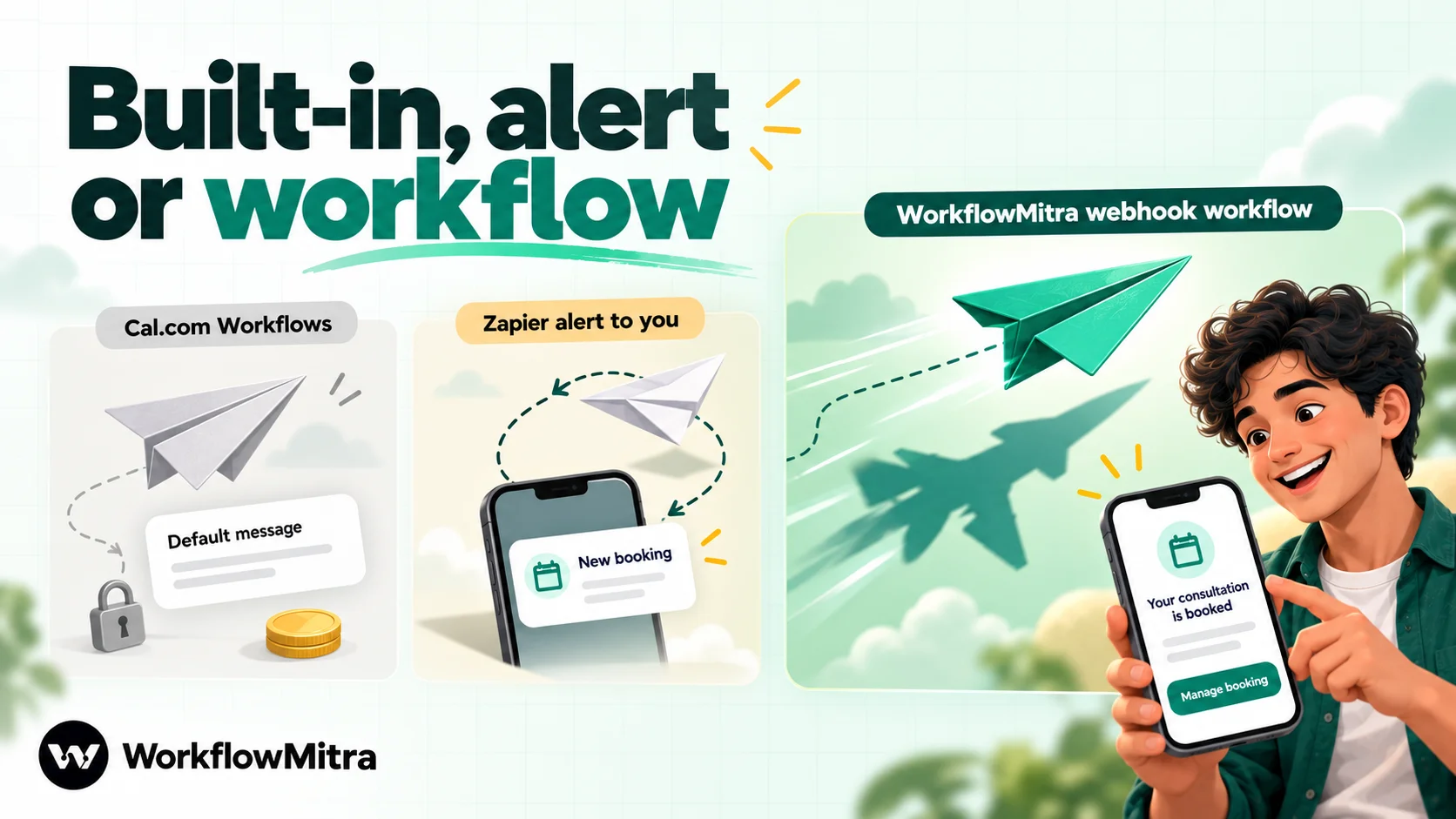
| Option | Who gets the message | Fits when | Limits |
|---|---|---|---|
| Webhook workflow (this guide) | The guest, from your WhatsApp Business number | You want your own wording, buttons, language and number | You set up templates and a workflow; reminders need a small second workflow |
| Cal.com Workflows WhatsApp action | The guest, or a number you choose | A standard reminder is enough and you're on a paid plan | Fixed default message; uses Cal.com credits |
| Zapier template with WhatsApp Notifications | You, the account holder | You want a ping on your own phone for each booking | Doesn't message guests; fixed templates |
| Cal.com's WhatsApp app | Nobody (it's a meeting location) | You hold calls on WhatsApp | Adds a WhatsApp chat or call link as the location, sends no notifications |
If Cal.com’s default reminder is fine for you, use it. The workflow route makes sense when the message is part of your brand and your process: you want the clinic’s name and address in it, a button that opens the booking, a message in Hindi or Arabic, replies arriving in the same WhatsApp inbox your team already uses, or the same booking event also feeding a sheet or CRM. It is also the only route for teams on Cal.com’s free plan, because webhooks are included on every Cal.com plan, Free included.
Which booking events deserve a message?
Cal.com can send more than twenty webhook triggers. Guests care about four or five of them.
| Cal.com trigger | Send a WhatsApp? | Why |
|---|---|---|
| Booking Created | Yes, a confirmation | Confirms the time in their zone and puts your number in their chat list |
| Booking Rescheduled | Yes, with the new time | The old confirmation is now wrong; say so plainly |
| Booking Cancelled | Yes, short | Confirms nobody is expecting them and offers a rebooking link |
| Booking Requested | If you approve bookings by hand | Tells them the request arrived and that you'll confirm |
| Booking Rejected | Usually yes | A declined request deserves a clear answer and an alternative |
| Meeting Started / Meeting Ended | Rarely | At the start they're already joining; after the end a follow-up is better sent later, by you |
| Booking Paid | Optional | Useful for paid sessions if your payment provider doesn't already send a receipt |
Reminders are not on this list because Cal.com has no “one hour before” webhook. Its Meeting Started trigger fires at the scheduled start, which is too late for a reminder. Reminders come from a second workflow, covered after the main build.
Step 0: Make Cal.com collect a WhatsApp number
Most Cal.com booking pages ask for a name and an email and nothing else. No phone number, no WhatsApp message. Fix this first, because everything later depends on it.
Cal.com gives you two ways:
- Show the built-in phone question. Every event type has a built-in attendee phone question, with the identifier
attendeePhoneNumber, that is hidden by default. Open the event type’s booking questions, make it visible and mark it required. Cal.com’s own help describes the related Phone confirmation setting, which makes the phone number the required contact field instead of the email address. - Add your own phone question with an identifier such as
whatsapp, and a label that says what it’s for: “WhatsApp number (for your confirmation and reminder)”. The answer then arrives under that identifier instead.
The built-in question is the simpler choice, because Cal.com also copies its answer onto the attendee record. A custom question is better when you want an explicit label and consent line on the form. Either works with the Code step below, which takes the question’s identifier as a setting.
Tell guests on the booking page that their confirmation and reminder will come by WhatsApp. Nobody is surprised by the message, Meta sees a clear reason for it, and you have a record of what people agreed to. For consent wording, see ChatMitra’s opt-in best practices.
How the workflow fits together
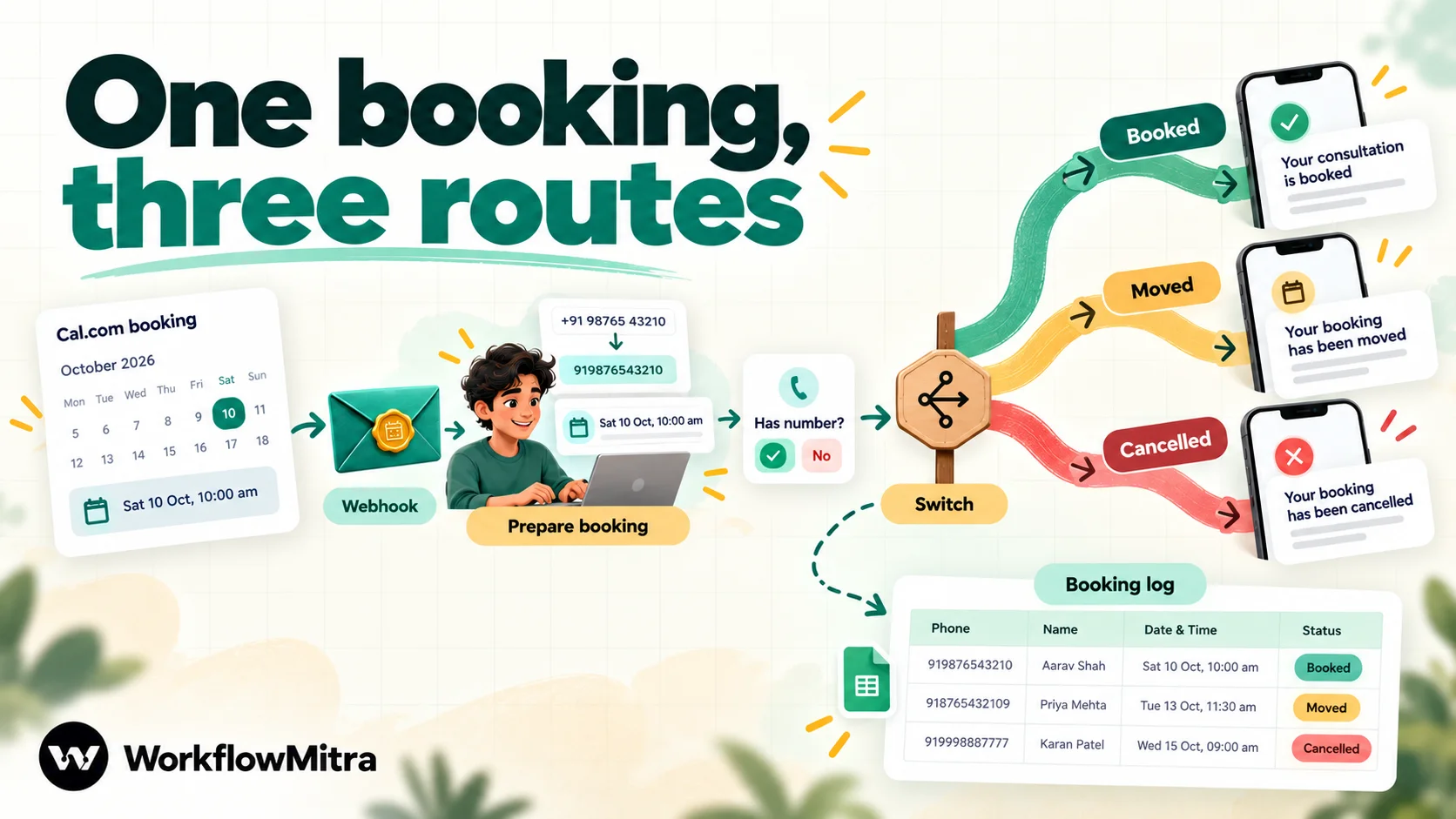
In WorkflowMitra, powered by ChatMitra, the main workflow has six parts:
- On webhook call, verifying Cal.com’s signature so nobody else can trigger it.
- Code, named “Prepare booking”, which pulls out the phone number, first name and meeting details, and formats the start time in the guest’s time zone.
- IF the phone number is not empty.
- Switch on the Cal.com trigger name: created, rescheduled or cancelled.
- WhatsApp, one per route, sending the matching approved template through ChatMitra or Meta’s Cloud API.
- Google Sheets, keeping a small booking log that the reminder workflow reads.
If you don’t want reminders, leave out step 6. The confirmation, change and cancellation messages work without it.
Before you start
- A Cal.com account with the event types you want to notify about. Any plan works: Cal.com lists webhooks on Free, Teams, Organizations and Enterprise.
- A WhatsApp Business Platform number. To send via ChatMitra you’ll want the Pro plan (it’s the one with API access) and an API key from your ChatMitra dashboard. To go straight to Meta’s Cloud API instead, keep the phone number ID and a permanent access token to hand.
- Approved templates, one per message type, normally in the utility category. Wording is covered further down.
- A Google Sheet with a tab called Bookings, if you want reminders.
- A WorkflowMitra workspace. New workspaces get 14 days and 10,000 credits to try things, without entering a card, which is far more than this build and its tests use.
Step 1: Create a signed webhook trigger
Start a new workflow whose first step is On webhook call. For its Source, pick Something else: WorkflowMitra has no Cal.com preset, and this generic source leaves the signature settings for you to fill in.
Open Edit webhook and change three sections.
API key authentication. Clear the Secret field. Cal.com can’t add a custom header with a shared secret, so if a secret stays here, WorkflowMitra will reject every real booking with a 401 before it looks at the signature.
Signature verification. Cal.com signs each delivery. It computes an HMAC-SHA256 of the request body with the secret you set on the webhook, encodes it as hex, and sends it in an X-Cal-Signature-256 header, with no timestamp and no sha256= prefix. Set:
- Signing secret: a long random string. A password manager’s generator is fine. Copy it; you’ll paste the same value into Cal.com.
- Signature header:
x-cal-signature-256. Header names aren’t case-sensitive. - Signature algorithm: HMAC-SHA256.
WorkflowMitra’s check accepts a bare hex digest over the raw body, which is exactly what Cal.com sends. We ran the check against a Cal.com-style signature: the right secret passed, a wrong secret failed, and the literal no-secret-provided header Cal.com sends when no secret is set also failed.
Enforcement. Turn on Require verification. Any request that doesn’t carry a valid signature is then refused and never starts a run, so it costs nothing.
Don’t fill in Idempotency key path. A booking keeps its uid when it is later cancelled, so a key built on it would treat the cancellation as a repeat of the booking and skip it whenever both landed within 24 hours. Left blank, the trigger falls back to comparing request bodies, and a byte-for-byte identical delivery within roughly a minute is still ignored. Respond synchronously can stay off too: Cal.com counts any 2xx status as success, and the trigger replies 202 the moment it has queued the run.
Copy the trigger URL, then turn the workflow on before you continue. A paused workflow’s webhook answers 404.
Step 2: Add the webhook in Cal.com
In Cal.com, go to Settings → Developer → Webhooks and create a new webhook. You can also attach a webhook to a single event type, or to a team event, if only some of your bookings should send WhatsApp messages.
- Subscriber URL: the WorkflowMitra trigger URL. Cal.com’s hosted service accepts only HTTPS addresses, which this is.
- Event triggers: Booking Created, Booking Rescheduled and Booking Cancelled. Add Booking Requested and Booking Rejected if any of your event types require confirmation.
- Secret: the same signing secret you pasted in step 1.
- Custom payload template: leave it empty. The default payload is JSON with everything the workflow needs. A custom template changes the body, and Cal.com signs whatever body it sends, so signature checks keep working, but the field paths in the next step would change.
Save it, then make a test booking on your own page with your own WhatsApp number. In WorkflowMitra, the trigger’s Recent deliveries list should show the request as accepted, and the panel lists the fields that arrived: triggerEvent, createdAt and a payload object with the booking.
If the delivery shows as rejected, the secret differs between the two sides, or the Secret field under API key authentication still has a value. Paste the signing secret again on both sides rather than retyping it.
Step 3: Prepare the booking details with a Code step
A Cal.com payload is detailed: organiser, attendees, answers to every booking question, video links, app statuses. The WhatsApp step needs six or seven small values from it, and two of them need some work. The phone number can be in two places, and the start time arrives in UTC.
Add a Code step directly after the trigger and name it Prepare booking:
const PHONE_FIELD = 'attendeePhoneNumber'; // or your own question's identifier
const COUNTRY_CODE = '91';                 // added to 10-digit local numbers
const DEFAULT_ZONE = 'Asia/Kolkata';       // used if the guest has no time zone

const booking = input.payload || {};
const guest = (booking.attendees || [])[0] || {};
const answer = (booking.responses || {})[PHONE_FIELD];

let phone = String((answer && answer.value) || guest.phoneNumber || '').replace(/\D/g, '');
if (phone.length === 11 && phone.charAt(0) === '0') phone = phone.slice(1);
if (phone.length === 10) phone = COUNTRY_CODE + phone;

const zone = guest.timeZone || DEFAULT_ZONE;
const when = booking.startTime
  ? new Intl.DateTimeFormat('en-GB', {
      timeZone: zone, weekday: 'short', day: 'numeric', month: 'short',
      hour: 'numeric', minute: '2-digit', hour12: true,
    }).format(new Date(booking.startTime))
  : '';
const firstName = String(guest.firstName || guest.name || '').trim().split(' ')[0];

return {
  event: input.triggerEvent || '',
  uid: booking.uid || '',
  previous_uid: booking.rescheduleUid || '',
  phone: phone,
  first_name: firstName || 'there',
  meeting: booking.eventTitle || booking.title || 'your appointment',
  when: when,
  start_utc: booking.startTime || '',
  join_link: (booking.metadata && booking.metadata.videoCallUrl) || '',
};
What it does, line by line:
- Phone. It reads the booking question’s answer first and falls back to the attendee’s
phoneNumber. It keeps only digits, removes a leading trunk zero from an 11-digit number, and adds the country code to a 10-digit one. Numbers typed with a+and country code pass through unchanged. SetCOUNTRY_CODEto your own market’s code. - Time. Cal.com sends
startTimein UTC, such as2026-10-10T04:30:00Z. The step formats it in the guest’s own time zone, which Cal.com records from the booking page. A guest in India sees “Sat 10 Oct, 10:00 am”; a guest in London booking the same slot sees “Sat 10 Oct, 5:30 am”. - Name. It uses the first name when Cal.com has one, the first word of the full name otherwise, and “there” when both are empty, so the template never gets a blank variable.
- Reschedules. A rescheduled booking arrives with a new
uidand the old one inrescheduleUid. The step passes both on, which the booking log needs.
We ran this script in WorkflowMitra’s Code sandbox against Cal.com-shaped payloads. “+91 98765 43210” from the booking question, “98765 43210” on the attendee record and “098765-43210” all became 919876543210; a UK mobile became 447700900123; a cancellation with a hidden, empty phone question returned an empty phone and “there” as the name. Each run took under 10 milliseconds.
Why not expressions? WorkflowMitra’s date helpers use the server’s time zone, so the guest’s local time needs Intl.DateTimeFormat with a timeZone. The Code step must also sit directly after the trigger, because it reads only the previous step’s output.
Seated events work the same way: Cal.com’s webhook lists only the attendee whose seat changed.
Step 4: Stop when there’s no number
Add an IF step with the value {{ phone }} and the condition Is not empty. Bookings made before you added the phone question, or by guests who skipped an optional field, end here quietly. If you’d like to know about them, put a Slack or email step on the other branch saying “Booking {{ uid }} has no WhatsApp number”.
Step 5: Route by event with a Switch
Next comes a Switch that reads {{ $node["Prepare booking"].event }}. Give it one route each for BOOKING_CREATED, BOOKING_RESCHEDULED and BOOKING_CANCELLED, and add BOOKING_REQUESTED and BOOKING_REJECTED routes only if your webhook sends those. Unmatched values go nowhere, and neither the Switch nor the IF before it costs a credit.
Referring to the Code step by name with $node["Prepare booking"] keeps the paths working wherever you move steps later. A plain {{ event }} reads only the step immediately before, which is fine until someone inserts a step in between.
Step 6: Send the template
On every route, place a WhatsApp step. Select the sending connection (ChatMitra, or Meta’s Cloud API directly), choose the approved template written for that situation, and fill in:
- To:
{{ $node["Prepare booking"].phone }} - Variable 1:
{{ $node["Prepare booking"].first_name }} - Variable 2:
{{ $node["Prepare booking"].meeting }} - Variable 3:
{{ $node["Prepare booking"].when }} - Button variable, if the template has a URL button:
{{ $node["Prepare booking"].uid }}
The WhatsApp step strips spaces and symbols from the number and rejects anything shorter than 8 or longer than 15 digits, so a mistyped number fails visibly in the run history instead of going to a stranger.
The button turns the message into something the guest can act on. Cal.com serves each booking at /booking/<uid> and its reschedule page at /reschedule/<uid>, so a template button link such as https://cal.com/booking/{{1}} opens the guest’s booking, where they can see the details, reschedule or cancel. If you use a custom Cal.com domain, an organisation subdomain or a self-hosted instance, use your own domain in the template; make one test booking and copy the address from its confirmation page to be sure.
For online meetings, you can also put {{ $node["Prepare booking"].join_link }} in a variable. Some video apps put their own link on the booking instead of Cal.com’s video link, so check one real booking before relying on it. ChatMitra-side tips for links in messages are in meeting links on WhatsApp.
Templates for booking messages
Booking confirmations, change notices and reminders are about a transaction the guest started, which is what Meta’s utility category covers. Keep them short and specific.
- Confirmed: “Hi {{1}}, your {{2}} is booked for {{3}} (your local time). We’ll remind you before it starts. You can view or change the booking below.” Button: Manage booking.
- Rescheduled: “Hi {{1}}, your {{2}} has moved to {{3}} (your local time). The earlier time no longer applies.” Button: Manage booking.
- Cancelled: “Hi {{1}}, your {{2}} on {{3}} has been cancelled. If you’d like a new time, you can book again below.” Button: Book again, pointing at your booking page.
- Reminder: “Hi {{1}}, a reminder that your {{2}} starts at {{3}} (your local time). Reply here if you’re running late.” Button: Join or Manage booking.
Rules that keep these approved and working:
- No free text from the form in variables. Notes and answers to custom questions can contain line breaks, which Meta rejects in template variables, and personal details that shouldn’t appear on a lock screen.
- No offers. A discount code in a confirmation makes it marketing content, which changes the category and the price.
- State the time zone. “Your local time” is accurate because the Code step used the guest’s own zone. If you format in your business zone instead, write it out: “10:00 am India time”.
- Keep one sending number, so a guest’s confirmation, change and reminder sit in one chat.
ChatMitra’s booking confirmation message guide has more wording to adapt, and message templates explained covers Meta’s review.
Step 7: Keep a booking log for reminders
Reminders need to know every upcoming booking and its current state. A Google Sheet is the simplest place to keep that. Create a tab called Bookings with these headers in this order:
uid · status · start_utc · phone · first_name · meeting · when · join_link · reminded
Then add Google Sheets steps to the routes:
- Created route: Add row(s) with the Prepare booking values in column order, and
bookedas the status. Set the value input option to Exactly as written (no formulas), so Sheets keepsstart_utcas text instead of turning it into a date it might reformat. - Rescheduled route: Add row(s) for the new booking, as above. Then Find row where
uidequals{{ $node["Prepare booking"].previous_uid }}, an IF onfoundIs yes, and Update row settingstatustorescheduled. - Cancelled route: Find row where
uidequals{{ $node["Prepare booking"].uid }}, IF found, then Update row settingstatustocancelled.
The Find row and IF pair matters because Update row stops with an error when no row matches, and bookings made before the log existed won’t be in it.
Step 8: Send reminders from a scheduled workflow
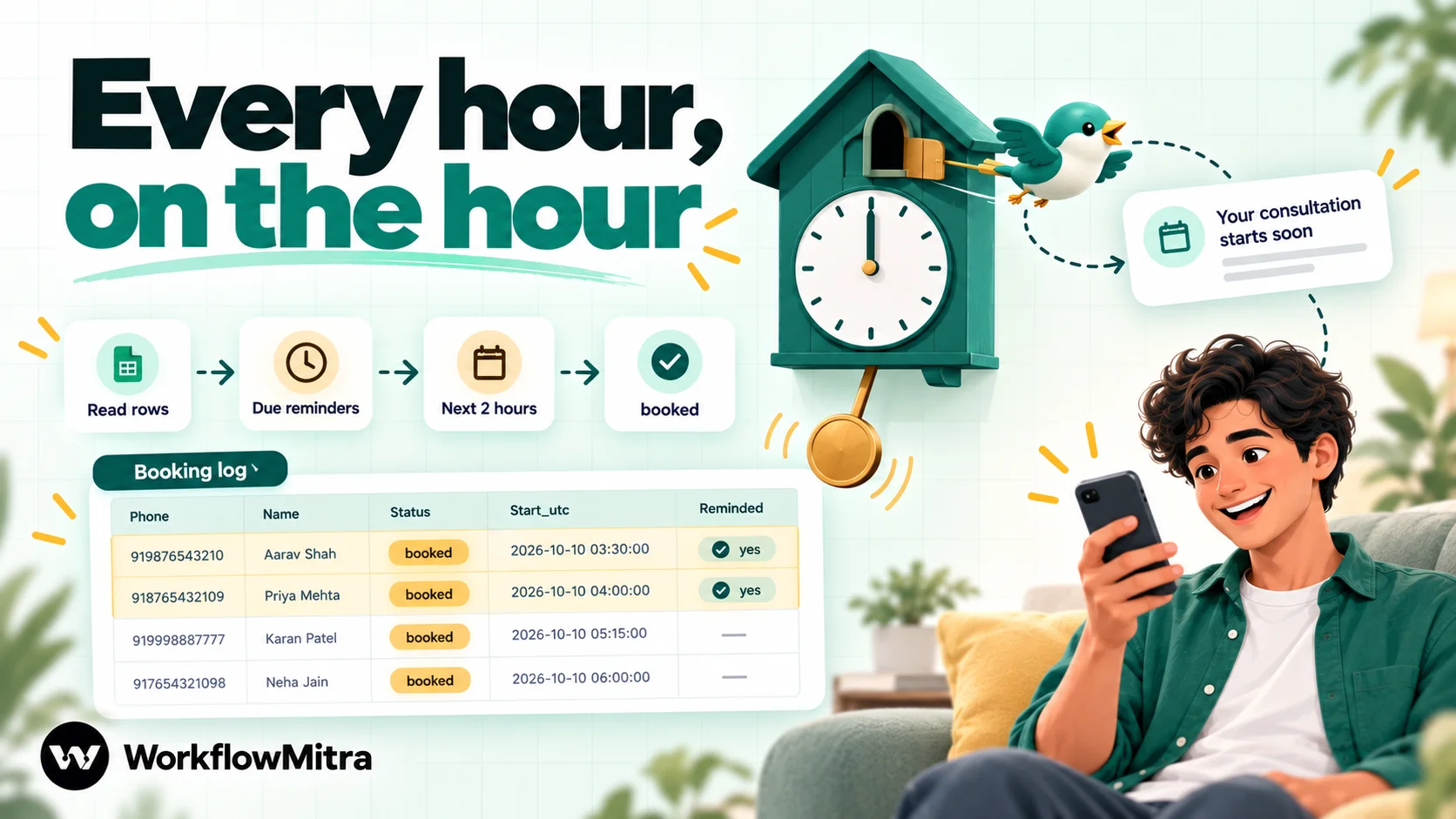
It’s tempting to add a Delay after the confirmation and send the reminder from the same run. Don’t. A Delay waits a fixed number of minutes, hours or days. It doesn’t know when the meeting is, so it can’t count back from the start time, and a run that is already waiting keeps the old time when the guest reschedules or cancels. A separate workflow that reads the log avoids all of that.
Create a second workflow:
- Schedule trigger: Every hour, on the hour, in your time zone.
- Google Sheets: Read rows from the Bookings tab.
- Code, named “Due reminders”, directly after Read rows:
const HOURS_AHEAD = 2;
const now = Date.now();
const until = now + HOURS_AHEAD * 60 * 60 * 1000;
const due = (input.rows || []).filter(function (r) {
  const start = Date.parse(r.start_utc);
  return r.status === 'booked' && r.reminded !== 'yes' && r.phone &&
    start > now && start <= until;
});
return { due: due, count: due.length };- Loop over
{{ due }}. - Inside the loop, a WhatsApp step with the reminder template: To
{{ $trigger.phone }}, variables{{ $trigger.first_name }},{{ $trigger.meeting }},{{ $trigger.when }}. Inside a Loop,$triggeris the current row. - Still inside the loop, Google Sheets: Update row where
uidequals{{ $trigger.uid }}, settingremindedtoyes.
With an hourly check and a two-hour window, each guest hears from you between one and two hours before the start, exactly once. A rescheduled booking’s old row says rescheduled and is skipped; its new row is picked up at the right time. A cancelled booking is never reminded. We tested the filter in the Code sandbox with seven sample rows: only the booked, unreminded row starting within the window came through. Cancelled, already-reminded, past, too-far-ahead, phoneless and unreadable rows were all left out.
Prefer a day-before reminder? Change the trigger to Every day at a set time, say 6 pm, and set HOURS_AHEAD to 30, so tomorrow’s bookings are covered. That costs far fewer credits, as the next section shows. Keep finished bookings tidy, too: move past rows to an archive tab now and then, so the hourly read stays small.
Test the whole flow before guests see it
Use your own number and a test event type:
- Book a slot: one confirmation with your first name, the right meeting name and the time in your zone; a new row in Bookings.
- Reschedule it: one “moved” message with the new time; the old row says
rescheduled, a new row saysbooked. - Book a slot starting in about 90 minutes: a reminder at the next full hour;
remindedbecomesyes; no second reminder an hour later. - Cancel a booking: one cancellation; its row says
cancelled; no reminder. - Book with a test guest in another time zone (change the zone on the booking page): the time in the message matches what that guest saw.
- Book without a phone number (temporarily make the question optional): no message, no error.
If something sends twice, check Cal.com first. Two webhooks subscribed to the same trigger, for example one on your account and one on the event type, both deliver.
What it costs
| Cost | Billed by | Basis |
|---|---|---|
| Webhooks | Cal.com | Included on every plan, Free included |
| Workflow steps | WorkflowMitra | Trigger, WhatsApp and each Sheets step use 1 credit when they run; Loop 1 per item; IF and Switch are free; a short Code step uses a fraction of a credit. The entry plan includes 10,000 credits for ₹999 a month |
| Message | Meta | Per delivered template, by category and the guest's country |
| Platform fee | ChatMitra, when it sends | ₹0.20 per conversation, counted once per customer per 24 hours; see ChatMitra pricing |
Take a practice with 200 bookings a month, of which 20 are rescheduled and 20 cancelled. Confirmations use about 3 credits each (trigger, WhatsApp, Add row): 600. Reschedules use about 5 (trigger, WhatsApp, Add row, Find row, Update row): 100. Cancellations about 4: 80. That’s 780 credits for the main workflow.
The hourly reminder workflow costs 2 credits per check (trigger and Read rows) whether or not anyone is due, so 24 checks a day comes to about 1,440 credits a month before any reminder is sent. Each reminder then adds 3 (Loop item, WhatsApp, Update row): 180 reminders, 540 credits. The total, around 2,760 credits, fits the ₹999 plan comfortably. To cut the fixed part, run the check only during the hours your meetings happen, using a custom schedule such as 0 7-20 * * * (on the hour from 7 am to 8 pm), or switch to the daily day-before reminder at about 60 credits a month plus the reminders. Rejected requests, such as a wrong signature or a stranger posting to the URL, never start a run and cost nothing.
On the messaging side, a confirmation and a reminder for a booking made the same day fall inside one 24-hour window, so ChatMitra counts them as one conversation. For bookings made days ahead, count two.
Troubleshooting
| Symptom | Likely cause | Fix |
|---|---|---|
| Every delivery is rejected with 401 | A shared secret is still set under API key authentication, or the signing secrets differ | Clear the Secret field; paste the same signing secret on both sides |
| Nothing arrives at all | Workflow paused (404), wrong trigger selection, or the webhook is on a different event type | Turn the workflow on; check the webhook's triggers and where it's attached |
| Run ends at the IF step | The phone question is hidden, optional or uses a different identifier | Show the question and make it required; set PHONE_FIELD to its identifier |
| Time in the message is wrong by hours | Formatted in the server or business zone instead of the guest's | Use the Code step's Intl.DateTimeFormat with the guest's timeZone |
| Template rejected at send time | Empty variable, or line breaks from a form answer | Keep the "there" fallback; keep notes and free text out of variables |
| Reminder sent for a moved booking | The reschedule route didn't mark the old row | Check the Find row on previous_uid and the Update row after it |
| Reminder sent twice | Update row failed, or two reminder workflows are on | Check the loop's Update row in the run history; keep one reminder workflow |
| Start times read as 1970 or a number | Sheets converted start_utc into a date | Write the log with "Exactly as written (no formulas)" and format the column as plain text |
When a run fails, WorkflowMitra’s run history shows which step stopped and why. For reminders that have to arrive, set a failure alert under Workspace settings → Alerts; error handling in workflows explains the options.
Variations on the same build
Message your team, too. Add a Slack or Telegram step to the created route so the person running the session sees new bookings in the team channel, with the guest’s name and time.
Booking requests you approve. For event types that require confirmation, Cal.com sends Booking Requested when the guest books and Booking Rejected if you decline. Send “We’ve received your request and will confirm shortly” on the first, and an apology with your booking link on the second. Check which trigger arrives when you accept a request in your account (it shows in Recent deliveries) before writing its template.
Follow-ups after the meeting. Subscribe to Meeting Ended, or run a daily schedule that reads yesterday’s booked rows, and send a utility message about that specific appointment, such as the notes or the next step you agreed. A request for a review is a different matter: keep it to people who said yes to hearing from you, because it isn’t about the transaction.
Why use WorkflowMitra for Cal.com WhatsApp notifications?
WorkflowMitra, by ChatMitra, fits teams that want booking messages to sound like them and come from their own number:
- Your templates, your number. Messages go out from your WhatsApp Business number through ChatMitra or Meta’s Cloud API, using templates you wrote, with URL buttons that open the guest’s booking, instead of a fixed default message.
- Signed and verified. The webhook trigger checks Cal.com’s
X-Cal-Signature-256HMAC and refuses anything unsigned, at no cost per refused request. - The guest’s own time zone. A tested Code step reads the zone Cal.com recorded and writes the time the guest expects to see.
- Reminders that follow changes. The log-and-schedule pattern reschedules and cancels reminders automatically, which a fixed delay can’t do.
- No Cal.com upgrade needed. Webhooks come with Cal.com’s free plan, and WorkflowMitra itself is billed in rupees by the credit.
It has limits worth knowing. There is no Cal.com trigger step that subscribes for you, so you add the webhook in Cal.com and the signature settings by hand. The Code steps are short, but they are JavaScript. Replies to your messages land in whichever inbox sends them (ChatMitra’s shared inbox, or the webhook on your Meta app), not in Cal.com. And if a standard reminder is all you need and you already pay for Cal.com Teams, its built-in WhatsApp action is less work.
The quickest way to judge it is on your own booking page: start a 14-day trial, get one confirmation template approved, and wire up only the Booking Created route to begin with. The other routes and the reminders can follow once that first message lands on your phone. The same signed-webhook pattern is described in general terms in webhook to WhatsApp and webhook security, and the wider picture is in WhatsApp workflow automation. For reminder wording and timing, ChatMitra’s guide to WhatsApp reminder messages is the companion piece.
WorkflowMitra features and limits in this guide were checked in the product code on 8 October 2026. The signature check was run against a Cal.com-style HMAC, and both Code steps were run in WorkflowMitra's Code sandbox with sample payloads the same day; the flow was not run against a live Cal.com account. Cal.com details are from its developer documentation on webhooks, its help centre on webhooks, booking questions, Workflows and SMS and WhatsApp credits, its pricing page and its open-source code, read the same day. Meta pricing is from WhatsApp Business Platform pricing; ChatMitra's fee is from chatmitra.com/pricing.
Frequently Asked Questions
Questions people ask before they send Cal.com booking messages on WhatsApp.
Yes, within limits. Cal.com Workflows include Send WhatsApp message to attendee and Send WhatsApp message to a specific number actions on paid plans, and they use Cal.com credits. Cal.com's help centre says WhatsApp workflows can't be customised on any plan for now and send a predetermined default message. To choose your own wording, buttons and sending number, use a Cal.com webhook and a workflow instead.
Automate the work between your apps
Build workflows with triggers, conditions and actions, then test them before they go live. Try WorkflowMitra free for 14 days, no card required.
