Calculations in Workflows: Totals, Percentages and Rounding Without a Spreadsheet

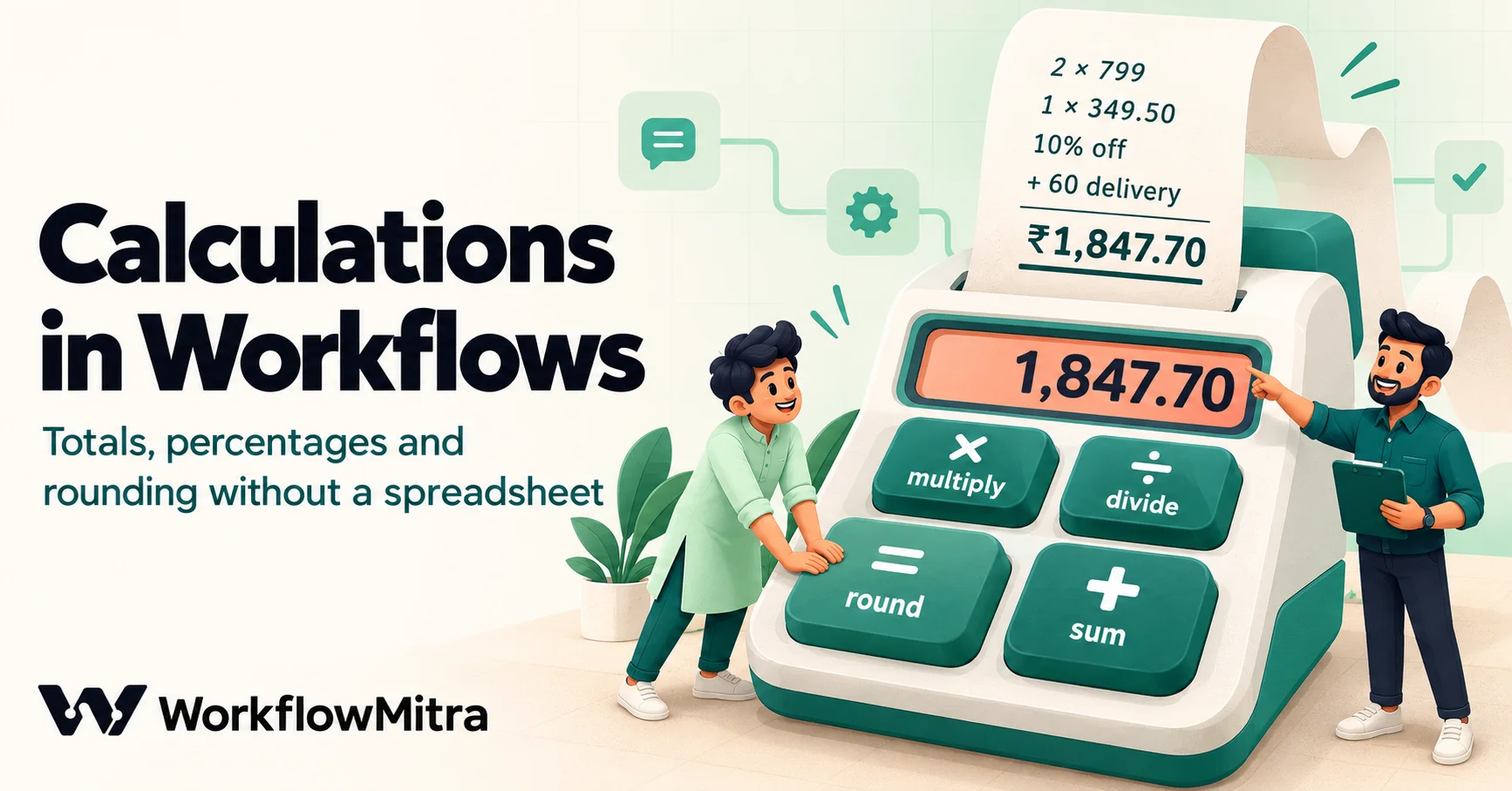
Quick Summary
You can do arithmetic inside a workflow without sending data to a spreadsheet. In WorkflowMitra, powered by ChatMitra, maths is written with functions inside {{ }}: multiply, divide, subtract, sum, round, ceil, floor, min and max. There are no + or * signs, so a typed {{ qty * price }} returns nothing, and a minus sign can't start a number, so -50 is written subtract(0, 50). Totals over a list use sum(map(items, multiply(qty, price))), with fields named directly inside map. Round only at the end, because computers store decimals in binary and 0.1 plus 0.2 gives 0.30000000000000004. Watch the silent cases: dividing by zero returns 0, blank cells count as 0, and text such as 36,400 sums as 0 unless you convert it with parseNumber. Set Variable steps cost no credits and store results as text.
Plenty of automations need a little arithmetic on the way through. An order notification needs the total of its line items. A daily report needs today’s sales against yesterday’s, as a percentage. A discount rule needs 10% off, but never more than ₹500. A payment plan needs ₹1,999 split into three instalments that still add up to ₹1,999. The usual workaround is to write the numbers into a spreadsheet, let a formula do the work and read the answer back, which adds steps, adds delay and adds one more place for things to break.
This guide shows how to do those calculations inside the workflow itself, with formulas we ran through WorkflowMitra’s expression engine on 19 October 2026. It covers totals, percentages and rounding, and spends as much time on the silent failures (blank cells, text that looks like a number, division by zero, binary decimals) as on the formulas, because those are what make an automated total quietly wrong. Examples use WorkflowMitra, powered by ChatMitra.
Quick answer: write maths as functions inside {{ }}: multiply, divide, subtract, sum, round, ceil, floor, min and max. There are no + or * signs, and a minus can't start a number, so write subtract(0, 50) for −50. Total a list of line items with sum(map(items, multiply(qty, price))). Round once, at the end. Dividing by zero returns 0, blank cells count as 0, and text like 36,400 counts as 0 unless you convert it with parseNumber.
How maths works in a workflow
Spreadsheets taught most of us to write =B2*C2. Workflow expressions in WorkflowMitra work differently: every calculation is a function call, and functions nest inside each other. The engine understands only four operators, =, !=, and and or, which are for comparisons. Everything else is a named function.
| In a spreadsheet | In a WorkflowMitra expression | Tested result |
|---|---|---|
=3*499 | multiply(3, 499) | 1497 |
=499/3 | divide(499, 3) | 166.33333333333334 |
=499-50 | subtract(499, 50) | 449 |
=3+499 | sum(merge(toArray(3), toArray(499))) or subtract(3, subtract(0, 499)) | 502 |
=-50 | subtract(0, 50) | −50 |
=ROUND(166.333, 2) | round(166.333, 2) | 166.33 |
=MOD(43, 10) | mod(43, 10) | 3 |
=1.1^2 | pow(1.1, 2) | 1.2100000000000002 |
Addition is the one that surprises people. There is an add() function, but it belongs to the list functions: add(list, value) appends a value to a list, so add(3, 499) returns the list [3, 499], not 502. And sum() takes one list, so sum(3, 499) returns 3, quietly ignoring the second number. To add two separate numbers, put them in a list first, as in the table. Adding a list of numbers, which is the far more common case, is simply sum(list).
Read nested formulas from the inside out
Because every operation is a function, real calculations nest. A percentage change from last week’s ₹96,000 to this week’s ₹1,20,000 looks like this:
{{ round(multiply(divide(subtract(this_week, last_week), last_week), 100), 1) }}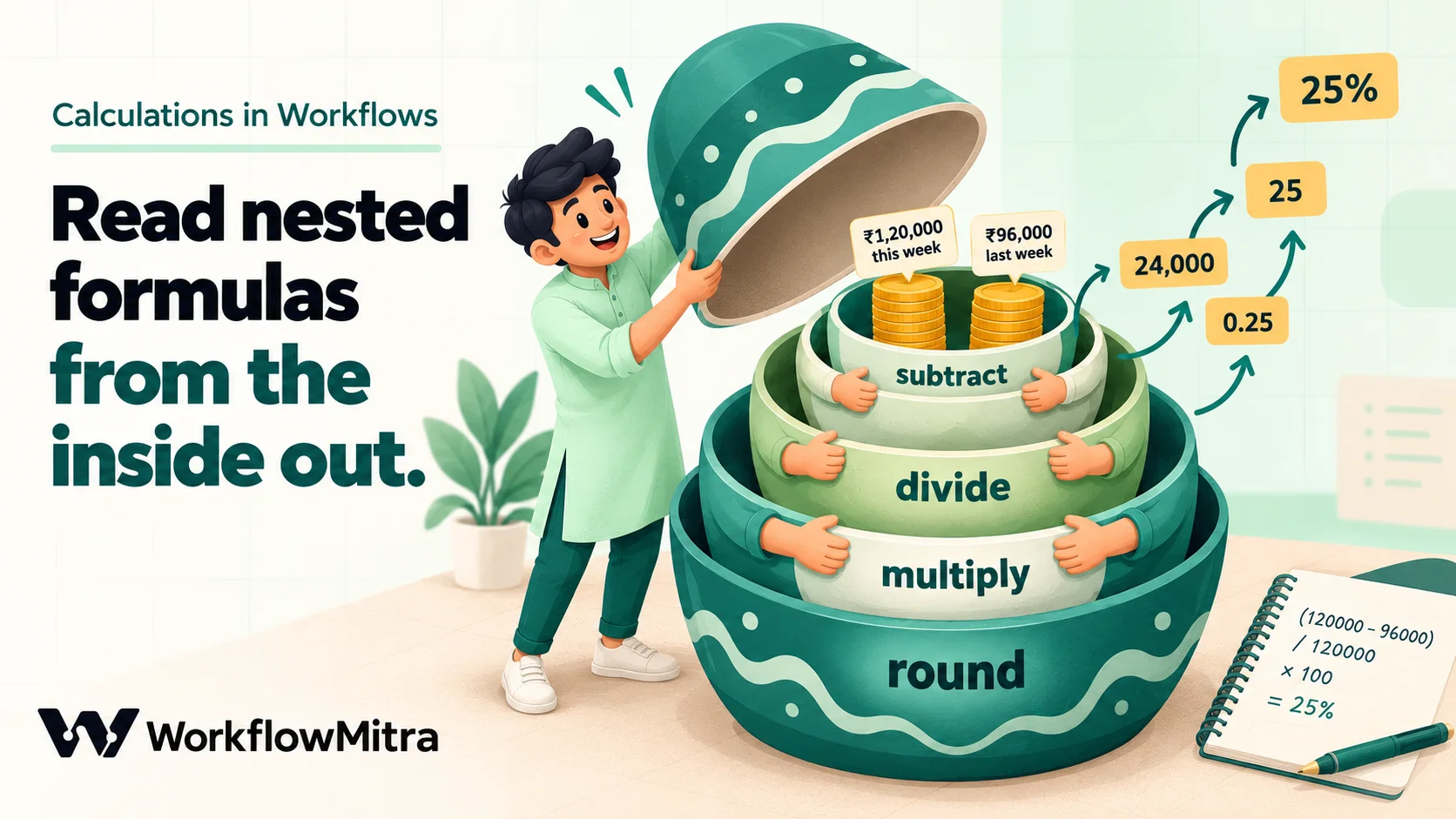
Read it from the innermost brackets outwards, the way you would open nesting dolls: subtract last week from this week (24,000), divide by last week (0.25), multiply by 100 (25), round to one decimal place (25). Writing it in that order, innermost first, is also the easiest way to build one: get the inner step right, then wrap it.
Where you can calculate
You can put a calculation anywhere a field accepts {{ }}: a message, a sheet column, an HTTP request body, an IF rule. Three places are worth knowing about:
- Inline, directly in the field that needs the value. Fine for one short calculation used once.
- A Set Variable step, which adds named fields such as
subtotal,discountandtotalto the data passing through, so later steps can use{{ total }}. Set Variable steps cost no credits. One catch: they store results as text, so1497becomes"1497". Maths functions read text numbers correctly, but if you send the value to an API as a number, wrap it:{{ toNumber(total) }}. - A Code step, for calculations that outgrow formulas. More on that near the end.
The example: an order with line items
Most of the formulas below use one realistic order that arrives from an online store’s webhook:
{
  "order_id": "5123",
  "items": [
    { "item": "Kurta",   "qty": 2, "price": 799,   "discountPct": 10 },
    { "item": "Dupatta", "qty": 1, "price": 349.5, "discountPct": 0 }
  ],
  "delivery_fee": 60
}
Our guide to working with JSON in workflows explains how to read nested data like this, and passing data between steps covers referring to it from later steps with $trigger and $node.
Totals
Adding up a list
To total a list of line items, turn each item into a number with map(), then add them with sum():
{{ sum(map(items, multiply(qty, price))) }}For the example order that is 2 × 799 + 1 × 349.5 = 1947.5. The same shape counts and averages:
- Units in the order:
{{ sum(map(items, qty)) }}→ 3 - Number of lines:
{{ count(items) }}→ 2 - Average price per line:
{{ avg(map(items, price)) }}→ 574.25 - Highest price:
{{ max(map(items, price)) }}→ 799
There is one rule inside map() that catches nearly everyone: refer to the fields directly. Inside map(items, …) each item becomes the scope, so you write qty, not item.qty. In our test, sum(map(items, multiply(item.qty, item.price))) returned 0 with no error, because item.qty looks for a field called item inside each line. When a field name contains a space, such as a sheet column called “Net sales”, use get(item, "Net sales"), which is the one place item is the right word.
A weighted average
A plain average of prices treats a line of one Dupatta and a line of fifty Kurtas the same. The average price per unit sold is total value divided by total units:
{{ divide(sum(map(items, multiply(qty, price))), sum(map(items, qty))) }}For the example, that’s 1947.5 ÷ 3 = 649.1666…, which you would round for display.
Conditional totals
Spreadsheet users reach for SUMIF and COUNTIF. In a workflow, filter() narrows the list first, then sum() or count() works on what’s left:
- Lines with a discount:
{{ count(filter(items, discountPct != 0)) }} - Value of lines bought in quantities of two or more:
{{ sum(map(filter(items, qty != 1), multiply(qty, price))) }}
Conditions inside filter() compare with = and !=, combined with and and or. There is no < or > in expressions, so threshold checks such as “orders over ₹5,000” belong in an IF step, which has Greater than, Less than and Is between operators.
Totals from a Google Sheet
Totals over sheet data use the same formulas on the rows a Read rows step returns, for example {{ sum(map($node["Read rows"].rows, get(item, "Net sales"))) }}. Before you trust that number, check the step’s Read values setting. The default is As displayed, which returns cells exactly as the sheet shows them, so a currency-formatted cell arrives as the text ₹48,250.00, and text with commas or symbols counts as 0 in a sum. In our test, a column holding 48250, 36,400 and a blank summed to 48250, not 84650: the second value was silently dropped.
Two fixes, use either:
- Set Read values to Raw values (numbers stay numbers). Number cells arrive as numbers whatever their display format. Percent cells arrive as fractions (18% becomes 0.18), and date cells as serial numbers.
- Or convert each value:
{{ sum(map($node["Read rows"].rows, parseNumber(get(item, "Net sales")))) }}gave the correct 84650.
Averages need one more step. A blank cell counts as 0, so the average of 48,250, 36,400 and a blank is 28,216.67, as if one branch had sold nothing, when in fact it simply hadn’t reported. Drop the blanks before averaging:
{{ avg(map(filter($node["Read rows"].rows, get(item, "Net sales") != ""), parseNumber(get(item, "Net sales")))) }}That gives 42,325, the average of the branches that reported, and count(filter(…, get(item, "Net sales") != "")) tells you how many did. Report both, so a reader knows the average covers two branches out of three.
The Google Sheets trigger always reads raw values, so rows that start a workflow don’t have this problem.
Do totals in one expression, not a Loop
It’s tempting to total a list by looping over it: a Loop step, a calculation per item, and a step to collect the results. For arithmetic that’s the expensive way. A Loop costs 1 credit per item, so totalling a 40-line order would cost 40 credits per run, while sum(map(items, multiply(qty, price))) inside a free Set Variable step costs nothing and returns the same number. Save Loop for work that has to happen once per item, such as writing a row or calling an API for each line. Our guide to loops in workflow automation covers when a Loop is the right tool. For a full daily report built on these totals, see automated daily reports, and for combining several branches’ figures into one summary, our guide to multi-outlet sales reporting.
Percentages
| You want | Formula | Example → tested result |
|---|---|---|
| X% of a value | multiply(value, divide(X, 100)) | 10% of 499 → 49.900000000000006 (round it) |
| Price after X% off | subtract(value, multiply(value, divide(X, 100))) | 499 less 10% → 449.1 |
| Percentage change | round(multiply(divide(subtract(new, old), old), 100), 1) | 96,000 → 1,20,000: 25; 1,20,000 → 96,000: −20 |
| Share of a total | round(multiply(divide(part, total), 100), 1) | 48,250 of 84,650 → 57 |
| Selling price for a 25% margin | round(divide(cost, subtract(1, 0.25)), 2) | cost 600 → 800 |
| Selling price for a 25% markup | round(multiply(cost, 1.25), 2) | cost 600 → 750 |
| Discount capped at ₹500 | min(multiply(subtotal, 0.1), 500) | 10% of 6,200 → 500 |
Three of these need a word of explanation.
Percentage change can go negative and can divide by zero. A fall from ₹1,20,000 to ₹96,000 is −20%, not −25%, because the base is the old value. And if the old value is zero, for a new product or a new branch, there is no meaningful percentage. WorkflowMitra returns 0 for any division by zero (and for dividing by a blank), without an error, so a new branch would show “0% growth”. Guard it: {{ if(old = 0, "new", round(multiply(divide(subtract(new, old), old), 100), 1)) }}.
Margin and markup are different numbers. A 25% markup adds a quarter of the cost: ₹600 becomes ₹750. A 25% margin means a quarter of the selling price is profit, so the price is cost ÷ 0.75 = ₹800. Pricing workflows that mix the two up under-price by several per cent.
Write decimals with a leading zero. multiply(cost, 0.25) gives 150; multiply(cost, .25) gives nothing at all, because a number must start with a digit.
Percent values from a sheet need care too. Read with Raw values, an 18% cell arrives as 0.18, ready to multiply. Read as displayed, it arrives as the text 18%, and parseNumber turns that into 18, which you then divide by 100.
Rounding
The rounding functions
| Function | What it does | Tested examples |
|---|---|---|
round(x, d) | Nearest value with d decimal places (0 if left out) | round(166.333, 2) → 166.33; round(2.5) → 3 |
ceil(x) | Up to the next whole number | ceil(4.01) → 5 |
floor(x) | Down to the whole number below | floor(4.99) → 4; floor(−4.7) → −5 |
trunc(x) | Drops the decimals, towards zero | trunc(−4.7) → −4 |
clamp(x, min, max) | Keeps a value inside a range | clamp(150, 0, 100) → 100 |
Two behaviours to know. A value exactly halfway rounds up towards positive infinity: round(2.5) is 3 but round(−2.5) is −2, the same rule JavaScript’s Math.round uses, and different from the “away from zero” rounding many people learned at school. That only matters for refunds and other negative amounts that land on exactly .5. And ceil and floor have no decimals argument, so to round up to the next paisa, scale first: divide(ceil(multiply(x, 100)), 100).
Rounding to the nearest 10, 50 or 100
Prices and quotes are often rounded to a tidy figure. Divide by the step, round, and multiply back:
- Nearest ₹50:
{{ multiply(round(divide(amount, 50)), 50) }}→ 1237 becomes 1250. - Up to the next ₹10:
{{ multiply(ceil(divide(amount, 10)), 10) }}→ 1237 becomes 1240. - Number of boxes for 6,200 units at 1,000 per box:
{{ ceil(divide(6200, 1000)) }}→ 7.
You might expect round(amount, -2) to work, as it does in spreadsheets. It returns nothing, because a minus sign can’t start a number. round(1234.5678, subtract(0, 2)) does give 1200, but the divide-round-multiply version is easier to read and works for any step, not just powers of ten.
Why 0.1 plus 0.2 isn’t 0.3
Add 0.1 and 0.2 in a workflow and you get 0.30000000000000004. Ten per cent of 499 comes out as 49.900000000000006. This isn’t a bug in any one product. Computers store numbers in binary, and most decimal fractions can’t be represented exactly in binary, just as one third can’t be written exactly in decimal. Python’s documentation has a clear explanation in its floating-point tutorial, and the same applies to the JavaScript engine that runs workflow expressions.
The practical rules:
- Keep full precision while you calculate, and round once at the end. Rounding a unit price before multiplying by a quantity of 300 can move the total by rupees, not paise.
- Round anything a person or another system will see.
round(x, 2)turns 49.900000000000006 into 49.9. - Don’t trust halfway cases at two decimals.
round(1.005, 2)gives 1, not 1.01, because 1.005 is stored as slightly less than 1.005. If every paisa must be exact, convert to whole paise first withround(multiply(amount, 100)), calculate in paise, and divide by 100 only for display.
Splitting an amount so the parts still add up
Here is a calculation that’s easy to get wrong: split ₹1,999 into three instalments. Each share is 666.333…, which rounds to 666.33, and three times 666.33 is 1998.99. The customer pays a paisa less than they owe, and your reconciliation is off by one paisa per order.
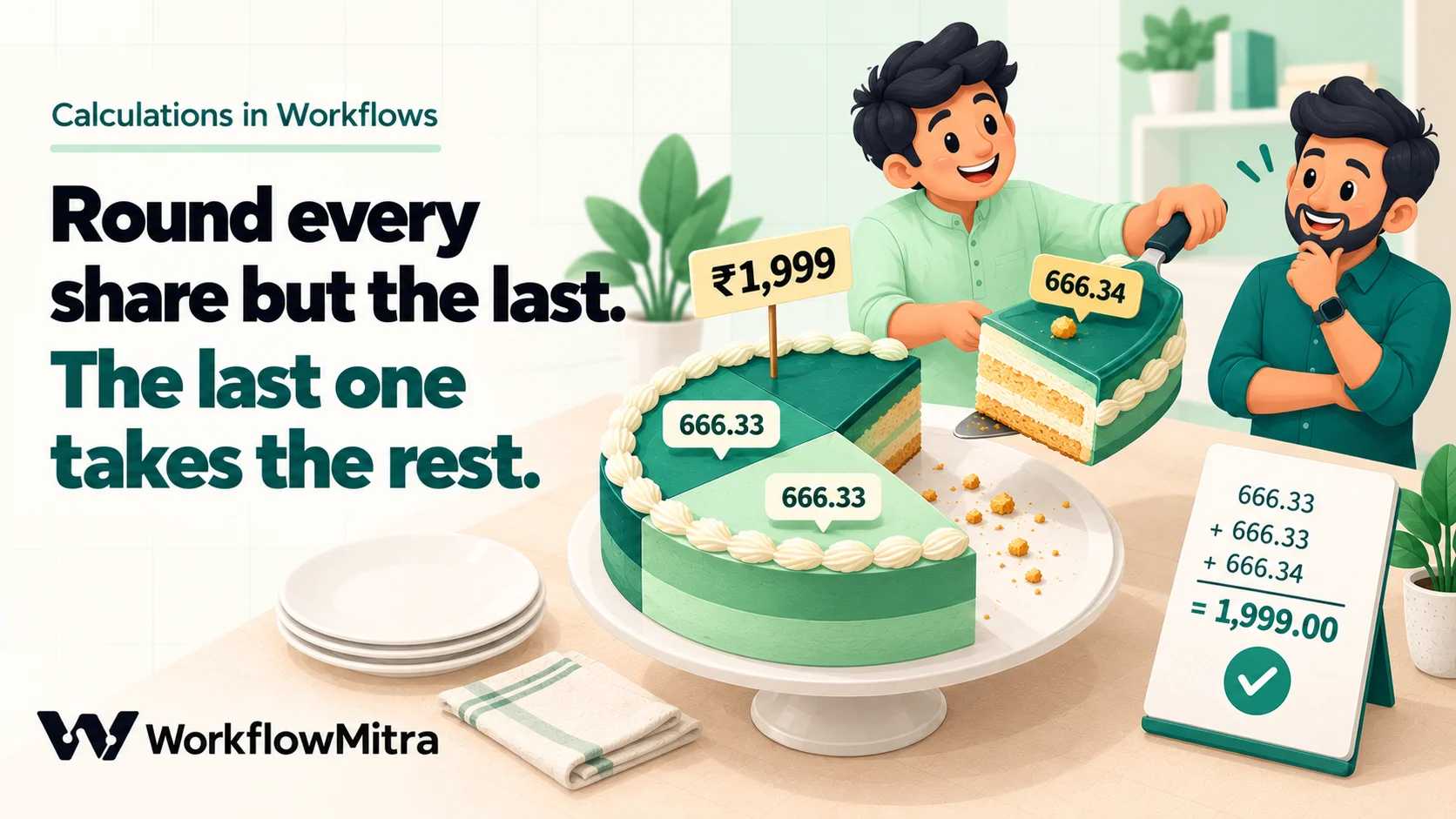
The fix is to round every share except the last, and give the last share whatever is left:
- Instalments 1 and 2:
{{ round(divide(total, 3), 2) }}→ 666.33 - Instalment 3:
{{ round(subtract(total, multiply(round(divide(total, 3), 2), 2)), 2) }}→ 666.34
The outer round matters: without it the last share comes out as 666.3399999999999, for the binary reasons above.
Percentages that don’t add up to 100
The same problem appears in reports. Three branches with equal sales each have a third of the total, and round(multiply(divide(1, 3), 100)) is 33 for each, so the report shows 33%, 33% and 33%: a total of 99%. With other figures you can just as easily get 101%. Readers notice, and some will assume a branch is missing.
There are two honest fixes. One is the remainder rule again: round every share except the largest, and give the largest subtract(100, …) of the others, so the column always totals exactly 100. The other is to show one decimal place, which makes the gap small, and add a line such as “Shares are rounded and may not total 100%”. The first suits dashboards and messages people read quickly; the second suits finance reports, where every displayed figure should be the true rounded value. The same “last one takes the remainder” rule applies to splitting a delivery fee across line items, sharing a commission between two agents, or spreading an annual contract across twelve months.
Two business calculations without comparisons
Expressions have no < or >, which seems to rule out anything with a threshold. Often it doesn’t: min and max can do the comparing for you.
Slab commission
Say a sales agent earns 5% on the first ₹1,00,000 of monthly sales and 8% on everything above it. The first slab is “sales, but at most 1,00,000”, which is min(sales, 100000). The second slab is “whatever is above 1,00,000, but never less than zero”, which is max(subtract(sales, 100000), 0). Apply each rate and add the two parts:
{{ sum(merge(
     toArray(multiply(min(sales, 100000), 0.05)),
     toArray(multiply(max(subtract(sales, 100000), 0), 0.08))
   )) }}
For sales of ₹1,50,000 that’s 5,000 + 4,000 = 9,000. For ₹80,000 it’s 4,000 + 0 = 4,000: the second slab drops to zero by itself, without any IF. The same shape handles tiered delivery charges, slab-based discounts and graduated incentives. Add a slab by adding one more min/max pair.
An EMI amount
If your workflow sends payment-plan quotes, the standard equated monthly instalment formula is P × r × (1 + r)n ÷ ((1 + r)n − 1), where P is the principal, r the monthly interest rate and n the number of months. Written as functions:
{{ round(divide(
     multiply(multiply(P, r), pow(sum(merge(toArray(1), toArray(r))), n)),
     subtract(pow(sum(merge(toArray(1), toArray(r))), n), 1)
   ), 2) }}
For ₹1,00,000 over 12 months at 12% a year (r = 0.01), it returns 8,884.88, which matches the same formula worked out independently. Note the sum(merge(toArray(1), toArray(r))) for “1 + r”: it’s the addition pattern from the start of this guide. A formula this deep is also a good example of where a Code step starts to make sense, because a colleague will find Math.pow(1 + r, n) easier to check. Line breaks inside the braces, as above, are fine and make long formulas much easier to read.
Numbers that arrive as text
Many calculation bugs aren’t maths bugs. The number simply arrives as text that a function can’t read, and the function treats it as 0. We tested the conversion functions on the inputs that commonly reach workflows:
| Input text | toNumber() | parseNumber() | Note |
|---|---|---|---|
1,299.50 | 0 | 1299.5 | toNumber gives up on commas |
₹2,450 | 0 | 2450 | Symbols removed |
12,34,567.50 | 0 | 1234567.5 | Indian grouping works |
Rs. 1,299 | 0 | 0.1299 | The full stop after "Rs" becomes a decimal point; use parseNumber(replace(x, "Rs.", "")) → 1299 |
1.299,50 (European) | 0 | 1.2995 | Comma decimals aren't understood |
(120) (accounting negative) | 0 | 120 | Brackets don't make it negative |
-120 | −120 | −120 | Fine |
450 (spaces) | 450 | 450 | Spaces are ignored |
| Blank | 0 | 0 | Blank becomes 0, not "missing" |
abc | 0 | 0 | No error |
So use parseNumber for anything a person typed or a system formatted, and strip prefixes such as “Rs.” first. The maths functions themselves are forgiving with clean text: multiply("499", 3) is 1497.
The row that deserves the most thought is the blank. A blank cell, a missing field and a genuine zero all become 0 in a calculation, so “no sales reported” and “zero sales” look identical in a total. When the difference matters, check first: {{ if(sales = "", "missing", multiply(sales, 2)) }}, or an IF step with Is empty. Our guide to empty values in automation covers blank-handling across every step type.
Comparing calculated numbers
IF steps compare numbers with operators such as Greater than or equal. They convert both sides to numbers first, which works for 1497 and "1497" but fails for formatted text: 7,00,000 is not a number to the IF step, so a rule “total is at least 500000” quietly fails. Compare the raw number, and format it only for the message. Watch the opposite trap as well: a blank value counts as 0, so it passes a Less than rule. A “low stock” alert on a blank stock cell will fire.
Calculate raw, format last
A formatted number is text. formatCurrency(1234567.5) returns ₹12,34,567.50, with Indian lakh grouping by default, and formatNumber(1234567.5) returns 1,234,567.50. Both are perfect in a message and useless in a further calculation, since toNumber("1,234,567.50") is 0.
Keep every intermediate value as a plain number. Apply formatCurrency or formatNumber only in the final field a person reads, such as the email body or the WhatsApp template variable. Our guide to data formatting in workflows covers display formats for numbers, currency and dates in detail, and date calculations in workflows covers the date side of arithmetic.
Putting it together: an order summary with a discount
Here is the example order turned into a customer-facing summary. A store webhook starts the workflow; two Set Variable steps do the maths; an IF step and a message step use the results.
| Step | Field | Value | Result |
|---|---|---|---|
| Set Variable 1 | subtotal | {{ round(sum(map(items, multiply(multiply(qty, price), subtract(1, divide(discountPct, 100))))), 2) }} | 1787.7 |
| Set Variable 2 | savings | {{ round(subtract(sum(map(items, multiply(qty, price))), subtotal), 2) }} | 159.8 |
| Set Variable 2 | total | {{ round(sum(merge(toArray(subtotal), toArray(delivery_fee))), 2) }} | 1847.7 |
Why two steps? Every field in a Set Variable step is worked out from the data that arrived at the step, so a field can’t use another field set in the same step. It doesn’t fail visibly either. When we put all three fields in one step, subtotal was still missing while the others were calculated, so savings came out as 1947.5 and total as 60: plausible-looking, and wrong. Splitting the step costs nothing, because Set Variable steps are free. The same rule applies to formatting, so format total in the step that displays it rather than alongside it.
An IF step then checks {{ total }} Greater than or equal 5000 to route large orders for a manual check, and the message step shows {{ formatCurrency(total) }} (₹1,847.70) and {{ savings }}. The maths itself costs no credits: only the trigger and the action steps do.
When formulas aren’t enough: the Code step
Formulas cover most workflow arithmetic. A Code step, which runs JavaScript, is the better tool when:
- An expression needs more than three or four levels of nesting and nobody else could maintain it.
- A calculation depends on a running total, such as a cumulative balance row by row.
- A remainder must be shared across many lines, as with a delivery fee spread over twenty items.
- You need a calculation the function list doesn’t offer.
The Code step receives the previous step’s output, has a one-second time limit, and is billed by run time, at most 2 credits per run; a typical short calculation runs in a few milliseconds. It uses the same binary numbers, so the rounding rules above still apply. Our guide to code steps in automation covers the limits and patterns, and the multi-outlet sales reporting guide uses one to total every branch’s figures.
Test calculations with awkward numbers
A calculation that’s right for a tidy test order can still be wrong for real ones. Before switching a workflow on, run it with:
- A blank value in every field the maths reads, to see whether it produces 0 where it should say “missing”.
- A zero in every divisor, to see whether a percentage turns silently into 0.
- A number with commas or a currency symbol, as people really type them.
- An amount that doesn’t divide evenly, such as ₹1,999 into three.
- A halfway case, such as 1.005 or a negative .5, if your amounts can produce one.
Compare each result with a calculator. Our guide to testing workflows before they go live has a fuller checklist, and conditional logic in automation shows how to route the edge cases once you’ve found them.
Troubleshooting
| Symptom | Likely cause | Fix |
|---|---|---|
| Formula shows nothing | Used +, *, a leading minus or .25 | Use functions; subtract(0, x); write 0.25 |
| Formula shows nothing | Arguments separated with semicolons | Separate with commas |
| Total is 0 | item.qty inside map() | Write qty, or get(item, "Net sales") for names with spaces |
| Total is too low | Some values are text with commas or ₹ | parseNumber, or Read values: Raw values |
add(a, b) shows a list | add appends to lists | sum(merge(toArray(a), toArray(b))) |
sum(a, b) returns only a | sum takes one list | Put the numbers in a list |
| Percentage shows 0 | Division by zero or by a blank | Check the divisor with if() or an IF step |
| Long decimals such as 49.900000000000006 | Binary floating point | round(x, 2) at the end |
| Instalments add up to a paisa less | Every share rounded down | Last share = total minus the others, rounded |
| IF rule on an amount never matches | Comparing formatted text such as 7,00,000 | Compare the raw number; format only for display |
| API rejects a calculated number | Set Variable stored it as text | Send {{ toNumber(total) }} |
| A Set Variable field gives a wrong number | It uses another field set in the same step | Split into two Set Variable steps |
Keep the numbers in the workflow
Most automation arithmetic is a handful of patterns: a total over a list, a percentage, a rounding rule, and a split that has to add up. Write them as nested functions, read them from the inside out, round once at the end, and decide in advance what a blank or a zero should mean. That removes the round trip through a spreadsheet and keeps every calculation visible in the workflow, where the run history shows exactly which numbers went in and what came out. If those numbers are on their way to another system, our guide to sending Google Sheets data to an API shows how quotes in a JSON body decide whether a result arrives as a number or as text.
To try these formulas on your own data, WorkflowMitra, powered by ChatMitra, gives every new account a free 14-day trial with 10,000 credits and no card required.
Checked on 19 October 2026. Rounding of halves from MDN's Math.round reference; binary decimal representation from Python's floating-point tutorial. Every formula and result in this article was executed through WorkflowMitra's expression engine on the same day; Set Variable, Code step limits, Read rows value options and credit rates were checked in the product's code.
Frequently Asked Questions
Short answers to common questions about doing maths, percentages and rounding inside automated workflows.
In WorkflowMitra there is no plus sign for numbers, and add() appends to a list rather than adding. Use sum(merge(toArray(a), toArray(b))), or subtract(a, subtract(0, b)). For a list of numbers, sum(list) is enough, and for a list of line items use sum(map(items, multiply(qty, price))).
Automate the work between your apps
Build workflows with triggers, conditions and actions, then test them before they go live. Try WorkflowMitra free for 14 days, no card required.
