ChatGPT and Google Sheets Automation: Run an AI Prompt on Every New Row

Quick Summary
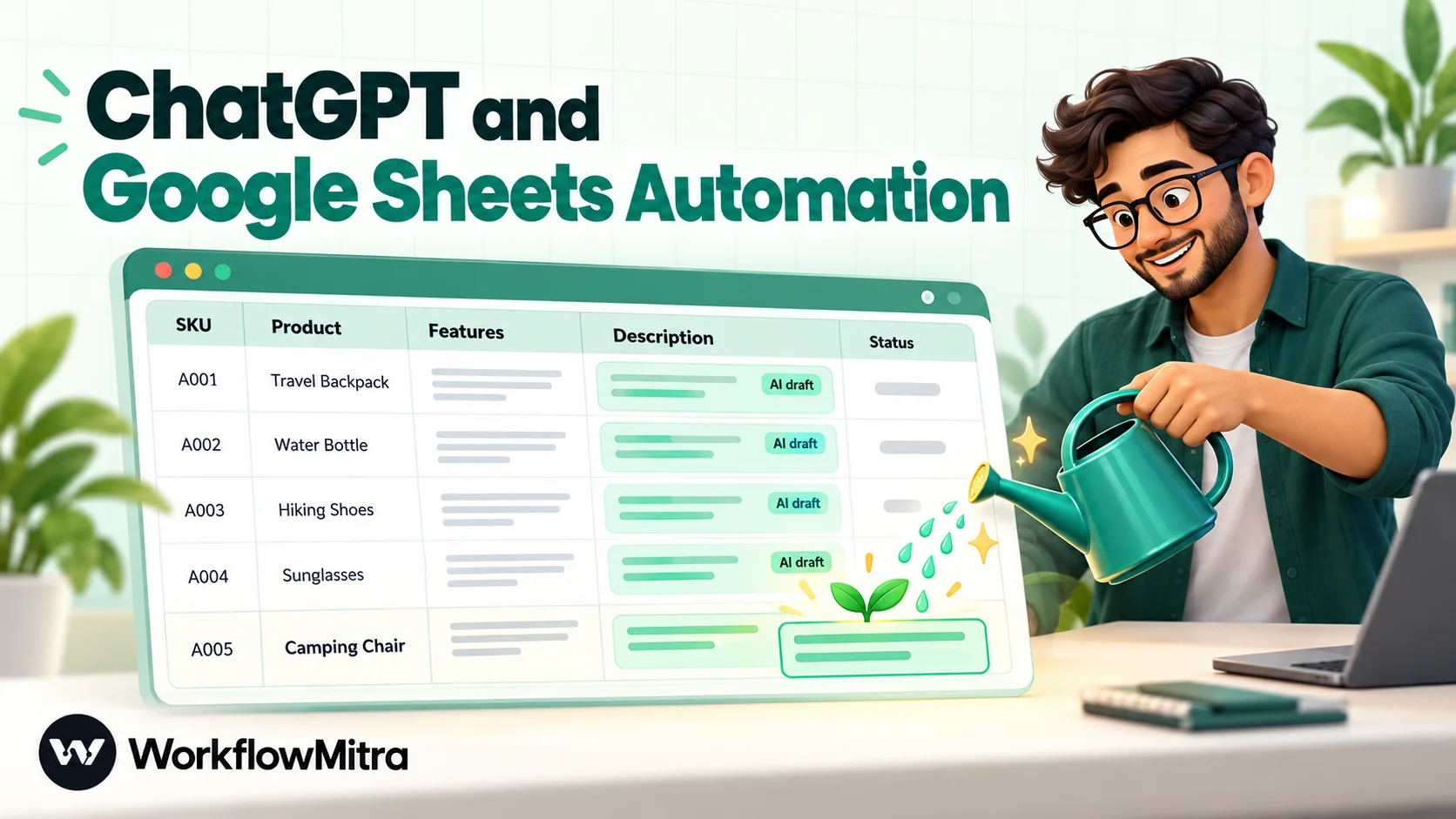
ChatGPT and Google Sheets automation means a workflow watches your sheet, sends each new or changed row to an AI model with a fixed prompt, and writes the answer back into the same row, so nobody copies and pastes between tabs. The safe setup watches only the input columns, never the column the AI writes to, matches the row by a unique ID rather than its position, and stores the answer as plain text so it can't turn into a formula. In WorkflowMitra, powered by ChatMitra, it takes three steps and about three credits per row, using your own OpenAI, Claude, Gemini, Groq or Ollama key.
Spreadsheets are where a lot of AI work quietly happens. Someone pastes a product’s features into ChatGPT, copies the description back into column E, and repeats it 200 times. Someone else reads every row of customer feedback and types “Delivery” or “Quality” next to it. The work is useful, repetitive and well defined: exactly the kind a workflow should do.
This guide covers the four ways to bring AI into Google Sheets and when each one fits. It then builds an automation that runs a prompt on every new row and writes the answer back into the same row. It also covers the problems that catch most people: workflows that keep re-running on their own output, half-typed rows, answers that turn into formulas, and rows that were already in the sheet.
ChatGPT and Google Sheets automation means a workflow sends each new or changed row to an AI model with a fixed prompt and writes the reply back into that row, without anyone copying and pasting. It needs three parts: a trigger that notices the row, an AI step that receives the row's values in its prompt, and an update step that finds the same row by a unique ID and fills in the answer. Set up carefully, it runs once per row and never re-triggers on its own output.
Four ways to use AI in Google Sheets
There’s no single “connect ChatGPT to Sheets” button, and the options behave very differently once a sheet grows.
Google’s AI function. Google Sheets has a built-in AI function you can type into a cell as =AI() or =Gemini(), for example to summarise or categorise the text in another cell. It needs an eligible Google Workspace or Google AI plan. You click Generate to produce results, and they don’t refresh by themselves. Google’s help page also lists generation limits, including a cap on how many cells can generate at once.
Add-ons from the Google Workspace Marketplace. Several add-ons put AI functions or a sidebar into Sheets, usually connected to an OpenAI key or the vendor’s own account. They’re quick to try. Check how and when their formulas recalculate, how they bill, and where your data goes.
Apps Script. You can write a script that calls an AI API and writes the result back into the sheet. It’s flexible and costs nothing beyond the API, but someone has to write and maintain the code. Google’s trigger documentation notes that edit triggers don’t fire for changes made by scripts or API requests, and that simple triggers can run for 30 seconds at most.
A workflow automation tool. A workflow watches the sheet, runs the prompt when a row arrives or changes, and writes a plain value back. It can also do something with the answer: alert a colleague, add the row to a CRM, or send a message.
| Approach | When it runs | Best for | Watch out for |
|---|---|---|---|
| Google's AI function | When you click Generate or Refresh | One-off analysis by someone working in the sheet | Plan eligibility, generation limits, manual refresh |
| Marketplace add-on | When the formula calculates or you run it | Quick experiments, bulk runs you start yourself | Recalculation, vendor billing, data handling |
| Apps Script | On a trigger you code | Teams with a developer | Code to maintain, trigger and time limits |
| Workflow automation | Automatically, when a row is added or chosen columns change | Ongoing processes: every new product, lead or response | Loop prevention and row matching (both covered below) |
The deciding question is who starts the work. If a person sits in the sheet and wants an answer now, a function or add-on is fine. If rows arrive from a form, a store, a colleague or another workflow, and each one should be handled without anyone remembering to press a button, use a workflow.
What the AI can do with each row
Most row-by-row AI jobs fall into a handful of patterns. Each one changes the prompt and the columns, not the shape of the workflow.
| Job | Input columns | Output column(s) | Prompt pattern |
|---|---|---|---|
| Write | Product name, features | Description | "Write a 60–80 word description using only these facts." |
| Categorise | Feedback text | Category | "Reply with exactly one of: Delivery, Quality, Price, Service, Other." |
| Extract | Free-text enquiry | City, budget, product | "Reply with only JSON: {"city": "", "budget": "", "product": ""}." |
| Summarise | Call notes, long comments | Summary | "Summarise in one sentence of at most 20 words." |
| Translate | Text in English | Text in Hindi, Spanish, Arabic… | "Translate for a customer-facing product page. Keep brand names." |
| Score or flag | Answers from a form | Priority, reason | "Rate as High, Medium or Low against these rules, then give a reason." |
Two rules apply to all of them. First, give the AI only the facts in the row and tell it not to add anything else; a product description that invents a warranty is worse than no description. Second, make the output easy to check: a fixed list of categories, a word limit, or a JSON shape with named fields.
How a row-by-row AI workflow fits together
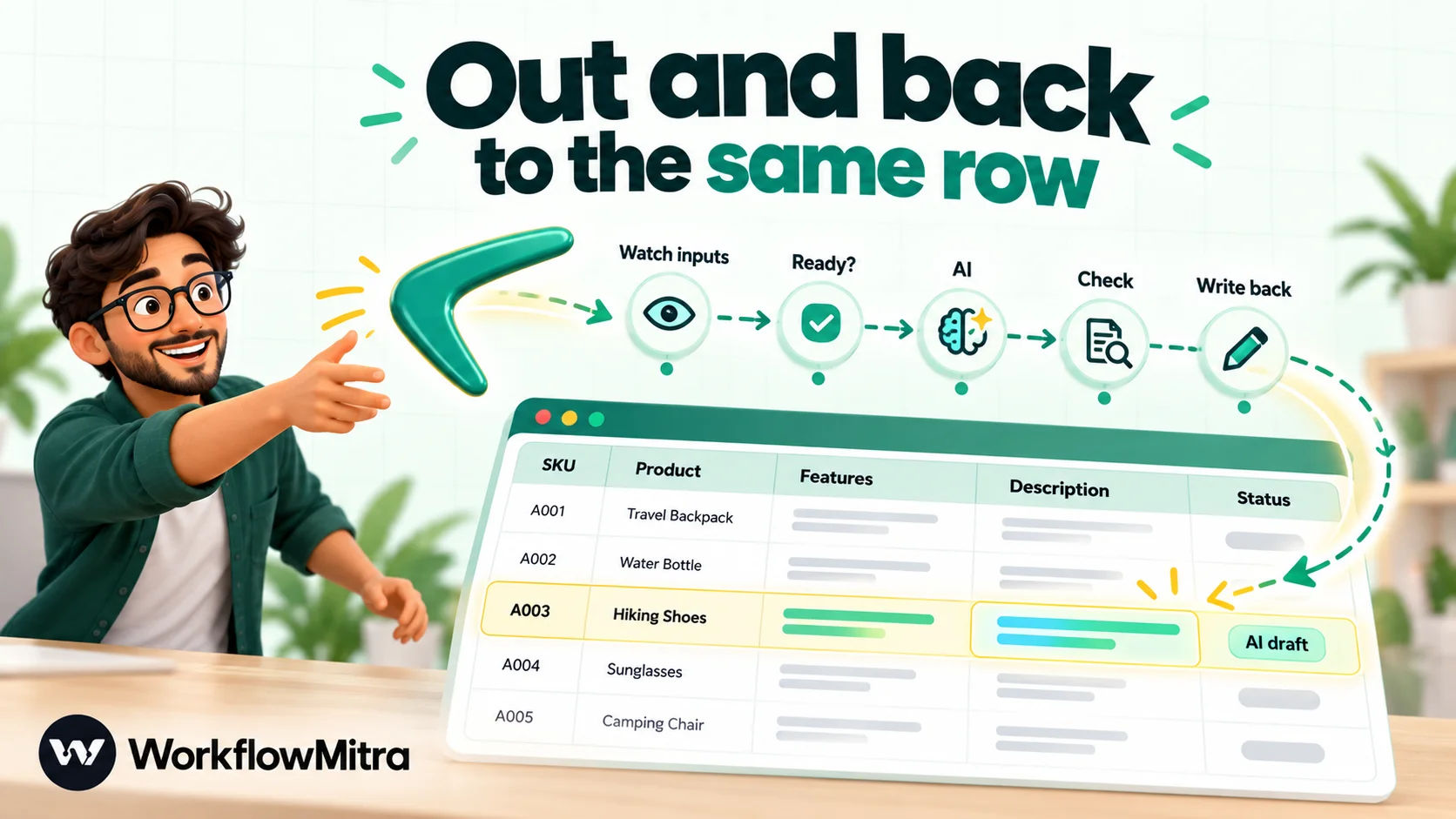
- Notice a new row, or a change to one of the input columns.
- Check that the row is ready: inputs filled in, and not marked as locked.
- Ask the AI, with the row’s values in the prompt.
- Check the answer: long enough, in the expected format.
- Write the answer and a status into the same row, found by its unique ID.
The rest of this guide builds that, using an online store’s product sheet as the example. The same steps work for feedback, leads or any other list.
Set up the sheet first
A few minutes on the sheet saves hours of debugging later.
Give every row a unique ID. A SKU, order number or any value that never repeats. The workflow uses it to recognise each row between checks and to find the right row when writing back. Without it, rows are recognised by position, and sorting the sheet makes every row look changed.
Separate input columns from output columns. People fill in the inputs; the workflow fills in the outputs. For the example:
| Column | Filled by | Purpose |
|---|---|---|
| SKU | Person | Unique ID |
| Product | Person | Product name |
| Features | Person | Facts the description may use |
| Description | Workflow | The AI's answer |
| Status | Workflow, or a person | "AI draft", "Check", or "Locked" to protect a hand-edited description |
| GeneratedAt | Workflow | When the answer was written |
Use simple headers in row 1. Short names without special characters, such as GeneratedAt rather than “Generated at (IST)”, are easier to reference in the workflow.
Avoid formulas in input columns. The trigger compares values between checks, and a formula such as =NOW() changes on its own. If your sheet relies on formulas that change by themselves, the trigger’s Advanced settings have an option for it, but keeping inputs as plain values is simpler.
Before you build
You need a WorkflowMitra account (the 14-day trial needs no card), a Google account with access to the sheet, and an API key from your AI provider. WorkflowMitra’s AI step works with OpenAI, Anthropic’s Claude, Google’s Gemini, Groq and Ollama, using your own key.
A note on “ChatGPT”: the chat app and the OpenAI API are separate products with separate billing. A ChatGPT subscription doesn’t include API usage, so automations need an API key from OpenAI’s developer platform, billed by usage. The models are closely related, but the API is what workflows call.
Build it: AI product descriptions for every new row
Create a new workflow in WorkflowMitra. If the editor is new to you, build your first workflow explains the basics.
1. Trigger: watch the input columns
Add the Google Sheets trigger On row added, choose your Google credential, paste the sheet link and pick the Products tab.
Set Use column headers as IDs of the columns to Yes and choose SKU as the ID column. If the trigger warns that values in that column repeat, fix the duplicates first; it can’t track rows whose IDs aren’t unique.
Under Run when…, keep A row is added ticked and also tick One column changes. In Columns to watch, select Product and Features only. Now the workflow runs when a product is added, and again whenever someone edits its name or features. It never runs because the Description, Status or GeneratedAt columns changed.
Leave Check for changes at every 5 minutes. When the trigger is first switched on, it records the rows already in the sheet without running for them; sorting those rows is covered further down.
Half-typed rows. If someone types the SKU, then goes for tea before adding features, the check may catch the row half-finished. The next step skips incomplete rows, and the edit to Features will start the workflow again later. If rows arrive by paste or import, open Advanced and tick the option that waits until a row stops changing. It adds one check’s delay and stops half-written rows from starting the workflow.
2. Check the row is ready
Add an IF step named “Ready?” with three rules joined by AND:
{{ $trigger.Product }}Is not empty{{ $trigger.Features }}Is not empty{{ $trigger.Status }}Not equal to, ignore caseLocked
The trigger passes the row itself to the workflow, so each column is available as $trigger followed by its header. The third rule lets people protect a description they’ve edited by hand. Without it, a later change to Features would overwrite their work. Leave the false branch empty: incomplete or locked rows stop here, and IF steps cost no credits.
3. Ask the AI
On the true branch, add an AI step named “Write description”. Choose the provider and name the model rather than leaving it blank. Set Max tokens to about 300; a short description doesn’t need more, and the cap prevents runaway answers. The AI step accepts up to 4,096.
System prompt (optional):
You write product descriptions for an online homeware store. Use only the facts provided. Never add materials, sizes, guarantees, prices or claims that aren’t in the facts. Write 60 to 80 words in plain, warm English, with no headings, bullet points, emoji or quotation marks. Reply with the description only.
Prompt:
Product:
{{ $trigger.Product }}Facts:{{ $trigger.Features }}
The reply arrives in the step’s text output. Keeping the rules in the system prompt and only the row’s data in the prompt makes the instructions easier to change later, and keeps every row’s request the same apart from its data.
With Groq, Gemini or Ollama, the step shows a Temperature field; leave it at 0 to keep answers consistent from row to row. With OpenAI and Claude, the step uses the provider’s default.
4. Check the answer
Add a second IF named “Looks right?” with one rule: {{ length($node["Write description"].text) }} Greater than 150. That’s characters, so roughly 25 words. A description shorter than that usually means the model refused, asked a question back or returned something empty.
- True: continue to the update in step 5.
- False: add an Update row (the same settings as step 5) that only sets
StatustoCheck. A person looks at these rows instead of the workflow writing a bad answer.
For categorising jobs, check the answer against your list instead, with Equal to, ignore case rules or a Switch with one route per category; for extraction jobs, check that the AI’s json output is not empty.
5. Write the answer back
Add a Google Sheets step with the operation Update row on the Products tab:
- Key column:
SKU - Key value:
{{ $trigger.SKU }} - If several rows match: Stop with an error (recommended)
- Columns to change:
Description={{ $node["Write description"].text }},Status=AI draft,GeneratedAt={{ now() }} - Write values: Exactly as written (no formulas)
The last setting matters more than it looks. With “Like typing it in”, Google Sheets treats a value beginning with = as a formula and one beginning with + as a number. An AI answer that happens to start that way would be changed or broken. “Exactly as written” stores the text as it is.
The references use $node["Write description"] because a plain {{ text }} reads only the step immediately before, which is now the check step. Naming the step keeps the reference correct even if you add steps in between later.
Update row finds the row by what’s in the SKU column, never by its position, so a colleague sorting the sheet while the workflow runs can’t make it write to the wrong product. If no row matches (because someone deleted the product in the meantime), the step stops with an error rather than adding a new row.
6. Test with three rows
Switch the workflow on, then add three products: one complete, one without features, and one with features but Locked in Status. After the next check, only the first should have a description and AI draft. Open the run in the run history to see each step’s input and output. How to test an automated workflow has a fuller checklist.
Then edit the features of the first product. One check later, its description should be rewritten. Finally, edit its Description by hand and confirm that nothing runs. That proves the loop protection works.
Variation: fill several columns from one AI call
Some jobs produce more than one value per row. Take an enquiries sheet where each row holds a free-text message from a website form, and you want City, Budget and Product filled in so the sales team can filter the list. One AI call can return all three.
Change the system prompt to ask for a fixed shape:
Read the enquiry and reply with only a JSON object, with no code fences and no other text: {“city”: "", “budget”: "", “product”: ""}. Use an empty string for anything the enquiry doesn’t state. Don’t guess.
The AI step then offers the parsed answer as json, alongside the raw text. It fills json only when the whole reply is valid JSON, so the check step becomes {{ $node["Extract"].json }} Is not empty. A reply wrapped in a code fence or preceded by a sentence fails that check and gets Status Check instead of half-filled columns. If you use Groq, the step’s Response format → JSON object setting asks the model for valid JSON directly.
In the Update row step, map each column to its field: City = {{ $node["Extract"].json.city }}, Budget = {{ $node["Extract"].json.budget }}, Product = {{ $node["Extract"].json.product }}. Watch only the message column in the trigger, never the three columns being filled.
“Don’t guess” and the empty-string rule are the important part. Without them, a model asked for a city will often supply one, and the sheet will look complete while being partly invented.
Prompts that hold up across hundreds of rows
A prompt that works on the three rows you tested can still drift on row 300. Four habits keep it stable:
- Say what to do with missing data. “If the facts don’t mention a size, don’t mention a size” prevents invented details more reliably than “be accurate”.
- Give one good example. A single sample row with its ideal answer, placed in the system prompt, sets length and tone better than adjectives do.
- Fix the format, not just the content. Word ranges, “no bullet points”, “reply with the category only”: answers in a consistent shape are easier to check and easier to read in a cell.
- Change one thing at a time. When an answer is wrong, add a rule for that case, rerun the same 20 rows and compare. Rewriting the whole prompt at once makes it impossible to tell what helped.
AI prompts for automation covers prompt structure for workflows in more depth.
Why the workflow doesn’t trigger itself
This is the problem that sinks most homemade sheet-and-AI setups, so it’s worth understanding.
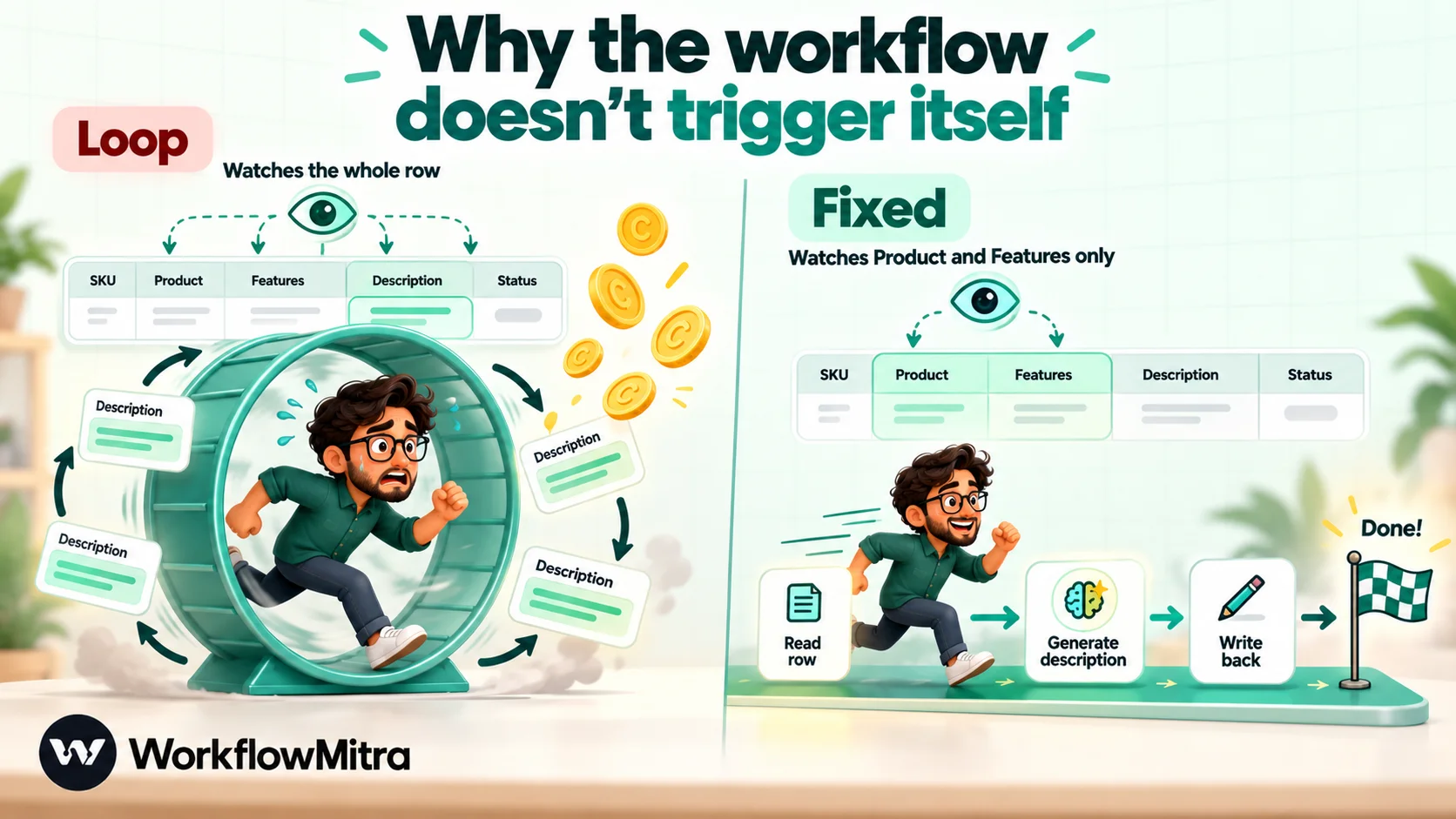
A trigger that fires when a row changes treats every edit as a reason to run. The workflow writes a description into the row, which is an edit, so on the next check the row has changed and the workflow runs again. It writes a slightly different description, which is another edit, and so on, every few minutes, each time spending credits and AI tokens.
The setup above avoids it by design. “A row is added” fires once, when the row first appears. “One column changes” fires only when a watched column changes, and the workflow never writes to a watched column. The general rule: the columns a workflow reads to decide whether to run must never include the columns it writes.
The same rule protects you when two workflows share a sheet. If workflow B watches the Description column, workflow A’s writes will start B, which is fine as long as B doesn’t write anything A watches.
Rows already in the sheet
The trigger deliberately ignores rows that existed when it was switched on. To process a backlog once, build a small second workflow:
- A Manual trigger.
- A Google Sheets step, Read rows, on the Products tab, with Limit set to 100. It returns the rows as a list called
rows. Use Skip to move through a large sheet 100 rows at a time. - A Loop over
{{ rows }}. Inside the loop,$triggerrefers to the current row, so the steps from the main workflow work unchanged. - Inside the loop: an IF that skips rows where
{{ $trigger.Description }}Is not empty, then the AI step, the check and the Update row.
A Loop handles up to 1,000 items and costs one credit per item, on top of the steps inside it. If one item fails, for example because the AI provider hits a rate limit, the whole Loop stops. Smaller batches are easier to rerun: because of the “Description is not empty” check, a rerun skips the rows that already have an answer.
Costs, limits and speed
WorkflowMitra counts credits per executed step, and IF steps cost nothing.
| Path | Steps that use credits | Credits per row |
|---|---|---|
| Row incomplete or locked | Trigger | 1 |
| Description written | Trigger, AI, Update row | 3 |
| Answer failed the check | Trigger, AI, Update row (Status only) | 3 |
| Backlog, per row | Loop item, AI, Update row | 3 (plus 1 per Read rows step) |
A store adding 300 products a month, with a few edits, uses about 1,000–1,200 credits. A backlog of 2,000 existing products is a one-off of about 6,000. Both fit within the entry plan of 10,000 credits for ₹999 a month; current prices are on the pricing page. Your AI provider bills its own usage separately.
Limits to plan around:
- Speed: the trigger checks on a schedule, at most every minute, so answers appear minutes after a row is added, not instantly.
- Google’s API limits: every check and every Update row reads from Google Sheets, and Google limits how often one account can read. If you paste 500 rows at once, many runs start together; turn on retries for the AI and Update row steps in their settings, or paste in batches of about 50.
- AI provider rate limits: a burst of rows can hit your provider’s per-minute limits. Retries help; so does a provider tier that matches your volume.
- Answer length: the AI step’s Max tokens is capped at 4,096, plenty for anything that belongs in a cell.
Quality, privacy and review
Treat AI text as a draft until a person has seen it. The AI draft status makes that visible. A colleague can scan new descriptions once a day, fix anything off and set Status to Locked once happy, which also protects the row from future rewrites.
Compare models on the same rows. Before committing, run 20 representative rows through two models and compare. For short, factual tasks, a small, inexpensive model is often as good as a large one.
Keep sensitive columns out of the prompt. Only reference the columns the task needs. Phone numbers, addresses, payment details and health information rarely help a description or a category, and they shouldn’t leave your sheet for an AI provider. Check your provider’s terms for business API data, including whether it is used for training and how long it is kept.
Expect the occasional invented detail. Even with “use only the facts provided”, models sometimes add a plausible extra. The “only these facts” instruction, a short word limit and human review together keep it rare and caught.
Troubleshooting
- Nothing happens for new rows. Check the workflow is on and the trigger shows no error. Rows that existed when you switched it on are ignored by design.
- The trigger reports that the ID column isn’t unique. Two rows share a SKU. Fix the duplicates; the trigger can’t track rows until every ID is unique.
- The same row keeps being rewritten. The trigger is watching a column the workflow writes to, or it uses “A row changes”. Watch only the input columns.
- Update row fails with “several rows match”. Duplicate IDs again. The step refuses to guess which row you meant.
- Descriptions start with a stray quotation mark or “Here is…”. Tighten the system prompt (“Reply with the description only”). The length check catches empty or refused answers but not preambles.
- A description became a broken formula. Write values was left at “Like typing it in”. Switch it to “Exactly as written (no formulas)”.
- The prompt contains an empty value. A misspelt header in
{{ $trigger.Featrues }}resolves to nothing without an error. Check the AI step’s input in the run details.
Common mistakes
- Watching the whole row instead of the input columns.
- Using row position instead of a unique ID.
- Letting the AI overwrite text a person has edited.
- No length or format check before writing back.
- Sending every column to the AI “just in case”.
- Running a 2,000-row backlog in one go with no way to resume.
Why use WorkflowMitra for AI in Google Sheets?
The prompt is the easy part; the plumbing around it is what makes a sheet-and-AI setup reliable. WorkflowMitra, powered by ChatMitra, provides that plumbing as ordinary steps:
- A sheet trigger built for this job: fire on new rows, on chosen columns only, with unique-ID tracking and an option to wait for half-written rows.
- Safe write-backs: Update row matches on a key column, refuses ambiguous matches and can store values exactly as written.
- Your choice of AI with your own key: OpenAI, Claude, Gemini, Groq or Ollama, so you control model, cost and data terms.
- Free conditions: readiness checks and quality checks cost no credits.
- More than a cell: the same workflow can alert a team on Slack, add a lead to a CRM, or send a WhatsApp message through ChatMitra when the AI flags something important.
- Rupee pricing per step.
The limits, plainly: the trigger checks on a schedule rather than reacting instantly, very large pastes need retries or batching because of Google’s read limits, and the AI step uses your provider key, so AI usage is billed by your provider.
Start with 20 rows
Pick one job and one tab. Write the prompt, build the three steps, and run them on 20 rows you know well before letting the workflow loose on the whole sheet. When the drafts need little editing, switch on the backlog workflow in batches. You can build it on the 14-day trial with no card. For more ways to automate the sheet itself, see Google Sheets automation; for writing prompts that hold up across hundreds of rows, see AI prompts for automation; and for the broader picture, the AI workflow automation guide.
Product behaviour described here, including the Google Sheets trigger's events, watched columns, ID tracking and settle option, the Update row matching and write options, Read rows, Loop behaviour, the AI step's limits and credit rates, was checked in WorkflowMitra on 7 October 2026. Google's AI function and Apps Script trigger limits are from Google's help and developer pages, read the same day. The store in the example is illustrative.
Frequently Asked Questions
Questions people ask before connecting a spreadsheet to an AI model.
Yes. A workflow can watch a sheet, send each new row to an OpenAI model with your prompt and write the reply into a column of the same row. It runs whenever a row is added or a chosen column changes, without anyone opening the sheet or pressing a button.
Automate the work between your apps
Build workflows with triggers, conditions and actions, then test them before they go live. Try WorkflowMitra free for 14 days, no card required.
