Code Steps in Automation: When to Use JavaScript in a No-Code Workflow

Quick Summary
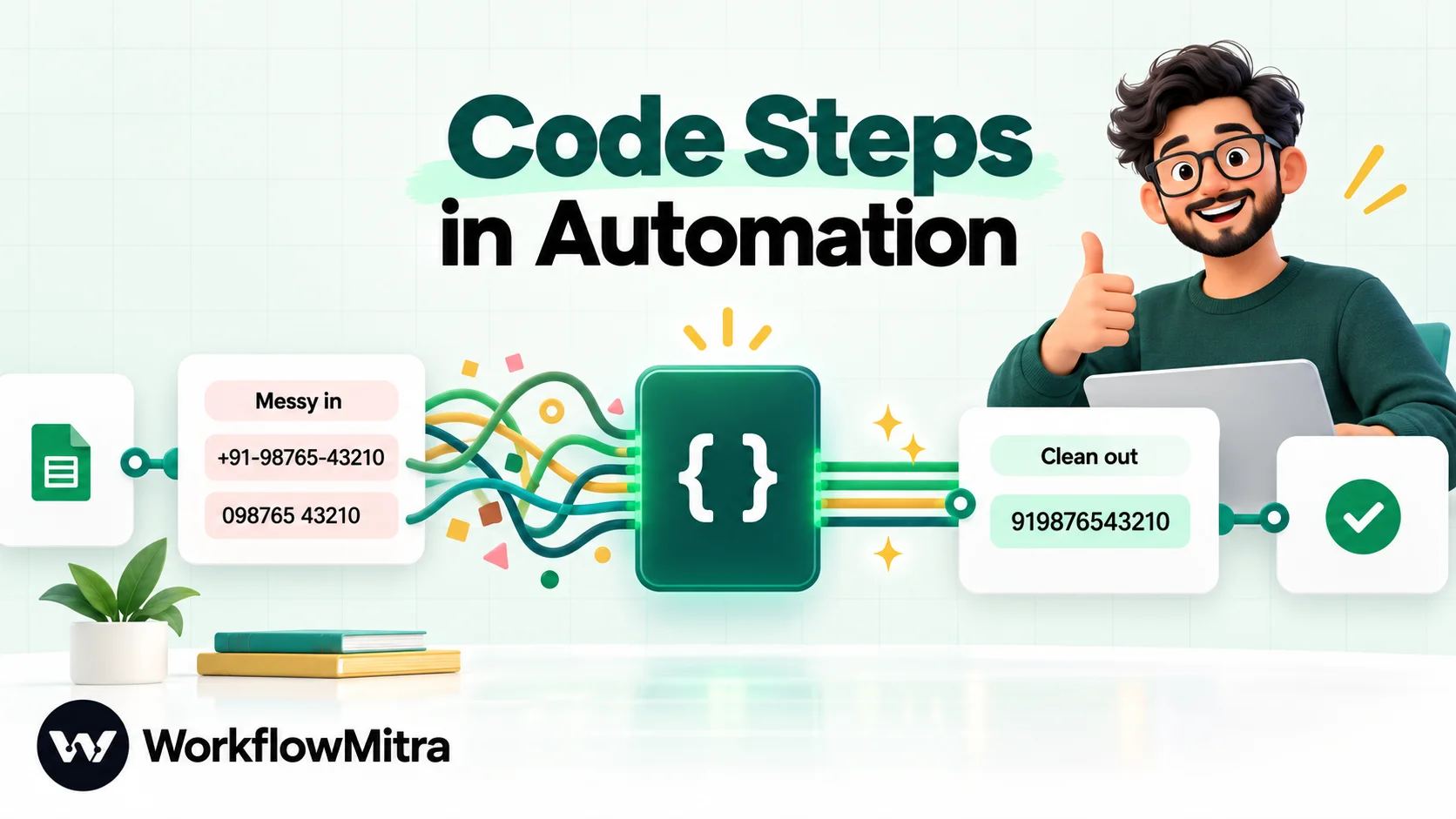
A code step is a workflow step that runs a short script you write, usually JavaScript, to reshape data the built-in steps can't handle well: cleaning phone numbers, totalling order items, parsing text with patterns or validating a lead before it moves on. Use one only after expressions, Set Variable, IF and Loop have been ruled out, keep it to one job, and test it with bad data as well as good. In WorkflowMitra, powered by ChatMitra, the Code step runs JavaScript in a sandbox with a one-second limit and no network access, and is billed by the milliseconds it runs.
Every no-code workflow eventually meets a piece of data that won’t behave. A phone number typed five different ways. An order with a list of items that needs a total. An email subject with an invoice number buried in the middle. The visual steps can get you most of the way, but sometimes the honest answer is ten lines of code.
That’s what a code step is for. It’s also the step most likely to turn a tidy workflow into something nobody else on the team can maintain, so it deserves a little thought before you reach for it.
This guide explains what a code step is, how to decide whether you need one, and how to write, test and debug one well. The examples use the Code step in WorkflowMitra, powered by ChatMitra, and every snippet below was run in its sandbox before publication. The principles apply to any automation tool that lets you add custom code.
What is a code step?
A code step is a step in an automated workflow that runs a short script you write, rather than a pre-built action. It takes the data produced by earlier steps as its input, transforms, checks or calculates something, and returns a result that later steps can use. Most automation platforms run code steps in JavaScript, and some also offer Python.
Think of it as a small, custom-built tool slotted into an assembly line of standard tools. The trigger brings the data in. Built-in steps move it between apps. The code step handles the one awkward job in the middle that no standard tool was designed for.
A few things are true of code steps almost everywhere:
- They work on data, not on apps. A code step usually reshapes what it receives. Talking to other systems is the job of app steps and HTTP steps.
- They run in a sandbox. The platform limits how long the code may run, how much memory it can use and what it can reach.
- They return a value. Whatever the script returns becomes the step’s output, the same way an app step’s response does.
Why do no-code tools include code at all?
Because the long tail of business data is messy, and no product team can build a drag-and-drop control for every shape it takes.
Built-in steps are designed around common jobs: send a message, add a row, compare two values, wait an hour. They handle the 80% of automation that looks the same from one business to the next. The remaining 20% is where your business is different: your invoice format, your product codes, the way your sales team writes phone numbers in a spreadsheet.
A code step is the escape hatch for that 20%. Used well, it keeps a workflow short. One readable snippet can replace a chain of six fiddly steps and a dozen nested expressions. Used badly, it hides business logic where only one person can find it.
When to use a code step, and when not to
The most useful rule is to treat code as the last rung of a ladder, not the first.
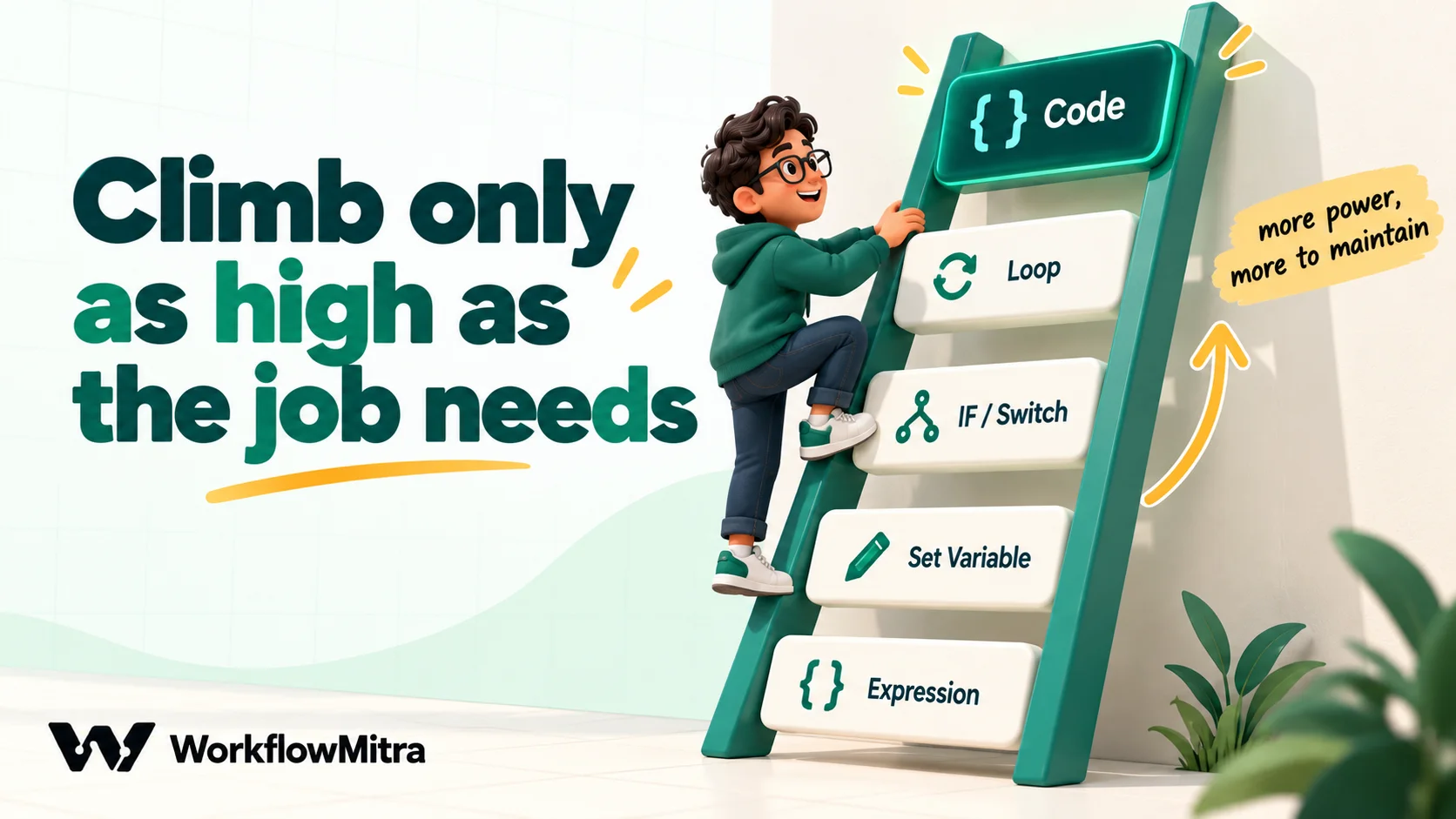
Before you write code, check whether one of the simpler tools already does the job:
| The job | Try this first | Reach for code when… |
|---|---|---|
| Change one field: upper-case a name, strip spaces, read a nested value | An expression inside the field, such as {{ upper($trigger.name) }} | The expression needs several functions nested inside each other and nobody can read it |
| Add or rename a few fields | Set Variable | The new fields depend on rules, not just copies |
| Go one way or another based on a value | IF or Switch | The decision needs many rules combined; compute a single yes/no in code, then branch with IF |
| Do something for every item in a list | Loop (or a step's own bulk mode) | You need a single summary of the list, such as a total, a count or a text line |
| Turn a JSON string into fields | Parse JSON | The structure must also be reshaped, merged or filtered |
| Fetch data from another system | An app step, App Request or HTTP Request | Never in WorkflowMitra: code has no network access |
A code step earns its place when at least one of these is true:
- The logic has several rules. Normalising phone numbers is a good example: strip symbols, drop a leading zero, add a country code if missing, reject anything too short.
- You need to reduce a list to one answer. Totals, counts by status, “the three most urgent tickets” or a readable list of items for a message.
- The input is text that must be parsed. Pulling a reference number, a date or an amount out of a subject line or message with a regular expression.
- The output must be reshaped. An API returns deeply nested data, and the next five steps need five flat fields.
- You’d otherwise need many steps. Each extra step is another thing to read, and in most tools another thing to pay for.
And it’s usually the wrong choice when:
- Only one person can read it. If the snippet’s author leaves, the workflow becomes a black box. Use code your team can at least follow.
- It’s hiding a business decision. “Orders over ₹5,000 go to the senior team” belongs in an IF step where anyone can see and change it. Code can calculate the inputs, but visible branches should make the decision.
- It’s doing an app’s job. Sending, saving and fetching belong in the steps built for them, because those steps handle sign-in, errors and retries.
How the Code step works in WorkflowMitra
WorkflowMitra’s Code step sits in the Data group of the step picker, alongside Set Variable, Parse JSON and the Data Store. When you open it, you get one box labelled JavaScript and a short reminder: use the input variable and return a value.
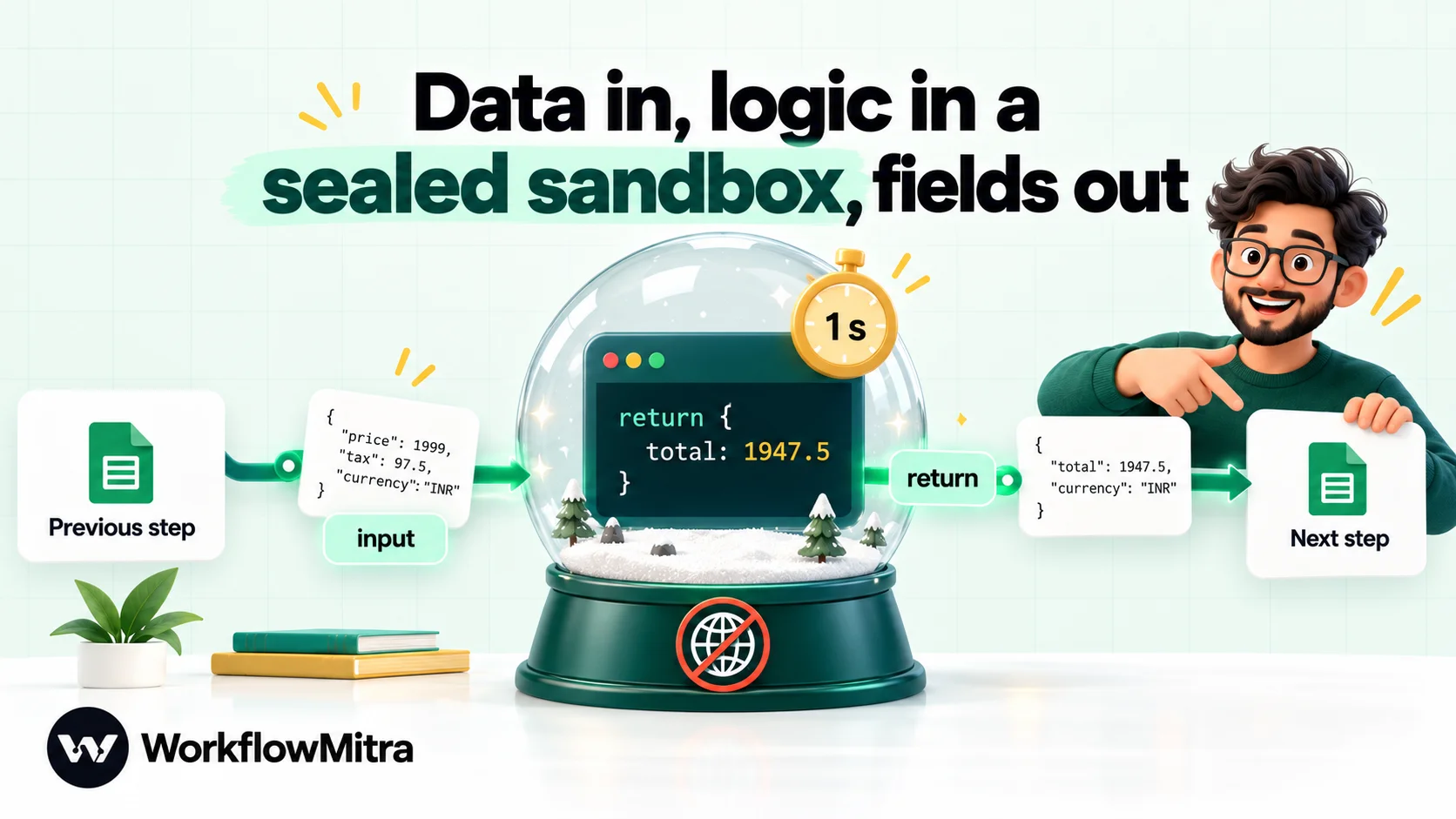
input, logic in a sealed sandbox, fields out with return.Input and output
inputholds the output of the step connected directly before the Code step. If a Google Sheets trigger is before it,inputis the row. If an HTTP Request step is before it,inputhasstatus,ok,headersandbody.$jsonis an alias for the same thing.returnsends a value out. Whatever you return becomes the Code step’s output, and the next step receives it as its input. Return an object, such as{ total: 1947.5 }, so later steps can map fields by name.- Returning nothing gives an output of
null. That’s rarely what you want, so always end with areturn. - Other steps’ data is still available to later steps through expressions such as
{{ $trigger.email }}or{{ $node["Clean phone"].phone }}, whereClean phoneis the step’s name. Rename steps (right-click › Rename) to something meaningful, because that name is how you’ll refer to them.
A useful habit is to return { ...input, newField: value }. The spread copies every field you received, so the steps after the Code step still see the original data plus your additions.
Limits that shape how you write code
These are the rules of WorkflowMitra’s sandbox, checked against the product on 7 October 2026:
| Limit | What it means in practice |
|---|---|
| JavaScript only | No Python. Modern syntax works: arrow functions, destructuring, spread, optional chaining (?.), ??, regular expressions with named groups |
| 1 second of run time | Plenty for data work. An endless loop stops with "Script execution timed out." |
| 128 MB of memory | Enough for thousands of records. Building a huge array can exhaust it, and the step then fails |
| 10,000 characters of code | If you're near the limit, the step is doing too much; split it |
| No network, files or imports | fetch, require, setTimeout, URL, crypto and btoa don't exist. Use HTTP Request for calls |
| Synchronous only | No await. An async function returns a promise, which arrives as {} |
| JSON-safe output | Return plain data. Functions or circular objects fail with "Code must return JSON-serialisable data" |
console.log is silent | It runs without error, but the output isn't shown anywhere. Return debug values instead |
The sandbox matters for security, too. Each run gets a fresh V8 isolate, the same engine that runs JavaScript in Chrome, with its own memory and no bridge to the server. The data goes in as a copy and comes back out as JSON, so a snippet can’t reach other customers’ data, environment variables or the file system. WorkflowMitra uses the open-source isolated-vm library for this.
Build your first Code step, step by step
The quickest way to learn is to build a throwaway workflow that you start by hand.
- Create a workflow and choose Trigger manually as the trigger. It starts the workflow when you click Run, which makes it ideal for building and testing.
- Add a Set Variable step after the trigger and give it a few sample fields:
name=aSHA devi rao,phone=098765 43210. Deliberately messy values are the point. - Add a Code step from the Data group, rename it
Clean contact, and paste a snippet (the first two examples below are a good start). - Click Run. The editor saves the workflow and runs it from the trigger. Open the run, select the Code step and read its input and output side by side.
- Break it on purpose. Clear the phone field, or type
abc, and run again. Good code returns a clear result or a clear error for bad data; it doesn’t quietly pass rubbish along.
One caution: running a workflow in the editor runs every step for real. Build and test the Code step before you connect steps that send messages or change records, or point those steps at test data while you work.
Seven tested Code step examples
Each snippet below was run in WorkflowMitra’s Code sandbox with normal, messy and empty inputs before publication. Copy them, then change the field names to match your data.
1. Clean phone numbers for WhatsApp
Phone numbers arrive with spaces, dashes, brackets, a leading zero or a +. Messaging APIs want digits only, starting with the country code. The WhatsApp Business Platform, for example, identifies recipients by their full international number.
// Turn whatever was typed into digits: country code + number.
const raw = String(input.phone || "");
let digits = raw.replace(/\D/g, "");                        // keep 0-9 only
if (digits.startsWith("00")) digits = digits.slice(2);      // 0091... -> 91...
if (digits.length === 11 && digits.startsWith("0")) digits = digits.slice(1); // 09876... -> 9876...
if (digits.length === 10) digits = "91" + digits;           // 10 digits: assume India
const valid = digits.length >= 11 && digits.length <= 15;
return { ...input, phone: valid ? digits : "", phone_valid: valid };
98765 43210, +91-98765-43210, 098765 43210 and 0091 98765 43210 all came out as 919876543210. A UK number, +44 7700 900123, stayed 447700900123. Too-short input returned an empty phone with phone_valid: false. If your customers aren’t mostly in India, change the default country code, or reject 10-digit numbers instead of guessing. After this step, an IF on phone_valid keeps invalid numbers away from your messaging step.
2. Split and tidy a full name
const full = String(input.name || "").trim().replace(/\s+/g, " ");
const parts = full.split(" ");
const cap = (w) => w.charAt(0).toUpperCase() + w.slice(1).toLowerCase();
return {
  ...input,
  first_name: parts[0] ? cap(parts[0]) : "there",
  last_name: parts.slice(1).map(cap).join(" "),
};
aSHA devi rao became Asha and Devi Rao. An empty name falls back to there, so a greeting reads “Hi there” rather than “Hi ,”. Names are culturally varied, so treat this as a convenience for greetings, not a source of truth for records.
3. Format money and dates for people
Data from apps usually stores amounts as plain numbers and dates in ISO format. Messages and reports read better with local formatting, and JavaScript’s built-in Intl.NumberFormat handles it, Indian digit grouping included.
const amount = Number(input.amount);
const inr = new Intl.NumberFormat("en-IN", { style: "currency", currency: "INR" });
const due = new Date(input.due_date);
return {
  ...input,
  amount_text: inr.format(amount),
  due_text: due.toLocaleDateString("en-IN", {
    day: "numeric", month: "short", year: "numeric", timeZone: "Asia/Kolkata",
  }),
};
An amount of 123456.5 became ₹1,23,456.50, and 2026-10-15T00:00:00+05:30 became 15 Oct 2026. Always set timeZone: the server’s clock may not be in your time zone, and a date without one can slip to the previous day. For other markets, swap the locale and currency, for example en-GB with GBP, or en-US with USD.
4. Summarise an order’s items
Store and checkout webhooks send a list of line items. A loop would send one message per item; what you usually want is one line of text and a total.
const items = Array.isArray(input.line_items) ? input.line_items : [];
const lines = items.map((i) => i.quantity + " x " + i.title);
const units = items.reduce((sum, i) => sum + Number(i.quantity || 0), 0);
const totalPaise = items.reduce(
  (sum, i) => sum + Math.round(Number(i.price) * 100) * Number(i.quantity || 0), 0);
return {
  order_id: input.id,
  item_count: units,
  item_list: lines.join(", "),
  total: (totalPaise / 100).toFixed(2),
};
Two kurtas at 799.00 and a dupatta at 349.50 returned item_list: "2 x Cotton kurta, 1 x Dupatta", item_count: 3 and total: "1947.50". Note the arithmetic in paise (whole numbers) before converting back. Computers store decimals in binary, so sums like 0.1 + 0.2 aren’t exactly 0.3; working in the smallest currency unit avoids rounding surprises. An order with no items returned a zero total instead of an error.
5. Validate a lead before it goes anywhere
Combining several checks into one yes/no is a classic code-step job. The IF step after it then stays simple.
const problems = [];
if (!input.email || !/^[^@\s]+@[^@\s]+\.[^@\s]+$/.test(input.email)) problems.push("email");
if (!input.phone || String(input.phone).replace(/\D/g, "").length < 10) problems.push("phone");
if (!input.consent) problems.push("consent");
return { ...input, valid: problems.length === 0, problems: problems.join(", ") };
A complete lead returned valid: true. A lead with a bad email, no phone and no consent returned valid: false and problems: "email, phone, consent". Branch on valid, and put problems in the alert to the team so they know what to fix. The email pattern is deliberately loose: it catches typos without rejecting unusual but real addresses.
6. Pull a reference out of text
Regular expressions with named groups make text parsing readable.
const text = String(input.subject || "");
const m = text.match(/INV-(?<year>\d{4})-(?<num>\d+)/);
return {
  invoice_ref: m ? m[0] : "",
  invoice_year: m ? m.groups.year : "",
  found: Boolean(m),
};
“Payment for INV-2026-0042 received” returned INV-2026-0042, year 2026 and found: true. A subject without a reference returned found: false, which an IF can route to a person.
7. Turn an API response into a short report
An HTTP Request step returns the whole response. A Code step after it can boil that down to what a message or sheet needs.
// input.body is an HTTP Request step's parsed JSON: a list of tickets.
const tickets = Array.isArray(input.body) ? input.body : [];
const byStatus = {};
for (const t of tickets) {
  const key = t.status || "unknown";
  byStatus[key] = (byStatus[key] || 0) + 1;
}
const urgent = tickets.filter((t) => t.priority === "high" && t.status !== "closed");
return {
  total: tickets.length,
  by_status: byStatus,
  urgent_count: urgent.length,
  urgent_ids: urgent.map((t) => t.id).join(", "),
};
Four sample tickets returned a total of 4, counts by status (open: 2, closed: 1, pending: 1) and two urgent IDs. The Array.isArray guard means an error page or an empty response produces zeros, not a crash. Pair it with an IF on the HTTP step’s ok field first, so a failed request doesn’t look like a quiet day.
A complete example: website lead to WhatsApp, with one Code step
Here’s how a single Code step fits into a real workflow. A website form posts each enquiry to WorkflowMitra, and the business wants to send a WhatsApp confirmation and keep a record.
- On webhook call receives the form data: name, phone, email and a consent checkbox.
- Code (Clean lead) combines examples 1, 2 and 5: it normalises the phone, splits the name and returns
validwith a list ofproblems. - IF checks that
{{ valid }}Is yes. - Yes branch: WhatsApp sends an approved template to the cleaned number, through ChatMitra or the WhatsApp Cloud API directly, with
{{ first_name }}in the greeting. - No branch: Google Sheets adds the lead to a “Needs checking” sheet with the
problemstext, so someone can call or correct it.
Without the Code step, the same workflow would need a chain of Set Variable expressions for the phone, another for the name, and an IF with several conditions that’s hard to read at a glance. With it, the canvas shows the decision clearly, and the messy detail lives in one named step. The Code step costs a fraction of a credit per lead, and the consent check means you only message people who asked to hear from you. If you’re new to the trigger in step 1, our webhook to WhatsApp guide sets it up from scratch.
Where teams use code steps most
Across sales, operations and support, the same few jobs come up again and again:
- Sales and lead handling: normalising phone numbers and names from forms and ads, scoring leads by several rules at once, and building the one-line summary a salesperson sees in an alert.
- Ecommerce: summarising line items, calculating totals or discounts in the smallest currency unit, and choosing a message variant from order data.
- Finance and admin: pulling invoice numbers, amounts and dates out of email subjects or bank notifications, then formatting them for a sheet.
- Support: counting tickets by status, picking out the urgent ones and writing a daily digest from an API response.
- Data hygiene: removing duplicates from a list, trimming stray spaces and making sure every record has the same fields before it’s saved.
Notice what’s missing from that list: sending, saving and fetching. Those stay in the steps built for them, which handle sign-in, timeouts and errors for you. Other platforms draw the line differently. Zapier, for instance, offers both JavaScript and Python in its Code steps, according to its own guide to Code by Zapier. In WorkflowMitra the Code step is deliberately narrow: it transforms data, and everything else happens in visible steps on the canvas.
Using data from other steps inside code
input only holds the output of the step directly before the Code step. Often you need something from further back, such as the trigger’s email address.
The cleanest pattern is a Set Variable step just before the Code step. Set Variable merges its fields onto the incoming data, so you can add email = {{ $trigger.email }} and the Code step receives everything in one input.
You may notice that {{ }} expressions also work inside the code box itself. WorkflowMitra fills them in as plain text before the script runs. That has a sharp edge: a value is pasted in exactly as it is. Write const name = "{{ $trigger.name }}"; and a customer called Asha "A" Rao produces broken JavaScript, because the quote inside the name ends the string early. We reproduced this on 7 October 2026. Pasting a whole object, as in const trigger = {{ $trigger }};, does produce valid code, because objects are inserted as JSON. Even so, Set Variable is easier to read and has no surprises, so prefer it.
Errors, debugging and failing on purpose
Code fails in a few predictable ways. Here is what each failure looks like in WorkflowMitra’s run details, and what it usually means.
| Message on the step | Usual cause | Fix |
|---|---|---|
| Code error: Unexpected token… | A syntax error, often a missing bracket or a quote broken by a pasted value | Check brackets; move {{ }} values into Set Variable |
| Code error: Cannot read properties of undefined… | A field you expected isn't in input | Use optional chaining (input.customer?.phone) and defaults |
| Code error: Script execution timed out. | A loop that never ends, or far too much work for one run | Check loop conditions; split the job |
| Code must return JSON-serialisable data… | You returned a function or a self-referencing object | Return plain values, arrays and objects |
| Code error: your own message | Your code threw an error on purpose | Working as intended: read the message |
Return what you want to see
console.log runs without error, but its output isn’t shown anywhere. The reliable way to inspect a value is to return it:
const debug = { keys: Object.keys(input || {}) };
return { ...input, debug };
Run once, read the output and delete the debug field. It’s the fastest way to discover that the field you called phone is actually Phone Number.
Decide between a loud failure and a soft one
When data is wrong, a Code step can do one of two things:
- Throw an error, for example
throw new Error("Order has no customer phone"). The step fails, the run fails, your alerts fire and the message is shown next to the step. Use this when continuing would be harmful, such as charging or messaging the wrong person. - Return a flag, such as
valid: false, and let an IF route the item somewhere useful. Use this when bad data is normal and has a known home, such as a review sheet.
Both are fine. The bad option is a third one: returning something half-right and letting later steps act on it. For failures you want to handle rather than stop on, right-click the step and choose Add error handler to give it an error branch. Our guide to workflow error handling covers alerts, error branches and safe replays in depth.
What a Code step costs
Most WorkflowMitra steps use one credit each time they run. The Code step is billed by run time instead: 2 credits per second, measured in milliseconds. In our tests, the phone, name, order, validation and regex snippets each took under a millisecond. The money and date snippet took about 50 milliseconds on its first run, because building number and date formatters is slower work. That’s roughly a tenth of a credit. The one-second limit caps any single run at 2 credits. A Code step that fails, a timeout included, reports no run time, so in the current billing code the failed attempt isn’t charged; the steps before it still are.
In practice, replacing three or four visual steps with one Code step usually lowers the cost of a workflow. Plans start at 10,000 credits for ₹999 a month, and the 14-day trial includes 10,000 credits with no card.
Writing code steps with an AI assistant
You don’t have to write snippets from scratch. AI chat assistants are good at short, self-contained data transformations, as long as you tell them the rules of the environment. A prompt like this works well:
Write JavaScript for a workflow code step. The data arrives in a variable called
inputand the code must end withreturnand a plain object. No async, no fetch, no imports, no console output. Here is a sampleinput: (paste a real example). I need: (describe the result, field by field). Handle missing or empty fields without crashing.
Then treat the answer as a draft. Run it against the sample you gave, an empty input and the strangest real record you can find. AI-written code is often right for the example and wrong at the edges: a missing field, a number that arrives as text, a name with an apostrophe.
Best practices for maintainable code steps
- One job per step. “Clean contact” and “Build order summary” are easier to understand than “Process everything”.
- Name the step for its output.
$node["Clean phone"].phoneexplains itself in every later field. - Keep it short. If a snippet passes 30 or 40 lines, ask whether part of it belongs in visual steps.
- Comment the why, not the what.
// 10 digits: assume Indiasaves the next person a guess. - Guard every input.
String(x || ""),Number(x),Array.isArray(x)and?.turn crashes into predictable results. - Return a consistent shape. The same fields every time, even when empty, so later steps never meet a missing field.
- Keep secrets out. The Code step can’t call anything, so it should never need an API key. Credentials belong in your workspace’s encrypted credential store and in app or HTTP steps.
- Test with bad data before real data. Empty, too long, wrong type, unexpected characters.
- Leave a sample in a comment. A short example of the input you tested against, pasted at the top of the snippet, tells the next editor exactly what shape of data the code expects.
Why use WorkflowMitra’s Code step?
For teams that mostly build visually, the Code step is designed as a small, safe escape hatch rather than a programming environment. Its strengths are specific:
- It’s isolated by design. Each run gets its own sandbox with no network, file or server access, which keeps a careless snippet from becoming a security incident.
- It costs what it uses. Billing by milliseconds means a short transformation costs a fraction of a step.
- It sits next to the steps that need it. Clean a phone number and send a WhatsApp template through ChatMitra or the Meta Cloud API in the next step, or tidy an API response and write it to Google Sheets, all in one workflow.
Its limits are just as specific. There’s no Python, no package imports and no way to call an API from code. A developer who wants a full scripting environment inside every step will find it restrictive. In WorkflowMitra, external calls belong in the HTTP Request step, which needs no code at all and keeps each step’s job visible on the canvas; our guide to connecting any API without code walks through it.
Putting it into practice
Start with the ladder. Try an expression, then Set Variable, then IF and Loop. When the job still needs several rules, a list summary or text parsing, add one Code step that does that one job, returns a clean object and fails loudly on bad data.
If you want to try the snippets above, start a 14-day WorkflowMitra trial, build the manual-trigger test workflow from this guide and paste them in. For the concepts around it, read what are webhooks and our guide to no-code automation.
WorkflowMitra behaviour described here, including the Code step's limits, error messages, billing rate and the handling of {{ }} inside code, comes from its source code as of 7 October 2026, and every snippet was executed in the same sandbox the product uses. JavaScript details are from MDN Web Docs; the sandbox library is isolated-vm.
Frequently Asked Questions
Quick answers to the questions people ask before adding custom code to an automation.
A code step is a step inside an automated workflow that runs a short script you write instead of a pre-built action. It receives data from the steps before it, does something the visual steps can't do easily, such as cleaning, calculating or restructuring that data, and returns the result for the next steps to use.
Automate the work between your apps
Build workflows with triggers, conditions and actions, then test them before they go live. Try WorkflowMitra free for 14 days, no card required.
