How to Convert a cURL Command into a No-Code HTTP Request, Flag by Flag

Quick Summary
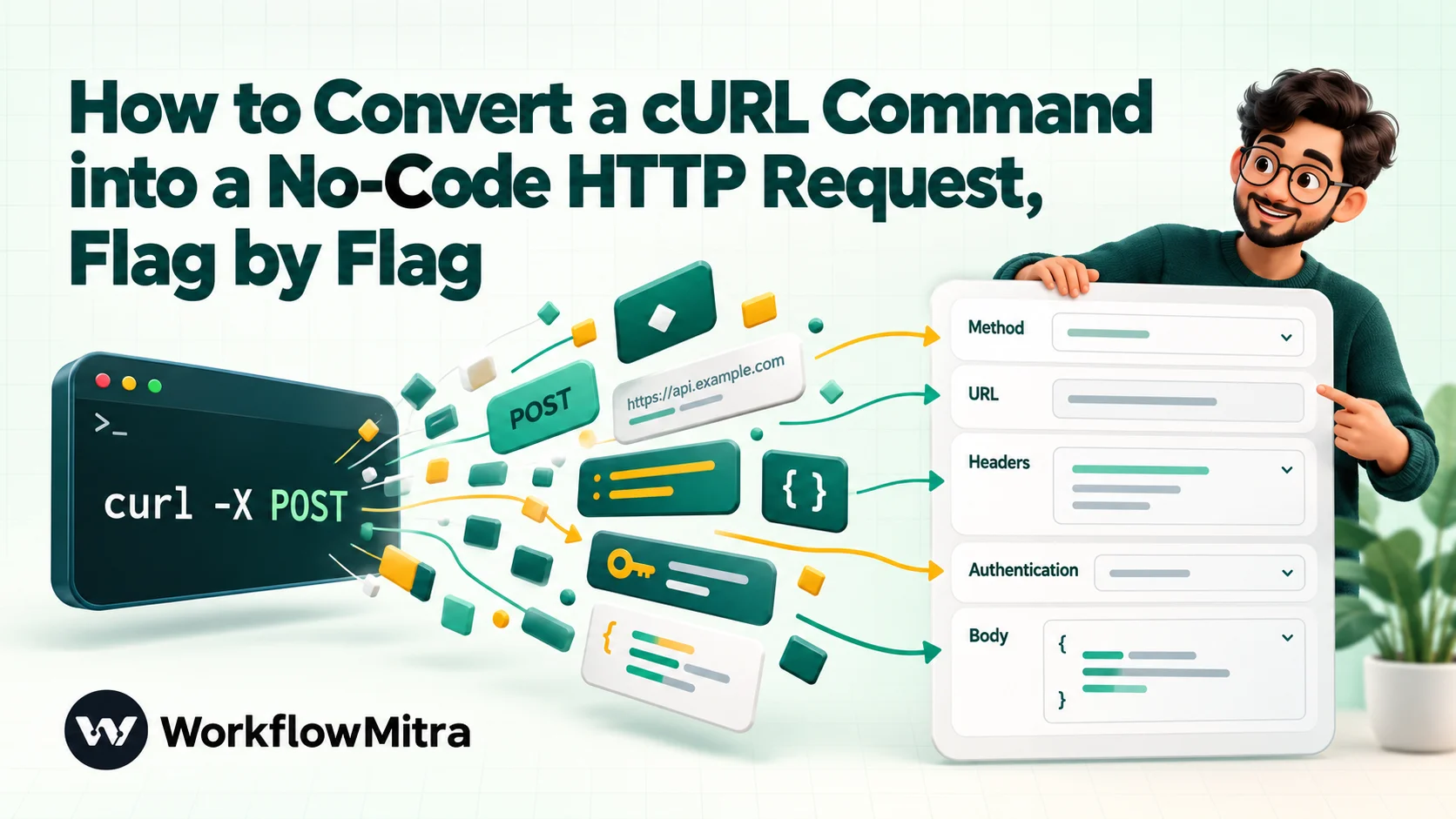
To convert a cURL command into a no-code HTTP request, map each part of the command to a field in an HTTP step: -X is the method, the address is the URL, each -H is a header, -u is basic authentication, an Authorization: Bearer header is a bearer token, and -d or --data-raw is the body. Most workflow tools can import the command for you. WorkflowMitra, powered by ChatMitra, has Import from cURL in its HTTP Request step. After importing, check five things: numbers and true/false values, form-encoded bodies, flags the importer skipped, terminal-only flags, and secrets that need replacing.
Almost every API’s documentation shows the same thing next to each endpoint: a few lines starting with curl. Developers paste that into a terminal and see the API respond. If you’re building an automation without code, though, that block looks like a riddle, and its contents (a method, an address, a sign-in, a body) have to end up somewhere else: in the fields of an HTTP step.
The good news is that a cURL command is just a request written in shorthand. A dozen or so flags cover nearly every example you’ll meet, each one maps to a field, and most workflow tools can now read the command for you. The less obvious news is that importers make quiet assumptions, and a request that looks right in the form can still send the wrong thing.
This guide does both halves. It explains what each part of a cURL command means and where it goes in a no-code HTTP request, then lists the specific places where an import needs a human check. The examples use the HTTP Request step in WorkflowMitra, powered by ChatMitra, and every behaviour described was tested by running the product’s own import and request code before publication. The flag meanings come from curl’s documentation and apply in any tool.
What does converting a cURL command into an HTTP request mean?
Converting a cURL command into an HTTP request means moving each part of the command into the matching field of an HTTP step. The -X flag becomes the method, the address becomes the URL, every -H becomes a header, -u becomes basic authentication, and -d or --data-raw becomes the body. Flags that only change how the curl program behaves in a terminal, like -s or -v, are dropped. Many automation tools do this automatically with an Import from cURL button; you then check the body type and swap sample values for real data.
curl itself is a free command-line program that ships with macOS, Linux and current versions of Windows. API documentation uses it as a common language because a curl example is complete: it contains everything the server needs and nothing else. That’s exactly why it’s useful to a no-code builder. You don’t have to read the whole reference page to work out which header is required; the example already tells you.
The anatomy of a cURL command
Here is a real example from ChatMitra’s own API reference, which sends a WhatsApp message (the key is a placeholder):
curl -X POST https://backend.chatmitra.com/developer/api/send_message \
  -H "Authorization: Bearer sk_live_abc123xyz789" \
  -H "Content-Type: application/json" \
  -d '{
    "recipient_mobile_number": "919999999999",
    "message": "Hello World!"
  }'
Read it top to bottom and it splits into five parts:
curlnames the program. It never goes into your request.-X POSTis the method: what you want to do. POST usually creates or sends something.https://backend.chatmitra.com/developer/api/send_messageis the URL, the exact endpoint.-H "…"lines are headers. Here, one carries the credential (Authorization: Bearer …) and the other says the body is JSON.-d '…'is the body: the data the API acts on.
The backslash at the end of each line is not part of the request. It tells the terminal “the command continues on the next line”, so a long command can be shown readably. Quotes work the same way: single and double quotes wrap values that contain spaces, and they disappear when the command runs.
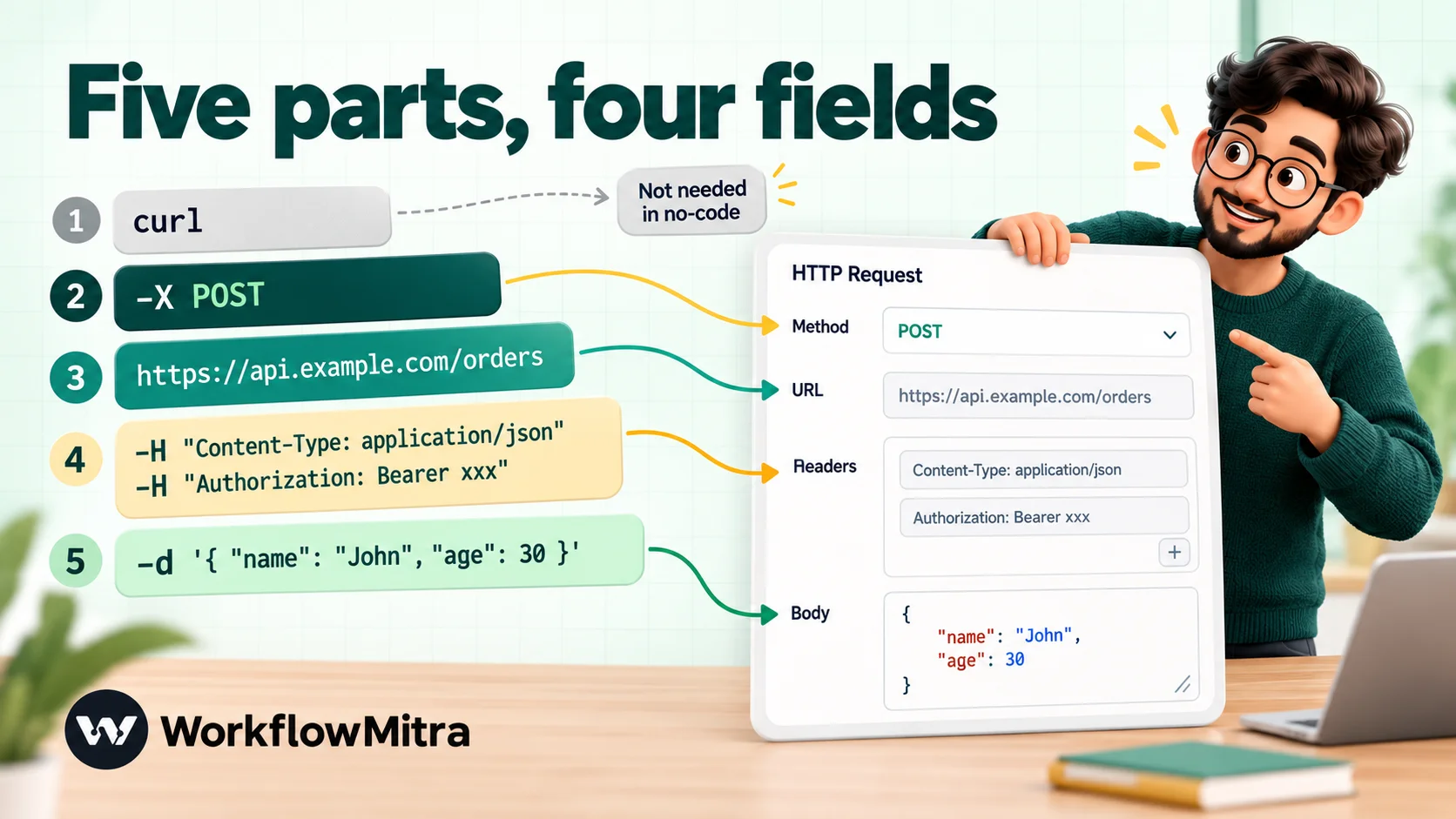
If the same request came from a different set of docs, it might look different on the surface, using --request instead of -X, --header instead of -H, or --data-raw instead of -d, but it would carry the same five parts. Long and short flag names mean the same thing.
One note on this example: in a WorkflowMitra workflow you would normally send WhatsApp messages with the built-in WhatsApp step, which sends through the ChatMitra API or Meta’s Cloud API. The HTTP Request step is for everything else, including the many apps that have an API but no ready-made integration.
The cURL flags you’ll see in API docs, and where each one goes
This table covers the flags that appear in nearly all API examples. The last column describes what WorkflowMitra’s importer does with each, based on running its code against these commands on 8 October 2026.
| Flag | What curl does with it | Field in a no-code HTTP step | WorkflowMitra import |
|---|---|---|---|
-X, --request | Sets the method | Method | Imported |
The https://… address, or --url | The endpoint to call | URL | Imported; a ?query string stays in the URL |
-H, --header | Adds one header | Headers (one row each) | Imported |
-H "Authorization: Bearer …" | Sends a bearer token | Authentication: Bearer token | Moved into the auth field |
-H "Authorization: Basic …" | Sends encoded basic credentials | Authentication: Basic auth | Decoded into username and password |
-u, --user | Basic auth from user:password | Authentication: Basic auth | Imported; key: gives an empty password |
-d, --data, --data-raw, --data-binary | Sends a body and switches to POST | Body | Imported; the body type depends on its shape (see below) |
-A, -b, -e | User agent, cookie, referrer | Headers | Imported as User-Agent, Cookie, Referer |
--json | Sends a JSON body with JSON headers, as POST | Body (raw JSON) + POST | Skipped: the request imports as a GET with no body |
-F, --form | Sends a multipart form, often with a file | Multipart body | Skipped; not available in the editor |
--data-urlencode | Sends a form field, URL-encoded | Body | Skipped (other -d values are kept) |
-G, --get | Turns the -d data into a query string on a GET | Query parameters | Import fails: "Could not read a URL" |
-s, -S, -v, -i, -k, -L, --compressed | Change how the curl program behaves | Nothing | Ignored |
-sL, -I, --http1.1, --fail-with-body | Terminal behaviour | Nothing | Import fails when the URL comes right after the flag |
The rows in bold are where conversions go wrong, and they’re covered one by one further down. Everything above them imports cleanly.
How the method is decided
curl picks the method in a fixed order, and it’s worth knowing because docs don’t always spell it out:
- If the command has
-X(or--request), that’s the method. - If not, but it has a body (
-dand friends), the method is POST. - Otherwise it’s GET.
So curl https://api.example.com/v1/contacts -d '{"name":"Asha"}' is a POST even though the word POST appears nowhere. A good importer applies the same rule, and WorkflowMitra’s does.
What headers usually mean
Most examples carry two or three headers, and they fall into a few families:
Content-Typesays what format the body is in.application/jsonis by far the most common.Acceptsays what format you want back. It’s usually harmless to keep.Authorizationcarries a credential. Bearer tokens and basic auth are the usual forms; our guide to API authentication methods explains each.- Custom headers such as
X-API-Key,X-Api-VersionorIdempotency-Keyare specific to that API. Keep them exactly as written, because a missing version header can change the response or cause an error.
How to convert a cURL command step by step
The steps below use WorkflowMitra’s HTTP Request step. The same order of work applies in any tool with an HTTP step, with or without an importer.
1. Copy the right version of the example
Docs often show several tabs: cURL, JavaScript, Python, PHP. Take the cURL one. If there are two cURL variants, choose the one for macOS/Linux (“bash”), which uses backslashes at line ends. Windows variants written for the old Command Prompt use ^ at line ends and work too in WorkflowMitra’s importer, but some Windows examples begin with curl.exe, and the importer reads curl.exe as the URL. Delete the .exe before pasting.
2. Strip terminal-only flags
Remove flags that only change how curl itself runs: -s, -S, -sL, -v, -i, -I, -o file, -w …, --http1.1, --fail, --fail-with-body, --retry, --max-time and similar. Most are harmless, but a few of them, when the URL comes straight after, make the importer swallow the URL and stop with “Could not read a URL from that cURL command.” Deleting them first avoids that, and none of them changes what the API receives.
3. Import
Add an HTTP Request step, click Import from cURL at the top of its settings, paste the command and press Import. The importer fills in the method, URL, authentication, headers and body. It replaces whatever those fields held before; query parameter rows and the Advanced settings are left as they were.
4. Review each field against the example
Go down the form and compare it with the command:
- Authentication. A bearer token or basic credentials should now be in the Authentication section, not left as a header.
- Headers. Every
-Hthat wasn’t a credential should be a row. - Body content type. This is the field to look at hardest. A JSON body with no nested objects or lists lands in fields mode; a nested one lands in Raw. The next section explains why that matters.
5. Replace secrets and sample values
The example’s key is a placeholder or, worse, a real key someone pasted. Replace it with your own, ideally a key created just for this workflow with the narrowest permissions the API offers. Then replace sample values with data from earlier steps using {{ }} placeholders, for example {{ $trigger.phone }} for a phone number that arrived with a webhook.
6. Test behind a manual trigger
Run the step once with test values before connecting it to a live trigger. The step’s output has status, ok, headers and body. A 2xx status and ok = true mean the API accepted the request; anything else means it didn’t, and the body usually says why.
7. Guard the result
A 4xx or 5xx response does not stop the workflow by itself: the step finishes with ok = false and later steps carry on. Add an IF step on the step’s ok field so failures go to an alert instead of into the steps that send messages or update records. The workflow error handling guide covers the patterns.
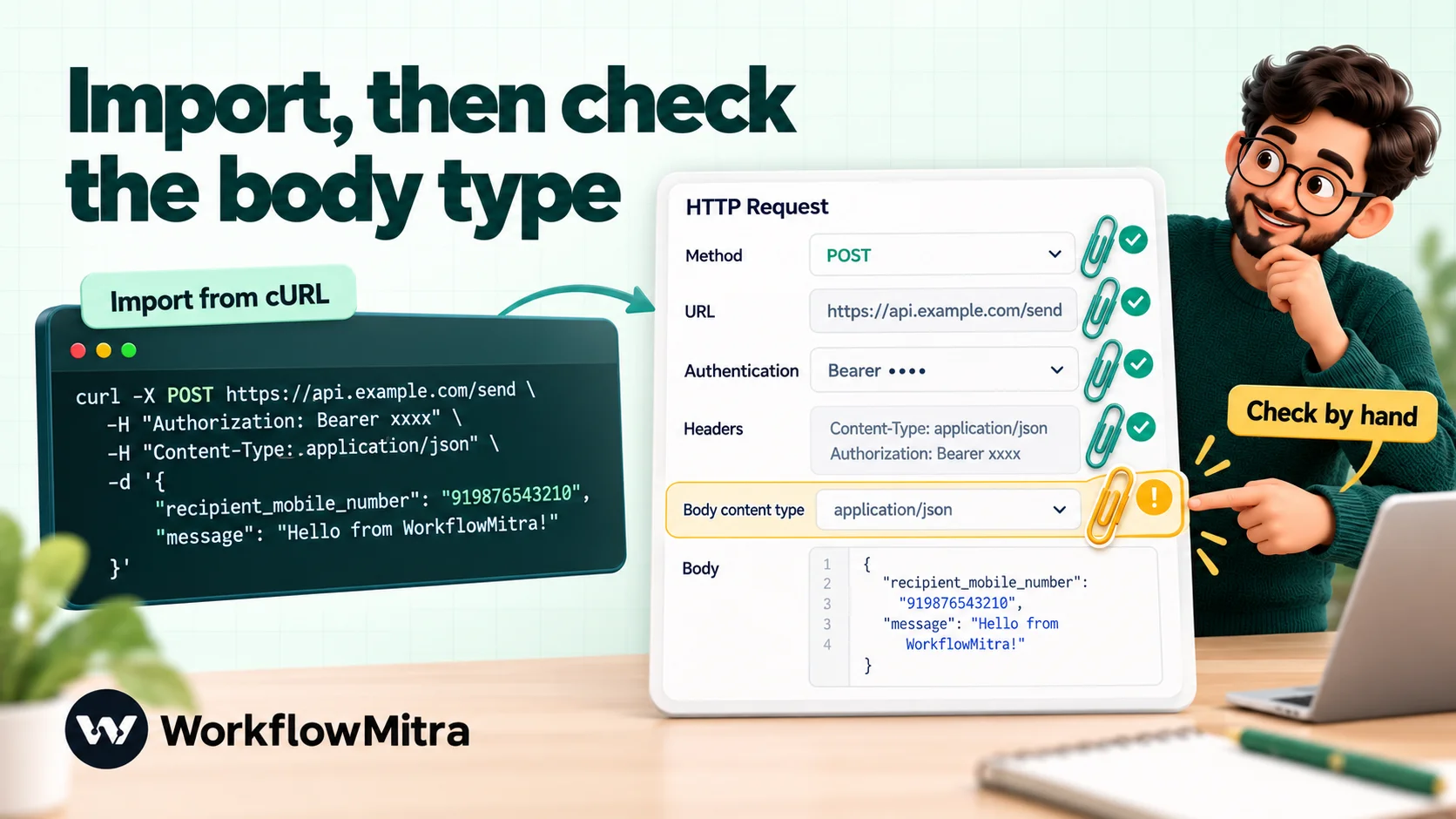
Five things to check after every import
These five checks catch almost every request that imports cleanly but fails when it runs. Each one was confirmed by sending the imported configuration to a public echo service, which reports back exactly what it received.
1. Numbers and true/false values that became text
When a body is a flat JSON object, such as {"name":"Asha","age":31,"vip":true}, the importer turns it into editable fields. That’s convenient for mapping values, but the fields mode sends every value as text. The echo service received "age":"31" and "vip":"true", with quotes. n8n’s documentation warns of the same behaviour in its own cURL import, so this isn’t unique to one tool; it’s a trade-off of field-based bodies.
Many APIs accept text that looks like a number. Strict ones don’t, and you’ll see a 400 or 422 error that mentions a type (“expected integer”, “must be a boolean”). The fix:
- Change Body content type to Raw (JSON string).
- Paste the original JSON back in.
- For values that come from earlier steps, put placeholders inside quotes for text and outside quotes for numbers.
{
  "name": "{{ $trigger.name }}",
  "quantity": {{ toNumber($trigger.quantity) }},
  "vip": true
}
Two details make this work. A placeholder inside quotes is escaped for you, so a name like Asha "A" Rao doesn’t break the JSON. A placeholder outside quotes keeps the type of the value it points to, so it only produces a real number if the source is a number. Form submissions and spreadsheets often deliver numbers as text; wrapping them in toNumber(), as above, turns "3" into 3. Fixed true/false values can simply be typed as true or false. Our guide to JSON in workflows goes deeper on types.
A body with nested objects or lists (like "customer": {"name": "Asha"}) is imported straight into Raw and kept exactly as written, so it doesn’t have this problem.
2. Form-encoded bodies that became JSON
Some APIs, especially older payment, SMS and login endpoints, expect the format a web form uses: key=value&key2=value2. In curl that looks like:
curl https://auth.example.com/oauth/token \
  -d grant_type=client_credentials \
  -d client_id=YOUR_ID \
  -d client_secret=YOUR_SECRET
curl sends that as application/x-www-form-urlencoded, its default for -d. WorkflowMitra’s importer, though, recognises the key=value pairs and turns them into JSON fields, so the step sends {"grant_type":"client_credentials",…} as JSON. An endpoint expecting a form either rejects it or ignores the fields.
The fix in the editor:
- Set Body content type to Raw.
- Type the body in form format:
grant_type=client_credentials&client_id=YOUR_ID&client_secret=YOUR_SECRET. - Add a header
Content-Type: application/x-www-form-urlencoded. Without it, a raw body is labelled as JSON. - Wrap any value that comes from an earlier step in
encodeURL(), for examplemessage={{ encodeURL($trigger.message) }}.
The last step matters more than it looks. When we sent message=Hi & welcome, 50% off unencoded, the server read the & as the start of a new field and received a message of just “Hi ”. With encodeURL(), it received the whole sentence.
3. Flags the importer skips without telling you
Three body flags are not imported at all, and nothing in the form shows that anything is missing:
--json '{…}', a newer shortcut added in curl 7.82.0 that sends JSON as a POST with JSON headers. After import you get a GET with no body. Rebuild it: method POST, body Raw, paste the JSON.--data-urlencode "field=value"is dropped while any plain-dfields beside it are kept. Add the missing field to the body yourself, encoded as in check 2.-F/--form(multipart forms and file uploads) is dropped, and the editor has no multipart body type. File-upload endpoints aren’t a good fit for the editor today; check whether the API also accepts a JSON body with a file URL or Base64 content.
Two others are worth knowing: --oauth2-bearer TOKEN is skipped (set Authentication to Bearer token and paste the token), and -d @payload.json, which tells curl to read the body from a file on the developer’s computer, imports the literal text @payload.json. Open the file from the docs and paste its contents as a Raw body instead.
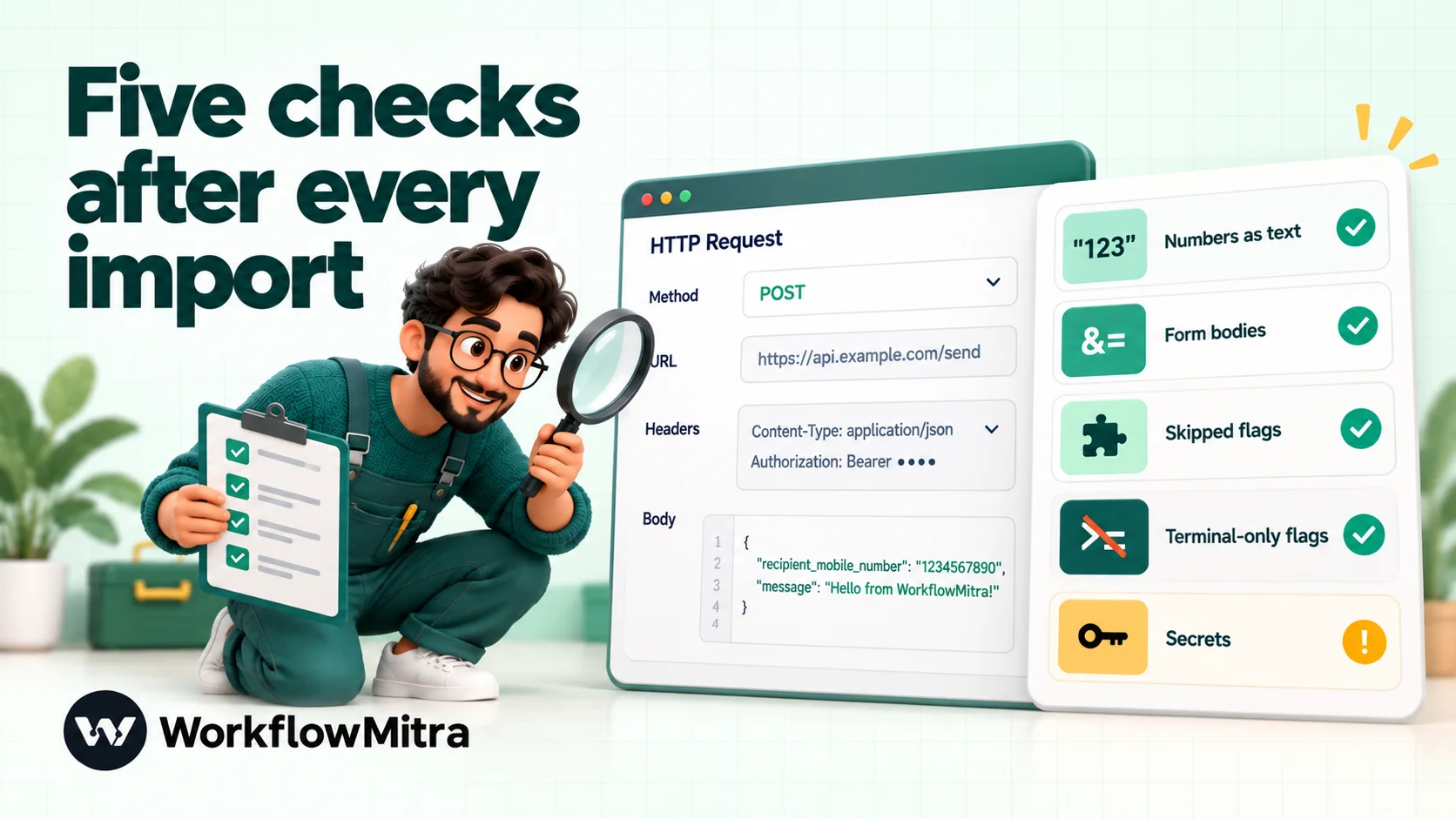
4. Query strings and -G
Query parameters are the ?limit=10&page=2 part of an address. If they’re already in the URL, the importer keeps them in the URL field, which works. Two cases need attention:
-Gwith-d. Some docs build a search URL this way:curl -G https://api.example.com/search -d q=shoes -d limit=5. curl turns the data into?q=shoes&limit=5on a GET. The importer doesn’t understand-G, loses the URL and stops with an error. Delete-Gand the-dparts, import the bare URL, then addqandlimitas rows under Query parameters.- Dynamic values. If a query value comes from an earlier step, such as a customer’s search text, put it in a Query parameters row rather than typing
?q={{ … }}into the URL. Rows are URL-encoded when the request is sent: a test value ofred shoes & socksarrived intact, asred+shoes+%26+socks. Typed into the URL, the&would split it.
Keep one more rule in mind: a GET request carries no body. If an import produces a GET with body data, either the method is wrong or the data belongs in the query string. WorkflowMitra hides the body field for GET and doesn’t send one, which matches what most servers expect.
5. Secrets, cookies and sample values
A cURL example is often someone’s working command, pasted as-is. Before you save:
- Replace every credential. Treat any key in a copied command as compromised if it came from a shared document or a support ticket.
- Delete cookies. A
-borCookie:header belongs to someone’s browser session. Workflows should authenticate with an API key or token, not a borrowed login. - Swap sample IDs and phone numbers for placeholders, so the first live run doesn’t message a test number or update a sample record.
It also helps to know who can see the result. In WorkflowMitra, credentials typed into an HTTP Request step are stored with the workflow, so anyone in the workspace who can open the workflow can read them, and clones and exports copy them. Use a dedicated, narrowly scoped key for each workflow so it can be revoked without breaking anything else.
Where cURL commands come from, and which ones to trust
Not every cURL command is an equally good starting point.
API documentation is the best source. The example was written to be copied, uses the public endpoint, and the surrounding page explains each field. Look for a “Try it” or “Code sample” panel next to the endpoint description.
API clients such as Postman can generate cURL from a saved request (its code snippet panel offers cURL among many languages). These commands are reliable and usually start with --location and use --data or --data-raw for the body, all fine for importing. Collections shared by an API provider are a good second source.
Browser developer tools offer “Copy as cURL” on any network request (in Chrome, right-click a request in the Network panel and choose Copy). It’s a superb way to see how a web app talks to its server, and a poor basis for automation. The copied command carries your session cookies, which act like a password, along with a dozen browser headers that mean nothing to a workflow. Website-internal endpoints also change without notice. Use it to learn, then find the documented API that does the same job.
Online converters, such as curlconverter.com, turn cURL into Python or JavaScript code. A no-code builder needs form fields rather than a script, which is the importer’s job.
Terminal-only flags: what they did and what replaces them
Some flags in a copied command express an intent that still matters in a workflow, even though the flag itself goes. This table shows where that intent lives in a WorkflowMitra HTTP step.
| Flag | What it does in a terminal | In a workflow HTTP step |
|---|---|---|
-L, --location | Follows redirects | Redirects are followed automatically, up to 5 hops; the Authorization and Cookie headers are dropped if a redirect leads to a different domain |
-k, --insecure | Skips the certificate check | No equivalent. The API needs a valid certificate |
--max-time, -m | Limits how long the call may take | Advanced › Timeout (ms); the default and the maximum are both 30 seconds |
--retry | Repeats a failed call | No retry setting in the editor; route ok = false to an alert or a second attempt |
-f, --fail | Treats 4xx/5xx as an error | Responses always come back with status and ok; an IF on ok does the job |
-o, -w, -i, -v | Saves output, prints extra detail | The run record shows the full status, headers and body |
-s, -S, --compressed | Progress meter and compression | Not needed |
The timeout row is the one most likely to matter. If an API’s docs say an endpoint can take a minute (report exports, AI generation, bulk jobs), a synchronous call from a workflow will time out at 30 seconds. Look for an asynchronous version of the endpoint, where you start a job and then check its status or receive a webhook when it’s done.
Going the other way: Export as cURL
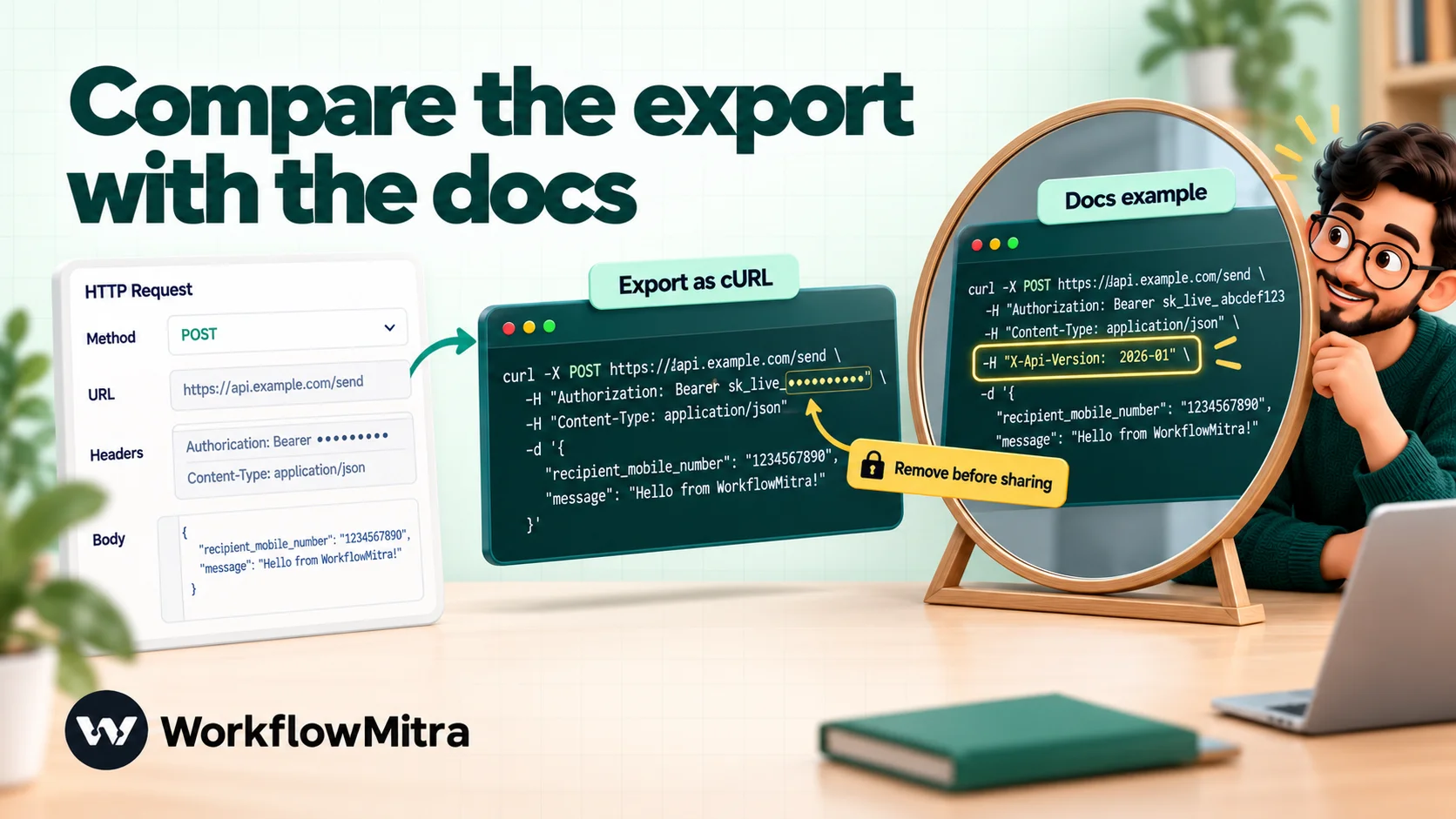
Conversion also works in reverse, and that direction is underrated. At the bottom of WorkflowMitra’s HTTP Request step, Export as cURL copies the configured request as a cURL command. Three situations make it worth knowing:
- Asking an API’s support team for help. “Here’s the exact request we send” gets a faster answer than a screenshot of a form. Remove the credential before you send it.
- Comparing with the docs. Put the exported command next to the documentation’s example. A missing version header or a misspelt field usually stands out at once.
- Handing a request to a developer, who can run it in a terminal and see the raw response.
The export is faithful to what you configured, with a few things to know:
- It includes credentials in plain text: bearer tokens, API key headers and basic auth. Treat the copied text as a secret.
{{ }}placeholders stay as they are. The export shows{{ $trigger.phone }}, not the value from a particular run, so replace placeholders with test values before running it in a terminal.- Field-mode bodies are exported without a Content-Type header. The step itself sends them as JSON, but curl would label them as a web form. Add
-H 'Content-Type: application/json'when you reproduce the call in a terminal, or the API may answer differently than it does for the workflow. - Query parameter rows are added to the URL, and a GET request is exported without a body.
A worked example: from docs to a working step
Suppose an order-management API documents its “create order” endpoint like this:
curl -sL -X POST "https://api.example.com/v2/orders" \
  -H "X-API-Key: test_key_123" \
  -H "Content-Type: application/json" \
  -H "X-Api-Version: 2026-01" \
  --data-raw '{"customer_phone":"919876543210","sku":"TSHIRT-M","quantity":2,"gift":false}'
You want to create an order whenever your website form posts a webhook. Here’s the conversion, step by step:
- Strip
-sL. It changes nothing the API sees, and the step follows redirects anyway. Here it happens to be harmless because-Xcomes next, but in a command where the URL comes straight after it, the import fails. - Import. You get POST, the URL, two headers (
Content-Type,X-Api-Version) and theX-API-Keyheader. Because the body is flat JSON, it lands in fields mode withquantity= “2” andgift= “false” as text. - Move the key into Authentication. Choose API key (header), header name
X-API-Key, and paste your own key; then delete the header row. The request is the same, but the key sits in the auth section where it belongs. - Switch the body to Raw and map real data, leaving numbers unquoted:
{
  "customer_phone": "{{ $trigger.phone }}",
  "sku": "{{ $trigger.sku }}",
  "quantity": {{ toNumber($trigger.quantity) }},
  "gift": false
}- Run once from a manual trigger with a test order. Look for a 201 or 200 status and an order ID in the response body.
- Add an IF on
ok. The true branch can send the customer an order confirmation; the false branch alerts your team with the status and body.
The part that saves the most debugging is step 4. Left in fields mode, the API would have received "quantity":"2", and depending on how strict it is, either rejected the order or stored a text value that breaks reports later.
Troubleshooting a converted request
When a request that came from cURL doesn’t behave like the example, the response usually points straight at the cause.
| Symptom | Likely cause | Fix |
|---|---|---|
| "Could not read a URL from that cURL command" | A flag such as -G, -I, -sL or --http1.1 before the URL | Delete terminal-only flags and import again |
URL field shows curl.exe | A Windows example | Delete .exe before importing, or fix the URL by hand |
| 400 or 422 mentioning a type | Numbers or true/false sent as text from fields mode | Switch to Raw; leave numbers unquoted; use toNumber() |
| 415 Unsupported Media Type | Body format and Content-Type don't match what the API wants | JSON body with application/json, or form text with application/x-www-form-urlencoded |
| Required field missing, though the example had it | The value came from --data-urlencode, --json or -F, which weren't imported | Add it to the body by hand |
| 401 Unauthorized | Placeholder key still in place, or credential left as a stray header | Use your own key in the Authentication section |
Text cut short at an & | Unencoded value in a form body or URL | Use encodeURL() or a Query parameters row |
| Works in a terminal, times out in the workflow | Endpoint takes longer than 30 seconds | Use the API's asynchronous or webhook option |
| 404 Not Found | Wrong base URL, such as the sandbox host or a missing /v2/ | Compare the exported cURL with the docs example |
For anything not in the table, export the request as cURL, remove the secret, and compare it line by line with the documentation’s example. The difference is nearly always visible.
How other automation tools handle cURL
Importing cURL has become a standard convenience in workflow tools, and the details differ:
- WorkflowMitra has Import from cURL and Export as cURL in the HTTP Request step, as described above. The importer moves bearer and basic credentials into the auth fields, keeps nested JSON exactly, and turns flat JSON or form pairs into editable fields that are sent as text.
- n8n has an Import cURL button in its HTTP Request node, which overwrites the node’s settings, and its documentation notes that imported parameter values are always strings, recommending a JSON body when types matter.
- Make’s community forum points to its AI assistant for turning cURL into an HTTP module configuration, after an older community converter was deprecated. Make’s own documentation for the HTTP app should be checked for the current method.
Whatever the tool, the same five checks apply, because a cURL command can express things a form-based step has no fields for.
Where WorkflowMitra fits
If you mostly work from API documentation and want requests running inside workflows, WorkflowMitra by ChatMitra is built for that path:
- Docs to form in one paste. Import from cURL fills the method, URL, headers, body and the right authentication type, including decoding a pasted basic-auth header.
- Typed JSON when you need it. Raw bodies escape text placeholders and keep numbers as numbers, so a converted request sends what the API documents.
- Responses you can act on. Every call returns
status,ok,headersandbody, so a failure becomes a branch rather than a silent gap. - Messaging on the same platform. When an API’s result has to reach a customer or a team on WhatsApp, the WhatsApp step sends it through ChatMitra, the business messaging platform that powers WorkflowMitra.
The limits are worth stating plainly. The HTTP Request editor has no form-encoded, multipart or file-upload body types (form text works through Raw, as shown above), no OAuth 2.0 option, no setting to skip certificate checks, and a 30-second ceiling per call. Credentials typed into the step are visible to anyone who can open the workflow. If your integrations are mostly file uploads or long-running calls, a developer-oriented platform or a small custom service may suit you better. The HTTP Request integration page lists what the step supports.
What a converted request costs to run
Each HTTP Request step uses 1 credit every time it runs, whatever the response. IF steps don’t use credits. The worked example above, with a webhook trigger, one HTTP Request and one message step, uses a handful of credits per order. WorkflowMitra plans start at 10,000 credits a month for ₹999 (checked on 8 October 2026; see current pricing), after a 14-day trial with no card required.
Start with one example from the docs
Pick an API you’ve wanted to connect, open its documentation and find the cURL example for the single action you need. Strip the terminal flags, import it into an HTTP Request step behind a manual trigger, run the five checks, and read the response.
You can try it in a 14-day WorkflowMitra trial. If calling APIs is new to you, our guide to connecting any API without code covers the basics of reading API docs, and API authentication methods explains the credentials you’ll paste in. ChatMitra users calling the ChatMitra API from a workflow will find their key under API keys and webhook URL, and every endpoint’s own cURL example in the ChatMitra API reference.
WorkflowMitra behaviour described here, including the cURL importer's handling of each flag, Export as cURL, the HTTP Request editor's fields, body types, JSON escaping, redirect handling, timeout limits and credit rates, comes from its source code as of 8 October 2026. The importer was run against every cURL command shown in this guide, and the resulting requests were sent through the same request code to httpbin.org on that date. Flag meanings are from curl's manual and the Everything curl book (the --json option, curl 7.82.0); n8n's behaviour is from its HTTP Request node documentation, and Make's from its community forum, all read the same day.
Frequently Asked Questions
Short answers to the questions people ask when they turn an API's cURL example into a workflow step.
Map each part of the command to a field. The word after -X or --request is the method (GET if there's none and no data). The address starting with https:// is the URL. Each -H or --header is one header. -u user:password is basic authentication. -d, --data or --data-raw is the request body, and its presence makes the request a POST unless -X says otherwise. In a workflow tool with a cURL importer, paste the command and it fills these fields for you; then check the body type and replace sample values.
Automate the work between your apps
Build workflows with triggers, conditions and actions, then test them before they go live. Try WorkflowMitra free for 14 days, no card required.
