How to Create an API Endpoint Without Code: Webhook In, Custom Response Out

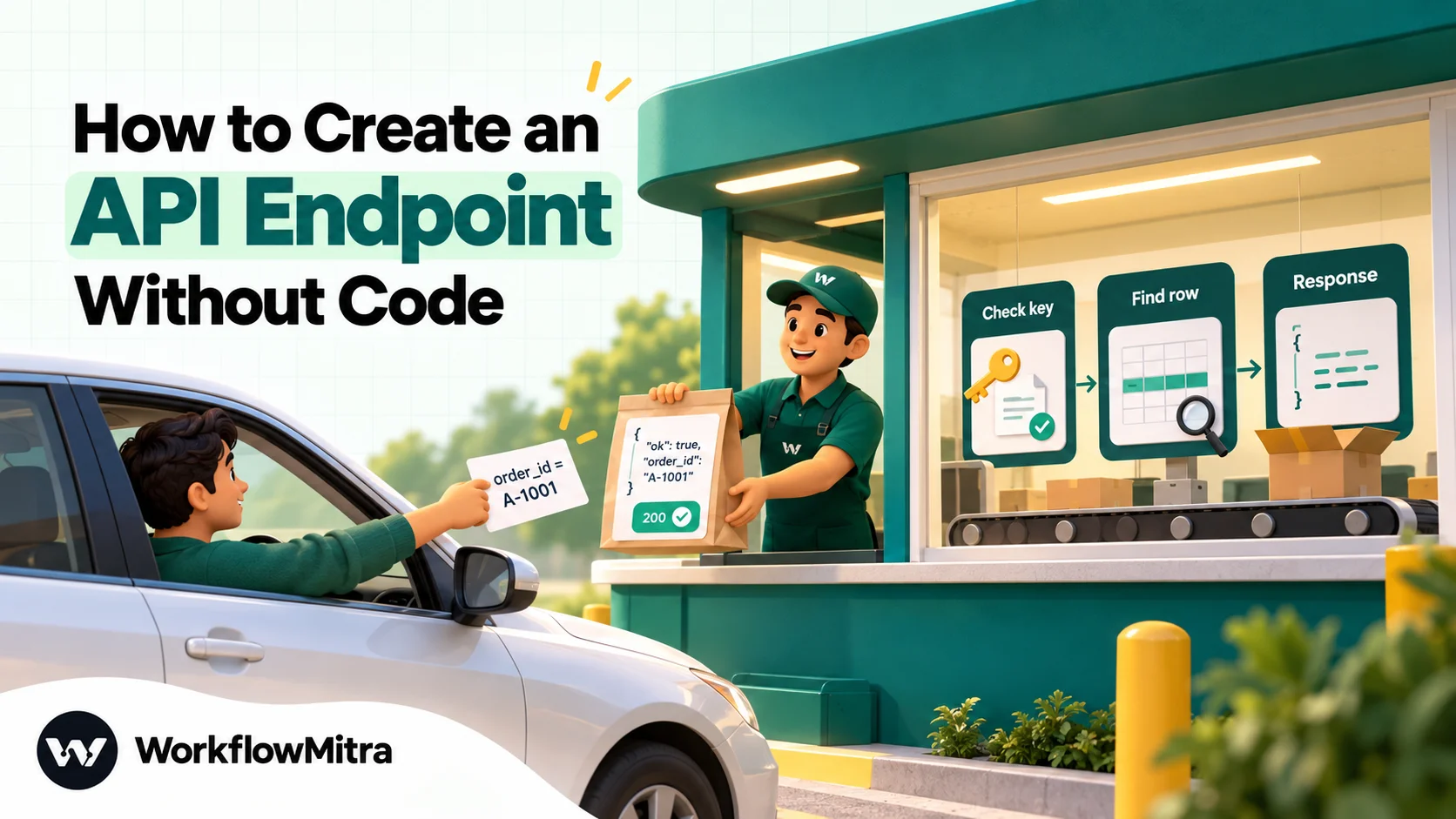
Quick Summary
You can create a working API endpoint without code by using a workflow whose trigger is a webhook URL set to respond synchronously. The caller sends a GET or POST request, the workflow looks up or saves data, and a final Response step returns the status code, headers and body you choose. In WorkflowMitra, powered by ChatMitra, the caller waits up to 25 seconds for the reply; slower runs get a 202 acknowledgement instead. It suits low-to-moderate traffic jobs such as lookups for chatbots and forms, validation and internal tools, not high-traffic public APIs.
Sooner or later, someone asks you for an API. A chatbot needs to look up an order. A partner’s system wants to check whether a coupon is valid. A form should tell the visitor straight away whether their pincode is serviceable. Your developer is busy, and the data sits in a spreadsheet anyway.
You can build that endpoint without code. A workflow that starts from a webhook URL, does the lookup and replies with a proper status code and JSON is an API endpoint from the caller’s point of view. The caller can’t tell, and for most small jobs it doesn’t matter.
This guide shows how to build one step by step in WorkflowMitra, powered by ChatMitra, using an order-status lookup as the example. It covers what the caller sends and receives, how to shape safe JSON, how to secure the URL, and the limits that tell you when a no-code endpoint is the wrong tool. Every behaviour described comes from WorkflowMitra’s source code, and the response-shaping examples were run through its step code before publication.
Can you create an API endpoint without code?
Yes, for small, focused jobs. Use a workflow with a webhook trigger set to respond synchronously. The caller sends a GET or POST request to the webhook URL, the workflow runs (look up a row, save a record, check a rule) and a final Response step returns the status code, headers and body you choose. In WorkflowMitra the caller waits up to 25 seconds for that reply. It suits lookups, validations and internal tools at modest volume, not high-traffic public APIs.
Webhook vs API endpoint: what changes
A webhook and an API endpoint are both URLs that accept HTTP requests. The difference is what happens to the caller.
- A normal webhook acknowledges and forgets. It accepts the request, replies at once (“got it”) and does the work afterwards. WorkflowMitra webhooks reply 202 Accepted by default, and MDN describes 202 as non-committal: it says the request was accepted, not that the work succeeded.
- An endpoint answers. The caller waits, and the reply carries the result: the order’s status, a validation error, the ID of the record just created.
So turning a webhook into an endpoint means making the caller wait for the workflow and giving the workflow control of the reply. That’s exactly what the Respond synchronously setting and the Response step do. If you’re new to webhooks themselves, our guide to what webhooks are covers the basics.
When a no-code endpoint makes sense, and when it doesn’t
Be honest about the job before you build. A workflow endpoint runs a whole workflow for every request, which is wonderful for flexibility and less wonderful for speed and scale.
| Good fit | Poor fit |
|---|---|
| Order, booking or ticket lookups for a chatbot or support tool | A public API with thousands of calls a minute |
| Checking a coupon, pincode or membership against a sheet or database | Anything that must answer in well under a second |
| A form backend that validates input and returns a reference number | Calls straight from JavaScript on another website |
| Internal tools: "give me today's numbers as JSON" | Jobs that take longer than about 20 seconds |
| A small integration a partner calls a few hundred times a day | Full REST resources needing PUT, PATCH and DELETE |
| Prototyping an API before a developer builds the real one | Large uploads or responses over a few hundred kilobytes |
The poor-fit column isn’t a list of things that are impossible. It’s where you’ll start fighting the tool, and where a conventional API built by a developer is cheaper in the long run.
How a synchronous webhook works in WorkflowMitra
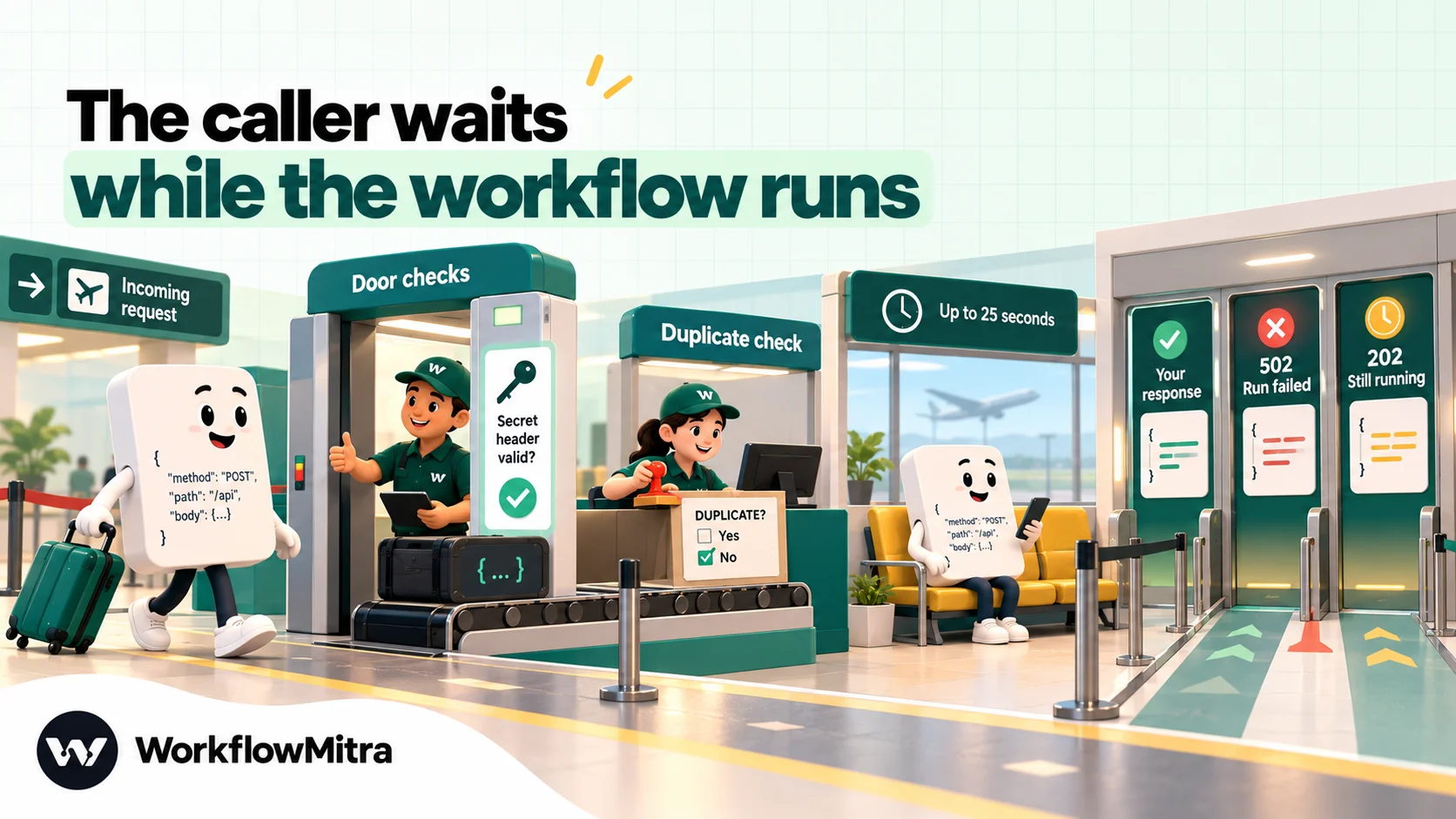
When a request reaches a webhook with Respond synchronously turned on, this happens in order:
- The URL is looked up. An unknown URL, or a workflow that’s switched off, gets 404.
- The door checks run. If you set an IP allowlist, other addresses get 403. If the webhook has a secret, a request without the right value in the secret header gets 401. Signature and timestamp checks, if configured, also return 401 on failure.
- Duplicates are caught. A request with the same
Idempotency-Keyheader as an earlier one, or with exactly the same POST body within the last 60 seconds, isn’t run again (more on this below, because it matters for endpoints). - The workflow runs while the request is held open.
- The reply is sent as soon as the run finishes, or after 25 seconds, whichever comes first.
What the caller receives depends on how the run ended:
| Situation | Status | Body |
|---|---|---|
| Run finished and the last step was a Response step with a status code | Your status code (100–599) | Your body, with your headers and content type |
| Run finished successfully, no Response step | 200 | The last step's output, as JSON |
| Run failed | 502 | {"error": "…"} with the failure message |
| Still running after 25 seconds | 202 | An acknowledgement with "pending": true and the run ID; the run continues |
| Duplicate request | 200 | An acknowledgement with "duplicate": true, not your response |
| Body over 100 KB (JSON, form or text) | 413 | "Request body is too large" |
| More than 120 requests a minute to this URL | 429 | A rate-limit error |
Two details in that table shape everything that follows. First, the reply comes from the last step that ran. The Response step doesn’t stop the workflow, so any step placed after it delays the reply and replaces it. Put the Response step last on every path. Second, a failed run turns into a 502 with an error message, which is useful for debugging but not a polished API error. Catch the failures you expect and answer them yourself.
What the workflow receives
The trigger turns the request into data the next steps can use:
- GET: the query parameters. A call to
…?order_id=A-1001&phone4=4321gives the workfloworder_idandphone4. - POST with JSON or a form: the body’s fields.
- POST with XML: the parsed XML; other text arrives as
raw. - Multipart uploads: the text fields plus a
fileslist (up to 10 files of 10 MB each).
Two things don’t reach the workflow: request headers, and query parameters on a POST. If a caller needs to pass a value, put it in the GET query or the POST body.
Plan the contract before you build
Developers call the agreement between an endpoint and its callers the contract: what goes in, what comes out, and what each failure looks like. Writing it down first takes ten minutes and saves rebuilding later. For the order-status example, it fits in one table:
| Part | Decision |
|---|---|
| Method | GET, because the caller is reading, not changing anything |
| Authentication | Secret in the x-webhook-secret header |
| Parameters | order_id (required), phone4 (last four digits, required) |
| Success | 200 with order_id, status, courier, tracking_url, updated_at |
| Not found | 404 with error = order_not_found and a message |
| Not allowed | 401 (wrong or missing secret), handled before the workflow runs |
| Expected volume | A few hundred calls a day from one chatbot, well inside the limits |
Three questions decide most of this. Is the caller reading or writing (GET or POST)? What is the smallest set of fields it needs back? And what must be true before you hand over personal data? Answer those, and the workflow almost designs itself.
Build it: an order-status lookup endpoint
Here’s the example. A support chatbot (or a partner, or your website’s backend) needs to ask “what’s the status of order A-1001?” and get JSON back. The orders live in a Google Sheet with columns OrderID, Phone, Status, Courier, TrackingURL and UpdatedAt.
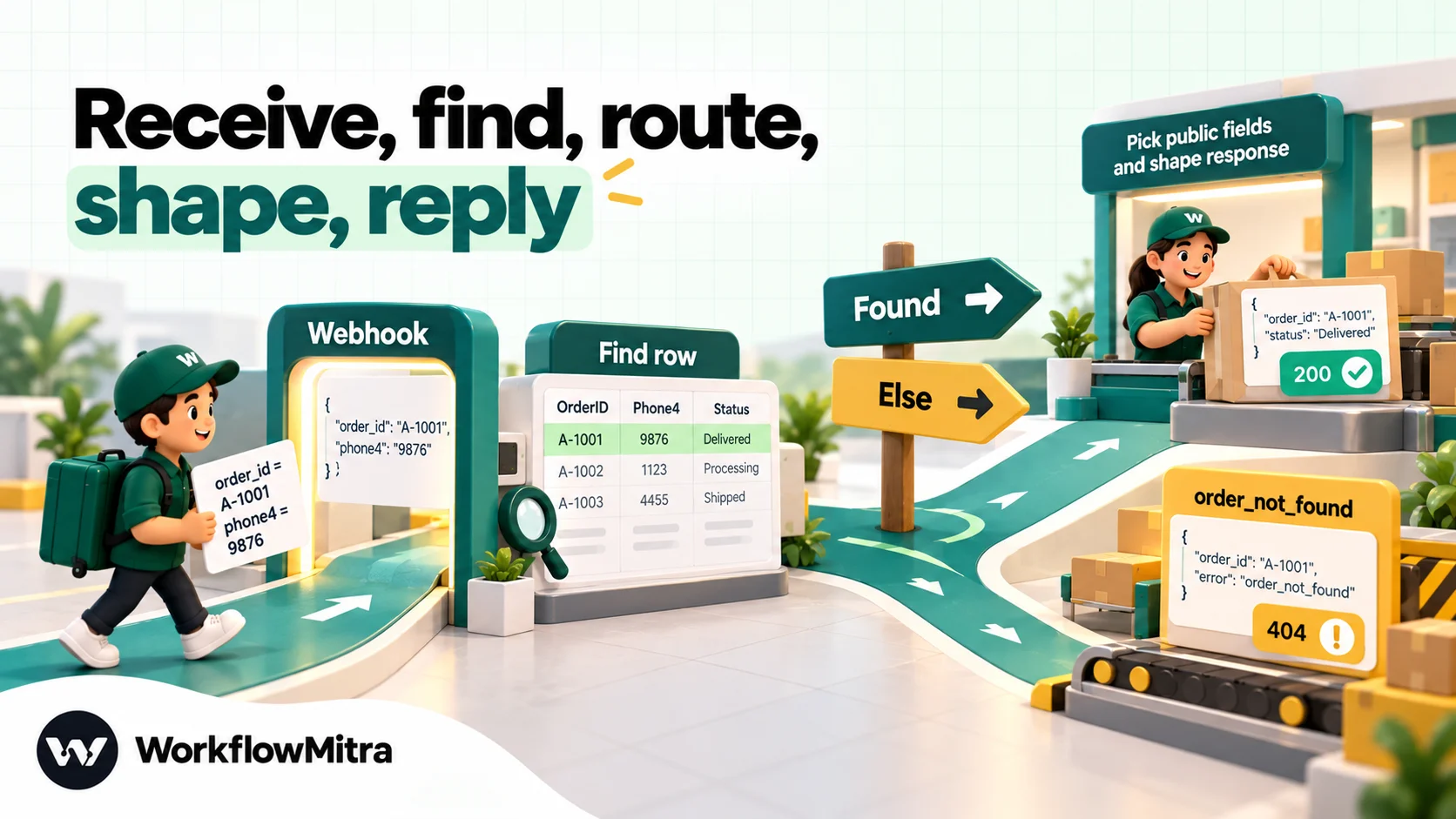
Step 1: Add the webhook trigger
Create a workflow and choose On webhook call as the trigger. Pick Something else as the source, since your own caller isn’t a listed app. Save the workflow, and the trigger shows the webhook URL, which ends in /api/webhooks/ followed by a long random ID.
New webhooks start locked: WorkflowMitra generates a secret beginning whsec_ and expects it in the x-webhook-secret header. That secret is your endpoint’s API key. Give it only to the system that will call the endpoint.
Step 2: Turn on Respond synchronously
Open the webhook’s settings (Edit webhook) and, under Enforcement, turn on Respond synchronously. The setting’s own description sums it up: it holds the request until the workflow finishes and returns a Response node’s output instead of an immediate acknowledgement.
While you’re there, consider Require verification, which rejects any request that passes no secret or signature check, so the endpoint can never be left open by accident.
Step 3: Find the order
Add a Google Sheets step with the operation Find row. Match OrderID against {{ order_id }} from the trigger.
For an endpoint that returns personal details, don’t match on the order ID alone. Order IDs are often sequential and easy to guess. Use + Match on more than one column to require the last four digits of the phone number too. Store them in their own Phone4 column, so you’re comparing like with like. A caller then needs both the order ID and the phone digits to get an answer.
The Find row step returns found (true or false), the row itself and its rowNumber. When nothing matches, it doesn’t fail; it reports found as false. When several rows match, the default is to stop with an error, which is what you want for an ID that should be unique.
Step 4: Route found and not-found
Add an IF step with a route named Found that runs when {{ found }} is yes. Everything else takes Else. IF steps are free and pass their input through unchanged, so the next step still sees the row.
Step 5: Shape the public reply
On the Found route, add a Code step that builds exactly the object the caller should see, and nothing more:
const r = input.row;
return {
  order_id: r.OrderID,
  status: r.Status,
  courier: r.Courier || null,
  tracking_url: r.TrackingURL || null,
  updated_at: r.UpdatedAt,
};
Why a Code step rather than typing JSON into the Response step? Two reasons that we confirmed in WorkflowMitra’s step code:
- Typed bodies aren’t escaped. A Response body such as
{"name": "{{ name }}"}inserts the value as-is. When we tried it with the nameAsha "AR" Rao, the result was broken JSON, because the quotes inside the name weren’t escaped. - Set Variable keeps everything. A Set Variable step adds fields to the incoming data rather than replacing it, so an empty-bodied Response after it would return the whole spreadsheet row, phone number included.
A Code step’s returned object is sent as properly encoded JSON. It costs a fraction of a credit, as our guide to the Code step explains.
Step 6: Add the two Response steps
After the Code step, add a Response step with Status code 200 and leave Response body empty. Empty means “return the current data”, which is the clean object from step 5, sent as JSON.
On the Else route, add a second Response step:
- Status code:
404 - Content type:
application/json - Response body:
{"error": "order_not_found", "message": "No order matches that ID and phone number."}
This body is fixed text with no inserted values, so escaping isn’t a concern. Set the content type whenever you type a body. Without it, the reply goes out as text/html, because that’s how the underlying web framework labels plain text. Many clients will then refuse to parse it as JSON.
Both routes now end in a Response step, and nothing comes after either one.
Step 7: Call it
Test from a terminal, a tool like Postman, or the system that will use it:
curl -G 'https://<your-webhook-url>' \
  --data-urlencode 'order_id=A-1001' \
  --data-urlencode 'phone4=4321' \
  -H 'x-webhook-secret: whsec_your_secret_here'
A found order comes back as:
{
  "order_id": "A-1001",
  "status": "Shipped",
  "courier": "Delhivery",
  "tracking_url": "https://example.com/track/A-1001",
  "updated_at": "2026-10-07 18:40"
}
A wrong ID or phone gets 404 with the error object. A missing or wrong secret gets 401 before the workflow runs at all, and costs nothing.
Remember that every test call is a live run. It reads the real sheet and uses credits. Our guide on how to test a webhook covers inspecting deliveries and reading rejection reasons.
A second pattern: a POST endpoint that saves and confirms
Lookups use GET. When the caller is sending something, such as a booking request, a lead or a warranty registration, use POST with a JSON body and reply with what happened:
- On webhook call with Respond synchronously on.
- IF route Valid when the required fields are present and well formed. Our data validation guide shows rule patterns.
- On Valid: Google Sheets Add row, then a Code step returning
{ "reference": …, "status": "received" }, then a Response with status201. - On Else: a Response with status
422, content typeapplication/jsonand a fixed error body such as{"error": "invalid_request", "message": "name and phone are required"}.
Status codes are the caller’s first signal, so choose them deliberately:
| Code | Use it when |
|---|---|
| 200 OK | A lookup or action succeeded and the body has the result |
| 201 Created | A new record was saved; include its reference in the body |
| 400 Bad Request | The request is malformed, such as a missing parameter |
| 404 Not Found | The thing asked for doesn't exist (or the caller can't prove it's theirs) |
| 409 Conflict | The record already exists, such as a duplicate registration |
| 422 Unprocessable Content | The request is well formed but fails your rules |
Only use non-2xx codes with callers you control. Third-party senders such as form plugins and lead platforms often treat any non-success reply as a failed delivery and retry it, show an error or switch the integration off.
Calling your endpoint from another workflow
Your own workflows can be callers too, which is handy when several workflows need the same lookup. Instead of copying the Sheets logic into each, call the endpoint once with an HTTP Request step:
- Method
GET, URL = the webhook URL. - Authentication type: API key (header), header name
x-webhook-secret, key = the secret. - Query parameters:
order_idandphone4, mapped from earlier steps.
The step returns status, ok and the parsed body, so the calling workflow can branch on {{ status }} (200 or 404) and read {{ body.status }}. A 404 doesn’t fail the step; it finishes with ok set to false, which is exactly what you want for “not found”. The trade-off is cost and time: the call runs a second workflow, so it uses that workflow’s credits and adds its run time to yours. For a lookup used in one place only, putting the Sheets step directly in the workflow is simpler.
Designing responses callers can rely on
An endpoint is a promise. Whoever builds against it will write code expecting the same shape every time. A few habits keep that promise:
- Keep one shape per outcome. Success always has the same fields; errors always have
error(a fixed code) andmessage(a sentence). Usenullfor a missing value rather than leaving the field out. - Return only what the caller needs. The Code step in step 5 is your filter. Internal notes, staff names and full phone numbers stay in the sheet.
- Name fields in one style. Pick
snake_caseorcamelCaseand stick to it, whatever your sheet’s headers look like. - Add response headers where they help. A
Cache-Control: no-storeheader stops proxies from caching personal data. Response headers are set in the Response step. - Write it down. One short page with the URL, the secret header, each parameter, an example request and every possible response. That page is the difference between an endpoint and a mystery URL.
Changing an endpoint without breaking callers
Once something depends on your endpoint, changes need care. Adding a new field to the reply is safe: well-written callers ignore fields they don’t know. Renaming or removing a field, changing a status code or making a parameter required will break someone. When you need a breaking change, build the new version as a separate workflow with its own URL, move callers over, and switch the old workflow off only when its Recent deliveries list goes quiet. Treat the sheet the same way: renaming a column the Code step reads will quietly turn a field into null.
Securing your endpoint
A webhook URL is public by nature: anyone who has it can send requests. Security comes from what you check, so layer it:
| Control | What it does | Rejected requests get |
|---|---|---|
Shared secret (default x-webhook-secret) | Acts as the endpoint's API key | 401 |
| Require verification | Refuses any request that passed no secret or signature check | 401 |
| IP allowlist | Accepts only listed addresses or ranges, for callers with fixed servers | 403 |
| Signature verification | Checks an HMAC signature, for callers that sign requests | 401 |
| Two-value matching | Returns personal data only when two facts match | Your own 404 |
Rotating is safe: when you change the secret, the old one keeps working for 24 hours, and a rotated URL keeps resolving for 7 days, so callers can switch over without downtime. On the calling side, the secret is an API key like any other. Our guide to API authentication methods explains how callers should store and send it, and the webhook security guide goes deeper on signatures and replay protection.
Don’t call the endpoint from browser JavaScript on your website. Two reasons. Anything in browser code, the secret included, is visible to every visitor. And the endpoint doesn’t send the CORS headers that would let another site’s page read its reply, so the browser blocks the response by default. Call it from a server, a serverless function, your website’s backend, a chatbot platform’s server-side request, or another workflow.
Duplicates, retries and repeated calls
WorkflowMitra webhooks protect against senders that retry, and that protection behaves differently for an endpoint:
- Identical POST bodies within 60 seconds are treated as one request. The second caller gets
200with"duplicate": trueand the first run’s ID, not your Response. For an endpoint that saves data, that’s a feature: a double-clicked submit doesn’t create two records. For a POST lookup, two legitimate identical questions a few seconds apart would collide, which is one more reason to make lookups GET requests. - GET requests without a body aren’t fingerprinted this way, so repeated lookups each run normally.
- An
Idempotency-Keyheader makes the dedup explicit. Requests sharing a key are treated as one for 24 hours. Callers that create records should send a unique key per intended action, and reuse it only when retrying that action.
Our guide to webhook idempotency covers the pattern in depth.
Speed, limits and timeouts
A workflow endpoint answers in seconds, not milliseconds. The request waits while a worker picks up the run, each step executes, and the receiver notices the run has finished. Plan for that:
- Keep endpoint workflows short. Every step adds time. A lookup like the one above is the sweet spot.
- Never put Delay, approval or long AI steps in an endpoint. Anything that can push the run past 25 seconds turns your reply into a 202 with no data.
- Do slow follow-up work elsewhere. If a request should also trigger something slow, such as a WhatsApp confirmation sent through ChatMitra or a CRM update, let a second workflow handle it. Have the endpoint workflow call that workflow’s (non-synchronous) webhook with an HTTP Request step just before its Response, and the second webhook acknowledges at once.
- Respect the rate limit. Each webhook URL accepts up to 120 requests a minute; beyond that, callers get 429. If a caller might burst, ask it to back off and retry.
- Watch payload sizes. JSON, form and text bodies are capped at 100 KB.
Troubleshooting
| Symptom | Likely cause | Fix |
|---|---|---|
Caller gets 202 with "pending": true | The run took over 25 seconds, or Respond synchronously is off | Turn the setting on; remove slow steps |
Caller gets 202 with no pending field | Respond synchronously is off | Turn it on in Edit webhook |
| Reply is the wrong data | A step runs after the Response step | Make the Response step the last on every path |
| Client can't parse the JSON | Typed body without a content type, or an unescaped quote in an inserted value | Set application/json; shape data in a Code step and leave the body empty |
| 502 with an error message | A step failed, such as a sheet that wasn't found or several rows matching | Open the run, fix the step, and catch expected failures with IF |
200 with "duplicate": true | Identical POST body within 60 seconds, or a reused Idempotency-Key | Use GET for lookups; send a fresh key per action |
| 401 | Missing or wrong secret header | Check the header name and value; secrets are case-sensitive |
| 404 | Wrong URL, or the workflow is switched off | Copy the URL again; turn the workflow on |
| Browser shows a CORS error | Calling from website JavaScript | Call from a server or backend instead |
| Parameter is empty in the workflow | Sent as a header or as a query on a POST | Send it in the GET query or the POST body |
The webhook’s Recent deliveries list shows each request’s outcome, such as accepted, duplicate or bad secret, along with the run it started. It’s the first place to look when a caller says “it didn’t work”.
How other automation tools handle custom responses
If you’re comparing platforms for this job, the key question is whether a webhook can reply with your own data:
| Tool | Custom reply | How |
|---|---|---|
| WorkflowMitra | Yes | Respond synchronously on the webhook plus a Response step (status, headers, content type, body); up to 25 seconds |
| Make | Yes | A Webhook response module in the scenario |
| n8n | Yes | The Webhook node's Respond option set to use a Respond to Webhook node |
| Zapier | No | Webhook triggers return a fixed success reply; the only change is an empty "silent" reply |
Our Zapier webhooks guide explains why that fixed reply matters for senders that need a particular status.
Why use WorkflowMitra to build no-code endpoints?
For small endpoints built by the people who own the data, WorkflowMitra by ChatMitra covers the full loop:
- Reply control without a server. Status code, headers, content type and body are all set in one Response step, with a sensible 502 and 202 fallback when things go wrong or run long.
- Security on by default. New webhook URLs start with a secret, and verification, IP allowlists, signatures, replay windows and rotation grace periods are built into the trigger.
- Duplicate protection for writes. Retried or double-submitted POSTs don’t create duplicate records.
- Your data where it already lives. Google Sheets, databases, CRMs and helpdesks are ordinary steps, and results can go on to customers through ChatMitra, the WhatsApp Business messaging platform that powers WorkflowMitra.
The limits matter too: 25 seconds per reply, 120 requests a minute per URL, GET and POST only, request headers not passed to the workflow, and no CORS support for calls from other websites. If your endpoint needs more than that, it has outgrown a workflow, and that’s a good problem to have.
What each call costs
Every request that runs the workflow uses 1 credit for the webhook trigger plus 1 credit for each action step, such as the Google Sheets lookup. IF and Response steps are free, and a short Code step costs a small fraction of a credit. So the order-status endpoint uses about 2 credits per call, found or not, and 10,000 credits cover roughly 5,000 lookups. Requests rejected for a bad secret, a blocked IP or as duplicates never start a run. Plans start at 10,000 credits for ₹999 a month, after a 14-day trial with 10,000 credits and no card.
Build your first endpoint
Start with one read-only lookup against data you already keep in a sheet. Build the five steps above, call it with curl, then break it on purpose: a wrong secret, a missing parameter, an ID that doesn’t exist. Make sure each answer is one you’d be happy for a developer to code against. Then write the one-page description and hand it over.
You can try it in a 14-day WorkflowMitra trial. If the endpoint will call other services in turn, our guide to connecting any API without code covers the outgoing side.
WorkflowMitra behaviour described here, including synchronous replies, the 25-second window, fallback statuses, duplicate handling, body and rate limits, the data a webhook passes to the workflow, Google Sheets Find row output, Response step templating and credit rates, comes from its source code and test suite as of 8 October 2026. The response-shaping examples were run through the same step code on that date. Express's content-type behaviour is from its API reference; the meaning of 202 is from MDN Web Docs; Make, n8n and Zapier behaviour is from their own documentation, all read the same day.
Frequently Asked Questions
Straight answers for anyone turning a no-code workflow into an endpoint other systems can call.
Yes. A workflow that starts from a webhook URL, runs a few steps and returns a custom reply behaves like an API endpoint. In WorkflowMitra you turn on Respond synchronously in the webhook's settings and end the workflow with a Response step that sets the status code and body. You still design the request and response; you just don't write or host a server.
Automate the work between your apps
Build workflows with triggers, conditions and actions, then test them before they go live. Try WorkflowMitra free for 14 days, no card required.
