How to Create Zoom Meetings Automatically From Forms and Bookings

Quick Summary
To create a Zoom meeting automatically, connect a trigger that carries a start time (a website form, a spreadsheet row or another app's webhook) to a step that calls Zoom's Create a meeting API, check the call succeeded, then send the join link yourself, because Zoom does not email anyone when a meeting is created through its API. In WorkflowMitra, powered by ChatMitra, the Meeting step creates scheduled or recurring Zoom meetings through a Server-to-Server OAuth app, and later steps can email the link, alert the host, log the meeting ID, and update or cancel the meeting when the booking changes.
Creating a Zoom meeting by hand takes about a minute. The trouble is everything around that minute. Someone has to notice the new booking, open Zoom, type the client’s name into the topic, convert the requested time into the host’s calendar, copy the invitation, paste it into an email, and remember to change or delete the meeting when the client reschedules. Do that fifteen times a day and the minute turns into a part-time job with plenty of room for mistakes.
This guide shows how to create Zoom meetings automatically from website forms, spreadsheets and other apps, then deliver the link by email and team chat. It also covers the parts most tutorials skip: getting the start time right, choosing safe meeting settings, sharing meetings across hosts, and keeping Zoom in step when a booking moves or is cancelled.
The examples use WorkflowMitra, powered by ChatMitra, but the Zoom rules apply whatever tool you build with.
What does it mean to create a Zoom meeting automatically?
Short answer: an event that carries a date and time (a form submission, a confirmed row in a sheet, a deal moving stage) starts a workflow. The workflow calls Zoom's Create a meeting API with a topic, start time, length and settings, checks Zoom accepted it, and then sends the join link to the attendee and the host. Zoom itself sends nothing, so delivery is part of the workflow.
Four pieces are always involved:
- A trigger with a time in it. Without a start time there’s nothing to schedule. The time can come from the person booking or from a team member who confirms a slot.
- The create call. One request to Zoom, made on behalf of a specific host, with the meeting details.
- A success check. Zoom can refuse a request because of a missing permission, an unknown host or a daily limit. The workflow should notice instead of sending an empty link.
- Delivery and a record. The attendee gets the join link, the host gets a heads-up, and the meeting ID is saved somewhere so the meeting can be changed later.

Do you need a workflow, or does your booking tool already do this?
Before building anything, check whether the tool that takes your bookings already creates Zoom meetings. Several do it well.
Calendly has a native Zoom integration that generates unique Zoom details for each scheduled event and updates them when the invitee reschedules or cancels. Calendly lists it on all of its plans, including Free. Cal.com lets you install its Zoom app and choose Zoom as an event type’s location, so bookings come with a Zoom link. If every meeting starts life as a self-service booking in one of these tools, their built-in integration is simpler than any workflow, and you should use it.
A workflow earns its place when the booking doesn’t start in a scheduling tool:
| Situation | Best approach | Why |
|---|---|---|
| Clients self-book open slots in Calendly or Cal.com | The booking tool's own Zoom integration | Creation, reschedule and cancel are already handled |
| Bookings come from your own website form | Workflow: form webhook → create meeting → email | Your form has no Zoom connection of its own |
| Staff confirm slots in a spreadsheet or CRM after a call | Workflow triggered by the "confirmed" status | The meeting should exist only once a person approves it |
| A request needs sign-off before a meeting is set | Workflow with an approval step before creation | No meeting is created for requests that get declined |
| Meetings must go to the next free consultant in turn | Workflow with a round-robin step choosing the host | The host changes per booking |
| One weekly class everyone joins | Create one recurring meeting once and reuse the link | A new meeting per signup would scatter attendees |
From here on, the guide covers the middle rows: bookings arrive from a form, a sheet, a CRM or an approval, and you want Zoom to keep up without anyone opening it.
Set up the Zoom side first
Three things on the Zoom account decide whether automation works at all.
A Server-to-Server OAuth app
Tools that create meetings for your own account use a Zoom Server-to-Server OAuth app. It needs no sign-in pop-up and no marketplace review. You build it once in the Zoom App Marketplace, and the tool exchanges its Account ID, Client ID and Client secret for a short-lived access token whenever it needs one. Zoom’s tokens for this app type last one hour, and there’s no refresh token: the tool simply asks for a new one.
Only people with the right role can build this app type. An admin enables it under User Management › Roles › Role Settings › Advanced features, where the “Server-to-Server OAuth app” permission needs both View and Edit. The person building the app also needs permission for every scope they add.
Add the scopes for everything the workflow will do, not only creation:
| The workflow needs to… | Zoom scope (admin, any user on the account) |
|---|---|
| Create meetings | meeting:write:meeting:admin |
| Change a meeting's time or settings | meeting:update:meeting:admin |
| Cancel a meeting | meeting:delete:meeting:admin |
| Register attendees for a meeting | meeting:write:registrant:admin |
Finally, activate the app. Zoom won’t issue tokens for an inactive app, and if someone deactivates it later, existing tokens stop working. In WorkflowMitra, the run view reports that case as a credential problem and offers to reconnect, rather than leaving a vague error. If you’re connecting Zoom for the first time, the meeting links on WhatsApp guide walks through the Marketplace screens one by one.
Licensed hosts
A meeting belongs to a host, and the host’s licence shapes the meeting. On Zoom’s free Basic plan, meetings end at 40 minutes and hold up to 100 participants. Registration, where each attendee gets a personal link, needs a licensed host. If you automate consultations that run longer than 40 minutes, every host the workflow uses must be on a paid plan.
The daily limit per host
Zoom allows 100 meeting create or update requests per day for each host, counted in UTC and reset at 00:00 UTC. A coaching practice will never notice. A national sales team routing every demo to one shared “sales” host could reach it on a busy day, and the next request would fail. Sharing meetings across several hosts, covered below, avoids that.
Get the start time right
Most problems with automatically created meetings are time problems. Zoom accepts two formats for start_time:
- UTC, written with a trailing
Z:2026-10-20T10:30:00Z. - Local time without the
Z, such as2026-10-20T16:00:00, read in the time zone sent alongside it, for exampleAsia/Kolkata.
Two details catch people out.
Seconds are not optional in practice. A value like 2026-10-20T16:00 has no seconds, and that is exactly what an HTML date-and-time field sends. A Zoom engineer confirmed on the developer forum that a time missing its seconds was ignored and the meeting was set to the current time. Zoom also replaces a start time in the past with “now”. Either way, the request succeeds and the meeting exists, just at the wrong time, so nothing looks broken until the client says the link “started yesterday”. Always add :00.
Offsets aren’t in Zoom’s documented formats. A time such as 2026-10-20T16:00:00+05:30 is valid ISO 8601, but Zoom only documents the two forms above. Send local time with a named zone instead. A named zone like Europe/London also handles daylight saving for you; a fixed offset doesn’t.
In WorkflowMitra’s Meeting step, the Starts field has two modes. Pick date & time shows a date, a time and a time-zone selector, and stores the result as UTC. Use a variable takes a value from an earlier step but hides the time-zone selector. The zone you chose before switching stays saved on the step; if none was ever chosen, the step sends UTC. So pick your business’s time zone first, then switch to the variable.
Here’s how common sources map to a value Zoom accepts:
| Where the time comes from | What arrives | Put this in Starts |
|---|---|---|
| Website form with a date-and-time input | 2026-10-20T16:00 (local, no seconds) | {{ $trigger.slot }}:00, with the business time zone set |
| Website form with separate date and time fields | 2026-10-20 and 16:00 | {{ $trigger.date }}T{{ $trigger.time }}:00 |
| Google Sheets row | Date cells arrive as serial numbers (e.g. 46315) | A text formula column that builds yyyy-mm-ddThh:mm:ss, mapped instead of the date cell |
| Another app's webhook with a UTC time | 2026-10-20T10:30:00Z | Map it as it is; the Z makes the zone irrelevant |
| A free-text "preferred time" answer | "Tuesday afternoon" | Don't automate creation; have someone confirm a slot first |
Both expressions above were checked against WorkflowMitra’s template resolver: two fields joined with literal text produce 2026-10-20T16:00:00, which is the shape Zoom wants.
Build it: website booking form to Zoom meeting to email
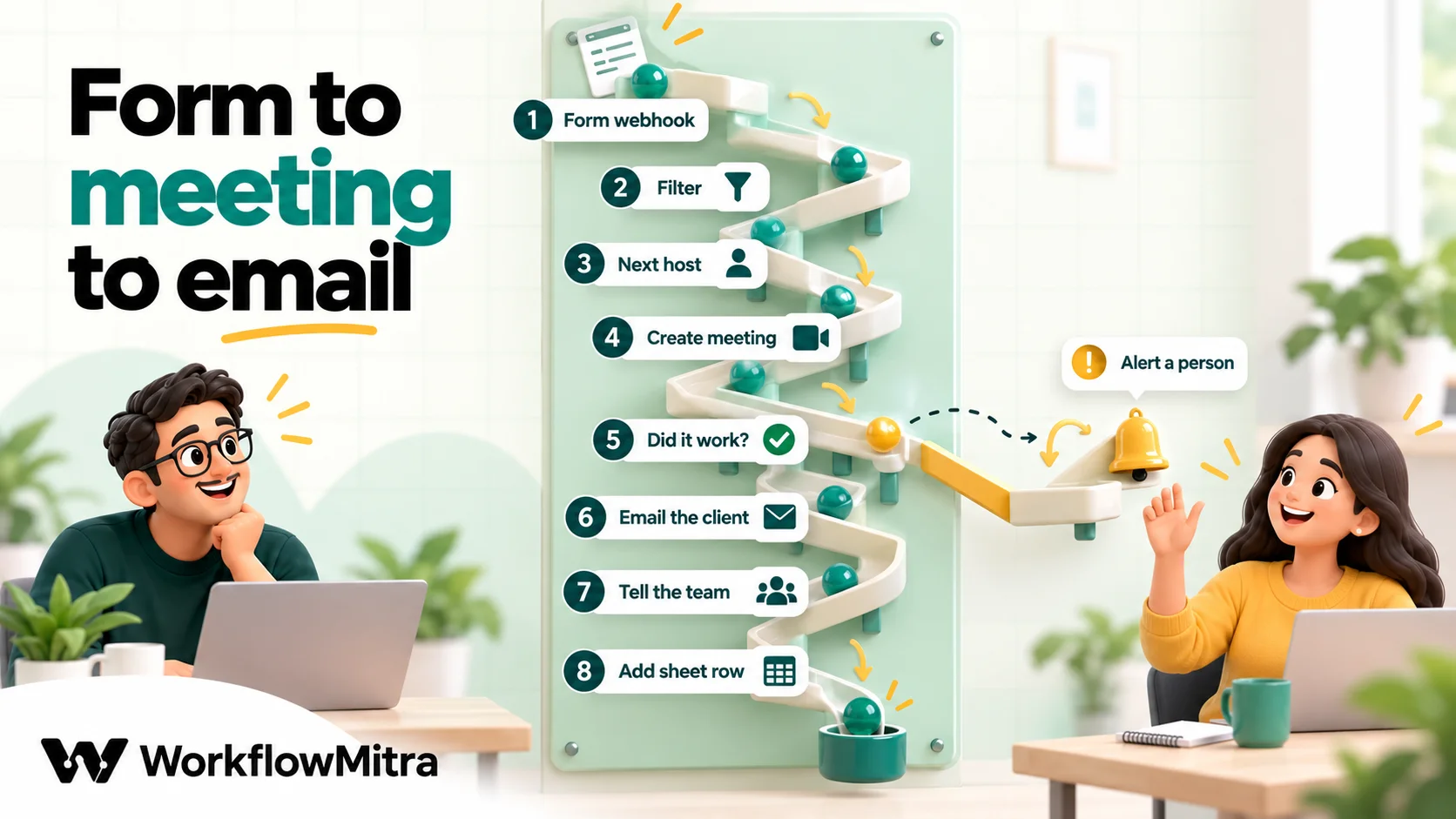
This example is a consultancy whose website form asks for a name, an email address, a topic and a preferred slot. Staff only want meetings for real enquiries, the meeting should go to the next consultant in turn, the client should get an email within a minute, and the team should see the booking in Slack.
1. Send the form to a webhook
In WorkflowMitra, start a workflow with the webhook trigger and choose the Website form preset. Paste the webhook URL into your form builder’s webhook or POST setting, or post to it from your own site’s script. Submit one test entry so the field names appear in the variable picker.
The preset expects a shared secret in an x-webhook-secret header. Most website forms can’t sign their requests, so a secret header is the strongest check available, and it stops strangers from creating meetings in your Zoom account by posting to the URL. The webhook security guide explains the options when a form can’t send headers.
2. Filter out entries that shouldn’t become meetings
Add an IF step with rules that must all hold:
{{ $trigger.email }}Is not empty{{ $trigger.slot }}Is not empty{{ $trigger.topic }}Not equal tospam test(or any marker your form uses)
Spam and half-filled forms otherwise become real meetings on a real host’s calendar. IF steps cost no credits at default rates, so be generous with checks.
3. Choose the host
If one person hosts everything, skip this step and type their Zoom email into the Meeting step’s Host field. To share meetings across a team, add Assign to the next person and list each consultant with their Zoom account email as the contact value. Every run hands the next booking to the next name, and the step’s output includes assignedTo (the email) and assignedName. The round-robin assignment guide covers rotation in more depth.
4. Create the Zoom meeting
Add the Meeting step (it appears in the step picker as Zoom: Create Meeting), choose your Zoom connection, and rename the step to Create meeting so later expressions are easy to read. Then fill in:
- Title:
{{ $trigger.topic }}: call with {{ $trigger.name }} - Starts: pick your business time zone in Pick date & time, then switch to Use a variable and enter
{{ $trigger.slot }}:00. - Minutes: for example
45. Zoom accepts 1 to 1,440 minutes; the step sends 30 if you leave it blank. - Host:
{{ $node["Assign host"].assignedTo }}, using your Assign step’s actual name. The field is a plain text box without a variable picker, but expressions typed into it are resolved like any other field. - Meeting options & security: see the next section. For client calls, turn on Waiting room.
Fill in the Host even if one person hosts every call. Zoom’s documentation is inconsistent about what the me shortcut means for Server-to-Server apps, and a blank Host makes the step send me. An explicit email is never ambiguous.
The form also shows an Invite box. For Zoom, the step doesn’t send those addresses, and Zoom wouldn’t email them anyway, so leave it empty and send the link in step 6.
5. Check that Zoom accepted it
Zoom can answer with an error: an unknown host, a missing scope, the daily limit. WorkflowMitra doesn’t fail the run on these. Instead the Meeting step completes and reports the outcome: ok is false, httpStatus holds the code, and raw carries Zoom’s explanation. What happens next is your decision.
Add an IF step with one rule: {{ $node["Create meeting"].ok }} Is yes. On the matching route, continue to the email. On the Else route, send yourself a Slack message or email with the client’s details so a person can book the meeting by hand. A refused request then becomes a two-minute manual task instead of a client who never hears back.
6. Email the join link
Add the Email step, connected to your mailbox with an app password (Gmail with 2-Step Verification, Zoho Mail, Yahoo, iCloud or your own SMTP server; Microsoft 365 mailboxes can’t connect this way). Set To to {{ $trigger.email }} and use the HTML body if you want formatting.
The values you need from the Meeting step:
{{ $node["Create meeting"].joinUrl }}: the link for the client.{{ $node["Create meeting"].meetingId }}: Zoom’s numeric meeting ID.{{ $node["Create meeting"].organizer }}: the host’s email, when Zoom returns it.
The step never exposes Zoom’s start link as a shareable URL, on purpose. Anyone holding Zoom’s start link is treated as the host, and for most users that link stops working two hours after it’s issued anyway.
7. Tell the host
Add a Slack step that posts to the team channel through an incoming webhook: who booked, when, what about, and the join link. If your team uses Telegram or Discord instead, those steps work the same way. The host already sees the meeting in their own Zoom account; the message is for everyone else who needs to know.
8. Log the meeting
Finally, add a Google Sheets step with Add row(s) to a “Meetings” tab: booking time, client name, email, host, slot, meetingId and joinUrl. Values go in column order, so keep the columns stable. This row is what makes rescheduling and cancelling possible later, because both need the meeting ID. The Google Sheets automation guide covers row identity and triggers if the log grows into something your team works from.
Writing an email clients will actually use
The email is the only part of the process the client sees, so it’s worth ten minutes of thought.
- Put the time in words, in their terms. “Tuesday 20 October, 4:00 pm India time” beats a timestamp. Use the date and time from the form or sheet, not a reformatted copy of Zoom’s output. WorkflowMitra’s date-formatting helpers work in the server’s clock, and Zoom returns the start in UTC, so reformatting can shift the hour.
- Lead with the link. One clear join link near the top. Zoom normally embeds the passcode in the join link, so attendees rarely have to type it.
- Say what to prepare. Documents to have open, who will attend, whether video is expected.
- Give a way out. A reply-to address or a reschedule link, so a change doesn’t arrive as a no-show.
- Don’t promise a calendar invite you aren’t sending. Zoom doesn’t add API-created meetings to the attendee’s calendar. If clients expect an invite, say “add this to your calendar” and include the details they need.
A plain-text version might read:
Hi Asha,

Your consultation is booked for Tuesday 20 October, 4:00 pm India time (45 minutes) with Priya.

Join here: https://us06web.zoom.us/j/81234567890?pwd=...

Please have last year's accounts handy. If you need to change the time, reply to this email.
Choose meeting settings deliberately
The Meeting step’s Meeting options & security section maps directly to Zoom’s meeting settings. Untouched options fall back to your Zoom account’s defaults, with one exception worth knowing.
| Option | What it does | Suggested for client calls |
|---|---|---|
| Waiting room | Attendees wait until the host admits them | On. It also switches off join-before-host |
| Join before host | Attendees can start talking before the host arrives | Off for client calls. The step ticks it by default, unlike Zoom's API default |
| Passcode | A code needed to join, normally embedded in the join link | Optional; Zoom caps it at 10 characters and your account's passcode rules apply |
| Mute on entry | Attendees join muted | On for group sessions, off for one-to-one calls |
| Host video / participant video | Whether cameras start on | Match how you run the call |
| Auto recording | Off, local or cloud recording from the start | Only with consent; cloud recording needs a plan that includes it |
The join-before-host default deserves a second look. Zoom’s own API default is off, but WorkflowMitra’s step sends on unless you untick it, and keeps doing so for workflows built before the option existed. Turning on the waiting room overrides it, because Zoom disables join-before-host whenever the waiting room is on. If your Zoom admin has locked either setting at account level, the account setting wins.
Recurring meetings for classes and cohorts
Not every meeting is a one-off. A study group, a weekly client check-in or a twelve-session course is better as one recurring Zoom meeting with a single link than as twelve separate meetings.
Set Meeting type to Recurring in the Meeting step, then choose the pattern:
| Setting | Options in the step | Zoom's limit |
|---|---|---|
| Repeats | Daily, weekly or monthly | Recurring with a fixed time (Zoom type 8) |
| Every N | 1–90 | Daily up to 99 days apart, weekly up to 50 weeks, monthly up to 10 months |
| Weekly days | Any of Sun–Sat | Several days allowed, e.g. Tue and Thu |
| Monthly | A day of the month, or a week and weekday ("second Tuesday") | One or the other, never both |
| Ends | Never, after N occurrences (1–60), or on a date | At most 60 occurrences |
Watch the monthly interval: the step accepts up to 90, but Zoom refuses monthly gaps over 10 months. Anything Zoom refuses comes back as ok false, which your success check catches.
A sensible pattern for a course: when a cohort is created (a row added to a “Cohorts” sheet, say), create one recurring meeting and write its link into the cohort row. Each new student’s welcome email then reads the link from that row instead of creating anything. Cancelling a recurring meeting without naming an occurrence deletes the entire series, so be careful with the cancel steps described next.
Rescheduling and cancelling without leaving ghost meetings
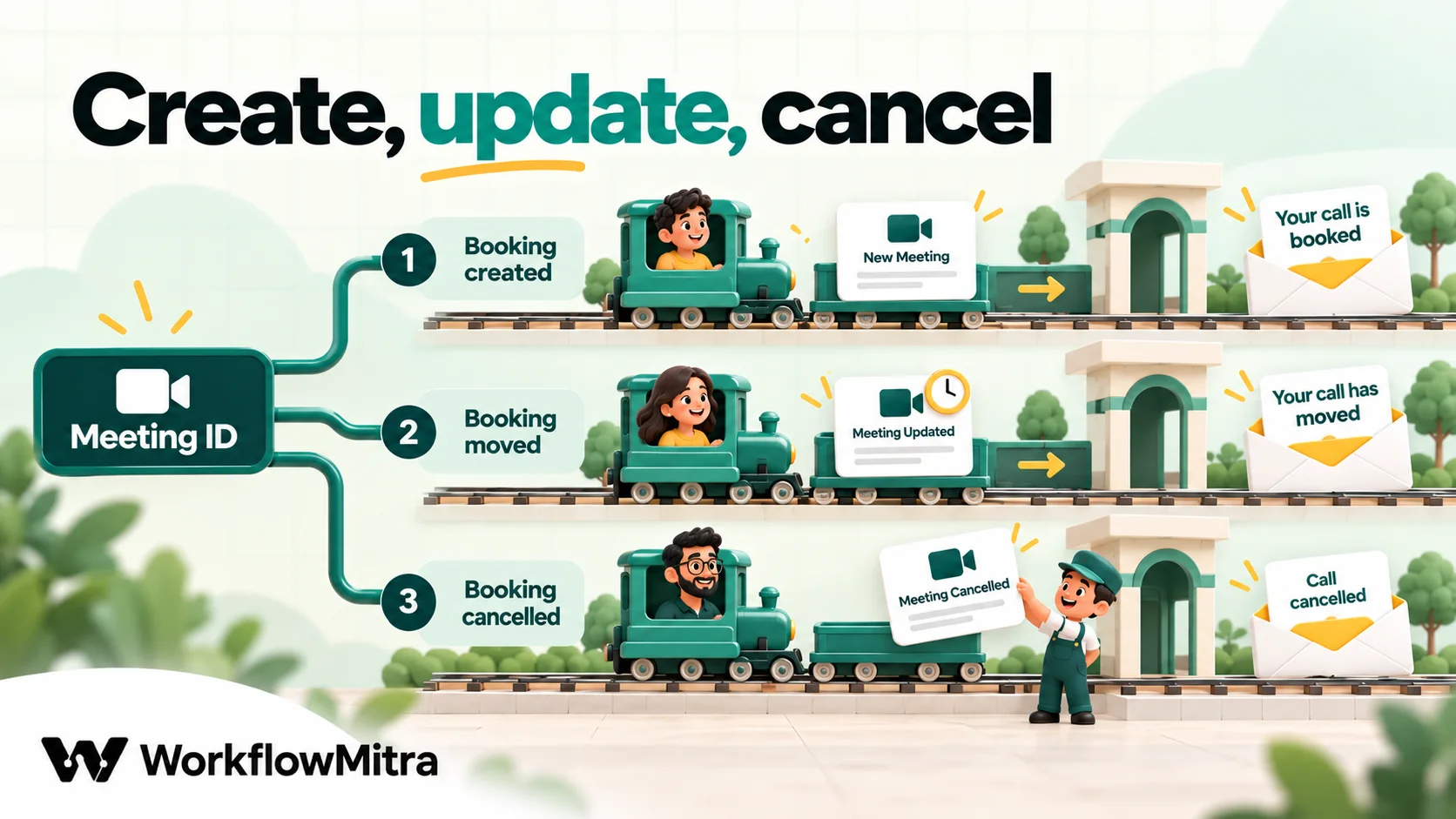
Creation is the easy half. The meetings that cause real confusion are the ones that outlive their booking: a cancelled consultation still sitting on a host’s calendar, or a moved call whose old link a client keeps clicking. Build the follow-up flows at the same time as the create flow.
Rescheduling
When a booking’s time changes (a status of “Rescheduled” in your log, or a second form for changes), look up the stored meetingId and use Zoom: Update Meeting with that ID.
Two behaviours matter here:
- Fill in Title, Starts and Minutes every time. The update step sends all three, whether or not you changed them, so a blank title or length can overwrite the meeting’s current values (a blank length becomes 30 minutes). Map the original values from your log alongside the new time.
- The update reply has no meeting in it. Zoom answers a successful update with an empty “no content” response, so the step’s
joinUrlwill be empty. The meeting ID doesn’t change on an update, so keep using the join link from your log in the “your call has moved” email.
Zoom also ignores an updated start time that is in the past, so a reschedule can’t move a meeting backwards.
Cancelling
When a booking is cancelled, run Zoom: Cancel Meeting with the stored ID, then send the client a cancellation email and mark the row as cancelled. Don’t skip the email: Zoom’s delete call only notifies registrants if it’s specifically asked to, and the default is no.
If your log is a Google Sheet, one workflow triggered on the status column can handle both cases, with an IF or Switch step routing “Rescheduled” to the update branch and “Cancelled” to the cancel branch. Switch, like IF, costs no credits.
Sharing meetings across hosts and staying inside Zoom’s limits
Using one host for everything is simple, but it has three costs: every meeting shows that one person as host, a 40-minute cap applies if that account is on Basic, and the 100-per-day limit is shared by all bookings. Spreading meetings across real hosts fixes all three.
- Round robin with Assign to the next person works for teams of equals. Rotation is per step, and concurrent runs each get their own turn, so two simultaneous bookings won’t land on the same person by accident.
- Route by topic with a Switch step when expertise matters: tax questions to one consultant, payroll to another, each branch with its own Meeting step and Host.
- Every host must be a user on the Zoom account the app belongs to. An email that isn’t an account user comes back as an error, which the success check catches.
At 100 creates or updates per host per day, a team of five has room for up to 500 between them, before counting reschedules, which use the same allowance.
After the meeting: attendance and recordings
The Meeting step’s Zoom actions don’t stop at creation. List past-meeting participants returns who joined a finished meeting and for how long, which is useful for spotting no-shows and sending a “sorry we missed you” email with a rebooking link. Zoom only provides attendance once the meeting has ended, it needs the meeting’s UUID rather than its numeric ID, and past-participant data requires a paid Zoom plan. Get recording files lists the files of a cloud-recorded meeting so you can share them.
These belong in a separate scheduled workflow that runs after your working day and checks the meetings logged for that date. The webinar follow-up guide shows the attendance pattern in detail, using registrants.
What does automatic meeting creation cost?
| Who charges | For what | How it's counted |
|---|---|---|
| WorkflowMitra | Running the workflow | Credits per executed step at default rates: webhook trigger 1, IF 0, Assign 1, Meeting 1, Email 1, Slack 1, Google Sheets 1 |
| Zoom | Hosting meetings | Your Zoom plan per licensed host; the API itself has no per-meeting charge |
| Your email provider | Sending the confirmation | Normally covered by your existing mailbox |
The eight-step example above uses 6 credits per booking, because the two IF steps are free. A consultancy taking 300 bookings a month would use about 1,800 credits, plus a few hundred for reschedules and cancellations. That fits within WorkflowMitra’s entry allowance of 10,000 credits a month for ₹999, and the 14-day trial needs no card. Check current rates on the pricing page before you plan around them.
Common mistakes
- Sending a time without seconds. The meeting is created for “now”, successfully, with no error to warn you.
- Mapping the variable before picking a time zone. The step then sends UTC, and an afternoon slot in India lands in the evening.
- Trusting the Invite box to email people. It doesn’t, for Zoom. Your workflow sends the link.
- Skipping the success check. The client receives an email with an empty link and a confident tone.
- Leaving join-before-host on for client calls. Anyone holding the link, including someone it was forwarded to, can open the meeting and wait inside it before the host arrives.
- Not saving the meeting ID. Without it, rescheduling and cancelling become manual.
- Updating with blank fields. The meeting loses its title or shrinks to 30 minutes.
- One host for a busy team. The day’s 101st create request fails.
Troubleshooting
| What you see | Likely cause | Fix |
|---|---|---|
| Meeting exists but starts at the moment it was created | Start time without seconds, or a time already in the past | Append :00; check the form's slot is in the future |
| Meeting is hours off | No time zone saved on the step, so UTC was sent | Pick the zone in Pick date & time, then switch back to the variable |
ok false with a 4xx status | Missing scope, a host who isn't on the account, or the daily limit | Read Zoom's message under raw in the run and fix the cause it names |
| Step fails with "Zoom authentication failed" | Wrong secret, or the app was deactivated | Reactivate the app in the Marketplace and reconnect the credential |
| Recurring meeting refused | Monthly interval above 10, or both a day and a week pattern | Stay within Zoom's limits; pick one monthly pattern |
| After an update, the meeting has a blank title or 30 minutes | Update sent empty Title or Minutes | Map all three fields from your log on every update |
| Client says the call was cancelled but they got no email | Zoom's delete doesn't notify by default | Add an Email step after Cancel Meeting |
| Calls end at 40 minutes | The host is on Zoom's Basic plan | Route meetings to licensed hosts |
| A stranger's meeting appears on a host's calendar | The webhook URL was used without a secret | Set the shared secret and turn on blocking of unverified requests |
Limits worth knowing
- No Zoom trigger. WorkflowMitra workflows start from your bookings, forms, sheets and webhooks, not from events inside Zoom such as “meeting started”.
- No registration switch on create. The Meeting step creates standard scheduled or recurring meetings. If you want personal links per attendee, enable registration on the meeting in Zoom, then use Zoom: Add Registrant, which needs a licensed host.
- Meetings, not Zoom Webinars. The step works with Zoom Meetings.
- Time formatting runs on the server’s clock. Keep human-readable times from your source data.
- Google Meet is not a like-for-like swap. The step lists Google Meet, but it signs in with a Google service account, which Google restricts for guest invites and Meet links on many calendars. Zoom is the verified path.
Why use WorkflowMitra to create Zoom meetings automatically?
WorkflowMitra, powered by ChatMitra, is built for the chain around the meeting rather than the meeting alone. For this job specifically:
- The whole lifecycle in one tool. Create, update, cancel, add registrants, list attendance and fetch recording files are actions of the same Meeting step, so the reschedule and cancel flows use the same connection and the same output names as the create flow.
- Failures you can route. A refused Zoom request returns
ok, the status and Zoom’s own message instead of stopping the run, so the Else branch can hand the booking to a person. - Host routing built in. Round-robin assignment and Switch routing feed the Host field directly, which spreads the daily limit and the 40-minute cap across real licensed hosts.
- A time picker that knows about zones. Pick a zone once, map a variable, and Zoom receives the hour you meant.
- Rupee pricing by the step. At ₹999 for 10,000 credits a month, a six-step booking flow costs a fraction of a rupee per meeting, and IF and Switch checks are free.
Where it isn’t the best tool: if every meeting starts as a self-booking in Calendly or Cal.com, use their native Zoom integrations. And if you’d rather send links on WhatsApp than by email, the WhatsApp meeting-links guide covers that route, with ChatMitra as the sending layer.
Next step
Pick one source of bookings, perhaps the website form that currently produces an email someone forwards to a consultant, and build the eight steps above against a test Zoom host. Send yourself three test bookings: one normal, one without seconds in the time, and one with a host email that doesn’t exist on your account. If the first creates the right meeting, the second shows up at the right hour after the fix, and the third reaches the Else branch, the workflow is ready for real clients. You can start on WorkflowMitra with a 14-day trial; new to the builder? Start with how to build your first workflow, or read what workflow automation is for the bigger picture.
Zoom behaviour in this guide was checked on 8 October 2026 against Zoom’s Meetings API reference, its rate-limits and Server-to-Server OAuth documentation, Zoom developer forum answers from Zoom staff, and zoom.us/pricing. Calendly and Cal.com details come from their own help pages. WorkflowMitra behaviour was checked in the product source on the same day.
Frequently Asked Questions
Questions people ask before they automate Zoom meeting creation.
Not on its own. Zoom creates meetings when a person schedules one or when an app calls its Create a meeting API. A workflow tool connects the two: the form submission starts the workflow, the workflow calls Zoom with the title, start time and length, and the next step sends the join link to the person who booked.
Automate the work between your apps
Build workflows with triggers, conditions and actions, then test them before they go live. Try WorkflowMitra free for 14 days, no card required.
