CRM Automation: What to Automate First, How to Build It, and Where CRM Rules Stop

Quick Summary
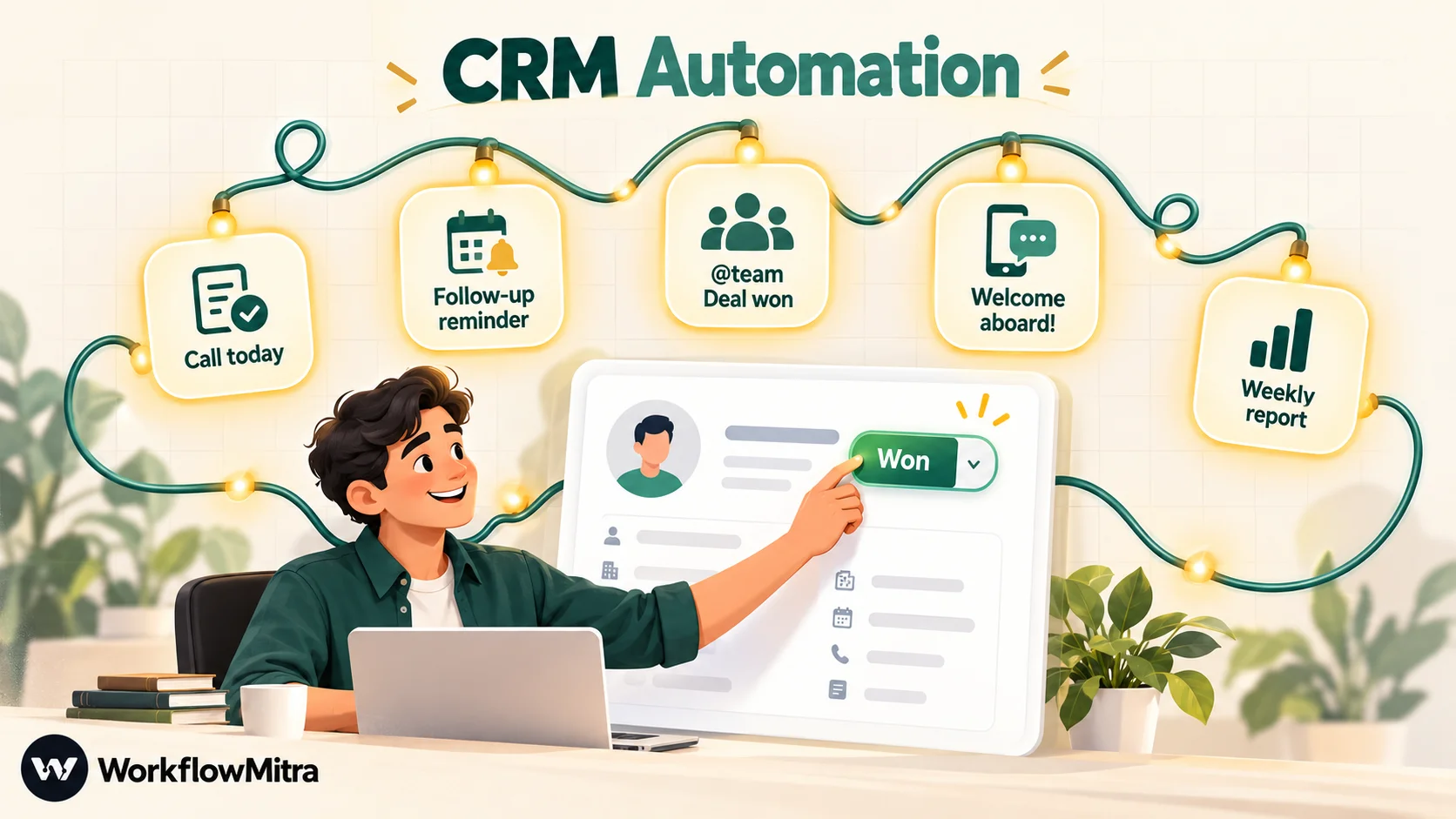
CRM automation uses rules and workflows to do the repetitive work around a CRM for you: creating and cleaning records, assigning owners, creating follow-up tasks, messaging customers when a deal changes stage, handing won deals to onboarding and flagging deals that have gone quiet. Most CRMs include some built-in automation, usually limited by plan. A workflow tool such as WorkflowMitra, powered by ChatMitra, adds the steps that cross into other apps: WhatsApp, Slack, email, Google Sheets and your own systems. Start with how records enter the CRM and who owns them, then automate follow-up, handoffs and reporting.
A CRM is only as useful as the habits around it. Records need to be created, cleaned and assigned. Deals need a next step. A customer who has just paid needs to hear from someone, and the person who’ll onboard them needs to know. When all of that depends on people remembering, the CRM slowly turns into a list of contacts that nobody quite trusts.
CRM automation takes the remembering away. This guide explains what it covers, what to automate first, when your CRM’s own rules are enough and when a workflow tool helps, and how to build two complete automations with real steps and costs. It finishes with the mistakes that make CRM automation backfire.
What is CRM automation?
CRM automation is the use of rules and workflows to do repetitive customer relationship management work without anyone doing it by hand: creating and updating records, assigning owners, creating follow-up tasks, sending messages when a deal changes stage, and alerting the team when something needs attention. Every automation has the same three parts: a trigger (something happens or a time arrives), optional conditions (should this record be acted on?), and one or more actions (what to do).
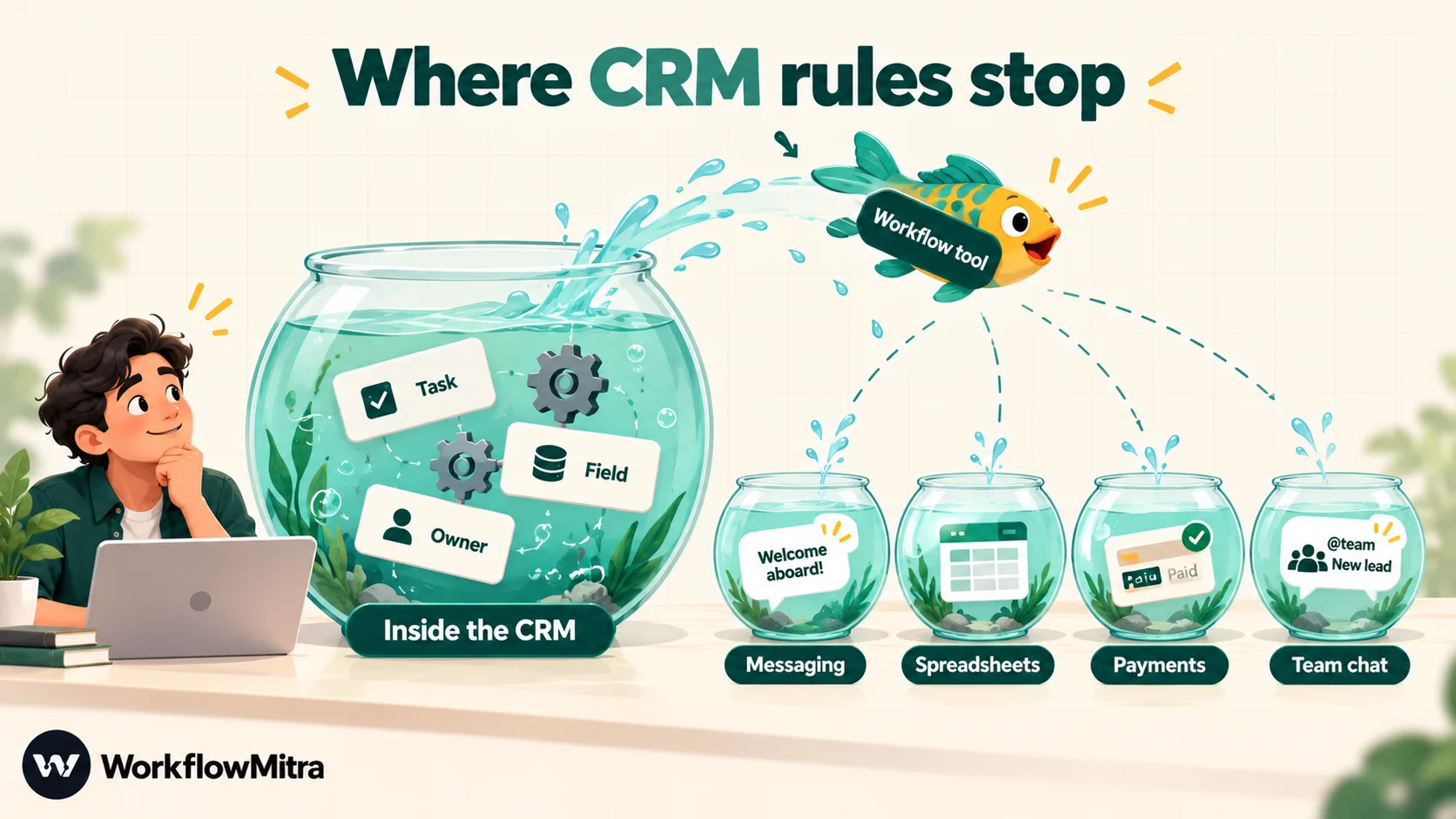
The trigger can live inside the CRM (a deal moves to Won) or outside it (a form is submitted, a payment succeeds, a WhatsApp message arrives). The actions can stay inside the CRM (create a task) or leave it (notify a channel, message the customer, add a row to a reporting sheet). That inside/outside distinction is the most useful lens for deciding which tool should run each automation, and it comes up again below.
If triggers and actions are new vocabulary, what is workflow automation explains them from scratch.
What can you automate in a CRM?
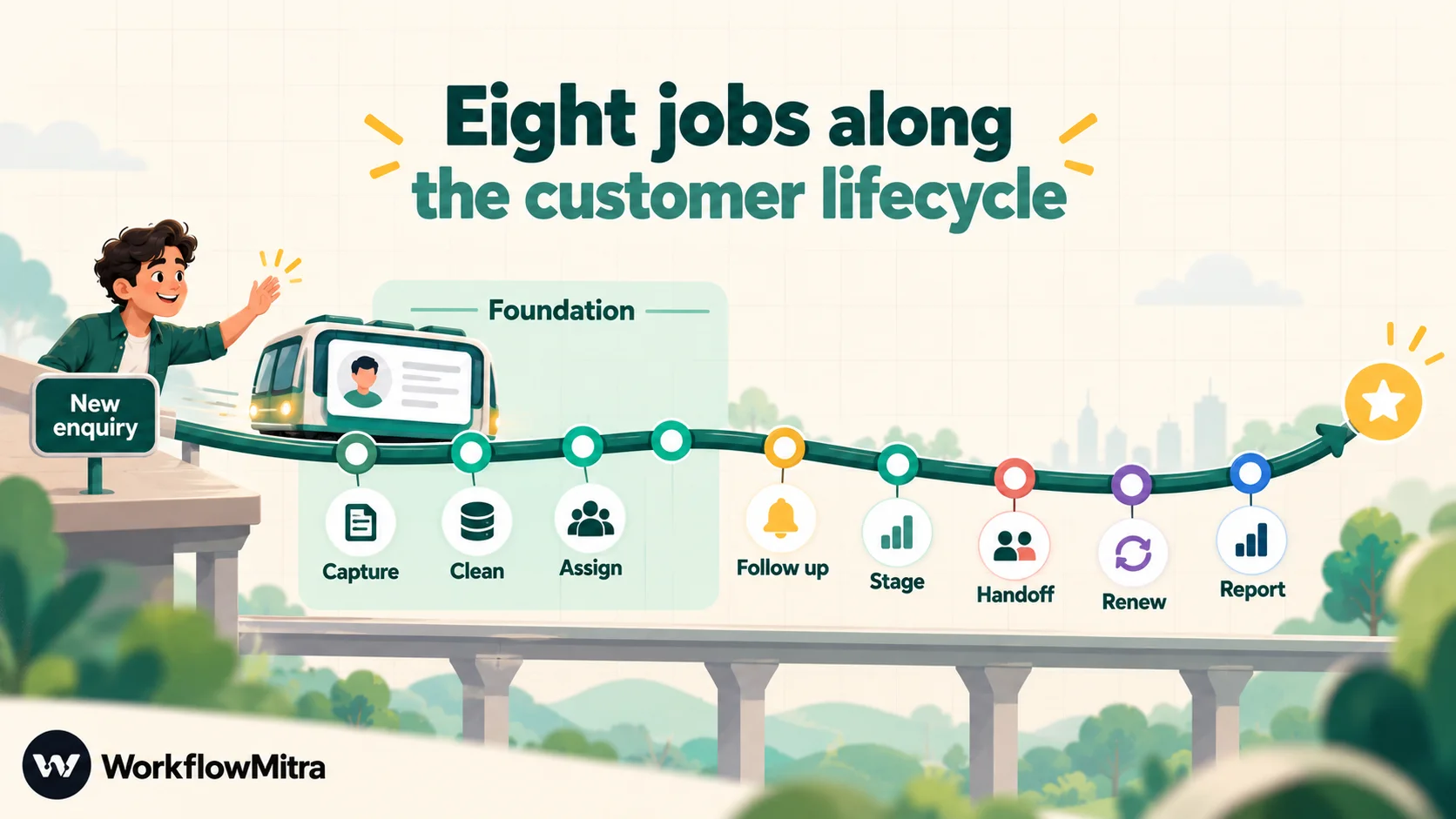
Most CRM automation falls into eight jobs. Not every team needs all of them, but almost every team needs the first three.
| Job | What the automation does | Typical trigger |
|---|---|---|
| 1. Capture | Creates a record from every source: web forms, ad leads, chat enquiries, spreadsheets, inbound email | A form submission, webhook, new sheet row or new message |
| 2. Clean | Normalises phone numbers and emails, fills missing fields, merges or blocks duplicates | Every new or changed record |
| 3. Assign | Gives the record an owner by territory, product, rotation or workload | A new lead or deal |
| 4. Follow up | Creates tasks and reminders, sends the first reply and stops chasing once the contact responds | A new record, or a time since last activity |
| 5. React to stage changes | Sends the right message, creates the right task or asks for an approval when a deal moves | A change to the stage field |
| 6. Hand off | Passes a won deal to onboarding, delivery or finance with everything they need | Deal stage becomes Won |
| 7. Retain and renew | Reminds owners and customers before renewals, checks in after delivery, asks for reviews | A date field, such as a renewal date |
| 8. Report | Sends a daily or weekly summary of new leads, stuck deals and wins to the people who act on it | A schedule |
Jobs 1 to 4 overlap heavily with lead handling, which has its own guide: lead management automation walks through capture, scoring, first response and follow-up sequences in detail. This article spends more time on what happens after a record exists: keeping it clean, acting on stage changes, handing off and reporting.
Built-in CRM automation vs a workflow tool
Nearly every CRM ships with automation of its own. Zoho CRM has workflow rules, HubSpot has workflows, Pipedrive has automations, Salesforce has Flow. They’re good, and for automations that start and end inside the CRM, they’re usually the right choice. The question is where they stop.
| A workflow tool (such as WorkflowMitra) | Your CRM's built-in automation | |
|---|---|---|
| Best at | Processes that cross apps: CRM to WhatsApp, Slack, email, sheets, billing, your own API | Processes that stay in the CRM: field updates, tasks, owner changes, internal emails |
| Triggers | CRM events via webhook or a scheduled check, plus forms, sheets, email, chat and payments | Record created or edited, field changes, dates |
| Logic | IF and Switch branches, durable waits of up to 30 days, human approvals, round-robin assignment, lookups in other systems before acting | Conditions on record fields; waits and branching vary by plan |
| Plan dependence | Works with any CRM edition that offers webhooks or API access | Number and power of rules usually rise with the CRM plan |
| Trade-off | One more tool to maintain; the CRM must expose the data | Little or no reach beyond the CRM without add-ons |
Plan limits matter more than people expect. On 7 October 2026, HubSpot’s Sales Hub pricing page listed up to 50 workflows with restricted triggers and actions on Starter, up to 300 fully customisable workflows on Professional and up to 1,000 on Enterprise. Zoho CRM’s edition comparison listed workflow rules on every edition, but webhooks and assignment rules only from the Professional edition upwards, and three blueprints per organisation on Professional. These numbers change, so check your vendor’s pricing page before you plan around them.
A sensible split for most small teams:
- Keep inside the CRM: field updates, owner reassignment rules your CRM already supports, internal task creation, the CRM’s own email sequences.
- Move to a workflow tool: anything that messages customers on WhatsApp, posts to team chat, writes to a spreadsheet or another database, waits days and checks again, needs a manager’s approval, or needs data the CRM doesn’t hold.
Running both is normal. The rule that matters is that each automation has exactly one home, so two systems never send the same customer the same message.
How a CRM automation fits together
Whatever tool runs it, a CRM automation is a short chain of decisions. Writing it out in this shape before you build saves most of the debugging later.
- Trigger. What starts it? A record event pushed by the CRM (a webhook), a record change found by a scheduled check, or an event outside the CRM.
- Fetch. What else does it need? The contact behind a deal, the owner’s phone number, the customer’s order history.
- Decide. Should this record be acted on, and how? Consent given, stage matches, value above a threshold, not already handled today.
- Act. Message, create a task, assign, update a field, post an alert.
- Record. Write what happened back to the CRM as a note or task, so the next person sees it.
The last step is the one teams skip, and it’s the one that makes automation trustworthy. A WhatsApp message the CRM doesn’t know about is a message a colleague will send again tomorrow.
Push or poll?
There are two ways for a CRM event to reach a workflow. Push means the CRM calls a webhook URL the moment a rule fires: instant, and it costs nothing while nothing happens. Poll means the workflow runs on a schedule and asks the CRM what has changed: slower, but it works on CRM plans without webhooks and it’s ideal for time-based checks such as “deals with no activity for seven days”. Most mature setups use both: push for events, poll for silence.
What to automate first: a sensible order
Teams that start with the exciting automations (AI scoring, long nurture sequences) usually end up automating chaos faster. This order builds each layer on a solid one.
- One way in. Route every lead source into the CRM through the same workflow, so every record gets the same cleaning and the same fields.
- Clean on the way in. Format phone numbers and emails, trim names, reject obvious junk, and search for an existing record before creating a new one.
- An owner for every record. Assign by territory, product or rotation the moment the record exists. Round-robin lead assignment covers rotation in depth.
- A first task and a first reply. Create the follow-up task for the owner and send the customer an acknowledgement within minutes.
- Stage-change actions. Decide what each important stage change should trigger, and automate only those. Two or three stages usually matter: proposal sent, won, lost.
- Handoffs. When a deal is won, give onboarding, delivery or finance what they need without anyone forwarding emails.
- Silence detection. A daily check for deals and tasks that have gone quiet.
- Reporting. A short daily or weekly summary that goes to people who will act on it.
You don’t have to finish one step before starting the next, but if step 2 is missing, every later step inherits the duplicates.
Ten CRM automation examples
Each of these is a single workflow with a clear owner. They’re written generically, so they apply to Zoho CRM, Pipedrive, HubSpot or a spreadsheet CRM, with the WorkflowMitra steps that would build them.
| # | Automation | Trigger | Steps |
|---|---|---|---|
| 1 | Website enquiry becomes a clean CRM lead | Form webhook | Clean phone and email → search the CRM → update if found, create if not → note the source |
| 2 | New lead gets an owner and a task | New lead | Assign to the next person → create a task due today → alert the owner on Slack or WhatsApp |
| 3 | Instant acknowledgement | New lead with WhatsApp consent | IF consent → WhatsApp template with the owner's name → note on the lead |
| 4 | Proposal follow-up that stops on a reply | Stage becomes Proposal sent | Delay 3 days → fetch the deal → IF stage unchanged → reminder task for the owner |
| 5 | Discount approval | Deal discount above your threshold | Wait for approval from a manager → IF approved, update the deal; else notify the owner |
| 6 | Won deal handoff | Stage becomes Won | Fetch the contact → welcome template → assign an onboarding owner → onboarding task → team alert → note |
| 7 | Lost deal reason captured | Stage becomes Lost | IF no loss reason → task for the owner to add one; add the deal to a lost-deals sheet |
| 8 | Stale deal alert | Daily schedule | Query open deals not modified in 7 days → loop → alert each owner |
| 9 | Renewal reminder | Daily schedule | Query accounts renewing in 30 days → task for the owner → template reminder to the customer |
| 10 | Weekly pipeline digest | Weekly schedule | Query new, won and stuck deals → one summary to Slack or email |
Two patterns are worth building in full, because between them they cover push, poll, write-back and cost.
Worked example 1: hand a won deal to onboarding
The problem: a deal is marked Won in the CRM and then nothing happens until someone remembers to email the onboarding team. The customer waits a day or two in silence, right after paying.
The workflow in WorkflowMitra, powered by ChatMitra, using Zoho CRM as the example CRM:
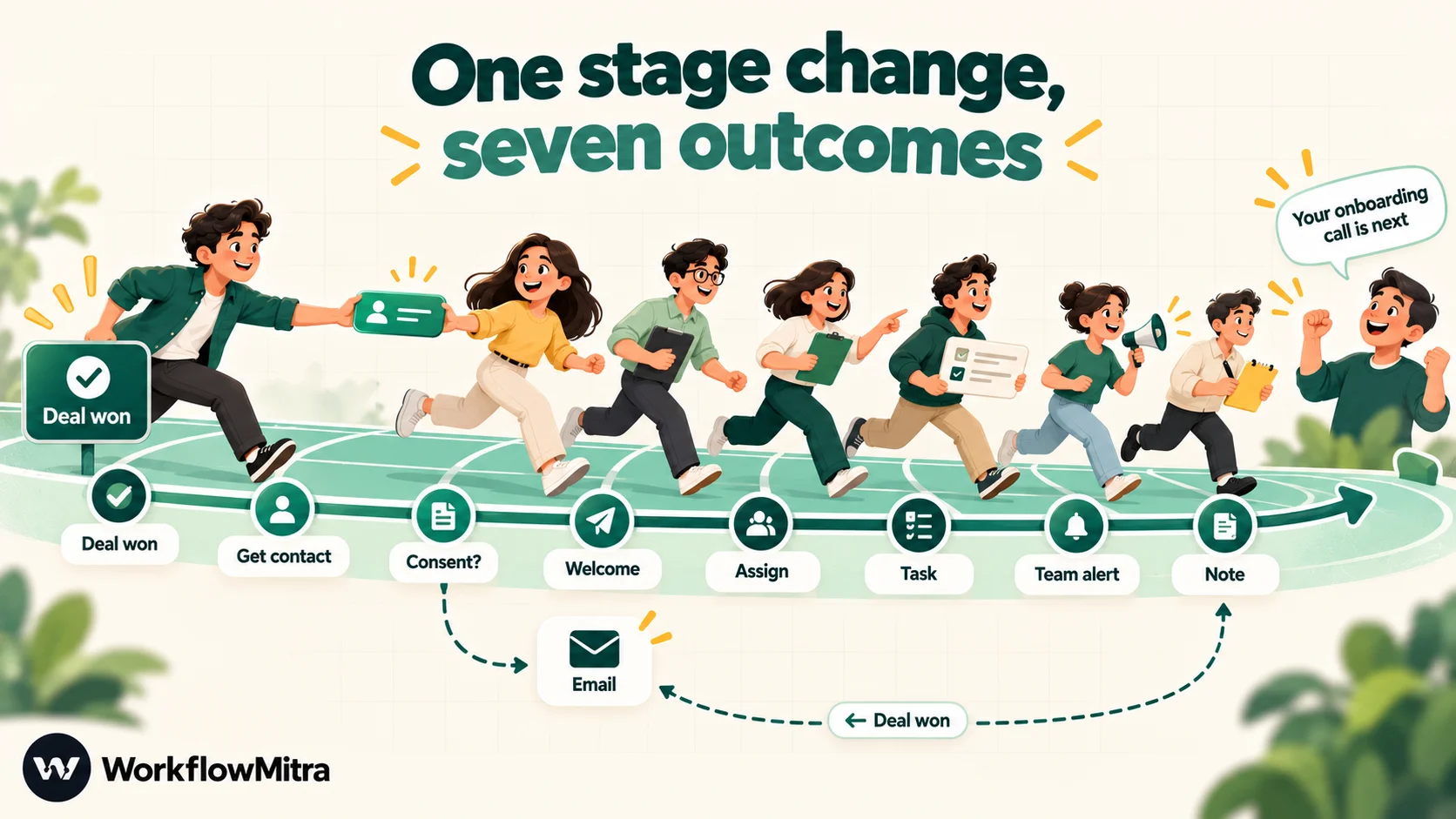
- Trigger: On webhook call. In Zoho CRM, a workflow rule on the Deals module fires when the Stage field is edited to Closed Won and calls a webhook with the deal ID, the deal name, the amount and the contact ID. (Zoho’s webhooks need the Professional edition or higher. The Zoho CRM WhatsApp integration guide shows the exact Zoho settings, the shared-secret header and how to detect the fields.)
- Zoho CRM step: get record. Fetch the contact with the ID from the webhook, to get the mobile number, email and the consent field.
- IF. Does the contact have WhatsApp consent and a mobile number? If not, take the email branch instead.
- WhatsApp step. Send an approved utility template: a welcome that names the onboarding call as the next step. The step sends through ChatMitra or Meta’s Cloud API, so the message comes from the number your customers already know.
- Assign to the next person. Pick the next onboarding specialist from a list, so new customers are shared evenly across the team.
- Zoho CRM step: create task. A task on the deal for the chosen specialist: “Book the kickoff call”, due tomorrow.
- Slack step. Post the deal name, the amount and the assigned specialist to the onboarding channel.
- Zoho CRM step: create note. “Welcome message sent on WhatsApp; onboarding assigned to Priya.” Anyone opening the deal now sees the whole story.
What it costs to run. In WorkflowMitra a credit is one executed step. This run uses seven billable steps: the trigger, the Zoho lookup, the WhatsApp message, Assign, the Zoho task, the Slack post and the Zoho note; the IF is free. That’s 7 credits per won deal. A team winning 150 deals a month uses about 1,050 credits, roughly a tenth of the entry plan. The WhatsApp message also carries Meta’s template charge and, through ChatMitra, a fee of ₹0.20 per conversation.
Why the rule fires on one field. If the Zoho rule fired on any edit, the note written in step 8 would count as an edit and could start the workflow again. Triggering on the Stage field alone, plus a duplicate key built from the deal ID and stage, keeps one stage change to one run.
Test it before real customers see it
A handoff workflow touches a customer, a colleague and the CRM at once, so test each side separately before you switch it on.
- Create a test deal in the CRM with your own name, your own mobile number and a recognisable deal name such as “TEST handoff”.
- Point Assign at yourself. Temporarily make yourself the only person on the onboarding list, so no specialist gets a fake task.
- Move the test deal to Won. Check the delivery arrived, that the WhatsApp template reached your phone with the right name filled in, and that the task and note appeared on the deal.
- Move it again. Change the stage away and back. Did the duplicate key stop a second welcome message? It should, within 24 hours.
- Restore the real list and delete the test deal.
Remember that the editor’s Run button sends real messages. Testing with your own record is the safe way to see the whole chain working.
Worked example 2: catch deals that have gone quiet
The problem: deals rarely die with a “no”. They die from silence. Nobody notices a proposal that hasn’t been touched for two weeks until the quarter is over.
This is a polling job, because the event you care about is something not happening.
- Trigger: Schedule. Every weekday at 9:30 in your timezone.
- Zoho CRM step: COQL query. Select open deals whose stage is not Closed Won or Closed Lost and whose Modified_Time is more than seven days ago, with the deal name, amount, owner and stage.
- IF. Did the query return anything? If not, stop. Quiet mornings cost two credits.
- Loop over the deals (up to 1,000 items).
- Email or Slack step inside the loop: tell the owner which deal is stale, its stage and how long it has been.
The cost is about two credits for the check, plus roughly two per stale deal (the loop item and the alert). Twenty stale deals a day across 22 working days is under 1,000 credits a month.
Two refinements make it more useful:
- Group by owner. If one person owns most of the stale deals, twenty separate alerts become noise. Sort the query by owner and send one message per owner instead, or switch to a daily digest, as in automated daily reports.
- Measure activity, not edits. Modified_Time changes whenever anyone edits the deal, including automations. If your CRM records a last-activity date, query that instead, so an automated note doesn’t make a dead deal look alive.
Keep CRM data clean with automation
Every automation downstream depends on the record being right. Three habits prevent most of the damage.
Format phone numbers before anything else
The same person can arrive as 09876543210, +91 98765 43210 and 98765-43210. To a CRM search those are three different people. Put a cleaning step at the front of every intake workflow: strip spaces and symbols, then add a country code where one is missing. Pick one stored format (full international digits works well for messaging) and stick to it everywhere. In WorkflowMitra the WhatsApp step also strips non-digits and rejects numbers that are too short or too long, but the CRM search runs before that, so clean early.
Search before you create
The single most effective duplicate rule: never create a record without first searching for it.
- Search the CRM by email, then by cleaned phone number.
- Found: update the existing record and add a note with the new source.
- Not found: create the record.
Zoho CRM’s step in WorkflowMitra offers search records and COQL query for this lookup, alongside create, update, convert lead, task and note operations.
Make required fields really required
If a stage-change message needs the contact’s first name and mobile number, check for both with an IF step before sending. When either is missing, create a task for the owner to fix the record instead of sending a broken message or none at all. Over a few weeks, these tasks also show you which lead sources produce incomplete records.
Working with Zoho CRM, Pipedrive, HubSpot or a spreadsheet
What a workflow tool can do with your CRM depends on how deeply it connects. In WorkflowMitra, checked on 7 October 2026:
| CRM | How WorkflowMitra connects | What that means in practice |
|---|---|---|
| Zoho CRM | A structured step with ten operations: create, get, update and delete records, search records, COQL query, convert lead, create task, create note, get related records. Modules and fields load from your account. Events arrive by Zoho webhook. | The deepest fit. Push events need Zoho Professional or higher; on lower editions, use a scheduled query. |
| Pipedrive | A structured step that creates and updates people, deals and organisations, creates activities and adds notes | Good for writing to Pipedrive from forms, payments or chats. Use Pipedrive's own automations for purely internal rules. |
| HubSpot | Only through the App Request step, where you write the HubSpot API call yourself; no HubSpot trigger | Possible for teams comfortable with APIs. HubSpot's own workflows may suit you better on Professional and above. |
| Google Sheets as a CRM | Sheets triggers for added, changed or deleted rows (checked every five minutes by default), plus steps to add, find, update and delete rows | A practical CRM for one to three people. Google Sheets automation covers the patterns. |
If your CRM isn’t listed, the HTTP Request step can call any API that uses an API key or OAuth2, and the webhook trigger accepts events from anything that can send one. That covers most CRMs, at the cost of reading their API documentation.
Customer messages from the CRM: WhatsApp, email and timing
Customer-facing automations need more care than internal ones, because mistakes are visible.
WhatsApp rules. A business can only start a WhatsApp conversation with a template Meta has approved. Free-form text is allowed only within 24 hours of the customer’s last message. CRM events, such as a stage change or a renewal date, usually fall outside that window, so automated messages should be message templates. The customer must also have agreed to hear from you on WhatsApp; store that consent on the CRM record and check it with an IF step, as in example 1. ChatMitra’s guide to opt-in best practices covers how to collect it.
Where replies go. When the message goes out through ChatMitra, the customer’s reply lands in the same shared inbox your team already uses, not in the workflow. Make sure the template tells the customer what to do next, and that someone is watching the inbox. If you’re still choosing an inbox for your team, ChatMitra’s guide to WhatsApp CRM software compares the options.
Timing. A Delay step can hold a message until a sensible hour, so a deal won at 11 p.m. doesn’t wake a customer. In WorkflowMitra, delays are free and durable for up to 30 days, so a “check in three days after delivery” message survives restarts and deployments.
One sender per message. If your CRM’s own email sequence and a workflow both react to the same stage change, the customer hears twice. Decide which system owns each customer message and switch the other off.
When to keep a human in the loop
Some CRM actions shouldn’t happen without a person saying yes: a discount above a threshold, a refund, a contract change, a message drafted by AI. Automating everything around the decision while leaving the decision to a person is often the best of both.
In WorkflowMitra, the Wait for approval step pauses the run and alerts approvers by email or Slack. They approve or reject on the Approvals page, and if nobody answers within the time limit (up to seven days), the step applies the default you chose. The next steps then update the deal, notify the owner or message the customer. Approval workflow automation covers timeouts and safe defaults in detail.
What does CRM automation cost?
There are up to three bills, and it helps to see them together.
| Cost | What drives it | How to keep it down |
|---|---|---|
| Workflow tool | In WorkflowMitra, executed steps: one credit per step that runs; IF, Switch, Merge, Set Variable and Delay are free | Filter early with free IF steps; trigger on specific field changes; group alerts |
| CRM plan | Whether your edition includes webhooks, API access and enough built-in rules | Use scheduled queries instead of webhooks on lower editions; check API limits |
| Messaging | Meta's charge per delivered template; ChatMitra's ₹0.20 per conversation, counted once per customer per 24 hours | Send messages customers need; combine updates; avoid duplicate sends |
WorkflowMitra’s entry plan is 10,000 credits for ₹999 a month, after a 14-day trial with 10,000 credits and no card. The larger card tiers are 20,000 credits for ₹1,499 and 40,000 for ₹2,699, and yearly billing takes 15% off. Prices are from WorkflowMitra pricing, checked on 7 October 2026.
A small agency winning 40 deals and receiving 600 leads a month might run: lead intake (about 4 credits per lead, 2,400), won-deal handoff (7 per deal, 280), stale-deal checks (about 600) and a weekly digest (under 50). That’s roughly 3,300 credits, comfortably inside the entry plan.
Common CRM automation mistakes
- Automating before cleaning. Duplicates and missing fields get copied into every downstream system at machine speed.
- Rules that fire on any edit. Write-backs, imports and bulk updates all count as edits. Trigger on the field you care about.
- No write-back. If the CRM doesn’t record what the automation did, people repeat it.
- Two systems, one message. A CRM sequence and a workflow both greet the same new customer.
- Alert floods. Fifty Slack messages a day get muted within a week. Group them, or send a digest.
- No owner for the automation itself. Someone needs to read the failure alerts and the execution history. In WorkflowMitra, failure alerts can go to email or a Slack webhook.
- Testing on real customers. In WorkflowMitra, the editor’s Run button runs the workflow for real. Test with your own record and your own phone number first.
- Never revisiting. Stages, templates and team members change. Review your CRM automations every quarter.
A four-week rollout plan
You don’t need a big project to automate a CRM. One automation a week, each built on the previous one, is a pace most small teams can sustain alongside their real work.
Week 1: intake and cleaning. List every place leads come from. Connect the biggest source to one intake workflow that cleans the phone number and email, searches the CRM and creates or updates the record. Leave the smaller sources on manual entry for now, and note how many duplicates the search catches.
Week 2: ownership and first tasks. Add assignment to the intake workflow, plus a task for the owner and an alert on the channel they actually read. At the end of each day, check the CRM for records without an owner. If any appear, find the source that skipped the workflow and connect it.
Week 3: one stage change. Pick the stage that hurts most when it’s missed. For most teams it’s Won, because a new customer left waiting is expensive. Build the handoff, test it with your own record, and switch it on.
Week 4: silence and reporting. Add the daily stale-deal check and a weekly digest. Ask the owners whether the alerts are useful or noisy, and adjust the threshold (seven days, ten, fourteen) to match your sales cycle.
After the first month, review the failure alerts and the execution history together. Workflows that fail often usually point to a data problem in the CRM, not a broken workflow, and fixing the data improves every automation at once.
How to tell whether it’s working
Pick three or four numbers before you build, and check them after a month:
- Time to first response for new leads.
- Records without an owner at the end of each day (the goal is zero).
- Duplicate rate: new records that turn out to be existing contacts.
- Days from Won to kickoff for new customers.
- Stale deals in the daily check, which should fall as owners act on the alerts.
Execution history in the workflow tool shows whether the automations ran; these numbers show whether they helped.
Why use WorkflowMitra for CRM automation?
Use your CRM’s own rules for what stays inside the CRM. WorkflowMitra, by ChatMitra, is for the part that crosses into other apps.
- WhatsApp from CRM events, done properly. An approved-template picker, phone cleaning, and sending through ChatMitra or Meta’s Cloud API, so your existing number keeps working.
- Real Zoho CRM depth. Ten structured operations, including COQL queries and lead conversion, with modules and fields loaded from your account and tokens refreshed for you.
- Logic that CRM rules often lack. Round-robin assignment that remembers whose turn it is, durable delays of up to 30 days, approvals with safe defaults, and IF and Switch steps that cost no credits.
- Everything around the CRM. Google Sheets, Slack, email, Telegram, databases, webhooks and any API, in the same workflow.
- Rupee pricing per executed step, with a trial first and no card.
It isn’t the right tool for everything. If your whole process lives in HubSpot, its own workflows will be simpler than calling HubSpot’s API from outside. If you need a native trigger for every CRM event across many CRMs, check that your CRM is covered first. And if you only need one internal rule, such as “create a task when a deal is created”, your CRM already does that.
To try the won-deal handoff or the stale-deal check on your own pipeline, start the 14-day trial. For the steps before a deal exists, continue with lead management automation.
Product behaviour and prices described here were checked in WorkflowMitra on 7 October 2026. CRM plan details are from HubSpot's Sales Hub pricing page and Zoho's CRM edition comparison, read the same day; Zoho's workflow rule behaviour is from its workflow rules guide. WhatsApp template and pricing rules are from Meta's WhatsApp Business Platform pricing documentation and the WhatsApp Business Messaging Policy. ChatMitra's fee is from chatmitra.com/pricing.
Frequently Asked Questions
Questions sales and operations teams ask before they automate their CRM.
CRM automation is the use of rules and workflows to carry out repetitive CRM work without someone doing it by hand. Typical examples are creating a record when a form is submitted, assigning an owner, creating a follow-up task, sending a message when a deal changes stage, and flagging deals with no recent activity. Each automation has a trigger, optional conditions and one or more actions.
Automate the work between your apps
Build workflows with triggers, conditions and actions, then test them before they go live. Try WorkflowMitra free for 14 days, no card required.
