CRM Data Hygiene on Autopilot: Find Incomplete, Stale and Orphaned Records Every Week

Quick Summary
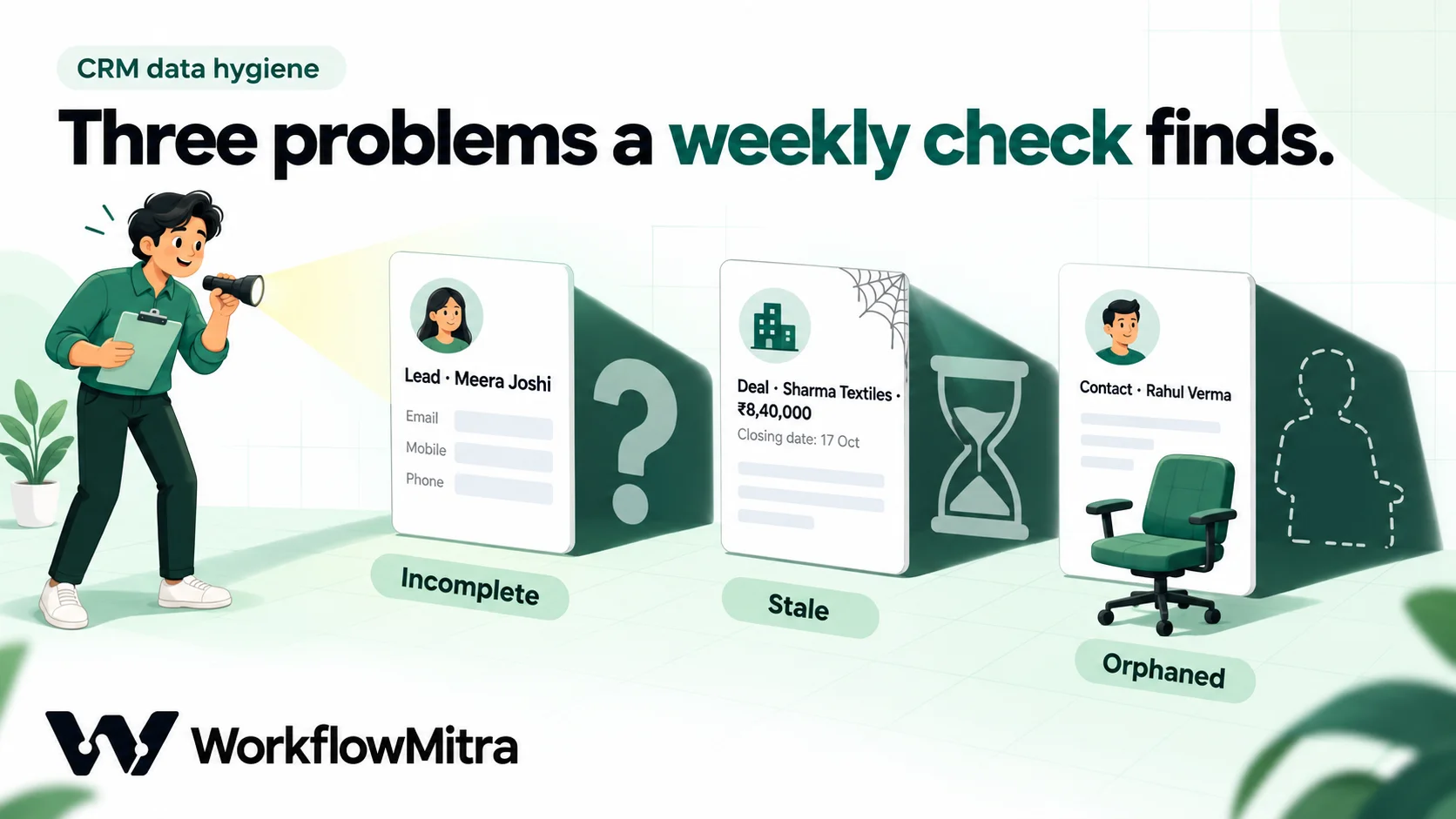
CRM data hygiene is the routine of keeping records complete, current and owned, so reports, follow-ups and forecasts can be trusted. Rather than an occasional big clean-up, run a weekly check that finds three kinds of bad record: incomplete ones (a lead with no email or phone, a deal with no amount), stale ones (open deals past their closing date or untouched for weeks) and orphaned ones (records owned by someone who has left, contacts with no account). Send each salesperson one short list of their own records to fix. With Zoho CRM and WorkflowMitra, powered by ChatMitra, that is a Monday schedule, three COQL queries, a Code step that groups the results by owner, and one email per owner, for roughly 16 credits a week for a five-person team.
Every sales team’s CRM decays the same way. A lead comes in from a trade show with a name and nothing else. A deal sits in Proposal for six weeks because the customer went quiet and nobody updated it. A salesperson leaves, and their forty open leads stay assigned to an account no one logs into. None of these is dramatic on its own, but together they make the pipeline report wrong and the follow-up list incomplete.
CRM data hygiene is the routine of keeping records complete, current and owned, so the numbers and lists built on them can be trusted. The reliable way to keep it up is a weekly check, not a quarterly clean-up: an automated query finds incomplete, stale and orphaned records, and each salesperson gets one short list of their own records to fix. This guide shows the rules worth checking, and builds the full workflow for Zoho CRM with WorkflowMitra, powered by ChatMitra.
Why CRM data goes bad on its own
Dirty data is rarely carelessness. It’s the normal result of how sales work happens:
- Records are created in a hurry. A rep logs a call from their phone and skips the email field. An import from a trade-show scanner brings names without numbers.
- Deals stop moving without anyone deciding. A buyer goes quiet, the rep moves on to warmer deals, and the old one stays open with last month’s closing date.
- People change. Salespeople leave or change territory. Customers change jobs, so the contact at an account is no longer there.
- Records lose their links. A contact is created from an email signature and never attached to its company.
Each of these happens a few times a week. A one-off clean-up fixes the backlog, and the same problems start building up again the next Monday. A small, regular check is what keeps them down.
The three problems worth checking
Most CRM hygiene advice lists a dozen issues. For a weekly check that people will act on, three groups catch most of the damage. Each needs a precise rule, because a vague one either misses records or floods people with false alarms.
| Problem | Rule we use | Why it matters |
|---|---|---|
| Incomplete lead | No email, no mobile and no phone | Nobody can follow it up, so it inflates lead counts without being workable |
| Incomplete deal | Open deal with no amount | Missing from pipeline value and forecasts |
| Stale deal | Open deal whose closing date has passed | The forecast counts it in a month it won't close in |
| Stale deal | Open deal with no activity for 21 days | Nobody is working it; it either needs a nudge or a close |
| Orphaned record | Owner isn't on the current team | Nobody will ever follow it up |
| Orphaned contact | Contact not linked to an account | Missing from account views and account-level reports |
A few choices behind those rules:
- “No way to contact” is stricter than “missing email”. Plenty of good B2B leads in India arrive with a mobile number and no email. Flagging every missing email would bury the leads that genuinely can’t be worked.
- The stale threshold should follow your sales cycle. Twenty-one days suits deals that close in one to three months. For long enterprise cycles, use 30 or 45. For quick transactional sales, 7 to 10.
- Duplicates are a separate job. They need matching logic, not a list of rules, and Zoho CRM has its own tools for finding and merging them. If duplicates come mostly from a form or an import, stop them at the door instead; our guide to data validation automation covers checks before a record is created.
Start with these rules, look at what the first few weeks find, and adjust. A rule that flags records nobody agrees are a problem should be changed or dropped quickly, or people stop reading the list.
Why a weekly list per owner works better than a report
The usual alternative is a dashboard or a monthly “data quality” report for the sales manager. Both have the same weakness: the person who sees the problem isn’t the person who can fix it. The manager can see that 34 leads have no phone number, but only the salesperson who met them knows whether the number is on a business card in their bag.
A weekly list sent to each owner fixes that:
- It’s short. One week of new problems is usually a handful of records per person, which takes a few minutes to clear.
- It’s theirs. Nobody is asked to fix someone else’s mess, so there’s no debate about whose job it is.
- It’s predictable. Monday morning, every week, the same format. It becomes part of the routine rather than an interruption.
- The manager still sees the big picture. Records with no active owner go to the manager’s own list, and a weekly total can be logged to show the trend.
Zoho acknowledges the gap for one of these checks: its own solution for tracking deal inactivity starts by noting there’s “no straightforward method or ready-made automation” for it, and builds one from custom fields, a Deluge function and a schedule, which needs admin permissions to set up. The workflow below gets the same list without changing your CRM’s fields.
How the workflow fits together
Here is the whole thing in WorkflowMitra. It reads from Zoho CRM with COQL, Zoho’s SQL-like query language, which our Zoho CRM COQL guide covers in depth, including the connection scopes it needs.
- Schedule trigger: every Monday at 09:00, time zone Asia/Kolkata.
- Three Zoho CRM steps, each running one COQL query, side by side: deals to check, unreachable leads, contacts without an account.
- Merge step, mode Keep as a list, which waits for all three and passes their results on together.
- Code step that applies the rules, groups the problems by owner and writes one message per person.
- Two IF steps: one sends an alert to you if any query failed; the other checks there is something to send.
- Loop over the messages, with an Email step inside that sends each one to its owner.
Step 1: the schedule
Add a Schedule trigger set to weekly, Monday, 09:00, with the time zone Asia/Kolkata. Monday works because reps fix records before the week’s calls start, and the stale-deal list arrives before any Monday pipeline review.
Step 2: three COQL queries
Add three Zoho CRM steps, each with the operation Run COQL Query, all connected directly to the trigger so they run side by side. Name them clearly, because you’ll read their results in the run history.
Deals to check. One query finds every open deal that breaks any of the three deal rules. The Code step works out which rule each one broke.
select id, Deal_Name, Stage, Amount, Closing_Date, Last_Activity_Time, Owner
from Deals
where (Stage not in ('Closed Won', 'Closed Lost', 'Closed-Lost to Competition')
  and ((Closing_Date < '{{ formatDate(now(), "YYYY-MM-DD") }}'
  or Last_Activity_Time < '{{ formatDate(addDays(now(), subtract(0, 21)), "YYYY-MM-DD") }}T00:00:00+05:30')
  or Amount is null))
order by Amount desc
limit 200
On 22 October 2026 the expressions produced Closing_Date < '2026-10-22' and Last_Activity_Time < '2026-10-01T00:00:00+05:30'. Three details matter:
- Brackets go in pairs. COQL wants conditions grouped two at a time, which is why the OR conditions are nested.
- Write
subtract(0, 21), not-21. WorkflowMitra’s expressions read a bare negative number as empty. - The stage names must match your account exactly. These are Zoho’s defaults; check your Stage picklist and use your own closed stages.
Last_Activity_Time is Zoho’s own record of when someone last worked on the record. Zoho users report that ordinary field edits move it as well as notes, calls and emails, so read this rule as “nobody has touched this deal in 21 days”, which for a weekly check is exactly what you want.
Unreachable leads.
select id, Full_Name, Lead_Source, Owner
from Leads
where ((Email is null and Mobile is null) and Phone is null)
limit 200
Lead_Source is selected for a reason: it’s how the Code step recognises a row as a lead, and it tells you where unreachable leads come from. If most of them come from one source, fix that source.
Contacts without an account.
select id, Full_Name, Email, Owner
from Contacts
where Account_Name is null
limit 200
Skip this one if you sell to individuals and don’t use accounts.
Each query returns its records in body.data, plus ok and status. When nothing matches, Zoho answers with status 204 and no list at all, and when a query is wrong, the step still finishes, with ok false and Zoho’s error code in body. The Code step handles both.
Step 3: merge the three results
Connect all three Zoho CRM steps to one Merge step and set its mode to Keep as a list. The Merge waits until every incoming step has finished and outputs a list with one entry per query.
Why not simply paste the three results into the Code step with {{ $node["Deals to check"].body.data }}? Because the Code step’s 10,000-character limit applies to the code after those expressions are filled in. Three lists of up to 200 records each would blow through it on a busy week. Data that arrives as the step’s input has no such limit, and the Merge step itself costs nothing.
Step 4: the Code step that builds each person’s list
Add a Code step after the Merge, name it Build digests, and paste this script. Replace the IDs and emails in team with your own salespeople, and manager with whoever should receive records that belong to nobody on the team.
var team = {
  '4150868000000225013': { name: 'Ravi', email: '[email protected]' },
  '4150868000000225021': { name: 'Ananya', email: '[email protected]' }
};
var manager = { name: 'Sales manager', email: '[email protected]' };
var STALE_DAYS = 21;

var now = new Date();
var today = new Date(now.getTime() + 330 * 60000).toISOString().slice(0, 10);
var staleBefore = now.getTime() - STALE_DAYS * 86400000;
var inr = new Intl.NumberFormat('en-IN', { style: 'currency', currency: 'INR', maximumFractionDigits: 0 });

var results = Array.isArray(input) ? input : [input];
var problems = [];
var errors = [];

results.forEach(function (res) {
  if (!res || !res.ok) {
    errors.push((res && res.status) + ' ' + ((res && res.body && res.body.code) || 'unknown error'));
    return;
  }
  var rows = (res.body && res.body.data) || [];
  if (res.body && res.body.info && res.body.info.more_records) {
    errors.push('A query returned its limit; some records were not checked this week.');
  }
  rows.forEach(function (r) {
    var owner = (r.Owner && r.Owner.id) || 'none';
    if (r.Deal_Name !== undefined) {
      var why = [];
      if (r.Closing_Date && r.Closing_Date < today) why.push('closing date ' + r.Closing_Date + ' has passed');
      if (r.Last_Activity_Time && Date.parse(r.Last_Activity_Time) < staleBefore) why.push('no activity since ' + r.Last_Activity_Time.slice(0, 10));
      if (r.Amount === null || r.Amount === undefined) why.push('no amount');
      if (why.length) problems.push({ owner: owner, group: 'Deals', id: r.id,
        text: r.Deal_Name + (r.Amount ? ' (' + inr.format(r.Amount) + ')' : '') + ': ' + why.join(', ') });
    } else if (r.Lead_Source !== undefined) {
      problems.push({ owner: owner, group: 'Leads', id: r.id,
        text: (r.Full_Name || 'Unnamed lead') + ': no email, mobile or phone' });
    } else {
      problems.push({ owner: owner, group: 'Contacts', id: r.id,
        text: (r.Full_Name || 'Unnamed contact') + ': not linked to an account' });
    }
  });
});

var byOwner = {};
problems.forEach(function (p) {
  var key = team[p.owner] ? p.owner : 'unassigned';
  (byOwner[key] = byOwner[key] || []).push(p);
});

var digests = Object.keys(byOwner).map(function (key) {
  var person = team[key] || manager;
  var items = byOwner[key];
  var lines = ['Deals', 'Leads', 'Contacts'].map(function (g) {
    var inGroup = items.filter(function (p) { return p.group === g; });
    if (!inGroup.length) return '';
    return g + ' (' + inGroup.length + ')\n' + inGroup.map(function (p) { return '- ' + p.text; }).join('\n');
  }).filter(Boolean);
  var intro = key === 'unassigned'
    ? 'These records belong to nobody on the current team. Please reassign them.'
    : 'Hi ' + person.name + ', these records need a quick fix this week.';
  return { name: person.name, email: person.email, count: items.length,
    subject: 'CRM clean-up: ' + items.length + ' record' + (items.length === 1 ? '' : 's') + ' to fix',
    text: intro + '\n\n' + lines.join('\n\n') };
});

return { digests: digests, total: problems.length, errors: errors, checkedOn: today };
How it works, in plain terms:
- It recognises each query’s rows by their fields. Deal rows have
Deal_Name, lead rows haveLead_Source, and everything else is a contact. That way it doesn’t matter which query finished first. - It explains each deal. One deal can break several rules, so its line says which: “closing date has passed, no activity since…”.
- It treats unknown owners as orphans. Any owner ID not in
team, including people who have left, puts the record on the manager’s list. - It never stops on a failed query. A query that failed or hit its 200-record limit is reported in
errors, and the other two still produce lists. - It works in India time.
todayis calculated for IST, so a deal closing today isn’t flagged as overdue on Monday morning.
We ran this exact script in WorkflowMitra’s workflow engine with three stand-in Zoho answers: three deals, one lead and an empty contacts result (status 204). Ravi got one line, “Sharma Textiles – 40 looms (₹8,40,000): closing date 2026-10-17 has passed, no activity since 2026-09-22”. Ananya got a deal with no amount and a lead with no contact details. A deal owned by an ID outside the team map went to the sales manager. When we made the leads query fail, errors held “400 INVALID_QUERY” and the other two lists still went out.
Getting the owner IDs
COQL returns the owner as an ID, not a name, so the script needs the map. Two ways to build it:
- Run the deals query once and look at the
OwnerIDs next to deals you recognise. - Ask Zoho for the user list. An App Request step for Zoho CRM with
GET /crm/v6/users?type=ActiveUsersreturns every active user’s ID, name and email. It needs theZohoCRM.users.READscope on the connection.type=DeactiveUserslists people who have left, which is a quick way to see whose records need reassigning. Zoho’s Users API reference lists the other types.
Update the map when someone joins or leaves. Until you do, a new rep’s records go to the manager’s list, which is a useful reminder.
Step 5: alert on errors, then send the lists
Connect the Code step to two IF steps.
“Query failed?” checks {{ errors }} with Number of items is more than 0. Its Yes route goes to a Slack step (or an Email to yourself) with the message CRM hygiene check had problems: {{ join(errors, "; ") }}. A check that fails silently is worse than no check, because everyone assumes the CRM is clean.
“Anything to send?” checks {{ digests }} with Number of items is more than 0. On a perfect week there’s nothing to send and the workflow stops here. Its Yes route goes to a Loop with the List field set to digests. Inside the loop, add an Email step with the action Send an email:
- To:
{{ $trigger.email }} - Subject:
{{ $trigger.subject }} - Message:
{{ $trigger.text }}
Inside a loop, $trigger is the current item, so each person receives their own list. A list arrives looking like this:
Hi Ananya, these records need a quick fix this week.

Deals (1)
- Kaveri Foods renewal: no amount

Leads (1)
- Meera Joshi: no email, mobile or phone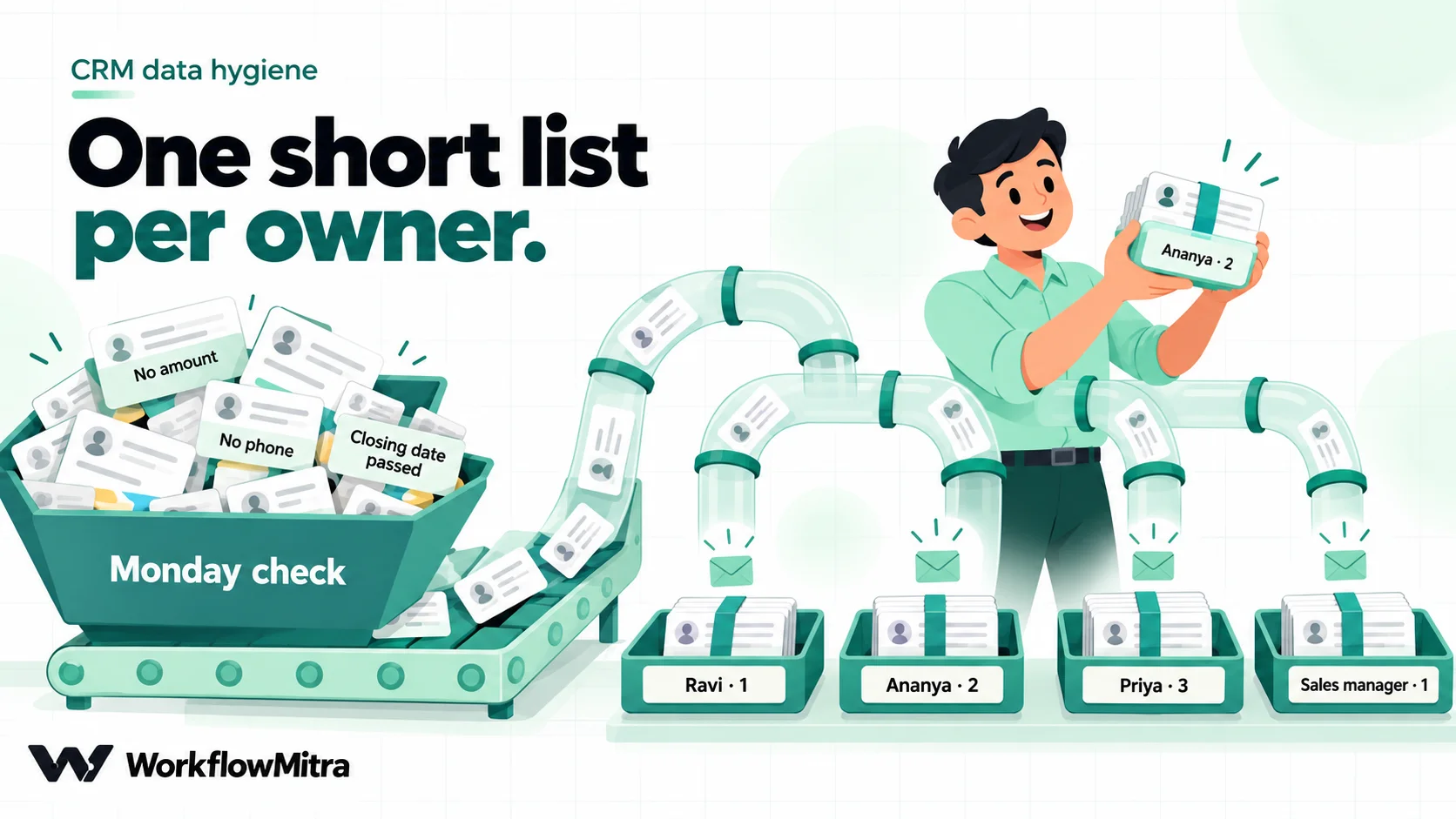
Prefer WhatsApp? The same $trigger fields work in a WhatsApp step that sends through ChatMitra, though a message to someone who hasn’t written to your business number in the last 24 hours needs an approved template. Keep the lists private whichever channel you use: a list of someone’s untidy deals posted in a team channel feels like a public telling-off and gets ignored.
What it costs to run
WorkflowMitra charges credits per executed step: the Schedule trigger, each Zoho CRM step and each Email or Slack step cost one credit; IF and Merge steps are free; a Loop costs one credit per item; and a Code step this size costs a small fraction of a credit, because it’s billed by run time.
| Part of the run | Credits per week (five reps plus the manager) |
|---|---|
| Schedule trigger | 1 |
| Three Zoho CRM queries | 3 |
| Merge, IF steps | 0 |
| Code step | A fraction of 1 |
| Loop, six lists | 6 |
| Six emails | 6 |
| Total | About 16 a week, under 70 a month |
People with nothing to fix get no email and cost nothing, so a cleaner CRM makes the check cheaper. On the Zoho side, each query with a LIMIT of 200 or less uses one Zoho API credit, three a week.
Your first run will be big
The weekly check is designed for a CRM that’s roughly under control. On the first run, most teams find a backlog: hundreds of leads with no contact details, deals that went quiet last year. If a query finds more than 200 records, the script says so in errors, and the lists are incomplete.
Clear the backlog once before you switch the weekly emails on:
- Run the queries by hand with a larger window and look at the counts, without sending anything.
- Bulk-close the obvious dead weight in Zoho: deals with a closing date more than six months ago and no activity since, leads from old events that were never contacted. Agree the cut-offs with the sales head first.
- Reassign orphaned records to current owners or the manager.
- Then turn on the weekly emails. From here, each list holds only one week’s worth of new problems.
If a query keeps hitting the limit even after the clean-up, narrow it (one region or pipeline per query) rather than fetching page after page. Our Zoho CRM COQL guide shows how to page through results if you really need to.
Fix the sources, not just the records
A weekly list tells you where bad data comes from. Read it as a diagnosis, not just a to-do list:
- Unreachable leads from one source mean that source’s form or import is missing fields. Make phone or email required there, or add a check before the lead is created.
- Deals with no amount usually mean the deal is created too early in the process. Make Amount required at the stage where a number should be known.
- Contacts without accounts often come from email add-ons or quick-create screens. Train the team to link the account at creation.
- Stale deals clustering around one rep are a coaching conversation, not a data problem.
Automated checks before data enters the CRM, such as format checks on email and phone, catch some of this at the door; our guide to data validation automation shows how. For records that arrive messy rather than missing, our guide to cleaning data with AI covers normalising names, cities and categories.
Track whether it’s working
Add one more step after the Code step: a Google Sheets step that adds a row each week with {{ $node["Build digests"].checkedOn }} and {{ $node["Build digests"].total }}, plus the length of each list if you want detail. After a month you’ll see whether the total is falling. If it isn’t, the weekly list is being ignored, and the conversation to have is with the team, not the workflow.
A falling total also gives the sales head a simple, honest number for data quality, which is more useful than any “CRM health score”.
Should the workflow fix records itself?
It’s tempting to have the workflow close stale deals or reassign orphaned leads automatically. Be careful. The workflow knows a deal is quiet; it doesn’t know the buyer promised to sign next week. Automatic changes to someone’s pipeline erode their trust in the CRM faster than dirty data does.
Safe automatic changes are narrow and reversible:
- Tagging records that have been on the list for three weeks running, so a manager can filter for them.
- Reassigning records whose owner has been deactivated, to the manager, after the team has agreed to it.
Both use a Loop with a Zoho CRM Update Record step on the record’s id. Each record then costs two credits (the loop item and the update), and one failed update stops the loop, so test on one or two records first. Everything else should stay a human decision.
Test before the first Monday
The editor’s Run button runs the workflow for real, so a test sends real emails. To test safely:
- Point every email at yourself by temporarily setting the team map’s emails to your own address.
- Run once and open the run history. Check each Zoho CRM step’s
statusandbody.info.count, then the Code step’sdigests. - Break a query on purpose, for example by misspelling a field, and run again. You should get the Slack alert with
INVALID_QUERY, and the other lists should still arrive. - Restore the real emails and let Monday’s run go out.
Our guide to testing an automated workflow covers which test options are live and which are simulated.
Common mistakes
- Too many rules at once. Start with the six above. A 40-line list on the first Monday trains people to ignore it.
- Stage names that don’t match your account. The query compares them exactly; a renamed “Closed Lost” stage makes every closed deal look open.
- One report to the manager instead of lists to owners. The manager can’t fix records they didn’t create.
- No alert when a query fails. A failed query looks exactly like a clean CRM unless something tells you.
- Forgetting the team map. New reps’ records land on the manager’s list until the map is updated.
- Pasting large results into code. Use the Merge step so the Code step’s character limit never becomes a weekly failure.
Where WorkflowMitra fits, and where it doesn’t
WorkflowMitra, powered by ChatMitra, is the layer that runs the checks on a schedule, applies your rules and delivers each list where people will see it: email, Slack, or WhatsApp through ChatMitra. Every run is recorded step by step, so you can see exactly what Zoho returned on any Monday. The same pattern works for any CRM it can read: a Google Sheets CRM, for example, uses a Read rows step in place of the COQL queries, and our guide to Google Sheets as a CRM covers that setup.
It has limits worth knowing. WorkflowMitra reads Zoho through COQL on API version 6, so each query returns at most 200 records. There’s no Zoho CRM trigger, so the check runs on a schedule rather than the moment a bad record is saved. It isn’t a duplicate-matching tool. And for automating the rest of the sales process, from lead routing to follow-ups, our guide to CRM automation covers what to build first and where Zoho’s own workflow rules are enough.
Start with one check
You don’t need all three queries on day one. Start with stale deals: one query, the Code step, one email per owner. Watch it for two Mondays, adjust the threshold, then add unreachable leads and orphaned contacts. You can build it on a 14-day WorkflowMitra trial with no card needed.
WorkflowMitra details in this guide come from its source code and editor as of 22 October 2026; the full workflow, including the three queries, the Merge step and the Code step, was run in WorkflowMitra's workflow engine with stand-in Zoho CRM responses, not a live Zoho account. Zoho CRM details were checked on 22 October 2026 in Zoho's developer documentation for COQL queries and the Users API, and in Zoho's solution guide to tracking days of deal inactivity.
Frequently Asked Questions
Questions sales managers ask when they set up a regular CRM data hygiene check.
It's the ongoing work of keeping CRM records accurate, complete, current and assigned to the right person. Good hygiene means a lead can actually be contacted, an open deal reflects a real conversation, and every record has an owner who's still on the team. It's a routine, not a one-off project, because records decay every week.
Automate the work between your apps
Build workflows with triggers, conditions and actions, then test them before they go live. Try WorkflowMitra free for 14 days, no card required.