Data Formatting in Workflows: How to Format Dates, Numbers, Currency and Text Automatically

Quick Summary
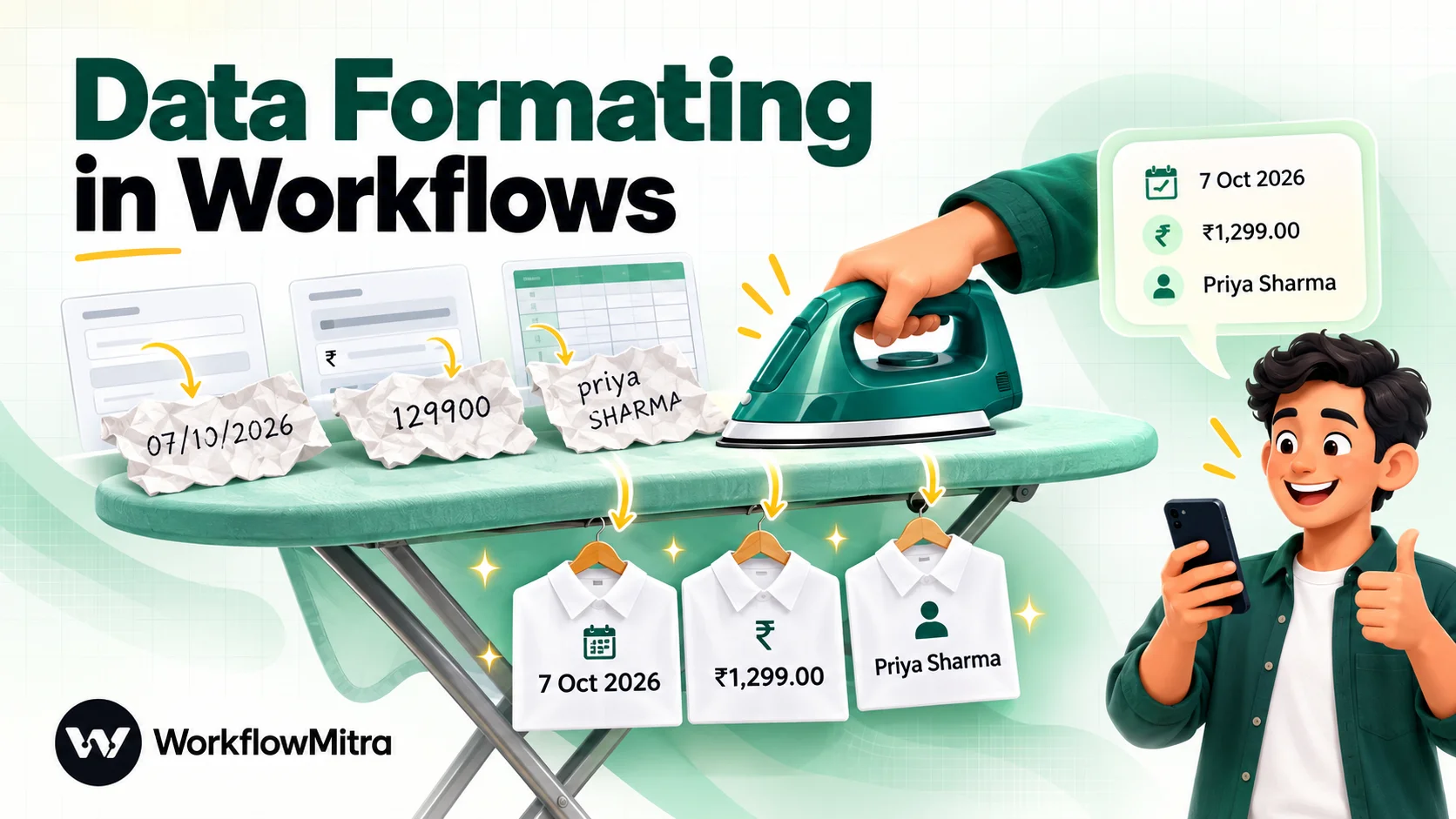
Data formatting in workflows means changing how a value looks, such as a date, an amount or a name, so the next app or the person reading it understands it correctly. The safe approach is to keep values in a raw, unambiguous form while they move between steps (ISO dates such as 2026-10-07, plain numbers without symbols, trimmed lowercase emails for lookups) and to format them only at the edge, in the message, document or sheet column a person will read. In WorkflowMitra, powered by ChatMitra, formatting is done with {{ }} expressions such as formatDate, formatCurrency, formatNumber, startcase and padStart inside any step's fields, at no extra credit cost. The main traps are ambiguous day-month dates, dates shown in the server's time zone rather than yours, spreadsheet serial dates, currency text that doesn't parse, and missing values that leave gaps in messages.
Most automation errors that customers notice aren’t failures. The workflow ran, the message was sent, the row was added. It just said the wrong thing: an order “placed on 10 July” that was placed on 7 October, a payment of “₹129900” for a ₹1,299 invoice, a greeting that starts “Hi priya SHARMA”. These come from formatting, the unglamorous step between receiving data and using it.
This guide explains how to format dates, numbers, currency and text inside automated workflows, and when not to. It covers the principle that prevents most problems, the specific traps for each data type, and a cheat sheet of tested expressions. The examples use WorkflowMitra, powered by ChatMitra, but the principles apply in any automation tool.
Data formatting automation means converting values such as dates, amounts and names into the form the next app or reader expects, automatically, inside the workflow. Keep values raw and unambiguous while they move between steps (ISO dates, plain numbers, trimmed text), and format them only where a person will read them. Watch for day-month ambiguity, time zones, spreadsheet serial dates, currency text that won't parse and missing values.
Why formatting breaks workflows
Every app writes data its own way. A form tool sends a date as typed by the customer. A payment gateway sends amounts in the smallest currency unit. A spreadsheet sends what it displays or what it stores, depending on settings. A CRM wants dates in one exact format and rejects everything else. Formatting is the translation between these conventions, and each mistranslation has a recognisable symptom:
| Symptom | Usual cause | Fix |
|---|---|---|
| Date off by months ("10 July" instead of 7 October) | Day/month order read the American way | Convert DD/MM/YYYY to ISO before using it |
| Date shows 1 Jan 1970 | A spreadsheet serial number or unreadable text treated as a date | Convert the serial; validate input before formatting |
| Time off by 5 hours 30 minutes | UTC shown as if it were local time, or the reverse | Convert with a named time zone |
| Amount 100 times too large | Paise or cents shown as rupees or dollars | Divide by 100 for two-decimal currencies |
| Amount reads 0 or 0.1299 | Currency text such as "Rs. 1,299" parsed as a number | Remove the symbol before parsing |
| Lookup finds no match for an existing customer | Case, spaces or formatting differ between the two values | Normalise both sides (trim, lowercase, digits only) |
| "Hi ," at the start of a message | An optional field was empty | Use a fallback value |
The rule that prevents most problems: keep it raw, format at the edge
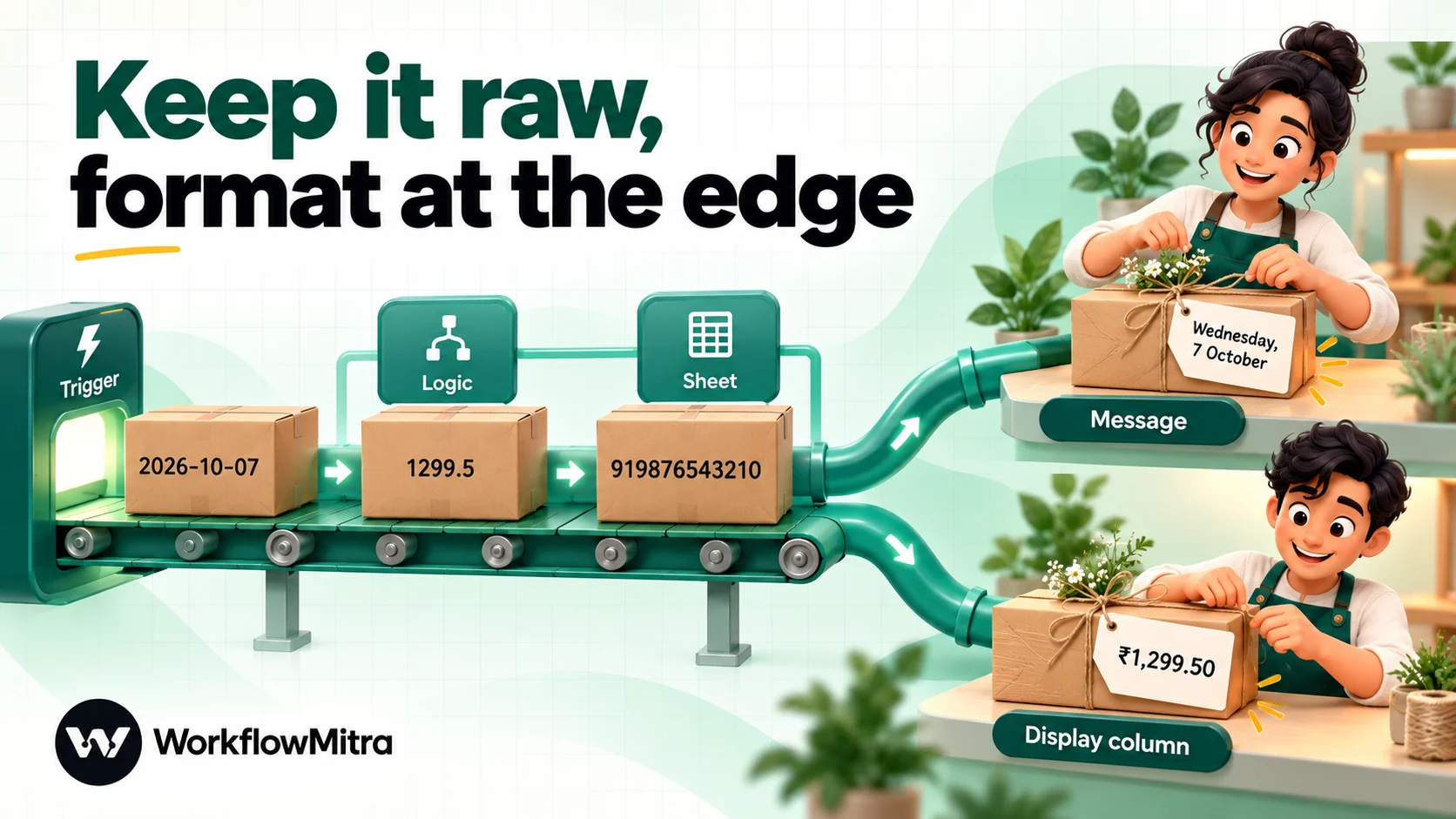
There are two jobs for a value in a workflow: being processed (compared, sorted, calculated, matched) and being read by a person. They need different forms, and mixing them up causes most formatting bugs.
While data moves between steps, keep it raw and unambiguous. Dates as ISO 8601 (2026-10-07 or 2026-10-07T09:30:00Z), amounts as plain numbers in the main currency unit (1299.5), phone numbers as digits with country code (919876543210), emails trimmed and lowercase. ISO dates sort correctly as text, mean the same thing in every country and are accepted by almost every API.
At the edge, where a person reads the value, format it for them. A WhatsApp message, an email, a PDF, a Slack alert or a “display” column in a sheet is where 2026-10-07 becomes Wednesday, 7 October and 1299.5 becomes ₹1,299.50.
The practical consequences:
- Never round-trip formatted text. Once
₹12,34,567.50has been written into a sheet, reading it back as a number needs extra work. Store1234567.5and format on the way out. - Format once, as late as possible. Format in the field of the final step that sends or writes the value, not in an early step whose output other steps might calculate with.
- Keep both when in doubt. A sheet with
Amount(number) andAmount (display)(text) costs one extra column and saves a lot of cleanup.
How formatting works in WorkflowMitra
WorkflowMitra formats data with {{ }} expressions, which you can type into almost any field of any step: a message body, a sheet column mapping, an email subject, an HTTP request body. The expression is evaluated when the step runs. There is no separate formatter step to add or pay for: formatting inside a field costs nothing beyond the step itself, and a Set Variable step, which is free, can hold formatted values for later steps.
A few rules of the expression language matter for formatting, and we tested each one against the workflow engine:
- Arguments are separated by commas:
formatDate(created_at, "DD MMM YYYY"). The function list in the editor shows semicolons in signatures, but a semicolon makes the expression resolve to an empty value. - There is no
+for joining text or adding numbers. Put fixed text outside the braces instead:INV-{{ padStart(order_id, 5, "0") }}producesINV-00042. To add two numbers, usesum(merge(toArray(a), toArray(b))), orsubtract(a, subtract(0, b)). Note thatadd()appends an item to a list; it doesn’t add numbers. - Negative numbers can’t be typed directly.
addDays(date, -1)resolves empty; writeaddDays(date, subtract(0, 1)). - Functions nest.
startcase(trim(name))trims first, then capitalises. - Inside
map(), the item is the scope.map(items, title)reads each item’s title; for a plain list of text,itemrefers to the value itself, as inmap(split(tags, ","), trim(item)). - There is no regular-expression support in expressions.
replace()swaps literal text and replaces every occurrence. For patterns, use a Code step. - Comparisons are
=and!=only inside expressions.if(lower(status) = "paid", "Paid", "Pending")works; greater-than and less-than belong in an IF step, which has number and date operators.
Formatting dates and times
Dates cause more formatting bugs than everything else combined, because three separate things can go wrong: reading the input, choosing the time zone and writing the output.
Writing a date: format tokens
formatDate(value, "pattern") writes a date using these tokens:
| Token | Meaning | Example for 7 Oct 2026, 15:00 |
|---|---|---|
YYYY / YY | Year | 2026 / 26 |
MMMM / MMM / MM | Month name / short name / number | October / Oct / 10 |
DD | Day of month, two digits | 07 |
dddd / ddd | Weekday / short weekday | Wednesday / Wed |
HH / hh | Hour, 24-hour / 12-hour | 15 / 03 |
mm / ss | Minutes / seconds | 00 / 00 |
A | AM or PM | PM |
So {{ formatDate(order_date, "dddd, DD MMMM YYYY") }} gives Wednesday, 07 October 2026, and {{ formatDate(order_date, "DD/MM/YYYY") }} gives 07/10/2026. Note that MM is month and mm is minutes, a classic typo. If you leave the pattern out, you get an ISO-style string with a trailing Z; don’t rely on that default, because the time in it is the server’s local time even though Z normally means UTC.
Reading a date: what the input looks like matters
formatDate and the other date helpers first have to understand the input, and they read it the way JavaScript does:
- ISO dates are safe.
2026-10-07and2026-10-07T09:30:00Zare read correctly everywhere. - Written-out dates usually work.
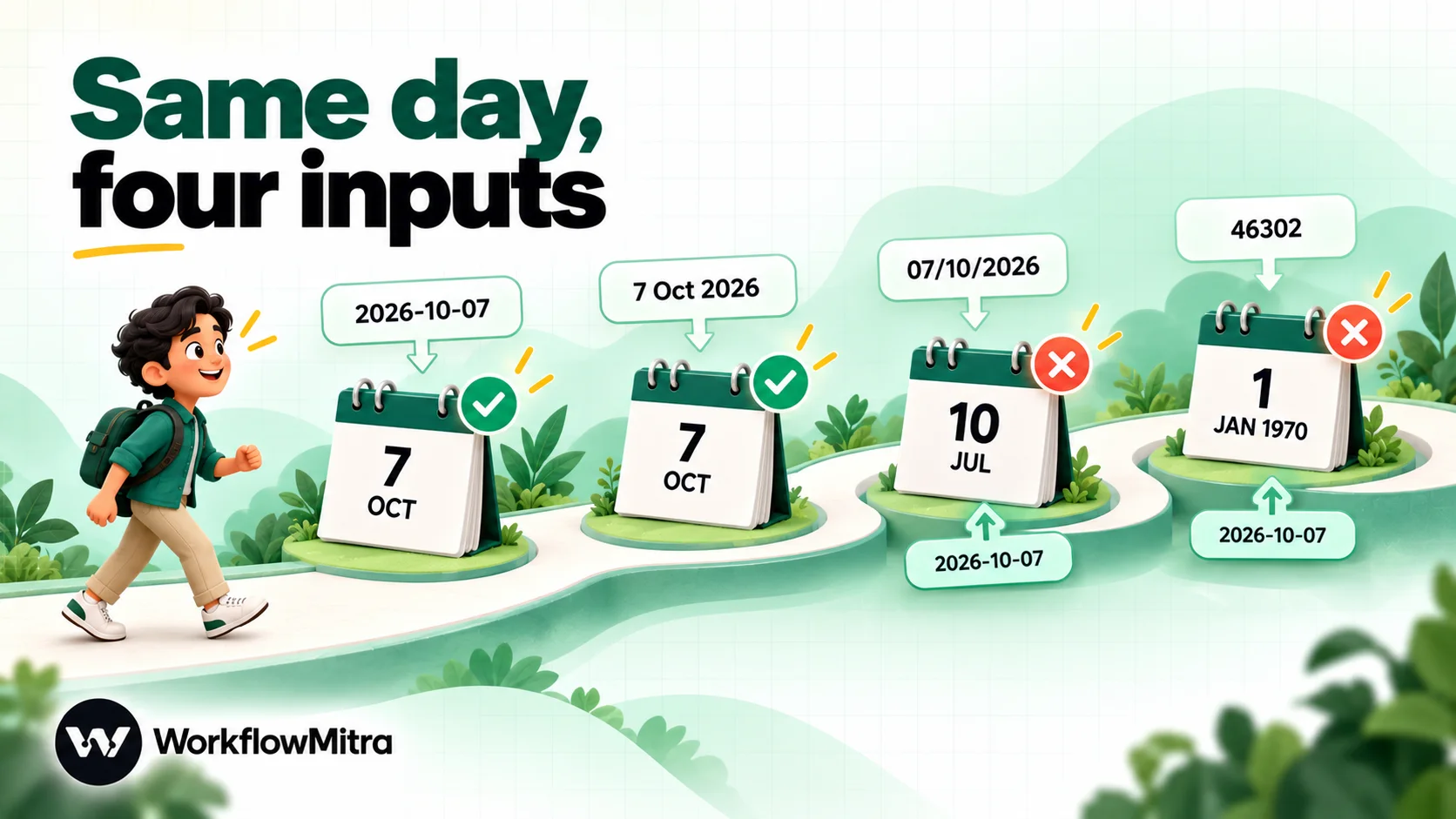
7 Oct 2026is read as 7 October. - Slash dates are read month-first.
07/10/2026becomes 10 July, not 7 October. This is the single most common date bug in Indian, British and most non-US workflows. Convert it to ISO before formatting:{{ join(reverse(split(form_date, "/")), "-") }}turns07/10/2026into2026-10-07, which you can then format. This works only when every input is strictly DD/MM/YYYY, so fix the format on the form if you can, for example with a date picker. - Unreadable input becomes 1 January 1970. Text such as “next Tuesday” doesn’t produce an empty value; it produces the date at time zero. If you see 1970 in a message, the input wasn’t a date. Validate optional date fields with an IF step (the is empty check, or a date operator) before formatting them.
Spreadsheet serial dates
Google Sheets stores dates as serial numbers, days counted from 30 December 1899, and shows them formatted. Whether your workflow receives 07/10/2026 or 46302 depends on how the value is read. WorkflowMitra’s Google Sheets trigger reads raw values, so date cells arrive as serial numbers. A serial number passed straight to formatDate is treated as milliseconds and shows 1 Jan 1970.
Convert a serial to a date with: {{ formatDate(multiply(subtract(serial, 25569), 86400000), "DD MMM YYYY") }}. The 25569 is the serial number of 1 January 1970, and 86,400,000 is the number of milliseconds in a day. Alternatively, add a helper column in the sheet with =TEXT(A2, "yyyy-mm-dd") and use that column in the workflow. The Google Sheets step, as opposed to the trigger, offers a choice between As displayed and Raw values when it reads, so pick the one that matches what you’ll do next.
Time zones
Timestamps from APIs and webhooks are usually in UTC, often marked with a Z or +00:00. Your customers think in local time. Two facts about WorkflowMitra’s date helpers decide how to handle this:
formatDate,dayName,parseDateand theset…helpers use the server’s time zone, not yours, and an input without a zone, such as2026-10-07 14:00, is read as server local time.- Date-only values such as
2026-10-07are read as midnight UTC, so on a server west of UTC they can display as the previous day.
We tested the same timestamp, 2026-10-07T09:30:00Z, with the server set to UTC and to India Standard Time: formatDate(..., "hh:mm A") produced 09:30 AM on one and 03:00 PM on the other. Because you can’t choose the server’s zone, don’t use the date helpers to show a customer-facing time when the source is UTC. Use a short Code step that names the zone:
const d = new Date(input.created_at);
const show = (opts) =>
  new Intl.DateTimeFormat('en-IN', { timeZone: 'Asia/Kolkata', ...opts }).format(d);
return {
  ...input,
  local_date: show({ day: '2-digit', month: 'short', year: 'numeric' }),
  local_time: show({ hour: 'numeric', minute: '2-digit', hour12: true }),
};
For 2026-10-07T09:30:00Z, this returns local_date “07 Oct 2026” and local_time “3:00 pm”. Change Asia/Kolkata to Europe/London, America/New_York or any IANA zone name. In our test the script ran in 9 milliseconds; the Code step is billed at 2 credits per second of run time, so that is a tiny fraction of a credit. The same script approach handles daylight saving correctly, which fixed offsets don’t. The guide to the Code step explains its limits.
Date arithmetic
addDays, addHours, addMinutes, addMonths and addYears move a date forward (use subtract(0, n) to go back), and return an ISO timestamp in UTC that you can then format: {{ formatDate(addDays(order_date, 3), "DD MMM") }} gives the expected delivery date. There’s no “days between two dates” helper. To compare dates, use an IF step’s date operators, which accept ISO dates or epoch milliseconds, or calculate the difference in a Code step.
Formatting numbers
Numbers fail in two directions: text that should be a number, and numbers that need to look like text.
Turning text into a number. parseNumber() keeps only digits, the decimal point and the minus sign, so ₹1,299.50 becomes 1299.5. Two inputs fool it:
Rs. 1,299becomes0.1299, because the full stop after “Rs” survives as a decimal point. Remove the prefix first:{{ parseNumber(replace(price, "Rs.", "")) }}gives1299.- European-style
1.299,50becomes1.2995. If your data uses commas as decimal separators, convert it in a Code step.
toNumber() is stricter and returns 0 for anything with a comma, so use parseNumber() for human-entered values.
Calculating. Use multiply, divide, subtract, sum (of a list), round(value, decimals), ceil, floor and mod. For example, an order total from line items: {{ sum(map(items, multiply(qty, price))) }}. Computers store decimals in binary, so long calculations can produce values like 0.30000000000000004; round once, at the end, before display.
Writing a number for people. formatNumber(value, decimals) adds thousands separators and fixes the decimals: formatNumber(1234567.5) gives 1,234,567.50 (two decimals by default) and formatNumber(1234567.5, 0) gives 1,234,568. It always uses international grouping (1,234,567). For Indian lakh and crore grouping, use formatCurrency, below.
Padding. Order and invoice numbers often need a fixed width: {{ padStart(order_id, 6, "0") }} turns 42 into 000042.
Formatting currency
Currency formatting is number formatting plus a symbol, local grouping and a fixed number of decimals, and it starts with getting the unit right.
Convert minor units first. Payment systems usually send amounts in the smallest unit of the currency. Razorpay sends paise and Stripe sends the minor unit of the charge currency, so ₹1,299 arrives as 129900. Use {{ paisaToRupees(amount) }} for Razorpay, or divide(amount, 100) for other two-decimal currencies. Stripe lists zero-decimal currencies such as the Japanese yen, which arrive in whole units and must not be divided. The Razorpay to Google Sheets tutorial applies this to a payment log.
Then format. formatCurrency(value, "CODE", "locale") uses the currency’s standard symbol and the locale’s grouping:
| Expression | Result |
|---|---|
formatCurrency(1234567.5, "INR") | ₹12,34,567.50 |
formatCurrency(1234567.5, "USD") | $1,234,567.50 |
formatCurrency(1234567.5, "AED") | AED 1,234,567.50 |
formatCurrency(1234567.5, "EUR", "de-DE") | 1.234.567,50 € |
formatCurrency(paisaToRupees(129900), "INR") | ₹1,299.00 |
With no currency code, formatCurrency defaults to rupees. INR uses the en-IN locale automatically, which gives lakh grouping; other currencies default to en-US unless you pass a locale as the third argument, as in the euro example.
Two practical points. First, don’t put a currency symbol in a WhatsApp template variable if the approved template text already has one, or the customer sees “₹₹1,299.00”; send formatNumber(amount, 2) instead. Second, never convert between currencies inside a formatting expression with a hard-coded rate. Exchange rates change; if you need conversion, fetch a rate from a source you trust with an HTTP Request step and record the rate and date alongside the converted amount.
Formatting text
Text formatting is mostly about cleaning: removing what people typed by accident and making values consistent enough to compare.
Trim everything that came from a person. trim() removes leading and trailing spaces, which break lookups and look odd in messages. trimStart() and trimEnd() do one side.
Fix the case. lower() and upper() change everything. capitalize() uppercases only the first letter and leaves the rest alone, so capitalize(lower(name)) gives “Priya sharma”. For names, startcase() capitalises each word and lowercases the rest: startcase(trim(" priya SHARMA ")) gives “Priya Sharma”. It isn’t perfect for every name (it gives “Mcdonald” and “O’brien-smith”), so for customer-facing greetings, consider using only the first name, or leave names as typed when they’re already mixed-case.
Replace and remove. replace(text, "find", "replace with") replaces every occurrence of literal text. Chain it to remove several characters: replace(replace(phone, "-", ""), " ", "") strips dashes and spaces. Remember it is literal, not a pattern.
Clean HTML and feed text. stripHTML() removes tags but joins paragraphs together (“HelloWorld”); replace </p> with </p> first to keep a space. Text from RSS feeds and some web forms contains HTML entities such as ’ and &. There is no decoder, so replace the common ones explicitly; the RSS to Telegram and Slack guide lists the ones WordPress feeds use.
Cut to length. substring(text, 0, 120) keeps the first 120 characters, useful for previews in alerts. It cuts mid-word; for customer-facing text, prefer a field that is already short.
Split and join lists. split(tags, ",") turns “vip, wholesale, repeat” into a list; join(map(split(tags, ","), trim(item)), " | ") gives “vip | wholesale | repeat”. To list order items in one message, join(map(items, title), ", ") gives “Kurta, Dupatta”.
Make text safe for its destination. Use encodeURL() for values placed in a link (spaces become %20, & becomes %26), escapeHTML() for values placed in an HTML email, and escapeJSON() for values inside a hand-written JSON body.
Provide fallbacks. default(value, "fallback") (or its alias ifempty) replaces an empty value: Hi {{ default(first_name, "there") }} reads “Hi there” when the name is missing. Note that 0 counts as a value, not as empty.
Normalising values for matching
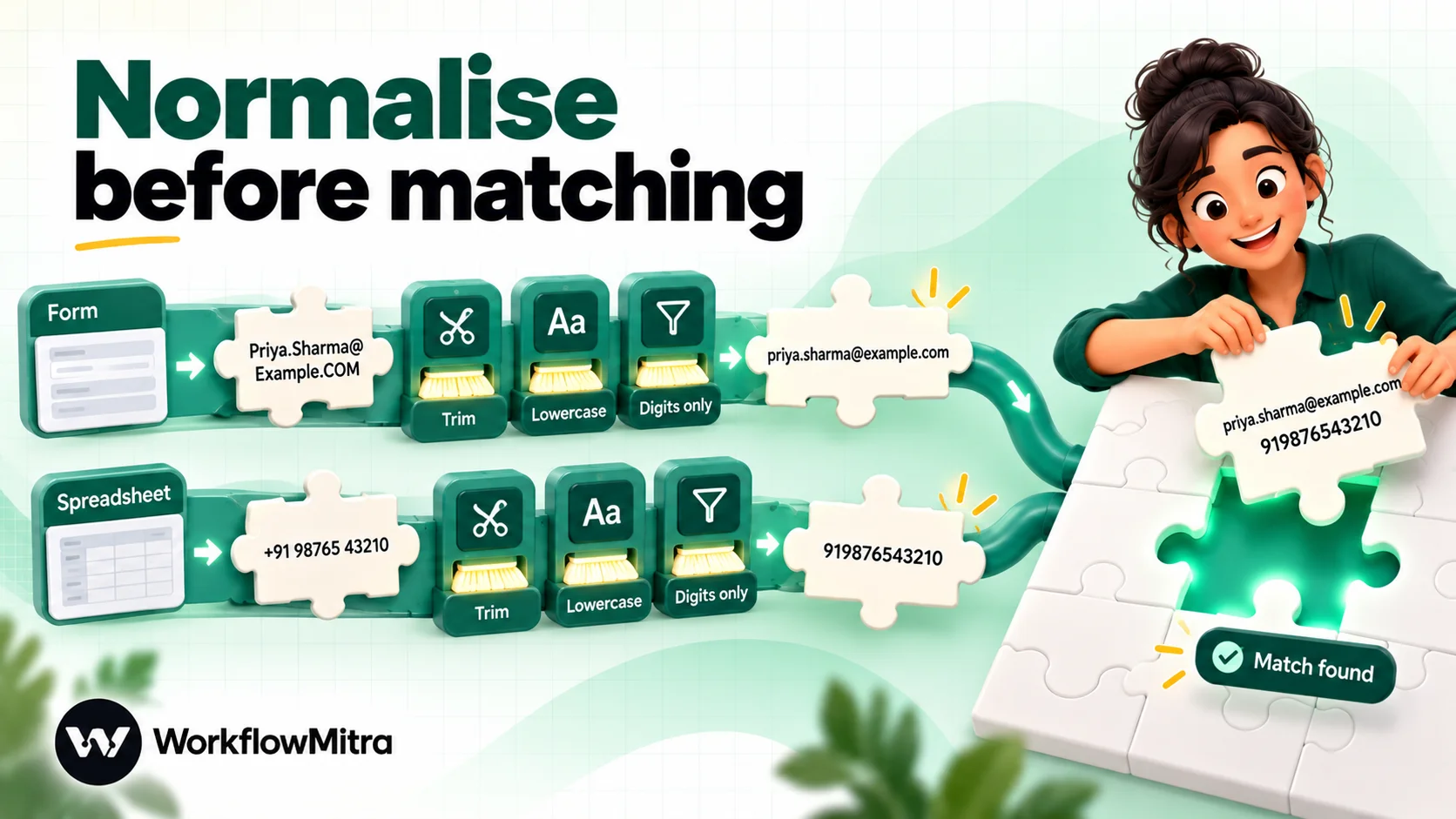
Lookups compare exact text. If a customer’s email is stored as [email protected] and the form sends [email protected], a Google Sheets Find row step won’t find them, because WorkflowMitra’s sheet lookups match exact text after trimming. Normalise both sides the same way before you match:
- Email:
lower(trim(email)). - Phone: digits only, with the country code.
replace(replace(replace(phone, "+", ""), " ", ""), "-", "")turns+91 98765 43210into919876543210. A local number with a leading zero needs it removed before the country code is added:padStart(if(substring(p, 0, 1) = "0", substring(p, 1), p), 12, "91"). This is safe only for ten-digit Indian mobile numbers; mixed international input needs more care. - IDs and codes:
upper(trim(code))so “inv-42” and “INV-42 ” match.
Store the normalised value in its own column, and match on that column, not on what the person typed.
Format for the destination
The same value may need a different form for each place it goes.
Google Sheets. WorkflowMitra’s Google Sheets step can write values Like typing it in (formulas work) or Exactly as written (no formulas). The first lets Sheets interpret what you send, so 2026-10-07 becomes a real date and 1299.5 a number, which is usually what you want. But it also turns +91-98765-43210 into a formula and drops the plus from +919876543210. Write phone numbers, IDs with leading zeros and anything that must stay text with Exactly as written, or set those columns to plain text in the sheet. The Google Sheets automation guide covers the other sheet settings that affect workflows.
WhatsApp templates. Template variables are substituted into text that Meta has already approved, so send exactly the value the sentence needs: a formatted date, an amount without a symbol if the template has one, and a first name rather than a full record. Keep variables on one line; Meta reports invalid template parameters as error 132018, and WhatsApp providers commonly list line breaks in variables as a cause. Join lists with commas rather than new lines.
APIs and CRMs. Send what the API’s documentation asks for, usually ISO dates and plain numbers. In an HTTP Request body written as raw JSON, an unquoted {{ amount }} sends a number and a quoted one sends text; check which the receiving API expects. The guide to working with JSON in workflows covers JSON bodies in detail.
Email and Slack. Readable formats, with escapeHTML() if the email body is HTML.
A cheat sheet of tested expressions
Every result below was produced by WorkflowMitra’s expression engine on 7 October 2026.
| Task | Expression | Input | Result |
|---|---|---|---|
| Readable date | formatDate(d, "DD MMM YYYY") | 2026-10-07 | 07 Oct 2026 |
| Long date with weekday | formatDate(d, "dddd, DD MMMM YYYY") | 7 Oct 2026 | Wednesday, 07 October 2026 |
| DD/MM/YYYY to ISO | join(reverse(split(d, "/")), "-") | 07/10/2026 | 2026-10-07 |
| Sheets serial to date | formatDate(multiply(subtract(s, 25569), 86400000), "DD MMM YYYY") | 46302 | 07 Oct 2026 |
| Three days later | formatDate(addDays(d, 3), "DD MMM") | 2026-10-07T09:30:00Z | 10 Oct |
| Rupees with lakh grouping | formatCurrency(n, "INR") | 1234567.5 | ₹12,34,567.50 |
| Paise to rupees | formatCurrency(paisaToRupees(n), "INR") | 129900 | ₹1,299.00 |
| Thousands separators | formatNumber(n, 0) | 1234567.5 | 1,234,568 |
| Currency text to number | parseNumber(replace(t, "Rs.", "")) | Rs. 1,299 | 1299 |
| Order total | sum(map(items, multiply(qty, price))) | 2 × 799, 1 × 349 | 1947 |
| Name case | startcase(trim(name)) | " priya SHARMA " | Priya Sharma |
| Email for matching | lower(trim(email)) | " [email protected] " | [email protected] |
| Padded invoice number | INV-{{ padStart(id, 5, "0") }} | 42 | INV-00042 |
| List of items | join(map(items, title), ", ") | [Kurta, Dupatta] | Kurta, Dupatta |
| Fallback greeting | Hi {{ default(name, "there") }} | (empty) | Hi there |
| Value for a link | encodeURL(msg) | ready & packed | ready%20%26%20packed |
Putting it together: an order confirmation
Here is how the pieces combine in one common workflow: a payment webhook arrives and the customer gets a WhatsApp confirmation while the order is logged in a sheet. The incoming payload (simplified) looks like this:
{
  "order_id": 42,
  "amount": 194700,
  "created_at": "2026-10-07T09:30:00Z",
  "customer": { "name": "  priya SHARMA ", "email": " [email protected] " },
  "items": [ { "title": "Kurta", "qty": 2 }, { "title": "Dupatta", "qty": 1 } ]
}
For the sheet (raw values, for sorting and totals):
- Order:
INV-{{ padStart(order_id, 5, "0") }}→ INV-00042 - Date:
{{ created_at }}→ 2026-10-07T09:30:00Z, written Like typing it in so Sheets stores a real date - Amount:
{{ paisaToRupees(amount) }}→ 1947 - Email:
{{ lower(trim(customer.email)) }}→ [email protected]
For the customer message (readable values, one line each). The WhatsApp step runs after the sheet step, and a plain {{ field }} reads only the previous step’s output, so these expressions read the original payload through $trigger and the Code step’s result through $node:
- Name:
{{ default(startcase(trim($trigger.customer.name)), "there") }}→ Priya Sharma - Amount:
{{ formatCurrency(paisaToRupees($trigger.amount), "INR") }}→ ₹1,947.00 - Items:
{{ join(map($trigger.items, title), ", ") }}→ Kurta, Dupatta - Date and time:
{{ $node["Format time"].local_when }}, from a Code step named “Format time” that usestimeZone: 'Asia/Kolkata'→ 07 Oct 2026, 3:00 pm
The approved template then reads: “Hi Priya Sharma, we’ve received ₹1,947.00 for order INV-00042 (Kurta, Dupatta) on 07 Oct 2026, 3:00 pm.” Each value is formatted once, in the field of the step that uses it, and the sheet keeps the raw values a report or a second workflow can calculate with. Nothing in the formatting adds a paid step: the expressions live inside the WhatsApp and Google Sheets steps you were already running, and the Code step costs a fraction of a credit. The same pattern works for Stripe, with divide(amount, 100) in place of paisaToRupees, and for any other channel that sends a message.
When to use a Code step instead
Expressions cover most formatting. Move to a Code step when you need:
- A named time zone, as shown above.
- Patterns, such as extracting a PIN code or an order number from free text, because Code supports regular expressions.
- Several dependent values, where one script is clearer than six nested expressions.
- Locale conversions, such as European decimal commas.
Keep scripts short and return the original input plus the new fields (return { ...input, local_time: ... }) so later steps can still read everything. Pass values into Code from a Set Variable step rather than typing {{ }} inside the script, because a quote in the value can break the script.
Test your formatting before it reaches customers
Formatting bugs show up with real data, not neat test values. Before you switch a workflow on:
- Test with ugly inputs. A name in capitals with trailing spaces, an empty optional field, a date typed in a different format, a zero amount, an amount over ₹1 lakh, a name with an apostrophe.
- Read the run detail. WorkflowMitra’s run detail shows each step’s input and output, so you can see the formatted value exactly as it was sent.
- Use test mode for messages. Sending a test payload from the webhook trigger’s test console runs the workflow with WhatsApp, email, Slack, Discord and Telegram steps simulated, so you can check formatted messages without contacting a customer. Google Sheets writes still happen, so point them at a copy. The guide to testing an automated workflow has a full checklist.
- Check the time zone on a real run. Compare one formatted time in a message with the time on the source record.
Common mistakes
- Formatting too early. A step that turns an amount into “₹1,299.00” before a later step adds a delivery charge forces you to parse it back. Format last.
- Trusting slash dates. Assume
07/10/2026will be read as July unless you convert it. - Showing server times to customers. Convert UTC timestamps with a named time zone in a Code step.
- Leaving paise as rupees. Any amount from a payment gateway is in minor units until you convert it.
- Matching unnormalised values. Trim and lowercase emails; reduce phone numbers to digits with a country code.
- Letting Sheets reinterpret phone numbers. Use Exactly as written for numbers that must stay text.
- No fallback for optional fields. Every optional value in a message needs
default(), or an IF that stops the send. - Typing semicolons or minus signs in expressions. Use commas, and
subtract(0, n)for a negative number.
Start with your busiest message
You don’t need to reformat every workflow at once. Pick the message customers see most often, such as an order confirmation or appointment reminder, and check every value in it against the rules above: the date input, the time zone, the amount unit, the name case and the fallbacks. Fix that one, then apply the same patterns to the next. If you’re building the workflow from scratch, the build your first workflow guide shows where expressions go in each step, and you can try every expression in this guide on WorkflowMitra’s 14-day trial.
Every WorkflowMitra expression and result in this guide, including the date, number, currency, text and list examples, the DD/MM conversion, the serial-date conversion and the server time-zone comparison (UTC and Asia/Kolkata), was run against WorkflowMitra's expression engine on 7 October 2026, and the Code-step time-zone script was executed in the Code step's sandbox the same day. Google Sheets option names and the trigger's raw-value reading were checked in the product the same day. Stripe's minor-unit rules are from Stripe's currency documentation, the Sheets value-input behaviour from Google's Sheets API reference and WhatsApp error 132018 from Meta's Cloud API error codes, all read on 7 October 2026.
Frequently Asked Questions
Questions people ask when dates, amounts and names come out wrong in their automations.
It is changing how a value is written so that the next app or the person reading it interprets it correctly, without changing what the value means. Turning 2026-10-07T09:30:00Z into 7 Oct 2026, 129900 paise into ₹1,299.00 or 'priya SHARMA' into 'Priya Sharma' are all formatting. In a workflow it usually happens in an expression inside a step, or in a dedicated formatting step.
Automate the work between your apps
Build workflows with triggers, conditions and actions, then test them before they go live. Try WorkflowMitra free for 14 days, no card required.
