Data Mapping in Automation: Match Fields Between Apps Without Losing Data


Quick Summary
Data mapping is the part of a workflow that says which value from the source app goes into which field of the target app, and what happens to it on the way. Most mapping failures come from four mismatches: names (labels vs API names), shape (one full name vs first and last), type (text vs number) and vocabulary ("website" vs "Web"). Write a mapping worksheet before you build, starting from the target's required fields. Convert numbers with parseNumber, translate picklist values with switch(), decide a fallback for every blank, and remember that Google Sheets steps write by column position, so inserting a column shifts every value after it.
Every integration has a moment where data crosses from one app into another. A form submission becomes a CRM lead. An order becomes a row in a sheet. A ticket becomes a message to the support team. That moment is data mapping, and it is where most quiet automation failures start: the workflow runs, the run shows success, and the CRM gets a lead with no phone number, a budget of 0 and a lead source nobody uses in reports.
This guide covers data mapping from the target side: how to plan it, the six patterns almost every mapping is made of, the type and vocabulary traps, and how to fix a field that arrives blank or in the wrong place. Every expression and result here was run through WorkflowMitra’s own expression engine on 18 October 2026, so the examples show what the product does, not what it ought to do.
Quick answer: data mapping tells a workflow which source value goes into which target field, and how it changes on the way. Start from the target's required fields, not the source's fields, and write a short mapping worksheet before you build. Most failures come from four mismatches: names (labels vs API names), shape (one field vs two), type (text vs number) and vocabulary ("website" vs "Web"). Convert amounts with parseNumber, translate values with switch(), give every blank a deliberate outcome, and remember that Google Sheets steps write by column position.
What data mapping means in a workflow
A mapping has three parts:
- The source field: where the value comes from, such as a form’s
phonefield, a sheet’s “Budget” column or an order’scustomer.city. - The target field: where it goes, such as Zoho CRM’s
Mobile, a sheet column, or a key in an API request. - The rule in between: copy it as it is, combine it, split it, convert it, translate it, or use a fallback when it’s missing.
If you’re new to workflows, what is workflow automation explains triggers and actions first. This guide assumes a workflow that already receives data and now has to write it somewhere else.
One distinction saves a lot of confusion. Referencing data is how a step finds a value from an earlier step, and passing data between steps covers that in depth. Mapping is what you do with that value at the destination: which field it fills, in what form. A reference can be perfect and the mapping still wrong, for example when the right phone number lands in the CRM’s Fax field.
Why mappings break: four mismatches
Two apps never describe the same thing the same way. When a mapping fails, it’s almost always one of these four mismatches.
| Mismatch | Source says | Target expects | What goes wrong if you ignore it |
|---|---|---|---|
| Name | "Phone Number" (a form label) | Mobile (Zoho CRM's API name) | The value is sent under a key the target ignores, or the step can't find the field |
| Shape | "Asha K Rao" in one field | First Name and Last Name | The whole name lands in one field, or the required Last Name is empty and the record fails |
| Type | "₹12,000" (text) | 12000 (a number) | The value becomes 0, is rejected, or is stored as text that can't be added up |
| Vocabulary | "website", "IndiaMART", "walk in" | Picklist values "Web", "Partner", "Walk-in" | New near-duplicate values appear in the CRM and split your reports |
Name and shape mismatches tend to fail loudly: a step errors, or a required field is missing. Type and vocabulary mismatches usually fail silently, which makes them more expensive. Zoho CRM’s API documentation, for instance, says you can “either pass an existing pick list value or add a new one”. An unmapped “website” doesn’t bounce. It quietly becomes a new value next to “Web”, and next month’s lead-source report has two rows for the same channel.
Start from the target: the mapping worksheet
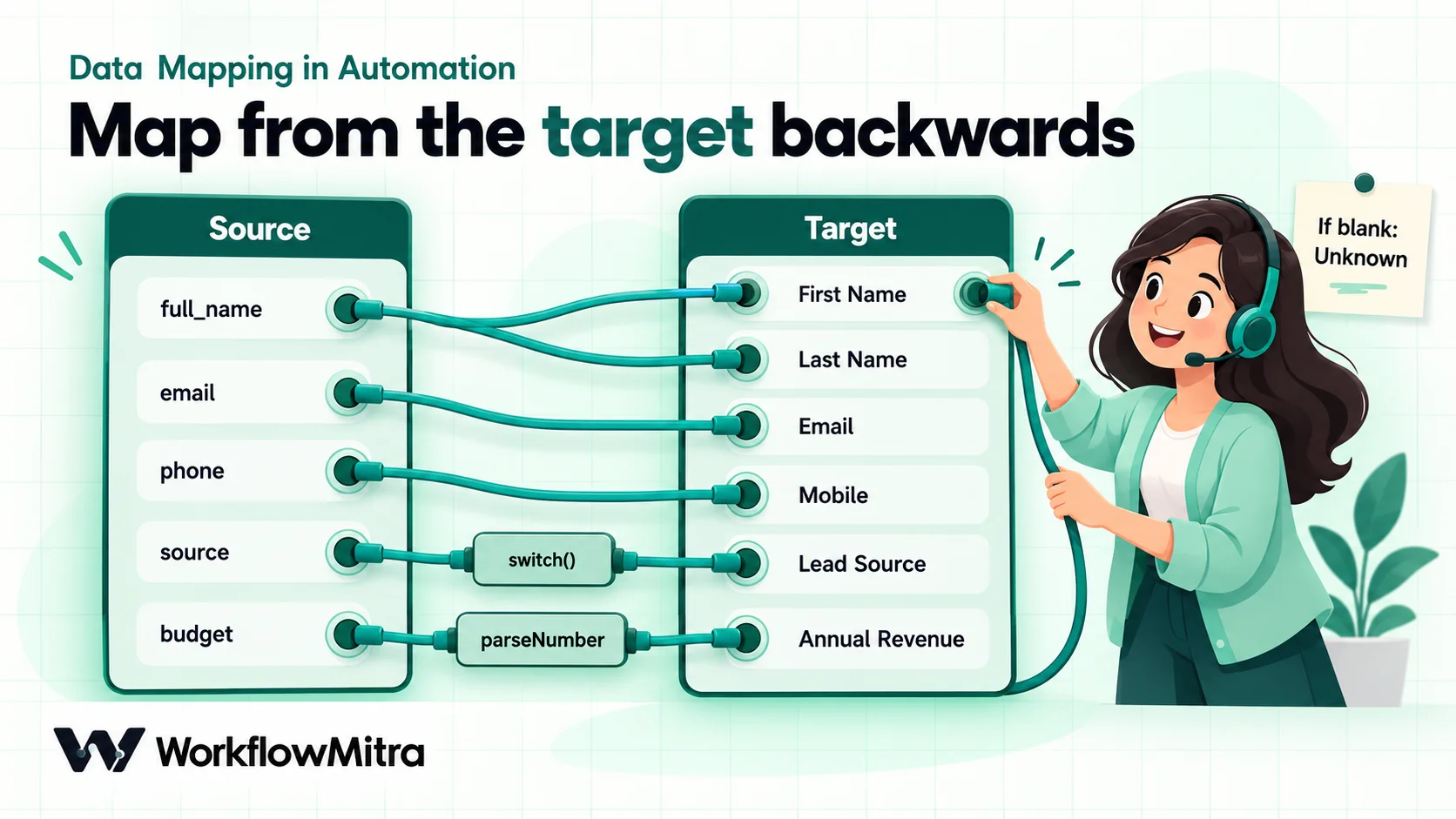
The most useful habit in data mapping is to plan from the destination backwards. Source apps send whatever they have. Target apps decide what’s required, what types are allowed and which values are valid. If you begin with the source, you map what’s convenient. If you begin with the target, you map what’s needed.
Before opening the workflow editor, write a worksheet with one row per target field. Here’s one for a website enquiry form feeding Zoho CRM Leads:
| Target field (API name) | Required? | Type | Source | Rule | If blank |
|---|---|---|---|---|---|
First_Name | No | Text | full_name | First word | Leave blank |
Last_Name | Yes | Text | full_name | Everything after the first word | Use the full name, then "Unknown" |
Email | No | email | Trim, lowercase | Leave blank | |
Mobile | No | Phone | phone | Remove spaces, add country code | Leave blank |
Lead_Source | No | Picklist | source | Value map to CRM wording | "Other" |
Annual_Revenue | No | Currency | budget | Parse "₹12,000" into 12000 | Leave blank, never 0 |
Description | No | Multi-line text | message, city | Combine into one note | Leave blank |
The worksheet forces four decisions people usually skip:
- Which target fields are required. Zoho CRM’s documentation lists
Last_Nameas the system-required field for Leads and Contacts, andDeal_NameandStagefor Deals. Your organisation may have made other fields mandatory too. A mapping that leaves any of them empty fails every time it meets an incomplete record. - What type each field holds. A currency field wants a number. A picklist wants one of its listed values. A date field wants a date in the format the target accepts.
- What happens to blanks. “Leave blank”, “use a neutral default” and “hold for review” are different decisions with different consequences. Write one down for every row.
- Which source fields you aren’t mapping. If a form collects “preferred time” and the worksheet has no row for it, either add one (perhaps into Description) or accept consciously that it’s dropped.
Keep the worksheet with the workflow, in a shared sheet or the workflow’s description. It becomes the documentation for whoever edits the workflow next, including you in six months.
The six mapping patterns
Almost every row in a mapping worksheet is one of six patterns. Here they are with expressions that were executed in WorkflowMitra’s engine against a sample enquiry (full_name “Asha K Rao”, email ” [email protected] ”, phone “98765 43210”, source “website”, budget “₹12,000”).
1. Direct copy
The value moves unchanged: {{ email }} into Email. This is the only pattern most tutorials show, and the only one that rarely goes wrong, as long as the reference points at the right step.
2. Clean on the way
The value is the same thing, tidied up. Clean anything you’ll match on later, because “[email protected] ” and “[email protected]” are different text to every lookup.
{{ lower(trim(email)) }}→[email protected]{{ replace(phone, " ", "") }}→9876543210{{ startcase(name) }}turns “asha rao” intoAsha Rao
That phone number still has no country code. WhatsApp and SMS steps need one, and adding it has its own tested recipe in formatting phone numbers to E.164. For dates, currencies and number formats, data formatting in workflows has a cheat sheet of tested expressions.
3. Combine (many to one)
Several source values fill one target field. In any text field you can write ordinary text around several placeholders:
Enquiry from {{ city }}: {{ message }}
There’s no + operator for joining text inside an expression. {{ "91" + phone }} returns an empty value. Put the pieces side by side in the field instead, or use padStart for the country-code case.
Watch for partial values. {{ first_name }} {{ middle_name }} with no middle name gives "Asha " with a trailing space. That’s harmless in a note and harmful in a field you’ll match on. Wrap the combined value in trim() when it matters.
4. Split (one to many)
One source value fills several target fields. The classic case is a form with a single “Full name” box and a CRM that wants First Name and Last Name.
- First name:
{{ first(split(full_name, " ")) }}→Asha - Rest of the name:
{{ join(slice(split(full_name, " "), 1), " ") }}→K Rao
Splitting names is a guess, and you should treat it as one. A single-word name such as “Ravi” gives “Ravi” as the first name and nothing after it, which leaves a required Last Name empty. Some people write their family name first. The worksheet rule for Last_Name above handles the common failure: if there’s nothing after the first word, use the full name, and only then fall back to “Unknown”. The record gets created, and a salesperson sees a sensible name. The full expression is in failure 5 below.
5. Value map (translate the vocabulary)
The source and target describe the same thing with different words. Lead sources, order statuses, product categories, cities and yes/no answers all need this. WorkflowMitra’s switch() helper takes the value and then pairs of “if it’s this, write that”, with an optional default at the end:
{{ switch(lower(trim(source)), "website", "Web", "indiamart", "Partner", "walk in", "Walk-in", "Other") }}
Three things about switch() were confirmed by running it:
- It’s case-sensitive.
switch("website", "Website", "Web", …)doesn’t match. Lowercasing and trimming the input first, and writing the cases in lowercase, avoids that. - The last unpaired value is the default. Here, anything unexpected becomes “Other”, which is a value your CRM picklist already has.
- Without a default, an unknown value becomes blank. That’s sometimes what you want, but decide it on purpose.
For longer lists, or values that change often, a value map in a lookup sheet is easier to maintain than a long expression. Keep source values in one column and target values in the next, and look the value up before the write. Google Sheets lookup automation shows the Find row pattern.
6. Default or derived values
Some target fields have no source at all, or a source that’s often empty.
- A constant. Lead Source “Website” for a workflow that only handles the website form. Type it as a fixed value.
- A fallback.
{{ default(city, "Unknown") }}uses “Unknown” whencityis empty or missing.ifempty()does the same, and the fallback can be another field:{{ ifempty(city, customer.city) }}. - A calculation. A total, a due date or a flag derived from other values, built with the math and date helpers.
One detail matters here: default() treats 0 as a real value, not an empty one. {{ default(quantity, 1) }} keeps a genuine 0. That’s correct behaviour, but it surprises people who expect “falsy” values to be replaced.
Types: when a number isn’t a number
Type mismatches are the quietest failures in data mapping, so it’s worth knowing exactly what each kind of field does with a value. These results come from WorkflowMitra’s engine:
| Expression | Input | Result | What it means |
|---|---|---|---|
toNumber(budget) | "12000" | 12000 | Plain digits convert cleanly |
toNumber(budget) | "₹12,000" | 0 | Anything that isn't a plain number becomes 0, with no error |
parseNumber(budget) | "₹12,000" | 12000 | Strips currency symbols and separators |
toNumber(budget) or parseNumber(budget) | "" (blank) | 0 | A missing budget turns into a believable but false zero |
if(budget, parseNumber(budget), "") | "" | blank | The guard keeps "unknown" unknown |
{{ customer }} in a text field | an object | {"city":"Pune"} | Objects and lists are written as JSON text |
{{ tags }} in a text field | a list | ["vip","repeat"] | Use join(tags, ", ") for readable text |
The zero is the one to remember. A budget field filled with 0 for every lead who skipped the question looks like real data, and it drags averages down without anyone noticing. Whenever a number might be missing, guard it.
Different destinations also treat types differently:
- Ordinary text fields (message bodies, email subjects, most step settings) always receive text. Numbers, true/false values and lists are written as text.
- JSON request bodies. In an HTTP Request step’s raw JSON body, WorkflowMitra fills each placeholder according to where it sits. Inside quotes,
"name": "{{ full_name }}", the value is escaped safely as text. Outside quotes,"qty": {{ qty }}, the value is written as JSON in its original type. That’s useful, but it means a quantity that arrived from a form as the text “3” is sent as"3", not3. Write{{ toNumber(qty) }}when the API wants a number. A missing value outside quotes is sent asnull. - Zoho CRM fields. In the Zoho CRM step, each field has a Value or Variable mode. A Variable that is exactly one placeholder, such as
{{ toNumber(qty) }}, keeps its type, so a currency field gets a real number. Text around the placeholder, such asLead from {{ source }}, always produces text. - Set Variable stores every value as text. It’s free (0 credits at default rates) and handy for renaming and cleaning fields, but a number saved there comes out as text. Convert it again at the destination if the target needs a number.
Working with JSON in workflows goes deeper into request bodies, lists and parsing.
Mapping by name vs mapping by position
Targets find fields in one of two ways, and the difference explains a whole class of “it worked last week” failures.
Zoho CRM: by API name
APIs identify fields by a fixed internal name, not the label people see. Zoho’s documentation is explicit: “You must use only Field API names in the input.” The label “Phone Number” might be Phone or Mobile underneath, and a custom field you created as “Budget Range” may have an API name like Budget_Range.
WorkflowMitra’s Zoho CRM step handles the naming for you: it reads the module’s fields from your Zoho account and lists them by label, marks required fields with a red asterisk, and stores each value against the field’s API name. For picklist fields in Value mode, it shows the field’s own list of options, so you can only pick a valid one. In Variable mode the value comes from your expression, and that’s exactly where a value map belongs. Name-based mapping is stable: renaming a field’s label in Zoho doesn’t break it.
The same idea applies to HubSpot, Pipedrive and any API you call with the HTTP Request or App Request steps. Find the internal property name in the app’s settings or API documentation, and map to that.
Google Sheets: by column position
Spreadsheets work differently. WorkflowMitra’s Google Sheets Add row(s) step shows your header row and lets you fill each column, but it saves each mapping against the column’s position. The “Use column headers as IDs” option re-attaches mappings by header name when you reopen the step in the editor. It isn’t used when the row is written.
In practice: if someone inserts a “Region” column between “Phone” and “Budget”, every header from Region onwards moves one place to the right, but the step still writes to the old positions. The next run puts the budget under Region, the city under Budget, and leaves City empty. The run succeeds. Nothing errors. The sheet just fills with misplaced values until someone reopens the step and saves it again.
Three rules keep sheet mappings safe:
- Add new columns at the right-hand end of a sheet that a workflow writes to.
- After any layout change, reopen and re-save every step that writes to that sheet, then run one test row.
- Protect the header row in Google Sheets so casual edits don’t move it.
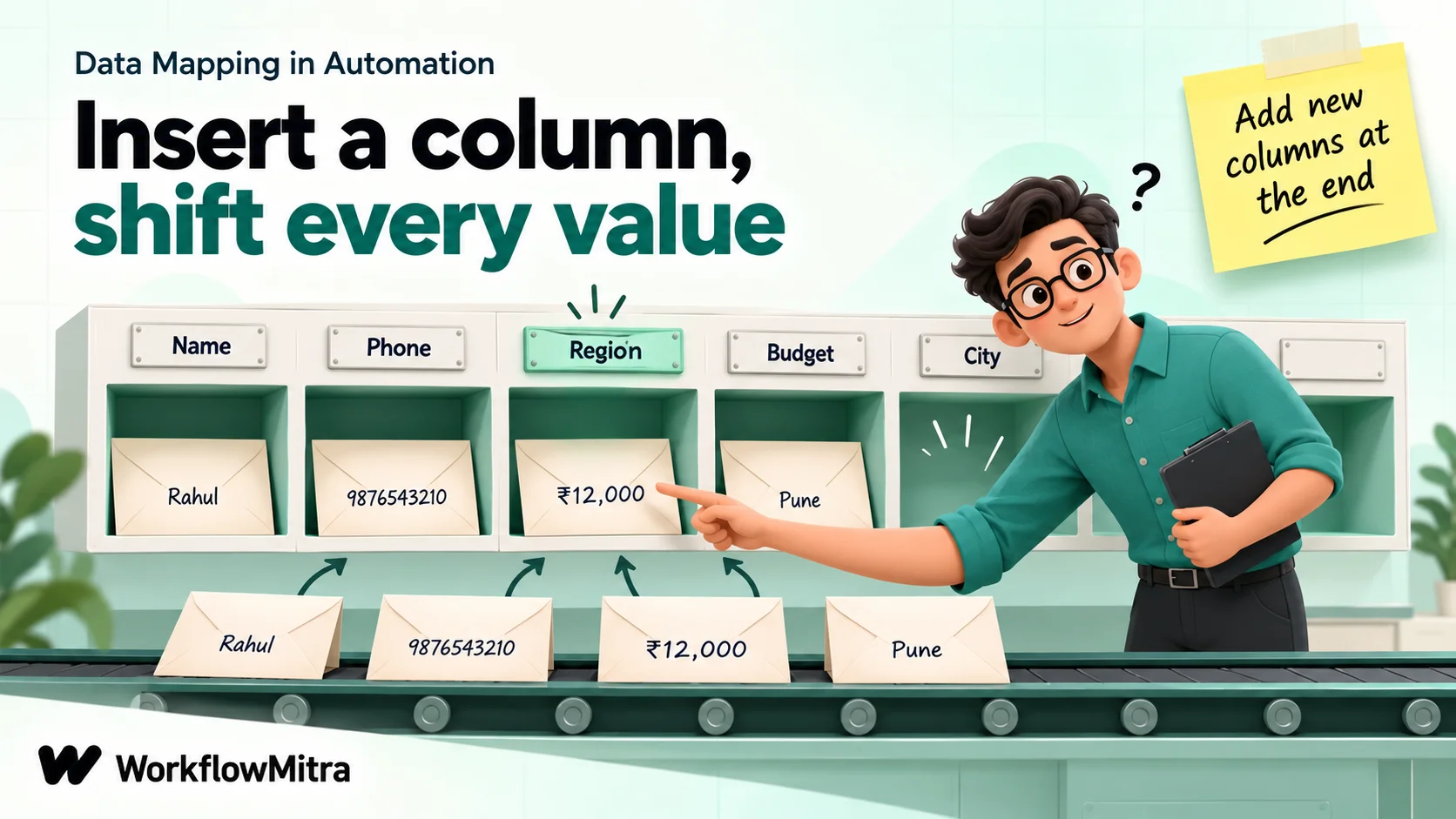
The update step works by position too, with one helpful extra. When you update a row, each column shows as Mapped (write this value), Untouched (leave the cell as it is) or Will clear cell (empty it on purpose). Leaving a column Untouched is the safe default for anything another person or workflow maintains.
How Sheets reads the values you write
The Sheets step’s Write values setting changes what lands in the cell. The default, “Like typing it in (formulas work)”, uses Google’s USER_ENTERED mode, which Google’s Sheets API reference describes as: “The values will be parsed as if the user typed them into the UI.” That’s what you want for dates and formulas. It’s not what you want for values that only look like numbers: a phone number written as +919876543210 or 09876543210 can be read as a number, losing its plus sign or leading zero, and long ID numbers can lose digits. For columns of phone numbers, IDs and PIN codes, either choose “Exactly as written (no formulas)” for the step or format those columns as Plain text in Google Sheets.
Reading has the mirror-image setting. Read values defaults to “As displayed (12/08/2026)”, so dates and amounts arrive as formatted text such as “1,234.56”. Choose “Raw values (numbers stay numbers)” when the next step does arithmetic.
Required fields and blanks: decide, don’t default
Every mapping eventually meets a record with something missing. There are three honest responses, and the worksheet’s “If blank” column is where you choose:
| Response | Use it when | Example |
|---|---|---|
| Leave the target blank | The field is optional and blank is the truth | No email given: Email stays empty |
| Use a neutral default | The target requires a value and a neutral one exists | Last Name "Unknown"; Lead Source "Other" |
| Hold for review | The record is useless or risky without the value | No phone and no email: the lead can't be contacted |
What you should avoid is a fourth response: inventing a value that looks real. A budget of 0, a city of “Mumbai” because most customers are there, or a date of today when the real date is unknown all make reports wrong in ways that are hard to trace back.
“Hold for review” needs a gate before the write: an IF step that checks the essentials and sends incomplete records to a review sheet or a person instead of the CRM. Data validation automation builds that gate step by step, including the IF-rule behaviours that catch people out with blank values.
Five mapping failures and how to fix them
These are the failures that come up again and again, with the cause and the fix for each.
1. The target field is blank
Symptom: the run succeeds, but the CRM lead or sheet row has an empty field that should have had a value.
Causes, in order of likelihood:
- The source really was empty for this record. Check the trigger’s input in the run history before changing anything.
- The reference reads the wrong step. A plain
{{ email }}reads only the step directly before the current one. If there’s a lookup, an AI step or a Set Variable in between,emailisn’t there. Use{{ $trigger.email }}or{{ $node["Step name"].email }}. - The source field was renamed. If a form field’s name changes from
phonetomobile_number, every reference tophoneresolves to nothing, and a missing value is written as blank text, not an error.
Fix: open the run in the execution history, find the step that wrote the record, and compare its input with your reference. Then send a fresh test submission that has a value in every field.
2. Values land in the wrong columns
Symptom: a sheet’s Budget column holds phone numbers, or every value from one column onwards has shifted.
Cause: a column was inserted, deleted or moved after the step was saved. Sheet mappings follow positions.
Fix: reopen the Sheets step, check that each column shows the value you expect, and save. Do the same for every other step that writes to that sheet. Then correct the misplaced rows by hand, because the step won’t move them back.
3. Numbers arrive as 0 or as text
Symptom: a CRM revenue field shows 0 for most leads, a sheet SUM ignores a column, or an API rejects a request with a type error.
Cause: toNumber() on formatted or blank text, or a value sent as text where the target wants a number.
Fix: use parseNumber() for formatted amounts, guard blanks with if(value, parseNumber(value), ""), and in JSON bodies wrap number fields in toNumber() outside the quotes. In Sheets, read with “Raw values” when the workflow does arithmetic.
4. The CRM fills up with near-duplicate picklist values
Symptom: the Lead Source report shows “Web”, “website”, “Website ” and “WEBSITE” as four separate sources.
Cause: source values passed straight into a picklist, which Zoho accepts as new values.
Fix: add a value map with switch(lower(trim(source)), …) and a default. Then clean the existing records once, in the CRM, by merging the stray values.
5. A required field fails on some records but not others
Symptom: most runs succeed, but a few fail with a “mandatory field missing” error from the CRM.
Cause: the records that fail have a blank where a required field is mapped. One-word names leave Last Name empty; optional form questions leave a mandatory custom field empty.
Fix: give each required target field a fallback in the worksheet and the step. For Last Name, this tested expression takes everything after the first word, falls back to the whole name, and only then to “Unknown”:
{{ default(default(join(slice(split(trim(full_name), " "), 1), " "), trim(full_name)), "Unknown") }}
“Asha K Rao” gives “K Rao”, “Ravi” gives “Ravi”, and a blank name gives “Unknown”. If no sensible fallback exists for a field, route those records to review before the write.
Map once, use everywhere: a clean record
When one trigger feeds several destinations, such as a CRM, a sheet and a team alert, the same cleaning rules are easy to repeat in three places and then forget to update in one.
A simpler pattern is to clean once. Put a Set Variable step straight after the trigger and give it the clean, renamed fields your workflow will use: email as {{ lower(trim($trigger.email)) }}, source as the value map, first_name and last_name as the split. Name the step something stable, such as “Clean lead”, and have every later step read {{ $node["Clean lead"].email }}.
This gives you one place to change a rule, and it costs nothing in credits at default rates. Remember that Set Variable stores everything as text: number fields need toNumber() again where a target wants a number, and a list stored there needs Parse JSON before a Loop can use it.
The same idea, a common model in the middle, is what larger integration platforms describe for many-app setups: map each source to one shared shape, and map that shape to each target. For a small business workflow, one Set Variable step is that shared shape.
Test a mapping with awkward data
A mapping that works for “Asha Rao, [email protected], ₹12,000” proves very little. Build one deliberately awkward test record and run it through:
- A one-word name and a three-word name
- An email with capitals and spaces around it
- A phone number with spaces and no country code
- An amount with a currency symbol and commas, and one record with no amount at all
- A source value in unexpected case, and one that isn’t in your value map
- A blank optional field and a blank required field
- Text containing quotes and a line break, which tests JSON bodies
Then open each run and compare the target record with the worksheet, field by field.
Test runs can write real data. The editor’s Run button starts a live run, so CRM records are created and rows are written. Safe Test Mode, available from a webhook trigger’s test panel, simulates messaging steps such as WhatsApp, email and Slack, but Google Sheets steps still write real rows. Point tests at a copy of your sheet and a test CRM view, and delete the test records afterwards. How to test an automated workflow has a fuller checklist.
When the apps on either side change
Mappings break most often not on the day they’re built but months later, when someone changes an app on one side. A few habits keep them alive:
- Treat form and sheet changes as workflow changes. Renaming a form field, adding a mandatory CRM field or inserting a sheet column all need a matching change to the workflow and a test run.
- Keep the worksheet current. When a rule changes, change the worksheet row too.
- Watch for runs that succeed with blanks. A weekly look at the newest records in the target catches silent failures that no error alert will.
- Prefer name-based targets for important data. An API that uses field names survives layout changes; a sheet that uses positions doesn’t.
For data that has to stay consistent across two apps over time, not just be copied once, keeping data in sync between apps covers matching keys, update-or-create logic and reconciliation.
Common data mapping mistakes
- Mapping from the source instead of the target. You map what’s available and miss what’s required.
- Using labels where an API wants names. Map to the field’s API name, or let the app’s own step pick the field.
toNumber()on formatted or blank values. It returns 0. UseparseNumber()and guard blanks.- Passing free text into picklists. Translate it with
switch()and a default. - Inserting columns in the middle of a written sheet. Add them at the end, or re-save every writing step.
- Defaulting everything. A believable fake value is worse than an honest blank.
- Reading the previous step when you meant the trigger. After any step in between, use
$triggeror$node. - Testing with perfect data. The first awkward real record finds the bug instead.
Build the worksheet first
Good data mapping is mostly decided on paper. List the target’s fields, mark the required ones, choose a source and rule for each, and write down what happens to blanks. The workflow editor then becomes a matter of copying the worksheet into steps.
WorkflowMitra, powered by ChatMitra, gives you the pieces covered here: a Zoho CRM step that lists fields by label and writes them by API name, Google Sheets steps with per-column mapping and write modes, raw JSON bodies that keep types, and around 110 expression helpers including switch, default, split and parseNumber. When a mapped record ends in a customer message on WhatsApp, it can go out through ChatMitra or Meta’s Cloud API. If you only need to move a CSV of contacts into ChatMitra once, its contact import guide covers the column mapping without a workflow at all.
You can try every pattern in this guide on a WorkflowMitra trial: 14 days, 10,000 credits, no card needed, with plans on the pricing page. For the referencing side of the same problem, read passing data between steps; for the formats inside each field, read data formatting in workflows.
WorkflowMitra behaviour was checked against the product's source code on 18 October 2026: the expression helpers, template and JSON-body resolution, the Zoho CRM field editor and the Google Sheets step's column mapping, write and read options. Every expression result in this article was executed in the product's expression engine on that date. Zoho CRM requirements are quoted from Zoho's Insert Records API documentation (v8), and Google Sheets input behaviour from Google's ValueInputOption reference, both read on 18 October 2026. Names, amounts and lead sources are examples.
Frequently Asked Questions
Questions people ask when a mapped field arrives blank, in the wrong place or in the wrong format.
Data mapping is the set of rules that tells a workflow which value from the source app goes into which field of the target app. A simple mapping copies a form's Email field into a CRM's Email field. Most real mappings also transform values on the way: combining first and last names, converting "₹12,000" into the number 12000, or translating a form's "website" into the CRM's picklist value "Web".
Automate the work between your apps
Build workflows with triggers, conditions and actions, then test them before they go live. Try WorkflowMitra free for 14 days, no card required.
