Data Validation Automation: Check Every Record Before It Reaches Your CRM or Sheet


Quick Summary
Data validation automation means checking every incoming record against rules before a workflow writes it anywhere: required fields are present, values have the right type and format, numbers fall in a sensible range, and choices come from an allowed list. Records that pass continue to your CRM or sheet; records that fail go to a review queue with the reason attached. In WorkflowMitra, powered by ChatMitra, an IF step with AND rules is a free validation gate, and a Code step handles pattern checks such as email format.
Bad data rarely announces itself. A lead arrives with the phone number typed into the email field. An import includes a row where the amount reads “call me”. A webhook from a partner system starts sending dates in a different format after an update. None of these crash anything. They land quietly in your CRM or spreadsheet, and the damage appears later: a follow-up message sent to nobody, a revenue total that doesn’t add up, a salesperson calling a number with five digits.
Validation is the habit of checking data at the door instead of cleaning up after it. This guide explains what to check, what to do with records that fail, and how to build a validation gate in a workflow, mostly without code. It also covers the rule-engine quirks that make validation look finished when it isn’t.
What is data validation automation?
Data validation automation means checking every incoming record against defined rules before a workflow writes it to a CRM, spreadsheet or database. Typical rules confirm that required fields are present, values have the right type and format, numbers fall in a sensible range, and choices come from an allowed list. Records that pass continue automatically. Records that fail go to a review queue with the reasons attached, so nothing bad is written and nothing is lost.
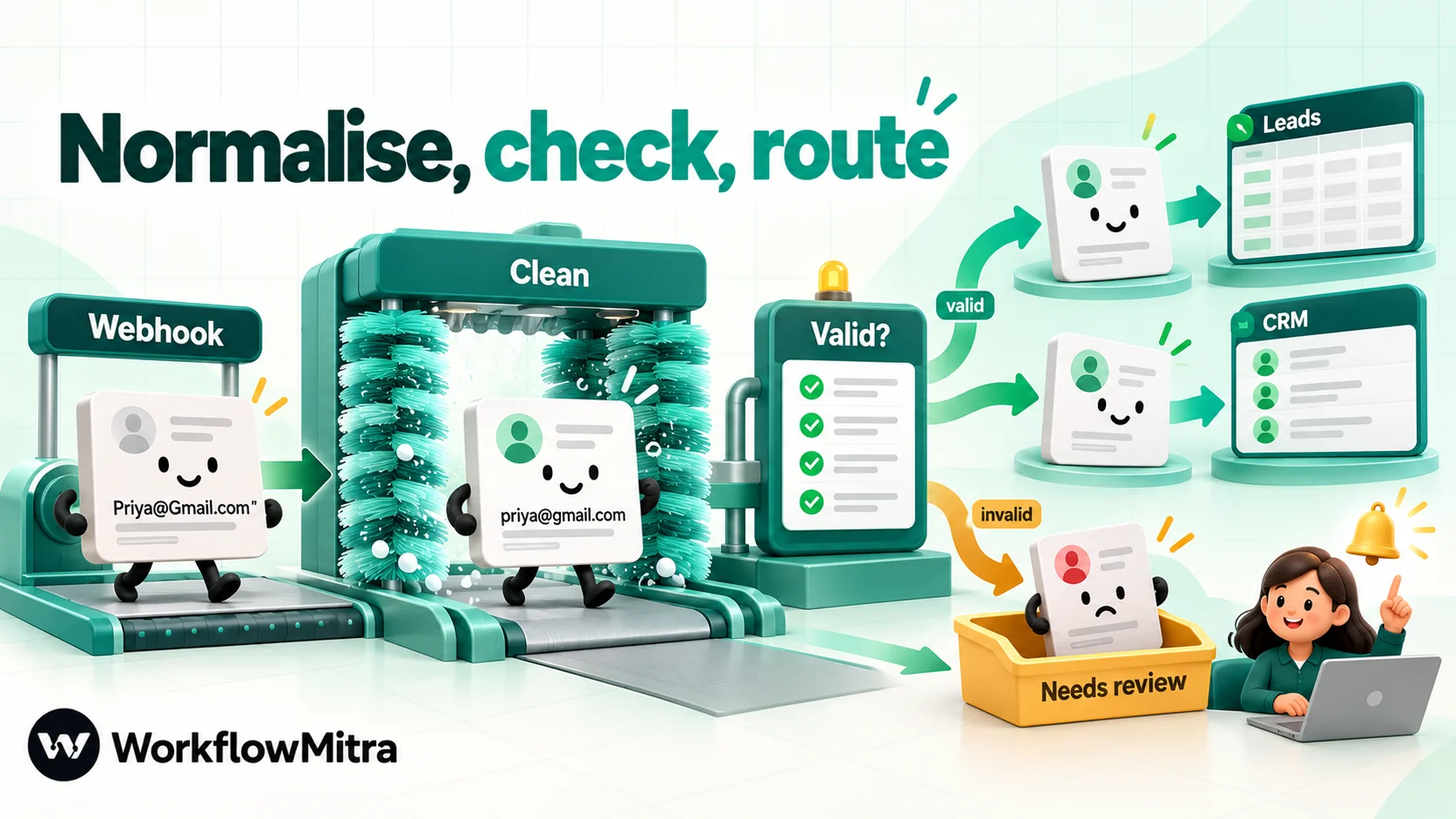
The walkthrough below is built in WorkflowMitra, powered by ChatMitra, though the approach carries over to any automation tool. A validation gate always has the same four parts:
- Normalise the values so harmless differences disappear.
- Test each value against its rules.
- Route the record: pass to the destination, fail to review.
- Record why a record failed, in words a person can act on.
Why validate before the write, not after?
Cleaning bad data after it lands is always more expensive than stopping it. Once a record is in a CRM, it can trigger automations, receive messages, appear in reports and be copied to other systems. Each copy is one more place to fix.
There are four practical reasons to validate in the workflow itself.
Not every record comes from your form. Webhooks, CSV imports, partner feeds, ad platforms and other apps send data straight to automations. They never pass through the checks on your website form.
Browser checks can be skipped. A form’s “required” fields run in the visitor’s browser. Anyone who finds your webhook URL can post to it directly. OWASP’s input validation guidance puts it plainly: client-side validation is bypassable, so validate on the server even when the browser checks the same fields. It also recommends validating data from internal APIs and partner feeds whenever it crosses a trust boundary.
Destinations fail in unhelpful ways. When a CRM or sheet rejects a value, the result is usually a failed run with a technical error, and the record is stuck in the run history. A validation gate turns the same problem into a clear entry in a review list.
Downstream actions can’t be undone. A WhatsApp confirmation sent through ChatMitra to a wrong number, an invoice created with the wrong amount, or a lead assigned twice can’t be recalled. Check the data before anything hard to reverse happens.
Validation, normalisation and cleaning are different jobs
These three words get used interchangeably, but they do different things, and mixing them up leads to fragile workflows.
| Job | Question it answers | Example | Typical tool |
|---|---|---|---|
| Normalisation | How should this value be written? | [email protected] → [email protected] | Expressions, Set Variable |
| Validation | Is this value acceptable at all? | Is priya@gmail a usable email? No. | IF rules, Code step |
| Cleaning or enrichment | What did the person mean? | A'bad → Ahmedabad | Lookup tables, AI step |
| Deduplication | Do we already have this record? | Same email as row 42 | Find row, then update or add |
The order matters. Normalise first, then validate. If you validate first, an email with a trailing space fails a format check for no good reason. OWASP makes the same point about consistent comparison: apply the normalisation policy before validation, storage and comparison.
Formatting for display, such as dates in a message or currency symbols, is a separate step at the end; our guide to data formatting automation covers it. Interpreting messy free text with AI is covered in clean messy data with AI. Checking for an existing record is covered in preventing duplicate rows in Google Sheets. This article is about the gate in the middle: accept or hold.
The six kinds of checks
Almost every validation rule falls into one of six families. Working through them field by field is the fastest way to write a complete rule set.
| Check | What it confirms | Example rule |
|---|---|---|
| Presence | A required field has a real value | Name is not empty after trimming spaces |
| Type | The value can be read as the expected type | Budget is a number, not "call me" |
| Format | The value has the expected shape | Email has one @ and a dot in the domain |
| Range | A number or date is within sensible limits | Quantity between 1 and 500; date not in the past |
| Allowed values | A choice comes from a known list | City is one of the cities you serve |
| Consistency and reference | Fields agree with each other and with your records | End date after start date; product code exists in the catalogue |
OWASP’s guidance groups the first four under syntactic validation (is it the right type and shape?) and the last two under semantic validation (does it make sense for this operation?). Both matter. A booking with a perfectly formatted end date that falls before its start date is still invalid.
Two principles keep a rule set healthy.
Allow what you expect; don’t try to block everything you fear. An allowlist of six cities is easy to maintain and catches every typo. A blocklist of bad words or characters grows forever and still misses things. OWASP gives the example that blocking apostrophes rejects legitimate names without making the data any safer.
Only check what matters downstream. If nothing uses the company field, don’t make it required. Every unnecessary rule produces review work and frustrated submitters.
Decide what happens to a record that fails
Before you build anything, decide the failure policy for each source. “Stop the workflow” is rarely right on its own, because a stopped run hides the record in history where nobody looks.
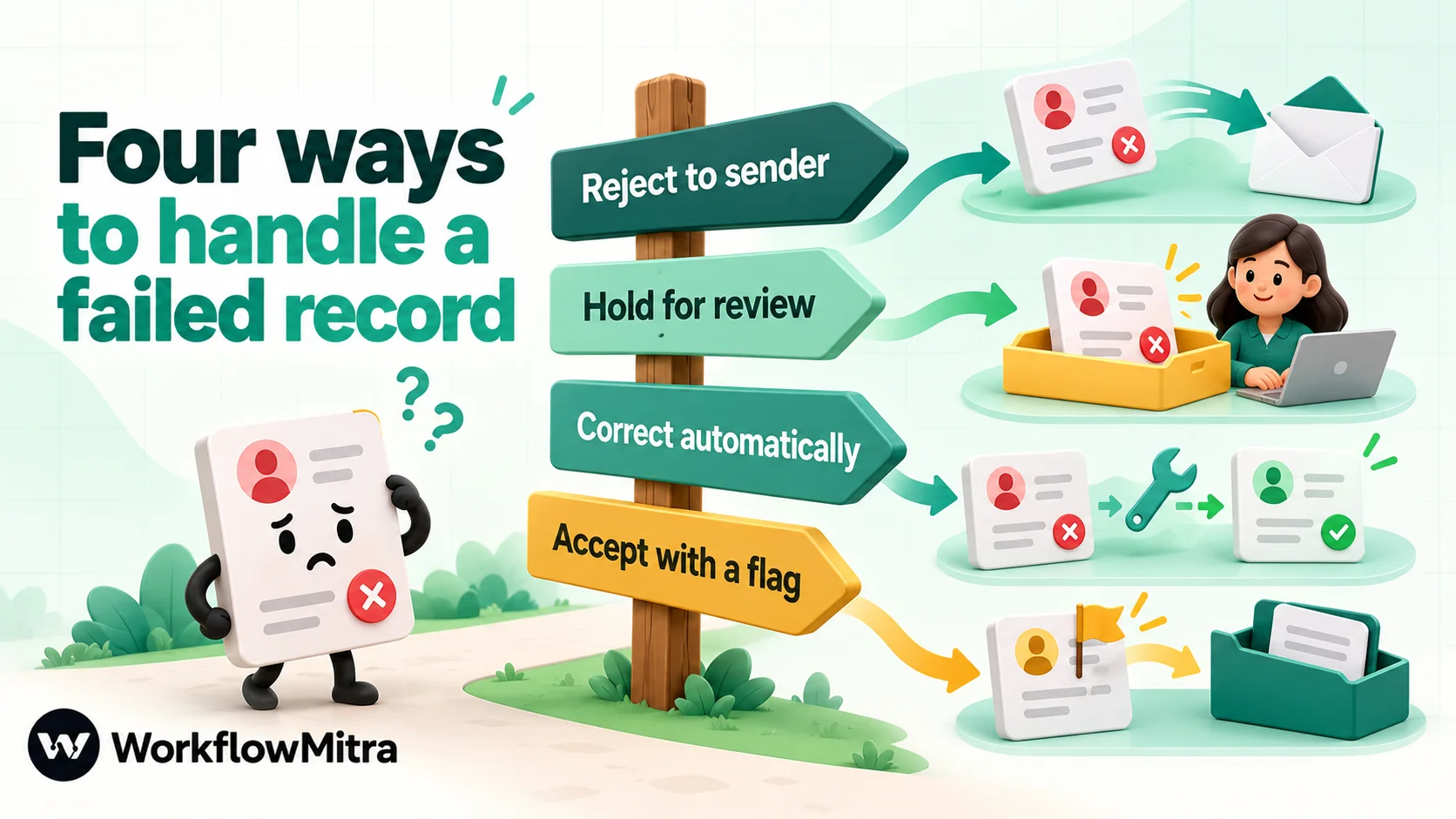
| Policy | Use when | Example |
|---|---|---|
| Hold for review (default) | A person can fix it, and the record is worth keeping | A lead with a short phone number |
| Reject to sender | You control the sending system and it can correct itself | Your own app posts an order without a SKU |
| Correct automatically | The fix is certain and safe | Adding the country code to a ten-digit number |
| Accept with a flag | The field is useful but not essential | An optional website URL without https:// |
The one policy to avoid is the silent drop: a filter that lets good records through and lets bad ones vanish. You lose the record and the evidence that something upstream is broken.
Where the gate belongs
Put the main gate immediately after the trigger, before any step that writes, sends or charges. Every later step can then trust the cleaned fields instead of re-checking them, which keeps the workflow short and the rules in one place.
Two exceptions are worth a second, smaller check. The first is data that arrives mid-workflow, such as the response from an HTTP request or an AI step’s output. The other app’s reply crosses a trust boundary of its own, so check the few fields you rely on before using them. The second is any step that can’t be undone, such as creating an invoice, charging a card or sending a customer message. A last presence check on the exact values that step uses costs nothing and catches the rare case where an earlier lookup returned something empty.
Build a validation gate without code
Here is a complete gate for website enquiries that go to a Leads tab in Google Sheets (or a CRM). Each enquiry has name, email, phone, city and an optional budget.
1. Receive the record
Add a Webhook trigger and connect your form or source. Submit one genuine test enquiry, then check the field names in the trigger’s list of recent deliveries. The webhook to Google Sheets guide walks through this part.
2. Normalise the values
Add a Set Variable step named Clean with these assignments:
name_clean={{ trim($trigger.name) }}email_clean={{ lower(trim($trigger.email)) }}city_clean={{ lower(trim($trigger.city)) }}phone_clean={{ substring(replace(replace(replace($trigger.phone, " ", ""), "-", ""), "+", ""), subtract(length(replace(replace(replace($trigger.phone, " ", ""), "-", ""), "+", "")), 10)) }}
This phone formula removes spaces, hyphens and any plus sign, then keeps the final ten digits, which suits Indian mobile numbers. Set Variable keeps the original fields and adds the cleaned ones, so the review tab can show both. It costs no credits.
3. Check every rule in one IF step
Add an IF step named Valid?. Add a route, name it Valid, and under Runs when add these rules with + Add AND rule, so all of them must pass. Anything that matches no route takes Else.
| Field | Value to test | Operator | Compare with |
|---|---|---|---|
| Name present | {{ $node["Clean"].name_clean }} | Is not empty | — |
| Exactly one @ | {{ length(split($node["Clean"].email_clean, "@")) }} | Number: Equal to | 2 |
| Dot in the domain | {{ indexOf(last(split($node["Clean"].email_clean, "@")), ".") }} | Number: Greater than | 0 |
| No spaces in email | {{ length(split($node["Clean"].email_clean, " ")) }} | Number: Equal to | 1 |
| Phone has ten digits | {{ $node["Clean"].phone_clean }} | Number: Is between | 1000000000 and 9999999999 |
| City is served | {{ split("ahmedabad,mumbai,pune", ",") }} | List: Contains item | {{ $node["Clean"].city_clean }} |
Each rule was checked against WorkflowMitra’s comparison engine with good and bad inputs. A few details are worth understanding:
- Ten digits via a number range. “Is between” reads both sides as numbers and never matches a blank or a value with letters in it. A short number such as 98765 fails, and so does an empty field.
- The allowlist is a list.
splitturns a comma-separated text into a list, and Contains item checks the cleaned city against it. Because both sides are lower-cased, “Ahmedabad”, “AHMEDABAD ” and “ahmedabad” all pass, while “Ahmadabad” goes to review, where someone can add a spelling or fix the record. - The email checks are deliberately simple. They catch the common mistakes (missing @, two @ signs, no domain, stray spaces) without rejecting unusual but valid addresses. For stricter rules, see the Code step section below.
Optional fields need a different shape of rule: “empty, or valid”. That’s what + Add OR group is for. For the optional budget, add a second IF step on the Valid route with a route named Budget OK and two groups:
- Group 1:
{{ trim($trigger.budget) }}Is empty. - Group 2:
{{ parseNumber($trigger.budget) }}Number: Greater than0.
A blank budget passes through group 1, “₹1,250” passes through group 2, and “call me” or “0” matches neither and takes Else, which you can send to review with the reason “Budget”.
4. Valid: write the record
On the Valid route, write the clean values to the destination: a Google Sheets › Add row(s) step on the Leads tab, or a CRM step such as Zoho CRM or Pipedrive. Map the cleaned fields ($node["Clean"].email_clean and so on), not the raw ones. To avoid duplicate rows, put the find-then-update pattern here instead of a plain add.
5. Else: hold the record for review
On Else, add a Google Sheets › Add row(s) step on a tab called Needs review with these columns: received at ({{ now() }}), source, name, email, phone, city as received (the raw $trigger values), and a status of Open. Then alert the owner that a record is waiting, with a Slack or email step.
A single route tells you that a record failed, not which rule it failed. For many small teams that’s enough, because the review row shows the raw values and the problem is usually obvious. When you want the reason written down, add more routes.
Name the reason without code
An IF step can hold several routes, and the first route that matches wins. Keep Valid at the top, then add one route per failure reason below it. Each one catches a record that has already failed Valid:
| Route (in order) | Runs when |
|---|---|
| Valid | All the rules from step 3 |
| Name missing | {{ $node["Clean"].name_clean }} Is empty |
| Email format | Group 1: the @-count expression Number: Not equal to 2. OR group 2: the dot-position expression Number: Less than 1 |
| Phone length | Group 1: phone_clean Less than 1000000000. OR group 2: phone_clean Greater than 9999999999 |
| Else | Anything else, such as a city outside the list |
Connect every failure route to the same review step and write the route’s reason as a fixed text in a Reason column. Because the first match wins, a record with two problems shows only the first one, which is usually enough to fix it. A blank phone lands on “Phone length” because “Less than” reads a blank as zero, which is a case where that quirk works in your favour. IF steps cost no credits, so extra routes are free.
6. Test with bad data on purpose
Before switching on, send a set of deliberately broken records and confirm where each one lands. The testing table near the end of this guide lists the cases worth trying.
Rules for common fields
Most forms and feeds share the same handful of fields. These recipes use operators that exist in WorkflowMitra’s IF step; normalise each value first.
| Field | Rule | Why this shape |
|---|---|---|
| Required text | trim(value) Is not empty | Spaces alone don't count as an answer |
| @-count equal to 2, a dot after the @, no spaces | Catches typos without rejecting unusual valid addresses | |
| Indian mobile | Last ten digits Is between 1000000000 and 9999999999 | Rejects short, long, blank and lettered values |
| Six-digit Indian PIN code | Is between 100000 and 999999 | Same range trick; a five-digit typo fails |
| Quantity or amount | Is between your minimum and maximum | Never matches blanks or text, unlike Less than |
| Website | Starts with https:// | Simple, readable, and enough for most forms |
| Choice from a list | List: Contains item, against a lower-cased list | An allowlist catches every misspelling |
| Future date | Date: Is on or after {{ now() }} | Works only when the date arrives as YYYY-MM-DD |
| Date range | End date Date: Is after start date | A consistency check between two fields |
| Yes/no answer | Equal to, ignore case yes | "Is yes" accepts only true or false |
Treat these as starting points rather than universal truths. Postcodes outside India often contain letters, many countries use phone numbers of different lengths, and some businesses legitimately take bookings for today. Write the rule your process needs, then add it to your test set.
IF-rule behaviours that catch people out
Rule engines are literal. These behaviours were confirmed in WorkflowMitra’s IF step; most automation tools have some version of them, so check yours.
A field full of spaces isn’t empty. “Is empty” and “Is not empty” look at the value as it is. A name field containing three spaces passes “Is not empty”. Trim the value first, as the Clean step does.
A blank number can pass “Less than”. The Greater than and Less than operators read an empty value as zero, so a missing amount passes “Less than 100”. Add “Is not empty” on the same field, or use Is between, which never matches a blank or non-numeric value.
Formatted numbers aren’t numbers. “₹1,250” and “1,250” aren’t read as numbers by numeric rules, so they fail every numeric comparison. The parseNumber function strips symbols and separators, but it returns 0 for text with no digits (“call me” becomes 0). Use it only together with a “greater than zero” rule.
“Contains” and “Equal to” are case-sensitive. “ahmedabad” doesn’t contain “Ahmed”. Use Equal to, ignore case, or lower-case both sides.
Date rules accept ISO dates only. The date operators read 2026-10-20 (optionally with a time) or epoch milliseconds. They refuse 20/10/2026, so a rule like “Is on or after today” simply never matches. That’s deliberate, because the same text means different dates in different countries. Also avoid “fixing” such dates with parseDate: unreadable text becomes 1 January 1970 rather than an error.
“Is yes” wants true or false. A sheet cell or form answer reading “Yes” isn’t treated as yes. Compare it with Equal to, ignore case and the word yes instead.
There’s no pattern-matching operator. IF rules can’t run a regular expression, and the replace function replaces literal text only. For patterns (postcodes with letters, IDs like ORD-12345, strict email shapes), use a Code step.
When rules need patterns: a Code step validator
A Code step runs JavaScript in a sandbox and returns whatever object you build. It can apply regular expressions, check several fields together and, most usefully, list every reason a record failed.
const errors = [];
const name = String(input.name || '').trim();
const email = String(input.email || '').trim().toLowerCase();
const digits = String(input.phone || '').replace(/\D/g, '').replace(/^0+/, '');
const phone = digits.length === 10 ? '91' + digits : digits;
const budget = Number(String(input.budget || '').replace(/[^0-9.]/g, ''));

if (name.length < 2) errors.push('Name missing');
if (!/^[^\s@]+@[^\s@]+\.[^\s@]{2,}$/.test(email)) errors.push('Email format');
if (!/^91\d{10}$/.test(phone)) errors.push('Phone number length');
if (input.budget && !(budget > 0)) errors.push('Budget not a number');
if (input.date && !/^\d{4}-\d{2}-\d{2}$/.test(String(input.date))) errors.push('Date not YYYY-MM-DD');

return { valid: errors.length === 0, errors, name, email, phone, budget: budget || null };
Place it straight after the trigger and name it Validate. The step normalises and validates in one place: a number typed with a country code, a leading zero or neither ends up as the same twelve digits starting with 91, while 12345 fails with “Phone number length”. Then:
- Add an IF step with a route that runs when
{{ valid }}Is yes. - On that route, write
$node["Validate"].email,.phoneand the other cleaned values. - On Else, write
{{ join($node["Validate"].errors, "; ") }}into aReasonscolumn on the review tab, for example “Email format; Phone number length”.
Adjust the phone rule to your market. For an international list, a check that the number has a country code and only digits is usually as far as format validation should go.
A Code step sees only the output of the step directly before it, through input, so put it right after the trigger or after a step that carries every field you need. It’s billed by run time at two credits per second, so a script this short is charged well under one credit. The Code step guide explains the sandbox and its limits.
One caution from the OWASP guidance applies here: a well-formed email address doesn’t prove that the mailbox exists or belongs to the person. Format rules stop typos; only a confirmation message or a verification service confirms ownership.
Telling the sender: reply with an error when you own the caller
Sometimes the right policy is to refuse the record and tell the sender. This works when you control the system that sends the data, such as your own app, a script or an internal tool, because it can show the error or fix the request.
In WorkflowMitra:
- Open the webhook trigger’s settings and turn on Respond synchronously. The caller now waits for the run to end and receives whatever a Response step returns.
- On the IF step’s Else branch, add a Response step. Set Status code (optional) to
422, the content type totext/plain, and the body to the reasons,{{ join($node["Validate"].errors, "; ") }}, so the caller sees exactly what to fix. - On the valid route, end with a Response step returning
200once the record is written.
Don’t do this for third-party webhook senders you can’t change. Many of them treat any non-success reply as a delivery failure: some retry, some show visitors an error, and some disable the webhook after repeated failures. For those sources, accept the request and hold failed records for review. Response steps cost no credits.
Reference checks: does this product, customer or code exist?
Some of the most valuable checks compare a value with your own records: is this SKU in the catalogue, does this customer ID exist, is this agent still on the team? Format rules can’t answer these questions.
The pattern uses a lookup:
- Keep the reference list in a sheet tab, for example
Productswith aSKUcolumn. - Add a Google Sheets › Find row step with Key column
SKUand Key value{{ $node["Clean"].sku }}. - Add an IF step with a route that runs when
{{ found }}Is yes. Unknown codes take Else and go to review with the reason “Unknown SKU”.
Find row stops the run if the lookup value is empty, so check presence first. It also stops if the reference tab holds the same code twice, which is a useful warning in its own right. A lookup costs one credit per run, so reserve it for fields where a wrong value causes real trouble, such as products, prices and account owners.
The review queue: make failures useful
A review queue is only valuable if someone works through it. Keep it simple.
- One tab or table per destination, with columns for received at, source, the raw values, the reasons, status (
Open,Fixed,Discarded) and who handled it. - An alert when something lands, sent to whoever owns that data rather than to a shared channel nobody reads.
- A short daily summary if volume is high: a scheduled workflow can count the open rows each morning. See automated daily reports.
- A weekly look at the reasons. If one reason keeps coming back, the fix is upstream: a form field without a hint, a partner sending a new format, a rule that’s too strict.
When a rule was wrong rather than the data, fix the rule and send the held records through again. In WorkflowMitra, use Replay on the delivery in the webhook trigger’s recent deliveries, which re-runs the original input. A plain re-run from the run history doesn’t carry the original trigger data.
Validating imports and bulk data
For a batch, like a scheduled pull from another system’s API or a CSV converted to rows, validate the whole list in one Code step instead of looping an IF over every item. Return two lists, valid and invalid (each invalid item with its reasons), plus the counts. Then append the valid list to the destination with one bulk Add row(s) step, and the invalid list to the review tab with another.
Bulk Add row(s) fails when given an empty list, so put an IF … Is not empty check in front of each append. Report the counts somewhere visible, such as “212 imported, 9 held for review”, so a sudden jump in failures is noticed the same day. Our JSON in workflows guide explains how lists move between steps.
Validating before a CRM
CRMs have their own rules: mandatory fields, picklists, field lengths, unique fields. Some, such as Zoho CRM, also let administrators define validation rules of their own. Validating in the workflow doesn’t replace those rules; it gets there first and fails better.
When a CRM rejects a record, the workflow step usually fails with an API error, and the record sits in a failed run. When your gate catches the same problem, you get a review row with a readable reason and the original values, and nothing half-created in the CRM. Mirror the CRM’s mandatory fields and picklist values in your IF rules or Code step, and you’ll rarely see a CRM rejection at all.
What validation costs
| Step | Credits per run |
|---|---|
| Webhook trigger (accepted request) | 1 |
| Set Variable (Clean) | 0 |
| IF or Switch (the gate) | 0 |
| Code step validator (optional) | A small fraction (2 credits per second of run time) |
| Find row reference check (optional) | 1 |
| Write to sheet or CRM, or to the review tab | 1 |
| Response (optional) | 0 |
A rule-based gate therefore adds nothing to the cost of a workflow that already writes its records. A business handling 2,000 enquiries a month at about two credits each uses around 4,000 credits, comfortably inside the 10,000 credits of WorkflowMitra’s ₹999 monthly entry plan (prices checked on 7 October 2026).
Test your validation with bad data
Validation is only as good as its test cases. Use WorkflowMitra’s test mode or a copy of the destination tab, since Google Sheets steps write real rows even in test mode, and send each case below.
| Test case | Example input | Expected route |
|---|---|---|
| Clean, complete record | All fields correct | Destination |
| Harmless formatting | Capitals and spaces in email, dashes in phone | Destination, cleaned |
| Missing required field | Empty name | Review |
| Spaces only | Name of three spaces | Review |
| Wrong format | priya.gmail.com | Review |
| Boundary values | Phone with 9 and 11 digits | Review |
| Wrong type | Budget "call me" | Review |
| Value not in the allowlist | City "Ahmadabad" | Review |
| Field missing entirely | No city key in the payload | Review |
Keep these cases in a note next to the workflow and re-send them whenever you change a rule. For a fuller approach, see how to test an automated workflow.
Troubleshooting validation
| Symptom | Likely cause | Fix |
|---|---|---|
| Every record goes to review | A field name in a rule doesn't match the payload | Compare rule paths with a real delivery; check $node["Clean"] names |
| Blank amounts pass | "Less than" reads blank as zero | Add "Is not empty", or use "Is between" |
| Valid cities fail | Case or spacing differs from the allowlist | Lower-case and trim before comparing |
| Date rule never matches | Dates arrive as DD/MM/YYYY | Ask for ISO dates or convert in a Code step |
| Numbers with commas fail | "1,250" isn't numeric | Use parseNumber plus a "greater than zero" rule |
| Review tab shows no reason | A single route reports pass or fail only | Add reason routes below Valid, or use the Code step's errors list |
| Sender shows an error to visitors | A Response step returned 422 to a third-party sender | Reply with success and hold the record for review instead |
| Find row reference check stops the run | Lookup value empty, or the code appears twice in the reference tab | Check presence first; de-duplicate the reference list |
Why use WorkflowMitra for data validation?
WorkflowMitra, by ChatMitra, makes the validation gate a normal part of a workflow rather than a separate project:
- A free rule engine. IF and Switch steps cost no credits, with text, number, date, yes/no, list and empty checks, including “Equal to, ignore case” and “Is between”.
- Strict where it counts. Numeric ranges and date rules refuse values they can’t read instead of guessing.
- A Code step for patterns, billed by the millisecond, when rules need regular expressions or a list of reasons.
- Reference checks against your own sheets, with Find row refusing empty or ambiguous lookups.
- Replies your own systems can act on, through synchronous webhooks and a Response step with a custom status code.
- Everything after the gate in one workflow: write to Google Sheets, Zoho CRM or Pipedrive, alert the owner in Slack or by email, or send a WhatsApp confirmation through ChatMitra only once the data is known to be good.
There are limits. An IF step stops at the first route that matches, so it names one reason at a time; to list every reason, you add a Code step. There’s no built-in regular-expression operator, no built-in mailbox verification, and no shared rule library to reuse across workflows, so similar workflows each carry their own rules.
Start with the source that causes the most clean-up today, usually the website enquiry form, and put a gate in front of it. With a 14-day trial you can build the gate, send the bad-data test set through it, and see your first review rows. When the gate is in place, add duplicate prevention to the Valid route so that good records also arrive only once.
We checked every WorkflowMitra step name, operator, rule behaviour, expression result and credit rate in this article against the product on 7 October 2026. Validation principles (syntactic and semantic checks, allowlists, server-side validation, trust boundaries, normalising before validation, format versus mailbox ownership) come from the OWASP Input Validation Cheat Sheet. Zoho CRM validation rules are described in Zoho's help centre. Both read the same day.
Frequently Asked Questions
Questions teams ask when bad form entries, broken imports or half-filled webhooks keep reaching their CRM or spreadsheet.
It's a set of rules a workflow applies to every incoming record before writing it anywhere. Typical checks are: required fields are present, values have the right type and format, numbers are within a range, and choices come from an allowed list. Records that pass continue; records that fail are held for review with the reason, instead of silently entering a CRM or spreadsheet.
Automate the work between your apps
Build workflows with triggers, conditions and actions, then test them before they go live. Try WorkflowMitra free for 14 days, no card required.
