Postgres to Google Sheets: Schedule Database Exports Without Code (MySQL Too)

Quick Summary
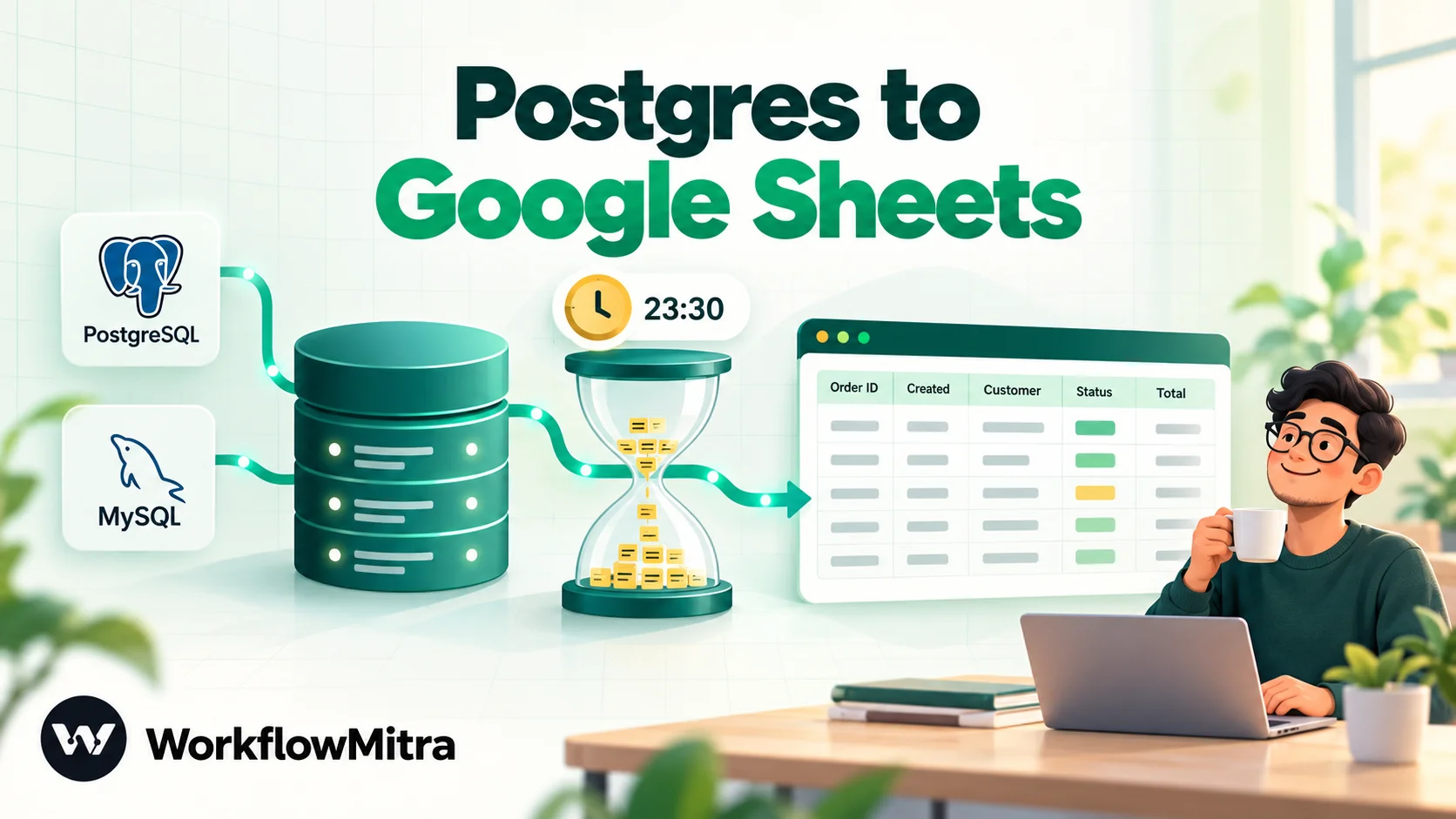
To export PostgreSQL or MySQL to Google Sheets automatically, run a saved SQL query on a schedule and write the result into a sheet. Use a read-only database user, format dates and IDs as text in the query itself, and decide up front whether each run replaces the sheet (a snapshot) or adds only new rows (an append log that remembers the last ID exported). In WorkflowMitra, powered by ChatMitra, that is a Schedule trigger, a PostgreSQL or MySQL step and a Google Sheets 'Add row(s)' step in bulk mode, which writes the whole result for one credit.
Most companies keep their real numbers in a database and do their thinking in spreadsheets. Orders, signups, payments and stock live in PostgreSQL or MySQL, where the application needs them. The finance lead, the sales manager and the operations team live in Google Sheets, where they can filter, chart and comment without asking an engineer for a query.
The usual bridge is a person. Someone with database access runs a query every Monday, downloads a CSV and pastes it into the team’s sheet. It works until that person is on leave, or the paste lands one column to the right, or three people keep three slightly different copies.
This guide replaces that bridge with a scheduled export. It covers the five ways to get database rows into Google Sheets, how to prepare the database so the export is safe, how to write queries that land cleanly in a spreadsheet, and two complete recipes in WorkflowMitra, powered by ChatMitra: a nightly snapshot and an append-only log. It also covers the traps we found while testing, because a few of them are invisible until the sheet is already wrong.
How to export PostgreSQL or MySQL to Google Sheets automatically
Save the SQL query that returns the rows you want, run it on a schedule, and write the result into a Google Sheet. Connect with a read-only database user, format dates and IDs as text inside the query, and choose whether each run replaces the sheet (a snapshot of the current state) or adds only new rows (a log that remembers the last ID it exported).
Everything else in this guide is detail on those three decisions: who connects, what the query returns, and how the sheet changes on each run.
Five ways to get database data into Google Sheets
| Method | How it works | Good for | Limits |
|---|---|---|---|
| Manual CSV export | Run a query in a database client, download CSV, import into Sheets | One-off analysis | Depends on a person; copies go stale and multiply |
| Spreadsheet add-on | A Sheets add-on connects to the database and refreshes a query into a tab | Analysts who live in one spreadsheet | Each sheet is configured on its own; usually a paid seat per user |
| Apps Script with JDBC | A script in the sheet connects to the database and writes rows; a time trigger runs it | Teams comfortable writing JavaScript | You maintain the code; the database must allow Google's IP ranges |
| Script plus scheduler | A script on a server (or a CI scheduler) runs psql or mysql and pushes the result | Engineering teams | Needs hosting, secrets management and someone to watch it |
| Workflow automation | A scheduled workflow runs the query, writes the rows and can do more: alert, summarise, message | Ops teams that want exports plus actions, without code | Row and speed limits of the tool; credits per step |
Google’s own JDBC service for Apps Script supports MySQL, PostgreSQL, SQL Server and Oracle, and it’s a solid choice if someone on the team writes code and is happy to own it. Its documentation also makes a point that applies to every method here: an external database has to be told to accept connections from the tool’s servers.
Workflow automation earns its place when the export is part of a process. “Copy yesterday’s orders into the finance sheet” is a job for any of these methods. “Copy yesterday’s orders, post the total to Slack, and message the owner of every order still unpaid after three days” is a workflow.
Before you build: four decisions
1. Snapshot, append or sync?
| Pattern | Each run | Use for | Watch out for |
|---|---|---|---|
| Snapshot | Clears the tab and writes the full result | Current state: open orders, stock levels, this month's pipeline | Edits people make in the tab are wiped on the next run |
| Append | Adds only rows newer than the last export | Logs: every payment, signup, ticket | Needs a watermark; changes to old rows never reach the sheet |
| Sync (upsert) | Updates rows that changed and adds new ones | Shared lists where both sides change | One API call per row; slow and costly at volume |
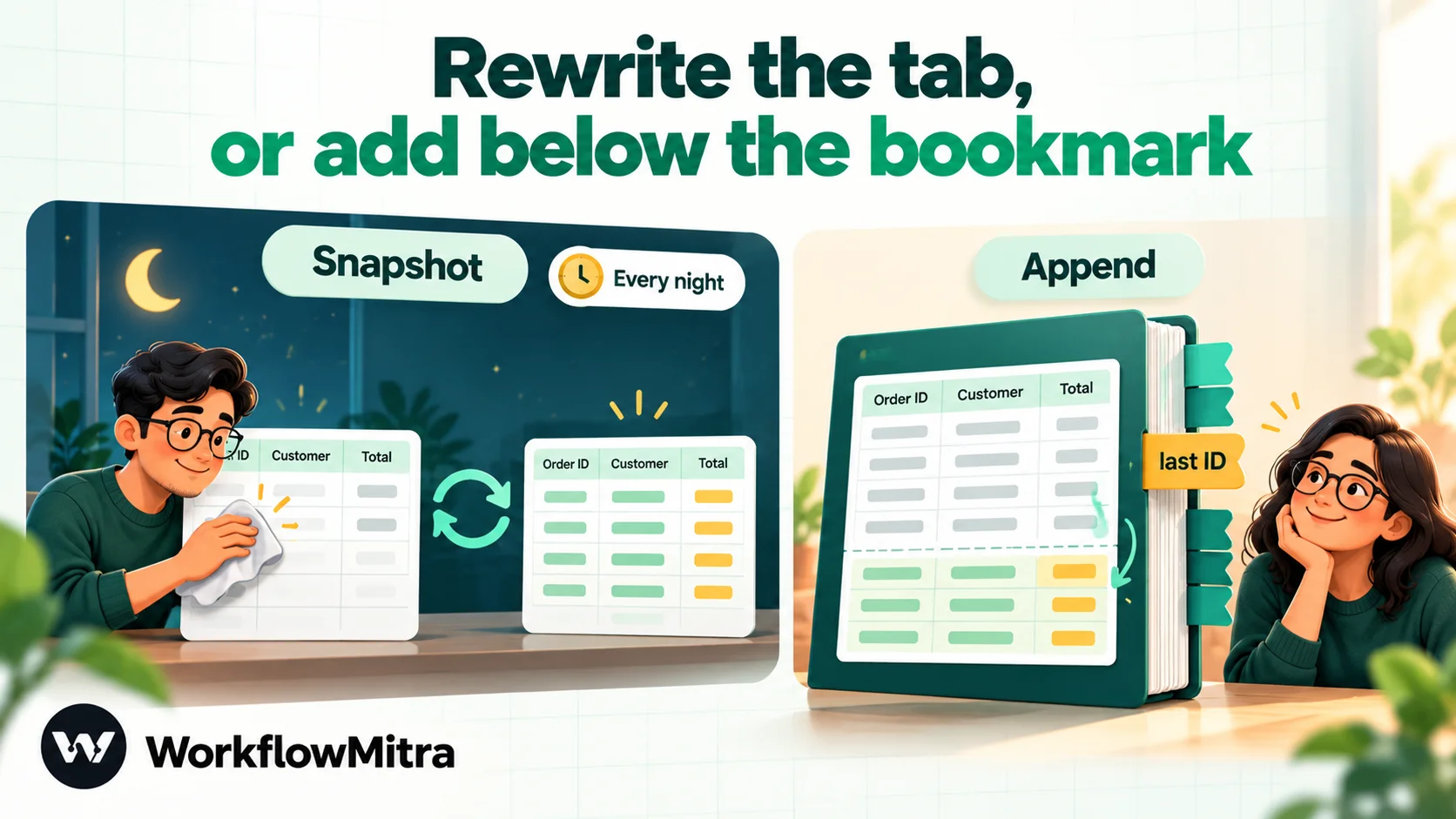
Most teams need a snapshot, an append, or one of each. True two-way sync between a database and a spreadsheet is rarely worth it: a spreadsheet is a poor place to edit data that an application depends on.
2. How much data?
Google Sheets allows up to 20 million cells per spreadsheet, counted across all tabs. That sounds like a lot until you divide: a 20-column export reaches it at a million rows, and sheets get slow well before any limit. Export what people will actually read: a summary, the last 90 days, the open items. Leave full history in the database.
3. How fresh?
Daily is right for most reporting. Hourly suits operational lists that people act on during the day. Anything faster usually means someone wants a live dashboard, which a spreadsheet isn’t.
4. Who will see it?
A spreadsheet is easy to share and hard to take back. Leave out columns nobody needs, especially phone numbers, emails and addresses, and share the sheet with named people rather than “anyone with the link”.
Prepare the database
Create a read-only user
Never connect an export with the application’s own database user. A dedicated read-only user means a wrong query can’t change data, and you can revoke it without touching the application.
PostgreSQL (run as an administrator; replace the names):
CREATE ROLE sheets_export LOGIN PASSWORD 'use-a-long-random-password';
GRANT CONNECT ON DATABASE shop TO sheets_export;
GRANT USAGE ON SCHEMA public TO sheets_export;
GRANT SELECT ON orders, customers TO sheets_export;
ALTER ROLE sheets_export SET statement_timeout = '25s';
To let the user read every table instead, PostgreSQL has a predefined pg_read_all_data role, but listing tables is safer. The statement_timeout stops a slow query on the database side, which matters because an automation tool giving up on a query doesn’t always stop the database from running it.
MySQL (the GRANT documentation covers the variations):
CREATE USER 'sheets_export'@'%' IDENTIFIED BY 'use-a-long-random-password';
GRANT SELECT ON shop.orders TO 'sheets_export'@'%';
GRANT SELECT ON shop.customers TO 'sheets_export'@'%';
Replace % with a specific address range if your setup allows it. For long-running reports in MySQL, add an optimizer hint such as SELECT /*+ MAX_EXECUTION_TIME(25000) */ ... to cap a single query at 25 seconds.
Make the database reachable, safely
A cloud tool can only connect to a database that accepts connections from the internet. Managed databases (Amazon RDS, Google Cloud SQL, Azure, DigitalOcean, Supabase and similar) handle this with a public endpoint, SSL and a firewall rule. A database on an office server or a private network can’t be reached without exposing it, and that’s a decision for whoever runs the network.
Three rules:
- Use SSL with certificate checking. In WorkflowMitra’s database credentials, choose On — verify the certificate (recommended), and paste your provider’s CA certificate if it isn’t one browsers already trust.
- Restrict by address if you can. WorkflowMitra doesn’t publish its outgoing IP addresses in the app, so if your firewall only admits known addresses, ask the WorkflowMitra team before you build. There’s no SSH tunnel option.
- Prefer a read replica for heavy reports, so exports never compete with customers for the primary database.
Write a query that lands cleanly in a sheet
This is the part most guides skip, and it’s where most exports go wrong. Databases and spreadsheets disagree about dates, big numbers and nested data, and the disagreement shows up as cells that look almost right.
We tested this with the same drivers WorkflowMitra uses, writing through its Google Sheets cell converter:
| Column type | What arrives in the sheet if you select it as is | Select this instead |
|---|---|---|
| Timestamp / DATETIME | "Wed Oct 07 2026 10:00:00 GMT+0530 (India Standard Time)" | PostgreSQL to_char(...), MySQL DATE_FORMAT(...) |
| DATE | The same long text, at midnight in the server's time zone | PostgreSQL d::text, MySQL DATE_FORMAT(d, '%Y-%m-%d') |
| JSON / JSONB | "[object Object]" | meta::text or pick the fields you need |
| BIGINT IDs (MySQL) | A number that can lose its last digits past 9 quadrillion (9007199254740993 became …992) | CAST(id AS CHAR) |
| NUMERIC / DECIMAL | Text such as "1499.50", which Sheets turns back into a number by default | Fine as is |
The rule is simple: format anything that isn’t plain text or a plain number inside the query. A PostgreSQL export query then looks like this:
SELECT
  o.id::text                                                         AS order_id,
  to_char(o.created_at AT TIME ZONE 'Asia/Kolkata', 'YYYY-MM-DD HH24:MI') AS created,
  c.name                                                             AS customer,
  o.status,
  o.total
FROM orders o
JOIN customers c ON c.id = o.customer_id
WHERE o.created_at >= now() - interval '30 days'
ORDER BY o.id;
And the MySQL version:
SELECT
  CAST(o.id AS CHAR)                                   AS order_id,
  DATE_FORMAT(o.created_at, '%Y-%m-%d %H:%i')          AS created,
  c.name                                               AS customer,
  o.status,
  o.total
FROM orders o
JOIN customers c ON c.id = o.customer_id
WHERE o.created_at >= NOW() - INTERVAL 30 DAY
ORDER BY o.id;
Three more habits:
- Name every column with
AS, using the words people will see in the sheet’s header row. - Convert time zones in SQL. Store times in UTC, show them in your team’s zone. The
AT TIME ZONEclause does this in PostgreSQL. In MySQL,CONVERT_TZ(o.created_at, '+00:00', '+05:30')works when the column is stored in UTC. - Let the database total things. If the sheet only needs daily revenue per city,
GROUP BYreturns 30 rows instead of 30,000.
Watch out for text that looks like a formula
By default, WorkflowMitra writes values “like typing it in”, which is what makes “1499.50” a number and “2026-10-07” a date. It also means a customer name that starts with = becomes a formula, and a phone number like 09876543210 loses its leading zero. For columns that hold text people typed, either switch the step’s Write values setting to Exactly as written (no formulas) (numbers then stay as text), or keep the default and prefix risky columns with an apostrophe in the query: PostgreSQL '''' || c.phone, MySQL CONCAT('''', c.phone). Google Sheets treats a leading apostrophe as “this is text” and hides it.
Recipe 1: a nightly snapshot in WorkflowMitra
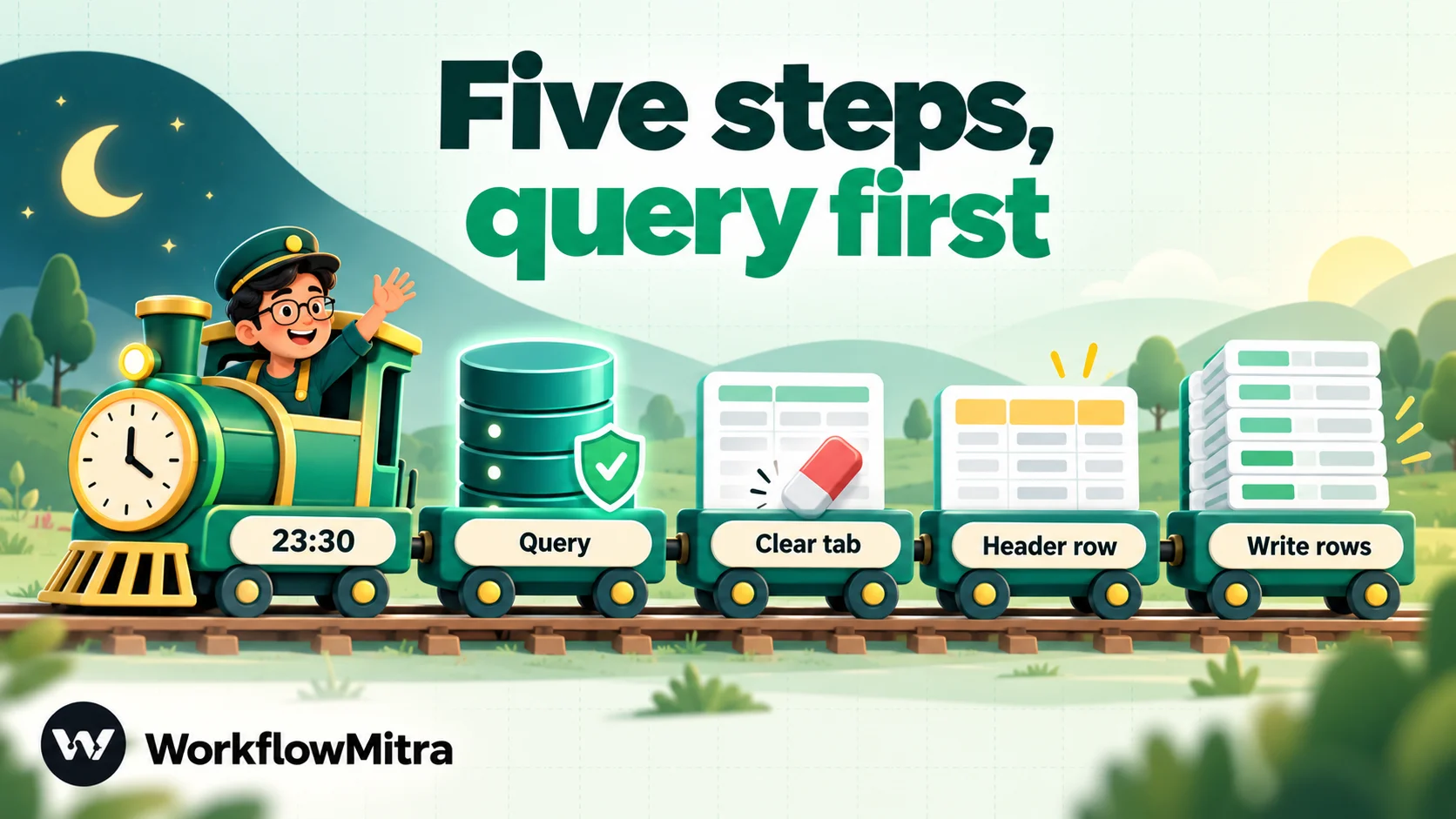
WorkflowMitra, powered by ChatMitra, is a no-code workflow automation platform. Its steps include PostgreSQL, MySQL, MongoDB and Google Sheets, and a Schedule trigger that starts workflows at set times. The snapshot workflow has five steps.
Before you start: create a PostgreSQL (or MySQL) credential with the read-only user and press Verify on the Credentials page. Create a Google (Service Account) credential, then share the spreadsheet with the service account’s email address as an editor. The Sheets step shows that address and reminds you to share.
- Schedule. Add a Schedule trigger, choose Every day at a set time, set 23:30 and your time zone. The schedule automations guide covers time zones and cron in depth.
- Query. Add a PostgreSQL step, choose Run SQL Query (advanced) and paste your export query. Rename the step (press F2) to something short such as
Get orders; later steps refer to it by name. The step returnsrows(and in PostgreSQL alsorowCount). - Clear the tab. Add a Google Sheets step, choose Clear range, and pick the spreadsheet and the Worksheet (tab). This clears the whole tab, including the header row, which the next step puts back.
- Write the header row. Add a Google Sheets Add row(s) step in Single Row mode and type the column titles as fixed text: Order ID, Created, Customer, Status, Total.
- Write the data. Add one more Add row(s) step, switch it to Multiple Rows (Bulk Array), and set 1. Upstream Array Source to
{{ $node["Get orders"].rows }}. Under 2. Map Item Properties to Sheet Columns, map each column to a field of the row:{{ order_id }},{{ created }},{{ customer }},{{ status }},{{ total }}.
Run it once with the Run button, check the sheet, then save and turn the workflow on.
Why this order? If the query fails (a password change, a network blip), the run stops at step 2 and yesterday’s data stays in the sheet. Clearing first would leave the team looking at an empty tab. And why $node["Get orders"] in step 5? A plain {{ rows }} only reads the step directly before it, which by then is the header write.
Keep the export tab for the export. People will want to add notes, colours and formulas. Put those on a second tab that reads from the export tab (for example with =QUERY(Export!A:E, "select * where D = 'pending'")), so each night’s rewrite never wipes anyone’s work.
Recipe 2: an append-only log with a watermark
For a log of payments or signups, you want each run to add only new rows. That needs a watermark: a record of the last row already exported. A tiny settings tab in the same spreadsheet is a simple place to keep it.
Create a tab called _sync, type 0 in cell B1, and build:
- Schedule: every hour, or daily.
- Read the watermark: Google Sheets → Get cell (A1), coordinate
_sync!B1. It returnsvalue. - Get new rows: PostgreSQL → Run SQL Query (advanced), renamed
Get new orders:
SELECT o.id::text AS order_id,
       to_char(o.created_at AT TIME ZONE 'Asia/Kolkata', 'YYYY-MM-DD HH24:MI') AS created,
       o.total
FROM orders o
WHERE o.id > {{ value }}
ORDER BY o.id
LIMIT 5000;- Stop if empty: an IF step,
{{ rowCount }}Greater than0. (For MySQL, which doesn’t returnrowCount, check{{ length(rows) }}instead.) - Append: Google Sheets → Add row(s), bulk mode, Upstream Array Source
{{ $node["Get new orders"].rows }}, mapped as in Recipe 1. - Move the watermark: Google Sheets → Update cell (A1), coordinate
_sync!B1, value{{ get(last($node["Get new orders"].rows), "order_id") }}.
A few details make this sturdy:
- The watermark only moves after the rows are written. If the append fails, the next run picks up the same rows again.
ORDER BYplusLIMITmatters. The watermark is the last row of the batch, so the batch must be sorted. The limit keeps any one run small; a backlog clears over several runs.- Use an always-increasing column. An auto-increment ID is ideal. A timestamp works if it never repeats and rows are never back-dated.
- Watch the formula style.
get(last(...), "order_id")is deliberate: in WorkflowMitra’s expressions, reading a field straight off a function result (last(...).order_id) comes back empty, andget(...)doesn’t.
An append log only sees new rows. If old orders change status, either add a second, snapshot-style tab for “orders changed in the last 7 days” or accept that the log records the state at export time, which is often what finance wants anyway.
Mistakes we found while testing
Some of these are general, some are specific to WorkflowMitra today. All of them produce a sheet that looks fine at a glance.
1. Quotes around a placeholder. In WorkflowMitra, every {{ }} in a SQL query is sent to the database as a separate, bound value, which is what makes it safe from SQL injection. So write WHERE email = {{ email }}, never WHERE email = '{{ email }}': the quotes turn the placeholder into literal text, and the query fails in PostgreSQL or matches nothing in MySQL. (The example text inside the query box currently shows the quoted form; don’t copy it.) For the same reason, a placeholder can stand for a value but not for a table or column name.
2. Referring to an earlier step from SQL. Inside a database step’s query, {{ }} reads fields from the step directly before it. $node["…"] and $trigger references currently resolve to empty there. Put the step that produces the value immediately before the query, as Recipe 2 does with Get cell.
3. Reordering the sheet’s columns. The bulk mapping writes by column position. If someone inserts or moves a column after you’ve set up the step, values land under the wrong headers. Lock the export tab’s header row (Data → Protect sheets and ranges), and reopen the step to remap after any change.
4. Selecting dates and JSON as they are. See the table above; the fix is always in the query.
5. Exporting more than people read. A 200,000-row tab is slow to open and almost never used. Summarise in SQL.
6. Slow queries. WorkflowMitra stops waiting for a step after 30 seconds, but the database may keep working on the query. Index the columns you filter and sort on, and use the statement_timeout or MAX_EXECUTION_TIME limits from the preparation step.
7. Saving data in the Data Store’s record fields. The built-in Data Store is useful for keys and “already done” checks, but {{ }} expressions inside its record data are currently stored as written rather than filled in. Keep watermarks in a sheet cell, as in Recipe 2.
Limits worth knowing
| Limit | Value | Source |
|---|---|---|
| Cells per spreadsheet | Up to 20 million | Google Drive help |
| Sheets API write requests | 60 per minute per user per project; 300 per minute per project | Google Sheets API limits |
| Recommended request size | 2 MB | Google Sheets API limits |
| WorkflowMitra bulk write | Rows sent in batches of 500 (adjustable up to 1,000) within one step | WorkflowMitra |
| WorkflowMitra visual "Select Rows" | Up to 1,000 rows (default 100); raw SQL sets its own LIMIT | WorkflowMitra |
| WorkflowMitra step time limit | 30 seconds by default | WorkflowMitra |
The Sheets API limits are why bulk mode matters. Writing 5,000 rows one request at a time would hit the per-minute quota many times over. Ten batches of 500 stay well inside it. Avoid a Loop step for exports for the same reason, and because each loop item costs its own credits.
Troubleshooting
| Symptom | Likely cause | Fix |
|---|---|---|
| Credential won't verify | Database not reachable from the internet, firewall rule missing, or wrong SSL mode | Check the public host and port; allow the connection; try the SSL setting your provider documents |
| "Permission denied for table …" | The read-only user lacks SELECT on that table (or USAGE on its schema) | Grant SELECT on the table; in PostgreSQL also USAGE on the schema |
| Sheets step says the sheet isn't shared | The service account isn't an editor of the spreadsheet | Share the spreadsheet with the service account's email address |
| Dates appear as "Wed Oct 07 2026 …" | Date columns selected as they are | Format them in SQL with to_char or DATE_FORMAT |
| "[object Object]" in a column | A JSON column selected as it is | Cast to text or select individual fields |
| Query returns nothing although rows exist | Quotes around a {{ }} placeholder, or a placeholder reading a step that isn't directly before the query | Remove the quotes; move the value-producing step next to the query |
| Values under the wrong headers | Columns were inserted or moved after mapping | Protect the header row; reopen the step and remap |
| Leading zeros missing from phone numbers | Values written "like typing it in" | Prefix with an apostrophe in SQL, or write exactly as written |
| Same rows appended twice | The watermark wasn't updated, or the query isn't sorted | Check the Update cell step ran; keep ORDER BY on the watermark column |
| Step times out | A slow query or a very large result | Add an index, narrow the date range, summarise in SQL, add a LIMIT |
What it costs in credits
One WorkflowMitra credit pays for one executed step, and the bulk write counts once however many rows it carries.
| Workflow | Credits per run | Per 30-day month |
|---|---|---|
| Nightly snapshot (trigger, query, clear, header, bulk write) | 5 | 150 |
| Hourly append, new rows found (trigger, get cell, query, IF, bulk write, update cell) | 5 (IF is free) | up to 3,600 |
| Hourly append, nothing new (stops at IF) | 3 | 2,160 if every hour is quiet |
| Daily append | 3 to 5 | 90 to 150 |
The entry plan includes 10,000 credits a month (₹999 a month, or ₹849 a month billed yearly, on WorkflowMitra’s pricing page on 7 October 2026), and every workspace starts with a 14-day trial with no card. A daily export barely registers. An hourly one is affordable, but ask whether anyone reads the sheet more than once a day.
Going further than a copy
Once the data is flowing, the same workflow can act on it, which is where a workflow tool earns its keep over an add-on:
- Post a summary. After the snapshot, a short Code step totals the rows and a Slack, email or Telegram step posts “142 orders, ₹3.8 lakh, 9 still pending”. The automated daily reports guide builds this in full.
- Flag exceptions. An IF on each export can alert the owner when, say, unpaid orders older than three days appear.
- Message customers. Rows that need a customer reminder can go to a WhatsApp step, which sends through the ChatMitra API or Meta’s Cloud API. Messages outside an open conversation need an approved template, and the ChatMitra fee is charged once per customer per 24 hours, not per message.
- Fill other sheets. The Google Sheets automation guide covers the other direction: sheet changes that start workflows.
Where WorkflowMitra fits, and where it doesn’t
For database-to-sheet exports, WorkflowMitra gives you:
- PostgreSQL, MySQL and MongoDB steps with SSL options, pasted CA and client certificates, a Verify button for credentials, and bound
{{ }}values in queries, so trigger data can’t turn into SQL. - Google Sheets bulk writes that send hundreds of rows per request for one credit, with a choice between formula-friendly and exact writing.
- Schedules in your time zone, IF steps that cost nothing, and failure alerts by email or Slack.
- The rest of the workflow: summaries, alerts and WhatsApp messages through ChatMitra in the same run.
And it’s fair to be clear about the gaps today. There’s no SSH tunnel, no published outgoing IP list, no ready-made database-to-Sheets template, and the bulk mapping writes by column position. Dates and JSON need formatting in the query, and SQL placeholders can only read the step just before them. A dedicated spreadsheet add-on may suit an analyst who only ever wants one live tab refreshed. If the export is one step in a process, a workflow is the better shape.
To try it, start a 14-day trial, create a read-only database user, and build Recipe 1 against a single table. If it’s right after a week of nightly runs, add the summary message.
WorkflowMitra details come from its source code as of 7 October 2026. The SQL binding, expressions and Sheets cell conversions were reproduced by running WorkflowMitra's own modules, and the type behaviour by querying local PostgreSQL 18 and MySQL servers through the same pg and mysql2 drivers. Prices are from WorkflowMitra's pricing page on the same day. External references: Google's Drive storage limits, Sheets API usage limits and Apps Script JDBC guide, PostgreSQL's predefined roles and MySQL 8.4's GRANT statement, all read on 7 October 2026.
Frequently Asked Questions
Common questions about exporting database data to Google Sheets.
Write the SQL query that returns the rows you want, then have a tool run it on a schedule and write the result into a sheet. You can use a spreadsheet add-on, a script run by a scheduler, or a workflow automation tool. In WorkflowMitra the workflow is a Schedule trigger, a PostgreSQL step running your query and a Google Sheets 'Add row(s)' step in bulk mode.
Automate the work between your apps
Build workflows with triggers, conditions and actions, then test them before they go live. Try WorkflowMitra free for 14 days, no card required.
