Date Calculations in Workflows: Days Until, Overdue Checks and Comparing Dates

Quick Summary
Date calculations in a workflow come down to three questions: is this date before or after another one, how many days are left, and what date is N days or months from now. A no-code workflow answers the first with an IF step's date operators, the second with a sheet formula or a short Code step, and the third with date helpers such as addDays. Most failures come from the input, not the maths: a Google Sheets date that arrives as a serial number, a DD/MM/YYYY date read month-first, or a time without a time zone. Turn every date into YYYY-MM-DD (or a known number of days) before you compare it, and test the yesterday, today and tomorrow cases.
A payment reminder that goes out a day early. An “overdue” alert for an invoice that is due today. A renewal date that jumps from 31 January to 3 March. A Google Sheet that says 15 October while the workflow sees 46310. Reminder, SLA and renewal workflows rarely fail on the message or the trigger. They fail on the date.
This guide covers the date calculations most business workflows need: checking whether something is overdue, finding what is due in the next few days, counting days until or since a date, adding days, months and working days, and matching birthdays and anniversaries. Every recipe was run against WorkflowMitra’s expression engine and Code step on 18 October 2026, including the cases that go wrong, so you can see the trap before your customers do.
Quick answer: first make every date look the same, ideally YYYY-MM-DD. Then use an IF step's date operators (Is before, Is after, Is on or before, Is on or after, Is between) to compare it with today's date, not the current time. For "how many days left", calculate a whole number in your sheet (=A2-TODAY()) or in a short Code step, and compare it with Number operators. Watch for Google Sheets serial numbers, DD/MM/YYYY text and times without a time zone, and always test yesterday, today and tomorrow.
Why date maths goes wrong in automations
Dates look simple because people read them without thinking. Software has to be told what a date means, and four things regularly get lost along the way:
- The format.
07/10/2026is 7 October in India and 10 July in the United States. A Google Sheets date might arrive as a formatted string, as a serial number such as46302, or as a full timestamp, depending on how it was read. - The time zone. A webhook says
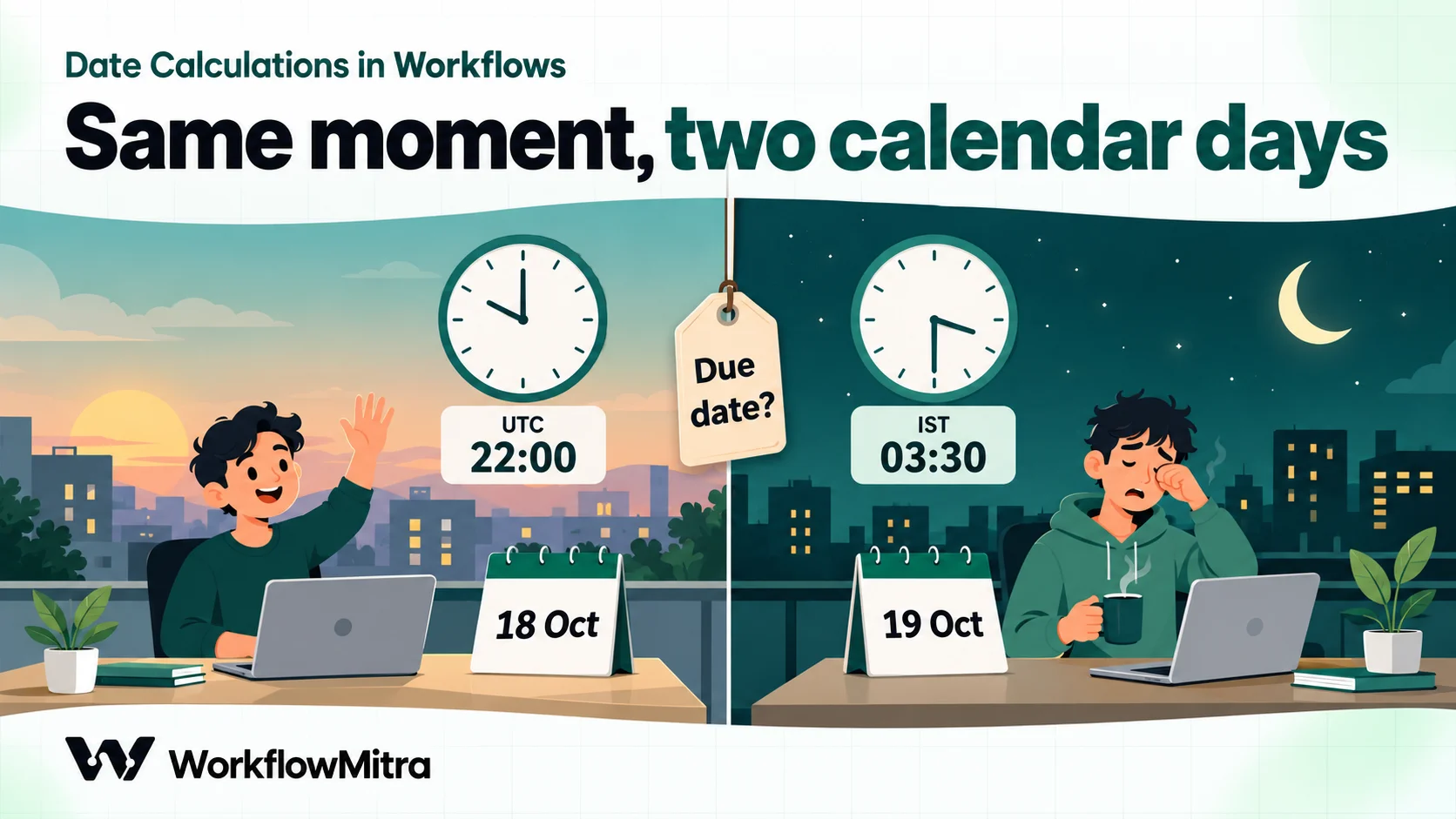
2026-10-18T22:00:00Z. In UTC that is the 18th; in India it is already 03:30 on the 19th. Which day is it “due”? - The time of day. “Now” includes the time. A due date of today, compared with the current moment, is technically in the past by mid-morning, so a naive “before now” check flags it as overdue.
- The calendar. Months have 28 to 31 days, 29 February exists one year in four, and “five working days” skips weekends and holidays. Adding a fixed number of milliseconds ignores all of that.
The fix for all four is the same discipline: decide what a date means once, convert every input into that one shape, and only then compare or calculate.
First, know what your date looks like
Before choosing a recipe, open a recent run in the execution history and look at the raw value your workflow received. Here is how WorkflowMitra’s IF date operators and its formatDate helper treat the common shapes. We tested each value on 18 October 2026, with the server clock set to UTC and then to India Standard Time.
| What arrives | Example | IF date operators | Date helpers (formatDate, addDays…) |
|---|---|---|---|
| ISO date | 2026-10-15 | Read correctly (midnight UTC) | Read correctly |
| ISO date-time with zone | 2026-10-15T09:30:00+05:30 | Read correctly | Read correctly |
| Date-time without a zone | 2026-10-18T09:00:00 | Read as UTC | Read as server time (03:30 UTC on an IST server) |
| Day-first text | 15/10/2026 | Not a date: the rule is false, no error | Becomes 1 January 1970 |
| Written-out text | 15 Oct 2026 | Not a date: the rule is false | Read, but as server-local midnight |
| Google Sheets serial | 46310 | Read as 46 seconds after 1 Jan 1970, so "Is before" is always true | Read as a 1970 date |
| Blank | "" | The rule is false | Becomes 1 January 1970 |
Three rows deserve a second look. A day-first date makes every date rule quietly false, so the workflow takes the Else route forever and nothing reports it. A Google Sheets serial number does the opposite: it is read as a moment in January 1970, so “is before today” is true for every row and a reminder workflow would chase every customer at once. And a time without a zone is read one way by IF and another way by the date helpers, which is how dates end up one day off.
Where Google Sheets dates come from
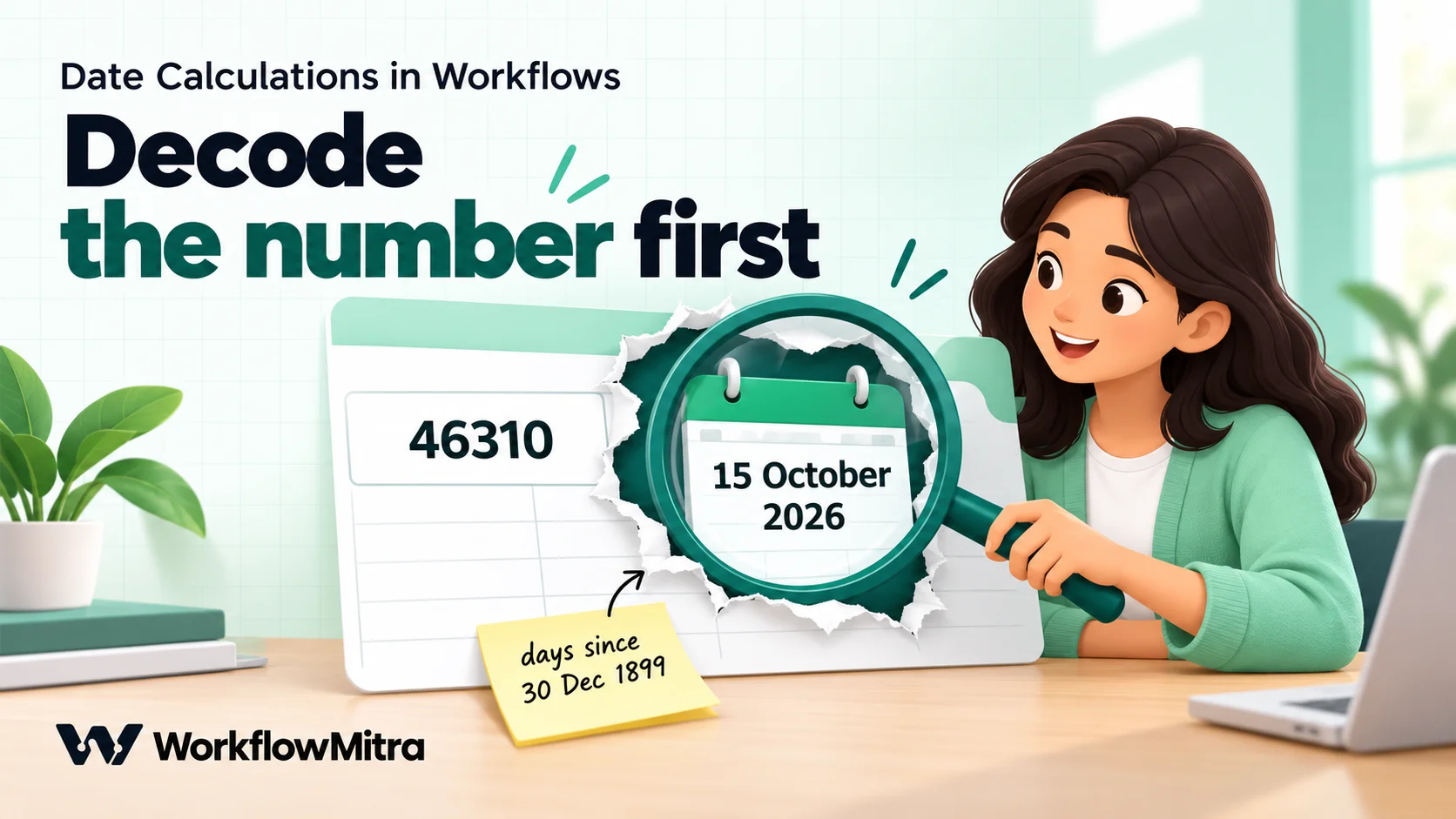
Google Sheets stores every date as a serial number, counting days from 30 December 1899, and only formats it for display (Google’s Sheets API documentation describes the same scheme). So 46310 is 15 October 2026, and 46313 is 18 October 2026. In WorkflowMitra:
- The Google Sheets trigger reads raw values, so date cells arrive as serial numbers.
- The Read rows action asks how to read values. The default, As displayed (12/08/2026), gives you the date as the sheet shows it, which in an India-locale sheet is day-first text that IF cannot read. Raw values (numbers stay numbers) gives you the serial number.
Neither is wrong; you just have to know which one you chose. The simplest fix is in the sheet itself: add a helper column with =TEXT(A2, "yyyy-mm-dd") and use that column in the workflow. Our guide to Google Sheets automation covers the trigger and Read rows options in more detail.
The tools you have
WorkflowMitra gives you three kinds of date tools. Knowing their limits saves a lot of trial and error.
- IF step date operators. Under Date the IF step (and the Switch step) offers Is before, Is after, Is on or before, Is on or after and Is between. They accept ISO dates and date-times, or a plain number of milliseconds since 1970. They don’t accept day-first text, and anything they can’t read makes the rule false. Is between includes both ends. The same operators are available for the “Which rows” conditions in Google Sheets update and delete actions.
- Date helpers in expressions.
now()andtimestamp()give the current moment;addDays,addHours,addMinutes,addMonthsandaddYearsmove a date;formatDate,dayNameandmonthNamewrite it out;parseDatereads text. There is no “days between” helper, and the helpers that read or write local time use the server’s time zone. - The Code step. A short JavaScript snippet that can do anything the other two can’t: count days in a named time zone, skip weekends and holidays, or filter a list of rows by date. It runs in a sandbox with a 1-second limit and is billed by run time; the snippets in this guide each ran in under 100 milliseconds. Our Code step guide explains its rules.
One more limit worth knowing: the Delay step waits a fixed duration, not “until a date”. For anything that should happen on a specific day, run a daily schedule and check the date, as the recipes below do.
Recipe 1: is it overdue?
The question is “is the due date earlier than today?”. Not earlier than right now.
In an IF step:
- Left: the due date, for example
{{ $trigger["Due date"] }}, in YYYY-MM-DD form. - Operator: Date: Is before.
- Right: today’s date:
{{ formatDate(now(), "YYYY-MM-DD") }}.
Why not just compare with {{ now() }}? Because a date-only value means midnight UTC, which is 05:30 in India. From 05:30 IST on the due date, 2026-10-18 is already “before now”, so an invoice due today gets an overdue reminder at 9 AM. Comparing date with date avoids that: on 18 October, a due date of 2026-10-18 is not before 2026-10-18, and a due date of 2026-10-17 is.
One caution about formatDate(now(), "YYYY-MM-DD"): it uses the server’s date. In our tests it returned 18 October with the server in UTC and in IST, because the check ran in the afternoon. The two only disagree between midnight and 05:30 India time, so schedule date checks after 05:30 IST (9 or 10 AM is typical) and the problem never arises. If a check genuinely has to run just after midnight, work out today’s date in a Code step instead (Recipe 3).
To include things due today, use Is on or before instead.
Recipe 2: what is due in the next 7 days?
Use Is between with today and a week from today:
- Left:
{{ $trigger["Due date"] }} - Operator: Date: Is between
- First value:
{{ formatDate(now(), "YYYY-MM-DD") }} - Second value:
{{ formatDate(addDays(now(), 7), "YYYY-MM-DD") }}
Both ends are included, so this matches anything due from today to seven days from now. Change the 7 for a different window.
For tiered reminders, such as one message a week before, one the day before and one on the day, use a Switch step with one route per tier, each with its own date rule. Routes are checked in order and the first match wins, so put the most urgent tier first. And if you want each reminder sent exactly once, record it: a “Reminder sent” column that the workflow fills in, with an extra rule that it is empty, stops the next morning’s run from sending the same reminder again.
Recipe 3: how many days until (or since)?
Sometimes you need the number itself: “Your plan renews in 5 days”, or “This ticket has been open for 12 days”. There are three ways to get it.
Option A: let the sheet calculate it
If the dates live in Google Sheets, add a Days left column:
=A2-TODAY()where A2 holds the due date. The result is a whole number: positive for days remaining, 0 for today, negative for overdue. =DAYS(A2, TODAY()) does the same. Read it in the workflow and compare it with Number operators, for example Less than or equal 7.
Two details matter. Check File › Settings › Time zone in the sheet, because TODAY() is the sheet’s idea of today. And add an Is not empty rule on the date column, because a blank date makes the formula return a large negative number, and a blank number cell passes “less than” checks.
Option B: an expression for Sheets serial numbers
If you read raw values, the due date is already a day count, and today’s serial number in India can be calculated with expressions alone:
subtract(floor(divide(subtract(timestamp(), subtract(0, 19800000)), 86400000)), subtract(0, 25569))It looks odd because the expression language has no plus sign and no negative numbers (add joins lists, and -3 resolves to empty), so “plus” is written as subtracting a negative. Read it as: the current time, plus 5 hours 30 minutes (19,800,000 ms), in whole days, plus 25,569 (the serial number of 1 January 1970). On 18 October 2026 it returned 46313. Days left is then subtract(due_serial, <that expression>); a due date of 46320 gave 7. It works, but it is hard to read, so most people should prefer Option A or C.
Option C: a Code step that handles any input
This snippet reads a Google Sheets serial, a YYYY-MM-DD date, a DD/MM/YYYY date or a full timestamp, works out the calendar day in India, and adds days_left and is_overdue to the data:
const TZ = 'Asia/Kolkata';
const DAY = 86400000;

// The calendar date of a moment in TZ, as a day number
function localDay(d) {
  const p = new Intl.DateTimeFormat('en-GB', {
    timeZone: TZ, year: 'numeric', month: '2-digit', day: '2-digit',
  }).formatToParts(d);
  const get = (t) => Number(p.find((x) => x.type === t).value);
  return Date.UTC(get('year'), get('month') - 1, get('day')) / DAY;
}

// Read a date as a day number
function dayOf(v) {
  if (typeof v === 'number') return v - 25569;            // Sheets serial
  const s = String(v ?? '').trim();
  let m = s.match(/^(\d{4})-(\d{2})-(\d{2})$/);            // 2026-10-25
  if (m) return Date.UTC(+m[1], +m[2] - 1, +m[3]) / DAY;
  m = s.match(/^(\d{1,2})\/(\d{1,2})\/(\d{4})$/);          // 25/10/2026
  if (m) return Date.UTC(+m[3], +m[2] - 1, +m[1]) / DAY;
  const t = Date.parse(s);                                  // 2026-10-25T09:30:00Z
  return Number.isNaN(t) ? null : localDay(new Date(t));
}

const due = dayOf(input['Due date']);
const today = localDay(new Date());
return {
  ...input,
  days_left: due === null ? null : due - today,
  is_overdue: due !== null && due < today,
};
We ran it in WorkflowMitra’s Code step sandbox on 18 October 2026 with the server clock in UTC:
| Due date received | days_left | is_overdue |
|---|---|---|
46320 (Sheets serial for 25 Oct) | 7 | false |
2026-10-15 | -3 | true |
15/10/2026 | -3 | true |
2026-10-18T22:00:00Z (03:30 on 19 Oct in India) | 1 | false |
"" or next week | null | false |
Change Asia/Kolkata to any IANA zone name, such as Asia/Dubai or Europe/London, and 'Due date' to your field name. Because the snippet returns null for anything it can’t read, follow it with an IF rule that days_left Is not empty before any Number comparison.
Recipe 4: fix day-first dates from forms
Forms, spreadsheets and many Indian tools produce DD/MM/YYYY. As the table above showed, IF can’t read it and the date helpers turn it into 1 January 1970. Convert it to ISO first:
{{ join(reverse(split(form_date, "/")), "-") }}That splits 15/10/2026 into its parts, reverses them and joins them with hyphens: 2026-10-15. Put it in a Set Variable step or directly in the IF step’s left side, and copy the brackets exactly as shown.
It only works when every value is strictly DD/MM/YYYY with two-digit days and months. If people can type 5/1/2026, pad the parts in a Code step instead (the dayOf function above already accepts one-digit days and months), or better, use a date picker on the form so the value arrives as YYYY-MM-DD. Don’t reach for parseDate here: it reads slash dates month-first, and day-first values it can’t read come back as 1970.
Recipe 5: dates in the past, such as “3 days before”
addDays(due, -3) looks natural, but the expression language has no negative numbers, and in our test it returned empty. Write the minus as subtract(0, 3):
{{ formatDate(addDays(due_date, subtract(0, 3)), "YYYY-MM-DD") }}For 2026-10-15 that gives 2026-10-12. In practice you rarely need it for reminders: “send 3 days before the due date” is the same as “send when the due date is 3 days from today”, which is Recipe 2 with addDays(now(), 3) and no negative numbers at all.
Recipe 6: add months without skipping one
addMonths follows JavaScript’s calendar rules, which roll over when the day doesn’t exist in the target month. We tested it:
addMonths("2026-01-31", 1)gives 3 March 2026, not 28 February.addYears("2024-02-29", 1)gives 1 March 2025.
For monthly renewals, EMI dates or subscription anniversaries, that’s wrong. Most businesses expect “the last day of the month” when the day doesn’t exist. This Code step clamps to the month’s last day:
const [y, m, d] = input.start_date.split('-').map(Number);
const n = Number(input.months);
const target = new Date(Date.UTC(y, m - 1 + n, 1));
const lastDay = new Date(Date.UTC(target.getUTCFullYear(), target.getUTCMonth() + 1, 0)).getUTCDate();
target.setUTCDate(Math.min(d, lastDay));
return { ...input, renewal_date: target.toISOString().slice(0, 10) };
Tested: 31 January 2026 plus 1 month gives 28 February 2026; 29 February 2024 plus 12 months gives 28 February 2025; 18 October 2026 plus 12 months gives 18 October 2027. addDays, addHours and addMinutes don’t have this problem, because a day is always a fixed length in UTC.
Recipe 7: working days, weekends and holidays
“Reply within 3 working days” or “deliver in 5 business days” needs a calendar that skips Saturdays, Sundays and holidays. No date helper does that, so use a Code step:
const DAY = 86400000;
const holidays = ['2026-10-20', '2026-11-08']; // your list, YYYY-MM-DD

const start = new Date(input.start_date + 'T00:00:00Z');
let d = new Date(start);
let left = Number(input.working_days);
while (left > 0) {
  d = new Date(d.getTime() + DAY);
  const weekday = d.getUTCDay(); // 0 = Sunday, 6 = Saturday
  const iso = d.toISOString().slice(0, 10);
  if (weekday !== 0 && weekday !== 6 && !holidays.includes(iso)) left--;
}
return { ...input, due_date: d.toISOString().slice(0, 10) };
With a start date of Friday 16 October 2026, 3 working days and 20 October on the holiday list, it returned 22 October: Monday the 19th counts, Tuesday the 20th is skipped, Wednesday and Thursday count. The holiday dates here are examples; use your own list, and remove the Saturday check if your team works six days. If your dates live in Google Sheets, =WORKDAY(A2, 3, Holidays!A:A) does the same in the sheet.
Recipe 8: birthdays and anniversaries
A birthday matches on month and day, not on the full date. Comparing formatDate(dob, "MM-DD") with formatDate(now(), "MM-DD") works for plain dates, but it uses the server’s date and silently skips people born on 29 February in three years out of four. This Code step, given the rows from a Read rows step, returns the people whose day it is in India:
const parts = new Intl.DateTimeFormat('en-GB', {
  timeZone: 'Asia/Kolkata', year: 'numeric', month: '2-digit', day: '2-digit',
}).formatToParts(new Date());
const get = (t) => parts.find((p) => p.type === t).value;
const year = Number(get('year'));
const todayMD = get('month') + '-' + get('day');
const leap = (year % 4 === 0 && year % 100 !== 0) || year % 400 === 0;

const people = input.rows.filter((r) => {
  let md = String(r.DOB).slice(5, 10); // "MM-DD" from YYYY-MM-DD
  if (md === '02-29' && !leap) md = '02-28';
  return md === todayMD;
});
return { people, count: people.length };
It expects the DOB column as YYYY-MM-DD (use the TEXT helper column from earlier). Point a Loop at people to send each greeting. For wording that works on WhatsApp, ChatMitra’s guide to birthday wishes for clients has examples, and its guide to WhatsApp reminder messages covers reminder templates.
Time zones and the 05:30 boundary
Most of the “one day off” bugs in Indian workflows trace back to the same fact: India is 5 hours 30 minutes ahead of UTC, and a date without a time means midnight UTC. Three rules keep you safe:
- Schedule date checks after 05:30 IST. The Schedule trigger lets you pick the time zone (it suggests your browser’s), so “every day at 9:00 Asia/Kolkata” runs at 9 AM India time. At that hour the UTC date, the server date and the India date all agree.
- Write times with their offset.
2026-10-18T09:00:00+05:30means the same moment everywhere.2026-10-18T09:00:00doesn’t: in our test, the IF step read it as 09:00 UTC, whileparseDateon an IST server read it as 09:00 IST, five and a half hours apart. - Use a Code step for customer-facing times. The date helpers write times in the server’s zone, so a UTC timestamp formatted with
formatDatecan show a different hour depending on where the server runs. Our guide to formatting dates, numbers and currency shows theIntl.DateTimeFormatversion for display.
Putting it together: a daily overdue check from Google Sheets
Here is how the recipes combine in a common workflow: every morning, find open invoices in a sheet that are past their due date and remind the customer once.
The sheet has one row per invoice with Invoice, Customer, Email, Amount, Due date (a real date cell), Status (Open or Paid) and Reminder sent (blank until the workflow fills it).
- Schedule trigger: every day at 9:00, time zone Asia/Kolkata.
- Google Sheets › Read rows: the invoices tab, values as Raw values, so Due date arrives as a serial number.
- Code step: keep the rows that are Open, not yet reminded and past due.
const DAY = 86400000;
const parts = new Intl.DateTimeFormat('en-GB', {
  timeZone: 'Asia/Kolkata', year: 'numeric', month: '2-digit', day: '2-digit',
}).formatToParts(new Date());
const get = (t) => Number(parts.find((p) => p.type === t).value);
const todaySerial = Date.UTC(get('year'), get('month') - 1, get('day')) / DAY + 25569;

const overdue = input.rows.filter((r) =>
  r.Status === 'Open' && !r['Reminder sent'] &&
  typeof r['Due date'] === 'number' && r['Due date'] < todaySerial
);
return { overdue, count: overdue.length };- IF:
{{ count }}Number: Greater than 0, so nothing else runs on days with no overdue invoices. - Loop with List field
overdue. Inside, each invoice row is available as$trigger. - Email (or WhatsApp) with the reminder, using
{{ $trigger["Invoice"] }}and{{ $trigger["Amount"] }}. - Google Sheets › Update row: find the row by Invoice and set Reminder sent to today’s date.
We tested the filter with five rows: an open invoice due on 3 October, a paid one due the same day, an open one due on 25 October, an open one with a blank due date and an overdue one already reminded. Only the first came back. The blank row was skipped because its due date isn’t a number, which is exactly what you want from a reminder workflow.
In credits, a day with nothing overdue costs the schedule and Read rows (2 credits), plus a few hundredths of a credit for the Code step. Each reminder adds 3 credits (the loop item, the email and the row update). A business with 20 overdue invoices a month uses roughly 120 credits, a small slice of the Starter plan’s 10,000 credits for ₹999 a month (WorkflowMitra’s plan list, 18 October 2026). For the full reminder sequence with escalation, see payment reminder automation, and for passing values between these steps, pass data between steps.
Test date logic before it runs on real data
Date bugs hide in edge cases, so test the edges on purpose. Build a test copy of your sheet with these rows and run the workflow manually:
| Test row | What should happen |
|---|---|
| Due yesterday | Overdue |
| Due today | Due, not overdue (unless you chose "on or before") |
| Due tomorrow | Not overdue; inside a 7-day window |
| Due exactly 7 days from today | Inside "Is between" (both ends count) |
| Blank due date | Skipped, never reminded |
| Due date typed as text, e.g. 15/10/2026 | Converted, or flagged for a person to fix |
| 31 January plus one month | 28 February (or 29 in a leap year) |
| 29 February birthday in a non-leap year | Greeted on 28 February |
After each run, open it in the execution history. For an IF or Switch step, the run log shows which route was taken and, when nothing matched, why the conditions failed, so you can see whether a date was read the way you meant. Use a copy of the sheet for testing: Safe Test Mode stops messages from going out, but Google Sheets steps still write to the sheet.
Common mistakes
- Comparing a date with
now(). A due date of today is “before now” from 05:30 IST onward. Compare with today’s date as YYYY-MM-DD. - Reading Sheets dates “As displayed” and comparing them as dates. Day-first text makes every date rule false. Use a YYYY-MM-DD helper column or raw values.
- Treating serial numbers as dates. 46310 is a day count, not a timestamp, and passes every “is before” check. Convert it, or compare it as a number with other serials.
- Forgetting blanks. Blank dates become 1970 in the date helpers, and blank numbers pass “less than”. Add an Is not empty rule first.
- Writing
-3. Negative numbers resolve to empty. Usesubtract(0, 3), or turn the question around so you add instead. - Trusting
addMonthsat month end. 31 January plus one month is 3 March. Clamp in a Code step. - Scheduling date checks just after midnight in India. Between 00:00 and 05:30 IST, the server’s date can still be yesterday. Run at 9 AM.
- Sending the same reminder every day. A date window matches on several mornings. Record what was sent and check it.
Get the date right once
Every reminder, follow-up, renewal and SLA workflow depends on one small decision made correctly: what a date means and which day “today” is. Convert inputs to YYYY-MM-DD, compare dates with dates, count days in a sheet formula or a Code step, and test the boundaries. Do that once and every later workflow can reuse the pattern.
WorkflowMitra, powered by ChatMitra, gives you IF and Switch date operators, date helpers, a sandboxed Code step and Google Sheets steps in one visual editor, with WhatsApp sending through ChatMitra or Meta’s Cloud API when the reminder goes to a customer. If your dates live in a CRM with built-in date fields and reminders, its own tools may be simpler; this approach fits teams whose deadlines live in sheets, forms and webhooks.
You can try every recipe here on a WorkflowMitra trial: 14 days, 10,000 credits, no card needed, with plans on the pricing page. For the basics of conditions and branching, start with triggers, actions and conditions, and for a wider view, what is workflow automation. To run checks at the right time every day, read how to schedule automations.
Google Sheets serial dates are described in Google's Sheets API date and number formats guide, and TODAY() in the Google Docs Editors help, both read on 18 October 2026. WorkflowMitra behaviour was verified against the product's source code on that date (IF and Switch date operators, Google Sheets Read rows options, Schedule time zones, Loop and the expression engine). Every expression and Code snippet shown was executed in the product's expression engine and Code step sandbox with the server clock in UTC and in India Standard Time; prices come from WorkflowMitra's live plan list. Holiday dates and invoice rows are examples.
Frequently Asked Questions
Questions builders ask when their reminder or SLA workflow gets a date wrong.
Compare the due date with today's date, not with the current time. In WorkflowMitra, add an IF step, set the left side to the due date, choose Date: Is before, and set the right side to today's date as YYYY-MM-DD, for example {{ formatDate(now(), "YYYY-MM-DD") }} on a schedule that runs after 05:30 India time. A due date of today then counts as due, not overdue, and anything earlier counts as overdue. Make sure the due date itself is in YYYY-MM-DD form first.
Automate the work between your apps
Build workflows with triggers, conditions and actions, then test them before they go live. Try WorkflowMitra free for 14 days, no card required.
