Delays and Waits in Automation: Timing Patterns That Actually Work

Quick Summary
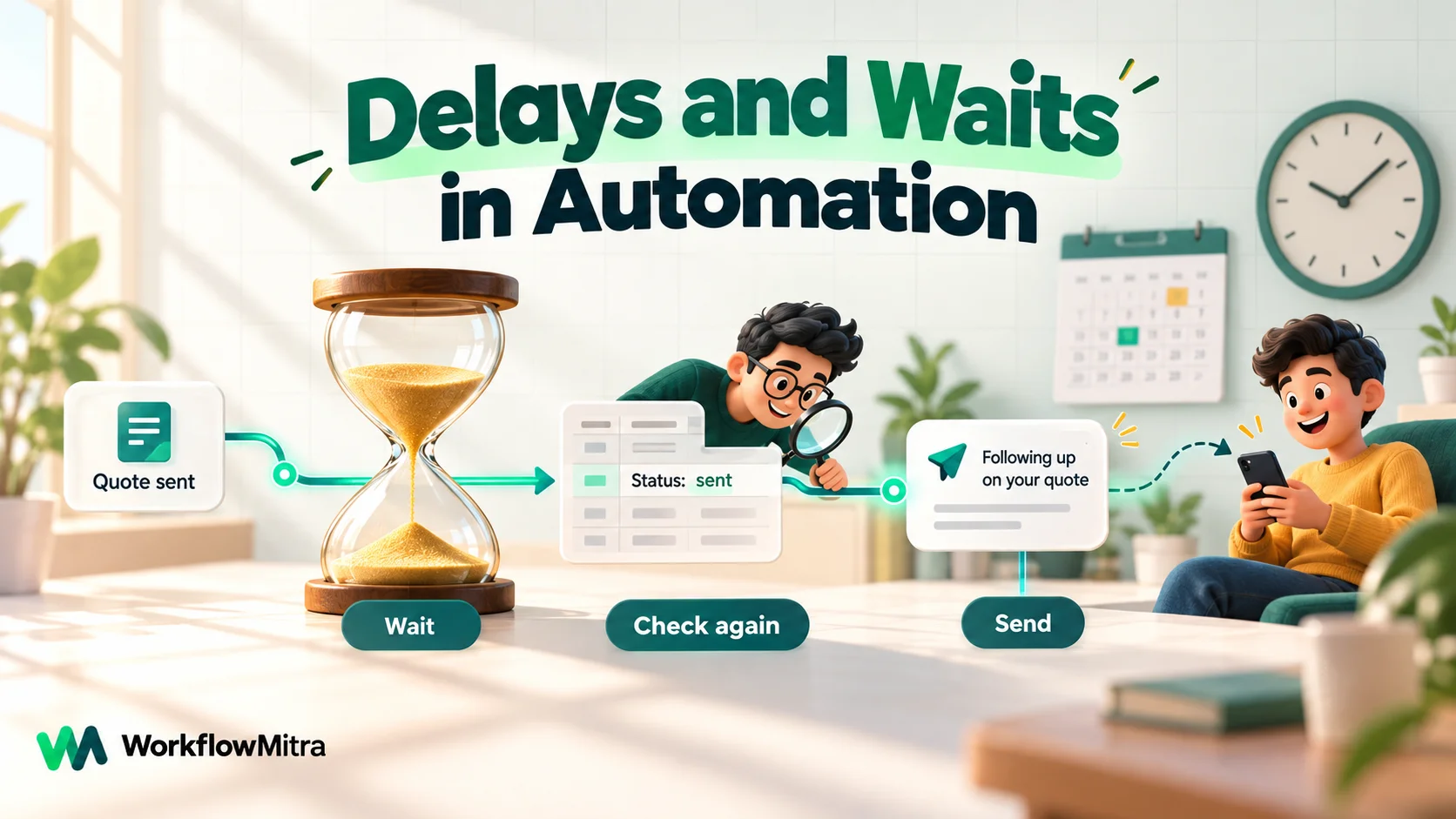
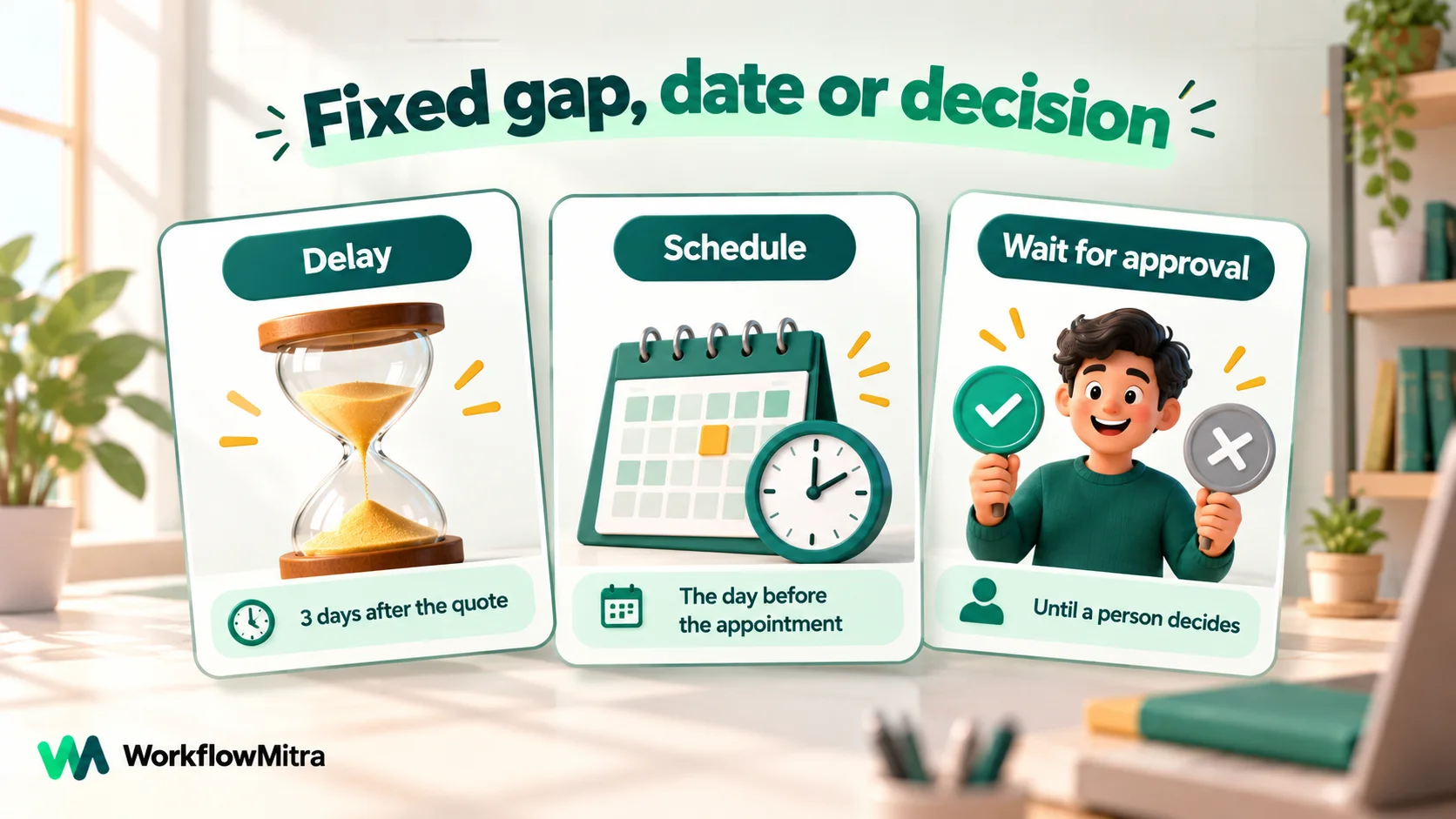
A delay step pauses a workflow for a set time before the next step runs, which is how automations send a follow-up three days later, pace calls to a busy API or give a person time to act. Good timing depends on three tools, not one: a Delay for 'wait this long', a scheduled workflow for 'at this date and time', and an approval step for 'until someone decides'. Whatever waited, check the situation again before acting. In WorkflowMitra, powered by ChatMitra, the Delay step waits a fixed time of up to 30 days at no credit cost, keeps the workflow version it started with, and keeps running even if the workflow is switched off.
Most automations should run the moment something happens. A good share of the useful ones, though, need to wait: the follow-up three days after a quote, the second reminder the day before an appointment, the pause between API calls so a busy service doesn’t reject them, the escalation to a manager when nobody picked up a lead.
Timing is also where automations quietly go wrong. A workflow that waits three days acts on what was true three days ago, unless you design it not to. This guide explains how delay steps behave, when a delay is the wrong tool, and nine timing patterns that hold up in real use, with the details from WorkflowMitra, powered by ChatMitra, where they matter.
What is a delay step?
A delay step pauses a workflow for a set amount of time, then lets it continue with the same data. It's how an automation sends a follow-up two days later, spaces out a batch of API calls, or gives a person a window to act before the workflow does. Most tools offer a fixed delay ("wait 2 days"). Some also offer "wait until a date" or "wait for an event". Whatever you use, check the situation again after a long wait before taking the next action.
The pause itself is simple. The interesting questions are around it: what you’re waiting for, what might change while you wait, and what the workflow should do if the reason for waiting has disappeared.
Four reasons to make a workflow wait
Almost every wait in an automation does one of four jobs. Naming the job first tells you which tool to use.
- Give people time. A customer needs time to read a quote, pay an invoice or reply to a question. The follow-up only makes sense if they haven’t acted yet.
- Hit a moment that matters. A reminder the day before an appointment, a renewal notice a week before expiry, a report at 9 a.m. These are tied to a date or clock time, not to “how long since the trigger”.
- Let something settle. Another system is still writing the record, a spreadsheet import is still pasting rows, or a customer is still adding items to an order.
- Pace the work. An API allows only so many requests a minute, or a team shouldn’t get fifty alerts in the same second.
Jobs 1 and 3 suit a delay step. Job 2 usually doesn’t, and job 4 needs short pauses inside the work rather than a long wait in front of it. The patterns later in this guide follow from that split.
How the Delay step works in WorkflowMitra
Before you rely on a delay, it helps to know exactly what the step does while it waits. These details come from WorkflowMitra’s source code as of 8 October 2026.
It waits a fixed length of time. You enter days, hours, minutes and seconds, and the step adds them up. The fields take numbers, not expressions, so the wait can’t be calculated from your data, and there’s no “until a date” option. The longest wait is 30 days, and a longer total is quietly cut to 30 days, so don’t type 45 and expect 45.
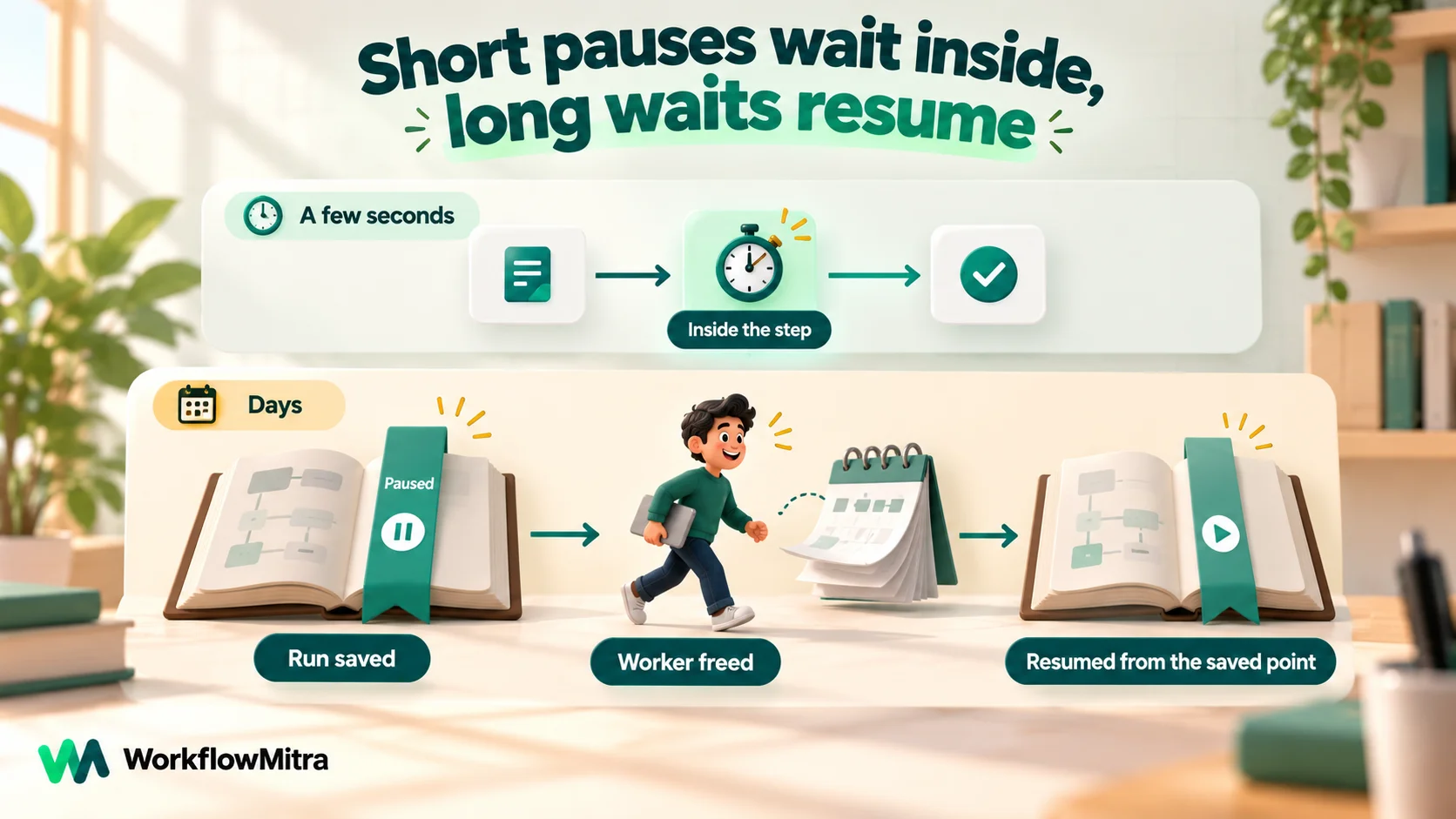
Short and long waits behave differently. A wait of about 25 seconds or less happens inside the step itself. Anything longer pauses the run durably: WorkflowMitra saves where the run was, frees the worker, and schedules a resume. A paused run shows as Paused in the workflow’s run list, and it survives server restarts.
A paused run keeps its version. It resumes on the exact workflow design that was live when it began. If you fix a message’s wording on Tuesday, people who entered the sequence on Monday still get Monday’s wording. Your edit reaches new runs only.
Switching the workflow off doesn’t stop paused runs. Turning a workflow off stops new runs from starting. Runs that are already paused resume on schedule, and there’s no cancel button for them. Tools differ here: Zapier’s help centre says actions due while a Zap is off won’t run when it’s turned back on, while Microsoft says in-progress Power Automate runs continue after a flow is turned off. Know which behaviour you have before you depend on it.
The whole run pauses, not just one branch. If a workflow splits into two branches and one of them has a Delay, steps on the other branch that hadn’t run yet also wait until the pause ends. Put anything urgent before the split, or in a separate workflow.
Waiting is free, but resuming is checked. Delay uses no credits, and a paused run doesn’t hold any while it waits. When it resumes, the remaining steps are charged as usual. If the workspace’s plan ended during the wait, or the balance ran out, the run fails with a clear message instead of carrying on.
One more practical point: a webhook that answers synchronously (Respond synchronously) holds the caller for up to 25 seconds. If a Delay pushes the run past that, the caller gets the normal “accepted, still running” reply and the workflow finishes in the background.
The rule that saves most timed workflows: check again after you wait
A delay freezes the workflow’s view of the world. The run still holds the trigger data from three days ago: the order was unpaid, the lead was unassigned, the ticket was open. Meanwhile the customer paid, a colleague called the lead, the ticket was closed. If the next step acts on the old data, you send “Just a reminder to pay” to someone who paid yesterday.
The fix is a habit, not a feature: after every long Delay, look the record up again and decide with fresh data.
- Keep the current status somewhere the workflow can read: a status column in a Google Sheet, a field in your CRM, a record in your database.
- After the Delay, add a lookup step: Google Sheets Find row on the order ID, a CRM “get record”, or a database query.
- Add an IF: continue only if the status still says what you’re waiting for, such as
{{ $node["Check order"].row.Status }}Equal tounpaid. - Optionally, end the other route with a quiet log line, so you can see how many follow-ups were skipped because people had already acted.
This one step does what a cancel button would do, and more. It handles payments, replies, cancellations and manual changes the same way, and it keeps working even though paused runs can’t be cancelled. IF steps cost nothing, and the lookup costs one credit. Our workflow error handling guide covers the same idea from the failure side.
Delay, schedule or approval: pick the right kind of wait
Three tools cover almost every waiting need. Choosing the wrong one is the most common timing mistake.
| You want to… | Use | Why |
|---|---|---|
| Wait a fixed time after something happened (“3 days after the quote”) | Delay step | The gap is measured from the trigger, so a fixed duration is exactly right |
| Act at a date or clock time (“the day before the appointment”, “every Monday 9 a.m.”) | Schedule trigger reading a sheet or database | Dates change and can be months away; a daily or hourly check always reads the latest date |
| Wait until a person decides | Wait for approval | Pauses until someone approves or rejects in the app, with a timeout |
| Space out calls inside a batch | Loop with “Delay between batches”, or a short Delay in the loop | Pauses of seconds, inside the work |
| Wait for a reply or payment | Delay, then look up the status | WorkflowMitra has no “wait for an event” step, so wait a sensible time, then check |
The scheduled approach deserves a word, because people often try to force a Delay into the job. A Delay can only wait for a fixed duration from when the run started. “24 hours before the appointment” means a different wait for every booking, and the appointment can move after the run has started waiting. A schedule that runs every morning, reads tomorrow’s appointments from a sheet and messages each one is simpler, handles reschedules for free and isn’t bound by the 30-day ceiling. The schedule automations guide explains the trigger, cron expressions and time zones in detail.
Nine timing patterns that work
1. Follow up after a few days, only if nothing happened
The classic: send a quote, wait, follow up if there’s no answer.
Shape: trigger (quote sent) → Delay 3 days → Find row on the quote ID → IF status is still sent → follow-up message → Update row to followed up.
The lookup and IF are what make this polite rather than robotic. Keep the follow-up short and specific: the quote number, the one thing you need from them, and an easy way to answer.
2. A reminder ladder that escalates
Some tasks need more than one nudge, and eventually a person.
Shape: trigger (new lead assigned) → Delay 2 hours → check: still uncontacted? → reminder to the salesperson → Delay 4 hours → check again → alert to the sales manager.
Each rung has its own check, so the ladder stops at whichever rung the work got done. Don’t stack too many rungs: two reminders and an escalation is plenty for most teams. If the timing has to be exact for everyone, such as “escalate at 6 p.m. today”, use a scheduled sweep instead of a chain of delays. The round-robin lead assignment guide shows the assignment step this pattern usually follows.
3. Reminders tied to a date (appointments, renewals, due dates)
Shape: Schedule trigger, daily at a fixed time → Google Sheets Read rows from the appointments tab → Loop over the rows → IF the date column Equal to tomorrow’s date → reminder → Update row to mark it sent.
To make the date comparison dependable, format the date column as plain text in YYYY-MM-DD form, so the sheet doesn’t turn it into a locale date. Then compare it with {{ formatDate(addDays(now(), 1), "YYYY-MM-DD") }}. WorkflowMitra’s date helpers use the server’s clock, so run the schedule in the middle of the day rather than close to midnight, and check the output in a test run once.
Two reminders often beat one. In a randomised trial of 54,066 primary-care patients published in the American Journal of Managed Care, reminders sent three days and one day before a visit cut missed appointments to 4.4%, against 5.8% for the three-day reminder alone and 5.3% for the one-day reminder alone. For a second reminder, add a second route that matches the date three days ahead.
4. Quiet hours and business hours
A lead that arrives at 11:40 p.m. shouldn’t trigger a WhatsApp message at 11:41 p.m.
WorkflowMitra’s Delay can’t wait “until 9 a.m.”, so split the work by the clock. Check the hour with {{ formatDate(now(), "HH") }} and an IF, then:
- Inside business hours: act immediately.
- Outside business hours: write the item to a “morning queue” sheet tab, and let a Schedule trigger at 9:30 a.m. work through that tab.
Remember the server clock again, and test what formatDate(now(), "HH") returns before you trust the boundary. Internal alerts can usually go out at any hour. Customer messages are where quiet hours matter.
5. Pace calls to a rate-limited API
Shape: Loop over the items with Delay between batches (up to 60,000 ms, so one minute) or a short Delay of a few seconds inside the loop body.
Short delays inside a loop are fine because they run inside the step. Longer ones aren’t supported in a loop, since they would pause the entire run. A Delay of more than about 25 seconds in a loop body fails with “Durable delays inside a Loop are not supported yet.” If a list needs minutes or hours between items, process a slice per scheduled run instead, such as 50 rows an hour, and mark each one done. The loops guide covers batching, concurrency and empty lists.
6. Let data settle before you read it
Some events arrive before the data they describe is finished. An order webhook fires before a fulfilment app has added its tracking number. A form tool sends the submission, then attaches a file a few seconds later.
Shape: trigger → Delay 30 seconds to a few minutes → fetch the full record → continue.
For spreadsheets there’s a better tool than a fixed delay. The Google Sheets trigger has an Advanced option, Rows arrive from an import or another tool, which waits until a row stops changing before it starts a run. That handles slow pastes and integrations writing a row cell by cell.
7. A grace period before an irreversible step
Give people a window to change their mind before something can’t be undone: shipping a cancellable order, posting a public review reply, charging a card.
Shape: trigger → Delay 30 minutes → look up the latest status → IF not cancelled → do the irreversible thing.
This is the “check again” rule used on purpose. The delay is the undo window, and the lookup is how the undo takes effect.
8. Wait for a person, with a deadline
When the thing you’re waiting for is a decision, a Delay is the wrong tool, because it can’t tell whether someone decided. Wait for approval holds the run until a teammate approves or rejects the request in the app. The default timeout is 24 hours, the maximum is 30 days, and by default an unanswered request counts as rejected, so a forgotten approval never acts on someone’s behalf. You can switch the timeout outcome to approve for low-risk steps. The approval workflow guide walks through the setup.
9. A short sequence, not a long drip
Several Delays in a row make a sequence: welcome today, tips on day 2, a check-in on day 7. It works, but keep sequences short. Every paused run is locked to the design it began on, can’t be cancelled, and acts on stale data unless you check again before each message. A three-step onboarding sequence with a status check before each message is manageable. A 30-message drip built from 29 Delays is hard to change once hundreds of people are inside it.
For long programmes, store each customer’s stage and next date in a sheet and let a daily schedule move them forward. The customer onboarding guide shows a full sequence built this way.
Worked example: an unpaid-invoice follow-up
Here’s how the pieces fit together for a small design studio that invoices clients from a Google Sheet. The example is illustrative, but every step exists in WorkflowMitra as described.
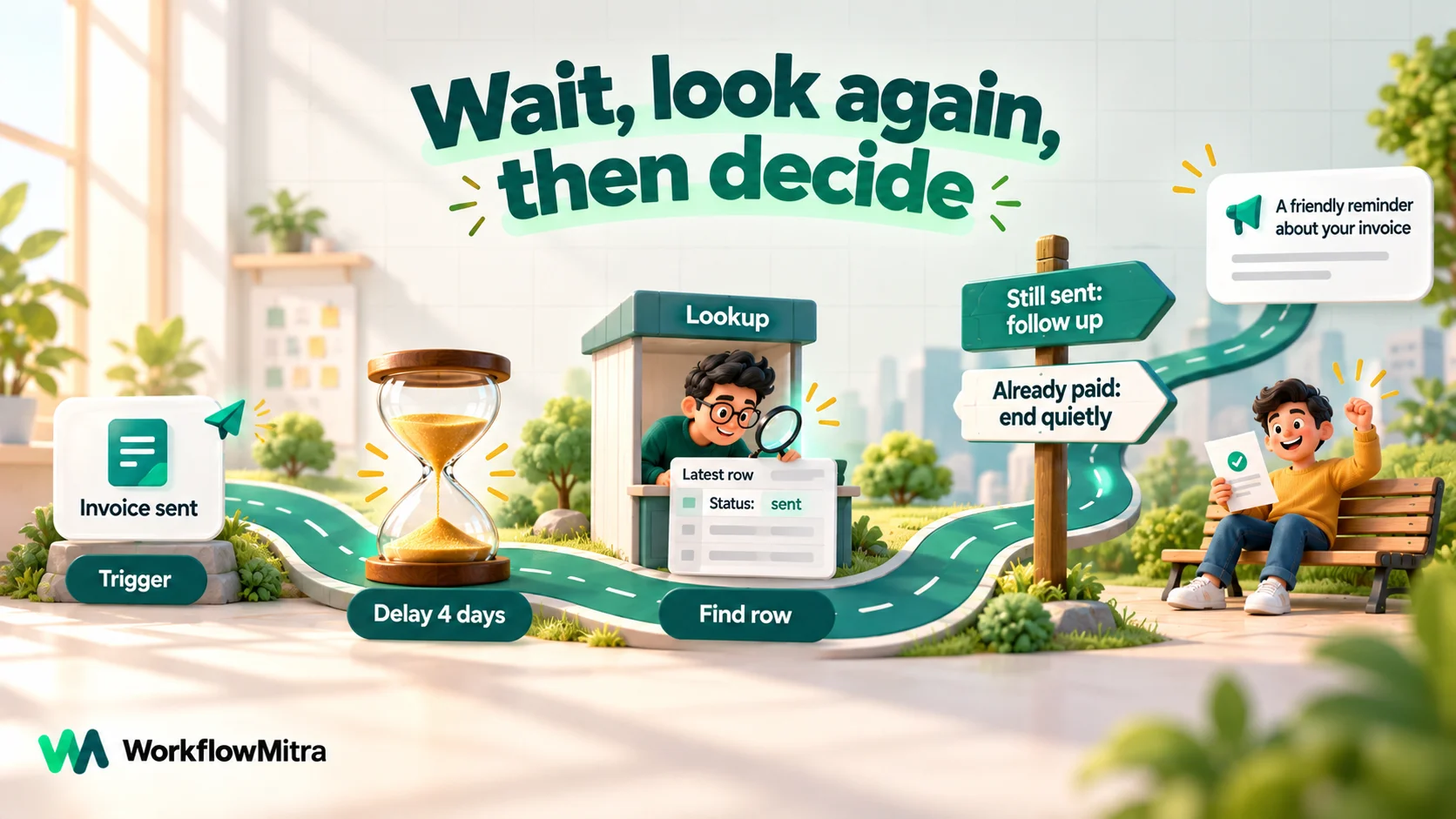
Monday 11:00. The studio adds a row to the Invoices tab: invoice number, client, amount, due date (Friday) and Status sent. The Google Sheets trigger picks up the new row and starts a run, which emails the invoice link and then reaches a Delay of 4 days. The run now shows as Paused.
Tuesday. The client pays. Someone at the studio changes the row’s Status to paid. Nothing else needs to happen: there’s no run to find and cancel.
Friday 11:00. The run resumes. A Find row step looks up the invoice number and reads the row as it is now. The IF asks whether Status is still sent. It isn’t, so the run ends on the quiet route, having used three credits in total.
A different client, same week. This one hasn’t paid by Friday, so the IF passes. The workflow sends a short, friendly reminder by email, changes Status to reminded, and reaches a second Delay of 7 days. The following Friday, a second lookup finds the invoice still unpaid, and the workflow alerts the studio owner in Slack instead of emailing the client a third time. A person decides what happens next.
Three design choices make this hold up. The sheet, not the run, is the source of truth, so any change a person makes is respected. Each message is preceded by its own lookup. And the last step hands over to a human rather than adding another automated nudge. If the studio later edits the reminder wording, invoices already waiting keep the old wording, which is usually fine for a sequence this short.
Timing and messaging channels
When the step after a wait sends a message, the channel’s rules apply to the moment of sending, not to the moment the run started.
WhatsApp’s 24-hour window. Meta’s documentation explains that a customer service window opens for 24 hours each time a customer messages a business. Inside it you can reply freely. After it closes, only templates Meta has approved can be sent. A follow-up sent three days after a conversation is almost always outside the window, so build the step around an approved template from the start. In WorkflowMitra, the WhatsApp step sends templates through ChatMitra or Meta’s Cloud API, and it doesn’t track the window for you. For ready-made wording, see ChatMitra’s WhatsApp reminder message examples.
Email. No window applies, but timing still matters: a follow-up landing at 3 a.m. local time reads as automated. Combine a Delay with the quiet-hours pattern above when your audience spans time zones.
Internal chat. Slack, Discord or Webex alerts after a wait should say what they’re about and how old the information is (“Lead from yesterday 4 p.m. still unassigned”), since the reader can’t see the delay.
How other tools handle waits
If you’re moving a workflow from another tool, waits are where behaviour differs most. This is what each vendor’s documentation said on 8 October 2026.
| Tool | Wait options | Longest wait | If the automation is switched off or edited |
|---|---|---|---|
| WorkflowMitra | Delay (fixed days, hours, minutes, seconds); Wait for approval; Loop “Delay between batches” | 30 days (Delay and approval) | Paused runs keep their version and still resume; switching off stops new runs only |
| Zapier | Delay For, Delay Until, Delay After Queue | One month (30 days); at least 1 minute | Actions due while the Zap is off don’t run; changing steps during a delay stops the run continuing |
| Make | Sleep module (meant for rate limits) | 300 seconds; scenario runs stop at 45 minutes (10 on Free) | Longer waits need a stored record and a scheduled scenario (a community pattern) |
| n8n | Wait node: after an interval, at a set time, on a webhook call, on a form submission | No maximum stated | Waits over 65 seconds are saved to the database; times use the server clock |
| Power Automate | Delay, Delay until | Any run ends 30 days after it started, including pending steps | Turning a flow off lets in-progress runs finish; deleting it cancels them |
Two differences matter most in practice. Zapier and n8n can wait until a date, which WorkflowMitra handles with a schedule instead. And waiting runs survive a switch-off in WorkflowMitra and Power Automate but not in Zapier, which changes how you stop a sequence in an emergency.
Testing timed workflows without waiting days
Nobody wants to wait three days to find out that a follow-up has a typo. A practical routine:
- Build with short delays. Set the Delay to one minute while you test, and run the workflow with a test record.
- Test both routes of every check. Run once with the status still “unpaid” and once with it changed to “paid” during the wait, so you see the follow-up send and the skip.
- Set the real delay before going live. Runs started during testing keep their one-minute delay because they’re pinned to the version they started with, so let them finish or point them at test data.
- Watch the Paused list. In the first week, check the run list for paused runs and confirm they resume when expected.
The testing guide covers Safe Test Mode and sample data more broadly.
Common timing mistakes
- Acting on stale data. No lookup after the Delay, so customers who already paid get reminders.
- Using a Delay for a date. “Wait 23 days because the renewal is in 24” breaks the moment the renewal date changes.
- Typing more than 30 days. The wait is cut to 30 days without complaint.
- Long drips built from Delays. Hundreds of pinned, uncancellable runs make every change slow to reach people.
- Urgent work after a fan-out. A Delay on one branch also holds steps on the other branch that hadn’t run yet.
- Ignoring the server clock. Date and hour checks use the server’s time zone. Test the boundary once.
- Long waits in a loop. Use a schedule or batches instead.
- Forgetting the channel rules. A WhatsApp follow-up after the 24-hour window needs an approved template.
What timed workflows cost
In WorkflowMitra, every executed step uses credits, except that Delay, IF and Switch are free, and nothing is charged while a run is paused. A Wait for approval step uses one credit, however long it waits. A typical follow-up uses about four credits: the trigger, the lookup after the wait, the message and the status update. Runs that end at the IF, because the customer already acted, use two. A daily appointment schedule uses one credit for the trigger and one for reading the sheet, then one per loop item plus the message and status update for each reminder sent.
On 8 October 2026, WorkflowMitra’s plans started at ₹999 a month for 10,000 credits (₹849 a month billed yearly), with a 14-day trial that includes 10,000 credits and needs no card. ChatMitra charges for WhatsApp per conversation, not per message, alongside Meta’s template rates.
Why use WorkflowMitra for timed workflows?
Plenty of tools can wait. Here’s what WorkflowMitra brings to this specific problem:
- Long waits are durable and free. Up to 30 days, surviving restarts, with no credits used while waiting.
- Edits don’t surprise people mid-sequence. Pinned versions mean a customer who started on one version finishes on it.
- The re-check costs almost nothing. IF and Switch are free, so checking before every action adds only a lookup.
- Approvals with safe defaults. Wait for approval rejects on timeout unless you choose otherwise.
- Messaging built in. Follow-ups go out by WhatsApp through ChatMitra, email, Slack or other channels from the same workflow.
The limits are just as real. There’s no “delay until a date” and no “wait for an event”, the wait can’t be calculated from data, paused runs can’t be cancelled, and long delays don’t work inside loops. The patterns above work around each of these, but if your process depends on exact per-record send times, plan for a scheduled design from day one.
Start with one follow-up that checks before it sends
Pick the follow-up your team most often forgets: an unpaid invoice, an unanswered quote, a lead nobody called. Build trigger, Delay, lookup, IF and message, test it with a one-minute delay, then set the real gap. Once that’s trusted, move date-based reminders onto a daily schedule.
You can build and test it on a 14-day WorkflowMitra trial with 10,000 credits and no card, and compare plans on the WorkflowMitra pricing page.
WorkflowMitra details in this guide come from its source code and editor as of 8 October 2026. Other tools' behaviour was checked on 8 October 2026 in Zapier's help article on adding delays to Zap workflows, Make's help pages on rate limit errors and errors and warnings, n8n's Wait node documentation and Microsoft's Power Automate limits. The WhatsApp window is described in Meta's Cloud API guide to sending messages. The reminder study is Steiner et al., "Optimizing Number and Timing of Appointment Reminders: A Randomized Trial", American Journal of Managed Care, 2018.
Frequently Asked Questions
Common questions about delay steps, waits and timing in workflow automation.
It's a step that pauses a workflow for a set amount of time before the next step runs, such as 10 seconds, 2 hours or 3 days. The data the workflow collected is kept, so when the wait ends the following steps carry on as if there had been no gap. Delays are used for follow-ups, reminders, pacing API calls and giving people time to act.
Automate the work between your apps
Build workflows with triggers, conditions and actions, then test them before they go live. Try WorkflowMitra free for 14 days, no card required.
