Demo Request Follow-Up Automation: From Form to Booked Call to No-Show Recovery

Quick Summary
Demo request follow-up automation is a set of workflows that moves every demo request from the form to a held meeting without anyone remembering to chase it. Within seconds of the form being sent, it checks for a repeat request, assigns the next sales rep, records the request and emails the prospect a booking link with their name and email already filled in. If nobody books, it sends two short reminders and then hands the lead to the rep to call. When the prospect books, reschedules or cancels in Cal.com, a webhook updates the same record, and when the rep marks a no-show, a recovery email with a rebooking link goes out and the rep is told if the prospect still doesn't rebook. One status column in a shared sheet ties the four workflows together.
Someone fills in your “Book a demo” form at 11:40 on a Tuesday. They are interested right now, comparing you with two other tools, and probably filling in their forms too. What happens in the next hour decides which demo they actually attend.
In most small sales teams the answer is: an email lands in a shared inbox, someone forwards it to a rep, the rep replies after lunch with “When works for you?”, and three emails later a time is agreed for next week. If the prospect doesn’t turn up, nobody notices until the rep’s calendar shows an empty slot.
This guide builds the whole path as four small workflows: from the form to a rep and a booking link in seconds, reminders for people who don’t book, booking updates from Cal.com, and a recovery path for no-shows. It uses a Google Sheet as the record, so it works without a CRM, and it notes where each part would change if you use one.
Product behaviour described here was checked in WorkflowMitra’s source code, and Cal.com behaviour in Cal.com’s own documentation, on 19 October 2026.
What is demo request follow-up automation?
Demo request follow-up automation is a set of workflows that moves every demo request from the form to a held meeting without anyone remembering to chase it. It assigns a rep and emails a booking link within seconds, reminds people who haven't booked, updates the record when a meeting is booked, moved or cancelled, and starts a recovery email when someone doesn't show up. A single status column ties the steps together, so everyone can see where each request stands.
It covers four moments where demo requests usually leak:
- The first response. The request sits in an inbox while the prospect cools down.
- The booking. The prospect gets a link but never picks a time, and nobody follows up.
- The day of the demo. The meeting moves or is cancelled, and the record still says “booked”.
- The no-show. The prospect doesn’t turn up, and the lead quietly dies.
What happens after a demo that went well, such as proposals and deal stages, belongs to your sales process and CRM; our guide to lead management automation covers that stretch. This guide stops at “the demo happened, and the rep knows the next step is theirs”.
Why demo requests go cold
Speed matters more here than almost anywhere else in sales. In a study published in Harvard Business Review, firms that tried to contact an online lead within an hour were nearly seven times as likely to qualify it as firms that tried even an hour later, and more than sixty times as likely as firms that waited a day or more. The same researchers audited 2,241 US companies and found that 23% never responded to a test web lead at all.
A demo request is the warmest web lead you will ever get: the person has asked to talk to you. Most of the leaks are process gaps, not effort gaps:
- Nobody owns the request yet. “Someone will pick it up” means everyone assumes someone else did.
- The first reply asks a question instead of offering a time. “When are you free?” starts an email back-and-forth that a booking link would have ended in one click.
- There’s no reminder for people who don’t book. They meant to, then got busy.
- The calendar and the lead list don’t talk. A rep can’t see that the prospect rescheduled, and a manager can’t see how many requests turned into meetings.
- No-shows are treated as dead. In practice many people who miss a demo still want one; they had a clash, or forgot.
Each of these has a simple fix that a workflow can apply every time, at any hour.
The funnel at a glance
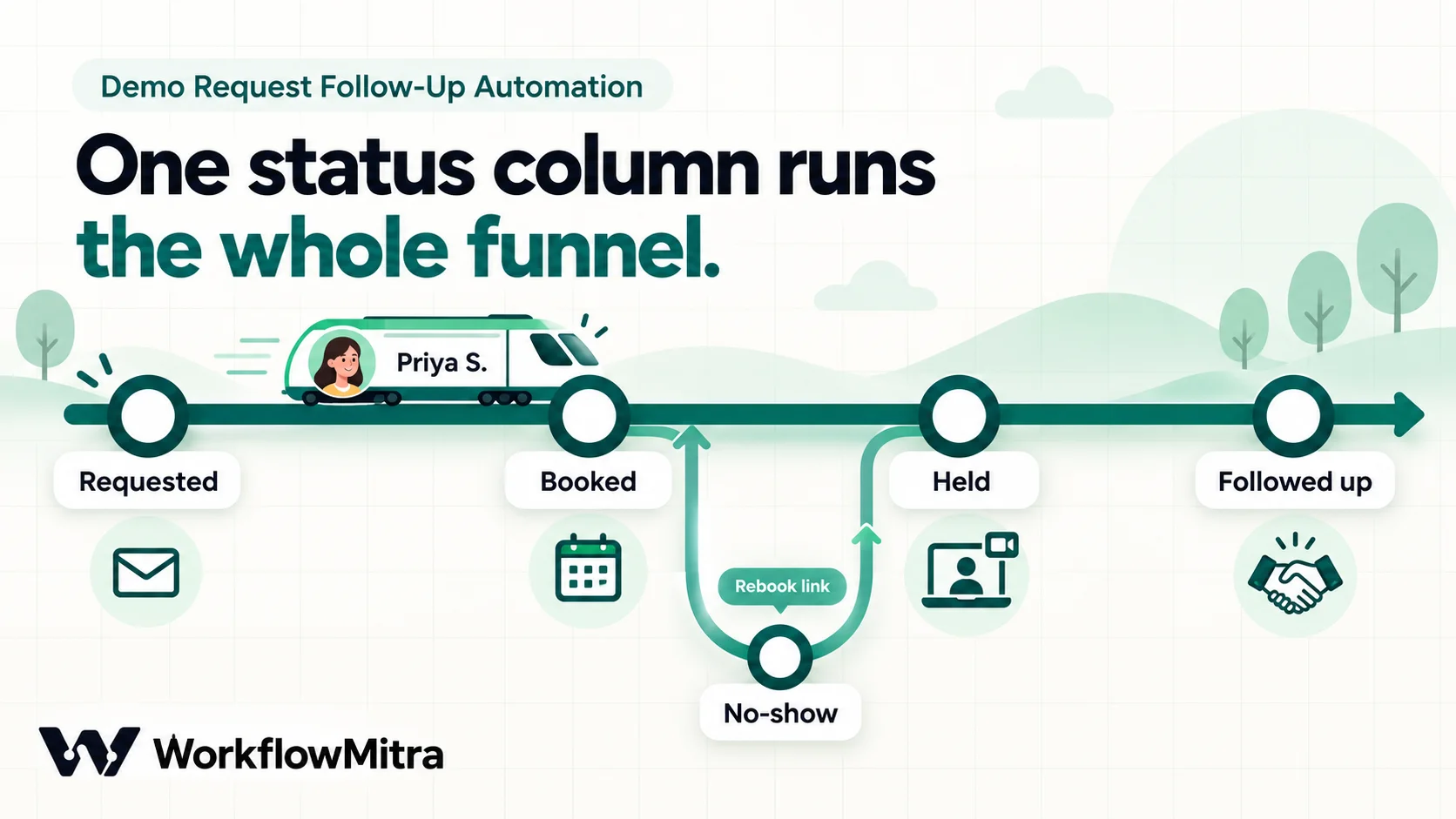
Everything below hangs off one Google Sheet tab called Demos, with one row per request. Use these column names exactly, without spaces, because the workflows refer to them by name:
| Column | Filled by | Example |
|---|---|---|
| Workflow 1 (ID column) | [email protected] | |
| Name | Workflow 1 | Priya Shah |
| Company | Workflow 1 | Acme Tools |
| TeamSize | Workflow 1 | 11 |
| Interest | Workflow 1 | Inventory sync with our store |
| Owner | Workflow 1 | Ravi |
| OwnerEmail | Workflow 1 | [email protected] |
| BookingLink | Workflow 1 | Ravi’s booking link with Priya’s name and email prefilled |
| Status | Workflows 1–4 | Requested / Booked / Cancelled / No-show / Not booked / Closed |
| RequestedAt | Workflow 1 | 19 Oct 2026, 11:40 am |
| BookedFor | Workflow 3 | Wed, 21 Oct, 11:00 am IST |
| BookingId | Workflow 3 | Cal.com booking ID |
| Outcome | The rep, or Workflow 3 | Attended / No-show / Not a fit |
| NextStep | The rep | Send proposal by Friday |
A second tab, Reps, lists each salesperson with three columns: Name, Email and BookingLink (their personal Cal.com demo event link, such as https://cal.com/ravi-yourco/demo).
The four workflows:
| Workflow | Starts when | Does |
|---|---|---|
| 1. New request | The demo form is submitted | Checks for repeats, assigns a rep, saves the row, emails a booking link, alerts the rep |
| 2. Booking chasers | Inside workflow 1, after a wait | Re-checks the row and sends up to two reminders if nothing is booked |
| 3. Booking events | Cal.com reports a booking change | Updates Status, BookedFor and Outcome on the matching row |
| 4. Demo outcome | Someone changes the Outcome column | Sends the no-show recovery email, nudges the rep after attended demos |
Status is the thread that runs through all of them. Each workflow reads it before acting and writes it when something changes, so a reminder never goes to someone who has already booked.
Before you start
- A demo form that can send its answers to a webhook: your website form, Typeform, Tally or a similar tool. Ask for name, work email, company, team size (as a dropdown such as 1–10, 11–50, 51–200, 200+), what they want to see, and optionally a phone number. Google Forms works too, through its response sheet, with a delay of a few minutes.
- Cal.com with a demo event type for each rep. Webhooks are set up under Settings → Developer → Webhooks and can be attached to individual event types.
- A mailbox WorkflowMitra can send from, such as [email protected] on Google Workspace or Zoho Mail. WorkflowMitra’s Email step signs in with an app password, so Gmail, Google Workspace, Zoho Mail and most hosting mailboxes work; Outlook.com and Microsoft 365 currently don’t. Our SMTP email automation guide covers the settings.
- The Google Sheet described above, shared with your WorkflowMitra Google connection.
- Slack (optional) for rep alerts. Email alerts work just as well.
- A WorkflowMitra workspace. New workspaces get a 14-day trial with 10,000 credits, no card required.
Workflow 1: answer every request in seconds
In WorkflowMitra, powered by ChatMitra, the first workflow runs once per form submission. It has a fixed job: within seconds, the request has an owner, a row, and a booking link in the prospect’s inbox.
Step 1: receive the form
Start with On webhook call and point your form’s webhook at the URL. If the form posts straight from a web page, clear the trigger’s shared secret, because a browser can’t add the secret header; our guides to HTML forms to webhooks and landing page leads to a CRM cover the details, including spam protection. Turn the workflow on before testing: a paused workflow’s webhook doesn’t accept requests.
Step 2: tidy the answers with a Code step
Forms collect messy data: capital letters in emails, spaces in phone numbers, ranges in the team size. A short Code step named Prepare lead cleans it once, so every later step can trust it. It also builds the part of the booking link that fills in the prospect’s name and email.
var name = String(input.name || '').trim();
var email = String(input.email || '').trim().toLowerCase();
var phone = String(input.phone || '').replace(/[^0-9]/g, '');
if (phone.length === 10) phone = '91' + phone;
var size = parseInt(String(input.team_size || '').replace(/[^0-9]+/g, ' ').trim(), 10) || 0;
return {
  name: name,
  firstName: name.split(' ')[0],
  email: email,
  phone: phone,
  company: String(input.company || '').trim(),
  teamSize: size,
  interest: String(input.interest || '').trim(),
  prefill: 'name=' + encodeURIComponent(name) + '&email=' + encodeURIComponent(email),
  requestedAt: new Intl.DateTimeFormat('en-IN', {
    timeZone: 'Asia/Kolkata', dateStyle: 'medium', timeStyle: 'short'
  }).format(new Date())
};
Change input.name, input.email and the rest to your form’s field names. A team size of “11-50” becomes 11 and “200+” becomes 200, which is all the routing needs. We ran this code in WorkflowMitra’s Code step sandbox with a sample submission; it finished in under 10 milliseconds, and the Code step is billed by run time, so it costs a few hundredths of a credit.
Cal.com fills in booking form fields from the link’s query string, using each field’s identifier: name and email for the built-in questions, as Cal.com’s help centre describes. The prefill value above is that query string, already encoded.
Step 3: catch repeat requests
People submit demo forms twice: once on a phone, once on a laptop, or again a week later because nobody replied. Add a Google Sheets step, Find row, named Find request, on the Demos tab, matching the Email column to {{ email }}.
Then an IF step: {{ found }} Is no continues to the next step. On the other branch, the person already has a row and an owner, so don’t assign a second rep: send that owner a short alert (“Priya from Acme asked again, current status: Booked”) using {{ $node["Find request"].row.OwnerEmail }}, and stop.
Matching is exact, which is why Step 2 lowercases the email. It also keeps the Email column unique, which workflow 4 depends on.
Step 4: route by size
A one-person shop and a 200-seat team probably shouldn’t get the same demo. Add a Switch step with a route named Small where {{ $node["Prepare lead"].teamSize }} is Less than 5, and let everything else take the Else route to sales.
On the Small route, send an email with a trial link and a recorded walkthrough, or an invitation to a weekly group demo, and stop. If your form doesn’t make team size required, note that a blank size counts as 0 and goes to Small; make the field required if that’s not what you want.
Step 5: assign the next rep
On the sales route, add Assign to the next person. List each rep with their name and email. The step hands requests out in order, top to bottom, and adds assignedTo (the email), assignedName and position to the data. The rotation is kept per workflow, and fifty requests arriving at once still get fifty different turns. Our guide to round-robin lead assignment covers extra routing rules, absences and holidays, and escalating leads nobody contacted.
Then a Find row on the Reps tab, named Find rep, matching Email to {{ assignedTo }}. Its row gives you the rep’s BookingLink.
Step 6: save the request
Add Google Sheets → Add row(s) on the Demos tab. Map the values in the same order as the sheet’s columns, because the step writes by column position: if you later insert a column in the middle of the sheet, open the step and save it again.
- Email, Name, Company, TeamSize, Interest: from
$node["Prepare lead"], for example{{ $node["Prepare lead"].email }}. - Owner:
{{ $node["Find rep"].row.Name }}; OwnerEmail:{{ $node["Find rep"].row.Email }}. - BookingLink:
{{ $node["Find rep"].row.BookingLink }}?{{ $node["Prepare lead"].prefill }}. If a rep’s link already contains a?, use&instead. - Status:
Requested. RequestedAt:{{ $node["Prepare lead"].requestedAt }}.
Step 7: email the prospect a booking link
Add an Email step, Send. Send it to {{ $node["Prepare lead"].email }} from your demo mailbox, and set Reply-To to the rep’s email, so a reply goes to a person.
Subject: Your Acme demo: pick a time with Ravi
Hi Priya,
Thanks for asking for a demo. I’m Ravi, and I’ll take you through Acme, focusing on what you mentioned: inventory sync with your store.
Pick a 30-minute slot that suits you here: [your booking link]. Your name and email are already filled in.
If none of the times work, just reply to this email.
Ravi, Acme
Write the link as {{ $node["Find rep"].row.BookingLink }}?{{ $node["Prepare lead"].prefill }}, the same as the sheet. The email offers one action, a time, and names the person the prospect will meet. That’s the whole point of assigning before sending.
Step 8: alert the rep
Add a Slack message to a channel such as #demo-requests, or an Email to the rep: name, company, team size, interest and “booking link sent”. If the prospect left a phone number and it’s within working hours, a quick call now, while they’re still at their desk, is the single best thing the rep can do. The automation’s job is to make that call possible within minutes, not to replace it.
Workflow 2: chase requests that don’t book
Most people who don’t book straight away just got busy. Two short reminders bring many of them back. They live at the end of workflow 1, after a wait.
- Delay, 1 day.
- Find row on Demos, matching Email to
{{ $node["Prepare lead"].email }}. - IF
{{ row.Status }}Equal toRequested. Anything else (Booked, Cancelled, Closed) means stop. - Email, reminder one: two lines and the same link. Offer something easier: “If 30 minutes is a lot this week, I can do a 15-minute version.”
- Delay, 2 days.
- Find row and IF again, exactly as above.
- Email, reminder two: the last one. “I’ll stop sending reminders; if the timing is wrong, the link will keep working.”
- Google Sheets → Update row: Status =
Not booked, and a Slack or email alert to the rep: “Priya hasn’t booked after two reminders. Worth a call?”
Three things about waiting runs in WorkflowMitra make the re-check essential, not optional:
- A waiting run can’t be cancelled. Switching the workflow off stops new runs, but runs already waiting will still resume. The Find row and IF after each Delay are your off switch: set the row’s Status to Closed and the reminders stop.
- A waiting run keeps the workflow version it started with. If you rewrite reminder two today, people who submitted yesterday still get the old wording.
- A Delay pauses the whole run. Put everything that must happen immediately, such as the booking email and the rep alert, before the first Delay, which is the order above.
Delay waits a fixed time, so a request on Friday evening gets its first reminder on Saturday evening. If that matters to you, either accept it (many people book on weekends) or replace this part with a daily scheduled workflow that reads the sheet and sends reminders on working days only.
Workflow 3: let Cal.com update the record
When the prospect books, the row should say so, so that the reminders stop and the rep and manager can see what’s coming. Cal.com reports booking changes by webhook, and WorkflowMitra can check its signature so nobody else can post fake bookings.
Set up the trigger
Create a new workflow with On webhook call, source Something else, and set up signature verification exactly as in our Cal.com WhatsApp notifications guide: clear the shared secret, set the signing secret and the x-cal-signature-256 header, choose HMAC-SHA256, turn on Require verification, and leave the idempotency key empty (a cancellation reuses the booking’s ID).
In Cal.com, add the webhook to your demo event types only, so that other meetings don’t run this workflow. Subscribe to four triggers: Booking Created, Booking Rescheduled, Booking Cancelled and Booking No-show Updated.
Read the booking
Cal.com wraps most events as { triggerEvent, createdAt, payload }, but the no-show event’s payload differs: it carries only a message, the booking’s ID and a list of attendees, each with an email and a noShow flag. A Code step named Read booking turns all four into the same few fields:
var p = input.payload || {};
var type = input.triggerEvent || '';
var events = {
  BOOKING_CREATED: 'booked',
  BOOKING_RESCHEDULED: 'moved',
  BOOKING_CANCELLED: 'cancelled',
  BOOKING_NO_SHOW_UPDATED: 'noshow',
  NO_SHOW_CLEARED: 'cleared'
};
var attendees = p.attendees || [];
var person = attendees[0] || {};
if (type === 'BOOKING_NO_SHOW_UPDATED') {
  var marked = attendees.filter(function (a) { return a.noShow === true; });
  if (marked.length) person = marked[0];
  else type = 'NO_SHOW_CLEARED';
}
var when = '';
if (p.startTime) {
  when = new Intl.DateTimeFormat('en-IN', {
    timeZone: 'Asia/Kolkata', weekday: 'short', day: 'numeric',
    month: 'short', hour: 'numeric', minute: '2-digit'
  }).format(new Date(p.startTime)) + ' IST';
}
return {
  event: events[type] || 'other',
  email: String(person.email || '').trim().toLowerCase(),
  host: (p.organizer && p.organizer.email) || '',
  when: when,
  bookingUid: p.uid || p.bookingUid || ''
};
Cal.com sends startTime in UTC, so the code formats it in Indian time for the sheet. If your team works in another zone, change Asia/Kolkata. We ran it in WorkflowMitra’s Code step sandbox against a sample booking and a sample no-show event shaped like those in Cal.com’s documentation; a booking at 05:30 UTC came out as “Wed, 21 Oct, 11:00 am IST”.
Match and update
- Find row on Demos, matching Email to
{{ email }}. - IF
{{ found }}Is no: someone booked who isn’t on your list. Usually it’s a colleague of the requester booking with their own email, or someone who found the rep’s link directly. Alert #demo-requests with the email and time so a person can match it up, and stop. - Switch on
{{ $node["Read booking"].event }}, with four routes:
| Route | Update row on Demos | Also |
|---|---|---|
| booked | Status = Booked, BookedFor = {{ $node["Read booking"].when }}, BookingId | Nothing: Cal.com sends its own confirmation |
| moved | BookedFor = the new time, BookingId | Tell the rep if the new time is within a day |
| cancelled | Status = Cancelled | Email the prospect their BookingLink: “Want to pick another time?“ |
| noshow | Outcome = No-show | Nothing here: workflow 4 takes over |
Update row writes only the columns you map and leaves the rest alone. It stops with an error if no row matches, which is why the Find row and IF come first.
The no-show route writes to the Outcome column rather than sending anything itself. That’s deliberate: reps who don’t use Cal.com’s no-show button can type “No-show” in the sheet, and both paths then run the same recovery workflow.
Workflow 4: recover no-shows and follow through
The last workflow watches the Outcome column. Whoever fills it in, the rep after a call or workflow 3 after a no-show, starts the right follow-up.
The trigger
Use Google Sheets, Run when One column changes, column Outcome, on the Demos tab, with Use column headers as IDs set to Yes and Email as the ID column. WorkflowMitra checks the sheet every 5 minutes by default (you can go down to 1 minute), and checks that find no change cost no credits. Watching one column matters: workflows 1 to 3 write to other columns all the time, and those writes won’t start this workflow.
Two behaviours to know:
- The trigger sees the row as it is now, not what changed. If someone types “No-show” and corrects it to “Attended” before the next check, only “Attended” runs.
- The ID column must be unique. Two rows with the same email put the trigger into an error state. Workflow 1’s repeat check keeps it that way; don’t paste duplicate rows by hand.
The trigger’s data is the row itself, so you can use {{ $trigger.Email }}, {{ $trigger.BookingLink }} and so on in every later step.
Route by outcome
Add a Switch on {{ $trigger.Outcome }} with three routes.
No-show. First, Update row: Status = No-show. Then email the prospect from the demo mailbox, Reply-To the owner, on the same day:
Subject: Sorry we missed you today
Hi Priya, we had our demo down for 11:00 today and I didn’t want you to lose your place. If something came up, here’s a link to pick a new time; your details are already filled in: [booking link].
If a shorter call suits you better, reply with “15 min” and I’ll send one.
Ravi
No guilt, no “just checking in”, one link. Then:
- Delay, 2 days.
- Find row on Demos by
{{ $trigger.Email }}, then IF{{ row.Status }}Equal toNo-show. If they rebooked, workflow 3 has already set Status to Booked, and this run stops here. - If they haven’t: alert the owner (“Priya didn’t rebook after the no-show email. A call or a personal message?”) and Update row Status =
Closed. Two automated messages after a no-show is enough; anything more should come from a person.
Attended. Nothing goes to the prospect automatically: the follow-up after a good demo should be personal, from the rep. Instead, the workflow makes sure it happens. Delay 2 days, Find row, then IF {{ row.NextStep }} Is empty: alert the owner and their manager that a demo from two days ago has no next step recorded. That one check catches more stalled deals than any reminder email.
Not a fit. Update row Status = Closed. If you want, send a polite note pointing to a cheaper plan or a partner. Never leave a “not a fit” lead in the reminder loop.
Assign first, or let Cal.com assign?
Cal.com has its own round-robin team events on its Teams plan ($12 per user per month when billed yearly, on Cal.com’s pricing page on 19 October 2026). One link, shared by the team, gives the slot to whichever available host its rules pick: by priority, optional weights, then whoever was booked least recently. That’s a real alternative to workflow 1’s Assign step, and the right choice depends on what you want the first email to do.
| Assign in the workflow (this guide) | Cal.com round-robin team event | |
|---|---|---|
| Who owns the lead | Known the moment the form arrives | Known only when the prospect books |
| First email | Names the rep; replies go to a person | Comes from the team; can’t name anyone |
| Calendar balance | Even turns, whatever each rep’s calendar looks like | Picks from hosts who are free at that slot |
| Chasers and no-shows | Go to a named owner | Need an owner rule for people who never book |
| Cost | Included in your WorkflowMitra plan | Cal.com Teams plan per user |
A practical middle path: assign in the workflow, but send the rep’s personal link, as above, so each rep’s own availability still decides the slots on offer. What you must avoid is doing both: an Assign step that names Ravi and a team link that books Sneha gives one lead two owners.
Want reminders on WhatsApp too?
Email is fine for the booking link, because the prospect gave you a work email for exactly this. A WhatsApp reminder a few hours before the demo can cut no-shows further, but two rules apply. The prospect must have agreed to hear from you on WhatsApp, so add a consent checkbox to the form, and a first message to someone who hasn’t messaged you must be an approved template.
Our Cal.com WhatsApp notifications guide builds confirmations and a reminder workflow that sends templates through ChatMitra or Meta’s Cloud API. ChatMitra’s guides to booking confirmation messages and WhatsApp reminder messages have wording you can adapt, and utility templates explains which template category booking messages fall under.
What it costs to run
In WorkflowMitra, a credit is one executed step. IF, Switch and Delay cost nothing; the triggers, Google Sheets, Assign, Email and Slack steps cost one credit each; and the Code steps here cost a fraction of a credit.
| Part | Steps that cost credits | About |
|---|---|---|
| Workflow 1, one request | Trigger, Code, Find request, Assign, Find rep, Add row, Email, Slack | 7 credits |
| Workflow 2, both reminders sent | 2 × (Find row + Email), Update row, alert | 6 credits |
| Workflow 3, per booking event | Trigger, Code, Find row, Update row | 3 credits |
| Workflow 4, a no-show that doesn’t rebook | Trigger, Update row, Email, Find row, alert, Update row | 6 credits |
A typical request that gets one reminder, books, and attends uses around 15 credits. At 200 demo requests a month that’s about 3,000 credits, well inside the Starter plan’s 10,000 credits for ₹999 a month (WorkflowMitra’s live plans, checked 19 October 2026). Cal.com webhooks cost nothing extra; WhatsApp templates, if you add them, are billed by Meta and your provider, so see ChatMitra pricing for current rates.
Test it before a real prospect sees it
- Submit the form as yourself with a new email. Within a minute you should have a row, an email with your name already filled in on the booking page, and a rep alert. Submit again with the same email in capitals: you should get the “asked again” alert, not a second row.
- Book through the link. The row should change to Booked with the time in IST. Reschedule, then cancel: BookedFor should change, then Status should become Cancelled, and the rebooking email should arrive.
- Mark yourself as a no-show on Cal.com’s past bookings page after a test meeting, or type “No-show” in Outcome. Within one sheet check, the recovery email should arrive.
- Shorten the Delays to minutes while testing and put them back afterwards. Runs that started with short Delays keep them, so test with addresses you own.
- Check the run history for each test: every step shows its input and output, which is the fastest way to see a wrong column name.
Common mistakes
- Sending “When are you free?” instead of a link. Every round trip loses people. Offer slots.
- No repeat check. Two submissions become two rows, two reps and a confused prospect, and the Outcome trigger breaks on the duplicate email.
- Reminders without a status re-check. The prospect books on day one and still gets “Just a reminder to book” on day three.
- Matching on unnormalised email. “[email protected]” and “[email protected]” are different to a lookup. Lowercase once, at the start.
- One webhook for every Cal.com event type. Internal meetings then try to match demo rows. Attach the webhook to demo event types only.
- Automating the post-demo email. A templated “Great to meet you!” after a real conversation reads as exactly what it is. Automate the reminder to the rep instead.
- Chasing forever. Two reminders, then a person, then nurture. More than that hurts your sender reputation and your brand.
Where WorkflowMitra fits
WorkflowMitra, powered by ChatMitra, is the layer that connects your demo form, your sheet or CRM, your mailbox, Slack and Cal.com, and makes the hand-offs between them happen every time: assignment, booking links, reminders with re-checks, booking updates and no-show recovery, each run recorded so you can see what happened to every request.
It isn’t a scheduling tool or a sales engagement platform: Cal.com handles calendars and booking pages, and your reps still run the demos and write the follow-ups that matter. It also doesn’t replace a CRM’s pipeline. If you outgrow the sheet, the same four workflows work with CRM search and update steps in place of Find row and Update row.
Start with the first ten minutes
If you only build one piece this week, build workflow 1. An owner, a row and a booking link within seconds of every request fixes the biggest leak on its own. Add the reminders next week, the Cal.com updates after that, and the no-show workflow once your reps are used to filling in the Outcome column.
You can build all four on a 14-day WorkflowMitra trial with no card required, using the Google Sheets and Slack integrations.
The response-time findings come from Oldroyd, McElheran and Elkington's "The Short Life of Online Sales Leads" in Harvard Business Review (March 2011). Cal.com behaviour (webhook triggers including Booking No-show Updated and its payload, the Cal Video no-show triggers, prefilling booking fields from the link, marking no-shows on the past bookings page, round-robin host selection and Teams pricing) comes from Cal.com's documentation, help centre and pricing page, read on 19 October 2026. WorkflowMitra behaviour (the Assign step's rotation and outputs, Find row and Update row, Add row(s) writing by column position, the Sheets trigger's One column changes option and ID column rules, Delay runs that can't be cancelled and keep their starting version, the Email step's Reply-To and app-password sign-in, per-millisecond Code step billing and the credit rates per step) was checked in the product's source code, and both Code steps were run in its sandbox, on 19 October 2026; plan prices come from WorkflowMitra's live plans the same day. Names, companies and volumes in the examples are illustrations, not customer data. Sources: Harvard Business Review, The Short Life of Online Sales Leads; Cal.com, webhooks; Cal.com, pre-fill fields; Cal.com, no-show; Cal.com, round-robin scheduling; Cal.com pricing.
Frequently Asked Questions
Questions sales and growth teams ask when automating demo request follow-up.
It is a set of workflows that handles everything between a demo form submission and a held meeting: assigning a sales rep, sending a booking link, reminding people who haven't booked, updating the record when a meeting is booked, moved or cancelled, and following up after a no-show. People still run the demo; the automation makes sure no request waits or is forgotten.
Automate the work between your apps
Build workflows with triggers, conditions and actions, then test them before they go live. Try WorkflowMitra free for 14 days, no card required.
