Discord Webhook Notifications: Send Automatic Alerts to a Channel from Any App

Quick Summary
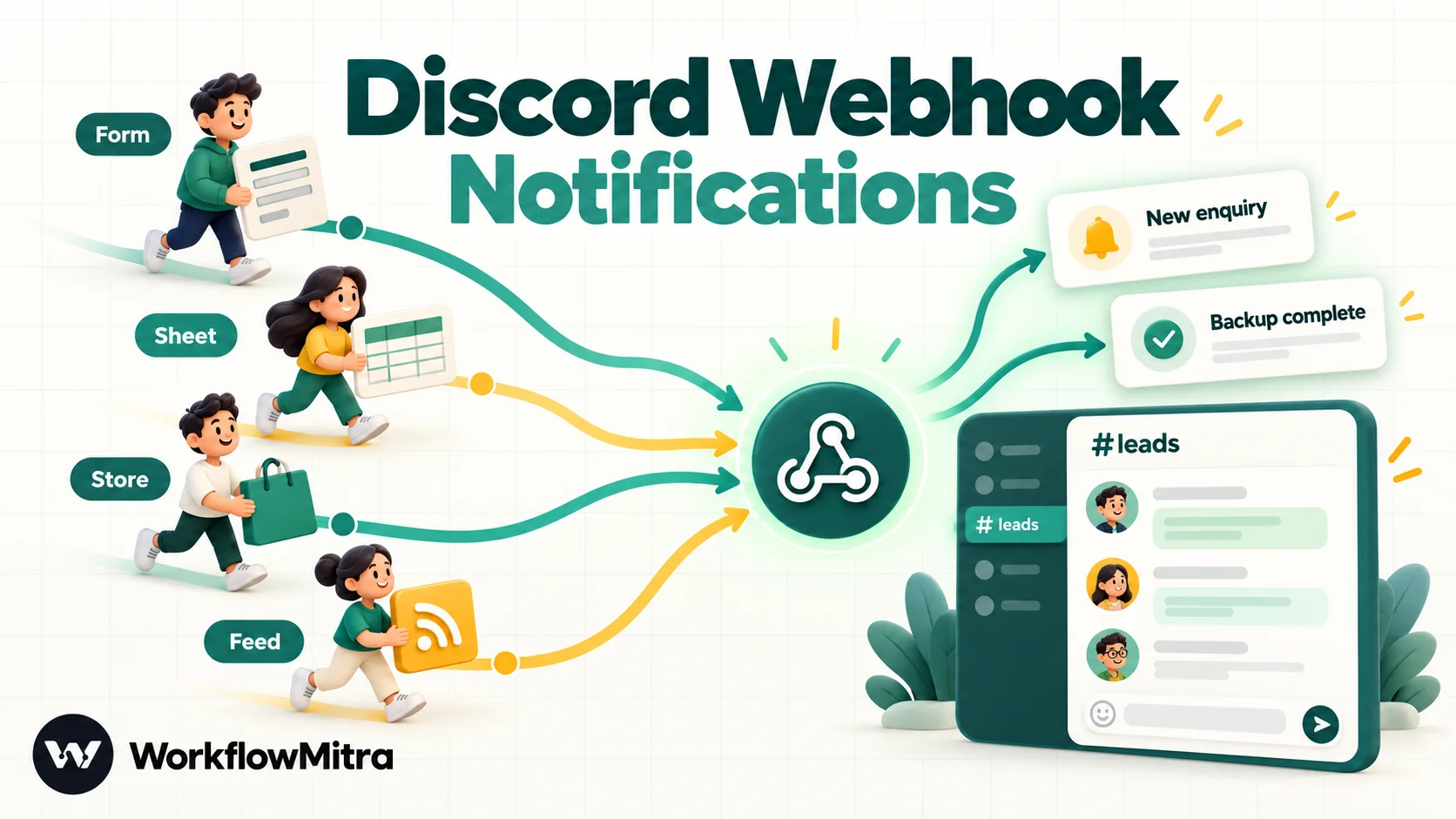
A Discord webhook is a secret URL tied to one channel of a Discord server. You make it in the channel's Integrations settings, and any app that POSTs JSON like {"content": "New order"} to it gets that text shown in the channel. A webhook can only post: it never reads the channel, and by default its messages notify mentioned users but not roles or @everyone. For apps with no Discord option of their own, a workflow does the posting. In WorkflowMitra, powered by ChatMitra, a trigger such as an incoming webhook, a new Google Sheets row or a new RSS item leads to a Discord step that uses a saved webhook connection, and a typical alert costs 2 credits.
Discord started as a place for gamers, but plenty of businesses now run a server for their community, customers, team or open-source project. Once people are there every day, it’s the obvious place for alerts: a new sign-up, a new order, a blog post going live, a form from a partner. The question is how to get those events into the right channel when the apps that produce them have never heard of Discord.
Discord webhooks are the simplest way in. This guide explains what a Discord webhook is and what it can’t do, when you don’t need any tool at all, and how to send Discord notifications automatically from forms, spreadsheets, stores and feeds using WorkflowMitra, powered by ChatMitra. Along the way it deals with the details that trip people up: formatting, mentions that don’t ping, threads and forum channels, rate limits and errors. The Discord behaviour described here comes from Discord’s developer documentation, and the WorkflowMitra steps were checked against its workflow engine, both on 8 October 2026.
What is a Discord webhook?
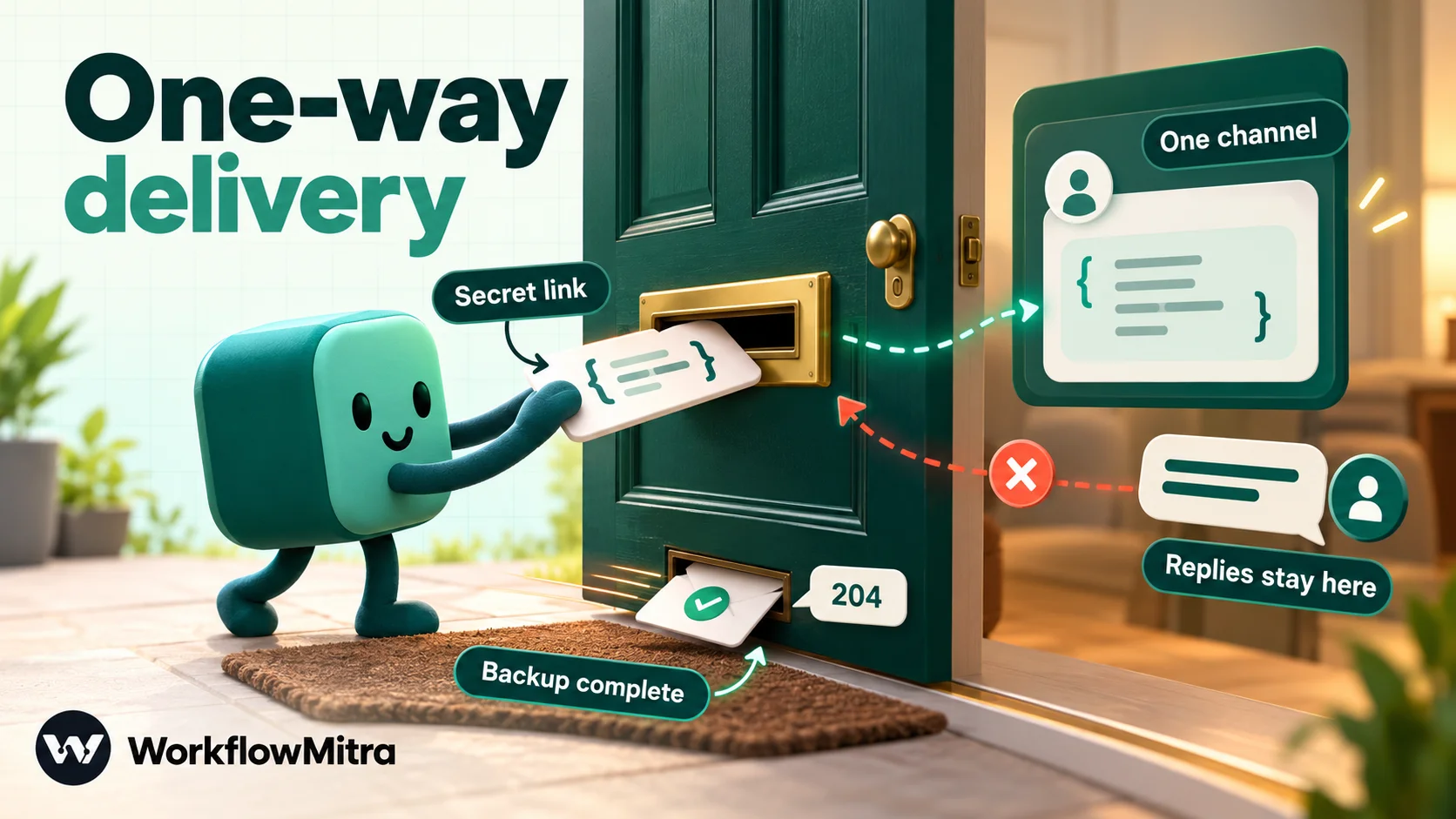
A Discord webhook is a secret URL that posts messages into one channel of a Discord server. You create it in the channel's settings under Integrations. When an app or script POSTs JSON like {"content": "Backup complete"} to it, Discord shows that text in the channel, labelled with the webhook's name and avatar. A webhook only posts; it never reads the channel or sees replies. For sources that have no Discord option of their own, a workflow sits in the middle and does the posting.
What Discord webhooks can and can’t do
A webhook is much narrower than a Discord bot, and most failed setups come from assuming otherwise. These are the limits that matter, from Discord’s webhook documentation:
| A Discord webhook can | A Discord webhook can't |
|---|---|
| Post text up to 2,000 characters, with Discord's markdown | Read messages, see replies or react to commands |
| Post up to 10 rich embeds per message | Post to a channel other than its own (except threads inside it) |
| Override its display name and avatar for each message | Ping roles or @everyone, unless the request allows it |
| Post into a thread in its channel, or start a forum post | Post a message with no content at all |
| Accept Slack-formatted and GitHub webhook payloads on special endpoints | Tell the sender anything useful unless asked to wait for the message |
Two of these surprise people. First, the mention rule: Discord’s message documentation states that in webhooks only user mentions are parsed unless the request says otherwise. So @everyone and role mentions show up as text but notify nobody. Second, without ?wait=true on the URL, Discord answers a successful post with an empty “204 No Content” response, so the sender only learns that it worked, not the ID of the new message.
When you don’t need an automation tool
Before building a workflow, check whether the source can talk to Discord directly. Three cases don’t need anything in between:
- GitHub. Discord runs a GitHub-compatible endpoint: add
/githubto the end of the webhook URL and use it as the Payload URL in a repository’s webhook settings. Discord’s documentation lists the events it understands, including pushes, pull requests, issues, releases and check runs. - Apps that speak Slack’s webhook format. Adding
/slackto the URL accepts Slack-style payloads. Discord notes it ignores Slack’schannel,icon_emojiandmrkdwnfields, so check the result. - Your own code. A script or backend can post with one request:
curl -H "Content-Type: application/json" \
  -d '{"content": "Nightly backup finished: 2.4 GB"}' \
  "https://discord.com/api/webhooks/<id>/<token>"
A workflow earns its place when the source can’t send a webhook in Discord’s format (forms, spreadsheets, stores, payment apps, RSS feeds), when you want to filter or reshape the data first, or when one event should reach several places at once, such as Discord and a Google Sheet.
Create a webhook in Discord
You need the Manage Webhooks permission in the server; server owners and administrators have it.
- Hover over the channel and click the gear icon (Edit Channel).
- Open Integrations, then Webhooks, and choose New Webhook.
- Give it a name that says what it posts (“Store alerts”, “New sign-ups”) and, optionally, an avatar. Check the channel.
- Choose Copy Webhook URL. It looks like
https://discord.com/api/webhooks/<id>/<token>.
Treat that URL like a password. Anyone who has it can post into your channel under the webhook’s name, and nothing in Discord tells you who did. Don’t paste it into front-end code on a website, into a public repository or into a chat. If it leaks, delete the webhook in the same settings screen and create a new one.
One webhook per purpose works best: a “Leads” webhook in #leads, a “Store” webhook in #orders. When one channel changes, you change one connection, and the names show at a glance which system posted what.
How a Discord notification workflow fits together
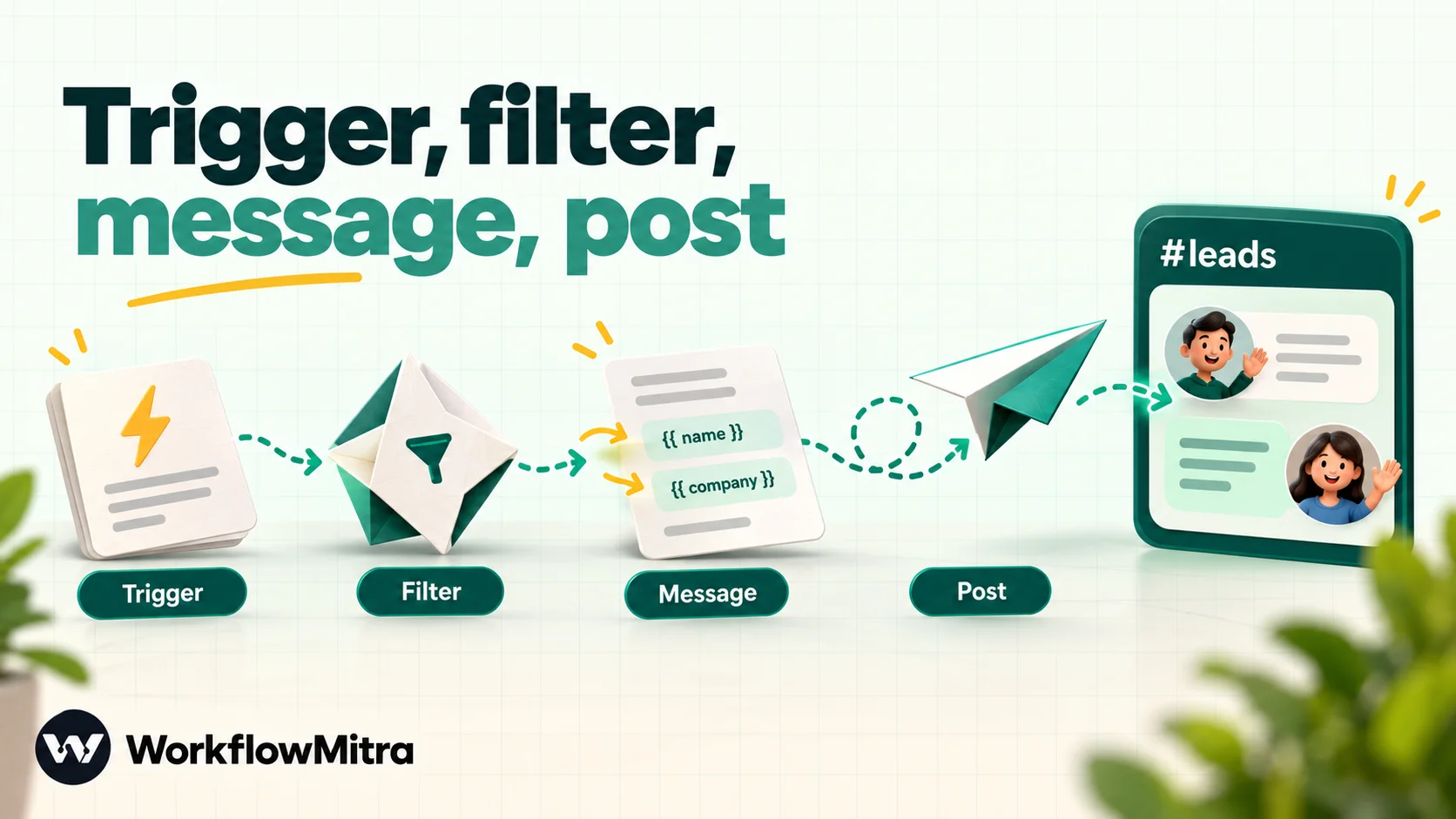
Every build below has the same four parts:
- A trigger that notices the event: a webhook call, a new spreadsheet row, a new RSS item, an email, or a schedule.
- A filter (optional) that decides whether the event deserves a message, such as orders over a certain value.
- A message built from the event’s fields.
- A Discord step that posts it.
In WorkflowMitra, the Discord step has two settings:
- Connection. Save the webhook URL once as a Discord webhook connection on the Credentials page, then pick it in any workflow. Use Verify to check it: WorkflowMitra reads the webhook’s details from Discord (its name, channel and server IDs) without posting anything. You can also paste a URL straight into the step, but a saved connection is easier to rotate and keeps the URL out of the workflow itself.
- Message. The text to post, with
{{ }}placeholders for values from earlier steps. Line breaks you type are kept.
The step sends the message as Discord’s content field and nothing else: no embeds, no custom name or avatar per message, no allowed_mentions. For most alerts that’s all you need. For the rest, the HTTP Request step can send any JSON Discord accepts; that’s covered further down.
Build 1: post every website enquiry to #leads
The situation. A small software agency gets partner and project enquiries through a contact form on its website. The team already lives in Discord, and enquiries sitting in an inbox get answered late.
1. Add the trigger. Create a workflow with the On webhook call trigger. Under Source, choose Website form if the form posts from your own site’s server code, or Something else for another app. Save, and copy the URL from the Webhook field.
2. Secure it. Generate a secret. The sender must include it in a header named x-webhook-secret, and requests without it are refused. If your form tool can’t add a header, it probably supports signed webhooks through one of the named sources (Typeform, for example); otherwise send the form to a few lines of your own server code that adds the header. The webhook security guide covers the options.
3. Send a sample. Submit a test enquiry. With the trigger panel open, WorkflowMitra lists the fields it received, such as name, email, company and message, so you can pick them instead of typing.
4. Skip junk. Add an IF step: {{ email }} Is not empty and {{ message }} Is not empty. Connect the next step to the matching route.
5. Add the Discord step. Pick the “Leads” connection and write the message:
**New enquiry: {{ name }}** ({{ company }})
{{ email }}
> {{ substring(message, 0, 1500) }}
The substring keeps a long enquiry under Discord’s 2,000-character limit along with the rest of the message. The > quotes the first line of the message; Discord’s >>> quotes everything after it, if you prefer the whole message indented.
6. Test and switch on. In the trigger’s test console, run a sample in Safe Test Mode: the Discord step is simulated, so nothing reaches the channel, while you check that the fields map correctly. Then send one live enquiry from the real form, check #leads, and switch the workflow on.
Each enquiry costs 2 credits: the trigger and the Discord step. The IF step is free.
Route enquiries to different channels
Once the basic alert works, the next request is usually “partner enquiries to #partners, project enquiries to #projects”. Add a field to the form, such as a “What’s this about?” dropdown, and put a Switch step after the IF. Give it one named route per value: {{ topic }} Equal to Partnership for the first route, Project for the second, and let the Else route catch anything else. Each route ends in its own Discord step with its own connection.
Two details make this hold up. Name each connection after its channel (“Discord #partners”), so nobody wires a route to the wrong one. And keep the Else route connected to a general channel, so a new dropdown option added next month still reaches someone instead of disappearing. Switch and IF steps cost nothing, so routing adds no credits: each enquiry still costs 2.
The same shape works for any app that sends webhooks. WorkflowMitra’s named sources, including Razorpay, Stripe, Shopify, WooCommerce, Typeform, Zendesk, Freshdesk and Intercom, fill in the signature checks those apps use. A Razorpay “payment captured” webhook can post ₹{{ amount }} received from {{ email }} to #sales; a Shopify order can post its order number and total to #orders. The what are webhooks guide explains how senders, URLs and secrets fit together.
Build 2: announce new rows from a Google Sheet
The situation. A community runs monthly meetups. Sign-ups arrive from several places and someone pastes them into a Google Sheet. The organisers want each new sign-up in #meetup-team, and a message when someone’s status changes to “Cancelled”.
1. Trigger. Add a Google Sheets trigger, pick the spreadsheet and tab, and under Run when… choose A row is added. Use an ID column (a sign-up number, or the email address if each person appears once) so the trigger can recognise rows even when someone sorts the sheet. The trigger checks every 5 minutes by default; quiet checks cost nothing, and on the first check it records the existing rows without firing, so old sign-ups don’t flood the channel.
2. Message. A Discord step:
New sign-up for {{ Event }}: **{{ Name }}** from {{ City }}Column names become fields, so {{ Name }} reads the Name column of the new row.
3. Cancellations. In a second workflow, use the same trigger with One column changes and pick only the Status column, then an IF step {{ Status }} Equal to Cancelled, then a Discord step: {{ Name }} cancelled for {{ Event }}. Watching one column means edits to other columns, such as notes, don’t start runs.
Each message costs 2 credits. The Google Sheets automation guide explains row identity and the other trigger events.
Build 3: post new articles or releases from an RSS feed
The situation. A software company publishes a blog and a changelog, both with RSS feeds, and wants each new entry announced in its community server’s #announcements channel.
1. Trigger. Add the When a blog posts trigger, paste the feed URL and set the check interval (15 minutes at the shortest, daily at the longest). Older entries are never reposted, because the first check just notes the latest item, and each new item starts its own run with fields such as title, link, summary and publishedAt.
2. Message. A Discord step:
📣 **{{ title }}**
{{ link }}
Discord shows a preview card for the link automatically, with the page’s title, description and image, so the message itself can stay short.
3. One feed per channel. For a changelog and a blog, use two triggers (or two workflows) posting to two webhooks, rather than mixing them in one channel.
Each new item costs 2 credits; checks that find nothing new are free. Our RSS to Telegram and Slack guide covers cleaning up feed text, keyword filters and what happens when a publisher edits old posts. The same steps apply to Discord.
More sources worth sending to Discord
Any WorkflowMitra trigger can end in a Discord step. A few that work well:
- Email. An On a new email trigger on a support or orders mailbox, with an IF on the sender or subject, posts important emails to a channel. The email to Slack guide walks through routing; swap the Slack step for Discord.
- A daily summary. A Schedule trigger reads yesterday’s rows, totals them in a Code step and posts one message at 9:00. See automated daily reports.
- AI-written digests. A busy channel elsewhere, or an inbox, summarised by an AI step and posted once a day. The AI email summaries guide shows the pattern.
- Uptime checks. A schedule that calls a URL with an HTTP Request step and posts only when it fails. The API health check guide handles repeat alerts properly.
Format messages people actually read
Discord renders markdown in webhook messages, so a little formatting goes a long way:
| You type | Discord shows | Good for |
|---|---|---|
**text** | Bold | The one thing to notice: a name, an amount |
> text or >>> text | Quoted line, or everything after quoted | A customer's own words |
`ORD-1042` | Inline code | IDs people copy |
# Heading | A large heading line | Daily summaries, sparingly |
<t:1760000000:R> | A time shown in each reader's own time zone, such as "2 hours ago" | Servers with members in several countries |
<@123456789012345678> | A mention that notifies that user | Assigning the alert to someone |
A few habits help:
- Lead with what happened. “New enquiry: Meera Shah (Acme)” beats “A new form submission has been received”.
- Keep it under 2,000 characters. Wrap free text from customers in
substring(value, 0, 1500)and link to the full record. - Use emoji as signals, not decoration. One at the start (📣 for announcements, ⚠️ for problems) lets people scan a channel.
- For time stamps, a Code step can turn a date into Discord’s format:
return { ts: Math.floor(Date.parse(input.publishedAt) / 1000) };, then use<t:{{ ts }}:R>in the message.
Mentions: who actually gets pinged
Because webhooks only parse user mentions by default:
<@USER_ID>notifies that user. Turn on Developer Mode in Discord’s settings to copy someone’s ID from their profile.@everyone,@hereand role mentions such as<@&ROLE_ID>appear in the message but notify nobody.
That default is a useful safety net: a form message containing “@everyone” from a stranger won’t ping your whole server. If you do want a role pinged, for example @on-call for a payment failure, send the message with an HTTP Request step instead of the Discord step and include "allowed_mentions": {"parse": ["roles"]} in the body (the next section shows the shape). Discord’s permission settings for the role and the server still apply, so try it in a test channel first.
Embeds, custom names and forum posts with an HTTP Request step
When you need more than text, such as a coloured card with fields, a different name or avatar per message, or a new forum post, use WorkflowMitra’s HTTP Request step to call the webhook directly:
- Method: POST
- URL: your webhook URL
- Body: raw JSON, for example:
{
  "username": "Store alerts",
  "embeds": [{
    "title": "New order {{ $trigger.order_number }}",
    "description": "{{ $trigger.customer_note }}",
    "color": 482900,
    "fields": [
      { "name": "Total", "value": "₹{{ $trigger.total }}", "inline": true },
      { "name": "Items", "value": "{{ $trigger.item_count }}", "inline": true }
    ]
  }],
  "allowed_mentions": { "parse": [] }
}
WorkflowMitra’s raw JSON body knows when a placeholder sits inside a JSON string, so a customer note containing quotation marks or line breaks is escaped instead of breaking the request. We checked this with a name containing "AJ" and a two-line note; both arrived intact. "color" is the hex colour written as a decimal number (482900 is the teal #075E54), and "allowed_mentions": {"parse": []} turns off every ping, which is sensible for messages that include customer text.
For a forum channel, Discord requires every message to go into a post. Add "thread_name": "Order {{ $trigger.order_number }}" to the body to start a new post per event; this is a tidy way to give each order or ticket its own discussion.
Store the webhook URL in the HTTP Request step only if you’re comfortable with it living in the workflow definition; the Discord step’s saved connection is the better home for it when plain text is enough.
Posting into a thread
To post into an existing thread in the webhook’s channel, add ?thread_id= and the thread’s ID to the webhook URL, in the Discord step’s connection or URL field: https://discord.com/api/webhooks/<id>/<token>?thread_id=123456789012345678. In our engine check, WorkflowMitra kept the query string exactly as written. With Developer Mode on, right-click the thread and use its copy-ID option to get the number.
This is handy for a running log, such as every refund going into one “Refunds” thread so the main channel stays readable.
Rate limits and bursts
Discord’s rate-limit documentation describes per-route limits plus a global ceiling of 50 requests per second, and asks developers not to hard-code the numbers because they can change. Over the limit, Discord answers HTTP 429, and the WorkflowMitra step fails with “Discord returned 429.”
Normal alert traffic never comes close. Trouble starts when one event fans out, such as a spreadsheet import adding 300 rows at once, each starting a run. Three ways to avoid it:
- Summarise instead. Post one message per hour or per day with counts, rather than one per row.
- Pace a list. When a workflow posts several messages from a list, a Loop with Batch size and Delay between batches spaces them out. The loops guide shows the settings.
- Filter harder. Most events don’t need a message. An IF step that only lets through orders above a value, or emails from certain senders, cuts volume more than anything else.
Keep webhooks safe over time
A webhook URL doesn’t expire, so a URL created today still works years later for anyone who saw it. A few habits keep that from becoming a problem:
- Limit who can create them. Only people with Manage Webhooks can create or delete webhooks. Give that permission to the few people who set up integrations, not to every moderator.
- Check the list now and then. Each channel’s Integrations screen lists its webhooks. Delete the ones nobody recognises; anything still in use will fail loudly with a 404, which tells you exactly what to recreate.
- Rotate after a leak. Delete the webhook, create a new one in the same channel, paste the new URL into the saved WorkflowMitra connection and press Verify. Every workflow that uses that connection picks up the new URL; nothing else needs editing. This is the main reason to save URLs as connections rather than paste them into steps.
- Keep customer data proportionate. A community server may have hundreds of members. Post a name and a link to the record, not phone numbers, addresses or payment details.
Troubleshooting
When the Discord step fails, WorkflowMitra reports Discord’s HTTP status, such as “Discord returned 400.”, without Discord’s explanation. The status alone usually points to the cause:
| Error | Likely cause | Fix |
|---|---|---|
| 400 | The message was empty (a mapped field was blank), over 2,000 characters, or the channel is a forum and no thread was given | Check the step's input in the run history; add a fallback text or substring; use thread_name or thread_id for forums |
| 401 or 404 | The webhook was deleted, or the URL was copied incompletely | Make a replacement webhook and paste its URL into the connection. Discord asks apps to stop using a webhook that returns 404 |
| 429 | Too many messages in a short time | Summarise, filter or pace with a Loop |
| No error, but nobody was pinged | Role or @everyone mention through a webhook | Mention users directly, or send allowed_mentions via HTTP Request |
| Posted to the wrong channel | Wrong connection picked | Name connections after their channel, such as "Discord #leads" |
An empty message deserves a closer look, because the step sends whatever the Message field resolves to. If a run starts with a blank name and an empty note, Discord rejects the post and the run fails. An IF step on the fields you rely on, as in Build 1, prevents most of these.
To test without posting, use Safe Test Mode in a webhook trigger’s test console, which simulates the Discord step. The editor’s Run button is a live run, so point it at a #test channel with its own webhook while you build.
What it costs
Each executed step in WorkflowMitra uses credits: 1 for a trigger, 1 for the Discord step, 1 for an HTTP Request, and none for IF or Switch.
| Workflow | Credits per message | 500 messages a month |
|---|---|---|
| Form or app webhook → Discord | 2 | 1,000 |
| Google Sheets row → Discord | 2 | 1,000 |
| RSS item → Discord | 2 | 1,000 |
| Webhook → Discord + Google Sheets log | 3 | 1,500 |
Even a busy server fits inside the ₹999-a-month Starter plan, which includes 10,000 credits; see the pricing page for the full range. The trial also comes with 10,000 credits. Discord doesn’t charge for webhooks.
Discord or another channel?
Discord is a good home for alerts when your team or community already spends its day there. A few cases suit other channels better:
- A work team on Slack should get alerts in Slack; see the Slack incoming webhooks guide. Slack’s incoming webhooks can’t change name or avatar per message, which Discord’s can.
- One person on their phone, such as an owner who wants payment alerts, may prefer Telegram or WhatsApp.
- Customers should hear from you on a channel they chose, such as WhatsApp through ChatMitra, WorkflowMitra’s parent platform for business messaging, rather than in a public server.
Many businesses use two: Discord or Slack for the team, WhatsApp for customers. One workflow can post to both from the same trigger.
Common mistakes
- Putting the webhook URL in front-end code. Anyone can read it from the page and post into your server. Send through your server or a workflow.
- Expecting @everyone to ping. It won’t through a webhook unless the request allows it.
- No filter. A channel that gets every event becomes a channel nobody reads.
- Sending customer text unchecked. Trim it, and keep pings off for messages that include it.
- One webhook for everything. Separate webhooks per channel and purpose make problems easier to trace and URLs easier to rotate.
Why use WorkflowMitra for Discord notifications?
Plenty of tools can post to a Discord webhook. WorkflowMitra is a practical choice when:
- The source can’t post to Discord itself. Forms, Google Sheets, RSS feeds, mailboxes and payment or store apps with signed webhooks all start workflows, and one Discord step finishes them.
- You want control before posting. IF steps filter, expressions trim and format, and the HTTP Request step handles embeds, forum posts and role pings when the plain step isn’t enough.
- Costs stay predictable. Two credits for a typical alert, nothing for quiet trigger checks, and Discord itself is free.
- The same event goes further. A new order can post to Discord, add a row to a sheet and, through ChatMitra, send the customer a WhatsApp confirmation, all from one trigger.
It’s not the right fit for two-way bots that read and answer messages in Discord; those need a Discord bot, which webhooks can’t replace. And for GitHub alerts, Discord’s own /github endpoint needs no tool at all.
Begin with the alert people ask for most
Choose the event that people currently find out about too late, which is often a new enquiry or a payment. Create a webhook in a channel for it, build the trigger and Discord step, test it in Safe Test Mode, then send one real event. Add a filter once you see the volume.
A WorkflowMitra trial runs for 14 days and needs no card. For more on webhooks in general, read what webhooks are and how they work and how to test a webhook.
Frequently Asked Questions
Common questions about automating Discord alerts with webhooks.
It's a URL that lets an outside app post messages into one channel of a Discord server without a bot account. The app POSTs JSON like {"content": "Build passed"} and Discord shows it under the webhook's name and avatar. A webhook never reads the channel or sees replies.
Automate the work between your apps
Build workflows with triggers, conditions and actions, then test them before they go live. Try WorkflowMitra free for 14 days, no card required.
