Donation Management Automation for NGOs: Receipts, Records and Thank-You Emails

Quick Summary
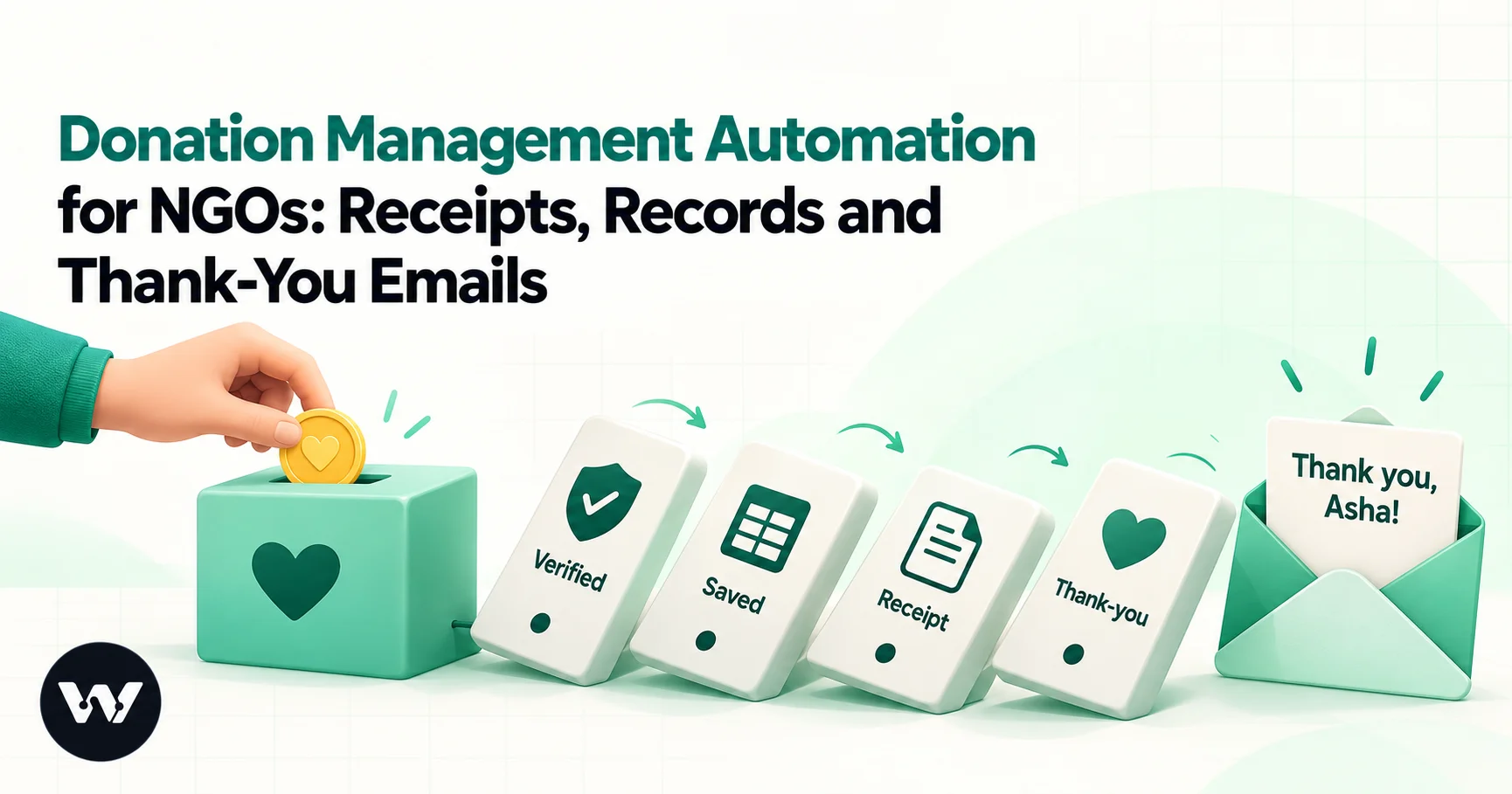
Donation management automation hands the routine steps after every gift to a workflow. For an Indian NGO taking donations on Razorpay, a signed payment.captured webhook starts a workflow that writes the gift to a Google Sheets donor register, adds new donors once, sends a personal thank-you from the NGO's own mailbox and flags gifts a person must check, such as donors who aren't Indian citizens or gifts without a PAN. Razorpay Payment Pages can send the receipt itself. In WorkflowMitra, powered by ChatMitra, that is about five credits per gift.
Most small NGOs in India run donations the same way. Razorpay, a UPI QR code or a bank transfer brings the money in, someone checks the dashboard every few days, copies the new gifts into a spreadsheet, types a thank-you email and, if they remember, chases the donors who skipped their PAN. Then May arrives, the statement of donations is due, and the team discovers that a third of the year’s rows are missing an address or a PAN.
None of it is difficult. It just depends on one person remembering, every day, for a whole year. This guide shows how to hand the routine part to a workflow: every online gift lands in a donor register within seconds, the donor gets a personal thank-you from your own mailbox, missing details are requested automatically, and the year-end statement is a filter rather than a project.
What is donation management automation?
Donation management automation means using workflow rules to handle the routine steps that follow every gift: recording the donation and the donor, sending the receipt and the thank-you, flagging gifts that need a human check and collecting the details you'll need at year-end. For an Indian NGO, a practical setup is a Razorpay webhook that starts a workflow, a Google Sheets donor register and an email step, with people keeping the decisions about tax, foreign money and refunds.
The point isn’t to replace your accountant or a donor CRM. It’s to make sure the record exists, the donor hears from you, and anything unusual reaches a person the same day.
The examples below use WorkflowMitra, powered by ChatMitra, but the design carries over to other automation tools that accept signed webhooks, write to spreadsheets and send email.
What to automate, and what to keep human
Not every donation task should run on its own. A useful rule: automate what’s identical for every gift, and route to a person anything that involves judgement, tax status or money going back out.
| Task | Automate? | Why |
|---|---|---|
| Record each online gift in a register | Yes | Same fields every time; a person copying them is the main source of errors |
| Send the payment receipt | Yes, usually from the payment page itself | Razorpay Payment Pages can email a receipt with your registration text; don't send two |
| Send a personal thank-you | Yes | Speed matters, and the message can still come from a named person's mailbox |
| Ask for a missing PAN or address | Yes | You need it for the statement of donations, and donors rarely notice the gap themselves |
| Decide whether a gift counts as a foreign contribution | No, flag it | The answer depends on the donor's citizenship and source of funds, not just the card |
| Approve a refund | No | A refund cancels a receipt; someone accountable should decide |
| File the statement of donations | No | The workflow can prepare the data, but filing stays with your finance team or auditor |
| Thank major donors | Partly | Send the instant email, then alert the person who should call them |
The rest of this guide builds the “Yes” rows and turns the “No” rows into alerts that reach the right person. For the wider picture of what small organisations automate in their accounts, see finance automation for small businesses.
How the setup fits together
Four pieces do the work.
1. A donation page that collects the right details. Razorpay Payment Pages and Payment Buttons both support donations (“customer decides amount”), and you can add input fields for the donor’s name, address, PAN and citizenship. If you want donors to be able to claim a deduction, collect the PAN (or another accepted ID) at the moment of giving, not later.
2. A webhook. When a payment is captured, Razorpay sends a signed message (a webhook) to a URL you choose. The URL belongs to a workflow trigger.
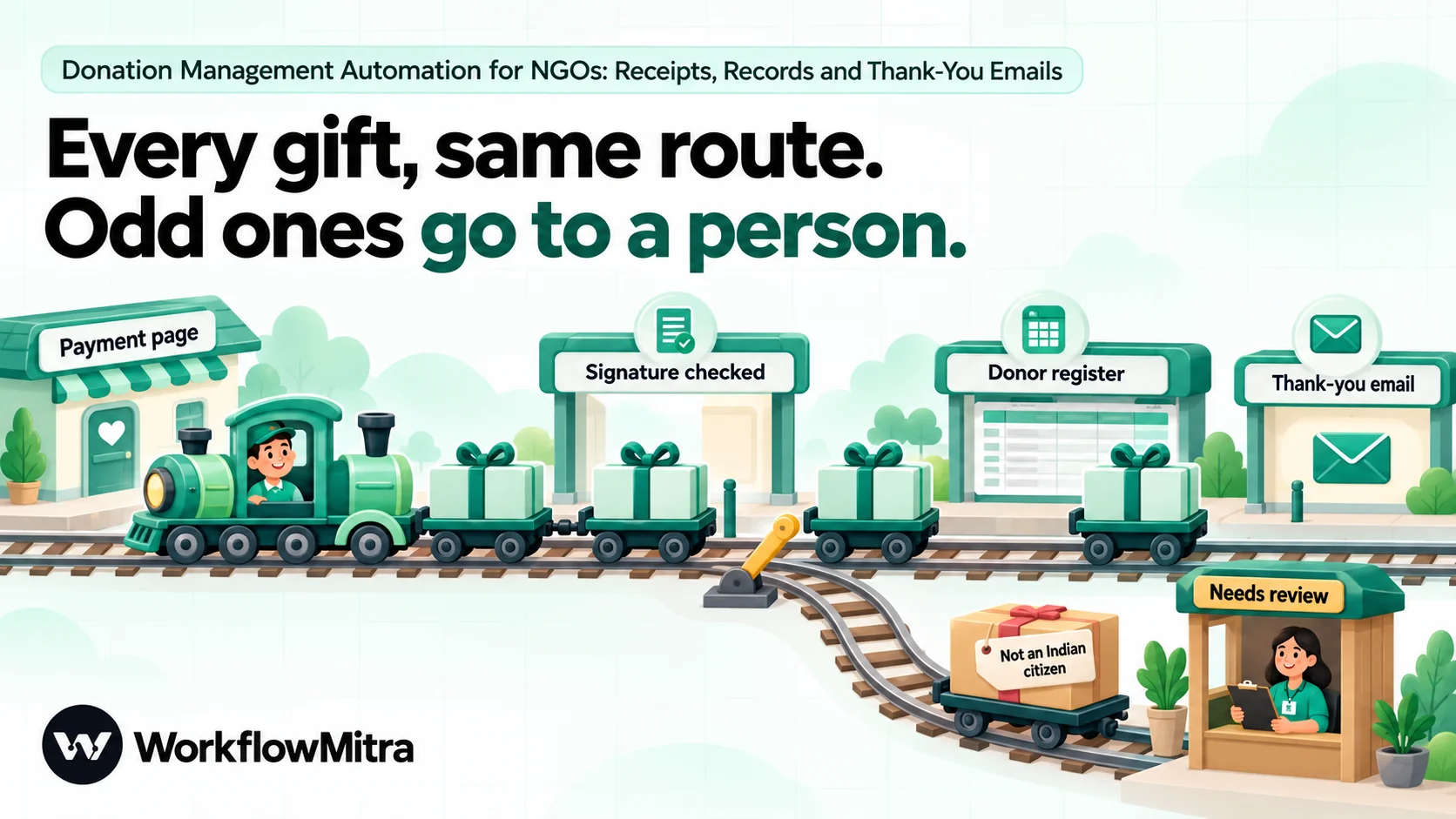
3. A workflow. It checks that the message really came from Razorpay, reads the gift, writes it to the register, looks the donor up, sends the thank-you and raises flags.
4. A donor register. A Google Sheet with one tab for donations and one for donors. Your team adds what the gateway doesn’t know, such as a note from a call with a major donor.
Let Razorpay send the receipt, and the workflow send the thank-you
If you take donations on a Razorpay Payment Page, Razorpay can email the donor a PDF receipt automatically, with an auto-generated reference number, the input fields you choose (such as name and address), your registration text and the image of an authorised signature. That’s a real receipt, sent by the gateway the moment the payment succeeds, and you don’t need to rebuild it.
What Razorpay’s receipt can’t do is sound like you. It’s a payment document. The workflow’s email is the human part: a short thank-you from your founder or donor-care address, what the gift will do, who to write to with questions, and a request for any detail that’s missing. Two messages with two jobs.
If you collect money another way (a plain payment link, a UPI QR code or bank transfers you record by hand), there’s no gateway receipt. Then the workflow can number and send the receipt itself, as shown later in this guide.
Either way, check one thing with your accountant before you switch receipts on: the registration wording. From 1 April 2026 the Income-tax Act, 2025 replaced the 1961 Act, and the old section 80G deduction now sits in section 133. Receipt text written years ago still quotes the old section and the old approval number format, and even Razorpay’s sample receipt text shows an old-style approval ID. Ask your auditor what your receipts should say now.
Design the donor register first
A good register makes every later step simple. Create a Google Sheet with a tab per financial year for donations (for example Donations 2026-27) and one Donors tab that lasts for years.
| Column | Filled by | Example |
|---|---|---|
| Receipt no. | Workflow | NGO/2026-27/00014 |
| Payment ID | Workflow | pay_Qx… |
| Date (IST) | Workflow (Sheets formula) | 18/10/2026 14:23 |
| Donor name | Workflow | Asha Rao |
| Workflow | [email protected] | |
| Phone | Workflow | +919876543210 (plain-text column) |
| PAN or other ID | Workflow | ABCDE1234F |
| Address | Workflow | 12 MG Road, Pune |
| Amount (₹) | Workflow | 2500 |
| Mode | Workflow | upi / card / netbanking |
| Citizenship | Workflow | Indian citizen |
| Campaign | Workflow | School kits |
| Review flag | Workflow | Citizenship check / Missing PAN |
| Donation type | Team | Corpus / specific grant / other |
| Status | Team | Received / Refunded |
| Notes | Team | Called on 20 Oct |
Three rules keep the register trustworthy:
- One row per gift, never per donor. Totals come from formulas (a SUMIF on the email or PAN column in the
Donorstab), so you never overwrite history. - Automated columns on the left, team columns on the right. WorkflowMitra’s Add row step writes by column position, so inserting a column in the middle of the automated block later shifts every value into the wrong column. Add new team columns at the far right.
- Phone and PAN columns as plain text. Format them as Format → Number → Plain text before the first row arrives, or Sheets will drop the plus sign from phone numbers.
A new tab each financial year does two jobs. Receipt numbers restart at 1 in April, and the tab you need for the year-end statement already holds exactly the right rows.
Build it: the donation-received workflow
You’ll need admin access to the Razorpay Dashboard (for webhooks), permission to edit the register sheet and a WorkflowMitra workspace; a 14-day trial workspace, which needs no card, is enough for the whole build.
Step 1: Add the donor fields to your donation page
Open your Payment Page (or Payment Button) and add input fields for Name, Address, PAN and Citizenship. Razorpay’s donation button offers a PAN Number field type for exactly this. Mark PAN as optional if you also accept donors who don’t want a deduction, and say so in the field’s help text: “Needed only if you want a tax-deduction certificate.” Make Citizenship a required drop-down with two answers, “Indian citizen” and “Not an Indian citizen (including OCI/PIO cardholders)”; the FCRA section below explains why.
If you use Payment Page receipts, open Payment Receipts in the page editor, turn on automated receipts, choose which input fields appear on the receipt and add your registration text and signatory signature.
Step 2: Start the workflow with a Razorpay webhook trigger
Begin a new workflow with the On webhook call trigger and choose Razorpay as its Source. That choice switches on three protections:
- a signature check on the
X-Razorpay-Signatureheader (HMAC-SHA256 with your secret), - a repeat check that skips a second delivery of the same payment ID within 24 hours, and
- unverified requests blocked, so nothing runs until a signing secret is saved.
Invent a long random secret (32 characters or more, from a password manager), paste it into Signing secret on the trigger, then copy the webhook URL shown there.
Step 3: Add the webhook in Razorpay
In the Razorpay Dashboard, in Test mode first, go to Accounts & Settings → Webhooks → Add New Webhook. Paste the URL, paste the same secret, set an alert email that goes to a shared inbox, and tick one event: payment.captured. The alert inbox matters: Razorpay retries a failed delivery for 24 hours, then disables the webhook and emails that address.
One event per webhook URL matters here. WorkflowMitra’s Razorpay source recognises a repeat by the payment ID, and refund, payment-link and subscription messages also carry the payment ID. If you tick several events on one URL, the second message about the same payment within 24 hours is logged as a duplicate and never runs. Razorpay lets you create many webhooks, so give each event its own workflow (refunds and monthly donations get their own below).
Make a small test donation and open the trigger’s Recent deliveries. Check two things: the signature shows as verified, and you can see where your page’s input fields landed. Razorpay’s documentation doesn’t say where Payment Page fields appear in the webhook (its sample payloads show an empty notes list), so look in the payment’s notes object of your own test delivery and copy the exact field names. If a field isn’t in the payload at all, it still appears in the page’s Transaction Details report in Razorpay, and the PAN reminder workflow later in this guide can collect it from the donor instead.
Step 4: Flag gifts that need a person
Add an IF step with two checks, so the team sees anything unusual on the same day:
- The donor’s Citizenship answer is anything other than “Indian citizen”. The gift may be a foreign contribution, so someone needs to check before it’s treated like the others (see the FCRA section below).
- The PAN field is empty while the amount is above the threshold your team chooses for chasing deduction details.
The IF step’s routes set a value for the Review flag column and, on the flagged route, add a Slack or email alert to your finance person.
Step 5: Write the gift to the register
Add a Google Sheets step with the operation Add row(s), pointing at the Donations 2026-27 tab, and name the step Add donation row. Keep Write values set to Like typing it in so the date formula is calculated. Every value starts with $trigger., which reads the webhook data from anywhere in the run, including steps after the IF.
| Column | Value |
|---|---|
| Payment ID | {{ $trigger.payload.payment.entity.id }} |
| Date (IST) | =EPOCHTODATE({{ $trigger.payload.payment.entity.created_at }})+TIME(5,30,0) |
| Donor name | {{ startcase($trigger.payload.payment.entity.notes.name) }} |
{{ lower(trim($trigger.payload.payment.entity.email)) }} | |
| Phone | {{ $trigger.payload.payment.entity.contact }} |
| PAN | {{ upper($trigger.payload.payment.entity.notes.pan) }} |
| Address | {{ $trigger.payload.payment.entity.notes.address | not given }} |
| Amount (₹) | {{ paisaToRupees($trigger.payload.payment.entity.amount) }} |
| Mode | {{ $trigger.payload.payment.entity.method }} |
| Citizenship | {{ $trigger.payload.payment.entity.notes.citizenship | not answered }} |
Leave Receipt no. empty here (step 6 fills it) and leave the team columns blank. The notes.… paths are examples; use the names you saw in your test delivery. We ran these expressions through WorkflowMitra’s template engine with a sample gift of 250000 paise: the amount came out as 2500, the name asha rao as Asha Rao, the email was lower-cased and trimmed, and the PAN was upper-cased.
Two conversions explain most broken donation sheets. Razorpay sends amounts in paise, so ₹2,500 arrives as 250000; paisaToRupees divides by 100. And created_at is a Unix timestamp in seconds, which Sheets’ EPOCHTODATE turns into a UTC date; adding TIME(5,30,0) gives Indian time.
Step 6: Give the gift a receipt number
If Razorpay sends your receipts, skip the number and keep the payment ID as your reference. If the workflow sends receipts, you need sequential numbers, and the Add row step gives you one. Its output includes updatedRange, the address of the row it just wrote, such as 'Donations 2026-27'!A15:P15. Row 15 under one header row is the 14th donation of the year, so:
NGO/2026-27/{{ padStart(subtract(first(split(last(split($node["Add donation row"].updatedRange, "!A")), ":")), 1), 5, "0") }}returns NGO/2026-27/00014 (we tested it). Write the number back into the row with an Update row step keyed on the payment ID, and use it in the email.
Two cautions. The number assumes the table starts in column A with one header row. And it’s only gap-free if nobody deletes rows, so mark refunds in the Status column instead of deleting them. If your auditor wants a strictly controlled series, let Razorpay or your accounting software issue the numbers.
Step 7: Add the donor to the Donors tab, once
Add a Google Sheets step with Find row on the Donors tab, keyed on the email (or the PAN, if you collect it every time). Lookups match exact text after trimming, which is why the email was lower-cased in step 5. Find row returns found: false when there’s no match; it doesn’t fail.
Follow it with an IF on found. On the false route, an Add row(s) step writes the new donor’s name, email, phone, PAN, first-gift date and source campaign. On the true route there’s nothing to write: the Donors tab’s total and last-gift columns are formulas over the donations tab.
Step 8: Send the thank-you from your own mailbox
Add an Email step. It sends through your organisation’s mailbox with an app password (Gmail, Google Workspace and Zoho Mail work; Outlook.com and Microsoft 365 mailboxes can’t connect, because Microsoft has turned off app-password sign-in). Set Reply-To to your donor-care address, so replies reach a person.
Keep the thank-you short and specific:
Subject: Thank you, {{ startcase($trigger.payload.payment.entity.notes.name) }}
Your gift of {{ formatCurrency(paisaToRupees($trigger.payload.payment.entity.amount), “INR”) }} reached us today. It goes to this term’s school kits for the children at our Hadapsar centre.
Your receipt is on its way from Razorpay in a separate email. Keep it with your tax papers.
If you’d like to know how the kits are distributed, just reply to this email. I read every reply.
Meera, Donor Care
formatCurrency(…, "INR") prints Indian digit grouping (₹2,500.00). For the email’s date, prefer “today” over a computed date: formatDate follows the time zone of the server that runs the workflow, which may not be India’s, so a gift made just after midnight could carry yesterday’s date.
If the workflow sends the receipt (no Razorpay receipt), add the receipt number, the date, the amount, the mode and your registration text to this email, and send it from a role address such as receipts@. The Email step can also attach a file from a link or from an earlier step. WorkflowMitra has no step that turns a receipt into a PDF, so if you want a PDF attachment, call a PDF service with an HTTP Request step on your own account and attach its output.
Step 9: Test, then go live
Make two more test donations: one with every field filled and one without a PAN. Check that each row lands in the right columns, the IF flags the second one, and the thank-you arrives. Once all three behave, switch the workflow on and add the webhook again in Razorpay’s Live mode, which has its own webhook list and needs its own secret.
Monthly donors: a separate workflow for Razorpay subscriptions
Recurring gifts are where NGOs lose track fastest, because the donor gives once and then money arrives every month without anyone touching it.
If you run monthly giving through Razorpay Subscriptions, build a second workflow, with a separate Razorpay trigger and a separate webhook URL in Razorpay, subscribed only to subscription.charged. It must be separate: a subscription.charged message also carries the payment ID, so on the same URL as payment.captured one of the two would be skipped as a repeat.
The steps mirror the first workflow, with three differences:
- Read donor details from the subscription. In Razorpay’s
subscription.chargedpayload, the notes you attached sit on the subscription entity (payload.subscription.entity.notes), while the payment’s own notes are empty. Map name, PAN and citizenship from there. - Write the subscription ID into a column, so you can see every instalment from one donor together.
- Thank the first instalment warmly and the rest briefly. Many donors prefer one short monthly confirmation to a full letter every month. Keep a count column in the
Donorstab and use an IF to choose the message. - Watch for failures. A separate workflow on
subscription.halted(again, its own URL) can email the donor-care team when Razorpay stops charging after failed attempts, so someone can call before the donor lapses.
Refunds: mark, don’t delete
Refunds happen, usually a duplicate payment or an extra zero. Create a third workflow on refund.processed, its own URL as always. It uses Find row on the donations tab with the payment ID from the refund payload, then Update row to set Status to “Refunded” and the refunded amount, and emails your finance person.
Keep the row. A deleted row breaks receipt numbering and leaves no trail of why a receipt was cancelled. A refunded gift should also be left out of your statement of donations, which is easy when the Status column says so.
Collecting missing PANs before May
Every gift you want to report for a donor’s deduction needs the donor’s details on record. The workflow can ask for them while the donor still remembers giving.
Set up a scheduled workflow that runs every Monday at 10:00 (the Schedule trigger accepts an Indian time zone):
- Read rows from a
Missing PANtab. This tab is a filter formula, not data:=FILTER('Donations 2026-27'!A:P, 'Donations 2026-27'!G:G="", 'Donations 2026-27'!O:O<>"Refunded")lists every unrefunded gift with an empty PAN column. - Loop over the rows (up to 1,000 per run).
- Email each donor a two-line request with a link to a short form, and record the request date so nobody is asked more than twice.
When the donor replies through the form, a form-to-workflow webhook can find the gift by receipt number and fill the PAN in with Update row. Check each PAN against your records before you report it; a typo in the statement becomes the donor’s problem.
Keep it to two polite requests, a few weeks apart; donors who don’t want a deduction are entitled to stay that way.
Year-end: preparing the statement of donations
Under the Income-tax Act, 2025, an NGO approved for donor deductions files a statement of the donations it received in the tax year (Form 113, which replaced Form 10BD) by 31 May of the following year. The income-tax portal’s user manual says Form 113 applies from tax year 2026-27. After filing, each donor’s certificate (Form 114, which replaced Form 10BE) can be downloaded from the portal, and it has to reach donors by the same 31 May date. Gifts received before 1 April 2026 belong to the old 10BD/10BE cycle; ask your auditor which return each tab feeds.
Form 113 asks for each donor’s ID (a PAN, passport, voter ID or, for foreign donors, a tax ID; Aadhaar isn’t on the list), the donor’s name, the type of donation (corpus, specific grant, CSR or other), the mode of receipt and the amount. That’s why the register has ID, Donation type and Mode columns.
A workflow can’t and shouldn’t file the statement, but it can make the data ready:
- A
Statementtab with a QUERY formula over the year’s donations tab: unrefunded gifts, grouped by ID, with name, donation type, mode and total amount. Your finance person exports it in the format the portal expects. - A reminder workflow on a yearly schedule (for example, 1 May at 09:00, Indian time) that emails the finance team the number of rows still missing a PAN and the link to the
Statementtab. - A certificate send-out. Once the portal has generated the certificates, store a direct download link for each one in its row; a Loop with an Email step can then attach each file from its link. A Google Drive “share” link opens a preview page rather than the file, so use a direct download link or attach the files by hand.
Two rules from the tax side shape the register. Cash gifts above ₹2,000 don’t qualify for the donor’s deduction (the rule carried over from section 80G), which is one more reason to steer donors to online payment. And the statement is about donors and amounts, so a gift with a wrong PAN is a wrong row in a government filing; that’s why the workflow flags and asks, and a person checks.
Gifts from abroad: flag them for FCRA
An NGO can accept a foreign contribution only if it holds FCRA registration or prior permission, and only into its designated FCRA account at the State Bank of India’s New Delhi Main Branch. A gift from a foreign source into your ordinary domestic account is a compliance problem, not a bookkeeping detail.
Here’s what makes it tricky for automation: “foreign” is about the donor, not the payment method. The Ministry of Home Affairs’ FCRA FAQs say that an Indian citizen living abroad giving from personal savings through normal banking channels isn’t a foreign source (keep their passport details), while a foreign citizen of Indian origin, including an OCI or PIO cardholder, is a foreigner.
Razorpay’s own FAQs say it doesn’t provide international payments to NGOs, so most gifts on your donation page will be paid with Indian cards, UPI or net banking. That doesn’t settle the question. An OCI cardholder living in Pune can pay with an Indian UPI account, and the payment looks exactly like every other gift.
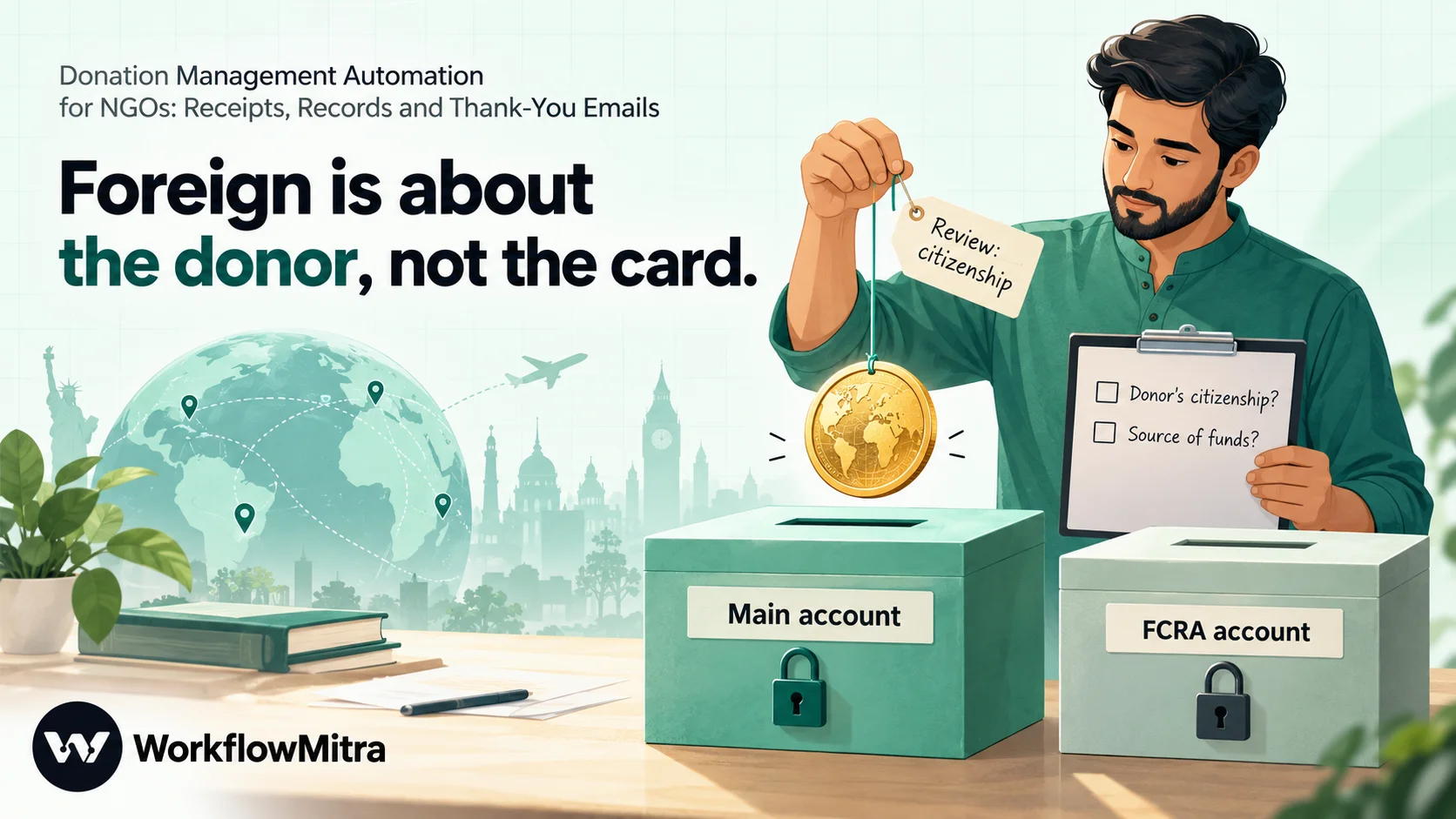
So the only signal a workflow can rely on is what the donor tells you, and the workflow’s job is to make sure that answer reaches a person:
- The donation page asks for citizenship as a required field, as set up in step 1.
- The IF in step 4 flags every gift where the answer isn’t “Indian citizen”, alerts your finance person with the payment ID and amount, and sets the review flag.
- The thank-you still goes out, without a receipt or deduction promise, until the review is done.
If the review finds a foreign contribution and you hold FCRA registration, your finance team handles it under your FCRA process, including the designated account. If you don’t hold FCRA registration, ask your auditor before you do anything with the money, and say plainly on your donation page that you can accept gifts only from Indian citizens.
Optional: a WhatsApp receipt through ChatMitra
WorkflowMitra’s WhatsApp step can send through ChatMitra’s API (or Meta’s Cloud API directly), so the same workflow can send a short confirmation with the donor’s name, amount and receipt number, using an approved message template.
Keep that message to the transaction. Meta classifies a plain confirmation of something the person just did as a utility message, while adding an appeal or “give again” can make it a marketing message, which costs more and needs the donor’s opt-in. The utility template guide on the ChatMitra blog explains the categories. Only message donors who gave you their number and agreed to hear from you on WhatsApp.
Privacy: what a donor register holds
A donor register holds names, addresses, phone numbers and PANs. Treat it as the sensitive record it is:
- Share the sheet with named people, not “anyone with the link”. Give the WorkflowMitra service account edit access and everyone else the least access they need.
- Keep PANs out of alerts. Slack and email alerts should carry the payment ID and amount, not the donor’s PAN or full address.
- Ask only for what you use. If you never issue deduction certificates, don’t collect PANs.
- Plan for the DPDP rules. Most of India’s Digital Personal Data Protection Rules, 2025, including the notice and consent duties, come into force on 13 May 2027, and the Rules contain no exemption for charities.
Credits, pricing and limits
In WorkflowMitra a credit is one executed step. The donation-received workflow uses about five credits per gift: the trigger, Add row, Find row, the donor Add row for new donors, and the email. IF steps are free. Writing the receipt number back adds one.
An NGO receiving 600 online gifts a month therefore uses roughly 3,000 to 3,600 credits for the main workflow, plus a few hundred for refunds, monthly-donor messages and the weekly PAN reminder. That fits the entry plan of ₹999 a month for 10,000 credits (₹849 a month billed yearly). Prices were checked on WorkflowMitra pricing on 18 October 2026, and new workspaces get a 14-day trial with no card.
Limits worth knowing before you rely on it:
- No PDF step. WorkflowMitra doesn’t generate PDFs. Use Razorpay’s receipt, or an outside PDF service called from an HTTP Request step.
- Razorpay and webhook payments only. Cash, cheques and bank transfers still need a person to record them. A simple form that writes to the same register keeps them in one place.
- Workflow receipt numbers aren’t a controlled series. They’re sequential while nobody deletes rows.
- Outlook.com and Microsoft 365 mailboxes can’t connect to the Email step.
Common mistakes
- Sending two receipts. If Razorpay’s Payment Page sends one, the workflow sends a thank-you, not another receipt with a different number.
- Matching donors by name. Two “Rahul Sharma”s will merge. Match on email or PAN.
- Deleting refunded rows. Mark them, and leave them out of the statement with a filter.
- Judging foreign money by the payment method. Ask for citizenship, flag, and let a person decide.
- Waiting until May to find missing PANs. Ask the week of the gift.
Start with the register and one workflow
You don’t need every workflow on day one. Build the register and the donation-received workflow, run your next twenty gifts through it and compare the rows with your Razorpay dashboard. Add refunds next, then the PAN reminder well before May.
WorkflowMitra, powered by ChatMitra, gives you the pieces used here: a signed Razorpay webhook trigger, Google Sheets, IF and Loop steps, scheduled workflows, email from your own mailbox and WhatsApp through ChatMitra. You can build the whole setup on the WorkflowMitra 14-day trial, no card needed. For related builds, see Razorpay to Google Sheets, webhook idempotency and sending email from Google Sheets.
Sources, checked 18 October 2026: Razorpay documentation on Payment Page 80G receipts, donation buttons, webhook best practices, subscription webhooks and international payments FAQs; Income Tax Department, Forms 113 and 114 and the Form 113/114 user manual; Ministry of Home Affairs, FCRA frequently asked questions (questions 8 and 9); MeitY, Digital Personal Data Protection Rules, 2025.
Frequently Asked Questions
Questions NGO teams ask before they automate donation records, receipts and thank-you emails.
It's the use of workflow rules to run the routine steps after each gift: recording the donation and the donor, sending the receipt and the thank-you, flagging gifts that need a human check and collecting details needed at year-end. For an Indian NGO, a common setup is a Razorpay webhook that starts a workflow, a Google Sheets donor register and an email step, with people keeping decisions about tax status, foreign money and refunds.
Automate the work between your apps
Build workflows with triggers, conditions and actions, then test them before they go live. Try WorkflowMitra free for 14 days, no card required.
