E-Signature Workflow Automation: What to Automate After a Contract Is Signed

Quick Summary
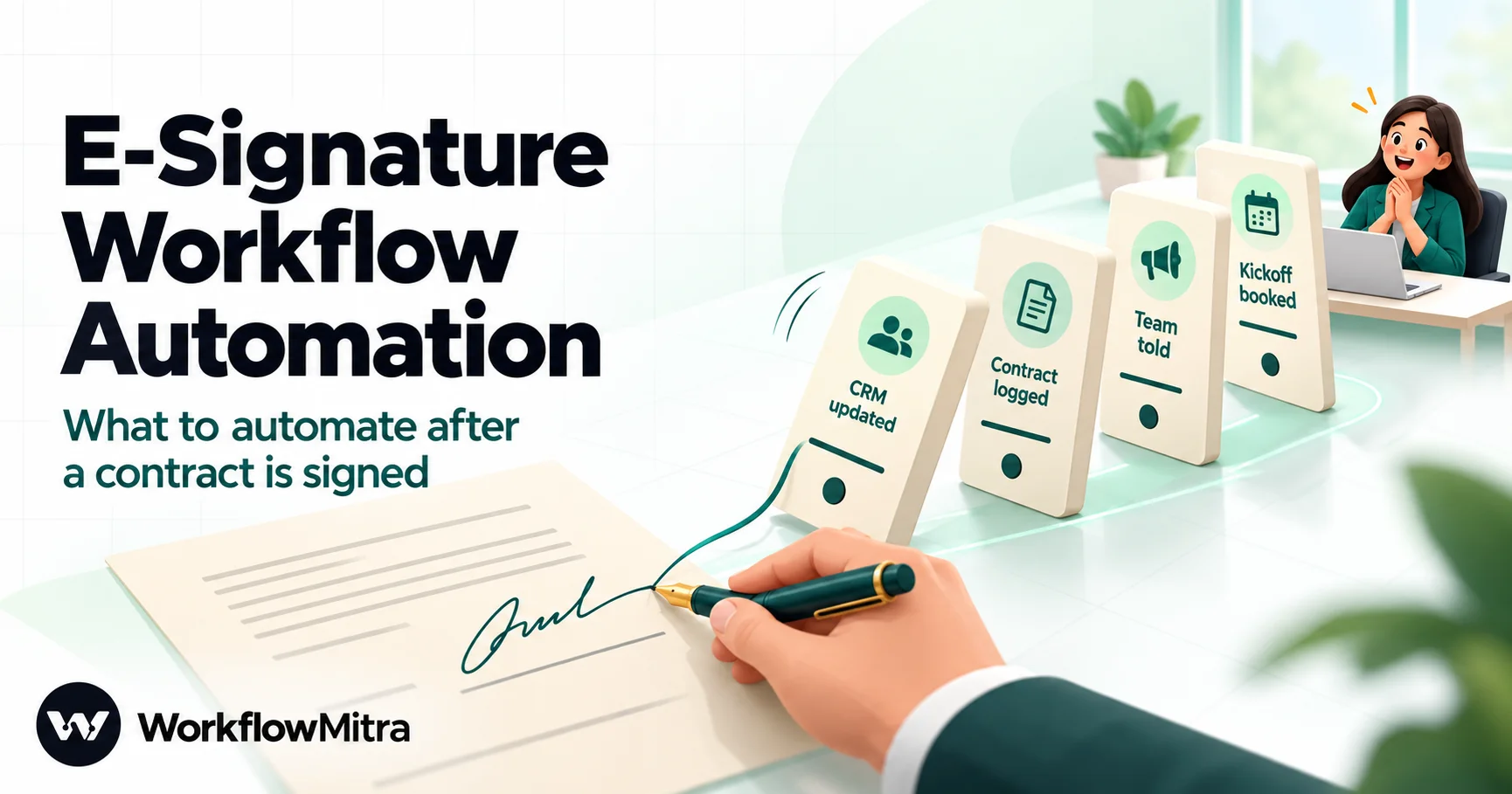
E-signature workflow automation means using your e-sign tool's webhook, the message it sends when a contract is fully signed, to start everything that should happen next: update the deal in your CRM, log the contract in a register, tell the account team, and book the onboarding kickoff. DocuSign sends envelope-completed through Connect, Zoho Sign sends RequestCompleted, and Leegality sends a Success webhook whose documentStatus reads Completed. In WorkflowMitra, powered by ChatMitra, one webhook trigger checks the sender's signature, a Code step turns any of the three payloads into the same fields, and ordinary steps do the rest.
A signed contract is the moment a deal stops being a sales problem and becomes a delivery problem, and that’s exactly where it tends to stall. The client signs at 9:40 in the evening. DocuSign emails the sender, who is on a flight. The deal sits at “Contract sent” in the CRM for two days, the delivery lead hears about it on Thursday, and the first thing the new client experiences is silence.
E-signature tools already know the exact second a contract is complete. They will tell another system about it if you ask. This guide shows what to do with that signal: which steps are worth automating after a contract is signed, what DocuSign, Zoho Sign and Leegality each send, how to check that a message is genuine, and how to build the whole thing in WorkflowMitra, powered by ChatMitra, without writing a server.
What is e-signature workflow automation?
E-signature workflow automation is letting the "contract signed" event start the work that follows it. Your e-sign tool sends a webhook, a small message to a URL you choose, when a contract is fully signed, declined or cancelled. An automation tool receives it and does the follow-up on its own: moves the deal in your CRM, logs the contract in a register, alerts the account team and books the onboarding kickoff. Nobody has to notice an email first.
The signing itself (sending documents, placing fields, collecting signatures) stays in the e-sign tool. Automation picks up at the handover, which is where most of the delay and most of the dropped balls live.
What to automate after a contract is signed
Not everything after a signature should run unattended. The test we use: automate the steps that are the same for every contract and only need information the webhook (or your CRM) already has. Keep a human on anything that needs judgement.
| After signing | Automate it? | How, in WorkflowMitra |
|---|---|---|
| Move the deal to Won and stamp the signed date | Yes | Zoho CRM step, Update Record |
| Add the contract to a register (who, what, when, which ID) | Yes | Google Sheets, Find row then Update row or Add row(s) |
| Tell the account manager and delivery lead | Yes | Slack, email, or WhatsApp through ChatMitra |
| Create the kickoff task with a due date | Yes | Zoho CRM step, Create Task |
| Welcome the client and say what happens next | Usually | Email step, or an approved WhatsApp template |
| Pick who runs onboarding | If you rotate | Assign step (round robin) |
| Raise the first invoice | With a check | Wait for approval before the invoicing step |
| Chase a declined or cancelled contract | Alert only | Route the alert to the deal owner with the reason |
| Decide what to do about changed terms or a dispute | No | A person reads it |
Two rows deserve a comment. The first invoice is worth a pause because signed contracts sometimes carry a negotiated start date or a pilot clause the invoicing rules don’t know about; a Wait for approval step costs the finance person one click. And a declined contract should never get an automatic reply. The webhook tells you it happened and why, but what to say back is a sales decision.
For the onboarding itself, from the welcome sequence onward, see customer onboarding automation. This article stops at the handover. And once the contract is logged with its end date, contract renewal reminders can take over from there.
What DocuSign, Zoho Sign and Leegality send when a contract is signed
All three can call a webhook URL, but they differ in where you set it up, which event means “done”, and how they prove a message is theirs. These details come from each vendor’s documentation, read on 20 October 2026.
| DocuSign (Connect) | Zoho Sign | Leegality | |
|---|---|---|---|
| Where you set it up | Settings, Connect, a custom configuration | Settings, Developer Settings, Webhooks | On each invitee in a workflow: More Options, Add custom URLs and webhooks |
| Plans | Account-level Connect is included with all paid plans | Enterprise, API, Zoho One, People Plus; two webhooks per account | Check with Leegality |
| "Fully signed" event | envelope-completed | RequestCompleted ("Completed by all") | webhookType: Success with documentStatus: Completed |
| Stopped events | envelope-declined, envelope-voided (voided also covers expiry) | RequestRejected, RequestRecalled, RequestExpired | Sent to a separate Error Webhook URL: rejected, verification failed, expired |
| Fires per signer too? | Only if you subscribe to recipient events | Yes, if you tick "Signed by a recipient" | Yes, always: one webhook per invitee action |
| Proof it's genuine | HMAC-SHA256 of the raw body, base64, in X-DocuSign-Signature-1 | HMAC-SHA256 of the raw body, base64, in X-ZS-WEBHOOK-SIGNATURE | mac field in the body: HMAC-SHA1 of the document ID with your Private Salt; or custom headers set up by Leegality support |
| Retries if your side fails | Back-off from 5 minutes, then daily for 15 days | Not stated in Zoho's help pages | Immediately, after 1 hour, after 3 more hours, then never |
| Signed PDF in the message? | Optional (don't use it here, see below) | No; document IDs only | No; fetch it with the Details API |
A few of those rows change how you build:
- Leegality talks per invitee. Its webhook goes to the URL configured on each invitee, every time that invitee acts. A contract with two signers sends two Success webhooks, and only the last carries
documentStatus: "Completed". Leegality also stores the URLs on each document when it’s sent, so editing the workflow later doesn’t change contracts already out for signature. - Zoho Sign limits you to two webhooks per account. Use one for this workflow and choose its events carefully: “Completed by all”, “Declined”, “Recalled” and “Expires” cover the handover.
- DocuSign retries for over two weeks, while Leegality gives up after three retries in about four hours. If your workflow is paused or out of credits during a Leegality delivery, that event is gone, so the weekly check later in this guide matters more for Leegality users.
Before you build: decide how a contract finds its deal
A webhook tells you an envelope, request or document finished. It doesn’t know which deal in your CRM it belongs to unless you put that link into the contract when you send it. This is the single most important decision in the build, and the one most people skip.
Use the CRM’s own record ID. In Zoho CRM it’s the long number at the end of a deal’s address bar (for example 6012345000000456789), and it’s what the Zoho CRM step’s Update Record needs. Each tool has a place to carry it:
- DocuSign: an envelope custom field. An admin creates a text field named
Deal IDunder Settings, Custom Fields. Senders fill it in at send time (make it required), and Connect includes it in the message once you tick Custom Fields in the configuration’s data options. - Zoho Sign: the document name. Zoho Sign’s webhook carries
request_name, so end the name with the ID in square brackets:MSA - Acme Foods [6012345000000456789]. If you send from Zoho CRM with Zoho Sign’s own CRM extension, check first whether it already updates the deal for you; you may only need this workflow for the steps outside Zoho. - Leegality: the IRN (Internal Reference Number). Leegality echoes the IRN from the original eSigning request in every webhook. Set it to the deal ID when you create the request through Leegality’s API.
If you can’t carry the CRM ID, carry something unique that you also store in the CRM, and add a Zoho CRM Search Records step to look the deal up. It works, but every lookup is one more credit and one more thing that can match zero or two records.
What you’ll build
One workflow per e-sign tool, all with the same shape:
- A webhook trigger that rejects anything without a valid signature.
- A Code step that turns the provider’s payload into the same eight fields, whichever tool sent it.
- A Switch on the outcome: signed, stopped, or ignore.
- On signed: update the register, update the deal, add a note and a kickoff task, alert the team, email the client.
- On stopped: alert the deal owner with the reason.
- On ignore (per-signer updates, unrelated events): nothing, so the run ends.
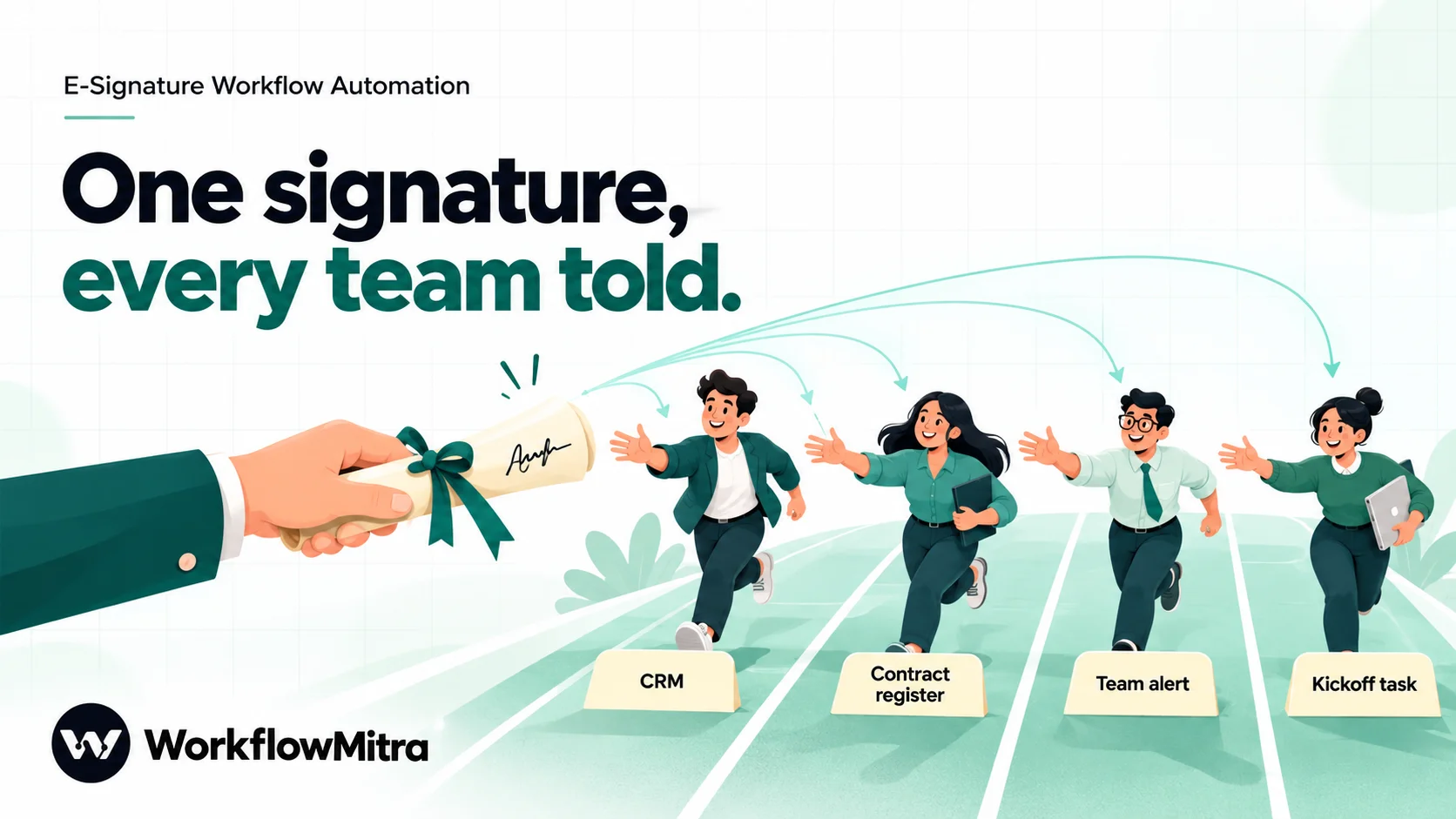
Why one workflow per provider rather than one for all three? Each webhook URL in WorkflowMitra has its own security settings, and the three tools prove themselves differently. The Code step is the same in all of them, so maintaining three is little more work than one.
What you need before you start
- A WorkflowMitra workspace (the 14-day trial needs no card).
- Admin access to your e-sign account, on a plan that includes webhooks.
- A Google Sheet for the register with these headings in row 1:
Contract ID,Provider,Contract,Deal ID,Status,Signers,Reason,Updated (IST). - A Zoho CRM connection in WorkflowMitra (or skip those steps and use the sheet alone).
- A Slack incoming webhook for the team channel, or use email.
Build it step by step (DocuSign)
We’ll build the DocuSign version in full, then show what changes for Zoho Sign and Leegality.
1. Add a webhook trigger and set up verification
Create a workflow and add the Webhook trigger. For the source, choose Something else: there’s no DocuSign preset, and the generic source takes any JSON. Copy the webhook URL.
Then open Edit webhook and change three things:
- Clear the Secret under “API key authentication”. New webhooks come with a generated shared secret that callers must send in a header (by default
x-webhook-secret). DocuSign won’t send that header, so every delivery would be rejected with a 401 until you clear it. - Fill in “Signature verification”. Paste DocuSign’s HMAC key into Signing secret, type
X-DocuSign-Signature-1as the Signature header, and keep HMAC-SHA256. WorkflowMitra computes the HMAC over the exact bytes DocuSign sent and accepts the base64 form DocuSign uses. - Turn on “Require verification”. Anything without a valid signature now gets a 401 and never starts a run, so a forged “contract signed” message can’t move your deals.
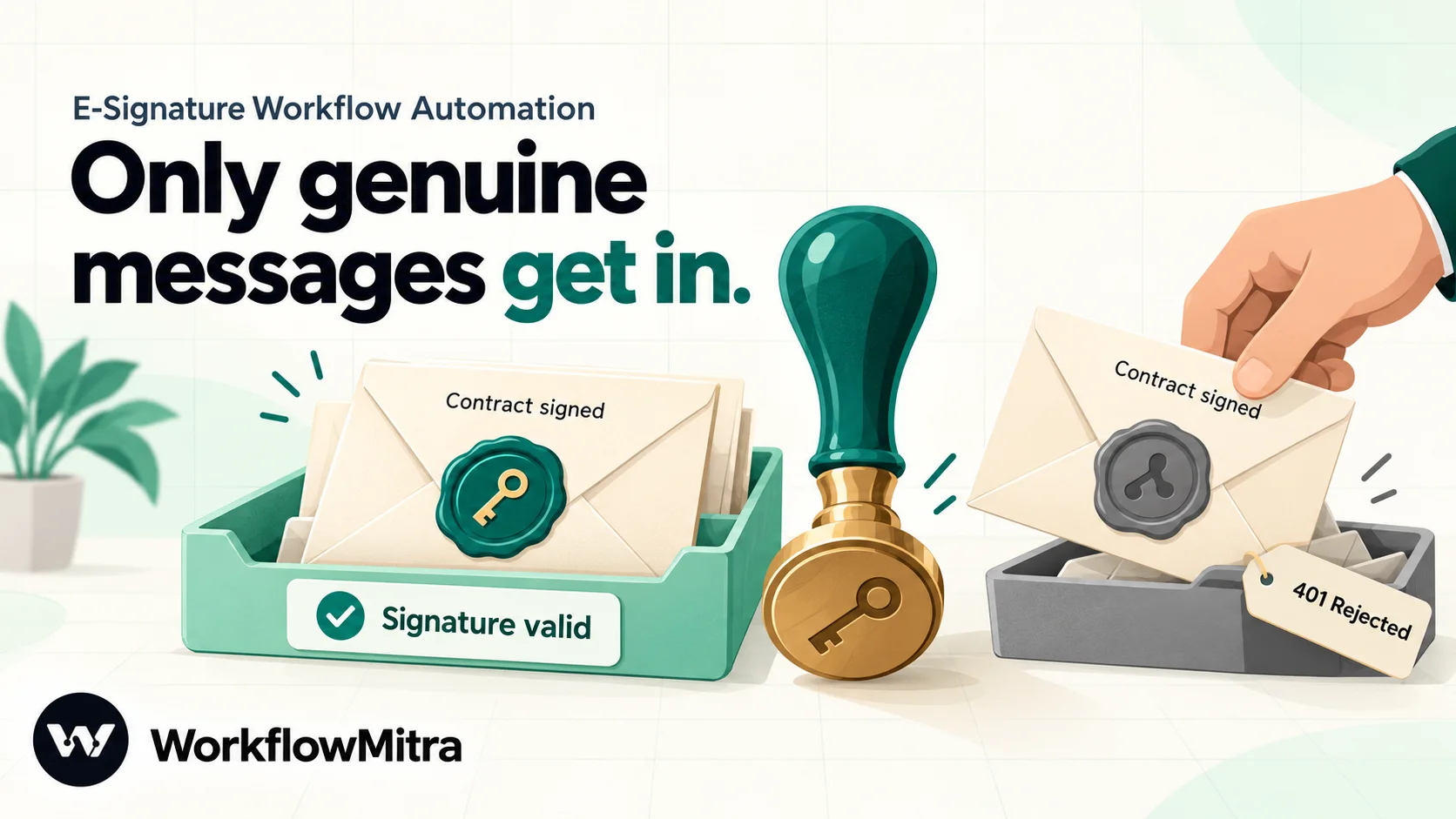
Leave Respond synchronously off. DocuSign asks listeners to answer within five seconds, and WorkflowMitra’s default is to acknowledge with a 202 straight away and run the workflow behind it. For more on these settings, see webhook security.
2. Point DocuSign Connect at the workflow
In DocuSign’s settings, open Connect and add a custom configuration:
- URL to publish to: the WorkflowMitra webhook URL.
- Data format: the JSON (REST v2.1) event model, which DocuSign recommends over the legacy XML formats.
- Events:
envelope-completed,envelope-declinedandenvelope-voided. Leave the recipient events off unless you want to act on each signature. - Include data: tick Custom Fields (for the Deal ID) and Recipients (for the signer names). Leave Documents off. Each PDF would travel inside the JSON, and WorkflowMitra accepts JSON bodies up to 100 KB, so a contract of any real length would be refused before your workflow saw it.
- HMAC: turn on HMAC signatures and add a key. That key is the Signing secret you pasted in step 1.
DocuSign allows up to 20 custom Connect configurations per account, so a dedicated one for this workflow won’t crowd anything else out.
3. Set the duplicate key
Under the trigger’s Advanced settings, set the Idempotency key path to data.envelopeId. Each envelope ends exactly once (completed, declined or voided), and DocuSign retries a failed delivery with the same envelope ID, so a retry that arrives after a successful run is answered as a duplicate instead of updating the CRM twice. The key is remembered for 24 hours; the register lookup in step 6 covers anything later.
If you ever subscribe to recipient events, clear this key. Several messages per envelope would then be legitimate, and all but the first would be dropped. Why this matters, and how WorkflowMitra’s 60-second fallback works, is covered in webhook idempotency.
4. Prepare the fields with a Code step
Add a Code step after the trigger and paste this script. It reads DocuSign, Zoho Sign and Leegality payloads, so the same step works in all three workflows.
// Turn a DocuSign, Zoho Sign or Leegality webhook into one shape.
var b = input, out = { provider: "", event: "", contractId: "", contractName: "", dealId: "", signers: "", reason: "", outcome: "ignore" };
function pick(list, name) {
  for (var i = 0; i < (list || []).length; i++) if (list[i].name === name) return list[i].value || "";
  return "";
}
if (b.event && b.data) {
  var s = b.data.envelopeSummary || {};
  var list = (s.recipients || {}).signers || [], declined = "";
  var people = list.map(function (r) { if (r.declinedReason) declined = r.declinedReason; return r.name + " <" + r.email + ">"; });
  out.provider = "DocuSign";
  out.event = b.event;
  out.contractId = b.data.envelopeId || "";
  out.contractName = s.emailSubject || "";
  out.dealId = pick((s.customFields || {}).textCustomFields, "Deal ID");
  out.signers = people.join(", ");
  out.reason = declined || s.voidedReason || "";
  if (b.event === "envelope-completed") out.outcome = "signed";
  if (b.event === "envelope-declined" || b.event === "envelope-voided") out.outcome = "stopped";
} else if (b.requests && b.notifications) {
  var n = b.notifications, rq = b.requests, op = n.operation_type || "";
  out.provider = "Zoho Sign";
  out.event = op;
  out.contractId = String(rq.request_id || "");
  out.contractName = rq.request_name || "";
  var m = /\[([0-9]{6,})\]/.exec(out.contractName);
  out.dealId = m ? m[1] : "";
  out.signers = (n.performed_by_name || "") + " <" + (n.performed_by_email || "") + ">";
  out.reason = n.reason || "";
  if (op === "RequestCompleted") out.outcome = "signed";
  if (op === "RequestRejected" || op === "RequestRecalled" || op === "RequestExpired") out.outcome = "stopped";
} else if (b.documentId && b.webhookType) {
  var r = b.request || {};
  out.provider = "Leegality";
  out.event = b.webhookType + " / " + (r.action || (r.expired ? "Expired" : ""));
  out.contractId = b.documentId;
  out.dealId = b.irn || "";
  out.signers = (r.name || "") + " <" + (r.email || "") + ">";
  out.reason = r.rejectionMessage || r.error || "";
  if (b.webhookType === "Success" && b.documentStatus === "Completed") out.outcome = "signed";
  if (b.webhookType === "Error") out.outcome = "stopped";
}
var now = new Date(Date.now() + 330 * 60000);
out.receivedIST = now.toISOString().slice(0, 16).replace("T", " ");
out.kickoffDue = new Date(now.getTime() + 2 * 86400000).toISOString().slice(0, 10);
return out;
The output is one flat object, for example {"provider": "DocuSign", "event": "envelope-completed", "contractId": "cc6803ce-…", "dealId": "6012345000000456789", "signers": "Priya Nair <[email protected]>, Rohan Mehta <[email protected]>", "outcome": "signed", "receivedIST": "2026-10-20 20:16", "kickoffDue": "2026-10-22"}. Two details are deliberate:
- Time is shifted to IST inside the script. Date helpers elsewhere in a workflow use the server’s clock, which isn’t necessarily India’s.
kickoffDueis two calendar days after the signature, as aYYYY-MM-DDdate Zoho CRM accepts for a task’s due date. - Anything unrecognised becomes
ignore. A Zoho Sign “viewed” event, or the first of two Leegality signers, falls through to a route that does nothing.
We ran this script in WorkflowMitra’s Code step with sample payloads for all three providers, built from each vendor’s documented fields, including the declined, expired and empty cases. It takes well under a millisecond, so its cost is a tiny fraction of a credit. The Code step itself is explained in the Code step guide.
5. Route on the outcome
Add a Switch on {{ outcome }} with two cases, signed and stopped, and leave Else empty. Switch and IF steps cost no credits, so the ignored events cost only the trigger and the Code step.
One habit to build from here on: the Code step’s output replaces the data flowing forward, and a plain {{ field }} reads only the previous step. Steps further down the route should use {{ $node["Prepare contract"].dealId }} (with your Code step’s name) rather than {{ dealId }}. Passing data between steps explains why.
6. On “signed”: update the register
The register is a plain Google Sheet, and it doubles as the duplicate check that outlives the 24-hour key.
- Google Sheets, Find row: Key column
Contract ID, Key value{{ $node["Prepare contract"].contractId }}. - IF
{{ found }}is true: Update row on that row. Else: Add row(s) with all eight columns.
Write the values Exactly as written, not “Like typing it in”. Long record IDs are otherwise turned into numbers in scientific notation, and the next lookup by ID fails. Sheets has no single upsert action, so Find, IF, then Update or Add is the pattern; see preventing duplicates in Google Sheets for the details.
7. Update the deal, add a note and a kickoff task
Add three Zoho CRM steps:
- Update Record: Module
Deals, Record ID{{ $node["Prepare contract"].dealId }}, and setStageto your won stage (for example “Closed Won”) andClosing_Dateto today. Field names follow your Zoho layout. - Create Note: Parent module
Deals, Parent record ID the same Deal ID, title “Contract signed”, and content with the signers, the provider and the contract ID, so anyone can find the original. - Create Task: Subject
Kickoff call: {{ $node["Prepare contract"].contractName }}and Due Date{{ $node["Prepare contract"].kickoffDue }}. If your Tasks layout links tasks to deals, map that field too.
Put an IF on {{ $node["Prepare contract"].dealId }} “Is not empty” before these three. A sender who forgot the custom field shouldn’t make the run fail; route that case to the alert instead, with “Deal ID missing” in the message.
8. Tell the team and the client
- Slack (or email) to the account channel: “Signed: Master Services Agreement, Acme Foods, by Priya Nair and Rohan Mehta. Kickoff task due 22 Oct.” The message field accepts the
{{ $node[...] }}references directly. - Email to the client: a short welcome that names the kickoff date and the onboarding owner. If you rotate onboarding owners, put an Assign step before it and use its result in the email.
- WhatsApp is an option if you have the client’s number in the CRM: the WhatsApp step sends through ChatMitra or Meta’s Cloud API. A first message to a client who hasn’t written to you needs an approved template; a post-signing “here’s what happens next” is the kind of message utility templates are for.
9. On “stopped”: alert the deal owner
The stopped route needs one step: a message to the deal owner (or the sales channel) with the contract, the event and reason. DocuSign puts a signer’s reason in that signer’s declinedReason, and the sender’s in the envelope’s voidedReason when it’s voided or expires; the script picks up either. Update the register’s Status too, so the weekly check below doesn’t count it as missing.
10. Test with a real envelope
The signature check means you can’t fake a delivery by pasting JSON into a browser tool; it would be rejected, which is the point. Test the way DocuSign will really call you:
- Use a DocuSign developer (demo) account, or your real account with yourself as signer.
- Send a one-page envelope with the Deal ID field filled in, and sign it.
- Open the webhook’s deliveries log in WorkflowMitra. An accepted delivery links to its run; a delivery rejected for its signature means the key or header name doesn’t match.
- Check the sheet row, the deal stage, the note, the task and the Slack message. Then decline a second envelope to test the stopped route.
Safe Test Mode simulates the messaging steps only (Slack, email, WhatsApp, Telegram, Discord); Google Sheets and Zoho CRM steps run for real, so test against a copy of the register and a test deal. More on this in how to test a webhook.
What changes for Zoho Sign
The workflow is the same; the trigger settings and the event list differ.
- In Zoho Sign: Settings, Developer Settings, Webhooks, Create webhook. Paste the WorkflowMitra URL, choose “Completed by all”, “Declined”, “Recalled” and “Expires”, tick the HMAC signature checkbox and enter a secret key you generate. Zoho won’t show the saved key again, so paste it into WorkflowMitra before you close the window.
- In WorkflowMitra: clear the shared Secret, set Signing secret to the same key, Signature header
X-ZS-WEBHOOK-SIGNATURE, HMAC-SHA256, and turn on Require verification. - Duplicate key: set it to
requests.request_idonly if you subscribe to final events alone. If you also tick “Signed by a recipient”, leave it empty.
A note on Zoho’s documentation: its HMAC page writes the formula as base64encode(HMAC SHA-256(payload+secret_key)), which reads as if the key were appended to the payload. The page’s own Java sample does the standard thing, HMAC of the payload with the secret as the key, and so does WorkflowMitra. We checked: WorkflowMitra’s signature verifier accepts the sample signature from Zoho’s page against the sample payload and key, while the “payload plus key” reading doesn’t produce it.
Zoho Sign’s webhook carries request_id, request_name and the document IDs, plus who performed the action and when. The signed PDF stays in Zoho Sign; save request_id in the register so anyone can find it.
What changes for Leegality
Leegality needs the most care, because of how it delivers and verifies.
Where the URLs go. In the Leegality workflow, open each invitee’s More Options, enable “Add custom URLs and webhooks”, and enter the WorkflowMitra URL as the Webhook (success events) and as the Error Webhook. Leegality’s API documentation describes webhook version v2.5; pick the version your Leegality setup uses and check its payload fields. Add the URL to every signer, because the event that says documentStatus: "Completed" comes from whoever signs last.
Clear both secrets in WorkflowMitra. Leegality doesn’t put a signature in a header, so clear the shared Secret and leave Signature verification empty. Leave the Idempotency key path empty as well: a key on documentId would treat the second signer’s event as a duplicate of the first.
Verify with the mac field. Every Leegality payload carries mac, which Leegality documents as HMAC-SHA1(documentId, privateSalt), with the Private Salt shown in your dashboard’s API Settings tab. WorkflowMitra’s Code step has no built-in HMAC function, so add this Code step before “Prepare contract”:
// Verify Leegality's mac: HMAC-SHA1(documentId, Private Salt), hex.
var SALT = "PASTE_YOUR_PRIVATE_SALT";
function bytes(s) {
  var out = [], i, c;
  s = unescape(encodeURIComponent(String(s)));
  for (i = 0; i < s.length; i++) out.push(s.charCodeAt(i));
  return out;
}
function sha1(m) {
  var h = [0x67452301, 0xefcdab89, 0x98badcfe, 0x10325476, 0xc3d2e1f0];
  var l = m.length * 8, w = [], i, j, t, a, b, c, d, e, f, k;
  m = m.slice(); m.push(0x80);
  while (m.length % 64 !== 56) m.push(0);
  for (i = 7; i >= 0; i--) m.push(i > 3 ? 0 : (l >>> (i * 8)) & 255);
  for (i = 0; i < m.length; i += 64) {
    for (j = 0; j < 80; j++) {
      if (j < 16) w[j] = (m[i + 4 * j] << 24) | (m[i + 4 * j + 1] << 16) | (m[i + 4 * j + 2] << 8) | m[i + 4 * j + 3];
      else { t = w[j - 3] ^ w[j - 8] ^ w[j - 14] ^ w[j - 16]; w[j] = (t << 1) | (t >>> 31); }
    }
    a = h[0]; b = h[1]; c = h[2]; d = h[3]; e = h[4];
    for (j = 0; j < 80; j++) {
      if (j < 20) { f = (b & c) | (~b & d); k = 0x5a827999; }
      else if (j < 40) { f = b ^ c ^ d; k = 0x6ed9eba1; }
      else if (j < 60) { f = (b & c) | (b & d) | (c & d); k = 0x8f1bbcdc; }
      else { f = b ^ c ^ d; k = 0xca62c1d6; }
      t = (((a << 5) | (a >>> 27)) + f + e + k + w[j]) | 0;
      e = d; d = c; c = (b << 30) | (b >>> 2); b = a; a = t;
    }
    h[0] = (h[0] + a) | 0; h[1] = (h[1] + b) | 0; h[2] = (h[2] + c) | 0; h[3] = (h[3] + d) | 0; h[4] = (h[4] + e) | 0;
  }
  var out = [];
  for (i = 0; i < 5; i++) for (j = 3; j >= 0; j--) out.push((h[i] >>> (j * 8)) & 255);
  return out;
}
function hmacSha1Hex(key, msg) {
  var k = bytes(key), ip = [], op = [], i;
  if (k.length > 64) k = sha1(k);
  for (i = 0; i < 64; i++) { ip.push((k[i] || 0) ^ 0x36); op.push((k[i] || 0) ^ 0x5c); }
  var d = sha1(op.concat(sha1(ip.concat(bytes(msg)))));
  return d.map(function (x) { return (x < 16 ? "0" : "") + x.toString(16); }).join("");
}
input.macValid = String(input.mac || "").toLowerCase() === hmacSha1Hex(SALT, input.documentId || "");
return input;
Then add an IF on {{ macValid }} is true, and connect “Prepare contract” to its Yes branch. The script passes the whole payload through with one extra field, so “Prepare contract” reads it unchanged. We checked the HMAC routine inside WorkflowMitra’s Code step against Node’s own HMAC-SHA1 on 204 key and message pairs, including keys longer than 64 bytes and non-ASCII text, with no mismatches.
Two cautions. Leegality’s page doesn’t say in so many words which argument is the key, so we’ve followed the usual reading (the salt is the key). If every genuine delivery fails the check, swap the arguments to hmacSha1Hex(input.documentId, SALT) and test again. And the salt sits in the workflow’s definition, where anyone who can open the workflow can read it. Keep editing rights to people who could see the salt in Leegality anyway.
The alternative: custom headers. Leegality can add static headers to its webhooks (an API key, a username and password) if you email its support team; it then gives you a Webhook Profile ID to attach to each invitee. With that in place you can use WorkflowMitra’s API key authentication instead of the script: put the header name and value Leegality sends into Header name and Secret.
Leegality doesn’t send the PDF. Its webhook carries status, signer and verification details. The signed document and audit trail come from its Check Document Details API, which you can call with the HTTP Request step if you need them, or open from the dashboard using the document ID in your register.
One contract, start to finish
Here’s an illustrative run for a Pune design agency that sends its master services agreements through Zoho Sign.
On Monday at 18:05 the agency sends “MSA - Acme Foods [6012345000000456789]” to two signers: Priya at the client and Rohan, the agency’s director. At 19:12 Priya signs. Zoho Sign doesn’t call the webhook, because “Signed by a recipient” isn’t ticked. At 21:40 Rohan signs from his phone, and Zoho Sign sends RequestCompleted.
Within a few seconds the workflow has done the following. It verified the signature. The Code step produced dealId: 6012345000000456789 and outcome: signed. The register gained a row for request 58900000001234567. The deal moved to Closed Won with a note naming both signers, and a “Kickoff call” task appeared, due Wednesday. The #accounts channel read “Signed: MSA - Acme Foods”. Priya received a welcome email naming Asha as her onboarding lead and Wednesday as the kickoff.
On Tuesday morning, Asha opens her task list and the kickoff is already there. Nobody forwarded an email.
The same week, a second client declines because they want 45-day payment terms. The stopped route sends the account manager “Declined: MSA - Baker Street Cafes. Reason: payment terms need to change.” The register records it as Declined. What to offer next is a conversation, not a workflow.
Make it safe to run twice, and to miss nothing
Webhooks are reliable, not perfect. Three habits close the gaps:
- Idempotent writes. The register lookup means a repeated “signed” event updates the same row instead of adding a second one. For the CRM, updating a deal’s stage twice is harmless; creating two kickoff tasks isn’t. If duplicates matter, check the register’s Status before the CRM steps and skip them when it already says Signed.
- Failure alerts. Turn on alerts for failed runs in Workspace settings, Alerts (email or a Slack webhook). A Zoho CRM error, such as an expired connection or a wrong field name, then reaches you the same day instead of at the kickoff call that never happened.
- A weekly reconciliation. Once a week, compare the contracts your e-sign tool shows as completed with the register. This matters most for Leegality, whose last retry comes about four hours after the first failure. A Schedule trigger that emails a reminder to check is enough for most teams; anything missing can be added by hand.
When something does break, workflow error handling covers retries, error routes and alerts in more depth.
What does it cost?
WorkflowMitra charges credits per executed step. With the build above:
| Event | Steps that run | Credits |
|---|---|---|
| Contract fully signed | Trigger, Code, Switch, IFs, Find row, Update/Add row, 3 × Zoho CRM, Slack, email | About 8 |
| Contract declined or voided | Trigger, Code, Switch, alert, Find row, Update row | About 4 |
| Ignored event (per-signer, viewed) | Trigger, Code, Switch | About 1 |
| Rejected (bad signature) | None: rejected before a run starts | 0 |
A firm signing 40 contracts a month, with a few declines and Leegality’s extra per-signer events, uses well under 500 credits a month. The Code steps are billed by the millisecond and cost a small fraction of a credit each. Current plans are on the WorkflowMitra pricing page.
Troubleshooting
| Symptom | Likely cause | Fix |
|---|---|---|
| Every delivery rejected with 401, "Invalid webhook secret" | The generated shared Secret is still set | Clear Secret under API key authentication |
| "Invalid webhook signature" | Wrong key, wrong header name, or SHA-1 selected | Re-paste the key; header X-DocuSign-Signature-1 or X-ZS-WEBHOOK-SIGNATURE; HMAC-SHA256 |
| DocuSign deliveries fail with 413 | Documents included in the Connect message | Untick Documents in the configuration's data options |
dealId is empty | Custom fields not included, field name differs, or no brackets in the Zoho Sign name | Tick Custom Fields; name the field exactly Deal ID; end the name with [id] |
| Leegality contract never reaches "signed" | Webhook URL set on the first signer only | Add it to every invitee; only the last event says Completed |
| Second Leegality signer's event marked duplicate | Idempotency key set to documentId | Clear the key |
macValid is always false | Wrong salt, or key and message swapped | Copy the Private Salt again; try swapping the arguments |
| Zoho CRM step fails "Record ID" | The value isn't a Zoho record ID | Use the number from the deal's URL, not a deal name or reference |
| Register shows the ID as 6.01E+18 | Values written "Like typing it in" | Use Exactly as written; format the column as plain text |
Limits to know
- No e-sign actions. WorkflowMitra receives the webhooks; it has no ready-made step to create or send envelopes. Sending stays in the e-sign tool, or an HTTP Request step if you’re comfortable with that tool’s API and OAuth.
- No file storage step. There’s no Google Drive step, and webhook bodies are capped at 100 KB for JSON. The signed PDF stays where it was signed.
- Headers don’t reach the workflow. The trigger uses headers to verify signatures, but the workflow receives the JSON body only. Everything you route on must be in the body, which is true for all three tools here.
- Zoho Sign’s two-webhook limit is per account. If another system already uses both, you’ll need to free one.
- Leegality custom headers need its support team, and only invitees carrying the Webhook Profile ID get them.
Why use WorkflowMitra for e-signature workflows?
WorkflowMitra, powered by ChatMitra, suits teams whose contracts are signed in one tool and acted on in several others:
- Signature checks built into the trigger. DocuSign and Zoho Sign’s HMAC schemes work with settings, not code, and unverified requests never start a run or cost a credit.
- Indian tools and habits covered. Leegality’s per-invitee webhooks and Aadhaar eSign signers, Zoho CRM steps, IST dates, and WhatsApp through ChatMitra when an email isn’t enough.
- Visual where it can be, code where it helps. One short script normalises three providers; the routing, sheet and CRM steps stay visible to the whole team.
- You pay for the steps that run. IF and Switch cost nothing, rejected requests cost nothing, and the 14-day trial needs no card.
It isn’t always the right tool. If your contracts start and finish inside Zoho, Zoho Sign’s own CRM extension may already update the deal. And DocuSign’s preset connectors cover storage in Box, OneDrive and Salesforce without any workflow. WorkflowMitra earns its place when the handover crosses tools: a contract signed in Leegality that has to update Zoho CRM, a Google Sheet and a Slack channel in the same minute.
Start a 14-day WorkflowMitra trial, set up the webhook with signature verification, and send yourself a one-page contract. When the register row and the Slack message appear, add the CRM steps and switch your real e-sign account over. For what happens next, see customer onboarding automation and the sales-to-delivery handoff.
Sources, read on 20 October 2026: DocuSign's Connect overview (retry schedule), HMAC security, event triggers, JSON SIM event model and implementation guide (five-second response); Zoho Sign's webhooks (plans, two-webhook limit, events, payload) and HMAC authentication; Leegality's webhook setup and retries, signer-signed payload, webhook verification and custom webhook headers. DocuSign plan coverage, configuration limits and data options are from DocuSign's support documentation. WorkflowMitra behaviour was checked in the product's code the same day; both scripts were run in its Code step, and its signature verifier was run against Zoho Sign's published sample. Company names, IDs and dates in the examples are illustrative.
Frequently Asked Questions
Questions teams ask before they automate what happens after a contract is signed.
It's the practice of letting the signing event start the next steps in your business on its own. Your e-sign tool sends a webhook when a contract is fully signed, declined or cancelled, and an automation tool reacts to it: it updates the deal in your CRM, records the contract in a register, alerts the team and creates the onboarding tasks, instead of someone doing each of those by hand after they notice the email.
Automate the work between your apps
Build workflows with triggers, conditions and actions, then test them before they go live. Try WorkflowMitra free for 14 days, no card required.
