Email by Zapier Limits: Why Your Emails Get Throttled, and How to Send From Your Own SMTP

Quick Summary
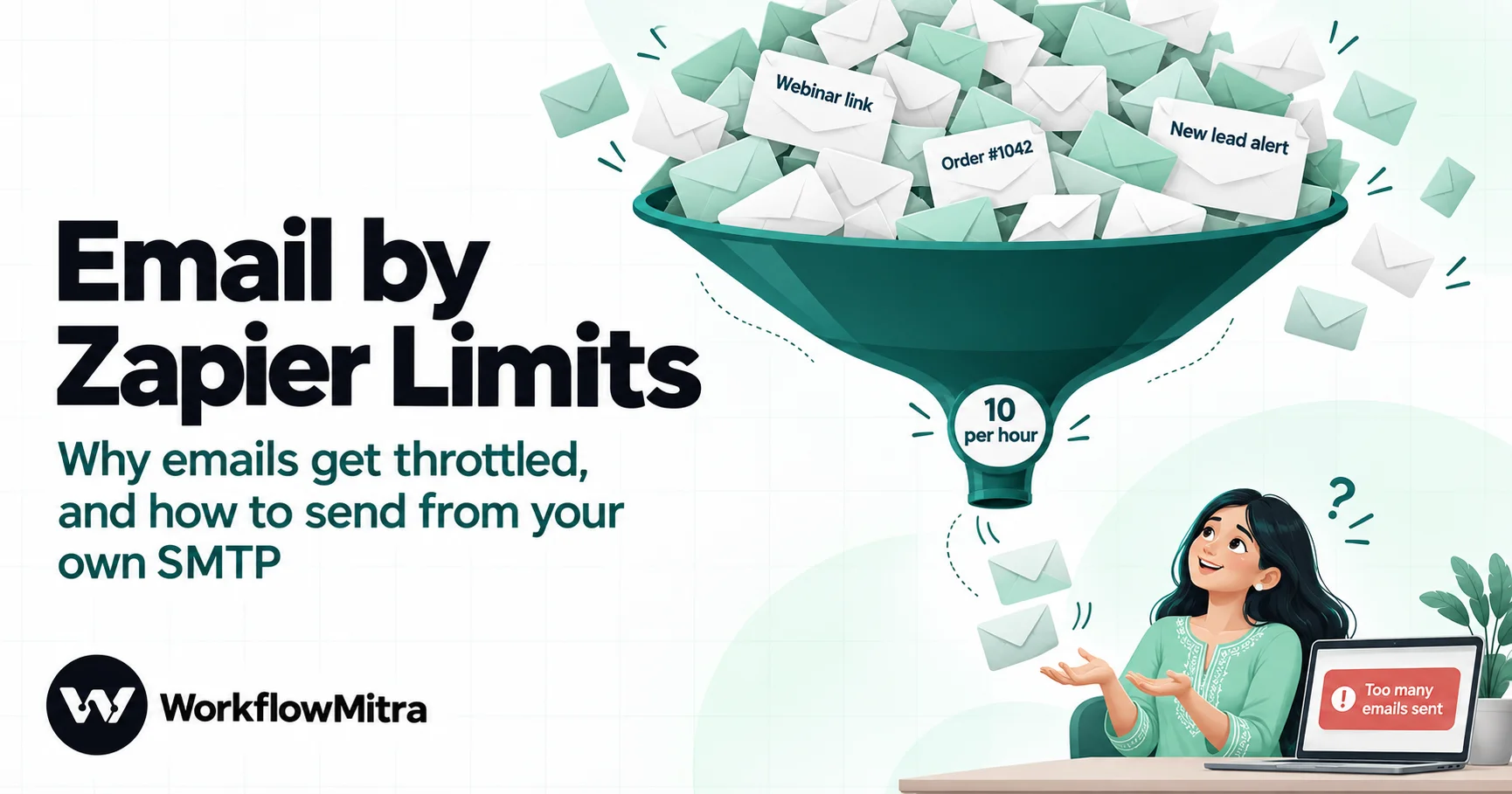
Email by Zapier lets a whole Zapier account send 5 emails per day on the Free plan or a trial, and 10 emails per hour on any paid plan. The limit is shared by every user and every Zap in the account. Past it, the Email step fails with "Sorry! That is too many emails sent", and Zapier's help center says replaying runs held because of the limit won't work. Inside Zapier, you can send fewer emails (filters, Digest by Zapier), space them out with Delay After Queue, or move the step to Gmail, Outlook, SMTP by Zapier or a transactional email service, where your mail provider's limits apply instead. WorkflowMitra, powered by ChatMitra, sends from your own mailbox over SMTP with no hourly cap of its own, so the ceiling becomes your provider's: about 500 emails a day on personal Gmail and 2,000 on Google Workspace.
A webinar registration form goes live at 10 a.m. By 10:20, sixty people have signed up, and each of them should get a confirmation email with the joining link. Eleven do. The other forty-nine runs sit in Zap history with the same red message: “Sorry! That is too many emails sent.”
Nothing is broken. You’ve hit the Email by Zapier limit, which is deliberately low and shared across your whole Zapier account. This guide explains exactly what the limit is, what happens to the emails that don’t go out, the fixes you can make inside Zapier, and how to move the sending to your own mailbox so the ceiling becomes your mail provider’s instead of Zapier’s. It also shows how WorkflowMitra, powered by ChatMitra, handles the same job, including where it’s the weaker choice.
Zapier details below come from its help center articles on sending email in Zaps (updated 31 March 2026) and on the “too many emails” error (updated 9 January 2026), plus the field help on its Email by Zapier app page and its pricing page, which we read live on 22 October 2026 and which give the same limits.
Quick answer: Email by Zapier lets a Zapier account send 5 emails per day on the Free plan or a trial, and 10 emails per hour on any paid plan. The limit is account-wide: every Zap and every team member draws from the same allowance. Past it, the Email step fails with "Sorry! That is too many emails sent", and Zapier says replaying runs held because of the limit won't work. To send more, send fewer emails (filters, digests), space them out, or switch the step to your own mailbox through Gmail, Outlook, SMTP by Zapier or a transactional email service, where your provider's limits apply instead.
What the Email by Zapier limit is
Email by Zapier is Zapier’s built-in email app. Its Send Outbound Email action sends a message from a randomly generated zapiermail.com address, with no mailbox for you to connect. That convenience is exactly why it’s limited: Zapier is sending on your behalf, from its own domain, for every customer who uses the app.
| Zapier plan | Email by Zapier limit | Window | Who shares it |
|---|---|---|---|
| Free plan or trial | 5 emails | Per day (24 hours) | The whole account |
| Any paid plan | 10 emails | Per hour | The whole account |
| Team and Enterprise | 10 emails | Per hour | Every user on the account together |
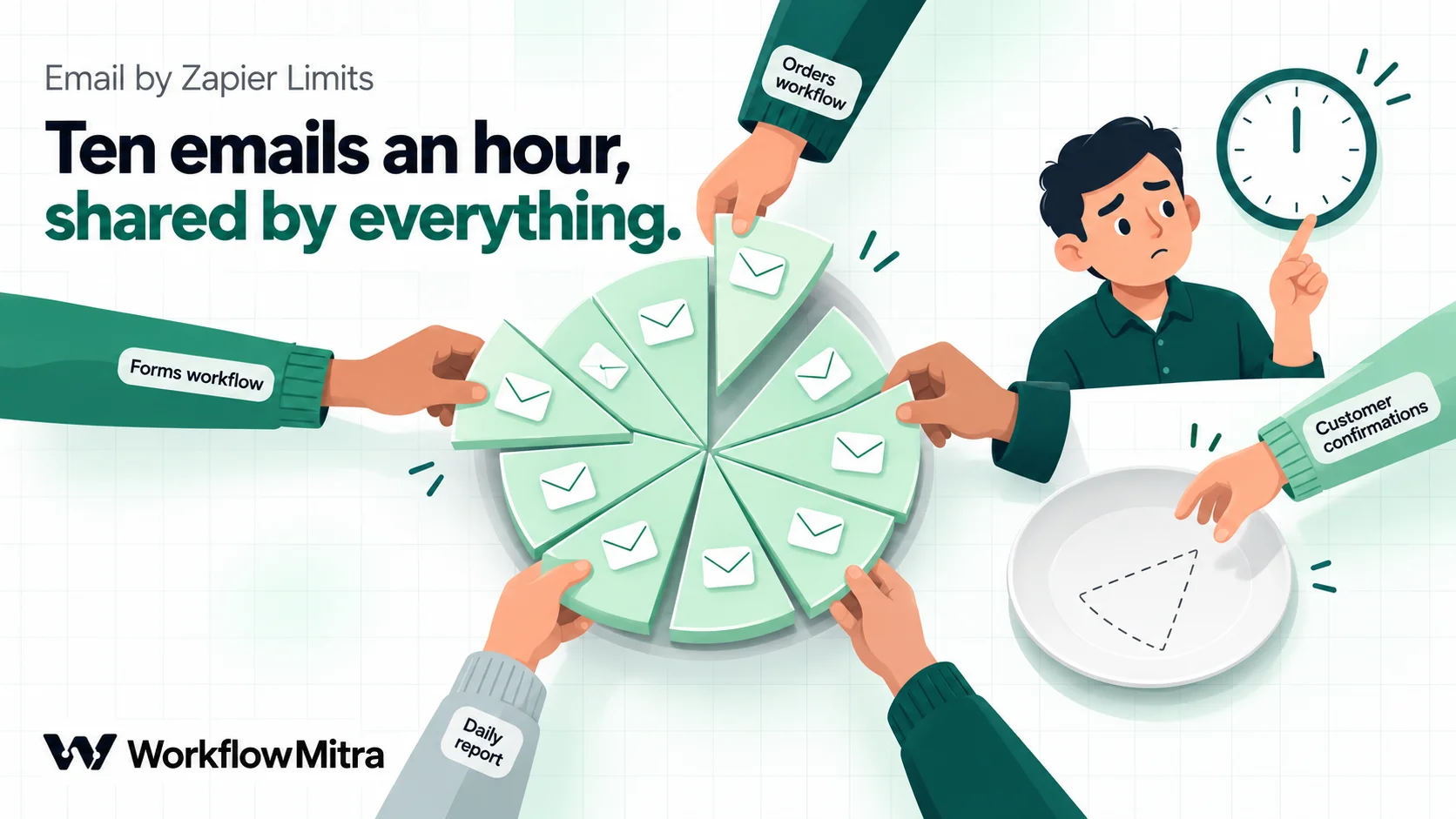
Zapier’s help center is explicit about the last row: if one team member sends 10 emails within an hour, nobody else on the account can send with Email by Zapier until the next hour. The same numbers appear in the field help on Zapier’s Email by Zapier app page, which we read live on 22 October 2026, and its 2025 feature guide describes the app as being for “low-volume, practical outbound emails.”
Five a day or five an hour?
You’ll find older community answers that put the free limit at 5 emails per hour. Zapier’s current help center and its live app page both say 5 per day for Free and trial accounts, so plan around the day figure. A paid plan doesn’t raise the limit beyond 10 an hour; Zapier’s own advice for anything more is to use a different email app.
The error, and what happens to the email
When the allowance runs out, the Send Outbound Email step stops with this message:
Email by Zapier: Sorry! That is too many emails sent. Please try Mandrill, Mailgun, Gmail, or others for bulk email
Zapier notes that this usually shows up when a Zap is first turned on, which makes sense. Testing sends a handful of emails, then a backlog of trigger events arrives at once, and the first hour’s allowance is gone in minutes.
The email in that run is not sent later on its own. What you can do about it is less clear than it should be. Zapier’s help center, updated in January 2026, says replaying your Zap runs will not work if they were held because of hitting the limit. An older answer from Zapier staff, from 2022, described these runs as errors that you could replay manually once the limit reset, with automatic replay on higher plans. Look at the run’s status in Zap history to see which you’ve got, and don’t count on a replay to rescue a confirmation email. Our guide to Zapier held runs explains the difference between held and errored runs in more detail.
Either way, someone is now missing an email they expected. For confirmations, receipts and alerts, that’s the real cost of the limit.
The other Email by Zapier rules that catch people out
The hourly cap gets the attention, but these rules from Zapier’s help center shape what the app is good for:
- You can’t change the From address. Emails come from a
zapiermail.comaddress. You can set a From name and a Reply-To address, but the sending domain is always Zapier’s, not yours. - Every email carries a “Stop these emails” link. Zapier includes it to comply with the US CAN-SPAM Act, and it can’t be removed. If a recipient clicks it, your Zap is turned off, and it stays off until you turn it back on. One annoyed recipient can stop a workflow that emails everyone else.
- Test emails go to you. On Free, trial and Pro plans, emails sent while testing go only to your Zapier account’s email address. Real recipients get them once the Zap is published.
- Up to five addresses in To. The help center says the To field takes up to five email addresses.
- Under 10 MB per email, attachments included.
- Each send uses a task. Like other actions, a sent email counts toward your plan’s monthly tasks. The Free plan includes 100 tasks a month and two-step Zaps only.
Put together, Email by Zapier is built for notifying yourself and your team: a daily summary, an alert when a form arrives, a reminder on a schedule. It wasn’t designed for customer-facing email at volume, and the limit is how Zapier keeps it that way.
Why Zapier limits it so tightly
Every email sent through Email by Zapier leaves from Zapier’s sending domain. Mailbox providers such as Gmail and Outlook judge incoming mail largely by the reputation of the domain and servers that send it. If some accounts used the app to blast thousands of unsolicited messages, everyone else’s emails from the same domain would start landing in spam.
A low, account-wide cap protects that shared reputation. Zapier’s error message says as much: it points you to Mandrill, Mailgun or Gmail “for bulk email.” The limit is less a pricing lever than a sign that you’ve outgrown a shared, anonymous sender.
There’s a second reason to move on even if you never hit the cap. An email from a random zapiermail.com address doesn’t look like it came from your business, and it can’t pass the SPF, DKIM and DMARC checks for your own domain, because it isn’t sent by your domain. For anything a customer should trust and reply to, you want the email to come from you.
How fast you’ll hit it: the arithmetic
On a paid plan, 10 an hour sounds like 240 a day. In practice, the limit is about bursts, not daily totals, because events rarely arrive evenly.
| Situation | Emails in the hour | Sent with Email by Zapier (paid plan) | Failed |
|---|---|---|---|
| Steady enquiry form, 6 leads an hour, one email each | 6 | 6 | 0 |
| Same form, but each lead also emails the sales owner | 12 | 10 | 2 |
| Webinar launch, 60 registrations in the first hour | 60 | 10 | 50 |
| Three Zaps (orders, forms, reports) sending 4 emails each | 12 | 10 | 2, in whichever Zap runs last |
| Free plan, a morning of 8 support alerts | 8 | 5 (for the whole day) | 3, plus everything else until the 24 hours pass |
The fourth row is the one teams miss. The limit is shared, so a busy report Zap can starve a customer confirmation Zap that’s never had a problem on its own. Before you build another Zap on Email by Zapier, add up the emails every existing Zap sends in your busiest hour.
Fixes inside Zapier
If you want to stay on Zapier, you have six options. They fall into two groups: send fewer emails, or send them from somewhere else.
1. Send fewer emails with filters
Many Zaps email on every trigger event when only some events need one. A Filter step that passes only, say, orders above a value, enquiries from a certain region, or alerts marked urgent, can cut volume enough to stay under 10 an hour. Zapier’s own first suggestion in its help article is to review the trigger and refine when it runs.
2. Combine many emails into one with Digest by Zapier
If the emails are for you or your team, you rarely need one per event. Digest by Zapier collects entries and releases them together. Its “Append Entry and Schedule Digest” action adds each event to a named digest and releases it on a schedule you choose. Sixty form submissions become one email at the end of the hour, which uses one send instead of sixty. This doesn’t help customer-facing emails, where each person needs their own message.
3. Space them out with Delay After Queue
Delay by Zapier has an action called “Delay After Queue”, which waits a set time after the last delay in the same queue. Zapier describes it as a way to deal with race conditions and rate limiting. Put it before the Email step with a delay of six minutes and runs leave the queue at about ten an hour, so emails go out late instead of failing. It needs a multi-step Zap, so it isn’t available on the Free plan. It also turns a burst of sixty registrations into a six-hour wait for the last person, which is fine for a weekly report and poor for a webinar link.
4. Send from Gmail or Outlook instead
Swap Email by Zapier for the Gmail or Microsoft Outlook app’s send action. The email now comes from your own mailbox, replies land in your inbox, and Zapier’s 10-an-hour cap no longer applies. Your mail provider’s limits do, and they’re far higher for normal business use: see the table below. Each send is still a Zapier task.
5. Send through your own server with SMTP by Zapier
SMTP by Zapier connects to any mail server that offers SMTP: a hosting mailbox, Zoho Mail, a transactional email service. Zapier’s help center explains the difference in one line: with Email, Zapier sends the emails on your behalf; with SMTP, Zapier talks to your mail server, and your mail server sends them. Delivery details then live in your server’s logs, not in Zapier.
Three details from the help center save time:
- Port 465 needs care. Zapier supports unencrypted connections and STARTTLS, and says SMTPS over port 465 is not supported. Use port 587 with STARTTLS if your provider offers it. The connection form offers 587 (the default), 80, 110, 465 and 2525.
- HTML needs a plain-text twin. The SMTP action asks for the email body as HTML and a plain-text version as a fallback.
- “503 5.5.1 RCPT” usually means an empty To. The address the Zap tried to send to was blank or invalid in the trigger data.
6. Use a transactional email service
For real volume, such as order emails for a busy store, a transactional email service like Mailgun, Postmark, Amazon SES or Mailchimp Transactional is the right tool. Zapier connects to several of them as apps, and they’re built to send thousands of emails a day with bounce and complaint reporting. They need more setup: you verify your domain with DNS records, and some review new accounts before lifting their own starting limits.
| Option | Whose limit applies | Sent from | Setup | Best for |
|---|---|---|---|---|
| Filter the trigger | Zapier's (fewer emails) | zapiermail.com | Minutes | Alerts you only need sometimes |
| Digest by Zapier | Zapier's (one email, many events) | zapiermail.com | Minutes | Internal summaries |
| Delay After Queue | Zapier's (spread over time) | zapiermail.com | Minutes, paid plan | Emails that can arrive hours late |
| Gmail or Outlook app | Your mailbox provider's | Your address | Connect the account | Customer emails at small-business volume |
| SMTP by Zapier | Your mail server's | Your address | Server, port, login | Hosting and Zoho mailboxes |
| Transactional email service | The service's plan | Your domain | Domain verification, DNS | Thousands a day, bounce tracking |
Your mailbox’s limits are the new ceiling
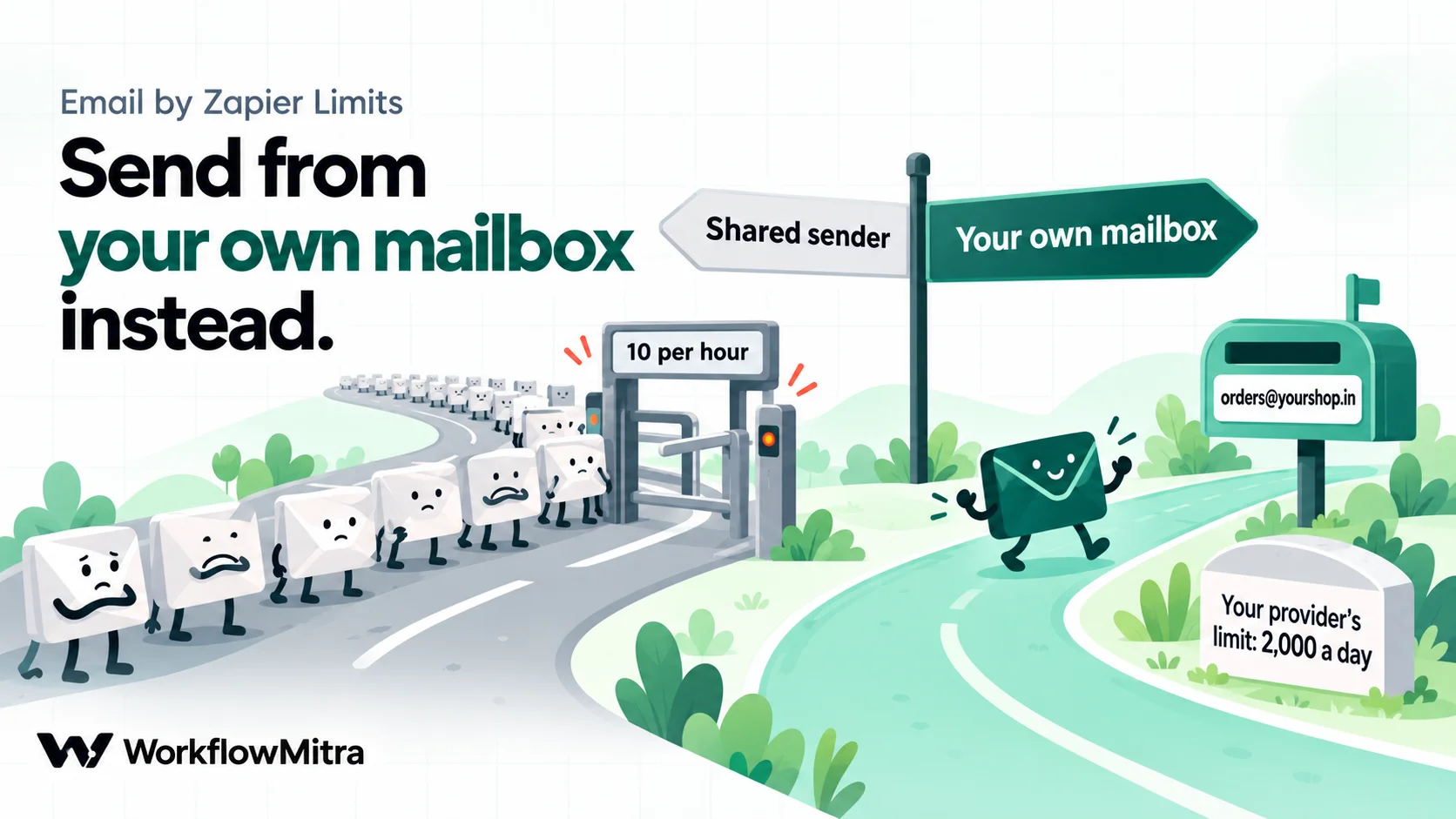
Moving off Email by Zapier doesn’t remove limits; it swaps Zapier’s for your mail provider’s. Those are much higher, but they’re real, and they count everything the mailbox sends, including the emails your team writes by hand.
| Mailbox | Sending limit | Recipients per message | Window |
|---|---|---|---|
| Personal Gmail | About 500 emails a day | 500 in one email | You can usually send again within 1 to 24 hours |
| Google Workspace (paid) | 2,000 messages a day per user; 10,000 total recipients; 3,000 external recipients | 100 when sent over SMTP | Rolling 24 hours |
| Google Workspace (trial) | 500 messages a day; 500 unique external recipients | 100 when sent over SMTP | Rolling 24 hours |
| Zoho Mail | 50 to 500 external emails an hour, set by reputation; 1,000 internal an hour | 150 external on paid plans, 100 on free | Rolling 1 hour |
Two things stand out. Zoho Mail’s external limit is hourly and dynamic: Zoho sets it between 50 and 500 based on sender reputation, recipient engagement and contact quality, and says bulk or burst sending isn’t supported. And Google counts recipients as well as messages, so one email to 100 people uses 100 of a Workspace user’s 10,000 daily recipients.
For a deeper look at choosing and connecting a mailbox, including ports, app passwords and SPF, DKIM and DMARC, see our guide to SMTP email automation. We won’t repeat it here.
How WorkflowMitra sends email
WorkflowMitra, powered by ChatMitra, is a no-code workflow automation platform with prices in rupees. It has no shared sender like Email by Zapier. Its Email step always sends through your own mailbox’s SMTP server, so there’s no zapiermail.com equivalent and no platform-wide email cap. We checked the behaviour below in the product’s code on 22 October 2026.
- No sending cap of its own. The Email step doesn’t throttle or count emails per hour or per day. Your mail provider’s limits are the only ceiling.
- Your address, your domain. You connect a mailbox with its address and an app password. Presets cover Gmail, Google Workspace, Yahoo, Zoho Mail and iCloud, and you can enter servers by hand for a hosting mailbox. Sending accepts ports 465, 587 and 2525, and on 587 the STARTTLS upgrade is required, never optional.
- No forced unsubscribe link. Nothing is added to your message, and no recipient can switch your workflow off. That also means compliance for marketing email is your job, which is why we recommend it for transactional and internal email only.
- Full addressing. To, Cc, Bcc and Reply-To each take a list separated by commas, semicolons or new lines; your provider’s per-message recipient limit is the cap. You can set a From name.
- Attachments: up to 10 files per email, 10 MB each and 20 MB in total, from an upload, a URL fetched at send time, or an earlier step.
- A useful output. The step returns the message ID plus
acceptedandrejectedaddress lists, so a later step can flag an address the server refused. - Cost: 1 credit per send attempt. Logic steps such as IF are free.
It isn’t the right tool for every mailbox. WorkflowMitra signs in with an address and app password, and Microsoft has turned off that kind of sign-in for Outlook.com and Microsoft 365, so it can’t send from those mailboxes today. Zapier’s Microsoft Outlook app can send from Microsoft 365 business mailboxes.
Build 1: confirmation emails that never hit a platform cap
This is the webinar example from the start, rebuilt so each registrant gets their email straight away.
- Trigger. A Webhook trigger that your form tool calls, or a Google Sheets trigger on new rows, depending on where registrations land.
- IF: is there an address?
{{ $trigger.email }}Is not empty. Rows without an email go down the Else path and end quietly. - Email step. Choose your mailbox and Send an email. To:
{{ $trigger.email }}. Subject:You're registered: {{ $trigger.webinar_title }}. Put the joining link and date in the message. - Error handler. Right-click the Email step and choose Add error handler, then send a Slack or Telegram message to your team with
{{ error }}on the red branch. A handled error ends the run as successful, so this branch is what tells you a confirmation didn’t go.
Sixty registrations in twenty minutes is sixty sends, well inside a Workspace mailbox’s 2,000 a day. Each one costs 2 credits (the trigger and the Email step; the IF is free), so 120 credits for the launch. Our guide to sending emails from Google Sheets covers sheet-driven triggers, and webhook idempotency shows how to stop a retried webhook from emailing someone twice.
Build 2: pace a batch to your provider’s limit
Sometimes you have a list, not a stream: 400 certificates to email after an event, or 250 renewal reminders. Sending them in one burst is exactly what Zoho says it doesn’t support, and what makes any mailbox look compromised. Pace it instead.
For a few dozen emails, use the Loop step’s own pacing. Read the list, loop over it, and in the Loop’s settings set the batch size to 1 and Delay between batches to the gap you want. The longest delay is 60,000 ms (one minute) between batches, and items run in order by default.
For hundreds, or a strict hourly limit, queue the emails and send a fixed number every hour. One minute between emails is still about 60 an hour, which is above the 50-an-hour floor Zoho applies to a mailbox with a weak reputation. An hourly batch keeps you under any figure you choose:
- Queue sheet. Put one row per email in a Google Sheet with the columns
ID,Email,NameandSentAt, and leaveSentAtblank. - Schedule trigger, every hour.
- Google Sheets: Read rows from the queue tab. Start the range at the header row (
A1:D1001, notA2:…), because the first row of the range is read as the column names. - Code step that picks the next 40 unsent rows:
const MAX = 40;
const unsent = input.rows.filter(r => r.Email && !r.SentAt);
return { batch: unsent.slice(0, MAX), waiting: unsent.length - Math.min(unsent.length, MAX) };- Loop over the batch: type
batchin the Loop’s List field. Inside the loop:- Email step, To
{{ $trigger.Email }}. Inside a Loop,$triggerrefers to the current item. - Google Sheets: Update row, keyed on
ID={{ $trigger.ID }}, settingSentAtto{{ now() }}.
- Email step, To
We ran that Code step through WorkflowMitra’s code engine on a 95-row test queue with 10 rows already sent: it returned rows 11 to 50 as the batch and reported 45 still waiting. The next hour picks up where this one stopped, because only rows that were actually emailed get a SentAt stamp.
Leave the Email step inside this loop without an error handler. If the provider refuses a send because you’ve hit its limit, the loop stops with “Loop item N failed”, the run fails, and your workspace’s failure alert tells you. The unsent rows stay unsent and go out in a later hour. With an error handler, the loop would carry on and try every remaining row against a mailbox that’s already refusing, and each failed attempt still costs a credit.
What it costs. Each hour costs 2 credits to check the queue (the trigger and the Read rows step; the Code step’s charge is a fraction of a credit) plus 3 credits per email (the Loop item, the Email step and the Update row step). Sending 400 certificates at 40 an hour takes ten hours and about 1,250 credits, including the empty checks for the rest of the day. That’s more than sending them one per event, so use the queue only when pacing matters. For the full tour of loop settings, see loops in workflow automation.
Email by Zapier, SMTP by Zapier and WorkflowMitra compared
| Question | WorkflowMitra Email step | Email by Zapier | SMTP by Zapier |
|---|---|---|---|
| Sending limit | None of its own; your provider's | 5 a day (Free, trial) or 10 an hour (paid), account-wide | Your mail server's |
| From address | Your mailbox | A zapiermail.com address | Your mailbox |
| Setup | Address and app password | None | Server, port, login |
| Encryption choices | 465 TLS, 587 with STARTTLS required, 2525 | Handled by Zapier | STARTTLS or none; no SMTPS on 465 |
| Unsubscribe link | Not added | Always added; a click turns the Zap off | Not added |
| Recipients | To, Cc, Bcc lists; provider's cap | Up to 5 in To | To, Cc, Bcc |
| Size | 10 attachments, 10 MB each, 20 MB total | Under 10 MB including attachments | Your server's limit |
| Outlook.com and Microsoft 365 mailboxes | Not supported | Not applicable | Use Zapier's Microsoft Outlook app (Microsoft 365 Business or Enterprise) instead |
| Billing | 1 credit per send attempt | 1 task per send | 1 task per send |
Why WorkflowMitra?
If emails are a step in a business process, such as confirm, log, alert and follow up, WorkflowMitra keeps the whole process in one workflow and sends every email from your own address. There’s no platform-wide email cap to share between workflows, pacing is a Loop setting, and plans are priced in rupees: the Starter plan is ₹999 a month for 10,000 credits, according to WorkflowMitra’s live plan catalogue on 22 October 2026. WhatsApp messages go out through ChatMitra from the same workflow when customers expect a message there instead.
Where Zapier is stronger
Email by Zapier needs no mailbox, no app password and no DNS records, which is genuinely useful for a quick alert to yourself. Zapier’s Microsoft Outlook app sends from Microsoft 365 Business and Enterprise mailboxes, which WorkflowMitra can’t send from today, and it has thousands more app integrations, including ready-made actions for transactional email services. Its New Read Receipt trigger can start a Zap when someone opens an Email by Zapier message; WorkflowMitra’s Email step has no read receipts. If you send a few internal emails a day, Email by Zapier is a reasonable choice and the limit won’t trouble you.
Where WorkflowMitra is stronger
Email always comes from your own address and domain, so replies reach you and your SPF, DKIM and DMARC records apply. Nothing adds an unsubscribe link that a single recipient can use to switch your workflow off, and no workflow can use up another workflow’s sending allowance. Port 465 works, attachments are more generous, and the step reports accepted and rejected addresses for the next step to act on. If you’re weighing a move, our guide to migrating from Zapier covers rebuilding Zaps step by step, and our list of Zapier alternatives compares other options.
Troubleshooting: what each message means
| Message or symptom | Where you see it | What it means | Fix |
|---|---|---|---|
| "Sorry! That is too many emails sent" | Email by Zapier step | The account used its 5-a-day or 10-an-hour allowance | Digest, Delay After Queue, or move to your own mailbox |
| Zap switched off for no clear reason | Zapier | A recipient may have clicked "Stop these emails" | Turn the Zap on again; move customer emails to your own mailbox |
| Test email never reached the recipient | Email by Zapier, while testing | On Free, trial and Pro plans, tests go to your account email | Check your own inbox; publish the Zap |
| "503 5.5.1 RCPT" | SMTP by Zapier step | The To address was empty or invalid | Check the trigger data for that run |
| Connection fails on port 465 | SMTP by Zapier | SMTPS on 465 isn't supported | Use 587 with TLS set to Yes |
| "You have reached a limit for sending mail" | Gmail | About 500 emails, or 500 recipients in one email, in a day | Wait up to 24 hours; spread sends or use Workspace |
| "Maximum recipients limit reached" | Zoho Mail | Too many recipients in one email | Split the list; stay under 150 (paid) or 100 (free) |
| "Loop item N failed" after many sends | WorkflowMitra Loop | Often the mail provider refusing further sends | Lower the hourly batch; the queue resends unsent rows later |
Common mistakes
- Building customer emails on Email by Zapier. It’s fine for alerts to yourself. A customer confirmation that can fail on a busy hour, from an address that isn’t yours, with a link that turns the Zap off, belongs elsewhere.
- Counting per Zap. The limit is per account. Add up every Zap’s emails in your busiest hour.
- Expecting a replay to fix it. Zapier says replays won’t work for runs held because of the limit. Resend important emails deliberately.
- Swapping one cap for another without checking it. Personal Gmail’s 500 a day and Zoho’s hourly limit are real. Count the emails your team sends by hand from the same mailbox too.
- Sending a batch in one burst. Pace it, or queue it hourly. Bursts look like a compromised account to every mail provider.
- Using port 465 with SMTP by Zapier. It isn’t supported there; use 587.
- Testing on the live list. WorkflowMitra’s Safe Test Mode, started from the webhook trigger’s test console, simulates the Email step without sending. The editor’s Run button sends for real. Our guide to testing a workflow has a checklist.
Send from your own address, at your own pace
The Email by Zapier limit is small on purpose: 5 a day on Free, 10 an hour on paid plans, shared by everything on the account. It’s a good fit for a few internal alerts and a poor one for anything a customer is waiting for. Filters, digests and queues stretch it; moving the step to your own mailbox removes it, and leaves you with your provider’s limits instead.
If your emails are part of a bigger process, try building it in WorkflowMitra, powered by ChatMitra: there’s a 14-day trial with no card, and you can compare plans on WorkflowMitra pricing. If some of those messages would land better on WhatsApp, our comparison of WhatsApp and email marketing on ChatMitra covers when each channel wins.
Zapier's help center didn't load from our network on 22 October 2026, so we read the Internet Archive copies of 25 May 2026 of its help center articles Send emails in Zaps (updated 31 March 2026) and Email by Zapier error: Sorry! That is too many emails sent (updated 9 January 2026). We read these live on 22 October 2026: the field help on Zapier's Email by Zapier, SMTP by Zapier, Digest by Zapier and Delay by Zapier app pages; Zapier's Email by Zapier guide (20 November 2025); Zapier pricing; and a Zapier community answer on what happens past 10 emails an hour (August 2022). Mail provider limits: Google's Gmail sending limits and Google Workspace sending limits, and Zoho Mail limits and policies, read the same day. WorkflowMitra behaviour was checked in the product's code, and the queue Code step was run through its code engine, on 22 October 2026. Providers change their limits; check their pages before you rely on a number.
Frequently Asked Questions
Short answers to common questions about the Email by Zapier limit.
Zapier's help center says a Free or trial account can send up to 5 emails per day (24 hours) with Email by Zapier, and any paid plan can send up to 10 emails per hour. The limit counts every email the account sends through that app, whichever Zap or user sends it.
Automate the work between your apps
Build workflows with triggers, conditions and actions, then test them before they go live. Try WorkflowMitra free for 14 days, no card required.