Gmail to WhatsApp: Get Your Important Emails as WhatsApp Alerts Automatically

Quick Summary
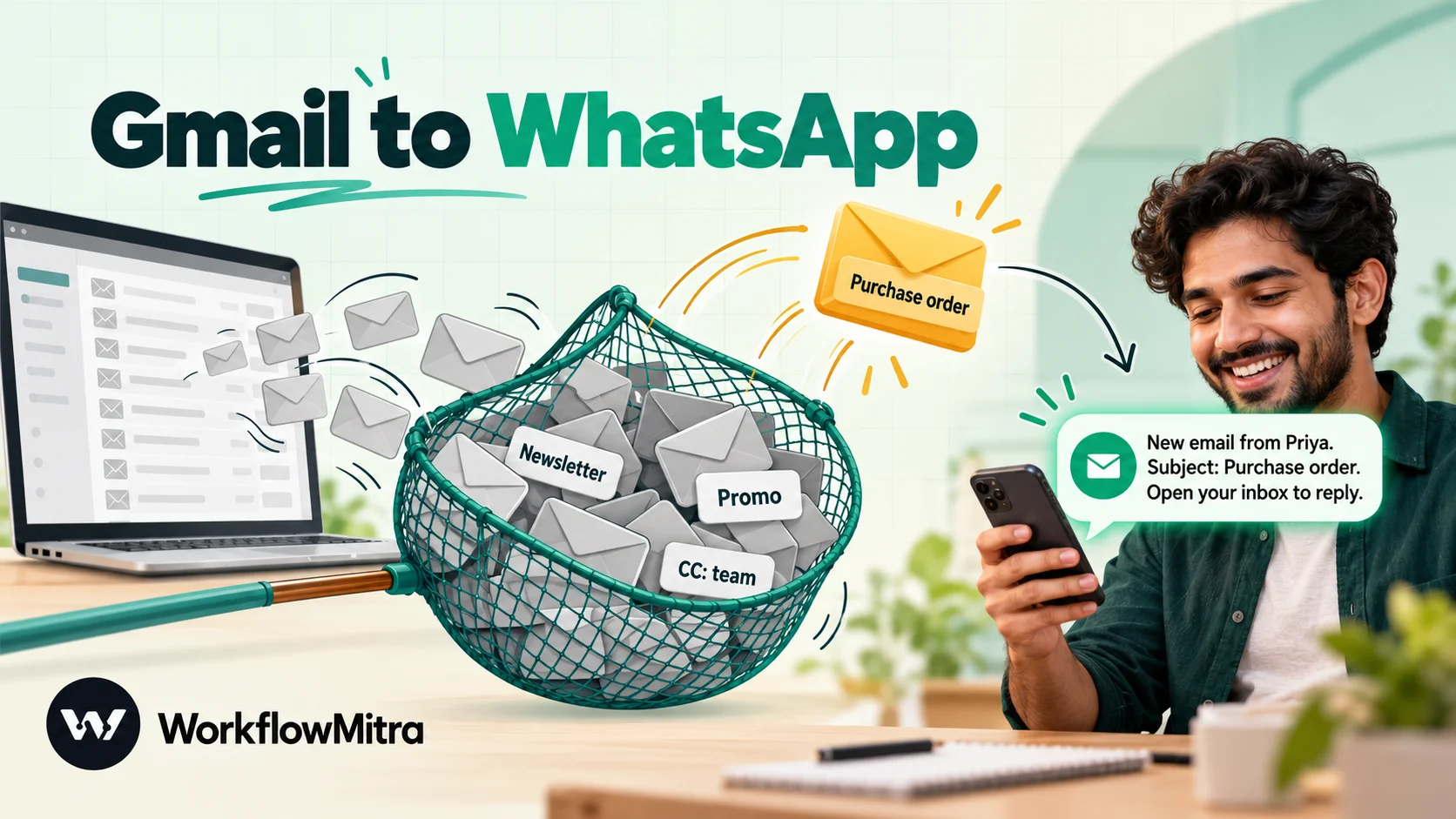
Gmail can't forward emails to WhatsApp by itself; its forwarding only goes to other email addresses. To get important emails as WhatsApp alerts, a workflow watches the mailbox, picks out the emails that matter by sender, subject or label, and sends a short WhatsApp template message with the sender, subject and an optional preview. In WorkflowMitra, powered by ChatMitra, the Email trigger watches Gmail, Zoho Mail, Yahoo, iCloud or a custom mail server over IMAP with an app password, and the WhatsApp step sends the alert through ChatMitra or Meta's Cloud API. Outlook.com and Microsoft 365 mailboxes can't connect directly.
Most people don’t miss important emails because they ignore them. They miss them because the email arrived while they were in a meeting, on a site visit or at the airport, and by the time they opened their inbox it was buried under forty newsletters and notifications. WhatsApp is the app they check between everything else.
Sending the few emails that matter to WhatsApp fixes that, as long as it is done carefully. Forward everything and you have simply moved the noise to your phone. This guide explains how to decide which emails deserve an alert, what you need on the WhatsApp side, and how to build the workflow step by step with Gmail, Google Workspace or Zoho Mail, including a clean one-line preview of the email. It also covers the Outlook question, privacy, routing alerts to the right person and keeping the volume sensible. The examples use WorkflowMitra, powered by ChatMitra.
Can you forward Gmail to WhatsApp?
Gmail can't forward emails to WhatsApp on its own; its forwarding only sends mail to another email address. To get important emails on WhatsApp, you need an automation that watches your mailbox, picks out the emails that match your rules, and sends a WhatsApp message through the WhatsApp Business Platform. Because those alerts are sent by a business number at any hour, they use a pre-approved WhatsApp template with the sender, subject and an optional preview filled in.
There are three ways people approach this:
| Approach | How it works | Good for | Watch out for |
|---|---|---|---|
| Share by hand | Open the email in the Gmail app and share it to a WhatsApp chat | The occasional email | Nothing is automatic |
| Tools that drive a personal WhatsApp account | Software that controls your own WhatsApp through WhatsApp Web | Not recommended | Unofficial automation of a personal account can break when WhatsApp changes and can put the number at risk |
| Workflow + WhatsApp Business Platform | A workflow watches the mailbox and sends an approved template from a business number | Reliable, filtered, team-wide alerts | Needs a business number and an approved template |
The rest of this guide is about the third approach.
Decide which emails deserve a WhatsApp alert
Start here, before touching any settings. An email deserves a WhatsApp alert when all three are true: it is urgent (waiting a few hours costs something), it is actionable (someone has to do something), and the person who must act is away from their inbox at the time it typically arrives.
| Usually worth an alert | Usually not |
|---|---|
| Emails from your three biggest clients | Newsletters and promotions |
| A new enquiry from your website's contact address | Internal CC chains |
| A purchase order or signed contract | Automated reports you read weekly anyway |
| Server, payment or delivery failure notices | Social media notifications |
| A reply from a candidate or supplier you're waiting on | Receipts and invoices with no deadline |
And a short list that should never go to WhatsApp: one-time passcodes, password reset links, bank and card statements, and anything you’d be uncomfortable seeing on a phone’s lock screen. Those stay in the mailbox.
A practical test: look at yesterday’s inbox and count how many emails you would have wanted on your phone. If the answer is more than ten or fifteen, your rules are too broad, and a twice-a-day digest (covered later) suits you better than instant alerts.
What you need before you start
- A mailbox that can connect by IMAP with an app password. Gmail, Google Workspace (if your admin allows app passwords), Zoho Mail, Yahoo, iCloud and most company mail servers work. Outlook.com and Microsoft 365 don’t; see the Outlook section below.
- A WhatsApp Business Platform number to send from, through ChatMitra or directly through Meta’s Cloud API. New to the API? Start with how to get the WhatsApp API on the ChatMitra blog.
- A different number to receive the alerts. A business number can’t message itself, so alerts go to your personal WhatsApp or your team’s numbers.
- Consent from everyone who receives alerts. Even for colleagues, record that they agreed to get them.
- An approved template for the alert (Step 1 below).
- A WorkflowMitra account. The 14-day trial needs no card.
Which mailboxes work
| Mailbox | Connects? | What you need |
|---|---|---|
| Gmail (personal) | Yes | 2-Step Verification on, then an app password. IMAP is always on in Gmail. |
| Google Workspace | Often | Same as Gmail, if your organisation allows app passwords; some don't |
| Zoho Mail | Yes | IMAP access enabled in Zoho Mail settings; an app-specific password if two-factor sign-in is on |
| Yahoo, iCloud | Yes | An app password from the provider's security settings |
| Company mail server | Usually | IMAP host, port and a password your IT team issues |
| Outlook.com, Microsoft 365 | No | Microsoft has switched off app-password sign-in for IMAP; use the forwarding workaround |
Google’s own help explains how to create an app password: you need 2-Step Verification, the option can be missing on work and school accounts or with Advanced Protection, and Google revokes app passwords whenever you change your account password. That last point is a common cause of alerts silently stopping, so note it down.
For Zoho Mail, its help page on IMAP access shows where to switch IMAP on.
Step 1: Create the WhatsApp alert template
Because alerts arrive at any time of day, they have to be template messages. WhatsApp allows a business to send free-form text only within 24 hours of the person’s last message to that number, and WorkflowMitra doesn’t track that window for you, so treat every alert as a template send.
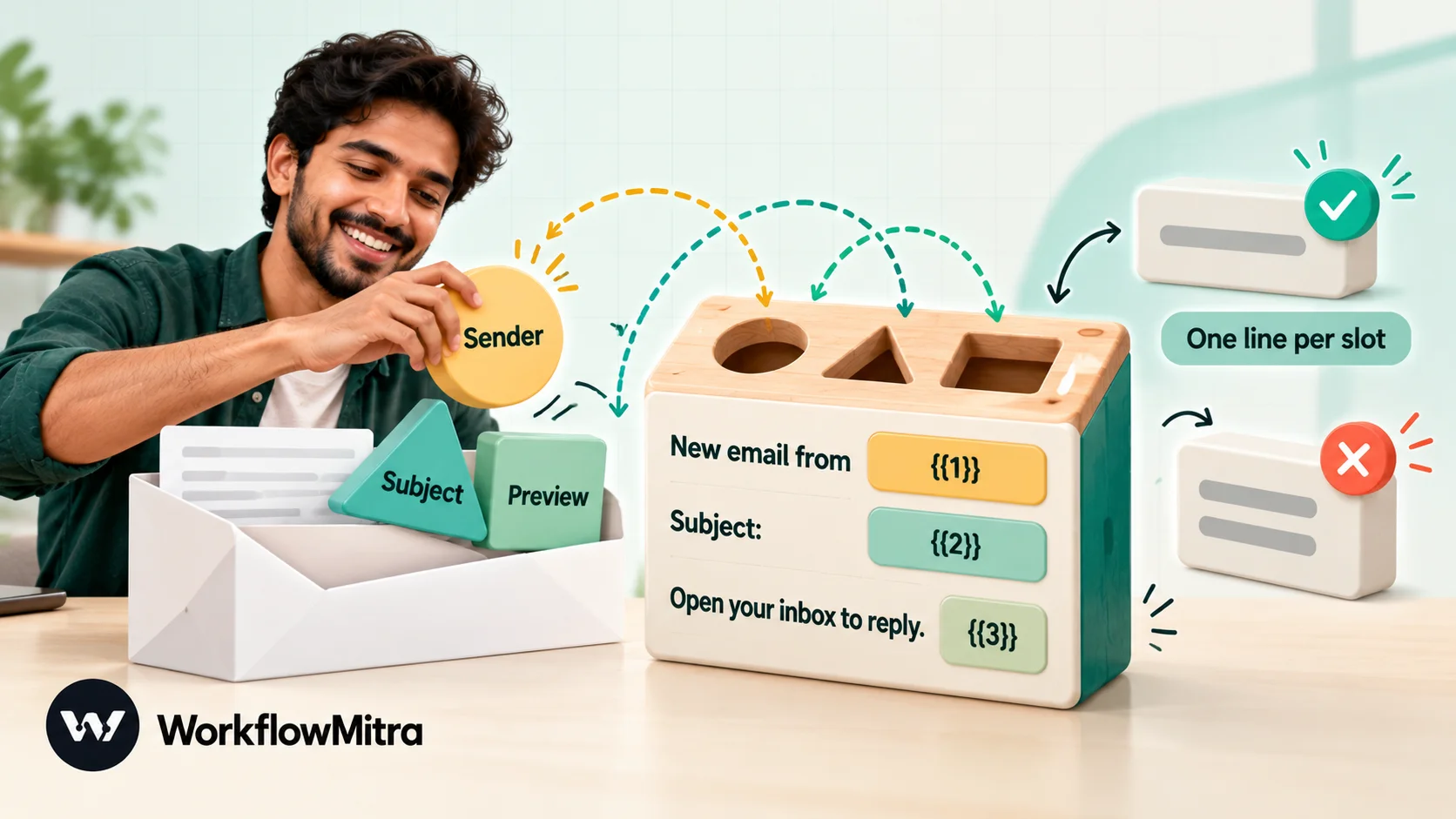
A simple, useful template has three variables:
New email from {{1}} Subject: {{2}} {{3}} Open your inbox to reply.
Variable 1 is the sender’s name, 2 the subject, and 3 a short preview (or a fixed line such as “No preview for this sender”). Some practical points:
- Put the line breaks in the template, not in the variables. WhatsApp rejects variable values that contain line breaks, tabs or long runs of spaces, which is why the preview step below produces a single line.
- Keep it factual. No offers, no links to promotions. Meta decides the template’s category when it reviews it, and anything promotional pushes it into marketing.
- Add a sample for each variable when you submit, so the reviewer sees how it will look.
Submit it in ChatMitra or WhatsApp Manager and wait for approval before building the rest. WorkflowMitra’s WhatsApp step lists your approved templates in a picker once the sending account is connected.
Step 2: Connect the mailbox
In WorkflowMitra, create a new workflow and add the Email app’s trigger, “When an email arrives”. Add a credential for your mailbox: choose the provider (Gmail and Google Workspace, Zoho Mail, Yahoo, iCloud or custom), enter the address and the app password, and use the trigger’s Try it button to confirm the connection before going further.
One account both receives and sends, so the same credential can later label or move the email as part of the workflow.
Step 3: Choose which emails trigger the workflow
This is the step that decides whether your phone becomes useful or annoying. The trigger has four settings:
- Mailbox: the credential from Step 2.
- Folder: blank watches the inbox; otherwise type a folder name.
- Only emails matching: Every new email, Unread only, Unread skipping promotions, Starred or flagged only, With an attachment, or a custom search (Gmail only).
- Check every: from every minute to every hour.
There are three good ways to narrow the emails down.
Option A: a Gmail search (Gmail and Google Workspace only). Choose the custom search and type a query in Gmail’s own search language, exactly as you would in the Gmail search box. For example, from:(@bigclient.com OR @supplier.com) -category:promotions or subject:("purchase order" OR "PO"). On Gmail the query runs on Google’s side, so it behaves the same as in Gmail. On any other provider a custom search is ignored and every new email matches, which the form warns you about.
Option B: a filter in your mail app that files emails into a folder or label. Create a rule in Gmail, Zoho Mail or your mail server that applies a label or moves matching emails to a folder such as WhatsApp, then put that folder name in the trigger’s Folder field. In Gmail, labels appear to IMAP as folders, as long as “Show in IMAP” is ticked for the label in Gmail’s settings. This works with any provider, keeps the rules where your team already manages mail, and has a bonus: dropping an older email into that folder by hand counts as a new arrival in that folder on most servers, so you can push any email to WhatsApp on demand. Test that once with your provider.
Option C: a condition inside the workflow. Watch the inbox and add an IF or Switch step that checks the sender or subject. This is the most flexible, but every incoming email starts a run and costs a trigger credit, even the ones you discard. Use it for logic Gmail search can’t express, and combine it with A or B to keep volume down.
Three behaviours to know before you rely on it:
- Mail already in the mailbox is ignored. The first check only notes where the mailbox is. Only emails that arrive after that start runs.
- “Unread only” depends on timing. If you read an email on your phone before the next check, it is no longer unread and is skipped. Prefer a search, a folder or a sender rule.
- “Starred or flagged” catches only new emails that are already starred when the check runs, such as ones starred by a filter. Starring an older email later doesn’t send it; moving it into a watched folder does.
The trigger takes up to 25 new emails per check, oldest first; any extras are picked up on the next check. Checks that find nothing new don’t start a run, so they cost no credits. A check every minute or two is reasonable for urgent alerts.
Step 4: Add a one-line preview (optional)
The trigger gives you the sender, sender name, recipients, subject, date and whether there are attachments. It doesn’t include the body, because bodies can be large. If the sender and subject are enough, skip to Step 5.
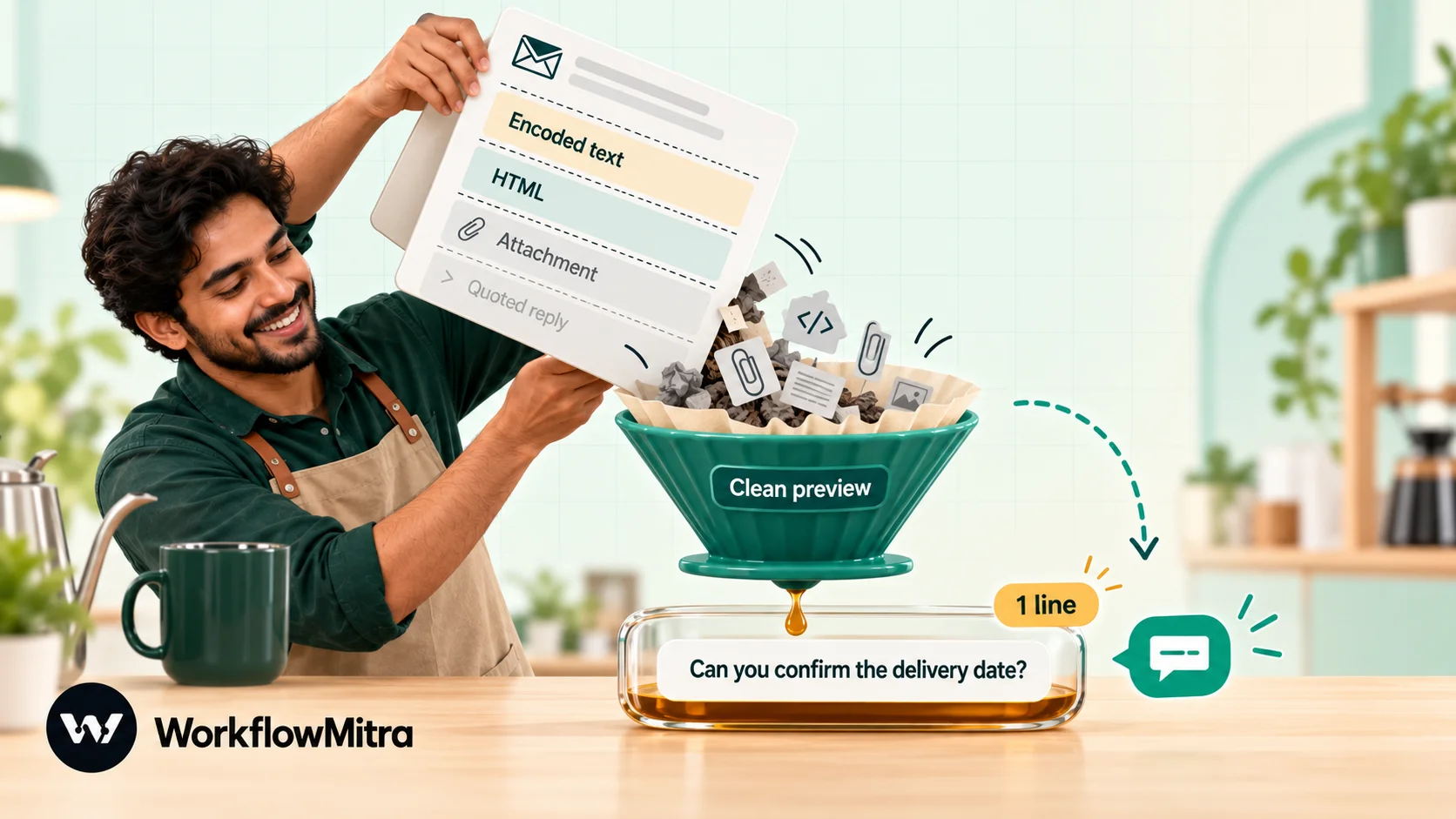
For a preview, add an Email step set to “Get an email (with body)”, with Which email set to {{ uid }} from the trigger and the same folder as the trigger. It returns the email’s raw body exactly as the server stores it: MIME parts, encoded text and attachments included. That isn’t something you can paste into WhatsApp, so add a Code step after it:
// Turn the raw email body into a one-line preview that fits a WhatsApp template variable.
const MAX = 300; // characters to keep
function b64bytes(s) {
const abc = 'ABCDEFGHIJKLMNOPQRSTUVWXYZabcdefghijklmnopqrstuvwxyz0123456789+/';
const out = []; let buf = 0, bits = 0;
for (const ch of s.replace(/[^A-Za-z0-9+/]/g, '')) {
buf = (buf << 6) | abc.indexOf(ch); bits += 6;
if (bits >= 8) { bits -= 8; out.push((buf >> bits) & 255); }
}
return out;
}
function qpbytes(s) {
const out = []; const t = s.replace(/=\r?\n/g, '');
for (let i = 0; i < t.length; i++) {
if (t[i] === '=' && /^[0-9A-Fa-f]{2}$/.test(t.substr(i + 1, 2))) { out.push(parseInt(t.substr(i + 1, 2), 16)); i += 2; }
else { const c = t.charCodeAt(i); if (c < 128) out.push(c); else utf8(String.fromCharCode(c)).forEach((b) => out.push(b)); }
}
return out;
}
function utf8(str) { return Array.from(unescape(encodeURIComponent(str)), (c) => c.charCodeAt(0)); }
function text(bytes) {
let s = ''; for (const b of bytes) s += String.fromCharCode(b);
try { return decodeURIComponent(escape(s)); } catch (e) { return s; } // UTF-8, else Latin-1
}
function decode(content, encoding) {
const e = (encoding || '').toLowerCase();
if (e === 'base64') return text(b64bytes(content));
if (e === 'quoted-printable') return text(qpbytes(content));
return content;
}
function header(block, name) {
const m = block.match(new RegExp('^' + name + ':\\s*([^\\r\\n]*(?:\\r?\\n[ \\t][^\\r\\n]*)*)', 'im'));
return m ? m[1].replace(/\r?\n[ \t]+/g, ' ') : '';
}
// Find the best text part: plain text first, HTML as a fallback.
function pick(body, depth) {
const first = body.trimStart().split(/\r?\n/)[0];
if (depth > 4 || !/^--\S+$/.test(first)) return null;
const parts = body.split(first).slice(1).map((p) => p.replace(/^\r?\n/, ''));
let html = null;
for (const p of parts) {
if (p.startsWith('--')) break; // closing boundary
const cut = p.search(/\r?\n\r?\n/);
const head = cut >= 0 ? p.slice(0, cut) : '';
const content = cut >= 0 ? p.slice(cut).replace(/^\r?\n\r?\n/, '') : p;
const type = header(head, 'Content-Type').toLowerCase();
if (type.startsWith('multipart/')) { const r = pick(content, depth + 1); if (r && r.plain) return r; if (r) html = html || r; continue; }
if (/attachment/i.test(header(head, 'Content-Disposition'))) continue;
const decoded = decode(content, header(head, 'Content-Transfer-Encoding'));
if (type.startsWith('text/plain')) return { plain: true, text: decoded };
if (type.startsWith('text/html') && !html) html = { plain: false, text: decoded };
}
return html;
}
function looksBase64(s) { return /^[A-Za-z0-9+/=\r\n]+$/.test(s.trim()) && s.trim().length > 40; }
function stripHtml(h) {
return h.replace(/<(style|script)[\s\S]*?<\/\1>/gi, ' ').replace(/<br\s*\/?>|<\/p>|<\/div>/gi, ' ')
.replace(/<[^>]+>/g, ' ').replace(/ /g, ' ').replace(/&/g, '&').replace(/</g, '<')
.replace(/>/g, '>').replace(/"/g, '"').replace(/'/g, "'");
}
const raw = String(input.body || '');
let found = pick(raw, 0);
if (!found) {
let t = raw;
if (looksBase64(t)) t = text(b64bytes(t));
else if (/=\r?\n|=[0-9A-F]{2}/.test(t)) t = text(qpbytes(t));
found = { plain: !/<html|<body|<div|<p[ >]/i.test(t), text: t };
}
let preview = found.plain ? found.text : stripHtml(found.text);
preview = preview
.split(/\r?\n/).filter((line) => !/^>/.test(line.trim())).join(' ') // drop quoted replies
.replace(/\s+/g, ' ').trim();
if (preview.length > MAX) preview = preview.slice(0, MAX).replace(/\s+\S*$/, '') + '…';
return {
from: input.fromName || input.from,
subject: (input.subject || '(no subject)').replace(/\s+/g, ' ').trim(),
preview: preview || '(no text in this email)',
uid: input.uid,
};What it does, in order: it finds the plain-text part of the email (or the HTML part if there is no plain text), decodes base64 or quoted-printable text including non-English characters and symbols such as ₹, skips attachments, drops quoted earlier replies, flattens everything to one line and cuts it at about 300 characters on a word boundary. It also returns a cleaned-up sender and subject, so the WhatsApp step can read all three from this one step.
The step costs a small fraction of a credit per email. If you only care about some senders’ previews, put an IF before “Get an email” and send the others with a fixed line instead.
Step 5: Send the WhatsApp alert
Add the WhatsApp step. Choose your sending account (ChatMitra or Meta’s Cloud API), the template from Step 1, and the recipient number with the country code, digits only, for example 919876543210 or 447700900123.
Map the variables:
- If you added the preview steps, the Code step is directly before this one, so use
{{ from }},{{ subject }}and{{ preview }}. - If you skipped them, the trigger is directly before, so use
{{ fromName }}and{{ subject }}, and a fixed text for variable 3.
If you later add a step between the Code step and the WhatsApp step, switch the mappings to {{ $node["Code"].from }} (using your step’s actual name), because a plain {{ field }} only reads the step immediately before.
ChatMitra is the WhatsApp Business messaging layer behind WorkflowMitra; if you send through it, the alerts show in your ChatMitra account like any other template message. For more about the sending side, see ChatMitra.
Step 6: Mark the email as handled
Finish with another Email step on the same {{ $trigger.uid }}: “Add or remove a label” (for example, add alerted) or “Move to a folder”. It gives you a visible record in the mailbox of which emails reached WhatsApp, which helps when someone asks “did I get an alert for this?”. If you used the folder approach in Option B, moving the email back to the inbox afterwards keeps the folder empty and tidy.
Test it before you trust it
- Switch the workflow on and wait for one check, so the trigger notes its starting point.
- Send yourself a test email that matches your rule, from a different address.
- Open the execution history and look at each step’s output: the trigger’s sender and subject, the Code step’s preview, the WhatsApp step’s result.
- Send an email that should not match, and confirm nothing runs.
- Send one with an attachment, one in HTML only and one long one, and check the previews read well on the phone.
Three setups you can copy
The steps above are the same in every case; what changes is the filter, the recipient and how much of the email travels. Three common versions:
1. A consultant who can’t miss client emails. A solo consultant works with six clients and spends half the week on site. In Gmail, a custom search on the trigger lists the six client domains: from:(@client-one.com OR @client-two.com OR @client-three.com), and so on. The check runs every two minutes. The workflow fetches the body, builds a preview and sends the template to the consultant’s personal number. Three steps and one Code step; about 3 credits per email. Because the clients’ emails are routine business, the preview stays on. The one exception is a law-firm client, whose emails get a fixed “Preview hidden for this sender” line through an IF.
2. A shared enquiries inbox in a small agency. hello@ receives enquiries from the website and from referrals, plus a steady stream of vendor pitches. A Zoho Mail filter moves emails that came from the website form’s sending address, or that contain “quote” or “proposal” in the subject, into a folder named Enquiries. The trigger watches that folder. An “Assign to the next person” step picks one of three account managers, and the WhatsApp step sends the alert to that person only, with the enquirer’s name and subject. A final step moves the email into an Assigned folder, so the team can see at a glance which enquiries have been handed out and the watched folder stays empty. Vendor pitches never leave the inbox.
3. An operations lead watching for failures. Payment gateways, couriers and suppliers send failure and exception emails: a failed payout, a returned shipment, a cancelled purchase order. Each comes from a known address with a predictable subject. A Gmail filter labels them ops-alert, and the trigger watches that label. A Switch sends payout failures to the finance owner and shipping exceptions to the warehouse lead. Between 10 p.m. and 7 a.m. only payout failures go out; everything else waits for the morning digest. Because these emails are machine-generated, previews are short and predictable, which makes them ideal for the one-line format.
Notice that none of the three forwards “important” mail in general. Each names specific senders or subjects, so the alert means something when it arrives.
Route alerts to the right person
Once one alert works, the next question is usually “can the right person get it?”.
- By sender or subject. Add a Switch on the sender’s domain:
@bigclient.comgoes to the account manager,orders@emails go to operations, anything with “invoice” goes to finance. Each route ends in its own WhatsApp step with a different recipient. - Shared inbox, fair share. For a
sales@orhello@mailbox, the “Assign to the next person” step rotates incoming enquiries across a team and returns who is next, so each alert goes to one person and nobody is skipped. Round-robin lead assignment explains the rotation. - A group heads-up without WhatsApp. If the team lives in Slack or Telegram, send the same alert there instead; it needs no template.
For more patterns where an app other than WhatsApp starts the workflow, see WhatsApp workflow automation. If your source system can call a URL instead of sending an email, webhook to WhatsApp is faster and more reliable than parsing emails.
Keep the volume sensible
Alerts are only useful while people still read them. Three techniques help:
Quiet hours. Add a Code step that works out the local hour (new Intl.DateTimeFormat('en-GB', { timeZone: 'Asia/Kolkata', hour: 'numeric', hourCycle: 'h23' }).format(new Date())) and an IF that sends at night only for your most critical senders. Use a Code step for this rather than an expression, because expression date helpers use the server’s clock.
A digest instead of instant alerts. For emails that matter but aren’t urgent, use a Schedule trigger twice a day and the Email step’s “Search emails” operation with a filter or folder; it returns up to 100 matching emails, newest first, as a list of senders and subjects without bodies. A Code step can count them and list the first three in one line, sent as a single template message. On Gmail, a search such as label:digest newer_than:1d keeps it to the latest day.
Caps per sender. If a system sends twenty failure emails in a minute, twenty WhatsApp alerts help nobody. Let the first through and route the rest to Slack or the digest, or fix the alert at the source.
Privacy and security
Sending email content to WhatsApp copies it to another service and onto phones. Treat it as a decision, not a default:
- Exclude sensitive mail entirely: passcodes, resets, statements, HR and legal correspondence.
- Send subject only for sensitive senders. A preview of a client’s message may contain personal data; the subject is often enough to prompt action.
- Use a dedicated app password for this workflow, so you can revoke it without affecting other apps. WorkflowMitra stores credentials encrypted.
- Keep the list of recipients short and current. Remove people’s numbers when they change role.
- Tell your team which emails are forwarded and why, especially if a shared mailbox is involved.
Outlook and Microsoft 365: the workaround
WorkflowMitra connects to mailboxes with an address and an app password over IMAP. Microsoft has switched off that kind of sign-in for Outlook.com and Microsoft 365, so these mailboxes can’t be connected directly.
The workaround is forwarding: in Outlook, create a rule (or, for Outlook.com, turn on forwarding in Settings → Mail → Forwarding and IMAP) that sends the important emails to a Gmail or Zoho Mail address, and point the workflow at that address. Forward only the emails that matter, using an Outlook rule, rather than everything.
Check with your IT admin first if you use Microsoft 365 for work. Microsoft’s documentation on external email forwarding explains that automatic forwarding to outside addresses has been off by default for new organisations since 2021, and blocked forwards bounce with a 5.7.520 error.
What it costs in WorkflowMitra
WorkflowMitra charges credits for executed steps: the email trigger, each Email step and the WhatsApp step cost one credit each, IF and Switch are free, and a Code step costs a small fraction of a credit at this size. Checks that find no new email cost nothing.
| Version | Steps per alerted email | Credits per email |
|---|---|---|
| Sender and subject only | Trigger, WhatsApp | 2 |
| With preview | Trigger, Get an email, Code, WhatsApp | About 3 |
| With preview and label | Trigger, Get an email, Code, WhatsApp, Add label | About 4 |
At 15 alerted emails a day, the full version uses about 1,800 credits a month, well inside the entry plan of 10,000 credits for ₹999 a month. If you filter inside the workflow (Option C), add one trigger credit for every email that arrives, alerted or not.
WhatsApp template messages also carry Meta’s charges, plus ChatMitra’s fee if you send through ChatMitra; check ChatMitra pricing for current rates.
When it doesn’t work
| Symptom | Likely cause | Fix |
|---|---|---|
| Mailbox won't connect | Normal password used, 2-Step Verification off, or Outlook/Microsoft 365 | Create an app password; use the forwarding workaround for Outlook |
| Alerts stopped after weeks of working | Google account password changed, which revokes app passwords | Create a new app password and update the credential |
| Nothing fires for old emails | By design: only new arrivals start runs | Move an older email into a watched folder to push it |
| Some matching emails never arrive | "Unread only" and you read them first, or starred after the check | Use a Gmail search, a folder or a sender rule |
| Custom search matches everything | The mailbox isn't Gmail or Google Workspace | Use a provider filter and a folder (Option B) |
| WhatsApp step fails with a parameter error | Line break or tab in a variable, or variable count wrong | Use the preview step; match the template's variables |
| WhatsApp step fails on the recipient | Number not on WhatsApp, wrong format, or same as the sending number | Digits with country code; a different receiving number |
| Preview shows odd symbols | An unusual encoding the snippet doesn't handle | Fall back to sender and subject for that sender |
Common mistakes
- Forwarding everything. Your phone becomes a second inbox and people mute the chat within a week.
- Relying on “Unread only”. Reading an email first is enough to lose its alert.
- Putting the whole email in one variable. Line breaks are rejected; one clean line is the goal.
- Sending passcodes and resets. These should never leave the mailbox.
- Using your main password. Always an app password, dedicated to this workflow.
- No test of the “no” path. Confirm that non-matching emails really stay silent.
Why use WorkflowMitra for email-to-WhatsApp alerts?
Most tools that forward email to WhatsApp either drive a personal WhatsApp account unofficially or stop at “send a message”. WorkflowMitra, powered by ChatMitra, treats it as a small workflow you control:
- Official sending through ChatMitra or Meta’s Cloud API, with your approved templates in a picker.
- Precise filtering with Gmail’s own search syntax on Gmail and Google Workspace, any folder or label on other providers, and IF or Switch rules inside the workflow.
- A real email toolkit in the same workflow: get the body, search, label, move, mark as read, reply and send.
- Routing by sender or subject, and fair rotation across a team for shared inboxes.
- Checks every minute if you need it, with empty checks costing nothing.
- Rupee pricing per executed step.
The limits are worth stating plainly. Outlook.com and Microsoft 365 mailboxes can’t connect directly. The email trigger doesn’t include the body, so previews need the extra step and the Code snippet above. WhatsApp alerts can’t carry the email’s attachments in this setup; the alert tells you there is one. And replying to the WhatsApp alert doesn’t reply to the email. If your alerts only go to a team channel, posting to Slack or Telegram is simpler and needs no template.
Start with one sender
Pick the one sender or subject you most regret missing, build the two-step version (trigger and WhatsApp), and live with it for a week. Then add the preview, the label and more senders. You can build it on the 14-day trial with no card, and the templates page has other starting points. If the emails you get also need answering, AI email replies shows how to draft responses for approval.
Product behaviour described here, including the email trigger's filters and first-check behaviour, the 25-email batch, the raw body returned by "Get an email", credit rates and plan prices, was checked in WorkflowMitra on 7 October 2026. Provider rules are from Google's help on app passwords and Gmail IMAP, Zoho's IMAP access help, and Microsoft's external forwarding documentation, read the same day. Names, numbers and figures in the examples are illustrative.
Frequently Asked Questions
Questions people ask before they send emails to WhatsApp automatically.
Not by itself. Gmail's forwarding sends mail only to another email address. To get emails on WhatsApp you need an automation that watches your mailbox and sends a WhatsApp message through the WhatsApp Business Platform, or you can share a single email by hand from the Gmail app.
Automate the work between your apps
Build workflows with triggers, conditions and actions, then test them before they go live. Try WorkflowMitra free for 14 days, no card required.
