Exception Queues: What to Do With the Cases Your Automation Can't Handle

Quick Summary
An exception queue is the place where an automated process puts the cases its rules can't decide, so a person can resolve them without stopping everything else. Each case in the queue needs five things: a reason code that says why it was set aside, the details a person needs to decide, an owner, a deadline, and a decision that lets the automation finish the job. Business exceptions (a refund above your limit, an order number that doesn't exist) belong in the queue; technical failures (an app that timed out) need retries and alerts first, then the queue if they can't recover. In WorkflowMitra, powered by ChatMitra, a Google Sheet works as the queue: one workflow checks each request with a Code step and sends the misfits to an Exceptions tab with an owner from the Assign step, a second workflow finishes the job when someone picks a Decision, and a daily check emails every case that has waited too long.
A customer asks for a refund of ₹4,999 because the parcel arrived damaged. Your refund workflow approves small refunds on its own, but this one is above the limit, so it stops. Somebody posts it in the team WhatsApp group. Three people see it, each assumes another will call the customer, and on day four the customer leaves a one-star review that says nobody replied.
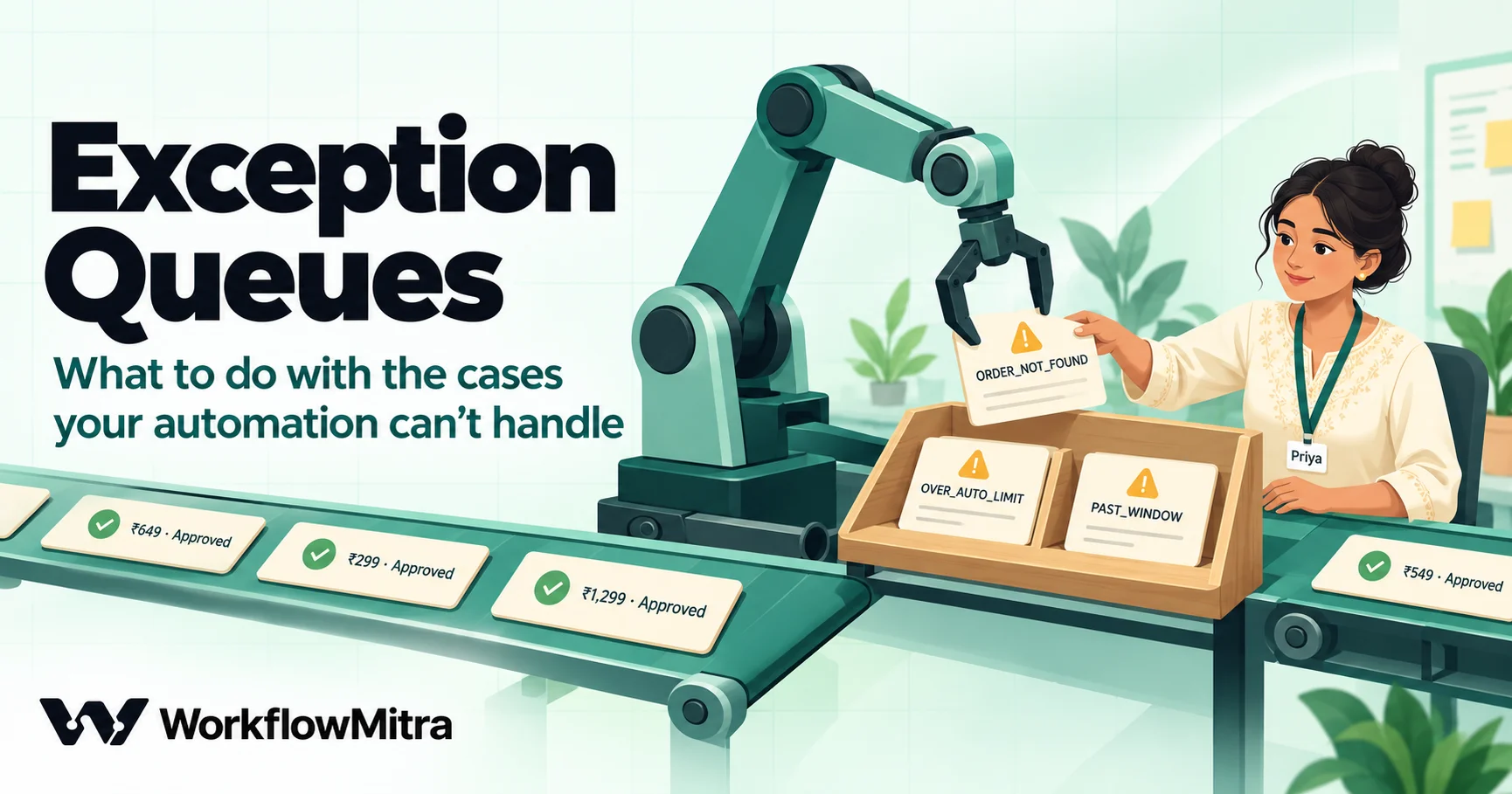
The workflow did its job: it refused to approve something it shouldn’t. What was missing is the part that comes after the refusal. Every automation meets cases its rules don’t cover, and those cases need somewhere to go, someone to own them and a deadline. That place is an exception queue.
This guide explains the pattern and then builds one for refund requests with a Google Sheet and WorkflowMitra, powered by ChatMitra. One workflow checks each request and sends the misfits to the queue with an owner, a second finishes the job when that person decides, and a third chases anything that has waited too long. We ran the checking script against five sample requests and the overdue check against a week of queue rows; the outputs are quoted below.
Quick answer: An exception queue is where an automated process puts the cases it can't decide by its rules, so a person can resolve them while everything else keeps moving. Give every case a reason code, the details needed to decide, one owner, a deadline and a decision field. When the owner decides, the automation finishes the job. Check the queue on a schedule, escalate what has waited too long, and use the reasons to fix rules that send too many cases.
What is an exception queue?
An exception queue is a list of work items that an automated process has set aside because its rules can’t settle them. The clean cases continue automatically. The exceptions wait, each with enough information for a person to decide, and once the decision is made the process picks the case up again.
The term comes from back-office operations. In robotic process automation, UiPath’s documentation separates a business exception, “an error rooted in the fact that certain data which the automation project depends on is incomplete or missing”, from an application exception, a technical problem such as an application that is not responding. Its Orchestrator doesn’t retry transactions that failed with a business exception, because retrying can’t change the answer. Payment and messaging systems have used exception queues for decades for the same reason: the items that don’t fit shouldn’t block the ones that do.
A working exception queue has five parts:
- A reason for every case, in a fixed code such as
OVER_AUTO_LIMIT, plus a sentence a person can read. - The details needed to decide without opening three other systems.
- One owner, by name.
- A deadline that depends on the reason.
- A decision that the automation can read, so it can carry out the outcome.
Leave out the decision field and you have a to-do list, not a queue: the person resolves the case and then has to do the follow-up work by hand.
Exceptions are not errors
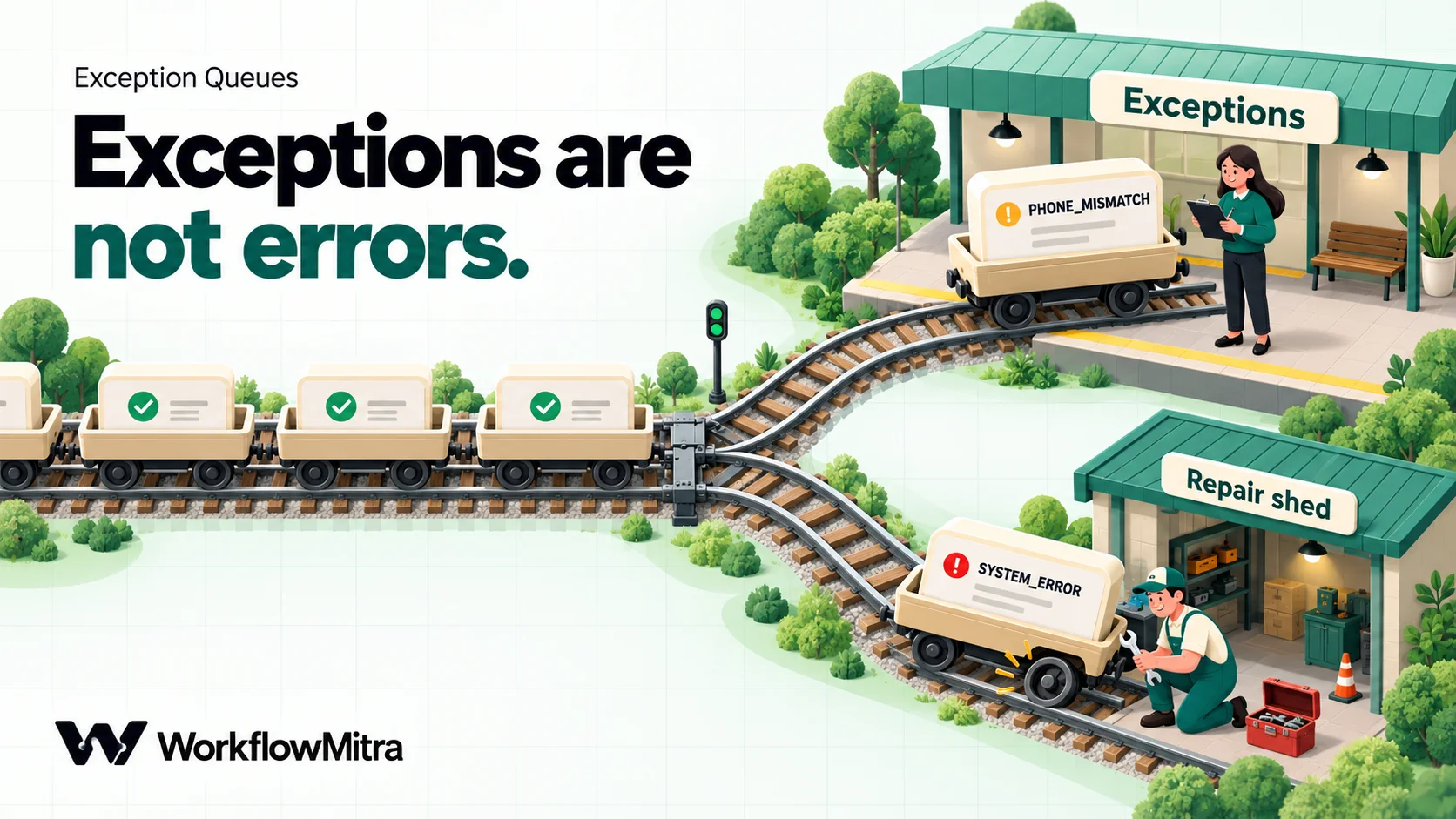
The most useful distinction in this whole topic is between cases the rules refuse and steps that broke. They look similar in a run history, but they need opposite treatment.
| Business exception | Technical failure | |
|---|---|---|
| Example | Refund above your limit; order number not found; delivered 19 days ago | Google Sheets returned "too many requests"; a connection expired; an API timed out |
| Does a retry help? | No. The same data gives the same answer | Often. Wait and try again |
| Who fixes it? | The person who owns the business decision | Whoever maintains the workflow |
| What it needs | Context, an owner, a deadline, a decision | An alert, a fix, a replay |
| Where it goes | The exception queue | Alerts and an error branch; the queue only if it can't recover |
Our workflow error handling guide covers technical failures: alerts, error branches and replays. This article is about the other column. Later we’ll connect the two, because a technical failure that can’t recover is still work somebody has to finish.
An exception is also different from an approval. An approval workflow asks a known person a known yes-or-no question about a case that fits the process, such as “pay this vendor run?”. An exception is a case that doesn’t fit: the right answer may need a phone call, a photo of the damage or a look at the courier’s tracking page. Approvals can live inside a run; exceptions usually take longer than any run should wait.
Signs you need an exception queue
You probably already run one, just badly. Look for these:
- Cases live in chat. “Can someone check this?” messages in a WhatsApp or Slack group, with no record of who took them.
- The automation fails instead of setting aside. A run errors on a case it should have parked, so the case appears only as a red line in the run history.
- Customers chase you. You learn about stuck cases when the customer calls.
- Rules got looser over time. Someone raised the auto-approval limit to ₹10,000 because the manual cases piled up, not because ₹10,000 refunds are safe.
- Nobody can say how many are waiting. If the answer to “how many refunds are waiting for a decision?” takes ten minutes to find, the queue is invisible.
Design the rules before you build
An exception queue is only as good as the line between “the automation decides” and “a person decides”. Draw that line on paper first, with the people who will own the cases.
List what the automation may decide on its own. For refunds, a sensible small-business rule is: the order exists, the phone number matches the order, it was delivered within the last 7 days, it hasn’t been refunded already, and the amount is no more than the order total and no more than ₹1,500. Everything inside those lines is approved automatically.
Give every way out a reason code. Each rule that can fail gets its own code. Codes let you count reasons later and set a different deadline for each. Several codes can apply to one case, and the reviewer should see all of them, not just the first.
Decide the outcome options. For refunds the reviewer either approves or rejects. Keep the options few and write them as a dropdown, because the workflow will read them.
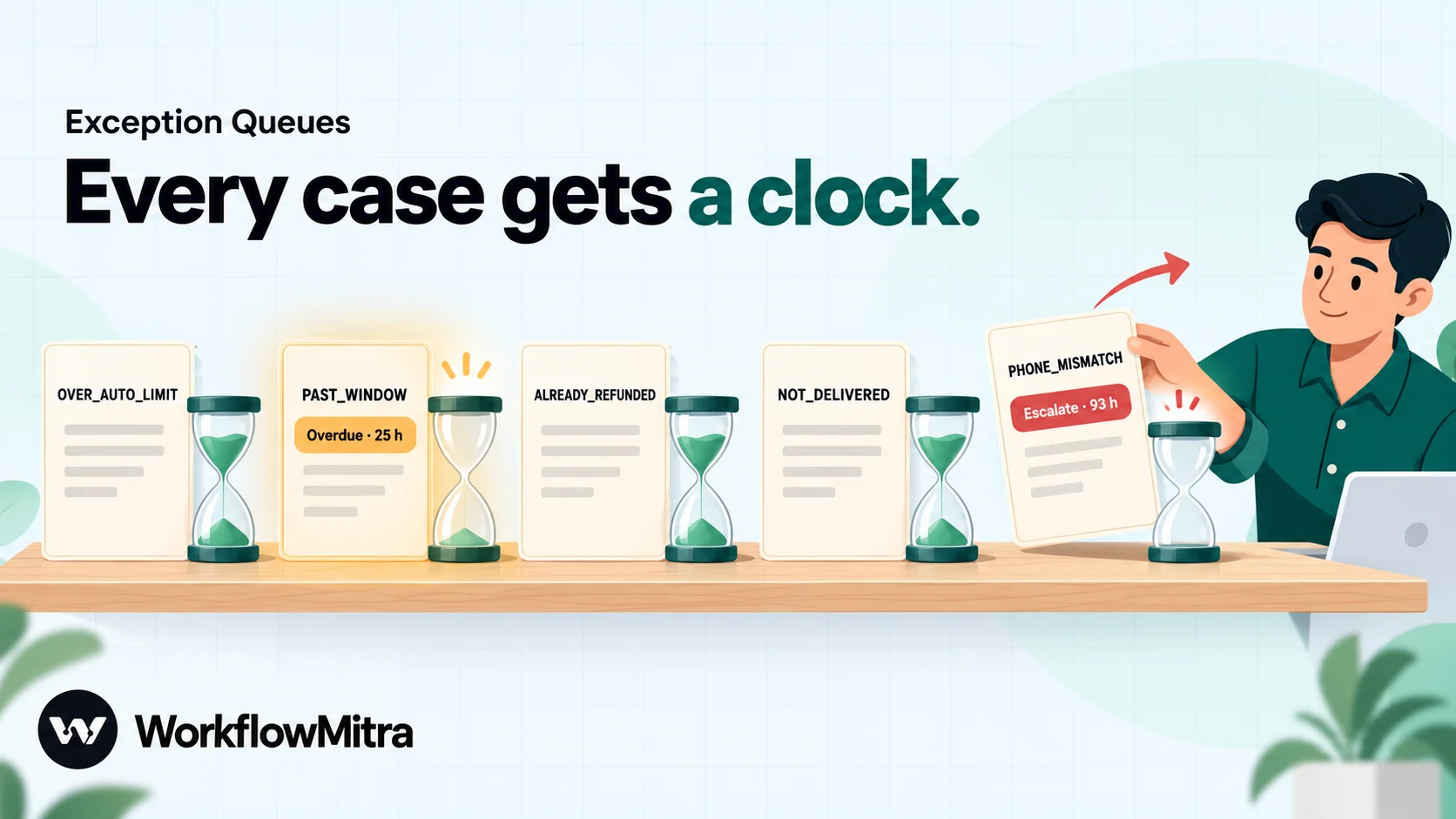
Set a time limit per reason. A possible double refund (ALREADY_REFUNDED) gets 4 hours; a large refund 8 hours; most others a working day. Twice the limit means escalation to the manager.
Choose the owners. Business cases rotate across the support team. Technical failures go to the person who maintains the workflow, because the support team can’t fix an expired Google connection.
Write down what “resolved” means. For a refund, resolved means the order is marked, the refund is listed for payment and the customer is told. That’s what the second workflow will do.
What you’ll build
Three small workflows share one Google Sheet:
| Workflow | Starts when | What it does |
|---|---|---|
| 1. Refund requests | A customer submits the refund form | Looks up the order, checks the rules, approves clean requests and sends the rest to the Exceptions tab with an owner |
| 2. Decision | Someone picks a Decision in the Exceptions tab | Approves or rejects the refund, updates the order and tells the customer |
| 3. Overdue check | Every day at 10:00 | Emails the team every open case past its time limit, flags the ones to escalate, and counts this week's reasons |
No money moves automatically. Approved refunds land in a “Refunds to pay” tab, and someone pays them through your payment gateway or bank as you do today. If you’re new to WorkflowMitra, build your first workflow before this one.
Set up the sheet
Create one Google Sheet with three tabs. Keep the headings exactly as written; the workflows read columns by name.
Orders is the list your store or team already keeps: OrderNo, Phone, Total, Status, DeliveredOn, RefundStatus. DeliveredOn must be a real date cell, not text, and RefundStatus starts empty.
Exceptions is the queue. One row per case:
| Column | Example | Written by |
|---|---|---|
| ExceptionID | EX-CM-4388-7302 | Workflow 1. Unique per case |
| Created | 21 Oct, 11:00 IST | Workflow 1, for people to read |
| CreatedAt | 2026-10-21T05:30:07.302Z | Workflow 1, for the overdue check |
| OrderNo, Customer, Phone, Email, Amount, CustomerReason | CM-4388 · Imran Shaikh · ₹4,999 · Damaged in transit | Workflow 1, from the form |
| Reasons | OVER_AUTO_LIMIT | Workflow 1. Codes, comma-separated |
| Details | Above the ₹1,500 auto-approval limit | Workflow 1. Plain language |
| Owner, OwnerContact | Karan · [email protected] | Workflow 1, from the Assign step |
| Decision | Approve refund / Reject | The owner, from a dropdown |
| Note | Photo checked, courier damage | The owner. Goes to the customer on rejection |
| DecidedBy | KS | The owner's initials |
| Status | Open / Approved / Rejected | Workflows only |
| ClosedAt | 2026-10-21T08:12:44.000Z | Workflow 2 |
Refunds to pay gets one row per approved refund: OrderNo, Customer, Amount, ApprovedHow, ApprovedAt.
Two details matter more than they look. First, Decision and Status are different columns on purpose. People write Decision; only workflows write Status. Workflow 2 watches Decision, so when it writes Status it doesn’t start itself again. Second, add a dropdown to the Decision column (Data, Data validation, Dropdown) with exactly Approve refund and Reject, so a typo can’t leave a case stuck. Google’s help page on dropdowns walks through it.
If you add a column later, add it at the right-hand end. WorkflowMitra’s Add row(s) step writes values by column position, so a column inserted in the middle shifts everything after it until you reopen and save the step.
Workflow 1: route each refund request
The request comes from your website’s refund form, sent to a WorkflowMitra webhook. The form posts orderNo, name, phone, email, amount and reason. Build the workflow like this:
- Webhook trigger with the Website form source. If your form can’t send WorkflowMitra’s secret header, read webhook security before you empty the secret, because an open URL accepts requests from anyone.
- Google Sheets, Find row on the Orders tab. Key column
OrderNo, key value{{ orderNo }}, “If several rows match” left on “Stop with an error (recommended)”. Open Advanced and set Read values to “Raw values (numbers stay numbers)”, soDeliveredOnarrives as a date number the script can use. Find row returnsfound,rowandrowNumber, and a missing order givesfound: falserather than an error. Make the order number a required field on your form: an empty key value does stop this step with an error. - Set Variable named “Request”, which copies the form fields next to the lookup result:
orderNo={{ $trigger.orderNo }}, and the same forname,phone,email,amountandreason. Set Variable keeps the Find row output and adds these fields, so the next step sees both. - Code step named “Check refund” with the script below.
- IF step with one route named “Needs a person” that runs when
{{ reasonCount }}is Greater than0. The Else path is the clean path.
On the Else path (a clean request): Google Sheets Update row on Orders with key OrderNo = {{ orderNo }}, mapping only RefundStatus to Approved auto. Then Add row(s) to “Refunds to pay” with {{ $node["Check refund"].orderNo }}, the customer name, the amount and ApprovedHow = Automatic. Finally an Email to {{ $node["Check refund"].email }} confirming the refund and when to expect it. After the first step on a path, a plain {{ field }} reads only the step just before it, so later steps read the script’s output by name with $node.
The “Needs a person” path is the queue, covered after the script.
The Check refund script
Paste this into the Code step. It reads the lookup result and the request, tests every rule, and returns all the reasons a request doesn’t fit, not just the first one.
// Decides whether a refund request fits the rules, and lists every reason it doesn't.
const AUTO_LIMIT = 1500;   // rupees a refund can be approved without a person
const WINDOW_DAYS = 7;     // days after delivery a refund can be requested
const t = v => String(v == null ? '' : v).trim();
const last10 = v => t(v).replace(/\D/g, '').slice(-10);
const order = input.row || {};
const asked = Number(t(input.amount).replace(/[₹,\s]/g, ''));
const total = Number(order.Total);
const deliveredMs = typeof order.DeliveredOn === 'number' ? (order.DeliveredOn - 25569) * 86400000 : NaN;
const daysSince = Math.floor((Date.now() - deliveredMs) / 86400000);
const found = input.found === true;
const rules = [
  ['ORDER_NOT_FOUND', !found, 'No order with this number'],
  ['PHONE_MISMATCH', found && last10(input.phone) !== last10(order.Phone), 'Phone does not match the order'],
  ['ALREADY_REFUNDED', found && t(order.RefundStatus) !== '', 'Order already has a refund: ' + t(order.RefundStatus)],
  ['NOT_DELIVERED', found && t(order.Status).toLowerCase() !== 'delivered', 'Order status is ' + (t(order.Status) || 'blank')],
  ['PAST_WINDOW', found && daysSince > WINDOW_DAYS, 'Delivered ' + daysSince + ' days ago'],
  ['AMOUNT_INVALID', !(asked > 0) || (found && asked > total), 'Asked ' + t(input.amount) + ' on an order of ' + t(order.Total)],
  ['OVER_AUTO_LIMIT', asked > AUTO_LIMIT, 'Above the ₹' + AUTO_LIMIT.toLocaleString('en-IN') + ' auto-approval limit'],
];
const hits = rules.filter(r => r[1]);
const now = new Date(Date.now());
return {
  exceptionId: 'EX-' + t(input.orderNo) + '-' + String(now.getTime()).slice(-4),
  orderNo: t(input.orderNo), name: t(input.name), phone: last10(input.phone),
  email: t(input.email), amount: asked, reason: t(input.reason),
  reasonCount: hits.length,
  reasons: hits.map(r => r[0]).join(', '),
  details: hits.map(r => r[2]).join('; '),
  createdAt: now.toISOString(),
  created: new Intl.DateTimeFormat('en-IN', { timeZone: 'Asia/Kolkata', day: '2-digit', month: 'short',
    hour: '2-digit', minute: '2-digit', hour12: false }).format(now) + ' IST'
};
How the script decides
| Code | Set aside when | Why a person should look |
|---|---|---|
| ORDER_NOT_FOUND | The order number isn't in the Orders tab | Usually a typo (an "l" for a "1"), sometimes an order from another channel |
| PHONE_MISMATCH | The last 10 digits differ from the order's phone | Could be a family member, could be someone else's order |
| ALREADY_REFUNDED | RefundStatus already has a value | Paying twice is the most expensive mistake here |
| NOT_DELIVERED | Status isn't "Delivered" | "Never arrived" claims need the courier's tracking |
| PAST_WINDOW | Delivered more than 7 days ago | Policy says no, but a loyal customer may get a yes |
| AMOUNT_INVALID | No amount, or more than the order total | Shipping, partial returns or a typo |
| OVER_AUTO_LIMIT | More than ₹1,500 | Large refunds deserve a check of the photo or the return |
The script compares phone numbers by their last 10 digits, so +91 98450 12345 and 9845012345 match. It reads DeliveredOn as a Google Sheets date number (days since 30 December 1899), which is why the Find row step reads raw values. The exception ID adds the last four digits of the clock to the order number, so two requests for the same order still get different IDs. That matters: the Sheets trigger in workflow 2 identifies rows by this ID, and duplicate IDs put the trigger into an error state.
Avoid {{ }} inside the script. WorkflowMitra fills those in as plain text before the code runs, and a quote mark in a customer’s reason would break the script. That’s why the Set Variable step passes the form fields in as ordinary input.
We tested the script
We ran the script in WorkflowMitra’s Code step with the clock fixed at 21 October 2026, 11:00 IST, against five requests. Each run took under 50 milliseconds, well within the step’s one-second limit.
CM-4417  ₹649    Wrong size          → clean (approved automatically)
CM-4388  ₹4,999  Damaged in transit  → OVER_AUTO_LIMIT
                                       "Above the ₹1,500 auto-approval limit"
CM-4302  ₹899    Not as described    → PAST_WINDOW
                                       "Delivered 19 days ago"
CM-44l9  ₹1,100  Never arrived       → ORDER_NOT_FOUND
                                       "No order with this number"
CM-4410  ₹1,450  Changed my mind     → ALREADY_REFUNDED, NOT_DELIVERED
                                       "Order already has a refund: Approved auto;
                                        Order status is Shipped"
The last case is why the script collects every reason. A reviewer who saw only “not delivered” might approve it once the parcel arrived, without noticing the order had already been refunded once.
Getting each case to a person
On the “Needs a person” path, add three steps.
Assign to the next person, named “Assign reviewer”. Under “Who should this go to?” list the support team, each with a name and an email address. Each run picks the next person and then starts again at the top, so cases are shared evenly. The step passes its input through and adds assignedName and assignedTo. Our round-robin assignment guide covers absences and fairness. Test runs move the rotation too, so expect the order to shift while you test.
Google Sheets, Add row(s) on the Exceptions tab. Map each column in order: {{ exceptionId }}, {{ created }}, {{ createdAt }}, the order and customer fields, {{ reasons }}, {{ details }}, {{ assignedName }}, {{ assignedTo }}, leave Decision, Note and DecidedBy empty, and write Open into Status. Under Advanced, set Write values to “Exactly as written (no formulas)”, so CreatedAt stays text and a phone number never turns into a formula.
Email to {{ $node["Assign reviewer"].assignedTo }} with the subject Refund case {{ $node["Check refund"].exceptionId }}: {{ $node["Check refund"].reasons }}. Put the details, the customer’s own reason and a link to the sheet in the body. Then a second Email to the customer saying the request is being checked and when they’ll hear back. That one message removes most “any update?” calls. If your customers prefer WhatsApp, send the same note as an approved utility template through ChatMitra; see ChatMitra’s guide to WhatsApp utility templates.
Don’t send cases to a group chat. A message to a group is a message to nobody in particular, which is exactly how the ₹4,999 refund in the opening got lost.
Workflow 2: finish the job when someone decides
The reviewer looks at the case, calls the customer or checks the photo, then picks a Decision from the dropdown and, for a rejection, writes a Note. The second workflow takes it from there.
- Google Sheets trigger on the Exceptions tab. Under “Run when…” choose One column changes, with
Decisionas the only column to watch, and set the ID column toExceptionID. A newly added row only records a starting point and doesn’t start this workflow; it runs when the Decision cell of an existing row changes. The trigger checks every 5 minutes by default, and checks that find nothing cost no credits. - IF with two routes. “Approve” runs when
{{ Decision }}is “Equal to, ignore case”Approve refundand{{ Status }}is Equal toOpen. “Reject” runs onRejectandOpen. The Status check is the safety catch: if someone changes a decision after the case was closed, nothing runs twice. Anything else falls through the Else path and stops.
On Approve: Google Sheets Update row on Orders, key OrderNo = {{ $trigger.OrderNo }}, setting RefundStatus to Approved by person. This step comes first on purpose. If the reviewer approved an ORDER_NOT_FOUND case without correcting the order number in the row, Update row stops with an error, the run fails, your failure alert fires, and nothing half-finished is left behind. Then Add row(s) to “Refunds to pay” (ApprovedHow = {{ $trigger.DecidedBy }}), Update row on Exceptions (key ExceptionID, Status Approved, ClosedAt {{ now() }}), and an Email to {{ $trigger.Email }}.
On Reject: Update row on Orders with RefundStatus = Rejected, Update row on Exceptions with Status Rejected and ClosedAt, and an Email to the customer that includes {{ $trigger.Note }}, so the customer gets a real reason instead of a form letter.
Every step here reads the row with $trigger, because the trigger’s input is the sheet row itself and a plain {{ Amount }} after the first step would read the previous step’s output instead. Update row writes only the columns you map, so the owner’s Note and DecidedBy stay as they typed them.
Google Sheets doesn’t tell the workflow who edited a cell, which is why the sheet has a DecidedBy column. For a stricter record, protect the Status and ClosedAt columns so only the account the workflow uses can edit them, and rely on the sheet’s version history for who changed a Decision.
Workflow 3: catch cases that have waited too long
A queue without an ageing check slowly fills with cases everyone has seen and nobody has finished. The third workflow runs once a day:
- Schedule trigger, “Every day at a set time”, 10:00, time zone Asia/Kolkata. To check twice on working days instead, choose “Custom schedule (advanced)…” and enter
0 10,16 * * 1-6. - Google Sheets, Read rows on the Exceptions tab, with Read values set to “Raw values”.
- Code step named “Overdue” with the script below.
- IF route that runs when
{{ overdueCount }}is Greater than0. - Email to the support team with the manager in cc. Subject
{{ overdueCount }} refund cases overdue ({{ escalateCount }} to escalate), body{{ digest }}followed byThis week's reasons: {{ thisWeek }}.
// Lists open exceptions that are past their time limit, oldest first.
const LIMIT_HOURS = { SYSTEM_ERROR: 2, ALREADY_REFUNDED: 4, OVER_AUTO_LIMIT: 8 }; // others: 24
const DEFAULT_HOURS = 24;
const now = Date.now();
const open = [], late = [], weekCounts = {};
for (const r of input.rows || []) {
  const id = String(r.ExceptionID || '').trim();
  if (!id) continue;
  const created = Date.parse(r.CreatedAt);
  const codes = String(r.Reasons || '').split(',').map(s => s.trim()).filter(Boolean);
  if (now - created <= 7 * 86400000) codes.forEach(c => { weekCounts[c] = (weekCounts[c] || 0) + 1; });
  const status = String(r.Status || '').trim().toLowerCase();
  if (status !== 'open') continue;
  const ageH = isNaN(created) ? 999 : Math.floor((now - created) / 3600000);
  const limit = Math.min(...codes.map(c => LIMIT_HOURS[c] || DEFAULT_HOURS), DEFAULT_HOURS);
  open.push(id);
  if (ageH > limit) late.push({ id, ageH, limit, owner: r.Owner || 'nobody', reasons: codes.join(', '), escalate: ageH > 2 * limit });
}
late.sort((a, b) => b.ageH - a.ageH);
const lines = late.map(x => (x.escalate ? 'ESCALATE ' : 'Overdue ') + x.id + ' · ' + x.ageH + ' h (limit ' + x.limit + ' h) · ' + x.owner + ' · ' + x.reasons);
const week = Object.entries(weekCounts).sort((a, b) => b[1] - a[1]).map(([c, n]) => c + ' ' + n).join(', ');
return {
  openCount: open.length,
  overdueCount: late.length,
  escalateCount: late.filter(x => x.escalate).length,
  digest: lines.join('\n'),
  thisWeek: week || 'none'
};
A case’s limit is the shortest limit among its reasons, so a case that is both ALREADY_REFUNDED and NOT_DELIVERED gets 4 hours. A case older than twice its limit is marked for escalation. We ran it on six queue rows and a blank row at the same fixed time:
openCount: 4   overdueCount: 2   escalateCount: 1
ESCALATE EX-CM-4291-5530 · 93 h (limit 24 h) · Priya · PHONE_MISMATCH
Overdue  EX-CM-4302-1844 · 25 h (limit 24 h) · Priya · PAST_WINDOW
thisWeek: OVER_AUTO_LIMIT 2, PAST_WINDOW 1, ALREADY_REFUNDED 1, NOT_DELIVERED 1, PHONE_MISMATCH 1
The fresh ₹4,999 case and the 4-hour double-refund case weren’t overdue yet, approved and rejected rows were ignored, and the blank row was skipped. The ages are clock hours, not working hours; if your team works six days, a Monday-morning digest will include Sunday’s waiting time, which is usually what you want to see anyway.
Send technical failures to the same queue
Technical failures should first be handled the usual way: a workspace failure alert, and a fix and replay by whoever maintains the workflow. But if the Find row step in workflow 1 fails because Google returned an error, the customer’s request still needs an answer, and a failure alert alone doesn’t remember that.
Right-click the Find row step and choose Add error handler. On the red error branch, add an Add row(s) step to the Exceptions tab that writes the request from $trigger (order number, name, phone, email, amount), SYSTEM_ERROR as the reason, {{ error }} as the details, your workflow maintainer as the owner, and Open as the status. Then add an Email to the maintainer.
Two things to know about error handlers in WorkflowMitra. A handled error ends the run as successful, so the workspace failure alert won’t fire: the email on the branch is your alert. And the overdue check gives SYSTEM_ERROR cases a 2-hour limit, because a technical failure that sits for a day usually means more requests are failing the same way. The error handling guide has the details on replays.
Measure the queue, then shrink it
The point of a queue isn’t to hold cases; it’s to show you which rules need changing. Five numbers are enough, and you can compute them with formulas on a summary tab:
- Exception rate. Cases set aside divided by all requests, per week. Track the trend, not an industry benchmark.
- Time to decision. ClosedAt minus CreatedAt for closed cases; watch the median and the worst case.
- Open and overdue. The daily email already gives you both.
- Top reasons. The
thisWeekline in the digest. If one reason makes up half the queue, look at it first. - Overturn rate per reason. How often people approve cases a rule sent them. A reason that is approved nine times out of ten is a rule that’s too strict.
Then act on what you see. If PAST_WINDOW cases are almost always approved for 8–10 days, widen the window to 10. If ORDER_NOT_FOUND comes from customers typing an “l” instead of a “1”, fix the form so it suggests their recent orders. Change one rule at a time and watch the next two weeks of the queue. If inputs arrive messy in the first place, catch format problems at the door with data validation so they never become exceptions.
What it costs to run
WorkflowMitra counts one credit per executed step; IF and Set Variable are free, and a short Code step costs a few hundredths of a credit.
| Path | Steps that cost credits | Credits |
|---|---|---|
| Clean request | Webhook, Find row, Update row, Add row(s), Email (+ Code) | about 5 |
| Request sent to the queue | Webhook, Find row, Assign, Add row(s), 2 Emails (+ Code) | about 6 |
| Decision (approve) | Sheets trigger, Update row ×2, Add row(s), Email | 5 |
| Overdue check, per day | Schedule, Read rows, Email when something is overdue (+ Code) | 2–3 |
For 300 refund requests a month with 60 exceptions, that’s about 1,200 + 360 + 300 + 90, or roughly 2,000 credits. The Starter plan includes 10,000 credits for ₹999 a month (₹849 a month billed yearly), and every account starts with a 14-day trial on 10,000 credits with no card needed.
Limits to know
- Sheet size. The Google Sheets trigger watches at most 20,000 rows per tab, and Read rows returns at most 5,000 rows unless you raise its limit. Move closed cases to an Archive tab every month.
- Decision delay. The trigger checks every 5 minutes by default (the minimum is 1 minute), so a decision reaches the customer a few minutes after it’s made.
- Re-deciding. The Status check stops a closed case from running twice. If a case genuinely needs reopening, whoever maintains the workflow sets Status back to
Openand the owner changes the Decision. - No editor identity. The workflow can’t see who changed a cell, hence the DecidedBy column and version history.
- Payments stay manual. This setup lists approved refunds; paying them happens in your gateway or bank.
- Microsoft mailboxes. Outlook.com and Microsoft 365 mailboxes can’t connect to the Email step; use Gmail, Zoho Mail or another mailbox with an app password, or send the alerts to Slack.
Common mistakes
- Making the queue a dead end. If resolving a case means doing the follow-up by hand, people stop resolving cases. The Decision column and workflow 2 are what make it a queue.
- One vague reason. “Needs review” tells the reviewer nothing and the report less. Use codes.
- Stopping at the first failed rule. Show every reason, or reviewers will approve cases with a second, hidden problem.
- Shared ownership. Assign one person per case.
- No deadline. Without the overdue check, the oldest cases are always the ones nobody wants.
- Writing Status by hand. If people edit Status, the safety check in workflow 2 means nothing.
- Testing on the live sheet. Google Sheets steps write real rows even in test runs, and test runs move the Assign rotation. Test on a copy.
- Treating the queue as permanent. A queue that never shrinks means the rules never change.
Exception queue checklist
- Rules written down, with one reason code and one plain sentence per rule.
- Orders, Exceptions and “Refunds to pay” tabs with the exact headings.
- Decision dropdown with exactly
Approve refundandReject; Status written only by workflows. - Workflow 1: Find row with Raw values, Set Variable, Check refund, IF “Needs a person”, Assign, Add row(s) written “Exactly as written”, two emails.
- Error handler on Find row that writes a
SYSTEM_ERRORcase and emails the maintainer. - Workflow 2: “One column changes” on Decision, ID column ExceptionID, Status check on both routes.
- Workflow 3: daily at 10:00 Asia/Kolkata, time limits per reason.
- Workspace failure alerts switched on.
- A test with a copy of the sheet covering a clean request, each reason code and one approve and one reject.
Give every misfit a home
Automation is good at the cases you can describe in advance. The ones you can’t describe are where customers are won or lost, and they deserve better than a message in a group chat. An exception queue gives each of them a reason, an owner, a clock and a way back into the process, and the reasons it collects tell you exactly which rules to fix next.
WorkflowMitra, powered by ChatMitra, gives you the pieces in one visual editor: Google Sheets triggers and lookups, a Code step for rules, round-robin assignment, error handlers and scheduled checks. Browse the templates or the Google Sheets integration, then build this queue on a WorkflowMitra trial: 14 days, 10,000 credits, no card needed. For the bigger picture, start with what workflow automation is.
Sources: UiPath Orchestrator documentation, Business Exception vs Application Exception; IBM documentation on exception queues for FIN messages; Google Sheets help on dropdowns; Google Docs Editors help on version history; Google Sheets help on protected ranges; all read on 20 October 2026. WorkflowMitra behaviour checked in the product source code on 20 October 2026; both scripts were executed in WorkflowMitra's Code step with a fixed clock. Order numbers, names, amounts and rules are illustrative.
Frequently Asked Questions
Short answers to common questions about exception queues in automated workflows.
An exception queue is a list where an automated process puts the cases it can't decide by its rules, so a person can resolve them while the rest keep flowing. Each item records why it was set aside, who owns it, when it must be decided by, and what was decided. When the person decides, the automation finishes the job.
Automate the work between your apps
Build workflows with triggers, conditions and actions, then test them before they go live. Try WorkflowMitra free for 14 days, no card required.
