Finance Automation for Small Business: Payments, Invoices and Approvals That Run Themselves

Quick Summary
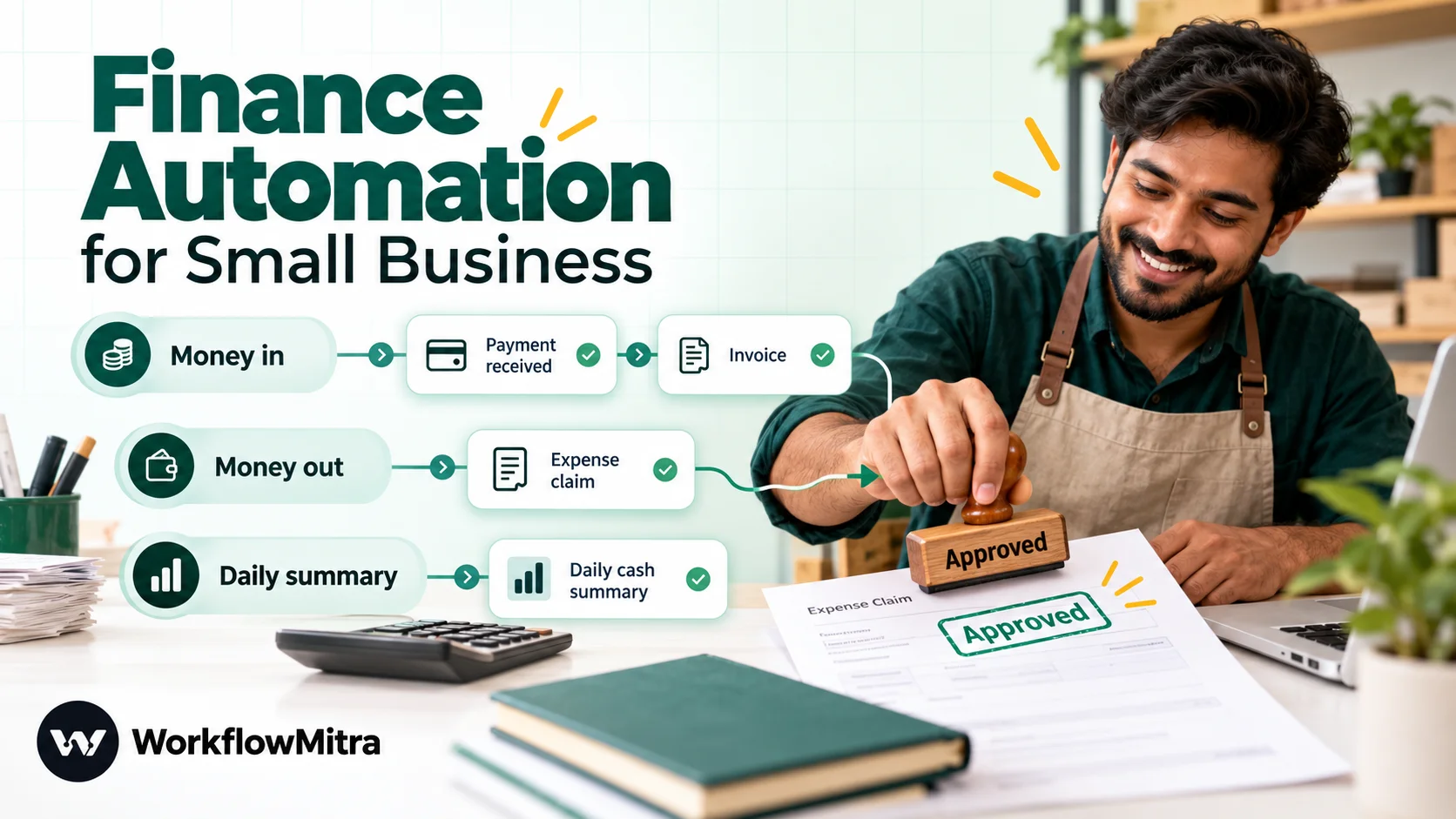
Finance automation for a small business means letting workflows handle the repeatable steps around money, such as confirming and logging payments, raising invoices, chasing unpaid ones, routing expense claims and vendor bills for approval, and sending a daily cash summary, while people keep the decisions and the accounting judgement. Start with one high-volume task with clear rules, keep an approval on anything that spends money, and record every decision in a log you control. WorkflowMitra, powered by ChatMitra, connects payment gateways, Google Sheets, Zoho Books, email and WhatsApp to do this from ₹999 a month.
Small-business finance rarely fails on the big decisions. It fails on the small, repeated steps around them: a payment nobody confirmed to the customer, an invoice that went out three days late, a claim that sat in someone’s inbox for a fortnight, a vendor bill paid twice because two people saw the same email.
None of those steps needs judgement. They need doing, every time, in the same way. That’s what finance automation is good at, and it’s why the owners and part-time accountants of small firms get more from it than large finance teams do: they have no spare hands to do the chasing.
This guide maps the finance tasks a small business can safely hand to a workflow, shows which to start with, and walks through building one in full. The examples use WorkflowMitra, powered by ChatMitra, with payment gateways like Razorpay and Stripe, Google Sheets, Zoho Books, email and WhatsApp. The principles apply whichever tools you use.
Quick answer: Finance automation for a small business means letting workflows run the repeatable steps around money: confirming and logging payments, raising invoices, chasing unpaid ones, routing expense claims and vendor bills for approval, and sending a daily cash summary. People keep the decisions and the accounting. Start with one frequent, rule-based task, put an approval on anything that spends money, and write every decision to a log you own.
What is finance automation?
Finance automation is the use of software to carry out routine finance tasks without someone doing each one by hand. An event starts it (a payment lands, a form is submitted, a date arrives), rules decide what should happen, and the workflow carries out the steps: record the transaction, message the customer, ask a manager, update the books, tell the team.
It is useful to be precise about what it is not:
- It is not accounting software. Your books still live in Zoho Books, Tally, QuickBooks, Xero or a well-kept spreadsheet. Automation moves information into and around them.
- It is not reconciliation. Matching bank lines to invoices and payments is a control your accountant performs with bank statements or feeds. A workflow can make that easier by recording reference numbers consistently, but logging a payment is not proving it reached your bank.
- It is not a replacement for judgement. Whether a refund is fair, whether a client gets more credit, how an unusual expense is treated for tax: those stay with people.
What’s left is a surprising amount of work. A small firm can easily spend several hours a week copying payment details, sending “received, thank you” messages, forwarding claims, and reminding customers. Sage, citing London Economics research, estimates that UK business owners spend 86 hours a year just chasing unpaid invoices.
Why small businesses feel finance admin more
A ten-person business has no collections team: it has the owner, maybe an office manager, and an accountant who visits monthly. And late money hurts small firms the most. Intuit’s 2025 survey of 2,487 US small businesses found that 56% were owed money from unpaid invoices, averaging $17,500 each, and 47% had invoices more than 30 days overdue. The UK government put the cost of late payment at £11 billion a year when it announced new rules in March 2026, and said 38 businesses close every day because they aren’t paid on time. In India, delayed payments to micro and small enterprises are common enough that the government runs a dedicated complaints portal, MSME Samadhaan.
Payments are also smaller and more frequent than ever. India’s UPI handled 24.07 billion transactions in September 2026, about 802 million a day, according to NPCI data. More payments mean more confirmations to send and more lines to record, and doing that by hand doesn’t scale with your sales.
Which finance tasks can a small business automate?
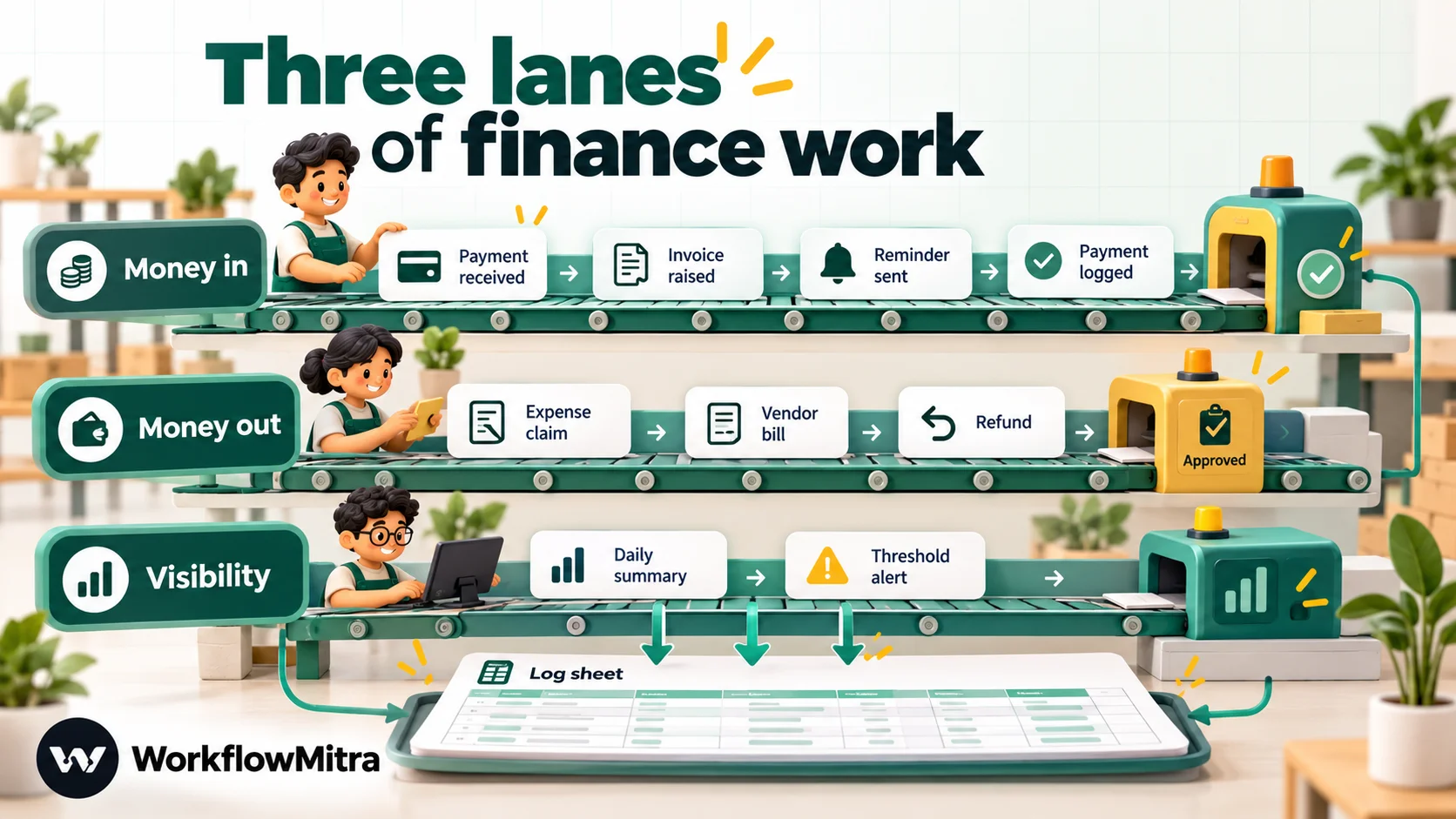
Group the work by direction of money. Most small-business finance tasks fall into three lanes, plus the controls that hold them together.
| Task | What starts it | What the workflow does | What a person does |
|---|---|---|---|
| Payment confirmation | Gateway webhook (e.g. Razorpay payment.captured, Stripe invoice.paid) | Sends the customer a receipt message, alerts the team | Nothing, unless it fails |
| Payment log | Same webhook | Adds a row with amount, reference and date to a sheet or database | Accountant uses the log at month end |
| Invoice creation | Paid order, closed deal or approved quote | Creates the invoice in Zoho Books with the right customer and lines | Checks tax treatment on unusual items |
| Payment reminders | A daily schedule | Finds invoices at each stage, sends email or WhatsApp, stops when paid | Calls long-overdue clients |
| Failed payment follow-up | Gateway "failed" event | Waits, checks it didn't succeed on retry, then offers help | Handles repeat failures |
| Expense claims | Form submission | Checks the claim, applies policy limits, asks for approval, logs the decision | Approves or rejects; pays |
| Vendor bills and purchases | Form, email or bill entry | Routes by amount to the right approver, records the outcome | Approves; pays on schedule |
| Refunds | Support request | Applies the refund policy, asks above a limit, informs the customer | Approves large or unusual refunds |
| Daily cash summary | Morning schedule | Totals yesterday's collections, refunds and open invoices; posts them | Reads it; acts on surprises |
| Threshold alerts | Schedule or payment event | Flags a large refund, a spike in failed payments, or an invoice over a limit | Investigates |
Notice what the right-hand column has in common: people do the deciding, investigating and paying. The workflow does the noticing, routing, messaging and recording.
Where to start: score your finance tasks
Don’t automate everything in a weekend. Score each candidate from 1 to 3 on four questions, then start with the highest total:
- Frequency. Does it happen daily (3), weekly (2) or monthly (1)?
- Cost of delay. Does lateness cost money or goodwill (3), annoy someone (2) or nobody notice (1)?
- Cost of error. Would a mistake be caught quickly and cheaply (3), need a fix (2) or be serious and hard to reverse (1)? Low-risk tasks go first; serious ones need approvals before they’re automated.
- Clarity of the rule. Could you write the rule on a sticky note (3), with a few exceptions (2), or does it depend on “it depends” (1)?
For most small businesses the top three are the same: payment confirmation and logging (daily, unambiguous, low risk), invoice reminders (weekly, costly when late, clear stages) and expense claim approvals (weekly, clear limits, and the approval itself is the safeguard). Vendor bills and refunds come next. Anything that scores 1 on clarity stays manual until the rule is clearer.
Accounting software, a workflow tool, or both?
Before building anything, check what your accounting software already does. Doubling a feature it has is wasted effort, and two systems sending reminders to the same client is worse than one.
| If your books are in… | Use its built-in features for | Add a workflow tool for |
|---|---|---|
| Zoho Books | Email payment reminders (all plans); sales and purchase approvals (Professional plan and above); bank feeds and reconciliation | WhatsApp messages, approvals for things Zoho doesn't cover (such as expense claims), invoices created from gateway payments, daily summaries in Slack or WhatsApp |
| TallyPrime | Vouchers, tax and statutory work, reports | Logging payments and claims to a sheet your accountant imports. Tally's integration interface runs over HTTP on the computer where TallyPrime is open, so a cloud workflow can't call it directly |
| QuickBooks or Xero | Their own reminders, recurring invoices and bank rules | Messaging and approvals around them. WorkflowMitra has no QuickBooks or Xero step today |
| A spreadsheet | Your record of truth (a sheet per register: payments, invoices, claims) | Everything else: the sheet triggers the workflows and receives their results |
The pattern is consistent: let the accounting system own the ledger and its native automations, and let a workflow tool own the edges, where money meets customers, staff and chat.
The building blocks of a finance workflow
Every workflow in this guide is assembled from five kinds of part. In WorkflowMitra they map to the following steps.
Triggers: what starts it.
- Payment events arrive through WorkflowMitra’s Razorpay and Stripe webhook sources, which check each provider’s signature (
X-Razorpay-Signature,Stripe-Signature) and reject anything forged before a run starts. - Schedules run a workflow every day, week or month at a set time in your time zone.
- Sheet changes start a run when a row is added or changed in Google Sheets, checked every five minutes by default.
- Forms and other apps reach a workflow through a webhook URL.
Records: where facts live. The Google Sheets step reads, finds, adds and updates rows. Zoho Books is reached through the App Request step, which uses a saved Zoho connection, adds your organisation ID to every call and renews Zoho’s access token on its own; you choose the API path, such as /books/v3/invoices. PostgreSQL and MySQL steps cover finance data kept in a database.
Decisions: what should happen. IF and Switch compare amounts, dates and text (“Greater than”, “Less than or equal”, “Is before”) and send the run down the matching route. Both are free in WorkflowMitra’s credit model.
People: who decides. Wait for approval pauses the run until someone in the workspace approves or rejects, with a deadline and a default. Assign to the next person rotates work, such as overdue accounts, across a team.
Actions: what gets done. Email, Slack and WhatsApp steps send messages. WhatsApp templates go through ChatMitra or Meta’s Cloud API, and a template can carry a PDF from a public link in its header, which is how an invoice copy reaches a customer’s chat. A Code step handles calculations the expression helpers can’t.
One limit shapes several designs below: WorkflowMitra can’t read PDFs or images. Its email trigger tells you a message has attachments but doesn’t pass their contents, and its AI step takes text only. Finance data has to arrive as data: a form field, a webhook payload or a spreadsheet cell.
Money coming in: payments, invoices and collections
Confirm and log every payment
This is the best first workflow because it’s frequent and nearly risk-free. A payment event arrives, the workflow converts the amount (Razorpay sends paise, so ₹2,500 arrives as 250000), adds a row to a payments sheet, and sends the customer a short WhatsApp or email receipt.
Two rules keep it reliable. First, subscribe each webhook URL to one event. WorkflowMitra’s Razorpay source removes duplicate deliveries using the payment ID, so a second event about the same payment, say a refund, on the same URL would be dropped as a repeat. Razorpay lets an account register up to 30 webhook URLs, so give each event its own workflow. Second, record the gateway’s payment ID in every row. At month end, your accountant can search for it instead of guessing which ₹2,500 was which.
The full builds are in Razorpay to Google Sheets (with a Stripe section) and Razorpay to WhatsApp. If you’d rather keep confirmations inside your messaging platform, ChatMitra’s Razorpay integration sends WhatsApp payment updates without building a workflow.
Raise invoices without retyping
If you invoice after payment (common for online sales and fixed-price services), a paid event can create the invoice. The workflow makes sure the customer exists in Zoho Books, creates the invoice with the line items, and records the payment against it with the gateway’s payment ID as the reference. Zoho’s invoice API needs a customer ID and line items, so the “find or create customer” call comes first. Keep tax treatment simple and standard; anything unusual goes to your accountant, not into an automated rule.
Zoho Books applies API call limits by plan and per minute, so replaying a month’s backlog in one go can hit them. Spread large catch-ups across several runs. Ecommerce automation shows this invoice workflow inside a full order-to-cash setup, and connecting an API without code explains how App Request calls work.
Chase unpaid invoices on a schedule
A daily workflow reads open invoices, works out which have reached a reminder stage (before the due date, on it, and a few days after), sends the matching message, and records the stage so nobody gets the same reminder twice. A second workflow marks invoices paid when payment arrives, which is what makes reminders stop.
Keep the automatic messages to three or four, then hand the account to a person. Payment reminder automation has the complete build with a staged schedule, and ChatMitra’s guide to WhatsApp reminder messages has wording you can adapt for templates.
Follow up failed payments carefully
Razorpay warns that a payment.failed event can be followed by a successful capture for the same transaction, for example when a UPI payment is retried. A workflow that messages “your payment failed” instantly can confuse a customer who has, in fact, paid. Add a Delay of 15 to 30 minutes, then check your payment log or the order status before sending anything, and make the message helpful: a fresh payment link and a way to reply.
Money going out: expenses, bills and refunds
Outgoing money is where automation needs the most care, because mistakes are harder to reverse. The rule is simple: the workflow routes and records; a person approves.
Expense claims. An employee submits a claim with an amount, a category and a receipt. Claims under a small limit can be approved by policy and logged; larger ones go to a manager; the largest need the owner too. Zoho Books’ transaction approval covers sales and purchase documents but not expense claims, so this is a workflow job even for Zoho users. The next section builds it.
Vendor bills and purchase requests. The same shape with different limits. If your bills live in Zoho Books on the Professional plan or above, use its built-in purchase approval and let a workflow handle the notifications around it. If bills arrive by email as PDFs, someone still keys them in, because a workflow can’t read the PDF; the workflow then takes over from the form or sheet row.
Refunds. A refund request comes in from support. Under a set amount it follows policy; above it, Wait for approval asks the owner, then the workflow tells accounts and the customer. Approval workflow automation covers refund, discount and purchase approvals in detail, including multi-level approval and escalation.
Build it: an expense claim approval workflow
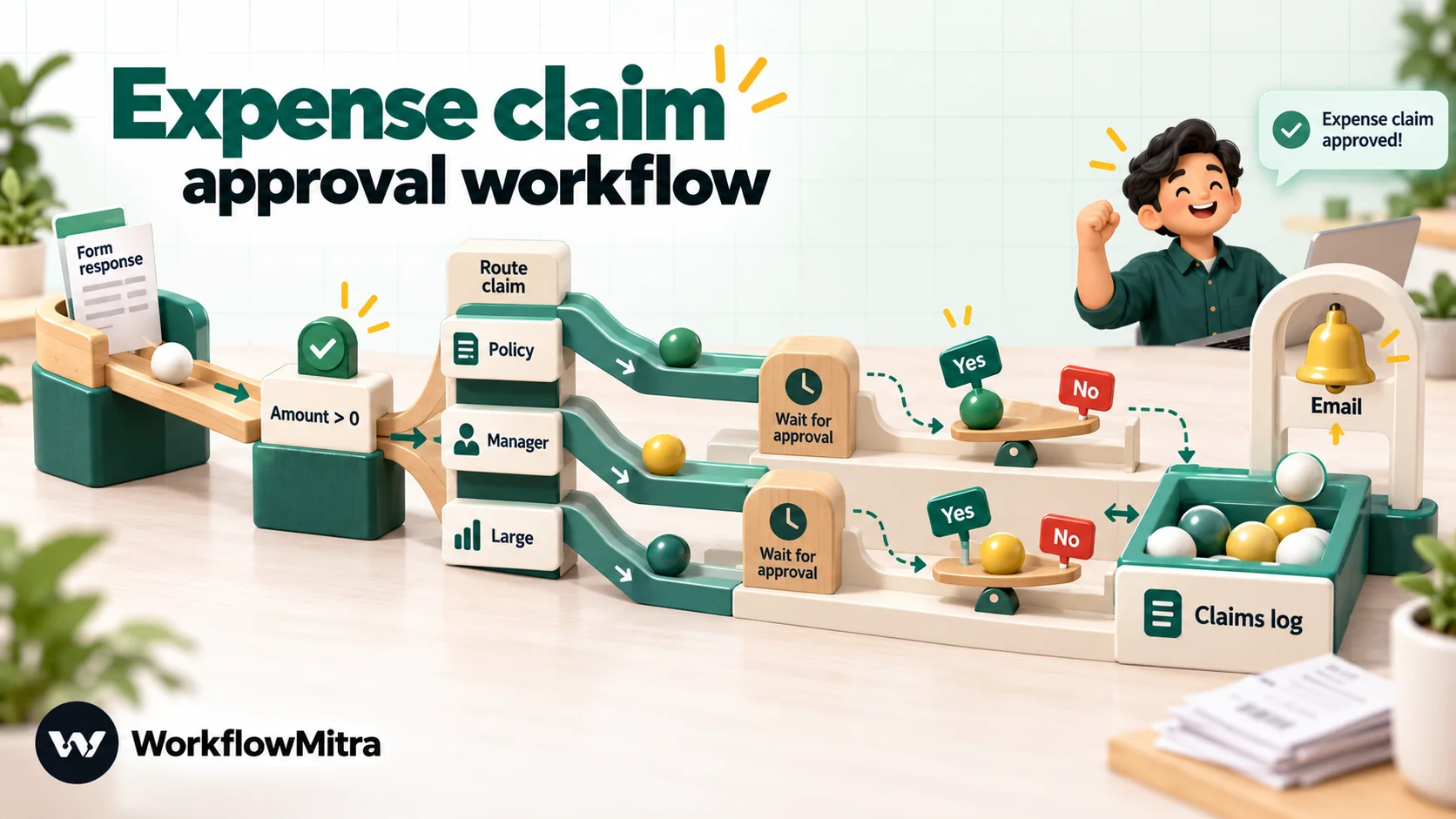
This example replaces the email-and-WhatsApp chase most small teams use for claims. Employees submit a Google Form; small claims are approved by policy; larger ones wait for a manager; everything lands in a log; the employee hears the outcome by email.
1. Set up the form and sheets
Create a Google Form with short question titles, because each title becomes a column header your workflow refers to: Name, Email, Date, Category (a dropdown), Amount (short answer with number validation, greater than 0), Details and Receipt (a file upload). File upload questions require respondents to sign in to a Google account, and the files are saved to a folder in the form owner’s Google Drive; the response sheet holds a link to each file. Share that Drive folder with whoever approves claims, or they won’t be able to open the receipts.
Link the form to a Google Sheet. In the same spreadsheet, add a tab called Claims log with these headers: Submitted, Name, Category, Amount, Decision, Decided by, Decided at, Timed out.
Write your policy limits down before you build. This example uses: up to ₹2,000 approved by policy; up to ₹25,000 needs a manager within 24 hours; anything larger needs a manager within three days.
2. Start on each new response
In WorkflowMitra, add a Google credential and share the spreadsheet with it. Create a workflow with the When a sheet row changes trigger, choose A row is added, and point it at the form’s response tab. Set Use column headers as IDs to No, so rows are tracked by position; form responses always arrive at the bottom. Each response starts one run, and its answers become {{ Name }}, {{ Amount }} and so on.
Date answers arrive as spreadsheet serial numbers (for example, 46302 for 7 October 2026). To show one as a date, use {{ formatDate(multiply(subtract(Date, 25569), 86400000), "DD MMM YYYY") }}. Formatting data in workflows explains why.
3. Reject anything that isn’t a valid amount
Add an IF step: {{ Amount }} Greater than 0. Connect the “no” route to the log and an email asking the employee to resubmit.
This guard matters more than it looks. In our tests, a blank value counts as “less than or equal to 2,000”, so without it an empty amount would sail through the auto-approval route. Form validation should prevent blanks, but rows can be edited by hand.
4. Route by amount
On the “yes” route, add a Switch step with two routes, checked in order:
- Policy:
{{ Amount }}Less than or equal2000. - Manager:
{{ Amount }}Less than or equal25000.
Anything else falls to the default route, which is your Large path. The first route that matches wins, which is why the order matters.
5. Ask for approval
On the Manager route, add Wait for approval:
- What are they approving?
Expense claim: ₹{{ Amount }} from {{ Name }} ({{ Category }}) - Show them: the details, the expense date and the receipt link, for example
{{ Details }}. Spent on {{ formatDate(multiply(subtract(Date, 25569), 86400000), "DD MMM YYYY") }}. Receipt: {{ Receipt }} - If nobody answers within: 24 hours, then treat it as “no”.
Add a second Wait for approval on the Large route with 3 days. Rejecting on timeout is the safe default for anything that spends money: if nobody decides, nothing is paid.
The approval request goes to the email address and Slack webhook in your workspace’s alert settings, and anyone with the Member, Admin or Owner role can decide on the Approvals page. Viewers can see requests but can’t decide. The step doesn’t name a single approver, so control who decides through workspace roles, and give employees who submit claims no workspace access at all, so nobody can approve their own claim.
6. Record the decision
After each approval, add an IF on {{ approved }} Is yes. On both routes, add a Google Sheets step with Add row(s) to the Claims log tab, mapping Submitted to {{ $trigger.Timestamp }} (format that column as a date, since it arrives as a serial number), Name to {{ $trigger.Name }}, Category to {{ $trigger.Category }}, Amount to {{ $trigger.Amount }}, Decision to “Approved” or “Rejected”, Decided by to {{ decidedBy }}, Decided at to {{ decidedAt }} and Timed out to {{ timedOut }}. On the Policy route, the Decision is “Approved by policy”.
Use {{ $trigger.… }} for the form’s answers once the approval has run, so the values always come from the original response. This log is not optional: WorkflowMitra keeps run history, including approval records, only for your plan’s retention period (seven days on the entry plan). The sheet is your permanent audit trail.
7. Tell the employee
Finish each route with an Email step (Send an email) to {{ $trigger.Email }}: “Your claim of ₹{{ $trigger.Amount }} for {{ $trigger.Category }} was approved and will be paid in this week’s run,” or, if rejected, who to talk to. If your team prefers WhatsApp, a WhatsApp step with an approved utility template works the same way.
8. Test, then switch it on
The editor’s Run button performs a real run, and Google Sheets writes are real even in test mode. Test against a copy of the spreadsheet, submit one claim in each band (₹500, ₹5,000 and ₹50,000) plus one with a blank amount, approve one and reject one, then check that four rows reached the log. How to test an automated workflow has a fuller checklist. Then point the trigger at the real response sheet and set the workflow to Active.
Optional: push approved claims into Zoho Books. On the approved route, an App Request step to Zoho Books with POST /books/v3/expenses can create the expense record. Zoho requires the expense account’s ID (look it up once in Zoho Books), the date and the amount:
{
  "account_id": "YOUR_EXPENSE_ACCOUNT_ID",
  "date": "{{ formatDate(multiply(subtract($trigger.Date, 25569), 86400000), "YYYY-MM-DD") }}",
  "amount": {{ $trigger.Amount }},
  "description": "{{ $trigger.Category }}: {{ $trigger.Details }} ({{ $trigger.Name }})"
}
WorkflowMitra inserts the values JSON-safely, so quotes in the description don’t break the request. Attaching the receipt in Zoho is a file upload, which this step doesn’t do; your accountant attaches it from the Drive link, or you keep receipts in Drive and reference the link.
Visibility: the daily summary and alerts
Once payments and claims flow into sheets, two lightweight workflows turn those records into attention.
A daily cash summary. Every morning, a scheduled workflow reads yesterday’s payments log and open invoices, totals collections, refunds and what’s outstanding, and posts four or five numbers to Slack, email or the owner’s WhatsApp. It replaces “can someone check the gateway?” with a message that’s waiting when you start work. Automated daily reports builds one step by step.
Threshold alerts. Some numbers shouldn’t wait for the morning: a refund above ₹10,000, failed payments well above normal, an invoice issued for more than a set amount. An IF on the amount, followed by a Slack or WhatsApp message to the owner, catches these as they happen. Keep alerts for exceptions only. If one fires every day, it’s a report, not an alert, and people will stop reading it.
Controls that keep automated finance safe
Automation removes a person from each step, so the controls that person provided have to be designed back in.
- Approval before money leaves. Refunds, claims, bills and anything that changes what you owe or are owed waits for a person, with a deadline and a “no” default.
- Separation of duties. The person who submits shouldn’t be the person who approves. With fixed workspace roles, that means keeping requesters out of the workspace and giving approval rights (Member and above) only to people who should have them.
- A log you own. Every decision and every payment goes to a sheet or database outside the automation’s own history.
- Verified inputs. Use the signed Razorpay and Stripe sources, not an open webhook URL, so nobody can fake a “payment received”.
- Failure alerts. Set the workspace’s failure alerts (email or Slack) so a broken workflow is noticed the same day. A workflow that silently stops logging payments is worse than none. Workflow error handling explains how alerts and error branches interact.
- Credentials in the vault. Store Zoho, Google and mail credentials as WorkflowMitra connections, which are kept encrypted, and limit who can edit workflows that use them.
What to keep manual
Some finance work should stay with people, however good the tools get:
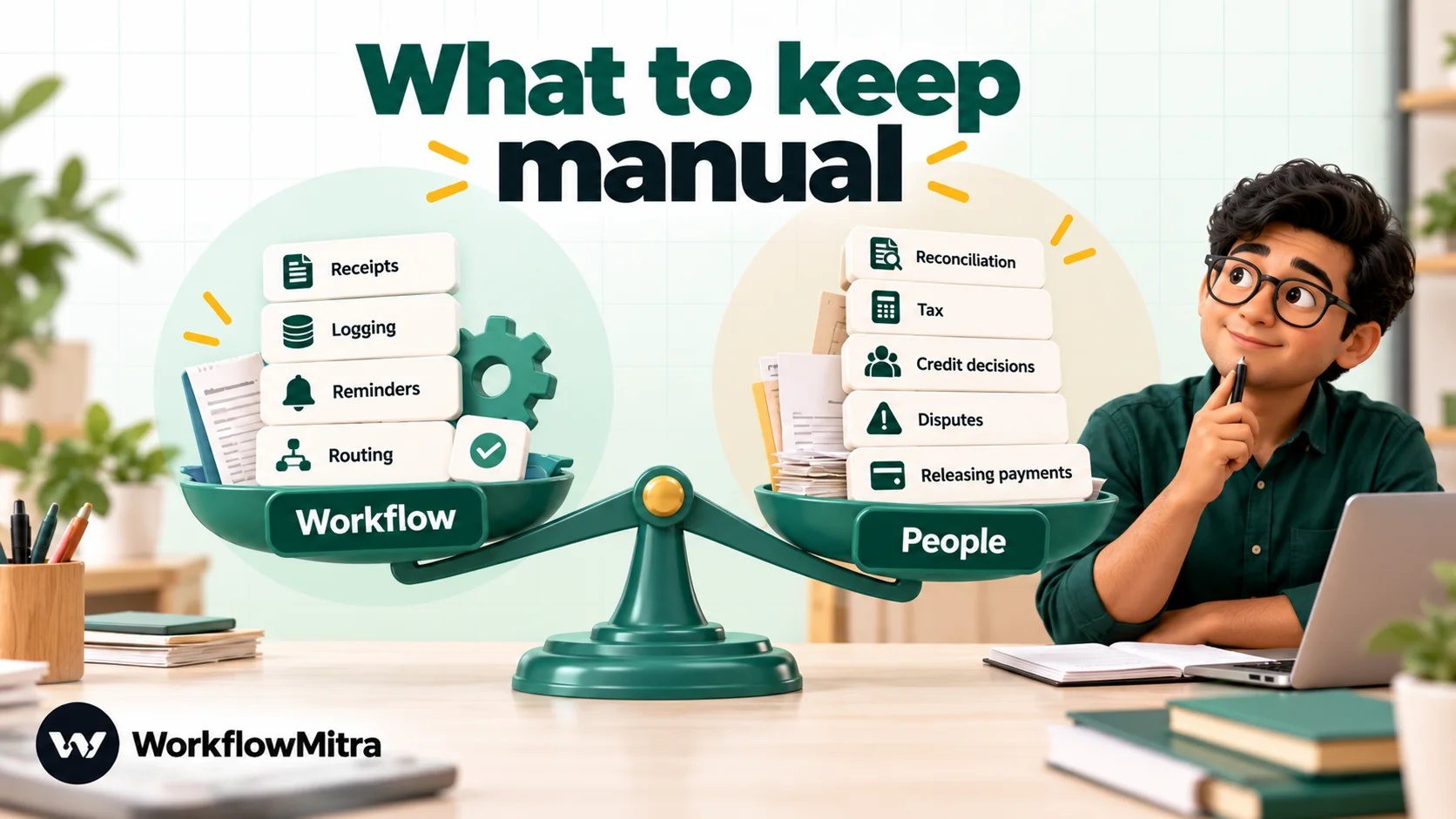
- Bank reconciliation and month-end close, which need bank statements or feeds and an accountant’s eye.
- Tax treatment, returns and statutory filings, and anything your accountant signs off.
- Credit decisions: extending terms, writing off a debt, agreeing a payment plan.
- Disputes and sensitive conversations with clients and suppliers.
- Paying people and suppliers. Let the workflow prepare and approve the list; let a person release the payment from the bank.
What does it cost?
WorkflowMitra charges one credit per executed step. IF, Switch, Delay and Merge steps are free, and a Code step costs at most two credits (usually a fraction of one). Here is a realistic month for a small services business:
| Workflow | Volume per month | Credits per run | Credits |
|---|---|---|---|
| Payment log + WhatsApp receipt | 500 payments | 3 (trigger, Sheets, WhatsApp) | 1,500 |
| Invoice reminders | 200 invoices, about 3 reminders each | Daily run plus about 3 per reminder | About 2,500 |
| Expense claim approvals | 100 claims | 3 to 4 (trigger, approval, Sheets, Email) | About 400 |
| Daily cash summary | 30 days | About 3 (trigger, Sheets, Slack) | About 90 |
| Total | About 4,500 |
That fits within WorkflowMitra’s entry plan: ₹999 a month, or ₹849 a month billed yearly, for 10,000 credits (prices checked 8 October 2026). WhatsApp templates also carry Meta’s charge for each delivered template message, and a per-conversation fee when ChatMitra sends them; see ChatMitra pricing for current rates. Zoho Books, Razorpay and Stripe charges are separate.
A 30-day rollout plan
- Week 1: payments. Set up the payment log and the customer receipt. Run it alongside your current process and compare the sheet with the gateway dashboard daily.
- Week 2: collections. Add invoice reminders and the automatic “paid” update. Start with one stage (three days overdue) before adding the rest.
- Week 3: claims. Launch the expense claim form with approvals. Tell the team the old way stops on a set date.
- Week 4: visibility. Add the morning summary and one or two threshold alerts. Review the logs with your accountant and agree what they need from them each month.
At each step, the test is the same: the log matches reality, nobody received a wrong message, and someone noticed when something failed.
Common mistakes
- Automating a messy process. If nobody can say when a claim needs the owner’s approval, write the policy first.
- No stop condition on reminders. A reminder after payment costs more goodwill than the reminder earns.
- Several gateway events on one webhook URL, so later events are dropped as duplicates.
- Testing on live sheets and real customers. Use copies and your own number.
- Expecting a workflow to read PDFs. Capture the numbers as data.
Why use WorkflowMitra for finance automation?
- Indian payment rails, verified. Razorpay and Stripe events arrive through sources that check signatures and remove duplicate deliveries before a run starts.
- Approvals built in. Wait for approval pauses a run with a deadline and a safe default, so outgoing money always has a person in the loop.
- WhatsApp where your customers are. Receipts, reminders and invoice PDFs go out as approved templates through ChatMitra or Meta’s Cloud API, alongside email and Slack.
- Your records stay yours. Google Sheets, Zoho Books and your own database remain the source of truth; WorkflowMitra moves information between them.
- Rupee pricing by the step, with decision steps free, so a complete small-business finance setup fits the entry plan.
If you’re new to building workflows, start with workflow automation for small business for the wider picture.
Start with the payment log
You don’t need all of this at once. Set up the payment log and the customer receipt this week, check it against your gateway for a fortnight, and you’ll have a clean record and a first win. Then add reminders, then claims.
Try WorkflowMitra free for 14 days (10,000 credits, no card needed) and connect your first payment source today. Plans and credit tiers are on the pricing page.
Sources, read on 8 October 2026: Intuit QuickBooks 2025 Small Business Late Payments Report; UK government, late payments announcement (24 March 2026); Sage, the hidden hours behind late payments; NPCI data reported by DD India (1 October 2026); the MSME Ministry's MSME Samadhaan portal; Razorpay docs on payment webhooks and webhook settings; Stripe event types; Zoho Books plan comparison, transaction approval, API introduction and expenses API; Tally help on integration prerequisites; Google Forms help on file upload questions. WorkflowMitra behaviour was checked in the product's code and the expressions and conditions above were run against its expression engine. This guide is general information, not accounting or tax advice.
Frequently Asked Questions
Questions small businesses ask before automating finance tasks.
It is the use of software to carry out repeatable finance tasks without someone doing each one by hand: recording payments, sending receipts, creating invoices, reminding customers about unpaid bills, routing expense claims and vendor bills for approval, and reporting the day's numbers. The rules are written once; people step in for approvals, exceptions and accounting decisions.
Automate the work between your apps
Build workflows with triggers, conditions and actions, then test them before they go live. Try WorkflowMitra free for 14 days, no card required.
