Phone Number Formatting for Automations: Add Country Codes and Convert to E.164

Quick Summary
E.164 is the international standard format for phone numbers: a plus sign, the country code and the national number, with no spaces, punctuation or leading zero, and at most 15 digits, such as +919876543210. Automations should convert every incoming number to this form once, at the start of the workflow, so messages reach the right person, lookups match and duplicates don't appear. In WorkflowMitra, powered by ChatMitra, you can do this with two Set Variable expressions for a single default country, or with a short Code step that handles several countries and flags numbers it can't place.
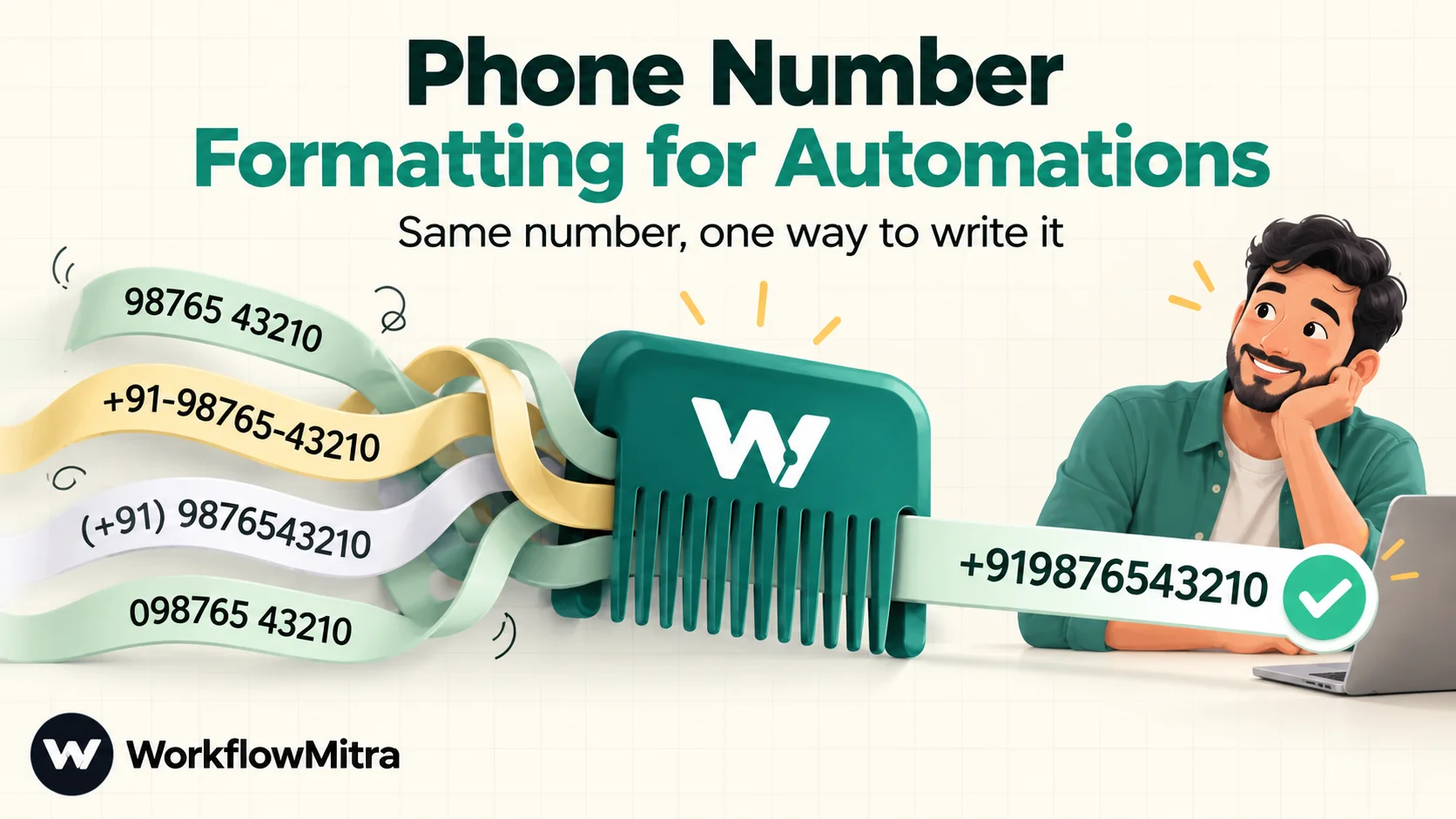
A customer fills in your website form as 98765 43210. The same person later orders on your store as +91-98765-43210, and a salesperson types them into the CRM as 098765 43210. To a person these are obviously one number. To an automation they are three different strings: three CRM contacts, a WhatsApp step that may send to the wrong country, and a spreadsheet that quietly turns one of them into a formula.
Phone number formatting is unglamorous, but it decides whether lead routing, WhatsApp messages and duplicate checks work at all. This guide explains the E.164 standard, what each destination actually expects, the rules for turning messy input into a clean international number, and two tested ways to do it inside a workflow: expressions for one default country, and a Code step for several. It ends with a table of test cases you can reuse to check your own setup.
What is E.164?
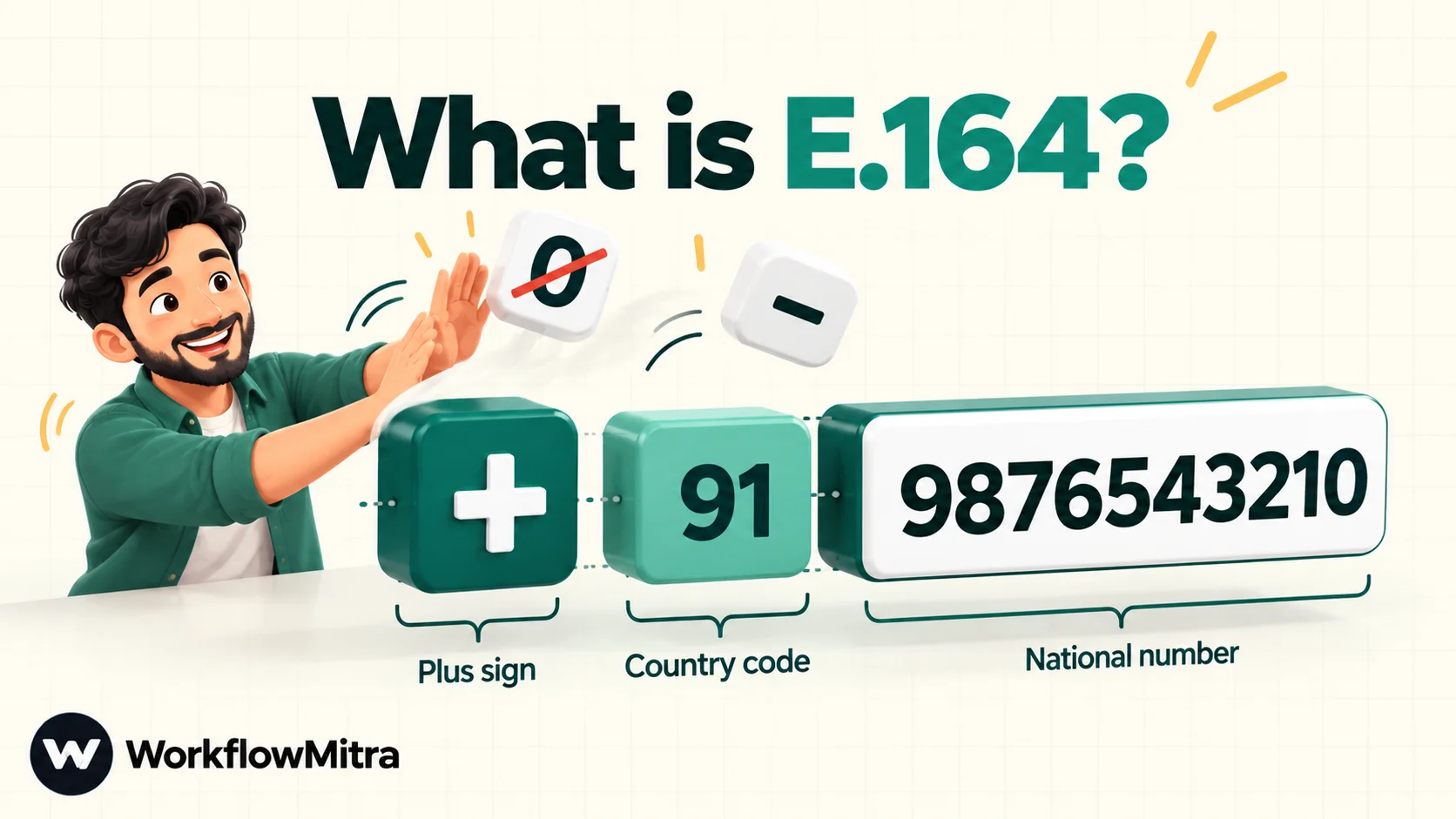
E.164 is the ITU-T standard for international telephone numbers. A number in E.164 format is a plus sign, the country code (one to three digits) and the national number without its leading zero, with no spaces or punctuation and no more than 15 digits. For example, the Indian mobile number 98765 43210 is +919876543210 in E.164, and the UK number 07700 900123 is +447700900123.
The point of E.164 is that every number in the world has exactly one way to be written. That’s what makes it the right format for automations: two systems comparing +919876543210 with +919876543210 agree, whereas 98765 43210 and 09876543210 never will.
| Country | Written locally | Country code | E.164 |
|---|---|---|---|
| India (mobile) | 98765 43210 or 098765 43210 | 91 | +919876543210 |
| United Kingdom | 07700 900123 | 44 | +447700900123 |
| United States / Canada | (415) 555-0132 | 1 | +14155550132 |
| United Arab Emirates | 050 123 4567 | 971 | +971501234567 |
Two terms come up repeatedly below. The trunk prefix is the leading 0 many countries use for calls within the country; it’s dropped in international format. The international prefix is what you dial to call abroad, often 00; it’s replaced by the plus sign.
Why phone formatting breaks automations
Untidy numbers cause real failures, and most of them are silent.
Messages go to the wrong place, or nowhere. Meta’s WhatsApp Cloud API documentation recommends sending the plus sign and country code with every recipient number. When the plus sign is missing, Meta may add your business number’s own country code in front; its own example is an Indian business whose message to a US number written without +1 goes to a +91 number instead. Sending steps can make this worse. The WhatsApp step in WorkflowMitra, powered by ChatMitra, for instance, strips every non-digit and accepts anything with 8 to 15 digits. A ten-digit local number therefore passes the check and is sent without a country code. The fix is to add the country code before the number ever reaches the step.
Duplicates multiply. Lookups in spreadsheets and CRMs compare text. WorkflowMitra’s Google Sheets lookups, for example, match the exact text after trimming spaces at the ends. If one row says +919876543210 and the incoming lead says 98765 43210, the “does this customer exist?” check says no, and you get a second contact.
Spreadsheets rewrite numbers. Google Sheets treats a value as if someone typed it unless told otherwise. +91-9876543210 can become a negative number, +919876543210 a plain number without its plus, and 09876543210 loses its zero.
Reports and routing undercount. Rules such as “send Indian numbers to the domestic team” or “count leads per customer” only work when every number starts the same way.
The formats you’ll actually receive
Every source has habits. Knowing them tells you which rules you need.
| Source | Typical shapes | Watch out for |
|---|---|---|
| Website forms | 98765 43210, +91 98765-43210, (+91) 9876543210 | Anything the visitor types, including "ext" or two numbers |
| Google Sheets typed by people | Numbers stored as numbers, plus signs turned into formulas | Lost leading zeros; a phone column that isn't plain text |
| Lead marketplaces | +91-9876543210 (IndiaMART), ten digits (often JustDial) | Hyphens after the country code; no country code at all |
| Ecommerce checkouts | Free text, with the country in a separate field | Using the billing country to pick the country code |
| CRM exports and CSV files | Whatever the CRM stored, sometimes in scientific notation if opened in a spreadsheet first | Values like 9.19877E+11, which have already lost digits |
| Ad and messaging platforms | Usually full international numbers | Still check for a plus sign, since some send digits only |
When you can, fix the source as well. A form with a country selector and a numbers-only field prevents most problems before they start. But you’ll always receive some messy numbers, so the workflow needs rules anyway.
What each destination expects
E.164 is the canonical form, but not every destination wants it written the same way. Store one canonical value and derive the rest.
| Destination | Expected format | Example |
|---|---|---|
| Your sheet or CRM (the record) | E.164 with the plus sign, stored as text | +919876543210 |
| WorkflowMitra WhatsApp step (ChatMitra or Meta Cloud API) | Country code and number; symbols are stripped, so digits only is clearest | 919876543210 |
| WhatsApp click-to-chat link | Digits only: no plus, no leading zeros, brackets or dashes | https://wa.me/919876543210 |
| Tap-to-call link | E.164 after tel: | tel:+919876543210 |
| SMS and voice providers | Usually E.164; check your provider's API reference | +919876543210 |
| People reading a message or report | National or spaced international format | +91 98765 43210 |
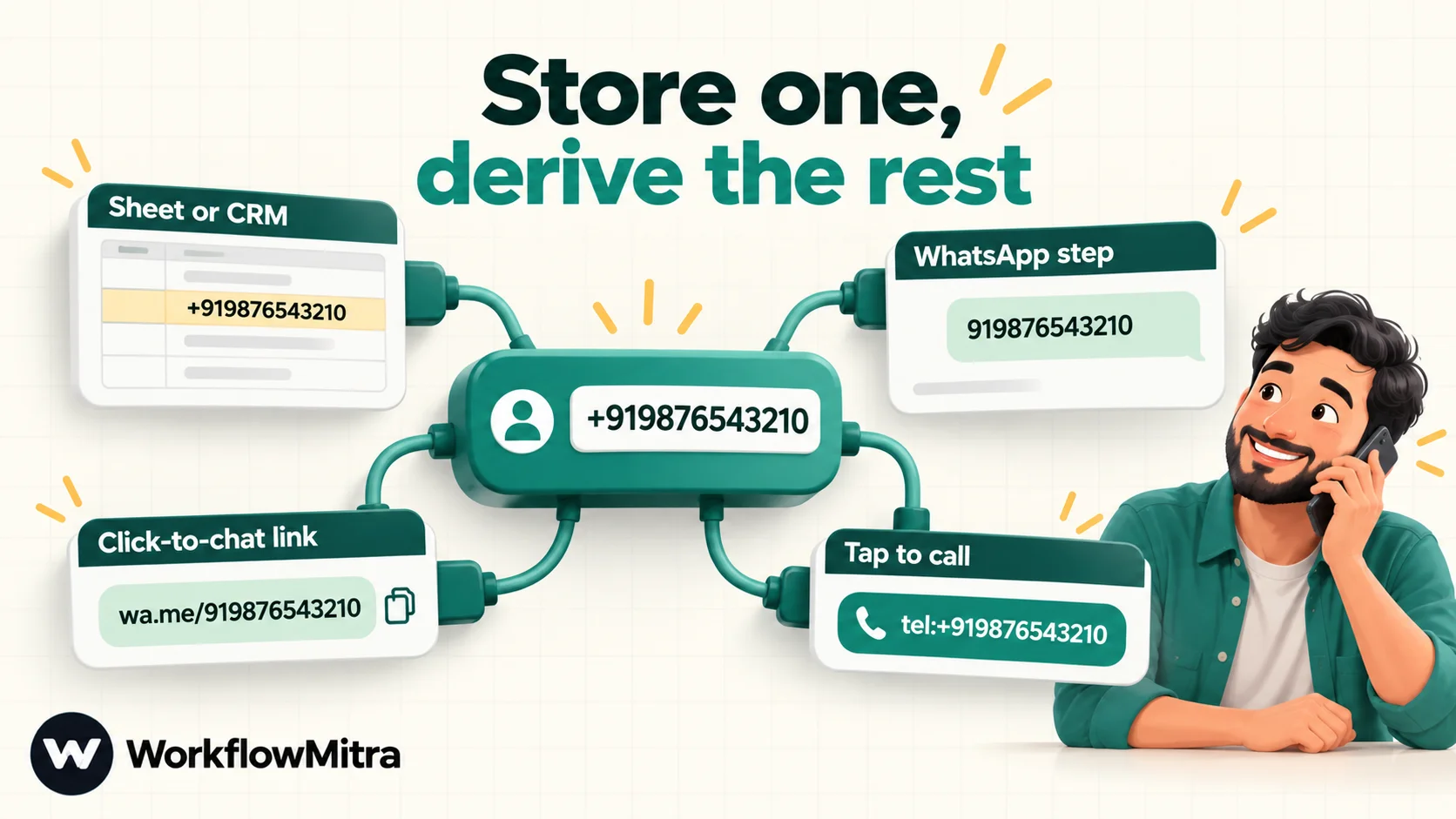
The pattern in this guide produces two values from every input: phone (country code and number as digits, for sending and links) and an E.164 version with the plus sign, for storing and matching.
The rules for normalising a phone number
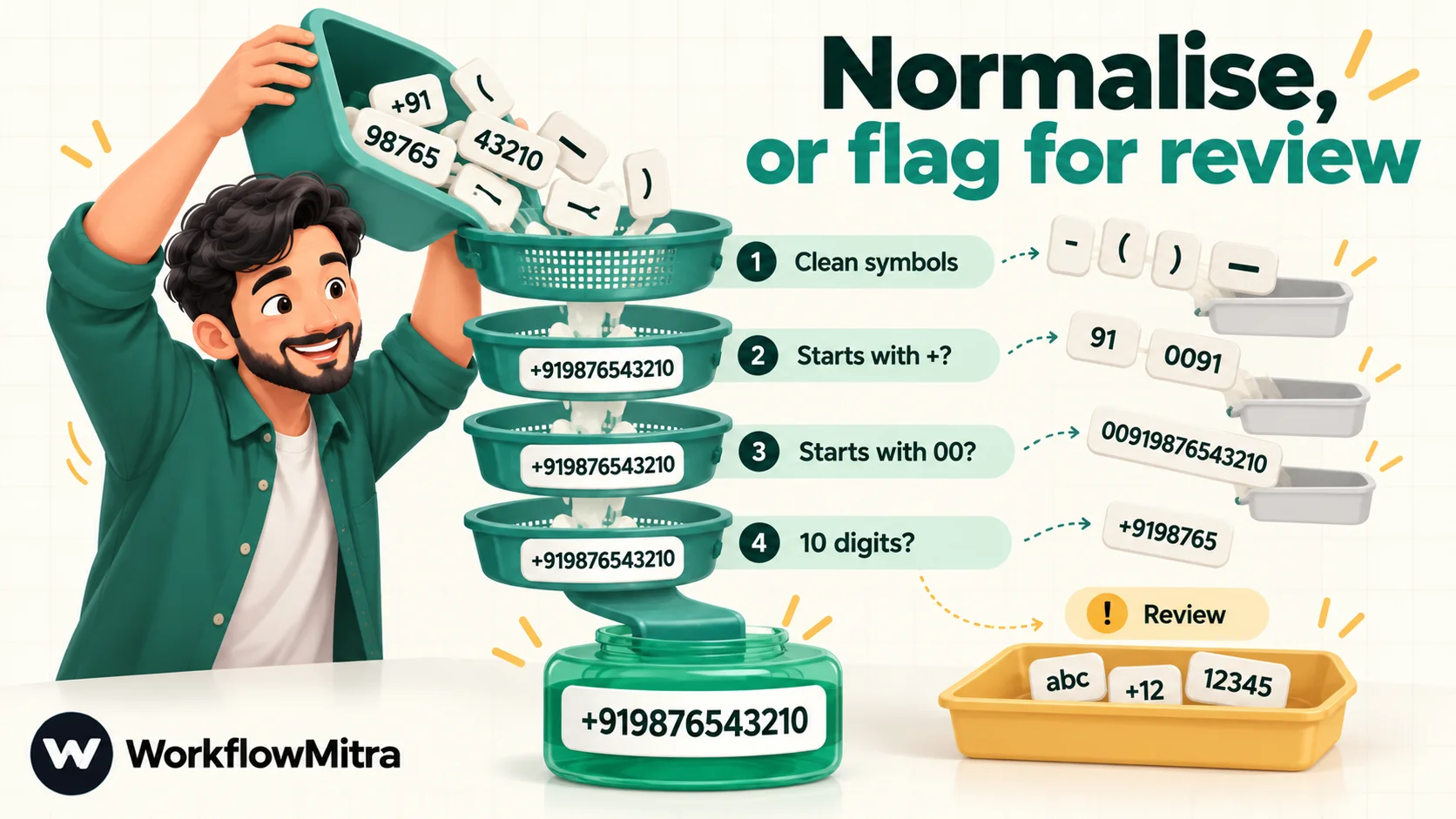
Whatever tool you use, the logic is the same. Apply these rules in order:
- Trim and clean. Remove spaces, hyphens, dots and brackets. Remove the string
(0)first, because some people write+44 (0)7700 900123to show the trunk zero they’d dial locally. - Respect an explicit country. If the number starts with
+, it’s already international: drop the plus and keep the digits as they are. - Convert the international prefix. If it starts with
00, treat it like+and drop the two zeros. (A few countries use other international prefixes;00is the common one.) - Remove the trunk prefix. For a number without a plus or
00, drop leading zeros. - Add the default country code only when what remains has exactly your default country’s national length, such as 10 digits for an Indian mobile number.
- Accept numbers that already carry the default code, such as
919876543210with 12 digits for India. - Flag everything else. Wrong length, letters, two numbers in one field: return an empty result and keep the original for a person to check.
Rule 7 is the one most guides leave out, and it matters most. A number that’s guessed wrongly is worse than one that isn’t sent: it reaches a stranger, or it lands in your CRM looking correct.
Choosing a default country, and when not to guess
A default country turns local numbers into international ones. It works when most of your customers share a country, and when local numbers in that country have a fixed length. Indian mobile numbers are always ten digits and start with 6, 7, 8 or 9, which makes India one of the easier cases.
It stops working in three situations:
- Customers in several countries type local numbers. A ten-digit number could be Indian or North American. Use a country field from the form or checkout, or require the plus sign.
- National lengths vary. Landlines in many countries have different lengths from mobiles, and some countries mix lengths. Accept only the lengths you’re sure of.
- The leading zero is part of the number. A few countries, Italy being the best-known example, keep the leading zero of landline numbers in international format. The “drop leading zeros” rule is wrong there.
If any of these apply, flag more and guess less. The review route costs nothing to run and saves awkward wrong-number messages.
Method 1: Format numbers with expressions (one default country)
If your numbers come from one country, you don’t need code. WorkflowMitra has no dedicated phone helper or regular expressions, but its {{ }} expressions include replace(), trim(), length(), substring(), padStart() and if(), which are enough. Two Set Variable steps do the work, and Set Variable steps cost no credits.
These examples assume India as the default country and a trigger field called phone; change $trigger.phone to your field.
Step 1: Clean the symbols
Add a Set Variable step right after the trigger and create a variable called phone_clean:
{{ replace(replace(replace(replace(replace(replace(trim($trigger.phone), "(0)", ""), " ", ""), "-", ""), "(", ""), ")", ""), ".", "") }}Each replace() removes one kind of character everywhere it appears. The plus sign is deliberately kept, because rule 2 needs to know whether it was there. +91 (0) 98765 43210 becomes +919876543210, and 098765 43210 becomes 09876543210.
Step 2: Apply the country rules
Add a second Set Variable step and create phone. Set Variable passes the previous step’s fields through, so phone_clean is available directly:
{{ if(substring(phone_clean, 0, 1) = "+", substring(phone_clean, 1), if(substring(phone_clean, 0, 2) = "00", substring(phone_clean, 2), if(length(phone_clean) = 10, padStart(phone_clean, 12, "91"), if(length(phone_clean) = 11 and substring(phone_clean, 0, 1) = "0", padStart(substring(phone_clean, 1), 12, "91"), if(length(phone_clean) = 12 and substring(phone_clean, 0, 2) = "91", phone_clean, ""))))) }}It reads as five checks, top to bottom:
| If the cleaned number… | Then phone is… | Rule |
|---|---|---|
starts with + | everything after the plus | 2 |
starts with 00 | everything after the zeros | 3 |
| has 10 digits | 91 + the number | 5 |
has 11 digits starting with 0 | 91 + the number without its zero | 4 and 5 |
has 12 digits starting with 91 | the number as it is | 6 |
| anything else | empty | 7 |
padStart(text, 12, "91") pads a ten-digit number to twelve characters using 91, which is a tidy way to put the country code in front. Expressions have no + operator for joining text, so this is also the simplest way to do it.
Step 3: Build the E.164 version
Wherever you need the plus sign, write it as plain text outside the braces: +{{ phone }} gives +919876543210. Do this only after validation (below), because an empty phone would give a lone +.
Method 2: Format numbers with a Code step (several countries)
When your rules grow, or you serve customers in more than one country, a short script is easier to read and change than nested expressions. The Code step in WorkflowMitra runs JavaScript inside a sandbox. Two details matter here: the script sees only the previous step’s output, as input, and it can’t read $trigger directly. So add a Set Variable step first that copies the field you need, for example phone_raw = {{ $trigger.phone }}, then add the Code step:
// Your default country: the code and how many digits follow it
const COUNTRY_CODE = '91';
const NATIONAL_LENGTH = 10;

const raw = String(input.phone_raw ?? '').trim();
// Drop "(0)", then keep only digits and plus signs
let s = raw.replace(/\(0\)/g, '').replace(/[^\d+]/g, '');
// 00 is the international dialling prefix in many countries
if (s.startsWith('00')) s = '+' + s.slice(2);

let digits = s.replace(/\D/g, '');
if (!s.startsWith('+')) {
  digits = digits.replace(/^0+/, '');          // trunk prefix
  if (digits.length === NATIONAL_LENGTH) {
    digits = COUNTRY_CODE + digits;              // local number
  } else if (!(digits.length === COUNTRY_CODE.length + NATIONAL_LENGTH && digits.startsWith(COUNTRY_CODE))) {
    digits = '';                                 // can't tell: flag it
  }
}
const valid = digits.length >= 8 && digits.length <= 15;
return {
  ...input,
  phone: valid ? digits : '',
  phone_e164: valid ? '+' + digits : '',
  phone_valid: valid,
};
The script returns everything it received plus three fields: phone (digits for sending), phone_e164 (with the plus, for storing) and phone_valid (true or false, for branching). Unlike a simpler “strip everything and add 91” approach, it treats a number with a plus sign as already international, so +1 (415) 555-0132 stays a US number instead of gaining an Indian code.
To use a different default country, change the two settings at the top. These values were tested with the examples shown:
| Default country | COUNTRY_CODE | NATIONAL_LENGTH | Example input → result |
|---|---|---|---|
| India (mobiles) | '91' | 10 | 098765 43210 → +919876543210 |
| United Kingdom | '44' | 10 | 07700 900123 → +447700900123 |
| United States / Canada | '1' | 10 | (415) 555-0132 → +14155550132 |
| United Arab Emirates (mobiles) | '971' | 9 | 050 123 4567 → +971501234567 |
Handling several countries with a country field
A single default country is a guess, however educated. When your form or checkout records the customer’s country, use it. Copy it into the Set Variable step alongside the number (for example country = {{ $trigger.country }}, holding a two-letter code such as IN or GB) and replace the two constants with a small table of rules:
// Country rules: ISO code -> calling code and national length
const RULES = {
  IN: { code: '91', length: 10 },
  GB: { code: '44', length: 10 },
  US: { code: '1', length: 10 },
  CA: { code: '1', length: 10 },
  AE: { code: '971', length: 9 },
};
const country = String(input.country ?? '').trim().toUpperCase() || 'IN';
const rule = RULES[country];   // undefined for a country not listed

let s = String(input.phone_raw ?? '').trim().replace(/\(0\)/g, '').replace(/[^\d+]/g, '');
if (s.startsWith('00')) s = '+' + s.slice(2);
let digits = s.replace(/\D/g, '');
if (!s.startsWith('+')) {
  digits = digits.replace(/^0+/, '');
  if (rule && digits.length === rule.length) {
    digits = rule.code + digits;
  } else if (!(rule && digits.length === rule.code.length + rule.length && digits.startsWith(rule.code))) {
    digits = '';
  }
}
const valid = digits.length >= 8 && digits.length <= 15;
return { ...input, phone: valid ? digits : '', phone_e164: valid ? '+' + digits : '', phone_valid: valid };
Three behaviours are worth knowing before you rely on it. A blank country falls back to India, which suits a business whose customers are mostly Indian; change 'IN' to your own default. A country that isn’t in the table doesn’t fall back at all: a local French number with country FR is flagged for review rather than formatted with someone else’s rules, while the same number written as +33 6 12 34 56 78 passes, because the plus sign already says where it belongs. And length rules can’t detect a number entered under the wrong country. An Indian mobile number submitted with GB selected has ten digits, the same as a UK national number, so it becomes +449876543210. Only a check against a real numbering database would catch that, which is why confirmation messages and opt-in still matter.
Add a country to the table only after checking its national number lengths, and add separate entries if mobiles and landlines differ and you need both.
What it costs
The Code step is billed by running time, up to 2 credits; a normaliser like this one finishes in about a millisecond, so it costs a tiny fraction of a credit. For a fuller introduction to the step itself, including its limits, see the Code step guide.
Validate, then route numbers that fail
Formatting is only half the job. The other half is making sure nothing unformatted travels further. Add an IF step after either method.
With the expression method, use two conditions, both required:
{{ phone }}Is not empty{{ toString(toNumber(phone)) }}Equal to{{ phone }}
The second condition is a digits-only check: a value with any letter in it doesn’t survive the round trip through a number. It’s safe here because a formatted number never starts with zero and never exceeds 15 digits. With the Code step, a single condition is enough: {{ phone_valid }} Is yes.
The “yes” branch continues to your messages, rows and CRM records. The “no” branch should never just end. Send it somewhere a person will see it: a “Needs checking” tab in Google Sheets with the original value, a message to the team, or a task in your CRM. Over a few weeks, that tab tells you which sources need better forms. IF steps cost no credits, so validation adds nothing to your bill.
Test cases to check your setup
Every input below was run through both methods with India as the default country. The expression chain and the Code step gave identical results. Copy the inputs into a test sheet or a manual run and confirm your version matches.
| Input | phone | E.164 | What it shows |
|---|---|---|---|
9876543210 | 919876543210 | +919876543210 | Local number gains the default code |
98765 43210 | 919876543210 | +919876543210 | Spaces removed |
09876543210 | 919876543210 | +919876543210 | Trunk zero removed |
919876543210 | 919876543210 | +919876543210 | Code already present: unchanged |
+91 98765 43210 | 919876543210 | +919876543210 | Explicit country kept |
+91-98765-43210 | 919876543210 | +919876543210 | Hyphens removed |
0091 98765 43210 | 919876543210 | +919876543210 | 00 treated as international prefix |
(+91) 98765 43210 | 919876543210 | +919876543210 | Brackets removed |
+91 (0) 98765 43210 | 919876543210 | +919876543210 | "(0)" removed before the brackets |
+44 7700 900123 | 447700900123 | +447700900123 | Foreign number with a plus is left alone |
+1 (415) 555-0132 | 14155550132 | +14155550132 | US number with a plus is left alone |
14155550132 | empty | empty | 11 digits, no plus: ambiguous, flagged |
12345 | empty | empty | Too short: flagged |
98765-43210 ext 2 | empty | empty | Extra text: flagged |
| (blank) | empty | empty | Missing: flagged |
Two cases deserve a second look. 14155550132 is a valid US number written without its plus, but with India as the default, the workflow can’t know that, so it flags it. That’s the intended behaviour. And a number sent as a true number rather than text, as some spreadsheets and forms do, behaves exactly like the text version; 9876543210 as a number also became 919876543210.
Storing phone numbers in Google Sheets without damage
Sheets is where most formatting work gets undone. Three settings prevent it:
- Format the phone column as Plain text (Format › Number › Plain text) before any data arrives. Sheets then stores exactly the characters it receives.
- In WorkflowMitra’s Google Sheets step, set Write values to Exactly as written (no formulas). The default lets Sheets interpret values as if typed, which is how
+91-98765…turns into a negative number. - Store one format and look up with the same format. The Find row operation matches exact text, so if the sheet holds
+919876543210, search with+{{ phone }}, not{{ phone }}.
If people type numbers into the sheet by hand and a workflow later reads them (for example with a “new row” trigger), expect numbers rather than text: WorkflowMitra’s Google Sheets trigger reads the underlying values, so a cell typed as 09876543210 in a number-formatted column arrives as 9876543210. Run those values through the same normaliser before using them. The data formatting guide covers the same issue for dates and amounts.
Using the formatted number downstream
Once phone and its E.164 version exist, every later step uses them instead of the raw field:
- WhatsApp step: put
{{ phone }}in the recipient field. The step accepts the plus sign too, but digits make the country code easy to see in logs. ChatMitra or the Meta Cloud API sends the message; the number is already correct when it gets there. For the wider picture, see WhatsApp workflow automation. - Click-to-chat links in emails or alerts:
https://wa.me/{{ phone }}. - Tap-to-call links:
tel:+{{ phone }}. - CRM searches and records: search on the E.164 value, and write the same value, so the next search finds it.
- Messages to people: the raw input is often the friendliest display version, because it’s how the customer wrote it.
Use {{ $node["Step name"].phone }} when a later step needs the number but isn’t directly after the formatting step, because a plain {{ phone }} reads only the previous step’s output. Name the formatting step something obvious, such as “Format phone”.
Formatting numbers for people to read
E.164 is built for machines. In a sales alert, a report or a message to a colleague, +91 98765 43210 is easier to read and to dial by eye than +919876543210. For Indian mobile numbers, the groups are always the same, so an expression can add the spaces back:
+{{ substring(phone, 0, 2) }} {{ substring(phone, 2, 7) }} {{ substring(phone, 7) }}With phone = 919876543210, this gives +91 98765 43210. The text between the braces, including the plus and the spaces, is written as it is, which is how you join text in expressions without a + operator.
Keep display formatting for display only. Never store the spaced version or use it for lookups; it’s a second format, and second formats are what this whole exercise removes. Other countries group digits differently and some vary within the country, so for international audiences the plain E.164 value is the safer thing to show.
A worked example: a website lead from form to WhatsApp
Here’s how the pieces fit in a typical lead workflow for a business whose customers are mostly in India.
- On webhook call receives a website enquiry: name, phone
098765 43210, interest “Annual maintenance”. - Set Variable (Clean phone) creates
phone_clean=09876543210. - Set Variable (Format phone) creates
phone=919876543210. - IF (Valid phone?) checks that
phoneisn’t empty and is digits only. It passes. - Google Sheets Find row looks up
+{{ phone }}in the sheet’s Phone column, which holds E.164 values as plain text. It finds the row this customer created three months ago, so an IF on{{ found }}sends the run to Update row with the new interest instead of Add row(s), and the customer keeps one row. - WhatsApp sends the approved follow-up template to
{{ phone }}through ChatMitra, using the customer’s name from{{ $trigger.name }}.
Now a second enquiry arrives with the phone 98765-43210 ext 2. Step 2 produces 9876543210ext2, step 3 can’t place it and returns an empty phone, and the IF sends it down the “no” branch, which adds a row to a “Needs checking” tab with the original value and alerts the team. Someone calls the customer, confirms the number and adds it by hand. No message went to a wrong number, and no half-formatted value reached the main sheet.
The formatting steps in this example cost nothing to run: Set Variable and IF are free. The credits go to the trigger, the Sheets steps and the WhatsApp message, exactly as they would without formatting.
Normalise once, at the entrance
The most reliable design formats each number exactly once, in the first steps after the trigger, and never uses the raw field again. Every workflow that receives phone numbers (forms, lead marketplaces, store orders, chat) gets the same normaliser, ideally copied from one tested version.
For data you already have, run a one-off clean-up: a workflow that reads the existing rows, passes each phone through the same steps and writes the result to a new column. Write to a new column rather than over the original, check a sample, then switch your lookups over. In WorkflowMitra a Loop runs the steps once per row, and each Google Sheets update is a step, so estimate credits from your row count before you start.
Troubleshooting phone formatting
Every number comes out empty
Check the field name first. If the expression reads $trigger.phone but your form sends mobile or Phone Number, the input is blank and every result is empty. Open a recent run, look at the trigger’s data and copy the exact name. If the name is right, look at phone_clean: a value full of unexpected characters, such as a non-breaking space pasted from a document, survives the replace() calls and fails the length checks.
Numbers get a second country code
A result like 91919876543210 comes from a rule that adds the code without checking whether it’s already there, often an older “always put 91 in front” step left in another workflow. The rules in this guide only add a code to numbers of exactly the national length. Search your workflows for the old rule, and add the source’s real format to your test table so the case is covered from now on.
WhatsApp says the number is invalid
WorkflowMitra’s WhatsApp step rejects recipients with fewer than 8 or more than 15 digits after removing symbols. If the formatting step ran, check that the WhatsApp step uses {{ phone }} from the formatting step (or $node["Format phone"].phone if other steps sit in between) and not the raw field.
The lookup never finds existing customers
The sheet or CRM probably holds numbers in a different format from the one you search with. Compare one stored value with the search value character by character; a missing plus sign or a stored number that Sheets converted to a plain number is the usual cause. Clean the stored data once, then search with the same format you store.
A clean number turns into a formula or loses its plus in Sheets
The column isn’t plain text, or the Google Sheets step writes values as if typed. Set the column’s format to Plain text and the step’s Write values to Exactly as written (no formulas).
Common mistakes
- Adding the country code without checking the length.
padStarton an 11-digit number with a leading zero produces nonsense; that’s why rule 4 comes before rule 5. - Stripping the plus sign first. Once it’s gone you can’t tell
+1 415…from a local number. Decide on the country, then remove it. - Guessing at ambiguous numbers. Flag them. A review tab is cheap; a message to a stranger isn’t.
- Formatting in some workflows but not others. One unformatted entry point is enough to create duplicates.
- Matching a formatted value against unformatted data. Clean old data before relying on lookups.
- Letting a spreadsheet touch numbers on the way. Opening a CSV in a spreadsheet app and saving it again can convert long numbers to scientific notation and lose digits.
- Treating formatting as validation. A well-formed number can still belong to someone else. Opt-in and confirmation still matter before messaging.
Why fix phone numbers inside the workflow?
You could clean numbers in each app separately: a formula in the sheet, a setting in the CRM, a rule in the form tool. Fixing them in the workflow instead means one set of rules applies to every source and every destination at once, and you can test it with a table like the one above.
In WorkflowMitra, powered by ChatMitra, the expression method costs nothing to run, the Code step handles several countries in about twenty lines, and the IF and review route keep bad numbers away from WhatsApp, Sheets and your CRM. It has a limit worth knowing: there’s no built-in phone formatter or validator yet. Some platforms ship one; Zapier’s Formatter, for example, has a dedicated phone-number action with E.164 output and a default country. In WorkflowMitra you build the rules yourself, which takes a few minutes with the examples here and leaves you in full control of what gets flagged.
Getting started
Pick the method that matches your customers: expressions for one country, the Code step for several. Add it to the workflow that receives the most phone numbers, run the test cases, and add the review route. Then copy the same steps into every other workflow that handles numbers.
If you’re building a lead workflow around it, the lead management automation guide shows where formatting fits in the bigger flow. WorkflowMitra’s 14-day trial needs no card, so you can test your own messiest numbers against these rules today.
E.164 is defined in ITU-T Recommendation E.164; Twilio's E.164 glossary gives a practical summary. WhatsApp recipient behaviour comes from Meta's Cloud API phone number reference and WhatsApp's click-to-chat help. Sheets formatting follows Google's number format help. All were read on 8 October 2026. Every expression and the Code step were executed against WorkflowMitra's engine on the same day.
Frequently Asked Questions
Short answers about E.164, country codes and phone numbers in automations.
E.164 is the ITU-T standard for international phone numbers. A number in E.164 format starts with a plus sign, then the country code, then the national number without its leading zero, with no spaces or punctuation and no more than 15 digits in total. An Indian mobile number such as 98765 43210 becomes +919876543210.
Automate the work between your apps
Build workflows with triggers, conditions and actions, then test them before they go live. Try WorkflowMitra free for 14 days, no card required.
