Freshdesk WhatsApp Integration for Ticket Updates (and the Zendesk Version)

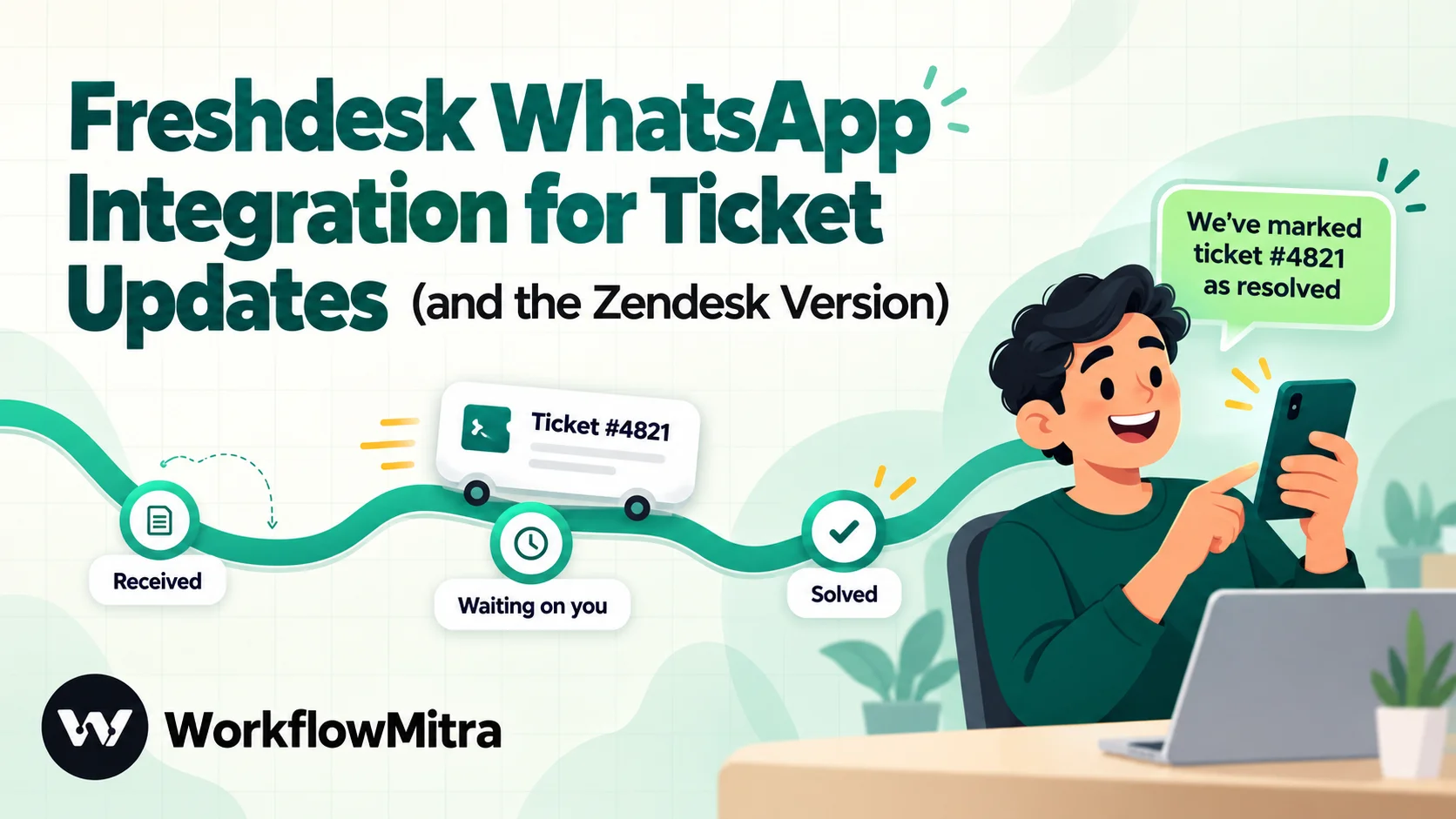
Quick Summary
To send Freshdesk or Zendesk ticket updates on WhatsApp, let the helpdesk decide when something happened and let a workflow send the message. In Freshdesk, an automation rule with a Trigger webhook action posts the ticket to a workflow when the status changes; in Zendesk, a trigger notifies a webhook. In WorkflowMitra, powered by ChatMitra, the webhook trigger checks a shared secret, a Switch picks the message, the WhatsApp step sends an approved utility template through ChatMitra or Meta's Cloud API, and a private note on the ticket records what the customer was told.
Support teams already tell customers what is happening with their tickets. They do it by email, and a good share of those emails are never opened until the customer chases you. “Any update on my ticket?” is one of the most common messages a helpdesk receives, and it usually arrives a few hours after you sent the update.
WhatsApp fixes the reading problem, not the process. This guide shows how to send ticket updates from Freshdesk and Zendesk to customers on WhatsApp using the automation each helpdesk already has, plus a workflow that does the sending. You’ll see which events deserve a message, how to set up the rule or trigger on each helpdesk, the security setting that trips up most Zendesk builds, and what happens when a customer replies.
What is a helpdesk WhatsApp update?
A helpdesk WhatsApp update is an automatic WhatsApp message sent to a customer when their support ticket reaches a stage, such as received, waiting on the customer, or resolved. The helpdesk (Freshdesk, Zendesk or similar) detects the change, a workflow sends an approved WhatsApp template with the ticket number and a link, and the ticket keeps a note of what was sent.
There are always two jobs. The helpdesk knows when a ticket changes, because that is what helpdesks are for. Sending a WhatsApp message to a customer is something else: it needs a WhatsApp Business Platform number, an approved template when the customer hasn’t messaged you in the last 24 hours, and a correctly formatted phone number.
Most “Freshdesk WhatsApp integration” pages describe a third thing: putting WhatsApp inside the helpdesk as a conversation channel. That is useful, and we’ll come back to it, but it solves a different problem.
A WhatsApp channel or a ticket-update workflow?
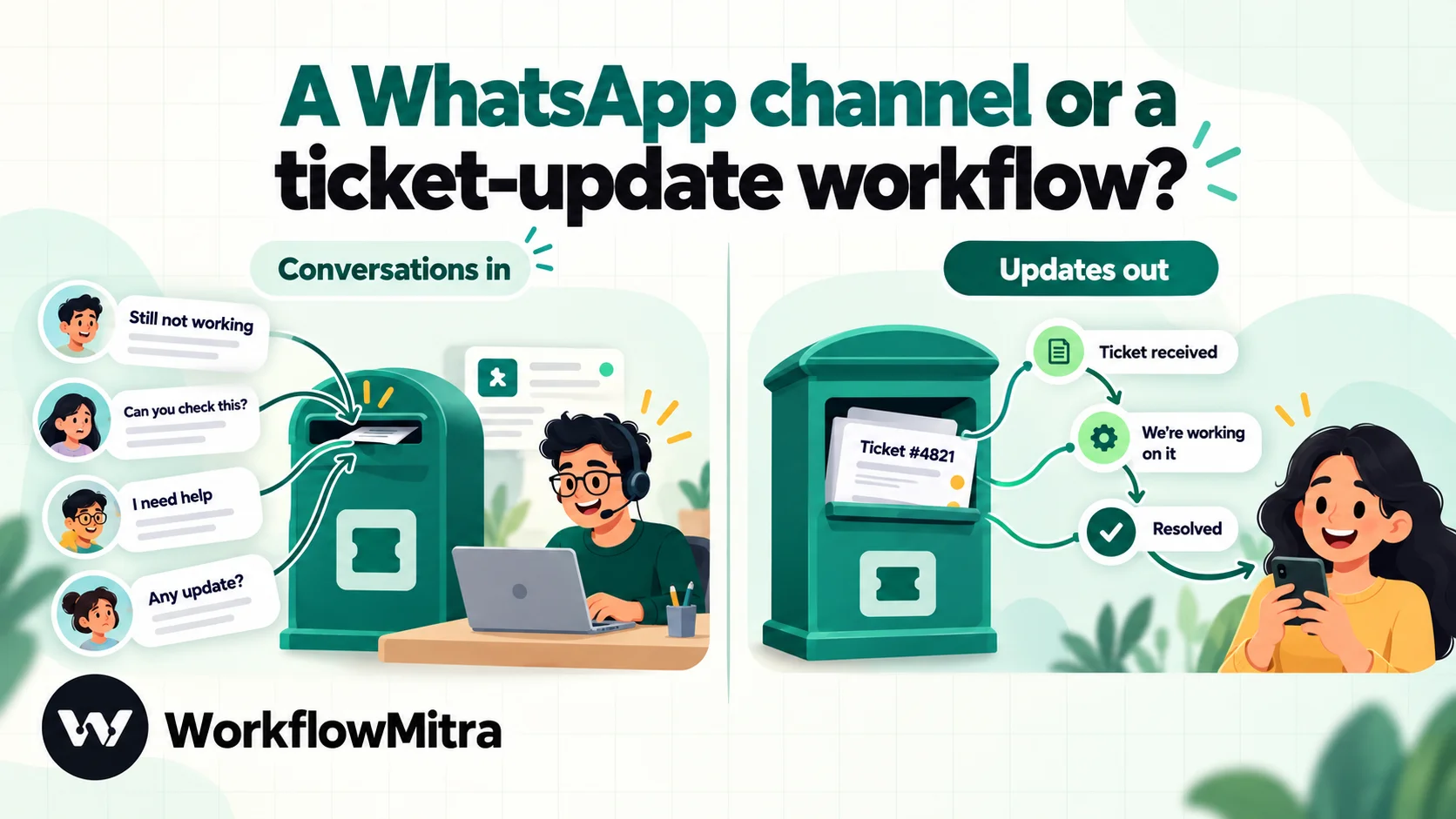
| Option | What it does | Fits when | Limits |
|---|---|---|---|
| Ticket-update workflow (this guide) | A helpdesk rule calls a webhook when a ticket changes; a workflow sends a WhatsApp template | Tickets arrive by email, web form or phone, and you want customers told on WhatsApp | Replies land in your WhatsApp inbox, not on the ticket; you write the rules |
| Freshdesk WhatsApp channel | Connects your WhatsApp Business number so chats become tickets; agents can send approved templates | Customers already contact you on WhatsApp | Growth, Pro or Enterprise plan; doesn't notify customers about tickets that started elsewhere by itself |
| Zendesk WhatsApp channel | Adds WhatsApp to Zendesk messaging so agents answer WhatsApp conversations | Customers already contact you on WhatsApp | Proactive templates need Suite Professional or Enterprise plus the Notification API or a Marketplace app |
| A Marketplace app | A third-party app sends WhatsApp messages from inside the helpdesk | You want a ready-made screen for agents | Another subscription, and its own sending rules |
If your customers already talk to you on WhatsApp, start with the channel your helpdesk offers. Freshdesk’s own documentation describes template messages for proactive updates on the Growth plan and above, and Zendesk documents proactive WhatsApp outreach through its Notification API or Marketplace apps on Suite Professional and Enterprise.
The workflow route earns its place in a different situation: most tickets still begin as emails or form submissions, you’d like customers to hear about them on WhatsApp, and you don’t want to move your support conversations to a new channel to get there. It also suits teams on a lower helpdesk plan, teams that send WhatsApp through ChatMitra already, and anyone who wants the same update to do two or three things at once.
Which ticket events deserve a WhatsApp message?
A helpdesk records dozens of changes on a busy ticket. Customers want to know about three or four of them. Message them about every change and they’ll mute you.
| Event | Send a WhatsApp? | Why |
|---|---|---|
| Ticket created (email, form, phone) | Yes, with the ticket number | Confirms the request reached a person and gives them a reference |
| Ticket created from WhatsApp | No | The customer is already in the chat |
| Agent assigned | No | Internal detail; tell your team instead |
| Status changed to Pending (waiting on the customer) | Yes | The ticket is stuck until they answer, and email is where it's stuck |
| Agent's public reply | Usually no | The reply itself goes by email; a WhatsApp nudge for every reply is too much |
| Status changed to Resolved (Freshdesk) or Solved (Zendesk) | Yes | Lets them confirm the fix or reopen before the ticket closes |
| Closed | No | Usually an automatic step after Resolved; a second message adds nothing |
| Priority set to Urgent | Not to the customer | Send it to a Slack channel or the on-call person |
The Pending message is the one that pays for the whole build. A ticket waiting on the customer is waiting on an email they haven’t read. A short WhatsApp message saying “we need one detail from you to continue, see the email we sent or open your ticket” gets those tickets moving again, and it reduces the number that close for lack of a response.
Freshdesk and Zendesk use slightly different status names. Freshdesk’s default statuses are Open, Pending, Resolved and Closed, and many teams add custom ones such as “Waiting on customer”. Zendesk uses New, Open, Pending, On-hold, Solved and Closed. Use whichever of your statuses means “we’re waiting on the customer”.
The reply problem: where does the customer answer?
Before building anything, decide what should happen when a customer replies to the WhatsApp message. They will reply. “Thanks!”, “still not working”, a photo of the error.
Replies go to whatever sent the message. If the WhatsApp step sends through ChatMitra, replies arrive in ChatMitra’s shared inbox. If it sends through Meta’s Cloud API directly, they go to whatever webhook you configured for that number in Meta’s app settings. In neither case do they appear on the Freshdesk or Zendesk ticket by themselves, and this workflow doesn’t copy them there.
Three ways to handle it, in order of effort:
- Point people back to the ticket. Put a button in the template that opens the ticket on your support portal, and word the message so the next step happens there: “Reply to our email or open your ticket below.” This is the simplest option and works for most teams.
- Staff the WhatsApp inbox. If you send through ChatMitra, someone on the support team watches ChatMitra’s inbox and handles replies there. Fine for small teams; it means two places to look.
- Use the helpdesk’s own WhatsApp channel for the conversation. If replies matter a lot, that is the point at which the native channel from the previous section is the better tool.
This guide uses the first approach, with a URL button. Whatever you choose, tell the customer in the message what to do next, so a reply doesn’t vanish.
How the workflow fits together
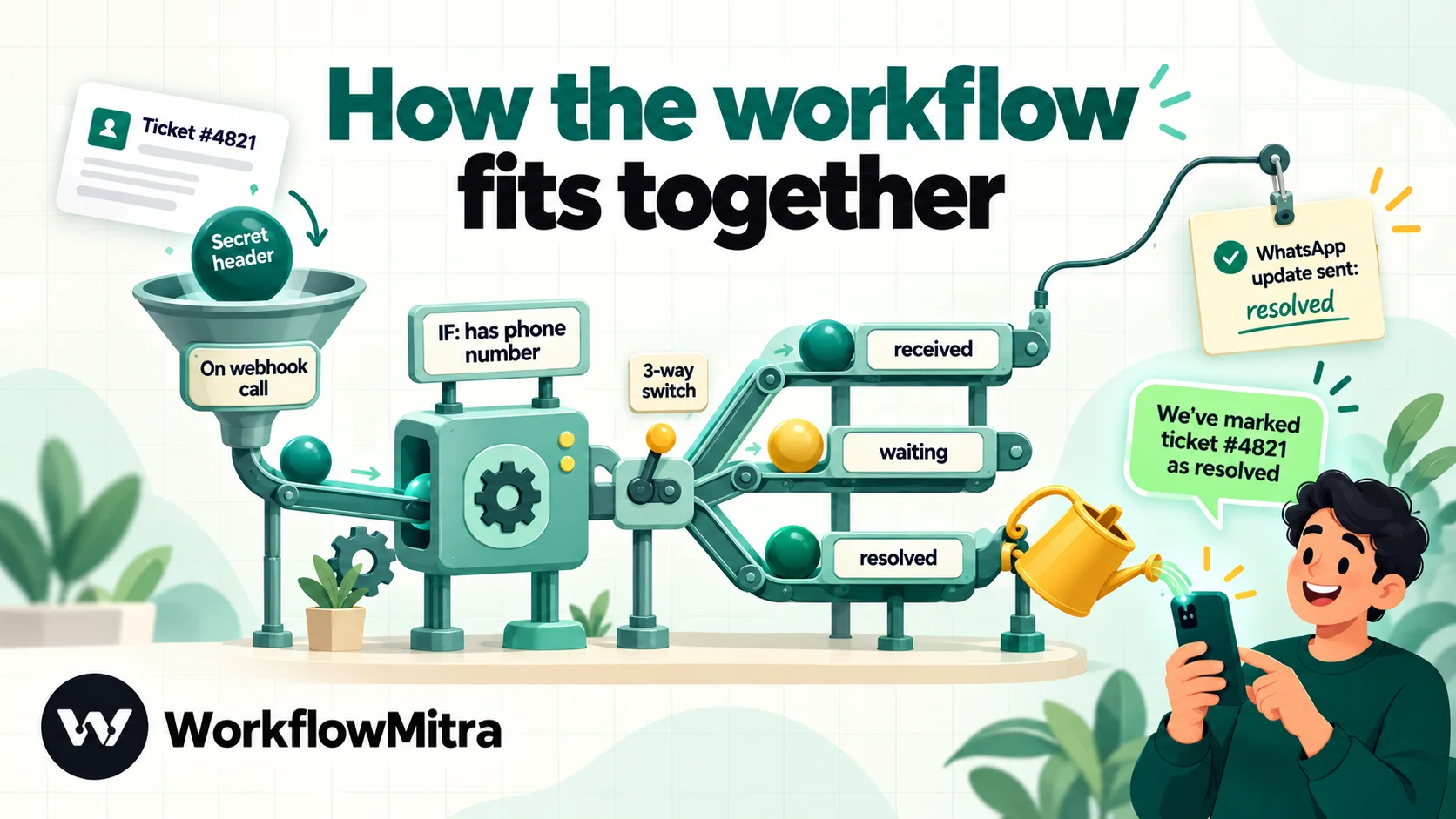
One workflow per helpdesk is enough. In WorkflowMitra, powered by ChatMitra, it has five steps:
- On webhook call. The helpdesk posts to its URL. A shared secret in a request header keeps everyone else out.
- IF the customer has a phone number. If not, the run ends (or leaves a note saying so).
- Switch on an
eventvalue that each helpdesk rule sends:received,waitingorresolved. - WhatsApp, one per route, sending the matching template through ChatMitra or Meta’s Cloud API.
- Freshdesk: Add Note or Zendesk: Add Internal Note, writing “WhatsApp update sent: resolved” on the ticket, so agents can see it.
The helpdesk does the deciding. Freshdesk’s automation rules and Zendesk’s triggers already know about status changes, sources and ticket fields, so the workflow doesn’t need to work out whether something changed. Each rule simply says which event it is reporting.
Before you start
- A helpdesk plan with webhooks. Freshdesk’s “Trigger webhook” action is on the Growth, Pro and Enterprise plans. In Zendesk you need admin access to Admin Center to create webhooks and triggers.
- A WhatsApp Business Platform number. Sending through ChatMitra needs its Pro plan, which includes API access, and the API key from your ChatMitra account. Sending through Meta’s Cloud API directly needs the number’s phone number ID and an access token.
- Approved templates, one per event, normally in the utility category. Templates for this workflow are covered further down.
- Phone numbers on your contacts, preferably with country codes. Check a few contact profiles now; it’s the most common reason a build “works” and sends nothing.
- Consent. Say on your contact form or support page that ticket updates may arrive on WhatsApp, and honour anyone who asks to stop. For wording, see ChatMitra’s opt-in best practices.
- A WorkflowMitra workspace. A new one starts with a 14-day trial (10,000 credits, no card required), which is plenty to build and test this.
Step 1: Create the webhook trigger in WorkflowMitra
Create a workflow and add the On webhook call trigger. What you pick under Source depends on the helpdesk.
For Freshdesk, choose Freshdesk (“Ticket created or updated”). It sets up API key authentication with the header name x-webhook-secret. Freshdesk doesn’t sign webhook requests, so a shared secret in a custom header is the check available, and Freshdesk lets you add that header to the webhook action. Open Edit webhook, generate a secret under API key authentication, and copy it somewhere safe for the next step.
For Zendesk, choose Something else, not Zendesk. This is the setting that breaks most Zendesk builds, so here is the reason. Zendesk signs each webhook with a hash of the timestamp joined to the request body (base64(HMACSHA256(TIMESTAMP + BODY)), in Zendesk’s notation). WorkflowMitra’s signature check computes the hash over the body alone, so a genuine Zendesk signature never matches, and the Zendesk source rejects every real delivery. Zendesk also offers simpler authentication: an API key, sent as a header name and value of your choosing. “Something else” keeps the default x-webhook-secret header; generate a secret there and use the same pair in Zendesk.
Leave Idempotency key path empty for both. A ticket’s ID repeats across its updates, so using it as a “skip repeats” key would drop the Resolved message for a ticket that already sent a Received message the same day. With the field empty, WorkflowMitra still skips an identical request body that arrives again within about a minute, which covers a helpdesk retrying a delivery it thought had failed. Leave Respond synchronously off as well. Both helpdesks treat any 2xx reply as delivered, and WorkflowMitra replies 202 the moment it accepts a request, before the steps run.
Copy the trigger’s URL. You’ll paste it into the helpdesk next.
Step 2a: Set up the Freshdesk automation rules
Freshdesk’s automation rules live under Admin → Workflows → Automations (in Freshdesk Omni, Admin Settings → Configuration and Workflows → Ticket Automations). You’ll create rules on two tabs: Ticket creation for the received message, and Ticket updates for the waiting and resolved messages.
The “resolved” rule
On the Ticket updates tab, create a new rule:
- When an action is performed by: Agent.
- Involves any of these events: Status is changed from Any status to Resolved.
- On tickets with these properties: leave open, or exclude tickets whose source is WhatsApp if you use the WhatsApp channel too.
- Perform these actions: Trigger webhook.
Fill in the webhook action:
- Request type: POST.
- URL: the WorkflowMitra trigger URL.
- Requires authentication: off. The secret goes in a custom header instead.
- Add custom headers: on, with
x-webhook-secret: <your secret>. - Encoding: JSON.
- Content: Advanced, with this body:
{
  "helpdesk": "freshdesk",
  "event": "resolved",
  "ticket_id": "{{ticket.id}}",
  "subject": "{{ticket.subject}}",
  "first_name": "{{ticket.requester.firstname}}",
  "mobile": "{{ticket.requester.mobile}}",
  "phone": "{{ticket.requester.phone}}"
}
The placeholders are Freshdesk’s own. Freshdesk contacts have two number fields, a work phone and a mobile, and you can’t know in advance which one your agents fill in, so send both and let the workflow choose.
The “waiting” and “received” rules
Duplicate the resolved rule for the waiting message. Change the event to Status is changed to Pending (or your own “waiting on customer” status), and set "event": "waiting" in the body.
For the received message, create a rule on the Ticket creation tab with a condition on the ticket’s source, such as Source is Email or Source is Portal, so tickets that arrive through your WhatsApp channel don’t get a WhatsApp confirmation. Use the same webhook action with "event": "received".
What Freshdesk does when a delivery fails
Freshdesk counts any 200–299 response as success. If a call fails, it retries once every 30 minutes, up to 48 attempts, and emails account administrators about the failure. Webhooks from automation rules are limited to 1,000 calls an hour per account. A support team would have to resolve tickets very fast to get near that, but bulk actions (closing 2,000 stale tickets at once, say) can hit it. Turn the rules off before a bulk clean-up.
Step 2b: Set up the Zendesk webhook and triggers
Zendesk splits this in two: a webhook that knows where to send, and triggers that decide when and what.
Create the webhook
Go to Admin Center → Apps and integrations → Webhooks, open Actions and choose Create webhook. Pick Trigger or automation as the way to connect it, then:
- Endpoint URL: the WorkflowMitra trigger URL.
- Request method: POST.
- Request format: JSON.
- Authentication: API key, with header name
x-webhook-secretand the secret from WorkflowMitra as the value.
Don’t put the secret in one of Zendesk’s custom headers. Zendesk asks you to keep credentials in the authentication setting, which stores them as credentials, rather than in the header list.
Create the triggers
Go to Admin Center → Objects and rules → Business rules → Triggers and add one trigger per event.
For the resolved message:
- Conditions (meet all): the ticket status is Changed to Solved.
- Action: Notify by → Active webhook, choosing the webhook you just created, with this JSON body:
{
  "helpdesk": "zendesk",
  "event": "resolved",
  "ticket_id": "{{ticket.id}}",
  "subject": "{{ticket.title}}",
  "first_name": "{{ticket.requester.first_name}}",
  "mobile": "",
  "phone": "{{ticket.requester.phone}}"
}
Zendesk keeps one phone field on the user profile, so mobile stays empty and the same workflow expression works for both helpdesks.
For the waiting message, copy the trigger, change the condition to Changed to Pending and the event to waiting. For the received message, use a condition on the ticket being Created, plus a channel condition that excludes WhatsApp if you use Zendesk’s WhatsApp channel.
“Changed to” matters. A trigger whose condition is “status is Solved” would fire on every later update to a solved ticket, including the internal note the workflow writes back. “Changed to” is true only in the update where the status actually changed. Zendesk’s usual extra safeguard, an action that adds a tag such as wa_resolved_sent together with a condition that the ticket doesn’t have that tag, is worth adding if your team reopens and re-solves tickets often and you’d rather the customer heard only once.
What Zendesk does when a delivery fails
Zendesk gives each request 12 seconds. A request that times out is retried up to five times, and a 409 response up to three times. Zendesk also has a circuit breaker: if 70% of a webhook’s requests fail within five minutes, or it gets more than 1,000 errors in that time, the webhook pauses briefly. Because WorkflowMitra answers within a second or two and does the work afterwards, you shouldn’t see timeouts. If you do see errors, the webhook’s activity log in Admin Center lists each attempt.
Step 3: Test the trigger with a real ticket
Turn the workflow on, then use a test contact with your own WhatsApp number. Create a ticket from that contact, resolve it, and watch the trigger’s Recent deliveries list in WorkflowMitra. Each delivery shows whether it was accepted, and the trigger’s detection panel lists the fields that arrived: helpdesk, event, ticket_id, subject, first_name, mobile, phone.
If deliveries show as rejected, the header name or secret differs between the two sides. Paste them again rather than retyping; Freshdesk’s own guidance warns that stray spaces inside a custom header stop the action from running.
Step 4: Pick the phone number and check it exists
Add an IF step. As the value, use:
{{ if($trigger.mobile = "", $trigger.phone, $trigger.mobile) }}with the condition Is not empty. That expression prefers the mobile number and falls back to the phone field. When neither exists, the run takes the IF’s other branch. Leave it empty to stop quietly, or add a Freshdesk: Add Note (or Zendesk: Add Internal Note) step there saying “No WhatsApp number on this contact”, so agents know the customer wasn’t told.
Step 5: Route by event with a Switch
Add a Switch on {{ $trigger.event }} with three routes: equal to received, waiting and resolved. Anything else falls to the default route and ends. IF and Switch steps don’t use credits, so the branching itself is free.
Step 6: Send the template
Give each route its own WhatsApp step. Choose how it sends (ChatMitra or Meta’s Cloud API), then pick the approved template for that event; the template decides the language and how many variables you fill in.
For the recipient, WorkflowMitra’s WhatsApp step strips spaces, dashes, brackets and the plus sign, and rejects anything under 8 or over 15 digits. It can’t add a missing country code. If most of your customers are in India and your agents type ten-digit numbers, use this expression instead of the plain one from step 4:
{{ if(length(replace(replace(replace(replace(if($trigger.mobile = "", $trigger.phone, $trigger.mobile), " ", ""), "-", ""), "+", ""), "(", "")) = 10, padStart(replace(replace(replace(replace(if($trigger.mobile = "", $trigger.phone, $trigger.mobile), " ", ""), "-", ""), "+", ""), "(", ""), 12, "91"), if(length(replace(replace(replace(replace(if($trigger.mobile = "", $trigger.phone, $trigger.mobile), " ", ""), "-", ""), "+", ""), "(", "")) = 11, padStart(substring(replace(replace(replace(replace(if($trigger.mobile = "", $trigger.phone, $trigger.mobile), " ", ""), "-", ""), "+", ""), "(", ""), 1), 12, "91"), replace(replace(replace(replace(if($trigger.mobile = "", $trigger.phone, $trigger.mobile), " ", ""), "-", ""), "+", ""), "(", ""))) }}It’s long because the expression language has no variables, but it does one thing. It picks the number, strips separators, and adds 91 to a ten-digit number, or replaces a leading trunk zero with 91 on an eleven-digit one. Any other number is left alone, and the WhatsApp step tidies it. We tested the expression in WorkflowMitra’s expression engine: “98765 43210” and “098765-43210” both became 919876543210, while “+91 98765 43210”, a UK mobile and a US number in brackets came out as valid international numbers. A support team with customers in many countries should fix numbers at the source instead, by asking for the country code on the contact form.
Map the template variables:
| Slot | Value | Becomes |
|---|---|---|
| Variable 1 (name) | {{ capitalize($trigger.first_name) | there }} | Asha, or "there" when the name is blank |
| Variable 2 (ticket) | #{{ $trigger.ticket_id }} | #4821 |
| Button variable (URL suffix) | {{ $trigger.ticket_id }} | Appended to the template's portal link |
Keep the | there fallback. A template message with a blank variable is refused by Meta, and contacts created from a phone call often have no first name. The $trigger. prefix matters too. After the IF and Switch steps, $trigger always points at the original webhook body.
For the button, create the template with a URL button whose link ends in a variable. For example, for a Freshdesk portal and a Zendesk help center:
https://support.yourcompany.com/support/tickets/{{1}}
https://yourcompany.zendesk.com/hc/requests/{{1}}
Open one of your own tickets as a customer first to confirm the path, because portals with a custom domain or Freshdesk Omni can differ. WorkflowMitra shows a Button variable field when the chosen template has one.
Step 7: Write a note back on the ticket
Agents work in the helpdesk, so the record of what the customer was told belongs there. Connect Freshdesk or Zendesk under credentials, then add the matching step after each WhatsApp step:
- Freshdesk: Add Note, Ticket ID
{{ $trigger.ticket_id }}, note body “WhatsApp update sent: {{ $trigger.event }}”. Notes from this step are private unless you switch them to public. - Zendesk: Add Internal Note, Ticket ID
{{ $trigger.ticket_id }}, the same comment. This preset always posts an internal note, never a public reply.
A note doesn’t change the ticket’s status, so neither the Freshdesk “status is changed” rule nor the Zendesk “changed to” trigger fires again because of it.
Templates that get approved and read
Ticket updates are about a request the customer made, which is what Meta’s utility category is for. Keep them short and specific.
- Received: “Hi {{1}}, we’ve received your request and created ticket {{2}}. Our team will reply by email. You can follow it any time below.” Button: View ticket.
- Waiting on you: “Hi {{1}}, we need a little more information to continue with ticket {{2}}. Please reply to our email or add the details on your ticket.” Button: Open ticket.
- Resolved: “Hi {{1}}, we’ve marked ticket {{2}} as resolved. If anything still isn’t right, reply to our email or reopen the ticket below.” Button: View ticket.
Some rules that keep them working:
- No subject lines or comments in variables. Meta rejects template variables containing line breaks, tabs or more than four spaces in a row, and an agent’s comment usually contains all three. Subject lines can also contain personal details you wouldn’t want on a lock screen. The ticket number is enough; the details are one tap away.
- No promotions. A discount for the trouble turns a utility message into marketing content, which changes its category and its price.
- Say where to reply. Every template above tells the customer what to do next, so a reply in WhatsApp isn’t the only thing they try.
- Keep to one number. Send all three templates from the same WhatsApp number, so a customer’s updates stay together in one chat.
For Meta’s review process and the template categories, read ChatMitra’s message templates explained.
Test the whole flow before customers see it
Use your test contact and walk a ticket through its life:
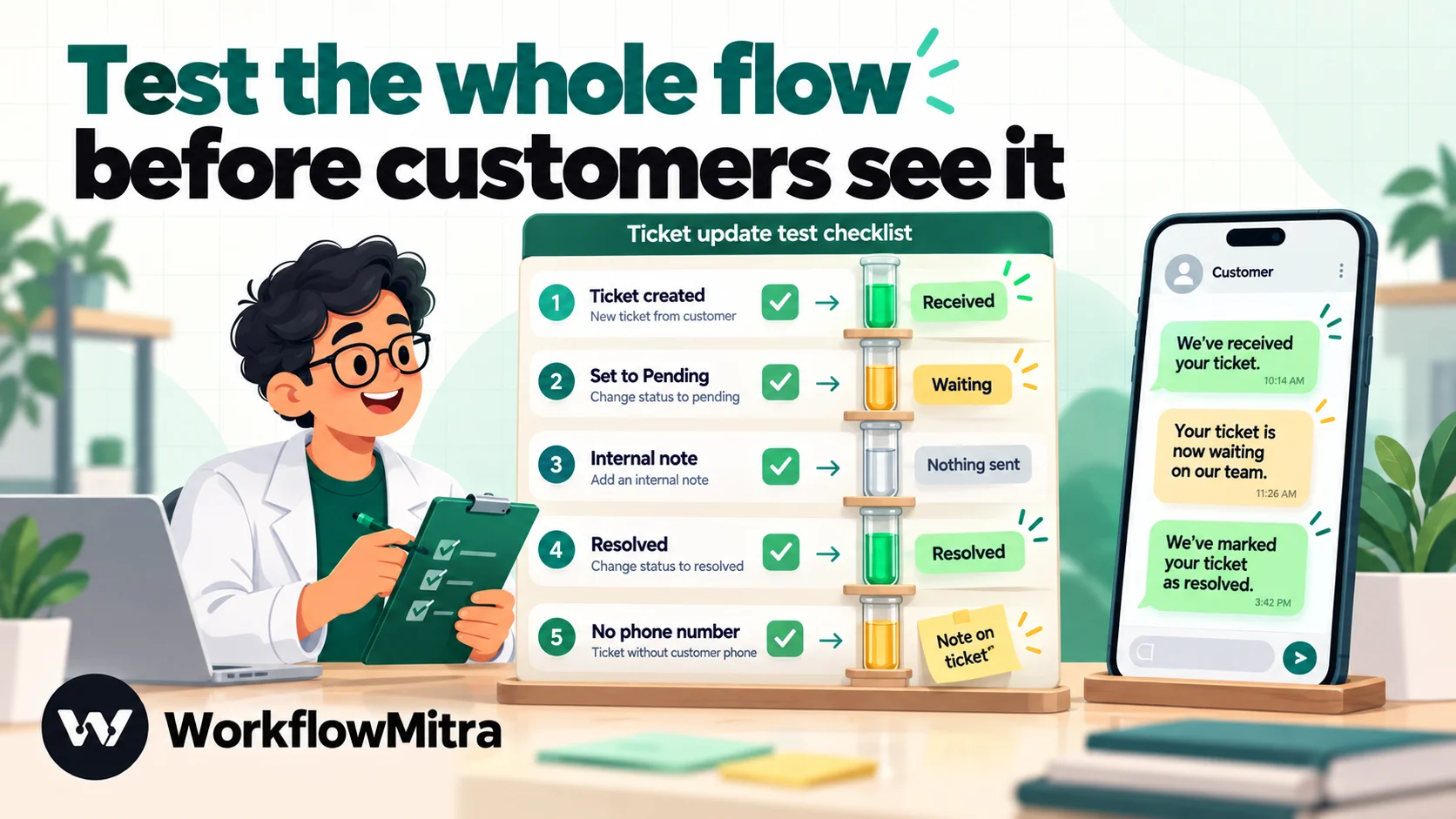
- Create a ticket by email: one “received” message with the right ticket number, and a private note on the ticket.
- Set it to Pending: one “waiting” message.
- Add an internal note: nothing is sent.
- Resolve it: one “resolved” message; the button opens the right ticket.
- A contact with no number: no message, and (if you added it) a note saying so.
If one of these sends twice, look at the helpdesk side first: two rules matching the same event is the usual cause.
What it costs
| Cost | Billed by | Basis |
|---|---|---|
| Workflow steps | WorkflowMitra | The trigger, WhatsApp and note steps use one credit each when they run; IF and Switch are free. The entry plan includes 10,000 credits for ₹999 a month |
| Message | Meta | Per delivered template, by category and the customer's country |
| Platform fee | ChatMitra, when it sends | ₹0.20 per conversation, counted once per customer per 24 hours; see ChatMitra pricing |
| Helpdesk webhooks | Your helpdesk plan | Freshdesk webhooks need Growth or higher |
Take a team handling 1,200 tickets a month. Every ticket gets a received and a resolved message, and about a third also hit Pending, which adds 400 waiting messages: 2,800 messages in all. Each uses three credits (trigger, WhatsApp, note), so 8,400 credits, which fits the ₹999 entry plan. Dropping the note-back step brings it to 5,600.
On the messaging side, a received and a resolved message for the same ticket usually fall on different days, so count up to 2,800 conversations, or ₹560 at most in ChatMitra fees, plus Meta’s utility rate for each delivered template. Rejected requests (a wrong secret, a stranger guessing your URL) never start a run and cost nothing.
Troubleshooting
| Symptom | Likely cause | Fix |
|---|---|---|
| Every Zendesk delivery is rejected | The trigger uses the Zendesk source, whose signature check can't match Zendesk's scheme | Switch to Something else and API key authentication on both sides |
| Every Freshdesk delivery is rejected | Header name or secret differ, or a stray space in the header line | Paste x-webhook-secret: <secret> again |
| Nothing arrives from Freshdesk at all | Plan below Growth, rule inactive, or the event never matched | Check the plan and the rule order; Freshdesk emails admins about failed webhooks |
| Run fails in the WhatsApp step on the number | Contact has no phone, or a number without a country code | Add the IF from step 4; use the country-code expression or fix contacts |
| Template rejected at send time | An empty variable, or a line break in one | Add | there fallbacks; keep comments and subjects out of variables |
| Resolved message sent twice | Two rules or triggers match the same change, or the ticket was reopened and re-solved | Remove the duplicate rule; add a tag guard in Zendesk if reopen-resolve is common |
| Customer replied and nobody saw it | Replies go to the sender's inbox, not the ticket | Watch ChatMitra's inbox, or word templates to send people to the ticket |
When a run does fail, WorkflowMitra’s run history shows which step failed and why. For anything that has to work every time, set up a failure alert under Workspace settings → Alerts; the guide to error handling in workflows covers the options.
More helpdesk workflows on the same pattern
Once ticket updates work, the same pieces cover a few more jobs.
Urgent tickets to your team. A Freshdesk rule or Zendesk trigger on priority Urgent can call the same webhook with "event": "urgent". Add a route that posts to a Slack channel instead of WhatsApp, so the on-call person sees it without opening the helpdesk.
Satisfaction follow-up. A day after Resolved, a short “how did we do?” message works as a utility template only when it asks about that specific ticket. Add a Delay step on the resolved route and a second template. Delays are durable, so the run waits without holding anything open.
Tickets from other sources. The Freshdesk and Zendesk steps can also create tickets. A workflow that receives a website form, an order complaint or a missed-call alert can open a ticket with the customer’s details, and the rules above take it from there.
Why use WorkflowMitra for helpdesk WhatsApp updates?
WorkflowMitra, by ChatMitra, suits teams that want ticket updates on WhatsApp without moving their support conversations:
- Uses the rules you already trust. Freshdesk automation rules and Zendesk triggers decide when to send, with all the conditions you already maintain, rather than a second system guessing from ticket data.
- Your number, your templates. Messages go out from your existing WhatsApp Business number, via ChatMitra or Meta’s Cloud API, and the step reads your approved templates, including URL-button variables.
- Writes back to the ticket with native Freshdesk and Zendesk steps, so agents see exactly what the customer was told.
- Handles real-world contact data, with tested expressions for choosing between phone fields and fixing missing country codes.
- Low running cost: about three credits per update, plans priced in rupees, and a trial that needs no card.
It has limits worth knowing first. There is no Freshdesk or Zendesk trigger step that subscribes for you; you set up the rule or trigger and webhook in the helpdesk yourself. The Zendesk source’s signature check doesn’t fit Zendesk’s scheme, so Zendesk deliveries use API key authentication. Replies don’t flow back onto the ticket. And if most of your customers already start conversations on WhatsApp, your helpdesk’s own WhatsApp channel may be the simpler choice.
To see whether it fits your support desk, open a 14-day trial and build the resolved message first; with templates already approved it takes under an hour. The same trigger-and-template pattern works for most apps that can call a URL; webhook to WhatsApp is the general version, and the hub on WhatsApp workflow automation. If you’re new to the moving parts, what webhooks are and webhook security explain the trigger and the secret. ChatMitra’s guide to WhatsApp for customer service covers the conversations that start on WhatsApp.
WorkflowMitra features and limits in this guide were checked in the product code on 8 October 2026, and the phone and name expressions were run through its expression engine the same day; the flow was not run against a live Freshdesk or Zendesk account. Freshdesk details are from its support articles on using webhooks in automation rules, placeholders and connecting WhatsApp. Zendesk details are from verifying webhook authenticity, creating and monitoring webhooks, the placeholders reference and its articles on WhatsApp channels and proactive WhatsApp outreach, read the same day. Meta pricing is from WhatsApp Business Platform pricing; ChatMitra's fee is from chatmitra.com/pricing.
Frequently Asked Questions
Questions support teams ask before they send Freshdesk or Zendesk ticket updates on WhatsApp.
Yes. Freshdesk and Freshdesk Omni can add WhatsApp as a support channel on the Growth, Pro and Enterprise plans, so customer messages arrive as tickets and agents reply from Freshdesk. That covers conversations that start on WhatsApp. Sending WhatsApp updates for tickets that started by email, web form or phone is a separate job, which an automation rule plus a webhook workflow handles.
Automate the work between your apps
Build workflows with triggers, conditions and actions, then test them before they go live. Try WorkflowMitra free for 14 days, no card required.
