Generate PDFs from Google Sheets Automatically: Quotes, Receipts and Certificates Through a PDF API

Quick Summary
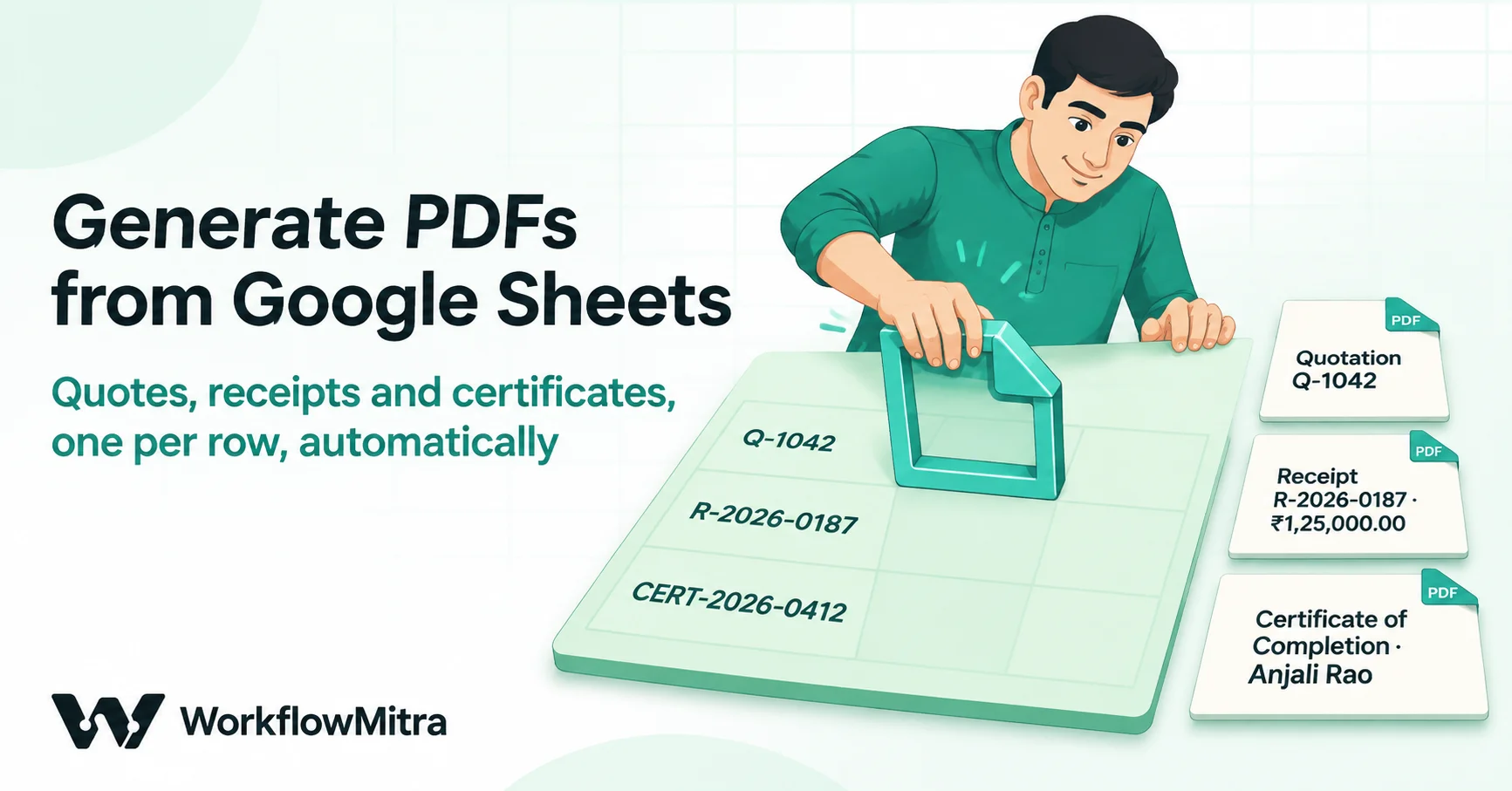
To generate a PDF from each Google Sheets row automatically, let a workflow watch the sheet, send the row's values to a PDF generation API, and email the file it returns. In WorkflowMitra, powered by ChatMitra, a Google Sheets trigger set to One column changes on a Status column starts the run when someone marks a row Ready, an HTTP Request step sends the row to the PDF API, and the Email step attaches the result, either from the download link the API returns or straight from the HTTP step's output. A Google Sheets Update row step then writes the time it was sent back to the row, so the same document never goes out twice. Two details catch most people: the trigger passes dates as spreadsheet serial numbers, and the default fonts of PDF engines often lack the ₹ sign, so the template should load a font such as Noto Sans. Each document costs about 4 credits plus the PDF service's own fee.
A computer training institute in Pune finishes a batch of 40 students every few weeks. The trainer marks each student “Completed” in a Google Sheet, and then somebody spends an afternoon copying names into a certificate template, saving 40 PDFs, attaching each to an email and hoping they didn’t send Anjali’s certificate to Imran. The packaging supplier down the road does the same with quotations, and the coaching class with fee receipts. The sheet already holds every value the document needs. What’s missing is the step that turns a row into a PDF and sends it.
This guide shows how to build that step without Apps Script: a workflow that watches the sheet, sends each ready row to a PDF generation API, emails the PDF and records that it went out. The workflow side uses WorkflowMitra, powered by ChatMitra. On 22 October 2026 we ran the certificate example in this guide end to end: WorkflowMitra’s HTTP Request step sent a sample row to a PDF API, which returned a real PDF, and we checked the result page by page. The PDF services’ documentation and prices were read the same day.
How do you generate a PDF from Google Sheets automatically?
Mark the row as ready, send its values to a PDF API, and email the file it returns. A workflow watches a Status column. When someone sets a row to "Ready", an HTTP Request sends that row's values to a PDF generation API, which fills your template and returns either the PDF itself or a download link. The Email step attaches the PDF and sends it, and a final step writes the time into a Sent at column so the same document never goes out twice. The template, not the sheet, controls how the PDF looks, so quotes, receipts and certificates can each have their own design.
A PDF generation API is a web service that turns data into a document. You either design a template in its editor and send it the data, or send it the finished HTML and let it print that to PDF. If calling an API from a workflow is new to you, our guide on connecting any API without code explains the request, the headers and the response in plain terms.
When Google Sheets on its own is enough
Before setting anything up, it’s worth knowing what Google already gives you, because sometimes it’s all you need:
- File › Download › PDF saves the sheet, a tab or a selected range as a PDF, laid out the way it looks in the grid. That’s fine for an occasional price list or a report.
- Apps Script can turn a sheet into a PDF and email it. Google publishes a sample that generates and sends invoices from a sheet. It’s free, but it’s code you maintain, and its email service has daily quotas (100 recipients a day on personal accounts, 1,500 on Workspace).
- Workspace add-ons for mail merge can make one document per row from a Google Docs or Slides template.
A PDF API earns its place when you want a designed document for each row (a branded quote, a certificate with a border and a seal, a receipt in a fixed format), when nobody on the team wants to look after a script, or when generating the PDF is one step in a longer process: send it, log it, follow up after three days. That last case is where a workflow helps most.
How the workflow fits together
The whole thing is six steps, and the sheet stays the place where people work:
- Google Sheets trigger: runs when the Status column of a row changes.
- IF “Ready to send?”: continues only when Status is Ready and Sent at is empty.
- HTTP Request “Create PDF”: sends the row’s values to the PDF API.
- IF “PDF made?”: checks that the API said yes.
- Email: sends the PDF as an attachment.
- Google Sheets, Update row: writes the time into Sent at.
On the “No” side of step 4, a second Update row step writes the error into the row, so the person who marked it Ready can see what went wrong without opening the workflow.
Set up the sheet
Give the sheet one row per document and a few columns that the workflow reads and writes. A certificate sheet might look like this:
| Column | Example | Used for |
|---|---|---|
Doc no | CERT-2026-0412 | Unique number, printed on the PDF and used as the file name and the trigger's ID column |
Name | Anjali Rao | Printed on the certificate |
Email | [email protected] | Where the PDF is sent |
Course | Advanced Excel | Printed on the certificate |
Completed on | 20/10/2026 | Printed as "20 October 2026" |
Fee | 12500 | Printed as "₹12,500.00" on a receipt |
Status | Ready | The column the trigger watches; use a dropdown |
Sent at | (filled by the workflow) | When the PDF was emailed |
Result | (filled by the workflow) | "Sent", or the error if it failed |
Three habits save trouble later:
- Every row needs its own document number. It goes on the PDF, becomes the file name and lets the workflow find the row again. Our guide to generating reference numbers covers numbering schemes such as
CERT-2026-0412. - Make Status a dropdown (Insert › Dropdown) with values such as “Draft” and “Ready”, so a typo like “Redy” doesn’t silently skip a row.
- Keep the workflow’s columns separate. People edit Name and Course; only the workflow writes Sent at and Result.
Choose a PDF API
PDF services fall into two groups, and the difference decides how the workflow gets the file.
| Service | How you design the document | What it returns | How long the file stays | Free allowance | Cheapest paid plan |
|---|---|---|---|---|---|
| APITemplate.io | Template in its editor, or HTML in the request | JSON with download_url (file on request) | Kept permanently by default; you can set 1 minute to 7 days | 50 a month | $19 a month for 3,000 |
| CraftMyPDF | Template in its editor | JSON with a file URL (file on request) | 5 minutes by default; you can set up to 7 days | 50 a month | $29 a month for 1,200 |
| PDFMonkey | Template in its editor | JSON with a download URL (sync endpoint) | Signed link valid for 1 hour | 20 a month | €5 a month for 300 |
| DocRaptor | HTML in the request | The PDF file itself (link if async) | Async links: limited downloads within your retention period | 5 a month, unlimited watermarked tests | $15 a month for 125 |
| PDFShift | HTML in the request (or a stored template) | The PDF file itself, or JSON with a URL if you pass a filename | 2 days | 50 credits a month | $9 a month for 500 |
Prices were read on the vendors’ pricing pages on 22 October 2026 and are in their own currencies; check them before you commit.
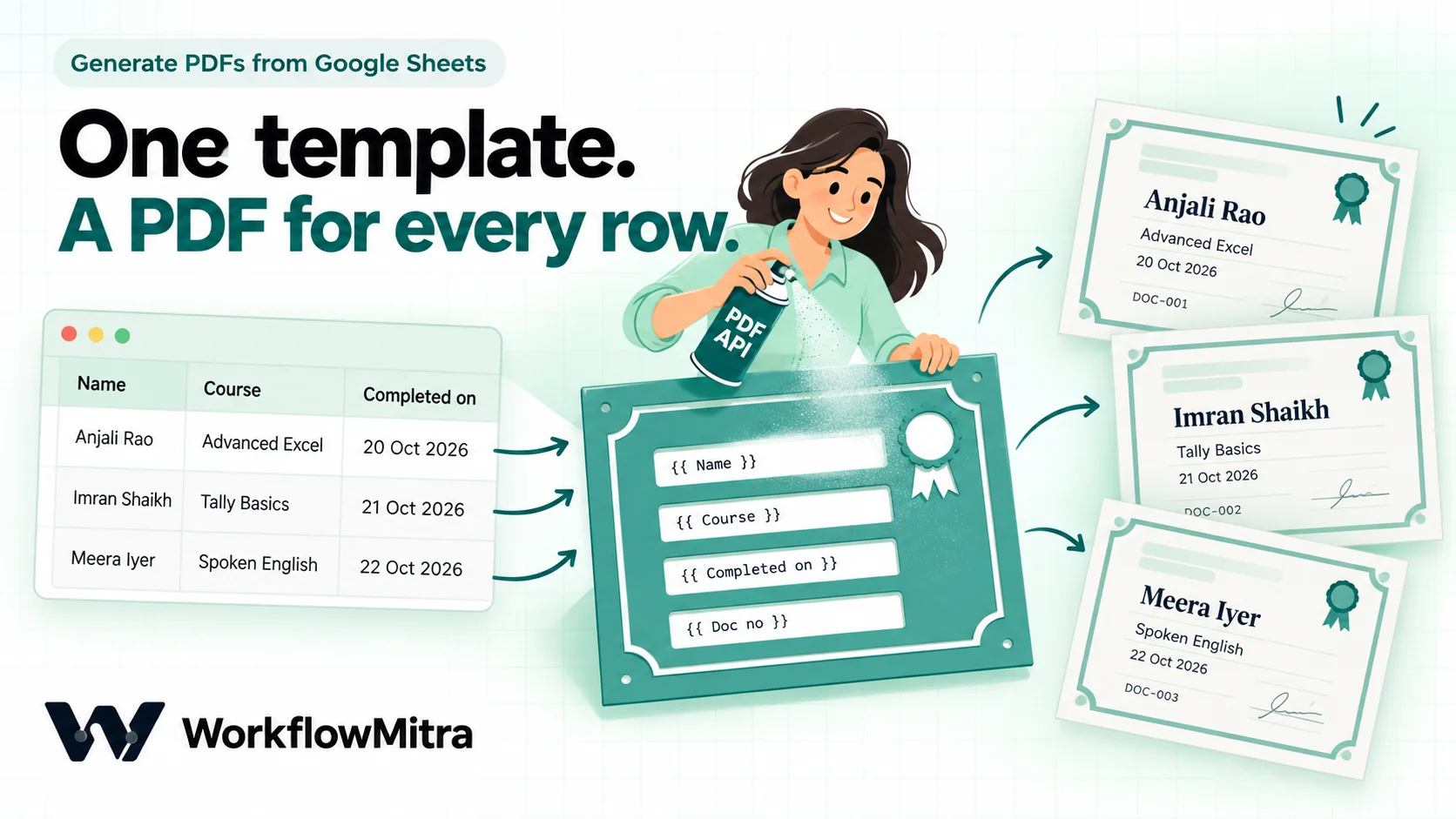
Template services (APITemplate.io, CraftMyPDF, PDFMonkey) suit teams who want to design the document visually. You build the certificate once in their editor with placeholders, and the workflow sends only data, such as {"name": "Anjali Rao", "course": "Advanced Excel"}. The response is JSON with a download link, which WorkflowMitra’s Email step can fetch and attach.
HTML services (DocRaptor, PDFShift) suit teams who are happy writing a little HTML and CSS, or who already have an HTML invoice layout. The whole document travels in the request, so the template lives inside the workflow, and the API usually sends back the PDF file itself. WorkflowMitra’s HTTP Request step stores a PDF response as base64 text in its output, which the Email step can attach directly.
Two things matter more than the price. First, link lifetime: if the API’s link expires before the Email step fetches it, the email fails. CraftMyPDF’s default of 5 minutes is enough when the Email step runs straight after, but set its expiration higher if anything sits in between, such as an approval. Second, where the data goes: APITemplate.io and CraftMyPDF let you choose a region (Singapore by default, or Germany, the US or Australia; neither offers India), and PDFMonkey runs on European servers. If your documents carry personal data, read the service’s retention settings and record the choice. Our guide to the DPDP Act and automation explains what that means for Indian businesses.
Step 1: Start the workflow when a row is marked Ready
Create a workflow with the Google Sheets trigger, connect the sheet, and choose the event One column changes. Tick only the Status column, and set the ID column to Doc no. The trigger checks the sheet every 5 minutes by default, and checks that find no change cost nothing.
Why not “A row is added” or “A row changes”?
- A row is added fires the moment a row appears, often before anyone has finished filling it in. Certificates would go out with blank course names.
- A row changes fires on every edit, including the workflow’s own write-back into Sent at, which would start the workflow again after every send.
- One column changes fires only when Status changes, so people can fix a typo in a name, then set Status to Ready when the row is right.
The ID column must hold a unique value in every row. If two rows share a document number, the trigger stops and reports which values are duplicated, because it can no longer tell the rows apart. One more behaviour to know: a row that is pasted in with Status already set to Ready doesn’t count as a Status change, so set Status after the row exists. When the trigger is first connected, it records the sheet as it is and starts nothing, so existing rows marked Ready won’t all fire at once.
Next, add an IF step named “Ready to send?” with two rules joined by AND: {{ Status }} Equal to Ready, and {{ $trigger["Sent at"] }} Is empty. The second rule is the duplicate guard. Column names with spaces go inside $trigger["…"] with plain double quotes, exactly as shown.
Step 2: Create the PDF
Add an HTTP Request step named “Create PDF” on the IF step’s Yes path, set the method to POST and the body to Raw JSON. What goes in it depends on the kind of service you picked.
With a template service
For a service that keeps the template, the body is just the row’s data. With APITemplate.io, for example, the documentation gives the endpoint https://rest.apitemplate.io/v2/create-pdf with your template’s ID as the template_id query parameter and the API key in an X-API-KEY header (in WorkflowMitra, API key authentication with header name X-API-KEY). The body holds the fields your template expects:
{
  "doc_no": "{{ $trigger["Doc no"] }}",
  "name": "{{ $trigger.Name }}",
  "course": "{{ $trigger.Course }}",
  "completed_on": "{{ formatDate(multiply(subtract($trigger["Completed on"], 25569), 86400000), "DD MMMM YYYY") }}"
}
The response is JSON with a download_url, which you’ll attach in Step 3. Other template services work the same way with their own field names; CraftMyPDF, for instance, takes the template ID and the data in the body and returns the link in file. We didn’t make live calls to the template services for this guide, so follow your service’s own example for the exact fields.
With an HTML service
For a service that takes HTML, the template sits inside the request. This is the certificate we generated with DocRaptor on 22 October 2026. Set authentication to Basic, with your API key as the username and the password left empty:
{
  "doc": {
    "test": true,
    "document_type": "pdf",
    "name": "{{ $trigger["Doc no"] }}.pdf",
    "document_content": "<html><head><link href='https://fonts.googleapis.com/css2?family=Noto+Sans:wght@400;700&display=swap' rel='stylesheet'><style>@page { size: A4 landscape; margin: 0 } body { font-family: 'Noto Sans', sans-serif; text-align: center; padding: 120px 80px } h1 { font-size: 44px; color: #075E54 }</style></head><body><h1>Certificate of Completion</h1><p>This certifies that</p><h2>{{ escapeHTML($trigger.Name) }}</h2><p>completed <b>{{ escapeHTML($trigger.Course) }}</b> on {{ formatDate(multiply(subtract($trigger["Completed on"], 25569), 86400000), "DD MMMM YYYY") }}.</p><p>Certificate no. {{ $trigger["Doc no"] }}</p></body></html>"
  }
}
A few things in that body are deliberate, and each was checked in the run:
- Single quotes inside the HTML. The HTML lives inside a JSON string, so double quotes in it would have to be escaped by hand. Single quotes for attributes and font names avoid that entirely.
escapeHTML()around names. WorkflowMitra escapes quotes so the JSON stays valid, but it doesn’t know the text is HTML. A name likeMehta & Sons <Surat>would otherwise lose<Surat>as if it were a tag. WithescapeHTML(), it printed exactly as typed, and so did a name with quotes in it."test": true. DocRaptor’s documentation says its sample keyYOUR_API_KEY_HEREworks for test documents, which are free and watermarked, so you can try the whole workflow before signing up. Removetestand use your own key when you go live.
The API answers with the PDF itself. WorkflowMitra recognises the application/pdf response and stores it as base64 text in the step’s body, with ok true and status 200. In our run, the certificate came back as a one-page A4 landscape PDF of about 26 KB.
Add an IF step named “PDF made?” after it, with {{ ok }} Is yes. A rejected request, such as 401 for a wrong key or a 4xx error for data the service can’t use, doesn’t stop the workflow by itself; the HTTP Request step finishes with ok false and the status code, so this check is what catches it.
Step 3: Email the PDF as an attachment
On the Yes path, add an Email step. Fill in To with {{ $trigger.Email }}, a subject such as Your certificate for {{ $trigger.Course }}, and a short message. Then add an attachment row:
- Filename:
{{ $trigger["Doc no"] }}.pdf, so the student receivesCERT-2026-0412.pdf, notdocument.pdf. - Content type:
application/pdf. - Source: depends on the service:
- From a URL for template services, with
{{ $node["Create PDF"].body.download_url }}(or the field your service uses). - From a previous step for HTML services, with
{{ $node["Create PDF"].body }}. The Email step decodes the base64 back into the file.
- From a URL for template services, with
The Email step can carry up to 10 attachments, each up to 10 MB and 20 MB in total, which is plenty for certificates and quotes. When the source is a URL, the Email step downloads the file at the moment it sends, so the link only has to be valid for those few seconds. If the link has expired or the service refuses it, the step fails with a message that names the file and the HTTP status. For a deeper look at sending from a sheet, including Gmail’s daily limits, see our guide to sending email from Google Sheets, and for sending through your own domain, SMTP email automation.
If your customers expect the document on WhatsApp instead, the PDF needs a public link and an approved WhatsApp template with a document header. That sending layer is what ChatMitra handles; the workflow passes it the link and the customer’s number.
Step 4: Write the result back to the row
After the Email step, add a Google Sheets step with Update row. Match on the key column Doc no with the value {{ $trigger["Doc no"] }}, and set:
Sent atto{{ now() }}ResulttoSent
now() writes the time in UTC in ISO format, for example 2026-10-22T08:14:05.000Z. If you want the sheet to show Indian time, add a formula column that converts it, as our guide to time zones in automation shows.
On the No path of “PDF made?”, add another Update row on the same key that writes Result as PDF failed: {{ $node["Create PDF"].status }}, and leave Sent at empty. The person who marked the row can fix the data, set Status to Draft and back to Ready, and the row goes through again.
Notice that the workflow writes to Sent at and Result, never to Status. Because the trigger watches only Status, these writes don’t start a new run. If you’d rather have the workflow set Status to “Sent”, it works, but each write causes one more trigger run that the IF step then stops, costing a credit for nothing.
Indian formats that break PDFs, and how to fix them
Most problems with generated documents in India come from four details. We hit three of them in testing.
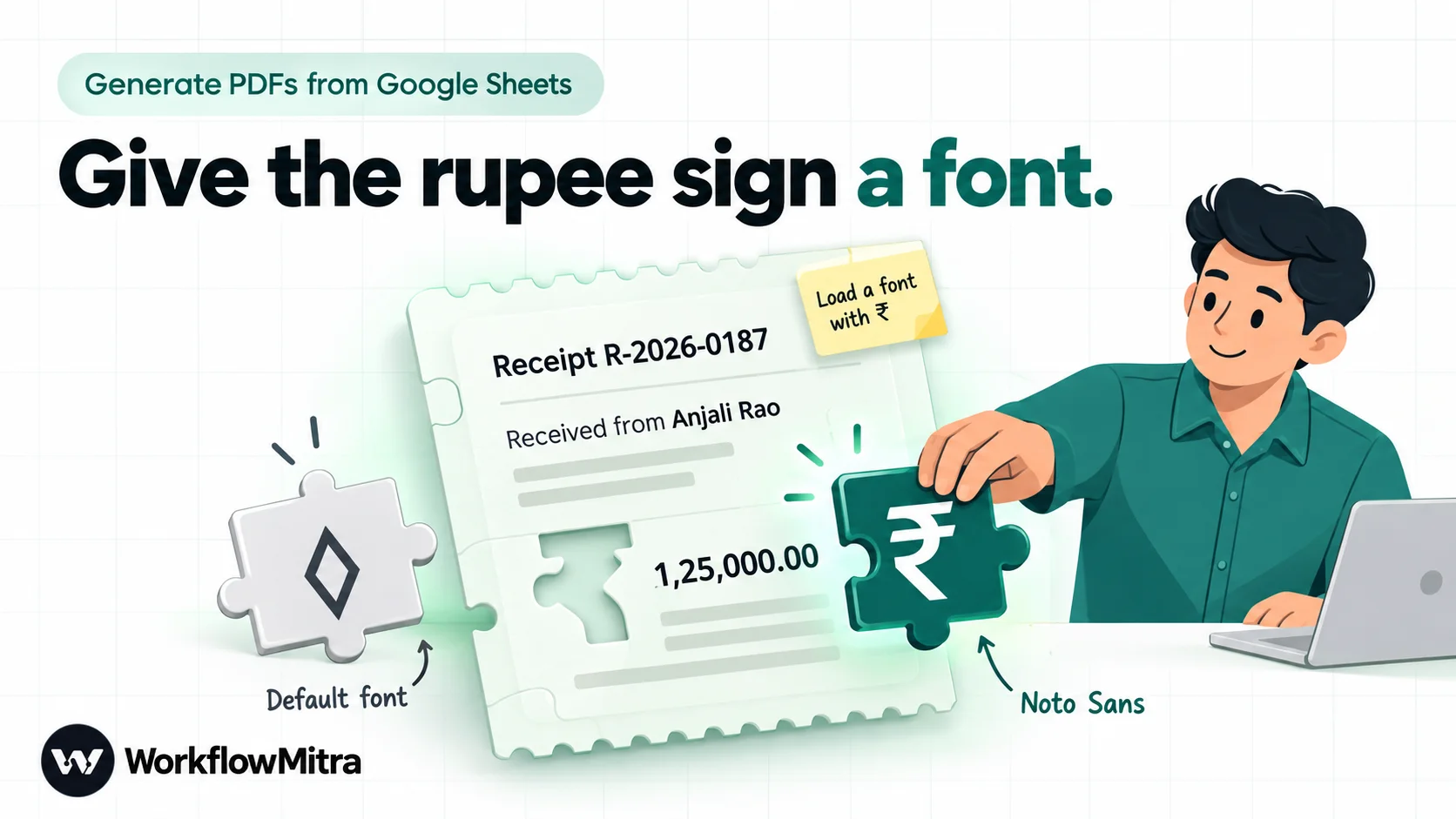
The rupee sign prints as a box. In our first receipt, DocRaptor’s default serif and sans-serif fonts both printed ◊1,25,000.00, because neither contains the ₹ character. Loading Noto Sans from Google Fonts in the template’s head, as in the certificate above, printed ₹1,25,000.00 correctly. Whatever service you use, test one document containing ₹ before you send a batch, and load a font that includes it if the symbol is missing. If you’d rather not depend on a font, write “Rs.” instead.
Dates arrive as numbers. WorkflowMitra’s Google Sheets trigger reads cell values unformatted, which is good for calculations but means a date such as 20/10/2026 arrives as the serial number 46315. Convert it in the template with formatDate(multiply(subtract(value, 25569), 86400000), "DD MMMM YYYY"), which printed “20 October 2026” in our run. The 25569 is the number of days between Google’s day zero (30 December 1899) and 1 January 1970. Our guide to date calculations has more formats.
Amounts need Indian grouping. formatCurrency() prints a number as rupees in the Indian system, so 125000 becomes ₹1,25,000.00. formatNumber() uses the international grouping, 125,000.00, which looks wrong on an Indian receipt. And if an amount reaches the workflow as text with commas, such as “1,25,000”, read it with parseNumber(): toNumber("1,25,000") returns 0, while parseNumber("1,25,000") returns 125000.
Names with symbols disappear. As shown above, wrap any typed text in escapeHTML() when it goes into HTML. Company names with &, product sizes with " and notes with < are common in Indian business data.
For receipts, print only what applies to your business. This guide’s examples show an amount received and a document number; if your receipts need tax details, take the wording from your accountant, not from a template.
Quotes, receipts and certificates: what changes
The workflow stays the same for all three documents. The sheet’s columns, the template and the email change:
| Document | Extra columns | Template notes | Email and follow-up |
|---|---|---|---|
| Quotation | Items, quantity, rate, amount, valid until | Several line items per quote; a validity date; your terms | Send to the buyer; follow up if there's no reply in three days |
| Payment receipt | Amount, payment mode, payment reference, received on | Amount in figures with ₹; receipt number; no editable fields | Send when the payment is recorded |
| Certificate | Course, completed on, trainer | A4 landscape; name in large type; a certificate number someone can quote back | Send to the participant; copy the trainer if useful |
Quotes with several items need one decision: keep one row per quote with the items in a single cell (one item per line), or keep items in a separate tab and gather them first. The first is easier and works up to a handful of items. For the second, a Google Sheets Read rows step can fetch the quote’s items, and a Code step can turn them into an HTML table for the template. Our guide to quotation follow-up picks up from the moment the quote is sent.
What it costs
In WorkflowMitra, a credit is one step that runs. A document that goes through the six steps uses about 4 credits: 1 for the Google Sheets trigger, 1 for the HTTP Request, 1 for the Email step and 1 for Update row. The IF steps are free. Checks of the sheet that find no change cost nothing.
So a batch of 300 certificates uses about 1,200 credits. The Starter plan includes 10,000 credits a month for ₹999 (checked on 22 October 2026). The PDF service charges separately, per document, according to its own plan. At low volume, a free allowance may be enough: 50 documents a month on APITemplate.io and CraftMyPDF, for example. You can build and test the whole workflow, including DocRaptor’s watermarked test documents, on a 14-day WorkflowMitra trial.
Privacy and record keeping
Generated documents often carry names, email addresses and amounts, so decide where copies live:
- In the PDF service. Each keeps files for its own period, from minutes to permanently. Choose the shortest setting that still lets the Email step fetch the file, unless you need the service to host the document.
- In WorkflowMitra’s run history. Each step’s output is kept for your plan’s history period (7 to 180 days). With an HTML service, that output includes the PDF itself as base64 text, so anyone in the workspace who can open runs can see it. If that matters, use a template service and attach from the link.
- In your mailbox. The sent email holds a copy, which is usually the record you want for receipts and quotes.
When generation fails
| What you see | Likely cause | Fix |
|---|---|---|
| Nothing happens when Status changes | The row was pasted in already Ready, or the trigger watches another column | Set Status after the row exists; check the ticked column |
| Trigger error about duplicate values | Two rows share a document number | Make Doc no unique |
| Result says "PDF failed: 401" | Wrong API key, or the key in the wrong place | Check the authentication type your service documents |
| Result says "PDF failed" with another 4xx status | The service rejected the request, often because a double quote inside the HTML broke the JSON body | Use single quotes inside the HTML; check the service's error message in the run |
| Email step fails, naming the file and a 403 or 404 | The download link expired before it was fetched | Raise the link expiry, or attach straight after creating |
| ₹ shows as a box | The PDF font lacks the rupee sign | Load Noto Sans or another font with ₹ |
| Date prints as 46315 | The trigger passes dates as serial numbers | Convert with formatDate as shown above |
| File arrives as ".pdf" with no name | The column reference resolved empty, often from typing \" inside {{ }} | Use plain double quotes inside $trigger["…"] |
The last row comes from our own first attempt: we had escaped the quotes inside $trigger["Doc no"] by hand, the reference resolved to nothing, and the PDF arrived as “.pdf” with a heading that said only “Quotation”. Inside {{ }}, always type plain double quotes. For alerts when a run fails outright, see our guide to workflow error handling.
Start with one document type
Pick the document you produce most often, build its template, and run the workflow on five rows marked Ready, sent to your own address first. Check the PDFs for the ₹ sign, the dates and the file names, then point it at real recipients. Once one document type works, a second is mostly a new template and a new tab.
You can build and test this on a 14-day WorkflowMitra trial, with no card needed. The Google Sheets integration and HTTP Request integration pages list what those steps can do. For other ways a sheet can drive a workflow, see our Google Sheets automation guide, and if the same request also needs a task for your team, our guide to creating tasks automatically shows that step.
PDF service details were read on 22 October 2026 from the vendors' documentation and pricing pages: APITemplate.io (REST API, pricing), CraftMyPDF (API documentation, pricing), PDFMonkey (documents API, pricing), DocRaptor (documentation, test documents, sample key, plans) and PDFShift (convert to PDF, pricing). Google's options come from its help and developer pages (downloading a file, Apps Script PDF sample, Apps Script quotas). The certificate and receipt examples were generated end to end on 22 October 2026: WorkflowMitra's HTTP Request step sent sample rows to DocRaptor in test mode, and the returned PDFs were opened and checked. WorkflowMitra details (the Google Sheets trigger's unformatted values and ID column, the Email step's attachment sources and limits, the expression helpers and credit rates) come from its product code as of the same date. We did not make live calls to the template services.
Frequently Asked Questions
Questions people ask about generating PDFs from Google Sheets automatically.
Use a workflow that runs when a row is marked ready. It sends the row's values to a PDF generation API, which fills a template and returns the PDF or a download link. The workflow then emails the PDF as an attachment and writes the sent time back to the row. Google Sheets alone can save a whole sheet as a PDF, but it can't turn each row into its own designed document without a script.
Automate the work between your apps
Build workflows with triggers, conditions and actions, then test them before they go live. Try WorkflowMitra free for 14 days, no card required.