Gmail Automation Beyond Filters: Sort, Label, Hand Off and Alert Automatically

Quick Summary
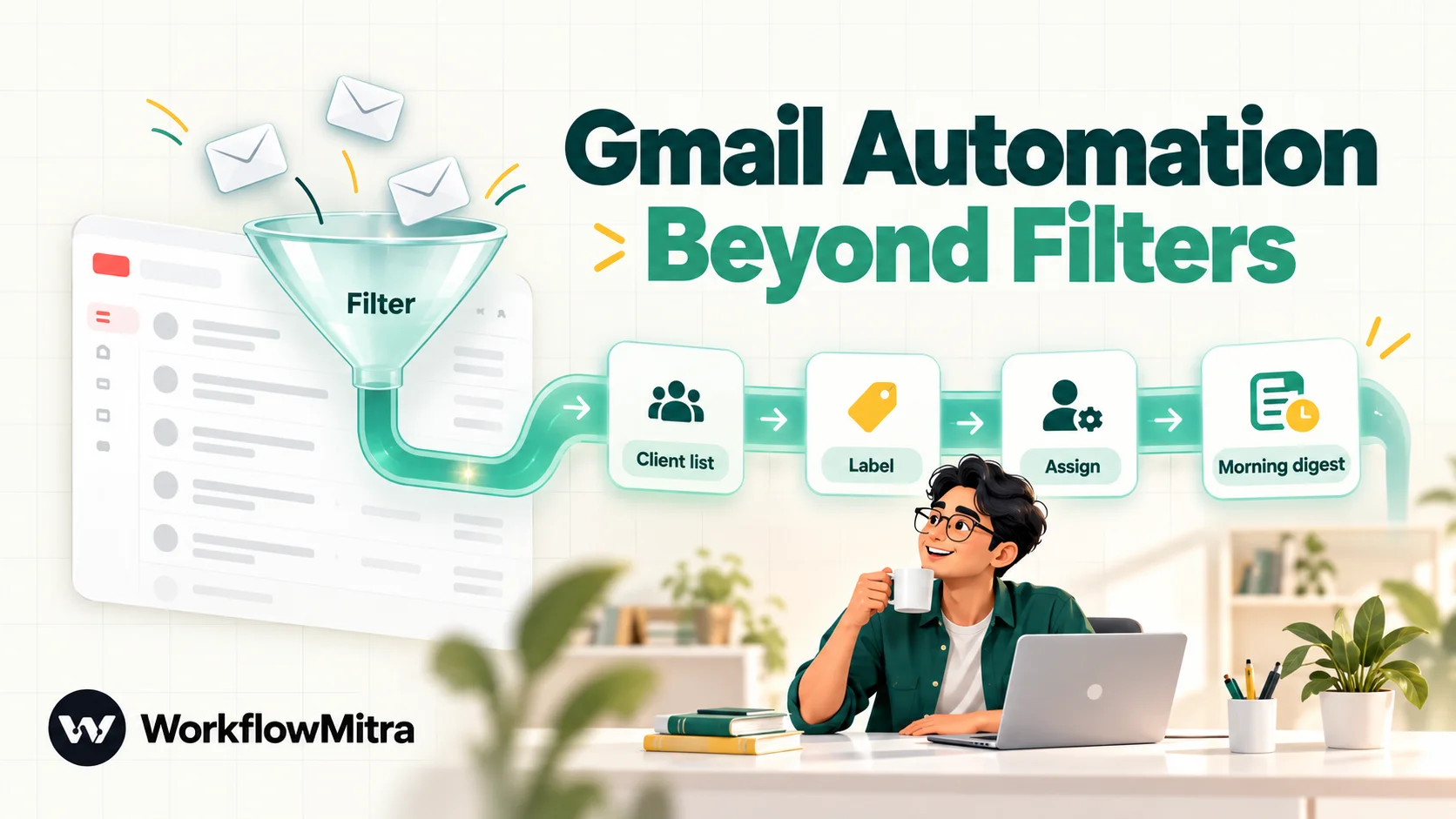
Gmail automation means letting rules and workflows handle repeat inbox work: labelling, archiving, forwarding, replying and alerting. Gmail's own filters handle fixed rules for free, such as labelling one sender or archiving newsletters. They can't look up a list kept elsewhere, share emails fairly across a team, act on a schedule or notify another app. A workflow tool fills those gaps. In WorkflowMitra, powered by ChatMitra, the Email trigger watches a Gmail or Google Workspace mailbox over IMAP with an app password, can use Gmail's own search syntax, and the Email step can label, move, mark, reply, search and send in the same workflow.
Most inboxes already have a few filters in them. One labels receipts, one archives newsletters, maybe one forwards invoices to an accountant. They work well, right up to the point where the rule you want depends on something Gmail doesn’t know: which of your clients is which, who on the team is free, or whether anyone has replied yet.
This guide is about that point. It covers what Gmail can automate on its own, where filters stop, twelve automation ideas sorted by the tool that fits them, and three complete builds that go beyond filters: labelling email from a client list kept in a sheet, sharing out a team inbox fairly, and a morning digest of emails still waiting on a reply. It finishes with the limits and costs, so you know what you are signing up for. The builds use WorkflowMitra, powered by ChatMitra, with a Gmail or Google Workspace mailbox.
What is Gmail automation?
Gmail automation means letting rules and workflows do repeat inbox work for you: labelling, archiving, forwarding, replying and alerting. Gmail's built-in filters handle fixed rules for free. A workflow tool takes over when a rule needs outside information, involves other people or apps, or has to run on a schedule. Most well-run inboxes use both: filters for the simple sorting, a workflow for the decisions.
It helps to think in two layers. The first layer is sorting: putting each email in the right place so you can find it. Filters are excellent at this when the rule is stable. The second layer is action: making sure someone does something about the email. That needs context, people and timing, and it’s where filters run out.
What Gmail can already automate on its own
Before reaching for any tool, use what Gmail already gives you. It’s free, instant and runs inside Google, so nothing else has access to your mail.
- Filters. A filter is a saved search plus actions. According to Google’s filter help page, a filter can send email to a label, archive, delete, star or forward your mail. In the filter form you’ll also find options to mark as read, never send to spam, mark as important and categorise.
- Templates as automatic replies. Saved templates can be sent by a filter, which gives you a simple auto-reply for one address or subject.
- Forwarding. Gmail forwards to another address only after that address confirms a verification link. To forward some messages rather than all, you pair forwarding with a filter.
- Scheduled send, snooze and the vacation responder. Each solves one timing problem for one email or one period.
Filters act on new mail. When you create one, Gmail offers to apply it to existing conversations that match. After that it only touches incoming messages, and Google notes that replies in a filtered thread are filtered only if they also match the search.
Where filters stop
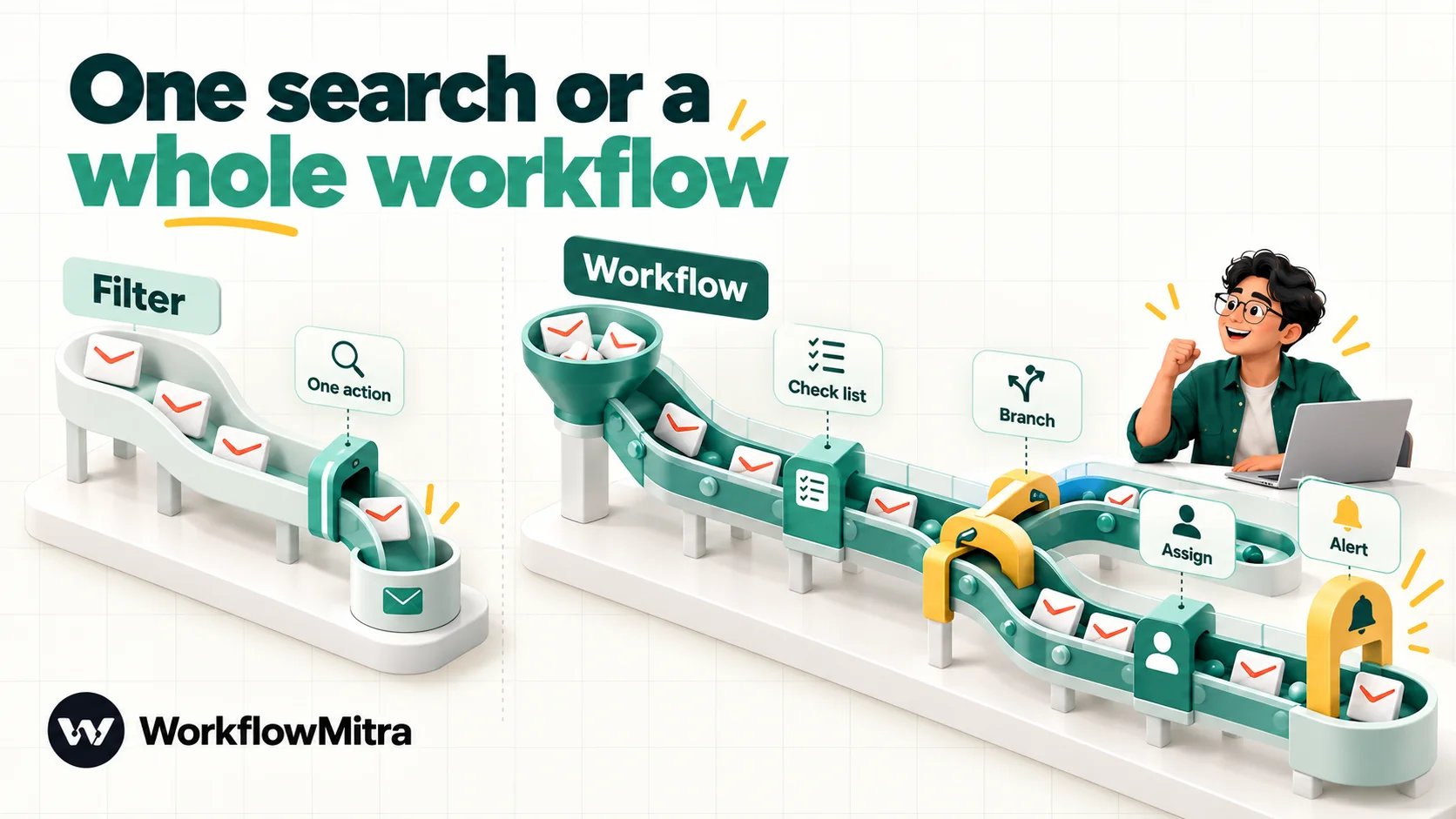
Filters are a search plus a fixed action. That design is why they’re reliable, and it’s also why they can’t do these things:
- Read a list kept somewhere else. A filter for your forty clients needs forty domains typed into one search, and someone has to edit it every time sales signs a new client.
- Decide between people. A filter can forward to a fixed address. It can’t send the next enquiry to whoever is next in line, or to the account owner listed in your CRM.
- Act on a schedule. Nothing in a filter says “every morning, tell me what’s still unanswered”.
- Remember what happened. A filter doesn’t know whether you replied, whether a teammate picked the email up, or whether this sender wrote yesterday.
- Reach other apps. Apart from forwarding by email, a filter can’t post to Slack, send a WhatsApp alert or add a row to a sheet.
- Branch. One filter, one set of actions. There’s no “if the subject mentions a refund, also tell finance”.
None of this is a criticism of filters. It just marks the line where you need something that can make a decision.
Four ways to automate Gmail
| Approach | Cost | Who maintains it | Reaches other apps? | Best for |
|---|---|---|---|---|
| Gmail's built-in tools | Free | Anyone, in Gmail settings | Only by forwarding email | Stable sorting and simple auto-replies |
| Google Apps Script | Free within Google's quotas | Someone who writes and fixes JavaScript | Yes, with code | Teams with a developer who will own the script |
| Inbox add-ons and extensions | Usually a per-user subscription | The vendor | Sometimes | One specific job, such as tracking or shared labels |
| A workflow automation tool | Usage-based | Whoever builds the workflow, without code | Yes, that's the point | Rules that need a lookup, a person, a schedule or another app |
Apps Script deserves a fair word. It can do almost anything with Gmail, and it costs nothing. The catch is ownership: when the person who wrote it leaves, the script keeps running until something changes and then quietly stops, and nobody knows how to fix it. A visual workflow is easier for the next person to read.
12 Gmail automation ideas, and which tool fits each
| Idea | A filter alone? | What a workflow adds |
|---|---|---|
| Label receipts and invoices from known senders | Yes | Little; keep the filter |
| Archive newsletters and promotions | Yes | Nothing |
| Forward supplier invoices to your accountant | Yes, to a verified address | A log of what was sent, or a check that the amount is filled in |
| Label every client's email with the client's name | Only with every domain typed in | Reads the client list from a sheet, so new clients are covered (Build 1) |
| Tell the account owner when their client writes | No | Looks up the owner and alerts them (Build 1) |
| Share a team inbox fairly | No | Rotates new emails across people and labels who owns each (Build 2) |
| Acknowledge new enquiries and say who will reply | Partly: a fixed template | Names the person assigned and skips automated senders (Build 2) |
| A morning list of emails still waiting on a reply | No | A scheduled search and a digest (Build 3) |
| Send urgent emails to WhatsApp | No | A WhatsApp template alert (Gmail to WhatsApp) |
| Post certain emails to a Slack channel | No | Channel routing and clean formatting (email to Slack) |
| Sort email by meaning, not keywords | No | An AI step chooses the label (AI email classification) |
| Turn order or lead emails into spreadsheet rows | No | Extract fields and add rows (automated data entry) |
A useful rule of thumb from that table: if the rule could be written as one Gmail search with one action, write a filter. If you find yourself saying “and then” or “depending on”, you want a workflow.
Before you build: connect Gmail to WorkflowMitra
WorkflowMitra connects to a mailbox with your address and an app password, over IMAP for reading and SMTP for sending. One connection both receives and sends, so the same credential can label an email and reply to it.
What you need:
- 2-Step Verification on the Google account. Google’s app password help says app passwords only work with it switched on. The option isn’t available on accounts that use only security keys for 2-Step Verification, on Advanced Protection accounts, and on some work or school accounts, where your admin decides.
- A dedicated app password for this workflow, created at Google’s app passwords page and pasted into the credential. If you ever change your Google password, Google revokes every app password, and your automations stop until you add a new one. Write that down somewhere your team will find it.
- Nothing to switch on for IMAP. Google’s IMAP help says IMAP access is always on in Gmail; the old setting was removed in January 2025.
- Labels visible to IMAP. Gmail shows labels to IMAP as folders. In Gmail’s settings, each label has a “Show in IMAP” box; leave it ticked for any label a workflow watches or files into.
Two mailboxes that won’t work: Outlook.com and Microsoft 365. Microsoft has switched off app-password sign-in for IMAP, so they can’t be connected directly. The Gmail to WhatsApp guide describes the forwarding workaround.
How the Email trigger sees your inbox
Every build below starts the same way, so it’s worth knowing exactly what the trigger does. In WorkflowMitra, add the Email app’s On a new email trigger and fill in:
- Mailbox: the credential from the previous section.
- Folder: blank watches the inbox. Type a label name to watch that label instead.
- Only emails matching: Every new email, Unread only, Unread skipping promotions, Starred or flagged only, With an attachment, or Custom search (Gmail only).
- Check every: every minute, 5, 15 or 30 minutes, or every hour.
The custom search is the most useful setting for Gmail. It takes Gmail’s own search syntax and Google runs it on its side; Google’s IMAP extensions documentation states that these searches are interpreted the same way as in the Gmail web interface. So a query that finds the right emails in the Gmail search box will select the same emails for the workflow. Something like -category:promotions -category:social -from:me keeps a lot of noise out before a single credit is spent.
What each run receives: the sender’s address (from) and display name (fromName), to, cc, subject, date, whether there are attachments (hasAttachments), the email’s uid (used to act on it) and its messageId (used to reply in the same thread). The body isn’t included. When you need it, add an Email step set to Get an email (with body), which returns the raw message; the AI email replies guide has a tested step for cleaning it up.
Four behaviours to know:
- The first check only takes a snapshot. Email already in the mailbox never starts a run, so connecting a busy inbox doesn’t fire hundreds of runs at once.
- Up to 25 emails per check, oldest first. Anything beyond that waits for the next check.
- Checking is read-only. The trigger never marks an email as read. Only steps you add change anything.
- “Unread only” is judged when the check runs. Open an email on your phone between two checks and it no longer counts as unread, so the workflow never sees it. For anything important, use a search or a label instead.
Build 1: label emails from a client list that lives in a sheet
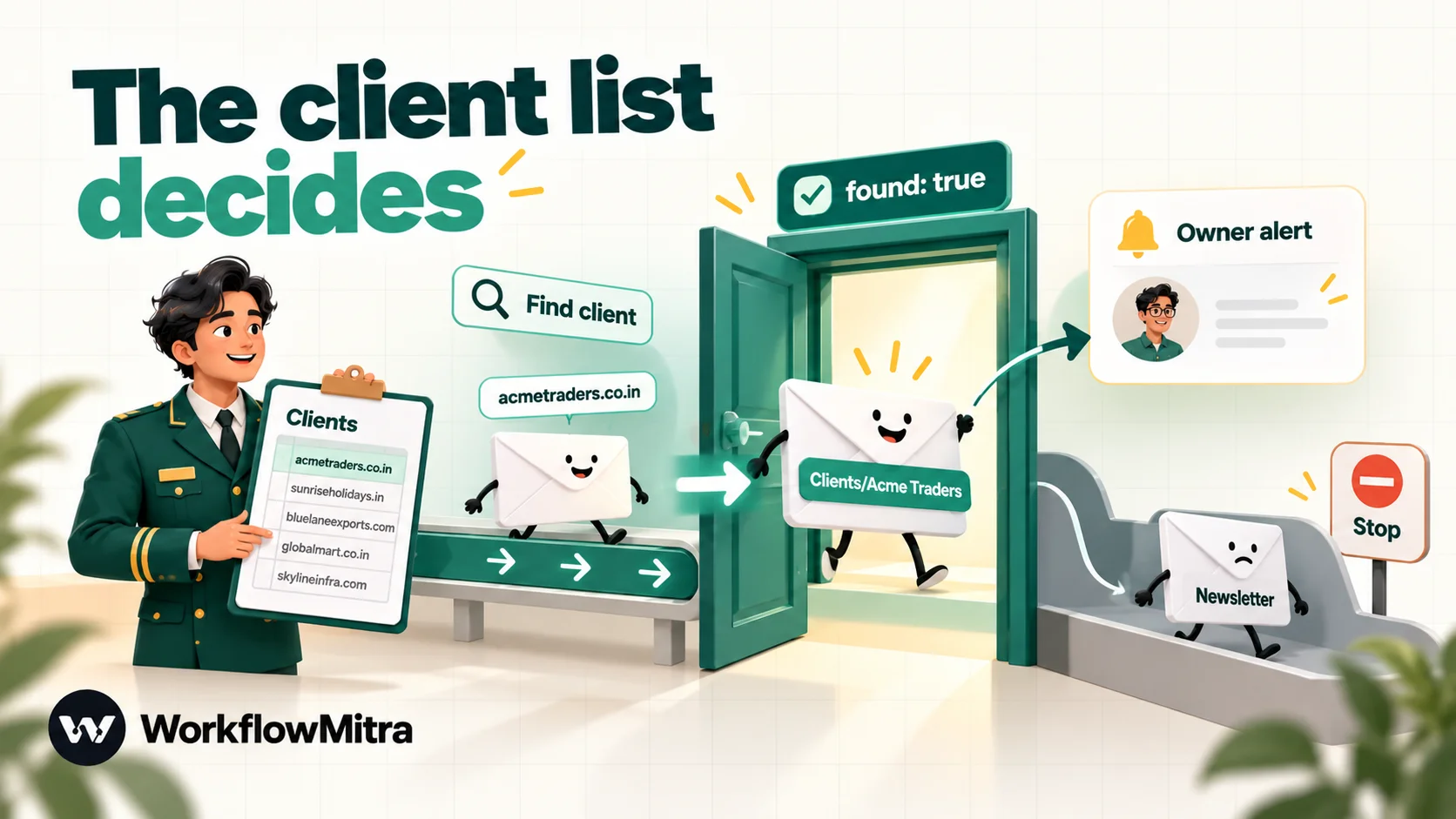
The situation. A design studio has about forty active clients. Sales keeps a Google Sheet of them: the client’s email domain, the client name and the account owner. The studio wants every client email labelled Clients/<name> and the account owner told when their client writes. A filter would need all forty domains typed in and updated by hand. The sheet already exists and stays current, so let the workflow read it.
Prepare the sheet. Make a tab called Clients with columns Domain, Client and Owner email. Type domains in lower case without the @: acmetraders.co.in, not @AcmeTraders.co.in. Lookups in the Google Sheets step match exact text, so consistent lower case matters.
1. Trigger. Email → On a new email, Folder blank, Custom search -category:promotions -category:social -from:me, every 5 minutes.
2. Work out the sender’s domain and look it up. Add a Google Sheets step named Find client, operation Find row, on the Clients tab, matching the Domain column against:
{{ lower(last(split($trigger.from, "@"))) }}That expression takes the address after the @ and lowers it, so [email protected] becomes acmetraders.co.in. Under “If several rows match”, choose Use the first match. Find row doesn’t fail when nothing matches; it returns found: false, which is what you want for the hundreds of emails that aren’t from clients.
3. Only continue for clients. Add an IF with the rule {{ $node["Find client"].found }} Is yes. The Else path ends there.
4. Label the email. On the true path, add an Email step, operation Add or remove a label, Which email {{ $trigger.uid }}, Add labels:
Clients/{{ $node["Find client"].row.Client }}The step creates the label if it doesn’t exist yet, and the slash makes it a nested label under Clients. On Gmail a label is a real label: the email stays in the inbox and can carry other labels too.
5. Tell the account owner. Add an Email step, operation Send an email, To {{ $node["Find client"].row["Owner email"] }}, Subject {{ $node["Find client"].row.Client }} wrote: {{ $trigger.subject }}, and a short body with the sender and time. Set Reply-To to {{ $trigger.from }}, so a quick reply from the owner goes straight to the client. If your team prefers chat, swap this step for Slack or a WhatsApp template; the email to Slack guide covers the formatting.
6. Test. Turn the workflow on and let the first check pass, so the starting snapshot exists. Add your own personal address’s domain to the sheet as a fake client, send yourself a test, and check each step’s output in the run history: the domain from step 2, found: true, the label in Gmail, the owner’s email. Then send one from an address that isn’t listed and confirm the run stops at the IF.
Two refinements worth making early. Clients who write from a Gmail or Outlook address won’t match a domain list, because their domain is gmail.com. Add a second sheet column Address for those people, and a second Find row on it before the IF (two lookups, two credits). And clients with subdomains, such as mail.acmetraders.co.in, need their own row.
Build 2: a shared inbox that acknowledges, assigns and alerts
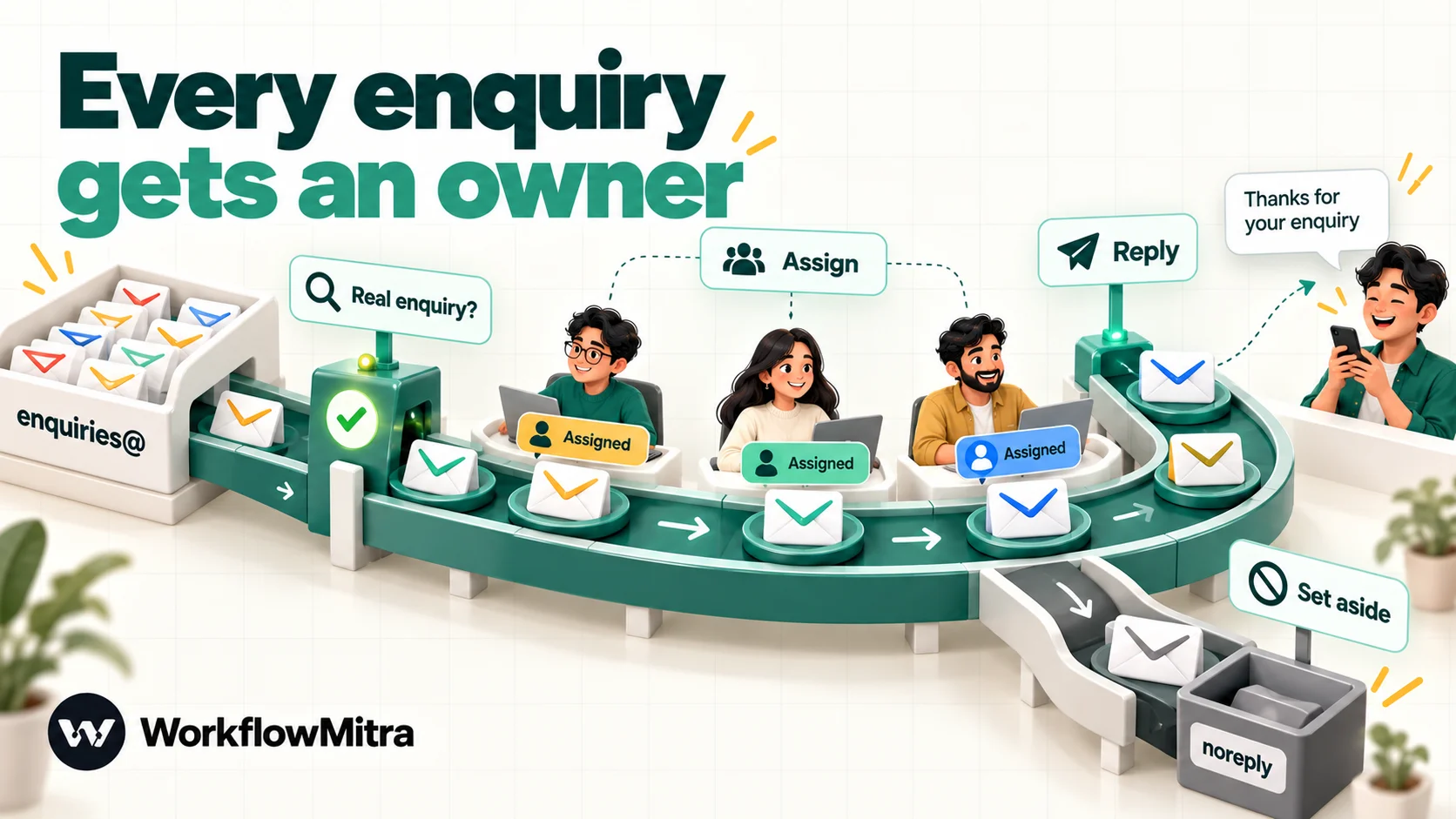
The situation. A training company receives course enquiries at a Google Workspace address, enquiries@, read by three advisers. Today whoever opens Gmail first grabs the easy ones, and some emails sit for a day because each adviser assumed another had them. The company wants every new enquiry to get a quick acknowledgement, a named owner and an alert to that owner.
A Gmail filter can send a fixed template back, but it can’t choose a person, put that person’s name in the reply, or mark in Gmail who owns the email. Here’s the workflow.
1. Trigger. Email → On a new email on the enquiries@ mailbox, Folder blank, Custom search -category:promotions -category:social -from:me, every 2 minutes.
2. Skip automated senders and ongoing threads. Add an IF named Real enquiry? with three rules joined by AND:
{{ lower($trigger.from) }}Does not containnoreply{{ lower($trigger.from) }}Does not containmailer-daemon{{ lower(substring($trigger.subject, 0, 3)) }}Not equal tore:(the first three characters of the subject, lowered, so “RE:” and “Re:” both count)
This matters more than it looks. An auto-reply sent to another auto-responder can bounce back and forth, and replying to “Re:” emails would re-assign conversations that already have an owner. The trigger doesn’t expose email headers such as Auto-Submitted, so sender and subject checks are the practical guard. Text rules are case-sensitive, which is why each value is lowered first.
3. Pick the owner. Add Assign to the next person, name the step Assign, and list the three advisers by name and email address. The step keeps its position between runs, so the fourth enquiry goes back to the first adviser, and two enquiries arriving together still go to different people. It returns assignedName and assignedTo. The round-robin lead assignment guide explains weighting and holidays.
4. Acknowledge. Add an Email step, operation Reply to an email:
- To:
{{ $trigger.from }} - Subject:
{{ $trigger.subject }}(the step adds “Re:” for you) - Replying to:
{{ $trigger.messageId }}, which makes the reply join the customer’s thread instead of arriving as a new email - Message: “Hi {{ $trigger.fromName | there }}, thanks for your enquiry. {{ $node[“Assign”].assignedName }} will reply within one working day.”
The | there part is a fallback: if the sender has no display name, the greeting reads “Hi there” instead of “Hi ,”.
5. Mark the owner in Gmail. Add Add or remove a label on {{ $trigger.uid }} with Assigned/{{ $node["Assign"].assignedName }}. Each adviser can now open their own label and see their queue, and anyone can see at a glance who owns what.
6. Alert the owner. Send an email to {{ $node["Assign"].assignedTo }} with the customer’s name and subject, Reply-To the customer. Advisers who live on their phones can get a WhatsApp template alert instead, sent through ChatMitra; the Gmail to WhatsApp guide covers the template rules.
Test it with care. Steps 4 and 6 send real email. Use a test mailbox for the first round, send from two different addresses, and confirm the replies thread correctly, the labels alternate between advisers and an email from a noreply address stops at the IF.
Build 3: a morning digest of emails waiting on a reply
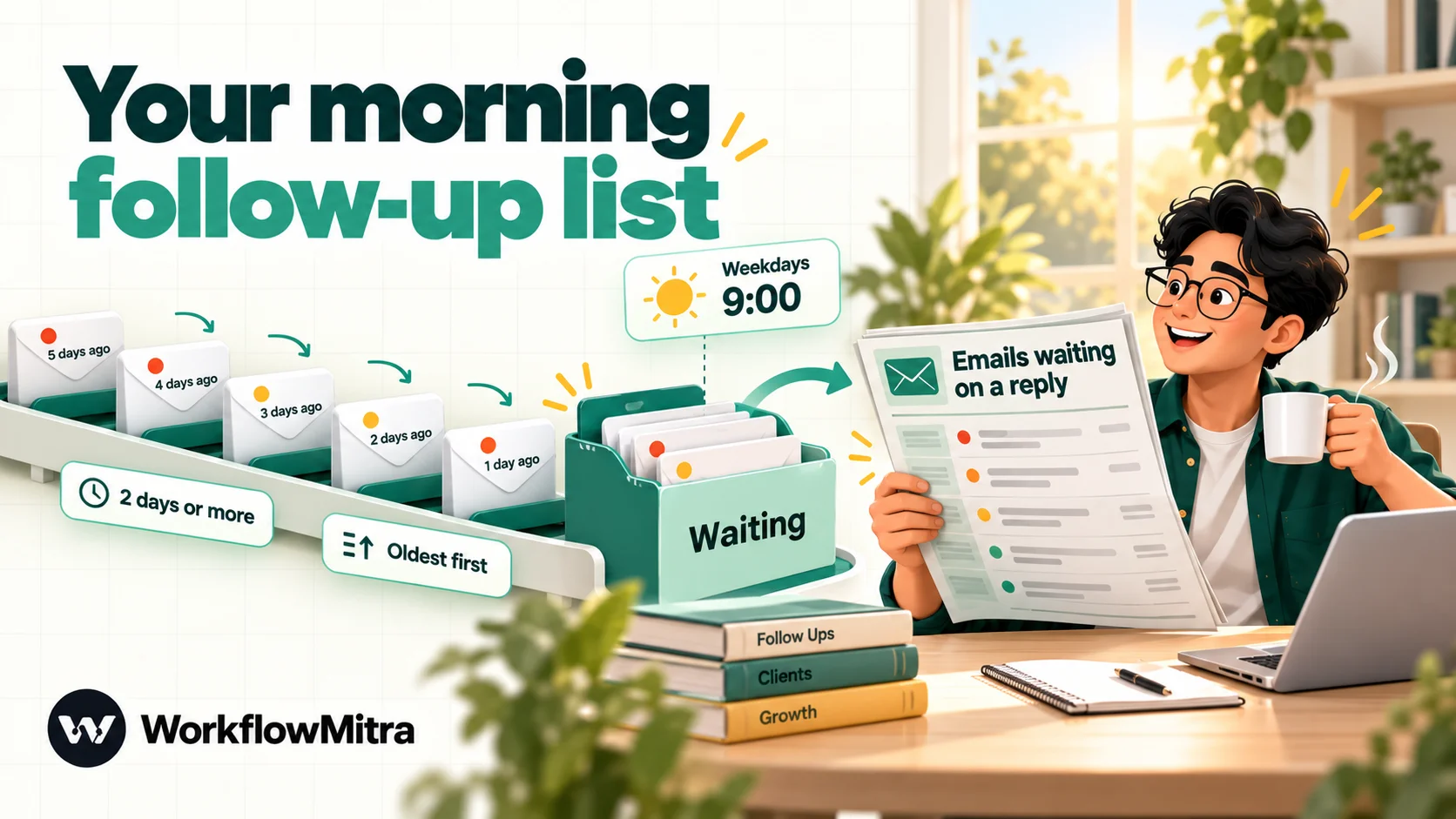
The situation. A freelance consultant sends quotes and questions all week and forgets which ones never got an answer. Gmail’s snooze works one email at a time and needs remembering. What they want is one short email at 9:00 every weekday that lists anything that has been waiting more than two days.
The habit is simple: when you send something that needs an answer, add the label Waiting to it. When the answer comes, remove the label in Gmail. The workflow does the remembering.
1. Trigger. A Schedule trigger, weekdays at 9:00, in your own time zone. The schedule automations guide explains why a named time zone beats an interval.
2. Find the waiting emails. An Email step, operation Search emails, Folder Waiting, Find emails matching Everything in the folder. It returns up to 100 emails, newest first, each with subject, sender, date and uid, but no bodies.
3. Build the digest. Add a Code step:
// Emails labelled "Waiting" for two days or more, one line per conversation, oldest first.
const DAY = 24 * 60 * 60 * 1000;
const MIN_DAYS = 2;
const now = Date.now();
const latest = {};
for (const m of input.messages || []) {
  const key = (m.subject || '(no subject)').replace(/^(re|fwd?):\s*/gi, '').trim().toLowerCase();
  const time = new Date(m.date).getTime();
  if (!latest[key] || time > latest[key].time) latest[key] = { ...m, time };
}
const waiting = Object.values(latest)
  .map((m) => ({ ...m, days: Math.floor((now - m.time) / DAY) }))
  .filter((m) => m.days >= MIN_DAYS)
  .sort((a, b) => b.days - a.days);
const lines = waiting.slice(0, 20).map((m) => `${m.days} days: ${m.subject || '(no subject)'} (${m.to || m.from})`);
return {
  count: waiting.length,
  text: lines.join('\n'),
  more: Math.max(0, waiting.length - 20),
  incomplete: Boolean(input.truncated),
};
It groups messages by subject, so a long thread counts once, measures each thread’s age from its latest labelled message, keeps only those two days or older and lists the oldest first. The to address is shown when there is one, because for emails you sent, the recipient is who you’re waiting on.
4. Only send when there’s something to say. An IF on {{ count }} Greater than 0. An empty digest every morning trains you to ignore it.
5. Send it. Send an email to yourself, Subject {{ count }} emails waiting on a reply, Message {{ text }}. If {{ more }} is above zero, add a line saying how many weren’t listed. When incomplete is true, the Waiting label holds more than 100 emails and it’s time to clear it out.
The digest costs about three credits a morning: the schedule, the search and the send, with the Code step adding a fraction and the IF nothing. That’s around 66 credits a month for a habit that saves real money. The same pattern works for a team: point it at a shared label and send the digest to a Slack channel.
Labels, moves and archiving: what each action does on Gmail
Gmail treats labels as folders when it talks IMAP, so each Email step action has a specific effect on a Gmail mailbox. Knowing them avoids surprises.
| Email step action | What happens on Gmail | Watch out for |
|---|---|---|
| Add or remove a label (add) | Adds a real label; the email stays in the inbox | Creates the label if missing |
| Add or remove a label (remove) | Removes that label only | Use only when the email's uid came from that label's folder (see Limits) |
| Move to a folder | Files the email under the label and takes it out of the inbox, like dragging it in Gmail | The label must already exist; put the move last, because the inbox uid stops pointing at the email |
| Copy to a folder | Adds the label to the same email; no second copy | Creates the folder if missing |
| Mark as read / unread | Changes the read state | None |
| Delete (move to trash) | Moves the email to Trash; recoverable | Nothing is permanently erased by this step |
| Reply to an email | Sends from your account in the same thread | Needs the trigger's messageId |
| Create a draft / Send a draft | Saves to Drafts / sends a saved draft | Useful for review-before-send setups |
For “file and archive” in one step, create the label in Gmail once, then use Move to a folder with the label’s name. For “label but keep it in the inbox”, use Add or remove a label.
What it costs
Every executed step uses credits. In these builds the Email trigger, each Email step, each Google Sheets step, the Assign step and the Schedule trigger cost one credit each. IF and Switch are free, a short Code step costs a fraction of a credit, and checks that find no new email cost nothing.
| Build | Credits per item | Example volume | Credits a month |
|---|---|---|---|
| 1. Client labels | 2 for non-clients (trigger, lookup); 4 for clients (plus label and alert) | 60 emails a day pass the search, 15 from clients | About 4,500 |
| 2. Shared inbox | 5 per enquiry (trigger, assign, reply, label, alert); 1 if skipped | 20 enquiries and 10 skipped emails a day | About 3,300 |
| 3. Waiting digest | About 3 per morning | 22 working days | About 66 |
All three together come to roughly 7,900 credits a month, inside the entry plan of 10,000 credits for ₹999 a month (₹849 a month billed yearly), checked on WorkflowMitra’s pricing page on 8 October 2026. Build 1 is where the credits go. A tighter trigger search, for example excluding category:updates as well, is the cheapest saving, because every email that reaches the workflow costs at least two credits.
That’s also a fair argument for keeping filters. A filter that archives newsletters before they reach the inbox costs nothing and keeps those emails out of every workflow that watches the inbox.
Limits to know before you rely on it
| Limit | What it means | What to do |
|---|---|---|
| No Outlook.com or Microsoft 365 | App-password sign-in is switched off by Microsoft | Forward chosen emails to a Gmail address the workflow watches |
| Existing mail is ignored | The first check only takes a snapshot | Move an older email into a watched label to push it through |
| 25 emails per check | A burst of mail is spread over several checks | Check every minute or two for busy inboxes |
| Custom search is Gmail-only | On other providers it is ignored and everything matches | Use a preset or a folder off Gmail |
| No email body in the trigger | Sender, subject and date only | Add Get an email (with body); it returns the raw message, up to 256 KB |
| Search returns 100 results, no bodies | Newest first; `truncated` tells you there were more | Keep digest labels tidy |
| Attachments can't be saved or forwarded | List attachments returns names, types and sizes only | Use a Gmail filter to forward emails whose attachments must travel |
| Removing a label needs the right uid | An email's uid differs in each label folder; the step looks it up in the label's folder | Remove labels only in workflows that found the email in that label (trigger or search on that folder) |
| Gmail's sending limits | About 500 emails a day for personal Gmail, 2,000 for a paid Workspace user | Keep automated replies and alerts well below |
| App passwords are revoked on password change | The workflow stops connecting | Create a new app password and update the credential |
The sending limits come from Google’s pages for personal Gmail and Google Workspace. Workspace also caps recipients per message for mail sent through SMTP, so an automated email to a large group should go to a Google Group address instead.
Troubleshooting
| Symptom | Likely cause | Fix |
|---|---|---|
| Credential won't connect | Your everyday Google password was entered, 2-Step Verification is off, or the admin blocks app passwords | Create an app password; ask your Workspace admin |
| Worked for weeks, then stopped | Google password changed, which revoked the app password | New app password in the credential |
| Some emails never start a run | "Unread only" and they were read first, or the search excludes them | Test the search in Gmail's search box; prefer a search or label to "Unread only" |
| Find row never matches | Capitals or an `@` in the sheet, or a subdomain | Lower-case domains without `@`; add subdomain rows |
| Label appears, but the email also left the inbox | Move was used instead of Add label | Use Add or remove a label to keep it in the inbox |
| Move step fails | The label doesn't exist yet | Create it in Gmail first, or add the label before moving |
| Replies arrive as new emails | Replying to left empty | Map `{{ $trigger.messageId }}` |
| A later step can't find the email | An earlier step moved it out of the watched folder | Put Move last on every path |
| Watched label never fires | "Show in IMAP" is unticked for that label | Tick it in Gmail's label settings |
Common mistakes
- Replacing filters that work. If a filter already archives newsletters, leave it. Paying credits to do the same job is waste.
- Watching the whole inbox with no search. Every email then costs at least one credit, and most of them don’t need the workflow.
- Auto-replying to everyone. Without the sender and subject guards from Build 2, you’ll reply to notifications, receipts and other people’s auto-replies.
- Using
{{ uid }}several steps later. A plain{{ field }}reads only the step before. After a lookup or an assignment, use{{ $trigger.uid }}and{{ $node["Step name"].field }}. - Moving before acting. Once an email is moved, the inbox uid no longer finds it. Label, reply and alert first; move last.
- Sharing your main password. Always a dedicated app password, so you can revoke one workflow’s access without touching anything else.
Why use WorkflowMitra for Gmail automation?
The case for a workflow tool is narrow and specific: it’s worth it when your inbox rules depend on outside information, other people or time. For those jobs, WorkflowMitra, powered by ChatMitra, offers:
- Gmail’s own search language on the trigger, run by Google, so you can test a query in Gmail and paste it in.
- Read-only checking. Watching the inbox never marks anything as read.
- The whole email toolkit in one step: label, move, copy, mark, reply in thread, draft, search and send, from the same mailbox connection.
- Lookups and people: Google Sheets lookups, Switch routing and a rotation step that shares work fairly and remembers whose turn it is.
- Reach beyond Gmail: Slack, Telegram, Discord, Google Sheets, and WhatsApp alerts sent through ChatMitra, the business messaging platform WorkflowMitra is built on.
- Rupee pricing per step, with free IF and Switch steps and no charge for checks that find nothing.
The limits are real, too. Outlook.com and Microsoft 365 can’t connect directly, attachments can’t be saved to another app, and the body arrives as raw MIME that needs a cleaning step. For pure sorting, Gmail filters remain the better tool, and they’re free.
Where to go next
This guide is the overview. Each of these goes deeper into one Gmail job:
- Gmail to WhatsApp: urgent emails as WhatsApp alerts, with a one-line preview.
- Email to Slack: route emails to the right channel.
- AI email classification: label email by meaning when keywords aren’t enough.
- AI email replies: AI drafts, a person approves, the workflow sends.
- Automated data entry: turn order and lead emails into spreadsheet rows.
Start with the build that fixes your most expensive missed email. For most small teams that’s Build 2, because an enquiry nobody owned is a sale nobody made. You can build all three on the 14-day WorkflowMitra trial, which needs no card.
Product behaviour described here, including the Email trigger's settings, read-only checks, 25-email batches and fields, the Email step's actions and their effect on Gmail, the 100-result search, Sheets lookups, credit rates and plan prices, was checked in WorkflowMitra on 8 October 2026. Gmail behaviour is from Google's help on filters, forwarding, app passwords, IMAP, IMAP extensions and sending limits, read the same day. Names, numbers and volumes in the examples are illustrative.
Frequently Asked Questions
Questions people ask before they automate Gmail beyond filters.
Gmail automation is any setup that handles repeat inbox work without you: filters that label or archive mail, templates sent automatically, scripts, or workflows that react to new email by labelling it, replying, assigning it to a teammate or sending an alert to another app.
Automate the work between your apps
Build workflows with triggers, conditions and actions, then test them before they go live. Try WorkflowMitra free for 14 days, no card required.
