Google Ads Lead Form to WhatsApp: Message Every New Lead Within Seconds

Quick Summary
Google Ads lead forms can't send a WhatsApp message themselves, and Google's WhatsApp message assets can't run in the same ad as a lead form. To message a lead form lead on WhatsApp within seconds, send the form to a webhook, check the lead agreed to WhatsApp in a single-choice question, and send an approved template through the WhatsApp Business Platform. In WorkflowMitra, powered by ChatMitra, the workflow checks consent with an IF step, sends one message per number per day, names the assigned salesperson, switches to an out-of-hours template after 7 p.m. IST and answers Google with HTTP 200.
Lead form ads make it easy to say yes. Someone searches for an MBA course or a 2BHK in Whitefield, taps your ad, and submits a form that Google has already filled with their name, email and phone number. Ten minutes later they’ve tapped three more ads, and when your counsellor finally rings, the lead can’t remember which institute you are.
The fix is a first message that arrives while the lead is still holding the phone: a short WhatsApp note that names your business, confirms what they asked about and says who will call. This guide shows how to send that message automatically for every Google Ads lead form submission. It covers what Google allows, the consent question that makes the message legitimate, the template category that keeps it cheap, and a workflow that sends it within seconds, at any hour, without messaging the same person twice. The build uses WorkflowMitra, powered by ChatMitra, but the rules about consent, templates and timing apply to any tool.
Can you send WhatsApp messages to Google Ads leads automatically?
Yes, but not from inside Google Ads. Lead forms have no WhatsApp option, and Google's WhatsApp message assets can't appear in the same ad as a lead form. The working route is the lead form webhook: Google posts each lead to your URL, a workflow checks that the lead agreed to WhatsApp, and it sends an approved WhatsApp template through the WhatsApp Business Platform, usually within a few seconds of the form being submitted.
Two Google features look like shortcuts and aren’t. The thank-you screen at the end of a lead form has a single call-to-action button, and the Google Ads API lists exactly four choices for it: Visit site, Download, Learn more and Shop now. There’s no “Message us” or WhatsApp option. And Google’s message assets, which can open a WhatsApp chat straight from a Search or Performance Max ad, are a separate format. They’re in beta for verified advertisers, and Google’s help page says that when they show, your ad “won’t show calls, lead forms, or other asset types.”
So you choose per campaign. Message assets suit businesses that want the person to start a chat themselves. Lead forms suit businesses that want a structured enquiry first, and then a first message from the business. This guide is about the second.
Why the first minutes matter for a paid lead
Every lead form lead costs you a click and often a lot more. The most cited research on response time is still Harvard Business Review’s 2011 study, “The Short Life of Online Sales Leads”. Across 1.25 million leads at 42 US companies, firms that tried to contact a lead within an hour were nearly seven times as likely to qualify it as firms that tried an hour later, and more than 60 times as likely as firms that waited 24 hours or more. Those are American figures from 2011, not WhatsApp data, so treat them as a direction rather than a promise. Lead forms are low effort by design. Google pre-fills the details, the person submits several forms in one sitting, and their memory of your ad fades fast. A WhatsApp message in the first minute does three jobs at once:
- It anchors your name. When the counsellor calls, the lead has already seen your business name in their chat list.
- It opens a channel the lead prefers. People who ignore unknown callers still read a message that answers their own enquiry.
- It checks the lead is real. A typo in a pre-filled number or a form submitted by mistake shows up quickly as a failed send or no response, before a salesperson spends time on it.
The message doesn’t replace the call; it makes the call welcome.
Ask for WhatsApp permission on the form
Before any workflow, fix the form. A Google lead form collects a phone number. It doesn’t, on its own, collect permission to message that number on WhatsApp, and both platforms care about the difference.
Google’s lead form requirements say that “using personal information in ways that users have not consented to is strictly not allowed.” Meta’s opt-in rules for the WhatsApp Business Platform say a business may message people who have given their number and have opted in to receive messages from that business. The opt-in doesn’t have to be collected on WhatsApp, and a website form counts, but Meta asks businesses to state clearly that the person is opting in to communication and to name the business. People should expect the messages they get.
The simplest way to meet both is a qualifying question on the lead form itself.
Add a single-choice WhatsApp question
Google allows up to five qualifying questions per lead form, and custom questions come in two types: free text, or single choice with 2 to 12 answers shown as a drop-down. There’s no checkbox type, so use single choice:
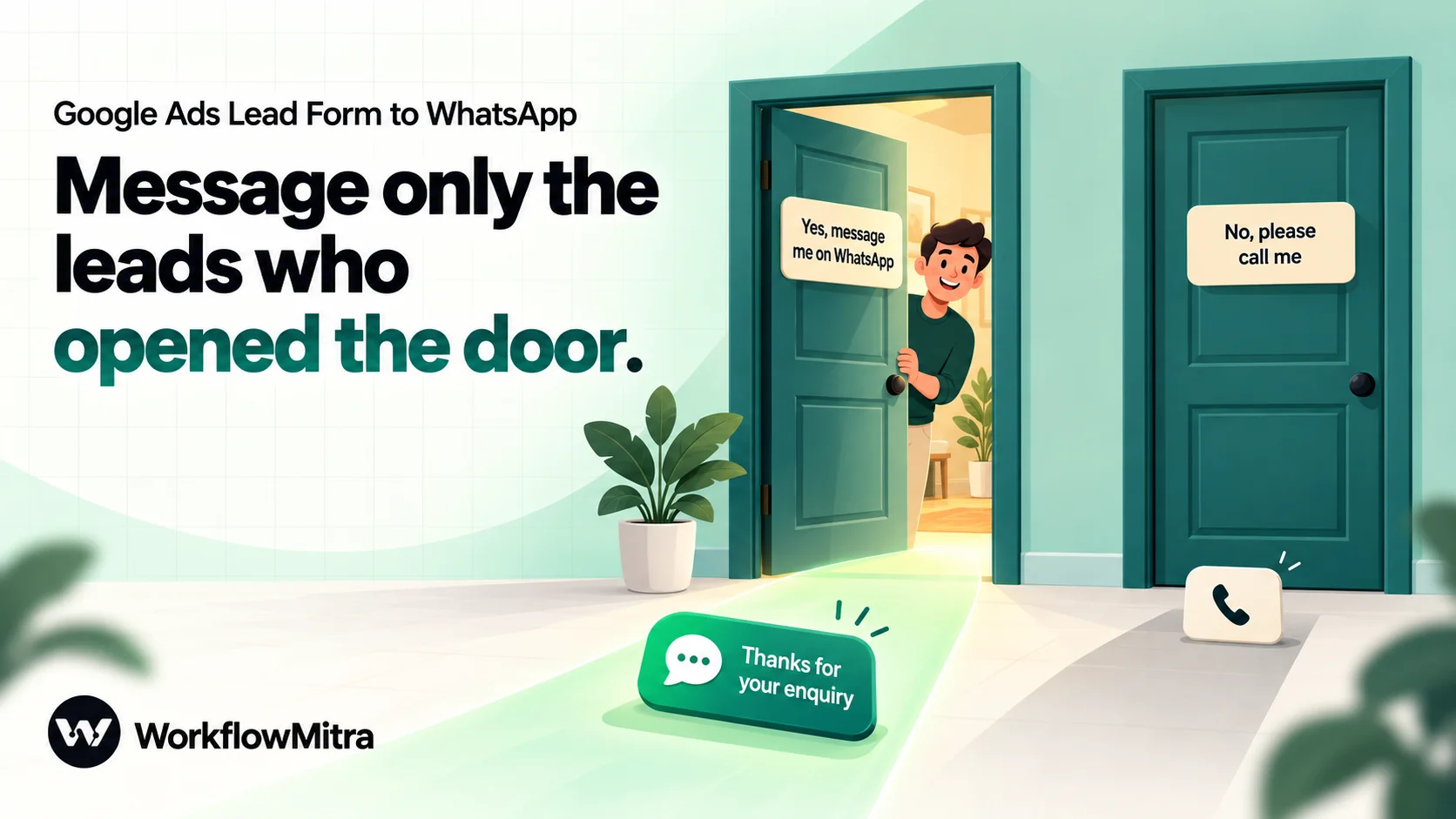
- Question: “Can Sunrise Academy message you about this enquiry on WhatsApp?”
- Answer 1: “Yes, message me on WhatsApp”
- Answer 2: “No, please call me”
Name your business in the question, as Meta asks, and keep the purpose narrow: “about this enquiry”, not “offers and updates”. A narrow purpose is honest, and it helps the first message qualify as a utility template.
Three practical notes:
- Expect a review. Google reviews custom questions, and its setup page warns that campaigns using the form pause until the updated form is approved. Add the question before a busy admissions week, not during one.
- Update your privacy policy. Google shows your privacy policy link at the end of every lead form. Make sure it says you may contact people on WhatsApp about their enquiry and how they can stop.
- Find the question’s column ID. Google documents column IDs for its standard fields, such as
FULL_NAMEandPHONE_NUMBER, but not for your own questions. Submit a test lead after adding the question and copy the ID from the delivered JSON, as described below.
India’s Digital Personal Data Protection Rules, 2025 point the same way. Their consent-notice rule, in force eighteen months after the November 2025 notification, asks for the specified purpose and a withdrawal route about as easy as giving consent. This isn’t legal advice; check your obligations with an adviser.
Which template to send: utility or marketing?
The first message to a lead form lead must be a template. Free-form messages are only allowed for 24 hours after the person last wrote to you, and someone who filled in a Google form has never written to your WhatsApp number. Meta’s pricing page is blunt about it: non-template messages “cannot be used to reach out to users”.
Templates come in categories, and the category decides both the price and how strictly Meta limits delivery.
| Utility | Marketing | |
|---|---|---|
| Meta's definition | Follows up on a user's action or request; must be non-promotional | Promotions, offers, awareness and anything with mixed content |
| Fits a lead form reply when | It acknowledges the enquiry, names who will call, and the lead asked to continue on WhatsApp | It adds fees, discounts, a brochure push or "book now" |
| India rate (Meta INR card, from 1 Oct 2026) | ₹0.115 per delivered message | ₹0.8631 per delivered message |
| Per-user limits | Not covered by the marketing limit | WhatsApp may hold back marketing messages to people who read few of them (error 131049) |
| US phone numbers | Delivered | Meta says it doesn't currently deliver marketing templates to US numbers |
Meta’s own list of utility use cases includes “Continue a conversation on WhatsApp”: a message that begins a WhatsApp interaction that started in another channel, provided the user asked for the conversation to move to WhatsApp. A lead who picked “Yes, message me on WhatsApp” on your form has asked exactly that. That’s the second reason the consent question earns its place.
Meta still decides. If you submit a template as utility and Meta’s review sees marketing, it has approved it as marketing since 9 April 2025, and approved templates are re-checked on a rolling basis. Keep the lead acknowledgement plain. Send the brochure, fee table or offer later, inside the customer service window the lead opens by replying. ChatMitra’s guide to WhatsApp utility templates covers what passes review in more detail.
Three templates to adapt
In-hours acknowledgement (utility): “Hi {{1}}, thanks for your enquiry about {{2}} on our Google ad. {{3}} from Sunrise Academy will call you in the next 30 minutes. If WhatsApp is easier, reply here with any questions. Reply STOP if you’d rather we didn’t message you here.”
Out-of-hours acknowledgement (utility): “Hi {{1}}, thanks for your enquiry about {{2}}. Our office is closed now, and {{3}} from Sunrise Academy will call you after 10 a.m. You can reply here with any questions in the meantime. Reply STOP if you’d rather we didn’t message you here.”
Staff alert (utility, to your own team): “New Google Ads lead for you: {{1}}, {{2}}, interested in {{3}}. WhatsApp consent: {{4}}. Please call within 30 minutes and update the lead sheet.”
Don’t promise a call time your team can’t keep: “in the next 30 minutes” is only a good line if someone actually calls in 30 minutes.
What you need before you start
- A working Google Ads lead form webhook. This guide builds on the workflow in Google Ads lead form webhook: an On webhook call trigger with the secret cleared, Respond synchronously on,
lead_idas the idempotency key, an IF step that checksis_testand yourgoogle_key, and Response steps that answer 200. If you haven’t built it, start there. - A lead form your business can run. Google lists Search and Performance Max as the campaign types for lead forms, requires a privacy policy, and doesn’t allow lead forms for healthcare-related content. Education, property and most services are fine.
- A WhatsApp Business Platform number, connected through ChatMitra with an API key, or through Meta’s Cloud API with an access token and phone number ID. API access on ChatMitra starts on its Pro plan. See how to get the WhatsApp API if you’re starting from scratch.
- Three approved templates: the two lead acknowledgements and the staff alert above, or your own versions.
- A Google Sheet for the lead log, and the list of salespeople with their WhatsApp numbers.
- A WorkflowMitra workspace. The 14-day trial includes 10,000 credits and asks for no card.
How the workflow fits together
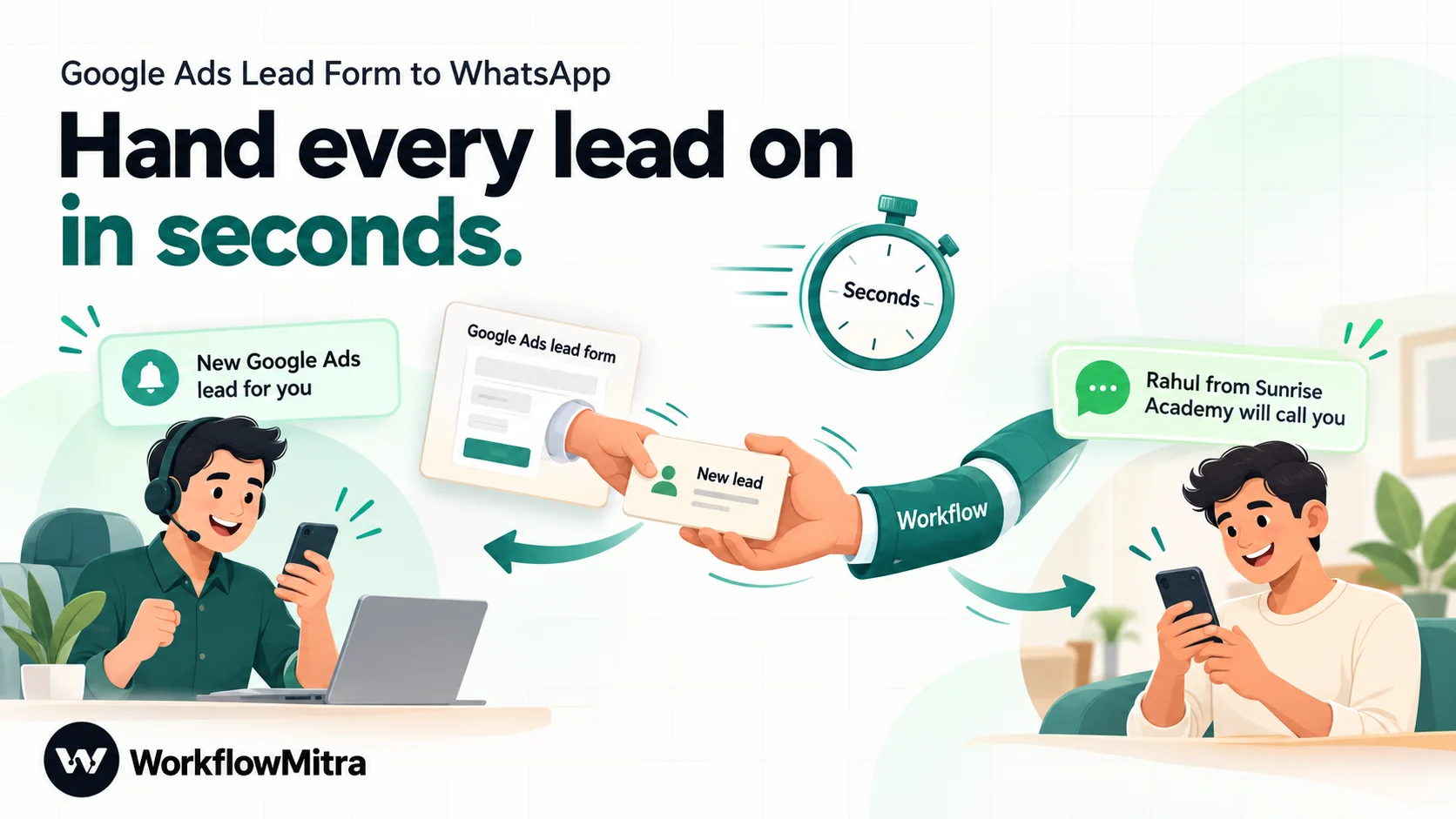
The real-lead route of the webhook workflow grows into this:
- IF, “WhatsApp consent”: did the lead choose the WhatsApp answer, and is there a phone number?
- Data Store, Create or update: has this number already had a message today?
- Assign to the next person: pick the salesperson, so the message can name them.
- IF, “Which message?”: first message today for this number? Then is it between 10 a.m. and 7 p.m. in India?
- WhatsApp: the in-hours or out-of-hours template to the lead.
- WhatsApp: the staff alert to the assigned salesperson, for every lead.
- Google Sheets: one row per lead, with consent and message status.
- Response: status 200 to Google.
Leads who answered “No, please call me” skip steps 2 and 5. They still get a salesperson, an alert and a row.
Send Google Ads leads to WhatsApp, step by step
1. Start from the lead form webhook workflow
Open the webhook workflow and find the Real lead route of the first IF step, the one that matched your google_key. Everything below goes on that route, before its final Response step. The Test lead route stays as it is. Google’s Send test data button produces leads with is_test set to true, and a test lead should never trigger a real WhatsApp message.
2. Read the consent answer and the phone number
Answers arrive as a list of column IDs and values, so look each one up by ID. Use Google’s Send test data once, open the delivery under Recent deliveries, and find your WhatsApp question in user_column_data. Copy its column_id exactly. In the examples below it’s whatsapp_ok; yours will be different.
{{ get(find($trigger.user_column_data, column_id = "whatsapp_ok"), "string_value") }}
{{ get(find($trigger.user_column_data, column_id = "PHONE_NUMBER"), "string_value") }}
Separate arguments with commas, and keep get around find: writing find(…).string_value returns nothing. We ran both expressions through WorkflowMitra’s expression engine with a Google-style payload, and they returned Yes, message me on WhatsApp and +919876543210.
3. Check consent with an IF step
Add an IF step named “WhatsApp consent” with one route and two conditions joined by AND:
- The consent expression Equal to, ignore case
Yes, message me on WhatsApp - The phone expression Is not empty
Use Equal to, ignore case, not Equal to: WorkflowMitra’s text comparisons are case-sensitive, and a reworded answer with a different capital letter would quietly send every lead down the “no” path. And don’t use Is yes here. It only accepts true, 1 or “true”, so the text of your answer never matches it. If you ever edit the answer wording in Google Ads, edit this condition the same day.
Leads that match go on to step 4. Everything else goes to the Assign step in step 5, so they still reach a salesperson.
4. Send one message per number per day
Google gives every submission its own lead_id, and the webhook’s idempotency key already stops Google’s retries from running the workflow twice. It doesn’t stop a person who submits your form twice, from two ads, from receiving two acknowledgements. Add a Data Store step with Create or update (upsert), keyed on the number and today’s date:
{{ get(find($trigger.user_column_data, column_id = "PHONE_NUMBER"), "string_value") }}-{{ formatDate(now(), "YYYY-MM-DD") }}Put a small fixed value such as {"messaged": true} in Data (JSON). The content is irrelevant. You want the step’s wasNew output: it’s true when the key didn’t exist before this run, and false on every later write that day. formatDate uses the server’s clock, so treat this as “once per number per calendar day”, not “once in any 24 hours”.
5. Pick the salesperson
Add Assign to the next person and add your counsellors or sales team under Who should this go to?, giving each a name and their WhatsApp number. The step hands leads out in turn, remembers whose turn it is between runs, and adds assignedName and assignedTo to the data. Connect both the consent-yes path and the consent-no path to this step. Round-robin lead assignment covers weighting, leave and teams by city.
Assigning before the message is deliberate. “Rahul from Sunrise Academy will call you” is a far better first line than “our team will contact you”.
6. Decide which message to send
WorkflowMitra has no time-zone setting in expressions: now() returns UTC. India is five and a half hours ahead, so add 330 minutes and read the hour:
{{ toNumber(substring(addMinutes(now(), 330), 11, 13)) }}At 12:33 UTC this returned 18, the hour in India. Add an IF step named “Which message?” after the Assign step. Give it two routes; the IF tests them in order and takes the first that matches:
- Route 1, “In hours”: the Data Store step’s
wasNewIs yes AND the hour Greater than or equal10AND the hour Less than19. - Route 2, “Out of hours”: the Data Store step’s
wasNewIs yes. - Else: no lead message.
wasNew is a true/false value, so Is yes is the right operator here. Leads who said no never ran the Data Store step, so their wasNew is empty and they fall to Else, as do repeat submissions from the same number on the same day. If you also close on Sundays, see the business-hours guide for a day-of-week check.
7. Send the WhatsApp template to the lead
Add a WhatsApp step on each of the two routes of the “Which message?” IF, one with each template:
- Provider: ChatMitra (with your API key) or Meta Cloud API (access token and phone number ID). For the Meta template list to load, save the connection as a credential with your WhatsApp Business Account ID.
- Operation: Template message, then pick the template from Choose an approved template. Use Reload templates if a newly approved one is missing. Picking a template sets its language.
- To: the phone expression from step 2, unchanged. Google sends the number in E.164 form,
+919876543210, and the WhatsApp step strips every non-digit, so it sends to919876543210with the country code intact. It never adds a country code itself, so don’t trim the+91. Our guide to phone number formatting explains why. - Body variables:
{{1}}the first name,{{2}}the course or property from your form,{{3}}the Assign step’sassignedName. Fill each If it’s empty, send instead box: “there” for the name, “your enquiry” for the course.
Get the first name from Google’s full-name field:
{{ first(split(get(find($trigger.user_column_data, column_id = "FULL_NAME"), "string_value"), " ")) }}Read lead fields through $trigger here. A bare {{ field }} looks only at the step directly before, which is now the Assign step, and it knows nothing about the form.
If your template has quick-reply buttons such as “Call me now”, they’re fixed in the template and need nothing filled in. Only one variable button, such as a URL suffix, can be filled per message.
8. Catch failed sends
Some sends will fail. The number may not be on WhatsApp (Meta error 131026), the template may have been paused, or the language may not match (132001). The WhatsApp step then fails with Meta’s error code, and those errors aren’t retried. A failed step is still charged one credit.
Right-click each lead-message WhatsApp step, choose Add error handler, and on the error branch add an alert to yourself or the team, for example a Slack message: “WhatsApp to lead {{ $trigger.lead_id }} failed: {{ error }}”. Connect that alert onward to the staff alert in step 9. Because the error is handled, the run still counts as successful: the alert goes out, the row is written and Google receives its 200. The only change is that the salesperson knows to pick up the phone instead of waiting for a WhatsApp reply. Workflow error handling covers error branches in detail.
9. Alert the salesperson on every lead
Add a WhatsApp step with the staff alert template, sent to the Assign step’s assignedTo. Fill the variables with the lead’s name, phone number, course, and the consent answer. Connect every path to it: both lead-message steps, the Else route of the “Which message?” IF and the error branches. A step with several incoming connections runs when any one of them reaches it.
The consent answer in the alert matters. A salesperson who sees “No, please call me” knows not to start a WhatsApp chat from their own phone either.
10. Log the lead and answer Google
Add a Google Sheets step, Add row(s), with the received time, lead ID, name, phone, course, consent answer, assigned salesperson and a WhatsApp status column. Set Write values to Exactly as written (no formulas) so the +91 survives. Then make sure this route still ends with the Response step: status 200, body {}. Google needs that 200, and without a Response step the webhook would send the run’s data back to Google instead.
The whole route usually finishes in a few seconds. Keep it that way. With Respond synchronously on, WorkflowMitra waits up to 25 seconds for the run before answering Google with 202, a code Google doesn’t document as success. Never put a Delay step in this workflow.
Test it without messaging a real lead
- Send test data from Google Ads. It should arrive, take the Test lead route and get a 200. No WhatsApp message goes out. Copy your question’s column ID from this delivery.
- Run a payload in Safe Test Mode. Open Edit & Test Payload on the trigger, set
is_testto false, put your real key, your own mobile number and the consent answer in the payload, and run it. WhatsApp sends are simulated and showsimulated_test, so you check the routing without sending. Google Sheets and Assign run for real, so point the sheet at a copy and expect the rotation to move on. - Run it once in Real Live Mode with your own number. This sends the actual template to your phone. Check the name, the course, the salesperson’s name and the time-of-day wording.
- Run it with the “No, please call me” answer. You should get no lead message, while the staff alert and the sheet row still appear.
- Start the campaign on a small budget and follow the first few real leads through.
Watch the WhatsApp side as volume grows
New numbers have a daily ceiling. Meta limits how many unique people a business can message outside a customer service window in a moving 24 hours. A newly created business portfolio starts at 250; business verification raises it to 2,000, with higher tiers after that. A launch-week campaign that brings 400 leads a day on a fresh number will hit that limit by evening. Verify your business before you scale the budget.
Read rates matter for marketing templates. If you send marketing templates, WhatsApp may decline to deliver some to people who rarely read marketing messages, with error 131049, and asks you to wait at least 24 hours before resending. A utility acknowledgement avoids that limit.
Non-Indian leads. Google sends numbers in E.164, so a lead from Dubai arrives as +971… and the workflow sends correctly. Meta prices by the recipient’s country, and Meta says it doesn’t currently deliver marketing templates to US numbers. If you advertise abroad, add a condition on {{ substring(phone, 0, 3) }} (it returned +91 for an Indian number in our test) and send a different template, or skip WhatsApp, for other countries.
Stop means stop. WhatsApp’s Business Messaging Policy asks businesses to honour opt-out requests whether they arrive on or off WhatsApp. When a lead replies STOP, or tells a salesperson on the phone, mark it in the sheet and never message that number again.
What happens when the lead replies
The lead’s reply opens a 24-hour customer service window. If you send through ChatMitra, the reply lands in ChatMitra’s shared inbox, where the assigned salesperson can answer freely, send the brochure and share fee details without another template. That’s the moment for richer content.
Should the workflow nudge leads who don’t reply? We’d advise against an automatic sequence. WorkflowMitra’s Delay step can wait up to 30 days, but a waiting run can’t be cancelled, and nothing links the lead’s reply back to that run. A reminder could arrive an hour after the lead answered, which looks careless. A better pattern is a scheduled workflow that reads your lead sheet each morning and alerts the team about leads with an empty call status, as in lead management automation. For an alert when leads stop arriving altogether, see lead flow monitoring.
What does it cost?
| Charge | Basis | In this workflow |
|---|---|---|
| Google Ads clicks | Your bids and budget | Delivering leads to a webhook adds nothing |
| WorkflowMitra credits | One per executed step at default rates | Trigger, Data Store, Assign, Sheets and each WhatsApp send cost 1; IF and Response cost 0; Google's repeat deliveries never start a run |
| Meta | Each delivered template, by category and the recipient's country | Utility acknowledgements and staff alerts |
| ChatMitra, if it's your sender | ₹0.20 per conversation: one recipient, any 24 hours, however many messages | One per lead messaged, plus one per salesperson per day; API access needs the Pro plan |
A worked example: a coaching institute in Pune gets 900 lead form leads a month, and 630 of them pick the WhatsApp answer. Every lead runs the trigger, Assign, the staff alert and the sheet row, which is four credits. Consenting leads add the Data Store check and the lead message, two more. That’s 900 × 4 + 630 × 2 = 4,860 credits, inside the 10,000-credit entry plan at ₹999 a month.
On the WhatsApp side, 630 utility acknowledgements and 900 utility staff alerts at Meta’s India rate of ₹0.115 come to about ₹176. ChatMitra’s fee counts conversations, not messages: 630 leads, plus each of four counsellors once a day for 30 days, is 750 conversations, or ₹150. Meta only changes rates on 1 January, 1 April, 1 July and 1 October, so re-check chatmitra.com/pricing and WorkflowMitra’s plans whenever you budget across one of those dates.
Troubleshooting
| What you see | Likely cause | Fix |
|---|---|---|
| No lead ever gets a message; every run takes the consent-no path | The column ID or answer text doesn't match, or the condition uses Equal to with different capitals | Copy the column ID from a delivery; use Equal to, ignore case with the exact answer text |
| Test leads from Google get WhatsApp messages | The consent route sits before the test check | Keep the Test lead route first, ending in a Response |
| WhatsApp step fails with 132001 | Template name or language doesn't match an approved template | Reload templates and pick it again |
| WhatsApp step fails with 131026 | The number isn't on WhatsApp or can't receive the message | Let the error handler alert the salesperson to call |
| Template list is empty for Meta Cloud API | The connection isn't saved, or has no WhatsApp Business Account ID | Save it as a credential with the account ID |
| Message says "Hi there" for named leads | The name expression reads a plain field or the wrong column ID | Use the $trigger expression with FULL_NAME |
| Out-of-hours template sent at lunchtime | The hour is read in UTC | Add 330 minutes before reading the hour |
| Lead gets two messages in one day | The Data Store check is missing or keyed on lead_id | Key it on phone plus date and check wasNew |
| Google shows an error after a slow run | The run took over 25 seconds and was answered 202 | Remove slow steps; never add a Delay here |
Limits to know before you build
- No native Google Ads step. The connection is the generic webhook trigger. WorkflowMitra can’t read campaigns, pause ads or download old leads from Google Ads.
- Only new leads. The webhook sends leads submitted after it’s set up. Messaging old leads from a CSV is a different, riskier job, because the enquiry has gone cold and the consent may not cover it.
- No delivery receipts in the workflow. The WhatsApp step records that Meta or ChatMitra accepted the message. Delivered and read status live in ChatMitra or your Meta tools, not in the run.
- No reply trigger for ChatMitra. WorkflowMitra has no ChatMitra incoming-message trigger, so a reply can’t automatically update the lead row. Your team sees replies in the inbox.
- Your template, Meta’s decision. No workflow setting turns a promotional message into a utility one.
Why use WorkflowMitra for this?
WorkflowMitra, powered by ChatMitra, suits Indian advertisers who want the first WhatsApp message, the salesperson alert and the lead record to happen in one place:
- Google’s webhook needs and WhatsApp sending in one workflow. The same workflow answers Google with 200, skips Google’s retries by
lead_id, checks consent, and sends a template through ChatMitra or Meta’s Cloud API. - The reply lands where your team works. Sent through ChatMitra, the lead’s answer arrives in the shared inbox your counsellors already use.
- Rupee pricing per executed step, with free IF, Switch and Response steps and a 14-day trial without a card.
It isn’t the only route. If you’d rather leads start the chat themselves, Google’s message assets do that without a form, for verified advertisers in the beta. If you already pay for a CRM that receives Google’s leads and has its own WhatsApp sender, adding a consent check there may be simpler. And Pabbly Connect and similar tools can call a WhatsApp provider from a webhook, though you’ll need to check how they answer Google and handle repeats.
If your lead form leads sit waiting for a call, start a 14-day WorkflowMitra trial, add the WhatsApp question to your form, and send yourself a lead in Real Live Mode. The message on your own phone is the best test of what your leads will see.
Sources, read on 20 October 2026: Google's lead form setup, lead form requirements, message assets and the Google Ads API reference for lead form assets; Meta's opt-in guidance, template categories, pricing (INR rate card effective 1 October 2026), messaging limits and per-user marketing limits; the WhatsApp Business Messaging Policy; Harvard Business Review, March 2011; the DPDP Rules, 2025. WorkflowMitra behaviour was checked in the product's code the same day, and the expressions were run against its expression engine with a Google-style lead. ChatMitra's fee is from chatmitra.com/pricing. Sunrise Academy, the names and the lead volumes are illustrative.
Frequently Asked Questions
Questions advertisers ask before they send WhatsApp messages to Google Ads lead form leads.
Not on their own. A lead form's thank-you screen offers only Visit site, Download, Learn more and Shop now as its button, and Google's WhatsApp message assets can't appear in the same ad as a lead form. To message a lead on WhatsApp, deliver the form to a webhook and have a workflow send an approved WhatsApp template through the WhatsApp Business Platform.
Automate the work between your apps
Build workflows with triggers, conditions and actions, then test them before they go live. Try WorkflowMitra free for 14 days, no card required.
