Google Ads Lead Form Webhook: Send Every Lead to Sheets, Your CRM and Your Team in Seconds

Quick Summary
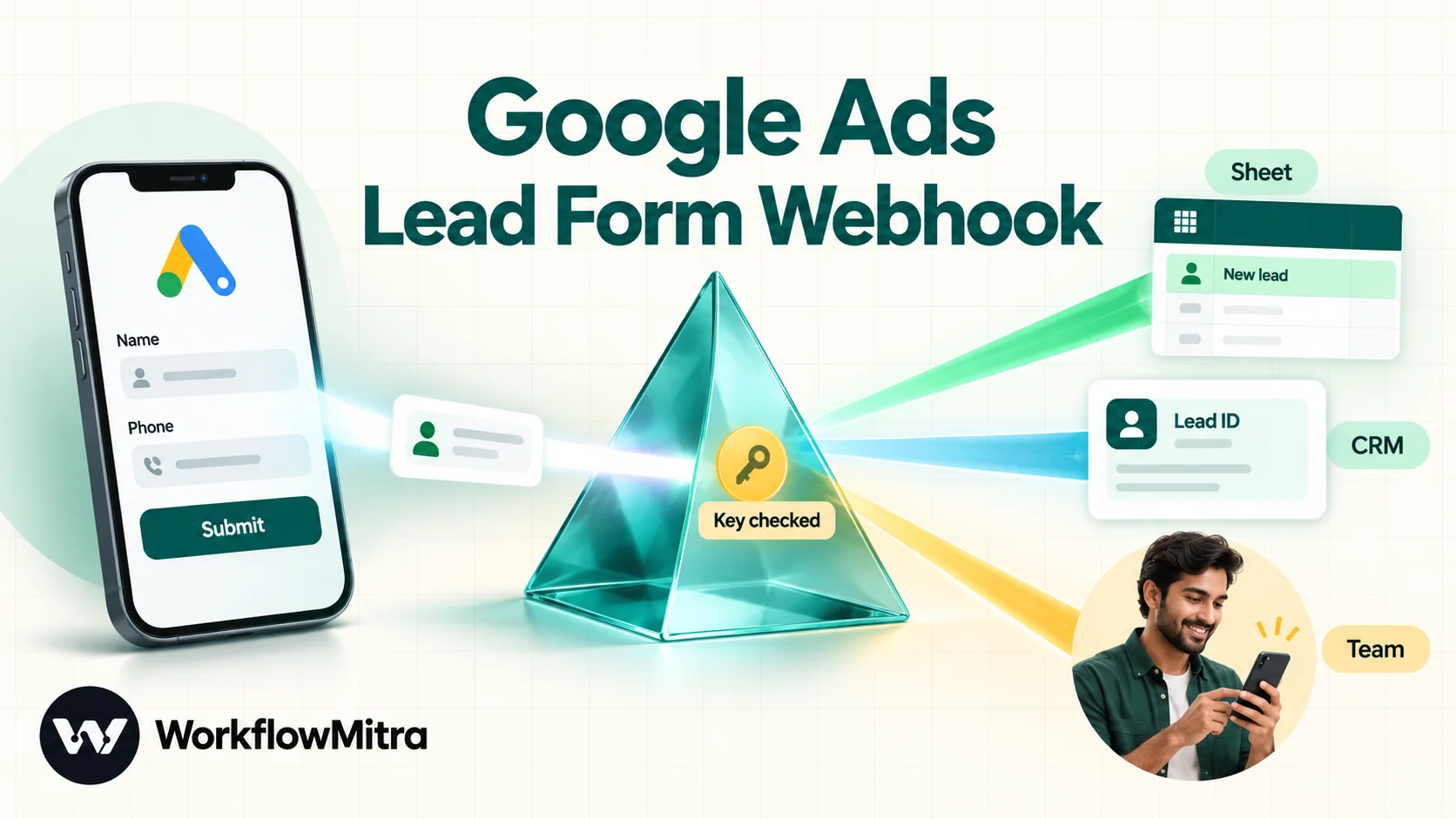
A Google Ads lead form webhook posts each new lead to a URL you choose, as JSON, the moment the form is submitted. Google identifies itself only with a key you set (google_key in the body), expects an HTTP 200 reply, retries on server errors and may deliver a lead more than once. In WorkflowMitra, powered by ChatMitra, an On webhook call trigger with the default secret cleared, Respond synchronously on and lead_id as the idempotency key receives those leads, an IF step checks the key and separates test data, and the workflow writes the lead to Google Sheets or Zoho CRM, assigns it to the next salesperson and alerts them on WhatsApp before replying 200.
Lead form assets are one of the quickest ways to collect leads from Google Ads. A searcher taps the ad, a form opens with their Google account details already filled in, and they submit without ever loading your website. The trouble starts after that. The lead sits inside Google Ads until someone remembers to download a CSV, and by the time a salesperson calls, the person has forgotten which company they asked.
A Google Ads lead form webhook fixes the hand-off. Google posts every lead to a URL you choose the moment it’s submitted, and whatever sits behind that URL can record it, route it and tell the right person. This guide covers what Google actually sends and how it expects you to answer. It also builds a workflow that verifies the lead, keeps test data and duplicates out of your pipeline, writes the lead to Google Sheets or a CRM and alerts a salesperson on WhatsApp. The build uses WorkflowMitra, powered by ChatMitra, but the rules about keys, response codes and duplicates apply to any receiver you choose.
What is a Google Ads lead form webhook?
It's a delivery option on a Google Ads lead form asset that sends each new lead to your own URL as JSON. You give Google a webhook URL and a key. When someone submits the form, Google makes an HTTP POST to that URL with the lead's answers, a unique lead ID, the form and campaign IDs, and your key, so the receiving system can check the request came from Google.
Google lists several ways to get leads out of a lead form: downloading a CSV from the Google Ads interface, an email notification for each lead, the Google Ads API, a Zapier integration and the webhook. The webhook is the only one that pushes a lead to a system you control the moment it exists, without a polling delay and without a paid connector in between. If the idea of a webhook is new to you, our explainer on what webhooks are covers how senders and receivers fit together.
What Google sends in each webhook request
Every request is a JSON object. Google’s webhook implementation guide documents these fields:
| Field | What it holds | How to use it |
|---|---|---|
lead_id | A unique ID for the lead, unique across all your forms | Your duplicate check and the ID you store with the lead |
user_column_data | A list of answers, each with column_id, string_value and, sometimes, column_name | The lead's details; read them by column_id |
google_key | The key you entered when you set up the webhook | Your only proof the request came from Google |
is_test | true for requests sent by the Send test data button | Keep test data away from sales |
form_id, campaign_id | Numeric IDs of the lead form and the campaign | Source reporting and routing by campaign |
gcl_id | The click ID of the ad click that led to the submission | Matching the lead to a click later, for example in offline conversion tracking |
adgroup_id, creative_id | Ad group and ad IDs, only for leads from video and discovery ads | Optional detail; often absent |
asset_group_id | The asset group, only for Performance Max | Reporting by asset group |
lead_submit_time | Submission time in ISO 8601, in UTC (for example 2026-10-07T12:30:00Z) | The time to show in your sheet or CRM |
lead_source, lead_stage | Where the lead came from (LEAD_FORM or CONVERSATIONAL_AGENT) and its stage at delivery | Separating form leads from leads collected in Google's conversational search experience |
api_version | Payload version, currently 1.0 | Google says you can ignore it for now |
Three details in that list shape the whole workflow.
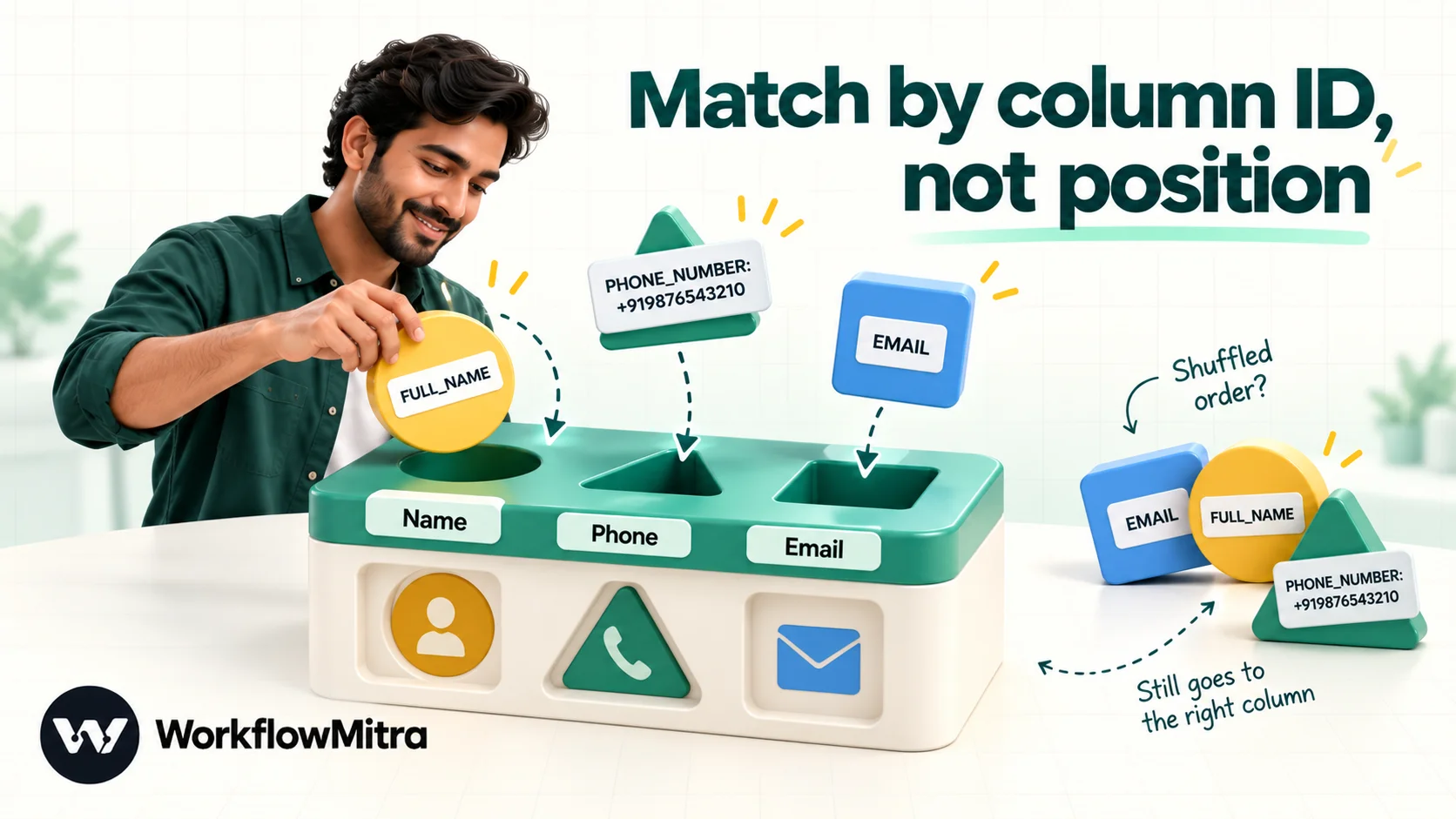
Answers are identified by column ID, not by question text. Each answer has a column_id such as FULL_NAME, EMAIL, PHONE_NUMBER, CITY or COMPANY_NAME, and its value in string_value. Google marks column_name as deprecated and warns it may be missing. A script that builds rows from column_name can leave some leads with blank columns. Read answers by column_id every time.
Only the fields on your form are sent. A form that asks for name and phone sends two entries. A form that splits the name sends FIRST_NAME and LAST_NAME instead of FULL_NAME. Your workflow has to cope with the fields your form actually uses, and with any you add later.
New fields can appear. Google asks developers to ignore fields they don’t use, rather than reject requests that contain something unexpected. lead_source and lead_submit_time are recent examples. A receiver that picks the fields it needs and ignores the rest keeps working when Google adds more.
The column IDs you’ll use most
Google’s list of standard column IDs is long, grouped by industry: vehicle, education, property, travel and more. Most lead forms use a handful:
- Contact:
FULL_NAME,FIRST_NAME,LAST_NAME,EMAIL,PHONE_NUMBER,POSTAL_CODE,CITY,REGION,COUNTRY - Business:
COMPANY_NAME,JOB_TITLE,WORK_EMAIL,WORK_PHONE,COMPANY_SIZE - Intent:
PRODUCT,SERVICE,PURCHASE_TIMELINE,PREFERRED_CONTACT_TIME
Google documents PHONE_NUMBER in E.164 format, with a plus sign and country code, such as +919876543210. Custom questions you write yourself (Google allows up to five qualifying questions per form) aren’t covered by the published list. Don’t guess their IDs. Send a test, look at the request your receiver logged, and copy the IDs from there.
How Google expects your endpoint to reply
The reply matters as much as the request, because it decides whether Google retries.
| Your reply | Google's documented behaviour | When to use it |
|---|---|---|
200 with body {} | Success | Lead received and handled |
| 4xx with a message | Error, not retried | The request is wrong and resending won't help, such as a bad key |
| 5xx | Error, retried | Something on your side failed and a later attempt might succeed |
Two consequences follow. First, 200 is the only success code Google documents, and the Send test data button shows its green status only when it receives one. Many workflow tools answer webhooks with 202 Accepted by default. Google doesn’t list 202 anywhere, so configure your receiver to return 200. Second, retries plus Google’s own warning that “a single lead is not guaranteed to be delivered exactly once” mean your receiver has to recognise a lead it has already seen. Google’s advice is to use lead_id for that.
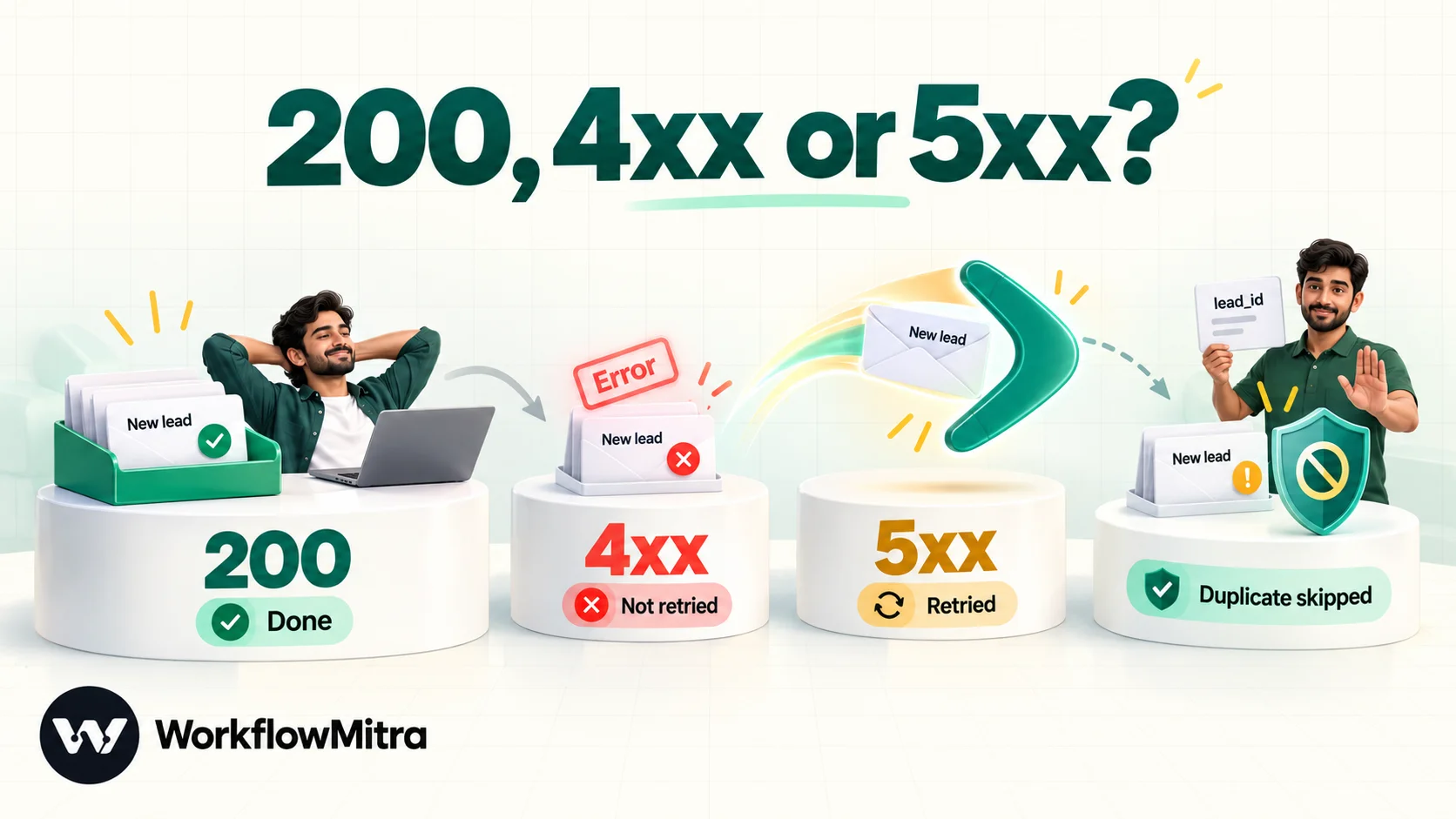
Google doesn’t publish its retry count, backoff schedule or timeout. Assume a slow reply is risky, keep the work your receiver does before answering short, and don’t assume a lead lost to a misconfigured endpoint will arrive later on its own.
The key is your only security
Google can’t send custom headers, can’t sign requests and doesn’t publish the IP addresses its webhooks come from. The one check it offers is google_key: the key you typed in Google Ads, repeated in the body of every request. Google’s guide asks receivers to validate it and to change it in Google Ads if it leaks.
That makes the key worth treating like a password:
- Use a long random string, 32 characters or more, from a password manager or
openssl rand -hex 20. Not123, not your brand name. - Check it in the first step of the workflow, before anything is written or sent.
- Anyone who can open the workflow can read the key, so limit edit access to people you’d trust with it.
- Keep the webhook URL private too. It’s long and random, which helps, but it’s a second layer, not a substitute.
Because the URL plus a body field is all the protection there is, design the workflow so that a forged request can do little harm. Writing a row or creating a lead is easy to undo. Don’t let an unverified payload trigger anything that can’t be reversed, like refunds or account changes. Our guide to webhook security explains this trade-off for every sender that can only paste a URL.
What you need before you start
- A lead form asset in Google Ads, or permission to create one. On 7 October 2026, Google’s help page listed Search and Performance Max as the campaign types that support lead forms. You need a privacy policy URL, an eligible business vertical and a good policy record; restricted categories include healthcare-related content, alcohol, gambling and political content. Google’s lead form requirements set out the details, including extra conditions for some ad formats.
- Standard or Admin access to the Google Ads account, which Google requires for lead downloads and integrations.
- A destination: a Google Sheet with a header row, a Zoho CRM account, or another CRM with an API.
- A WhatsApp Business Platform number for team alerts, connected through ChatMitra (an API key) or directly through Meta’s Cloud API. Email or Slack alerts work too if your team prefers them.
- A WorkflowMitra workspace. New accounts get a 14-day trial with 10,000 credits and no card.
How the workflow fits together
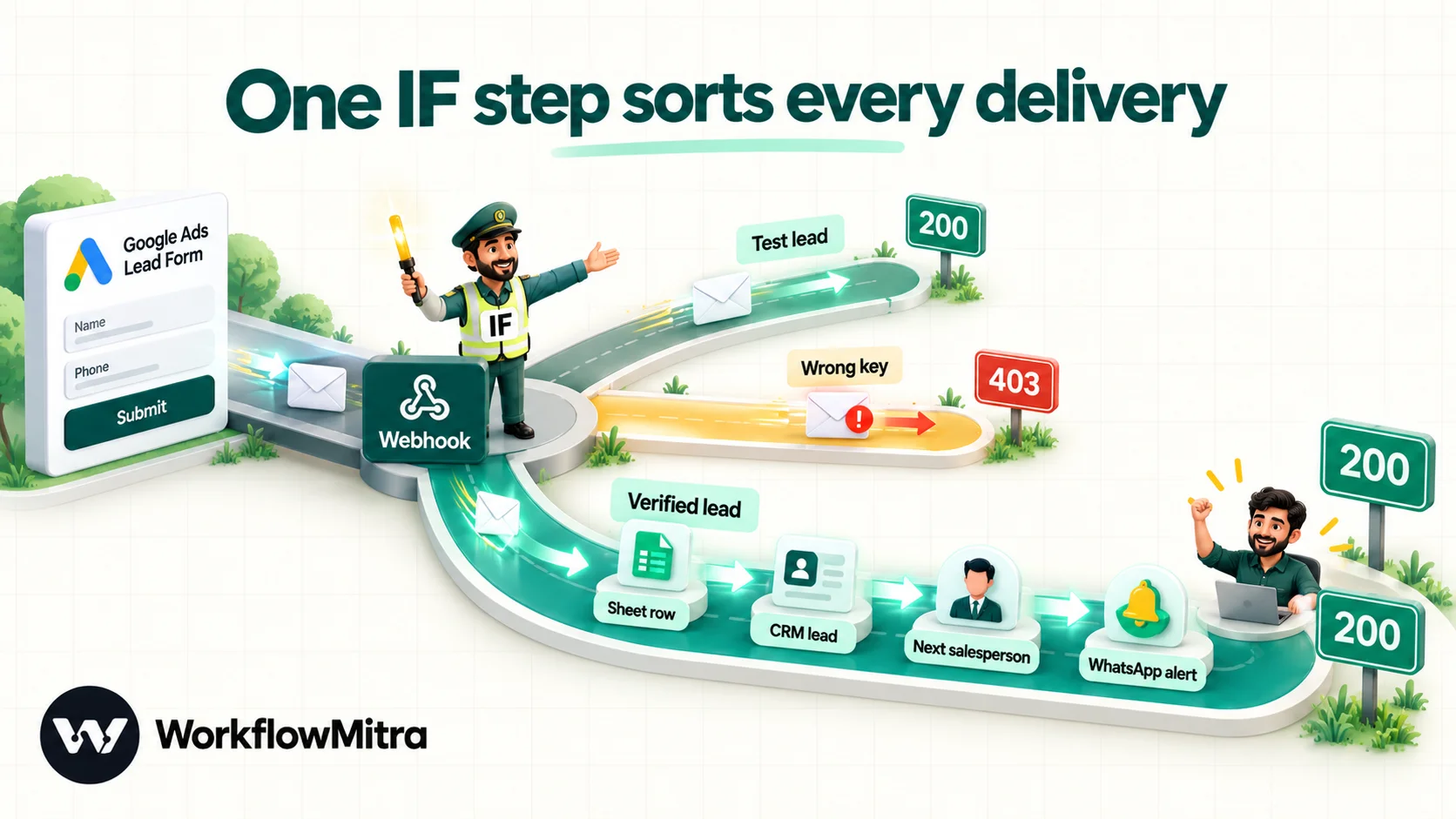
The finished workflow has three routes after one decision:
- On webhook call receives the lead, skips duplicates by
lead_idand holds the connection open until the run finishes. - IF checks, in order: is this a test? Is the key right? Anything else is rejected.
- Test lead route: a Response step returns 200, optionally after a Slack note to you.
- Real lead route: Google Sheets (Add row(s)) → Zoho CRM (Create Lead) → Assign to the next person → WhatsApp alert to that salesperson → Response 200.
- Else route: a Response step returns 403, which Google won’t retry.
Leave out the CRM step if the sheet is your CRM, or the sheet if the CRM is enough. Keep everything else.
Set up the Google Ads lead form webhook, step by step
1. Add the webhook trigger and clear the default secret
Create a workflow and add the On webhook call trigger. Under Source, select Choose where this comes from and pick Something else (“Any app that can call a URL”). There’s no Google Ads source tile, and you don’t need one.
Every new WorkflowMitra webhook starts with a shared secret that must arrive in an x-webhook-secret header. Google can’t send headers, so with the secret in place every real lead would be refused with a 401 and logged as Bad secret. Open the trigger’s Edit sheet, find API key authentication and clear the Secret field. Close the sheet and save the workflow. The panel then warns “Anyone with this URL can start this workflow.” That’s expected here: the key check in step 4 takes over.
Leave Require verification off and the IP allowlist empty. Google publishes no IP ranges to allow, so an allowlist would only block real leads.
2. Turn on Respond synchronously and set the duplicate check
In the same Edit sheet, under Enforcement, switch on Respond synchronously. Without it, WorkflowMitra answers every delivery straight away with 202, which isn’t a code Google documents as success. With it, the connection stays open until the run ends and Google receives whatever the workflow’s Response step returns.
Then open the trigger’s Advanced settings and set Idempotency key path to lead_id. Any delivery whose lead_id was seen in the last 24 hours is logged as Duplicate, answered with 200 and never starts a run, so a retried lead can’t create a second row or a second alert.
3. Save, activate and copy the URL
Save the workflow and switch it to Active. New workflows start paused, and a paused workflow’s webhook answers 404. That 404 doesn’t appear in the delivery log, which makes it confusing to debug. Then copy the webhook URL from the trigger panel. It looks like https://…/api/webhooks/<long random ID>.
4. Sort deliveries with one IF step
Add an IF step after the trigger and give it two routes. Routes are checked from the top, and the first match wins.
- Route 1, “Test lead”:
{{ $trigger.is_test }}Is yes. - Route 2, “Real lead”:
{{ $trigger.google_key }}Equal to your long random key. - Else: everything else, meaning a wrong or missing key.
The order is deliberate. Test requests from the Send test data button may not carry your real key: Google’s testing guide shows testkey in its sample. Checking is_test first lets the test pass without weakening the key check for real leads. A forged request that claims to be a test only reaches a 200 reply and, at most, a note to you, so nothing is written and nobody is alerted.
Leads without an is_test field, or with is_test set to false, are production leads, exactly as Google’s documentation says to treat them. They fall through to the key check.
5. Read the answers by column ID
Answers sit in a list, so position-based mappings such as {{ $trigger.user_column_data[1].string_value }} break the moment someone edits the form. Look each one up by its column ID instead:
{{ get(find($trigger.user_column_data, column_id = "PHONE_NUMBER"), "string_value") }}find picks the list entry whose column_id matches, and get reads its string_value. Use commas between arguments, and keep get around find: writing find(…).string_value returns nothing. $trigger means “the data that started this run”, so the expression works in any step, however far down the workflow it is.
If you’d rather turn the whole list into a lookup once, toCollection does that:
{{ get(toCollection($trigger.user_column_data, "column_id", "string_value"), "EMAIL") }}Useful variations, all checked against WorkflowMitra’s expression engine with a Google-style payload:
| You want | Expression |
|---|---|
| Email, lowercased and trimmed | {{ lower(trim(get(find($trigger.user_column_data, column_id = "EMAIL"), "string_value"))) }} |
| First name from a full name | {{ first(split(get(find($trigger.user_column_data, column_id = "FULL_NAME"), "string_value"), " ")) }} |
| Last name from a full name | {{ last(split(get(find($trigger.user_column_data, column_id = "FULL_NAME"), "string_value"), " ")) }} |
| A field that may be missing, with a fallback | {{ get(find($trigger.user_column_data, column_id = "COMPANY_NAME"), "string_value") | not given }} |
| Lead ID, campaign ID, submit time | {{ $trigger.lead_id }}, {{ $trigger.campaign_id }}, {{ $trigger.lead_submit_time }} |
6. Add the lead to Google Sheets
On the Real lead route, add a Google Sheets step with the operation Add row(s). Connect your Google account and pick the spreadsheet and the Worksheet (tab). Give the sheet a fixed header row first, for example: Received, Lead ID, Name, Phone, Email, City, Campaign ID, Assigned to, Status.
The visual form shows one box per detected column. Fill each with the expressions from step 5. Two settings save trouble later:
- Write values: Exactly as written (no formulas). With the default, “like typing it in”, Sheets reads
+919876543210as a number and drops the plus sign. Writing values exactly as written also stops a lead from planting a formula in your sheet by typing one into a form field. - Keep the column order fixed. The mapping is saved by column position, so add new columns at the right-hand end rather than inserting them in the middle.
Leave the Status column for your team to fill in. A blank status after a day is a lead nobody called, and a scheduled sweep can catch those (see lead management automation for that pattern).
7. Create the lead in your CRM
If your team works in Zoho CRM, add the Zoho CRM step Create Lead (Action: Create Record, Module: Leads) with your Zoho connection. Zoho requires a last name for every lead, plus any fields your layout marks as mandatory. Map Last_Name with the last-name expression, then First_Name, Email, Phone and Lead_Source (for example the text “Google Ads lead form”). Store the Google lead_id in a custom field if you’d like to trace a CRM record back to Google later. Zoho CRM WhatsApp integration covers the connection itself and what else the step can do.
For HubSpot, use the App Request step with a HubSpot private app token and HubSpot’s create-contact endpoint, sending the lead’s email, name and phone as properties. Set Treat error responses as a failure to Yes. It defaults to No, which means a rejected contact, for example a duplicate email, would otherwise count as a successful step and nobody would notice the missing record.
8. Pick the salesperson
Add Assign to the next person. Under Who should this go to?, add each salesperson with a Name and their WhatsApp number in Email or phone. Each lead goes to the next person in turn, and the rotation carries over between runs. The step passes the lead through and adds assignedName and assignedTo, which the next step uses. Weighting, absences and per-region teams are covered in round-robin lead assignment.
If you’d like the sheet to show who got the lead, place the Sheets step after this one and map Assigned to with {{ assignedName }}.
9. Alert the salesperson on WhatsApp
Add a WhatsApp step. Choose the provider, ChatMitra with your ChatMitra API key or Meta Cloud API with your phone number ID and token, and set To to {{ assignedTo }}. Use the Template message operation with an approved template, because your salesperson may not have messaged the business number in the last 24 hours, and outside that window only templates can be delivered. A short utility-style alert works well:
New Google Ads lead for you: {{1}}, {{2}}, {{3}}. Please call within 15 minutes and update the sheet.
Fill the variables with $trigger expressions (name, phone, city), because a plain {{ field }} only reads the previous step’s output, and the previous step is now the assignment. The WhatsApp step strips the plus sign and spaces from numbers before sending.
Should the lead get a WhatsApp message too? Only if the form asked. A Google lead form collects a phone number, not permission to message it on WhatsApp. Add a qualifying question such as “Can we send your quote on WhatsApp?” and check its answer in an IF step before any message to the lead. ChatMitra’s WhatsApp opt-in guide covers the wording and record-keeping Meta expects.
10. End every route with a Response step
Add a Response step at the end of each route. It’s a terminal step: nothing runs after it.
- Real lead and Test lead: Status code
200, Response body{}, Content typeapplication/json. - Else: Status code
403, body{"message": "invalid key"}. A 4xx tells Google not to retry, which is right for a request you’ll never accept.
Don’t skip the body on the success routes. With Respond synchronously on and no Response step, WorkflowMitra replies with the run’s output, which would send the lead’s details and the assignee back to Google.
Test the connection before real money is spent
Test in three stages, from safest to most real.
1. A payload in WorkflowMitra’s test console. Open Edit & Test Payload on the trigger and paste a Google-style lead with is_test false and your real key. In Safe Test Mode, the WhatsApp, email, Slack, Telegram and Discord steps simulate their sends. Google Sheets, Zoho CRM, App Request and Assign run for real, though: a test writes a real row, creates a real CRM lead and moves the rotation on. Point the Sheets step at a copy of the sheet while you test, or delete the test rows afterwards. Test-console runs also skip the trigger’s secret, active and duplicate checks, so they prove your mapping, not the connection.
2. Google’s Send test data. In Google Ads, open the lead form (Campaigns › Assets › Associations › Lead form, then the pencil icon), go to the lead delivery options, paste the webhook URL and your key, and press Send test data. A green status means Google received a 200. In WorkflowMitra, Recent deliveries shows the request as Accepted and the run takes the Test lead route. Open the delivery to see the exact JSON Google sent, including the column IDs of any custom questions. If a second test is logged as Duplicate, that’s the 24-hour check matching a repeated test lead ID, and Google still gets its 200.
3. One real lead. Google recommends starting a new integration on a campaign with a small budget. Run the ad, submit or wait for the first real lead, and follow it through: row, CRM record, WhatsApp alert, 200 reply. Only then raise the budget.
When something goes wrong
What failures look like
If a step fails, for example because the CRM token expired, the run fails and WorkflowMitra answers Google with 502. Google treats 5xx as retryable and sends the lead again. The retry carries the same lead_id, so it’s logged as Duplicate and answered 200 without running the workflow again. That protects you from double rows, but it also means a failed lead won’t fix itself. Two habits close the gap:
- Turn on failure alerts under Workspace settings › Alerts (email or a Slack webhook), so a failed run reaches a person within minutes. For a step that fails often, right-click it and Add error handler to send its own alert. A handled error ends the run as a success, so the error branch is where the alert must live.
- After fixing the cause, replay the delivery from Recent deliveries. A replay re-runs the current workflow with the original lead and bypasses the duplicate check. Workflow error handling covers both in more detail.
The 25-second window
With Respond synchronously on, WorkflowMitra waits up to 25 seconds for the run to finish. A run that takes longer is answered with 202 and a “pending” note, and how Google treats a 202 isn’t documented. A Sheets row, a CRM call, an assignment and one WhatsApp message usually finish in a few seconds. Don’t put Delay, AI or long Loop steps in this workflow. If a lead needs slow follow-up work, end this workflow quickly and start a second one: an HTTP Request step can post the lead to another workflow’s webhook, which answers straight away.
Troubleshooting table
| What you see | Likely cause | Fix |
|---|---|---|
| Send test data shows an error; nothing in Recent deliveries | Workflow is paused (the URL answers 404) or the URL was pasted incompletely | Activate the workflow; copy the URL again |
| Delivery marked Bad secret | The default shared secret is still set | Clear the Secret field under API key authentication and save |
| Test shows an error, delivery Accepted with status 202 | Respond synchronously is off | Switch it on and end each route with a Response step |
| Real leads take the Else route (403) | The key in the IF rule doesn't match the one in Google Ads, often by a space | Paste the same key into both again |
| Some sheet columns blank | Mapping by position or by column_name, or the form doesn't ask that question | Map by column_id; add a fallback with | not given |
| Phone numbers lose the plus sign or turn into long numbers | Write values is set to "like typing it in" | Switch to Exactly as written |
| Test leads reach the sales team | The key check runs before the test check, or the test route doesn't end at a Response | Put the Test lead route first |
| Salesperson gets no WhatsApp alert | Free-text message outside the 24-hour window, or wrong template name or language | Use an approved template; reload templates in the step |
| A lead appears once in Google Ads but twice in the sheet | Idempotency key path not set | Set it to lead_id |
Recovering leads you missed
Leads stay in Google Ads even if your webhook was down. Google lets you download the last 30 days as a CSV and keeps leads for 60 days. Choose the “CSV for CRM” format when you download, because its column headers match the column IDs your workflow already uses. Then paste or import the missing rows into the sheet, or into the CRM’s own importer. Make a CSV download part of your weekly routine for the first month, until the delivery log has earned your trust.
Routing ideas once the basics work
- By campaign: add a Switch step on
{{ $trigger.campaign_id }}so leads from a city campaign go to that city’s team, each with its own Assign step. - By intent: a qualifying question like “When are you planning to buy?” arrives as a value you can route on. “This month” goes to the senior closer, “just researching” goes to a nurture list.
- By time of day: leads that arrive after hours can get a Slack note to the morning shift instead of a WhatsApp ping at midnight.
- Agencies running client accounts: one workflow per client workspace keeps keys, sheets and sales teams separate. Automation for marketing agencies walks through that set-up, including a code-based variant of this workflow.
What does it cost?
| Who charges | For what | How it's counted |
|---|---|---|
| Google Ads | The campaign | Your ad spend; the webhook itself has no charge |
| WorkflowMitra | Running the workflow | Credits per executed step at default rates: trigger 1, Sheets 1, Zoho CRM 1, Assign 1, WhatsApp 1; IF and Response free. Duplicates and rejected requests don't start a run |
| Meta | Delivering each WhatsApp template | Per delivered template, by category and the recipient's country |
| ChatMitra (if you send through it) | The sending platform | A fee per conversation: once per recipient per 24 hours, not per message |
An example: an interior design studio in Bengaluru gets 600 lead form submissions a month. At five credits each, that’s 3,000 credits, well inside the 10,000-credit entry plan at ₹999 a month, leaving room for the follow-up and reporting workflows that usually come next. Because the alerts go to a team of four salespeople, the ChatMitra conversation fee counts per salesperson per 24 hours, not per lead. Check current figures on ChatMitra’s pricing page and the WorkflowMitra pricing page before you budget.
Limits to know before you build
- No native Google Ads step. The integration is the generic webhook trigger. WorkflowMitra can’t read campaign data, change bids or pull past leads from Google Ads.
- The key is the only verification. No signature and no IP list. Keep the key long, private and checked first.
- Custom question IDs aren’t documented. Read them from a real delivery before you map them.
- New leads only. The webhook sends leads submitted after it’s set up. Older ones come from the CSV download.
- Retries don’t re-run failed workflows. The duplicate check answers them 200, so rely on failure alerts and replays.
- Delivery logs are kept for 30 days, and run history for a period set by your plan. The sheet or CRM is your permanent record.
Why use WorkflowMitra for Google Ads lead forms?
WorkflowMitra, powered by ChatMitra, fits this job when a lead should do several things at once and you want to see what happened to each one:
- The webhook settings Google needs are all there. You can clear the header secret, reply with exactly 200 from a Response step, skip repeats by
lead_idfor 24 hours and send a non-retryable 403 to bad keys. That’s the combination Google’s documentation asks for, and many receivers can’t do all of it. - A delivery log you can read. Recent deliveries labels every request Accepted, Duplicate, Rejected or Errored, shows the exact JSON and lets you replay a lead after a fix.
- Lead hand-off in the same workflow. Sheets, Zoho CRM, round-robin assignment and a WhatsApp template alert through ChatMitra or Meta’s Cloud API, without a second tool.
- Rupee pricing per executed step, with free IF and Response steps, and a 14-day trial without a card.
It isn’t the only reasonable route. If your CRM is HubSpot or Salesforce and you only need leads in the CRM, Google’s listed integrations may be simpler. If you already pay for Zapier, its Google Ads lead trigger connects through the Google Ads API rather than a webhook, so there’s no key or reply code to manage. And if leads are rare, downloading the CSV daily is a legitimate plan.
If you run lead form campaigns and leads sit waiting for a CSV export, start a 14-day WorkflowMitra trial, build the workflow above and press Send test data. A green status and an Accepted delivery tell you the connection works.
WorkflowMitra behaviour described here was checked in the product's code on 7 October 2026, and the answer lookups were run against its expression engine with a Google-style lead payload. Google's payload fields, reply codes, duplicate guidance and test behaviour are from the Google Ads webhook implementation guide and testing guide; campaign types, delivery options and lead retention are from Google's About lead form assets and Download leads help pages, all read the same day. ChatMitra's fee is from chatmitra.com/pricing.
Frequently Asked Questions
Questions people ask when they connect Google Ads lead forms to a webhook.
It's one of the lead delivery options on a Google Ads lead form asset. You give Google a webhook URL and a key, and each time someone submits the form, Google sends the lead to that URL as a JSON request. The answers arrive as a list of column IDs and values, together with the lead ID, form ID, campaign ID and your key.
Automate the work between your apps
Build workflows with triggers, conditions and actions, then test them before they go live. Try WorkflowMitra free for 14 days, no card required.
