Google Alerts to Slack: A Brand Monitoring Workflow That Filters Out the Noise

Quick Summary
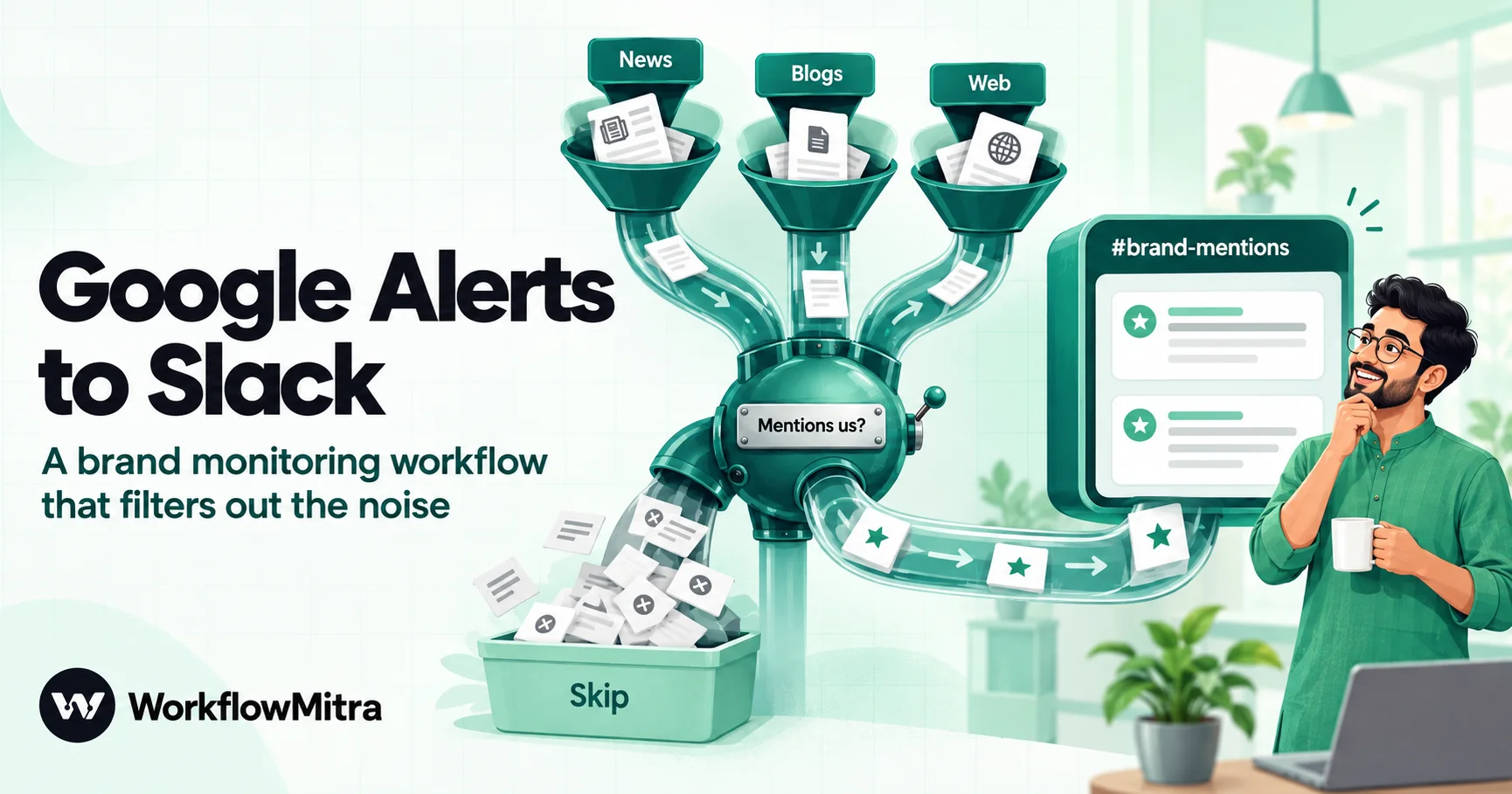
To send Google Alerts to Slack, switch the alert's delivery from email to RSS feed, copy the feed address, and give it to an automation tool that checks the feed and posts each new result. Google Alerts has no Slack connection of its own. In WorkflowMitra, powered by ChatMitra, the feed trigger starts one run per new result. Clean the title, take the real article address out of Google's redirect link, drop results that only mention your name in passing, and skip stories you've already posted. The same workflow can post to Telegram or log every mention in Google Sheets.
Google Alerts is still the cheapest way for a small business to hear when someone writes about it. You type your brand name, Google watches the web, and new mentions arrive in your inbox. The trouble is the inbox. Alerts land in one person’s email, mixed in with everything else, often hours after the story went up, and the rest of the team never sees them.
The fix is to send the alerts where the team already works. Google Alerts can’t post to Slack by itself, but it can publish each alert as an RSS feed, and a workflow can read that feed and post every new result to a Slack channel, a Telegram group or a Google Sheet. This guide shows how to set that up properly, including the parts most guides skip: Google’s redirect links, the bold tags in every title, the 20-result limit on each feed, and stories that turn up twice.
We’ll build it in WorkflowMitra, powered by ChatMitra, but the Google Alerts parts apply to any tool that reads RSS.
The short answer
To send Google Alerts to Slack:
- Create the alert at google.com/alerts and click Show options.
- Set How often to As-it-happens and Deliver to to RSS feed, then save.
- Copy the feed address from the RSS icon next to the alert.
- In WorkflowMitra, start a workflow with the When a blog posts trigger and paste the feed address.
- Add free IF filters to drop noise, clean the title and the link, then add a Slack step with an incoming webhook.
The workflow then checks the feed on a schedule and posts each new result as its own message. The rest of this article covers each step and the details that keep the channel useful.
Why send Google Alerts to a team channel at all?
Email alerts work for one person who reads every message. They stop working when more people need to act on a mention.
A mention in a news story might need a reply from the founder, a thank-you from marketing, or a quick check from support if it’s a complaint. A competitor’s launch matters to sales. When alerts sit in one inbox, nobody else knows they happened, and nobody can see who’s already handled one.
A shared channel fixes most of that. Everyone sees the same mention at the same time, someone replies in the thread to say they’re on it, and the history stays searchable. A Google Sheet adds a record you can count at the end of the month: how many mentions, from which publications, and which ones led anywhere.
There’s a second benefit. Once the alert passes through a workflow, you can filter it. Email alerts arrive exactly as Google sends them. A workflow can drop results that only mention your name in passing, skip your own website, and stop a story that’s been picked up by five sites from posting five times.
Step 1: Write alerts worth watching
The workflow can only filter what Google sends, so start with good alerts. One alert per question works better than one alert for everything, because each alert becomes its own feed, and each feed can post to its own channel.
Useful alerts for a small business:
- Your brand name, in quotes.
"Your Brand"matches the phrase, not the two words anywhere on a page. - Your product names, if they differ from the brand.
- The founder’s or spokesperson’s name, for interviews and quotes.
- Common misspellings of the brand, if people get it wrong.
- One alert per main competitor, routed to a different channel from your own mentions.
- An industry phrase you want to track, such as a regulation or a product category.
Alert queries use Google Search syntax. Google’s search help documents quotes for an exact phrase and a minus sign to exclude a word, and Alerts guides such as Feedly’s also use OR to combine phrases. Google’s own Alerts help doesn’t list which operators Alerts honours, so treat each operator as something to check: when you’re signed in, Google shows a preview of matching results under the query box before you save. If the preview still shows what you meant to exclude, don’t rely on that operator. The workflow’s filters in Step 4 will catch it instead.
The settings under Show options
Click Show options before you create the alert. Signed out, Google shows these choices (we checked them on 19 October 2026):
| Setting | Choices | What to pick for a workflow |
|---|---|---|
| How often | As-it-happens · At most once a day · At most once a week | As-it-happens. RSS delivery needs it. |
| Sources | Automatic · News · Blogs · Web · Video · Books · Discussions · Finance | Automatic to start; narrow it later if one source type is all noise |
| Language | Any Language, or one language | Match your audience, for example English |
| Region | Any Region, or one country | India if your customers are in India; Any Region for global brands |
| How many | Only the best results · All results | All results for a rare brand name; Only the best results for a common word |
| Deliver to | Your email address · RSS feed (shown when signed in) | RSS feed |
How many matters more than it looks. “Only the best results” is Google’s own filter. For a distinctive brand name it can hide real mentions, so choose “All results” and filter in the workflow. For a brand name that’s also an ordinary word, “Only the best results” removes a lot of noise before it reaches you.
Step 2: Switch the alert to RSS and copy the feed address
Sign in at google.com/alerts. For a new alert, type the query and click Show options. For an existing one, click the pencil icon next to it under My alerts.
- Set How often to As-it-happens.
- Set Deliver to to RSS feed.
- Click Create Alert or Update Alert.
Feeder’s guide, updated 27 September 2026, gives the same order and adds one fix for when RSS isn’t in the list: clear the digest and delivery-time choices in your Alerts settings, then try again. How-To Geek’s guide notes that an alert switched to RSS stops sending email for that alert, so don’t switch the only copy of an alert someone still reads by email. Create a second alert with the same query instead.
An orange RSS icon now appears next to the alert. Open it or copy its link. The address looks like this:
https://www.google.com/alerts/feeds/01483319527124731101/5070162238160863645The first long number identifies the account and the second identifies the alert. Anyone with the address can read the feed, so treat it like a private link: don’t paste it into public documents.
Before you build anything, open the feed address in a browser. If it shows entries, you’re ready. A new alert often shows an empty feed until Google finds its first match, which can take hours or days for a rare name. One of the four live feeds we read on 19 October 2026 had no entries at all.
What’s actually inside a Google Alerts feed
Google Alerts feeds are Atom feeds, not classic RSS, and they have habits that affect every message you post. We read four live feeds on 19 October 2026 and ran them through WorkflowMitra’s feed reader, which gives each result these fields:
| Field | What a Google Alerts result contains | What to do with it |
|---|---|---|
title | The headline, usually ending in ” - Publication”, with your matched words wrapped in <b> tags and apostrophes as ' | Strip the tags and replace the codes |
link | A google.com/url redirect with the real address inside its url parameter | Take the real address out |
content | A snippet of about 120–160 characters, also with <b> tags and codes such as | Clean it the same way; use it as a preview line |
summary | Empty | Don’t use it |
author | Empty | Use the publication name from the title instead |
id | A stable id such as tag:google.com,2013:googlealerts/feed:4991659286155281541 | The trigger uses it to skip repeats |
publishedAt | The time Google added the result | Use it to judge freshness |
Across the 29 results we read, the only codes that appeared were ' (18 times), (22 times) and & (once). Titles from one feed looked like this before cleaning:
Is <b>Upstart</b> Holdings (UPST) Undervalued After Adding Credit Union Of Denver?
LatAm <b>Startup</b> Funding Jumps 26% In Q3 As VCs Begin 'Rediscovering' The RegionPost that straight into Slack and the channel fills with tags and codes.
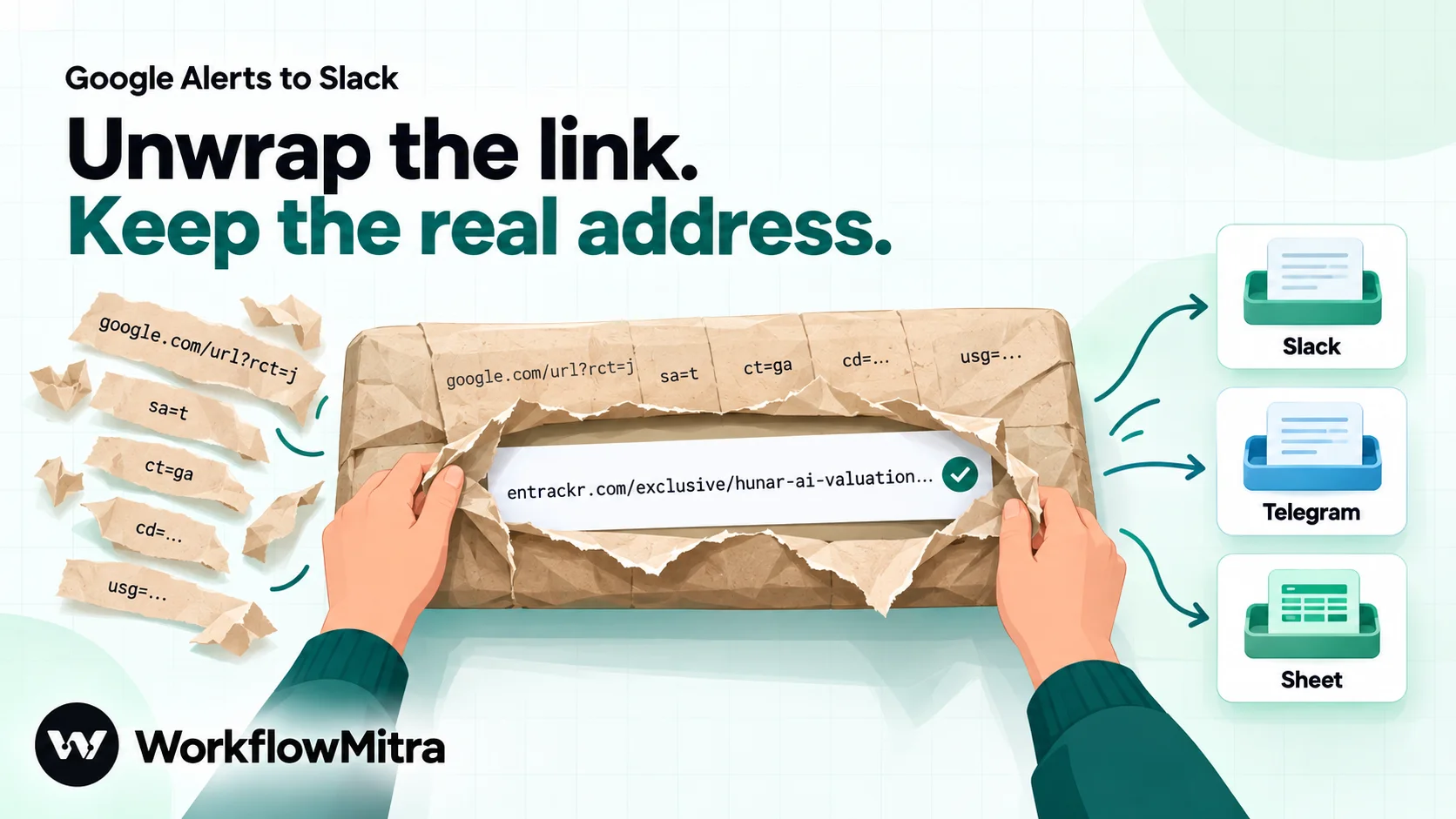
The link is the bigger problem. Every result points to a Google address like https://www.google.com/url?rct=j&sa=t&url=https://entrackr.com/…&ct=ga&cd=…&usg=…. When we fetched one, Google returned a page that forwards the reader with a script and a meta refresh rather than a normal HTTP redirect. People who click still get to the article, but Slack and Telegram can’t show the publication’s link, your sheet stores Google’s address instead of the story’s, and two alerts that find the same story produce two different Google links. Taking the real address out fixes all three.
Step 3: Build the workflow in WorkflowMitra
The finished workflow has up to six steps:
- When a blog posts (the feed trigger), checking the alert’s feed.
- IF: is this a real mention? (free)
- Data Store: have we posted this story already?
- IF: is it new? (free)
- Slack (or Telegram): post the mention.
- Google Sheets: log it.
Steps 3 and 4 only matter if you run several alerts that can find the same story; Step 5 covers them. If you’ve never built a feed workflow, our RSS to Telegram and Slack guide explains the feed trigger in more depth. This section covers what’s different for Google Alerts.
Add the trigger
Create a workflow and choose When a blog posts as the trigger. Paste the alert’s feed address and choose how often to check it (see “How often to check” below for which interval to pick).
Two things surprise people here:
- The first check posts nothing. It records what’s already in the feed and only reacts to results added after that. This is deliberate: without it, switching the workflow on would post up to 20 old results at once.
- Running the workflow by hand doesn’t use a real result. A manual run starts with empty input, so every field in your message is blank and Telegram rejects the empty text. To test, wait for a real result, or build the workflow first on a busy alert (a common word gets results within minutes) and change the feed afterwards.
If you later want the same workflow for a different alert, don’t just change the feed address on the trigger. WorkflowMitra doesn’t re-record the feed when the address changes, so the next check can post up to 20 older results from the new feed. Delete the trigger step and add a fresh one with the new address, so the first check records the feed again.
Clean the title, the snippet and the link
Each result starts its own run, so $trigger is the result. You can type these expressions straight into any message field. In WorkflowMitra, functions take commas between their arguments; semicolons return an empty result.
The title, for Telegram and Google Sheets:
{{ replace(replace(stripHTML($trigger.title), "'", "'"), "&", "&") }}The title, for Slack. Slack asks for &, < and > to stay escaped in message text (Slack’s formatting rules), so leave & alone:
{{ replace(stripHTML($trigger.title), "'", "'") }}The snippet, as a one-line preview:
{{ replace(replace(replace(stripHTML($trigger.content), "'", "'"), " ", " "), "&", "&") }}The real article address, taken out of Google’s redirect:
{{ decodeURL(first(split(last(split($trigger.link, "&url=")), "&ct="))) }}Read the last one from the inside out: split the Google link at &url= and keep the last part, split that at &ct= and keep the first part, then decode it in case the address has encoded characters. On the Entrackr result above, it returns https://entrackr.com/exclusive/exclusive-hunar-ai-valuation-jumps-71-in-series-a-round-12688878. We ran all four expressions on the 29 live results through WorkflowMitra’s own expression engine; every title came out clean and every link came out as the publisher’s address.
If Google ever changes the link format, the split finds no &url= and the expression returns the whole Google link, so the message still has a working link, just not the clean one.
Write the Slack message
Create an incoming webhook for the channel in Slack (our Slack incoming webhooks guide walks through it), add a Slack step and paste the webhook URL. In Message, put the title in bold, the snippet below it and the link on its own line:
*{{ replace(stripHTML($trigger.title), "'", "'") }}*
{{ replace(replace(stripHTML($trigger.content), "'", "'"), " ", " ") }}
{{ decodeURL(first(split(last(split($trigger.link, "&url=")), "&ct="))) }}
Slack turns a plain address into a link by itself, so you don’t need the <address|label> link format. That format breaks when a headline contains a |, and headlines like “…valuation climbs 71% | Dealroom.co” do.
Or send it to Telegram
Telegram works the same way with a Telegram step: a bot token, the chat id of the group or channel, and the text. WorkflowMitra’s Telegram step sends plain text, so asterisks show as asterisks. Use the clean title on the first line and the link on the last line, and Telegram shows a link preview of the article. Our guide to Telegram notifications for business covers creating the bot and finding the chat id.
Log every mention in Google Sheets
Add a Google Sheets step that adds a row to a “Mentions” sheet. The step fills columns in order, left to right, so set up the header row first and keep the values in the same order:
| Column | Value |
|---|---|
| A: Found | {{ formatDate($trigger.publishedAt, "DD/MM/YYYY HH:mm") }} or the plain publishedAt value |
| B: Alert | The alert’s name, typed as plain text, for example Brand |
| C: Headline | The clean title (Telegram version) |
| D: Link | The real address |
| E: Snippet | The clean snippet |
| F: Status | Leave blank; the team fills in “Replied”, “Shared” or “Ignore” |
formatDate follows the server’s clock rather than India time, so if the exact hour matters, store the raw value and format it in the sheet. Typing the alert’s name in column B lets one sheet hold every alert, which makes a monthly count by alert easy. Our guide to Google Sheets automation covers connecting the sheet.
Step 4: Filter out the noise
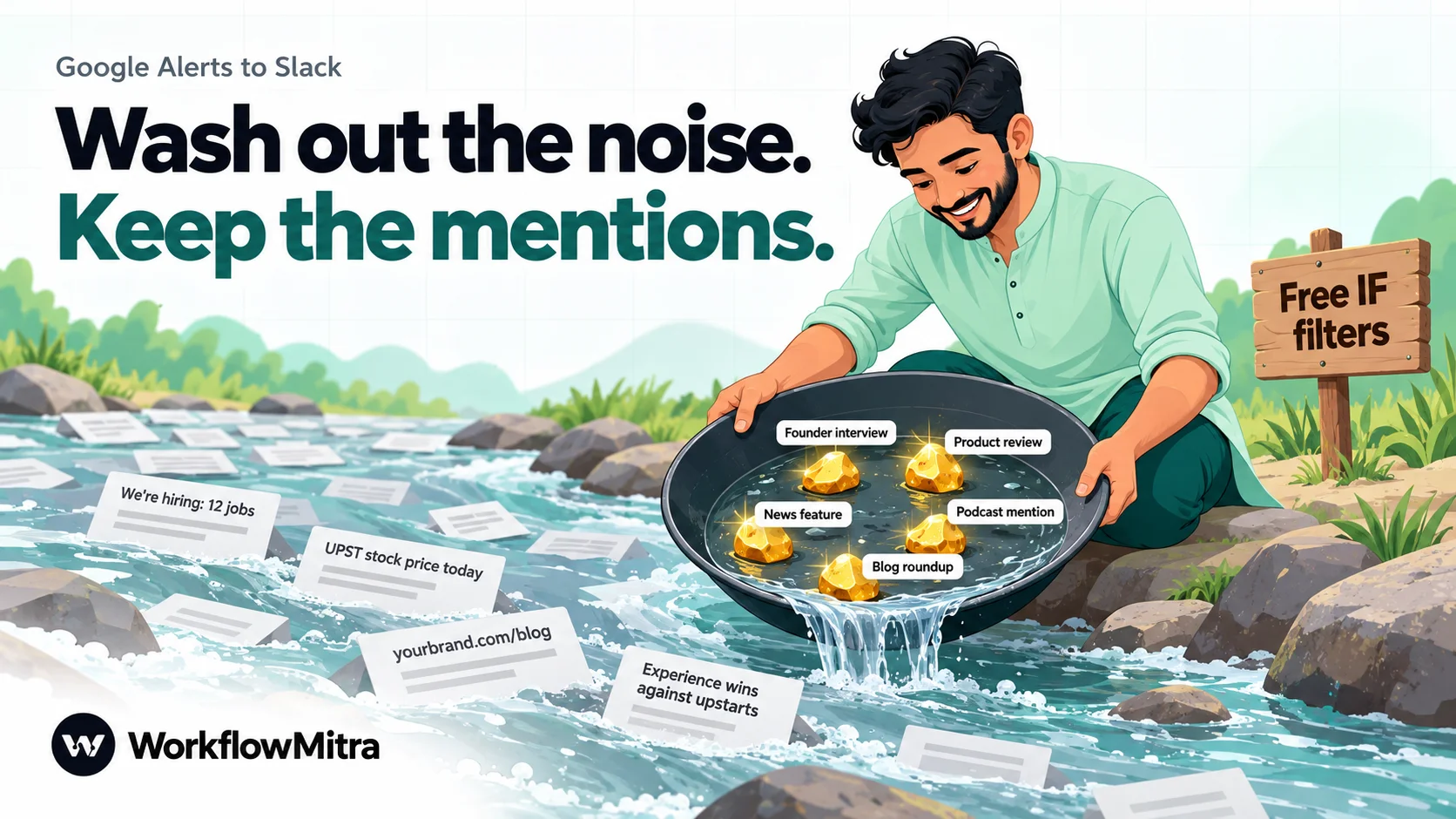
Most Google Alerts noise falls into a few patterns, and each one has a simple filter. Put the filters in IF steps right after the trigger. IF and Switch steps are free in WorkflowMitra, so a result that fails a filter costs only the trigger’s credit.
One thing to know first: IF’s Contains and Does not contain are case-sensitive. Compare a lowercased value with a lowercase word, like this:
{{ lower(stripHTML($trigger.title)) }}Then choose Contains and type upstart, not Upstart.
| Noise | Example | Filter |
|---|---|---|
| Your name is an ordinary word | An alert for “upstart” returned an editorial headlined “Experience wins against upstarts in City Council race” on 19 October 2026 | Require the name in the title with a word only your mentions use, or switch How many to “Only the best results” |
| Passing mentions | The name appears once in a long list, not in the headline | Lowercased title Contains your name; send title-only misses to a quieter channel instead of dropping them |
| Your own website | Your own blog posts and press pages | Real address Does not contain yourbrand.com |
| Job listings | Third-party job boards copying your openings | Lowercased title Does not contain hiring, jobs, vacancy |
| Stock-price pages | Ticker and market pages for a listed name | Lowercased title Does not contain the ticker, or set Sources to News and Blogs |
| A competitor with the same name | Another company abroad shares your name | Set Region to your country, and filter on a second word such as your city or product |
A practical pattern is to send weak matches somewhere rather than delete them. Use IF’s Yes route for “headline mentions us” and post those to the main channel, and on the Else route, log the result in the sheet only. Nobody is interrupted, but nothing disappears either. Our guide to conditional logic in automation covers IF routes and Else in more detail.
Step 5: Stop the same story posting twice
Repeats come from two places, and only one needs work.
Within one alert, repeats are already handled. The feed trigger records each result’s id and never starts a second run for an id it has seen. Google Alerts ids are stable, so a result that stays in the feed for hours is posted once.
Across alerts, the same story can arrive twice. If one alert watches your brand name and another your founder’s name, an interview that mentions both arrives in both feeds with two different ids. The two workflows don’t know about each other, so the story posts twice.
The fix is a shared list of stories you’ve already posted. WorkflowMitra’s Data Store keeps one for you:
- Create a data store, for example “Alert links”.
- After the filters, add a Data Store step with Create or update (upsert), the “Alert links” store, and the real-address expression as the Key.
- Add an IF step right after it:
{{ wasNew }}with Is yes. - Put the Slack and Sheets steps on the Yes route.
The upsert reports wasNew as yes the first time it sees an address and no after that. It locks the workspace while it checks, so two alerts that find the same story at the same moment can’t both see it as new. Use the same store in every alert workflow. This is why the real address matters: Google’s redirect links differ between alerts, but the publisher’s address is the same.
Keys can be up to 512 characters, enough for normal article addresses. The Starter plan’s 10 MB of Data Store storage holds tens of thousands of these short records. If the store grows large after a year, delete it and start a new one.
One limit remains: when five sites republish the same press release, they have five different addresses, and each is a real, separate mention. Most teams want those in the sheet anyway. If you don’t, post only results whose lowercased title doesn’t contain your press release’s exact headline words.
Our guide to preventing duplicates in Google Sheets covers the same find-then-add idea for sheets.
How often to check the feed
The feed trigger can check every 15 minutes, every 30 minutes, every hour, every six hours or once a day. The right choice depends on one detail of Google Alerts: a feed shows only its 20 newest results. WorkflowMitra reads up to 20 new results per check, oldest first, so anything that drops out of the feed between two checks is never seen.
Here’s how much time those 20 slots covered in the four live feeds we read on 19 October 2026:
| Alert | Results in the feed | Time span |
|---|---|---|
| ”startup” (busy, common word) | 20 | 3 hours 6 minutes |
| ”Seedstars” (company name) | 4 | 37 minutes |
| ”upstart” | 5 | about a day and a half |
| A narrow three-term alert | 0 | — |
The busy alert filled its 20 slots in just over three hours. Checked every six hours or once a day, it would have lost results. So:
- A distinctive brand name with a few results a day: every hour.
- A common word, a large competitor or a crisis week: every 15 minutes.
- A slow industry phrase: every six hours is fine.
Checks that find nothing new don’t start runs and don’t use credits, so a shorter interval costs nothing on a quiet alert.
Route mentions to the right people
Once the basics work, the same workflow can do more than post to one channel:
- Separate channels per alert. Brand mentions to #marketing, competitor news to #sales, industry news to #founders. Because each alert has its own feed, each workflow simply has its own Slack webhook.
- Complaint words to support. A Switch step can check the lowercased title and snippet for words like “fraud”, “complaint”, “refund” or “scam” and send those to the support channel as well.
- A daily digest for low-priority alerts. Log industry results in the sheet only, and post one summary a day. Our notification digest guide shows how.
- An AI read of each mention. An AI step can label each mention positive, neutral or negative before it posts. WorkflowMitra’s AI steps use your own API key from a provider such as OpenAI or Google Gemini, so the provider bills you for its use. Our guide to AI sentiment analysis covers prompts and the cases where AI labels go wrong. Keep in mind the AI only sees the 120–160 character snippet, not the article.
What it costs to run
Google Alerts is free. In WorkflowMitra, each result that reaches a run uses 1 credit for the trigger step, and every action step that runs uses 1 credit. IF and Switch steps are free, and feed checks that find nothing new cost nothing. We checked these rates in the product’s credit table and the prices on WorkflowMitra’s live plans on 19 October 2026.
| Step | Credits |
|---|---|
| When a blog posts (trigger) | 1 per result |
| IF / Switch | 0 |
| Data Store | 1 |
| Slack | 1 |
| Telegram | 1 |
| Google Sheets | 1 |
A worked example: three alerts (brand, founder, one competitor) bring about 45 results a day, or 1,350 a month. The filters drop two-thirds, so 450 reach the Data Store step, and about 405 of those are new and get posted and logged.
- Triggers: 1,350 credits
- Data Store: 450 credits
- Slack: 405 credits
- Google Sheets: 405 credits
- Total: about 2,610 credits a month
The Starter plan includes 10,000 credits a month for ₹999 (₹849 a month billed yearly), with 10 active workflows, so three alert workflows leave plenty of room. Put the free filters before the Data Store step: every result the filters drop saves the Data Store credit too.
What Google Alerts can’t do
It’s worth being clear about the source before you rely on it:
- It doesn’t cover most social media. Posts on Instagram, X, LinkedIn and in WhatsApp groups mostly won’t appear. “Discussions” covers some forums, not social networks.
- Google decides what counts. Results depend on what Google indexes and considers a match. Some mentions arrive late, and some never arrive.
- The snippet is short. You get a headline and about two lines, not the article. Sentiment and context need a human click.
- There are no reach numbers. You won’t see traffic, audience size or shares.
For a small business that wants to know when a news site, blog or directory writes about it, those limits are acceptable, and the price is right. If you need complete social coverage, sentiment trends or share-of-voice reports, a paid listening tool does that job, and this workflow can still run beside it for news.
Troubleshooting
Nothing has posted since I switched the workflow on. The first check only records the feed. Open the feed address in a browser: if no results have arrived since then, there’s nothing to post yet. If the feed itself is empty, the alert hasn’t matched anything.
I clicked Run and the message was blank. A manual run has no result to read. Wait for a real result, or test on a busy alert.
Messages show <b> and '. The message uses {{ title }} directly. Use the cleaning expressions above.
Links open a Google page first. The message uses the raw link. Use the real-address expression.
The real-address expression returns the Google link. Google’s link didn’t contain &url= for that result. Check the raw link in the run’s history and adjust the split.
The same story posted twice. Either two alerts found it (add the Data Store step to both workflows, with the same store) or the Data Store key is the Google link instead of the real address.
Old results flooded the channel. The trigger’s feed address was changed on a live workflow. Replace the trigger step instead of editing the address.
A filter never matches. IF’s Contains is case-sensitive. Lowercase the value and type the word in lowercase.
I see a credit charge for results that never posted. That’s the trigger step: every result that starts a run uses 1 credit, even if a filter then stops it. Tighter alert queries reduce it more than any filter.
Start with one alert
Pick the alert that matters most, usually your brand name in quotes, and set it to deliver to RSS. Build the workflow with the trigger, one IF filter, the clean title and link, and a Slack or Telegram step. Let it run for a week, then look at what got through. Each noisy result you see tells you which filter to add next, and each one you’d have missed tells you to loosen the query. When it’s reliable, add the sheet, then the second alert, then the shared Data Store.
You can build this on a 14-day WorkflowMitra trial, with no card needed. The Slack, Telegram and Google Sheets steps are on every plan, and you can see what else WorkflowMitra connects on the WorkflowMitra overview.
Google Alerts behaviour was checked on 19 October 2026: four live Google Alerts feeds were fetched and read (Atom format, up to 20 entries, field contents, entity codes and the time span of each feed), one feed link was fetched to see Google's redirect page, and the signed-out Show options choices were read on google.com/alerts. The RSS delivery steps come from Feeder (updated 27 September 2026) and How-To Geek, because Google's help page for creating alerts doesn't describe RSS delivery and the Deliver to choice only appears when signed in. WorkflowMitra behaviour (the feed trigger's first check, intervals, 20-result reads and repeat skipping, one run per result, manual runs, the expression functions, IF operators, the Telegram and Slack steps, the Data Store upsert and its limits, and credit rates) was checked in the product's source code the same day, and the parsing and cleaning results were produced by running WorkflowMitra's feed reader and expression engine on the live feeds. Prices come from WorkflowMitra's live plans the same day. Sources: Google, create an alert; Google, refine web searches; Feeder, Google Alerts alternatives; How-To Geek, RSS feed from a Google Alert; Feedly, Google Alerts; Slack, formatting message text.
Frequently Asked Questions
Questions people ask when they first send Google Alerts to a team channel.
No. Google Alerts delivers by email or as an RSS feed, and has no built-in Slack connection. To get alerts into Slack, switch the alert's delivery to RSS feed and connect that feed to an automation tool, or use an RSS app inside Slack. An automation tool also lets you filter and clean each result before it posts.
Automate the work between your apps
Build workflows with triggers, conditions and actions, then test them before they go live. Try WorkflowMitra free for 14 days, no card required.
