Google Apps Script Alternative: Automate Google Sheets Without Maintaining Scripts

Quick Summary
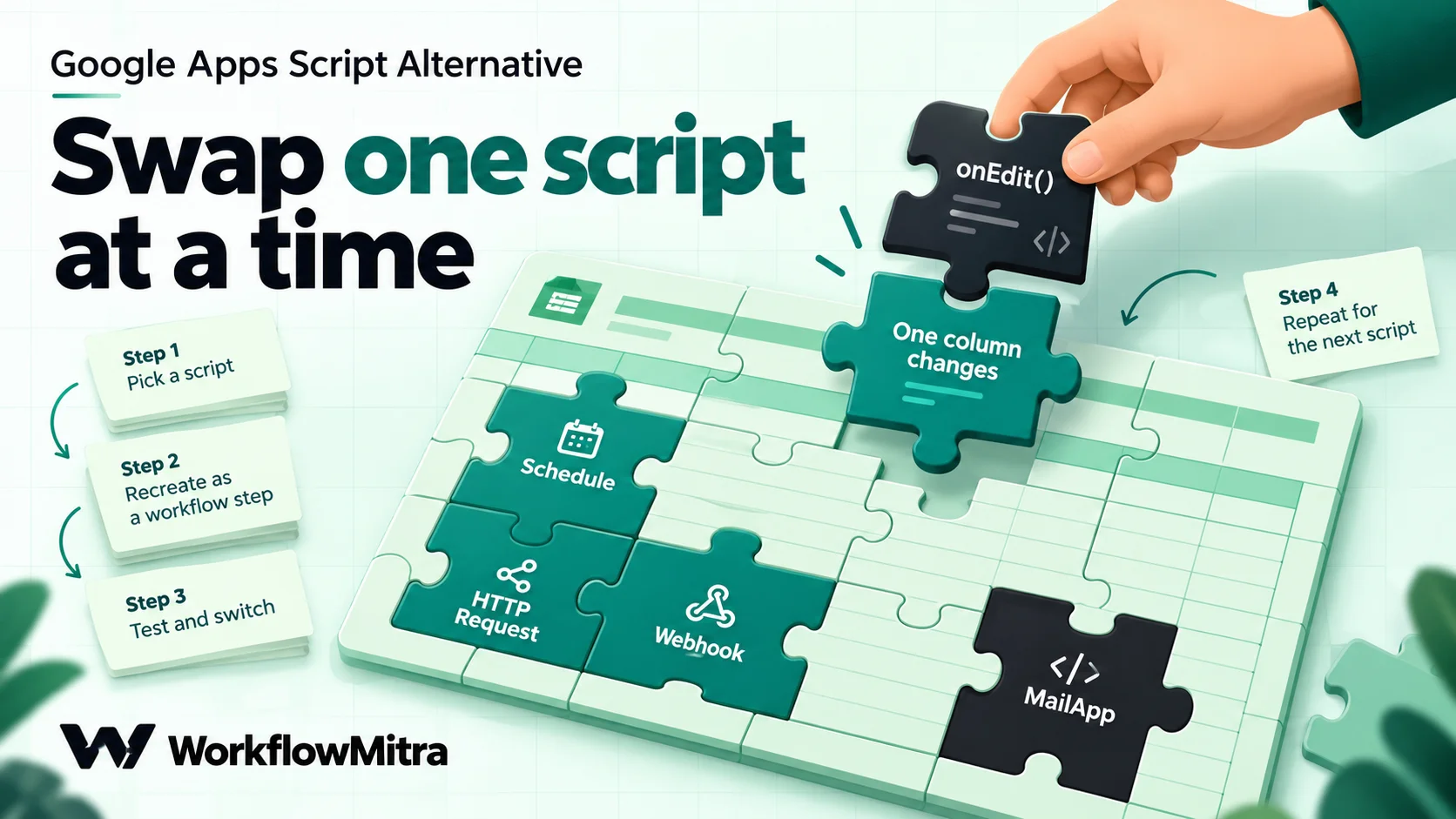
The practical alternative to Google Apps Script for most Sheets automation is a no-code workflow tool: a trigger that watches the sheet, plus steps that read, update, email, call an API or write rows. It replaces on-edit scripts, time-driven scripts, UrlFetchApp imports and doPost web apps, and it catches edits that Apps Script triggers can't see, because Google says script executions and API requests don't fire triggers. Keep Apps Script for custom functions, custom menus and sidebars, formatting, and instant reactions to a person's typing. Move one script at a time: rebuild it as a workflow, run both side by side on a copy, then delete the old trigger.
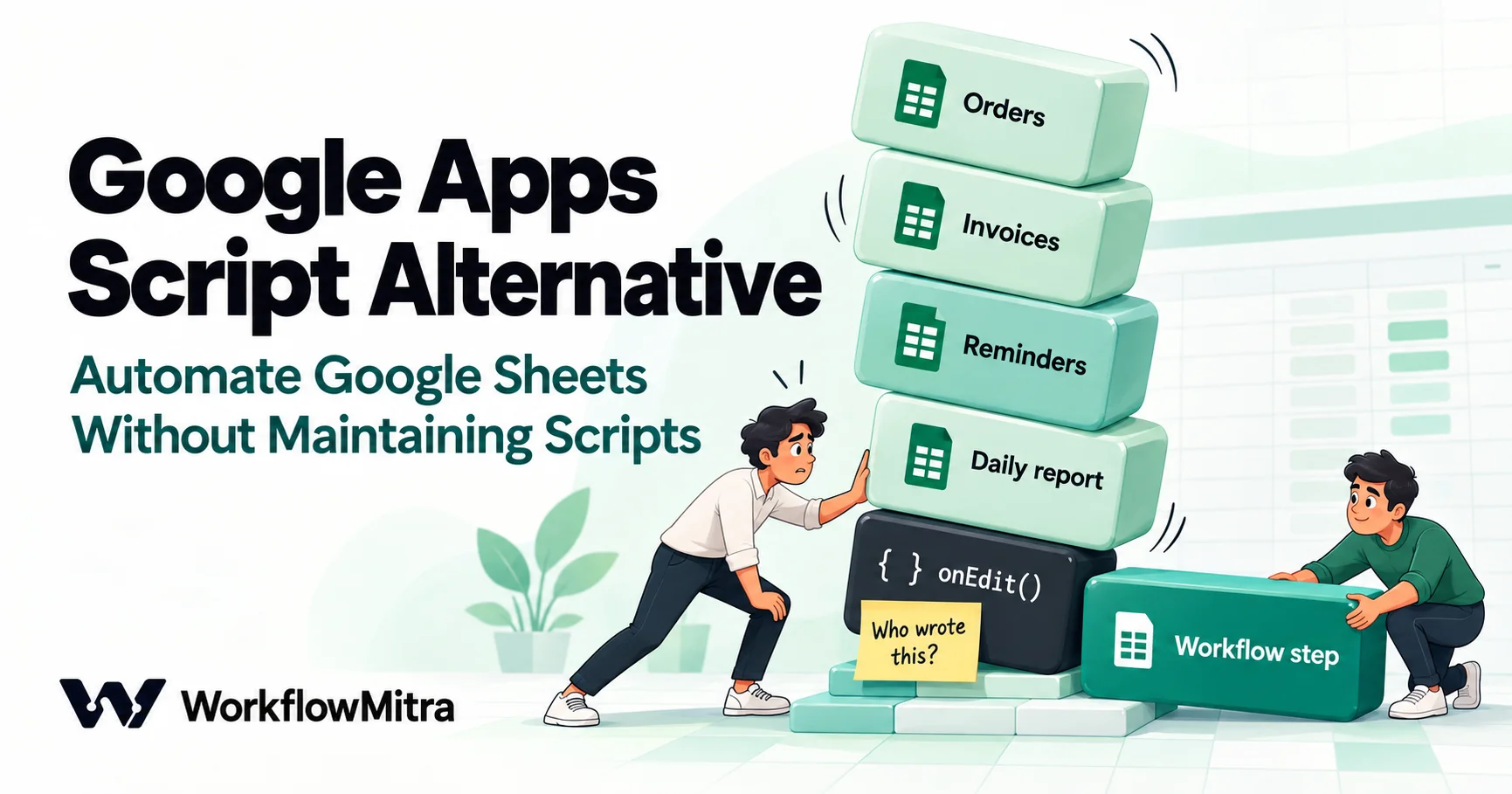
Most teams don’t decide to build their business on Google Apps Script. It happens one fix at a time. Someone adds a script that stamps the date when a status changes, then one that emails a customer, then a nightly import. Two years later the order sheet depends on code that nobody else understands, running under the account of a colleague who may not be there next year.
If you’re looking for a Google Apps Script alternative, you probably want one of two things: automation that keeps working when the script’s author is away, or automation that catches changes your script keeps missing. This guide covers both. It explains where Apps Script runs out, what can replace it, when you should keep it, and how to move four common Sheets scripts to a no-code workflow, one at a time, without breaking the sheet your team works in every day. All Google limits quoted here were checked against developers.google.com on 18 October 2026.
Quick answer: for most Sheets automation, the alternative to Apps Script is a no-code workflow tool: a trigger that watches the sheet for added or changed rows (or runs on a schedule), followed by steps that read rows, update cells, send email, call an API or write to another app. It replaces on-edit scripts, time-driven scripts, UrlFetchApp imports and doPost web apps. It also catches edits that Apps Script triggers never see, because Google says script executions and API requests don't fire triggers. Keep Apps Script for custom functions, custom menus and sidebars, formatting, and instant reactions to a person's typing. Move one script at a time, test on a copy, and only then delete the old trigger.
Why teams look for an Apps Script alternative
Apps Script is a good tool. It’s free, it runs inside Google’s own infrastructure, and it can do almost anything to a spreadsheet. The trouble usually isn’t what it can do. It’s who can maintain it and what it quietly fails to notice.
It belongs to one person. Google’s documentation says installable triggers “always run under the account of the person who created them”. The quota, the permissions and the failure emails all belong to that account. When the person who wrote the script changes roles or leaves, someone has to understand the code and recreate the triggers under their own account.
Failures arrive as an email to that same person. When a trigger fails, Apps Script sends its creator a “Summary of failures for Apps Script” email. If that inbox belongs to someone on leave, the failure is effectively silent. There’s no shared run history that the rest of the team checks.
It doesn’t see changes made by other tools. This is the one that surprises people most. Google’s trigger documentation states that “script executions and API requests don’t cause triggers to run”. A row added by a website form tool, a CRM sync, an import or another script won’t fire onEdit, and installable triggers have the same restriction. Community forums are full of “onEdit not working” threads that turn out to be this.
Simple triggers are deliberately limited. A simple onEdit can’t run for more than 30 seconds, can’t use services that need authorisation (so it can’t send email), doesn’t run when someone opens the file in view or comment mode, and, per Google, “only queues up to 2 trigger events”. Paste fifty rows at once and most of them never reach your code.
Old scripts can stop without warning. Google’s migration guide says the legacy Rhino runtime was retired on or after 31 January 2026, and that Rhino scripts must be migrated to the V8 runtime. Teams discovered scripts that had run unchanged for years and now needed a developer to fix them.
Apps Script limits worth knowing
These are the numbers that matter most for Sheets automation, from Google’s quotas page (last updated 3 September 2026). Google notes it can change them at any time.
| Limit | Personal Gmail account | Google Workspace account |
|---|---|---|
| Script runtime | 6 minutes per execution | 6 minutes per execution |
| Total trigger runtime | 90 minutes per day | 6 hours per day |
| Triggers | 20 per user per script | 20 per user per script |
| Email recipients (MailApp) | 100 per day | 1,500 per day |
| URL Fetch calls | 20,000 per day | 100,000 per day |
| Simple trigger runtime | 30 seconds | 30 seconds |
For a small team, the runtime limits rarely bite. The email cap on a personal account and the 6-minute ceiling on a long import are the limits that people actually hit.
What can replace Apps Script?
“Alternative” means different things depending on what your script does. It helps to sort your scripts by job before choosing anything.
| Option | Best at | Weak at |
|---|---|---|
| No-code workflow tool (WorkflowMitra, Zapier, Make, n8n) | "When a row is added or changed, do these steps"; schedules; moving data between apps; email, API calls, approvals | Reacts on a polling interval rather than instantly; can't add functions, menus or formatting inside the sheet |
| AppSheet | Turning a sheet into an app with forms, views and app-level automation | Building an app is a bigger project than replacing one script |
Built-in Sheets features (formulas, QUERY, IMPORTRANGE, macros, notification rules) | Calculations and simple alerts inside the sheet | Can't email customers, call other apps or run multi-step logic |
| Keep Apps Script | Custom functions, menus, sidebars, formatting, instant reactions to typing | Maintenance, one-person ownership, and the trigger and quota limits above |
If most of your scripts start with “when this happens in the sheet” or “every morning”, a workflow tool is the right replacement, and the rest of this guide assumes that. If your script draws a sidebar or defines =SHIPPINGCOST() for use in cells, skip ahead to when to keep Apps Script.
How a workflow trigger sees a sheet differently
The biggest practical difference isn’t code versus no code. It’s how changes are noticed.
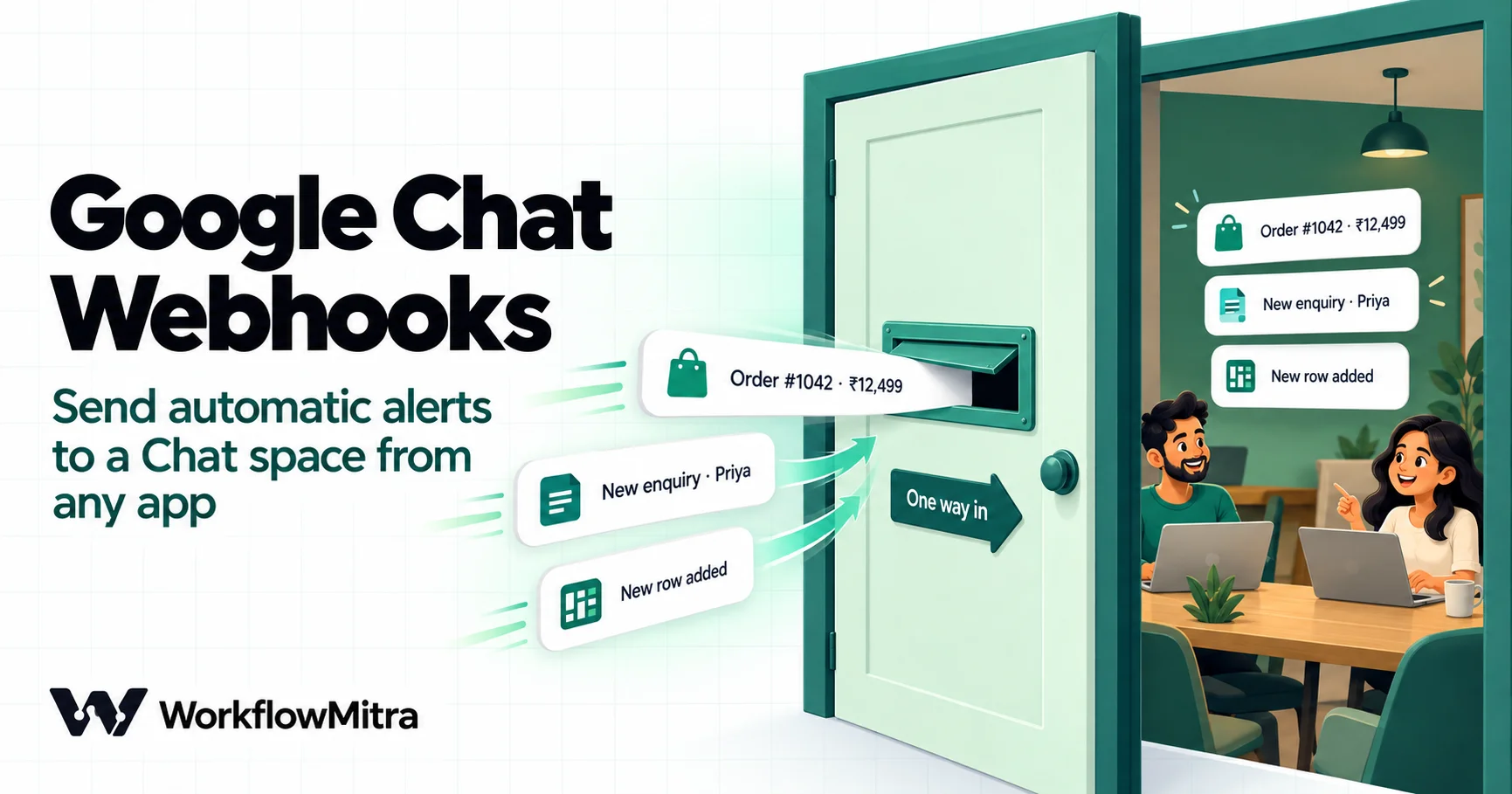
An Apps Script trigger is event-based: Google calls your function when a qualifying event happens, and only for the events Google sends. A workflow tool’s Sheets trigger works the other way round. It checks the sheet on a schedule, compares what it sees with what it saw last time, and starts a run for each row that was added, changed or deleted. That has three consequences:
- It sees every change, whoever made it. A row typed by a person, pasted in bulk, written by a form tool or synced from a CRM looks the same to a trigger that compares the sheet’s contents.
- It isn’t instant. In WorkflowMitra, the trigger checks every 5 minutes by default, and you can set it to every minute. If someone must see a reaction while they’re still typing, that’s a reason to keep a small script (see the hybrid pattern below).
- Checks that find nothing are cheap. WorkflowMitra first asks Google Drive whether the file has changed at all, and only reads the tab when it has. Quiet checks cost no credits.
WorkflowMitra, powered by ChatMitra, is a no-code workflow automation platform from the team behind the ChatMitra WhatsApp Business API. Its Google Sheets trigger offers four events under Run when…: A row is added, A row changes, One column changes and A row is deleted. You can tick more than one. The Google Sheets step can then Add row(s), Read rows, Find row, Update row, Delete row, Clear range, Create tab, and Get, Update or Clear a single cell. That set covers what most Sheets scripts do with SpreadsheetApp.
Apps Script to workflow: a translation table
When you read an old script, these are the lines to look for and what each becomes in a workflow.
| In Apps Script | In a WorkflowMitra workflow | Note |
|---|---|---|
Simple onEdit(e) checking one column | Google Sheets trigger, One column changes | Also fires for app and API edits |
| Installable on-change or on-form-submit trigger for new rows | Google Sheets trigger, A row is added | Works for rows from any source |
Time-driven trigger (everyDays(1).atHour(9)) | Schedule trigger, "Every day at a set time" with a time zone | Apps Script may pick a time within the hour; the Schedule trigger runs at the time you set |
getRange().getValues() | Google Sheets step, Read rows | Choose Raw values when you need numbers |
Loop to find a row, then setValue() | Find row, or Update row matched on a key column | Matches are exact text after trimming spaces |
appendRow() | Add row(s) | One step can write many rows at once |
MailApp.sendEmail() / GmailApp | Email step (a connected Gmail or SMTP mailbox) | Limits are your mailbox's, not Apps Script's |
UrlFetchApp.fetch() | HTTP Request step | Has an Import from cURL option |
doPost(e) web app | Webhook trigger | Shared secret, signature check and duplicate protection built in |
if / switch in code | IF and Switch steps | Free in WorkflowMitra |
| Small calculations or string building | Expressions such as {{ formatCurrency(x) }}, or a Code step | Code step: JavaScript, 1 second, 10,000 characters, no network |
Logger.log and the Executions page | Run history with each step's input and output | Visible to everyone in the workspace |
Two Apps Script habits don’t carry over. There is no LockService; instead, design each run to handle one row and use Find row before writing, as in our guide to preventing duplicate rows. And there is no PropertiesService store for small values; a cell on a settings tab, read with Get cell, does the same job and stays visible to the team.
Migrating four common Sheets scripts
The four scripts below cover most of what small teams run. Each shows a typical script, the workflow that replaces it, and the traps that catch people the first time.
1. Stamp the time when a status changes
The most copied Apps Script snippet on the internet writes a timestamp next to a cell when it changes:
function onEdit(e) {
  const sheet = e.range.getSheet();
  if (sheet.getName() !== 'Orders' || e.range.getColumn() !== 5) return;
  sheet.getRange(e.range.getRow(), 6).setValue(new Date());
}
It breaks in three ordinary situations: when the status is changed by an app instead of a person, when someone pastes many statuses at once, and when the column order changes and column 5 is no longer Status.
The workflow version:
- Google Sheets trigger on the Orders tab. Set Use column headers as IDs of the columns to Yes and choose Order ID as the ID column, so rows are matched by order number rather than position. Under Run when…, tick only One column changes and pick Status.
- Code step, renamed
IST time, that returns the current time in your time zone in a format Sheets reads as a date:
const p = new Intl.DateTimeFormat('en-GB', {
  timeZone: 'Asia/Kolkata', year: 'numeric', month: '2-digit', day: '2-digit',
  hour: '2-digit', minute: '2-digit', second: '2-digit', hour12: false
}).formatToParts(new Date());
const g = (t) => p.find((x) => x.type === t).value;
return { stamp: `${g('year')}-${g('month')}-${g('day')} ${g('hour')}:${g('minute')}:${g('second')}` };- Google Sheets, Update row, matching Order ID to
{{ $trigger["Order ID"] }}, with only the Status changed at column mapped, to{{ $node["IST time"].stamp }}. Leave Write values on Like typing it in so Sheets stores a real date. Columns you don’t map are left as they are.
Why a Code step rather than a date expression? WorkflowMitra’s date helpers format times in the server’s time zone, so naming the time zone explicitly is the safe choice. We ran this snippet in the same JavaScript sandbox the Code step uses: it returned a stamp such as 2026-10-18 14:55:04 in about 13 milliseconds.
Traps: the trigger watches Status only, so writing to the Status changed at column doesn’t start the workflow again. If you chose A row changes instead, every timestamp written would trigger another run. Also, the very first check only records the current state of the sheet and starts nothing, so existing rows aren’t stamped retroactively.
Cost: about 2 credits per status change: 1 for the trigger, 1 for the Sheets step, and a few hundredths of a credit for the Code step.
2. Email a customer when their order ships
The script version needs an installable trigger, because a simple onEdit can’t send email. Our guide to sending email from Google Sheets builds this one in full, so here is the short version:
- Google Sheets trigger, One column changes on Status.
- IF:
{{ $trigger.Status }}Equal to, ignore caseShipped. Use this operator, not Is yes, because Is yes only reads true or false. - Email step: To
{{ $trigger.Email }}, with the order number and tracking link from the row in the message. - Update row: write today’s date into a Notified column, so you can see at a glance who was emailed.
The email now goes out from your connected mailbox, so the Apps Script cap of 100 recipients a day on a personal account no longer applies, though your mailbox’s own sending limits do. If the customer should get the update on WhatsApp instead, the WhatsApp step can send it through ChatMitra or Meta’s Cloud API directly.
3. Import data from an API every hour
A classic time-driven script calls an API with UrlFetchApp, parses the JSON and appends rows. It works until the response grows and the 6-minute limit arrives, or the API starts returning an error the script doesn’t handle.
- Schedule trigger: every hour, or “Every day at a set time” with your time zone.
- HTTP Request: method GET, the API’s URL, and its key in a header. If you have a working cURL command, paste it into Import from cURL.
- IF:
{{ $node["HTTP Request"].ok }}Is yes. An API that answers with a 4xx or 5xx error doesn’t fail the HTTP Request step: the step completes and reportsokas false. This IF sends those runs to an alert instead of the sheet. - IF: the list you want, for example
{{ $node["HTTP Request"].body.data }}, Number of items is more than0. Add row(s) can’t write an empty list. - Google Sheets, Add row(s), writing one row per item of that list, with each column mapped to an item field.
That’s 3 credits per run (trigger, HTTP Request and one Sheets call, however many rows it writes), or about 2,160 credits a month at an hourly interval. Our guide to importing API data into Google Sheets covers pagination and avoiding duplicate rows.
4. Receive form posts with a doPost web app
Many sheets have a doPost(e) function deployed as a web app so that a website form, a payment provider or a lead source can send rows straight in. Web apps need redeploying after every change and give the sender no clear error when something fails.
- Webhook trigger: copy its URL into the sender. New webhooks start locked with a shared secret, so either send it in the
x-webhook-secretheader or configure the sender’s own signature check. - Google Sheets, Add row(s), mapping
{{ $trigger.name }},{{ $trigger.phone }}and the rest to columns. Set Write values to Exactly as written for phone numbers, because the default treats a leading+as the start of a formula.
The webhook replies 202 straight away and records each delivery, so you can see what arrived. For senders that insist on a specific reply, our guide to webhooks into Google Sheets shows the synchronous option.
A safe migration plan
Moving scripts is low-risk if you never have two systems writing the same thing at the same time without knowing it.
- List what’s running. Open the sheet, go to Extensions › Apps Script, and check the Triggers page (the clock icon) for every project bound to it. Also check My Projects at script.google.com for standalone scripts that open the sheet by ID. Note each trigger’s type, owner and function.
- Write down each script’s job in one sentence. “When Status changes, stamp column F.” If you can’t, read the Executions page to see what it actually does and when.
- Decide: move, keep or delete. Some scripts turn out to do nothing anyone needs.
- Rebuild one script as a workflow, pointed at a copy of the sheet. Safe Test Mode in WorkflowMitra mocks messaging steps such as email and WhatsApp, but still writes real Sheets rows, so test against a copy or a test tab.
- Run the workflow on the real sheet with its output going somewhere harmless, such as a test column, for a day, and compare it with what the script did.
- Switch over. Point the workflow at the real column, then delete the script’s trigger on the Triggers page. Keep the code for a few weeks in case you need to check how something worked.
- Turn on alerts. In Workspace settings › Alerts, send failure alerts to a shared email address or a Slack channel, so problems reach the team rather than one inbox.
Do the scripts in order of pain: the one that breaks most often, or the one whose author is leaving, goes first.
Differences that catch people after the switch
A workflow reads the same sheet, but not in quite the same way as a script. These are the differences that cause most first-week surprises:
- Dates arrive as numbers. The Sheets trigger reads unformatted values, so a date cell comes through as a serial number such as
46313. Compare it in a Code step, or add a helper column with=TEXT(A2,"yyyy-mm-dd")and use that. - Read rows can return what you see or the raw value. The default is As displayed, which is what you want for text. For numeric IF checks, choose Raw values.
- Add row(s) writes by column position. If someone inserts a column in the middle of the sheet, open the step and save it again so the mapping moves with it.
- Lookups are exact. Find row and Update row match text exactly after trimming spaces, so
A-1042won’t matcha-1042. Normalise keys before they reach the sheet. - A row that changes again while the workflow runs is simply picked up on the next check. If rows arrive half-filled from an import, tick the trigger’s Rows arrive from an import or another tool option, which waits until a row stops changing.
- Formulas that change on their own (
=NOW(),=IMPORTRANGE) don’t change the file’s modified time. Tick My sheet has formulas that update on their own if those changes should start runs. - One tab can be watched up to 20,000 rows. Archive old rows to another tab long before you get close.
For more of the design side, see our guide to Google Sheets automation, which covers how to lay out a sheet so automations stay reliable.
The hybrid option: keep a small script, hand off the work
You don’t have to choose all or nothing. If a reaction must be instant, or you depend on a custom function, keep a few lines of Apps Script and let it hand everything else to a workflow:
// Installable "On edit" trigger: send the edited row to a workflow
function sendRowToWorkflow(e) {
  const sheet = e.range.getSheet();
  if (sheet.getName() !== 'Orders') return;
  const row = sheet.getRange(e.range.getRow(), 1, 1, sheet.getLastColumn()).getValues()[0];
  UrlFetchApp.fetch('https://YOUR-WEBHOOK-URL', {
    method: 'post',
    contentType: 'application/json',
    headers: { 'x-webhook-secret': 'YOUR_SECRET' },
    payload: JSON.stringify({ orderId: row[0], status: row[4], email: row[6] })
  });
}
The script stays short enough that anyone can read it. The workflow does the emails, the API calls, the approval and the WhatsApp message, with failure alerts and a run history the whole team can see. The trade-off is the same one-person ownership for that one trigger, so keep it to the part that genuinely has to stay in the sheet.
When Apps Script is still the better tool
Honest advice: for some jobs, keep the script.
- Custom functions. A formula such as
=SHIPPINGCOST(B2)used in cells must be Apps Script. A workflow can’t add functions to a spreadsheet. - Custom menus, buttons and sidebars. Anything a person clicks inside Sheets is Apps Script territory.
- Formatting, charts, protected ranges and pivot tables. A workflow writes values; it doesn’t style the sheet.
- Instant reactions to typing. If the result must appear within a second of someone pressing Enter, onEdit wins.
- Heavy work inside one spreadsheet. Rewriting thousands of cells in a single pass is one script execution, but many rows of workflow steps.
- Generating Google Docs or Slides from templates. Apps Script’s document services do this well, and WorkflowMitra doesn’t have a step for it.
- You have a developer who enjoys maintaining it. If the scripts are documented, known to more than one person and rarely break, there may be nothing to fix.
The decision isn’t “code bad, no code good”. It’s whether the people who depend on the automation can understand it, see when it fails and change it without waiting for one person.
What it costs
Apps Script costs nothing beyond the time to build and fix it. A workflow tool charges for usage. In WorkflowMitra, 1 credit is one executed step, IF, Switch and Delay steps are free, and checks of the sheet that find no changes cost nothing.
| Migrated job | Steps that cost credits | Credits per run | Example month |
|---|---|---|---|
| Timestamp on status change | Trigger, Update row (Code step is a fraction) | About 2 | 500 changes ≈ 1,000 credits |
| Shipping email | Trigger, Email, Update row | 3 | 300 orders ≈ 900 credits |
| Hourly API import | Schedule, HTTP Request, Add row(s) | 3 | 720 runs ≈ 2,160 credits |
| Form posts into a sheet | Webhook, Add row(s) | 2 | 1,000 leads ≈ 2,000 credits |
All four together come to roughly 6,000 credits a month, inside the Starter plan’s 10,000 credits for ₹999 a month (₹849 a month billed yearly), prices checked on WorkflowMitra’s live plan list on 18 October 2026. For ways to bring the number down, see our guide to reducing automation costs.
Common mistakes when replacing Apps Script
- Leaving the old trigger running. Two systems writing the same column produce double emails and overwritten values. Delete the trigger the day the workflow goes live.
- Watching “A row changes” when one column matters. It retriggers on every write. Use One column changes.
- Testing on the live sheet. Sheets steps write real rows even in test mode. Use a copy.
- Expecting instant reactions. Set the check interval to every minute if needed, and keep a tiny script where seconds matter.
- Matching rows by position. Turn on Use column headers as IDs and pick a unique ID column, or sorting the sheet looks like every row changed.
- Moving everything at once. One script per week is fast enough and keeps every change easy to undo.
Replace the scripts nobody wants to touch
Apps Script gave a lot of teams their first automation, and for custom functions, menus and in-sheet formatting it’s still the right tool. But when a script’s job is “when this row changes, tell someone, update something, call an app”, a workflow does the same job in steps your whole team can read, sees edits that triggers miss, and tells everyone when it fails.
WorkflowMitra, powered by ChatMitra, runs those steps for Google Sheets alongside email, webhooks, HTTP requests, approvals and WhatsApp, and WhatsApp messages go out through ChatMitra or Meta’s Cloud API. It won’t replace custom functions or sidebars, and it reacts on a short interval rather than instantly.
Start with the script that breaks most often. The WorkflowMitra trial runs for 14 days with 10,000 credits and no card required, which is plenty to rebuild and test one script side by side; the pricing page lists the larger plans. Read our introduction to what workflow automation is if you’re new to triggers and steps.
Google details are from developers.google.com, read on 18 October 2026: Apps Script quotas, simple triggers, installable triggers and migrating to the V8 runtime. On the same day we checked WorkflowMitra's behaviour in its source code, the Code step snippet and the expressions shown were run in the product's own sandbox and expression engine, and prices were read from WorkflowMitra's live plan list.
Frequently Asked Questions
Questions people ask before they replace an Apps Script with a no-code workflow.
For automation, meaning 'when something changes in the sheet, do something', a no-code workflow tool is the closest replacement: it gives you sheet triggers, schedules, HTTP requests, email and multi-step logic without code. For apps with forms and screens, Google's AppSheet is the alternative. For custom spreadsheet functions, menus and sidebars there is no real no-code replacement, so keep Apps Script for those.
Automate the work between your apps
Build workflows with triggers, conditions and actions, then test them before they go live. Try WorkflowMitra free for 14 days, no card required.
