Google Chat Webhooks: Send Automatic Alerts to a Chat Space from Any App

Quick Summary
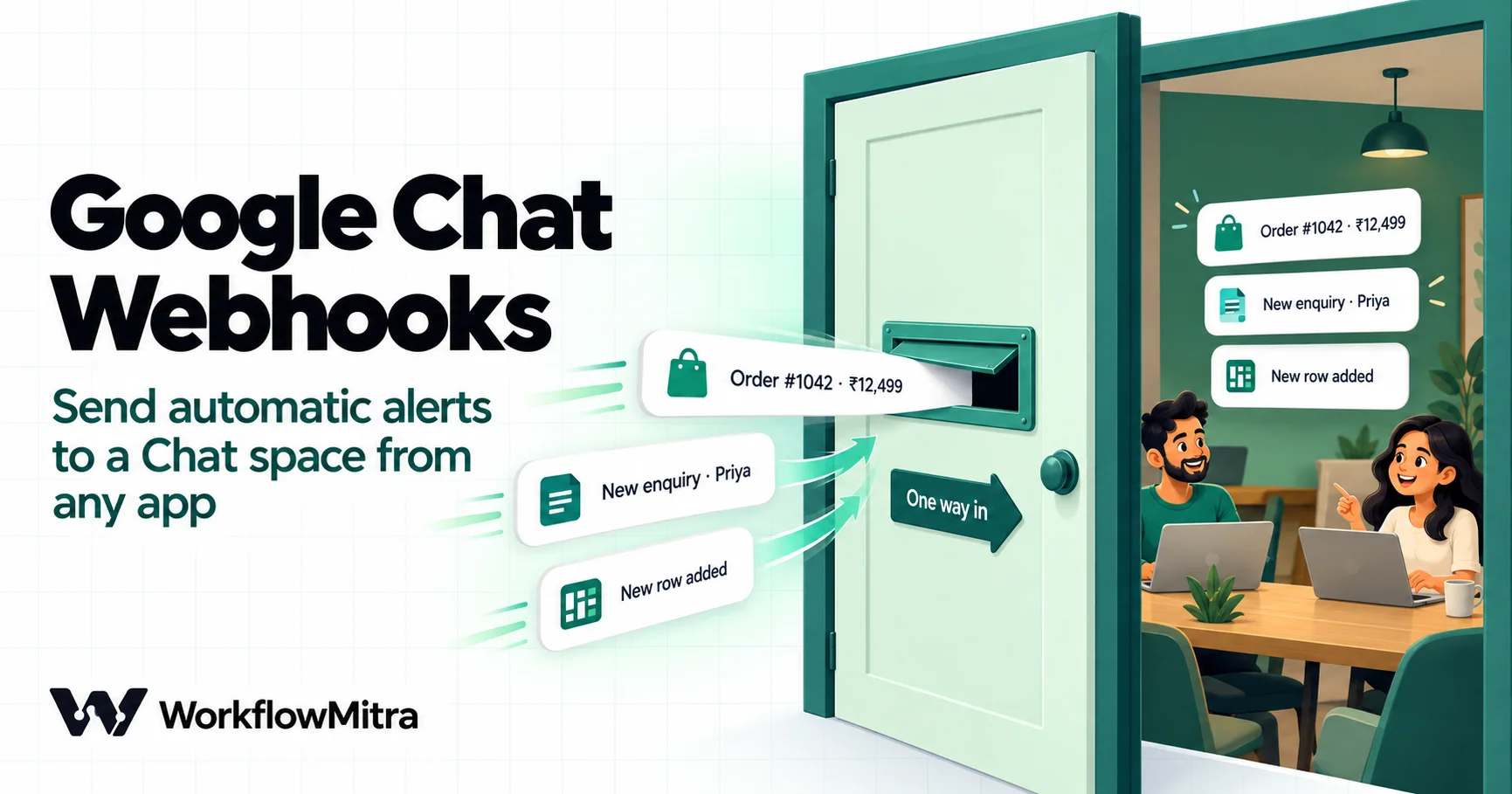
A Google Chat webhook is a URL registered in one Chat space that turns an HTTP POST into a message in that space. You add it from the space's Apps & integrations menu in a browser, copy the URL (it carries a key and a secret token), and send JSON such as {"text": "Hello"} to it. Webhooks need a Business or Enterprise Google Workspace account with webhooks allowed by the admin, they are one-way, and each space accepts about one webhook message per second. To post from apps that can't call Google Chat themselves, put a workflow in between: in WorkflowMitra, powered by ChatMitra, a trigger such as a webhook, a new sheet row or a schedule feeds an HTTP Request step that posts the message, for about two credits per alert.
Plenty of teams run on Google Workspace and never adopted Slack. Their mail is in Gmail, their files are in Drive, and their team conversation is in Google Chat. So when a big order lands, a payment fails or a lead fills in the website form, Chat is the natural place to hear about it. The question is how to get a message from some other system into the right space without building a Chat app.
Google Chat webhooks are the short answer. This guide explains what a webhook can and can’t do, walks through adding one and sending a first message, and then shows how to post alerts automatically from apps and spreadsheets that know nothing about Google Chat, using WorkflowMitra, powered by ChatMitra. It also covers the parts most tutorials skip: threads, cards, the one-message-per-second limit and what each error means.
What is a Google Chat webhook?
A Google Chat webhook is a URL registered in one Chat space that turns an HTTP POST into a message in that space. You add it from the space's Apps & integrations menu in a browser and copy its link, which contains a key and a secret token. Anything that sends a JSON body such as {"text": "Deploy finished"} to that URL makes a message appear in the space under the webhook's name. Webhooks are one-way: they can't read messages or respond to people. They need a Business or Enterprise Google Workspace account with webhooks allowed by an admin, and Google accepts about one webhook message per second per space.
Before you start: who can use webhooks
Three conditions decide whether you can follow this guide at all, so check them first.
- A Business or Enterprise Google Workspace account. Google’s webhook guide lists this as a prerequisite. A personal Gmail account can use Google Chat, but it can’t add incoming webhooks.
- Webhooks allowed by your admin. In the Google Admin console, an admin goes to Apps → Google Workspace → Google Chat → Chat apps and sets Allow users to add and use incoming webhooks to On. It can be switched on for the whole organisation or for one organisational unit, such as the operations team. Google notes that webhooks can’t read other Chat messages and that only users in your organisation can create them.
- A browser. Webhooks can’t be added from the Chat mobile app. Once they exist, the messages they post show up everywhere, including on phones.
If you’re the person asking the admin, the first point is the useful one to share: webhooks post into one space and read nothing.
What Google Chat webhooks can and can’t do
Most “why doesn’t this work?” questions come from expecting a webhook to behave like a full Chat app. The limits are clear in Google’s documentation.
| Webhooks can | Webhooks can't |
|---|---|
| Post text with Chat formatting: bold, italics, links, mentions | Post to a different space per message (each URL belongs to one space) |
| Post cards with headers, text sections and link buttons | Read messages, answer people or react to button clicks |
| Start a thread, or reply to one, using a thread key you choose | Use custom emoji in the message |
| Post into direct messages, if everyone in the chat has Chat apps enabled | Be published to the Google Workspace Marketplace |
| Return the new message's ID and thread ID | Return the full message back to you |
The name and avatar are set when the webhook is added, so every message from it carries the same identity. A name that says what it posts, such as “Store alerts” or “Server watch”, helps people decide at a glance whether a message needs them.
Step 1: Add a webhook to a space
- Open Google Chat in a browser and go to the space that should receive the messages. Create a dedicated space, such as “Orders” or “Ops alerts”, if you don’t have one yet.
- Next to the space name, click the small arrow and choose Apps & integrations.
- Click Add webhooks. If the button can’t be clicked, your organisation hasn’t allowed webhooks; see the admin setting above.
- Enter a Name people will recognise, such as “Website enquiries”. Optionally add an Avatar URL pointing at a square image.
- Click Save.
- Open the webhook’s More menu (three dots) and choose Copy link.
The link looks like this:
https://chat.googleapis.com/v1/spaces/AAAA1234567/messages?key=KEY&token=TOKENGoogle explains the two parameters: key is a common value shared between webhooks, and token is unique and must be kept secret. Anyone with the full link can post into your space under the webhook’s name, so treat it like a password from the moment you copy it.
Step 2: Send your first message
Before connecting any app, prove that the webhook works. From a terminal:
curl -X POST \
  -H 'Content-Type: application/json; charset=UTF-8' \
  --data '{"text": "Hello from our first webhook 👋"}' \
  'https://chat.googleapis.com/v1/spaces/AAAA1234567/messages?key=KEY&token=TOKEN'
Keep the URL in single quotes. It contains &, which a shell otherwise treats as “run in the background”, cutting the token off and producing a confusing error.
The message appears in the space, and Google answers with JSON describing it. For webhooks, the response fills in only two fields: the message’s name, such as spaces/AAAA1234567/messages/xyz123, and thread.name. That’s enough to log what was posted, but you won’t get the rest of the message back.
That one request is the whole mechanism. Everything else in this guide, whether a monitoring tool, a script or a workflow, is a different way of sending that POST with better content in it.
Step 3: Send alerts automatically from any app
Most business apps can’t post to your Chat webhook directly. Some can send webhooks but only in their own format. Many can’t send anything at all. A workflow fills that gap: it receives or fetches the data, decides whether it deserves a message, shapes the message and posts it.
Why not paste the Chat URL into the other app?
It’s tempting: the form builder sends webhooks, Google Chat accepts webhooks, so connect one to the other. It doesn’t work. Google Chat expects a body with text or cardsV2 in its own format, and the other app sends its own fields: an event name, IDs, nested objects. Google rejects that with a 400 error, no message appears, and the sending app sees a failure, so it may retry or eventually disable its webhook.
A workflow in the middle accepts the sender’s format, acknowledges it straight away, and posts a correctly shaped message to Chat. It’s also the place to decide which events are worth a message. Our guide to what webhooks are explains the receiving side in more detail.
The HTTP Request step that posts to Chat
WorkflowMitra has no dedicated Google Chat step. It doesn’t need one, because a Chat webhook is a single POST, and the HTTP Request step sends exactly that. Set it up like this:
- Method: POST
- URL: the full webhook link you copied, including
keyandtoken - Headers:
Content-Type=application/json; charset=UTF-8, matching Google’s own examples - Body content type: Raw (JSON string)
- Body: the message JSON, with values from earlier steps inserted by typing
{{
A plain alert body looks like this:
{
  "text": "*New enquiry* from {{ $trigger.name }} ({{ $trigger.phone }})\n{{ $trigger.message }}"
}
The Raw body is where WorkflowMitra does something helpful. Values inserted inside a JSON string are escaped for you, so a customer named Riya "R" D'Souza or a message with line breaks still produces valid JSON. We ran exactly those values through the step’s JSON templating: the body came out valid, with the quotes and line breaks escaped. That’s the most common reason hand-built webhook calls fail elsewhere.
One trap: inside {{ }}, write quotes plainly, as in {{ $trigger["Order ID"] }}. Backslash-escaped quotes inside the braces resolve to an empty value.
Check that Google accepted the message
The HTTP Request step treats a 4xx or 5xx response as a completed step, not a failure. Its output includes status, ok (true or false) and Google’s response body. So a message Google refused still shows a green step unless you check. Add an IF step after it with {{ ok }} set to Is yes, and send the “no” branch somewhere you’ll notice, such as an email to yourself or a row in an errors sheet. IF steps cost nothing to run.
Network failures and timeouts are different: they fail the step. If you’d rather keep the run going and handle them on the same “no” branch, open Advanced settings and set On failure to Continue. The step then returns ok: false with an error message instead of stopping the workflow.
Example 1: website enquiries to a sales space
A sales team wants every website enquiry in its Chat space within seconds, with the important ones easy to spot.
- Trigger: On webhook call. Give the workflow’s URL to your form tool (most form builders and website plugins can send a webhook on submission).
- Filter (optional): an IF step that continues only when the budget field isn’t “Under ₹25,000”, if you’d rather the space saw only serious enquiries.
- HTTP Request to the sales space’s webhook, with this body:
{
  "text": "*New enquiry* · {{ $trigger.name }} · {{ $trigger.phone }}\nBudget: {{ $trigger.budget }}\n> {{ $trigger.message }}\n<{{ $trigger.page_url }}|Page they came from>"
}- IF on
{{ ok }}, as above.
The <url|label> syntax shows a short clickable label instead of a long address, and the > line sets the customer’s message apart as a quote. This alert costs two credits: one for the trigger and one for the HTTP Request step.
Example 2: a new Google Sheets row, posted to Chat
Many teams already collect orders, leads or requests in a Google Sheet, often filled by a form or by hand. A sheet trigger turns each new row into a message.
- Trigger: Google Sheets, A row is added, on the right spreadsheet and tab. The trigger checks the sheet every five minutes by default, and checks that find nothing new cost no credits. The first check records the rows already there rather than posting them all.
- HTTP Request with a body that reads columns by their heading:
{
  "text": "*New request* from {{ $trigger["Customer name"] }}\nItem: {{ $trigger.Item }} · Qty: {{ $trigger.Qty }}\nAdded by: {{ $trigger["Entered by"] }}"
}
Headings with spaces need the bracket form, $trigger["Customer name"], typed with straight quotes. Our Google Sheets automation guide covers the other sheet triggers, and the WorkflowMitra Google Sheets integration page lists what the steps can do.
Because the trigger polls, a row appears in Chat within the polling interval rather than instantly. For a sales team that’s usually fine; for anything urgent, send the event straight from its source with a webhook, as in Example 1.
Example 3: keep every update for one order in one thread
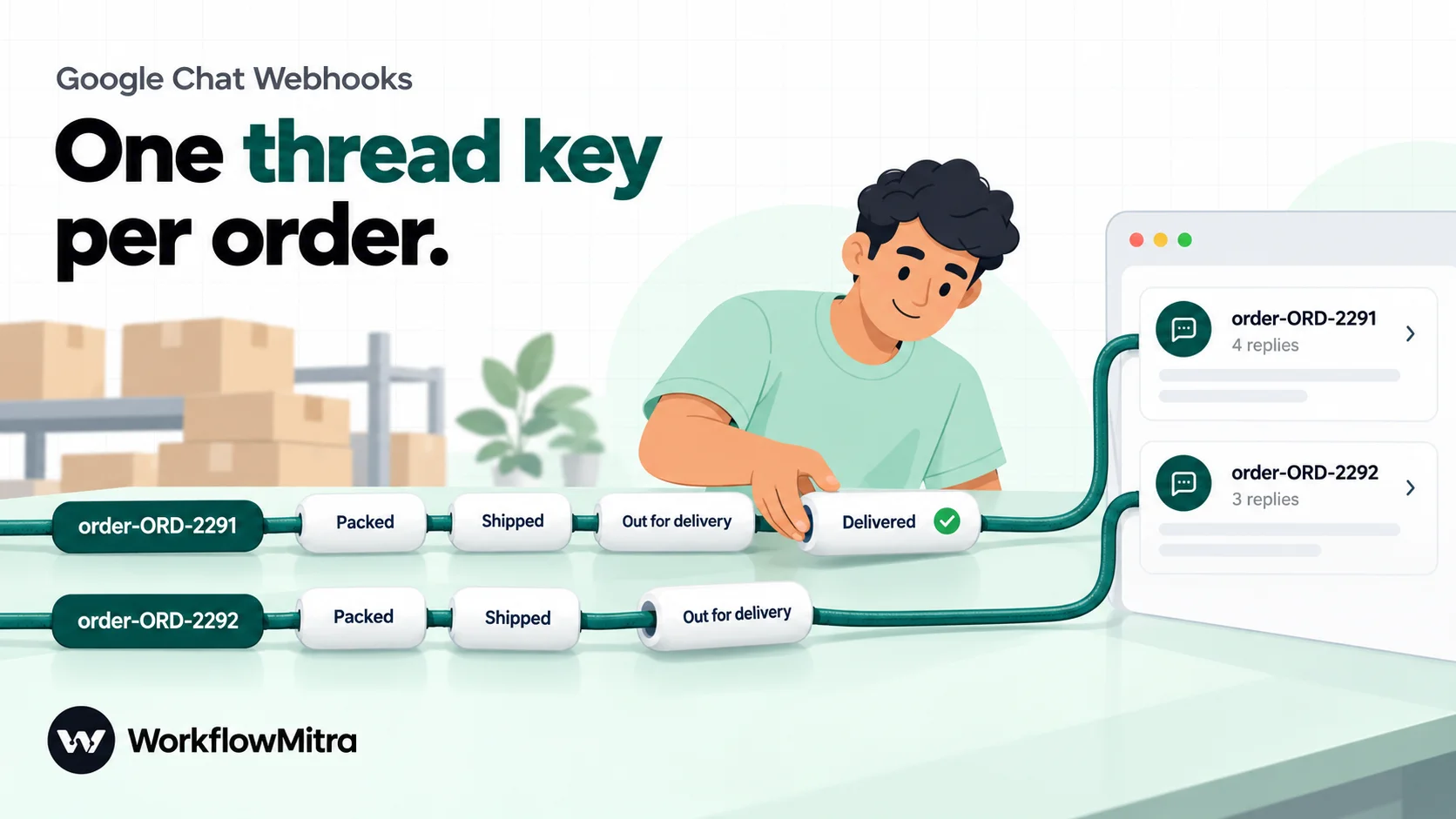
Status updates are where a space turns noisy. “Packed”, “Shipped”, “Out for delivery” and “Delivered” for 40 orders a day is 160 separate messages. Threads fix that: each order gets one thread, and its updates collect underneath.
Google Chat webhooks support this with a thread key you choose. Include it in the message, and tell Chat what to do if the thread doesn’t exist yet:
- In the HTTP Request step, open Query parameters and add
messageReplyOption=REPLY_MESSAGE_FALLBACK_TO_NEW_THREAD. The step appends it to the webhook URL, after the key and token that are already there. - Add a
threadobject to the body, using the order number in the key:
{
  "text": "*{{ $trigger["Order ID"] }}* is now _{{ $trigger.Status }}_ · {{ $trigger["Customer name"] }}",
  "thread": { "threadKey": "order-{{ $trigger["Order ID"] }}" }
}
The first message for order-ORD-2291 starts a thread; every later message with the same key replies in it. If you’d rather drop a message when its thread doesn’t exist, for example so a status update never posts without its order announcement, use REPLY_MESSAGE_OR_FAIL instead, and the message isn’t sent when no thread matches.
With an order-tracking sheet, the trigger for this is Google Sheets One column changes, watching the Status column. One detail to plan around: a new row doesn’t count as a column change, so the first message for each order should come from a second workflow on A row is added, using the same thread key. With the fallback option set, it doesn’t matter which one arrives first.
Example 4: one morning summary instead of a stream
Some information is better as one message a day. If your team logs enquiries in a sheet with Owner and Status columns, a scheduled summary tells everyone where things stand.
- Trigger: On a schedule, Every day at a set time, 9:30 in your time zone.
- Google Sheets step, Read rows, on the enquiries tab.
- Code step that counts open enquiries per owner:
const rows = Array.isArray(input.rows) ? input.rows : [];
const open = rows.filter(function (r) {
  return String(r.Status || "").trim().toLowerCase() === "open";
});

const byOwner = {};
open.forEach(function (r) {
  const owner = String(r.Owner || "").trim() || "Unassigned";
  byOwner[owner] = (byOwner[owner] || 0) + 1;
});

const lines = Object.keys(byOwner).sort().map(function (o) {
  return "• " + o + ": " + byOwner[o];
});

return {
  text: "*Open enquiries this morning: " + open.length + "*\n" +
    (lines.join("\n") || "Nothing open today.")
};- HTTP Request with the body
{"text": "{{ text }}"}.
We ran this code in WorkflowMitra’s Code step sandbox against a sample sheet. A status of “open ” with a trailing space still counted, a blank owner became “Unassigned”, an owner named Arjun & Co "West" came through intact, and an empty sheet produced “Nothing open today.” rather than an empty list. The quotes and line breaks in the result were escaped correctly when inserted into the Raw body. The script took about 30 milliseconds, a small fraction of a credit, so the whole summary costs about three credits a day. Our guide to notification digests goes further with batching alerts into summaries.
Format messages people will actually read
Incoming webhooks use Google Chat’s own markup by default, the same syntax people type in Chat, not standard Markdown:
*bold*,_italic_,~strikethrough~and`monospace`- Three backquotes on their own lines for a monospace block
- Bulleted lists with
*or-at the start of a line. Numbered lists aren’t supported in this syntax, so write “1)” as plain text if you need numbers. >at the start of a line for a quote- Links with your own label:
<https://example.com/orders/1042|Open the order> - A line break:
\ninside the JSON string - Mentions:
<users/all>notifies everyone in the space, and<users/123456789012345678901>mentions one person by their numeric user ID
Note that bold is a single asterisk here. Standard Markdown’s **double asterisks** belong to the other syntax, so text copied from a Markdown document may not look the way it did there. Send a test message before relying on a format.
Use <users/all> sparingly. An alert that notifies everyone several times a day teaches the whole space to mute it. Save it for things that need someone now, and send everything else quietly.
Cards with real data
A card gives an alert a header, labelled sections and a button, which makes it scannable in a busy space. Webhook messages can carry cards in Google’s cardsV2 format. In the HTTP Request step it’s still a Raw JSON body:
{
"text": "New order {{ $trigger.order_number }} · ₹{{ $trigger.total }}",
"cardsV2": [
{
"cardId": "new-order",
"card": {
"header": {
"title": "New order {{ $trigger.order_number }}",
"subtitle": "₹{{ $trigger.total }} · {{ $trigger.payment_method }}"
},
"sections": [
{
"widgets": [
{ "textParagraph": { "text": "<b>Customer</b><br>{{ replace(replace(replace($trigger.customer_name, "&", "&"), "<", "<"), ">", ">") }}" } },
{ "buttonList": { "buttons": [
{ "text": "Open the order", "onClick": { "openLink": { "url": "{{ $trigger.admin_url }}" } } }
] } }
]
}
]
}
}
]
}Three things make cards work reliably:
- Escape
&,<and>in card text you didn’t write. Card text uses a small set of HTML tags, such as<b>,<i>,<font color>,<a>and<br>, so a company called “Shah & Sons” can lose characters. The replacechain above changes every occurrence. We ran it inside a Raw body: “Shah & Sons” became Shah & Sons <Pune>and the JSON stayed valid. - Keep the
textline. It’s the short summary people see in notifications and alongside the card. - Buttons can only open links. A button that should do something when clicked, such as “Approve”, needs a full Chat app, because a webhook can’t receive the click. A link to the order, ticket or dashboard is the useful pattern.
Google caps a message, text and cards together, at 32,000 bytes. A card listing every item in a large order can pass that. Show the first ten items and a link to the rest.
Stay under one message per second
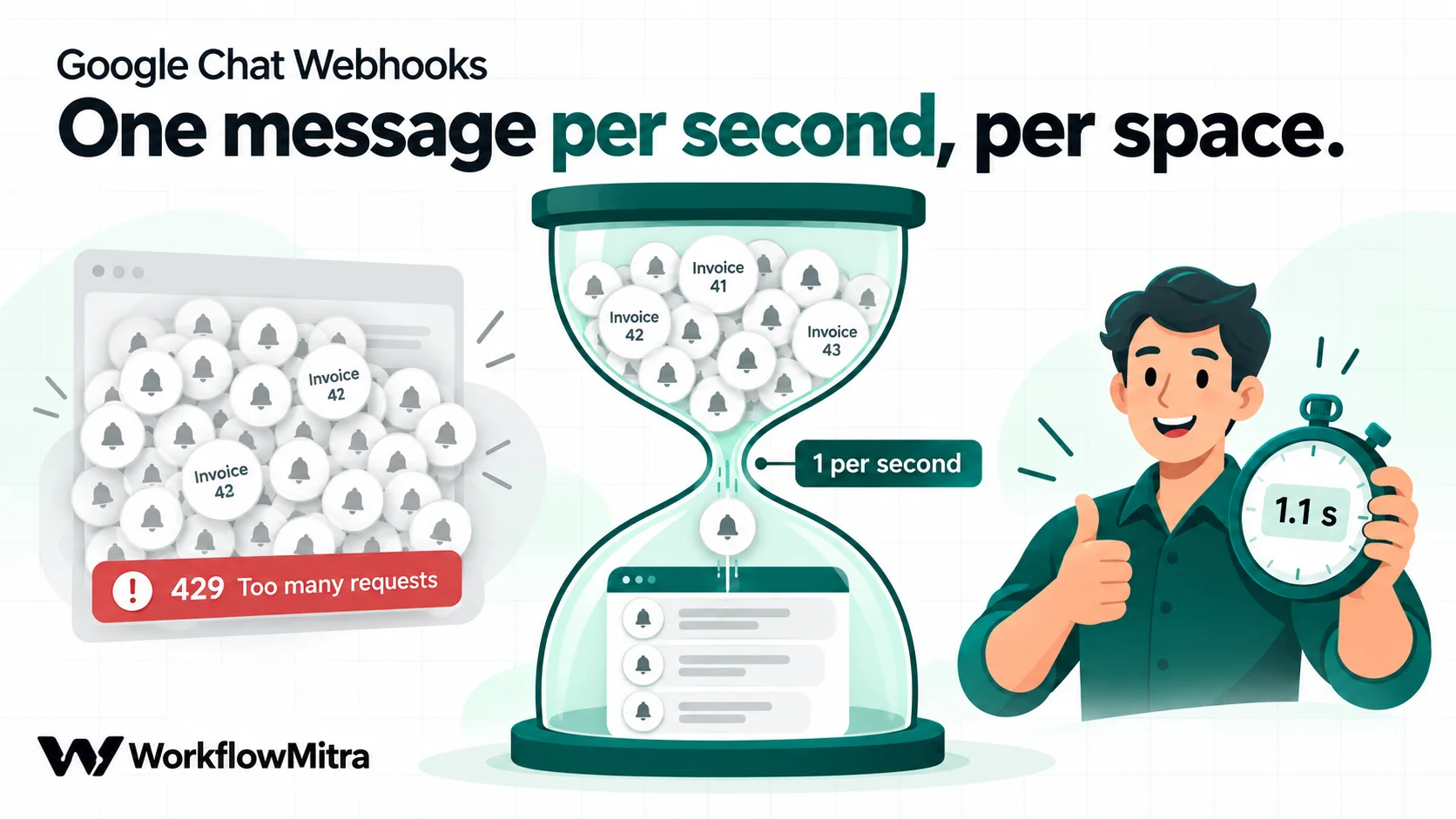
This is the limit that catches people. Google applies the per-space quota for creating messages to webhooks: one request per second, shared among all webhooks in the space. Google also says Chat might reject webhook requests above that rate. Over the limit, the answer is an HTTP 429.
A single alert never comes near that. Trouble starts when something sends a burst: a bulk import of 200 rows, a morning report that posts one message per salesperson, or two workflows posting into the same space at the same moment.
Three ways to stay inside it:
- Pace a loop. When one run posts many messages, put the HTTP Request step inside a Loop set to Sequential, with Batch size 1 and Delay between batches of 1,100 milliseconds. The extra 100 milliseconds leaves room for timing jitter. A Loop costs one credit per item on top of the steps inside it.
- Summarise instead. If a burst is normal, such as month-end invoices, post one summary message with the count and a link, as in Example 4. People read one summary; they skim past 200 alerts.
- Give busy sources their own space. The limit is per space, so a noisy integration in its own space doesn’t slow down the alerts in another.
If a 429 still happens, the IF on {{ ok }} catches it. Google’s guidance for quota and network errors is to retry with exponential backoff, and for alerts that aren’t critical, doing nothing is an acceptable choice. For a critical alert, send the “no” branch to email so the information isn’t lost. Our guide to API rate limits in automation covers pacing in more depth.
Errors and how to fix them
Google returns errors as a status object with an HTTP code. Google warns that the error text can change without notice, so build any checks on the code, which arrives in the HTTP Request step’s status output. The common ones:
| Code | What it usually means | Fix |
|---|---|---|
| 400 INVALID_ARGUMENT | Google couldn't use the body: invalid JSON, an unknown field, or a message that's too big | Use the Raw body so values are escaped; check field names such as cardsV2; keep messages under 32,000 bytes |
| 403 PERMISSION_DENIED | The request isn't allowed for this webhook | Copy the link again in full, including token; ask your admin whether webhooks are still allowed |
| 404 NOT_FOUND | The webhook or its space was deleted | Add a new webhook and update the URL in the step |
| 429 RESOURCE_EXHAUSTED | More than about one message per second in the space | Pace loops, summarise bursts, or split busy sources into their own space |
| 500 / 503 | A temporary problem on Google's side | Retry later; for important alerts, fall back to email |
The status code is also how to route errors in a workflow: a Switch on {{ status }} can treat 429 and 503 as “try again later” and 404 as “this webhook is gone, tell the admin”. Our guide to HTTP status codes in automation explains each family of codes.
If an alert didn’t arrive
Work from the source towards Chat, because each hop leaves a record:
- Did the event reach the workflow? For a webhook trigger, open Recent deliveries. Nothing there means the sending app never called, or called a different URL.
- Did the workflow run, and where did it stop? Run history shows each step’s input and output. A run that ended at an IF step was filtered out on purpose; compare the values it checked.
- What did Google say? Open the HTTP Request step’s output and read
statusandbody. - Is the message in a thread? With a thread key, an update lands under the thread, not at the bottom of the space. Search for the order number before assuming it’s lost.
Keep the webhook URL secret
Anyone who has the full URL can post into the space under your webhook’s name. A few habits keep that from happening:
- Know where the URL lives. In WorkflowMitra, the webhook URL sits in the HTTP Request step’s settings, so anyone who can open the workflow can read it, and Export as cURL includes it. Keep workflows that post to sensitive spaces in a workspace only the right people can open.
- Don’t paste it into shared documents or code repositories. Google warns specifically against sharing the URL online.
- Replace it if it leaks. Remove the webhook from the space’s Apps & integrations list, add a new one, and paste the new link into each workflow that used the old one.
- Keep sensitive data out of the message. Everyone in the space can read and search it. Post the order number and a link, not the customer’s address or phone number, unless the space genuinely needs them.
Test without spamming the team
Create a private test space that only you are in, add a webhook there, and point the HTTP Request step at it while you build. WorkflowMitra’s Safe Test Mode records messaging steps such as Slack and WhatsApp without sending, but an HTTP Request step runs for real even in test mode, so a test space is the reliable way to try formats and threads without notifying anyone. Our guide to testing an automated workflow explains what each test mode does. When the messages look right, swap in the real space’s URL.
What it costs
Google Chat webhooks have no separate charge from Google; they come with Business and Enterprise Workspace plans. In WorkflowMitra, each executed step uses credits: the trigger and the HTTP Request step use one each, and IF and Switch steps are free. A typical alert therefore costs about two credits, a paced loop adds one credit per item, and a Code step costs a fraction of a credit because it’s billed by run time.
A business posting 50 alerts a day uses about 3,000 credits a month, and a daily summary adds about 90. On 21 October 2026, WorkflowMitra’s plans started at ₹999 a month for 10,000 credits (₹849 a month billed yearly), with a 14-day trial that needs no card. See the WorkflowMitra pricing page for current plans.
Why use WorkflowMitra for Google Chat alerts?
If the app you care about already posts to Google Chat in a useful way, use that. Google’s Apps Script is also a sound free option when the only source is a spreadsheet and someone on the team is comfortable maintaining a script. A workflow earns its place when:
- The app can’t post to Google Chat usefully. It sends a webhook in its own format, or nothing at all. A workflow receives, fetches or watches the data and turns it into a proper message.
- You want filtering, routing and threads. Only big orders, only failures, one thread per order, urgent events to one space and routine ones to another, all without code.
- The same event should do more than notify. The enquiry that reaches the sales space can also add a row to a sheet or update a CRM. For messages to customers rather than colleagues, the same workflow can send a WhatsApp update through ChatMitra, which suits order and delivery updates like those in our guide to WhatsApp utility templates.
- You’d rather not maintain a script. The formatting, escaping, threading and pacing patterns above live in steps you can read and change.
Be clear about the limits. WorkflowMitra posts to Google Chat through the HTTP Request step, not a dedicated Chat integration, so it shares the webhook’s boundaries: one space per URL, no reading messages and no clickable actions beyond links. If you need a bot that answers questions inside Chat, that’s a job for a Google Chat app. If you also use Slack, our guide to Slack incoming webhooks covers the same patterns there, and Discord webhook notifications does the same for Discord.
Start with one alert that matters
Pick the single event your team most wants to hear about. Add a webhook to a private test space, send a first message with curl, then build the workflow: trigger, HTTP Request, IF on ok. Try a thread key if the event has updates, swap in the real space, and watch it for a week before adding the next alert. You can build and test it on a 14-day WorkflowMitra trial with no card needed.
WorkflowMitra details in this guide come from its source code and editor as of 21 October 2026. The JSON bodies, the bracket column paths and the card escaping were run through WorkflowMitra's JSON body templating, and the summary script through its Code step sandbox. Google Chat details were checked on 21 October 2026 in Google's documentation on sending messages with incoming webhooks, formatting messages, creating messages and cards and usage limits, and in the Google Workspace Admin Help article on allowing users to install Chat apps and webhooks.
Frequently Asked Questions
Questions people ask when they start sending messages to Google Chat with webhooks.
It's a URL that belongs to one Google Chat space. When any system sends an HTTP POST with a JSON body such as {"text": "Server is down"} to that URL, the message appears in the space under the webhook's name and avatar. Webhooks only send. They can't read messages, answer people or react to button clicks, and each URL works only in the space where it was added.
Automate the work between your apps
Build workflows with triggers, conditions and actions, then test them before they go live. Try WorkflowMitra free for 14 days, no card required.
