Google Forms Automation: What to Do Automatically When Someone Submits Your Form

Quick Summary
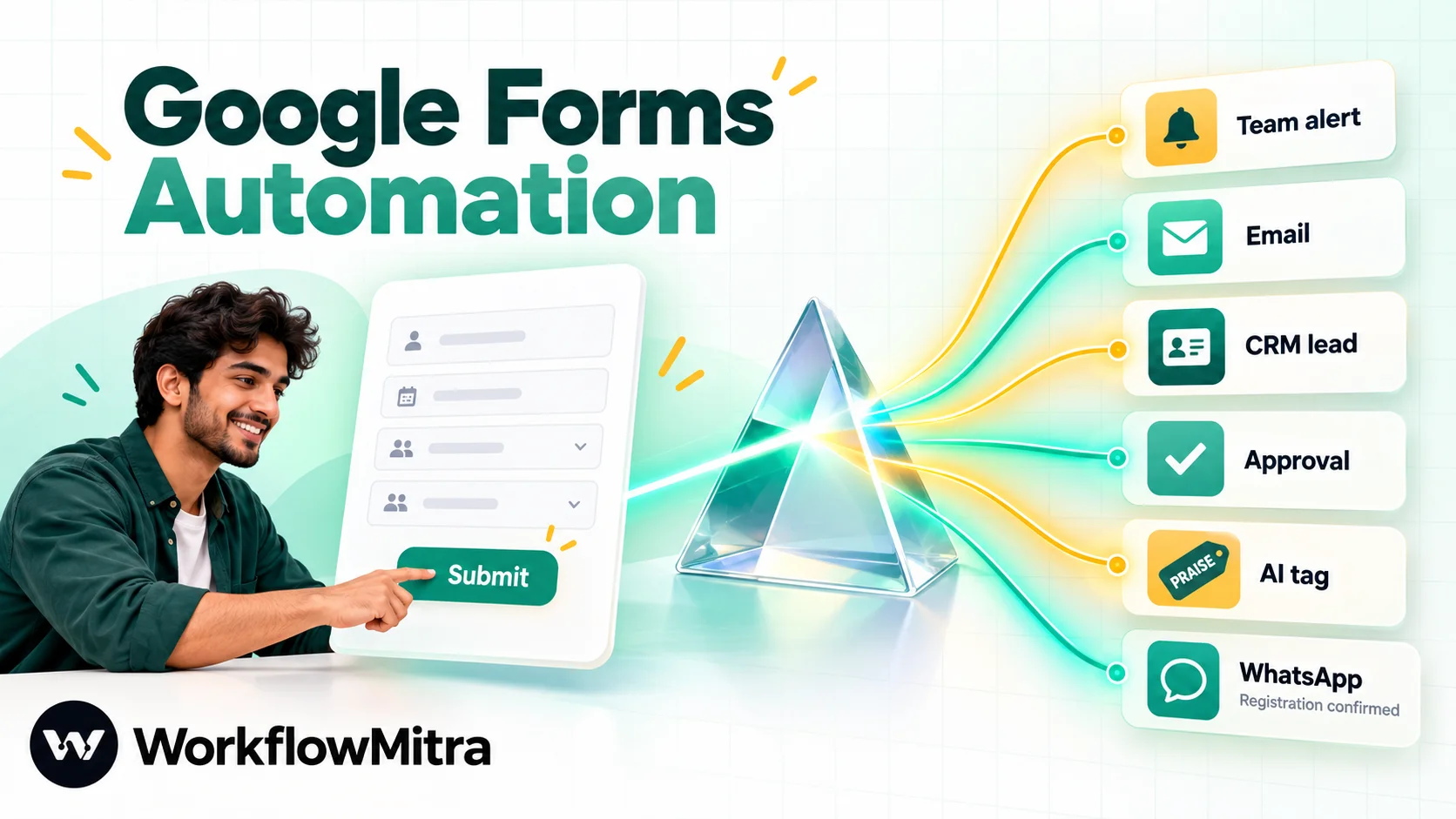
Google Forms automation means letting each new response start the work that follows it, such as alerting the right person, emailing the respondent, creating a CRM lead, asking a manager to approve, or sorting free-text answers. Google Forms itself only emails the owner and can send respondents a copy of their answers. For anything more, link the form to a Google Sheet and let a workflow watch the response tab. WorkflowMitra, powered by ChatMitra, starts one run per new response from its When a sheet row changes trigger, and the steps after it route, look up, wait for approval or call an AI model before acting.
A Google Form is usually the start of something. A course enquiry should reach a counsellor. A leave request needs a manager’s yes. A complaint in a feedback survey deserves a reply before the customer posts a review. Yet the form itself stops at “Your response has been recorded”, and the work after that depends on someone opening a spreadsheet.
Google Forms automation fills that gap. This guide explains what Google Forms can already do on its own, how a response can start a workflow, and six workflows worth building, from a routed team alert to AI triage of free-text answers. It also covers the parts most tutorials skip: how the response sheet behaves, what happens when someone edits an answer, and how to stop a busy form from creating duplicate CRM leads.
What is Google Forms automation?
Google Forms automation is letting each new form response start the work that follows it: alerting the right person, emailing the respondent, creating a CRM lead, asking for approval or sorting the answer, without anyone copying data out of the response sheet. Because Google Forms has no outgoing webhook, most setups watch the form's linked Google Sheet for new rows and act on each one.
Every automation built on a form has the same three parts:
- A readable record of the response. For Google Forms, that means the spreadsheet the form is linked to.
- A listener. Either a tool that checks that sheet on a schedule, or a script that fires on the submit event itself.
- One or more actions. A message, an email, a record in another app, a decision.
If you’re new to the trigger-and-action vocabulary, what is workflow automation covers it in more depth.
What Google Forms already does on its own
Before building anything, check whether a built-in setting covers the job. It costs nothing and there is nothing to maintain.
| Built-in feature | What it does | Where it stops |
|---|---|---|
| Get email notifications for new responses (Responses › More) | Emails the form owner when someone submits | Owner only; the same alert for every response; no answers routed to different people |
| Send responders a copy of their response (When requested / Always) | Emails respondents their own answers | Needs Collect email addresses; it's a copy of the answers, not a written reply with next steps |
| Limit to 1 response | Stops repeat submissions | Respondents must sign in to a Google account, which many customers won't do |
| Allow response editing | Lets respondents change answers via an edit link | The change overwrites the original row; nothing tells you it happened |
| Sections with "go to section based on answer" | Shows different questions per answer | Changes what people see, not what happens after they submit |
| Response validation | Enforces formats such as an email address or a number range | Prevents bad input; doesn't act on good input |
Google’s own help points people who need more notification options to add-ons. That is a reasonable stop for one extra email. Once a response should trigger several things, or different things depending on the answers, you need a workflow.
How a form response reaches a workflow
There are three practical ways to get a response out of Google Forms and into an automation.
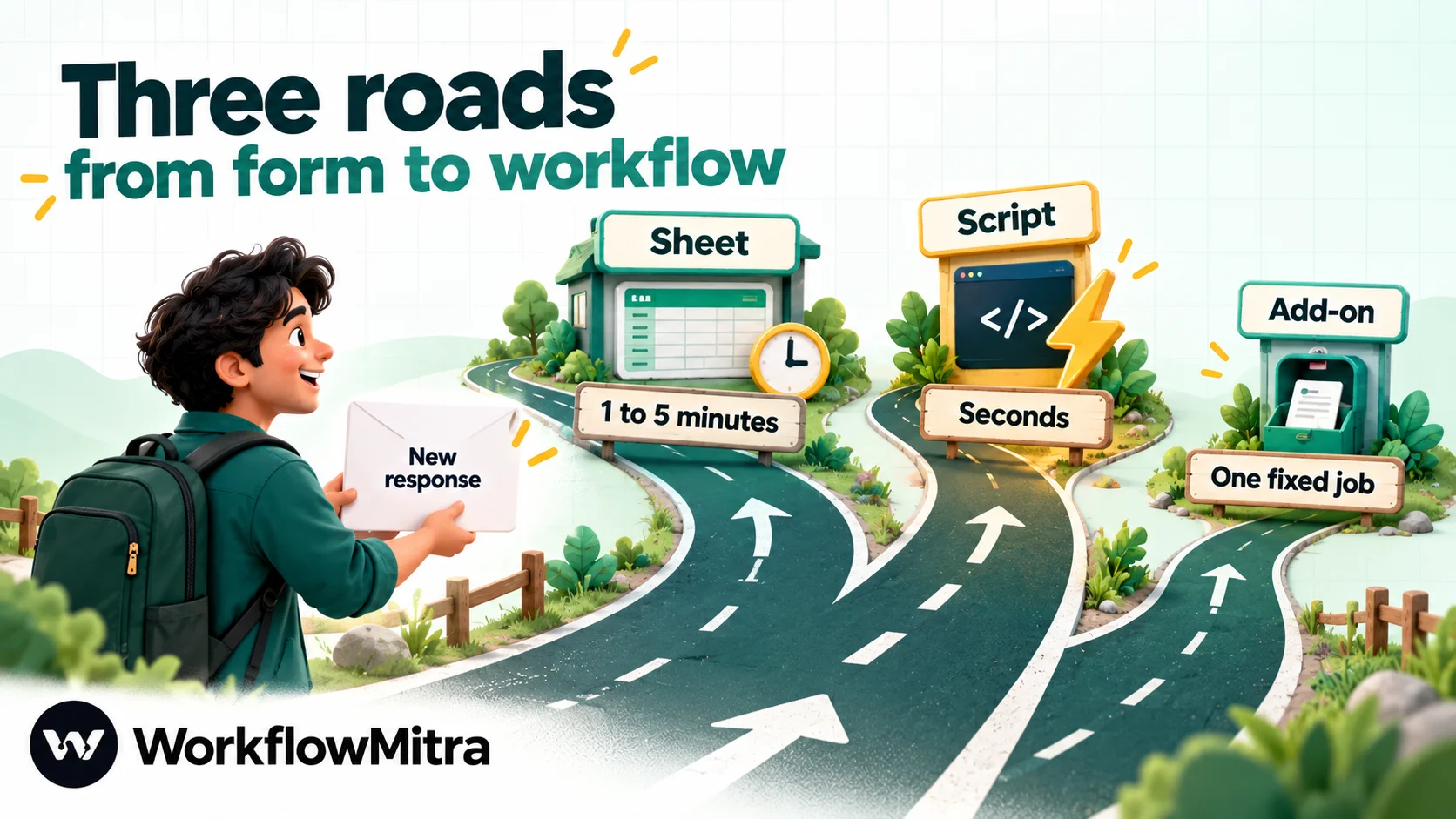
| Route | Speed | Who maintains it | Best for |
|---|---|---|---|
| Linked response sheet + sheet trigger | Next check: 1 to 5 minutes is typical | Nobody, beyond leaving the response tab alone | Most forms, and anything with several steps |
| Apps Script "On form submit" trigger posting to a webhook | Seconds | Whoever owns the script; it breaks when question titles change | Walk-in registrations or anything that must react immediately |
| Workspace Marketplace add-on | Usually immediate | The add-on vendor | One fixed job, such as a single notification email |
The rest of this guide uses the first route, because it needs no code and suits forms whose answers drive more than one action. The script route is explained step by step, with sample code, in our guide to sending Google Forms responses to WhatsApp. Everything after the trigger works the same either way.
Set up the foundation once
All six workflows below start the same way. Get this part right and the builds themselves are short.
Link the form and send yourself a test response
In the form, open Responses and choose Link to Sheets (a new or existing spreadsheet). Submit one test response yourself so the tab has a header row and an example row. Each question title becomes a column header, and Google adds a Timestamp column first, plus an Email address column if you collect emails.
Connect the sheet to a workflow
In WorkflowMitra, powered by ChatMitra, add a Google credential under Credentials. A service account is the simplest; share the response spreadsheet with the service account’s email as Editor. A Google OAuth credential works too.
Then create a workflow with the When a sheet row changes trigger and set it up:
- Run when…: tick A row is added.
- Sheet link or ID and Worksheet (tab): the response tab, usually “Form responses 1”.
- Use column headers as IDs of the columns: choose No for a response tab. A form sheet has no response ID column, and the Timestamp is recorded to the second, so two people submitting together can share a value. No tracks rows by position, and new responses always arrive at the bottom.
- How often to check: every 5 minutes by default, every minute at the fastest. Checks that find nothing new start no run and use no credits.
Design questions a workflow can read
Automation is only as good as the answers it receives, and a few choices in the form editor save hours of clean-up later:
- Use choices for anything you route on. If the course, branch or department decides where a response goes, make it a multiple-choice or dropdown question. A short-answer box invites “Data analytics”, “data analysis” and “DA”, and no routing rule can keep up with that.
- Let Google collect the email address. Turning on Collect email addresses adds a dedicated Email address column that is always filled, rather than an optional question people skip or mistype. If your audience won’t sign in, keep it as a required short-answer question with response validation set to email.
- Validate formats at the door. Response validation can require a number in a range, a minimum length or a pattern. A phone number or order ID checked by the form never needs fixing in the workflow.
- Make the fields the workflow needs required. A workflow can route around an empty answer, but every Else branch is one more thing to build and test.
- Keep titles short and unique. Two questions both titled “Comments” produce two columns with the same header, which makes mapping ambiguous. “Comments about the venue” and “Comments about the trainer” don’t collide.
None of this changes what respondents see in any noticeable way, and it makes every build below shorter.
Know the four habits of a response tab
The response tab behaves differently from a sheet people type into, and four habits trip up most first builds:
- Question titles are column names. Rename a question after the workflow is built and the column it maps to changes name with it. Steps that referenced the old title then read an empty value. Settle the wording first.
- Dates arrive as numbers. WorkflowMitra reads cell values unformatted, so a Timestamp or a date question reaches the workflow as a spreadsheet serial number such as 46325. To show it as a date, use
{{ formatDate(multiply(subtract($trigger["From date"], 25569), 86400000), "DD MMM YYYY") }}, which turns 46325 into “30 Oct 2026”. - Checkbox answers share one cell. A checkbox question with three ticks lands as one comma-separated text value. Route on it with Contains, not Equal to.
- The tab is not a workspace. Sorting it, inserting rows or deleting rows shifts positions, and a positional trigger reads that as changes. Keep people out of the response tab and write your own notes and statuses somewhere else (more on that below).
When you switch the workflow Active, the first check records every existing row as already seen and starts nothing. Past respondents won’t be messaged. Submit a fresh response to test, then open the run in Executions to see each step’s input and output.
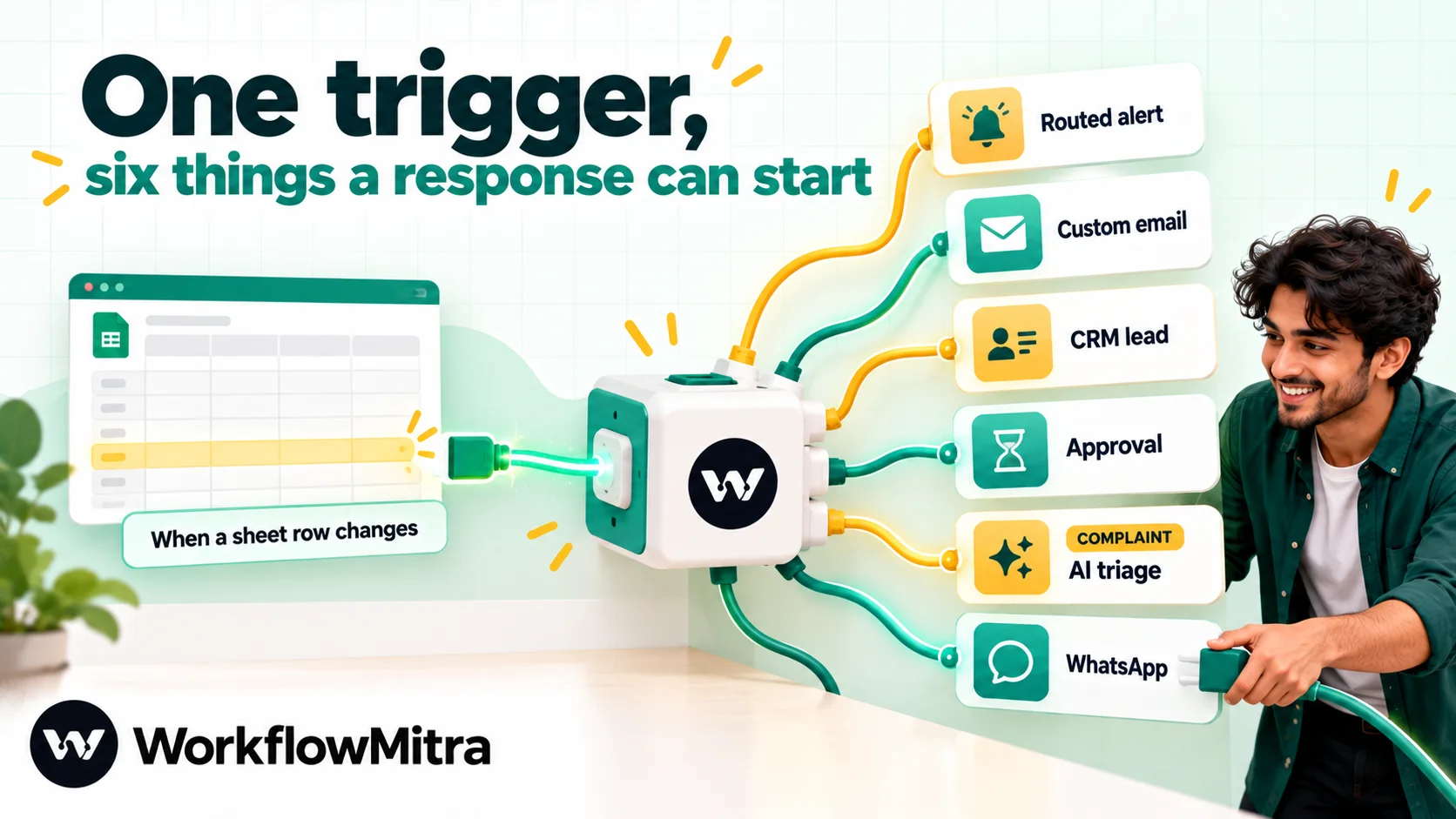
Six Google Forms workflows worth building
Each build below starts from the trigger above. The column names in the examples are illustrative; use your own question titles.
One rule applies to all of them. A plain {{ field }} reference reads the previous step’s output, which changes as the run moves along. When you need an answer from the form further down a workflow, refer to the trigger directly: {{ $trigger["Email address"] }}. The square-bracket form handles question titles with spaces and question marks.
1. Route alerts to the right person by answer
The situation. A training institute’s enquiry form asks “Which course are you interested in?” with three options. The owner gets every notification email; the counsellors get nothing until it is forwarded.
The build.
- Switch with one route per course. Each route’s rule: the course column Equal to the option text, for example “Data Analytics”. Add an Else route for anything unexpected.
- On each route, a Slack step posting to that team’s channel through its incoming webhook. Message:
New enquiry: {{ $trigger["Full name"] }}, {{ $trigger["Email address"] }}, wants {{ $trigger["Which course are you interested in?"] }}. - On Else, an alert to the owner so new options never vanish silently.
Teams that don’t use Slack can swap in an email, Telegram or Discord step on the same route. Switch costs no credits, so routing is free; only the alert uses one.
Watch out for: option text copied with a stray space or different capitalisation. Equal to, ignore case is safer than Equal to, and the Else route catches what slips through.
2. Send a personalised confirmation email
The situation. A workshop organiser wants each registrant to get the venue, what to bring, and a different joining note for the morning and evening batches. Google’s “Send responders a copy” only repeats their answers.
The build.
- IF with one route that continues when the email column Is not empty.
- Switch on the batch question, or skip it if every registrant gets the same email.
- Mail step, operation Send an email, from a mailbox you have connected: To
{{ $trigger["Email address"] }}, a Subject with the person’s name, and a Message written for that batch.
The Mail step signs in with the mailbox address and an app password. For Gmail and Google Workspace that means turning on 2-Step Verification and creating an app password; some Workspace administrators disable app passwords, so check before you build. Outlook.com and Microsoft 365 mailboxes can’t connect this way, because Microsoft has switched off app-password sign-in for them.
Watch out for: sending this alongside Google’s own “Send responders a copy”. People will get two emails within minutes of each other. Pick one, or turn Google’s off. If you’d rather send emails from rows a person adds by hand, our guide to sending emails from Google Sheets covers that version.
3. Turn enquiries into CRM leads without duplicates
The situation. A digital agency’s “Request a proposal” form feeds Zoho CRM. People submit twice, once on mobile and again from a laptop, and a create-only automation makes two leads, which two salespeople then chase.
The build.
- Zoho CRM, operation Search Records, module Leads, where Email equals
{{ lower($trigger["Email address"]) }}. Name the step “Search lead”. A search with no match returns an empty list and a count of 0, not an error. - IF with a route “New lead” when
{{ count }}is Equal to 0. Everything else goes to the Else route. - On “New lead”: Assign to the next person, listing your salespeople under Who should this go to?. It adds
{{ assignedName }}and{{ assignedTo }}to the data and rotates through the list. - Then Zoho CRM, Create Record in Leads, mapping the form answers from
$trigger. Zoho requires a Last Name on leads, so if the form asks for one name field, map it there. - Then a Slack or email alert to the assigned person.
- On Else: Zoho CRM, Update Record, Record ID
{{ $node["Search lead"].records[0].id }}, adding the new message to a notes or description field so the existing owner sees it.
This is the same search-then-decide pattern used to prevent duplicate rows in Google Sheets, applied to a CRM. The rotation logic is explained in round-robin lead assignment, and broader patterns are in our CRM automation guide.
Not on Zoho? Pipedrive has native steps to create and update people, deals and notes. HubSpot is reachable through WorkflowMitra’s App Request step, where you write the HubSpot API call yourself.
Watch out for: email addresses typed in mixed case. Lowercasing the search value is cheap insurance.
4. Requests that need someone’s yes
The situation. A 40-person company runs leave, equipment and expense requests through Google Forms. Managers approve in WhatsApp chats, and nobody can later say who approved what.
The build.
- Wait for approval. In What are they approving? write something specific:
Leave for {{ $trigger["Full name"] }} from {{ formatDate(multiply(subtract($trigger["From date"], 25569), 86400000), "DD MMM YYYY") }}. Under Show them, put the reason and any other answers the approver needs. - Set If nobody answers within (1 hour to 7 days in the picker; 24 hours is the default) and …then Treat it as “no” (recommended).
- IF on
{{ approved }}Is yes, with an Else route for rejections and timeouts. - On each route, a Mail step to
{{ $trigger["Email address"] }}with the outcome. The approval step adds{{ comment }}and{{ decidedBy }}, so the email can include the approver’s note.
The run pauses while it waits. The workspace is alerted by email and/or Slack (whichever is set up in workspace alerts), and the approver decides on the Approvals page in the app. The request text is read-only there; approving acts on it as written.
For multi-level sign-off, amount thresholds and audit trails, see the full guide to approval workflow automation.
Watch out for: edits. If a requester changes their dates through the edit link after approval, this workflow won’t know. Either turn off Allow response editing for request forms or add the edit workflow described later in this guide.
5. Sort free-text feedback with AI
The situation. A restaurant group’s feedback form ends with “Anything else you’d like to tell us?” Most answers are praise. A few are complaints about a specific branch, and those get read days later.
The build.
- IF: continue only when the comment column Is not empty. Empty comments shouldn’t cost an AI call.
- AI step, using your own API key for Claude, OpenAI, Gemini, Groq or Ollama. Prompt: “Classify this restaurant feedback as exactly one word: COMPLAINT, PRAISE, SUGGESTION or OTHER. Reply with the word only. Feedback: {{ $trigger[“Anything else you’d like to tell us?”] }}”. Name the model rather than leaving it blank.
- Switch on
{{ text }}with Equal to, ignore case for each label, plus Else. - On COMPLAINT: a Slack or email alert to the branch manager with the name, branch and comment, all from
$trigger. The AI step’s output contains only its reply and model details, so every form answer after it must come from$trigger. - On every route: Google Sheets, Add row(s), to a separate “Triage” tab: the timestamp, branch, label and comment.
A one-word answer is easier to route than JSON. If you do ask for JSON, the step fills {{ json }} only when the whole reply parses, so a reply wrapped in a code fence leaves it empty. Our guide to AI routing goes deeper on prompts and fallbacks.
Watch out for: the AI bill. WorkflowMitra charges one credit for the AI step; the model provider bills your API key separately for the tokens used.
6. Confirm on WhatsApp
Email is easy to miss. For registrations, appointments and admissions, many organisations confirm on WhatsApp instead. WorkflowMitra’s WhatsApp step sends through ChatMitra or Meta’s Cloud API, and because a form respondent hasn’t messaged you first, the confirmation must be an approved template.
Phone formats, consent wording, template rules and costs need a guide of their own: Google Forms to WhatsApp has the full build.
Catching edited responses
When Allow response editing is on, a respondent can reopen the form and change their answers. The new answers overwrite the original row; no new row is added. A workflow that listens only for A row is added never sees the change.
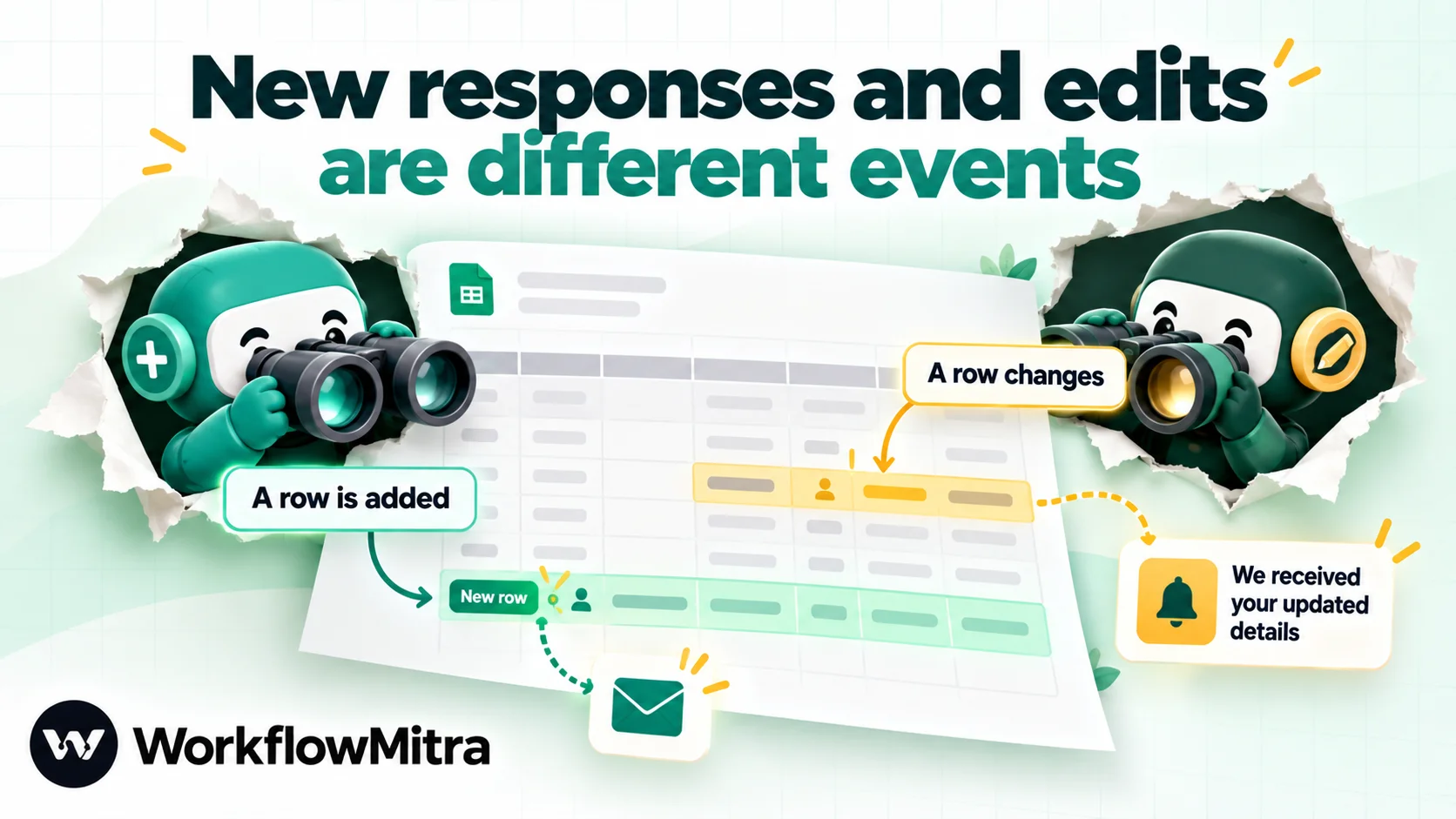
Handle edits with a second workflow on the same tab:
- When a sheet row changes, ticking only A row changes, with the same No (by position) setting.
- An alert to the owner or a Mail step to the respondent: “We received your updated details.”
- If the edit matters to a record elsewhere (a CRM lead, a booking), repeat the search-and-update steps from build 3.
Keep the two workflows separate. The trigger passes on the row’s values without saying which kind of change started the run, so one workflow handling both can’t tell a new response from an edit.
Two cautions. First, “A row changes” with position tracking reacts to any change in a row, including someone sorting the tab, which is another reason to keep people out of it. Second, if your process can’t handle edits at all (an approved leave request, a submitted exam), turn response editing off rather than automating around it.
Record outcomes without touching the response tab
People want a “Status” or “Handled by” column next to each response. Adding columns to the response tab and writing into them is a common source of trouble. Writes inside the tab can look like row changes to a trigger that watches it, and anyone sorting the tab to read it shifts every position.
A cleaner pattern is a second tab in the same spreadsheet, say “Processed”, and a Google Sheets Add row(s) step at the end of each workflow that writes one line: the Timestamp, the respondent’s email, what the workflow did and the outcome. Add row(s) writes values by column position, so map them in the order of the Processed tab’s columns.
Your team reads and filters the Processed tab freely. The response tab stays exactly as Google writes it. If you also need a running dashboard, our Google Sheets automation guide covers reports built on tabs like this one.
What does Google Forms automation cost?
In WorkflowMitra, credits are charged per executed step. At the default rates:
| Step | Credits per run |
|---|---|
| When a sheet row changes (a run starts) | 1 |
| IF, Switch | 0 |
| Slack, Mail, Telegram, Google Sheets, Zoho CRM | 1 each |
| Assign to the next person, Wait for approval | 1 each |
| AI step | 1 (plus your AI provider's own charge to your key) |
A worked example for a training institute receiving 300 enquiries a month:
- Build 1 (trigger, Switch, one Slack alert): 2 credits × 300 = 600.
- Build 3 for 200 new leads (trigger, search, IF, assign, create, alert = 5 credits) and 100 repeats (trigger, search, IF, update = 3 credits): 1,000 + 300 = 1,300.
That is 1,900 credits a month for both, well inside the ₹999-a-month Starter plan and its 10,000 credits (₹849 a month when billed yearly, prices checked on 8 October 2026). Checks that find no new response cost nothing. Current prices are on the WorkflowMitra pricing page.
Troubleshooting: why didn’t my form automation run?
Open Executions first. No run at all means the trigger didn’t fire; a failed run tells you which step broke. For a fuller checklist, see why an automation isn’t triggering.
| What you see | Likely cause | Fix |
|---|---|---|
| No runs for responses from before activation | Expected: the first check records existing rows | Nothing; only new responses start runs |
| No runs at all, and the trigger shows an error | The service account lost access to the spreadsheet, or someone renamed the response tab | Give the service account Editor access again; choose the tab again in the trigger |
| A field is blank in every run | The question was renamed, so the column name changed | Re-pick the column in each step, or rename the question back |
| A date shows as a five-digit number | Sheet values are read unformatted | Wrap it in the formatDate expression above |
| A Switch route never matches a checkbox question | Several ticks share one cell | Use Contains instead of Equal to |
| A Mail step after an AI or Zoho step has an empty To | Plain `{{ field }}` reads the previous step's output | Use `{{ $trigger["Email address"] }}` |
| Two leads for one person | The workflow creates without searching first | Add Search Records and an IF on count |
| Respondents get two confirmation emails | Google's "Send responders a copy" is also on | Turn one of them off |
| The trigger reports it can't read the tab | The tab passed 20,000 rows, the trigger's limit per watched tab | Link the form to a new spreadsheet and point the trigger at it |
Common mistakes
- Building before the form is final. Every renamed question breaks a mapping. Run the form for a day, then automate.
- Leaving response editing on for decisions. Approvals and bookings should rest on answers that can’t silently change.
- Treating the response tab as a workspace. Notes, colours and sorting belong on another tab.
- Testing with the Run button. A manual run starts with no row data. Test by submitting the form.
- Sending the same email twice, once from Google and once from the workflow.
- No Else route. A new answer option added next month should land somewhere visible, not nowhere.
Our workflow testing guide has a checklist that applies to all six builds.
Why use WorkflowMitra for Google Forms automation?
The case is strongest when a response should start more than one thing, or different things depending on the answers.
- A sheet trigger that suits response tabs. Position tracking for sheets with no ID column, a first check that never acts on old responses, separate events for new and changed rows, and free checks when nothing is new.
- Decisions in the middle of the run. Switch for routing by answer, Search Records before Create for clean CRM data, Wait for approval for anything that needs a person, and an AI step for free text, all in one workflow.
- Several channels from one response. Slack, email, Telegram and Discord alerts, and WhatsApp confirmations through ChatMitra, the messaging platform behind WorkflowMitra.
- Rupee pricing per step, with routing logic at no credit cost.
It isn’t the answer for everything. If the owner just needs to know a response arrived, Google’s notification email is enough. If one fixed email is the whole job, an add-on may be simpler. And if every second counts, an Apps Script form-submit trigger will always beat a scheduled check.
Start with the form that matters most
Pick the form whose responses wait longest for someone to act: usually enquiries or internal requests. Build the routed alert first, watch a week of runs, then add the CRM or approval step. Each build is a handful of steps on top of the same trigger.
You can try it on WorkflowMitra’s 14-day trial, no card needed, and submit a test response from your own phone to see the first run.
WorkflowMitra behaviour described here was checked in the product's code on 8 October 2026, with the date and lookup expressions run through its expression engine. Google Forms features are from Google's Docs Editors Help (saving responses, managing responses and sharing settings), read the same day. Prices are from workflowmitra.com/pricing.
Frequently Asked Questions
What people ask before automating a Google Form.
Only in a limited way. Google Forms will email its owner when a response arrives and can send respondents a copy of their answers. To start anything else, link the form to a Google Sheet and let a workflow tool watch the response tab, or write an Apps Script form-submit trigger that calls a webhook.
Automate the work between your apps
Build workflows with triggers, conditions and actions, then test them before they go live. Try WorkflowMitra free for 14 days, no card required.
