Google Sheets as a Database: When It Works, and When to Move to Postgres or MySQL

Quick Summary
Google Sheets works as a database for small, simple records, such as a lead list, a price list or a few thousand orders, when one person or one automation writes to each tab and nobody needs strict rules about what goes in. It starts to fail when several people and automations write at the same time, when records must be unique, when numbers and dates must be valid, when tables relate to each other, or when the data grows into tens of thousands of rows. A sheet can't refuse a duplicate or a typed-in '4,250' the way a database constraint does, and two workflow runs that read and then write the same sheet can both act on stale data. Google caps a spreadsheet at 20 million cells or 100 MB and the Sheets API at 60 requests per minute per user, and automation tools add their own limits, such as WorkflowMitra's 20,000-row limit for a watched tab. Move the system of record to PostgreSQL or MySQL in stages, and keep Google Sheets as the window people read and the form they type into.
The order sheet started as a good idea. One tab, one row per order, everyone can see it. Two years later it has 18,000 rows, three people typing into it, a website form and two automations writing to it, and a stock tab that depends on all of them. Last week, two orders arrived within the same second and the sheet ended up with the same order twice. The stock count has been wrong ever since, and nobody can say which row is the real one.
Google Sheets is a perfectly good place to start keeping business records. The problem is that it never tells you when you’ve outgrown it. This guide explains when using Google Sheets as a database works, the specific limits and failure patterns that show up as you grow, and how to move the important parts to PostgreSQL or MySQL without losing the spreadsheet your team likes. The automation examples use WorkflowMitra, powered by ChatMitra, but the limits and the decision apply whichever tool you use.
Quick answer: Google Sheets works as a database for small, simple records that one person or one automation updates at a time. Move the system of record to PostgreSQL or MySQL when several writers touch the same tab at once, when duplicates or invalid values keep appearing, when tables need to refer to each other, when tabs approach tens of thousands of rows, or when money, stock or personal data depends on the records being exact. Keep Google Sheets as the window people read and the form they type into.
What “Google Sheets as a database” really means
When people use a sheet as a database, they treat each tab as a table, each row as a record and the header row as the list of fields. An order tab has an order ID, a customer, an amount and a status. Automations then add rows, look rows up by a key column and update them.
That works because a database table and a sheet look alike. The difference is everything the database does that you don’t see:
- It refuses bad data. A column declared as a number won’t accept “4,250” typed as text, and a required column won’t accept a blank.
- It refuses duplicates. A unique key means a second order with the same ID is rejected, not quietly added.
- It connects tables. An order can be required to point to a customer who exists.
- It handles simultaneous writers. Two changes arriving at the same moment are applied one after the other, safely.
- It keeps related changes together. “Mark the order paid and reduce the stock” can be one transaction: both happen or neither does.
- It controls access per user, and can keep a record of who changed what.
A sheet does none of these by itself. Each one is a convention people have to follow, and conventions hold until someone is busy, new or in a hurry.
Where Google Sheets is genuinely the right tool
None of this means you should leave Sheets on principle. For a lot of small-business data it’s the best tool available, because everyone already knows it, it costs nothing extra, and you can see and fix every record by eye. Sheets is a good home when:
- The data is small and slow-moving: a price list, a team roster, a list of branches, a content calendar.
- One writer owns each tab: one person maintains the price list, or one automation appends form responses.
- People need to read and edit it directly and a broken row is easy to spot and cheap to fix.
- It’s an input or an output, not the record itself: a form’s responses that a workflow processes, or a report a workflow refreshes every morning.
- You’re still discovering the shape of the data. Adding a column to a sheet takes seconds; changing a database table needs a little more care.
Our guide to Google Sheets automation covers the workflows that suit sheets best.
The limits that matter once automations are involved
Most articles about Sheets as a database stop at Google’s cell limit. In practice, automations hit other limits much sooner. These are the ones to know, with what they mean in practice.
| Limit | Value | What it means in practice |
|---|---|---|
| Spreadsheet size | 20 million cells or 100 MB, across all tabs (Google Drive Help) | Rarely the first limit you hit. Empty columns count too, so delete unused ones. |
| Sheets API requests | 60 reads and 60 writes per minute per user per project; 300 per project (Google for Developers) | A burst of form entries or a loop that writes one row at a time can get "429: Too many requests". |
| Rows watched by a trigger (WorkflowMitra) | 20,000 per tab | Past that, the trigger stops with an error rather than silently missing rows. |
| Rows read in one step (WorkflowMitra) | 5,000 by default, up to 50,000 | Reports over bigger tabs need paging or a database query. |
| Lookups | Exact text match on one key column | "WC-1042" and "wc-1042 " are different keys; there's no index, so every lookup reads the tab. |
| Insert or update | No single "upsert" action | You build it as Find row, then Update row or Add row, which is two moments where another run can slip in. |
Two of these deserve a closer look, because they cause the most expensive mistakes.
Every lookup reads the whole tab. In WorkflowMitra, Find row and Update row read the tab, find the matching row and then write to it. That’s fine for a few thousand rows. At tens of thousands it means more data moved per step and slower runs, and an Update row that finds no match, or finds two, stops with an error. That’s the right behaviour, but it means a single duplicate key breaks every later update of that record.
The API limit is per minute, not per day. Google counts requests in one-minute windows. Sixty writes a minute sounds like plenty until a campaign sends 200 leads in two minutes, or a loop updates rows one at a time. Batch writes help: WorkflowMitra’s Add row(s) step can append a whole list of rows in one step, up to 500 rows per request. But a design that depends on staying under a per-minute limit is fragile.
What happens when two runs write at once
This is the failure that surprises people most, because it’s invisible in testing. You test a workflow one record at a time and it works. In production, two records arrive in the same second and two workflow runs work side by side.
Consider the usual “add it if it isn’t there” pattern on a sheet: find the order by ID; if it’s not found, add a row. Run A looks and finds nothing. Run B looks a moment later, before A has written, and also finds nothing. Both add a row. You now have the same order twice, and every future Update row for that ID fails because two rows match. Our guide to preventing duplicate rows in Google Sheets shows how to reduce this, and what a sheet can’t guarantee.
Counters fail the same way. A sibling guide on generating reference numbers tested a “read the last number, add one, write it back” counter with 25 simultaneous workflow runs: all 25 received the same number.
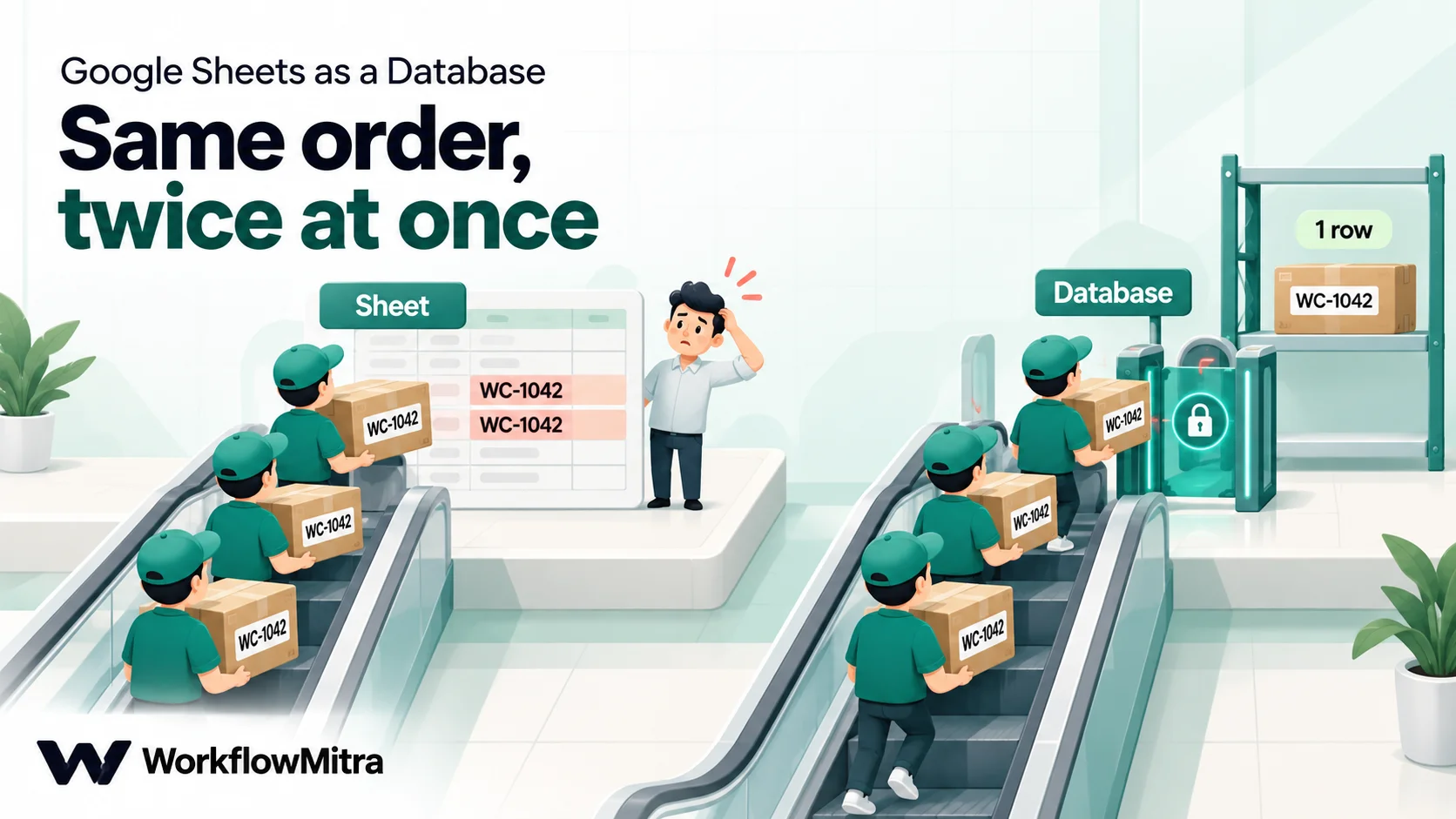
We ran the database side of this ourselves. Using WorkflowMitra’s PostgreSQL step against a local test database, with order_id as the table’s primary key, we started 20 simultaneous runs inserting the same order:
- Plain INSERT: one run succeeded and the other 19 failed with “duplicate key value violates unique constraint”. The table held exactly one row.
- INSERT … ON CONFLICT (order_id) DO NOTHING: all 20 runs succeeded. One reported that it wrote a row (
rowCount1) and 19 reported that they wrote none (rowCount0), so a following IF step can tell a new order from a repeat. - A negative amount was rejected by a
CHECK (amount >= 0)rule, and “4,250” typed as text was rejected by the numeric column with “invalid input syntax for type numeric”.
That’s the practical difference. A sheet records whatever arrives and leaves you to find the problem later. A database refuses the bad write at the moment it happens, and the workflow run that tried it fails visibly, with a clear error, while the data stays correct. PostgreSQL’s documentation on constraints and INSERT … ON CONFLICT explains both mechanisms; MySQL has the same ideas as unique keys and INSERT … ON DUPLICATE KEY UPDATE.
Ten signs it’s time to move
No single row count decides this. Use the checklist below: if one or two apply, the fixes in the next section will usually buy you time. If four or more apply, plan the move.
- More than one writer per tab at the same time. People typing and automations writing to the same tab, or two automations appending to it.
- Duplicates keep appearing even though you’ve told everyone to check first.
- Values that look right but aren’t. Amounts stored as text, dates in three formats, phone numbers without country codes, statuses spelt four ways.
- Tables that refer to each other. Orders that need the customer’s details, stock that depends on orders, invoices that depend on both. Lookups across tabs with VLOOKUP or XLOOKUP break quietly when columns move or a key changes.
- Money or stock depends on it. If a wrong row means a wrong invoice, a wrong refund or overselling, you need rules the data can’t break.
- Tabs heading past 20,000 rows, or reports that need more than 50,000 rows at once.
- Automations hitting limits: “429: Too many requests” in run history, slow Find row steps, or triggers in error.
- You need to answer questions across a lot of data, such as “repeat customers in the last 12 months by city”, and pivot tables over the whole history have become slow.
- Different people should see different rows. Sharing is per file, and Google’s help on protected ranges says they “shouldn’t be used as a security measure”; viewers can even see hidden tabs.
- You need to know who changed a record and why. Version history shows edits to the file, but it isn’t a per-record audit trail you can query.
The last two matter more under India’s Digital Personal Data Protection Act, 2023, which expects businesses to protect personal data with “reasonable security safeguards”. The DPDP Rules, notified on 14 November 2025, give organisations eighteen months to comply, and the Act’s highest penalty, up to ₹250 crore, applies to failing that duty, according to the government’s summary. A spreadsheet of customer names and phone numbers shared with the whole team is hard to defend as a safeguard. This isn’t legal advice; take advice on your own obligations.
Stretch the sheet first: fixes that buy you time
If only one or two signs apply, these changes often make a sheet reliable enough for another year.
Give each tab one writer. Let a form or a workflow write to an input tab, and let people work in a separate tab. Most write conflicts disappear when people and automations stop sharing rows.
Use a real key, and normalise it. Give every record an ID that never changes, and make workflows trim and upper-case it before every lookup. Find row matches exact text, so “WC-1042” and “wc-1042 ” are different keys.
Restrict what people can type. Use dropdowns and data validation for statuses, categories and yes/no fields, and number validation for amounts. Validation doesn’t stop automations from writing bad values, so validate in the workflow too.
Write numbers and dates the same way every time. In WorkflowMitra’s Sheets steps, choose Write values deliberately: “Exactly as written” keeps text like phone numbers safe, and “Like typing it in” lets Google turn a date or number into a real date or number. When reading, choose Read values: Raw values so numbers arrive as numbers.
Archive closed records. Move completed orders older than a year to an archive spreadsheet. The working tab stays small, and triggers and lookups stay fast.
Batch your writes. Append many rows in one Add row(s) step instead of one row per loop item, so a burst of records uses a handful of API requests instead of hundreds.
Keep counters and “seen it already” checks out of the sheet. For running numbers, use a method that’s safe when runs overlap, such as a database sequence or a Redis increment. To remember which order IDs a workflow has already handled, WorkflowMitra’s built-in Data Store has an atomic insert-or-update that reports whether a key is new.
Choosing PostgreSQL or MySQL
For a small business moving off Sheets, both are excellent, free and widely supported. The better choice is usually the one somebody near you already runs.
| Question | PostgreSQL | MySQL |
|---|---|---|
| Unique keys, required fields, typed columns | Yes | Yes |
| Insert or update in one statement | INSERT … ON CONFLICT | INSERT … ON DUPLICATE KEY UPDATE |
| Several related changes from a workflow step | One statement with a data-modifying WITH query | A stored procedure, run with WorkflowMitra's Call Stored Procedure action |
| Where you often find it | Managed cloud databases and modern app platforms | Shared web hosting control panels, WordPress and WooCommerce sites |
| WorkflowMitra actions | Select Rows, Insert Row, Update Rows, Delete Rows, Run SQL Query | The same, plus Call Stored Procedure |
Two practical points apply to both. First, a cloud workflow tool reaches your database over the internet, so it needs a hostname, a port and an SSL connection. WorkflowMitra supports SSL and client certificates for both, but it doesn’t offer an SSH tunnel or publish fixed outgoing IP addresses, so check with the WorkflowMitra team before you build if your firewall only admits known addresses. Second, give the workflow its own database user with only the permissions it needs. Note that an insert-or-update needs SELECT as well as INSERT and UPDATE. Our guide to running SQL queries in workflows covers placeholders, types and timeouts in detail.
Keep Google Sheets as the window, not the vault
The best outcome is rarely “abandon the spreadsheet”. People like Sheets for good reasons. The healthy pattern is to change its job:
- The database is the system of record. Orders, customers, stock and payments live there, with keys and rules.
- Sheets is the window. A scheduled workflow exports the rows each team needs, such as today’s orders, low stock or this month’s payments, into a sheet they can filter and chart. Our guide to exporting Postgres or MySQL data to Google Sheets shows how.
- Sheets or a form can still be the front door. Staff can add entries to an input tab or a form, and a workflow validates each one and writes it to the database. If the database rejects it, the workflow tells the person instead of keeping a bad row. Our Google Sheets to MySQL or PostgreSQL guide covers that direction.
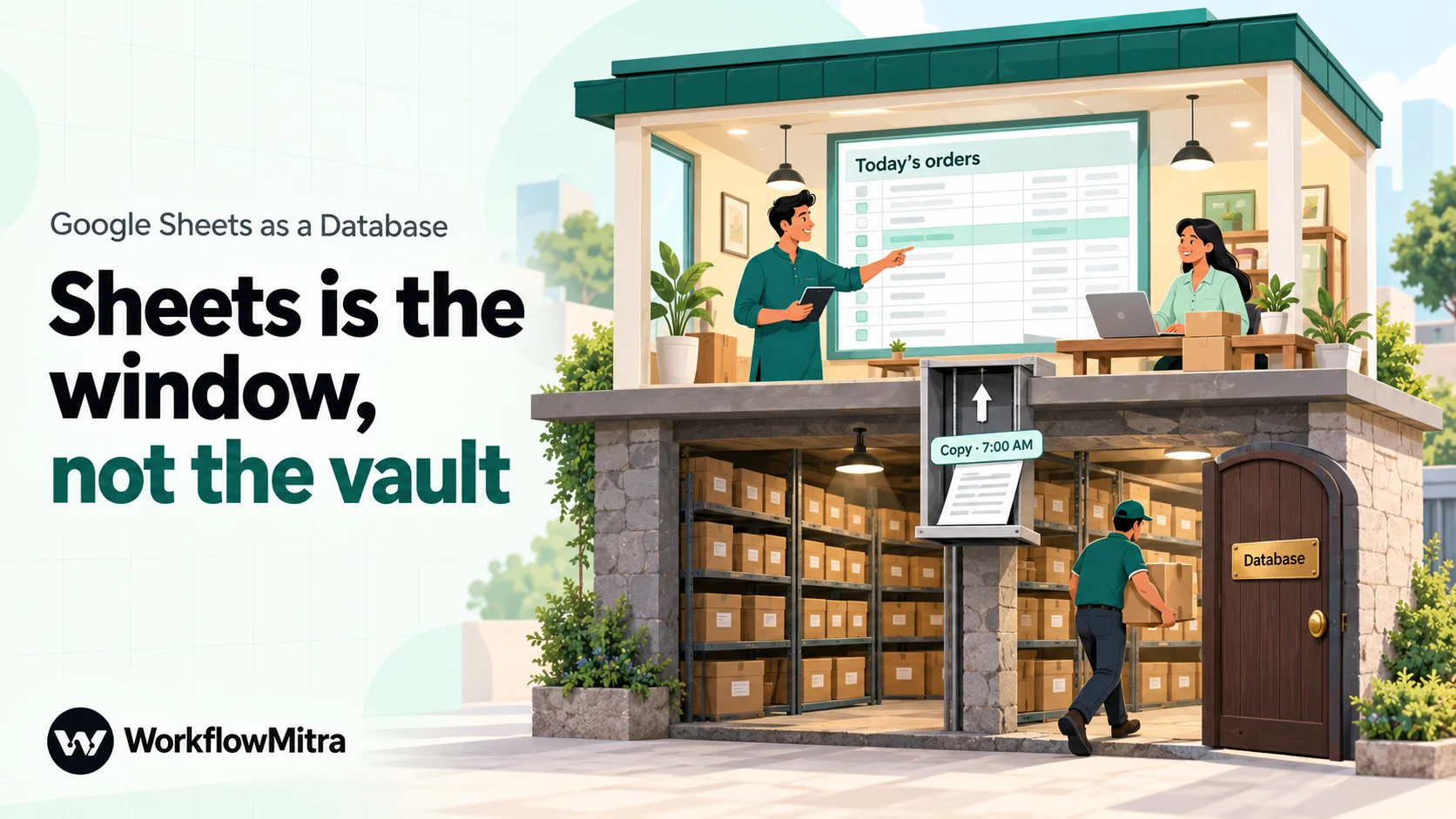
One rule makes this work: never edit the exported sheet and expect the database to change. The window is a copy. If people need to change records, give them the input tab or a form.
How to move, step by step
Move one table at a time, starting with the one that hurts most, usually orders or leads.
- List what the tab really holds. For each column, write its meaning, its type (text, whole number, money, date, yes/no) and whether it’s required. Note which column uniquely identifies a row. If none does, that’s the first problem to solve.
- Design the table. Turn the list into a table with types, a primary key and a few rules. For an order tab, that might look like this:
CREATE TABLE orders (
  order_id    text PRIMARY KEY,
  customer_id text NOT NULL REFERENCES customers (customer_id),
  amount      numeric(12,2) NOT NULL CHECK (amount >= 0),
  status      text NOT NULL CHECK (status IN ('new', 'paid', 'shipped', 'cancelled')),
  ordered_at  timestamptz NOT NULL
);- Clean the data before you load it. Remove duplicate IDs (decide which row wins), convert “4,250” to 4250, put dates in one format and map spelling variants of statuses to the allowed values. The database will reject what you miss, which is the point, so expect a few rounds.
- Load the history once. Export the cleaned tab as CSV and import it with your database tool, or run a one-time workflow that reads rows and inserts them in batches. Compare the counts afterwards: rows in the sheet, rows in the table, and the total of the amount column.
- Switch the writers one at a time. Point each automation at the database instead of the sheet: the website form first, then the payment webhook, then the rest. Insert-or-update statements keep repeated deliveries from creating duplicates. Keep the old sheet read-only during the switch so nobody adds rows that the database never sees.
- Turn the sheet into the window. Replace the old tab with a scheduled export, and tell the team which sheet is now a copy and where new entries go.
In WorkflowMitra, a PostgreSQL or MySQL step costs one credit, the same as a Google Sheets step, so moving a workflow from a sheet to a database doesn’t change what it costs to run.
A worked example: the order workflows, before and after
Here’s what the move changes for the two workflows that touch orders most often: the website order form and the payment confirmation.
Before, on the sheet. The form workflow runs Find row on the Orders tab by order ID, then an IF on found: if it’s not found, Add row(s); if it is, Update row. The payment workflow runs Find row again, then Update row to set the status to paid. Each workflow is two or three steps with a gap between looking and writing, and nothing stops a payment from marking an order paid twice, or marking a cancelled order paid.
After, on PostgreSQL. The form workflow becomes one Run SQL Query step straight after the trigger:
INSERT INTO orders (order_id, customer_id, amount, status, ordered_at)
VALUES ({{ order_id }}, {{ customer_id }}, {{ amount }}, 'new', now())
ON CONFLICT (order_id) DO NOTHING
RETURNING order_id;
An IF on the step’s rowCount then tells a new order (1) from a repeated delivery (0), so only new orders get a confirmation message. The payment workflow becomes another single statement:
UPDATE orders SET status = 'paid'
WHERE order_id = {{ order_id }} AND status = 'new'
RETURNING order_id, amount;
If rowCount is 0, the order was already paid, was cancelled, or doesn’t exist, and the workflow alerts a person instead of changing anything. The rule “only a new order can become paid” now lives in the database, where every workflow and every person has to respect it.
Two details make these work in WorkflowMitra. Write placeholders without quotes, as {{ order_id }}, not '{{ order_id }}', because each one becomes a query parameter, which is also what protects you from SQL injection. And a SQL step’s placeholders read only the step immediately before it, so put the SQL step straight after the trigger, or gather the fields you need in a Set Variable step first.
The same pattern works in MySQL with INSERT … ON DUPLICATE KEY UPDATE for the form and UPDATE … WHERE status = 'new' for the payment. Check the number of changed rows instead of rowCount: the Update Rows action returns it as affectedRows, and a Run SQL Query step returns it as rows.affectedRows.
Troubleshooting after the move
“invalid input syntax for type numeric”. A value such as “4,250” or “₹4250” reached a number column. Clean it in the workflow before the SQL step, or fix the form so it only accepts numbers.
“duplicate key value violates unique constraint”. A second record with the same key arrived. If repeats are expected (webhooks are often delivered more than once), use ON CONFLICT DO NOTHING or an upsert; if they aren’t, the error is doing its job.
“permission denied for table”. The workflow’s database user is missing a grant. Insert-or-update statements need SELECT, INSERT and UPDATE.
A placeholder arrives empty. The SQL step isn’t directly after the step that holds the value. Move it, or add a Set Variable step in between.
Amounts come back as text. PostgreSQL returns numeric columns as text, such as "4250.00", to avoid rounding. Cast in the query if a later step needs a plain number.
Common mistakes
- Moving everything at once. Move the table with the most writers and the most money at stake first, and leave reference lists in Sheets.
- Copying the sheet’s mess into the database. Text columns for everything means you paid for rules you aren’t using. Give amounts, dates and statuses real types and checks.
- Keeping two live copies. If people still edit the old sheet after the switch, you’ll have two versions of the truth within a week. Make the old tab read-only or delete it.
- Letting the workflow use the admin login. Create a database user per workflow with only the permissions it needs.
- No key. If you can’t say which column identifies an order, neither can the database. Decide before you migrate.
- Expecting the exported sheet to be editable. It’s a copy. Edits there are overwritten at the next export.
- Treating protected ranges as security. They prevent accidental edits, not reading or copying.
A sheet is a good start, not a forever home
Most businesses that run on Google Sheets did the right thing at the start: it was quick, free and good enough. The skill is noticing when “good enough” has quietly become “occasionally wrong”, usually the day two runs write the same order at once. If you see four or more of the signs above, start with your busiest table, give it a key and some rules in PostgreSQL or MySQL, and keep the spreadsheet as the place your team reads it.
When you’re ready to connect your sheet and your database, start a 14-day WorkflowMitra trial with 10,000 credits and no card. Prices are on the pricing page: the Starter plan was ₹999 a month for 10,000 credits on 19 October 2026.
Sources: Google Drive Help, Files you can store in Google Drive (Sheets size limit); Google for Developers, Google Sheets API usage limits; Google Docs Editors Help, Protect, hide and edit sheets and in-cell dropdowns; Press Information Bureau, DPDP Rules, 2025 Notified (17 November 2025); PostgreSQL 18 documentation, Constraints, INSERT and Transactions; all checked 19 October 2026. WorkflowMitra limits checked in the product code on 19 October 2026; the duplicate-insert test ran WorkflowMitra's PostgreSQL step against a local PostgreSQL 18.4 test database.
Frequently Asked Questions
Short answers to common questions about using Google Sheets as a database and when to switch to PostgreSQL or MySQL.
Yes, for small and simple data. A sheet works like a single table: each row is a record and each column a field. It suits lead lists, price lists, inventories of a few thousand items and internal trackers that one person or one automation updates. It doesn't enforce unique keys, data types or relationships between tables, and it handles simultaneous writers poorly, so it becomes unreliable as data, users and automations grow.
Automate the work between your apps
Build workflows with triggers, conditions and actions, then test them before they go live. Try WorkflowMitra free for 14 days, no card required.
