Google Sheets as a CRM: Automate Leads, Owners and Follow-ups

Quick Summary
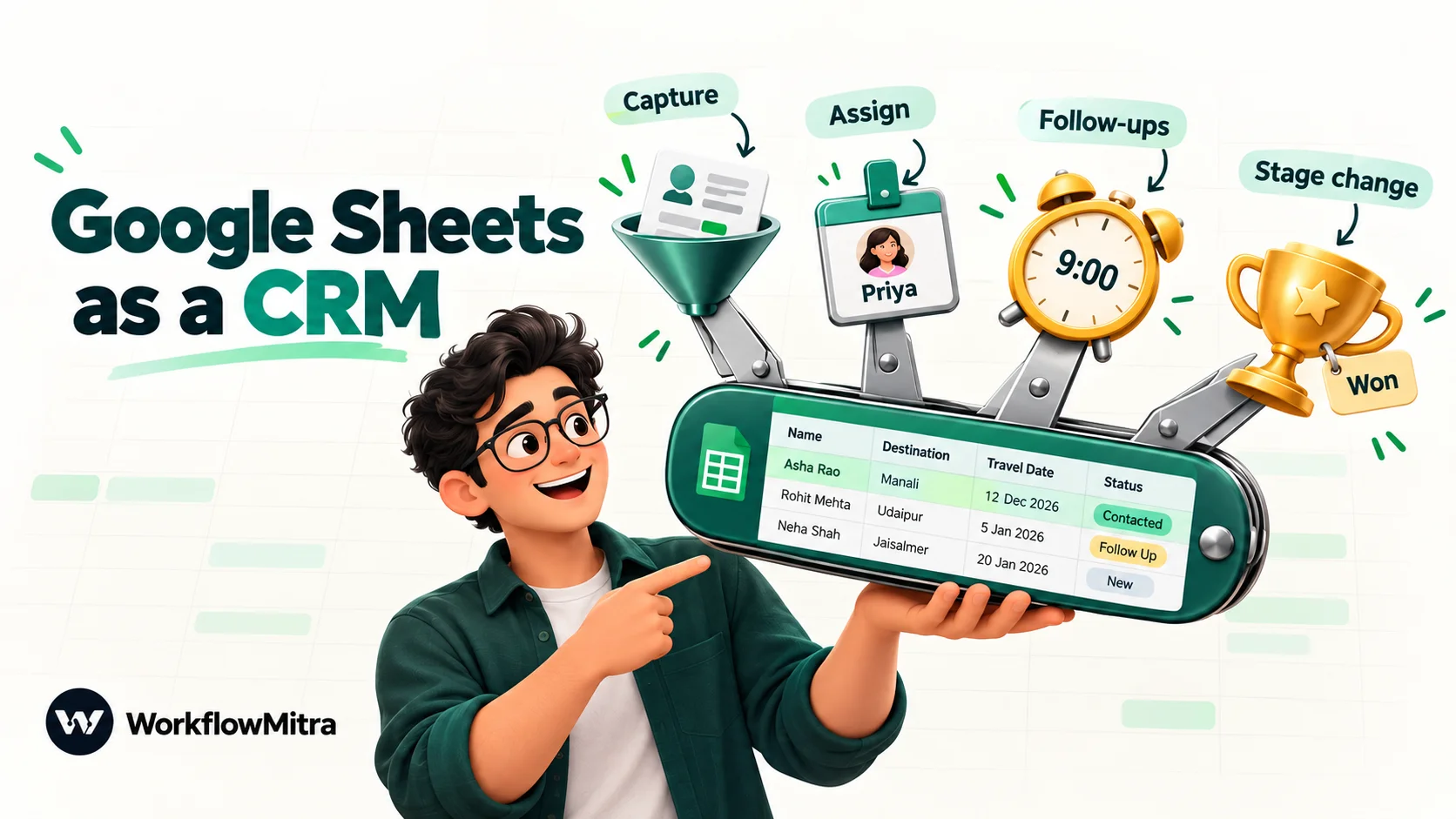
A Google Sheet becomes a workable CRM for a small team once four jobs are automated: capturing every lead into one row per person, assigning an owner, reminding people about follow-ups that are due, and acting when a deal changes stage. In WorkflowMitra, powered by ChatMitra, a webhook or sheet trigger starts each job, and Google Sheets steps find, add and update rows by a key column, so the sheet stays the single list everyone works from. It suits one to about five people; past that, the same workflows can feed a dedicated CRM such as Zoho CRM.
Plenty of businesses run their sales from a spreadsheet, and many of them are right to. A tutor with forty enquiries a month, a two-person interior design studio or a B2B supplier with a few dozen active buyers doesn’t need a CRM licence for each person. They need one shared list of who asked, who is handling them and what happens next.
The trouble starts when the list is maintained by hand. Leads get pasted in twice. Nobody is sure who owns the enquiry that came in on Saturday. The follow-up date column is filled in carefully, and then nobody looks at it. The sheet hasn’t failed. It was asked to do the work of a CRM without any of the automation a CRM provides.
This guide shows how to add that automation. It covers how to lay out the sheet so workflows can work with it safely, then builds four workflows: capturing leads without duplicates, assigning an owner, sending a morning list of follow-ups that are due, and acting when a deal changes stage. It ends with costs, data safety, troubleshooting and the signs that it’s time to move to a dedicated CRM.
Can Google Sheets really work as a CRM?
Yes, for a small team with a simple pipeline, provided the routine work around the sheet is automated. A Google Sheet can store contacts, deal stages, owners and follow-up dates, and everyone sees the same live list. On its own it can't stop duplicates, share out new leads or remind anyone to follow up. Google Sheets CRM automation means connecting the sheet to workflows that do those jobs, so the sheet stays accurate without someone policing it.
A CRM is less a piece of software than a set of habits: every lead is recorded once, every lead has an owner, and every open lead has a next step with a date. Software helps by enforcing those habits. The table shows which of them a sheet covers on its own and which need a workflow.
| CRM job | Google Sheets alone | Sheet plus workflows |
|---|---|---|
| One shared list of contacts and deals | Yes | Yes |
| Consistent stages and sources | Yes, with dropdowns | Yes |
| New leads recorded without copy-paste | Only from a linked Google Form | From forms, websites, ads and other apps |
| One row per person, no duplicates | No (manual clean-up) | Yes, by looking up before adding |
| Every new lead gets an owner | No | Yes, in rotation |
| Reminders when a follow-up is due | No | Yes, a daily list per owner |
| Something happens when a deal is won or lost | No | Yes, from a stage change |
| Activity history per contact | Manual notes | Logged automatically for automated actions |
| Per-person permissions and audit trail | File-level sharing and version history only | Still limited; this is where real CRMs win |
The last row matters. Automation fixes the discipline problems. It doesn’t turn a spreadsheet into a database with user roles. Keep that in mind when deciding how far to take it.
Is a spreadsheet CRM the right choice for you?
A sheet-based CRM works best when most of these are true:
- One to about five people work leads, and they trust each other with the whole list.
- The sales process is short. A lead becomes a customer in days or weeks, through a handful of stages.
- Volume is modest: tens or a few hundred new leads a month, not thousands.
- Your team already lives in Google Workspace or is comfortable in spreadsheets.
- You want to learn what your process actually is before paying for software built around someone else’s idea of it.
It’s the wrong choice if you need different people to see different leads, if a manager has to sign off discounts with an audit trail, if the same customer record is updated by several systems at once, or if you’re tracking long B2B deals with many contacts per account. A dedicated CRM handles those cases properly, and the CRM automation guide covers how to automate one.
Many teams take the middle road: run the pipeline in a sheet for six months, find out which stages and fields really matter, then move to a CRM with a clear idea of what to set up. The workflows below make that move easier later, because the lead capture logic can be pointed at the CRM instead of the sheet.
Design the sheet before you automate it
Automations fail on badly shaped sheets far more often than on bad logic. Spend twenty minutes on structure first.
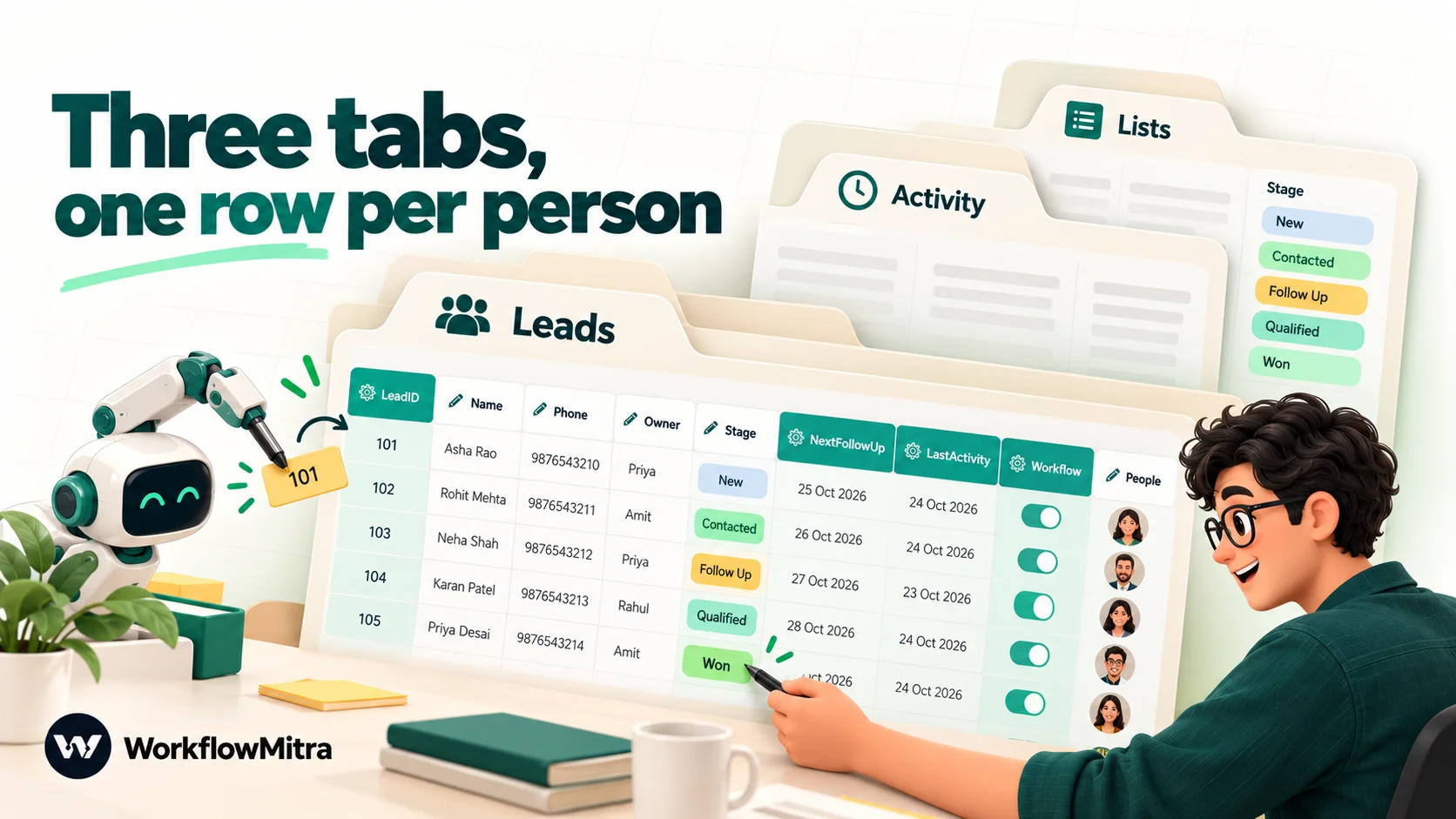
Use three tabs
- Leads: one row per person or company. This is the CRM.
- Activity: one row per interaction (a call, an email, a stage change), linked to the lead by its ID. It grows quickly, which is why it lives apart from Leads.
- Lists: the allowed values for stages, sources and owners, which the dropdowns on the Leads tab read from.
Put charts, pivot tables and anything experimental on further tabs. Workflows should only ever touch Leads and Activity.
Choose columns, and decide who writes each one
Header names are how workflows find columns, so keep them short, stable and without spaces. The most useful single decision is to mark each column as owned either by people or by workflows, and to stick to it.
| Column | Holds | Written by |
|---|---|---|
LeadID | A short unique ID for the row | Workflow, once |
Created | When the lead arrived (UTC timestamp) | Workflow, once |
Name, Email, Phone | Contact details, cleaned | Workflow, then people may correct |
Source | Where the lead came from | Workflow |
Owner | Who is handling the lead | Workflow on arrival; people may reassign |
Stage | New, Contacted, Qualified, Proposal, Won, Lost | People |
NextFollowUp | The date of the next action | People |
Value | Expected deal value | People |
LastActivity | When the lead last got in touch or was contacted | Workflow |
Notes | Free text | People |
Why bother with ownership? Because Google Sheets has no locking. If a workflow and a person both write the same cell, whoever saves last wins, silently. Giving each column one writer avoids that whole class of problem.
Make the sheet hard to fill in badly
- Dropdowns for Stage, Source and Owner. In Google Sheets, select the column and use Insert › Dropdown, choosing Dropdown from a range and pointing it at the Lists tab. Entries that don’t match the list are rejected by default. A workflow that branches on Stage can then rely on “Won” always being spelled “Won”.
- Date validation on NextFollowUp, so it holds real dates rather than text like “next Tues”.
- Phone and LeadID formatted as plain text (Format › Number › Plain text). Otherwise Google Sheets may treat a long phone number as a number and change how it is displayed, and a lookup that compares text will miss it.
- Protect workflow-owned columns. Under Data › Protect sheets and ranges, restrict LeadID, Created and LastActivity so only you and the automation’s account can edit them. People can still read everything.
- Freeze the header row and never put a title above it. If you must, tell each Google Sheets step that the header is on row 2.
The four workflows that turn a sheet into a CRM
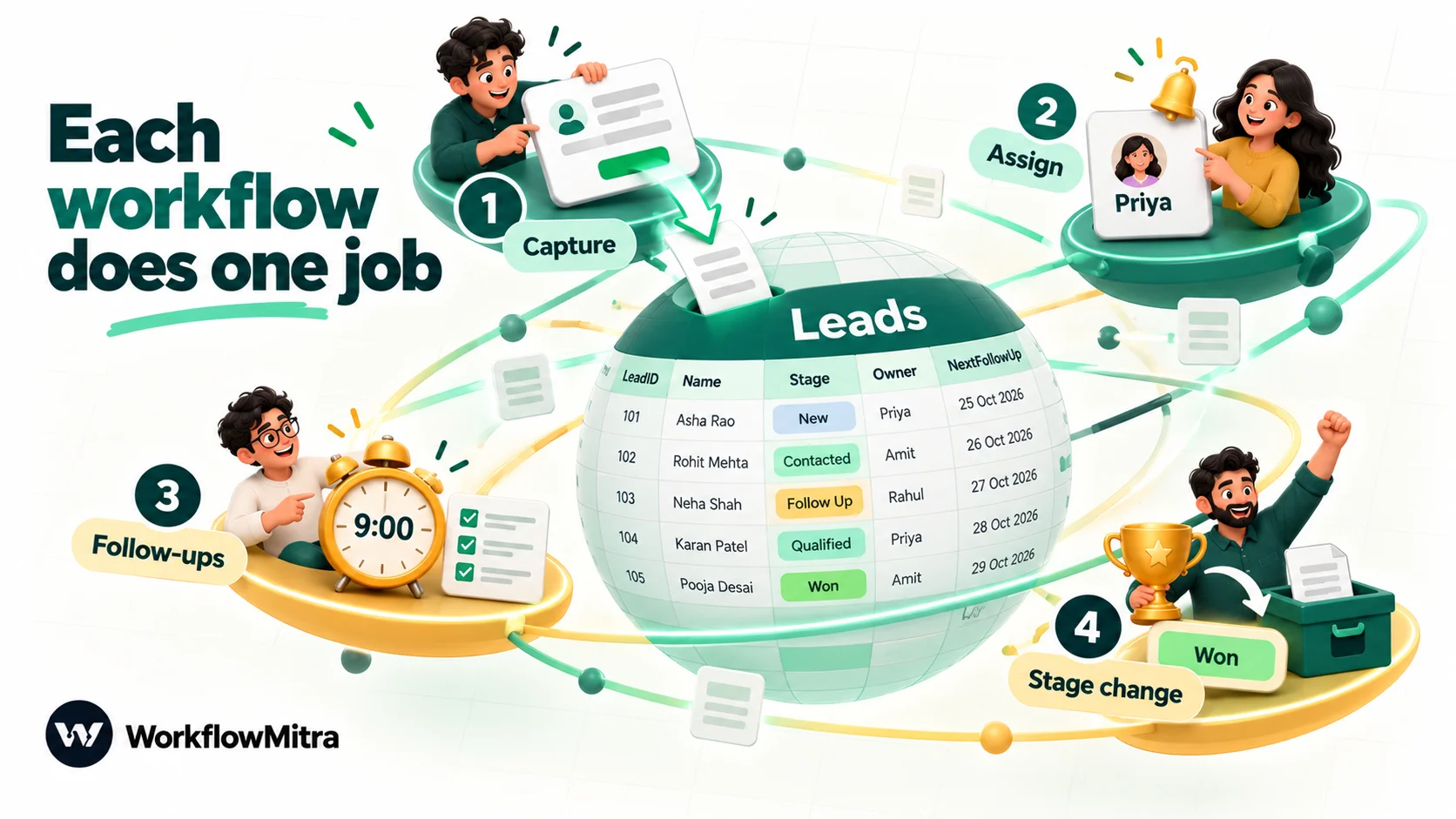
| # | Workflow | Starts when | What it does |
|---|---|---|---|
| 1 | Capture and de-duplicate | A lead is submitted (webhook) | Cleans the details, updates the existing row or adds a new one |
| 2 | Assign and alert | Inside workflow 1, for new leads only | Picks the next owner in rotation, writes them into the row, tells them |
| 3 | Morning follow-up list | A schedule, every working day | Finds open leads whose follow-up date is today or earlier and sends the list |
| 4 | Stage-change actions | The Stage column changes | Acts on Won and Lost: alerts, a thank-you, an activity log entry |
The examples use WorkflowMitra, powered by ChatMitra, a no-code workflow automation platform. The patterns carry over to other tools, though the field names will differ.
Before building, add a Google credential in WorkflowMitra under Credentials. A Google service account is the tidiest choice for a shared CRM: create it, add it as a credential, then share the spreadsheet with the service account’s email address as an Editor. The automation then has its own identity, separate from any person’s account, and you can remove its access with one click in the sheet’s share settings.
Workflow 1: capture leads without creating duplicates
Duplicates are the main reason sheet CRMs lose people’s trust. The same person fills in the website form on Monday and again on Thursday, and suddenly two people are calling them. The fix is to look before you write.
1. Receive the lead
Create a workflow and add the Webhook trigger. For a website enquiry form, pick the Website form source, copy the URL and paste it into your form tool’s webhook or “POST to URL” setting. Ordinary forms can’t sign their requests, so add a shared secret in a header if your form tool supports custom headers.
Other sources work the same way: an ad platform’s lead webhook, a payment page, a chatbot. If your leads arrive through Google Forms instead, you can skip the webhook and use the sheet trigger on the form’s response tab; the Google Forms to WhatsApp guide shows that set-up.
2. Clean the details
Add a Code step named Clean lead. Form fields arrive the way people type them: mixed-case emails, spaces and dashes in phone numbers, a leading zero instead of a country code. The lookup in the next step compares exact text, so cleaning comes first.
// Normalise the lead so the same person always looks the same.
const digits = String(input.phone || '').replace(/\D/g, '').replace(/^0+/, '');
// A 10-digit number is assumed to be Indian; change '91' for your country.
const phone = digits.length === 10 ? '91' + digits : digits;
return {
  name: String(input.name || '').trim(),
  email: String(input.email || '').trim().toLowerCase(),
  phone: phone,
  source: input.source || 'Website',
  message: String(input.message || '').trim(),
};
With this, +91 98765-43210, 098765 43210 and 9876543210 all become 919876543210. Rename input.phone and the other fields to match what your form sends; the trigger’s recent deliveries show the exact field names. If your customers are mostly outside India, replace the 10-digit rule with your own country code and number length.
3. Look for an existing row
Add a Google Sheets step named Find lead, operation Find row, on the Leads tab. Set the Key column to Phone and the value to {{ phone }}.
Phone works better than email as the key for most small businesses, because many enquiries, especially from WhatsApp or phone calls, never include an email. If yours always do, key on the lower-cased email instead.
Find row returns found (true or false), the matching row, and its rowNumber. Two safety behaviours are worth knowing. If the lookup value is empty, the step stops with an error rather than matching the first blank row. If two rows already share the key, it also stops, with a message saying how many matched, instead of quietly picking one. Both are what you want in a CRM.
4. Branch: update or add
Add an IF step on {{ found }} with the operator Is yes.
Yes (a returning lead): add a Google Sheets › Update row step matched on Phone = {{ $node["Clean lead"].phone }}, and set only LastActivity to {{ now() }}. Leave Owner and Stage alone, because a returning lead should stay with whoever already has it. If the new message matters, add an Add row to the Activity tab with the LeadID from {{ get($node["Find lead"].row, "LeadID") }} and the message text.
No (a new lead): carry on to workflow 2’s steps, below. They live on this branch of the same workflow.
The now() function writes a UTC timestamp such as 2026-10-07T11:58:45.789Z. It sorts correctly and means the same thing wherever your team is. Workflow date functions run on the server’s clock rather than your local time, which is why this guide stores UTC and leaves local-time display to the sheet.
One honest limitation: if the same person submits twice within a second or two, both runs can look up the sheet before either has written, and both add a row. That is rare with human-submitted forms, but don’t promise anyone zero duplicates. A weekly check for repeated phone numbers (a COUNTIF helper column or conditional formatting) catches what slips through.
Workflow 2: assign an owner and alert them
A lead without a named owner is a lead everyone assumes someone else is handling. On the “new lead” branch, add these steps.
5. Pick the next owner
Add Assign to the next person and name it Assign owner. Under Who should this go to?, list your team: a name and an email address (or phone) for each. Each new lead goes to the next person in the list, in order, and the rotation is safe even when two leads arrive at once. The step passes the data through and adds assignedTo (the email or phone you entered) and assignedName.
If your team doesn’t share leads evenly, for example one person handles enterprise enquiries, put an IF or Switch step before this one to route those leads separately. Round-robin lead assignment covers weighted rotations, holidays and how to handle someone leaving the team.
6. Add the row
Add Google Sheets › Add row(s) on the Leads tab and map the columns:
| Column | Value |
|---|---|
| LeadID | {{ substring(uuid(), 0, 8) }} |
| Created | {{ now() }} |
| Name | {{ $node["Clean lead"].name }} |
{{ $node["Clean lead"].email }} | |
| Phone | {{ $node["Clean lead"].phone }} |
| Source | {{ $node["Clean lead"].source }} |
| Owner | {{ assignedName }} |
| Stage | New |
| LastActivity | {{ now() }} |
Leave NextFollowUp, Value and Notes empty for the owner to fill in. Set Write values to Exactly as written if you’d rather Google Sheets never reinterpret what the workflow writes; with the Phone column already formatted as plain text, either option keeps phone numbers intact.
7. Tell the owner
Add an Email or Slack step. An email to {{ $node["Assign owner"].assignedTo }} with the subject “New lead: {{ $node[“Clean lead”].name }}” and a body containing the phone number, source, message and a link to the sheet is enough. Slack suits teams that already work there; the step posts through a channel’s incoming webhook.
Keep the alert short and include the one thing the owner needs to act: the phone number. A long alert gets skimmed; a short one gets called back.
8. Test before going live
Switch the workflow on, then send a test submission with your own details through the real form. Check that a row appears, the owner column is filled and the alert arrives. Submit the same details again with different spacing in the phone number: the second run should take the “found” branch and only update LastActivity. Open each run under Executions to see the data at every step if something looks off.
Workflow 3: a morning list of follow-ups that are due
The NextFollowUp column is where good intentions go to die. A short list delivered every morning fixes that, and it is the automation sheet-CRM users usually value most.
1. Schedule it
Create a new workflow with a Schedule trigger: Every day at a set time, 9:00, in your team’s time zone. Weekends off? Use a cron schedule such as 0 9 * * 1-5 instead.
2. Read the leads as raw values
Add Google Sheets › Read rows on the Leads tab, and set Read values to Raw values (numbers stay numbers). That choice matters here, because of how Google Sheets stores dates.
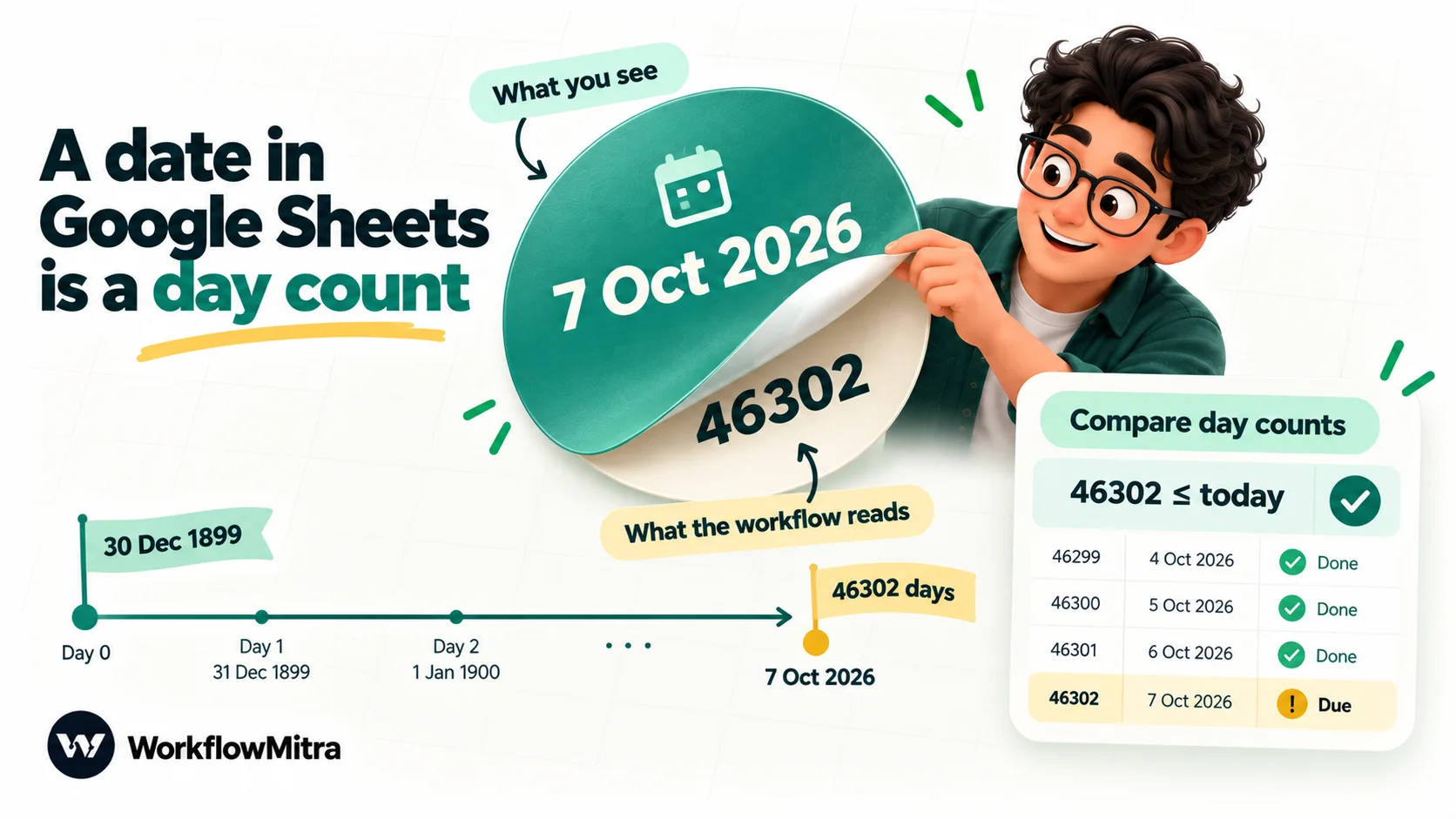
Why dates arrive as numbers
Google Sheets keeps every date as a serial number: the count of days since 30 December 1899. The cell shows “7 Oct 2026”, but the value underneath is 46302. Read as displayed, you get text whose format depends on the sheet’s locale (is 08/10 the 8th of October or the 10th of August?). Read raw, you get the number, which is unambiguous. The catch is that a workflow’s date comparisons expect ISO dates, not day counts, so the comparison belongs in a few lines of code that know about serial numbers.
3. Pick out the leads that are due
Add a Code step:
// Your team's offset from UTC in minutes (India = 330, UK winter = 0).
const OFFSET_MINUTES = 330;
// Today's date as a Google Sheets serial number (days since 30 Dec 1899).
const today = Math.floor((Date.now() + OFFSET_MINUTES * 60000) / 86400000) + 25569;
const closed = ['Won', 'Lost'];

const due = (input.rows || []).filter(
  (r) => !closed.includes(r.Stage) &&
    typeof r.NextFollowUp === 'number' &&
    Math.floor(r.NextFollowUp) <= today
);
if (due.length === 0) return { count: 0, text: '' };

const byOwner = {};
for (const r of due) {
  const owner = r.Owner || 'Unassigned';
  const late = today - Math.floor(r.NextFollowUp);
  (byOwner[owner] = byOwner[owner] || []).push(
    '• ' + r.Name + ' (' + r.Stage + ')' +
      (late > 0 ? ' — ' + late + ' day(s) overdue' : ' — today')
  );
}
const text = Object.keys(byOwner)
  .map((o) => o + ':\n' + byOwner[o].join('\n'))
  .join('\n\n');
return { count: due.length, text: 'Follow-ups due (' + due.length + ')\n\n' + text };
The number 25569 is the serial number of 1 January 1970, the starting point of the computer clock, so adding it converts “days since 1970” into the sheet’s own day count. Leads with no follow-up date are skipped rather than treated as overdue, and closed leads are ignored even if an old date is still in the column. The result is grouped by owner, with overdue items marked, for example:
Follow-ups due (3)

Priya:
• Asha Rao (Contacted) — today

Rahul:
• Vikram Shah (Proposal) — 2 day(s) overdue
4. Send it, but only when there is something to send
Add an IF step on {{ count }} with the operator Greater than and the value 0, then a Slack or Email step with {{ text }} as the message. On quiet days the run ends at the IF step, and the team learns to trust that a message means there is work to do.
Prefer a separate message per person? Return a list from the Code step (one item per owner, each with their email and their lines) and send it through a Loop with an Email step inside. That costs one credit per owner per day for the loop, plus the emails, which is still small for a team of five.
Workflow 4: act when a deal changes stage
The last workflow reacts to the column people edit most: Stage.
1. Watch one column only
Create a workflow with the Google Sheets trigger On row updated, pointed at the Leads tab. Set Use column headers as IDs of the columns to Yes, with LeadID as the ID column, so sorting and filtering the sheet never confuses it. Under Run when…, choose One column changes and tick only Stage. The trigger checks the sheet every 5 minutes by default, and checks that find nothing start no run and cost nothing.
Watching only Stage is deliberate. Sooner or later you’ll want this workflow to write something back to the lead’s row, such as a ClosedOn date. If it watched every column, the next check would see that write as an edit and fire the workflow again, in an endless loop.
2. Route by the new stage
Add a Switch step on {{ $trigger.Stage }} with routes for Won and Lost. Other stage changes, such as New to Contacted, fall through the else route and end there.
Won:
- Slack to the team: ”{{ $trigger.Owner }} closed {{ $trigger.Name }} for ₹{{ $trigger.Value }}”. Small wins announced automatically are good for morale.
- Email to the customer with a thank-you and next steps, if an email address is on the row and your onboarding starts that way.
- Google Sheets › Add row(s) on the Activity tab: LeadID,
{{ now() }}, “Stage → Won”.
Lost:
- Google Sheets › Add row(s) on the Activity tab, so lost deals stay countable.
- Optionally an email to the owner asking them to fill in a loss reason column while they still remember.
Because $trigger always refers to the row that started the run, those values stay available in every step, however many steps come before.
A note on the sheet trigger and edits in progress
People edit sheets in bursts. If an owner changes Stage to “Won” and back to “Proposal” within the same 5-minute window, the next check sees no change and nothing runs, which is usually what you’d want. If you need near-instant reactions, check every minute, but don’t expect the sheet to behave like a database event stream; it doesn’t.
Optional: WhatsApp messages from a sheet CRM
For many businesses, especially in India, the customer conversation happens on WhatsApp rather than email. A WorkflowMitra WhatsApp step can send through ChatMitra or directly through Meta’s Cloud API, so any of the workflows above can include a WhatsApp message: a confirmation to a new lead, or a thank-you on Won.
Three rules apply. The customer must have agreed to hear from you on WhatsApp, and that consent should be recorded, ideally in its own column. A business-started message must use a template approved by Meta. And WhatsApp messages cost money per delivered template, so they belong where they help the customer, not in every step. ChatMitra’s guide to WhatsApp opt-in covers consent wording. If the sheet is only a source of standard WhatsApp messages, with no pipeline behind it, ChatMitra’s Google Sheets WhatsApp integration is the simpler route. If the conversation itself is the pipeline, a WhatsApp CRM may suit you better than a sheet.
What does a Google Sheets CRM cost to automate?
WorkflowMitra counts credits per executed step. At default rates, triggers, Google Sheets steps, Assign to the next person, email and Slack each use 1 credit, IF and Switch use none, and a Code step is billed by run time at 2 credits per second; the snippets above finish in a few milliseconds, so they cost a fraction of a credit.
A worked example for a team of three receiving 300 leads a month, 60 of them repeat enquiries:
| Workflow | Runs per month | Credits per run | Credits per month |
|---|---|---|---|
| Capture, new lead (trigger, find, assign, add row, alert) | 240 | 5 | 1,200 |
| Capture, returning lead (trigger, find, update) | 60 | 3 | 180 |
| Morning follow-up list (schedule, read, alert) | 22 working days | 3 | 66 |
| Stage changes (trigger, plus 2 steps on Won or Lost) | 200 changes, 70 of them Won or Lost | 1 or 3 | 340 |
| Total | about 1,800 |
That fits within the entry plan of 10,000 credits for ₹999 a month, which also allows 10 workflows and 2 team seats in WorkflowMitra. The four workflows here use four. Current plans are on WorkflowMitra’s pricing page, and the 14-day trial needs no card. WhatsApp templates, if you add them, are charged separately by Meta and by your WhatsApp provider.
Keep a spreadsheet CRM safe and healthy
A shared sheet full of names and phone numbers is customer data, and it deserves the same care as a CRM.
- Share with named people only. Never set the file to “anyone with the link”. Review the share list when someone leaves.
- Give the automation its own identity. A service account means you never hand a workflow tool your personal Google login, and you can revoke it from the sheet in seconds.
- Use version history. In Google Sheets, File › Version history lets you see who changed what and restore an earlier state after a bad bulk edit.
- Record consent. If you message leads on WhatsApp or by email marketing, keep a column showing when and how they agreed. India’s DPDP Act and other privacy laws expect you to be able to show it.
- Respect Google’s limits. A spreadsheet holds at most 20 million cells or 100 MB, and the Google Sheets API allows 60 read requests per minute per user per project. Four workflows on one service account are nowhere near either; dozens of fast-polling workflows on the same account can be.
- Archive, don’t delete. Move leads closed more than a year ago to an Archive tab monthly. The Leads tab stays fast and the history stays searchable.
Troubleshooting a Google Sheets CRM
| Symptom | Likely cause | Fix |
|---|---|---|
| The same person appears twice | Phone stored in different formats, or two submissions at the same moment | Clean before the lookup (step 2); format Phone as plain text; keep a weekly duplicate check |
| Find row stops with "rows match" | The sheet already has duplicates for that phone | Merge the duplicate rows; the step refuses to guess which one you meant |
| Find row stops with "is empty" | The form didn't send a phone number, or the field name is different | Check the trigger's recent deliveries for the real field name; add an IF before the lookup for leads without a phone |
| Phone numbers change format in the sheet | The column is formatted as a number, so Sheets re-displays long numbers | Format the column as plain text and re-enter the affected values |
| Follow-up list is empty when it shouldn't be | Read rows set to "As displayed", or NextFollowUp holds text rather than dates | Use Raw values; add date validation to the column |
| Follow-up list is a day early or late | Wrong time-zone offset in the Code step | Set OFFSET_MINUTES to your team's offset from UTC |
| Stage-change workflow runs repeatedly | Trigger set to "A row changes" while the workflow writes to the row | Use "One column changes" on Stage only |
| A stage change was missed | Changed and changed back between two checks | Expected behaviour; shorten the interval if it matters |
| Permission error on any Sheets step | Sheet not shared with the service account, or a tab renamed | Share as Editor; re-select the tab in each step |
When to move from Google Sheets to a real CRM
The signs are usually obvious in hindsight:
- More than about five people work leads every day, and they keep editing over each other.
- You need some people to see only their own leads.
- Managers want reports that take longer to build in the sheet than the decisions they support.
- Leads get updated from several places at once: the website, the shop, the support desk.
- You need an audit trail of who changed a deal’s value and when.
The good news is that the automation doesn’t have to be rebuilt from scratch. Workflow 1’s capture logic is the same whatever the destination: receive, clean, look up, update or add. When you move to Zoho CRM, for example, the Find row step becomes a search on the CRM’s Leads module, Add row becomes create a record, and the alert stays as it is. WorkflowMitra has a Zoho CRM step with search, create and update operations; the Zoho CRM WhatsApp integration guide shows it in use.
A word on “two-way sync” between a sheet and a CRM, a phrase that appears in plenty of tool listings. In practice it means two one-way workflows: sheet to CRM, and CRM back to sheet. The second needs the CRM to announce changes; Zoho CRM’s webhooks, for instance, are only available on its Professional edition and above. Running both directions also creates loops, where each side’s update triggers the other. If you must sync both ways, give each field a single owning system and only sync fields from their owner. Most teams are better off migrating once and keeping the sheet as a read-only report.
Why use WorkflowMitra for a Google Sheets CRM?
WorkflowMitra, powered by ChatMitra, suits teams that want to keep the sheet but stop babysitting it:
- Lookups that refuse to guess. Find row and Update row match on a key column rather than a row number, stop when the lookup value is empty, and stop when more than one row matches. That is exactly the behaviour a CRM needs to avoid editing the wrong customer.
- Built-in assignment. Assign to the next person handles round-robin rotation without a helper column or a counter cell, and stays fair when leads arrive together.
- A sheet trigger that fits how people edit. It can watch one column, track rows by an ID column so sorting is safe, start quietly on existing rows, and charge nothing for checks that find no change.
- Room to grow. The same workflows can call Zoho CRM, Pipedrive, a database or WhatsApp through ChatMitra when the sheet stops being enough.
- Rupee pricing per executed step, with free IF and Switch steps at default rates.
It isn’t the only sensible option. If your process fits a dedicated CRM’s free tier, starting there skips the migration later. If one person handles every lead, a dropdown, a date column and conditional formatting may be all the CRM you need for now. And if someone on your team already maintains Google Apps Script for the sheet, those scripts can do some of this without another tool.
If you want to try the four workflows on your own sheet, start a 14-day WorkflowMitra trial with no card, build workflow 1 first, and add the others once new leads are landing cleanly. For more patterns, see the Google Sheets automation guide and lead management automation.
Frequently Asked Questions
Questions small teams ask before running their sales pipeline in a spreadsheet.
Yes, for a small team with a simple sales process. A sheet can hold contacts, deal stages, owners and follow-up dates, and everyone sees the same list. What it lacks is automation: it won't stop duplicates, assign leads or remind anyone about a follow-up. A workflow tool connected to the sheet adds those jobs.
Automate the work between your apps
Build workflows with triggers, conditions and actions, then test them before they go live. Try WorkflowMitra free for 14 days, no card required.
