Google Sheets Lookup Automation: Use a Sheet as Your Price List, Routing Table or Settings Tab


Quick Summary
Google Sheets lookup automation means keeping reference data, such as prices, owners per region, discount tiers or on/off settings, in a sheet and having a workflow look up the right row each time it runs, instead of hard-coding those values into the workflow. A workflow step finds the row by a key column or by conditions, returns its values, and later steps use them. In WorkflowMitra, powered by ChatMitra, the Google Sheets step offers Find row (by key or conditions), Read rows plus lookup expressions, and Get cell. Lookups match exact text after trimming spaces, so the sheet's design decides whether they work.
Most workflows start with values typed straight into their steps. The price of the starter kit goes into the reply message, the Pune sales owner’s number goes into the alert, and the “orders over ₹20,000 get a call” rule goes into an IF. It works until the price changes, Pune gets a second owner, or the threshold moves. Then someone has to open the workflow, find every place the old value lives, and edit it carefully.
A lookup table moves those values out of the workflow and into a Google Sheet that the people who own them can edit. The workflow asks the sheet a question on every run: what does this SKU cost, who owns this city, which tier is this amount in, is the offer switched on? Change the sheet, and the next run uses the new answer.
This guide explains how to set that up and, more importantly, how to design the sheet so lookups don’t fail quietly. The examples use the Google Sheets step in WorkflowMitra, powered by ChatMitra, and the matching behaviour described was tested by running the product’s own lookup code against sample tables before publication. The design principles apply in any automation tool.
What is a Google Sheets lookup in automation?
A Google Sheets lookup in automation is a workflow step that finds the row matching a value and returns that row's other columns. The sheet acts as a reference table, such as a price list, a routing table, a tier table or a settings tab, and the workflow reads it on each run instead of storing those values itself. It's the automation equivalent of VLOOKUP: you give it a key, like a SKU or a city, and it hands back the matching price or owner. Because the data lives in the sheet, anyone with edit access can change the workflow's behaviour without touching the workflow.
There are two halves to every lookup. The key is the value the workflow already has, such as the SKU a customer asked about or the city on a lead form. The result is what the workflow wants to know, such as the price or the owner’s phone number. The table maps one to the other.
Lookup in the workflow versus VLOOKUP in the sheet
If the data you need is already in the same spreadsheet, a formula like VLOOKUP or XLOOKUP can fill a column for you, and a workflow can read the finished value. That’s a good choice when the result belongs in the sheet anyway, like a calculated total on each order row.
A lookup in the workflow is better when the key arrives from outside the sheet: a webhook from a form, a WhatsApp message, a new order in a store. There’s nowhere for a formula to run until the data is written down, and you often need the answer before writing anything, for example to decide who to alert. Doing the lookup in the workflow also means one table can serve many workflows.
Why keep reference data in a sheet?
Hard-coding values into steps is quick for the first version of a workflow. It becomes a maintenance problem as soon as the values change more often than the logic does. A sheet fixes four things at once:
- The right people can change it. Sales managers edit the routing table, finance edits the price list, and nobody needs access to the automation tool.
- One change updates every workflow. If three workflows quote prices, they all read the same row.
- Changes are visible. Google Sheets keeps version history, so you can see who changed a price and when.
- Logic stays readable. A workflow that says “find the owner for this city” is easier to review than one with twelve IF branches, one per city.
A sheet isn’t the right home for everything. It has no unique-key rule, anyone with edit access can break the header, and Google limits how often it can be read. We cover where those limits bite near the end of this guide.
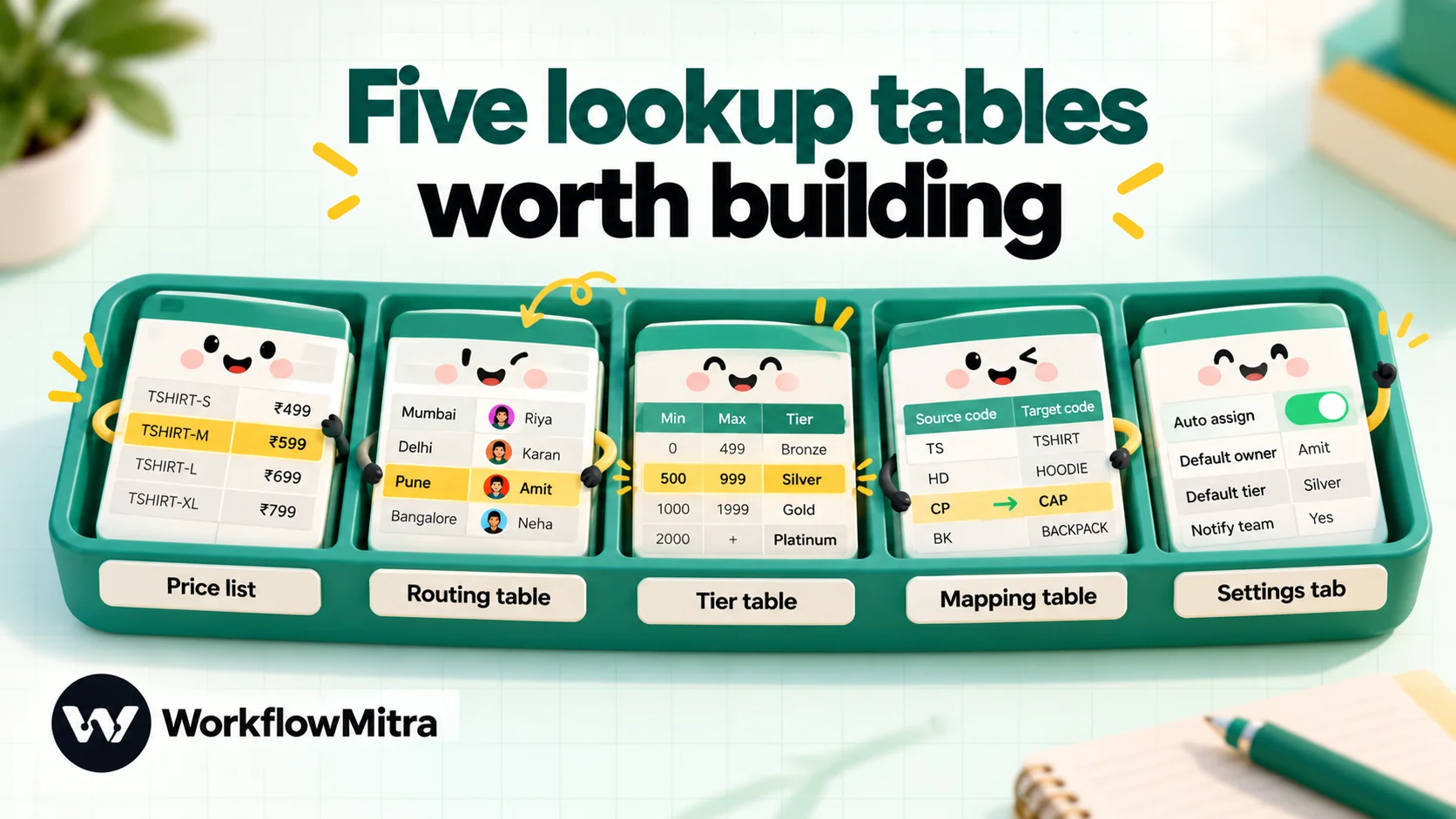
Five lookup tables worth building
Most lookup tables fall into a handful of shapes. Recognising which one you need tells you which kind of lookup to use.
| Table | Key | Returns | Example use | Lookup type |
|---|---|---|---|---|
| Price list | SKU or product code | Name, price, stock flag | Reply to a WhatsApp enquiry with the current price | Exact match on one column |
| Routing table | City, pincode, language or product line | Owner, phone, team, queue | Send a new lead to the right salesperson | Exact match, with a fallback |
| Tier or threshold table | An amount or score | Tier, discount, approval level | Pick a discount by order value | Range match (min/max) |
| Mapping table | A code from another system | A readable label or a different code | Turn courier status codes into customer messages | Exact match |
| Settings tab | A fixed cell | One value | A switch that turns an offer on or off | Single cell |
Four ways to look up data from a workflow
WorkflowMitra’s Google Sheets step offers four ways to read reference data. They differ in what they return, how they match and what they cost.
1. Find row by a key column
This is the everyday lookup. Choose Find row as the operation, pick the tab, then set:
- Key column: the column that holds the key, such as
SKU. - Key value: the value to look for, usually a placeholder such as
{{ $trigger.sku }}.
The step reads the tab, finds the row whose key column matches, and returns three things: found (true or false), row (the whole row as named fields) and rowNumber. Later steps read any column from the row, for example {{ $node["Find price"].row.Price }}, or {{ $node["Find price"].row["Unit price"] }} when the column name contains a space.
Three behaviours shape how you build around it:
- No match is not an error. The step succeeds with
found= false and an emptyrow. Put an IF step onfoundright after it, or the next step will use blank values. - Several matches are an error. If two rows share the key, the step stops and tells you how many matched. A lookup table’s key column must be unique.
- An empty key value is an error. If the placeholder resolves to nothing, the step stops rather than matching the first row with a blank key.
2. Find row by conditions
Below the key fields, + Match on more than one column switches to conditions. You build rules the same way as in an IF step: a column, an operator and a value. Rules inside a group must all be true; separate groups are alternatives. That unlocks lookups a single key can’t do:
- Two-column keys, such as
Cityequal to the lead’s city andProductequal to the product line. - Case-insensitive matching with Equal to, ignore case.
- Range lookups with Less than or equal and Greater than or equal, which is how tier tables work.
Conditions mode adds a choice called If several rows match: stop with an error (the default, and the safe choice) or use the first match. Using the first match is useful for ordered rule tables, where you list specific rules above general ones, such as “Mumbai + Enterprise” above “Mumbai + any”.
3. Read rows, then look up with expressions
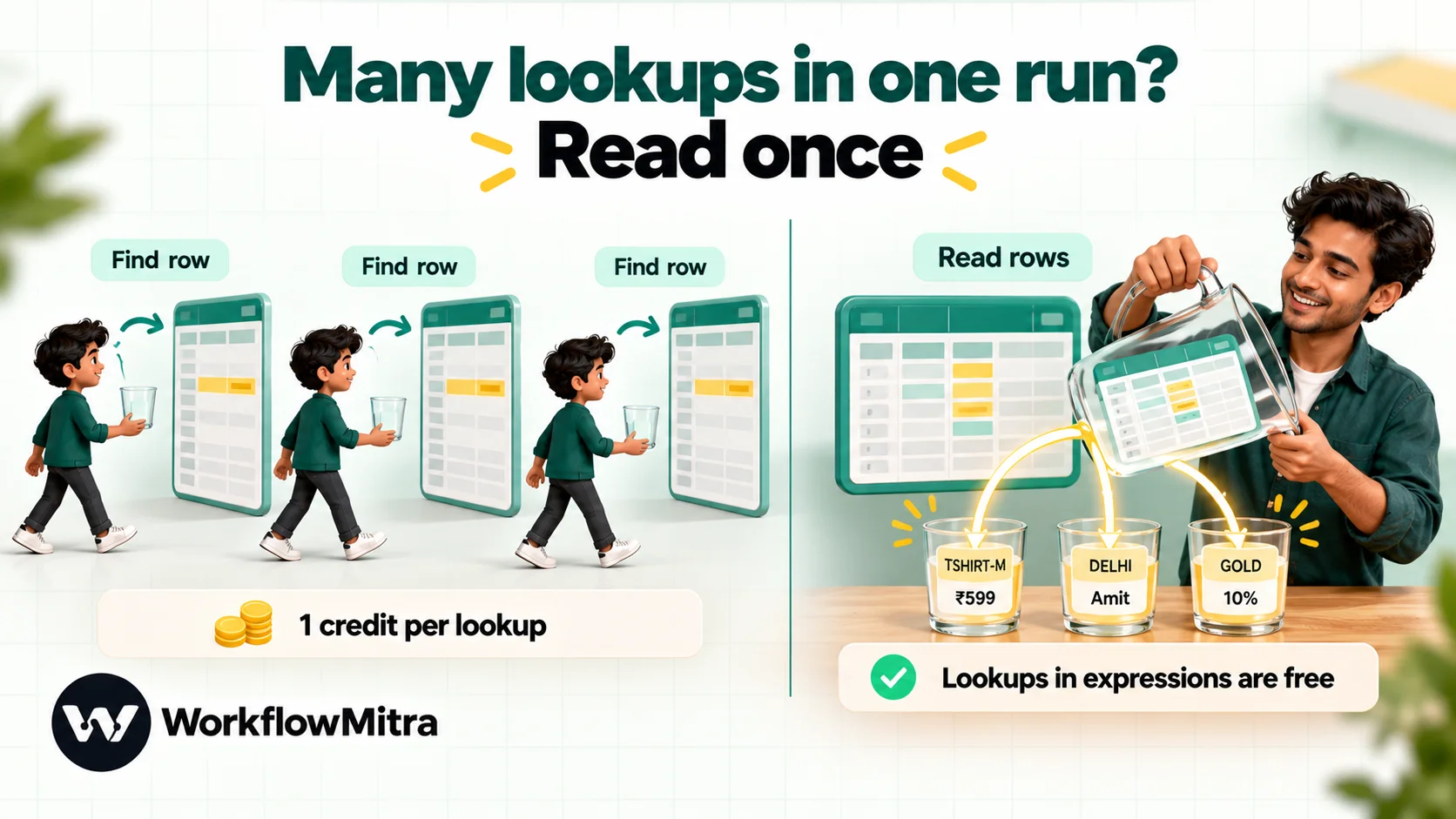
Read rows returns the whole table, up to 5,000 rows by default, as a list. You then pick out what you need with expressions in later steps. This is the right tool when a single run needs many lookups from one table, because one read serves all of them. The patterns section below shows the expressions.
4. Get cell for a single setting
Get cell (A1) reads one cell by its address, such as B2 on a Settings tab, and returns its value. It’s the simplest way to give a workflow a switch or a setting that someone can change without opening the workflow.
| Method | Best for | Returns | Credits per run |
|---|---|---|---|
| Find row (key column) | One exact lookup | found, row, rowNumber | 1 per lookup |
| Find row (conditions) | Ranges, two-column keys, ignore-case | Same as above | 1 per lookup |
| Read rows + expressions | Many lookups from one table in one run | rows, header, totalRows, truncated | 1 for the read; lookups in expressions are free |
| Get cell (A1) | One setting or switch | value | 1 |
Design the sheet so lookups don’t break
A lookup is only as reliable as the table behind it. These rules come straight from how the step reads a sheet, and each one prevents a specific failure.
Give every column a unique, simple name. The step maps each row to named fields using the header row. Two columns with the same name stop the step with an error, because one would otherwise silently overwrite the other. A blank header between named columns is also an error. Avoid dots in names: Price.INR can’t be read with {{ }} because a dot means “go one level deeper”. Spaces are fine.
Put the header in row 1, or say where it is. If the tab has a title banner above the header, set Header row under Advanced to the right row number.
Make the key column unique and boring. Use codes that are typed one way, like TSHIRT-M or PUNE, not free text like “T-shirt (medium)”. If the key could be typed in different cases, standardise it in the sheet or use the ignore-case operator.
Store phone numbers and codes as plain text. By default the step reads values As displayed. A long number stored as a number can display with separators or in scientific notation, depending on its format, and then won’t match 919876543210. Format key columns as plain text in Google Sheets.
Store numbers as numbers, and read them raw. If a column feeds a comparison or a calculation, type plain numbers (5000, not ₹5,000) and use currency formatting for display. Then set Read values to Raw values (numbers stay numbers) under Advanced, so 1,299 arrives as 1299.
Blank rows are fine; blank keys aren’t. Empty rows in the middle of the table are skipped, so they won’t end the search early. A row with an empty key simply never matches.
Give the table its own tab. A tab called Prices or Routing with nothing else on it is easy to protect and hard to break. Google Sheets’ protected ranges let you lock the header row and key column while still letting colleagues edit prices.
Share it narrowly. If you connect with a Google service account, share the spreadsheet with the service account’s email address. A sheet the workflow only reads needs Viewer access; give Editor access only to sheets the workflow writes to.
Pattern 1: a price list for WhatsApp enquiries
A shop receives product questions on WhatsApp and wants to reply with the current price without a person looking it up. The table on a Prices tab has the columns SKU, Product, Price and In stock.
- Trigger. A webhook or chat trigger delivers the customer’s message with a SKU, for example from a catalogue button or a keyword the customer sent.
- Find row. Key column
SKU, key value{{ $trigger.sku }}. - IF
found. True: continue. False: reply that the code wasn’t recognised and offer to connect the customer to a person. - IF in stock. Check
{{ $node["Find price"].row["In stock"] }}. A checkbox column reads as TRUE or FALSE and works with Is yes; a column where people type “Yes” doesn’t, so use Equal to, ignore case with the valueyesfor typed columns. - Reply. Send a WhatsApp message such as ”{{ $node[“Find price”].row.Product }} is ₹{{ $node[“Find price”].row.Price }} and in stock.” In WorkflowMitra the WhatsApp step sends through ChatMitra, the business messaging platform that powers it, or directly through Meta’s Cloud API. Replies inside the 24-hour customer service window can be free-form text; outside it, WhatsApp requires an approved template.
When the price changes, someone edits one cell. The next enquiry gets the new price. If you’d like the conversation side handled in the ChatMitra inbox instead, ChatMitra’s own Google Sheets integration covers messaging straight from a spreadsheet.
Pattern 2: a routing table with a fallback
New leads arrive from a website form and should go to the salesperson who covers the lead’s city. The Routing tab has City, Owner, Owner phone and Team.
- Normalise the key. City names arrive as “pune”, “Pune ” or “PUNE”. Either match with Equal to, ignore case in conditions mode, or keep a standard code in the form itself (a dropdown is better than a text box).
- Find row on
City. - Use a default owner when nothing matches. Instead of a separate branch, an expression can fall back:
{{ ifempty($node["Find owner"].row["Owner phone"], "919800000000") }}sends to the sales desk number when the city isn’t in the table. - Notify and log. Alert the owner with the lead details, then add the lead to your lead sheet with the owner’s name.
Two refinements are common. A two-column key, such as City + Product, lets different teams own the same city. And an ordered table with Use the first match lets you add a catch-all row, such as Product = Any, at the bottom. If leads should rotate among several people rather than go to one owner, that’s a different pattern, covered in round-robin lead assignment.
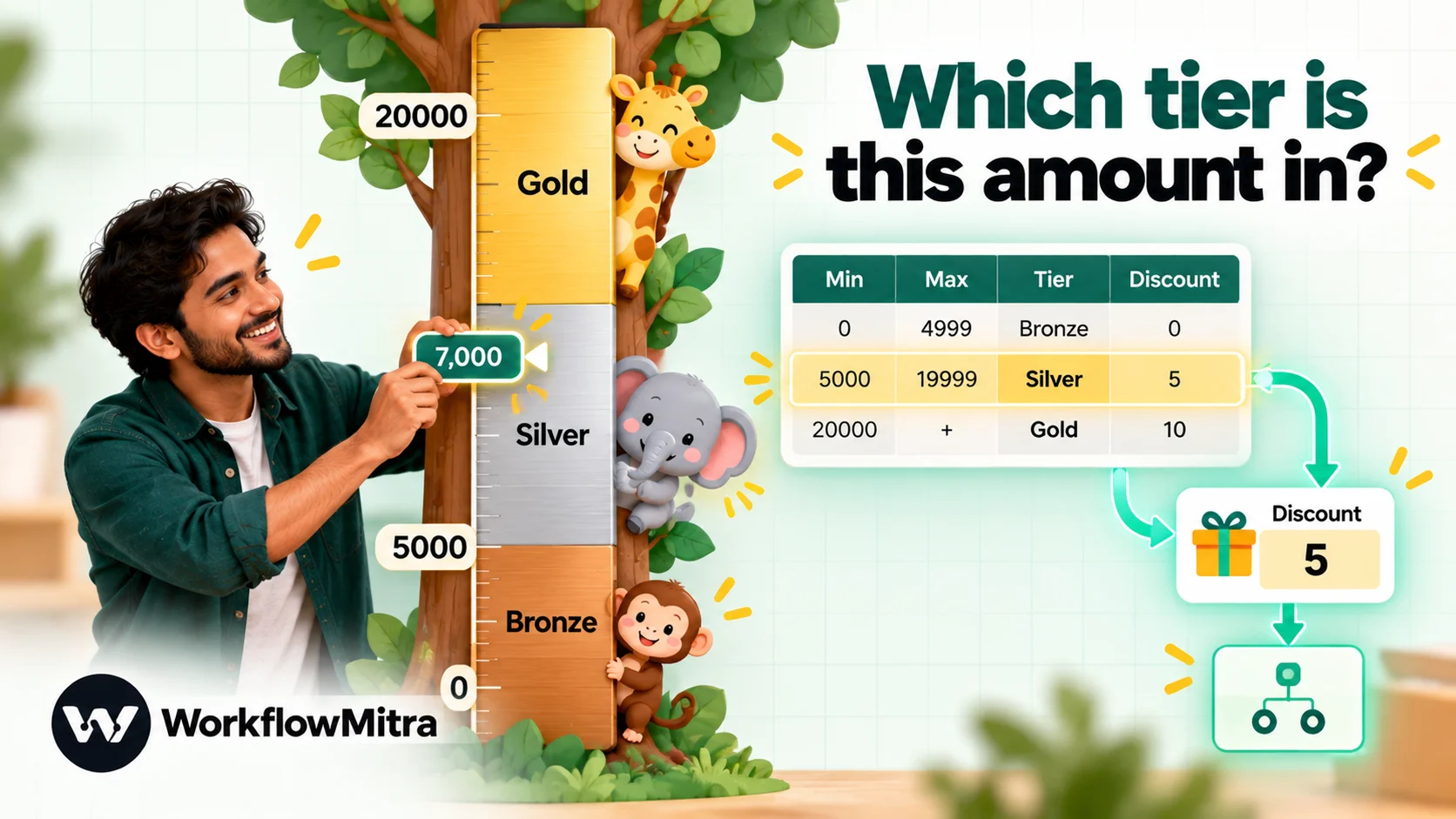
Pattern 3: tier and threshold tables (range lookups)
A tier table maps an amount to a band: order value to discount, deal size to approval level, lead score to priority. Each row is a range:
| Tier | Min | Max | Discount |
|---|---|---|---|
| Bronze | 0 | 4999 | 0 |
| Silver | 5000 | 19999 | 5 |
| Gold | 20000 | 999999999 | 10 |
Find the tier with conditions mode and two rules in one group:
MinLess than or equal{{ $trigger.amount }}MaxGreater than or equal{{ $trigger.amount }}
For an amount of 7,000, only Silver satisfies both. Three details decide whether this works:
- Formatted numbers never match. We tested a table whose cells displayed
₹5,000and20,000: no amount matched any row, with no error, because the comparison couldn’t read those cells as numbers. Type plain numbers and read values as raw numbers. - Don’t leave the top tier’s Max blank. A blank cell counts as 0 in these comparisons, so “Max ≥ 25,000” is false and the top tier never matches. Either put a very large number in Max, as in the table above, or add a second condition group:
Minless than or equal to the amount andMaxIs empty. - A blank Min counts as 0, which happens to work for the bottom tier, but writing
0is clearer for whoever edits the table next.
Ranges shouldn’t overlap. If they do, two rows match and the step stops, which is the right outcome: it tells you the table needs fixing before a customer gets the wrong discount.
Pattern 4: a mapping table that turns codes into words
Other systems speak in codes. A courier sends OFD or RTO, a payment gateway sends captured or failed, a store sends an internal status. Customers and colleagues need words. A mapping table on a Status messages tab, with Code, Customer message and Notify team, translates one to the other.
- Find row on
Code, with the incoming status as the key value, for example{{ $trigger.status }}. - Message with a fallback. Use
{{ ifempty($node["Find message"].row["Customer message"], "Your order status has changed. We'll update you soon.") }}so an unexpected new code still produces a sensible message. - Alert on unknown codes. An IF on
found= false can post the raw code to your team, so whoever owns the table adds the missing row the same day.
Mapping tables pay off quickly because external codes change without warning. When a courier adds a new status, the fix is a new row, and the alert tells you exactly which one to add.
Pattern 5: a settings tab you can switch from your phone
Some values aren’t rows at all. They’re single settings: whether a promotion is on, the message to send outside business hours, the minimum order value for free delivery. Put them on a Settings tab with labels in column A and values in column B.
- Get cell (A1) on
Settings, coordinateB2. - IF
{{ $node["Offer switch"].value }}Equal to, ignore caseon. - True: include the offer in the message. False: send the standard message.
Because Google Sheets has a mobile app, the person running the promotion can turn it off from their phone in seconds, with no access to the workflow. Use one Get cell per setting the run actually needs, or Read rows on a small two-column settings tab if a run needs several.
Pattern 6: many lookups in one run
An order with five items needs five prices. Five Find row steps would work but cost five credits and five Google reads. Instead, read the table once and look up each item with expressions.
- Read rows on the
Pricestab, named “Read prices”. - In any later step, look up one SKU:
{{ get(find($node["Read prices"].rows, SKU = $trigger.sku), "Price") }}find returns the first row where the condition holds, and get reads one column from it. Inside the condition, plain column names like SKU refer to the row being checked, and $trigger or $node[...] refer to your run’s data. If nothing matches, the result is empty.
- For a list of items, a Loop step can repeat the lookup for each item, or
filterandmapcan work on the whole table at once:
{{ join(map(filter($node["Read prices"].rows, Category = "Gifts"), Product), ", ") }}Three syntax details save a lot of confusion, and each was checked by running the expressions:
- Use a single
=in conditions.SKU == $trigger.skureturns nothing. - Read the column with
get(…, "Price"). Writingfind(…).Pricereturns empty, even when the row exists. - Expressions compare text exactly. For case-insensitive matching, compare lowercased values:
lower(trim(SKU)) = lower($trigger.sku).
Read rows reports truncated = true if the tab has more rows than it returned. A price list rarely gets near 5,000 rows, but if yours does, raise the Limit (up to 50,000) or use Find row instead.
Test the table before you rely on it
A lookup that works for the first value you try can still fail for others. Before switching the workflow on, run it from a manual trigger with a short list of test inputs:
- A key you know exists, typed exactly as the sheet has it.
- The same key in a different case and with a trailing space.
- A key that doesn’t exist, to check the
found= false path and any fallback. - An empty value, to see the error and confirm an earlier IF catches it.
- For tier tables, the boundaries: 4999, 5000, 19999 and 20000 in the example above, plus a very large amount.
A few minutes of boundary tests catch the overlapping range or the blank Max cell before a customer does.
Matching rules that trip people up
When a lookup returns found = false for a value you can see in the sheet, the cause is almost always one of these. Each was confirmed by running the step’s matching code against sample rows.
| What you see | Why | Fix |
|---|---|---|
TSHIRT-L doesn't find tshirt-l | Key-column matching is case-sensitive | Standardise case in the sheet, or use Equal to, ignore case |
| Ignore-case match still fails | The cell has a trailing space; ignore-case doesn't trim | Clean the cell, or use the key-column match, which trims both sides |
| Phone number never matches | Different formats (+91, spaces, number formatting) | Store keys as plain text in one format; see formatting phone numbers |
| Range lookup matches nothing | Cells are formatted text like ₹5,000 | Plain numbers + Read values: Raw values |
| Top tier never matches | Blank Max counts as 0 | Large number in Max, or a group with Max Is empty |
| "2 rows match…" error | Duplicate keys or overlapping ranges | Make keys unique; or Use the first match for ordered rules |
| "There's no column named…" | The header was renamed | Restore the name, or re-pick the column in the step |
| "The value to look up … is empty" | The placeholder resolved to nothing | Check the {{ }} path; add an IF before the lookup |
| Column value always empty in later steps | The column name contains a dot | Rename the column without dots |
For more on cleaning keys before they reach the sheet, see our guide to data validation in workflows.
Limits, quotas and cost
Credits. Every Google Sheets step uses 1 credit per run, whether it finds one row or reads thousands. IF steps and expressions are free. A lookup workflow with a trigger, one Find row, one IF and one message uses three credits per run. WorkflowMitra plans start at 10,000 credits a month for ₹999 (checked on 8 October 2026; see current pricing), after a 14-day trial with no card.
Google’s read quota. Google’s Sheets API allows 60 read requests per minute per user per project, and answers with “429: Too many requests” beyond that. Every Find row, Read rows and Get cell is one read, and Sheets triggers that check the same account count too. A Sheets step makes one attempt by default, so a 429 during a burst fails that step. Three habits keep you clear:
- Read once per run when a run needs several lookups (Pattern 6).
- Don’t look up the same thing in every step; reference the first lookup’s result with
$node[...]. - Give your busiest lookup workflows their own Google credential, so they don’t share a minute’s quota with everything else.
Table size. Find row reads the whole tab (or the step’s Column range, if you set one) on every lookup, which is fast for tables of a few thousand rows. Read rows returns 5,000 rows by default and refuses to return more than 50,000 at once.
Freshness. Every run reads the sheet as it is at that moment. There’s no cache to clear, so an edit applies to the next run, and a half-finished edit applies too. Edit big changes on a copy of the tab and swap names when you’re done.
When a sheet is the wrong lookup table
Sheets are the right tool for reference data that people edit by hand and that’s read a few times a minute. Consider a database instead when:
- The table has tens of thousands of rows or grows every day.
- Lookups run many times a minute, all day.
- You need strict uniqueness, permissions per row, or an audit trail beyond version history.
- The data is sensitive, such as customer identity documents or payment details.
WorkflowMitra has steps for PostgreSQL and MySQL, so the same lookup patterns move to a database table when you outgrow the sheet; the reverse direction, exporting database rows into a sheet for people to read, is covered in database to Google Sheets.
Where WorkflowMitra fits
If your reference data already lives in Google Sheets, WorkflowMitra by ChatMitra lets workflows use it without formulas or code:
- Lookups that fail loudly. Duplicate keys, renamed columns and empty lookup values stop the step with a message that names the problem, instead of quietly returning the wrong row.
- Conditions like an IF step. Ranges, two-column keys and ignore-case matching use the same operators you already use for branching.
- One read, many lookups. Read rows plus
find,filterandmapexpressions price a whole order for 1 credit. - Answers that reach people. A looked-up price, owner or status can go straight into a WhatsApp message sent through ChatMitra, or into Slack, email or Telegram.
The limits are just as real. There’s no built-in cache, no automatic retry on Google’s quota errors in the editor, and lookups compare text exactly, so the sheet’s tidiness is your responsibility. The Google Sheets integration page lists every operation the step supports.
Build your first lookup table
Pick one value that’s hard-coded in a workflow today, the one that changes most often. Move it into a two-column tab, key and value, and replace the hard-coded value with a Find row and an IF on found. Once that works, the price list, routing table and tier table are the same idea with more columns.
You can try it in a 14-day WorkflowMitra trial. For everything else the Google Sheets step can do, start with our Google Sheets automation guide; if your workflow also writes rows, preventing duplicate rows shows the find-then-update pattern that keeps the sheet clean.
WorkflowMitra behaviour described here, including the Google Sheets step's operations, key and condition matching, multiple-match handling, header rules, read limits, value rendering and credit rates, comes from its source code as of 8 October 2026. The matching code and lookup expressions were run against sample price, routing and tier tables on that date. Google's Sheets API quotas are from its usage limits page (last updated 3 September 2026), read the same day.
Frequently Asked Questions
Short answers to common questions about using a Google Sheet as a lookup table in automated workflows.
Yes, though not with the formula itself. A workflow's Google Sheets step finds the row whose key column matches a value, such as a SKU or a city, and returns the whole row, so any column can be used later. That is what VLOOKUP does, without the formula, the column index or the sorted-range rules. WorkflowMitra calls this Find row.
Automate the work between your apps
Build workflows with triggers, conditions and actions, then test them before they go live. Try WorkflowMitra free for 14 days, no card required.
