Google Sheets to MySQL or PostgreSQL: Send New and Edited Rows to Your Database Automatically

Quick Summary
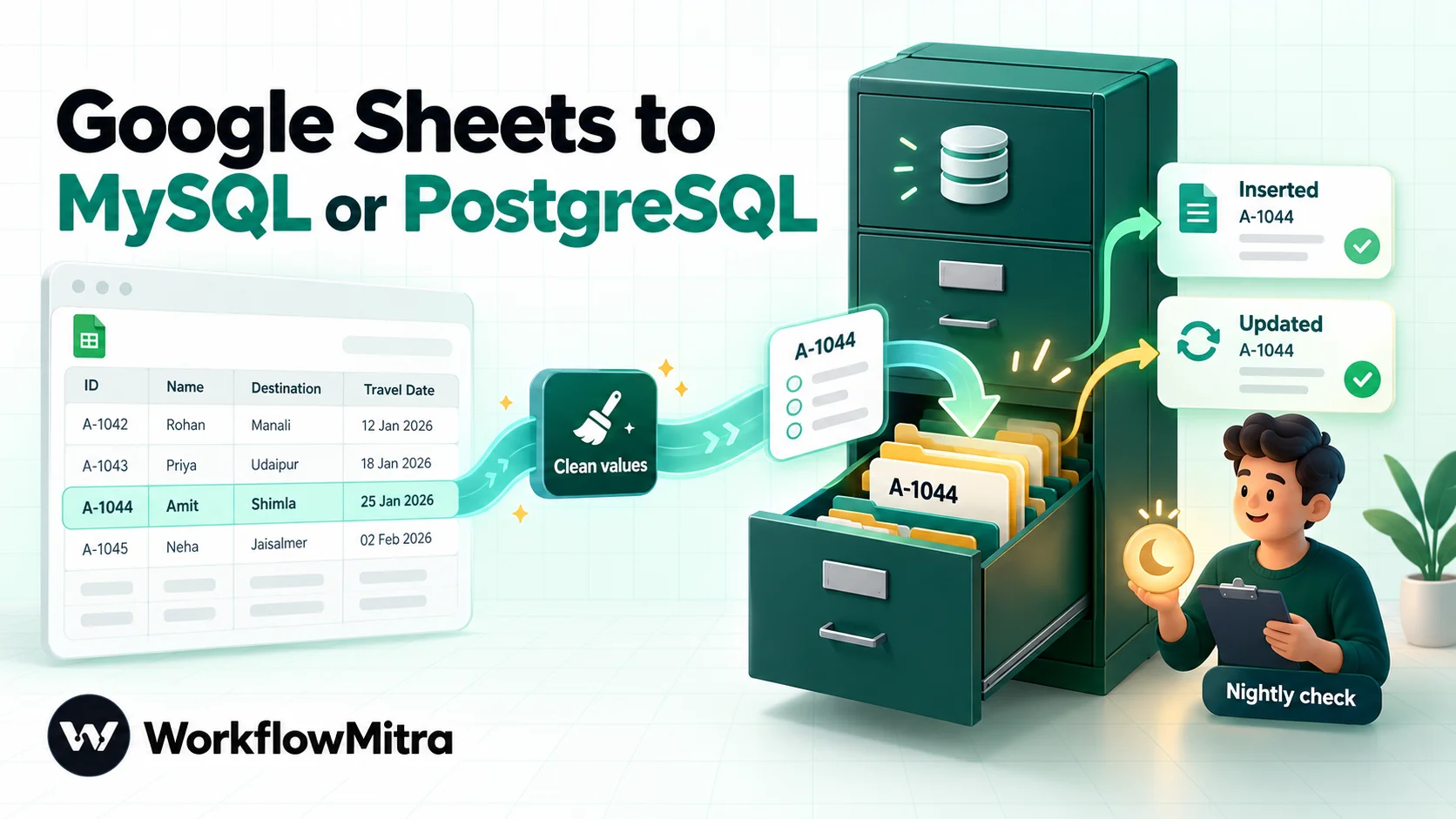
To send Google Sheets rows to MySQL or PostgreSQL automatically, give the sheet a unique ID column and simple headers, create a table with that ID as its primary key, and connect them with a workflow: a Google Sheets trigger that fires when a row is added or changed, followed by one SQL step that inserts the row or updates the existing one (an upsert). Sheet values need converting on the way in: blank cells to NULL, date serial numbers to real dates and checkboxes to booleans. A one-time bulk step loads the rows already in the sheet, and a nightly reconcile catches anything a failed run missed. In WorkflowMitra, powered by ChatMitra, each synced row costs 2 credits.
Plenty of business data starts life in a Google Sheet. Sales logs orders there, operations tracks stock there, and a form writes enquiries there. Sooner or later the data also needs to be in a real database, because an app reads from it, a dashboard queries it or a developer refuses to build on a spreadsheet. Copying it across by hand works until someone forgets, and exporting a CSV every Friday means the database is always up to a week out of date.
This guide shows how to send Google Sheets rows to MySQL or PostgreSQL automatically, including the parts most tutorials skip: what happens to blank cells, dates and checkboxes on the way in, how to update a row when someone edits it, what to do about deleted rows, and how to load the rows already in the sheet. Every SQL statement here was run against PostgreSQL 18 and MySQL 26.7 through WorkflowMitra’s own database steps before publication. The automation is built in WorkflowMitra, powered by ChatMitra, but the preparation and the SQL apply whichever tool you use.
How to send Google Sheets rows to MySQL or PostgreSQL
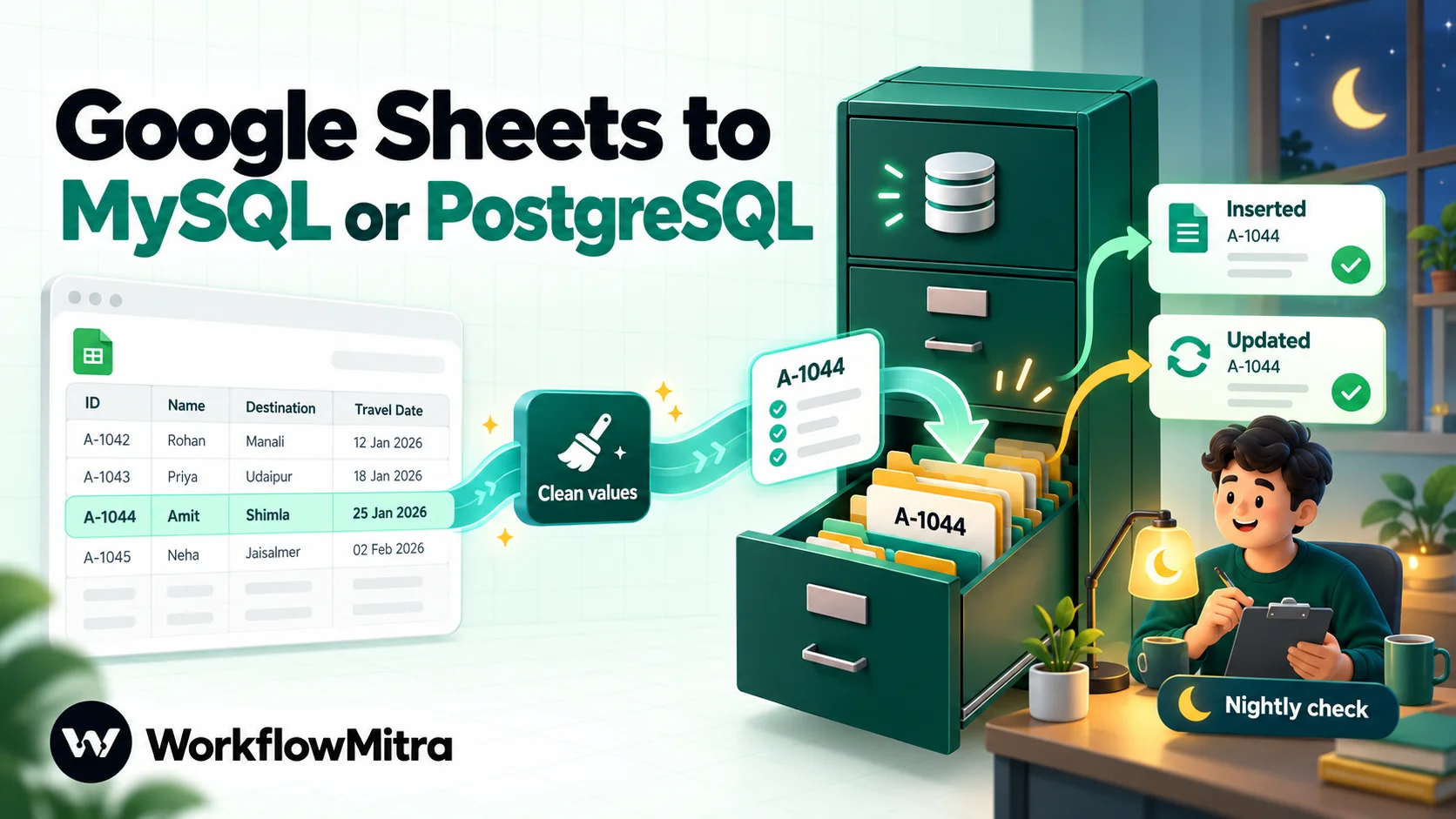
The short answer: give the sheet a unique ID column, create a database table with that ID as its primary key, and connect them with a workflow that watches the sheet and writes each new or changed row with an upsert, a single statement that inserts the row if it’s new and updates it if it already exists.
In practice that’s five pieces:
- A sheet with a stable ID column and simple, database-friendly headers.
- A table whose primary key is that ID, and a database user that can only write to that table.
- A trigger that notices added and changed rows.
- One SQL step that converts the spreadsheet’s values and upserts the row.
- A one-off backfill for the rows already in the sheet, and optionally a nightly reconcile as a safety net.
The rest of this guide covers each piece, then the costs, limits and fixes for the problems you’re most likely to hit.
Four ways to move sheet data into a database
Before building anything, it’s worth knowing the alternatives, because one of them may fit better.
| Method | How it works | Best for | Watch out for |
|---|---|---|---|
| CSV export and import | Download the sheet as CSV, load it with COPY (PostgreSQL) or LOAD DATA (MySQL) | One-time migrations | Manual every time; stale between imports |
| Google Apps Script (JDBC) | A script attached to the sheet opens a database connection and writes rows | Developers comfortable maintaining scripts | Google's IP ranges must be allowed through your firewall; you own the code, quotas and error handling |
| Automation platform | A trigger watches the sheet; a database step writes each row | Ongoing sync that non-developers can see and change | Polling delay of a few minutes; database must be reachable from the internet |
| Custom ETL or reverse-ETL tool | A data pipeline reads the sheet on a schedule | Data teams with many sources | Cost and setup are heavy for one sheet |
Apps Script deserves a fair word. Its JDBC service connects to MySQL, PostgreSQL, Microsoft SQL Server and Oracle, and costs nothing beyond your Google account. The catch is everything around the connection: Google’s documentation asks you to allow its published IP ranges, connections must use ports 1025 or higher with TLS 1.2 or later, and retries, logging and type conversion are yours to write. If a developer will own it, that can be fine. If the people who own the spreadsheet need to see what happened to row 214, a workflow with run history is easier to live with.
Decide what “sync” means first
“Sync the sheet to the database” can mean three different things, and they need different builds.
- Append only. Rows are added to the sheet and never edited. Every new row becomes a new database row. This is the simplest case, but it’s rarer than people think, because someone always fixes a typo.
- Insert and update. New rows are inserted; edits to existing rows update the matching database row. This is what most teams actually want, and what this guide builds.
- Full mirror. Inserts, updates and deletions all flow through. Possible, but think hard about deletions: a sheet row deleted by accident would delete real data.
Also decide which side is the source of truth. This guide sends data one way, from the sheet to the database. If people also edit the same records in the database, two-way sync becomes a conflict-resolution problem, and the usual answer is to stop editing in one of the two places.
Prepare the sheet
A few minutes here prevents most of the problems later.
- Add an ID column with a value that never changes and never repeats: an order number, an invoice number or a generated ID. Don’t use the row number; it changes the moment someone sorts the sheet. WorkflowMitra’s trigger uses this column to recognise each row. It skips rows with a blank ID, and duplicate IDs stop the trigger with an error until they’re fixed.
- Use simple headers that match your database columns:
order_id,customer,amount,order_date,paid,qty. Lowercase with underscores is ideal. Headers with spaces or symbols can’t be read directly inside a SQL statement, which a later section explains. - One header row, no merged cells, no notes rows above or below the data.
- Format date columns as dates (Format › Number › Date), so the sheet stores real dates rather than text that only looks like a date.
- Use checkboxes for yes/no columns rather than typing “Yes”.
- Keep the tab focused. Put summaries and charts on another tab. WorkflowMitra’s trigger reads the whole tab on every check and watches up to 20,000 rows.
Prepare the database
Create the table
Make the sheet’s ID the primary key. Everything else follows the sheet’s columns, with proper types.
PostgreSQL:
CREATE TABLE orders (
  order_id   text PRIMARY KEY,
  customer   text,
  amount     numeric(10,2),
  order_date date,
  paid       boolean NOT NULL DEFAULT false,
  qty        integer,
  updated_at timestamptz NOT NULL DEFAULT now(),
  deleted_at timestamptz
);
MySQL:
CREATE TABLE orders (
  order_id   VARCHAR(40) PRIMARY KEY,
  customer   VARCHAR(200),
  amount     DECIMAL(10,2),
  order_date DATE,
  paid       BOOLEAN NOT NULL DEFAULT FALSE,
  qty        INT,
  updated_at TIMESTAMP NOT NULL DEFAULT CURRENT_TIMESTAMP ON UPDATE CURRENT_TIMESTAMP,
  deleted_at TIMESTAMP NULL
);
A text ID is the safe choice even when your IDs look like numbers: it keeps leading zeros and accepts “A-1042” as well as “1042”.
Create a user that can only do this job
Connect with a dedicated user, never the application’s own account or an administrator. We tested the minimum permissions on both databases. INSERT and UPDATE alone are not enough for an upsert: PostgreSQL refused it with “permission denied for table orders”, and MySQL refused it with “SELECT command denied”. Grant SELECT as well:
-- PostgreSQL
CREATE ROLE sheets_writer LOGIN PASSWORD 'use-a-long-random-password';
GRANT USAGE ON SCHEMA public TO sheets_writer;
GRANT SELECT, INSERT, UPDATE ON orders TO sheets_writer;

-- MySQL
CREATE USER 'sheets_writer'@'%' IDENTIFIED BY 'use-a-long-random-password';
GRANT SELECT, INSERT, UPDATE ON shop.orders TO 'sheets_writer'@'%';
With these grants, the same user’s attempt to DELETE was refused on both databases, which is exactly what you want if deletions are handled as soft deletes (covered later).
Make it reachable, safely
A cloud workflow connects to your database over the internet, so the database needs a public endpoint. Managed services such as Amazon RDS, Google Cloud SQL, Azure Database, DigitalOcean, Supabase and Neon provide one. In WorkflowMitra’s database connection, set SSL to On — verify the certificate (recommended), and paste your provider’s CA certificate if it isn’t publicly trusted; client certificates are supported too. There’s no SSH tunnel option, and WorkflowMitra doesn’t publish its outgoing IP addresses in the app, so a firewall that only admits a fixed list of addresses won’t work without talking to the WorkflowMitra team first. The Postgres to Google Sheets guide, which covers the opposite direction, goes into network access in more detail.
How sheet values arrive, and why the SQL matters
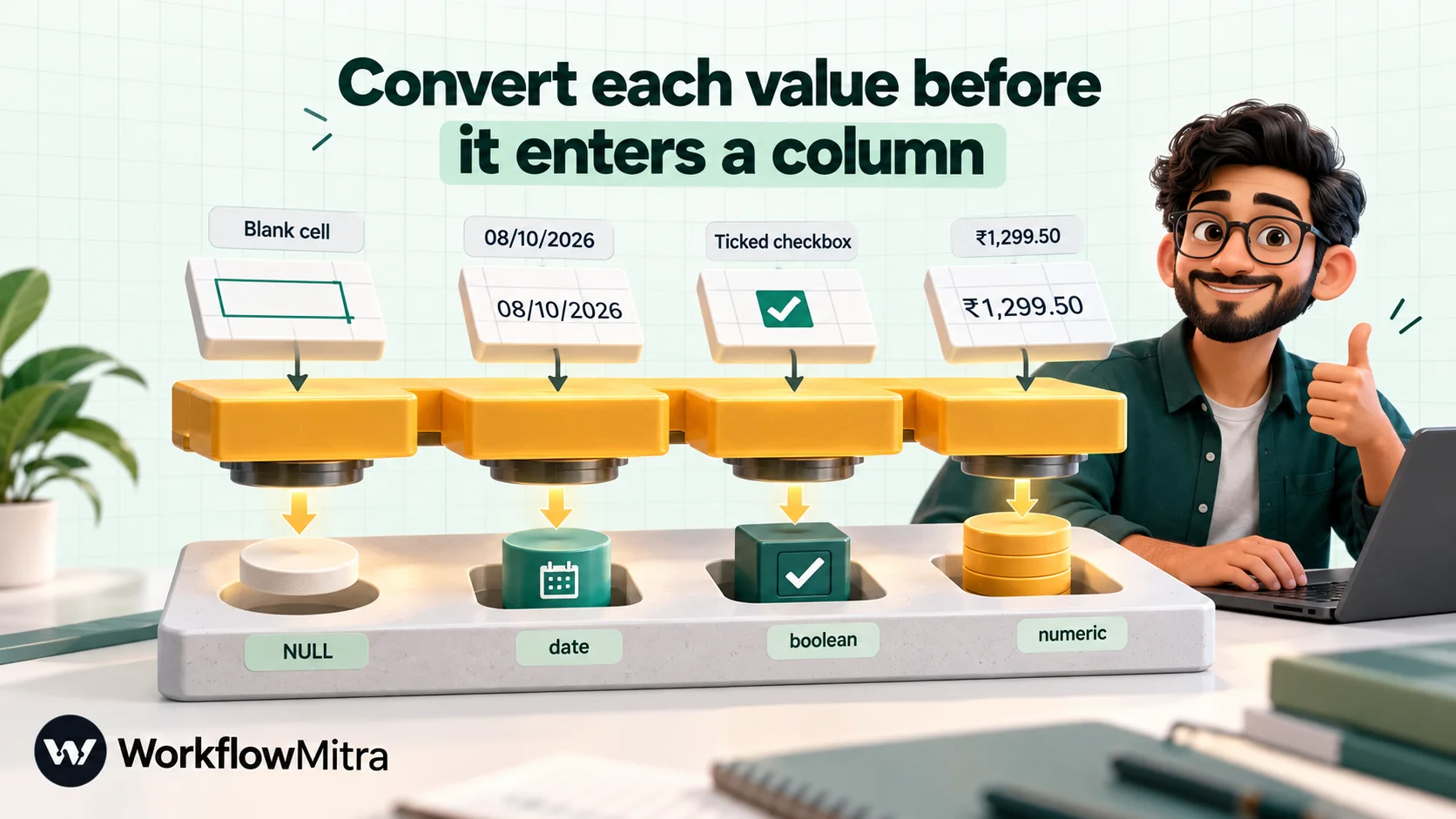
This is the part that breaks most first attempts. WorkflowMitra’s Google Sheets trigger reads unformatted values, which is good for accuracy but means the data isn’t always what you see on screen.
| What you see in the sheet | What the workflow receives | What the database needs |
|---|---|---|
| 1,299.50 (number format) | 1299.5 (a number) | Works as is |
| ₹1,299.50 (currency format) | 1299.5 (a number) | Works as is |
| ₹1,299 typed as text | "₹1,299" (text) | Fails; fix the cell or strip it first |
| 15% (percent format) | 0.15 | Store as a fraction, or multiply by 100 |
| 08/10/2026 (date format) | 46303 (serial number) | Convert to a date |
| 08/10/2026 18:00 (date-time) | 46303.75 | Whole days for a date; the fraction is the time |
| Ticked checkbox | true | Works for boolean |
| Empty cell | "" (empty text) | Must become NULL for number and date columns |
The serial numbers come from Google’s own date format: the Sheets API documentation describes the whole number as days since 30 December 1899, with the fraction as the time of day.
WorkflowMitra’s PostgreSQL and MySQL steps offer two ways to write a row, and they treat these values differently. We tested both:
- Insert Row (the visual action) lets you pick a table and map each column to a value. Every value is sent as text, and partial templates and
$triggerreferences work. On PostgreSQL, a fully filled row went in correctly, because the database converts text like “1299.5” and “true” to the column’s type. A row with blank cells failed: “invalid input syntax for type numeric”. On MySQL, even the filled row failed, because “true” isn’t accepted for a BOOLEAN column, and blank cells failed with “Incorrect decimal value”. It also can’t update an existing row. - Run SQL Query (advanced) sends each
{{ }}value as a bound parameter with its original type: a number stays a number,truestays a boolean. It’s injection-safe, because the value is never pasted into the SQL text. It has one rule to remember: a{{ }}inside SQL reads only the step directly before it. References to$triggeror$node[...]are sent as NULL. And never put quotes around a placeholder:'{{ customer }}'makes the database receive the literal text$1.
For a sheet with blank cells, dates or checkboxes, which is nearly every real sheet, use Run SQL Query and convert the values in SQL.
Build it: new and edited rows to your database
1. Add the Google Sheets trigger
Create a workflow and add a Google Sheets trigger. Connect your Google account, pick the spreadsheet and the tab, and leave Use column headers as IDs of the columns on, with order_id as the ID column.
Under Run when…, tick both A row is added and A row changes. The trigger reports a brand-new row only as “added”, so ticking both covers every case. The same upsert handles both events, so you don’t need to tell them apart.
The trigger checks the sheet every 5 minutes by default. You can set it as low as 1 minute, and checks that find nothing new cost no credits. Its first check only records the rows already there, so existing rows don’t flood the database; the backfill section below loads them deliberately.
If rows arrive from an import, a form or another tool, tick the settle option under Advanced (“Rows arrive from an import or another tool”). The trigger then holds a row until two checks see the same content, so a half-written row never reaches the database, at the cost of one extra interval. For rows typed by hand, the upsert makes this less important: if a row fires while half filled, the next edit fires “A row changes” and the database row is corrected.
2. Rename spaced headers (only if you have them)
Because a {{ }} inside SQL can only read the step before it, and the expression {{ $trigger["Order ID"] }} isn’t available there, headers with spaces need one extra step. Add a Set Variable step between the trigger and the database step, with one assignment per column: order_id = {{ $trigger["Order ID"] }}, customer = {{ $trigger["Customer name"] }}, and so on. Set Variable keeps the original fields and adds the new ones, and it costs no credits.
Set Variable stores every value as text, so the number 2450 becomes “2450” and a ticked checkbox becomes “true”. The SQL in the next step handles text and typed values alike; we ran it both ways. If you can rename the headers in the sheet instead, do that and skip this step.
3. Add the database step
Add a PostgreSQL or MySQL step straight after the trigger (or after Set Variable). Choose or create the connection with the sheets_writer user, set Action to Run SQL Query (advanced) and paste the statement for your database.
PostgreSQL:
INSERT INTO orders (order_id, customer, amount, order_date, paid, qty)
VALUES (
  {{ order_id }}::text,
  NULLIF(TRIM({{ customer }}::text), ''),
  NULLIF({{ amount }}::text, '')::numeric,
  DATE '1899-12-30' + FLOOR(NULLIF({{ order_date }}::text, '')::numeric)::int,
  COALESCE(NULLIF({{ paid }}::text, '')::boolean, false),
  NULLIF({{ qty }}::text, '')::int
)
ON CONFLICT (order_id) DO UPDATE SET
  customer   = EXCLUDED.customer,
  amount     = EXCLUDED.amount,
  order_date = EXCLUDED.order_date,
  paid       = EXCLUDED.paid,
  qty        = EXCLUDED.qty,
  updated_at = now()
RETURNING order_id, (xmax = 0) AS inserted;
MySQL (8.0.19 or later):
INSERT INTO orders (order_id, customer, amount, order_date, paid, qty)
VALUES (
  {{ order_id }},
  NULLIF(TRIM({{ customer }}), ''),
  NULLIF(CAST({{ amount }} AS CHAR), ''),
  DATE_ADD('1899-12-30', INTERVAL FLOOR(NULLIF(CAST({{ order_date }} AS CHAR), '')) DAY),
  COALESCE(NULLIF(CAST({{ paid }} AS CHAR), ''), 0) IN ('1', 'true', 'TRUE'),
  NULLIF(CAST({{ qty }} AS CHAR), '')
) AS new
ON DUPLICATE KEY UPDATE
  customer   = new.customer,
  amount     = new.amount,
  order_date = new.order_date,
  paid       = new.paid,
  qty        = new.qty;
4. What each line does
NULLIF(…, '')turns an empty cell into NULL, so a blank quantity is stored as “unknown” instead of failing.::textandCAST(… AS CHAR)make the comparison with''safe for numbers. Without the cast, MySQL compares the number 0 with the empty string as equal and would store a quantity of 0 as NULL; we confirmed this on our MySQL test server.DATE '1899-12-30' + FLOOR(…)andDATE_ADD('1899-12-30', INTERVAL FLOOR(…) DAY)turn the serial number into a date.FLOORmatters: a date-time of 6 p.m. is 46303.75, and rounding it would push the date to the next day.COALESCE(…, false)treats an empty checkbox column as false rather than failing.ON CONFLICT (order_id) DO UPDATEandON DUPLICATE KEY UPDATEare the upsert. PostgreSQL’sINSERTdocumentation describes it as an atomic insert-or-update and requires a unique index or constraint on the conflict target. MySQL’sON DUPLICATE KEY UPDATEuses the primary or unique key the same way.AS newnames the incoming row in MySQL. It replaces the olderVALUES(column)form, which MySQL has deprecated since 8.0.20. On MariaDB or MySQL older than 8.0.19, writecustomer = VALUES(customer)instead.RETURNING … (xmax = 0) AS insertedis a PostgreSQL trick that reports whether the row was inserted (true) or updated (false), which is handy in the run history.
Our test rows covered a full row, a numeric ID (1043), zeros in amount and quantity, a row of blank cells, a date-time and a second run of the same row with a new amount. All produced the expected rows in both databases. The second run updated the existing row instead of adding another. A row whose amount was typed as the text “₹1,299” failed on both databases, which is the right outcome: a person should fix that cell.
5. Test against a staging table first
The editor’s Run button runs the workflow for real, and a database write is not simulated. Point the step at a copy of the table, or a separate staging database, then add a row to the sheet and wait for the next check. Open the run, confirm the SQL step’s output, and check the row in the database. Try a blank cell, a date, a ticked and an unticked checkbox, then edit the row and confirm it updated rather than duplicated. Then switch the connection to the real table.
Handling deleted rows
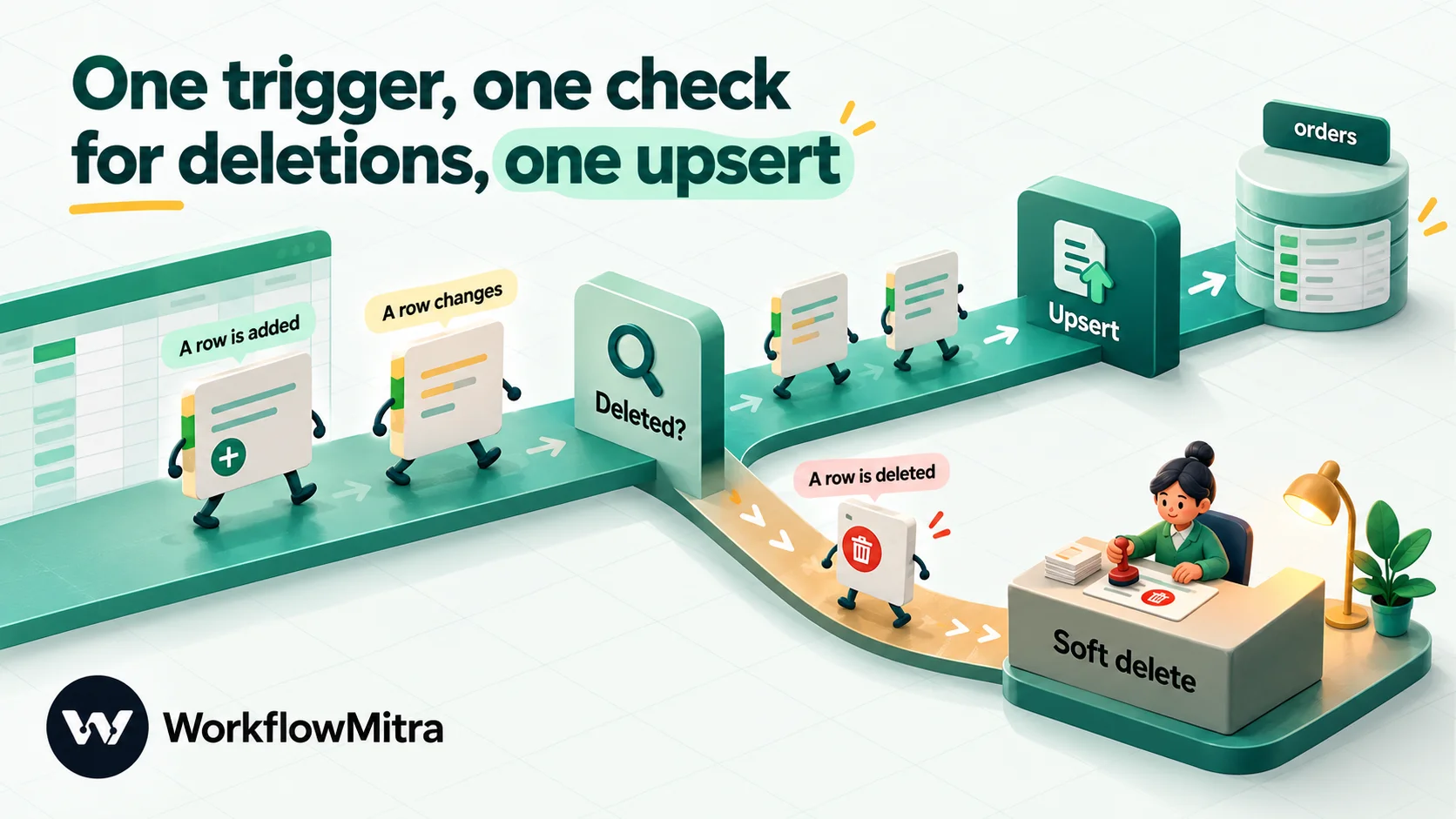
Deletions are optional, and soft deletes are safer than real ones. To add them:
- On the trigger, also tick A row is deleted. For a deleted row, the workflow receives only the ID and a marker, for example
{"order_id": "A-1044", "__deleted": true}. - Add an IF step between the trigger and the database step with one rule:
{{ __deleted }}Is yes. IF steps pass their input through unchanged and cost no credits. - Connect the false branch to the upsert step from the build above.
- On the true branch, add a second database step with a soft delete:
-- PostgreSQL
UPDATE orders SET deleted_at = now() WHERE order_id = {{ order_id }}::text;

-- MySQL
UPDATE orders SET deleted_at = CURRENT_TIMESTAMP WHERE order_id = {{ order_id }};
Your application then ignores rows where deleted_at is set. If the sheet row comes back, the upsert can clear it: add deleted_at = NULL to the update list. We tested the IF routing (a deleted row went to the true branch, a normal row to the false branch) and both soft-delete statements.
One edge case: changing a row’s ID in the sheet looks to the trigger like a deletion of the old ID and a new row with the new one. With soft deletes, that’s harmless and traceable.
Load the rows already in the sheet
Rows that were in the sheet before the trigger’s first check are treated as the starting point, not as new rows. To load them, build a second, one-off workflow that sends the whole sheet in one SQL statement rather than one run per row:
- Manual trigger.
- Google Sheets, operation Read rows, with Read values set to Raw values (numbers stay numbers). It returns the rows as a list: up to 5,000 by default, or up to 50,000 per read if you raise the limit.
- A database step, Run SQL Query (advanced), that unpacks the list inside the database. The
{{ rows }}placeholder sends the whole list as one JSON parameter.
PostgreSQL, using jsonb_to_recordset:
INSERT INTO orders (order_id, customer, amount, order_date, paid, qty)
SELECT
  r.order_id,
  NULLIF(TRIM(r.customer), ''),
  NULLIF(r.amount, '')::numeric,
  DATE '1899-12-30' + FLOOR(NULLIF(r.order_date, '')::numeric)::int,
  COALESCE(NULLIF(r.paid, '')::boolean, false),
  NULLIF(r.qty, '')::int
FROM jsonb_to_recordset({{ rows }}::jsonb)
  AS r(order_id text, customer text, amount text, order_date text, paid text, qty text)
WHERE COALESCE(r.order_id, '') <> ''
ON CONFLICT (order_id) DO NOTHING;MySQL, using JSON_TABLE (MySQL 8.0 or later):
INSERT INTO orders (order_id, customer, amount, order_date, paid, qty)
SELECT
  j.order_id,
  NULLIF(TRIM(j.customer), ''),
  NULLIF(j.amount, ''),
  DATE_ADD('1899-12-30', INTERVAL FLOOR(NULLIF(j.order_date, '')) DAY),
  COALESCE(j.paid, '') IN ('1', 'true'),
  NULLIF(j.qty, '')
FROM JSON_TABLE({{ rows }}, '$[*]' COLUMNS (
  order_id   VARCHAR(40)  PATH '$.order_id',
  customer   VARCHAR(200) PATH '$.customer',
  amount     VARCHAR(40)  PATH '$.amount',
  order_date VARCHAR(40)  PATH '$.order_date',
  paid       VARCHAR(10)  PATH '$.paid',
  qty        VARCHAR(20)  PATH '$.qty'
)) AS j
WHERE COALESCE(j.order_id, '') <> ''
ON DUPLICATE KEY UPDATE order_id = orders.order_id;
Every column is read as text first and converted in the SELECT, for the same blank-cell reasons as before. The WHERE clause skips stray rows without an ID, and the conflict clause skips rows already in the table. With five test rows (two new, one with blank cells, one without an ID and one already in the table), PostgreSQL inserted exactly three. Running it again inserted nothing, and MySQL’s data matched.
This costs 3 credits in total, whether the sheet has 30 rows or 3,000, against roughly 2 credits per row for looping through rows one at a time.
Add a nightly reconcile as a safety net
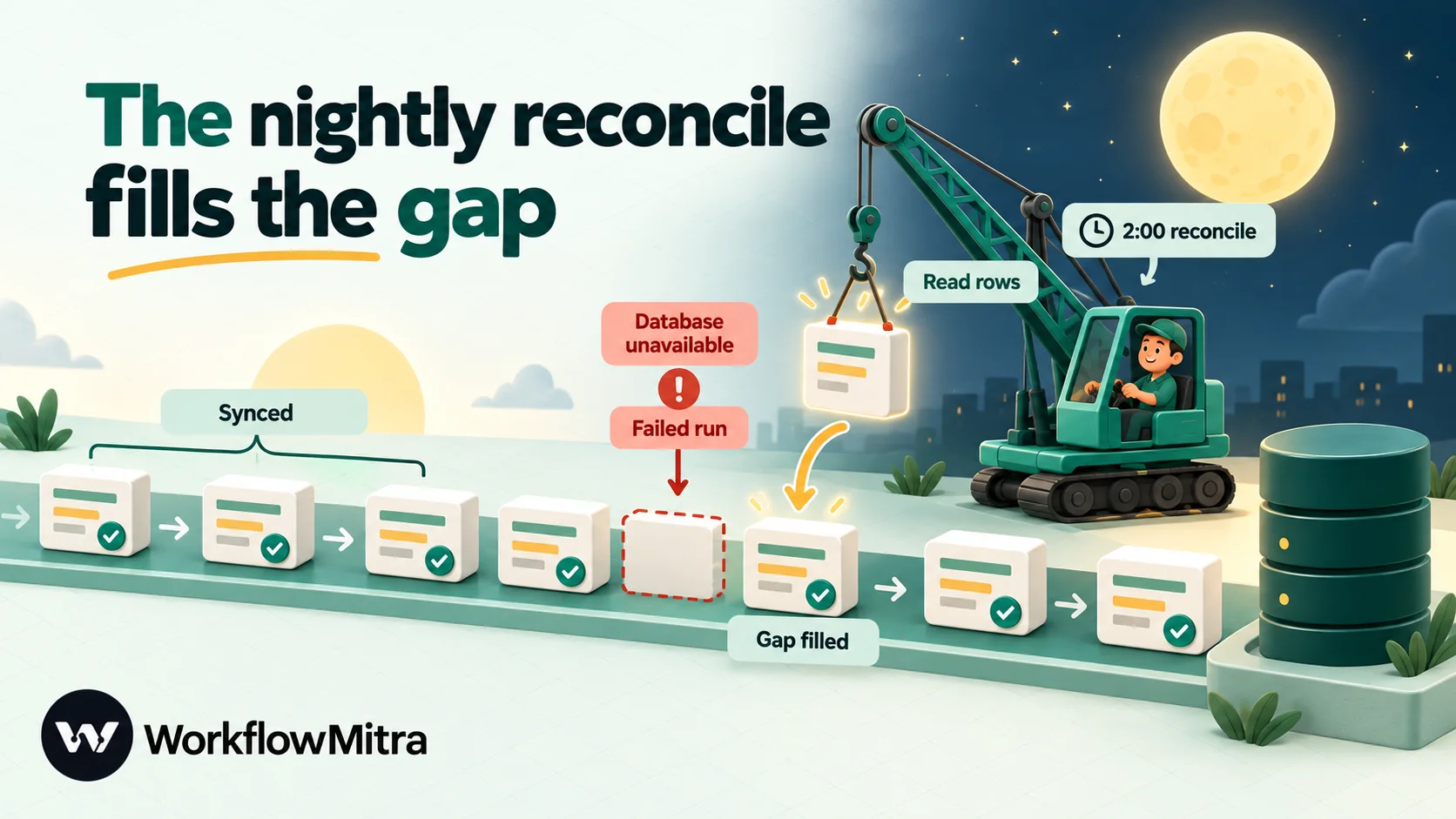
Polling plus an upsert is reliable, but not perfect. If the database is down when a row changes, that run fails, and re-running a failed run in WorkflowMitra doesn’t bring back its trigger data. The cheap insurance is to run the bulk statement every night, set to update rows that differ:
- Schedule trigger, daily at 2:00 in your time zone.
- The same Read rows step.
- The bulk statement, with the conflict clause changed to update only rows that differ.
PostgreSQL (replace the last line of the backfill):
ON CONFLICT (order_id) DO UPDATE SET
  customer   = EXCLUDED.customer,
  amount     = EXCLUDED.amount,
  order_date = EXCLUDED.order_date,
  paid       = EXCLUDED.paid,
  qty        = EXCLUDED.qty,
  updated_at = now()
WHERE (orders.customer, orders.amount, orders.order_date, orders.paid, orders.qty)
  IS DISTINCT FROM
      (EXCLUDED.customer, EXCLUDED.amount, EXCLUDED.order_date, EXCLUDED.paid, EXCLUDED.qty);
MySQL: wrap the backfill’s SELECT in SELECT * FROM ( … ) AS src and end with ON DUPLICATE KEY UPDATE customer = src.customer, amount = src.amount, order_date = src.order_date, paid = src.paid, qty = src.qty;. MySQL leaves a row untouched when the new values equal the old ones, so updated_at only moves on real changes.
In our test, the reconcile updated the one changed row and inserted the one missing row on PostgreSQL (2 rows affected), left the unchanged row alone, and affected nothing on a second run. On MySQL, the unchanged rows kept their original updated_at. At 3 credits a night, it’s about 90 credits a month for the peace of mind.
Get told when a sync fails
A sync nobody watches fails quietly. In WorkflowMitra, open Workspace settings › Alerts and turn on failure alerts by email or to a Slack channel through an incoming webhook. You get at most one alert per workflow every 15 minutes, so a database outage produces one message rather than hundreds. Send it to whoever can fix the cause, usually the person who owns the database rather than the person who owns the sheet.
When an alert arrives, open the failed run and read the database step’s error. Most failures fall into three groups. A bad value, such as text in a number column, is fixed in the sheet, and the edit triggers a fresh run. A permission or connection problem needs fixing on the database side. For a temporary outage, fix nothing and let the nightly reconcile fill the gap.
What it costs
In WorkflowMitra, a credit is one executed step. IF and Set Variable steps cost nothing, and Google Sheets checks that find no changes cost nothing.
| Event | Steps that use credits | Credits |
|---|---|---|
| Row added or changed | Trigger, database step | 2 |
| Row deleted (soft delete) | Trigger, database step | 2 |
| One-off backfill, any size up to the read limit | Manual trigger, Read rows, database step | 3 |
| Nightly reconcile | Schedule, Read rows, database step | 3 per night |
A sheet that gets 1,500 new or edited rows a month uses about 3,000 credits for the sync plus about 90 for the reconcile. That fits within the entry plan of 10,000 credits for ₹999 a month (prices checked on 8 October 2026; see WorkflowMitra pricing), with room for other workflows.
Limits worth knowing
- Polling, not instant. Rows arrive within one check, every 5 minutes by default and 1 minute at the fastest.
- 20,000 rows per watched tab. Beyond that the trigger stops with a clear error. Archive old rows to another tab, or switch to the scheduled reconcile alone.
- 5,000 rows per Read rows by default, up to 50,000 with the limit and offset settings. Very large backfills should be split.
- A new connection per run. Each database step opens a connection and closes it when done. For managed PostgreSQL with tight connection limits, use your provider’s connection pooler.
- No SSH tunnel and no published egress IPs, as covered above.
- Formulas that change on their own (
NOW(),IMPORTRANGE) need the trigger’s “My sheet has formulas that update on their own” option, or their changes can be missed.
Troubleshooting
| Symptom | Likely cause | Fix |
|---|---|---|
| Every column is NULL in the database | The SQL step uses $trigger references, or another step sits between the trigger and the SQL step | Use plain {{ column }} and put the SQL step straight after the trigger, IF or Set Variable |
| The database stored "$1" as text | A placeholder inside quotes: '{{ customer }}' | Remove the quotes |
| "invalid input syntax for type numeric" / "Incorrect decimal value" | A blank cell, or a number typed as text with a currency sign | Use the NULLIF pattern; fix text-typed cells in the sheet |
| Dates are a day late | A date-time serial rounded instead of floored | Use FLOOR as shown |
| Dates are years off or fail | The column is text in the sheet, not a real date | Format the column as Date and re-enter |
| "permission denied" / "SELECT command denied" | The writer user lacks SELECT, which upserts need | Grant SELECT, INSERT, UPDATE on the table |
| Trigger in error about duplicate IDs | Two rows share an ID | Make the IDs unique; the trigger resumes |
| Existing rows never arrived | The first check records a baseline by design | Run the backfill workflow |
| Connection timeout | The database isn't reachable from the internet, or SSL settings don't match | Check the public endpoint, firewall and SSL mode |
Common mistakes
- Using the row number as the ID. Sort the sheet once and every row looks changed.
- Inserting without a unique key. Without one, retries and edits create duplicates that are painful to clean up.
- Connecting as an administrator. A typo in a statement can then touch every table.
- Trusting how the sheet displays values. The workflow sees unformatted values: serial dates, fractions for percentages, empty text for blanks.
- Skipping the staging test. Database writes are real from the first run.
- Mirroring deletions with real DELETE statements. One accidental row deletion in a shared sheet becomes lost data.
Why use WorkflowMitra to sync Google Sheets with a database?
The SQL here would work in any tool that can run a parameterised query. What WorkflowMitra, powered by ChatMitra, adds is everything around it:
- Type-preserving, injection-safe SQL.
{{ }}values are bound as parameters with their original types, never pasted into the statement. - A Sheets trigger built for this job. It recognises rows by ID, can watch added, changed and deleted rows at once, has a settle option for half-written rows, and charges nothing for checks that find no changes.
- Bulk steps that keep costs flat. A 3,000-row backfill or nightly reconcile costs 3 credits.
- Run history per row, so the person who owns the sheet can see what happened to each change.
- The next step is one click away. Once the order is in the database, the same workflow can notify the team on Slack or message the customer on WhatsApp through ChatMitra.
- Rupee pricing per step, with a 14-day trial and no card.
The limits, plainly: the trigger polls rather than reacting instantly, sync is one way, there’s no SSH tunnel or published IP list, and the visual Insert Row action isn’t suited to sheets with blank cells, dates or checkboxes.
Start with one tab
Pick one tab that someone already copies into a database by hand. Add the ID column, create the table and the writer user, build the upsert workflow against a staging table, and run the backfill. Once a week of edits has flowed through cleanly, add the nightly reconcile and switch to the real table. You can build all of it on the 14-day trial. For more ways to put a spreadsheet to work, see the Google Sheets automation guide. If the data needs to flow the other way as well, from the database back to a sheet for reporting, the Postgres to Google Sheets guide covers it.
Product behaviour described here, including the Google Sheets trigger's events, unformatted reads, ID handling, settle and formula options and row limits, Read rows output and limits, the PostgreSQL and MySQL steps' actions, parameter binding and connection options, Set Variable and IF behaviour, and credit rates, was checked in WorkflowMitra's code on 8 October 2026. Every SQL statement, the grants and the visual Insert Row comparison were run through WorkflowMitra's database steps against local PostgreSQL 18.4 and MySQL 26.7 test databases the same day. Plan prices were read from the live pricing catalogue on 8 October 2026. Database behaviour is from the PostgreSQL 18 and MySQL 8.0/8.4 reference manuals, the date format from Google's Sheets API documentation and the Apps Script details from Google's JDBC guide, all read on 8 October 2026. The order data in the examples is illustrative.
Frequently Asked Questions
What teams ask before pointing a shared sheet at a production database.
Create a MySQL table whose primary key matches a unique ID column in your sheet. Then build a workflow with a Google Sheets trigger set to run when a row is added or changes, followed by a MySQL step that runs an INSERT … ON DUPLICATE KEY UPDATE statement with the row's values. New rows are inserted, edited rows are updated, and nothing is duplicated.
Automate the work between your apps
Build workflows with triggers, conditions and actions, then test them before they go live. Try WorkflowMitra free for 14 days, no card required.
