Call a GraphQL API Without Code: A Step-by-Step Guide for Shopify, GitHub and More

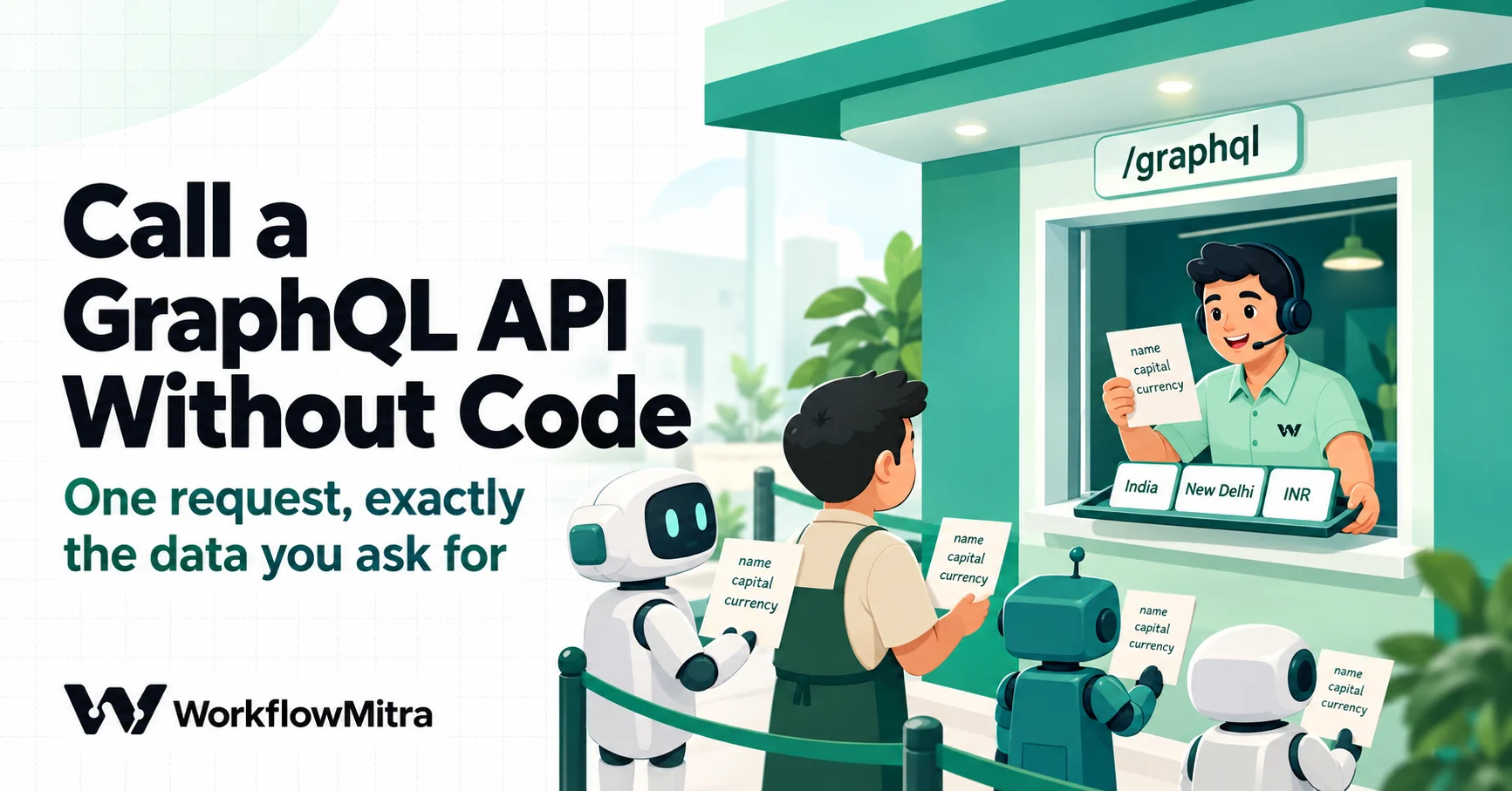
Quick Summary
To call a GraphQL API without code, send one HTTP POST to the API's single endpoint with a JSON body that holds two things: your query, written on one line, and a variables object with the values that change. Add the API's sign-in header, then check the reply in two places, because GraphQL often returns HTTP 200 even when the query failed: the errors list, and for changes the mutation's userErrors list. In WorkflowMitra, powered by ChatMitra, that's an HTTP Request or App Request step with a Raw JSON body, followed by a free IF step, at one credit per call.
You’ve built a few automations that call REST APIs: a URL for each thing you want, a GET or a POST, and a reply you can read. Then you open the documentation for the app you need next, and every example looks like this:
query {
  orders(first: 10) {
    nodes { name createdAt }
  }
}
No list of URLs. One address, and a block of text in curly braces. Shopify now calls its REST Admin API legacy, GitHub’s newer features arrive in GraphQL first, and tools like monday.com offer only GraphQL. If your automation tool has no “GraphQL” button, it can feel as if this API is for developers only.
It isn’t. A GraphQL call is one HTTP request with a particular body, and you can send it from any workflow step that can send a POST. This guide shows the request shape, three rules that make it work, tested examples for a public API, Shopify, GitHub and monday.com, and the error checks you need because GraphQL often says “200 OK” when something went wrong.
How do you call a GraphQL API without code?
To call a GraphQL API without code, send an HTTP POST to the API's single GraphQL endpoint with a JSON body containing a query string (written on one line) and a variables object for the values that change. Add the API's sign-in header, then check the reply's errors list as well as the HTTP status, because GraphQL servers often return HTTP 200 for a query that failed.
In practice that’s two steps in a workflow tool: one request step and one check. This guide uses WorkflowMitra, powered by ChatMitra, to show where each setting goes, but the request itself is the same in any tool with an HTTP step.
GraphQL in one paragraph
GraphQL is a way of asking an API for data in which you describe the exact fields you want and get back exactly those, in the same shape. With a REST API, the address decides what you get: /orders returns orders with every field the API chooses to include. With GraphQL, there’s one address for everything, and the request body decides what you get. That body is a short document called a query (for reading) or a mutation (for changing something).
For someone building automations, the differences that matter are practical:
| What you deal with | REST API | GraphQL API |
|---|---|---|
| Address | A different URL per resource | One URL for everything |
| Method | GET, POST, PUT, PATCH or DELETE | POST for everything (some servers also accept GET for reads) |
| What comes back | Whatever the API returns for that URL | Only the fields your query names |
| Where you choose the data | URL path and query parameters | The query text in the body |
| Errors | Usually an HTTP status like 400 or 404 | Often HTTP 200 with an errors list |
| Rate limits | Usually requests per minute | Often “points”, based on how much the query asks for |
| Pagination | Page numbers or links | Cursors: first, after, pageInfo |
The last three rows are why GraphQL catches people out. The first four are why it’s often easier once you get started: one URL, one method, and no cleanup of fields you never wanted.
The anatomy of a GraphQL request
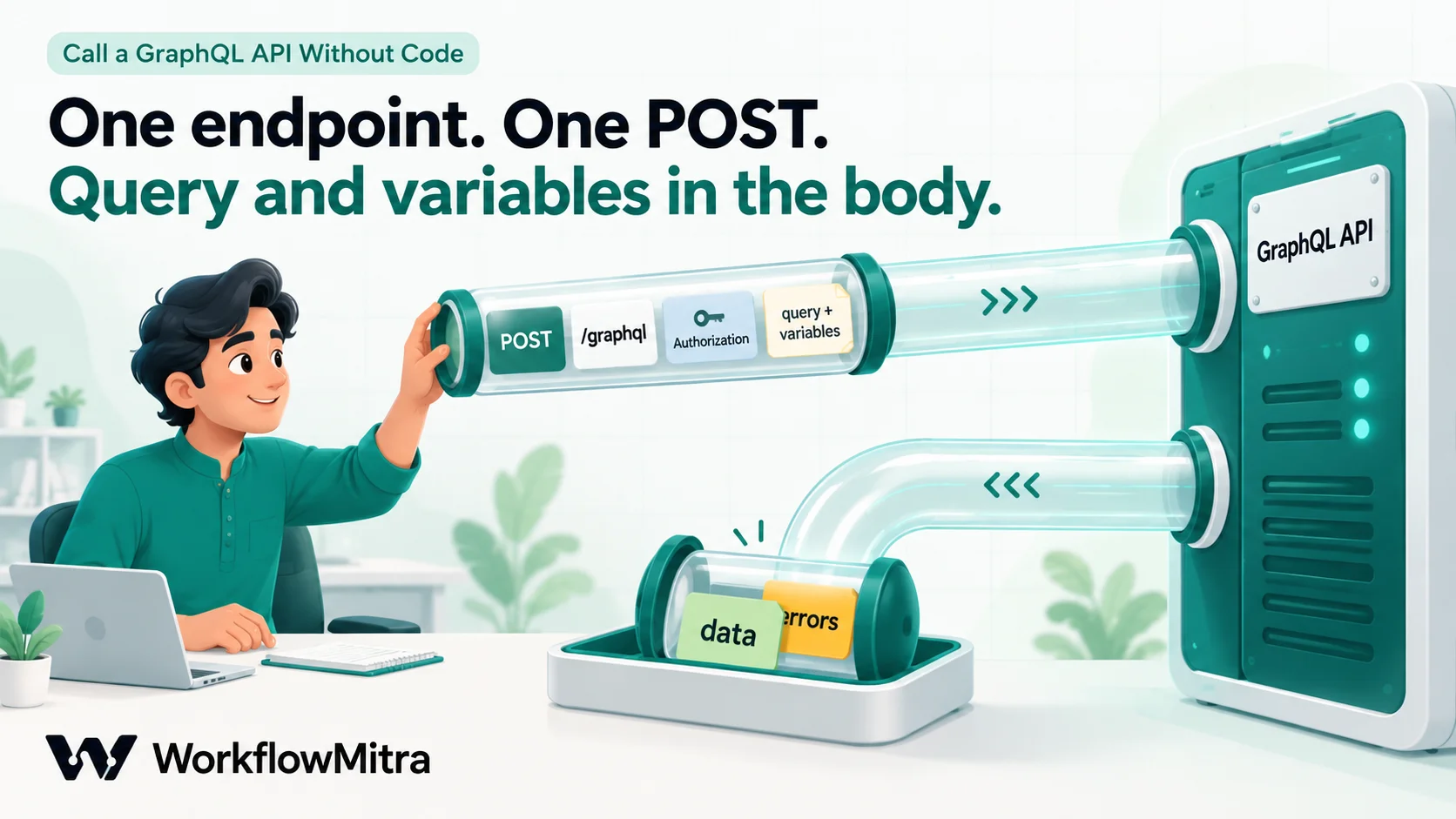
Every GraphQL call you’ll send from a workflow has the same four parts. The GraphQL project’s guide to serving over HTTP describes the standard form, and Shopify, GitHub and monday.com all follow it.
- The endpoint. One URL, such as
https://api.github.com/graphql. You never add paths to it. - The method. POST. A GET with the query in the URL is allowed for reads on some servers, but mutations must use POST, so it’s simplest to use POST every time.
- The headers.
Content-Type: application/json, plus whatever the API uses for sign-in: a bearer token, an API key, or a vendor header like Shopify’sX-Shopify-Access-Token. - The body. A JSON object:
{
  "query": "query Country($code: ID!) { country(code: $code) { name capital currency } }",
  "variables": { "code": "IN" }
}
query holds the GraphQL document as a single string. variables holds the values the query refers to with a $. There’s an optional third key, operationName, which you need only if one query string contains several named operations; a no-code workflow rarely needs it.
The reply has the same predictable shape:
{
  "data": { "country": { "name": "India", "capital": "New Delhi", "currency": "INR" } }
}
When something goes wrong, you get an errors list instead of, or as well as, data. That list is the most important thing in this guide, and we’ll come back to it.
Your first GraphQL call, step by step
Start with an API that needs no sign-in, so the only thing that can go wrong is the request itself. The public Countries API answers GraphQL queries about countries, and it’s what we used to test every rule in this guide.
In WorkflowMitra, add a Trigger manually step and then an HTTP Request step, and fill in:
- Authentication type: No authentication
- URL:
https://countries.trevorblades.com/ - Method: POST
- Body content type: Raw (JSON string)
- Body:
{"query":"query Country($code: ID!) { country(code: $code) { name capital currency } }","variables":{"code":"IN"}}You don’t need to add a Content-Type header. When the body is Raw, the step sends application/json unless you set a different type yourself.
Run the workflow. The step’s output looks like this:
{
  "status": 200,
  "ok": true,
  "body": { "data": { "country": { "name": "India", "capital": "New Delhi", "currency": "INR" } } }
}
Everything you asked for is under body.data, so a later step reads the capital as {{ body.data.country.capital }} if it comes straight after, or {{ $node["Country"].body.data.country.capital }} from further down if you named the step “Country”. (A plain {{ … }} reads only the step immediately before; see passing data between steps.)
Now make it dynamic. Replace "IN" with a value from the trigger or an earlier step:
{"query":"query Country($code: ID!) { country(code: $code) { name capital currency } }","variables":{"code":"{{ $trigger.country }}"}}That’s the whole technique. Shopify, GitHub and monday.com change only the URL, the sign-in and the query.
Three rules that make the body work
We sent ten variations of that request through WorkflowMitra’s HTTP Request step on 19 October 2026 to find out what breaks. Three rules came out of it.
Rule 1: keep the query on one line, or write line breaks as \n
The documentation shows queries spread over many lines, indented for reading. If you paste one like that inside the "query" string, the body stops being valid JSON, because a JSON string can’t contain a raw line break. GitHub’s own guide warns about exactly this: the query string “must escape newline characters”.
In our test, the multi-line version came back as HTTP 400 with “The request did not contain a valid GraphQL request.” The same query on one line, or with each line break written as \n, returned the data.
GraphQL doesn’t care about line breaks, so the easy fix is to join the query into one line with spaces. WorkflowMitra’s Raw body field also helps here: while you type, it shows “This isn’t valid JSON yet — check the braces, commas and quotes.” if the body won’t parse. If you see that warning, look for a line break inside the query string first.
Rule 2: put changing values in variables, never in the query text
It’s tempting to paste a value straight into the query:
{"query":"{ countries(filter: {name: {eq: \"{{ name }}\"}}) { code } }"}This works until a value contains a quote. We sent the name Cote d"Ivoire this way and got HTTP 400: the quote ended the GraphQL string early and the query no longer made sense. The same value sent as a variable went through cleanly:
{"query":"query ($n: String) { countries(filter: {name: {eq: $n}}) { code } }","variables":{"n":"{{ name }}"}}Variables are the GraphQL equivalent of a form field: the server treats whatever arrives there as data, never as part of the query. They also keep the query identical on every run, which makes it easy to test once and trust. Use them for every value that comes from a customer, a sheet or an earlier step.
Rule 3: quote text, leave numbers, lists and objects unquoted
WorkflowMitra’s Raw body knows it’s building JSON. A {{ }} inside quotes is escaped so it stays one valid string, quotes and line breaks included. A {{ }} outside quotes is sent as a real JSON value of its own type. So:
"code": "{{ $trigger.country }}"sends text, which is right forIDandStringvariables."first": {{ $trigger.limit }}sends a number, which anIntvariable needs."filter": {{ $node["Build filter"].filter }}sends a whole object; in our test an object with a list inside reached the API intact and filtered the results.
Two cautions. A value that is missing is sent as null when unquoted, which a required (!) variable rejects; in our test a missing required variable returned HTTP 400 with “Variable “$code” of required type “ID!” was not provided.” And a number stored as text, as often happens in a spreadsheet, arrives as text even when unquoted, which an Int variable rejects. Convert it first, for example with {{ toNumber(…) }}.
Here is everything we tested, with what came back:
| What we sent | HTTP status | What came back |
|---|---|---|
| One-line query + variables | 200 | The data |
| Same query with raw line breaks | 400 | ”not a valid GraphQL request” |
Same query with \n line breaks | 200 | The data |
Misspelt field (nme for name) | 200 | errors: Cannot query field “nme”… Did you mean “name”? |
| Country code that doesn’t exist | 200 | data.country is null, no error |
| Value with a quote pasted into the query | 400 | Invalid request |
| Same value as a variable | 200 | Valid (empty) result |
| Object variable left unquoted | 200 | Filtered data |
| Required variable missing | 400 | errors: variable not provided |
Query sent as GET ?query= | 200 | The data (this server allows GET reads) |
Look at the fourth row again. A broken query came back as a success.
The catch: GraphQL errors often arrive as HTTP 200
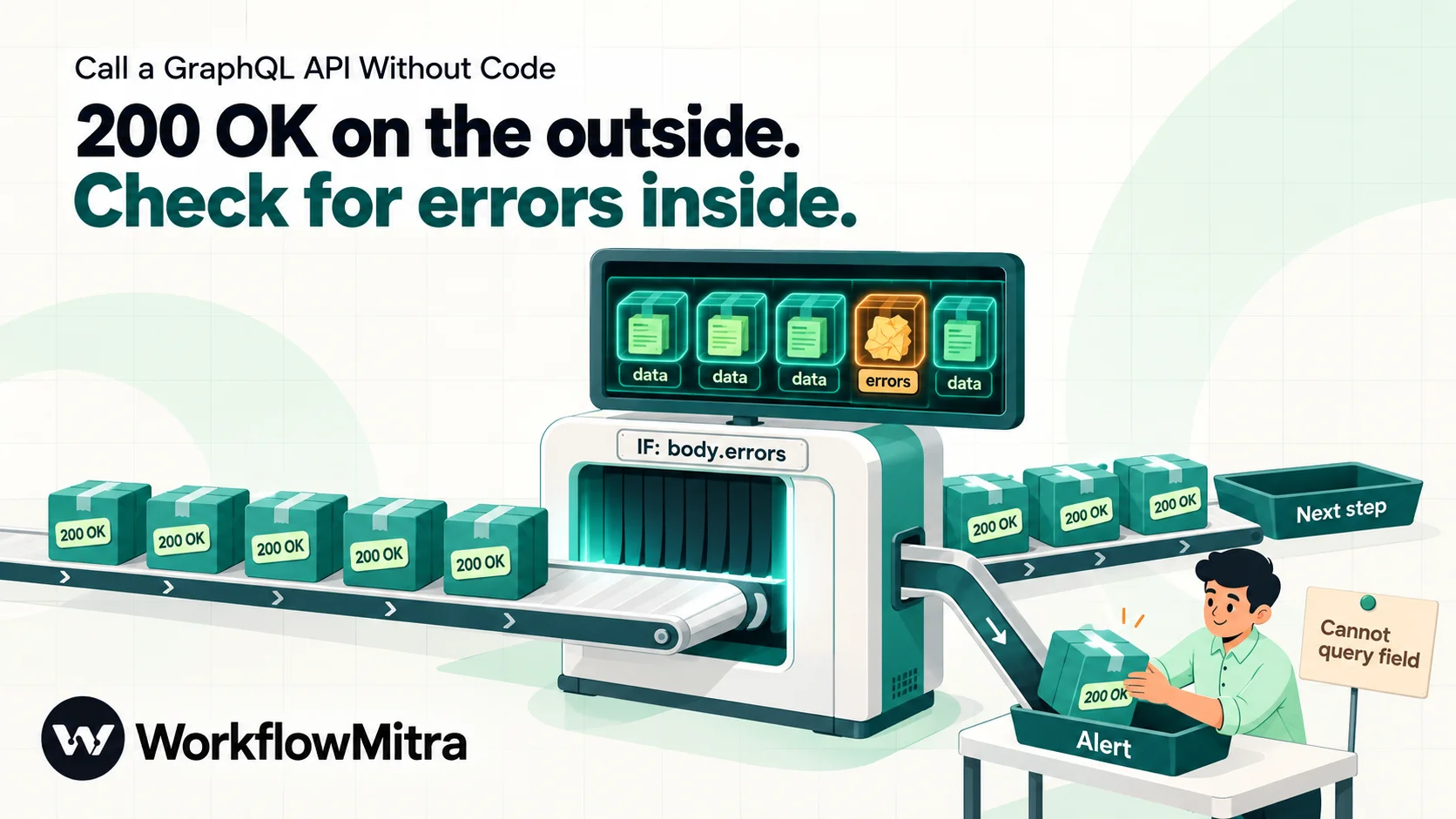
Most automation tools, WorkflowMitra included, judge a request by its HTTP status. A 2xx means the step succeeded. With REST that’s usually right. With GraphQL it often isn’t.
The GraphQL over HTTP guidance explains why. A response can contain some data and some errors at the same time, and HTTP has no status for “partly worked”, so servers send 200 whenever there’s data. Many older servers send 200 for every problem they report in errors. GitHub even answers a call that exceeds its rate limit with status 200 and an error message. And Shopify’s GraphQL Admin API reference notes that its status codes differ from REST ones, with errors such as THROTTLED and ACCESS_DENIED returned in the body.
So a GraphQL call can go wrong in five ways, and only some of them show up in the HTTP status:
| What went wrong | Typical HTTP status | Where it shows | Check in WorkflowMitra |
|---|---|---|---|
| Bad or expired token, wrong URL | 401, 403 or 404 | ok is false | IF {{ ok }} Is no |
| Body isn’t valid JSON or GraphQL | 400 | ok is false | Same check; fix the body |
| Query error, missing permission, rate limit | Often 200 | body.errors has items | IF {{ body.errors }} Is not empty |
| Record not found | 200 | The field is null | IF {{ body.data.country }} Is empty |
| Mutation refused (validation) | 200 | userErrors has items | IF {{ body.data.tagsAdd.userErrors }} Number of items is more than 0 |
The HTTP Request step doesn’t stop the workflow on a 4xx or 5xx reply. It records the status and ok: false in its output and carries on, so the check is yours to add. (A network failure or timeout does stop the step, unless you set On failure to Continue in its advanced settings, in which case it outputs status: 0 and the error message.) The App Request step has an advanced option, Treat error responses as a failure, that stops the workflow on a 4xx or 5xx. Even with that on, a GraphQL error at HTTP 200 passes straight through.
Add the error check
After every GraphQL request, add an IF step with one route, named “Has errors”, and two conditions in separate groups so that either one sends the run down the route:
{{ $node["Country"].ok }}with Is no{{ $node["Country"].body.errors }}with Is not empty
Connect “Has errors” to an alert (Slack, email or a WhatsApp message through ChatMitra) that includes {{ $node["Country"].body.errors }} so you can read the message, and connect Else to the rest of the workflow. We ran this IF step against the real error and success replies: the misspelt-field reply took the “Has errors” route and the good reply took Else. Exists and Number of items is more than 0 gave the same result on body.errors, so use whichever reads best to you. IF steps cost no credits.
For a mutation, add a third condition for the mutation’s userErrors list, as in the table. Shopify, for example, puts a refused change, such as an invalid tag, in userErrors while errors stays empty. For lookups where “not found” matters, add a route that checks the field you asked for with Is empty.
For which HTTP statuses are worth retrying and which need a fix, see HTTP status codes in automation; for alerting and retries in general, see workflow error handling.
Example: Shopify, read recent paid orders
Shopify is the reason many store owners meet GraphQL. Shopify made its REST Admin API a legacy API on 1 October 2024, and from 1 April 2025 new public apps must use the GraphQL Admin API only, according to Shopify’s REST reference. New examples, fields and features appear in GraphQL.
Address and sign-in. Requests go to https://your-store.myshopify.com/admin/api/2026-10/graphql.json, a POST with your access token in the X-Shopify-Access-Token header. The 2026-10 part is the API version; 2026-10 is current in October 2026, and Shopify supports each version for about a year, so update it when you revisit the workflow. Getting the token is the hard part since Shopify’s 2026 app changes; Shopify Admin API access tokens in 2026 covers the options, including tokens that expire every 24 hours.
In WorkflowMitra you have two choices. With a saved Shopify connection, use the App Request step: choose Shopify, set What should it do? to POST and the path /admin/api/2026-10/graphql.json, and put the body in Information to send. The connection adds the store address and the token for you. If your token is fetched fresh on each run, use an HTTP Request step instead with the full URL and an X-Shopify-Access-Token header filled from the token step.
The body. This reads the 20 most recent paid orders with their status and total:
{"query":"query RecentOrders($first: Int!, $q: String) { orders(first: $first, reverse: true, query: $q) { nodes { name createdAt displayFinancialStatus displayFulfillmentStatus totalPriceSet { shopMoney { amount currencyCode } } } pageInfo { hasNextPage endCursor } } }","variables":{"first":20,"q":"financial_status:paid"}}The orders are in body.data.orders.nodes, a list you can send to Google Sheets with one bulk Add row(s) step or step through with a Loop. The query variable uses Shopify’s search syntax, documented on the orders query reference, so financial_status:paid or created_at:>2026-10-01 narrow the list on Shopify’s side. Your app needs the read_orders access scope.
Changing something: tag an order. Mutations look the same. This one, Shopify’s tagsAdd, adds a tag to an order. Order webhooks include the order’s GraphQL ID as admin_graphql_api_id, so you can use it straight from the trigger:
{"query":"mutation AddTags($id: ID!, $tags: [String!]!) { tagsAdd(id: $id, tags: $tags) { node { id } userErrors { field message } } }","variables":{"id":"{{ $trigger.admin_graphql_api_id }}","tags":["confirmed-on-whatsapp"]}}Ask for userErrors in every mutation, and check it afterwards. Tagging orders needs the write_orders scope.
Points, not requests. Shopify limits GraphQL by calculated cost. Each object you ask for costs a point, a mutation costs 10, and a connection’s cost grows with its first value. According to Shopify’s GraphQL rate-limits page, a store restores 100 points a second on the standard plan (200 on Advanced, 1,000 on Shopify Plus), and no single query may cost more than 1,000 points. Every reply reports requestedQueryCost, actualQueryCost and the bucket’s throttleStatus under body.extensions.cost. For a workflow that runs a few times an hour you’ll never notice the limit; for one that loops through hundreds of orders, ask for fewer fields and smaller pages.
Example: GitHub, list open issues
GitHub’s GraphQL API is a good second example because it signs in the standard way, with a bearer token.
In an HTTP Request step:
- Authentication type: Bearer token, with a GitHub personal access token that can read the repository
- URL:
https://api.github.com/graphql - Method: POST
- Body content type: Raw (JSON string)
- Body:
{"query":"query OpenIssues($owner: String!, $repo: String!) { repository(owner: $owner, name: $repo) { issues(first: 20, states: OPEN, orderBy: {field: CREATED_AT, direction: DESC}) { nodes { number title url createdAt } } } }","variables":{"owner":"your-org","repo":"your-repo"}}Without a token, GitHub refuses the call; our unsigned test got a 403. With one, the 20 newest open issues are in body.data.repository.issues.nodes, ready for a daily digest in Slack or a sheet of issues to triage.
Two GitHub rules from its limits page shape your query. Every list must say first or last, with a value from 1 to 100. And a user has 5,000 points an hour; when they run out, GitHub still answers with status 200, puts the problem in errors, and sets the x-ratelimit-remaining response header to 0. The step’s output includes the response headers, so you can read it as {{ headers["x-ratelimit-remaining"] }}.
Example: monday.com, sign-in without “Bearer”
monday.com’s API is GraphQL only, and it shows why you should read each API’s sign-in rules rather than assume. Its getting-started guide sends the token in the Authorization header without the word “Bearer”, and recommends an API-Version header.
So in the HTTP Request step, leave Authentication type on No authentication, and add the headers yourself:
Authorization: your monday.com API tokenAPI-Version: the version you built against (check their docs on the day)
Then send the same kind of body to https://api.monday.com/v2, for example {"query":"query ($ids: [ID!]) { boards(ids: $ids) { name } }","variables":{"ids":["1234567890"]}}. Choosing Bearer token here would add “Bearer ” in front of the token, and monday.com would reject it. For the different ways APIs expect keys, see API authentication methods.
Getting more than one page
GraphQL APIs return lists in pages and give you a cursor to fetch the next one. In the Shopify example, pageInfo { hasNextPage endCursor } tells you whether more orders exist and where the next page starts. To get page two, send the same query with an after variable:
{"query":"query RecentOrders($first: Int!, $after: String) { orders(first: $first, after: $after, reverse: true) { nodes { name } pageInfo { hasNextPage endCursor } } }","variables":{"first":50,"after":{{ $node["Orders page 1"].body.data.orders.pageInfo.endCursor }}}}The cursor is left unquoted, so it arrives as a proper JSON string, or as null if it’s missing. Put an IF step before page two that checks {{ $node["Orders page 1"].body.data.orders.pageInfo.hasNextPage }} Is yes, because a request with after: null returns page one again and you’d process the same orders twice.
This works for a known, small number of pages. Each page is one step and one credit. For a scheduled sync, the better habit is to fetch only what changed since the last run, with a filter such as Shopify’s updated_at:> search, rather than paging through everything. For exports of thousands of records, Shopify’s bulk operations exist for exactly that job.
Where to find the right query
You don’t have to write queries from nothing:
- Copy from the reference. Shopify, GitHub and monday.com document each query and mutation with an example. Copy the example, delete the fields you don’t need, and join it onto one line.
- Ask for less. Every field you remove makes the reply easier to map and, on Shopify, cheaper. Start with two or three fields and add more when a later step needs them.
- Name the operation.
query RecentOrders(...)rather than a bare{ ... }makes errors and run logs easier to read, and it’s where you declare your variables. - Check types on variables. A query declares
$first: Int!or$id: ID!. The!means required. The type tells you whether to quote the placeholder (text and IDs) or not (numbers, lists, objects). - Start from a cURL example. If the docs give a cURL command, the HTTP Request step can import it; see converting cURL to an HTTP request. Check the body afterwards for the one-line rule.
What it costs to run
In WorkflowMitra, a credit is one step that runs. An HTTP Request or App Request step costs one credit each time it runs, whether the reply is data, an error or a timeout. The IF step that checks for errors costs nothing. A typical scheduled job, an On a schedule trigger, one GraphQL call and one Google Sheets step to save the result, uses three credits a run. Once a day, that’s about 90 credits a month. The Starter plan includes 10,000 credits a month for ₹999 (₹849 a month billed yearly), checked on WorkflowMitra’s live plans on 19 October 2026.
GraphQL can save credits compared with REST. One query can fetch orders with their customers and line items together, where a REST workflow might need a call for the orders and another for each customer.
Common mistakes
- A multi-line query inside the JSON string. The body becomes invalid JSON and the API answers 400. Join the query onto one line.
- Treating HTTP 200 as success. Check
body.errorsafter every call, anduserErrorsafter every mutation. - Pasting values into the query text. Use variables. A single apostrophe or quote in a customer’s name will break a query built by pasting.
- Quoting a number.
"first": "20"sends text to anIntvariable and fails. Leave numbers unquoted, and convert text that looks like a number. - Asking for everything. Big queries are slow, harder to map and, on Shopify, can exceed the 1,000-point limit. Ask for the fields the next step uses.
- The wrong sign-in style. Bearer token, plain
Authorizationheader or a vendor header: each API has its own. Read the getting-started page. - Forgetting the API version. Shopify’s version is in the URL and monday.com’s in a header. When a field disappears from a reply months later, an expired version is the first suspect.
Start with a query you can see
Begin with the Countries API example above: it needs no account and proves your request shape in two minutes. Then swap in the endpoint, the sign-in and one small query from the API you actually need, add the IF step that checks for errors, and only then connect the steps that use the data.
You can build all of this on a 14-day WorkflowMitra trial. For REST APIs and the HTTP Request step in general, start with how to connect any API without code; for shaping what comes back, working with JSON in workflows; and when a GraphQL API starts limiting you, handling API rate limits.
WorkflowMitra behaviour in this guide (the HTTP Request and App Request fields and options, JSON-aware handling of {{ }} in Raw bodies, the editor's JSON warning, 4xx/5xx handling, IF operators and credit rates) was checked in the product's source code on 19 October 2026. The ten request variations in the test table were sent through the real HTTP Request step to the public Countries API the same day, and the IF checks were run against the replies; the GitHub call was made without a token. Shopify and monday.com requests follow their documentation and were not run against a live store or account. Prices come from WorkflowMitra's live plans the same day. Sources: GraphQL, serving over HTTP; Shopify REST Admin API; Shopify GraphQL Admin API 2026-10; Shopify GraphQL rate limits; GitHub, forming calls with GraphQL; GitHub GraphQL limits; monday.com API, getting started.
Frequently Asked Questions
Questions people ask when an app's API turns out to be GraphQL and they don't write code.
Yes. A GraphQL call is an ordinary HTTP POST to one address with a JSON body, so any automation tool with an HTTP step can send it. You paste the query, put the changing values in a variables object, add the API's sign-in header and read the reply. The only thing you write is the query itself, which you can usually copy from the API's documentation.
Automate the work between your apps
Build workflows with triggers, conditions and actions, then test them before they go live. Try WorkflowMitra free for 14 days, no card required.
